H Y P E R I O N R E L E A S E 9 . 3 . 1
Hyperion Backup and Recovery Guide, 9.3.1
Copyright © 2007, Oracle and/or its affiliates. All rights reserved. Authors: Nancy Rose, Barbara Langworthy
The Programs (which include both the software and documentation) contain proprietary information; they are provided under a license agreement containing restrictions on use and disclosure and are also protected by copyright, patent, and other intellectual and industrial property laws. Reverse engineering, disassembly, or decompilation of the Programs, except to the extent required to obtain interoperability with other independently created software or as specified by law, is prohibited.
The information contained in this document is subject to change without notice. If you find any problems in the documentation, please report them to us in writing. This document is not warranted to be error-free. Except as may be expressly permitted in your license agreement for these Programs, no part of these Programs may be reproduced or transmitted in any form or by any means, electronic or mechanical, for any purpose.
If the Programs are delivered to the United States Government or anyone licensing or using the Programs on behalf of the United States Government, the following notice is applicable:
U.S. GOVERNMENT RIGHTS Programs, software, databases, and related documentation and technical data delivered to U.S. Government customers are "commercial computer software" or "commercial technical data" pursuant to the applicable Federal Acquisition Regulation and agency-specific supplemental regulations. As such, use, duplication, disclosure, modification, and adaptation of the Programs, including documentation and technical data, shall be subject to the licensing restrictions set forth in the applicable Oracle license agreement, and, to the extent applicable, the additional rights set forth in FAR 52.227-19, Commercial Computer Software--Restricted Rights (June 1987). Oracle USA, Inc., 500 Oracle Parkway, Redwood City, CA 94065.
The Programs are not intended for use in any nuclear, aviation, mass transit, medical, or other inherently dangerous applications. It shall be the licensee's responsibility to take all appropriate fail-safe, backup, redundancy and other measures to ensure the safe use of such applications if the Programs are used for such purposes, and we disclaim liability for any damages caused by such use of the Programs.
Oracle is a registered trademark of Oracle Corporation and/or its affiliates. Other names may be trademarks of their respective owners.
The Programs may provide links to Web sites and access to content, products, and services from third parties. Oracle is not responsible for the availability of, or any content provided on, third-party Web sites. You bear all risks associated with the use of such content. If you choose to purchase any products or services from a third party, the relationship is directly between you and the third party. Oracle is not responsible for: (a) the quality of third-party products or services; or (b) fulfilling any of the terms of the agreement with the third party, including delivery of products or services and warranty obligations related to purchased products or services. Oracle is not responsible for any loss or damage of any sort that you may incur from dealing with any third party.
Contents
Chapter 1. Overview . . . 5
System Failure Types . . . 5
Hardware or Operating System Failure . . . 6
Media Failure . . . 6 Network Outage . . . 6 Database Crash . . . 6 Backup Types . . . 6 Configuration Backup . . . 6 Data Backup . . . 7
Chapter 2. Oracle's Hyperion Components . . . 9
Components . . . 9
General Backup Procedures . . . 10
Chapter 3. Shared Services . . . 11
Shared Services Backup . . . 11
Shared Services Recovery . . . 12
Chapter 4. Financial Management . . . 15
Financial Management Backup . . . 15
Financial Management Recovery . . . 15
Chapter 5. Planning and Business Rules . . . 17
Planning Backup . . . 17
Planning Recovery . . . 18
Business Rules Backup . . . 18
Business Rules Recovery . . . 19
Chapter 6. Reporting and Analysis . . . 21
Reporting and Analysis Backup . . . 21
Reporting and Analysis Recovery . . . 22
Chapter 7. Essbase . . . 23
Essbase Backup . . . 23
Backing up Files . . . 24
Backing up Files During Run-time . . . 24
Backing up Data . . . 26
Essbase Recovery . . . 28
Restoring the File Backup . . . 28
Restoring the Data Backup . . . 28
Restoring Corrupted Databases . . . 29
Chapter 8. Other Product Components . . . 31
Performance Management Architect Backup . . . 31
Performance Management Architect Recovery . . . 31
Data Integration Management and Application Link . . . 31
Index . . . 33
1
Overview
In This ChapterSystem Failure Types ... 5 Backup Types... 6
This document provides general high-level guidelines on backing up and recovering Oracle's Hyperion products:
● “Shared Services Backup” on page 11 ● “Financial Management Backup” on page 15
● “Planning Backup” on page 17 ● “Business Rules Backup” on page 18
● “Reporting and Analysis Backup” on page 21
● “Essbase Backup” on page 23
Hyperion recommends that you customize instructions, based on your resources, software, and hardware systems.
System Failure Types
System failure can be devastating to businesses, resulting in lost data, time and revenue, and creating user dissatisfaction. Whether companies operate one database or multiple databases storing terabytes of data, they must protect themselves from disaster by developing and implementing a backup and recovery plan.
The four general failure types:
● Hardware or operating system failure
● Media failure ● Network outage
● Database crash
Hardware or Operating System Failure
Hardware or operating system failure constitutes system failure, where operations such as machine startup and login are not possible. When such conditions occur, the only option is to repair or replace the machine or bring a standby machine online.
Media Failure
Media (hard disk) failure can be as serious as hardware or operating system failures. If the primary disk drive needs replacing, reinstalling the operating system is usually required. Components must be reinstalled on the machine if the operating system is reinstalled. For secondary disks, simply replacing the failed disk might suffice. However, Hyperion recommends that you reinstall the components on that machine. In some cases, restoring some directories might be adequate for components.
Network Outage
In most cases, intermittent network issues or prolonged network outages can easily be recovered by restarting all machines that involve components. There is substantial communication among software components and between Hyperion software and the database. In certain cases, this can be done without system administrator intervention. Sometimes restarting all the servers is required.
Database Crash
Database crashes can happen for many reasons: hardware or media failure, database machine operating system, or some other issue with the database software release. In any case, protecting the data and recovering the failed system in a timely manner is important. Hyperion strongly recommends that you regularly back up data.
Backup Types
Information backup categories:
● Configuration backup
● Data backup
Configuration Backup
After installing Oracle's Hyperion software, you must configure the components. Configuration information includes but is not limited to: database location, log settings, Web server
configuration, and port numbers. Configuration information is stored in the:
● Registry
● Configuration files (generally with .properties extensions)
● Configuration .XML files
● Directory structure
In general, configuration backup can be used only in limited cases.
Data Backup
Database backup is one of the most important procedures in maintenance. Consider the following database backup types.
Logical Export
In principle, logical export generates necessary SQL statements to obtain all the data from all tables, and in most cases, writes to a binary file. Logical export does not contain database instance-related information such as the physical disk location, so it is possible to restore the same data on another database machine with a different setup. Periodic logical exports (at least once a week) are useful if physical backups fail or the database machine is unavailable.
Physical Full Backup
A physical full backup is a representative copy of data. This copy can include important parts of a database such as the control file, transaction files (redo logs), archive files, and data files. A full backup protects data from application error and acts as a safeguard against unexpected data loss by providing a way to restore original data.
Hyperion strongly recommends that you periodically perform full backups (once a week or every two weeks). During the backup, it is important to shut down all component to ensure full data integrity. After the backup process is complete, components can be restarted for regular use.
Physical Incremental Backup
Physical incremental backups are done more frequently, capturing the changes from the previous full backup. The files differ for databases, but in general, the incremental backup files can be applied on top of the full backup to bring the database to the latest state. Incremental backups can be done during normal use. Database performance might not be optimal during incremental backups, so choose a slow time with less user traffic to perform this operation.
2
Oracle's Hyperion Components
In This ChapterComponents ... 9 General Backup Procedures ...10
Components
This section discusses components and their dependencies. See the individual product documentation for configuration details.
Component Name Description Dependencies
Oracle's Hyperion® Shared Services Provides a core set of services, such as authentication and user provisioning.
OpenLDAP, Database
Oracle's Hyperion® Financial Management – System 9
Financial consolidation and reporting solution.
Shared Services, Database
Oracle's Hyperion® Planning – System 9
Centralized planning, budgeting, and forecasting solution.
Shared Services, Database, Oracle's Hyperion® Essbase® – System 9 , Oracle's Essbase® Administration Services
Oracle's Hyperion® Business Rules Guides users through management of business rules on Essbase server.
Shared Services, Database, Administration Services Oracle's Enterprise Performance
Management Architect
Business process modeling tool for building and maintaining EPM applications.
Financial Management, Planning
Oracle's Hyperion® Reporting and Analysis – System 9
Comprehensive business intelligence platform for reporting and analysis. Includes:Oracle's Hyperion® Workspace, Oracle's Hyperion® Financial Reporting – System 9, Oracle's Hyperion® Interactive Reporting – System 9, Oracle's Hyperion® SQR® Production Reporting – System 9, and Oracle's Hyperion® Web Analysis – System 9
Shared Services, Database
Essbase Analytic platform for business
modeling and analysis
Administration Services Enables distribution of processing across multiple servers
Shared Services, Financial Management, Planning Oracle's Hyperion® Data Integration
Management
Integrates external source data with EPM applications
Oracle's Hyperion® Application Link Integrates external source data with EPM applications
General Backup Procedures
These backup steps apply for all Hyperion products:
● Before file backup, stop all services that might hinder the backup process, specifically Hyperion-related services.
● Some Oracle's Hyperion products have configuration files and data that are updated
throughout the usage cycle. Daily, recursively back up the entire installation directory, for example, C\:Hyperion.
● Back up all system environment variables, for example: ARBORPATH,ESSLANG, and
HYPERION_HOME.
● Back up the entire Windows OS registry, including entries made by installation and
configuration, for example: HKEY_LOCAL_MACHINE\SOFTWARE\Hyperion Solutions.
3
Shared Services
In This ChapterShared Services Backup ...11 Shared Services Recovery...12
Shared Services Backup
The Shared Services installation includes scripts that perform the backup process. These files should be backed up on a daily basis:
● Shared Services application server configuration files ● OpenLDAP database configuration file
● All OpenLDAP data and log files
Relational databases for Shared Services store event, administrator, and metadata services-related data. Procedures for backing up relational databases are specific to the database type for which Shared Services is configured. See the database vendor documentation for instructions. OpenLDAP database is installed with and automatically configured by Shared Services. OpenLDAP stores security services-related data.
Note:
Shared Services can run during OpenLDAP backups.
To ensure that Shared Services can recover from catastrophic failure, back up data sources simultaneously (to ensure that data is synchronized).
Note:
If you manually deployed the application server (bypassing Oracle's Hyperion® Configuration Utility™), the backup script (<HSS_HOME>\server\scripts\hss_backup.bat) does not
back up the application server configuration. Therefore you must manually edit the backup script with the correct path location of the Shared Services installation.
➤ To create a hot backup of OpenLDAP:
1 Ensure that the Shared Services database is in online backup mode.
2 Run these commands:
Windows: <HSS_HOME>\server\scripts\backup.bat backup_folder_name UNIX: <HSS_HOME>/server/scripts/backup.sh backup_folder_name
where <HSS_HOME> is the Shared Services installation location and backup_folder_name is the path to the backup folder.
Windows example:
c:\hyperion\SharedServices\9.3\server\scripts\backup.bat c:\HSS_backup
UNIX example:
/home/username/Hyperion/SharedServices/9.3/server/scripts/backup.sh/ home/username/HSS_backup
3 Optional: Copy the backup folder to a backup device, such as a CD-ROM, alternate disk, or tape. These files are backed up:
Directory Files
Windows: <HYPERION_HOME>\deployments\<appServer> \<version>\
Note: For WebLogic 8.1.x, the location is: <HSS_HOME>\AppServer \InstalledApps\WebLogic\8.1\.
UNIX: <HYPERION_HOME>/deployments/<appServer>/<version>/
Note: For WebLogic 8.1.x, the location is: <HSS_HOME>/AppServer/ InstalledApps/WebLogic/8.1/. Domain.xml slide.properties CSS.xml WorkflowEngine.properties Scheduler.properties manage_data.properties
Windows: <HSS_HOME>\OpenLDAP UNIX: <HSS_HOME>/OpenLDAP
slapd.conf
Windows: <HSS_HOME>\OpenLDAP\var\openldap-data UNIX: <HSS_HOME>/OpenLDAP/var/openldap-data
*.bdb files log.* files
Shared Services Recovery
To recover Shared Services from a catastrophic failure, restore configuration and data files and run the Sync OpenLDAP utility. Installing Shared Services includes scripts that perform the recovery process.
To recover Shared Services data, you recover the relational and OpenLDAP databases. When recovering from backups, ensure that the time stamps of the OpenLDAP database backup and the relational database backup match (or are close). The procedures for recovering relational databases are specific to the database type for which Shared Services is configured. See the database vendor documentation for instructions.
➤ To recover the configuration and data:
1 Stop the OpenLDAP service (Hyperion SharedServices9 OpenLDAP). 2 Perform an action:
● For a normal (non-catastrophic) recovery, run these commands:
Windows: <HSS_HOME>\server\scripts\recover.bat backup_folder_name UNIX: <HSS_HOME>/server/scripts/recover.sh backup_folder_name where <HSS_HOME> is the Shared Services installation location and
backup_folder_name is the path to the backup folder. Windows example:
c:\hyperion\SharedServices\9.3\server\scripts\recover.bat c: \HSS_backup
UNIX example: /home/username/Hyperion/SharedServices/9.3/server/ scripts/recover.sh/home/username/HSS_backup
The recover script locates the backed up configuration and data files and places them in the appropriate directory under <HSS_HOME>.
● For a catastrophic recovery, run these commands:
Windows: <HSS_HOME>\server\scripts\recover.bat backup_folder_name
catRecovery
UNIX: <HSS_HOME>/server/scripts/recover.sh backup_folder_name
catRecovery
where <HSS_HOME> is the Shared Services installation location and
backup_folder_name is the path to the backup folder. Windows example:
c:\hyperion\SharedServices\9.3\server\scripts\recover.bat c: \HSS_backup catRecovery
UNIX example: /home/username/Hyperion/SharedServices/9.3/server/ scripts/recover.sh/home/username/HSS_backup catRecovery
To ensure that the Shared Services relational and OpenLDAP databases are synchronized, run the Sync Native Directory (OpenLDAP) utility. See theHyperion Security Administration Guide.
4
Financial Management
In This ChapterFinancial Management Backup...15 Financial Management Recovery ...15
Financial Management Backup
Most of the Financial Management configuration information is stored in the registry under
HKEY_LOCAL_MACHINE\SOFTWARE\Hyperion Solutions\Hyperion Financial
Management. In addition, some DCOM security information is associated with HFMServer and HsvDataSource executables. Because it is difficult to back up and restore this information,
Hyperion highly recommends that you rerun the Financial Management Configuration Utility to configure this information correctly.
Back up these items:
● Registry export for HKEY_LOCAL_MACHINE\SOFTWARE\Hyperion Solutions \Hyperion Financial Management
● UDL file (database connection information)
● Customized style sheets, for example, for Intercompany Reports
➤ To back up the database:
1. Stop the HFM Web Services and IIS.
2. Stop all the HFM Services and processes, including HFMServer, HsvDataSource, CASSecurity and HFMService.
3. Perform a full database backup. 4. Optional: Start the HFM Service. 5. Start the IIS and Web Services.
Financial Management Recovery
In general, reconfiguring Financial Management in its entirety is easier than recovering individual items. Since DCOM security backup is not possible, to reset this information, you
must rerun the Financial Management Configuration Utility. This information can be restored if needed:
● UDL file (database connection information) ● Customized style sheets
5
Planning and Business Rules
In This ChapterPlanning Backup ...17
Planning Recovery ...18
Business Rules Backup...18
Business Rules Recovery ...19
Planning Backup
Back up these items daily to be able to restore to a previous state:
● Planning database
● Essbase outline files for all applications ● Essbase security file
● Essbase configuration file ● Full export of Essbase data
These items require backup on an as-needed basis:
● Back up recursively the entire Planning installation directories, for example: C:\Hyperion \Planning and C:\Program Files\Hyperion Solutions.
● Back up the properties files (PlanningSystemDB.properties,
HBRServer.properties, essbase.properties). These should have been backed up
as part of the entire installation directory but are listed as a double-check measure.
● Back up the entire OS registry, including entries made by the installer.
● Back up the entire OS System folder where it contains many Planning Shared Libraries, for example C:\Windows\System32.
● Back up the entire third-party vendor's Application Server directory that is used to deploy the products, for example: C:\BEA or C:\WebSphere.
● Back up vpd properties. Search the installation drive, which is typically in C: \Windows (Windows 2000) or C:\Documents and Settings\<user>\WINDOWS
(Windows 2003).
● On UNIX, back up custom scripts such as startup files that are associated with Oracle's Hyperion products.
● On UNIX, back up the Hyperion user home directory, which contains important profiles
such as Hyperion.<server name>, .profile, and vpd.properties file, for
example: /export/home/Hyperion.
➤ To back up the database:
1. Stop Shared Services, Administration Services, Essbase, and Planning services. 2. Perform a full database backup.
3. Start all services in the order listed above.
Planning Recovery
➤ To recover the configuration:
1. Stop Shared Services, Administration Services, Essbase, and Planning services.
2. Restore recursively the entire Hyperion directory. Using the backup tool, restore directories and files that are considered corrupted or lost.
3. Restore the Planning-specific directory recursively, for example: C:\Hyperion.
4. Restore Shared Services from the backup, using instructions in the Hyperion Shared Services Installation Guide.
5. Restore all system environment variables that were previously backed up.
6. Restore third-party Application Server directories. Using the backup tool, restore directories and files that are considered corrupted or lost.
7. Restore all registry entries pertaining to Oracle's Hyperion installation and configuration that were previously backed up.
8. Restore the entire OS System folder where it contains Planning Shared Libraries footprint, for example: C:\Windows\System. Optionally, using the backup tool, restore directories and files that are considered corrupted or lost.
9. Restore Administration Services / Business Rules database. 10. Restore the backed up Business Rules property file. 11. Restore Essbase directories, including all outline files.
12. Populate data in the Essbase database from the data backups. 13. Restore the Planning database.
14. Restore Planning property files that were backed up. 15. Restart all servers.
Business Rules Backup
Daily, back up:● AdminServices\storage directory
● Dao.properties, Hub.properties, Locale.properties, OlapAdmin.properties, WorkflowClient.properties,
HBRServer.properties, *.xml (located in the AdminServices\server directory).
➤ To back up the database:
1. Stop Shared Services, Administration Services, Essbase, and Planning services. 2. Perform a full database backup.
3. Start all services in the order listed above.
Business Rules Recovery
See the Planning Configuration recovery procedures. If only data recovery is needed so that Planning and Business Rules can be rolled back to an earlier date and time, only these steps are needed.
➤ To recover the database:
1. Restore Administration Services / Business Rules database.
2. Restore the backed up Oracle's Hyperion® Business Rules property file. 3. Restore Essbase directories, including all outline files.
4. Populate data in the Essbase database from the data backups. 5. Restore the Planning database.
6. Restore Planning property files that were backed up. 7. Restart all servers.
6
Reporting and Analysis
In This ChapterReporting and Analysis Backup...21 Reporting and Analysis Recovery ...22
Reporting and Analysis Backup
These items should be backed up to be able to restore to a previous state:
● Reporting and Analysis database
● Reporting and Analysis installation directory and all subdirectories, for example, C: \Hyperion\BIPlus.
● Hyperion_Home common directory and all subdirectories, for example, C:\Hyperion \common.
● OS registry including entries made by the installer
● Third-party vendor's Application Server directory that is used to deploy Reporting and
Analysis, for example, C:\BEA or C:\WebSphere.
● ANDALE fonts, typically found in C:\Windows\fonts\ANDALE*.ttf (Windows 2000) or C:\Documents and Settings\<user>\WINDOWS\fonts\ANDALE*.ttf
(Windows 2003).
● VPD properties file, which is typically located in C:\Windows (Windows 2000) or C: \Documents and Settings\<user>\WINDOWS (Windows 2003).
● On UNIX, Reporting and Analysis user's home directory, which contains important information profiles such as .hyperion.<server name>, .profile,
and .vpd.properties file, for example: export/home/hyperion.
➤ To back up the database:
1. Stop all Reporting and Analysis services.
2. Perform a full backup of the Reporting and Analysis database. 3. Start all Reporting and Analysis services.
Reporting and Analysis Recovery
➤ To recover the configuration:1. Restore the Reporting and Analysis database.
2. Restore the Reporting and Analysis installation directory and all subdirectories, for example,
C:\Hyperion\BIPlus.
3. Restore the Hyperion Home common directory and all subdirectories, for example, C: \Hyperion\common.
4. Restore all registry entries pertaining to Oracle's Hyperion installation in the OS registry if it was corrupt.
5. Restore the third-party vendor's Application Server directory that is used to deploy Reporting and Analysis, for example, C:\BEA or C:\WebSphere.
6. Restore the vpd.properties file to the original location. 7. Restore the ANDALE fonts to the original location.
8. On UNIX, restore the Reporting and Analysis user's home directory. 9. Restart all servers.
➤ To recover the database:
1. Stop all Reporting and Analysis services.
2. Restore the backup of the Reporting and Analysis database.
3. Start all Oracle's Hyperion® Reporting and Analysis – System 9 services.
7
Essbase
In This ChapterEssbase Backup ...23 Essbase Recovery ...28
Essbase Backup
A key part of a database maintenance routine includes regular backups of Essbase files and data. It is important to integrate regular database backups into production server maintenance. The frequency of backups depends on the volatility of the database and server environment, and the demand for quick database restores if the server crashes.
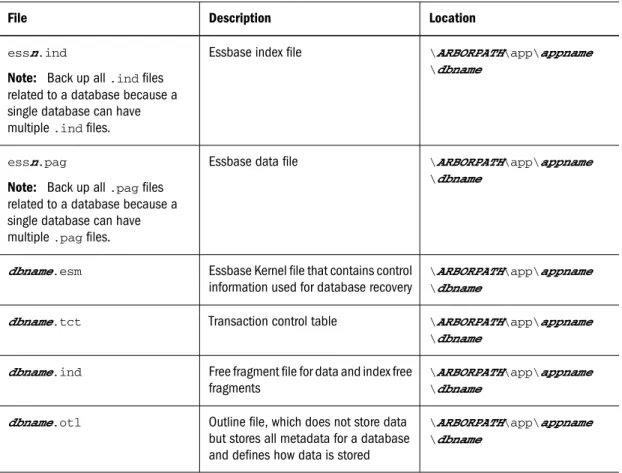
Regularly back up the server, application, and database files listed in Table 1:
Table 1 Items to Back Up
File Description Location
essn.ind
Note: Back up all .ind files related to a database because a single database can have multiple .ind files.
Essbase index file \ARBORPATH\app\appname
\dbname
essn.pag
Note: Back up all .pag files related to a database because a single database can have multiple .pag files.
Essbase data file \ARBORPATH\app\appname
\dbname
dbname.esm Essbase Kernel file that contains control
information used for database recovery
\ARBORPATH\app\appname \dbname
dbname.tct Transaction control table \ARBORPATH\app\appname
\dbname
dbname.ind Free fragment file for data and index free
fragments
\ARBORPATH\app\appname \dbname
dbname.otl Outline file, which does not store data
but stores all metadata for a database and defines how data is stored
\ARBORPATH\app\appname \dbname
File Description Location
dbname.app Application file containing application
settings
\ARBORPATH\app
dbname.db Database file containing database
settings
\ARBORPATH\app\appname \dbname
x.lro Linked Reporting Objects \ARBORPATH\app\appname
\dbname essbase.sec
Note: Shut down the Agent before backing up essbase.sec.
Essbase security file \ARBORPATH\bin
essbase.bak Backup of the Essbase security file \ARBORPATH\bin essbase.cfg Essbase Server configuration file \ARBORPATH\bin .otl, .csc, .rul, .rep, .eqd,
.sel
Database artifact files \ARBORPATH\app\appname \dbname
ESSCMD or MaxL scripts No defined storage location
You must back up both Essbase files and data. See:
● “Backing up Files” on page 24 or “Backing up Files During Run-time” on page 24
● “Backing up Data” on page 26
Backing up Files
When performing a file system backup, use the file system backup software of your choice. You can back up specific directories or files, or you can back up the entire Essbase directory structure. Be sure to back up data on every disk volume.
Typically, you should perform a backup after Essbase applications and databases, and the Agent, are shut down.
Backing up Files During Run-time
If any Essbase databases must be running at the time of the backup, follow these steps: 1. “Placing a Database in Read-Only Mode” on page 24.
2. “Performing a File Backup” on page 25.
3. “Returning a Database to Read-Write Mode” on page 25.
Placing a Database in Read-Only Mode
Placing the database in read-only (or archive) mode protects the database from updates during the backup process.
➤ To place a database in read-only mode, use a tool:
Tool Topic Location
MaxL alter database begin archive Essbase Technical Reference
ESSCMD BEGINARCHIVE Essbase Technical Reference
After you perform the backup, return the database to read-write mode. The BEGINARCHIVE utility performs these tasks:
● Commits modified data to disk.
● Switches the database to read-only mode.
● Reopens the database files in shared, read-only mode.
● Creates in the ARBORPATH\app\appname\dbname directory a file (default name of
archive.lst) containing a list of files to be backed up.
Attempting to modify data during the backup process results in an error message that data is in read-only mode.
BEGINARCHIVE does not perform the backup; it protects the database during the backup process. If you cancel the BEGINARCHIVE ESSCMD command or the alter database begin archive MaxL statement and you receive a “can’t cancel” message, the system may be in the final stage of writing items to the drive, when the operation cannot be cancelled.
Caution!
If you back up data without using a BEGINARCHIVE utility, ensure that all Essbase applications are closed and that all users are logged off during the backup process to avoid corrupting the database.
Performing a File Backup
After putting the database in read-only mode, you are ready to perform the backup.
➤ To back up data, use a third-party backup utility to back up the files listed in archive.lst and
the files listed in Table 1, “Items to Back Up,” on page 23, or back up the entire Essbase directory structure.
Returning a Database to Read-Write Mode
➤ To return the database to read-write mode, after performing a backup, use a tool:
Tool Topic Location
MaxL alter database end archive Essbase Technical Reference
Tool Topic Location
ESSCMD ENDARCHIVE Essbase Technical Reference
The ENDARCHIVE utility:
● Returns the database to read-write mode.
● Re-opens database files in exclusive, read-write mode.
Note:
You must use the ENDARCHIVE utility to put the database back into read-write mode, even if you shut down and restart the database. The ENDARCHIVE utility does not restart the database.
Backing up Data
Exporting data copies it to a file that you specify.
When exporting data to a text file, the data is not compressed. The text export file contains data only and does not include control, outline, or security information.
Consider exporting data to:
● Transfer data across platforms
● Back up only part of the data; for example, level 0 blocks
● Create an exported file in text format, rather than binary format
The advantages of exporting data:
● You can use text export files to load data from the source database into databases on other platforms. The option to export a database in column format enables you to manipulate the export file and use it with a rules file to load the data back or to another database.
Loading an export file into a database fails if the database outline does not contain all the members in the export file.
If the outline changes between the time that the export file is created and reloaded (and the new outline contains all the members found within the export file), the load time might be significantly higher than if the outlines were identical.
● Data integrity is verified because every block is checked to confirm whether corresponding page and index files match.
● Exporting data, clearing all data from the database, and reloading the text file can reduce fragmentation.
The disadvantages of exporting data:
● Unless dynamic calculations are executed at the time of the export, only stored data and data from previously calculated Dynamic Calc And Store members are included in the export.
● During a database export, users cannot write to the database. After an export has started,
users can do read operations. Exports of large databases require considerable amounts of time, during which users can only read the data.
Note:
You can export subsets of data by creating reports or calculation scripts.
➤ To export data, use a tool:
Tool Topic Location
Administration Services Exporting Databases Essbase Administration Services Online Help
Report Writer Use a Report Writer script to export selected data.
Hyperion Essbase - System 9 Database Administrator's Guide
Calculation script (block storage only) DATAEXPORT calculation commands
Hyperion Essbase - System 9 Database Administrator's Guide
ESSCMD EXPORT or PAREXPORT Essbase Technical Reference
MaxL export data Essbase Technical Reference
Note:
To improve export performance, you can export data in parallel to a specified number of files.
All methods require:
● Names of export data files ● The amount of data to export
❍ All data
❍ Level 0 blocks only (blocks containing only level 0 sparse member combinations; these
blocks may contain data for upper-level dense dimension members)
❍ Data from input blocks only (blocks containing data from a previous data load or spreadsheet Lock & Send)
● Whether to export data in a columnar or non-columnar format
In each row, the columnar format displays a member name from every dimension. Names can be repeated from row to row.
The columnar format provides a structure to the exported data, so that it can be used for further data processing by applications other than Essbase tools; for example, relational databases. In non-columnar format, sparse members identifying a data block are included only once for the block. Because the export file in non-columnar format is smaller than in columnar format, reloading a file in non-columnar format is faster.
Exporting Files Larger Than 2 GB
Some file management systems do not support text files larger than 2 GB. On any operating system, if Essbase anticipates that an export file exceeds 2 GB, it creates two or more export files, as needed. The requested file name for the main file is used. An underscore and a sequential cardinal number are appended to the names of the additional files, starting with _1. For example, if the requested file name is expJan.txt and the exported data would exceed 4 GB, Essbase creates three files, naming them expJan.txt, expJan_1.txt, and expJan_2.txt. Exported data files can be reloaded in any sequence.
Essbase Recovery
Restoring the File Backup
To restore a database, replace the files on disk with the corresponding files from backup. The application should be stopped, unless you are restoring from an export file. In that case, ensure the application is not accepting client connections.
Restoring the Data Backup
➤ To reload exported data, use a tool:Tool Topic Location
Oracle's Essbase® Administration Services
Performing a Data Load or Dimension Build
Essbase Administration Services Online Help
ESSCMD IMPORT Essbase Technical Reference
MaxL import data Essbase Technical Reference
Calculation script DATAIMPORTBIN (exported binary files only)
Essbase Technical Reference
When you reload data that has been exported, the data is marked as input data. If you reload data exported from level 0 blocks or input blocks, you must recalculate the database after reloading. When Essbase recalculates the database, it recalculates every data block.
If you export all data in a database and then reload, Essbase marks all blocks in the database as input blocks. Consequently, if you try to clear data, no data is cleared because the database contains no non-input blocks.
When you reload data that has been exported, Essbase also marks the data blocks as dirty. If you had calculated the database before exporting it, to save time during the next calculation, you should set the status of the blocks as clean. If you had not calculated the database before exporting it, it is not necessary to set the status of the blocks as clean.
➤ To clean block status in a database after exporting all data and reloading, you can run this calculation script:
Set ClearUpdateStatus Only; Calc All;
Restoring Corrupted Databases
If there is a problem with any one of these essential database files, the entire database becomes corrupted and Essbase Server cannot start the database:
● essn.pag
● essn.ind
● dbname.esm
● dbname.tct
● dbname.ind
To restore the database, delete these file, restart the database, and reload from data files or from export files backed up before the corruption.
8
Other Product Components
In This ChapterPerformance Management Architect Backup...31 Performance Management Architect Recovery ...31 Data Integration Management and Application Link ...31
Performance Management Architect Backup
Regularly, back up the Performance Management Architect database. See the database vendor documentation for instructions.
Performance Management Architect Recovery
➤ To recover the configuration:1. Restore the databases.
2. Configure Oracle's Hyperion® Shared Services, which must be up and running before you reconfigure Performance Management Architect.
3. Run the Oracle's Hyperion® Configuration Utility™ and reconfigure Financial Management or Planning as needed, and then reconfigure Performance Management Architect.
➤ To recover the database:
1. Stop all Performance Management Architect services. 2. Restore the backup of the database.
3. Start all Oracle's Enterprise Performance Management Architect services.
Data Integration Management and Application Link
There are no specific backup procedures for Oracle's Hyperion® Data Integration Management or Oracle's Hyperion® Application Link. Import the data to Oracle's Hyperion® Financial Management – System 9, Oracle's Hyperion® Planning – System 9, or Oracle's Hyperion® Essbase® – System 9 and follow the backup procedures for those applications to back up data.
Index
A
alter database (MaxL), 25 Application Link, 31
application server, manual deployment, 11 applications, stopping before backup, 25 ARCHIVE.LST file, 25 archiving data, 24
B
backing up databases by exporting, 26 cautions for, 25 files to back up, 23 overview, 23 preparing, 24 backup types, 6 backups cautions for, 25 export method, 26 file list, 23file system method, 24 general procedures, 10 restoring from, 28
BEGINARCHIVE command, 25 binary data, export and import, 26 Business Rules
backup, 18 recovery, 19
C
calculation scripts, clearing databases after export, 29 canceling archive operations, 25
components, 9 configuration backup, 6 corrupted data, 25 and restoring, 29
D
data backing up, 23 corrupted, 25 database files, 29 exporting for backups, 26 recalculating after exporting, 28 reloading exported, 26, 28 restoring from backups, 28 data backup, 7data blocks, exporting, 28 data files
backing up, 23 list to backup, 23
Data Integration Management, 31 database files backing up, 23 corruption and, 29 essential files, 23 databases backing up, 23 crash, 6 exporting methods, 27
larger than 2 GB, exporting, 28
putting in archive or read-only mode, 25 restoring from backups, 28
taking out of archive or read-only mode, 25 dirty status resulting from reloads, 28
disk volumes, backing up data on, 24
E
ENDARCHIVE command, 26 Essbase backup, 23 recovery, 28 export (MaxL), 27, 28 export binary, 26, 28 A B C D E F H I L M N O P R S T W Index 33EXPORT command, 27, 28 columnar format, 27 exported data reloads, 26, 28 exporting
data
for backups, 26 in parallel, 27 recalculating, 28
databases larger than 2 GB, 28
F
file system, backing up databases with, 24 files
backing up, 23
essential for Essbase, 23 Financial Management
backup, 15 recovery, 15 full backups, 7
H
hard disk failure, 6 hardware failure, 6
I
import binary data, 28 incremental backups, 7
input data, reloading exported data, 28
L
level 0 blocks, exporting, 28 logical export, 7
M
maintenance tasks, backing up data, 23 manual application server deployment, 11 media failure, 6
multiple export files for databases, 28
N
network outage, 6
O
OpenLDAP backup, 11
operating system failure, 6 overview, 5
P
PAREXPORT command, 27, 28 Performance Management Architect
backup, 31 recovery, 31
physical full backups, 7 Planning
backup, 17 recovery, 18 platforms
creating backups for, 26 porting applications across, 26
porting applications, creating backups for, 26
R
read-only mode, backups and, 24 read-write mode, backups and, 24 recalculating data after exporting, 28 reloading exported data, 26
replacing files from backups, 28 Reporting and Analysis
backup, 21 recovery, 22
restoring databases from backups, 28
S
Shared Services backup, 11 recovery, 12
stopping applications before backup, 25 Sync OpenLDAP utility, 12
system environment variables, 10 system failure types, 5
T
third-party backup utility, 24
W
Windows OS registry, 10
A B C D E F H I L M N O P R S T W