HOW TO LEARN
BASIC
COMPUTER
SKILLS
TO 75+ SENIORS
M A S T E R T H E S I S
WHAT HELPS BEST: AN ERROR GUIDED
OR AN ERROR FREE INSTRUCTIONAL VIDEO?
HOW TO LEARN
BASIC
COMPUTER SKILLS
TO 75+ SENIORS
WHAT HELPS BEST: AN ERROR GUIDED
OR AN ERROR-FREE INSTRUCTIONAL VIDEO?
MASTER THESIS
Marianne Scheepens
1615009
GRADUATION COMMITTEE
1st supervisor Dr. J. Karreman
2nd supervisor Prof. dr. M.D.T. de Jong
ABSTRACT
Learning basic computer skills to 75+ seniors is central in this study. The assumption is that an
error guided instruction is more Effective, Efficient and Satisfying as an error free instruction, and thereby has higher effect on Self-efficacy beliefs. Literature before 1990 emphasized on error free
instructions: errors cause stress and anxiety and are demotivating (Skinner, 1968). Later research showed positive effects for learning because of features of ‘predicting’ (e.g. error) information, that are stored in memory (Johnson & Seifert, 1992) or because of elaborating mental models (Ivancic and Hesketh, 1995). However, do these results count for 75+ seniors as well? Eight video-instructions were designed, teaching them how to use the keyboard to make an e-mail and how to handle the e-mail process. In this study forty people of 75 – 97 years of age participated. They recently became in the possession of a senior tablet (Compaan) and had none or very little computer experience. In the
training and test-procedure, first an introduction video was shown, whereafter a pre-test procedural and
declarative knowledge was held. After that, instructional videos were alternated with time to practice and asking questions. Finally participants had to send a mail and perform the post-test. The instruction took place in their own homes. After two weeks, they were questioned about Satisfaction and
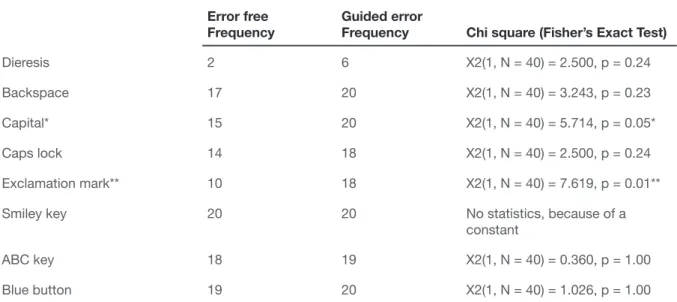
Self-efficacy on the telephone. The results showed significant knowledge gains for both conditions. For Effectiveness the error guided group performed better in two out of eight tasks, for Efficiency in one
out of eight tasks. For the other tasks there were no differences. Most participants of both conditions
were positive or very positive for Satisfaction. The gains for Self-efficacy were significant in favor of
Contents
Abstract ... 3
1. Introduction ... 6
2. Compaan system ... 9
3. Theoretical framework ...12
3.1. Technology adoption by seniors ... 12
3.2. Learning of 75+ seniors ... 13
3.3. Instructional video as a learning technique ... 14
3.4. Error guided instruction ... 17
4. Methods...21
4.1. Design ... 21
4.2. Pre-tests developing instructional materials ... 21
4.2.1. Design of instructional video ...21
4.2.2. Design test procedure ...22
4.2.3. Results usability test 1 ...22
4.2.4. Results usability test 2 ...26
4.3. Materials ... 29
4.3.1.
Video instruction: error free and error guided ...29
4.3.2. Training and test environment ...29
4.3.3. Training and test procedure quantitative data ...30
4.3.4. Procedure qualitative data ...33
4.3.5. Assessment measures ...33
4.8. Research Participants Recruitment ... 35
4.9. Research participants ... 35
5. Results ...37
5.1. Effectiveness ... 37
5.2.
Efficiency
... 39
5.3. Additional quantitative results ... 40
5.4.
Qualitative data Satisfaction and Self-efficacy
... 41
5.5.
Additional data Satisfaction and Self-efficacy
... 42
6. Discussion ...44
6.1. The relevance of the results ... 44
6.2. Limitations and future research ... 47
7. Conclusion ...49
8. Recommendations for Compaan company ...50
9. Acknowledgement ...51
REFERENCES ...52
Illustration Dielis Delen
1. INTRODUCTION
Discussing frequently occurring errors in instruction material to learn basic computer skills for 75+ seniors can be tricky. “I dare not, I am afraid the computer will break down”. Very possibly a 75+ senior is speaking who was brought up with mechanical devices that get stuck when you do something wrong. However, in mechanics, each knob has only one function, which is easy to learn. Digital interfaces on the other hand, have an enormous amount of attention demanding, multifunctional buttons, designed by young people for young people (Sengpiel, 2011). Although computers can be very helpful for the fast-growing group of 75+ seniors, for example to be informed, to communicate with family and care-givers or to combat social isolation (Beacker, Sellen, Crosskey, Boscart, &
Barbosa Neves, 2014; Mitzner et al., 2008), they still have problems adopting this technology (Anderson & Perrin, 2017; Mitzner et al., 2016).
Sengpiel (2015) argues low technology adoption of seniors is not surprising; it is important to
commit more effort towards design that can be understood by senior people, as society is digitalizing
very fast and communication networks are changing. This group of 75+ seniors did not grow up with computer technology in a currently common way: through work or because of entertainment (Loorbach, 2013). Men and women of 75+ stopped working for an income at least 10 to 15 years ago, additionally most women of 75 and over were housewives or worked part-time jobs. Computer technology for personal communication and entertainment started up around 2000. The iPhone was released at the beginning of 2007 (Wikipedia, n.d.-b).
Surprisingly, there is some reservation when it comes to designing for the group of 75+ seniors: “They are not interested”, “They lack the capabilities”, and maybe the most problematic one, “Future generations will not experience problems anymore, because they understand”. The last statement poses the problems will solve itself, but technology is progressing fast, what is novel today,
is often obsolete in one or two decades (Wandke, Sengpiel, & Sönksen, 2012; Ziefle, Schroeder,
Strenk, Michel, & Aachen, 2007). Naturally, old people experience changes in working memory capacities, processing speed and attentional focus which impacts the use of a computer in comparison to young people (Charness, Bosman, Kelley, & Mottram, 2001; Glisky, 2007; Hickman, Rogers, & Fisk, 2007; Jamieson & Rogers, 2000; Wallen & Mulloy, 2006; Wolfson, Cavanagh, & Kraiger, 2014).
In contrast to common opinions mentioned above, old people find computers useful and necessary
devices (Pew Research Net, 2017), yet they cannot see the usefulness for themselves (Pohlmeyer,
Blessing, Wandke & Maue, 2009). Interface-designs that do not fit the capabilities (too many choices,
information and/or navigational levels) of senior people, create negative experiences and lower
motivation and self-efficacy. Younger generations will grow older as well and experience aging
processes themselves, which underlines the importance of intergenerational designs that can be used
The Compaan is a specifically adjusted computer design for seniors to communicate with
family and friends, by sharing photos and videos, calling with Skype, sending a message and play
games. Thereby reading the local newspaper, watching church services, and surfing on the internet is possible. (Appendix 1). The tablet compensates for difficulties caused by cognitive declines, changes in sensory processes and movement control (Van Gerven, Paas, & Tabbers, 2006) by utilizing a very simplified design. Guidelines for web accessibility as mentioned by (Freeman et al., 2005) are applied
to this tablet. It is made with distinct colors and contrast cues to easily direct the elderly. Additionally, the screens are designed with ‘clean’ lines and distinct objects, and there are no complex arrangements of shapes which may cause confusion. The Compaan-environment is safe from spam because only invited persons can communicate with the user.
The Compaan is not a technical device you buy in a shop and functions on its own. It is a sociotechnical system (Vermaas, Kroes, Poel van de, Franssen, & Houkes, 2011) as will be elaborated in the next chapter Compaan-system. In short this means the Compaan is linked to the computer of the responsible family member/caregiver. This person invites family and friends to communicate with the senior in this system, and can – remotely - set preferences or solve a problem. Both are linked to the Compaan helpdesk for support, updates, disturbances et cetera. The success for the implementing of social interaction by computer technology in the Compaan system is therefore a mutual responsibility of the user, the responsible family member/caregiver (including social (family)network) and the helpdesk of Compaan company.
Although the Compaan system is designed to fit senior’s abilities, Compaan-users experience difficulties, for example, because of a lack of basic computer skills such as swiping and scrolling
(Schuiteman, 2016). Most users employ merely one or two functionalities as sharing photos/videos and games, or Skyping. In these cases, users are socially connected by the initiative of a relative. E-mail is the only functionality at the Compaan to initiate a social connection by the users themselves and is not often used. Compaan helpdesk and coaches (instructors) consider e-mailing as the most
difficult feature, and do not promote it. A personal experience with a 91-year-old Compaan-user confirms the problems with sending e-mails. Schuiteman explains underuse by Compaan-users that are
‘not open for experiments’, but in other cases, a lack of time on the side of the family can inhibit the elderly from learning. The lack of time is a well-known complaint of 75+ seniors as well as the pacing of their children, grandchildren and care-givers. Similarly, every child, grandchild and care-giver
knows how difficult, and indeed time-consuming, it can be to instruct senior people.
Senior people need active practicing and regular repeating to be able to develop computer
skills, (Czaja & Lee, 2007; Neves, Franz, Munteanu, Baecker, & Ngo, 2015) and training and
can be repeated as often as wished for and can be used with and without family, could be very helpful. Integrating video-instructions or e-learning programs into technical devices seems a promising approach to close the knowledge gap of senior users. Bruder, Blessing & Wandke (2007) developed a successful task oriented e-learning program to teach mobile use to people between 50 and 77 years. In another research of Rogers, Fisk, Mead, Walker, & Cabrera (1996), the ‘online training group’ of people between 61 and 81 years performed best in learning how to operate an automatic teller machine (ATM); the ‘description group’ worst. And in the study of Gramms & Struve (2009), video-instruction worked better than text based instruction for people of 60-75 years of age towards
knowledge-acquisition in an interactive system.
In relation to research dealing with frequently occurring errors in instruction material, Struve & Wandke (2009) performed an interesting study of seniors of 60 - 74 years of age, learning how to handle a ticket vending machine. They designed video-instructions on two conditions: the error free video-instruction showed how to perform the right actions, whereas the error guided instruction demonstrated also frequently occurring problems and how so solve them. The participants in the ‘error guided group’ proved better results for decreasing the number of errors, and gained more structural knowledge.
Research on the applicability of instructional videos for 75+ seniors has to the best of my knowledge not yet been performed. This study has investigated the effects of an error guided instructional video for 75+ Compaan-users in comparison to an error free instructional video, on
effectivity, efficiency, satisfaction and self-efficacy. The research question is, will 75+ seniors gain more knowledge and therefore be more effective and efficient in performing computer tasks by an
error guided or an error free instruction? And thereby, because of which condition will these 75+
The motto of Compaan company is “Connecting generations”. The Compaan system can be described as quality of life technology: ‘Person- and/or context-aware technology that maintains or
enhances the physical, cognitive, social or emotional functioning of humans’ (Schulz et al., 2015). The
Compaan allows for different types of use (passive and active) and different types of message formats (audio, text, etc.) and therefor suits a large diversity of uses and users (Neves et al., 2015; Schuiteman, 2016). The interface has big buttons and the number of choices, as well as the amount of information
fitting on a screen, is limited (Freeman et al., 2005). The number of information levels is constrained
and there is a prominent black return-button (‘Terug’-button) on every page, to prevent Compaan-users getting lost by reducing spatial abilities (Pak, Rogers, & Fisk, 2006). Figure 1 and Appendix 1.
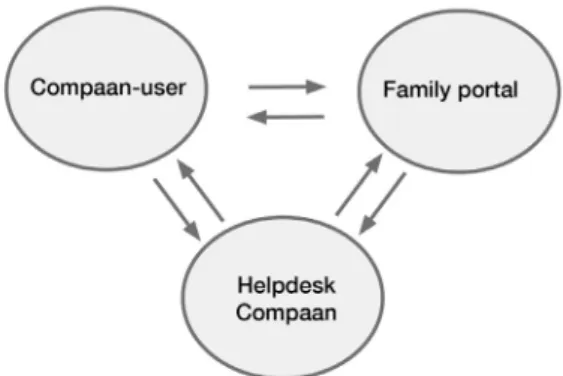
The Compaan is part of a sociotechnical system (Vermaas et al., 2011): it includes the
‘user’ (75+ seniors mostly), an ‘operator’ (a responsible family member mostly who controls the
family portal) and a ‘regulator’ (Compaan company). See figure 2. The family portal is installed on
a computer or laptop of a responsible family-member. Preferences for the Compaan must be set in the family portal: choices for functionalities to use, choices for newspapers or internet sites, as well
as adjustments for font sizes and audio levels. Through the portal, invitations are sent to family to
participate and communicate in this system with the user. The family portal and the Compaan are connected to the helpdesk of Compaan company by means of a subscription. This helpdesk is occupied seven days a week between 9.00 am and 18.00 pm.
The role of the family or caregiver is decisive in the adoption of the Compaan technology, according to Compaan company. The family portal enables to guide users in discovering the Compaan from a distance, because the operator can see what the user is seeing. This makes learning of users by family much more easy, but creates responsibility as well. It appears the managing family member or
2. COMPAAN SYSTEM
caregiver is not always fully aware of this role, and Schuiteman (2016) notices lack of time and the absence of material to learn the system themselves. Other determining factors in adopting Compaan technology are the amount of contacts to communicate with and the communication habits in the
family. Tsai, Shillair, Cotton, Winstead & Yost (2015) also found that family is critical in older
people’s learning ability and they argue that family support can overcome digital illiteracy. The Compaan is installed in the home of the user by an instructor of Compaan, called a Compaan coach. Family and/or caregiver(s) are invited to be there at that moment as well. The mission of the coach is triple: to install the Compaan technically, to instruct the user and to instruct the family. The session lasts 1 – 1,5 hours. There is no structured instruction program for the coaches;
coaches mention all functionalities, but emphasize on reassuring the new users by telling them nothing
can go wrong. (Appendix 2).
The printed instructional materials of the Compaan system can be described as job aids: concise procedures aimed at people who have already received instructions (Rossett, 1991). They do not address possible errors (Carroll & Van der Meij, 1998). Available material for the user is a Starting guide on paper. This guide mentions the different applications of the Compaan and the function of the buttons (Appendix 3). In the family portal, in the menu-item Service, online material for the general use of the Compaan (Appendix 4) can be found, and for the use of the keyboard (Appendix 5). This material is not directly available to the users. Compaan company assumes further learning can or will be executed by the family; the paid subscription provides access to the helpdesk for both parties.
Although the Compaan system is meant for seniors and is overall experienced as easy
to operate, learning problems occur. Coaches report difficulties in understanding pictograms and
navigation problems for users. Schuiteman (2016) indicates the need for a paper manual or instruction cards. Additional support is in general very much appreciated by 75+ seniors (Neves et al., 2015) as
figure 3 of Anderson & Perrin (2017) shows. They demonstrate that 73 percent of the 65+ people want
someone to help them, when they get a new device. But as for the family, the Compaan system is also
a new device. Their age is mostly between 50 and 60 years. As the same figure 4 shows, 62 percent
3. THEORETICAL FRAMEWORK
3.1. Technology adoption by seniors
Seniors have historically been late adopters of technology, claims Schulz et al. ( (2015).
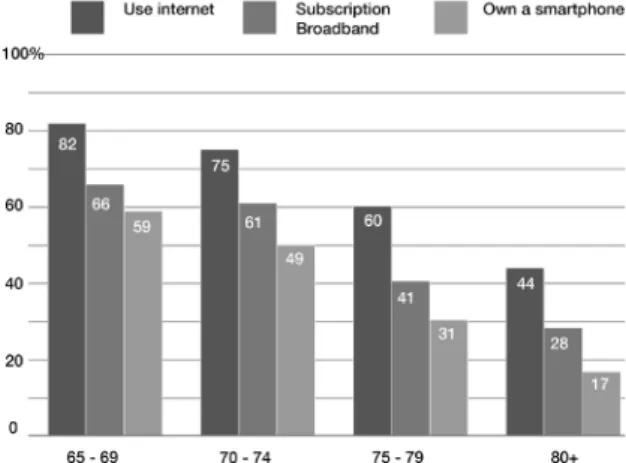
Current data from the Pew research report 2017 supports that. See Figure 4. “Even if computers are
integrated in everyday life like water is for the fish, computers are still often alien to them and a source of frustration and avoidance”, is the way Sengpiel puts it (2015). “They could benefit from using it,
perhaps as much as or even more than younger adults. Aging and technology could be friends, not foes” (Nehmer, Lindenberger, & Steinhagen-Thiessen, 2010). Technology provides a possibility of enhancing quality of life when mobility is decreasing and physical and mental declines occur. Still many seniors choose to limit their interactions with information technology and thereby deny its
potential benefits (Hough & Kobylanski, 2009).
The group of 75+ seniors experience a good personal contact as a face-to-face-contact while younger generations feel no problem with contacts through technology, such as Whatsapp, says Slaets
(Steenbergen van & Dekker, 2016). Social isolation, defined as not having enough contacts, or having
contacts of inferior quality, is a big issue for this group BRON. Loneliness is a subjective feeling, yet there is compelling evidence that this sensation of social isolation can have a negative effect on physical health and on (the development of) depression (Baecker et al., 2014).
A recent study among 300 non-computer using seniors of 64-98 of age, selected for being at high risk for social isolation, was conducted. Participants still perceive no usefulness of computers for
themselves or find them hard to handle, because of negative experiences, personality dimensions as openness to experience and attitudes as self-confidence, interest and discomfort (Mitzner et al., 2016). In an even more recent study, Neves, Franz, Munteanu & Beacker (2017) for ‘oldest old people’ (80+)
Figure 4. Tech use is especially limited among those ages 75 and up. Figures % U.S. adults. (Monica Anderson & Andrew Perrin, 2017)
Figure 5. Seniors are interested in computer
technology (Monica Anderson & Andrew Perrin, 2017)
Mostly Positive 58% 4%
Mostly Negative
confirm that technology adoption is based on a complex set of interrelated factors: attitudinal factors
as computer anxiety and initial resistance to technology lead to decreased interest; the feeling of being too old for instance Vroman, Arthanat & Lysack, 2015). Living in an environment of peers and family that are supportive makes a big difference (Lam & Lee, 2006; Tsai, 2015) and the usability of the computer design (Tsai, 2015).
Although seniors are holding back in technology use, they regard computers as useful and necessary in society (see Figure 5), but they cannot see the usefulness for themselves, because of the lack of perceived (and real) usability (Pohlmeyer A.E.a Blessing, 2009). This can explain lack of interest or motivation, but – on the other side - once seniors join the online world, digital technology often becomes an integral part of their daily lives (Anderson & Perrin, 2017). For the group that can
incorporate computer technology Karavidas et al. (2005) argue, there are important implicit benefits:
being more independent, being able to maintain a social network of friends and families, and staying informed about health concerns.
Are 75+ seniors too old to adapt? Seniors are willing to use technology and are sometimes even eager to learn, but they need assistance (Sanders, O’Sullivan, DeBurra, & Fedner, 2013): 73 percent of 65+ people say they need assistance compared to 17 percent of young people below 30 years old (Anderson & Perrin, 2017). In addition, technology adoption is a concern for designers, engineers and instructors in Human Computer Interaction as well (Neves et al., 2015; M. Sengpiel, 2015) And for that, one must consider senior people learn different.
3.2. Learning of 75+ seniors
No strict set off rules and guidelines can be given, to be sure adults will learn, but conditions can be formulated that are necessary to make adult learning possible. Adult learners must be ‘ready’ to
learn. With this sentence, Goodwin Watson (Knowles, 1990) summarizes three principles to facilitate
learning of adults. These three principles represent the base for adult learning, according to Watson. They are described together with some practical applications.
1. “Adult learners need to know why they should learn (to use new technologies) and why it is important to their lives.” If learning content is not perceived as worthwhile, adult learners will not invest time and energy in learning. A possibility to increase the perception of relevance for adult learners in instructions, is ‘late point-of-attack’ time sequencing(Goodwin, 1991). His instructions
start with the outcome, and so the reader is immediately aware of the significance of the steps that
must be made to reach that outcome. In the research of Loorbach et al. (2007) on adding motivational
elements in instructions for seniors, this sequencing was applied for the ‘Relevance’ and
‘Confidence’-conditions (based on the ARCS-model of Keller, 1983). At the beginning of each part of the instruction
the participant was explained, what will be learned. Additionally participants received a confirmation
each time a task was performed well during the test-procedure. Participants in both conditions
2. “An adult only learns in relation to what he already knows”. A learning concept already
introduced by Lev Vygotsky between 1920 and 1930: the zone of proximal development. (Wikipedia,
n.d.-a). It sounds easy, but in practice, it is hard for designers to envision themselves as senior users in order to connect to their level of knowledge or skills. Gould & Lewis (1983) describe how designers think. Designers underestimate the diversity of users, because they have limited contacts with them.
Designers believe in the power of reason, but users do not act rational. Getting a design right the first
time because you are the expert, is a laudable goal, but experience showed that this is not achievable. They conclude: observation of users must be the basis of the iterative design processes.
3. “An adult cannot learn if he does not believe he can learn what is to be learned. An adult must have the feeling a success is possible.” This feeling can be encouraged by material as well as by a teacher. Loorbach (2013) argues, based on the ARCS-model of Keller (1983), well-stated learning objectives are motivational if they reduce anxiety and increase positive expectations for the learner at the same time. Rogers in Knowles (1990) describes the role of the teacher as the ideal helper: warm and loving, approving, supportive, encouraging, rewarding, an ideal helper. The ideal helper
has confidence in the learner and is interacting with the learner. Redsell and Nycyk (2010) found that
teacher qualities as patience, willingness to repeat content and consistent support is a central theme in the appreciation of computer-training for senior people (Smith & Ragan, 1991).
3.3. Instructional video as a learning technique
In recent years instructional video is applied to modern learning techniques, and proved to be successful in several researches: (Bruder et al., 2007; Callahan, Kiker, & Cross, 2003; Rogers et
al., 1996; Sengpiel, 2015; Sengpiel, 2011; Struve & Wandke, 2009). Yet, multimedia - in this case instructional video - is not on the minds of 75+ seniors. A research of Mitzner et al. (2008) with 113
seniors (M =73, SD = 5.5) revealed 33% of the seniors preferred text, such as a manual. Further 18% prefers one-on-one, 17% trial & error, 9% a class and some other very small categories. Multimedia was hardly mentioned. She supposes because of ignorance of the possibilities of multimedia.
Schuiteman (2016) reports Compaan-users ask for paper manuals as well. Despite this preference for text by seniors at this moment, instructional video can be appropriate for seniors.
Instructional video can be construed as observational learning. Observational learning is the central concept of the Social Cognitive Theory of Bandura (1986, 1999). The theory states that when people observe someone (a model) performing a certain behavior (performing tasks), and people see the consequences of that behavior, they remember the sequence of events and use this information to perform subsequent behavior. The imitating of the behavior / performing tasks in instructional video is called video modeling as well.
Video modeling combined with verbal explanations (dual encoding) in instructional videos,
optimizes the human information processing system based on the modality principle of Mayer’s
explained by the limited processing capacities of the human channel for visual (text and images) and the channel for verbal (audio). The use of only one channel (text and images) can lead to a cognitive overload, while the other channel (audio) is under used (Sweller, Merrienboer, & Paas, 1998). Evidence can be found in the research of Wallen & Mulloy (2006) in which both young and older people performed best in the combination of pictures and audio.
The persuasiveness of a model can influence self-efficacy beliefs substantially. Bandura defined self-efficacy as ‘one’s belief in one’s ability to succeed in specific situations or accomplish
a task’(Bandura, 1980). In relation to well-known uncertainties of seniors (“the computer will break down” for instance), a convincing model (because of expertise) can add verbal considerations and thoughts (Meichenbaum, 1977) and disclose hidden mental processes (Struve & Wandke, 2009) to reassure the learner. The video model as the ‘ideal helper’ as described by Watson (Knowles, 1990).
Instructional videos can be accommodated to the needs of senior learners because of cognitive declines very well. Van Gerven, Paas, & Tabbers (2006) argue there is no need to develop special instructions for older adults, if Cognitive Load Theory (CLT) (Paas & Sweller, 2014) combined with Cognitive Theory of Multimedia Learning (CTML) (R. Mayer et al., 2012) are kept in mind. Several strategies are applied in the video to compensate age-related cognitive declines. The instruction is broken into smaller parts. Each part contains just one meaningful item (= segmentation effect). For
the temporal contiguity effect, timing of audio and video is enhanced (audio tells first, before the
action is shown). Attention is guided by the use of red frames (signaling effect). Because of the coherence effect no music is used, the Compaan in the video looks exactly the same as the Compaan in front of the users and in the video there is no disturbing environment visible around the Compaan. No other instructional materials were provided (e.g. the texts of the video on paper), because of limited
cognitive capacities (redundancy principle). In the first video, all concepts are introduced, before they
Person characteristics Instructional design guidelines Corresponding Effects Reduced seeing and
hearing Application of high contrastUse of appropriate font size
Guiding attention by using red frames Keep image steady, no music
Signaling effect Signaling effect Signaling effect Coherence effect Reduced processing
capacity and cognitive speed
Dual presentation of learning content
Highly structured learning objectives, divided in 6 videos
Content structure from easy to difficult to easy. Enhanced timing of audio and video
No printed text added
Introduction of the key elements in video 1 Clear voice of the model, enhanced timing
Temporal contiguity principle Modality principle
Segmentation effect Segmentation effect
Temporal contiguity principle Redundancy principle Pre-training principle Voice principle
Reduced self-efficacy Instruction in user-controlled segments
Vicarious experience by model Segmentation effectWork-example effect
Table I. Instructional methods used in the video-instructions to reduce cognitive load and enhance learning for 75+ Compaan-users (Mayer et al., 2012; Van Gerven et al., 2006)
Following these strategies to meet the needs of seniors who experience cognitive declines, does not necessarily mean, an educational and attractive video-instruction can be designed. Design principles and guidelines for instructional video for younger adults are of interest as well. Carliner developed a tri-partite model of communication design, as described by Swarts (2012). He proposes three overlapping areas: the physical design concerned with access, viewability and timing. The second is the cognitive design concerned with accuracy, completeness and relevance. The third is
about confidence, self-efficacy and engagement: the affective design. They offer a different perspective
on the design of the instructional videos. Based on this three-part framework, results of several researches provided input for the cognitive design of the instructional video in this study:
• Four components model: goal setting, prerequisites, preparing users for actions and reactions and warnings (Van der Meij & Gellevij, 2004)
• Brevity and simple formatting as in streamlined step model (Farkas, 1999),
• Follow the mental model of the user in an action sequence, and be faithful to the actual interface. Good title, short sentences (Van der Meij & Van der Meij, 2013),
• Voice must slightly precede video. Good quality image, audio. (Swarts, 2012),
• Motivational elements as reassuring, help when seniors experience difficulties. (Loorbach,
Karreman & Steehouder, 2007).
Other principles, heuristics and guidelines that were integrated to optimize the physics and affective
design:
• Clear title, clear structure, shown in the video by graphical sheets, by clear texts, spoken out loud by the model (van der Meij & van der Meij, 2013)
• To create familiarity (personalization principle of Mayer ( 2017) , graphical sheets were
style in the sense of ‘the model is talking to the participant’ and ‘knows about their computer problems’. In the Netherlands 75+ people are normally formally addressed, therefore the
formal Dutch terms ‘u’ is used, instead of ‘je’. (You, in English. No difference in addressing
old and young people).
• Video as short as possible (van der Meij & van der Meij, 2013) • Good quality image, audio (Swarts, 2012).
3.4. Error guided instruction
Integrating frequently occurring errors in instructions to accomplish a specified goal, is not
self-evident in training for 75+ seniors. The traditional way of thinking about instructing seniors is
to make instructions without errors. Assumed is that errors will negatively influence information
processing (Skinner, 1968). Skinner considered human action dependent on previous action. If the consequences of behavior were positive, the repeating of behavior becomes more probable and vice versa. Making errors can be demotivating (“I am too dumb”) and cause stress and anxiety, which creates another ‘emotional’ task to be dealt with while learning and possibly overloads working memory.
In 1990, minimalist instructions became popular: a set of heuristics and guidelines for instructions with user preferences and natural tendencies, as a starting point. Making errors is natural, according to Van der Meij and Carroll (1995). They believe error information should be placed as near as possible to the wrongly executed actions; where users need it most.
For the positive effects of ‘integrating errors’ in learning, it is assumed that knowledge to solve problems is stored in memory together with the cause of the problem (Johnson & Seifert, 1992),
as a result of case-based organization of memory (Schank, 1982). Johnson & Seifert conducted
experiments using subsets of thematic stories: subsets consisting of predicting features of a story, and subsets consisting of features of the outcomes of the story. It appeared the predicting features led to better access to similar cases in memory. Errors can be understood as additional process-oriented
information as well; as different threads of ‘why’ and ‘how’ information, to fine-tune the application
of a schema or a rule. (Gog, Paas, & Merrienboer, 2004). Errors stop certain behavior and guide the attention to inconsistencies in the schema or rules, and thereby elaborate the mental model (Ivancic and Hesketh, 1995).
In current literature, two instructional methods for technology training are discussed which take a positive view on errors: Error Management Training (EMT) and guided error training. In EMT learners are encouraged to explore a technical system and are thereby explicitly asked to make errors. In the experiment of Frese (1991) for training computer skills, participants in the error training were
forced to produce errors because they were confronted with problems that were too difficult for them.
significant positive effects, but EMT was used mostly in studies with undergraduate students. When
seniors are concerned, Gully et al. (2002) suggest that the level of cognitive abilities and personality traits like “openness to experience” moderate the effectiveness of EMT. Furthermore, EMT seems an inappropriate training method for seniors because they are often novice users without any prior knowledge [Zajicek 2001]. As a result seniors get disoriented faster compared to younger adults, demonstrated by the number of returns to the start screen (refer to Meyer, Sit, Spaulding, Mead, &
Walker, 1997) ;Martina Ziefle, Schroeder, Strenk, Michel, & Aachen, 2007).
The second instruction method of guided errors seems more adequate for 75+ seniors. In this method a video model shows typical errors, demonstrates necessary solution steps and explains how learners can avoid making the same mistakes (coping model). In the error free condition, participants are told what to do (mastery model). The additional error-information –as predictive information (Frese & Altmann, 1989)- offers extra threads to deal with the task (Gog et al., 2004). The error guided method provides the possibility to show the consequences of errors by the system in advance.
Sometimes actions produce a state of the computer system that is difficult to leave (e.g. restart is
inevitable for a novice learner), which frightens or disorientates the learner. Frese & Altmann state instruction methods should consider this problem.
In the research of Struve and Wandke (2009) the error guided method was applied. They compared an error free training condition and an error-guided training condition for using a ticket vending machine for people of 60-74 years of age. The results provide evidence that error-guided
training positively influences learning outcomes for senior people. Participants in the error-guided
condition produced less errors and gained structural Ticket Vending Machine (TVM) knowledge
(mental representation in this study) significantly.
Based on the results of Struve & Wandke (2009), the same method of guided errors will be used for this study. This research aims to study the effects of an error free and an error guided video-instruction on 75+ seniors in learning basic computer skills. The effects on the three components of
usability (effectiveness, efficiency and satisfaction) as defined in the ISO standard are investigated, as well as their effects on self-efficacy. The assumption is that guided errors have a positive impact
on task performance and gain of knowledge of new 75+ Compaan-users, because they are provided with additional information about frequently occurring errors on the Compaan and how to solve them, which can be stored in their memory (Johnson & Seifert, 1992). So, the following hypotheses are proposed.
Hypothesis 1, effectiveness: 75+ senior users instructed by an error guided video instruction
complete more tasks correctly than 75+ senior users instructed by an error free video instruction.
1 International standard ISO 9241-11 (1998,6) “usability is the extent to which a product can be used by specified
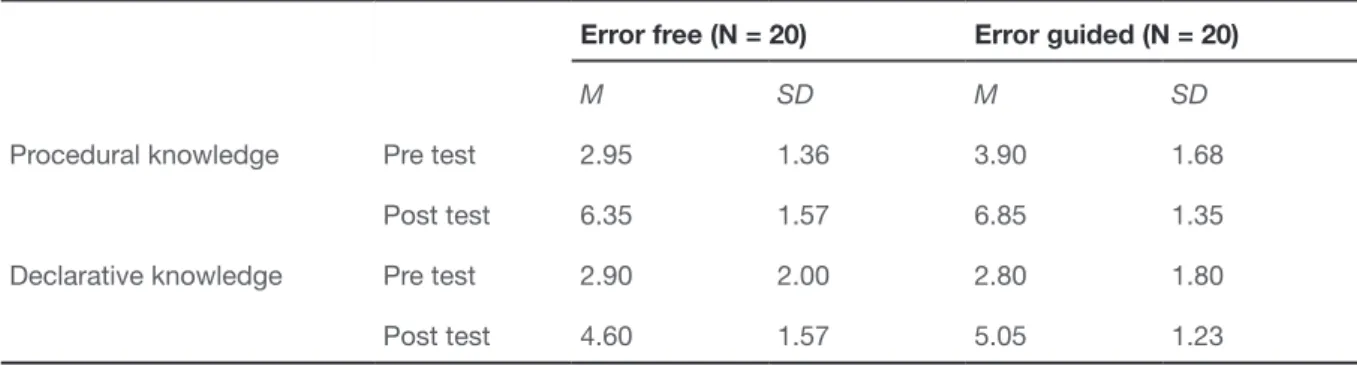
Hypothesis 2, effectiveness: 75+ senior users instructed by an error guided video instruction have higher gains in procedural and declarative knowledge than 75+ senior users instructed by an error free video instruction.
Hypothesis 3, efficiency: 75+ senior users instructed by an error guided video instruction
need fewer actions to perform a task than 75+ senior users instructed by an error free video instruction.
Satisfaction, as the third component of usability, means in this study: the participant acknowledges the instruction as useful, appreciates the results and the process feels rewarding. A description based on the ARCS-model of Keller (1983). A prerequisite for a satisfying result of the instruction, is the amount of information that must be processed. Particularly, the added error information in the error guided instruction can cause cognitive overload, in which case the relevant learning content will not be properly processed (Sweller et al., 1998). In the research of Struve & Wandke (2009), presenting typical errors during instruction did not cause negative effects on performance and knowledge gains. For the development of the instructional material, Cognitive Load Theory and Cognitive Theory of Multimedia Learning Multimedia principles were applied, so cognitive overload is not assumed. Thereby, because of the expectation of better results for
effectiveness and efficiency of the error guided condition, a higher level of satisfaction for the error
guided condition is assumed.
Self-efficacy is the fourth dependent variable in this research. The definition of self-efficacy of Bandura (1980) is used in this study, in short ‘one’s belief to be able to accomplish a task’. Lorenz et
al. (2005) conducted an experiment for guided error training, with 90 students to be trained for the use
of a software package. Next to superior performance, the error guided training increased self-efficacy significantly compared to error-free training. Findings from video model studies using coping- (error
guided) versus mastery models (error free) give additional support that guided error training may
positively influence self-efficacy beliefs (Schunk, 1987). Struve & Wandke (2009) expected, based
on these results, that positive effects of coping models may also be applied to older adult learners.
They found significant changes in self-efficacy beliefs, but there were no differences between the
error guided and the error free condition. Struve & Wandke explained the lack of a difference in
self-efficacy gains, because participants could practice extensionally during training (according to Social Cognitive Theory of Bandura (1999) the most powerful instrument to increase self-efficacy)
and because of the very high level of education of the senior group. In this study, participants can practice a lot as well, but the participants are 75+ seniors compared to 60 – 74 years of age in the research of Struve & Wandke. They have received low- or middle level education, with none to very
little computer experience. Therefor in this research, significant positive effects on self-efficacy of the
Research shows measuring feelings of satisfaction and self-efficacy is very difficult for senior people. (Franz, Monteanu, Naves, & Baecker, 2015) declare oldest-olds (80+) have difficulties to
understand psychometric scales as Likert-scales, and Loorbach (Loorbach, Steehouder, & Taal, 2006)
argues senior people find it hard to give their opinion on devices and texts. For this reasons, the effects for both dependent variables - satisfaction and self-efficacy - were researched exploratory.
Research question, satisfaction: Are there differences in feelings of satisfaction
between the participants of the error free and the error guided group?
Research question, self-efficacy: Are there differences in feelings of self-efficacy between
4. METHODS
4.1. Design
This study is a between-subjects design. The independent variable (instruction method) consisted of guided error instruction and error-free instruction.
4.2. Pre-tests developing instructional materials
Designing the instructional material and an appropriate training and test procedure was an intensive iterative process. The level of computer literacy of the group of 75+ seniors differed a lot from the expectations. Two redesigns were necessary for the instructional video as well as the training and test procedure.
4.2.1. Design of instructional video
The designing and production of the first video followed the procedure of problem analysis, task and error analysis, defining learning objectives and applying appropriate design guidelines based
on relevant instruction theories and testing.
Problem analysis / preliminary investigation
Sending an email is the only action a Compaan-user can start himself to interact with family
and friends. Compaan helpdesk and Compaan coaches confirm the e-mail function is experienced as difficult by users for example finding the contact persons and selecting them. In preliminary
investigation, six installation/instruction-sessions for new users were attended. The mail process on the Compaan was not discussed during this sessions (Appendix 2). In the starting guide on paper Appendix 3 and the online general manual of Compaan in the family portal, the information is summarily. There is no manual for the email process. The process has a clear beginning and a clear
end, and is therefore appropriate for seniors (Ahmad, Razak, Zainal, Kahar, & Adnan, 2013).
Task analysis
E-mail process:
Procedural steps: Start e-mail process / Find contact person / To select a contact /
To find received and send messages / Send the mail. Appendix 6.
Error analysis
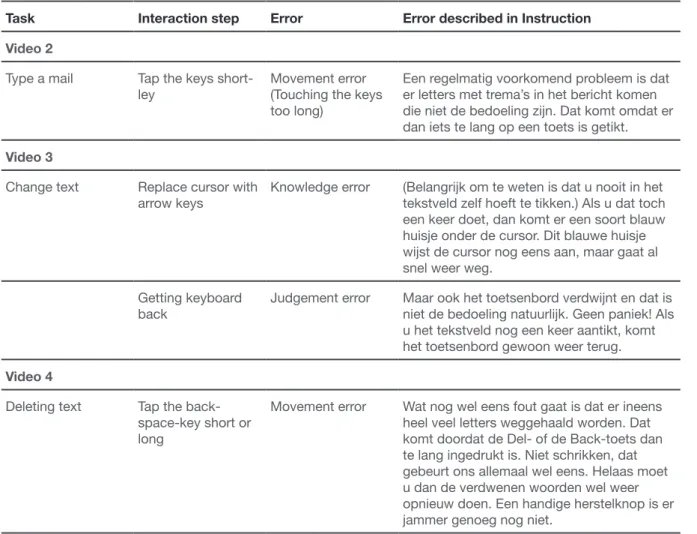
Task Interaction step Error Error described in Instruction
Select contact Tap the green button
‘Selecteren’ Knowledge error/recognition error A frequently occurring mistake is to tap on the name itself. At that moment, nothing happens.
Use here the green button, with the word ‘Select’, next to the name of the contact.
Defining learning objects
1. Developing intellectual skills to operate the e-mail process and operating the keyboard
2. Development positive attitude by reducing computer anxiety, and enhance self-efficacy
Applying design guidelines for (video-)instructions adapted to seniors
A big advantage of instructional video is dual encoding, as described in the theoretical framework: Instructional video as a learning technique. Humans can process new information by a channel for vision and a channel for hearing at the same time. Both are limited, but by applying guidelines to control cognitive load (CLT) and guiding attention in learning (CMTL), the impact of instructional
video can be optimized. Mayer et al., 2012; Sweller. Based on Van Gerven, Paas, & Tabbers (2006), these guidelines can be applied for 75+ seniors, because these theories support an efficient use of
available cognitive resources irrespective of age. See table 1 and appendix 8, Storyboard 1.
4.2.2. Design test procedure
The instructional video was shown twice. After the first time, the tasks for the test were
shown, so participants could anticipate on the test, watching the video for the second time. Because the content of the video instruction was assumed as very easy and clear, practicing was not involved. If
participants experienced the content as difficult, the video could be watched another time, also during
the test. Participants were not asked to think aloud, because simultaneous performing and describing
tasks can be overwhelming (Franz, Munteanu, Neves & Baecker, 2015). Appendix 9.
Participants were questioned about self-efficacy before and after instruction and test: Do you feel confident in being able to make an e-mail after seeing the instructional video? Can you score this feeling on a scale of 1 to 10 scale: 1= no confidence to 10 = very much confidence. This scale was
chosen because of familiarity with school ratings. Participants were questioned after the instruction
about Satisfaction as well: How clear was the instruction for you? Also on a scale of 1= unsatisfied to 10 = very much satisfied? Appendix 10.
4.2.3. Results usability test 1
In the usability test for video 1 and test procedure 1, three seniors were consulted. One
experience). Two participants saw the error guided instruction: the first one was 93 years of age, had no experience, and scored self-efficacy for herself as 1; the second participant was 83 years of age, had a little bit experience and scored herself for self-efficacy as 10.
The results of the usability tests of video 1 and 2 are described in the following sequence: 1. Observations video
2. Observations training and test procedure 3. Analysis video
4. Analysis test procedure 5. Redesign video
6. Redesign training and test procedure
Observations video 1
All three participants sighed afterwards: “That’s a lot”, “How can I remember all this information?” / Two of them asked for paper to write things down / They were very much interested in the instruction material / No complaint about the pacing / Instruction/voice was clear / No physical problems: audio, view, headphones / One participant judged the instruction/voice as “not so nice, quite male”.
Observations about test procedure 1
Participants could not remember almost anything. It seemed as nothing was learned. It was
very difficult for them to do the test / No difference between error guided and error free condition / The procedure to find the contacts was completely forgotten; all three gambled a lot. / They said very
often: I don’t know that anymore’ and “I really don’t know” / They found the right mail screen at the end without any logic / They never referred to the instruction in performing a task. Not because of unclear information, neither because of a remembering a helpful information / Sometimes problems to distinguish symbols at keys: dot and exclamation mark for example / The test was clear for the participants / The length of time of the test is no issue / They refer to children and grandchildren “That is what I hear the children or grandchildren are saying, but I don’t know what that is” / They could not perform the test without extra clues / They did not give up, because of the help of the researcher /
Questions about cognitive load and self-efficacy were a little bit irritating to my opinion / Participants did not like to answer. Confronting, too personal, not used to reflect on oneself, …? / The tapping
in the test was too much, therefor not possible to score their actions / In the retention test (after two
hours), one participant searched on the internet to find the screen for sending an e-mail. In the screen
Analysis of instructional video 1
Participants did not learn, not even at the lowest level of Bloom’s taxonomy ‘Remembering’.
They could not describe, reproduce, repeat concepts mentioned in the instruction. To analyze the
observations the learning principles described in the theoretical framework were used.
• The first principle was met: “Adult learners need to know why they should learn to use new
technologies and why it is important to their lives. These participants were interested and motivated, because they are interested in the possibilities of the Compaan that was recently installed.
• The second principle is problematic. “An adult only learns in relation to what he already knows”. In this instruction, apparently, there was no connection to the world they know. The distance between what is already known and the learning items could not be bridged
by the instructional video. The information was not in the ‘zone of proximal development’. Designer’s problems as described by Gould & Lewis (1983) could be very well recognized;
for example the knowledge of the participants was very much overestimated (Gould & Lewis,
1983). And the need for practicing was very much underestimated (Czaja & Lee, 2007; Neves
et al., 2015))
• Also, the third condition was not fulfilled: “An adult cannot learn if he does not believe he
can learn what is to be learned” After watching the video (two times), all participants reacted with a sign and the remark” That’s a lot of information. How can I remember all that?” The instruction did not increase positive expectations about their computer-abilities (Keller (1983, as cited by Loorbach, 2013). The instruction did not feel as helpful (Knowles, 1990); two of three participants asked for the possibility of making notes.
Analysis of test procedure 1
• The need for practicing during the procedure became very clear. Computer knowledge and skills were much lower as expected. No learning from the instructions occurred.
• Participants seemed not very interested to watch the video again, contrary to expectations.
• The questions about self-efficacy and satisfaction were hard to answer by the participants.
Learning objects extended
1. Developing intellectual skills to operate the e-mail process ánd operating the keyboard
2. Development positive attitude by reducing computer anxiety, and enhance self-efficacy
Redesign video-instruction > video 2 Appendix 11, storyboard 2
1. The video was physically divided in 3 videos.
3. The same for an introduction on working on the keyboard, because ‘it is nice to make a message with capitals, punctuation marks, white rules and without mistakes’ in contrast with younger people who do not seem to care about that.
4. Mention and explain some computer-language in English and in Dutch language, because they hear these words in the family, and they like to know what they mean. Contrasting some researches who state not to use technical jargon (Mayhorn et al., 2004)
5. The first video showed the separate elements of the keyboard. Just where to find them. It
suggested that people knew what to do with it. In this video three often used functions/ actions of the keyboard are accentuated: Capitals, symbols and punctuation marks and
dieresis (because they often appear unasked in the text field, because of movement errors).
6. Extra information about cursor 7. Extra information about arrow keys
8. Two extra errors were added to the error guided version, because of the keyboard as an extra learning object. (Appendix 12)
The possibility for practicing before performing the test, appeared necessary in usability test 1. The content of the instruction appeared not as easy as supposed. In fact, need for practising was in line with literature. Gagné states that, to develop intellectual skills it is necessary to practice. Bandura
(1986) and Czaja & Lee (2007) emphasized on practicing as well. The practicing changed the test
procedure. Appendix 13.
Redesign test procedure 1 > training and test procedure 2
• The test procedure is becoming a training and test procedure. After watching a video there was time to practice the learning material of that instruction. The researcher offers exercises on the Compaan, depending on content of the video, that could be performed by the participant. The same exercises for every participant. Participants could decide about the length of the period of practicing and when to go further watching the next video.
• A pre- and post-test of actual knowledge (procedural) and mental model (declarative)
is designed; a multiple-choice test. The pre-test was applied before watching the first
instructional video, the post-test after performing the test to send an e-mail.
• After each video participants were questioned about cognitive load on a scale to find out what
Video 1 2 3 Total
Error free 1.45 2.27 3.02 6.74
Error guided 2.27 3.45 4.20 9.92
information is experienced as too difficult.
• Questions about satisfaction and self-efficacy were reformulated. Appendix 14.
4.2.4. Results usability test 2
Four 75+ seniors participated usability test 2. The same participants of usability test 1, and a
woman of 86 years of age, with a little computer experience. She scored herself for self-efficacy on 6
(scale 1 – 10).
Observations video 2
All four said: “Yes it was clear / this was nice, but you have to practice this a lot” / They say: “when you hear it, it is very clear, but when you must do it, it appears to be very difficult” / All three
participants chortled hearing about the strange order of the letters on the keyboard, because of the
old typewriter / The addition about the use of capitals and punctuation marks was recognized / The
Ctrl-key information appeared a ‘pink elephant’: don’t think of the pink elephant in the room! This message was at the end of part 2. They remembered the Ctrl-key was mentioned, but not for which purpose. They talked about it during test performance because ‘there was something with that key’. Two of them used the key on purpose because ‘there was something!’ / Nothing was remembered
about finding the right screen. Info was in the first out of three videos: What is told last, is remembered best! / Chunks of information were too big / The concept ‘cursor’ is very difficult. They do not
understand why it is always there “now, this flickering thing has to disappear!
Observation training and test procedure 2
Observations Pre- and post-test procedural and declarative knowledge
Procedural and declarative knowledge were both tested for knowledge about the keyboard (8 of 10 images), and knowledge about the email process (2 out of 10 images). The maximum score for procedural knowledge was 5 out of 10 good answers in the pre-test. Two participants could not improve their results in the post-test, one participant improved from 2 to 5 / The scores for declarative knowledge were alternating: 3 to 6, 2 to 1 and 0 to 4 good answers.
Observations Cognitive load, satisfaction and self-efficacy
The questions about cognitive load could not be answered. Participants could not analyze what was difficult, and to what extent. The questions were annoying for the participants / Six questions about self-efficacy were frustrating for them. “If you ask this, I can say that’s fine, but when you ask that, I say it’s not”, “If you ask tomorrow again, …” / The questions about satisfaction, the same reactions as for self-efficacy. Understanding scales was difficult. Franz et al. (2015) had this experience with scales in their fieldwork as well.
Analysis of instructional video 2
Knowledge about the keyboard and the email process at the Compaan is very low and did not improve based on the results of the knowledge transfer tests. Relating to the learning principles in the
same way as to video 1: The first principle “Adult learners need to know why they should learn to use new technologies and why it is important to their lives” is still fulfilled and even increased because of
a feeling of getting connected to ‘this computer world’.
For the second principle: “An adult can only learn in relation to what he already knows”, improvements can be mentioned: connection to their world worked out, explaining English computer-language caused positive reactions: they rehearsed words for themselves, ‘how was that called again’?
Also to the third principle there were improvements: “An adult cannot learn if he does not believe he can learn what is to be learned” After watching the three videos and the practicing, all participants reacted with remarks like:” That is clear or this is nice, but I must practice a lot” instead of
remarks as “That’s a lot of information. How can I remember all that?” after the first instruction video.
These remarks can be explained as, this instruction can meet learning needs, if enough practicing will be executed. The instruction lowered computer-anxiety and increased positive expectations about their computer-abilities (Loorbach, 2013). These remarks can be explained as well as the instruction felt as
‘helpful’ (Watson, 1990) to a certain extent, and inspired to self-confidence (Bandura, Gagné).
Analysis training and test procedure video 2
• Participants should have more opportunities to practice: practicing things participants find
interesting
• Questions about cognitive load after every video is not appropriate. Attention must be switched, which decreases focus on task relevant information (Connelly, 1991) but also attention is switched requiring a change of mind set, that impacts senior people (Glisky, 2007)).
• Questions about satisfaction and self-efficacy also require a different mindset. Seniors are
not used to give their opinion about texts and devices, whereas students are used to do that (Loorbach et al., 2006). It is not appropriate to question participants during this training- and
test procedure about these topics. Thereby field studies for 80+ seniors of Franz et al. (2015) reveal that they can be impressed by the research or researcher and try to hide difficulties.
Redesign video 2 > instructional video 3
• The core of the instruction is shifting from the email process to how to use the keyboard. Information about received and send messages is left out.
• The title of the instruction is changed into ‘How does the keyboard work? And where do I make my message?’
• The instructional video is chunked in eight parts (Mayhorn et al., 2004; Wolfson et al., 2015) • The content of the errors did not change; they were added to the video-instructions that
explained something (video 2 – 6, and video 8).
Redesign procedure 2 > training and test procedure 3
• After every video, participants can practice what they want. They can ask questions to consolidate the knowledge they learn. Feedback is provided immediately. Guidance of the researcher is adapted to the learner’s circumstances as far as known. Learners like guided
instructions, because of direction and a measure of control (Bell & Kozlowski, 2002 as cited
by Wolfson et al, 2014) Participants determine the pacing (Mayhorn et al., 2004)
• Procedural and declarative knowledge test is simplified: Eight elements for testing procedural
knowledge: Do you know what this is, or what is the function? Six items to test declarative knowledge: What symbol is missing, or do you know the function of the key with the missing symbol?
• The pre-test procedural and declarative is held after the introduction video to prepare the participants.
• The performance test is kept after watching all videos. • Cognitive load is not tested.
• Satisfaction and Self-efficacy will be questioned after two weeks in a phone-call. This group
responds better to guided interviews than Likert scales (Munteanu et al., 2014). Thereby
4.3. Materials
4.3.1.
Video instruction: error free and error guided
Eight instructional videos were developed to learn basic computer skills to 75+ participants in two versions: error free and error guided instructions. Appendix 15, storyboard 3 The development of the video-instructions is described in the former section. The error free instructions contained information about ‘how to use the keyboard’ ‘and how to process an e-mail on the Compaan. The participants in this condition were prevented of experiencing errors. The error-guided version contained the same ‘how to’ information of the error free instructions, but contained also frequently occurring errors or misunderstandings and how to deal with them. Errors, table 3 Video 2 - 6 and video 8 contained the error information:
• Video 1: Introduction keyboard (Goal setting)
• Video 2: Letters and dieresis / the art of short and long tapping – error added • Video 3: The cursor, spacebar, Enter and arrow keys _ error added
• Video 4: De Del and the Back-key - error added • Video 5: Capitals - error added
• Video 6: Punctuation marks, symbols and smileys - error added • Video 7: All important keys at a row
• Video 8: Where do I make my message? – two errors added
The material is highly structured, incrementally increasing in complexity, and ending again easy, to build positive attitudes (Mayhorn et al., 2004). Instruction times for the error guided version were longer because of the added information. The difference in total time of instruction is 12.89 minutes for the error free condition and 16.21 minutes for the error guided condition See table 4.
4.3.2. Training and test environment
An ‘ideal’ learning-environment for 75+ seniors was designed. Based on the results of the usability tests, it became clear the training and test environment were at least as important as the instruction itself. Because of the heterogeneity of the group of 75+ seniors (Knowles, 1990), a real connection to ‘what a learner already knows’ is not possible simply by well-designed instructions.
To attempt to connect to every participant’s level in the training and test environment the following items were considered: an individual one-on-one training (Laganà, 2008) in a familiar environment (Ahmad et al., 2013)(Neves et al., 2015); instruction material adapted to senior’s needs based on CLT and CTML (Paas, Renkl, Sweller, Paas, & Renkl, 2017) and other important theories, principles and guidelines for seniors as described in the theoretical framework about
teacher qualities as patience, willingness to repeat content and consistent support, focused on meeting senior’s needs (Redsell & Nycyk, 2010).
Questions about satisfaction, cognitive load and self-efficacy were discussed in an interview by phone two weeks later (Franz et al., 2015). The pre-tests showed participants experienced
difficulties answering questions for these items. Senior people are not used to give their opinions about texts or devices (Loorbach et al., 2006), or do not understand Likert-scales (Franz et al. 2015).
Moving the test to a later date, helped the participants to fully concentrate on the learning material in the instruction session.
This test-environment is different for every participant, but in fact can be considered as the same. Starting point was the level of knowledge and the skills of every participant. From that point, the effects of error free and error guided instruction were measured.
4.3.3. Training and test procedure quantitative data
The study was conducted at the Compaan-users’ homes. Before starting, demographic data were written down: age, computer experience, profession during working life. All participants were
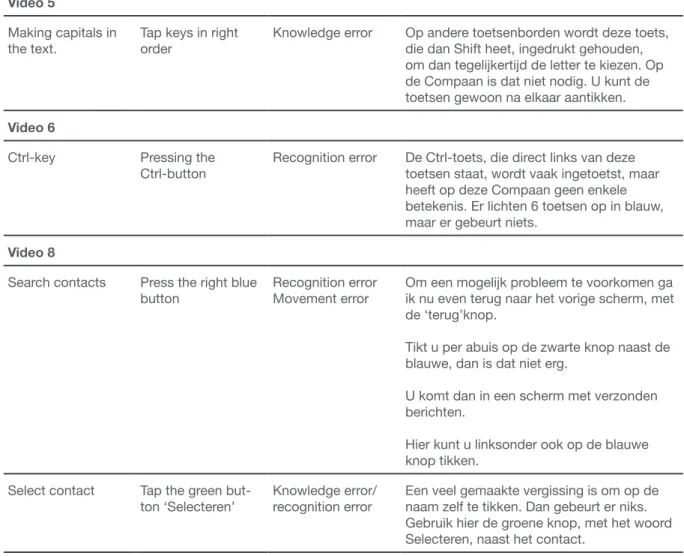
Task Interaction step Error Error described in Instruction
Video 2
Type a mail Tap the keys
short-ley Movement error (Touching the keys
too long)
Een regelmatig voorkomend probleem is dat er letters met trema’s in het bericht komen die niet de bedoeling zijn. Dat komt omdat er dan iets te lang op een toets is getikt.
Video 3
Change text Replace cursor with
arrow keys Knowledge error (Belangrijk om te weten is dat u nooit in het tekstveld zelf hoeft te tikken.) Als u dat toch een keer doet, dan komt er een soort blauw huisje onder de cursor. Dit blauwe huisje wijst de cursor nog eens aan, maar gaat al snel weer weg.
Getting keyboard
back Judgement error Maar ook het toetsenbord verdwijnt en dat is niet de bedoeling natuurlijk. Geen paniek! Als u het tekstveld nog een keer aantikt, komt het toetsenbord gewoon weer terug.
Video 4
Deleting text Tap the
back-space-key short or long
Movement error Wat nog wel eens fout gaat is dat er ineens
heel veel letters weggehaald worden. Dat komt doordat de Del- of de Back-toets dan te lang ingedrukt is. Niet schrikken, dat gebeurt ons allemaal wel eens. Helaas moet u dan de verdwenen woorden wel weer opnieuw doen. Een handige herstelknop is er jammer genoeg nog niet.
Video 5
Making capitals in
the text. Tap keys in right order Knowledge error Op andere toetsenborden wordt deze toets, die dan Shift heet, ingedrukt gehouden, om dan tegelijkertijd de letter te kiezen. Op de Compaan is dat niet nodig. U kunt de toetsen gewoon na elkaar aantikken.
Video 6
Ctrl-key Pressing the
Ctrl-button Recognition error De Ctrl-toets, die direct links van deze toetsen staat, wordt vaak ingetoetst, maar heeft op deze Compaan geen enkele betekenis. Er lichten 6 toetsen op in blauw, maar er gebeurt niets.
Video 8
Search contacts Press the right blue
button Recognition errorMovement error Om een mogelijk probleem te voorkomen ga ik nu even terug naar het vorige scherm, met de ‘terug’knop.
Tikt u per abuis op de zwarte knop naast de blauwe, dan is dat niet erg.
U komt dan in een scherm met verzonden berichten.
Hier kunt u linksonder ook op de blauwe knop tikken.
Select contact Tap the green
but-ton ‘Selecteren’ Knowledge error/recognition error Een veel gemaakte vergissing is om op de naam zelf te tikken. Dan gebeurt er niks. Gebruik hier de groene knop, met het woord Selecteren, naast het contact.
Table 4. Duration error free and error guided videos in minutes
Video 1 2 3 4 5 6 7 8 Total
Error free 2.21 1.20 2.36 1.58 1.52 1.40 2.12 0,50 12.89
Error guided 2.21 1.37 3.13 2.25 2.18 1.59 2.12 1.36 16.21
asked if they knew about the aim of the study as described in the letter, that was addressed to their family or caregiver. Participants had to sign a consent for being aware of the aim of the study as well as how it will be processed (video-recording), and for participating voluntarily.
table-stative. Sometimes there was no space for the video camera on the table. In that case the researcher kept the camera by hand.
The training and test procedure were the same for the error free and error guided condition, as
described in the following paragraph See figure 7. The audiolevel was adjusted to subject’s hearing.
Introduction: The session started with video 1, that is the same for both versions. Video 1 is an introduction on the subjects of the training; all the learning objects were named. At the end of the introduction video, the model announces seven videos to come, whereby the model reassures videos can be watched again, if requested.
Pre-test procedural and declarative knowledge. After the first video, participants are asked
about the knowledge they already have about the keyboard and the mail process, by showing screenshots on paper with framed keys. For procedural knowledge participants were asked if they knew the name or function of a key, for declarative knowledge if they knew which symbol was
missing, or the function of the missing symbol. If the participants did not know the answer, there was a negative registration, but the answer was told to them before going further.
Training phase: The training phase consisted of five video-instructions in an error-guided and an error-free version, dealing with five important functionalities on the keyboard. After each video the
participant was asked if the video is clear, and to practice on the Compaan what is shown in the video. During this practising, feedback is provided immediately by the researcher. If the learner does not remember the accurate procedure or actions, he is offered to see the video again. If the participant has questions, they are answered by the researcher. Positive feedback was provided when the reproduction task was accurately solved. The participant decides if practising was enough and the training can go on for the next video-instruction. This procedure is followed for video 2, 3, 4, 5, and 6. Video 7 is a repeat
of all the important concepts in the mail screen as a memory aid (Czaja, 2009). Breaks in the training
were not planned, but on indication of the participants.
There is no difference between the two conditions for video 7. After this video participants,
can ask questions, or see the video again. Video 8 is showing the process of finding contacts on the Compaan and finding the right screen for composing and sending a message. In an error-guided and
error-free version. The same training procedure is followed as for video 2 till 6 after watching this video.
Test to send an e-mail: After watching all the videos and practicing what was demonstrated in the videos, participants were asked to send an email to the researcher who’s email address was in the list of contacts in their Compaan. The message to be tapped was supplied on paper (A4-format) using a large font.