•
•
•
•
•
•
•
Integral
Personal
Computer
•
•
•
•
•
•
•
•
•
•
•
Integral Personal Computer
HP-UX Technical BASIC
Implementation Guide
Edition 1 December 1984 Part Number
Notice
Hewlett-Packard makes no warranty of any kind with regard to this material, including, but not limited to, the implied warranties of merchantability and fitness for a particular purpose. Hewlett-Packard shall not be liable for errors contained herein or for incidental or consequential damages in connection with the furnishing, performance, or use of this material.
Hewlett-Packard assumes no responsibility for the use or reliability of its software on equipment that is not furnished by Hewlett-Packard.
© Copyright 1984, Hewlett-Packard Company.
This document contains proprietary information, which is protected by copyright. All rights are reserved. No part of this document may be photocopied, reproduced or translated to another language without the prior written consent of Hewlett-Packard Company. The information contained in this document is subject to change without notice.
Restricted Rights Legend. Use, duplication, or disclosure by the Government is subject to restrictions as set forth in paragraph (b)(3)(B) of the Rights in Technical Data and Software clause in DAR 7-104.9(a).
© Copyright 1979, 1980, 1983, The Regents of the University of California.
This software and documentation is based in part on the Fourth Berkeley Software Distribution under license from The Regents of the University of California.
© Copyright 1980, 1984, AT&T Technologies. All Rights Reserved.
Portable Computer Division 1000 N.E. Circle Blvd. Corvallis, OR 97330, U.S.A.
Chapter 1
Chapter 2
1-1 1-2 2-1 2-1 2-2 2-3 2-4 2-5 2-7 2-8 2-8 2-9 2-10 2-11 2-11 2-12 2-12 2-12 2-15 2-15 2-16 2-17 2-17 2-18
Contents
Guide to Documentation
Introduction About This Guide
Where to Find More Information
Integral PC Specifics The Keyboard
BASIC Function Keys
Programming the Function Keys
o t·~ tCl B D Statement Keyboard Escape Sequences Alpha Display
Screen Editing Multiple Windows BASIC Graphics
Graphics Window Digitizing
Keyword Specifics Graphics Menu
'.}OLUt·1E I ::; Statement
BEEP Statement Printer Enhancements Programming I/O Devices Program Performance Number Representation Storage Requirements Autostarting BASIC Loading Binaries
Chapter 3
3-1 3-2 3-2 3-4 3-4 3-5 3-5 3-6 3-6 3-6 3-9 3-10 3-11 3-12
Uploading Series 80 BASIC Files Introduction
Hardware Requirements Limitations
Preparation
Microflexible Disc Types File Naming Conventions Series 80 Program Files
Series 80 DATA, LIF and CRAF Files Running the Upload Program
Using the Single Internal Disc Drive Using Multiple Disc Drives
Options
Error Conditions
Guide to Documentation
If You Are Interested In And You Want To Do This Read This
HP-UX Technical BASIC Find out how to run a BA- HP-UX Technical BASIC
Get-SIC program ting Started Guide
(82860-90001)
Learn more about the ma- HP-UX Technical BASIC
Im-chine-specific features of plementation Guide
(82860-HP-UX Technical BASIC 90004)
Find out more about the HP-UX Technical BASIC
Ret-syntax erence Manual, Vol. 1
(82860-90002)
Program I/O devices HP-UX Technical BASIC I/0
Programming Guide
(82978-90001)
Find description of error HP-UX Technical BASIC
Ret-messages erence Manual, Vol. 2
(82860-90003)
Program using display or Integral PC Comprehensive
printer enhancements Guide (00095-90025)
Upload Series 80 files to the HP-UX Technical BASIC
Im-Integral PC plementation Guide
(82860-90004)
Create binary subprograms Getting Started With HP-UX
using the HP -UX C C (82857-90001) language
Create binary subprograms Getting Started With HP-UX
using the MC68000 assem- C (82857-90001) bly language
Learn more about program- HP-UX Technical BASIC
Pra-ming in HP -UX Technical gramming Guide
(98680-BASIC 90035)
1
About This Guide
Introduction
This guide describes the machine-specific aspects of the im-plementation of HP-UX Technical BASIC on the Integral Personal Computer.
HP-UX Technical BASIC is a new version of BASIC devel-oped from Series 80 BASIC for the HP-UX series of computers. It includes most of the Series 80 keywords found in Series 80 BASIC, including the keywords found in the Ad-vanced Programming ROM, Printer/Plotter ROM, I/O ROM and the Matrix ROM. Although the language is similar, the interpreter itself will not run on Series 80 computers. This guide also describes how to transfer Series 80 programs and data files to the Integral Personal Computer. In most cases, Series 80 programs will run with only slight modifications.
Because of the machine-specific differences among HP -UX
comp~ters, the implementation of HP-UX Technical BASIC on each machine is slightly different. These machine-specific differences include:
• Special keys (including cursor keys, editing keys and func-tion keys)
• Graphics capability
• Multiple window environment
• Printer enhancements
• Display enhancements
• BASIC Keyword differences
• Memory speed
Where to Find
More
Information
This guide provides information on each of these features to allow you to get the most out of the advanced features of your Integral PC.
This guide is divided into three chapters. The information in the three chapters is summarized below.
Chapter 1: Introduction
Summarizes what information is in this manual.
Chapter 2: Integral PC Specifics
This chapter summarizes the machine-specific capabilities of the Integral PC that may be used from HP-UX Technical BA-SIC programs.
Chapter 3: Uploading Series 80 BASIC Files
This chapter desribes how to transfer Series 80 files to the Integral PC using the upload program provided with the BA-SIC interpreter.
For more information on HP-UX Technical BASIC, refer to one of the following manuals:
1. HP-UX Technical BASIC Getting Started Guide*
2. HP-UX Technical BASIC Reference*
3. HP-UX Technical BASIC Implementation Guide*
4. HP-UX Technical BASIC I/O Programming Guidet
(82978-90001)
5. HP-UX Technical BASIC Programming Guidet (98680-90035)
2
The Keyboard
BASIC Function
Keys
Integral PC Specifics
This section describes some of the machine-specific features of the Integral PC keyboard. For a general discussion of how to use the keyboard, refer to chapter 3 of the user's guide. For a discussion of how to use the keyboard specifically with HP-UX Technical BASIC, refer to one of the following sections:
• BASIC Function Keys
• Programming the Function Keys
• The 0 t·~ K \' B D Statement • Keyboard Escape Sequences
On the Integral PC, BASIC makes the following typing aid assignments to the function keys. Immediate-execute keys in-clude a terminating carriage return; pressing the key is equivalent to typing the command and pressing ( Return).
BASIC Function Keys
Key Key Label Typing Aid Immediate
Execute?
(ill ~''', .. ·c··"
LIST (without parameters) Yes r ... , .®'~.,
CID
._,;, •••· ••. M RUN (without parameter) Yes@) ¥ SINGLESTEP Yes
CID
' '''~''''~ c •• "' ••CO NT (without parameter) Yes
Programming the
Function Keys
BASIC Function Keys (continued)
Key Key Label Typing Aid Immediate
Execute?
Q[) SCRATCH No
@ PRINTER IS No
em
PLiST Yes@ KEY LABEL Yes
(][) ®, ,= MASS STORAGE IS No
CITQ) DELETE No
CITD
, LOAD No(]I[) , STORE No
(@ ; TRACE ALL Yes
(fill ;:
CRT IS No
(ill) "';:-=!.!"·Y'
INIT Yes
(]]) ,' ...• !.--., .. Exits BASIC Yes
The eight function keys
(OD
through @) on the Integral PC keyboard may be used with the shift key to provide up to 16 function keys. The unshifted keys areOD
through @; the shift key is used to access00
through (]]).The function keys may be used both from the keyboard (as typing aids) or from a BASIC program. To program the func-tion keys, use the 0 t·~ K E \' # statement to define the key labels and functions. For example:
10 Ot·~ KE\'# 16., "F.:epeat II ':;Ioto 10~:1
This statement will display the key label ~;rt!l~~eat\! for (]]). It
will cause the program to branch to statement 100 when
I]
t·i
K \' B DStatement
To redefine the typing aids available from the keyboard, use the 0 t·4 K E \' # statement without a line number. For example, to assign the CLEAP statement to the @ function key enter the following statement:
o
t·~ K E \' # 9., " C LEA F.: " .' "C LEA P ... 1 3" (Return)Pressing @ is equivalent to typing the C LEA P statement and pressing return.
The Ot·4 K\'BD statement is used to initiate program branch-ing when a specific key is pressed. The escape sequences returned by the special keys on the Integral PC keyboard have been remapped in BASIC from the standard TermO se-quences to the escape sese-quences listed in the following section. The escape sequence consists of the escape character plus one alphabetic character. For example, the escape se-quence for the @ function key is "···366" or
C H P $ 0:: 27::0 t " n ". To branch on this key, enter one of the
fol-lowing statements:
1 [1 o t·~ K'-( BD ''-'' -3 1 ue .' " ... 366 " GOTO 999
or
1 [1 Ot·~ K \' B D ',.,'·3 1 ue CHP$ ( '-1 - ,
) 8.: " n " GOTO 999 . ' .::. ..
When the key specified by the string expression is pressed, the 0 t·~ K \' B D statement returns a value equal to the ASCII value of the alphabetic character plus 256. For example, when function key @ is pressed the variable ''-'' -3 1 '-~ e is assigned the
value 366 (the decimal ASCII value of the letter n plus 256). Testing the value of the numeric variable provides a method of identifying the key causing the interupt when the string expression enables branching on more than one key.
Keyboard Escape
Sequences
The following table provides a list of escape sequences re-turned by the Integral PC keyboard. (Because these escape sequences have been remapped, these values are valid only while running HP-UX Technical BASIC.)
Keyboard Escape Sequences
Key Name
(ill @ @)
OD
CID
00
em
00
@ illQ)CITD
ClID
(ill)Gill
CIT[)C!ID
W
@l!Dw
( Clear line)
( Clear display)
( I nsert line)
( Delete line)
Numeric Key Code
363 364 365 366 367 368 369 360 371 372 373 374 375 376 377 378 360 326 331 330 332 333
BASIC Escape Sequence
···027k
···.·(1271
·· ... 027m
Alpha Display
Keyboard Escape Sequences (continued)
Key Name Numeric BASIC Escape
Key Code Sequence
( Shift )( Tab) 361 ···027 i
(Tab) 329 ···.·~:127 I
( I nsert char) (Mode On) 337 ···027G!
( I nsert char) (Mode Off) 338 ···.·[127P
( Delete char) 336 ···.·[127F'
(Prev) 342 ···0271,}
(Next) 341 ···~327U
m 321 ···027A
@ 324 ···027D
C!) 322 ···027B
CB
333 ···027C(Shift)m 339 ···027::;
(Shift)m 340 ···.·[127T
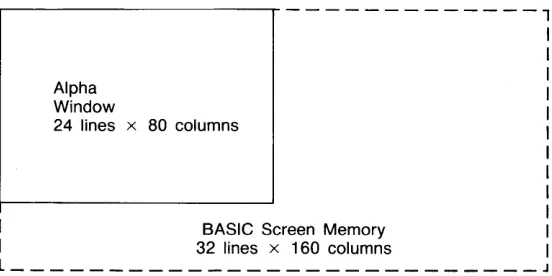
The BASIC alpha window is created when the BASIC inter-preter is invoked. The initial size of the window is 24 lines by 80 columns. The alpha window is a view into a 32 line by 160 column display buffer. Like other windows on the Integral PC, the (CIT) and (@) function keys may be used to change the window. For information on how to control the alpha window, refer to chapter 2 of the compre-hensive guide.
Figure 2-1. Size of the Alpha Window
The size of both the alpha window and display buffer is shown below.
Alpha Window
24 lines x 80 columns
---,
I BASIC Screen Memory
I 32 lines x 160 columns
l _ _ _ _ _ _ _ _ _ _ _ _ _ _ _ _ _ _ _ _ _ _ _ _ _ _ _
To change the position of the alpha window with respect to the display buffer, use the (Shift) key in combination with the
arrow keys.
The normal mode for the alpha display is black characters on a white field. The window may be inverted by pressing the
Invert (@) function key on the system menu.
[image:15.504.178.454.132.270.2]Screen Editing
For example, to print one word in inverse mode, enter the following statement:
1 [1 D I !:;p 1I···27t:dB I t·~'.}EF.:!:;E! ···.·27:~.:dl!! II
Display Escape Sequences
Key Sequence BASIC Escape Effect
Sequence
(ESC )&dB ···27t:dB Inverse mode. (ESC )&dD ···27g.:dD Underline mode. (ESC)&dF ···27:~.:dF Inverse and underline
mode.
(ESC )&d@ ···278.:dl!! Turn off all display enhancements.
HP-UX Technical BASIC on the Integral PC has limited screen editing capabilities. This means that any program line or statement on the 32 line screen buffer may be edited by sim-ply moving the cursor to that line and using a combination of the ( Insert char ), (Delete char ), (Backspace) and (Clear line) editing keys. The line can then be entered into program memory by pressing ( Return). Once a program statement has been entered into program memory it will not be lost until it is deleted, overwritten, or erased using the SCF.:ATCH, LOAD, or CHA I t·~
command.
For an example of screen editing, refer to chapter 3 of the getting started guide. For more information about BASIC editing functions, refer to the
HP-UX Technical BASIC
Pro-gramming Guide.
Multiple
Windows
BASIC Graphics
HP-UX Technical BASIC runs in a multi-tasking environment on the Intergral PC. This means that users can have several processes running at the same time. For example, you may start a program in the BASIC window and then return to the
PAM window. From the PAM window you can start other programs while your BASIC program is running. Multiple windows are also useful when you need to run a system util-ity while you are in BASIC. To format a disc, for example, simply return to PAM and run the format_disc utility, then return to BASIC and continue.
Both the BASIC interpreter and your BASIC programs run in the BASIC alpha window. If the BASIC program uses graphic statements the BASIC interpreter will create a BASIC graphics
window.
HP-UX Technical BASIC contains approximately 47 BASIC keywords used to control the graphics window or plot. This section will discuss some of the machine specific aspects of graphics. For more information on how to program using the graphics statements, refer to HP-UX Technical BASIC Program-ming Guide.
To enable you to use the BASIC graphics statements, the BA-SIC interpreter will automatically load the HP-GL (Hewlett-Packard Graphics Language) driver contained on the BASIC disc. And, unless the plotting device has been reassigned, it
Graphics Window
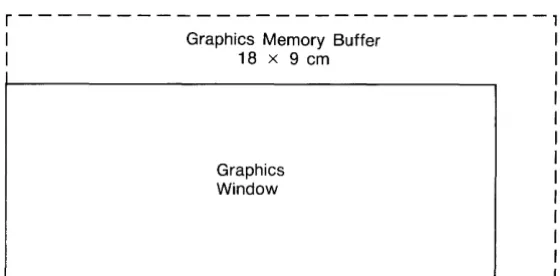
Figure 2.2 Size of the Graphics Window
The BASIC
graphics
window is a view into the graphics buffer. The graphics buffer is a 512 by 255 array of bits in memory. When plotted on the display, this corresponds to roughly 2.8 dots per millimeter over the entire 18 by 9 cm display. The size of the graphics window is initially 162 mm by 67 mm. But like other windows, its size can be changed with the j§t~tl<;":; (@) function key and moved with the;:::·;MQi~~.: (CIT)} function key (both on the graphic window's
system
menu). The size of the graphics buffer and the initial position of the graphics window are illustrated below.r---l
I Graphics Memory Buffer II 18 x 9 cm I
Graphics Window
I I I I I I I I I I
L -_ _ _ _ _ _ _ _ _ _ _ _ _ _ _ _ _ _ _ _ _ _ _ _ _ _ _ _ _ _ _ _ _ _ _ _ _ _ _ _ ~ _ _ ~
[image:18.506.186.466.236.374.2]Digitizing
Again, like other windows, the graphics window can be posi-tioned over any portion of the plotter buffer by using the
(Shift) key in combination with the cursor keys. The effect is as
if the plotter buffer is 1/ sliding" under the window.
Operation Key Description
Roll left. (Shift)@ Moves the plotter buffer left.
Roll right. (Shift
)0
Moves the plotter buffer right.Roll up. (Shift)ffi Moves the plotter buffer up.
Roll down. (Shift )cy) Moves the plotter buffer down.
The Integral PC has the capability to digitize from either the internal plotter or from a peripheral plotter. The syntax for the DIG I T I Z E statement is:
DIGITIZE XPosition, VPosition, Penstatus
Digitizing From the Internal Display. When the
DIG I T I Z E statement is executed from a program, it will cre-ate a graphics window and display the pen icon. Once the pen icon appears, use the cursor keys to position the pen on the plotter bed of the internal display. Press the (Enter) to en-ter the pen coordinates (the compuen-ter will beep to acknow-ledge the input). Press (Break) to pause the program and abort
Keyword Specifics
Graphics Menu
To use the DIG I T I Z E statement directly from the keyboard (in the immediate execute mode), use the following
procedure:
1. Enter the DIG I T I Z E statement followed by a ( Return).
For example: DIG I T I ZE
::<.,
'y'2. Select the graphics window using the display pointer. 3. Move the pen icon with a combination of ( Select) and cursor keys. For example, to move the pen to the right press (Select )CE) simultaneously.
4. Press (Enter) key to enter the pen coordinates. (The pen icon will disappear.)
5. Shuffle windows to return to the BASIC alpha window.
Digitizing From a Peripheral Plotter. Peripheral plotters using the HP-GL (Hewlett-Packard Graphics Language) in-struction set may also be used to digitize. Use the arrow keys located on the plotter to move the pen. To enter the pen co-ordinates, press the ( Enter) key on the left of the Integral PC
keyboard or the ( Enter) key provided on the peripheral plotter.
B F' LOT. The maximum number of raster dots per row on the Integral PC is 512. This corresponds to 64 bytes per row.
F'Et·~. The color of the dots plotted on the graphics display can be inverted using the ::Irlyjiij:: (00) key on the BASIC graphics window system menu.
The Graph menu function keys can be used with the BASIC graphic window. To display the menu when the graphics window is active, press ; :9f~~~i~s:'. «(§J) on the system menu. For more information on the Graph menu, refer to page 2-22 in the comprehensive guide.
i,} [I
L U
t'!
E I ::;
Statement
BEE
F'
Statement
Printer
Enhancements
The volume labels on discs may be renamed using the
I,} [I L U t'l E I ::; statement. Peripheral disc drive device names
on the Integral PC consist of the upper case letter D followed by three digits; volume number, HP-IB address, and disc drive number. For example, D020 is the device name of vol-ume 0 of disc drive number 0 with HP-IB address 2. The full path name of the device file is Idev/D020. The one notable exception to this naming scheme is the internal disc drive which is named internal.
For more information on the naming conventions for disc drive devices on the Integral PC, refer to chapter 5 of the comprehensive guide.
The BEE F' statement on the Integral PC includes both the pitch and length parameters. The pitch parameter is inter-preted as cycles per second, the length parameter in hundreths of a second.
To send an escape sequence to the printer, use II ···27 II or
C H P $ ( 27) concatenated with the escape character. For ex-ample, to send the command to skip over the perforations
«(
ESC )l1L), use one of the following BASIC statements:10 pF.:lt·n 1I···2711LII
or
1[1 pF.:lt·n CHF.:$(27)tll
l1LII
The printer control codes can be sent by using the BASIC es-cape sequence listed below or by using the C H P $ function.
For example, to send a command to enable bold print, use one of the following statements:
1[1 PF.:lt·4T 11 ••••• 1411
or
10 PPINT CHP$(14)
The following list summarizes both the control and escape se-quences used to control the built-in inkjet printer. For more information on the printer enhancement escape sequences and control codes, refer to appendix D of the comprehensive guide. For information on escape sequences for peripheral printers, refer to the owner's manual for that printer.
Printer Escape Sequences
Key Sequence BASIC Escape Function
Sequence
(ESC)= ···27 Half Line Feed.
( ESC )&k{n}S ···27tk {n}::: Set print pitch {n}, where
{n}=O,1,2,3.
(ESC )&dD ···27tdD Enable underline mode. (ESC)&d@ ... 27 g.: d I!! Disable underline mode .
Printer Escape Sequences
Key Sequence BASIC Escape Function
Sequence
(ESC )&16D ···27:~.: 16[1 Set line spacing to 6 lines per inch.
( ESC)&18D .. ···27:~.: 1 ::::[1 Set line spacing to 8 lines per inch.
(ESC )&11 L ···27:~.: 11 L Enable skip perforation mode.
(ESC )&I{n}P ··· .. 27t:l{n}F' Specify total length of {n} lines per page.
(ESC )&I{n}F ··· .. 27t:l{n}F Set {n} lines of text per page.
(CTRL )H ... ::: Backspace . (CTRL )J ···1 [1 Line Feed. (CTRL )L ···12 Form Feed. (CTRL )N ···14 Bold Print. ( CTRL)O ···15 Disable Bold Print. ( CTRL)M ·· ... 13 Carriage Return. (ESC )&IOL ···27t: 1 [1L Disable skip perforation
mode.
( ESC)&SOC ···27t:s[1C Enable Wrap-Around Mode.
Programming
1/0
Devices
Program
Performance
The Integral PC provides a built in HP-IB interface and two I/O ports. A bus expander may be connected to each I/O port to provide space for additional interface or memory modules. At the time this guide was printed, the following interface and memory modules were available for the Integral PC:
• HP 82919A Serial Interface
• HP 82920A Current Loop Interface
• HP 82921A 300/1200 BPS Modem
• HP 82923A GPIO Interface
• HP 82925A 256K Memory Module
• HP 82927 A 512K Memory Module
For information on how to program either the HP-IB interface or the plug-in interfaces, refer to the HP-UX Technical BASIC I/0 Programming Guide.
The use of external memory modules in the bus expander will increase program execution times by as much as 30 percent. If
program execution time is critical to your application, try configuring the system with all memory modules located in the mainframe ports.
Number
Representation
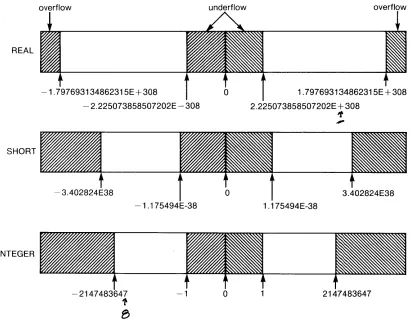
Figure 2-3. Range of BASIC Variables
overflow
REAL
Numbers are stored internally as binary numbers in HP-UX Technical BASIC. The following illustration shows the range of numbers that may be entered or stored in the Integral PC.
underflow overflow
-1 . 797693134862315E + 308
o
1.797693134862315E+308 2.225073858507202E + 308- 2.225073858507202E - 308
If'
.,..
SHORT V//'lj'.h'I'/h
- 3.402824E38 3.402824E38
-1.175494E-38 1.175494E-38
INTEGER
[image:25.504.42.455.169.491.2]Storage
Requirements
Autostarting the
BASIC
Interpreter
The following table gives the number of bytes required to store BASIC variables in the HP-UX disc file system.
Data Storage Requirements
Variable Type Bytes in BASIC/DATA File
REAL 9 bytes.
SHORT Individual variables or array elements: 9 bytes. Entire array: 5 bytes per element.
STRING 3 bytes
+
1 byte per character+
3 bytes each time the string crosses a logical record boundary.The BASIC interpreter may be started automatically when the mainframe power is first turned on by using an Autost file. For example, to create an Autost file that will also start the PAM window, use the following procedure.
1. Create a working copy of the BASIC disc. (Refer to the getting started guide or to the user's guide for more in-formation on how to copy discs.)
2. Create a file named Autost under the top-level directory on the disc and enter the following two line shell script:
echo "t·4ol .. ) s1:at-1: in'3 BA~:;IC. Please I .• )ai 1:."
BASIC #BASIC t:
3. Save the file as an HP-UX text file.
4. Use the chmod command to add execute permission to the file. Type in c h m 0 oj +::< A,-~ 1: 0 s 1: (Return ).
Loading
Binaries
The disc is now ready to use. To automatically start BASIC when the power is turned on, simply insert the disc into the internal disc drive and turn the power on. The PAM window will first echo the message "t·4 0 1. • .1 S t a t- tin':;I B A ~:; I C . Please 1.·.1.01 i t . " When the BASIC window appears, it is ready to use.
Binary files may be called from BASIC programs using the
CALLE: I t·4 statement after the binaries have been loaded. Fol-low the procedure outlined in the dictionary section of the reference manual under CAL L B I t·4 to compile and load a bi-nary program. Remember that the file must first be linked outside the BASIC interpreter before it is loaded. To link a binary module to libraries or other modules, use the link edi-tor ld with the -rd options (the ld link editor is available with the HP-UX C Language compiler).
To call a binary program from BASIC, use the CALLB I t·4
statement. For example, if the binary program has an entry point called "E n t t- I=, Poi n t II use the following statement:
Parameters may be passed either by address or by value. For example, in the following statement the address of the vari-able add t- is passed as a parameter:
In the following example, the value of the variable n u rtf is
passed as a parameter:
1[1 CALLE:It·~ "Entt-'::IPoint" «num»
Both methods of passing parameters may be used in the same statement. For example:
1 ~~1 CAL L E: I t·~ "E n t r '::I Poi n t" ( .~ d dr., ( n IJ rtf)., 1 5 4 2 1 )
For information and examples on how to use binary programs in BASIC, refer to the HP-UX Technical BASIC Programming
Guide. For more information on the CALLE: I t·~ and LOADE: I t·~
statements, refer to the keyword dictionary section of the ref-erence manual.
3
Introduction
Uploading Series 80
BASIC Files
The upload utility program is provided to allow users to port Series 80 BASIC files to HP-UX Technical BASIC files on the Integral PC.
This utility will accept files from the HP-85, 86 and 87 computers.
The utility will transfer the following disc-based files:
• Series 80 BASIC Program Files (stored as ASCII DATA Files).
• Series 80 BASIC Logical Interchange Format (LIF) Files.
• Series 80 BASIC DATA Files.
• Series' 80 BASIC CRAF Files.
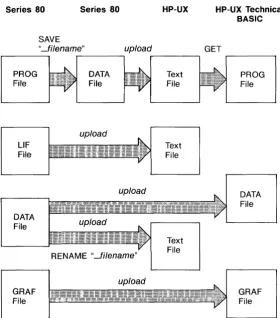
Figure 3-1. Upload Process
Hardware
Requirements
The transfer process is illustrated below.
Series 80 Series 80 HP-UX
SAVE
HP-UX Technical
BASIC
"_filename" upload GET
r - - - , ~---~ . - - - .
PROG DATA File File
LlF File
DATA
File
GRAF
File
Text
File
Text
File
PROG File
DATA File
GRAF
File
[image:31.506.169.449.119.437.2]Limitations
Figure 3-2. Relative Size of Graphics Windows
Number of Files. Up to 100 file names may be transferred in one batch from a single disc. If you need to transfer more than 100 files from anyone disc, transfer the files in two or more batches. Files that have already been transferred in pre-vious batches must be renamed on the source disc with an asterisk H*" as the first character in the file name before run-ning subsequent batches.
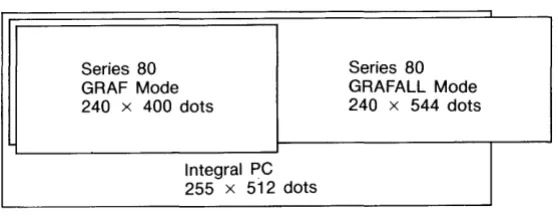
Graphic Files. The sizes of the graphic screen on the HP-86/87 and the Integral PC are not identical. In the Series 80 G F.~ A P H mode the screen size is 400 x 240 dots; in the
GPAPHALL mode the screen resolution is 544 x 240 dots. On the Integral PC the screen size is 512 x 255 dots. When a Series 80 file is transferred to the Integral PC, the GRAF files will either be padded out with zeros or truncated to fit. The result of the GRAF file transfer is given below.
Mode Effect of Transfer on Series 80 GRAF File
G PAP H Blank bytes are added in 112 bit positions on the right and 15 rows on the bottom.
G PAP HAL L The rightmost 32 bit positions of each row are lost; blank bytes will be added in 15 rows on the bottom.
The relative size and position of the various screen sizes are illustrated below.
Series 80 Series 80 GRAF Mode GRAFALL Mode 240 x 400 dots 240 x 544 dots
Integral PC 255 x 512 dots
[image:32.505.187.466.429.538.2]Preparation
Microflexible
Disc Types
Data Precision and Value Range. Another limitation is due to the differences in the internal representation of num-bers. Transferring data files may result in numeric overflow or underflow conditions or in changes in precision.
In the overflow junderflow condition, the utility replaces all overflow or underflow values with the maximum or mini-mum values (I t·~ F and E P ~:;) available on the Integral PC.
When the number to be transferred cannot be represented by a binary number, there will be a change in precision. Integer values will be transferred with no loss in precision.
Files Containing Non-displayable Characters. With the default character font on the Intergral Personal Computer, characters with the ASCII decimal codes in the ranges 0 through 31 and 128 through 159 are non-displayable charac-ters. When a program file is transferred to a HP -UX ASCII file, any non-displayable characters are escaped with a II , ... / followed by the character's three decimal digit ASCII code. (The "~" is represented on the screen as II ~ ~".)
Because this substitution expands lines of code in Series 80 BASIC, the resulting lines may be too long to use with the
GET command. In this case the user will need to edit the ASCII text file. Once the parser has accepted the line contain-ing the non-printcontain-ing characters, the 4-character sequence is stored as a I-byte ASCII character.
File Naming
Conventions
Series 80
Program Files
It is recommended that Series 80 file names be restricted to upper and lower case alphabetic characters, numeric charac-ters, the period, and the underscore character 1/_".
Any files that you do not want to transfer can be masked with an asterisk 1/*" as the first character in the file name.
Converting Series 80 Program Files to ASCII Files.
Series 80 program files can
not
be directly transferred using this utility. Program files must first be converted into ASCII data files by the Advanced Programming ROM ::; A I.} E com-mand or by the ::; A I.} E command available in the GET ::; A I.} Ebinary.
After using the SA'.}E command to convert the program into a data file, rename the file to start with an underscore character
1/_" (not a minus sign or a hyphen). This is to allow the utility to distinquish between the Series 80 DATA files that contain programs, and those that contain data. This is important since the GET command in HP-UX Technical BASIC cannot retrieve programs from DATA files.
Series 80 BASIC Programs Containing Binary
Programs. Any Series 80 program that contains binary pro-gram keywords may be transferred to an HP-UX text file. First use the Series 80 BASIC LOA D E: I t·4 command to load the binary, then S A I.} E the file using a file name beginning with an underscore character. Use the upload program to convert the file, then in HP-UX Technical BASIC, use the GET com-mand to retrieve the file. The parser will, however, flag all binary keywords as syntax errors or variable names.
To avoid syntax errors, try the following:
1. Replace binary keywords with functionally equivalent ROM keywords, if possible.
2. Replace binary keywords with user defined functions or subprograms.
Series 80 DATA,
LIF and GRAF Files
Running the
Upload Program
Using the Single
Internal Disc Drive
3. Replace binary keywords with HP-UX Technical BASIC binary programs, for example, compiled C functions or subroutines.
If the program requires extensive editing, it may be more con-venient to edit the program using an HP-UX editor such as
vi.
Note however that the HP-UX editors may only be used on ASCII text files, not on BASIC files.
No special preparation is needed to transfer regular Series 80 LIF, DATA or GRAF files to HP-UX text, DATA or GRAF files.
However, if the Series 80 DATA file is to be edited by an HP-UX system editor, it may be uploaded to an HP-HP-UX ASCII text file by renaming the Series 80 source file to begin with the underscore (_) character.
Use the following procedure to transfer Series 80 files if your Integral Personal Computer does not have an external disc drive.
Upload Program Window
<FROM) [I e 11..' ice :
Series B{I file:
<
TO } [I irecto("·!:!1 : HP-lI:lC file: <STflTlIS}er prograM.
(0.
Please insert a Series B{I disc into a disc driue. F'("·ess UR'i1.~ when !:!IOU are ready.
2. Remove the
upload
disc from the internal drive and in-sert the source disc containing Series 80 files. Press!I4IMff!i
«(ill).3. The program will prompt you for the name of the disc drive containing the Series 80 disc. Enter the
device
name.
Type in: in t er- n·:::; I
4. The program will prompt you to input the name of the destination folder. The /tmp folder should be present in the root folder, but it should not be used for the destina-tion folder. If no suitable folder exists, shuffle the windows to get to the PAM window and use the
makefolder
utility to create a suitable folder. Return to theupload
window and type in the name of the destination folder.5. If you want to copy the entire disc, press: (00).
If only want to copy a portion of the disc, press the
iJijjri1
tji, (Q[) function key. Use the (@)func-tion key to move through the directory listing and the
RtflJiESi:fi
(Q[) function key to mark files that are to be transferred.The program menu keys are summarized in the follow-ing table.
Upload Menu Keys
Menu Key Function
Continue (00) Continues to next step.
Disc (00) Entire Series 80 disc is uploaded. Files (Q[)) Enables user to select files.
Catalog (00) Provides catalog of Series 80 source disc. First (@) Moves file selector to first file in directory. Next (@) Moves file selector to next file in directory. Previous (@) Moves file selector to previous file in directory. Last (00) Moves file selector to last file in directory. Pick (Q[)) Picks file selected to be uploaded. Quit (Q[)) Quits upload program.
Larger (00) HP-UX file will have larger logical record size than Series 80 source file.
Same (Q[)) HP-UX file will have same logical record size as Series 80 source file.
Follow the directions in the window and use the menu keys provided.
Using Multiple
Disc Drives
When using multiple external micro flexible disc or SIf4-inch drives, do the following:
1. Insert the utilities disc in the internal drive. Start the
mount_disc
utility.2. Insert the destination disc in an external drive. (If this is a new disc, it will need to be formatted first.)
3. Follow the instructions in the
mount_disc
window and mount the destination disc.4. If you have another disc drive available, insert the Series 80 source disc in the drive. Do not mount this disc. In-sert the disc containing the
upload
program in the internal drive, start the program.Press
iillttl.
(OD)·When prompted, type in the device name of the disc drive containing the Series 80 files as the source. When prompted for the destination disc, type in the vol-ume label of the destination disc, starting with the root or
"I"
character.5. If you do not have another disc drive available, insert the disc containing the
upload
program in the internal drive. Start theupload
program.Insert the disc containing the Series 80 files in the inter-nal disc drive. Press (OD).
When prompted for the source disc, type in: i n t Eo r n.:. 1 ( Return).
When prompted for the destination disc, type in the vol-ume label of the destination disc mounted in the external drive.
6. Follow the instructions in the program window. After
the program is finished, the destination disc will contain the uploaded Series 80 files in the HP-UX format.
Options
The full syntax for the upload program is:upload -options source_device-'lame destination_folder -'lame
The options are summarized below.
f File by file transfer. The upload program will ask for the name of each file. Without this option, the pro-gram will copy all the files on the source disc when both the source and destination names are given in the argument string.
n Suppresses expansion of the logical record in the HP-UX Technical BASIC data file. Without this op-tion, the program will create a DATA file that has logical record size 12.5 percent larger than that of the Series 80 file. For example, if the Series 80 file contains 24 byte logical records, the uploaded file will contain 24 byte logical records with the n op-tion, or 27 byte logical records without the option. For applications requiring random access to each record, do not suppress expansion of logical record size.
s
e
1,2,3
All Series 80 DATA files will be uploaded as HP-UX text files. This option ignores the file name conven-tions to allow uploading of DATA files to HP-UX ASCII text files without renaming them.
Disables the non-'printing character conversion rou-tine. Without this option non-printing characters will be converted to a character string starting with the BASIC metacharacter ("") when an HP-UX text file is created.
French, Spanish, HP-86B English language options (used with -e option). This option will cause the non-displayable characters to be mapped to the lan-guage character set specified. For example, in Series 80 BASIC, the
A
character is mapped to the ASCII "NAK" character. If it is uploaded to an HP-UX text file, using the -e3 option, this nondisplayableError Conditions
Destination Directory Full. If the destination directory be-comes full and there are more files to be transferred, the program will stop and ask the user to specify another target folder name. Do the following:If You Are Using Only the Internal Disc Drive:
1. Remove the Series 80 disc.
2. Insert a formatted disc.
3. Move files from the target directory to the empty disc. 4. Remove the disc and insert the Series 80 disc.
5. Specify the target folder and continue transferring files.
If You Are Using an External Disc Drive:
1. Remove the source disc. Select the PAM window.
2. Insert the utilities disc and start the unmount_disc
pro-gram. Unmount the destination disc.
3. Remove the destination disc and insert another
format-ted destination disc.
4. Run the mount_disc utility and mount the new
destina-tion disc.
5. Remove the utilities disc and re-insert the source disc.
6. Specify the name of the new destination disc and con-tinue uploading programs.
Other Error Conditions. Several error conditions may stop or terminate program execution. These error conditions are summarized in the table on the following page.
Error Conditions
Condition
Corrupt Series 80 Files
Source disc drive not found.
Destination folder not found.
No valid file names or types found on source disc.
Disc Drive
Naming
Conventions
Program Response Solution
File will not be transferred. Pro- Check the file or disc on your gram will go on to next file in the Series 80 computer.
directory.
Program terminates. Check the /dev directory for the device name of the disc drive. Refer to the Integral PC Com-prehensive Guide for device
naming conventions.
Program terminates. Check the root directory in PAM for the destination folder. If the destination disc is in an external drive, check the /dev folder for the disc drive device file. If the device file is not found, run the
scan_discs utility.
The program will issue a warn- Check the disc to be sure all ing that the disc is empty, then program files have been saved stop. as ASCII data files and stored
with the correct file name. Check to be sure the asterisk character (*) is used only to mark files you do not want to copy.
The special device files for disc drives are named using the following convention:
D { volume-number} {HP-IB-address } { drive-number}