®
Ericsson Consono MD110 PBX
Summary of Changes
Version Date Reason/Rational Nature of Changes
9032382 E1
Notice
Cabletron Systems reserves the right to make changes in specifications and other information contained in this document without prior notice. The reader should in all cases consult Cabletron Systems to determine whether any such changes have been made.
The hardware, firmware, or software described in this manual is subject to change without notice. IN NO EVENT SHALL CABLETRON SYSTEMS BE LIABLE FOR ANY INCIDENTAL,
INDIRECT, SPECIAL, OR CONSEQUENTIAL DAMAGES WHATSOEVER (INCLUDING BUT NOT LIMITED TO LOST PROFITS) ARISING OUT OF OR RELATED TO THIS MANUAL OR THE INFORMATION CONTAINED IN IT, EVEN IF CABLETRON SYSTEMS HAS BEEN ADVISED OF, KNOWN, OR SHOULD HAVE KNOWN, THE POSSIBILITY OF SUCH DAMAGES.
Cabletron Systems makes no representations or warranties to the effect that the Licensed Software is virus-free.
Copyright © September 1997, by Cabletron Systems, Inc. All rights reserved. Printed in the United States of America.
Order Number: 9032382 E1 Cabletron Systems, Inc. P.O. Box 5005
Rochester, NH 03866-5005
SPECTRUM, the SPECTRUMIMT/VNM logo, DCM, IMT, and VNM are registered trademarks, and SpectroGRAPH, SpectroSERVER, Inductive Modeling Technology,
Device Communications Manager, and Virtual Network Machine are trademarks of Cabletron Systems, Inc.
C++ is a trademark of American Telephone and Telegraph, Inc.
Ericsson Consono MD110 PBX
Virus Disclaimer
Cabletron has tested its software with current virus checking technologies. However, because no anti-virus system is 100% reliable, we strongly caution you to write protect and then verify that the Licensed Software, prior to installing it, is virus-free with an anti-virus system in which you have confidence.
Restricted Rights Notice
(Applicable to licenses to the United States Government only.)
1. Use, duplication, or disclosure by the Government is subject to restrictions as set forth in subparagraph (c) (1) (ii) of the Rights in Technical Data and Computer Software clause at DFARS 252.227-7013.
Cabletron Systems, Inc., 35 Industrial Way, Rochester, New Hampshire 03866-5005.
2. (a) This computer software is submitted with restricted rights. It may not be used,
reproduced, or disclosed by the Government except as provided in paragraph (b) of this Notice or as otherwise expressly stated in the contract.
(b) This computer software may be:
(1) Used or copied for use in or with the computer or computers for which it was acquired, including use at any Government installation to which such computer or computers may be transferred;
(2) Used or copied for use in a backup computer if any computer for which it was acquired is inoperative;
(3) Reproduced for safekeeping (archives) or backup purposes;
(4) Modified, adapted, or combined with other computer software, provided that the modified, combined, or adapted portions of the derivative software incorporating restricted computer software are made subject to the same restricted rights;
(5) Disclosed to and reproduced for use by support service contractors in accordance with subparagraphs (b) (1) through (4) of this clause, provided the Government makes such disclosure or reproduction subject to these restricted rights; and
(6) Used or copied for use in or transferred to a replacement computer.
(c) Notwithstanding the foregoing, if this computer software is published copyrighted computer software, it is licensed to the Government, without disclosure prohibitions, with the minimum rights set forth in paragraph (b) of this clause.
(d) Any other rights or limitations regarding the use, duplication, or disclosure of this computer software are to be expressly stated in, or incorporated in, the contract.
9032382 E1
Contents
Preface
What Is in This Guide ... ix
Conventions ... ix
Related SPECTRUM Documentation...x
Other Related Documentation ...x
Chapter 1
Introduction
What Is in This Chapter... 1-1 MD110 ... 1-1 SPECTRUM Support... 1-2 Accessing SPECTRUM Views from the Device Icon ... 1-2 Accessing Device-Specific Subviews... 1-5 SPECTRUM Views Roadmap ... 1-5
Chapter 2
Device View
Ericsson Consono MD110 PBX
Chapter 3
Configuration Views
What Is in This Chapter ...3-1 MD110 Configuration View ...3-1 Interfaces Information View ...3-3 Interfaces Information Detail Views ...3-5 ICU Interfaces Table ...3-6 OPI Information Table ...3-6 Call Information Logging Table ...3-7 Computer Telephony Interfaces Table ...3-7 ISDN Basic Rate Extensions Table ...3-7 VCU Interfaces Table View...3-8 Server (E1/T1 ELU-7) Table ...3-8 Data Extensions Table View ...3-8 DNA Interconnections Table ...3-9 Alarm Information View ...3-9 PIN Alarm Information View ...3-10 DNA Trap Destination Table View...3-11 Route and Trunk Information View ...3-11 LIM Table View...3-13 Group Switch Information View ...3-13 MD Agent Information View ...3-14 Interface Configuration View ...3-15 Model Redundancy Configuration View ...3-17 Interface Address Translation Table View ...3-17 Address Translation Table Information View...3-17 Interface Address Translation Table View...3-17
Chapter 4
Event and Alarm Messages
What Is in This Chapter ...4-1 Ericsson Consono MD110 Switch Events and Alarms...4-1
Chapter 5
Application View
What Is in This Chapter ...5-1 Common Applications ...5-1 MD110 Application ...5-4
9032382 E1
Figures
Chapter 1
Introduction
Figure 1-1. Using Double-Click Zones to Access SPECTRUM Views ... 1-3 Figure 1-2. Using the Icon Subviews Menu to Access SPECTRUM Views ... 1-4 Figure 1-3. Roadmap of SPECTRUM Device Views ... 1-6
Chapter 2
Device View
Figure 2-1. MD110 Device View ... 2-2 Figure 2-2. Chassis Module Icon Detail ... 2-3
Chapter 5
Application View
9032382 E1
Tables
Chapter 2
Device View
Table 2-1. Module Icon Subviews Menu ... 2-4
Chapter 3
Configuration Views
Table 3-1. Agent Connection States ... 3-2 Table 3-2. MD110 Alarm States ... 3-2 Table 3-3. Common Interface States... 3-4 Table 3-4. Agent State Values ... 3-14 Table 3-5. Ericsson Consono MD110 Switch Interface Types ... 3-16
Chapter 4
Event and Alarm Messages
9032382 E1
Preface
Use this guide as a reference for the Ericsson Consono MD110 PBX. Before using this guide, you should be familiar with SPECTRUM’s functions as described in the Operator’s Reference, and the
Administrator’s Reference. You should also be familiar with any network management and hardware requirements described in the related hardware documentation.
For the purposes of this guide, the Ericsson Consono MD110 PBX is referred to as “MD110”.
What Is in This Guide
The following chapter descriptions outline the organization of the
Ericsson Consono MD110 PBX Management Module Guide.
Conventions
This guide uses the following conventions:
• Menu selections and buttons referenced in text are printed in
bold; for example, Configuration or Detail.
Chapter Description
Chapter 1
Introduction
Describes the device, the management module and model types.
Chapter 2
Device Views
Describes the Device views representing the device.
Chapter 3
Configuration Views
Describes the Configuration views for the device and the network management information provided by views.
Chapter 4
Event and Alarm Messages
Lists and explains event and alarm messages generated in the Event Log or Alarm Manager for the device.
Chapter 5
Application View
Related SPECTRUM Documentation
Preface Ericsson Consono MD110 PBX
• Button names appear in shadowed boxes when introducing paragraphs describing their use; for example,
• Menu navigation is displayed in order of selection; for example, Icon Subviews -> Utilities -> Application.
• Chapter titles appear in italics.
• Referenced documents appear in bold italics.
• Ericsson consono MD110 PBX is referred to as “MD110”.
Related SPECTRUM Documentation
Refer to the following documentation for more information on using SPECTRUM:
Operator’s Reference
Administrator’s Reference
Report Generator User’s Guide
Application View Reference
Getting Started with SPECTRUM for 4.0 for Operators
Getting Started with SPECTRUM for 4.0 for Administators
How to Manage Your Network with SPECTRUM
Other Related Documentation
Refer to the following documentation for more information on managing TCP/IP-based networks:
LAN Troubleshooting Handbook, Mark Miller (1989, M&T Publishing, Inc.)
The Simple Book — An Introduction to Management of TCP/IP-based Internets, Marshall T. Rose, Performance Systems International, Inc.
Computer Networks, Andrew S. Tanenbaum, Prentice-Hall, Inc.
Local Area Networks, Architectures and Implementations, James Martin & Kathleen K. Chapman for the Arben Group, Inc. (1989,
Prentice-Hall, Inc.)
9032382 E1
Chapter 1
Introduction
What Is in This Chapter
This chapter introduces the SPECTRUM Management Module for the Ericsson Consono MD110 PBX. It describes the following:
• Ericsson Consono MD110 PBX • SPECTRUM support
- Accessing SPECTRUM views from the device icon - Accessing Device-Specific Subviews
• SPECTRUM Views Roadmap
MD110
The intelligent MD110 functions as a high-capacity digital voice-data PBX, carrying digital voice, data, and video transparently throughout the same networked system. The network can consist of on-premise hard-wired, wireless nodes, or wide area networked links. The MD110 operates in a coherent “single system” mode and offers customizable capabilities.
The NT-based MD110 allows full computer telephony internetworking with computer-supported telephony systems. The MD110 contains LIMs (Line Interface Modules) that can be distributed throughout a site, and is managed from a terminal using the MD110 proprietary interface.
SPECTRUM Support
Introduction Ericsson Consono MD110 PBX
SPECTRUM Support
The Ericsson Consono MD110 PBX Management Module Guide provides information necessary to manage the MD110 with Ericsson’s SNMP agent and the Management Information Bases (MIBs) included with the management module.
A SPECTRUM Management Module is a software emulation of a physical device or application (represented by icons in the user interface.) These icons provide status “at a glance” through the use of a color code, and access to in-depth information on the device’s configuration and operating activity.
The model type name refers to the models used to specify attributes, actions, and associations for the device in SPECTRUM. The MD110 Management Module supports one model type, MD110_PBX. Refer to the Administrator’s Reference for modeling instructions.
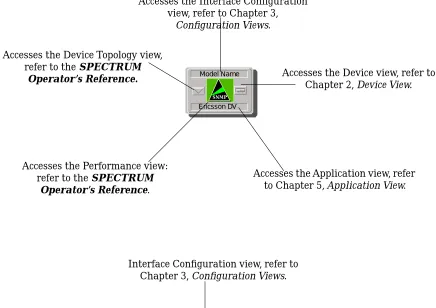
Accessing SPECTRUM Views from the Device Icon
9032382 E1 Introduction SPECTRUM Support Accessing SPECTRUM Views from the Device Icon
Figure 1-1. Using Double-Click Zones to Access SPECTRUM Views
Model Name
Ericsson DV
Model Name
Ericsson DV
Accesses the Device Topology view, refer to the SPECTRUM
Operator’s Reference.
Accesses the Device view, refer to Chapter 2, Device View.
Accesses the Device Topology view, refer to the Operator’s Reference.
Interface Configuration view, refer to Chapter 3, Configuration Views.
Accesses the Performance view, refer to the SPECTRUM
Operator’s Reference.
Accesses the Application view, refer to Chapter 5, Application View. Accesses the Interface Configuration
view, refer to Chapter 3,
Configuration Views.
Accesses the Device view, refer to Chapter 2, Device View.
Accesses the Application view, refer to Chapter 5, Application Views. Accesses the Performance view:
refer to the SPECTRUM
Operator’s Reference.
SPECTRUM Support
Accessing SPECTRUM Views from the Device Icon
Introduction Ericsson Consono MD110 PBX
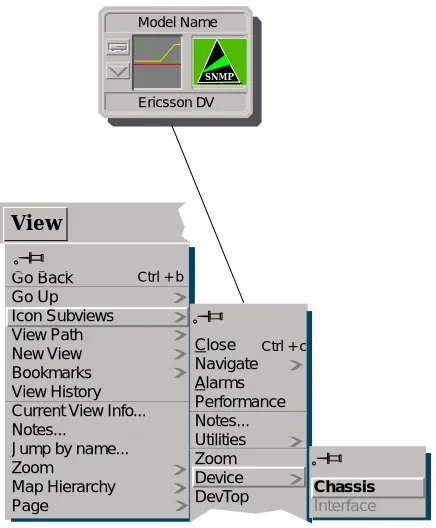
To access the Icon Subviews menu as shown in Figure 1-2, do the following:
1. Highlight the icon.
2. Select View -> Icon Subviews, or press and hold the applicable mouse button (middle or right). Refer to the Operator’s Reference for
information on configuring your mouse.
Figure 1-2. Using the Icon Subviews Menu to Access SPECTRUM Views
Go Back Go Up Icon Subviews View Path New View Bookmarks View History Current View Info... Notes...
Jump by name... Zoom
Map Hierarchy Page
Close Navigate Alarms Performance Notes... Utilities Zoom Device
DevTop Chassis
Interface
View
Ctrl + b
Ctrl + c Model Name
Ericsson DV
9032382 E1 Introduction SPECTRUM Views Roadmap Accessing Device-Specific Subviews
Accessing Device-Specific Subviews
Icon subviews menus provide access to other views which display device-specific information. The icon-device-specific Icon Subviews menu selections are described under the applicable section within this guide. The menu selections that are common to all devices are described in the SPECTRUM
Administrator’s Reference and the SPECTRUM Operator’s Reference.
To access the Icon Subviews menu using the View menu, do the following:
1. Highlight the icon.
2. Select View -> Icon Subviews.
To access the Icon Subviews menu using the mouse button, do the following:
1. Position the mouse pointer on the icon.
2. Click the applicable mouse button (middle or right). Refer to the
SPECTRUM Operator’s Reference for information on configuring your
mouse.
SPECTRUM Views Roadmap
SPECTRUM Views Roadmap
Introduction Ericsson Consono MD110 PBX
Figure 1-3. Roadmap of SPECTRUM Device Views
DevTop view; refer to the
Operator’s Reference.
Device view; refer to Chapter 2, Device View
MD110 Configuration; refer to Chapter 2, Device View.
MD110 Configuration view; refer to Chapter 2, Device View
Application view; refer to Chapter 5,
Application View.
Model Name
Interface Configuration view; refer to Chapter 3,
Configuration Views.
MD110 Configuration view; refer to Chapter 2,
9032382 E1
Chapter 2
Device View
What Is in This Chapter
What Is in This Chapter Chassis Module Icon
Device View Ericsson Consono MD110 PBX
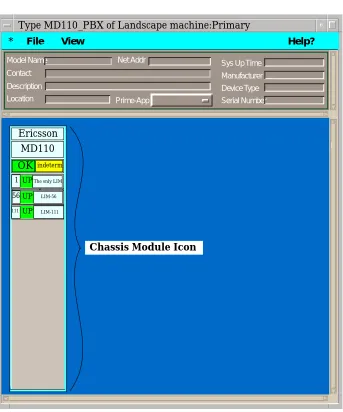
Figure 2-1. MD110 Device View
Chassis Module Icon
Figure 2-2 displays the areas of a Chassis Module Icon as seen in the Chassis Device View.
* File View Help?
Type MD110_PBX of Landscape machine:Primary
Model Name Contact Description Location Net Addr Prime-App
Sys Up Time
Manufacturer Device Type Serial Number MD110 FWD FWD D1 STDBY D2 FWD Repeaters A UNLOCKED B C UNLOCKED UNLOCKED FDDI A B 1 2 ACT ACT Ericsson OK indeterm
The only LIM
UP 1 UP UP 56 111 LIM-111
THIS VIEW PRESENTS A -56 MD110 FWD FWD D1 STDBY D2 FWD Repeaters A UNLOCKED B C UNLOCKED UNLOCKED FDDI A B 1 2 ACT ACT Ericsson OK indeterm
The only LIM
UP 1 UP UP 56 111 LIM-111 LIM-56
9032382 E1 Device View What Is in This Chapter Chassis Module Icon
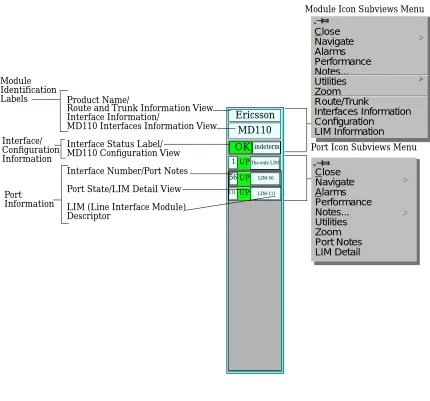
Figure 2-2. Chassis Module Icon Detail
Chassis Module Icon Subviews Menu
Table 2-1 describes each of the device-specific Icon Subviews menu selections available for this device. See Chapter 1, Introduction, for information on
Accessing Device-Specific Subviews.
MD110 FWD FWD D1 STDBY D2 FWD Repeaters A UNLOCKED B C UNLOCKED UNLOCKED Menu Selections FDDI A B 1 2 ACT ACT Ericsson OK indeterm
The only LIM
UP 1 Route/Trunk Information Interfaces Information Configuration LIM Information UP UP 56 111 LIM-111 LIM-56
Module Icon Subviews Menu
Close Navigate Alarms Performance Notes... Utilities Zoom Route/Trunk Interfaces Information Configuration LIM Information Close Navigate Alarms Performance Notes... Utilities Zoom Port Notes LIM Detail Product Name/
Route and Trunk Information View Module
Identification Labels
MD110 Interfaces Information View
Interface Status Label/ MD110 Configuration View Interface Information/
Interface Number/Port Notes Interface/
Configuration
Port Information
Port Icon Subviews Menu
Information
Port State/LIM Detail View
What Is in This Chapter Chassis Module Icon Details
Device View Ericsson Consono MD110 PBX
Chassis Module Icon Details
The Chassis Module icon consists of two block rows of information pertaining to this device. These double-click zones are as follows:
Manufacturer
The module’s manufacturer. This double-click zone accesses the Route and Trunk Information view, described later in this chapter.
Interface Information
The device name. This double-click zone accesses the Interfaces Configuration view, described later in this chapter.
Logical Module Menu Selections
You can access the module menu by pressing and holding the right mouse button on any logical module icon (refer to Figure 2-2). You can select a menu option by pressing the middle or right mouse button on the appropriate block. You can also access the module menu by highlighting the logical module icon and selecting Icon Subviews from the View menu.
Module/Port Status Information
The Module/Port Icon provides link information for this MD110 port. The ports shown correspond to entries in the LIM table. The port icon click zones are described below.
Table 2-1. Module Icon Subviews Menu
Menu Selection Description
Device Opens the Device view described in this chapter.
DevTop Opens the Device Topology view described in the
Operator’s Reference.
Application Opens the Application view described in Chapter 5,
Application View.
MD110 Configuration Opens the MD110 Configuration view described in
Chapter 3, Configuration Views.
Configuration Opens the Interface Configuration view described in
Chapter 3, Configuration Views
Model Information Opens the Model Information view described in the
9032382 E1 Device View What Is in This Chapter Chassis Module Icon Details
Port Notes
Double-clicking this zone accesses the Port Notes view, which provides a work space to record information for this LIM.
LIM Descriptor/LIM Detail View
Double-clicking this zone accesses the LIM Detail view, which provides the text value for the LIM (Line Interface Module) location, and the
MD110
internal topology
information for this module port. For more information, refer to the section later in this chapter on the LIM Detail view. The status and color for each module port display as follows:OK Green
DOWN Red
LIM (Line Interface Module) Descriptor
What Is in This Chapter Chassis Module Icon Details
9032382 E1
Chapter 3
Configuration Views
What Is in This Chapter
This chapter describes the MD110 Configuration view, which provides
configuration information on the device, and the Interface Configuration view, which provides information on each interface’s configuration, including traffic flow and error rates. Both views, and the sub-views accessed from each view, are described in this chapter.
MD110 Configuration View
The MD110 Configuration view provides device information on the MD110’s network, host, port, and model configuration, and provides access to the following views:
• Interfaces Information • Alarm Information
• Route and Trunk Information • LIM Table
• Group Switch Information • Agent Information
These views and tables are described in this chapter. The MD110 Configuration view and its fields are described below.
MD110 Release
MD110 Configuration View
Configuration Views Ericsson Consono MD110 PBX
Agent State
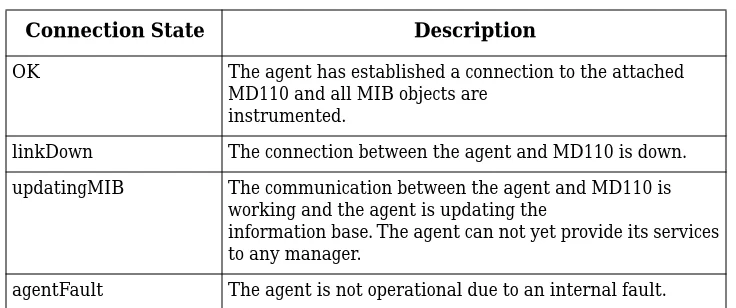
The state of the connection between the MD110 and the agent. The default value is OK. The default values are described in Table 3-1.
Alarm Status
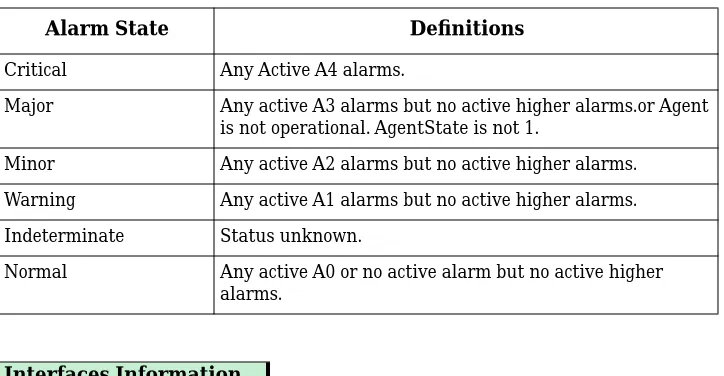
The current alarm status of the MD 110 node. The alarm states and definitions are listed in Table 3-2.
Accesses the Interfaces Information view which provides Interface Names and Common Interface Tables described later in this chapter.
Accesses the Alarm Information view described later in this chapter.
Accesses the Route and Trunk Information view which provides active and external alarm tables described later in this chapter.
Table 3-1. Agent Connection States
Connection State Definition
OK The agent has established a connection to the attached
MD110 and all MIB objects are instrumented.
linkdown The connection between the agent and MD110 is down.
updating MIB The communication between the agent and MD110 is
working and the agent is updating the information base. The agent can not yet provide its services to any manager.
agentFault The agent is out of operation due to internal fault.
Table 3-2. MD110 Alarm States
Alarm State Definitions
Critical Any Active A4 alarms.
Major Any active A3 alarms but no active higher alarms.or Agent
is not operational. AgentState is not 1.
Minor Any active A2 alarms but no active higher alarms.
Warning Any active A1 alarms but no active higher alarms.
Indeterminate Status unknown.
Normal Any active A0 or no active alarm but no active higher
alarms.
Interfaces Information
Alarm Information
9032382 E1 Configuration Views MD110 Configuration View Interfaces Information View
Accesses the LIM Table described later in this chapter.
Accesses the Group Switch Information Tables described later in this chapter.
Accesses the Agent Information Tables described later in this chapter.
Interfaces Information View
The Interfaces Information view provides two interface tables. Clicking on any column entry in these tables, or in any table entries within other MD110 table views, accesses information detail views, described below.
Interface Names Table
This table provides identification information for the interfaces. The table is described below.
Index
A unique value for each interface. Its value ranges between 1 and the highest interface value. The value 0 for each interface must remain constant at least from one reinitialization of the entity’s network management system to the next reinitialization.
Interface Name
A textual string containing information about the interface.
Common Interface Table
This table provides descriptive and status information on the interfaces. The table is described below.
Index
A unique value for each interface. Its value ranges between 10 and the maximum interface value.
Description
A textual string containing information about the interface.
LIM Information
Group Switch Information
MD110 Configuration View Interfaces Information View
Configuration Views Ericsson Consono MD110 PBX
Status
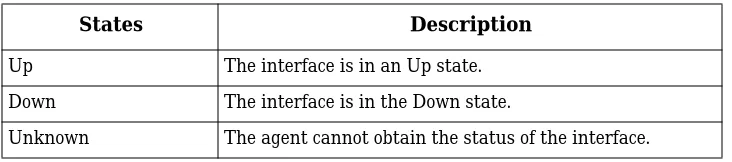
The operational state of the interface. These states are described in Table 3-3.
The Interfaces Information view also shows nine buttons, which access interface information table views. Each view shows a common field subset; double-click any entry in the view tables accesses detail views allowing you write privileges. Common fields appear in all information detail views; these common fields are described later in this chapter.
The information views accessed from the Interface Information view buttons are described below.
Accesses the ICU Interfaces Table view, which provides ICU interface
information. Double-click any entry in the ICU Interface Table view to access the ICU Interface Detail view, described later in this chapter.
Accesses the Off Page Interface Table view, which provides OPI Interface information. Double-click any entry in the OPI Interface Table view to access the OPI Interface Detail view, described later in this chapter.
Accesses the Call Information Logging Table view, which provides Call Information Logging Interface statistics. Double-click any entry in the Call in this table to access the Call Information Logging Interface Detail view, described later in this chapter.
Accesses the Computer Telephony Interfaces Table view, which provides Computer Telephony Interface statistics. Double-click any entry in the view to access the Computer Telephony Interface Detail view, described later in this chapter.
Table 3-3. Common Interface States
States Description
Up The interface is in an Up state.
Down The interface is in the Down state.
Unknown The agent cannot obtain the status of the interface.
ICU Information
OPI Information
CIL Information
9032382 E1 Configuration Views MD110 Configuration View Interfaces Information View
Accesses the ISDN Basic Rate Extensions Table view. Double-click any entry in the view to access the ISDN Basic Rate Extensions Detail view, described later in this chapter.
Accesses the VCU Interfaces Table view, which provides VCU Interface information. Double-click any entry in the VCU Interface Table view to access the VCU Interface Detail view, described later in this chapter.
Accesses the Server (E1/T1 ELU-7) Table view. Double-click any entry in this view’s Server Table to access the Server Detail view, described later in this chapter.
Accesses the Data Extensions Table view. Double-click any entry in the Data Extensions Table to access the Data Extention Information Detail view, described later in this chapter.
Accesses the DNA Interconnections view. Double-click any entry in the view’s table to access the Connections Information Detail view, described later in this chapter.
Interfaces Information Detail Views
The detail views provide varying subsets of information for each interface table. These common fields are described below.
IF Index
A unique value for each interface. Its value ranges between 1 and the highest interface value.
Name
The name of this interface.
ISDN SO Information
VCU Information
Server Information
Data Extns Information
MD110 Configuration View Interfaces Information View
Configuration Views Ericsson Consono MD110 PBX
Description
A textual description of this interface.
Status
The current operational status of this interface.
Port ID
The port identity for this interface type.
EquPos
The equipment position for the port interface, within the chassis or device.
Application
The application using this port. Some views, including the ICP and Server E1/ T1 ELU7 interface information views, display this field.
ICU Interfaces Table
This view’s table shows port information for the ICU interfaces. The fields are described below.
IF Index
A unique value for each network port.
Port ID
Port identity for this interface type.
Equip Position
The equipment position for this port.
Application
The application using the ICU port.
OPI Information Table
This view’s table shows data for each switch board attendant. The fields are described below.
IF Index
A unique value for each OPI port.
Port ID
Port identity for this interface type.
Equip Position
9032382 E1 Configuration Views MD110 Configuration View Interfaces Information View
Call Information Logging Table
This view’s table shows Call Logging Interface data. The fields are described below.
IF Index
A unique value for each network interface of a Call Logging Interface.
Port ID
The port identity, for this interface type CIL id (SI-x).
Equip Position
The equipment position for this port.
Computer Telephony Interfaces Table
The Computer Telephony Interfaces functionality is only supported for MD110 BC 8 firmware and later. The fields are described below.
IF Index
A unique value for each network interface of a Computer Telephony Interface.
Port ID
The port identity for this interface type.
Equip Position
The equipment position for this port.
ISDN Basic Rate Extensions Table
The ISDN Basic Rate Extensions Table functionality is only supported for MD110 BC 8 firmware and later. The table provides data for ISDN basic rate extensions; the table fields are described below.
IF Index
A unique value for each network interface of an ISDN S0 port.
Port ID
The port identity for this interface type directory number for the ISDN S0 port.
Equip Position
MD110 Configuration View Interfaces Information View
Configuration Views Ericsson Consono MD110 PBX
VCU Interfaces Table View
The VCU Interfaces Table view provides a table with data for the MD110’s VCU board. The unique table fields are described below.
IF Index
A unique value for each network interface of a VCU board.
Port ID
The port identity for this interface type directory number for the VCU board.
Equip Position
The equipment position for this board.
Config
The configuration of this board.
Mode
The compression mode used for this VCU board.
Server (E1/T1 ELU-7) Table
The Server (E1/T1 ELU-7) Table view presents data for the Server interfaces connected via E1/T1 ELU-7 interface.
IF Index
A unique value for each network interface of a Server Interface.
Port ID
The port identity for this interface type directory number for a Server Interface.
Equip Position
The equipment position for this port.
Application
The application using the Server port.
Data Extensions Table View
The fields for the Data Extension Interfaces Table are described below.
IF Index
A unique value for each interface.
Port ID
Identity for this interface type.
Equip Position
9032382 E1 Configuration Views MD110 Configuration View Alarm Information View
DNA Interconnections Table
The Interconnections Table fields are described below.
IF Name
The name of this interface.
Neighbor Address
The IP address of the nearest neighbor.
Neighbor Name
The product name for the nearest neighbor.
Alarm Information View
In the MD110 Configuration view, click the Alarm Information button to access the MD110 Alarm Information view. Two alarm tables and buttons, which access other views, are described below.
Agent State
The current alarm state of the MD 110 node. Refer to Table 3-1 for a list of alarm states.
Alarm Status
The current alarm status of the MD 110 node. Refer to Table 3-2 for a list of alarm conditions.
Active Alarms Table
The active alarms for the MD110 are described below.
Error Code
The error specific code for this MD110 alarm.
Number Active
The number of active alarms for the MD110.
Alarm Class
Provides an indication of the severity of the trap notification in a network element-specific notation.
External Alarms Table
The external alarms for the MD110 are described below.
Error Code
MD110 Configuration View Alarm Information View
Configuration Views Ericsson Consono MD110 PBX
Alarm State
Indicates if the external alarm is active or passive.
Alarm Text
The textual description associated with the external alarm code.
Accesses the table with data for each pin in the agent alarm port. This information is described later in the chapter.
Accesses the DNA Trap Destination Table view, which shows trap destination information. This information is described later in the chapter.
PIN Alarm Information View
This view shows one table with pin alarm configuration data for each pin in the agent alarm port, and another table showing pin alarm information. The fields for each table are described below.
PIN Polling Interval
Indicates interval in seconds between readings of pin state at agent alarm port.
PIN Alarm Configuration Table
Pin alarm configuration information is described below.
Code
Shows the agent alarm port pin number.
Polarity
Interprets the pin signal as active or passive alarm or else unused.
Class A
Indication of the severity of the trap notification in a network element specific notation.
Descr-Active
Indicates alarm source and recommendation of action.
Descr-Passive
Indicates ceasing alarm.
PIN Alarm Information
9032382 E1 Configuration Views MD110 Configuration View Alarm Information View
PIN Alarms
The pin alarms are described below.
Index
Index of the pin in the alarm port.
Alarm Text
Textual description associated with the pin alarm.
Alarm State
Indicates if the pin alarm is active, passive or else the pin is not configured
Alarm Class
Indicates alarm class for this pin.
DNA Trap Destination Table View
This view shows trap destination information. The fields are described below.
IP Address
The IP address to which this trap is being sent.
Sequence
The sequential order in which this trap is being sent.
Route and Trunk Information View
This view includes three tables, and is also accessed from the Device view’s Chassis Module Icon zone labeled Ericsson. Bit #’s and corresponding definitions are provided in the view. The fields for the tables are described below.
Trunk Endpoints
The Trunk Endpoints Table shows trunk endpoint information and is described below.
IF Index
A unique value for each network interface of a trunk endpoint having the same value as mdIfIndex.
T1 Block Type
MD110 Configuration View Alarm Information View
Configuration Views Ericsson Consono MD110 PBX
Equip Position
The equipment position for the port, which corresponds to the MML parameter EQU.
Route Endpoints
The Route Endpoints Table shows router endpoints. The endpoint provides information for each route in the node. The view fields are described below.
Number
The identification number for the route. Corresponds to the MML parameter.
Type
This route-type corresponds to the MML parameter RO SERV-D3.
Signalling
The type of signalling diagram for the route Corresponds to the MML parameter RO SIG-D11.
Route-Trunk Table
The Route -Trunk Table data links the route endpoints to the trunk
endpoints and also contains the number of channels for a route endpoint on each trunk. The table fields are described below.
Route.IF
The trunk endpoint If index.
Endpoints
9032382 E1 Configuration Views MD110 Configuration View LIM Table View
LIM Table View
This view presents a table with LIM information, described below.
Number
If this I/O (input/output) LIM shows a value of 1, the value reflects “the only LIM present”.
Location
The physical location of the LIM.
Status
Shows the operational status of the LIM. The status values are up or down.
Group Switch Information View
This view shows tables with statistics on each group switch and the group switch link.The Group Switch Link Table will not be instantiated if there is no group switch in the MD110. The view fields are described below.
Group Switch Operational Status
The operational state of the group switch. Values are up, down, unknown, or notPresent.
GS Active Side
The active side of a group Switch. Values, depending upon the current active side, are side0 or side1.
Group Switch Table
This table presents information on each Group Switch; the fields are described below.
Index
The index to the Group Switch table. The values start at 1.
Status-Side0
The operational state of the group Switch, side0.
Status-Side1
The operational state of the group Switch, side1.
Group Switch Link
This table presents information on each Group Switch Link; the fields are described below.
Index
Shows the sequence number for the group switch links.
Equip Position
MD110 Configuration View MD Agent Information View
Configuration Views Ericsson Consono MD110 PBX
Multi Position
If multiple group switch links exist, the total number of links will appear in this column.
MD Agent Information View
The Agent Information view provides identification information for the MD110 agent. The view fields are described below.
Agent Board Hardware Version
Indicates MD110 release e.g. R2/4. This data must be set by a manager, it is not automatically generated by MD110/agent.
Serial Number
The agent board serial number programmed at manufacturing time.
Base System Version
The agent board hardware version programmed at manufacturing time.
Application Version
The application version stored in flash memory.
Agent State
Contains the state of the connection between the agent and MD110. Values are listed in Table 3-4.
Alarm Status
Lists the alarm state of this agent.
Cold Start Initiate
Shows the value 1 during coldStart of the agent. A manager initiates a coldstart of the agent by setting the value to 1, under the condition that the value was 0. Attempts to set the value to 0 or to 1 if it already is 1 will not initiate any action by the agent. Values are Option: and Start Now.
Table 3-4. Agent State Values
Connection State Description
OK The agent has established a connection to the attached
MD110 and all MIB objects are instrumented.
linkDown The connection between the agent and MD110 is down.
updatingMIB The communication between the agent and MD110 is
working and the agent is updating the
information base. The agent can not yet provide its services to any manager.
9032382 E1 Configuration Views Interface Configuration View
Interface Configuration View
The Interface Configuration view for the MD110 provides detailed
information on the device’s interfaces, model redundancy configuration, and access buttons to two additional views. The interfaces listed in the tables are the agent’s own interfaces. The fields and buttons for the Interface
Configuration view are described below.
Contact Status
If contact is made, this text block reads Established.
Number of Interfaces
The number of interfaces for the MD110.
This button opens the Redundancy and Model Reconfiguration Options view, described later in this chapter.
This button accesses the Interface Address Translation Table view, described later in this chapter.
Interface Configuration Table
The Interface Configuration view read-only fields are described below. Double-clicking any column entry accesses another Interface Configuration view in which you can write to these fields.
Index
The interface number for the MD110. Values range from 1 to n, with n being the highest number of interfaces.
Description
A textual description of the interface. This description may include the name of the manufacturer, the product name, and the version number of the hardware interface.
Type
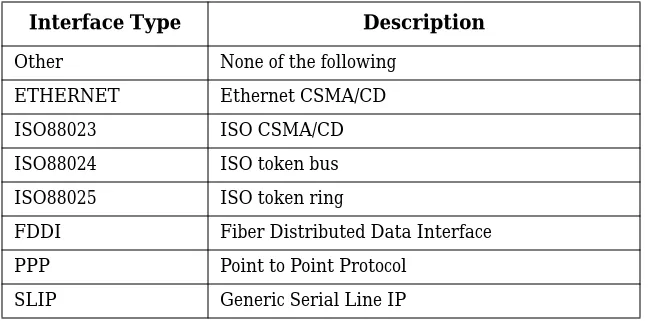
The type of interface. Possible interface types and a brief description of each type are listed in Table 3-5.
Model Redundancy Configuration
Interface Configuration View
Configuration Views Ericsson Consono MD110 PBX
Admin Status
The administrative state of the interface.
Bandwidth
The estimated bandwidth of the interface measured in bits per second. For interfaces that do not vary in bandwidth or for which no accurate estimate can be made, a nominal bandwidth is provided.
Physical Address
The MAC address for this interface.
Operation Status
The operational state of the interface. The unknown state indicates that the agent cannot get the status of the interface; other states are On, Off, or Testing.
Admin Status
The desired operational state of the interface (On, Off, or Testing).
Last Change
The System UpTime value when the port entered its current operational state.
Queue Length
The length of the outbound queue of packets.
Packet Size
The largest Maximum Transmission Unit (MTU) that can be transmitted or received by the port, measured in octets.
Table 3-5. Ericsson Consono MD110 Switch Interface Types
Interface Type Description
Other None of the following
ETHERNET Ethernet CSMA/CD
ISO88023 ISO CSMA/CD
ISO88024 ISO token bus
ISO88025 ISO token ring
FDDI Fiber Distributed Data Interface
PPP Point to Point Protocol
9032382 E1 Configuration Views Interface Configuration View Model Redundancy Configuration View
Model Redundancy Configuration View
This view provides Configuration Buttons and a Buttons Explanations section, which allow you to perform reconfiguration functions.
Interface Address Translation Table View
This view provides interface index, physical address, and network address information for each interface. Double-clicking on any entry in the table provides access to the Address Translation Table Information View, described below.
Address Translation Table Information View
The Address Translation Table Information View allows you to write to the Interface Address Translation Table fields. The fields are described below.
Interface Index
The interface
number for the MD110.Values range
from 1 to n, with n being the highest number of interfaces.Physical Address
The MAC address for this interface.
Network Address
The IP address for this MD110.
Interface Address Translation Table View
The Interface Address Translation Table view allows you to identify each interface. The column headings for this table are described below.
Interface Index
A unique value for each interface. Its value ranges between 1 and the value of ifnumber. The value 0 for each interface must remain constant at least from one reinitialization of the entity’s network management system to the next reinitialization.
Physical Address
Interface Configuration View
Interface Address Translation Table View
Configuration Views Ericsson Consono MD110 PBX
Network Address
The network address for the interface.
This button allows you to reconfigure the device. When the reconfiguration is complete, the “Action Successful” dialog box appears.
9032382 E1
Chapter 4
Event and Alarm Messages
What Is in This Chapter
This chapter describes the types of events and alarms generated by the Ericsson Consono MD110 Switch.
Ericsson Consono MD110 Switch Events and
Alarms
Table 4-1 describes the event messages appearing in the Event Log, and any corresponding probable cause messages that may be displayed in the
Ericsson Consono MD110 Switch Events and Alarms
Event and Alarm Messages Ericsson Consono MD110 PBX
Table 4-1. Ericsson Consono MD110 PBX Events and Alarms
Message in the Event Log Alarm View Probable Cause Message
Event01100001
{d “%w- %d %m-, %Y - %T”} A(n) {t} device, named {m}, has detected the creation of an interface. ifIndex = {I 1}. ifDescr = {S 3}. objectId = {I 2}. (event [{e}])
Prob01100001
INTERFACE CREATE TRAP
SYMPTOMS:
A dnaInterfaceCreate trap was received from the device.
PROBABLE CAUSES:
This enterprise specific trap is sent upon creation of an interface in the network element.
RECOMMENDED ACTIONS:
Read the corresponding Event to determine trap variables.
Event01100002
{d “%w- %d %m-, %Y - %T”} A(n) {t} device, named {m}, has detected the deletion of an interface.
ifIndex = {I 1}. if Descr = {S 3}. objectId = {I 2}. (event [{e}])
Prob01100002
INTERFACE DELETE TRAP
SYMPTOMS:
A dnaInterfaceDelete trap was received from the device.
PROBABLE CAUSES:
This enterprise specific trap is sent upon deletion of an interface in the network element.
RECOMMENDED ACTIONS:
9032382 E1 Event and Alarm Messages Ericsson Consono MD110 Switch Events and Alarms
Event01100003
{d “%w- %d %m-, %Y - %T”} A(n) {t} device, named {m}, has detected a change in dnaInterfaceConfTable. ifIndex = {I 1}. neighbor
Address = {S 2}. neighborIfName = {S 3}. (event [{e}])
Prob01100003
CONNECTION CREATE TRAP/ SYMPTOMS:
A dnaConnectionCreate trap was received from the device.
PROBABLE CAUSES:
This trap shall be used to inform the manager(s) that a change has been made in the dnaInterface ConfTable, a row has either been added or its information changed.
RECOMMENDED ACTIONS:
Read the corresponding Event to determine trap variables.
Event01100004
{d “%w- %d %m-, %Y - %T”} A(n) {t} device, named {m}, has detected a deleted row in the
dnaInterfaceConfTable.
ifIndex = {I 1}. neighborAddress = {S 2}. neighborIfName = {S 3}. (event [{e}])
Prob01100004
CONNECTION DELETE TRAP/ SYMPTOMS:
A dnaConnectionDelete trap was received from the device.
PROBABLE CAUSES:
This trap shall be used to inform the manager(s) that a row has been deleted in the
dnaInterfaceConfTable.
RECOMMENDED ACTIONS:
Read the corresponding Event to determine trap variables.
Table 4-1. Ericsson Consono MD110 PBX Events and Alarms (Continued)
Ericsson Consono MD110 Switch Events and Alarms
Event and Alarm Messages Ericsson Consono MD110 PBX
Event01100011
{d “%w- %d %m-, %Y - %T”} A(n) {t} device, named {m}, has detected an alarm of class A4 - CRITICAL. mdIfIndex = {I 1}. cause = {S 3}. equipPosition = {S 4}.
errorCode = {I 5}. (event [{e}])
Prob01100011CRITICAL ALARM TRAP
SYMPTOMS:
A mdAlarmCritical trap was received from the device.
PROBABLE CAUSES:
This trap is sent when an MD110 alarm with alarm class A4 is detected.
RECOMMENDED ACTIONS:
Read the corresponding Event to determine trap variables.
Event01100012
{d “%w- %d %m-, %Y - %T”} A(n) {t} device, named {m}, has detected an alarm of class A3 - MAJOR. mdIfIndex = {I 1}. cause = {S 3}. equipPosition = {S 4}.
errorCode = {I 5}. (event [{e}])
Prob01100012
MAJOR ALARM TRAP
SYMPTOMS:
A mdAlarmMajor trap was received from the device.
PROBABLE CAUSES:
This trap is sent when an MD110 alarm with alarm class A3 is detected.
RECOMMENDED ACTIONS:
Read the corresponding Event to determine trap variables.
Table 4-1. Ericsson Consono MD110 PBX Events and Alarms (Continued)
9032382 E1 Event and Alarm Messages Ericsson Consono MD110 Switch Events and Alarms
Event01100013
{d “%w- %d %m-, %Y - %T”} A(n) {t} device, named {m}, has detected an alarm of class A2 - MINOR. mdIfIndex = {I 1}. cause = {S 3}. equipPosition = {S 4}.
errorCode = {I 5}. (event [{e}])
Prob01100013
MINOR ALARM TRAP
SYMPTOMS:
A mdAlarmMinor trap was received from the device.
PROBABLE CAUSES:
This trap is sent when an MD110 alarm with alarm class A2 is detected.
RECOMMENDED ACTIONS:
Read the corresponding Event to determine trap variables.
Event01100014
{d “%w- %d %m-, %Y - %T”} A(n) {t} device, named {m}, has detected an alarm of class A1 - WARNING. mdIfIndex = {I 1}. cause = {S 3}. equipPosition = {S 4}.
errorCode = {I 5}. (event [{e}])
Prob01100014
WARNING ALARM TRAP
SYMPTOMS:
A mdAlarmWarning trap was received from the device.
PROBABLE CAUSES:
This trap is sent when an MD110 alarm with alarm class A1 is detected.
RECOMMENDED ACTIONS:
Read the corresponding Event to determine trap variables.
Table 4-1. Ericsson Consono MD110 PBX Events and Alarms (Continued)
Ericsson Consono MD110 Switch Events and Alarms
Event and Alarm Messages Ericsson Consono MD110 PBX
Event01100015
{d “%w- %d %m-, %Y - %T”} A(n) {t} device, named {m}, has detected an alarm of class A0 - CEASED. mdIfIndex = {I 1}. ca
use = {S 3}. equipPosition = {S 4}. errorCode = {I 5}. (event [{e}])
Prob01100015
ALARM CEASE TRAP
SYMPTOMS:
A mdAlarmCease trap was received from the device.
PROBABLE CAUSES:
This trap is sent when an MD110 alarm with alarm class A0 is detected.
RECOMMENDED ACTIONS:
Read the corresponding Event to determine trap variables.
Event01102000
{d “%w- %d %m-, %Y - %T”} A(n) {t} device, named {m}, has detected an alarm status change.
mdAlarmStatus = {I 1}. (1-indeterminate,2-normal, 3-minor,4-critical,6-warning, 7-major). (event [{e}])
Prob01102000
STATUS CHANGE TRAP
SYMPTOMS:
A mdAlarmStatusChange trap was received from the device.
PROBABLE CAUSES:
This enterprise specific trap is sent when the network element changes its alarmStatus.
RECOMMENDED ACTIONS:
Read the corresponding Event to determine trap variables.
Table 4-1. Ericsson Consono MD110 PBX Events and Alarms (Continued)
9032382 E1 Event and Alarm Messages Ericsson Consono MD110 Switch Events and Alarms
Event01102001
{d “%w- %d %m-, %Y - %T”} A(n) {t} device, named {m}, has detected a change in the agentState variable. agentState = {I 1}. (1-OK,
2-linkDown,3-updatingMIB, 4-agentFault). (event [{e}])
Prob01102001
AGENT STATE CHANGE TRAP/ SYMPTOMS:
A mdAgentStateChange trap was received from the device.
PROBABLE CAUSES:
This trap is sent when a change occurs in the agentState variable, forexample: the MD110 is
disconnected from the agent.
RECOMMENDED ACTIONS:
Read the corresponding Event to determine trap variables.
Event01103000
{d “%w- %d %m-, %Y - %T”} A(n) {t} device, named {m}, has detected a change in the operational status of an interface. mdIfIndex = {I 1}. mdIfOperStatus = {I 2}. (1-up, 2-down, 3-unknown). (event [{e}])
Prob01103000
OPER STATUS UP TRAP / SYMPTOMS:
A mdOperStatusUp trap was received from the device.
PROBABLE CAUSES:
This trap is sent when an MD110 internal component has changed its operational status from down to up:
RECOMMENDED ACTIONS:
Read the corresponding Event to determine trap variables.
Table 4-1. Ericsson Consono MD110 PBX Events and Alarms (Continued)
Ericsson Consono MD110 Switch Events and Alarms
Event and Alarm Messages Ericsson Consono MD110 PBX
Event01105000
{d “%w- %d %m-, %Y - %T”} A(n) {t} device, named {m}, has detected a change in the operational status of an internal component from UP to DOWN. objectId = {O 1}. (event [{e}])
Prob01105000
OPER STATUS UP TRAP/ SYMPTOMS:
A mdOperStatusUp trap was received from the device.
PROBABLE CAUSES:
This trap is sent when an MD110 internal component has changed its operational status from down to up.
RECOMMENDED ACTIONS:
Read the corresponding Event to determine trap variables.
Event01105001
{d “%w- %d %m-, %Y - %T”} A(n) {t} device, named {m}, has detected a change in the operational status of an internal component from UP to DOWN. objectId = {O 1}. (event [{e}])
Prob01105001
OPER STATUS DOWN TRAP / SYMPTOMS:
A mdOperStatusDown trap was received from the device.
PROBABLE CAUSES:
This trap is sent when an MD110 internal component has changed its operational status from up to down.
RECOMMENDED ACTIONS:
Read the corresponding Event to determine trap variables.
Table 4-1. Ericsson Consono MD110 PBX Events and Alarms (Continued)
9032382 E1 Event and Alarm Messages Ericsson Consono MD110 Switch Events and Alarms
Event01105002
{d “%w- %d %m-, %Y - %T”} A(n) {t} device, named {m}, has detected a change in the operational status of an internal component to
UNKNOWN. objectId = {O 1}. (event [{e}])
Prob01105002
OPER STATUS UNKNOWN TRAP
SYMPTOMS:
A mdOperStatusUnknown trap was received from the device.
PROBABLE CAUSES:
This trap is sent when an MD110 internal component has an unknown operational status.
RECOMMENDED ACTIONS:
Read the corresponding Event to determine trap variables.
Event01106000
{d “%w- %d %m-, %Y - %T”} A(n) {t} device, named {m}, has detected an active external alarm .
externalAlarmErrorCode = {I 1}. (event [{e}])
Prob01106000
EXTERNAL ALARM ACTIVE TRAP
SYMPTOMS:
A mdExtAlarmActive trap was received from the device.
PROBABLE CAUSES:
This trap is sent when an external alarm becomes active.
RECOMMENDED ACTIONS:
Read the corresponding Event to determine trap variables.
Table 4-1. Ericsson Consono MD110 PBX Events and Alarms (Continued)
Ericsson Consono MD110 Switch Events and Alarms
Event and Alarm Messages Ericsson Consono MD110 PBX
Event01106001
{d “%w- %d %m-, %Y - %T”} A(n) {t} device, named {m}, has detected a passive external alarm .
externalAlarmErrorCode = {I 1}. (event [{e}])
Prob01106001
EXTERNAL ALARM PASSIVE TRAP
SYMPTOMS:
A mdExtAlarmPassive trap was received from the device.
PROBABLE CAUSES:
This trap is sent when an external alarm becomes passive.
RECOMMENDED ACTIONS:
Read the corresponding Event to determine trap variables.
Event01106002
{d “%w- %d %m-, %Y - %T”} A(n) {t} device, named {m}, has detected an unknown external alarm .
externalAlarmErrorCode = {I 1}. (event [{e}])
Prob01106002
EXTERNAL ALARM UNKNOWN TRAP
SYMPTOMS:
A mdExtAlarmUnknown trap was received from the device.
PROBABLE CAUSES:
This trap is sent when an external alarm is unknown.
RECOMMENDED ACTIONS:
Read the corresponding Event to determine trap variables.
Table 4-1. Ericsson Consono MD110 PBX Events and Alarms (Continued)
9032382 E1 Event and Alarm Messages Ericsson Consono MD110 Switch Events and Alarms
Event01106050
{d “%w- %d %m-, %Y - %T”} A(n) {t} device, named {m}, has detected an active pin in the agent alarm port. pinIndex = {I1}, alarmClassA = {S 2}, pinAlarmText = {S 3}. (event [{e}])
Prob01106050
AGENT ACTIVE TRAP
SYMPTOMS:
A mdAgentActiveAlarm trap was received from the device.
PROBABLE CAUSES:
This trap is sent when a pin in the agent alarm port gets active.
RECOMMENDED ACTIONS:
Read the corresponding Event to determine trap variables.
Event01106051
{d “%w- %d %m-, %Y - %T”} A(n) {t} device, named {m}, has detected a passive pin in the agent alarm port. pinIndex = {I 1},
alarmClassA = {S 2} ,
pinAlarmText = {S 3}. (event [{e}])
Prob01106051
AGENT PASSIVE TRAP SYMPTOMS:
A mdAgentPassiveAlarm trap was received from the device.
PROBABLE CAUSES:
This trap is sent when a pin in the agent alarm port gets passive.
RECOMMENDED ACTIONS:
Read the corresponding Event to determine trap variables.
Table 4-1. Ericsson Consono MD110 PBX Events and Alarms (Continued)
Ericsson Consono MD110 Switch Events and Alarms
Event and Alarm Messages Ericsson Consono MD110 PBX
Event01106052
{d “%w- %d %m-, %Y - %T”} A(n) {t} device, named {m}, has detected a signal on an unconfigured pin in the agent alarm port. pinIndex = {I 1}, pinAlarmText = {S 3}. (event [{e}])
Prob01106052
AGENT UNKNOWN TRAP SYMPTOMS:
A mdAgentUnknownAlarm trap was received from the device.
PROBABLE CAUSES: This trap is sent when an unconfigured pin in the agent alarm port presents signal.
RECOMMENDED ACTIONS:
Read the corresponding Event to determine trap variables.
Table 4-1. Ericsson Consono MD110 PBX Events and Alarms (Continued)
9032382 E1 Event and Alarm Messages Ericsson Consono MD110 Switch Events and Alarms
Event01107000
{d “%w- %d %m-, %Y - %T”} A(n) {t} device, named {m}, has detected a specified level in the Call Account Buffer has been reached.
cabStorageLimit = {I 1}. (event [{e}])
Prob01107000
CAB LIMIT TRAP SYMPTOMS:
A mdCABLimit trap was received from the device.
PROBABLE CAUSES:
This trap is sent when a specified level in the Call Account Buffer has been reached.
RECOMMENDED ACTIONS:
Read the corresponding Event to determine trap variables.
Event01107001
{d “%w- %d %m-, %Y - %T”} A(n) {t} device, named {m}, has detected a specified level in the Call Account Buffer has been cleared.
cabStorageLimit = {I 1}. (event [{e}])
Prob01107001
CAB LIMIT CLEARED TRAP SYMPTOMS:
A mdCABFreeMemoryOK trap was received from the device.
PROBABLE CAUSES:
This trap is sent when a specified level in the Call Account Buffer has been cleared.
RECOMMENDED ACTIONS:
Read the corresponding Event to determine trap variables.
Table 4-1. Ericsson Consono MD110 PBX Events and Alarms (Continued)
Ericsson Consono MD110 Switch Events and Alarms
9032382 E1
Chapter 5
Application View
What Is in This Chapter
This chapter provides information about the MD110 Management Module Application view. The Application view allows the user to view information for the applications supported by the MD110. Each application appears as an icon in the Application view; each icon provides access to sub-views with detailed network information.
Common Applications
SPECTRUM management of the MD110 is based on common and device-specific applications and sub-applications. The common applications are described in the SPECTRUM Application View Reference and are listed below.
• MIB-II (SNMP2_Agent) - System (System2_App) - ICMP (ICMP_App) - IP Routing (IP2RtrApp) - TCP (TCP2_App) - UDP (UDP2_App)
The following major applications are available if you purchase the associated services. These applications are described in their management module guides.
• Routing Services (CtRouter) • DLM (DLM_Agent)
Common Applications
Application View Ericsson Consono MD110 PBX
The MD110 supports the MD110 (MD110_App) device-specific application, described in this chapter. Refer to Figure 5-1 for an example of the Application view in Icon Mode.
Figure 5-1. MD110 Application View (in Icon Mode)
* File View Help?
(IP Address) of type MD110_PBX of Landscape machine:Primary
Model Name
Contact
Description
Location
Network Address
PrimaryApplication
SystemUp Time
Manufacturer
Device Type
Serial Number
MIB-III MD110_App
md110App
md110App MD110_
ICMP
SNMP2_Agent
IP_App IP2_App
IP2_App System2_App System2_App System2_App
UDP_2App UDP_2App
UDP_2App SNMP2_Agent
9032382 E1 Application View Common Applications
Figure 5-2 provides an example of an Application view (shown in List Mode). For more information on accessing the List Mode, refer to the
SPECTRUM Operator’s Reference.
Figure 5-2. MD110 Application View (in List Mode)
* File View Help?
(IP Address) of type MD110_PBX of Landscape machine:Primary
Model Name
Contact
Description
Location
Network Address Sys Up Time
Manufacturer
Device Type
Serial Number
MD110_PB
MD110App
SNMP2_Agent
ICMP_App
IP2_App
System2_App
UDP2_App
Common Applications MD110 Application
Application View Ericsson Consono MD110 PBX
MD110 Application
The MD110 Application provides one application-specific view: the MD110 Configuration view. To access this view, select MD110 Configuration from the Icon Subviews menu, or highlight the device icon and select MD110
Configuration from the icon subviews menu. For more information on the
9032382 E1
Index
A
Action Successful 3-18
Active Alarms Table 3-9
active and external alarm tables 3-2
Admin Status 3-16
agent alarm port 3-10
Agent Board Hardware Vs 3-14
agent board serial number 3-14
Agent Information 3-1
Agent State 3-9
agentFault 3-2
Alarm Messages 4-1
Alarm Class 3-9
alarm class 3-11
Alarm Information 3-1
alarm states 3-2
Application 2-4
Application View (Icon Mode) 5-2
Application View (List Mode) 5-3
Application View Reference Guide 5-1
Application Views 5-1
B
Bandwidth 3-16
bearer channels 3-12
Bit #’s 3-11
C
Call Information Logging Table 3-4
Call Logging Interface data 3-7
ceasing alarm 3-10
Class A 3-10
Cold Start Initiate 3-14
common applications 5-1
compression mode 3-8
Computer Telephony Interface statistics 3-4
Computer Telephony Interfaces Table 3-4
Configuration 2-4 Conventions ix Critical 3-2
D
Descr-Active 3-10 Description 3-15 Descr-Passive 3-10Device Configuration View Contact Status 3-2
Number of Interfaces 3-2
Device Configuration view 3-1
device-specific applications 5-1
DevTop 2-4
DNA Interconnections 3-5
E
E1/T1 ELU-7 3-5
E1/T1 ELU-7 interface 3-8
Equip Position 3-6
EquPos 3-6
Error Code 3-9
error rate 3-1
estimated bandwidth 3-16
Event
Messages 4-1
F
flash memory 3-14
G
Generic Serial Line IP 3-16
Getting Help x
Green 2-5
Group Switch Information 3-1
group switch link 3-13
Index Ericsson Consono MD110 PBX
I
ICMP_App 5-1
icon access 5-1
ifnumber 3-17
Indeterminate 3-2
Interface Adddress Translation Table 3-2,
3-17
Interface Index 3-17
interface index 3-17
Interface Names Table 3-3
Interfaces Information 3-1
internal fault 3-2
IP Application 5-1
IP2_App 5-1
ISDN basic rate extensions 3-7
ISDN Basic Rate Extensions Table 3-5
ISDN S0 port 3-7
ISO88023 3-16 ISO88024 3-16 ISO88025 3-16
L
Last Change 3-16LIM chassis slot location 2-5
LIM Detail view 2-5
LIM information 3-13
LIM Table 3-1, 3-3
Line Interface Module 2-5
linkdown 3-2
List Mode 5-3
Logical
Module 2-2
Repeater
Menu Selections 3-14
Module
Details 3-14
M
MAC address 3-16
Major 3-2
manager-defined release number 3-1
Maximum Transmission Unit 3-16
MD110 BC 8 firmware 3-7
MD110 Device view 2-1
MIB-II 5-1
Minor 3-2
MML parameter EQU 3-12
MML parameter RO TYPE 3-11
Mode 3-8
Model
Information 2-4
model configuration 3-1, 3-15
Model Reconfiguration Options 3-15
model redundancy configuration 3-15
Module Type 2-4
Module/Port Icon 2-4
MTU 3-16
multiple group switch links 3-14
N
Neighbor Address 3-9
Neighbor Name 3-9
Normal 3-2
Notice i
notPresent 3-13
Number Active 3-9
number of channels 3-12
O
Off Page Interface Table 3-4
OPI Information Table 3-6
9032382 E1 Index
P
Packet Size 3-16
Physical Address 3-16
pin alarm 3-11
PIN Alarm Information 3-10
PIN Polling Interval 3-10
Polarity 3-10
Port ID 3-6
Port Notes view 2-5
PPP 3-16
protocol stack 3-17
Q
Queue Length 3-16
R
reconfigure the device 3-18
Related Reading x
Restricted Rights Notice ii
Route and Trunk Information 3-1
Route Information 3-2
S
Server port 3-8
SLIP 3-16
SNMP2_Agent 5-1
state of the connection 3-2
Status-Side0 3-13
Status-Side1 3-13
switch board attendant 3-6
System2_App 5-1
T
T1 Block Type 3-11
TCP/IP Based Networks x
Terminology ix
Trademarks i
traffic flow 3-1
Trap Destination 3-10
Trunk Endpoints Table 3-11
Trunk Information 3-2
Type 3-15
U
UDPApplication 5-1
UDP2_App 5-1
updating MIB 3-2
V
VCU Interfaces Table 3-5
Virus Disclaimer ii
W