555-233-506
Comcode 108678798
Issue 1.1
June 2000
DEFINITY
Enterprise Communication Server
Release 8.2
All Rights Reserved Printed in U.S.A. Notice
Every effort was made to ensure that the information in this book was complete and accurate at the time of printing. However, information is subject to change.
Your Responsibility for Your System’s Security
Toll fraud is the unauthorized use of your telecommunications system by an unauthorized party, for example, persons other than your com-pany’s employees, agents, subcontractors, or persons working on your company’s behalf. Note that there may be a risk of toll fraud associated with your telecommunications system and, if toll fraud occurs, it can result in substantial additional charges for your telecommunications services.
You and your system manager are responsible for the security of your system, such as programming and configuring your equipment to pre-vent unauthorized use. The system manager is also responsible for reading all installation, instruction, and system administration docu-ments provided with this product in order to fully understand the fea-tures that can introduce risk of toll fraud and the steps that can be taken to reduce that risk. Lucent Technologies does not warrant that this product is immune from or will prevent unauthorized use of com-mon-carrier telecommunication services or facilities accessed through or connected to it. Lucent Technologies will not be responsible for any charges that result from such unauthorized use.
Lucent Technologies Fraud Intervention
If you suspect that you are being victimized by toll fraud and you need technical support or assistance, call Technical Service Center Toll Fraud Intervention Hotline at 1 800 643-2353.
Federal Communications Commission Statement
Part 15: Class A Statement. This equipment has been tested and found to comply with the limits for a Class A digital device, pursuant to Part 15 of the FCC Rules. These limits are designed to provide rea-sonable protection against harmful interference when the equipment is operated in a commercial environment. This equipment generates, uses, and can radiate radio-frequency energy and, if not installed and used in accordance with the instructions, may cause harmful interfer-ence to radio communications. Operation of this equipment in a resi-dential area is likely to cause harmful interference, in which case the user will be required to correct the interference at his own expense.
Part 68: Network Registration Number. This equipment is registered with the FCC in accordance with Part 68 of the FCC Rules. It is identi-fied by FCC registration number AS593M-13283-MF-E.
Part 68: Answer-Supervision Signaling. Allowing this equipment to be operated in a manner that does not provide proper answer-supervi-sion signaling is in violation of Part 68 Rules. This equipment returns answer-supervision signals to the public switched network when:
• Answered by the called station • Answered by the attendant
• Routed to a recorded announcement that can be administered by the CPE user
This equipment returns answer-supervision signals on all DID calls forwarded back to the public switched telephone network. Permissible exceptions are:
• A call is unanswered • A busy tone is received • A reorder tone is received
Interference Information
This digital apparatus does not exceed the Class A limits for radio noise emissions set out in the radio interference regulations of the Canadian Department of Communications.
Le Présent Appareil Nomérique n’émet pas de bruits radioélectriques dépassant les limites applicables aux appareils numériques de la class A préscrites dans le reglement sur le brouillage radioélectrique édicté par le ministére des Communications du Canada.
Trademarks
See the preface of this document.
Ordering Information
Call: Lucent Technologies BCS Publications Center
USA 1 888 582-3688
USA Fax 1 800 566-9568 Canada +1 317-322-6619 Europe, Middle East, Africa +1 317-322-6416 Asia, Caribbean, China, Latin America, and
the Pacific Region +1 317-322-6411 International Fax +1 317 322-6699
Write: Lucent Technologies BCS Publications Center 2855 N. Franklin Road
Indianapolis, IN 46219
Order: Document No. 555-233-506 Comcode 108678798 Issue 1.1, June 2000
For additional documents, refer to ‘‘References’’ on page 1615
You can be placed on a standing order list for this and other documents you may need. Standing order will enable you to automatically receive updated versions of individual documents or document sets, billed to account information that you provide. For more information on stand-ing orders, or to be put on a list to receive future issues of this docu-ment, contact the Lucent Technologies Publications Center.
European Union Declaration of Conformity
The “CE” mark affixed to the DEFINITY® equipment described in this book indicates that the equipment conforms to the following Euro-pean Union (EU) Directives:
• Electromagnetic Compatibility (89/336/EEC) • Low Voltage (73/23/EEC)
• Telecommunications Terminal Equipment (TTE) i-CTR3 BRI and i-CTR4 PRI
For more information on standards compliance, contact your local dis-tributor.
Comments
To comment on this document, return the comment card at the front of the document.
Acknowledgment
Administrator’s Guide 555-233-506 June 2000 Contents
iii
Contents
Contents iii
About this document xv
■ Overview xv
■ Purpose xvi
■ Audience xvi
■ Reason for reissue xvi
■ How to use this document xvi
■ Organization xvi
■ Task-related information xviii
■ Feature-related information xix
■ Conventions used in this document xx ■ Trademarks and service marks xxi ■ How to get this book on the web xxii
■ How to order more copies xxiii
■ How to get help xxiii
■ Tell us what you think xxiv
1
System basics 1■ Logging into the system 1
■ Logging in with Access Security Gateway 3
■ Logging off the system 5
■ Setting command permissions 6
■ Establishing daylight savings rules 7 ■ Setting the system date and time 10
■ Using the bulletin board 12
■ Saving translations 14
■ Backup via the Web interface (DEFINITY One only) 17
2
Introduction to the DEFINITY system 29■ Understanding your configuration 29
■ Understanding the dial plan 31
■ Adding feature access codes 33
■ Controlling the calls your users can make and receive 34 ■ Controlling the features your users can access 36
Administrator’s Guide 555-233-506 June 2000 Contents
iv
■ Changing feature parameters 38
■ Administering treatment for denied calls 39
■ Setting up Music-on-Hold 40
■ Providing service for multiple tenants 41 ■ Receiving notification in an emergency 43 ■ Notifying a digital pager of an emergency 46
■ Other useful settings 48
3
Managing phones 49■ Adding new phones 49
■ Using templates to add phones 53
■ Using an alias 54
■ Customizing your phone 56
■ Upgrading phones 57
■ Swapping phones 57
■ Using TTI to move phones 58
■ Removing phones 62
■ Adding a fax or modem 63
■ Adding a DEFINITY IP Softphone 64
4
Managing phone features 69■ Adding feature buttons 69
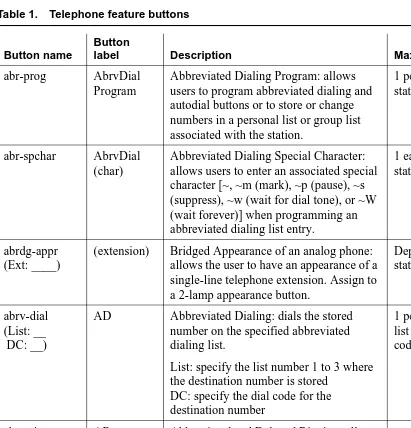
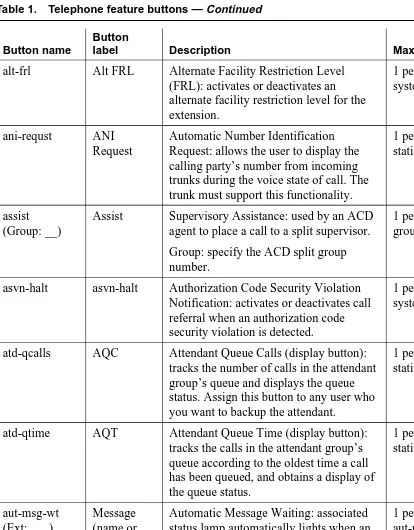
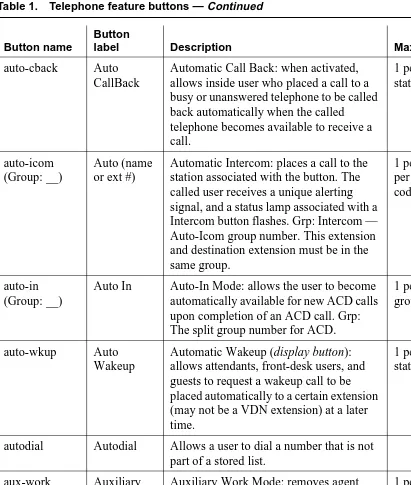
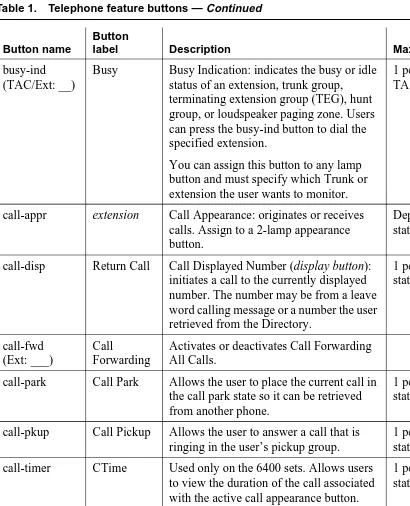
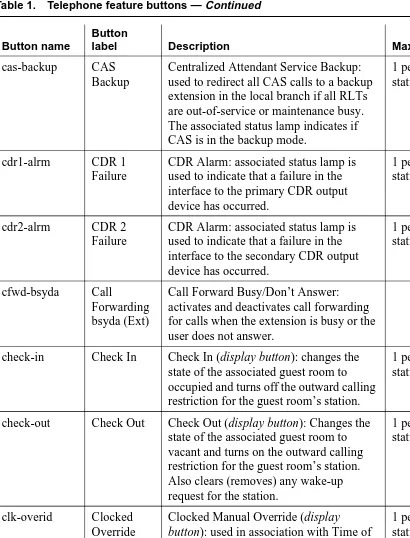
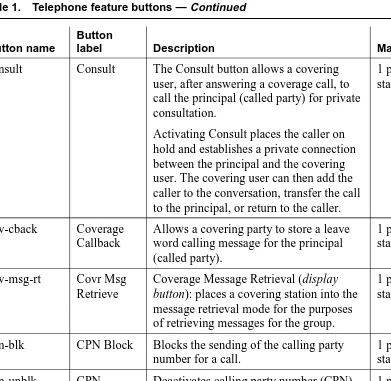
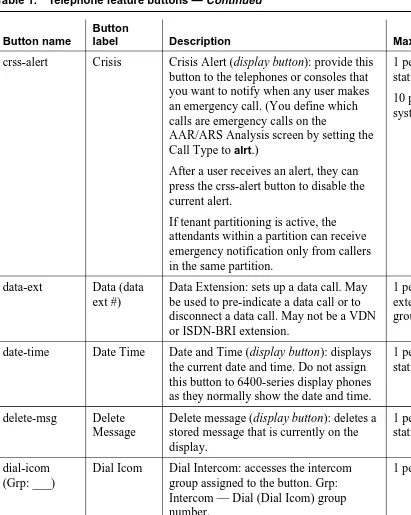
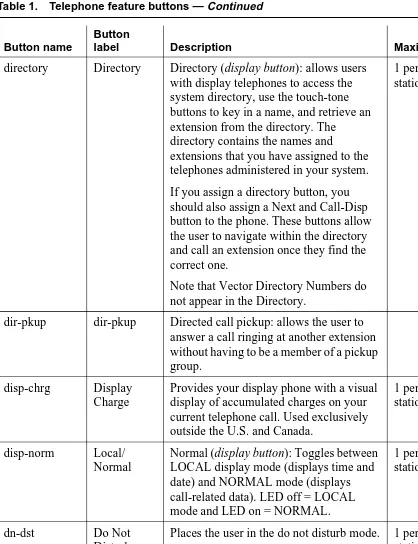
■ Telephone feature buttons 71
■ Adding abbreviated dialing lists 92 ■ Setting up bridged call appearances 96 ■ Setting up Terminal Self Administration 100
5
Managing your attendant consoles 103■ Overview 103
■ Adding an attendant console 108
■ Attendant console feature buttons 110 ■ Removing an attendant console 116
■ Setting console parameters 117
Administrator’s Guide 555-233-506 June 2000 Contents
v
6
Managing displays 121■ Displaying caller information 121 ■ Displaying ANI calling party information 122
■ Displaying ICLID Information 123
■ Changing the display language 124
■ Setting up directory buttons 127
7
Handling incoming calls 129■ Setting up basic call coverage 129 ■ Setting up advanced call coverage 133
■ Setting up call forwarding 140
■ Setting up night service 145
■ Adding call pickup 158
■ Managing hunt groups 164
■ Managing vectors and VDNs 170
■ Understanding Automatic Call Distribution 182 ■ Assigning a terminating extension group 183
8
Routing outgoing calls 185■ World class routing 185
■ Managing calling privileges 186
■ Assigning ARS FAC 187
■ Displaying ARS analysis information 187
■ Understanding ARS analysis 188
■ Setting up multiple locations 195 ■ Routing with multiple locations 198
■ Modifying call routing 200
■ Overriding call restrictions 203
■ Defining ARS Partitions 204
■ Setting up time of day routing 207
■ Setting up shortcut dialing 210
9
Managing multimedia calling 215■ Multimedia Applications Server Interface 215
■ Multimedia Call Handling 244
■ Understanding the multimedia complex 263
Administrator’s Guide 555-233-506 June 2000 Contents
vi
10
Setting up telecommuting 297■ Configuring DEFINITY ECS for telecommuting 297 ■ Setting up Personal Station Access 300 ■ Creating a station security code 302
■ Assigning coverage options 303
■ Setting up call forwarding 305
■ Assigning an extender password 307
■ Installing home equipment 308
■ Setting up remote access 310
■ Training users 313
11
Enhancing system security 317■ Basic security 318
■ Preventing toll fraud 319
■ Physical security 321
■ System security checklist 322
■ Adding logins and passwords 327
■ Changing a login 330
■ Displaying a login 332
■ Removing a login 332
■ Using access security gateway 333
■ Changing login permissions 337
■ Changing passwords 339
■ Using busy verify 340
■ Setting up security violations notification 341 ■ Setting up authorization codes 344 ■ Dealing with security violations 348
12
Managing trunks 349■ Tips for working with trunk groups 349 ■ Adding a CO, FX, or WATS trunk group 352
■ Adding a DID trunk group 355
■ Adding a DIOD trunk group 357
■ Adding a PCOL trunk group 358
■ Adding a Tie or Access trunk group 361
Administrator’s Guide 555-233-506 June 2000 Contents
vii
■ Adding trunks to a trunk group 368 ■ Removing trunks from a trunk group 371
■ Removing trunk groups 372
■ Inserting and absorbing digits 373 ■ Administering answer detection 375 ■ Administering trunks for listed directory numbers 376
13
Managing announcements 379■ Understanding announcements 379
■ Adding announcement data modules 379 ■ Adding announcement extensions 381
■ Recording announcements 382
■ Saving announcements 383
■ Copying announcements 384
■ Restoring announcements 385
■ Deleting and erasing announcements 386 ■ Setting up continuous-play announcements 387
14
Managing group communication 389■ Setting up voice paging over loudspeakers 389 ■ Setting up chime paging over loudspeakers 392
■ Paging over speakerphones 396
■ Paging users who are on active calls 398
■ Using phones as intercoms 399
■ Observing calls 402
15
Managing data calls 405■ Types of data connections 405
■ Data Call Setup 406
■ Default Dialing 413
■ Alphanumeric Dialing 414
■ Data Hotline 415
■ Data Privacy 416
■ Data Restriction 417
■ Data-Only Off-Premises Extensions 419
■ Data Modules — general 420
■ Administered Connection 423
Administrator’s Guide 555-233-506 June 2000 Contents
viii
■ PC Interface 431
■ Wideband Switching 435
■ CallVisor Adjunct-Switch Application Interface 448
■ Setting up CallVisor ASAI 450
16
Collecting billing information 453■ Collecting information about calls 453 ■ Recording calls between users on the same switch 456 ■ Tracking calls by account code 458 ■ Forcing users to enter account codes 459 ■ Receiving call-charge information 460 ■ Viewing call charge information 463
17
Screen reference 465■ AAR and ARS Digit Analysis Table 465 ■ AAR and ARS Digit Conversion Table 470
■ Abbreviated Dialing List 473
■ Access Endpoint 481
■ Administered Connection 485
■ Alias Station 490
■ Alphanumeric Dialing Table 491
■ Announcements/Audio Sources 494
■ ARS Toll Table 497
■ Attendant Console 498
■ Authorization Code — COR Mapping 511
■ Bulletin Board 513
■ Call Vector 515
■ CAMA Numbering Format 520
■ CDR System Parameters 522
■ Class of Restriction 533
■ Class of Service 545
■ Code Calling IDs 549
■ Command Permission Categories 550
■ Console Parameters 553
■ Coverage Answer Group 563
Administrator’s Guide 555-233-506 June 2000 Contents
ix
■ Crisis Alert System Parameters 569
■ Data modules 572
■ Date and Time 602
■ Daylight Savings Rules 605
■ Dial Plan Record 607
■ Digit Absorption 611
■ DS1 Circuit Pack 613
■ Extended Pickup Group 631
■ Extensions Administered
to have an MCT-Control Button 632
■ Feature Access Code 633
■ Feature-Related System Parameters 646 ■ Group Paging Using Speakerphone 695
■ Hospitality 696
■ Hunt Group 708
■ Intercom Group 732
■ Inter-Exchange Carrier (IXC) Codes 733
■ Intra-Switch CDR 735
■ IP Trunk Configuration Manager 736
■ ISDN trunk group 750
■ ISDN Numbering — Private 784
■ ISDN Numbering — Public/ Unknown 787
■ ISDN-BRI Trunk Circuit Pack 790
■ Language Translations 799
■ Listed Directory Numbers 813
■ Locations 814
■ Login Administration 816
■ Loudspeaker Paging 822
■ Mode Code Related System Parameters 825
■ Modem Pool Group 829
■ Multifrequency-Signaling-Related
System Parameters 835
■ Music Sources 857
■ Packet Gateway Board 859
■ Partition Route Table 860
Administrator’s Guide 555-233-506 June 2000 Contents
x
■ Pickup Group 864
■ PRI Endpoint 865
■ Remote Access 870
■ Remote Call Coverage Table 875
■ RHNPA Table 876
■ Route Pattern 877
■ Second Digit Table 886
■ Security-Related System Parameters 887
■ Site Data 894
■ Station 894
■ System Parameters Call Coverage / Call Forwarding 923 ■ System Parameters Country-Options 930 ■ System Parameters Customer-Options 940 ■ System Parameters OCM
Call Classification 960
■ Telecommuting Access 963
■ Tenant 964
■ Terminal Parameters 967
■ Terminating Extension Group 971
■ Time of Day Coverage Table 974
■ Time of Day Routing Plan 975
■ Toll Analysis 977
■ Trunk Group 980
■ Vector Directory Number 1045
18
Command reference 105119
Phone reference 1075■ Multibutton electronic telephones 1076
■ 500 telephones 1077
■ 2500-series telephones 1077
■ 6200-series telephones 1077
■ 6400-series telephones 1081
■ 7100-series telephones 1085
■ 7300-series telephones 1085
Administrator’s Guide 555-233-506 June 2000 Contents
xi
■ 7400-series telephones 1094
■ ISDN telephones (7500s & 8500s) 1110
■ 8110 telephones 1115
■ 8400-series telephones 1115
■ CALLMASTER telephones 1122
■ Cordless telephones 1126
■ DEFINITY Internet Protocol (IP) Softphones 1129
20
Features and technical reference 1133■ AAR and ARS partitioning 1133
■ AAR/ARS shortcut dialing 1135
■ Abbreviated Dialing 1139
■ Access security gateway 1142
■ Administered Connections 1144
■ Administrable Language Displays 1149 ■ Alternate facility restriction levels 1150
■ Answer detection 1152
■ Attendant Features 1154
■ Audible Message Waiting 1162
■ Authorization codes 1163
■ Automated Attendant 1168
■ Automatic Callback 1170
■ Automatic circuit assurance 1174
■ Automatic Number Identification 1176
■ Automatic routing — general 1178
■ Barrier codes 1184
■ Bridged Call Appearance 1185
■ Busy Indicator 1199
■ Busy Verification 1200
■ Call Charge Information 1205
■ Call Coverage 1210
■ Call Detail Recording 1231
■ Call Forwarding 1288
■ Call Park 1297
■ Call Pickup 1299
Administrator’s Guide 555-233-506 June 2000 Contents
xii
■ Call-by-Call Service Selection 1305
■ Calling Party/Billing Number 1311
■ Calling Party Number Restriction 1312
■ Class of Restriction 1313
■ Conference 1319
■ Restriction — Controlled 1321
■ Crisis Alert 1322
■ Dial Plan 1325
■ Distinctive Ringing 1327
■ DS1 Trunk Service 1328
■ Emergency Access to the Attendant 1333
■ Emergency Transfer 1336
■ Extended User Administration of Redirected Calls 1337 ■ Facility and Non-Facility Associated Signaling 1342 ■ Facility restriction levels and
traveling class marks 1349
■ Generalized route selection 1351
■ Group paging 1354
■ Hospitality features 1357
■ Hunt Groups 1378
■ Incoming Call Line Identification 1386
■ Intercom 1387
■ Internal Automatic Answer 1389
■ IP trunk service 1393
■ ISDN service 1404
■ Leave Word Calling 1418
■ Line Lockout 1420
■ Listed Directory Numbers 1421
■ Look-Ahead routing 1423
■ Loss Plans 1425
■ Loudspeaker paging 1426
■ Malicious Call Trace 1431
■ Messaging Server Interface 1436
■ Misoperation Handling 1440
Administrator’s Guide 555-233-506 June 2000 Contents
xiii
■ Multiappearance Preselection and Preference 1446
■ Multifrequency Signaling 1448
■ Night Service 1456
■ Off-Premises Station 1465
■ PC Interface 1466
■ Personal Station Access 1470
■ Priority Calling 1474
■ Pull Transfer 1476
■ Recorded Announcements 1477
■ Recorded Telephone Dictation Access 1478
■ Remote Access 1479
■ Ringer Cutoff 1486
■ Ringing — Abbreviated and Delayed 1488 ■ Security violations notification 1491
■ Service observing 1495
■ Single-Digit Dialing and Mixed Station Numbering 1499
■ Station Hunting 1503
■ Station Security Codes 1510
■ Telephone Displays 1511
■ Temporary Bridged Appearance 1546
■ Tenant Partitioning 1548
■ Terminal Translation Initialization 1558
■ Terminating Extension Group 1563
■ Time of Day Routing 1565
■ Transfer 1566
■ Transfer — Outgoing Trunk to
Outgoing Trunk 1569
■ Transfer — Trunk-to-Trunk 1572
■ Trunk Flash 1574
■ Trunks and Trunk Groups 1576
■ Voice Message Retrieval 1586
■ Voice Messaging Systems 1588
■ Whisper paging 1595
■ Wideband Switching 1600
Administrator’s Guide 555-233-506 June 2000 Contents
xiv
21
References 1615■ Basic DEFINITY ECS documents 1615
GL
Glossary and abbreviations 1623About this document
xv Overview
Administrator’s Guide 555-233-506 June 2000
About this document
Overview
This document describes the DEFINITY Enterprise Communications Server (ECS) Release 8 administration, and includes all incremental releases up to and including Release 8.2. You may also want to see the DEFINITY ECS Change Description to see what is new as of R8.2.
NOTE:
This book contains information previously contained in the DEFINITY ECS Administration and Feature Description and DEFINITY ECS
Implementation books.
DEFINITY ECS is a family of cost-effective digital communication systems. These systems:
■ route voice and data information between various endpoints (telephones,
terminals, computers)
■ provide highly robust networking capabilities
■ include an extensive set of standard features including attendant consoles,
voice processing interface, call coverage, DS1 (T1 and E1) connectivity, hospitality support, recorded announcements, and trunk-to-trunk transfer
■ provide flexibility and allow for the addition of optional features and/or
Administrator’s Guide 555-233-506 June 2000 About this document
xvi Purpose
Purpose
This document provides an overall reference for planning, operating, and
administering your DEFINITY ECS. The book is divided into three volumes that present information on how to perform administrative tasks, how to complete administrative screens, and more detailed information on individual features.
This document does not contain information about how to install, maintain, repair, or troubleshoot the switch. See ‘‘References’’ on page 1615 for a list of related DEFINITY ECS documents.
Audience
This document is intended for DEFINITY ECS system administrators and managers, users interested in information about specific features, and Lucent Technologies personnel responsible for planning, designing, configuring, selling, and supporting the system.
Reason for reissue
This document is updated to include DEFINITY ECS Release 8.2 information. It also presents a restructure of the information contained in the DEFINITY ECS Administration and Feature Description to present standard administration procedures and allow the reader to make decisions about what actions to take to accomplish administrative goals.
How to use this document
Use this document as a guide to completing administrative procedures and as a reference document. If you are interested in information about a particular task, screen, or feature, use the index or table of contents to locate the page number where the information is described.
Organization
The first volume of this document provides step-by-step tasks for the
Administrator’s Guide 555-233-506 June 2000 About this document
xvii Organization
The following list describes the sections in this book.
‘‘System basics’’tells you how to log in and log off, set permissions for others who use the administration terminal, set daylight savings rules, set the system date and time, post messages, and back up the information you administer.
‘‘Introduction to the DEFINITY system’’ provides information on system-wide functions. It explains how to read, use, and make simple changes to your dial plan, and how to assign feature access codes.
‘‘Managing phones’’ explains how to add, swap, and remove phones on your system, and how to customize a phone for a switch administrator.
‘‘Managing phone features’’ explains how to administer feature buttons for your users’ phones.
‘‘Managing your attendant consoles’’ explains attendant console feature buttons, and tells you how to change, move, or add attendant consoles.
‘‘Managing displays’’ provides information on the messages that appear on the read-out screen on display phones.
‘‘Handling incoming calls’’ shows you how to set up call coverage for incoming calls to be sure that incoming calls are answered when the called party is not available.
‘‘Routing outgoing calls’’ explains how the switch handles outgoing calls and tells you how to modify call restrictions and your routing plan.
‘‘Managing multimedia calling’’ describes the Multimedia Applications Server Interface (MASI), and provides instructions on administration, monitoring, and troubleshooting. This section also provides information on Multimedia Call Handling (MMCH), which enables users to control voice, video, and data transmissions using a telephone and PC.
‘‘Setting up telecommuting’’ provides information on switch-wide settings and individual administration for telecommuting.
‘‘Enhancing system security’’ provides information on analyzing and setting up basic system security, preventing toll fraud, using logins and permissions and passwords, and dealing with security violations.
Administrator’s Guide 555-233-506 June 2000 About this document
xviii Task-related information
‘‘Managing announcements’’ tells you how to record, save, copy, restore and delete announcements.
‘‘Managing group communication’’ shows you how to administer your system so users can page other users or use their phones as intercoms. You can also give specific users permission to monitor other users’ calls or to interrupt active calls with important messages.
‘‘Managing data calls’’ describes the system features available to enable data communications.
‘‘Collecting billing information’’ provides information on account codes, and on tracking and collecting information about calls.
‘‘Screen reference’’ provides a brief description and a graphic representation of the screens used for DEFINITY ECS administration. It also lists the valid values for the fields on the screens, and describes when and why to use each value.
‘‘Command reference’’ Use the commands in these tables to access each administration screen.
‘‘Phone reference’’ describes many of the Lucent telephones that you can connect to the DEFINITY ECS. It also describes the unique features and buttons for each phone series to help you administer your user phones.
‘‘Features and technical reference’’ is a comprehensive technical reference for feature information.
Task-related information
The information for each task is usually presented under the following headings:
■ Task
Identifies the administrative procedure and gives a brief explanation of what is accomplished by completing the task.
■ Before you start
Lists hardware that must be installed or other tasks that must be completed before starting the task.
■ Instructions
Administrator’s Guide 555-233-506 June 2000 About this document
xix Feature-related information
■ Fixing problems
This section is not included in all task sections. It provides a brief coverage of possible problems, possible causes, and suggested solutions.
■ More information
Presents additional technical information that pertains directly to the completion of the current task.
■ Related topics
Provides cross-references to related tasks or related feature references.
Feature-related information
The information for each feature is usually presented under four headings:
■ Feature title
Gives the name and a brief overview of the feature. Tells what it does or how it serves the system.
■ Detailed description
Provides more detailed, technical information about a feature. When appropriate, additional guidelines and examples are provided. In some cases, expanded technical information is provided on one or several aspects of the feature.
■ Interactions
Lists and briefly discusses other features that may significantly affect a feature.
■ Related topics
Administrator’s Guide 555-233-506 June 2000 About this document
xx Conventions used in this document
Conventions used in this document
Become familiar with the following terms and conventions. They help you use this book with your DEFINITY system.
■ To “move” to a certain field, you can use the TAB key, arrows, or the RETURN
key.
■ A “screen” is a screen form displayed on the terminal monitor.
■ In this book we use the terms “telephone” and “voice terminal” to refer to
phones.
■ If you use terminal emulation software, you need to determine which keys
correspond to ENTER, RETURN, CANCEL, HELP, NEXT PAGE, etc.
■ Commands are printed in bold face as follows: command.
■ Keys and buttons are printed as follows: KEY.
■ Screen displays are printed in constant width as follows: screen display.
■ Variables are printed in italics as follows: variable.
■ We show complete commands in this book, but you can always use an
abbreviated version of the command. For example, list configuration station can be entered as list config sta.
■ We show commands and screens from the newest DEFINITY system and
refer to the most current books. Please substitute the appropriate commands for your system and refer to the manuals you have available.
■ If you need help constructing a command or completing a field entry,
remember to use HELP.
■ When you press HELP at any point on the command line, a list of available
commands appears.
■ When you press HELP with your cursor in a field on a screen, a list of valid
entries for that field appears.
■ The status line or message line can be found near the bottom of your
monitor display. This is where the system displays messages for you. Check the message line to see how the system responds to your input. Write down the message if you need to call our helpline.
■ When a procedure requires you to press ENTER to save your changes, the
screen you were working on clears and the cursor returns to the command prompt. The message line shows “command successfully
completed” to indicate that the system accepted your changes.
Tip:
Administrator’s Guide 555-233-506 June 2000 About this document
xxi Trademarks and service marks
NOTE:
Draws attention to information that you must heed.
!
CAUTION:Denotes possible harm to software, possible loss of data, or possible service interruptions.
!
WARNING:Denotes possible harm to hardware or equipment.
!
SECURITY ALERT:Indicates when system administration may leave your system open to toll fraud.
Trademarks and service marks
The following are trademarks or registered trademarks of Lucent Technologies:
■ 5ESS
™,
4ESS™
■ AUDIX®
■ Callvisor®
■ Callmaster®
■ CentreVu™
■ CONVERSANT®
■ DEFINITY®
■ DIMENSION®
■ Intuity
™
■ MERLIN®
■ VOICE POWER®
The following are trademarks or registered trademarks of AT&T:
■ ACCUNET®
■ DATAPHONE®
■ MEGACOM®
■ MULTIQUEST®
Administrator’s Guide 555-233-506 June 2000 About this document
xxii How to get this book on the web
The following are trademarks or registered trademarks of other companies:
■ Acrobat® is a registered trademark of Adobe Systems Incorporated
■ Ascend®(registered trademark of Ascend, Inc.)
■ Audichron® (registered trademark of the Audichron Company)
■ MS-DOS® (registered trademark of the Microsoft Corporation)
■ MicroChannel® (registered trademark of IBM Systems)
■ Microsoft® (registered trademark of Microsoft Corporation)
■ MULTIQUEST® (registered trademark of Telecommunications Service)
■ NetMeeting® (registered trademark of Microsoft Corporation)
■ PictureTel® (registered trademark of PictureTel Corporation)
■ ProShare® (registered trademark of Intel Corporation)
■ UNIX®
(
trademark of the Novell Corporation)■ Zydacron (registration pending for Zydacron Corporation)
How to get this book on the web
If you have internet access, you can view and download the latest version of DEFINITY ECS Administrator’s Guide. To view the book, you must have a copy of Acrobat Reader.
To access the latest version:
1. Access the Customer Self-Service Center web site at http://support.lucent.com
2. Click Information Resources.
3. Click ELMO.
4. Enter your IL to access the library.
Administrator’s Guide 555-233-506 June 2000 About this document
xxiii How to order more copies
How to order more copies
Call: Lucent Technologies Publications Center Voice 1-800-457-1235
Fax 1-800-457-1764
International Voice 317-322-6416 International Fax 317-322-6699
Write: Lucent Technologies Publications Center 2855 N. Franklin Road, Indianapolis, IN 46219
Order: Document No. 555-233-506
Comcode 108678798, Issue 1.1, June 2000
We can place you on a standing order list so that you will automatically receive updated versions of this book. For more information on standing orders, or to be put on a list to receive future issues of this book, please contact the Lucent Technologies Publications Center.
How to get help
If you need additional help, the following services are available. You may need to purchase an extended service agreement to use some of these services. See your Lucent Technologies representative for more information.
■ DEFINITY Helpline (for help with feature
administration and system applications)
+1-800-225-7585
■ Lucent Technologies National Customer Care Center
Support Line (for help with maintenance and repair)
+1-800-242-2121
■ Lucent Technologies Toll Fraud Intervention +1-800-643-2353
■ Lucent Technologies Corporate Security +1-800-822-9009
■ Lucent Technologies Centers of Excellence
— Asia/Pacific +65-872-8686
— Western Europe/Middle East/South Africa +441-252-391-889
— Central/Eastern Europe +361-270-5160
— Central/Latin America Caribbean +1-303-538-4666
Administrator’s Guide 555-233-506 June 2000 About this document
xxiv Tell us what you think
Tell us what you think
Let us know what you like or don’t like about this book. Although we can’t respond personally to all your feedback, we promise we will read each response we receive. You can use the comment card at the back of the book or send us your feedback in your own format.
Write to us at: Lucent Technologies
Product Documentation Group Room 22-2H15
11900 North Pecos Street Denver, CO 80234 USA
Fax to: 303-538-1741
System basics
1 Logging into the system
1
Administrator’s Guide 555-233-506 June 2000
1
System basics
This section provides the basic step-by-step procedures you need to manage your DEFINITY ECS. It explains how to log in and log off, set permissions for others who use the administration terminal, set daylight savings rules, set date and time, post messages, and back up the information you administer.
Logging into the system
You must log in before you can administer your system. If you are performing remote administration, you must establish a remote administration link and possibly assign the remote administration extension to a hunt group before you log in. The members of this hunt group are the extensions of the data modules available to connect to the system administration terminal. For information about setting up remote administration, contact your Lucent representative.
NOTE:
Change your password frequently, at least once a month, to help keep hackers out of your system. For instructions on how to change your password, refer to ‘‘Changing passwords’’ on page 339.
Administrator’s Guide 555-233-506 June 2000 System basics
2 Logging into the system
1
Instructions
Logging into the system
This procedure provides instructions for logging in from the system terminal not a remote terminal.
To log into the system:
1. Enter your login name and press RETURN.
2. Enter your password and press RETURN.
For security, your password does not display as you type it.
3. Enter the kind of terminal you have or the type your system emulates and press RETURN.
The Command prompt appears.
NOTE:
If you enter the wrong terminal type, it can lock up your system. If the system is not responding to keyboard commands, type newterm and press RETURN. Enter the correct terminal type on the new screen and press RETURN. If this does not work, turn the power off only on the terminal and then turn it back on. The terminal reboots and you can login again.
Logging in for remote administration
To log in for remote administration:
1. Dial the Uniform Call Distribution (UCD) group extension number.
NOTE:
The UCD group extension number is assigned when you set up remote administration.
■ If you are off-premises, use the Direct Inward Dialing (DID)
number, an Listed Directory Number (LDN) (you must use a phone), or the trunk number dedicated to remote administration.
■ If you are on-premises, use an extension number.
Administrator’s Guide 555-233-506 June 2000 System basics
3 Logging in with Access Security Gateway
1
If an LDN was dialed, the attendant will answer.
a. Ask to be transferred to the UCD group extension number.
You receive data tone or visually receive answer confirmation.
b. Transfer the voice call to your data terminal.
The Login prompt appears.
2. Complete the steps for ‘‘Logging into the system’’ on page 1.
For information about setting up remote administration, contact your Lucent representative.
Logging in with Access Security
Gateway
Access Security Gateway (ASG) is an authentication interface used to protect the system administration and maintenance ports and logins on DEFINITY ECS. ASG uses a challenge and response protocol to validate the user and reduce unauthorized access.
You can administer ASG authentication on either a port type or login ID. If you set ASG authentication for a specific port, it restricts access to that port for all logins. If you set ASG authentication for a specific login ID, it restricts access to that login, even when the port is not administered to support ASG.
Authentication is successful only when DEFINITY ECS and ASG communicate with a compatible key. You must maintain consistency between the Access Security Gateway Key and the secret key assigned to the DEFINITY ECS login. For more information about ASG, refer to ‘‘Using access security gateway’’ on page 333.
Before you start
Before you can log into the system with ASG authentication, you need an Access Security Gateway Key, and you need to know your personal identification number (PIN). The Access Security Gateway Key must be pre-programmed with the same secret key (such as, ASG Key, ASG Passkey, or ASG Mobile) assigned to the DEFINITY ECS login.
Administrator’s Guide 555-233-506 June 2000 System basics
4 Logging in with Access Security Gateway
1
Instructions
To log into the system with ASG:
1. Enter your login ID and press RETURN.
The system displays the challenge number (for example, 555-1234) and system Product ID number (for example, 1000000000). The Product ID provides Lucent Services with the specific DEFINITY ECS system identifier.
2. Press ON to turn on your Access Security Gateway Key.
3. Type your PIN and press ON.
The Access Security Gateway Key displays a challenge prompt.
4. At the challenge prompt on the Access Security Gateway Key, type the challenge number without the “-” character (for example, 5551234) from your screen and press ON.
The Access Security Gateway Key displays a response number (for example, 999-1234).
5. At the response prompt on your terminal, type the ASG response number without the “-” character (for example, 9991234) and press RETURN.
The Command prompt appears.
NOTE:
If you make 3 invalid login attempts, the system terminates the session. For more information, refer to the appropriate maintenance book for your system.
Fixing problems
Administrator’s Guide 555-233-506 June 2000 System basics
5 Logging off the system
1
Logging off the system
For security, log off any time you leave your terminal. If you use terminal emulation software to administer the switch, log off the system and exit the emulation application before switching to another software package.
Instructions
To log off:
1. Type logoff and press RETURN.
If the Facility Test Calls or Remote Access features are administered, Alarm origination is disabled, or if you have busied out resources or active minor or major alarms, a security screen appears. You may want to take appropriate action (for example, disable these features or address any alarms) before you log off.
If none of the above special circumstances exist, the system logs you off.
2. At the Proceed with Logoff prompt, type y to log off.
If you log off with alarm origination disabled and the system generates an alarm, Lucent support services will not receive any notification of the alarm. For more information about alarms, refer to the maintenance book for your system.
Facility Test Call Administered Remote Access Administered
Alarm Origination is currently disabled
Active major/minor alarm detected; be sure to resolve it
Administrator’s Guide 555-233-506 June 2000 System basics
6 Setting command permissions
1
Setting command permissions
DEFINITY ECS allows you to modify the permissions associated with a login. The system maintains default permissions for each level of login, but you may want to further restrict the login, or at least make sure the defaults are appropriate for the user. The default values for these fields vary based on the login type.
When set to y, the permissions on the Command Permission Categories screen apply for any object that is not restricted. The second and third pages of the Command Permission Categories screen allow you to restrict the user from any access to specified objects. If you want to limit a user’s permissions beyond those on page one, enter the objects in this list. For example, if you want a user to be able to add and change stations, but not VDNs, you can enter y in the Administer Stations field and the Additional Restrictions field. Then on page 2 or 3, enter vdn as a restricted object.
Instructions
In our example, we set the permissions necessary to allow the user to administer daylight savings time rules.
To change command permissions:
1. Type change permissions sup3ru and press RETURN.
The Command Permission Categories screen appears.
2. Type y in the Display Admin and Maint Data field.
3. Type y in the Administer Features field.
4. Press ENTER to save your work.
COMMAND PERMISSION CATEGORIES Login Name: sup3ru
COMMON COMMANDS
Display Admin. and Maint. Data? y System Measurements? y
ADMINISTRATION COMMANDS
Administer Stations? y Administer Features? y Administer Trunks? y Administer Permissions? y Additional Restrictions? n
MAINTENANCE COMMANDS
Maintain Stations? n Maintain Switch Circuit Packs? n Maintain Trunks? n Maintain Process Circuit Packs? n
Administrator’s Guide 555-233-506 June 2000 System basics
7 Establishing daylight savings rules
1
More information
There are 2 types of users — superuser and non-superuser.
■ A superuser provides access to the add, change, display, list, and remove
commands for all customer logins and passwords. The superuser can administer any mix of superuser/nonsuperuser logins. The superuser can administer between 10 and 19 logins depending on your system.
The DEFINITY One system allows up to 14 simultaneous connections (logins) (DEFINITY can have 5 connections, AUDIX can have 4 connections, and the rest of the connections are reserved for shell commands.)
Logins must be 3 to 6 alphabetic/numeric characters, or a combination of both.
NOTE:
If several users are logging in and out at the same time, a user may see the message: Transient command conflict detected; please try later. After the “users” have completed logging in or out, the terminal is available for use.
■ A nonsuperuser may change their password with permission set by the
superuser. However, once a password has been changed, the nonsuperuser must wait 24 hours before changing the password again.
Establishing daylight savings rules
DEFINITY ECS allows you to set the daylight savings time rules so features, such as time-of-day routing and call detail recording (CDR), adjust automatically to daylight savings time. The correct date and time assure that CDR records are correct. You can set daylight savings time rules to transition to and from daylight savings time outside of normal business hours, so the number of affected CDR records is small.
You can set up 15 customized daylight savings time rules. This allows
Administrator’s Guide 555-233-506 June 2000 System basics
8 Establishing daylight savings rules
1
Instructions
Establishing daylight savings rules
In our example, we set daylight savings time rules for the Central and Eastern time zones.
To modify a daylight savings rule:
1. Type change daylight-savings-rules and press RETURN.
The Daylight Savings Rules screen appears.
2. Complete the Start fields for rule 1.
a. Type Sunday in the Change Day field.
b. Type April in the Month field.
c. Type 1 in the Date field.
d. Type 3:00 in the Time field.
e. Type 1:00 in the Increment field.
This information specifies the day, month, date, and time and increment at which you want the system clock to transition to daylight saving time.
NOTE:
You cannot delete a daylight savings rule if it is in use on either the Locations or Date and Time screens. However, you can change any rule except rule 0 (zero).
DAYLIGHT SAVINGS RULES
Rule Change Day Month___Date Time____Increment
0: No Daylight Savings
1: Start: first Sunday___ on or after April___ 1 at _3:00 01:00
Stop: first Sunday___ on or after October_ 25 at _3:00
2: Start: first Sunday___ on or after April___ 1 at _4:00 01:00
Administrator’s Guide 555-233-506 June 2000 System basics
9 Establishing daylight savings rules
1
3. Complete the Stop fields for rule 1.
a. Type Sunday in the Change Day field.
b. Type October in the Month field.
c. Type 25 in the Date field.
d. Type 3:00 in the Time field.
This information specifies the day, month, date, and time you want the system clock to transition back to standard time.
4. Complete the Start fields for rule 2.
a. Type Sunday in the Change Day field.
b. Type April in the Month field.
c. Type 1 in the Date field.
d. Type 4:00 in the Time field.
e. Type 1:00 in the Increment field.
5. Complete the Stop fields for rule 3.
a. Type Sunday in the Change Day field.
b. Type October in the Month field.
c. Type 25 in the Date field.
d. Type 4:00 in the Time field.
6. Press ENTER to save your changes.
Displaying daylight savings time rules
To display daylight savings time rules:
1. Type display daylight-savings-rules and press RETURN.
Administrator’s Guide 555-233-506 June 2000 System basics
10 Setting the system date and time
1
Setting the system date and time
Update the date and time for events such as a leap year, the change to or from daylight savings time, or a system restart after a power failure. The correct date and time assure that CDR records are correct. CDR does not work until the date and time have been entered.
NOTE:
Changing the date and time may modify CDR data by 9 hours and 59 minutes. Therefore, you should change the date and time after normal business hours. After you change the date and time, review the time settings for any adjunct (other than AUDIX) linked to your system that uses the system time.
Before you start
Before you can set the date and time, you need to know whether it is currently daylight savings or standard time and know which daylight savings rule number you want to use. Daylight savings rule numbers are located on the Daylight Savings Rule screen.
Instructions
Setting the system date and time
In our example, we set the date and time to Tuesday, November 3 at 8:30 p.m. standard time.
To set the system date and time:
1. Type set time and press RETURN.
The Date and Time screen appears.
DATE AND TIME DATE
Day of the Week: Tuesday Month: November
Day of the Month: 3 Year: 1998
TIME
Hour: 20 Minute: 30 Second: XX Type: standard
Administrator’s Guide 555-233-506 June 2000 System basics
11 Setting the system date and time
1
2. Complete the Date fields.
a. Type Monday in the Day of the Week field.
b. Type November in the Month field.
c. Type 3 in the Day of the Month field.
d. Type 1998 in the Year field.
3. Complete the Time fields.
Use the 24-hour clock to set the hour, so if the current time is 2:00 p.m., you enter 14:00. You cannot update Second — it automatically resets to 0 when you save your changes.
a. Type 20 in the Hour field.
b. Type 30 in the Minute field (8:30 p.m.).
c. Type standard in the Type field.
d. Type 1 in the Daylight Savings Rule field.
4. Press ENTER to save your changes.
NOTE:
When you change the date or time, some display phones may not automatically refresh the display. If this occurs, have each user press the date/time button on their phone to update the display.
Displaying the system date and time
To display the system date and time:
1. Type display time and press RETURN.
The Date and Time screen appears. Verify the information you entered is correct.
Related topics
Administrator’s Guide 555-233-506 June 2000 System basics
12 Using the bulletin board
1
Using the bulletin board
DEFINITY ECS allows you to post information to the bulletin board. You can also display and print messages from other switch administrators and Lucent Technologies personnel, using the bulletin board. Anyone with the appropriate permissions can use the bulletin board for messages. Only one user can post or change a message at a time.
Whenever you log in, the system alerts you if you have any messages on the bulletin board and the date of the latest message. Also, if Lucent Technologies personnel post high-priority messages while you are logged in, you receive notification the next time you enter a command. This notification disappears after you enter another command and reoccurs at login until deleted by Lucent
personnel.
You maintain the bulletin board by deleting messages you have already read. You cannot delete high-priority messages. If the bulletin board is at 80% or more capacity, a message appears at login indicating how much of its capacity is currently used (for example, 84%). If the bulletin board reaches maximum capacity, new messages overwrite the oldest messages.
NOTE:
Administrator’s Guide 555-233-506 June 2000 System basics
13 Using the bulletin board
1
Instructions
Displaying messages
To display the bulletin board:
1. Type display bulletin-board and press RETURN.
The Bulletin Board screen appears.
Posting a message
In our example, we post a message to the bulletin board about a problem with a new trunk group, and a Lucent representative replies to our message.
To post a message to the bulletin board:
1. Type change bulletin-board and press RETURN.
The Bulletin Board screen appears. There are three pages of message space within the bulletin board. The first page has 19 lines, but you can only enter text on lines 11-19. The first 10 lines on page 1 are for high-priority messages from Lucent Technologies personnel and are noted with an asterisk (*). The second and third pages each have 20 lines, and you can enter text on any line. The system automatically enters the date the message was posted or last changed to the right of each message line.
2. Type your message.
You can enter up to 40 characters of text per line. You also can enter one blank line. If you enter more than one blank line, the system consolidates them and displays only one. The system also deletes any blank line if it is line one of any page. You cannot indent text on the bulletin board. The TAB key moves the cursor to the next line.
3. Press ENTER to save your changes.
Message (* indicates high-priority) Date
*Lucent is in the process of 03/02/98
*investigating your trunk lockup problem. 03/02/98
*The Bulletin Board will be updated as 03/02/98
*we find information. 03/02/98
* * * * * *
We recently added a new trunk group (14) 03/02/98
and have had many of the members getting 03/02/98
Administrator’s Guide 555-233-506 June 2000 System basics
14 Saving translations
1
Deleting messages
To delete a message from the bulletin board:
1. Type change bulletin-board and press RETURN.
The Bulletin Board screen appears.
2. Enter a space as the first character on each line of the message you want to delete and press RETURN.
3. Press ENTER to save your changes.
Saving translations
NOTE:
An alternate method of saving (backing up) and restoring translations is available for DEFINITY One systems. See ‘‘Backup via the Web interface (DEFINITY One only)’’ on page 17.
DEFINITY ECS retains all translation data in memory while the system is operating. If the switch goes down, you lose all translation data. You must save in-memory translation data to the memory card (flash ROM), disk, or tape. Saving translation data to memory card or tape is the same as backing up your system.
NOTE:
Save translations on a daily basis. You may want to save translations after business hours to prevent dial tone delays or during slow business hours if your business is open 24 hours.
The save translation command writes two time-stamped identical copies of the translation data to the selected memory card, disk, or tape. The save writes one complete copy first, then writes the second copy in a different area of the device — both with the same time-stamp. Failure during a save, including a system crash, usually affects only one copy. The affected copy is marked “bad” and should not be used for backup.
You can set save translation to be completed automatically as part of regularly scheduled maintenance or manually, as needed. For more information about saving translations automatically, refer to the maintenance book for your system.
Tip:
To determine if your system saves translations automatically, type display system-parameters maintenance to see if you have scheduled
Administrator’s Guide 555-233-506 June 2000 System basics
15 Saving translations
1
Translation copy protection assigns a number to a specific phone system and to the flash card or set of flash cards that belong to that system. On a G3csi or G3si, this number is the same on both the translation storage device (flash card) and the Flash PROM (Programmable Read Only Memory) of the processor circuit pack. In a duplicated system, the Flash PROM of each processor circuit pack has a translation ID and both ID’s are stored on the memory card.
An attempt to initialize (boot) the system with translations that do not contain the same identification number as stored in the processor circuit pack raises a major alarm and disables access to the save translations command for all non-Lucent logins. You also receive a warning message on the copyright screen notifying you of the mismatch. Contact your Lucent representative to correct this mismatch and reset the save translations command. You must correct the mismatch before the end of the specified grace period, otherwise you cannot access system
management commands (such as: add, change, remove, and duplicate) that modify translation data. Lucent specifies the grace period during a system installation or following an upgrade.
Before you start
If you are saving translations to a memory card or tape, you must verify the memory card or tape is in place and clear any active alarms from the alarms panel.
If your switch is a G3csi or G3si, verify the memory card translation ID matches the translation ID of your switch’s Flash PROM.
Instructions
In our example, we save translations to the tapes on both processor A and B.
To save translations manually:
1. Type save translation both tape and press RETURN.
The save process can take up to 10 minutes. You cannot administer your system while the save is in process. The Save Translation screen appears.
2. If there is an error message in the Command Completion Status field and an error code in the Error Code field, clear the error and repeat the save process.
SAVE TRANSLATION
Processor Command Completion Status Error Code
SPE_A Success 0
Administrator’s Guide 555-233-506 June 2000 System basics
16 Saving translations
1
More information
When mass storage system (MSS) devices on both processors in a duplex system are specified, translation data is saved from the active processor to the active and standby MSS devices at the same time. If the save to one device fails or one device is out of service, the other save continues. You receive the status of each save separately.
NOTE:
If you have a duplex system and you save translation data to both MSS devices one at a time, translation data inconsistencies between the two devices can occur.
Fixing problems
NOTE:
You cannot see whether the translation ID on the flash card corresponds to the number on the Processor circuit packs. However, if the numbers do not match, the system issues an error message when you attempt a save translation operation.
When failures occur, the system responds with the following error codes.
For more information about error messages and how to correct them, refer to the maintenance book for your system.
Related topics
Refer to your maintenance book for information about backing up or restoring your system.
Refer to ‘‘Saving announcements’’ on page 383 for information about backing up announcements for your system.
Refer to ‘‘Restoring announcements’’ on page 385 for information about restoring announcements to your system.
Problem Possible causes Solution
1 Save translation cannot write to the active drive.
Repeat the save translation process for the active drive.
2 Save translation cannot write to the standby drive.
Administrator’s Guide 555-233-506 June 2000 System basics
17 Backup via the Web interface (DEFINITY One only)
1
Backup via the Web interface
(DEFINITY One only)
The following are web interface procedures:
1. Open internet explorer.
1. Enter http://<IP address> in the address area of the web browser.
The DEFINITY ONE Home page displays:
2. Click Administer System.
Administrator’s Guide 555-233-506 June 2000 System basics
18 Backup via the Web interface (DEFINITY One only)
1
3. Enter your login ID and password.
The login ID must have the correct backup permissions and be a member of the DEFINITY ONE Administrator’s login group.
The following Notice screen displays:
4. Click Continue.
The following screen displays:
Administrator’s Guide 555-233-506 June 2000 System basics
19 Backup via the Web interface (DEFINITY One only)
1
Backup and restore main menu (DEFINITY One only)
From the backup and restore main menu, you can:
■ Perform immediate backups
■ Schedule multiple backups
■ Restore backups
■ Access last scheduled backup information
■ View contents of backup location
NOTE:
Administrator’s Guide 555-233-506 June 2000 System basics
20 Backup via the Web interface (DEFINITY One only)
1
Perform immediate backup
To perform an immediate backup, click Immediate Backup.
The following screen displays:
1. From the Destination menu, select a backup destination.This can be a LAN address or a PCMCIA Flash Disk
2. Select items for immediate backup.
3. .Click Backup.
NOTE:
When backing up to a LAN address, a shared drive must be installed on a non- DEFINITY ONE machine.
Administrator’s Guide 555-233-506 June 2000 System basics
21 Backup via the Web interface (DEFINITY One only)
1
Viewing backup progress
To view backup progress, click View Backup Progress.
The following screen displays:
Backing up to a LAN address
You can back up your data to a LAN address using the Other locations feature. To back up data to a LAN address:
1. Click Other locations.
Administrator’s Guide 555-233-506 June 2000 System basics
22 Backup via the Web interface (DEFINITY One only)
1
The following screen displays:
2. Enter LAN location information.
3. Click Verify.
The following screen displays:
4. Click Continue to return to the Immediate backup screen.
Administrator’s Guide 555-233-506 June 2000 System basics
23 Backup via the Web interface (DEFINITY One only)
1
Viewing scheduled backups
To view scheduled backups:
1. Click Scheduled Backups.
The following screen displays:
From this screen, you can add, edit, or delete scheduled backups.
NOTE:
The backup feature can be disabled and later enabled to allow you to perform another function. If disabled, the current schedules remain intact.
Adding a new scheduled backup (multiple backup schedules)
To add a new scheduled backup to the list:
1. On the Current list of scheduled backup jobs screen, click Add new schedule.
Administrator’s Guide 555-233-506 June 2000 System basics
24 Backup via the Web interface (DEFINITY One only)
1
2. Select backup destination either to a LAN address or a PCMCIA Flash Disk.
3. Select items for scheduled backup.
4. Select a day and time for the backup.
5. Click Submit.
Changing a scheduled backup
1. To change an existing scheduled backup, click on Scheduled Backups.
The Current List of scheduled backup jobs displays:
2. Click on the pencil symbol next to the scheduled backup you want to change.
The Changing this backup schedule displays:
3. Make any changes as appropriate, and click Submit.
Administrator’s Guide 555-233-506 June 2000 System basics
25 Backup via the Web interface (DEFINITY One only)
1
Checking Scheduled Backup Status
To review previous backups, click Last scheduled backup results.
The following screen displays:
Checking the contents of a backup
To view contents click Contents of backup location.
Administrator’s Guide 555-233-506 June 2000 System basics
26 Backup via the Web interface (DEFINITY One only)
1
Scroll to the location of backup contents and click Display or click Other locations.
The following screen displays:
Perform restore
1. Click Restore.
The following screen displays:
2. Select the restore source from the Source pull down menu. The source is the media and/or location of the backup data. It could be a network or shared drive location, or the pcmcia flash card.
Administrator’s Guide 555-233-506 June 2000 System basics
27 Backup via the Web interface (DEFINITY One only)
1
4. Click Restore.
The following screen displays:
5. After the restore is completed, reboot the system.
NOTE:
Administrator’s Guide 555-233-506 June 2000 System basics
28 Backup via the Web interface (DEFINITY One only)
Introduction to the DEFINITY system
29 Understanding your configuration
2
Administrator’s Guide 555-233-506 June 2000
2
Introduction to the DEFINITY
system
This section provides you with general information about the DEFINITY ECS and some of the system-wide functions. It explains how to understand your configuration, read and use your dial plan, and shows you how to make simple changes such as adding extension ranges. This section also explains how to assign feature access codes (FAC).
Understanding your configuration
At a very basic level, the DEFINITY ECS consists of hardware to perform call processing, and the software to make it run. You use the administration interface to let the system know what hardware you have, where it is located, and what you want the software to do with it.
You can find out which circuit packs are in the system and which ports are available by entering the command list configuration all. There are variations on this command that display different types of configuration information. Use the help function to experiment, and see which command works for you.
Administrator’s Guide 555-233-506 June 2000 Introduction to the DEFINITY system
30 Understanding your configuration
2
The System Configuration screen appears.
The System Configuration screen shows all the boards on your system that are available for connecting phones, trunks, data modules and other equipment. You can see the board number, board type, circuit-pack type, and status of each board’s ports. The u entries on this screen indicate unused ports that are available for you to administer. These may also appear as p or t, depending on settings in your system.
You will find many places in the administration interface where you are asked to enter a port or slot. The port or slot is actually an address that describes the physical location of the equipment you are using.
A port address is made up of four parts:
■ cabinet — the main housing for all the switch equipment. Cabinets are
numbered starting with 01.
■ carrier — the rack within the cabinet that holds a row of circuit packs. Each
carrier within a cabinet has a letter, A–E.
■ slot — the space in the carrier that holds an individual circuit pack. Slots
are numbered 01-16.
■ port — the wire that is connected to an individual piece of equipment (such
as a phone or data module). The number of ports on a circuit pack varies depending on the type.
So, if you have a single-carrier cabinet, the circuit pack in slot 06 would have the address 01A06. If you want to attach a phone to the 3rd port on this board, the port address is 01A0603 (01=cabinet, A=carrier, 06=slot, 03=port).
SYSTEM CONFIGURATION
Board Assigned Ports Number Board Type Code Vintage u=unassigned t=tti p=psa
01A05 DIGITAL LINE TN754B 000002 01 u 03 u 05 u 07 08 01A06 ANALOG LINE TN742 000010 01 02 03 04 u u u u 01B05 ANALOG LINE TN746B 000008 u u u u u u u u u u u u u u u u 01C04 ANALOG LINE TN746B 000008 u u u u u u u u u u u u u u u u 01C05 DIGITAL LINE TN2224 000004 01 u u 04 u u 07 08 u u u u u u u u u u u u u u u u 01C06 HYBRID LINE TN762B 000004 01 02 u u u u u u 01C09 MET LINE TN735 000005 01 u u u
<