March 2003 Edition
Guide
VS4000 User’s Guide
Polycom®, the Polycom logo design, and ViewStation® are registered trademarks of Polycom Inc. ARENA™, Global Management System™, PathNavigator™, Polycom OneDial™, and Visual Concert™ are trademarks of Polycom, Inc. in the United States and various other countries.
Internet Explorer™, NetMeeting®, Windows®, and Windows NT® are either registered trademarks or trademarks of Microsoft Corporation in the United States and/or other countries.
Intel®, Pentium®, and Celeron® are registered trademarks and TeamStation™ is a trademark of Intel Corporation.
Adobe® Acrobat® is a registered trademark of Adobe Systems Incorporated.
ADTRAN® is a registered trademark of ADTRAN, Inc.
QuickTime™ is a trademark of Apple Computer, Inc.
Netscape® Navigator® is a registered trademark of Netscape Communications Corporation.
IP/TV® is a registered trademark of Cisco Systems, Inc.
All other trademarks are the property of their respective owners. Every effort has been made to ensure that the information in this manual is accurate. Polycom, Inc. is not responsible for printing or clerical errors. Information in this document is subject to change without notice.
Patent Information
The accompanying product is protected by one or more U.S. and foreign patents and patents pending held by Polycom, Inc.
© 2003 Polycom, Inc. All rights reserved.
Polycom Inc. 4750 Willow Road
Pleasanton, CA 94588-2708 USA
No part of this document may be reproduced or transmitted in any form or by any means, electronic or mechanical, for any purpose, without the express written permission of Polycom, Inc. Under the law, reproducing includes translating into another language or format.
As between the parties, Polycom, Inc. retains title to, and ownership of, all proprietary rights with respect to the software contained within its products. The software is protected by United States copyright laws and international treaty provision. Therefore, you must treat the software like any other copyrighted material (e.g. a book or sound recording).
Contents
Chapter 1 - Welcome to the ViewStation EX
Feature Highlights ...18
What is in the Box? ...20
ViewStation EX ...20
Network Interface Module ...20
Additional Information...21
Remote Control ...21
Microphone Pod ...21
Power Supply ...22
Help and Technical Support ...23
Using Help ...23
Help Topics...24
Troubleshooting ...24
General ...24
Audio...26
Video ...27
How to Contact Technical Support ...27
By Phone ...27
By Internet ...28
Chapter 2 - Installing the ViewStation EX
What you Need to Install the ViewStation EX System...30Television Monitors...30
Network Interfaces ...30
Ethernet ...30
ISDN ...30
Power Source...31
Integrated Cameras ...32
Sony EVI-10 Camera ...32
NT-1 Device ...32
Required Information...33
Equipment Installation...33
Setting up the ViewStation EX...34
ISDN Network Interface Modules ...35
Setting up the V.35/RS-449/RS-530 Network Interface ...35
Optional Equipment ... 41
Second Monitor ... 41
VCR ... 41
Document Camera ... 41
Visual Concert DC ... 42
Visual Concert FX... 42
ShowStation IP... 43
Upgrading Software ... 45
Upgrading Software over IP ... 45
Upgrading Software over ISDN (H.320)... 47
Updating System Software From a PC on a LAN ... 48
Updating System Software Directly From a PC ... 49
Updating a System Already Loaded With the Current System Software52 Updating System Software Remotely ... 54
Upgrading the System for Multipoint Calls ... 55
Chapter 3 - Initial System Setup
First System Screens ... 59Selecting the Language... 59
Selecting Menu Items with the Remote Control ... 60
Setting up System Name and Country... 61
System Name ... 61
Country... 62
Setting your Call Preference ... 62
Initial Setup for IP (H.323) Calls ... 64
Setup for IP (H.323) Calls ... 64
Setting up a Gatekeeper ... 66
Initial Setup for ISDN (H.320) Calls ... 67
Setup for the V.35/RS-449/RS-530 Network Interface... 67
Setting Video Network Options... 68
Selecting Dialing Speeds ... 69
Setting Broadcast Mode Options ... 69
Setting Advanced Dialing Preferences... 70
Entering V.35/RS-449/RS-530 Video Numbers ... 72
Setup for the Quad BRI Network Interface ... 73
Entering ISDN Video Numbers ... 73
Entering Service Profile Ids Manually ... 74
Selecting the ISDN Switch Protocol... 75
Final Out-of-Box System Setup Screens ... 76
Configuring for Outside Line Calls ... 76
Adding a Telephone Number... 77
Setting up the Firewall ...79
Verifying Initial Setup ...80
Placing a Test Call...80
Checking the Network Connectivity Indicators on the Main Screen...80
Network Line Check Indicators ...81
ISDN Line Check Indicators ...81
Gatekeeper Status Indicators ...82
Chapter 4 - Advanced Configuration for your Network
Environment
Configuration of the LAN Settings ...85Configuring LAN and Intranet Settings...85
Selecting Advanced LAN Settings ...89
Configuring Firewall and LAN Connection Settings ...91
Configuration for IP (H.323) Calls ...93
Configuring H.323 Name and Extension ...94
Selecting Dialing Speeds...95
Configuring the Gateway and Gatekeeper ...96
Overview ...96
About Polycom OneDial...97
Setting the Gateway and Gatekeeper ...98
Configuring the Gateway Number ...100
Selecting your Gateway Prefix and Suffix ...101
Configuration for ISDN (H.320) Calls ...103
Advanced V.35/RS-449/RS-530 Network Interface Configuration...103
Configuring the V.35/RS-449/RS-530 Serial Interface Control Signals104 Setting up Satellite (H.331) Broadcast Mode ...105
Selecting Dialing Speeds...106
Setting the Calling Profile...108
Enabling Crypto Resync ...110
Advanced Quad BRI Network Interface Configuration ...111
Entering ISDN Video Numbers...112
Entering or Detecting Service Profile Ids ...113
Setting Audio Quality Preference ...114
Setting Channel Dialing Preferences ...116
Selecting Dialing Speeds...116
Modifying ISDN Video Network Information...117
Configuration of the Global Address Book ...119
Overview...119
About the Global Address Book...120
Configuring Settings for the Global Address Book Server...120
Selecting your Preferred Alias... 123
Selecting the Call Type Order for OneDial Address Book Entries ... 124
Entering the Private Network Number... 125
Establishing Dialing Rules ... 125
Dialing Rules 1... 125
Dialing Rules 2... 128
Configuration for the Global Management System ... 130
Overview ... 130
About Global Management System... 130
Setting Global Management Preferences ... 132
Accessing Global Management Server URLs... 133
Adding Global Management Technical Support Contact Information... 134
Configuring Streaming Preferences ... 136
Configuring SNMP Preferences ... 138
Configuring Quality of Service ... 140
Chapter 5 - Using the ViewStation EX
Remote Control ... 144Video Calls ... 148
Placing a Call Manually... 148
Using One Number... 148
Using Two Numbers... 151
Placing a Call from the Address Book... 153
Placing a Speed-Dial Call ... 154
Placing a Call from the Web Interface... 155
Placing a Call Using the Application Programming Interface ... 155
Answering a Video Call Manually ... 155
Answering a Video Call Automatically ... 156
Setting the System to Do Not Disturb ... 156
Ending a Video Call ... 157
Analog Telephone Calls ... 158
Placing a Telephone Call ... 158
Adding a Telephone Call to a Video Call ... 159
Disconnecting a Telephone Call... 159
Adding a Video Call to a Telephone Call ... 160
Address Book ... 161
Adding an Entry to the Address Book ... 162
Editing an Existing Entry in the Address Book ... 163
Deleting Entries in the Address Book ... 164
Transferring the Address Book ... 164
Using the Global Address Book ... 165
Cameras and Sound ...167
Controlling Cameras ...167
Selecting a Near-Site Camera...167
Selecting a Far-Site Camera...168
Controlling the Near-Site Camera...168
Controlling the Far-Site Camera...169
Adjusting Camera Settings...170
Setting Camera Presets ...170
Enabling Automatic Voice Tracking...171
Enabling Automatic Tracking to Camera Presets...172
Controlling Sound ...173
Setting the Volume ...173
Using the Mute Button...173
Controlling Sound Effects Volume ...174
Snapshots ...175
Sending Snapshots...175
Snapshot Timeout ...175
Picture-In-Picture (PIP) ...177
Graphics Cursor ...178
General Information ...178
Using the Graphics Cursor ...179
Chapter 6 - Using Advanced System Features
Multipoint Calls (Optional) ...182Before you Begin ...182
Multipoint Dialing Speed Table ...182
Mixed Protocol Dialing Speed Table ...183
Multipoint Downspeeding...184
Multipoint Calls and Firewall Information ...185
Placing Multipoint Video Calls...186
Using the Manual Dialer (Video Phone) ...186
Using an Address Book Meeting Entry...188
Using the Address Book ...190
Using the Manual Dialer and the Address Book ...190
Mixed Protocol Dialing ...191
Different Ways to Place a Mixed Protocol Call ...191
Additional Information ...192
Multipoint Viewing Modes ...193
Mode Description ...194
Switching Modes ...196
Multipoint Conference Password...196
Using the Meeting Password... 197
MCU Meeting Password Protection in Multipoint Dial-In Calls... 198
Multipoint Cascading Capabilities ... 200
Chair Control ... 201
General Information ... 201
Actions Available to All Sites ... 202
Actions Only Available to the Chair Controller ... 203
Dial-In Calling (Optional) ... 204
Dial-In Calling Scenarios... 204
With an Existing Point-to-Point Call ... 204
With no Existing Point-to-Point Call... 205
Auto Answer Multipoint Mode Configuration ... 206
Setting the Auto Answer Multipoint Mode ... 206
Streaming Video ... 208
Enabling Streaming... 208
Configuring Streaming Options... 209
Configuring Streaming for Apple QuickTime ... 210
Enabling and Starting Streaming on the ViewStation EX ... 210
Viewing Streaming with Apple QuickTime on the PC ... 210
Data Conferencing ... 212
Enabling Data Conferencing on your System... 213
Using a ShowStation IP ... 213
Using Microsoft NetMeeting ... 213
Chapter 7 - Using the System with a PC
Before you Begin... 216PC Requirements ... 216
Connecting the PC and the ViewStation EX to the LAN... 216
Connecting the PC Directly to a ViewStation EX not on the LAN ... 219
Configuring your Web Browser... 221
Internet Explorer Configuration ... 221
Netscape Configuration ... 222
Accessing the Web Interface ... 224
Basic Features of the Web Interface ... 225
Placing a Call... 225
Placing a Call from the Address Book ... 227
Placing a Call from the Global Address Book... 227
Placing a Call Using the Manual Dialer... 227
Loading and Selecting a Slide Presentation... 228
Loading a Slide Presentation on the PC... 229
Selecting a Slide Presentation on the ViewStation EX ... 232
Viewing a Slide Presentation ...234
Viewing a Meeting...236
Advanced Features of the Web Interface ...237
Closed Caption...237
Accessing and Using Closed Caption...237
Additional Information About Closed Caption...238
PolycomSnap ...239
Address Book Utility ...240
NetMeeting ...241
Enabling NetMeeting on the ViewStation EX ...242
Accessing NetMeeting ...242
Information About Placing an IP Video Calls with NetMeeting...243
System Setup and Remote Management ...245
Admin Setup/General Setup ...246
System Diagnostics...247
System Diagnostics...248
Virtual Remote Control ...248
Send a Message ...249
Streaming ...250
Chapter 8 - Troubleshooting
General ...252Audio ...253
Video ...255
Network and Communications ...257
IMUX ...259
LAN/Intranet ...260
Presentations ...261
Remote Control ...263
Appendix A - Screen Reference
System Information Reference ...266Diagnostics Screen Reference ...268
Network Statistics...268
Advanced Network Statistics...269
About Polycom Video Error Concealment™ (PVEC) ...270
Call Status ...271
Color Bars...271
Audio ...272
Audio Meter... 273
Near End Loop... 273
Far End Loop... 274
Reset System... 274
User Setup Screen Reference ... 275
Admin Setup Screen Reference ... 279
General Setup... 280
V.35/RS-449/RS-530 Video Network Screens ... 282
Multipoint Setup ... 282
Call Preference... 283
Video Network ... 283
Dialing Speeds ... 283
Broadcast Mode ... 283
Advanced Dialing ... 283
Video Numbers ... 283
Advanced V.35... 284
BRI Video Network Screens... 284
IMUX (Inverse Multiplexer) ... 284
ISDN Video Numbers... 284
Auto Detect SPIDs... 284
Audio Quality ... 284
Advanced Dialing ... 284
Dialing Speeds ... 285
Call Preference... 285
Multipoint Setup ... 285
ISDN Video Network ... 285
LAN Setup Screens... 285
LAN & Intranet (main)... 285
LAN & Intranet (Configuration)... 285
Advanced LAN Settings ... 286
Firewall & LAN Connection... 286
H.323 Setup (main)... 286
H.323 Setup (configuration)... 286
Dialing Speeds ... 286
Gateway & Gatekeeper... 286
Gateway Number... 286
Gateway Setup... 286
Streaming... 287
SNMP Setup ... 287
Global Address (Main) ... 287
Global Address (Server) ... 287
Global Address Book Preferences... 287
Preferred Alias... 287
Private Network ISDN Number...288
Dialing Rules 1 ...288
Dialing Rules 2 ...288
Global Management (Main) ...288
Global Management (Configuration) ...288
Global Management URLs ...288
Global Management Info...288
Quality of Service ...288
Data Conference...289
Telephone & Audio ...291
Video and Cameras Screens ...292
Monitors...292
TV Monitors...293
Graphics Monitor...294
EX VGA Monitor ...295
Cameras...295
VCR Setup...297
VGA Input Calibration ...298
Security...299
Crypto Resync Pulse...300
Software and Hardware Screens ...300
Software ...300
RS-232 ...301
Hardware Information...301
Send Address Book ...302
Far Site Software Update...302
System Options ...302
Appendix B - Interoperability Information
H.320 Endpoint Interoperability...306H.323 Endpoint Interoperability...307
MCU H.320 Interoperability...308
MCU H.323 Interoperability...308
Gateway/Gatekeeper/T120 Server Interoperability ...309
Firewall/NAT Interoperability...310
List of Figures
Figure 1-1.Help Screen (Main)... 23
Figure 1-2.Help Screen (Topics) ... 24
Figure 2-1.ViewStation EX with Sony EVI-10 Camera ... 32
Figure 2-2.V.35/RS-449/RS-530 Network Interface Module (P-LINK side) ... 36
Figure 2-3.V.35/RS-449/RS-530 Network Interface Module (NETWORK side) ... 37
Figure 2-4.Quad BRI Network Interface Module (P-LINK side)... 39
Figure 2-5.Quad BRI Network Interface Module (Network side)... 40
Figure 2-6.Softupdate Screen ... 46
Figure 2-7.Softupdate System Info Screen ... 47
Figure 3-1.Welcome (Language) Screen... 59
Figure 3-2.How to Select Menu Items Screen... 60
Figure 3-3.System Name Screen... 61
Figure 3-4.Country Screen... 62
Figure 3-5.Call Preference Screens... 63
Figure 3-6.H.323 Setup Screen ... 64
Figure 3-7.Gatekeeper Screen ... 66
Figure 3-8.Video Network Screen ... 68
Figure 3-9.Dialing Speeds Screen... 69
Figure 3-10.Advanced Dialing Screen ... 70
Figure 3-11.Advanced Dialing Screen (Calling Profile List) ... 71
Figure 3-12.Video Numbers Screen ... 72
Figure 3-13.ISDN Video Numbers Screen ... 74
Figure 3-14.Auto Detect SPIDs Screen ... 74
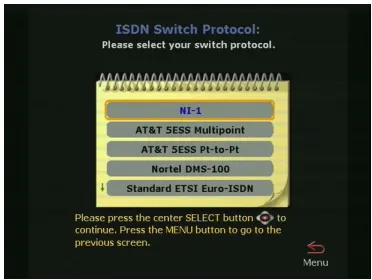
Figure 3-15.ISDN Switch Protocol Screen... 75
Figure 3-16.Outside Line Calls Screen... 76
Figure 3-17.Telephone Numbers Screen ... 77
Figure 3-18.Administrator Password Screen... 78
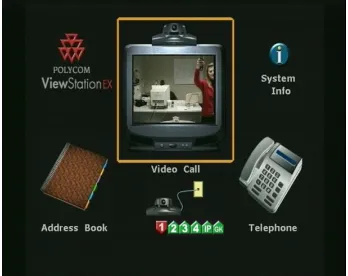
Figure 3-19.ViewStation EX Main Screen ... 81
Figure 3-20.Main Screen (showing network conditions)... 82
Figure 4-1.LAN & Intranet Screen ... 86
Figure 4-2.Advanced LAN Settings Screen ... 89
Figure 4-3.Firewall & LAN Connection Screen... 91
Figure 4-4.H.323 Setup Screen (configuration) ... 94
Figure 4-5.Dialing Speeds Screen... 95
Figure 4-6.Gateway & Gatekeeper Screen ... 98
Figure 4-7.Gateway Number Screen... 100
Figure 4-8.Gateway Screen... 101
Figure 4-10.Video Network Screen and Broadcast Mode Screens...106
Figure 4-11.Dialing Speeds Screen ...107
Figure 4-12.Advanced Dialing Screen (Page 1) ...109
Figure 4-13.Advanced Dialing Screen (Calling Profile List)...109
Figure 4-14.Crypto Resync Pulse Screen ...110
Figure 4-15.ISDN Video Numbers Screen ...112
Figure 4-16.Auto Detect SPIDs Screen ...113
Figure 4-17.Audio Quality Preference Screen...115
Figure 4-18.Advanced Dialing Screen...116
Figure 4-19.Dialing Speeds Screen ...117
Figure 4-20.Global Address (Server) Screen ...121
Figure 4-21.Global Address Book Preferences Screen (for IP and ISDN Calls) ...122
Figure 4-22.Dialing Rules 1 Screen ...127
Figure 4-23.Dialing Rules 2 Screen ...128
Figure 4-24.Global Management (Setup) Screen ...132
Figure 4-25.Global Management URLs Screen ...134
Figure 4-26.Global Management Info Screen...135
Figure 4-27.Streaming Screen...136
Figure 4-28.SNMP Setup Screen ...138
Figure 4-29.Quality of Service Screen ...140
Figure 5-1.Remote Control...145
Figure 5-2.Video Phone Screen ...148
Figure 5-3.Call Progress Indicators ...150
Figure 5-4.Call Hangup Choices Screen ...150
Figure 5-5.Address Book Screen ...153
Figure 5-6.Speed Dial Screen...154
Figure 5-7.Telephone Screen ...158
Figure 5-8.Address Book Screen ...161
Figure 5-9.Add/Change Entry Screen ...162
Figure 5-10...167
Figure 5-11.Camera Control Button on Remote Control...169
Figure 6-1.Cascading 10 Sites in a Multipoint Call ...200
Figure 6-2.Chair Control Screen...202
Figure 6-3.Streaming Screen...208
Figure 6-4.Data Conference Screen...212
Figure 7-1.LAN & Intranet Screen ...217
Figure 7-2.Placing a Video Call Web Screen ...226
Figure 7-3.Select a Presentation for Viewing Web Screen ...229
Figure 7-4.pcPresent Screen...230
Figure 7-5.pcPresent: File Open Screen ...231
Figure 7-6.Available Presentations Screen ...232
Figure 7-7.Presentation Password Screen...232
Figure 7-8.Presentation Directory (showing Loaded Slides) Screen ...233
Figure 7-12.General Setup Web Screen ... 246
Figure 7-13.System Diagnostics Web Screen... 248
Figure 7-14.Streaming Web Screen ... 250
Figure A-1.User Setup Screen... 275
Figure A-2.Admin Setup Screen... 279
Figure A-3.General Setup Screen ... 280
Figure A-4.Data Conference Screen... 289
Figure A-5.Telephone & Audio Screen ... 291
Figure A-6.Graphics Monitor Screen... 294
Figure A-7.VCR Setup Screen... 297
List of Tables
Table 1-1.Key features of the ViewStation EX system ... 18
Table 4-1.Dialing rules used by the Global Address Book... 126
Table 5-1.Remote Control Functionality ... 145
Table 5-2.Graphic cursor function and remote control... 179
Table 6-1.Multipoint Dialing Speeds ... 183
Table 6-2.Mixed Protocol Dialing Speeds ... 184
Table 6-3.Firewall TCP/UDP Ports in Multipoint Calls... 186
Table 6-4.MCU Meeting Password Protection ... 198
Table 6-5.Dial-In Calling with an Existing Point-to-Point Call... 205
Table 6-6.Dial-In Calling with no Existing Point-to-Point Call ... 205
Table B-1.H.320 Endpoint Interoperability... 306
Table B-2H.323 Endpoint Interoperability... 307
Table B-3.MCU H.320 Interoperability... 308
Table B-4.MCU H.323 Interoperability... 308
Table B-5.Gateway/Gatekeeper/T120 Server Interoperability... 309
Table B-6.Firewall/NAT Interoperability... 310
1
Welcome to the ViewStation EX
The ViewStation EX system is an easy-to-use, yet powerful set-top, network appliance that provides the clearest audio and video in the videoconferencing industry. The ViewStation EX system is a mid-range conference room product that was designed to deliver quality video and audio communications to mid-size conference rooms, boardrooms, classrooms and custom conferencing facilities.
Note
Throughout this manual, the word “system” refers to the ViewStation EX system.
Topics in This Chapter
The following topics are included in this chapter.
Topic Description Page
Feature Highlights
This is an overview of the ViewStation EX system’s main features and benefits.
18
What is in the Box?
This section lists the contents of the ViewStation EX shipping container.
20
Help and Technical Support
This section describes how to use the system Help screen and how to contact Technical Support.
Feature Highlights
The following table provides a summary of the ViewStation EX system’s main features and benefits. Refer also to the ViewStation EX Technical Specifications in Appendix D for additional
information.
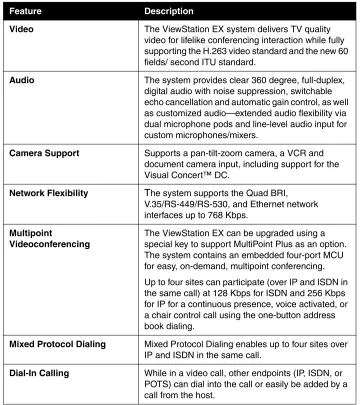
Table 1-1. Key features of the ViewStation EX system
Feature Description
Video The ViewStation EX system delivers TV quality video for lifelike conferencing interaction while fully supporting the H.263 video standard and the new 60 fields/ second ITU standard.
Audio The system provides clear 360 degree, full-duplex, digital audio with noise suppression, switchable echo cancellation and automatic gain control, as well as customized audio—extended audio flexibility via dual microphone pods and line-level audio input for custom microphones/mixers.
Camera Support Supports a pan-tilt-zoom camera, a VCR and document camera input, including support for the Visual Concert™ DC.
Network Flexibility The system supports the Quad BRI, V.35/RS-449/RS-530, and Ethernet network interfaces up to 768 Kbps.
Multipoint
Videoconferencing
The ViewStation EX can be upgraded using a special key to support MultiPoint Plus as an option. The system contains an embedded four-port MCU for easy, on-demand, multipoint conferencing.
Up to four sites can participate (over IP and ISDN in the same call) at 128 Kbps for ISDN and 256 Kbps for IP for a continuous presence, voice activated, or a chair control call using the one-button address book dialing.
Mixed Protocol Dialing Mixed Protocol Dialing enables up to four sites over IP and ISDN in the same call.
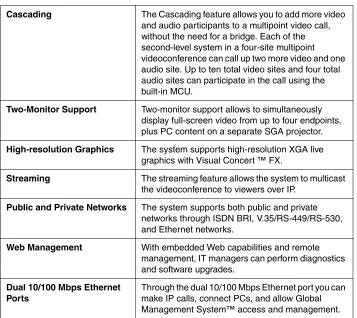
Cascading The Cascading feature allows you to add more video and audio participants to a multipoint video call, without the need for a bridge. Each of the second-level system in a four-site multipoint videoconference can call up two more video and one audio site. Up to ten total video sites and four total audio sites can participate in the call using the built-in MCU.
Two-Monitor Support Two-monitor support allows to simultaneously display full-screen video from up to four endpoints, plus PC content on a separate SGA projector.
High-resolution Graphics The system supports high-resolution XGA live graphics with Visual Concert ™ FX.
Streaming The streaming feature allows the system to multicast the videoconference to viewers over IP.
Public and Private Networks The system supports both public and private networks through ISDN BRI, V.35/RS-449/RS-530, and Ethernet networks.
Web Management With embedded Web capabilities and remote management, IT managers can perform diagnostics and software upgrades.
Dual 10/100 Mbps Ethernet Ports
Through the dual 10/100 Mbps Ethernet port you can make IP calls, connect PCs, and allow Global Management System™ access and management.
What is in the Box?
The following section describes the contents of the ViewStation EX shipping container.
ViewStation EX
The following items are included in the ViewStation EX box:
❑
ViewStation EX unit❑
Documentation• Read Me First
• ViewStation EX QuickStart
• Documentation CD
❑
1 microphone pod❑
1 power supply and cord❑
1 remote control❑
Cable kit with:• 1 RJ-9 microphone cords (brown)
• 1 S-video/triple RCA monitor cable (yellow, white, and red)
• 1 RJ-45 keyed cable for connection to the network interface module (light blue)
• 1 RJ-45 cable for connection to the LAN (orange)
• 1 DB-9 serial port cable for connection to a touch panel
Network Interface Module
❑
V.35/RS-449/RS-530 network interface:• V.35/RS-449/RS-530 module
❑
Quad BRI network interface:• Quad BRI Inverse Multiplexer (IMUX)
• 4 RJ-45 cables
• 1 RJ-45 cable with a keyed connector
Additional Information
The following provides important information about essential components of the system: the remote control, the microphone pods, and the power supply.
Remote Control
The remote control is an integral part of the system. You can use the remote control to configure and operate your system. Once you have the system set up and running, press the yellow INFO button on the remote control for a basic description of the remote control buttons.
For more information about the remote control, refer to Remote Control on page 144.
Microphone Pod
The microphone pod provides digital audio input to the system.
The microphone pod has an audio range of approximately 30 feet (9-meters) and provides automatic gain control, noise suppression, and echo cancellation. You can press the MUTE button on the microphone to silence your end of the call. When the MUTE button is lighted, your end of the call is muted.
To connect the microphone pods to the system:
1. Connect the 30-foot (9-meter) cable to the system and one of the microphones pods.
2. Connect the 10-foot (3-meter) cable between the two microphone pods.
Note
Connecting and disconnecting the microphones does not require a reboot of the system.
Power Supply
The ViewStation EX system has an external power supply. It supports line voltages between 100V and 240V and line frequencies from 47 Hz to 63 Hz.
Note
Help and Technical Support
This section provides information about using the on-screen help, basic troubleshooting, and contacting Polycom Technical support
Using Help
To access the Help screen:
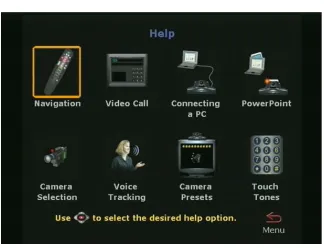
Press the INFO button on the remote control. If your system is registered with a Global Management System, the following Help screen appears.
Help Topics
To access the Help screen:
Click the Help icon.
Figure 1-2. Help Screen (Topics)
Select the appropriate help topic from this screen. The topics provide assistance with basic system usage.
Troubleshooting
This section contains basic troubleshooting information. For more detailed information, refer to the Troubleshooting chapter.
General
Following are the most-often encountered problems and their solutions.
Remote control is not working.
Software Update appears when you power on the ViewStation EX system.
The system software is corrupt or not loaded properly. Load system software on the system from your PC. For instructions on how to do this, refer to Upgrading Software, or consult your network
equipment provider.
A lightning bolt indicator appears on the left side of your far or near-site screen.
The lightning bolt is only a visual indicator that informs you about WAN or LAN network problems. It does not indicate performance problems with your system.
If you are in an H.320 call, the lightning bolt most likely indicates that the telephone company is experiencing bit errors on the line. Contact and inform your telephone company of the existing problem.
If you are in an H.323 call, the lightning bolt may signify that your LAN network is experiencing packet loss, accompanied by video and audio degradation. Contact your network manager.
The lightning bolt works differently in H.320 and H.323 calls for software version 2.5 and above:
❑
In H.320 calls, the lightning bolt appears if there are 3 or more CRC (Cyclic Redundancy Check) errors within a period of one second, or if there are 10 or more FEC (Forward ErrorCorrection) errors in a period of one second.
❑
In H.323 calls, the lightning bolt appears if more than 100 audio and video packets are lost. The display counter is reset each time the lightning bolt appears.The lightning bolt is triggered when your system detects a certain level of packet loss on the network. The frequency of the packet loss rate can be adjusted using the remote control shell (either via RS-232 or via Ethernet/Telnet). .Refer to the ViewStation EX, ViewStation
Audio
Following are the most-often encountered audio problems and their solutions.
No audio in a call.
❑
The system is connected to the wrong audio input on the monitor. Make sure the monitor cables are connected as shown in the QuickStart color cable diagrams.❑
Far site is muted. If the far site is muted, a far site Mute icon appears in the lower left corner of the monitor. Ask the far site to press the MUTE button on the remote control to check if it is muted or is not connected properly.❑
Use the Generate Tone test on the ViewStation EX system to help diagnose the problem.❑
Make sure that the microphone pod is positioned correctly for the meeting configuration. If the microphone pod is behind the meeting participants, you may not be able to hear them speak. For the best audio, always position the microphone pod between the monitor and the person closest to the monitor. As most people face the monitor during a call, following this rule ensures that the meeting participants are also facing the microphone pod.You can also daisy-chain microphone pods along the conference table. Additional microphone pods can be purchased from the Polycom Web store. Follow the same rule for multiple
microphone pods and do not position the pods behind the meeting participants.
You hear echoes when speaking.
Echoes are always caused by the far site in a call. Have the far site turn down the volume and make sure that their microphones are placed away from the system and monitor speakers.
Not enough volume in a call.
one-half its maximum volume and set the volume on the system to a comfortable level.
Video
Following are the most-often encountered video problems and their solutions.
No picture on the main monitor.
The system enters sleep mode after 3 minutes of inactivity. In sleep mode, the system appears to be powered off. To “wake up” the system, pick up the remote control, or press the button on the front of the system.
Same picture on first and second monitors.
❑
You pressed the SNAPSHOT button. The second monitor is previewing the video on the primary monitor for the snapshot. Press SNAPSHOT to send a snapshot and then pressSNAPSHOT again to return to live video.
❑
You may have connected your second composite monitor to the VCR out port on the back of the system.How to Contact Technical Support
By Phone
Before calling Polycom technical support, have the following information ready:
❑
Description of the issue❑
The ViewStation’s 14-digit serial number on the label located on the bottom of the unit.By Internet
To contact Polycom technical support, go to the Polycom Global Services Web page at http://esupport1.polycom.com/cgi/top.asp.
This page allows you to enter your contact information as well as a question or a description of the problem. Including the following information will decrease the amount of time needed to assess your situation:
❑
The ViewStation’s 14-digit serial number on the label located on the bottom of the unit.❑
Software revision of the product❑
Network information❑
Troubleshooting steps you tried to implement2
Installing the ViewStation EX
This chapter provides all of the instructions you need to install the ViewStation EX system successfully. It also covers the optional network interface installation if you are using ISDN for your video calls.
You should read this chapter in conjunction with the QuickStart card. This card was shipped in the system box.
Topics in This Chapter
The following topics are included in this chapter.
Topic Description Page
What you Need to Install the ViewStation EX System
This section lists the additional items that you need to install your ViewStation EX system.
30
Equipment Installation
This section gives step-by-step
instructions needed to install the system and, if applicable, the appropriate network interface.
33
Upgrading Software
This section describes how to update software over an IP or ISDN network.
45
Upgrading the System for Multipoint Calls
This section describes how to add the multipoint key to enable multipoint calling on the ViewStation EX system.
What you Need to Install the ViewStation EX
System
This section lists the additional items you need to install the ViewStation EX system. It also provides a checklist of information you should have on hand during the installation process.
For details about the system components, see the QuickStart card provided with each system.
Television Monitors
You can use the ViewStation EX with two television monitors and a VGA monitor that operates at 75 Hz or higher with a resolution of 800 x 600, 1024 x 768, or 1280 x 1024.
The ViewStation EX system can use any S-video or composite television monitor as the primary monitor. The other monitor has to be S-video.
The size of the monitor should be proportional to the size of the room where video conferences take place.
Network Interfaces
Ethernet
A Local Area Network (LAN) Ethernet connection is needed if you plan to use IP.
ISDN
❑
V.35/RS-449/RS-530 network interface:• V.35/RS-449/RS-530 module
• Optional cables used to connect the V.35/RS-449/RS-530 module to the DCE:
– (V.35 “Y” cable (HD-44M to DB-25M/RS-366 and M34 “Winchester” V.35 )
– RS-449/422 “Y” cable (HD-44M to DB-25M/RS-366 and DB-37M/RS-449/422)
– Ascend cable (HD-44M to HD-44M)
Note
These cables are available from the Polycom Web store.
• Access to your Data Communications Equipment (DCE) or Data Service Unit (DSU).
❑
Quad BRI network interface:• Quad BRI Inverse Multiplexer (IMUX)
• 4 RJ-45 cables
– 1 RJ-45 cable with a keyed connector
– BRI line ordered from your service provider
Power Source
The ViewStation EX system has an external power supply. It supports line voltages between 100V and 240V and line frequencies from 47 Hz to 63 Hz.
Warning
Integrated Cameras
Sony EVI-10 Camera
The ViewStation EX system supports the Sony EVI-10 camera. This camera has a built-in wide-angle lens and has a new form factor.
Figure 2-1. ViewStation EX with Sony EVI-10 Camera
Caution
Attaching a third-party vendor wide-angle lens will cause damage that is not covered by your product warranty. Third-party lenses will rub against the system’s enclosure when the camera is reset.
Note
The camera is controlled with the remote control that is shipped with the system. Manually adjusting the camera can damage the unit.
NT-1 Device
Required Information
Before you start installing the equipment, obtain the following information:
❑
IP address of the ViewStation EX system: to be provided by your Internet Service Provider or system administrator.❑
ISDN numbers: to be provided by your Network Service Provider.❑
SPIDs: to be provided by your Network Service Provider.❑
Switch protocols: to be provided by your Network Service Provider.❑
Gatekeeper address: to be provided by your Network Service Provider or system administrator.❑
Firewall information: to be provided by your Network Service Provider or system administrator.❑
Telephone numbers: to be provided by your system administrator.Equipment Installation
This section describes how to set up the following equipment:
❑
ViewStation EX. See Setting up the ViewStation EX.Setting up the ViewStation EX
To connect your cables and equipment to the back of the ViewStation EX system:
1. Place the system on top of the television monitor with the front lip overhanging the top of the television monitor.
2. Place the microphone pod on a flat surface between the meeting participants and the television monitors. Do not place the microphone pod near the television monitor speakers.
Note
Connecting and disconnecting the microphone off the system does not require a reboot of the system.
3. Connect the required equipment and cables to the back of your system as shown in the QuickStart.
4. Connect any optional equipment to the back of your system as shown in the QuickStart. Optional equipment can include a PC, VCR, telephone, audio mixer, document camera, XGA projector or monitor, Visual Concert FX, or additional television
monitors.
Note
The colors on the cables match the colors on the back of the system panel.
5. To prevent cable entanglement, wrap the enclosed cable tie around all of the cables.
6. Put the batteries in the remote control.
ISDN Network Interface Modules
This section explains how to install the following ISDN network interfaces:
❑
V.35/RS-449/RS-530. See Setting up the V.35/RS-449/RS-530 Network Interface on page 35.❑
BRI. See Setting up the Quad BRI Network Interface on page 38.Setting up the V.35/RS-449/RS-530 Network Interface
This section explains how to install and connect the
V.35/RS-449/RS-530 network interface module so that you can make calls over ISDN with the system.
The V.35/RS-449/RS-530 network interface supports the V.35, RS-449, or RS-530 protocol depending on the cable you use to connect your equipment.
Connecting a V.35/RS-449/RS-530 network interface module to your system:
1. Make sure your system is turned off.
2. Insert one end of the light blue keyed cable into the light blue port on the back of the system. The cable has special RJ-45 connectors that are not interchangeable with normal RJ-45 connectors.
Figure 2-2 shows the peripheral link (P-LINK) side of the network interface module that connects to the EX system.
Figure 2-2. V.35/RS-449/RS-530 Network Interface Module (P-LINK side)
To connect the V.35/RS-449/RS-530 network interface module to the DCE:
The V.35/RS-449/RS-530 network interface module contains two HD-44 female ports (labeled 1 and 2) that connect to the data communications equipment (DCE).
1. Connect the HD-44 male cable ends to ports 1 and 2 on the network interface module. If you want to connect only one cable, connect to port 1 on the interface module.
2. Tighten the screws on the connectors.
3. Connect the remaining cable ends to the DCE's
V.35/RS-449/RS-530 port and the DB-25 RS-366 dialing port, if used. If you are connecting only one cable, connect to the lowest ordered port on your DCE.
4. Tighten the screws on the connectors.
5. Power on the television monitor.
6. Power on the system. Once you power up the system, there is a 20-second delay before you see the Polycom logo.
7. Once your interface is properly connected, you are ready to configure your system. Proceed to chapter 3.
12 VDC Connector (not used)
Port (not used)
Input Port
Figure 2-3 shows the network side of the network interface module that connects to the DCE.
Figure 2-3. V.35/RS-449/RS-530 Network Interface Module (NETWORK side)
Special Information
V.35/RS-449/RS-530 Module Interchangeability. This system only operates with the V.35 module that is compatible with the
ViewStation FX. It is not compatible with the V.35 module that operates with the ViewStation H.323 system. The new module uses HD-44F connectors (ports 1 and 2), and uses a keyed RJ-45 connector for the serial link to the back panel of the ViewStation EX system. An HD-44M to DB-25F adapter cable is available as an option to connect existing V.35/RS-449/RS-530 network cables, if necessary.
Cable Information. The following optional cables used to connect the V.35/RS-449/RS-530 module to the DCE are available from the Polycom Web store:
❑
V.35 “Y” cable—HD-44M to DB-25M/RS-366 and M34 “Winchester” V.35❑
RS-449/422 “Y” cable—HD-44M to DB-25M/RS-366 and DB-37M/RS-449/422❑
Ascend cable—HD-44M to HD-44MCable drawings and pinout information is available in the “V.35 Technical Information” section of the Integrators’ Reference Manual
for ViewStation EX, ViewStation FX, and VS4000.
V.35/RS-449/RS-530 Cable Adapter Kit. You can also purchase an additional cable adapter kit (available through your reseller) to extend the distance between your system and the
V.35/RS-449/RS-530 network interface module.
V.35/RS-44/RS-530 and RS-366 Connections. The
V.35/RS-449/RS-530 connection on the V.35 cable is used for data and the RS-366 connection is used for dialing. If you plan to place 2 x 56 Kbps or 2 x 64 Kbps calls, use one cable for each port.
Note
If your DCE does not use dialing, do not use the RS-366 (DB-25M) connector.
LED Information. Refer to the V.35/RS-449/RS-530 Technical Information section of the Integrators’ Reference Manual for
ViewStation EX, ViewStation FX, and VS4000.
Setting up the Quad BRI Network Interface
This section explains how to install and connect the Quad BRI network interface module so that you can make calls over ISDN with the ViewStation EX system.
To connect the Quad BRI network interface module to the system:
1. Make sure your system is turned off.
2. Find the cable with the light blue RJ-45 keyed connector on one end and the green RJ-45 (non-keyed) connector on the other end.
3. Insert the light blue RJ-45 keyed connector into the light blue RJ-45 keyed port on the back of the system.
Figure 2-4 shows the peripheral link (P-LINK) side of the Quad BRI network interface module that connects to the ViewStation EX system.
Figure 2-4. Quad BRI Network Interface Module (P-LINK side)
To connect the Quad BRI network interface module to the BRI network:
1. Attach your RJ-45 network cable(s) from port 1 on your ISDN BRI network to the connector labeled ISDN S/T on the Quad BRI network interface module.
2. Power on the television monitor.
3. Power on the system. Once you power up the system, there is a 20-second delay before you see the Polycom logo.
Figure 2-5 shows the network side of the Quad BRI network interface module that connects to the ISDN BRI network.
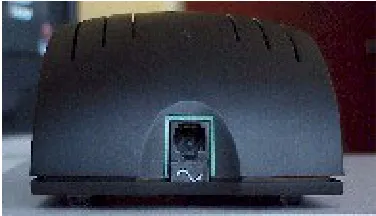
Figure 2-5. Quad BRI Network Interface Module (Network side)
Special Information
Quad BRI/IMUX. The Quad BRI is also called IMUX (for Inverse Multiplexer). With the Quad BRI, you can connect up to four ISDN lines to the video conferencing unit. The Quad BRI allows multi-line ISDN connections to be “muxed” together to create a higher bandwidth connection to the far-site device. Each ISDN line adds 128 Kbps to the possible operating line.
ISDN Lines. The system can use up to four ISDN lines. Note that the system only require a single functioning ISDN line to operate, but speeds greater than 128 Kbps require the use of additional ISDN lines.
NT-1. If you are not connected to an internal phone system, called a PBX, you will need to connect the ISDN cables from your system to the Quad BRI module, to the network termination (NT-1) device, which is connected to the ISDN wall jack.
For more information about ISDN, refer to the Integrators’ Reference
Manual for ViewStation EX, ViewStation FX, and VS4000.
LED Information. Refer to the BRI Technical Information section of the Integrators’ Reference Manual for ViewStation EX, ViewStation FX,
Optional Equipment
You can enhance your videoconferences by using optional equipment. Refer to the ViewStation EX QuickStart for color cable diagrams that show how to connect optional equipment to the system.
Second Monitor
The second monitor displays what would otherwise be displayed in the smaller picture-in-picture window of a single-monitor system.
To install a second monitor:
1. Insert the monitor cable in the monitor 2 output jack.
2. Connect the other end to the monitor 2 output jack.
VCR
You can use a video cassette recorder (VCR) to record your videoconference or to present recorded material as part of your videoconference. The VCR records video from the near site’s main television monitor and audio from both the near and far sites. When playing tapes, the VCR provides audio and video to all participants in a call.
1. To play a tape in the VCR, press the NEAR button on the remote control twice.
2. Use the ARROW buttons to highlight the VCR icon on the screen. Press the SELECT button on the remote control.
3. Use the VCR remote control to play the tape.
Document Camera
1. To use a document camera with your system, press the NEAR button on the remote control twice.
2. Then use the ARROW buttons to highlight the Document
Camera icon on the screen. Press the SELECT button on the remote control.
Visual Concert DC
Visual Concert™ DC is part of the Visual Concert series of collaboration products designed to maximize video conferencing. This is a custom-integrated document camera that has the ability to send images at SXGA (1280 x 1024) resolution with full motion capture during a video call. It lets you save images from the glass onto a PCMCIA card, annotate images with a virtual drawing pen, view transparent material using backlighting or send a
high-resolution preview with the SNAPSHOT button.
For more information about installing Visual Concert DC, consult
Visual Concert DC User Guide and Visual Concert DC QuickStart.
Visual Concert FX
The ViewStation EX system supports the use of Visual Concert™ FX. Visual Concert™ FX is a collaborative product with the capability of transmitting a high-resolution graphics stream with high-quality audio in any conference, including multipoint calls. It is transmitted to the other site in a conference in tandem with your live video stream. It works with your laptop, desktop, or Macintosh at resolutions up to and including 1280 x 1024.
The video and graphic images can be displayed at both the near and far ends in dual stream mode, video on one monitor and the live graphics on a second monitor (for example, the far site can see you and your presentation live at the same time).
flexibility of connecting a high-resolution projection system or monitor for in-room displays.
Dual Stream Compatibility
Visual Concert FX dual stream is compatible with the Polycom Accord MCU version 3.01 in ISDN multipoint calls. All sites are able to see the presenter and the PC at the same time.
Limitations
If the far site cannot support dual streams, the system reverts to sending the live computer screen as the main video stream.
Note
For more information about installing Visual Concert FX, consult the Visual Concert FX User Guide and Visual Concert FX QuickStart.
ShowStation IP
The ShowStation
®
IP allows you to project any type of document or Microsoft Office file in big-screen format and share it with any location instantly.The ShowStation IP works best when you have two ViewStation EX systems, two ShowStations with LAN cards, and an RJ-45 cable. For information about installing ShowStation IP refer to the ShowStation
User Guide.
To connect and use the ShowStation IP:
1. Use the provided blue RJ-45 cable to connect the ShowStation LAN card to the blue LAN port on the back of the system. You can also connect the ShowStation and the system to the same LAN.
2. Find the LAN name of the ShowStation. Click the Toolbar icon on the main menu of the ShowStation. The Site Name is under the Preferences tab.
4. Select System Info>Admin Setup>Data Conference and enter the name of the ShowStation on the Data Conference screen.
5. Place a video call between the two ViewStation EX systems. When the systems connect, the ShowStations synchronize with one another automatically.
Upgrading Software
The Softupdate application will update all versions of ViewStation software. To update the software, your system must be on local area network (LAN) or directly connected to a PC via Ethernet.
Before you begin, print the Read Me First file that is provided with the system software. It contains updated information that may not be included in this guide.
Caution
Do not power off your system during the software update process. If you turn off your system during the download process, your system reverts to its original software version.
Upgrading Software over IP
You can upgrade the software on your system with the Softupdate application available from the Software Download Center on the Polycom Web site at www.polycom.com.
If you do not have Internet access, your reseller can supply you with the application on CD-ROM.
To upgrade your system software over IP:
1. Double-click the software zip file and extract the files to a directory on your PC.
Figure 2-6. Softupdate Screen
3. Click the Softupdate button, as shown in Figure 2-6.
4. Enter the IP address of the system and the administrator password, if required, then click OK.
5. In the System Info screen, specify whether to delete the address book and system files during the update.
6. Determine whether you want to make your system a DHCP server. Selecting the Allow System to be a DHCP Server option will make the Server button visible on the LAN & Intranet screen in the user interface (System Info>Admin
Setup>LAN/H.323>LAN/Intranet>LAN&Intranet).
Warning
DHCP server. Your system administrators may have to repair any network problems this causes.
Figure 2-7. Softupdate System Info Screen
7. Click Continue to start the upgrade process.
8. When the upgrade has finished, click OK to close the dialog box.
Upgrading Software over ISDN (H.320)
The software on your ViewStation EX system can be upgraded through an ISDN (H.320) video call from any other ViewStation EX system.
You can perform a software update to the far site over your V.35/RS-449/RS-530, or BRI line during a call. Updating works best at speeds of 512 Kbps and below.
To upgrade your system over ISDN:
2. Select System Info > Admin Setup > Security and write down the passwords that appear on the Security screen of the site you want to upgrade.
3. On the site sending the software, select System Info>Admin
Setup > Software/Hardware > Update to access the Far Site
Software Update screen.
4. Highlight the Start icon and press the SELECT button on the remote control.
5. Enter the passwords, highlight the Start icon, and press the SELECT button on the remote control to begin the upgrade process.
Once the software upgrade process is complete, your system automatically restarts.
Updating System Software From a PC on a LAN
To update your system software from a PC on the LAN:
1. Access the Sofupdate.exe file, as follows:
• From the Update CD: Insert the Update CD into your drive.
• From the Polycom Web site: 1. Go to the software download center at www.polycom.com. 2. Locate your product name and provide the required information. 3. Run the
Softupdate application to download the latest software and update your system. Note that you need to decompress the file before you can run the Softupdate application.
2. Double-click the Softupdate.exe icon to open the application.
3. When the application opens, click the Softupdate button.
4. Enter the IP address of your videoconferencing system in the dialog box that appears. If the system has an administrator password, enter it here and click OK. If it does not have a password, leave it blank and click OK.
select the appropriate options on the Softupdate screen. Then click the Continue button.
6. As the software is being upgraded, you will be informed of its progress. When it is finished, click the OK button. Your system will automatically reboot.
7. If you have purchased an MP upgrade key for multipoint calls, please refer to Upgrading the System for Multipoint Calls on page 55 for instructions on entering the key.
Updating System Software Directly From a PC
Updating your System Software to a Higher Version
To update your system software to a higher version than the one currently on the system, follow these steps:
1. Connect one end of the blue-tipped RJ-45 cable to the blue LAN connector on the back of your system. Connect the other end of the blue-tipped RJ-45 cable to the Ethernet PC card of your computer. Then turn on your system.
2. To connect to your desktop or laptop computer, you need to set your system as a DHCP server. To do so, follow these
instructions:
a. Select System Info > Admin Setup > LAN/H.323 >
LAN/Intranet > LAN & Intranet.
Note
The Server button is visible on the LAN & Intranet screen only if the option Allow System to be a DHCP Server has been previously enabled in the System Info screen of the Softupdate application. For more information about enabling the option Allow System to be a
DHCP Server, refer to Upgrading Software over IP.
Caution
Do not use this setting if your system is on a LAN with other computers. If you do, your system will provide IP addresses to the other computers even though the LAN already has a DHCP server. Your IT personnel and system administrators will have to repair any network problems this causes.
c. Select Yes if you are absolutely certain you want to set your system as a DHCP server.
d. Press Menu. The following message will appear: “Power must be reset to save changes. Continue?” Select Yes.
e. Your system will automatically restart. It will now act as a DHCP server and will provide IP addresses to one or more PCs.
3. Go to the System Information screen. You should see the IP address 1.1.1.2, which is the IP address of your system.
4. Once you get an IP address, go to your PC and follow these instructions:
For Windows 95 and 98:
a. Right-click the Network Neighborhood icon, and then right-click Properties.
b. When the Network box appears, select the Configuration tab, then double-click TCP/IP.
c. Select the IP Address tab. Make sure the Obtain an IP
Address Automatically button is selected. Then click OK.
For Windows NT 4.0:
a. Right-click the Network Neighborhood icon, and then right-click Properties.
b. When the Network screen appears, select the Protocols tab, then double-click TCP/IP Protocol.
c. Select the IP Address tab. Make sure the Obtain an IP
For Windows 2000:
a. Right-click the My Network Places icon, and then right-click Properties.
b. In the Network and Dial-up Connections window, right-click Local Area Connection, and select Properties.
c. In the Local Area Connection Properties window, double-click Internet Protocol (TCP/IP).
d. In the Internet Protocol (TCP/IP) Properties window, make sure the Obtain an IP Address Automatically button is selected. Then click OK.
5. Restart your PC and insert the update CD into your drive. Or access the Softupdate.exe file from the Polycom Web site: 1. Go to the software download center at www.polycom.com. 2. Locate your product name and provide the required
information. 3. Run the Softupdate application to download the latest software and update your system. Note that you need to decompress the file before you can run the Softupdate
application.
6. Double-click the Softupdate.exe icon to open the application.
7. When the application opens, click the Softupdate button.
8. Enter the IP address of your system in the dialog box that appears. If you have an administrative password, enter it here and click OK. If you don’t have a password, leave it blank and click OK.
9. Softupdate will locate your system and provide basic
configuration information. To delete your existing address book and files, check the appropriate boxes.
10. Check the box Allow System to be a DHCP Server. Then click the Continue button.
11. As the software is being upgraded, you will be informed of its progress. When it is finished, click the OK button. The system will automatically reboot. Your system software has been loaded.
Updating a System Already Loaded With the Current System Software
To update your system software from the most-current version to the same current version or higher, follow these steps:
1. Connect one end of the blue-tipped RJ-45 cable to the blue LAN connector on the back of your system. Connect the other end of the blue-tipped RJ-45 cable to the Ethernet PC card of your computer. Then turn on the system.
2. To connect to your desktop or laptop computer, you need to set your system as follows:
a. Select System Info > Admin Setup > LAN/H.323 >
LAN/Intranet > LAN & Intranet.
b. Press the Up arrow on the remote control to go to the DHCP field and set it to Off.
c. In the IP Address field, enter the IP address 1.1.1.2.
d. Press Menu. The following message will appear: “Power must be reset to save changes. Continue?” Select Yes.
e. Your system will automatically restart.
3. Go to the System Information screen. You should see the IP address 1.1.1.2, which is the IP address of your system.
4. Go to your PC and follow these instructions:
For Windows 95/98:
a. Right-click the Network Neighborhood icon, and then right-click Properties.
b. When the Network box appears, select the Configuration tab, then TCP/IP, and then select the IP Address tab. Make sure the Specify an IP address button is selected.
c. Enter the following information:
– IP address = 1.1.1.3
– Subnet mask = 255.255.255.0
For Windows NT 4.0:
a. Right-click the Network Neighborhood icon, and then right-click Properties.
b. When the Network screen appears, select the Protocols tab, then double-click TCP/IP Protocol.
c. Select the IP Address tab. Make sure the Specify and IP
Address button is selected.
d. Enter the following information:
– IP address = 1.1.1.3
– Subnet mask = 255.255.255.0
e. Then click OK.
For Windows 2000:
a. Right-click the My Network Places icon, and then right-click Properties.
b. In the Network and Dial-up Connections window, right-click Local Area Connection, and select Properties.
c. In the Local Area Connection Properties window, double-click Internet Protocol (TCP/IP).
d. In the Internet Protocol (TCP/IP) Properties window, make sure the Use the following IP address button is selected.
e. Enter the following information:
– IP address = 1.1.1.3
– Subnet mask = 255.255.255.0
f. Then click OK.
5. Restart your PC and insert the update CD into your drive. Access the Sofupdate.exe file, as follows:
• From the Update CD: Insert the update CD into your drive.
• From the Polycom Web site: 1. Go to the software download center at www.polycom.com. 2. Locate your product name and provide the required information. 3. Run the
update your system. Note that you need to decompress the file before you can run the Softupdate application.
6. Double-click the Softupdate.exe icon to open the application.
7. When the application opens, click the Softupdate button.
8. Enter the IP address of your system in the dialog box that appears. If you have an administrative password, enter it here and click OK. If you don’t have a password, leave it blank and click OK.
9. Softupdate will locate your system and provide basic
configuration information. To delete your existing address book and files, check the appropriate boxes.
10. Click the Continue button.
11. As the software is being upgraded, you will be informed of its progress. When it is finished, click the OK button. The system will automatically reboot. Your system software has been loaded.
12. If you have purchased an MP upgrade key for multipoint calls, please refer to Upgrading the System for Multipoint Calls on page 55 for instructions on entering the key.
Updating System Software Remotely
Your reseller can update your system software remotely by calling your system and downloading the new version to your system. The process takes approximately 10 to 15 minutes in a 2 x 64 kbps call. Follow these steps to remotely upgrade your system:
1. Contact your reseller to have the software update transmitted to your system.
2. Give the reseller your Software Update Password and the Admin Password (if entered) for your system. These passwords can be found on the System Info > Admin Setup > Security screen. They are implemented to prevent unauthorized access to your system.
3. The reseller will place a call to your system and download the software to your system. You will see a Remote Software
informed of the progress of your update. Do not turn your system off during this process.
Note
The software update application will terminate if there are too many errors on the communication line. The system you are updating will revert back to the previous software version. If your software does not update, try using a lower data rate.
4. Once the software upgrade process completes, your system will automatically restart and the main calling screen will appear.
5. If you have purchased an MP upgrade key for multipoint calls, please refer to Upgrading the System for Multipoint Calls on page 55 for instructions on entering the key.
Upgrading the System for Multipoint Calls
If you have purchased an MP upgrade key from Polycom, you can upgrade your ViewStation EX to support multipoint calls.
For more information about making multipoint calls, please refer to Multipoint Calls (Optional).
To enter the MP key:
1. From the main calling screen, go to System Info>Admin
Setup>Software/Hardware>System Options.
2. Enter your multipoint key.
When MP is enabled, the Multipoint field changes from
Disabled to Enabled.
Note
The cursor will move automatically to the next box as you add characters. When you are finished, select Save and then Menu to return to the main calling screen.
3
Initial System Setup
This chapter describes the initial system configuration screens that you see when you power on your ViewStation EX for the first time.
Topics in This Chapter
The following topics are included in this chapter.
Topic Description Page
First System Screens
This section describes the first system screens that are displayed during the initial out-of-box configuration.
59
Initial Setup for IP (H.323) Calls
This section describes the initial IP-specific screens needed to configure basic network settings.
64
Initial Setup for ISDN (H.320) Calls
This sections describes the initial screens used to configure your ISDN connection (V.35/RS-449/RS-530 or BRI)
67
Final Out-of-Box System Setup Screens
The screens that complete the initial configuration sequence are covered in this section.
76
Setting up the Firewall
This section indicates where to find the appropriate firewall configuration
information, if you need to set up a firewall.
79
Verifying Initial Setup
This section provides information about placing a test call and checking network connectivity.
Once you have powered on the ViewStation EX system, a series of setup screens appear on your television monitor, leading you through the initial configuration process, which is described in the following sections.
Note
All procedures detailed in these sections must be followed in order to minimize system failures.