Turbo Database Toolbox
Owner's Handbook
Copyright (C) 1985 by
TABLE OF CONTENTS
INTRODUCTION ... 1
What Can You Do With the Database Toolbox? ... 1
The Turbo Access System. ... . ... ... . .. ... .. ... . ... . ... 1
The Turbo Sort System ... 2
GINST -General Installation System ... 2
Structure of This Manual ... 2
Typography.. ... . ... ... .... 3
The Distribution Diskette ... 4
Acknowledgments ... 4
Chapter 1. A TOOLBOX PRIMER ... 5
What's Turbo Access Good For? The Saga of Dr. Flossmore ... . . 5
Some Words You'll Want to Know ... 7
Data Files ... 7
Records... 8
Index Files ... 8
Keys... 8
How Index Files and Data Files Relate ... 8
Chapter 2. GETTING STARTED. . . 11
Including Turbo Database Routines in Your Programs ... 11
Using Turbo Access ... 12
Data Files ... 16
Index Files. . . 17
Program Structure with Turbo Access. . . . .. . . .. . . .. . . 17
Initializing the User Program ... 18
User Program Variables ... 18
Error Handling. . . 18
User Program Termination... . ... ... ... ... .. 20
Some Database Tasks: Quick Summary ... 20
Adding Data Records.... . ... .... ... ... ... ... ... 20
Key Location ... 20
Deleting Data Records . . . 21
Reuse of Deleted Data Records ... . . . . 21
Duplicate Keys.. ... ... .... ... .... 22
Numeric Keys ... 22
Data File Splitting ... 23
Skeleton Program ... 24
Turbo Access Programming Examples. . . 25
Defining the Record ... 25
Creating the Program. . ... . .. . . . .. . .. . . .. . . ... ... . 26
Opening a Data File ... 28
Adding Records. . . 29
Creating an Index ... 31
Rebuilding Index Files ... 34
Access to the Data ... 36
Indexed Access.. .... ... . ... ... ... . 37
Deleting Records . . . 40
Updating Records. ... . . ... .... . . . .. . . .. . . .. . ... . 41
Conclusions ... 42
BTREE.PA5-A Customer Database ... 42
Using Turbo Sort ... . . . 58
How Turbo Sort Works. . . 58
Data Item Size ... . 59
Use of Memory . . . 59
Maximum Sort Size ... 60
Turbo Sort Programming Examples ... 60
Example 1: Sorting A Customer Database on a Single Key ... 60
The Inp Procedure ... 61
The Less Function ... 62
The OutP Procedure. . . 63
The Main Program ... 64
Turbo Sort Termination ... 65
Program Listing ... 66
Example 2: Advanced Sorting ... 69
Sorting Different Data ... 69
Multiple Keys. . . 75
Chapter 3. TECHNICAL REFERENCE ... . . . 83
Turbo Database Toolbox Files. . . 83
Turbo Access Files ... 83
Turbo Sort Files ... 84
GINST Files. . . 85
Turbo Access Constants, Types and Variables ... 85
MaxDataRecSize ... 86
MaxHeight ... 87
MaxKeyLen ... 88
Order... 88
PageSize ... 89
PageStackSize ... 90
Quick Reference Guide to Turbo Access Routines ... 92
Procedures and Functions . . . 93
AddKey [ADDKEY.BOX] ... 94
AddRec [ACCESS.BOX] ... 95
ClearKey [ACCESS.BOX] ... 97
CloseFile [ACCESS. BOX] ... 98
Closelndex [ACCESS.BOX] ... 99
DeleteKey [DELKEY.BOX] ... 100
DeleteRec [ACCESS.BOX] ... 102
FileLen [ACCESS.BOX] ... 103
FindKey [GETKEY.BOX] ... 104
GetRec [ACCESS. BOX ] ... 106
Initlndex [ACCESS.BOX] ... 107
MakeFile [ACCESS.BOX] ... 108
Makelndex [ACCESS.BOX] ... 109
NextKey [GETKEY.BOX] ... .. .... .... .. .. .. .. . .. . ... .. . .. . 110
OpenFile [ACCESS.BOX] ... 112
Openlndex [ACCESS.BOX] ... 113
PrevKey [GETKEY.BOX] ... 115
PutRec [ACCESS.BOX] . .. .. . .. .. .. .. .. .. ... .. .. .... .. .... 117
SearchKey [GETKEY.BOX] ... 118
UsedRecs [ACCESS.BOX] ... ,... 120
Chapter 4. GINST-Generallnstallation System... 121
Appendices
Appendix A. TIPS FOR TOOLBOX PROGRAMMERS ... . . . 123
The Fundamentals of Program Design . . . 123
CONSTANTS.lNC ... 124
DECLARE.INC... 124
ACCESS.80X, ADDKEY.80X, GETKEY.80X, DELKEY.80X ... 125
INPUT.INC . . . 125
ERROR.lNC ... 127
FILES.lNC ... 128
MAINT.INC, REPORTS.lNC, MENU.lNC ... 128
Designing Screen Output ... 128
Appendix B. B
+
TREE STRUCTURE ... 131Trees: The Quickest Route is Not Always a Straight Line. . . 131
8 +tree Fundamentals ... 133
Elements of a 8 + tree ... 134
Keys... 135
Items... 136
Pages ... '.' ... , . . . .. . . 137
How Pages are Organized into 8 + Trees . . . 138
Finding the Data Reference ... 141
8 + tree Administration ... 142
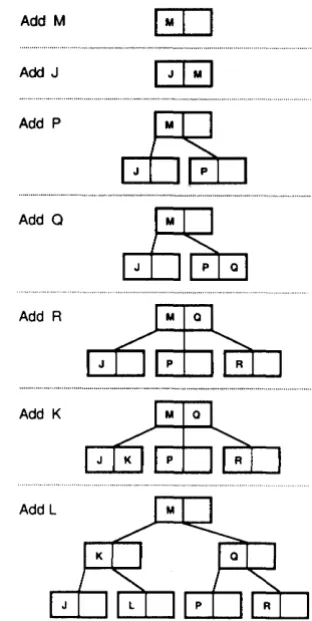
Inserting Keys ... 143
Deleting Keys ... , ... ,. 144
Appendix C. ASCII TABLE... 147
LIST OF FIGURES
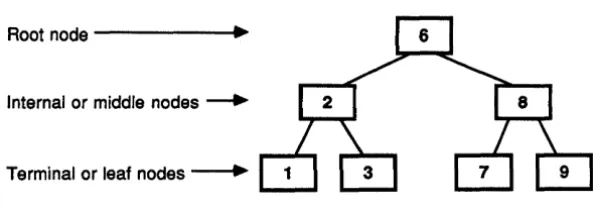
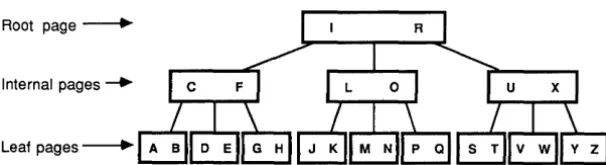
8-1 A 8inary Tree. . . 1328-2 A 8 + tree ... 133
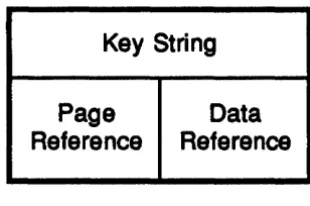
8-3 An Item ... 137
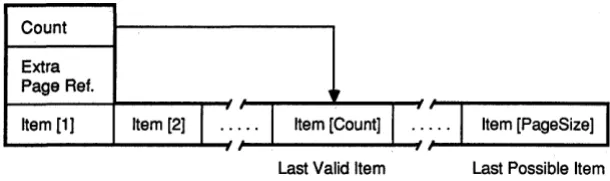
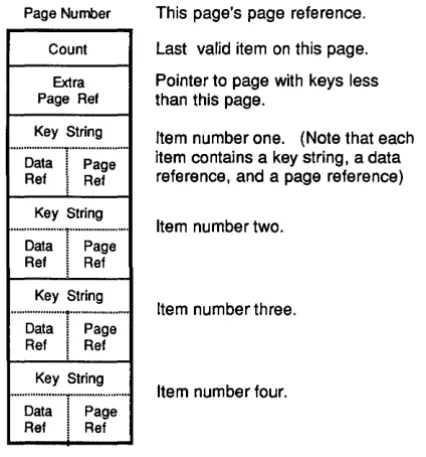
8.-4 Structure of a Page in an Index File ... 138
8-5 The Page structure. . . 139
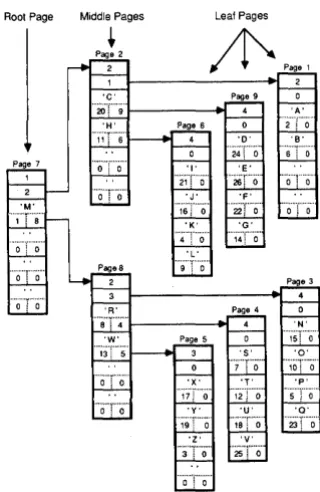
8-6 Diagram of a 8+tree of Order 2 ... 140
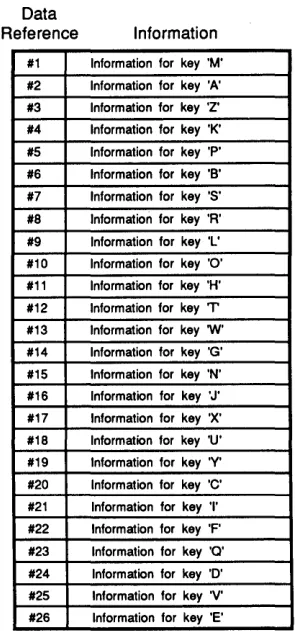
8-7 Data File Showing Order of Insertion. . . .. . . .. . . 142
INTRODUCTION
This book is a reference manual for the Turbo Database Toolbox (formerly called the Turbo Toolbox), implemented for the CP/M-SO, CP/M-S6 and MS-DOS operating systems. The Turbo Database Tool-box consists of a set of three programs (tools) that can help you develop and streamline your Turbo Pascal programs.
This manual makes extensive use of Turbo Pascal programming ex-amples; a good working knowledge of Turbo Pascal is assumed. If you need to brush up on your Pascal knowledge, refer to the Turbo Pascal Reference Manual and/or the Turbo Tutor.
What Can You Do With the Database Toolbox?
The Turbo Database Toolbox gives you three tools that make for fast and easy development of Turbo Pascal programs:
⢠The Turbo Access system ⢠The Turbo Sort system
⢠The GINST general installation system
These tools are provided in modular form, so they can be included as needed in your Pascal programs for the benefit of your end users.
The Turbo Access System
The Turbo Access system is a way to efficiently store and retrieve information contained in large data files. Turbo Access retrieves infor-mation either randomly by key (instead of just a number), or in sorted sequence.
The method of. indexing used by the Turbo Access system is the B+tree. More detailed information on B+treescan befound in Appendix B. However, you don't need to understand B
+
trees to use the Database Toolbox, and if you'd like to get right down to the nitty gritty of search-ing and sortsearch-ing, you can turn directly to Chapter 2 and get started right away.The Turbo Sort System
The Turbo Sort system uses the popular Quicksort algorithm to ensure fast and efficient sorting of your data files. With this tool, you can sort any type of data either on a single item or on multiple keys. You can also sort different data items in the same program. Turbo Sort's virtual memory management automatically uses the disk to expand sorting space if the file to be sorted is too big for your com-puter's RAM memory.
GINST
-General Installation
System
GINST solves one of the biggest problems facing programmers: how to get programs up and running on different terminals. GINST lets you develop an installation module identical to Turbo Pascal's, with-out having to worry abwith-out writing terminal-specific installation pro-grams yourself. By simply answering a few questions asked by the GINST program, end users can easily install your programs for their particular terminals.
Structure of This Manual
This manual is divided into six parts:
⢠Chapter 1 introduces you to the Database Toolbox. We'll define the basic terms you need to know to understand this manual, and give you a concrete example of how you might use the Database Toolbox.
⢠Chapter 3 is the technical reference part of the manual. All the constants, procedures and functions contained in the Turbo Ac-cess system are described in alphabetical order, with parameters, function, restrictions and examples.
⢠Chapter 4 tells you how to use GINST-the General Installation system-to develop installation modules for your programs. ⢠Appendix A, Tips for Toolbox Programmers, contains some
handy suggestions for writing good Turbo Access programs. ⢠Appendix B describes the B + tree structure used by the Turbo
Ac-cess system. Although you don't need to understand B + trees to use the Database Toolbox, if you are an experienced programmer you may be interested in knowing more about how Turbo Access works.
⢠Appendix C provides an ASCII conversion table for quick reference.
If you want to get your application program up and running as quickly as possible, read the tutorial and examples in Chapter 2, and ignore the subtleties of B+trees.lfyou are an expert programmer and want to know exactly how Turbo Access works so you can "tune" it for maximum efficiency for your application, read Appendix B.
Typography
The body of this manual is printed in normal typeface. Special charac-ters are used for the following special purposes:
Alternate
Italics
Boldface
Al ternate characters are used in program examples and pro-cedure and function declarations.
Italics are used to emphasize certain concepts and terminology, such as predefined standard identifiers, parameters, and other syntax elements.
Boldface type is used to mark reserved words, in the text as well as in program examples.
The Distribution Diskette
The Turbo Database Toolbox distribution diskette contains several files related to each tool. The file names belonging to each tool are provided in Chapter 3. Your diskette contains:
⢠A sample database, BTREE.PAS, that utilizes the Turbo Access system
⢠Source code for Turbo Access and Turbo Sort
⢠The SETCONST.PAS program for helping you set Turbo Access constants
⢠The TBDEMO.PAS Toolbox demonstration program ⢠The GINST (General Installation) program
⢠Files containing all procedures and functions
⢠All the commented program examples in the manual
See the READ.ME file on your distribution diskette for a complete listing of the files in the Turbo Database Toolbox package.
The distribution diskette is your only source for the Turbo Database Toolbox files. The first thing you should do upon receiving the disk-ette is to complete and mail the License Agreement at the front of this manual. You should then make a copy of the distribution diskette. Put the original diskette in a safe place, and use only the copy for doing your work. You should never use the distribution diskette, since there is a charge for a replacement copy.
Acknowledgments
In this manual, references are made to several products: ⢠SideKick is a registered trademark of Borland International ⢠Turbo Pascal is a registered trademark of Borland International ⢠WordStar is a registered trademark of MicroPro International ⢠CP/M is a registered trademark of Digital Research
Chapter
1
A TOOLBOX PRIMER
The Turbo Database Toolbox is extremely easy to use. As long as you know something about writing Turbo Pascal programs, you can pop the Database Toolbox diskette into your computer and start streamlining your application programs immediately, without having to know anything about the inner, workings of the program.
There are, however, a few terms and concepts used throughout this manual that you need to know to understand the Turbo Access part of the Toolbox. This chapter defines those terms and concepts. And in case you're a little fuzzy about just how the Toolbox can help you with the programming and database management tasks you're up against, we open this chapter with a real-life example of how you might put the Toolbox to work for you.
What's Turbo Access Good For? The Saga of
Dr. Flossmore
A dentist, Dr. U. Flossmore, has a small dental practice. He has an IBM PC with 128K, two 360K disk drives and a copy of Turbo Pascal. He would like to use his computer to help keep track of his patients. He had spent $695 on a well-known database program for this pur-pose, but since it turned out to be so much work to customize the program to his particular needs, he decided it would be easier to write a Turbo Pascal program from scratch.
Dr. Flossmore looked at the factors involved in writing his own pro-grams to keep track of his patients. For every patient, he needed to keep track of name, address, telephone number, how much owed on account, state of dental health, and a few other odds and ends. A typical patient record might be:
John Smith 123 Plum Alley Boston, Mass. # unlisted
root canal, tooth #19
likes nitrous oxide
check on flossing next time account paid up
In Dr. Flossmore's case, the total amount of information required for each patient would never exceed 300 characters, so it could be put into a record consisting of 300 bytes. The entire database for 1000 patients would thus require 300 x 1000 bytes, or 300K, neatly fitting on one diskette.
How should all this data be organized on the disk? The simplest way would be to store it sequentially, all in one big file. The first patient typed in would occupy the first 300 bytes, the next patient the next 300 bytes, and so on. New patients would just be added to the end of the file. This is very simple and easy to program in Turbo Pascal, but it also makes accessing patient records very inefficient. Suppose, for example, Mr. Smith calls to make an appointment. It is no big deal to search through 300K of internal RAM memory for a given name, but it will take about a minute for an IBM PC to search through a diskette for a name. Knowing that Mr. Smith doesn't like to be kept waiting, Dr. Flossmore needs a faster solution.
Another approach might be to write all the records out on index cards, sort them in alphabetical order, and then enter them on the disk in alphabetical order. A clever program could then be much more effi-cient about finding a given name on the disk, and could do it in about five seconds. Besides the obvious nuisances of sorting the index cards and writing the clever disk access program, this approach pro-vides no good way to handle new patients. If Dr. Flossmore has patients named Smith and Smithy, they would be stored next to each other on the disk and there would be no room in the alphabetical sequence for a new patient named Smithson.
A more sophisticated approach would be to partition the disk in por-tions reserved for different alphabetical groups. For example, a big block of disk space could be reserved for patients whose names begin with the letter A, another block for the letter B, and so on. A strategy like this would work for a while, but after a few months, it is likely that the addition of new patients would cause certain letters like "5" to "fill up"; the result would be no more room in the "5" block for patients' names beginning with the letter "5."
Here's how Dr. Flossmore can use Turbo Access to solve the problem of cataloguing his patient records on his PC. All he has to do is define a Turbo Pascal record that will be the structure for his 300-byte patient records, and get his data into that format. Turbo Access does the rest. Turbo Access stores records on disk in a very clever format using B
+
trees. It then provides the three functions that Dr. Flossmore really needs:⢠Retrieves a patient record from the disk ⢠Adds a patient record to the disk ⢠Deletes a patient record from the disk
Turbo Access maintains a complicated set of tables on the disk that allow for the efficient access of records. Each time a patient record is added or deleted from the disk, these tables are automatically updated so that the program continues to be efficient, both in terms of memory usage and record access times. The result is that Dr. Floss-more can easily maintain his patient database of 1000 patients on his diskette, and access a given patient's record in about two seconds. Furthermore, he can add and delete thousands of patients, with no significant change in performance.
Some Words You'll Want to Know
The following sections define the fundamental concepts you need to know to read this manual and use Turbo Access. We're only giving you the bare bones in this chapter; if you run across other terms you don't understand as you read this manual, check Appendix B, "B
+
tree Structure. "Data Files
Records
The separate, yet interrelated pieces of information that make up a data file are records. For instance, in a database made up of custom-ers who have an account in a department store, one customer's name, address, phone number, and account status would constitute one record in the data file. Organizing a data file into separate units-records-makes it possible to perform the tasks that are routine to managing a database: adding and deleting names from that data-base, finding a given customer's name to update his or her account status, or keeping all the names in alphabetical order. The Turbo Data-base Toolbox lets you perform these tasks by way of keys contained in index files.
Index Files
Index files are analogous to data files; they also are made up of separate pieces of information. However, index files are not made up of the data in your database; instead, they consist of up to 65,535 keys. Turbo Access uses the keys, stored in index files, to manage the records contained in your data files.
Keys
Keys are what Turbo Access uses to unlock (access and operate on) your database. A key is a string of characters that is related to one record in the database. For easy reference, a key is usually based on some important element (a field) in the record. For instance, a key for a customer record in the department store database mentioned above might be the customer's last name or account number.
How Index Files and Data Files Relate
It is possible for one record to be accessed by several keys. For instance, one index file might be made up of keys relating to those customers who spend more than $500 per month in the department store; the keys would be based on numbers of 500 and greater (See Chapter 2, page 21 for how to convert numeric keys to alphabetic keys). These keys could be used to locate customers who the depart-ment store manager wants to target for a special "preferred cus-tomer" mailing. Another index file might consist of keys relating to those customers who are behind on paying their accounts, to be targeted for another, persuasive type of mailing. Another index file could consist of keys based simply on the customers' last names. In short, the exact relationship between a data file and its related index file(s) is up to you; Turbo Access is designed so that you can work flexibly with the information contained in your database.
You can see that Turbo Access is very much like a reference librarian: when adding a new book to the library, the librarian must also add a card in the catalogue. To find a book (record) that interests you, you simply ask the librarian-Turbo Access-to look up the book (record) in the card catalogue (index file), get the book's number (data refer-ence) and retrieve the book (record) for you.
Chapter 2
GETIING STARTED
This chapter gets you off to a quick start with the Turbo Database Toolbox. Using commented program examples, we'll show you how to wield each tool with ease and finesse, beginning with Turbo Ac-cess, followed by Turbo Sort. GINST, the general installation system, is covered in Chapter 4.
This chapter begins with an overview of Turbo Access. Next, we pres-ent an example of how to use Turbo Access in a common program-ming situation-how to use it to add and delete data records and keys. The example is based on the BTREE.PAS customer database included on your distribution diskette. Finally, you'll learn how to use Turbo Sort to sort your data on both single items and multiple keys.
All of the sample programs in this chapter are included on your distri-bution diskette, so you can try them out and experiment with the calling parameters in the various procedures. Each sample program is listed under a file name of the form FILENAME.PAS.
This chapter is designed as a basic tutorial. Technical details about the Turbo Database Toolbox procedures and functions used in this chap-ter can be found in Chapchap-ter 3. Appendix B contains information about the B+tree structure used by Turbo Access.
Including Turbo Database Routines in Your Programs
To use the Turbo Database Toolbox, you must first incorporate the source file modules you need for your application program with the Turbo Pascal include directive. The include directive is a comment that tells the compiler to read the program contained in the specified file. This directive starts with $1, followed by the file name and op-tional three-letter extension of the file to be included. To be under-stood by the Turbo Database compiler, the entire include directive must be enclosed within braces, i.e., {$I filename. EXn. For more information about the include directive, see Chapter 1 in the Turbo Pascal Reference Manual.
Using Turbo Access
Turbo Access is a tool that allows you to quickly access, search, and administer large data files used by Turbo Pascal programs. Turbo Access uses keys--code words based on some important aspect of your data-to quickly locate, add or delete data records, without requiring a sequential search through the entire data file.
Every Turbo Database Toolbox program that uses Turbo Access must include either the ACCESS2.BOX module (for Turbo Pascal 2.0) or ACCESS3.BOX module (for Turbo Pascal 3.0), and it must be included first. These files contain the basic data and index file setup and main-tenance routines; Turbo Pascal 3.0 handles file I/O somewhat differ-ently than Turbo Pascal 2.0. You should rename the module you are using to ACCESS. BOX.
As explained, the ACCESS routines are different for Turbo Pascal versions 2.0 and 3.0:
⢠Turbo Pascal 2.0: Run TURB02.BAT to install Turbo Database Toolbox.
⢠Turbo Pascal 3.0: Use ACCESS.BOX on this version-no installa-tion is required.
Next, you must include the module(s) needed for your particular ap-plication. These modules can be included in any order, and you need only include the modules you require. The modules can also be used in program overlays. The modules are as follows:
⢠ACCESS. BOX contains the basic data and index file setup and maintenance routines.
⢠GETKEY.BOX contains the Turbo Access search routines NextKey, PrevKey, FindKey, and Search Key.
⢠ADDKEY.BOX contains the AddKey procedure used for inserting keys into index files.
⢠DElKEY.BOX contains the DeleteKey procedure used for deleting keys from index files.
Before including the ACCESS. BOX module, you must declare some integer constants to determine the configuration of the B+tree structure. The values of the constants affect search speed and the amount of memory (RAM and index file) used by the Turbo Access system.
A program, SETCONST.PAS, is provided on your distribution diskette to help you set the values of these constants. To use it, load and compile the program; then run the program and answer the ques-tions it asks you. You will be asked for the maximum size of your data records, the maximum key length, and the maximum number of keys you will be using. You can experiment with the values, and SET-CONST.PAS will show you how the values you specify affect other values. When you have determined the values you want for the con-stants, you can output the result of your interaction with SET-CONST.PAS as a text file that will contain all your constant declarations.
The SETCONST.PAS program is included in this Turbo Database Tool-box package to make it easy for you to set constant values without having to know the nitty gritty details about B + trees. For those of you who are interested in the technicalities of Toolbox constants, see Chapter 3.
SETCONST requires you to enter five inputs: ⢠Data record size (MaxDataRecSize) ⢠Key length (MaxKeyLen)
⢠The page size in keys (PageSize)
⢠Page stack size in pages (PageStackSize)
Once given these values, SETCONST calculates several outputs; each output is given three times, once each for a database that is 50%, 75% and 100% full. The density of the database depends on how it's cre-ated (the order of insertion of new items), and tends to be about 75%. The outputs are:
⢠Total index file pages-the number of index file pages necessary to hold the index at the given density.
⢠Order--constant required by Turbo Access.
⢠MaxHeigh~onstant required by Turbo Access. This value depends partly on density of the database. For safety, the highest value listed for MaxHeight (automatically displayed by SET-CONST) should be used.
⢠Memory used for page stack-amount of RAM memory used by the page stack.
⢠Index file page size-size, in bytes, of a single page in the index file (how large individual reads and writes of the index will be). ⢠Index file sizer-approximate size of the entire index file. ⢠Data file sizer-approximate size of the entire data file.
⢠Average searches needed to find a key-average number of times that the index file must be searched to locate a particular key. ⢠Average searches satisfied by page stack-when searching for a
key, some of the index pages needed for the search will be in the page stack.
⢠Average disk searches needed to find a key-number of searches that will remain after the page stack has been exhausted.
The first three inputs (data record size, key length, size of the data-base) should be known beforehand; the corresponding default values for PageSize and PageStackSize are acceptable for most applications. PageSize and PageStackSize should be varied to minimize the num-ber of (slow) disk searches needed to find a key, while not wasting too much memory for the page stack. The significance of the four most important outputs is as follows:
1) Memory used for page stack-as value increases, more memory is used
3) Data file siz&-as value increases, more disk space is used
4) Average disk searches needed to find a key-as value increases, more time is used
Other constants are not important or are incorporated into these. Increasing PageSize or PageStackSize will always increase #1 and #2 while decreasing #4. A balance must be found where the number of disk searches needed is low, while the amount of memory used is also low; the importance of memory and disk space depends on the appli-cation. #3 is affected only by the data record size and the size of the database, so there is little that can be done to minimize it.
When you have decided on all the values, press Escape to end the program. It will ask you whether to write the constants out to a file; if you say yes, it will ask you for the file name, then write out the con-stants in this form:
canst
lIaxDataRecSize = 200; lIaxKeyLen = 10; PageSize = 24; Order = 12; PageStackSize = 10; MaxHeight = 4;
Warning: Care must be taken when specifying the size of your keys, records, and constants. You should never count the bytes manually. Instead, use the SizeOffunction to determine the actual size of your data structure and then type this value into your Toolbox program. (See page 20 of the Owner's Handbook for more discussion.)
For example:
progru ShowSize;
type
KeyString = string[25J;
CustRec = record
end;
Name : KeyString; Balance : real;
begin
Writeln(SizeOf( 'MaxKeyLen=' .SizeOf(KeyString)-l); Writeln( 'MaxDataRecSize=' .SizeOf(CustRec));
end.
If you were to count the bytes manually in this example, you would incorrectly add 25 (your string length) to your 6-byte real number and declare:
const
MaxOa taRecSize = 31; MaxKeyLen = 25;
These sizes are incorrect! Turbo Pascal strings range from 0 to their defined length. In the example above, Name is actually 26 bytes long. Perhaps you are using the Turbo Pascal BCD or 8087 compiler-both of which feature longer real numbers (10 and 8 bytes respectively). To further avoid errors, your program should also pass SizeOf (CustRec) to the MakeFile and OpenFile procedures instead of an integer constant:
MakeFile(OataF, 'CUST.OTA', SizeOf(CustRec)); OpenFile(OataF, 'CUST.OTA', SizeOf(CustRec));
Data Files
A Turbo Access data file can contain up to 65,536 records. This in-cludes a reserved record and all deleted records. However, only one system record (record 0) is reserved, and deleted records are reused before the file is expanded. This effectively allows for 65,535 user records.
The size of a data record, in theory, can be up to 64K bytes. However, a record that large would allow only about 160 records to be stored on a 10 megabyte hard disk (with no index files). It is good practice to try to minimize the size of the data record by using codes and abbrevia-tions. Though large records will not affect search times, they do tend to fill up disks. The smallest data record allowed is 8 bytes, and the data record size is fixed for any given data file.
Index Files
The maximum number of entries in an index file is the same as the number of records in a data file, 65,535. It is the user program's re-sponsibility to designate key information and to provide it and the data record number to the index update routine AddKey.
One data file can be referenced by several index files. This allows one set of data to be keyed using different aspects of the data record. In addition, keys mayor may not be part of the actual data record. However, we recommend that a key be a field in the actual data record, or be computed from one or more fields in the record. If you include the key elements in the data record, you can rebuild an index that has been lost or corrupted.
For example, suppose your application program is designed to main-tain a mailing list. The keys stored in the index could be the last name of each entry in the data file, converted to uppercase. If a search string is also converted to uppercase, Turbo Access will find the appropriate entry-regardless of whether it was entered using uppercase and lowercase letters-but the data record will still retain the data exactly as entered. In general, key values should always be duplicated in the data file records unless you have a very limited amount of disk storage.
The disk space used by an index file is determined by the key length and the number of records that are indexed and the order of insertion. Experiment with the SETCONST.PAS program (page setconst) to ob-tain the appropriate values for your application. If you want to mini-mize the size of index files, the best place to start is with the key length.
Program Structure with Turbo Access
In most cases, your application program will use Turbo Access to perform one or more of the following functions:
⢠Add data records
⢠Retrieve data records
⢠Update data records
In addition, prior to processing any data, an application program must prepare (open) the necessary index and data files, and at ter-mination, close these files.
Initializing the User Program
The initialization phase consists of calling either MakeFile (for a new file) or OpenFile (for an existing file) for each data file to be used, and Makelndex (new) or Openlndex (existing) for each index file. In addi-tiori, Initlndex must be called to initialize the index file manager routines. Initlndex tells Turbo Access that there are no open index files, and clears the page stack buffer so that none of the information it contains is written to the index files. Initlndex must only be called once at the beginning of a program that uses index files; it must never be called twice in the same program, since any currently open index files would be corrupted.
User Program Variables
The Turbo Access modules contain a number of internal variables. To avoid duplication of their names in your user programs, they all begin with the characters "TA". This does not prevent you from using variables that start with "TA", but can result in compiler error number 43: "Duplicate identifier or label" if you do use these variable names.
Error Handling
Turbo Access routines generate two types of errors: non-fatal errors and fatal errors. Fatal errors cause the program to terminate, while non-fatal errors are simply reported to the program through the Boolean variable OK, which is automatically declared by the AC-CESS.BOX module. For instance, OpenFile returns FALSE in OK if the specified file was not found and FindKey returns FALSE if the key string was not found.
If a fatal error occurs, a routine called TalOcheck (in the ACCESS. BOX module) is invoked. It displays an error code, a file name, and a record number, and then terminates the program. The following is an exam-ple of an error display:
A Turbo Access fatal error is equivalent to a Turbo Pascal I/O error. Possible error codes are therefore the same as those listed in the Turbo Pascal Reference Manual. However, Turbo Access outputs the error code in decimal, while Turbo Pascal outputs it in hexadeci'mal. The following table converts the error numbers to the I/O listed in the manual. (The last error described by this table actually applies to, Turbo Pascal 3.0 users only.)
10result# Error message from Turbo Pascal manual
1
2
3 4 5 6 7 8 9 10 14 12 13 14 15 16 17 18 144 145 153240
243
90
01 F104
02 0399
FO
1099
F2 99FO
9104
20 2122
90
9199
FO
F3Record length mismatch File does not exist Directory is full File not open
File not open for input File not open for output Unexpected end-of-file Disk write error Error in numeric format Unexpected end-of-file File size overflow Unexpected end-of-file Disk write error Seek beyond end-of-file File not open
Operation not allowed on a logical device Not allowed in direct mode
Assign to std files not allowed Record length mismatch Seek beyond end-of-file Unexpected end-of-file Disk write error
User Program Termination
At termination, your program must call CloseFile for each data file in use, and Closelndex for each index file. If a file is created but not closed, or closed but has zero records, the file cannot be used until it is deleted or rewritten.
Some Database Tasks: Quick Summary
The following sections give you a quick rundown on how to handle some basic database tasks: adding and deleting records and keys, locating key values, and handling numeric and duplicate keys. Com-plete program examples can be found later in this chapter.
Adding Data Records
To add a data record, first input the record, and then add it to the data file with the AddRec procedure. AddRec returns a record number that should be stored in a temporary variable'. Then choose a key value from one or more fields of the data record. Now pass the key and the record number to the AddKey routine. If your program maintains more than one index, call AddKey for each index file, passing the same record number each time. If your index file does not allow duplicates, you should always check the status variable OK after each call to AddKey (see page 21 for how Turbo Access handles duplicate keys).
Key Location
To locate a key value, use the FindKey, SearchKey, NextKeyand Prev-Key routines to search the index (or indexes). Once the key has been found, use GetRec to obtain the associated data record from the data file. Note that the key field in the FindKeyand SearchKey procedures is a variable parameter. If you search for a customer named Smith and the key is not found, for example:
FindKey( IndexF, DataRef, Name);
Wri te ( I Enter name to find: I); Read (Name) ;
Scratch: = Name; {Scratch is same type as Name} FindKey( IndexF, DataRef, Scratch);
if not OK then
Writeln( I - Sorry: I cannot find I , Name);
Deleting Data Records
To delete a data record, first find its key with FindKey, SearchKey, NextKey or PrevKey, as just described. Then call DeleteKey to delete the record from the index file. If there is more than one index, read the data record (GetRec), and derive from it the keys to be deleted from the other index files. Finally, call DeleteRec to remove the data record from the data file.
If your index file allows duplicates, you must also pass the data record number of the key you want to delete by saving the record number that is returned by FindKey, SearchKey, NextKey or PrevKey. Then, when you call DeleteKey, pass it the key and the record number.
Key Change
Changes made to a data record may affect the key value(s). For exam-ple, a person might change his name from "Carroll" to "James." If so, you must call DeleteKeyto delete the old key, then AddKeyto add the new key. If there is more than one index file, this procedure must be repeated for each file for which the key has changed. Finally, call PutRec to update the record in the data file.
Reuse
of Deleted Data Records
Duplicate Keys
In some applications, there is no guarantee that key strings will be unique. For instance, in an index based upon last names, duplicate keys may occur. Turbo Access only allows duplicate keys if the Status parameter in the call to Makelndexor Open Index is 1.
When Turbo Access adds duplicate keys to index files, equal keys are ordered by their record number (data references), so that key entries with low references appear first. Normally, this will correspond to the order in which the keys are entered, since new data records are usually added to the end of data files.
The search routines FindKeyand SearchKeyalways locate the first key entry; that is, the key entry with the lowest data record number. When you want to delete a key from an index file with duplicate keys, it is not sufficient simply to specify the key string, since this string may identify several entries. To select a specific entry, you must also specify the data record number. The DeleteKey procedure will delete the key entry only if the string and the data record number match the values found in the index file.
Numeric Keys
If your application program requires numeric key values, you must convert these numeric values to strings before passing them to Turbo Access. There are two ways to do this.
The simplest approach is to convert the numeric value to its ASCII string representation using the Turbo Pascal standard Str procedure (refer to the Turbo Pascal Reference Manual: String Procedures). If you use this method, the resulting strings must be right-justified (appear to the far right of the field). This is easily accomplished by specifying a field width in the call to Str. The main disadvantage to this method is that the key length must be set to the maximum number of digits that may occur as opposed to the number of bytes required to store the number in its binary format.
type
string2=string[2] ;
function IntToStr (N : integer) : string2; begin
N : = N + $8000;
IntToStr : = Chr(Hi(N)) + Chr(Lo(N));
end;
function StrTolnt(S : string2): integer; begin
StrTolnt := Swap(Ord(S[l])) + Ord(S[2]) + $8000;
end;
The previous routines operate on signed integers (-32768 to 32767). If the integers are to be interpreted as unsigned quantities, simply remove the additions of $8000.
Data File Splitting
Skeleton Program
A skeleton program that uses Turbo Access might look like this:
progru YourProgram;
const MaxDataRecSize MaxKeyLen PageSize Order PageStackSize MaxHeight
{$1 ACCESS.BOX} {$1 ADDKEY. BOX} {$1 DELKEY. BOX} {$1 GETKEY. BOX}
type
= 132; { Maximum record size 25; { Maximum key length 24; { 24 items per page 12; { Half the PageSize 8; { Page buffer size 5; { Maximum Bttree Height
{ Needed for Turbo Access programs { Needed to add entries to index files { Needed to delete entries from index files} { Needed to search the B + tree }
MyDataRec = Record
DataStatus: integer; Fieldl : string [50] ; Field2 : string [78] ; end:
var
2 bytes 51 bytes 79 bytes { 132 total bytes
MyData : DataFile; My1ndx : 1ndexFile;
{ Any other variable and procedure declarations needed by your program.
begin
1nitIndex; { Needed if index files are used
{ Here you could OpenFile or MakeFile for data files { and then Open1ndex or Make1ndex for index files
CloseFile; Closelndex;
end.
Turbo Access Programming Examples
The examples in this section demonstrate some common operations on a sample customer database. We'll show you how to generate a database and accompanying index file, define records and keys, and access and update the database. The techniques used in this example are the same for more complex databases with larger records and several index and data files.
This example is contained on your distribution diskette under the file name TBDEMO.PAS. A more extensive and detailed example of a customer database program can be found in the files BTREE.PAS and BTREE.lNC.
Defining the Record
Suppose you wish to create a customer database so you can easily find phone numbers and other pertinent information. The first thing you must do is decide what information you want to store about each customer. For example, let's say you need to store the following infor-mation:
Customer name Company name Customer code Address Phone Number Other remarks
type
CustRec = record
CustStatus : integer; CustCode : string[15]; EntryDate : str1ng[8]; FirstName : string [15] ; LastName : string[30]; Company : string [ 40] ; Addr 1 : string [ 40] ; Addr2 : string [ 40] ; Phone : string [15] ; PhoneExt : string[5]; Remarks1 : string[40]; Remarks2 : string [40] ; Remarks3 : string [ 40] ; end;
The CustStatus field is included in most Toolbox database records to allow the program to distinguish between deleted and non-deleted records, since the DeleteRec procedure uses the first two bytes of a record for its own purposes. The remaining fields are derived from the list of information you wish to store.
Creating the Program
Now that we've decided on an appropriate data structure, we can build a program that will allow a user to input, access, update and delete the desired information. When designing the program, we should consider the appearance of the program to the user, since it will define the way a user can access and manipulate the data. A ' well-defined user interface helps determine which Toolbox routines we should include in the program, and which procedures we must write.
1) List Customer Records
2) Find a Record by Customer Code 3) Search on Partial Customer Code 4) Next Customer
5) Previous Customer 6) Add to Customer Database 7) Update a Customer Record 8) Delete a Customer Record 9) Rebuild Index files 10) Exit
This menu tells the user what he or she can do with customer records, and that it is possible to rebuild an index file.
Before this menu can be displayed, the program must initialize files and global variables. Our main program might look like this:
begin
Initlndex; Finished : = False;
OpenDataFile(CustFile, 'CustFile. dat' ,SizeOf( CustRec) ); OpenlndexFile.( Codelndx, 'Code File . Ndx' ,
SizeOf( Customer. CustCode )-1, NoDuplicates) ;
repeat
case menu of
'I' , 'L': ListCustomers (CustFile) ; '2', 'F': FindCustomer(CustFile,Codelndx); '3', 'S': SearchCustomer(CustFile,Codelndx); '4', 'N': NextCustomer(CustFile,Codelndx); '5', 'P': PreviousCustomer(CustFile,Codelndx); '6' , 'A': AddCustomer (CustFile, Codelndx) ; '7' , 'U': UpdateCustomer( CustFile, Codelndx); '8', 'D': DeleteCustomer(CustFile,Codelndx); '9', 'R': Rebuildlndex(CustFile,Codelndx); '0', 'E': Finished := True;
else; end:
until Finished; Closelndex( Codelndx) ; CloseFile (CustFile) ;
First, the program calls a routine to open or, if necessary, create a file to hold the customer information. Next, an index file is opened so that a data record can be located by customer code. Once initialization is completed, the main program calls a procedure that displays a menu, then returns the user's menu selection. When the user is finished with the program, the index and data files are closed.
Note: Data and index files must be closed before terminating the program, or the files will not be recorded correctly on disk. After making any changes to these files, be sure that you close the file properly with the Closelndex and CloseFile routines before you end the program.
Opening
a
Data File
To initialize the program, we use OpenFile to open an existing file and MakeFile to create a new data file. In the following example, these routines are combined into a procedure that opens the file if it exists. If the file does not exist, the procedure asks the user if the file should be created.
procedure OpenDataFile(var CustFile : DataFile; Fname : FilenameType; Size : integer ) ; var
create: char;
begin
OpenFile (CustFile, fname, Size); if not OK then
begin
Wri teIn(' The data file: ',fname,' was not found.'); Write ( 'Do you wish to create it? ');
Read(KBD, create); WriteIn; if UpCase (create) = 'Y' then
MakeFile (CustFile, fname, Size) ; else Stop;
end;
if not OK then Stop; end; {OpenDataFile}
Both MakeFile and OpenFile take three arguments: File variable of type DataFile
Name of the file
The DataFile type is declared in the Toolbox ACCESS. BOX module, and the variable CustFile must be declared in our program. The filename is a string following the operating system's normal file-naming conventions.
The SizeOffunction is the best way to pass the last parameter, since it will always reflect the true record size at run time, even if the record definition changes; a static constant will not. To use the previous routine, pass the DataFile variable, the name of the disk file, and the size of the data record to be stored. The call from the main program looks like this:
OpenDataFile (CustFile, 'CustFile. dat' ,SizeOf( CustRec) ) ;
After a call to OpenDataFile, either a data file is opened or the pro-gram has stopped. The global variable OK (declared in the AC-CESS.BOX module) reflects the result of the call to OpenFile or MakeFile and is checked for success or failure. If the OpenFile call fails, the user is asked if he or she wants to create the file. If the user decides not to create the file or if an error occurred during file crea-tion, an error handling routine should be called. In the following ex-ample, the Stop procedure is a critical error handler that can be called from anywhere. Stop displays an error message and stops the pro-gram.
procedure Stop;
begin
GotoXY(l,24) ; ClrEol;
Writeln( 'Customer database program aborted. ' ); Halt;
end; {Stop execution}
Adding Records
After calling the OpenDataFile routine, our program can add records to the data file using the Toolbox AddRec procedure. AddRec takes three parameters.
⢠DataFile variable
The record number variable receives the location where the record was stored, and is used for building and updating index files (explained later in this tutorial). The last parameter is the record buffer which holds the information to be written to disk.
The following example illustrates how to construct a database and add records, with no index files. All that is required is a data input routine and the Toolbox AddRec procedure. The example assumes that OpenDataFile has already been called. The procedure repeats, requesting user input, then storing that information in the data file.
procedure BuildDataFile (var CustFile : DataFile);
Vat
InputRec : CustRec; RecordNumber : integer; Response : char;
begin repeat
InputInforma tion (InputRec) ;
AddRec (CustFile. RecordNumber. InputRec); Write ( 'Would you like to enter another record? '); Read (KBD . Response) ;
Wri teln (UpCase (Response) ) ; until UpCase(Response) <> 'Y'; end:
{ BuildDataFile }
AddRec takes the information obtained from the input routine and appends it to the disk file represented by CustFile. The variable RecordNumber must be passed to AddRec. After the call is made, RecordNumber contains the physical location of the record that was written to the disk.
Although BuildDataFile is an effective routine, it is not very safe. This is because it ignores the fact that an index file is going to be used, and would allow us to enter two records with the same customer code. This would create a conflict when a customer code index file is cre-ated, since that would require that each customer have a unique cus-tomer code.
We start by creating a simple data input routine:
procedure InputInformation(var Customer : CustRec); beg1D
WriteIn(' Enter Customer Information '); WriteIn;
11th Customer do beg1D
CustStatus := 0;
Wri te ( 'Customer code: '); ReadIn( CustCode) ; Write('Entry date : '); ReadIn(EntryDate); Write ( 'First name : ' ); ReadIn( CustCode) ;
Write ( 'Remarks: '); ReadIn!Remarks3); end;
end; { InputInformation }
Although Inputlnformation does what it sets out to do, it is very simplistic, and is therefore error prone. For example, the standard Turbo Pascal Readln procedure allows as many as 128 characters to be entered. If fields are set up on the screen, a user could enter too many characters and disturb the display. Or, if one of the fields re-quires an integer and the user enters an alphabetic character and a carriage return, an I/O error would occur.
It is best to input data character-by-character, as suggested in Appen-dix A, "Tips for Toolbox Programmers." For a good example of a "safe" data input routine, refer to the InputStr procedure in the sample include file, BTREE.lNC.
Note that the CustStatus field is set to zero. This marks the record as a valid, non-deleted record. In the next section, we shall see how to distinguish between deleted and non-deleted records in the data-base.
Creating an Index
The nice thing about index files is that they allow you to key a meaningful word or string to each record. In our example, a key could be the customer's name, the company's name or the customer's code. In some cases, each key will be unique, as when we assign a code number to each customer; in other cases, duplicate keys will be used, as when there is more than one customer with the same name. All keys used by Database Toolbox routines must be strings. If you choose a numeric field (real or integer) as a'key, you must convert it to a string before passing it to the index routines.
Since index information is stored in a separate file, we must use Toolbox routines to create the index file and then make entries into it based on our data file. Before calling any index procedures, we must call Initlndex to initialize the internal index structure. Makelndex creates the index file, and AddKeyassociates a data record with a key. We can take the same approach to opening the index file as we did with the data file; that is, we first try to open the index file, and if it does not exist, we create it. The following example shows a routine for opening index files:
procedure OpenlndexFile (var Codelndx: IndexFile; Fname : FilenameType; KeySize,
Dups : integer);
var
crea te: char; begin
Openlndex (Codelndx, Fname, KeySize, Dups) ; if not OK then
begin
Writeln(' The index file: ',fname,' was not found,'); Write ( 'Do you wish to create it? '); <cr> Read(KBD, create); if UpCase(create) = 'Y' then
Rebuildlndex (CustFile, Codelndx) ; end:
if not OK then stop;
The parameters passed to this routine are:
⢠Index file variable ⢠Name of the disk file
⢠Size of the key string to be used
⢠Value indicating if duplicate keys are allowed
These are the same parameters required by Openlndex and
Makeln-dex. .
The index file variable is of type IndexFile declared in the Database Toolbox ACCESS. BOX module. The file name is a standard string. Since the Toolbox routines must know the correct length of the key string, use (SizeOf(KeyString)-1) when calling Makelndex or Openln-dex (-1 compensates for the first byte that holds the length of the string). For example:
OpenlndexFile (CodelndexFile. 'CUSTCODE. NDX' ⢠SizeOf( Customer. CustCode )-1. NoDuplicates) ;
The Toolbox must know if the program allows duplicate keys. If du-plicates are not allowed, the Toolbox will inform your program when it tries to enter a duplicate key. In the previous statement, NoDu-plicates is a constant set to zero. If duplicate keys are to be allowed, a non-zero value is used.
Now let's look at how to use these subroutines to build an index file keyed on customer code at the same time we are building a data file. In the sample procedure BuildDataFile, customer information was obtained and then inserted into the data file. This is the logical place to also insert key information into an index file. The following example modifies BuildDataFile to make it into a general routine for adding customer records.
procedure AddCustomer(var CustFile : DataFile; var Codelndx : IndexFile); var
RecordNumber Response TempCode begin
repeat
: integer; : char;
: string! 15];
InputInformation( Customer);
FindKey (Codelndx, RecordNumber , TempCode) ; if not OK then
begin
AddRec (CustFile, RecordNumber, Customer) ; AddKey( Codelndx, RecordNumber, Customer. CustCode); Write ( 'Add another record? ');
end
else Write ( 'Duplicate code exists. Try another code? '); Read (KBD , Response); Wr ite In
Until UpCase(Response) <> 'Y';
end: { Add a Customer }
After the information is input, FindKey is called to see if there is already a database entry with this key. If FindKey sets OK to TRUE, a duplicate key message is displayed onscreen; otherwise, the record is added to the data file. AddRec returns the location of the data record in the file, which is passed along with the key to the AddKey proce-dure.
Rebuilding Index Files
Sometimes an index file is corrupted or lost while the corresponding data file remains intact. This could occur if a program is stopped before it closes the files-usually if the machine is turned off, or if there is a power failure. In such cases, you need some way to rebuild the index files. A similar situation occurs when you decide to add a new index file to your database. For example, you may want a sepa-rate index keyed on customer name.
When building an index file from scratch, or rebuilding a corrupted index file, the general method is as follows:
⢠Step through the database record-by-record
⢠Extract the key information from non-deleted records
This is why the CustStatus field was included in the earlier record definition, and why it was set to zero in the example Inputlnformation routine. As long as CustStatus is zero, the record is non-deleted. To use this feature in rebuilding index files, simply test this field before adding the key. For example:
if Customer, CustStatus = 0 then AddKey( ,
In the previous example, OpenlndexFile, when the index file is cre-ated a call is made to Rebuildlndex. This is done in case the data file is non-empty-for example, if the index file is missing but the data file contained valid data. Rebuildlndex can also be called from the main program if the user suspects a corrupted 'index.
The following sample procedure overwrites the old code index file with a call to Makelndex. It obtains the number of records in the data file with a call to FileLen (subtracting one to compensate for the sys-tem record). It thus steps through the entire data file looking for non-deleted records to add to the index file.
procedure RebuildIndex(var CustFile : DataFile; var Code Index : IndexFile ); var
RecordNumber : integer;
begin
MakeIndex(CodeIndex, 'CodeFile,ndx',
SizeOf( Customer, CustCode )-l,NoDuplicates);
for RecordNumber : = 1 to FileLen( CustFile) - 1 do
'begin
GetRec (CustFile, RecordNumber, Customer) ; if Customer, CustStatus = 0 then
AddKey (Code Index, RecordNumber ,Customer, CustCode) ; end
end; { Rebuild Index }
Each record in the data file is read into memory with the Toolbox GetRecfunction. Once in memory, the record can be checked to see if it is a valid non-deleted record.
Access
to
the Data
Once the previous procedures have executed, you will have created a file that contains information about your customers and an index file keyed on customer code. Now what can you do with it?
You can access the data sequentially by using two Toolbox routines:
⢠FileLen to determine how many records you have ⢠GetRecto bring the records from disk into memory
For example, consider the following routine:
procedure ListCustomers(var CustFile : DataFile);
Vat
Numbe rO fRecords, RecordNumber : integer; Pause : char;
begin
NumberOfRecords := FileLen(CustFile);
Writeln( I Customers '); Writeln; for RecordNumber : = 1 to NumberOfRecords - 1 do
begin
GetRec (CustFile, RecordNumber, Customer) ;
if Customer .CustStatus = 0 then DisplayCustomer(Customer); end;
Wri teln;
Write ( I Press any key to continue . . . '); Read(KBD,pause); Writeln;
end; { ListCustomers }
ListCustomers determines the number of records in the file with the FileLen function call. FileLen returns the number of records in the file (represented by CustFile) including the one system record and all deleted records. To look at every record in the database, we set up a for statement to loop (NumberOfRecords -1) times (-1 tells the pro-gram to ignore the system record).
procedure DisplayCustomer (Customer: CustRec);
begin
with Customer do
begin
Writeln;
WriteLn(' Code:' ,CustCode,' Date:' ,EntryDate); Writeln(' Name:' ,FirstName,' ',LastName); WriteLn ( 'Company: ',Company);
Writeln( 'Address: ',Addrl); Writeln(' ',Addr2);
Writeln (' Phone:', Phone,' ext. ',PhoneExt); WriteLn( 'Remarks: ',Remarksl);
Writeln( , WriteLn( ,
end;
Wri teln;
end;
',Remarks2) ; , ,Remarks3) ;
{ Display Customer }
A more sophisticated way to display information on the screen would be to locate each field with a GotoXY statement, use a Write state-ment (not Writeln), and then use the ClrEol statestate-ment to remove any other characters on the line. This is the method used by the BTREE.PAS customer database program; please refer to the OutCust procedure in the BTREE.INC include file for more details.
The previous example is useful for accessing every record in the database. However, it is not very effective for accessing one customer record, or for listing the customer database in sorted order by key. To be more efficient, we can create an index file keyed on a specific piece of information.
Indexed Access
Given an index file and a search key, the Toolbox FindKey procedure will search the index for a key that exactly matches the search key. If a match is found, the OK flag is set to TRUE, and the location of the data record in the data file is returned in the variable RecordNumber. If OK returns TRUE, the next step is to use GetRec to read the record into memory. If OK is set to FALSE, no exact match was found, and our program should write a message to the screen telling the user the record was not found.
procedure FindCustomer(var CustFile : DataFile; var Codelndx : IndexFile );
var
RecordNumber : integer; SearchCode : string [15] ;
Pause : char;
begin
Write ( 'Enter the Customer code: '); ReadLn(SearchCode); FindKey( Codelndx, RecordNumber, SearchCode) ;
if OK then
begin
GetRec (CustFile, RecordNumber, Customer) ; DisplayCustomer (Customer) ;
end
else Writeln('A record was not found for the key ',SearchCode); Write ( 'Press any key to continue . . . ');
Read (KBD , Pause) ;
end; { FindCustomer }
The Toolbox SearchKey procedure lets you search the database using only a partial key. SearchKey takes the same parameters as
FindKey, but looks for any record with a key greater than or equal to the key being sought. Thus, SearchKey sets OK to TRUE if a key is found that is close to the key being sought. A procedure to implement a partial key search is almost identical to the previous FindCustomer
procedure. Only the wording and the Toolbox call change:
procedure SearchCustomer(var CustFile : DataFile;
var Codelndx : IndexFile);
var
RecordNumber : integer; SearchCode : string[15];
Pause : char;
begin
Write( 'Enter the Partial Customer code: '); ReadLn(SearchCode); SearchKey (Codelndx, RecordNumber ,Search Code) ;
if OK then
begin
end else
Wri teln( 'A record was not found greater than the key ',SearchCode); Wri teln ( 'Press any key to continue . ' ) ;
Read ( KBD , Pause) ;
end; { SearchCustomer }
After a call to SearchKey, FindKey, NextKey, or PrevKey, Turbo Access remembers the last key that was accessed so that surrounding entries can be found. The Toolbox PrevKey procedure can be used to find the key before the last one accessed, and NextKey can be used to find the key following the last accessed. These routines are quite similar to FindKey, except that there is no need to prompt the user for a cus-tomer code, and the Toolbox call is changed to either NextKey or
PrevKey:
procedure NextCustomer(var CustFile : DataFile: var Codelndx : IndexFile);
var
RecordNumber : integer; SearchCode : string [15] ;
Pause : char; begin
NextKey ( Codelndx, RecordNumber, Search Code ) ; if OK then
begin
GetRec (CustFile, RecordNumber, Customer) ; Write( 'The next customer is : '); DisplayCustomer (Customer) ; end
else
Writeln( 'The end of the database has been reached.'); Wri teln( 'Press any key to continue " ' );
Read (KBD , Pause) ;
end; { Next Customer}
Deleting Records
Deleting a customer record is quite similar to adding one. Rather than obtaining data from the sample Inputlnformation procedure, the user need only enter the customer code. For example:
Write ( , Enter the Code of the customer to be deleted: '); Readln (CustomerCode) ;
With this information, we can write a DeleteCustomer procedure. The procedure must delete the customer record from the data file and remove the appropriate key fields from any index files we are using. The following example prompts the user for a customer number, and then deletes it (if it exists) from the index file and the data file.
procedure DeleteCustomer(var CustFile : DataFile; var Codelndx : IndexFile);
var
RecordNumber Response CustomerCode
: integer; : char;
: string [ 15]; { Same as CustRec. CustCode field } begin
repeat
Write ( , Enter code of customer to be deleted: '); Readln (CustomerCode) ;
FindKey( Codelndx, RecordNumber, Customer. CustCode); if OK then
begin
DeleteKey (Codelndx, RecordNumber, Customer. CustCode) ; DeleteRec (CustFile, RecordNumber) ;
Wri te ('Delete another record? '); end
else
Wri te ( 'Customer code was not found. Try another code? '); Read (KBD, Response) ;
Wri teln (Response) ; until UpCase (Response) < > 'Y';
end; { Delete a Customer }
datafile. This is then passed to the DeleteRec procedure, which marks the record as deleted.
Updating Records
Sometimes a customer may change his or her name or address. To effectively implement an update procedure, we need some way to display customer information in a record and allow the user to change it.
For simplicity, let's use the DisplayCustomer and InputCustomer procedures already developed. (We could also allow the user to edit each field in the data record without having to retype the fields that haven't changed. For an example of this technique, refer to the In-putStr, InputCust and Find procedures in the example include file, BTREE.lNC.)
The update algorilhm first finds the record to be updated, then calls the procedure that changes the record. When editing is complete, the record is put back into the file by the Toolbox PutRec procedure. If any of the fields used for keys were changed during editing, the index files must be updated by deleting the old key entry and inserting the new key. This means that all key fields should be saved in temporary variables prior to editing. After the data rec