. \ ' I - '\:'1;;-1, \ "..' 1/ \ / I -. " / / _-.-.-.-.-. I -\ - '"-.-.-.-.-.-.-. " - '\ I ' - , \ -".. 1, 1 , I , ,,"" 1 - , / I "
1,'),'_'
I / ,-\'''-'/~
1-...'I_I_
/, ' / " I .,/ ,"'" ..., - I \ - .
d
·
, - '
I- / ' ; , ( , \ I I \ ; \ /' I 1 -::,...
multlme la
\ /
'\
"... ,/"."
\ ,.... \ '-I""" , \ -,/ \
" "
,/
document
\ ' _, /
1, ...
-"\ ... / , - / / \ / ,,' " / ' I ,/
-- \ / ".. ,,-- ....
. -, '..,:'\ -
communication
I _ I /'"- I ... 1,1 ".,
=-\/
,
software
1 \ - I/ - - , ... 1'
I ... , ... \ ....I \ / ... I .f' ' \ , I / ,
... -=-~
....
'\ ".. , " \ .:: '-/ \ ...
'
-\,
// ' , - \ - /'1 , \ ...
" I
,
-
,
...."
/ , ... / \ ... " '\ ... / \ - \ \ .... ./ '\ I \ ' , \"", .... " , 1\ ... ""',-',,- ... ,. - - I ' ... \ / , 'I.
I
\ '-, 1 , .... J ... I J _ ... _ ... -1,'1 /
- I"" /
I, ... -,
- , ,... '\ J-, ...
- \, - ' I / o ...
'
\ \ -J ,"":.., - .... I, ... _' , "' I
""-
,I \ I ~ \..
" I 1I' ,'
-,\"
,,-
,
...-
"
// \ . ,
"'
-,,...
'-',-,
...,/
,
-,
I , "....
•
•
Reference
multimedia
document
communication
software
This document reflects the BBNISlate Release 1.1 software.
M
ii
..
•
s::Copyright © 1990 by Bolt Beranek and Newman Inc. All Rights Reserved. No part
of this work covered by the copyrights hereon may be reproduced or copied in any form or by any means - graphic. electronic. or mechanical. including photocopying. recording. taping. or information and retrieval systems - without written permission from the publisher:
BBN Software Products
A Division of Bolt Beranek and Newman Inc. 150 CambridgePark Drive
Cambridge. MA 02140 Latest Printing: October 1990
Restricted Rights Legend
Use, duplication, or disclosure by the Government is subject to restrictions as set forth in subparagraph (c)(1)(ii) of the Rights in Technical Data and Computer Software clause at
DFARS 252.227-7013 or other Federal Acquisition Regulations.
Export Notice
This teclmical data, or any part thereof or direct product thereof, may not be exported or re-exported, either directly or indirectly, into Afghanistan, the People·s Republic of China, South Africa, Namibia or any of those countries listed from time-to-time in supplements to Part 370 to Title 15 of the Code of Federal Regulations in Country Groups Q, S.
w.
Y or Z (collectively, the "Prohibited Countries"), without first obtaining permission to do so from the U.S. Office of Export Administration and other appropriate governmental agencies.BBN/Slate is a trademark of Bolt Beranek and Newman Inc. PostScript is a registered trademark of Adobe Systems. Inc. Sun is a trademark of Sun Microsystems. Inc.
UNIX is a trademark of AT&T Bell Laboratories.
Contents
Preface ix
Obtaining Documentation and Services xv
1 Introduction
1.1 Sharing Ideas Using BBN/Slate 1-1 1.2 Major Components of BBN/Slate 1-3 1.3 Multimedia Documents in BBN/Slate 1-4
1.3.1 Basic Media Types 1-6 1.3.2 Document Structure 1-10
2 BBN/Slate User Interface 2.1 U sing the Mouse 2-1 2.2 Working with Menus 2-3
2.2.1 Pop-up and Stay-up Menus 2-3 2.2.2 Selecting Menus and Submenus 2-4 2.2.3 Menu Naming Conventions 2-6 2.2.4 Getting Help in Menus 2-7
2.2.5 Active and Inactive Menu Commands 2-8 2.2.6 Review of Menus 2-9
2.3 Dialog Boxes 2-9
2.3.1 Getting Help in a Dialog Box 2-12 2.3.2 Field Types in Dialog Boxes 2-12
2.3.3 Selecting Fields and Values in Dialog Boxes 2-15 2.3.4 Pop-up versus Permanent Dialog Boxes 2-15 2.3.5 Active versus Inactive Fields in Dialog Boxes 2-17 2.3.6 Name Selection Dialog Boxes 2-18
2.4 U sing Scroll Bars 2-20
2.4.1 Scroll Bar Components 2-21
2.4.2 Getting Around in a Document 2-22 2.5 Keyboard Editing Commands 2-24
3 Document Manager
3.1 Document Manager and Document Editor Display 3-2 3.2 Document Summary Pane 3-5
3.3 Document Manager Buttons 3-7 3.4 Working with Folders 3-21
3.4.1 Creating Folders 3-23
3.4.2 Special Folders: +Mailbox and +templates 3-23 3.4.3 Showing Contents of Folders 3-24
3.4.4 Keeping Track of Current Folders 3-24 3.5 Mouse Usage 3-25
4 Document Editor
4.1 Files, Documents, Buffers, Checkpointing, and Backups 4-2
4.2 Displaying a Document 4-5 4.2.1 Panes 4-7
4.2.2 Elements, Viewports, and Handles 4-9 4.2.3 The Selected Region of a Document 4-10 4.3 Overview of Basic Editing Operations 4-12 4.4 Using the Menu Bar and Menu Commands 4-13
4.4.1 Add Menu 4-16 4.4.2 Edit Menu 4-17 4.4.3 File Menu 4-20
4.4.4 Moving Through the Directory Structure of Files 4-21
4.4.5 Completing File and Directory Names 4-24 4.4.6 File Menu 4-25
5
4.4.11 Editor Menu 4-43 4.4.12 Keycaps Menu 4-46 4.4.13 Exit Menu 4-46 4.4.14 BBN Menu 4-47 4.5 Mouse Usage 4-51
4.6 Keyboard Commands 4-53
Text
5.1 5.2 5.3
5.4
Selecting Regions of Text 5-2 Changing Fonts 5-3
Fomatting Styles 5-4 5.3.1 Style Definitions 5-6
5.3.2 Formatting Attributes for Simple Styles 5-10 5.3.3 Formatting Attributes for Compound Styles 5-16 5.3.4 Using and Changing Format Styles 5-18
Text Structure 5-20
5.4.1 Lists, Nesting, and Grouping 5-20 5.4.2 Counters 5-23
5.4.3 Sectioning and Figure and Table Captioning 5-26 5.5 Text Menu Commands 5-28
5.6 Mouse Usage 5-48
5.7 Keyboard Commands 5-49
6 Graphics
6.1 Basic Features 6-1 6.2 Mouse Usage 6-4 6.3 Menu Commands 6-9 6.4 Keyboard Commands 6-44
7 Images
7.1 Image Types 7-2 7.2 ' Creating Images 7-3
7.2.1 Reading an Image from a File 7-4 7.2.2 Drawing and Painting Images 7-5
7.2.3 Capturing Screen Displays as Images 7-6 7.2.4 Scanning Images 7-9
7.3 Working with Color Images 7-10 7.4 Print Resolution 7-12
7.5 Image Menu Commands 7-15 7.6 Mouse Usage 7-33
7.7 Keyboard Commands 7-34
8 Spreadsheets and Charts
8.1 Entering Data into Spreadsheets 8-2 8.1.1 Literal Values 8-3
8.1.2 Fonnulas 8-3 8.2 Editing Spreadsheets 8-12
8.2.1 Moving Around the Sheet 8-12 8.2.2 Entering Values 8-15
8.2.3 Modifying a Chart 8-16 8.3 Menu Commands 8-17
8.4 Mouse Usage 8--47
8.5 Keyboard Commands 8--48
9 Speech
9.1 Entering Speech 9-2
9.2 Editing Speech (Cutting and Pasting) 9--4 9.3 Mouse Usage 9-5
9.4 Menu Commands 9-5
9.5 Preference Variables for Built-in Audio Hardware Users 9-10
9.5.1 Deciding on Values for Preference Variables 9-10 9.5.2 Setting Preferences 9-11
9.6 Speech Menu Command Variables 9-13
10 Enclosures
10.1 Overview 10-2
10.1.1 Enclosure Representation 10-2 10.1.2 Copies and References 10-2 10.2 Enclosure Menu Commands 10-3
11 Printing and Previewing
11.1 Printing from the Document Editor or Document Manager 11-1
11.2 About Page Breaks 11-2 11.3 Print Menu Commands 11-3 11.4 Mouse Usage 11-15
11.5 Keyboard Commands 11-16
12 Electronic Mail
12.1 Document Headers 12-2
12.1.1 Editing Header Fields 12--4 12.1.2 Header Menu Commands 12-6 12.2 Sending Mail 12-7
12.2.1 Sending Mail as Text or Multimedia 12-7 12.2.2 Using Mail Aliases 12-10
12.3 Reading Mail with the Document Manager 12-11 12.4 Mail Menu Commands 12-12
12.5 Mouse Usage 12-17
12.6 Keyboard Commands 12-17
12.6.1 Header Keyboard Commands 12-17 12.6.2 Mail Keyboard Commands 12-18
13 Conferencing
13.1 Overview 13-2
13.2 Starting a Conference 13-3
13.3 Using the Conference Manager Window 13--4 13.4 Having a Keyboard Conference 13-6
13.5 Receiving Conference Invitations 13-9
13.6 Conference Document Handling Conventions 13-10 13.6.1 Conference Pointer 13-10
13.6.2 Editor Operation 13-11 13.6.3 Ownership of Files 13-12
A QuickStart Menus
A.I Setting Up QuickStart Menus A-I A.2 QuickStart Menu Functions A-2 A.3 Restoring Standard Menus A-2 A.4 QuickStart Fonnatting Styles A-4 A.5 Listing of QuickStart Menus A-5
Index
Preface
This preface contains the following:
• an overview of this manual
• a list of the documentation conventions used in this manual
• an overview of the BBN/Slate™ documentation
About This Manual
The BBN/Slate Reference Manual describes in detail all the components, including the seven media types, that comprise BBN/Slate. After you complete Getting Started, this manual will provide in-depth information about each component of this
multimedia system. The contents of the chapters are as follows:
• Chapter 1 introduces the basic concepts of the system.
• Chapter 2 explains how to use the elements of BBN/Slate --menus, dialog boxes, scroll bars, mouse usage, and keyboard editing commands.
• Chapter 3 discusses the Document Manager, which organizes, manages, and selects BBN/Slate documents.
• Chapter 4 describes how to use the multimedia Document Editor, which lets you create and edit a document. Using only BBN/Slate, the document can include text, spreadsheets, and illustrations.
• Chapter 5 explains how you can control and change the text of your documents.
• Chapter 7 shows you the ways you can create visual images, including photographs, for your documents.
• Chapter 8 discusses creating and manipulating spreadsheets and data.
• Chapter 9 explains how to use the voice capabilities to communicate your ideas to others using BBN/Slate.
• Chapter 10 describes how to send complex multimedia packages of information to someone else using enclosures.
• Chapter 11 discusses how to print your documents.
• Chapter 12 tells you how to send the multimedia documents as electronic mail to others.
• Chapter 13 describes how to initiate and use the conferencing system to confer with colleagues about your documents.
• Appendix A explains how to use QuickStart menus, which are shorter versions of the standard menus.
BBN/Slate is a menu-based system. Every chapter describes a different component of this multimedia system. Within each chapter, the pertinent menus are discussed separately, beginning with the top-level menu and working down through each menu choice.
Some of the menu commands lead to dialog boxes. These dialog boxes provide specific information that BBN/Slate needs to execute the command. The dialog boxes are shown in the text just as they are displayed on the screen.
Mouse Operations
Menu Commands
Documentation Conventions for This Manual
Unless noted in the text, this book uses the conventions described in this section.
This book uses the following fonnat for describing mouse operations:
BUTTON action
or
modifier BUTTON action
where:
• BUTTON is the left, middle, or right button.
• Action is click, hold, drag, or release.
• Modifier is the key you hold down while perfonning a mouse operation, either the control or shift key.
For example:
LEFf click means you click on the left mouse button.
Shift MIDDLE hold means you press and hold the middle mouse button while holding down the shift key on the keyboard.
Menu commands are given with the fonn:
menuname-commandname
For example, the following menu command:
Boldface Font
Italic Font
Monospace Font
shows that Text is the top-level menu, Fonts is a submenu of Text, Face is a submenu of Fonts, and Italics is an option of the Face menu.
This boldface font is used for menu activities and mouse operations. For example:
You can adjust the spacing of points in the grid with the Graphics-Style-Grid command.
To listen to a speech passage in a document, you LEFT click while the mouse pointer is over the icon or passage.
Boldface is also used for keys you press on the keyboard, such as the Return key.
This italic font is used to give emphasis, especially when a new term is introduced in the text. In discussions of command-line activity or programming, italic represents a placeholder in
command syntaxes and directory specifications. For example, in the following command syntax:
% install/install_lang package
package is a placeholder for the actual name of the language package you are installing.
This monospace font is primarily used in descriptions of command-line activity and programming. It is used to represent filenames, directories, BBN/Slate commands and functions, UNIX operating-system commands, prompts and messages you see on your screen, and user input. For example:
You must define the program by adding it with an autoload
statement to your . slate _ edi tor. ini t file.
Control Key Escape Key Alternate Key
User
Documentation
For key sequences that use the control key, a caret (II) indicates the control key. For example, II A means that you type the control key and the letter A together. You can type A in upper- or lowercase.
The escape key is represented by Esc, as in Esc-D. In this example, you type the escape key and an uppercase D together. You would not type a lowercase d; case matters when you are using the escape key.
Key sequences that use the alternate key represent the key with AIt, as in Alt-w. In this example, you type the alternate key together with lowercase w. Again, case matters when you use Alt. Please see the Release Notes for information about which key serves as the Ait key on your system.
Overview of BBN/Slate Documentation
The BBN/Slate documentation set includes the following manuals:
• Getting Started introduces you to BBN/Slate through a series of tutorial exercises.
• The Reference Manual gives a complete description of the BBN/Slate system.
• The Customizing Manual explains how you can tailor your BBN/Slate system to fit your needs. Topics include
reconfiguring the menu system, and writing your own programs using the Slate Extension Language (SEL).
On-line Help
Installation and Release Notes
• Multilingual Documents describes how to create documents in five other writing systems (Arabic, Cyrillic, Hangul, Hebrew, and Thai) available with the BBN/Slate Multilingual Option.
Note: If you did not order the Multilingual Option, you will not receive this manual.
In addition to the printed documentation, BBN/Slate has an on-line menu help facility that provides information on all command and menu choices. Also, BBN/Slate provides on-line UNIX manual pages with information about BBN/Slate's command-line programs and utilities.
Obtaining Documentation
and Services
This section explains how you can:
• order documentation
• obtain technical assistance
• obtain training services
How to Order Documentation
To order additional copies of this manual or any other BBN/Slate manual:
• In North America, mail a completed purchase order to:
BBN Software Products
A Division of Bolt Beranek and Newman Inc. 10 Fawcett Street
Cambridge, MA 02138 ATTN: Sales Administration
For prices and other ordering information, call Sales Administration at 617/873-5115.
How to Obtain Technical Assistance
For BBN/Slate customers who are on maintenance and need technical assistance:
•
•
In North America, call the Hotline number: 617/873-3968 . Hotline hours are Monday through Friday, 8:30 a.m. to 8 p.m. (EST).
Outside North America, contact the nearest Sales and Support office.
How to Obtain Training
BBN supports its customers and products with a full range of training programs. BBN/Slate courses are offered in conjunction with hardware vendors or at BBN education centers. In addition, arrangements can be made with the Education Services department to present the same courses at customer sites.
To receive a course catalog or additional information:
• In North America, call the Course Registrar at 617/873-8383.
1
1.1
Introduction
BBN/Slate software is designed to help you share ideas and infonnation with coworkers and associates. In today's business and government organizations, ideas and infonnation are expressed in spoken, pictorial, schematic, photographic, and numeric fonns. BBN/Slate lets you combine these fonns to express your ideas more effectively, and collaborate with others to develop your infonnation, using all of these communication media. Communi-cating ideas through compound documents with a rich variety of media types is the essence of BBN/Slate.
This chapter introduces you to the basic concepts of BBN/Slate:
• sharing ideas and infonnation in the BBN/Slate environment (Section 1.1 )
• major components of BBN/Slate (Section 1.2)
• basic multimedia elements and the structure of BBN/Slate documents (Section 1.3)
Sharing Ideas Using BBN/Slate
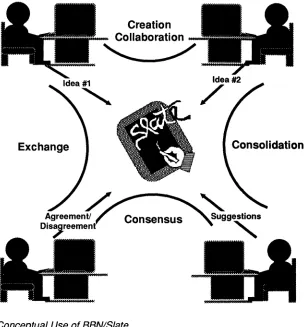
Multimedia sharing lets you communicate ideas easily with your associates. Documenting your ideas typically involves:
• creating a document
• collaborating with others
• exchanging ideas
• consolidating ideas from differing sources
Figure 1-1
After creating a document that includes such things as text in various fonts, sketches, spreadsheet models, and photographs, you can then send it to necessary collaborators using electronic mail. To reach a consensus on the final document, you can meet "over" the document to settle differences and exchange ideas with people in different locations. Alternatively, you can produce a printed copy, or file different versions of the document in a filing system. BBN/Slate lets you do all these things from your desktop.
Figure 1-1 illustrates one example of how BBN/Slate can be used effectively by people collaborating on the creation, revision, and release of a document.
Exchange
Creation Collaboration
"---.-/
Consensus
[image:19.542.162.466.221.548.2]1.2
Document Manager
Document Editor
Integrated components of BBN/Slate help you:
• create and edit electronic multimedia documents with a variety of media types
• store and retrieve documents from an easy-to-use filing system
• print documents
• send and receive documents to and from geographically separated collaborators
• confer in real-time with others over the presentation or revision of a document
Major Components of BBN/Slate
The four major components to BBN/Slate software are described here.
You use the BBN/Slate Document Manager to organize, manage, and select documents. For example, to edit a previously filed document, you select the folder, highlight the desired document, then click on the show button to display your document. The Document Manager interacts with the Document Editor to display a copy of the document for editing.
The Document Editor lets you create and revise powerful, content-rich documents with seven different media types: text, geometric graphics, color and black and white images,
Electronic Mall Interface
Electronic Document Conferencing System
1.3
Documents that you create in the Document Editor can be sent electronically to other people. When your document is complete, you add an electronic mail header. The header addresses people to receive the document and summarizes the contents. Clicking on the send button from the Document Manager sends that document to the intended recipients.
The electronic conferencing component of BBN/Slate lets you confer or collaborate over documents with other BBN/Slate users. When a BBN/Slate conference is augmented with a telephone voice conference call, a group of people can discuss and revise a set of documents just as if they were working together in the same room. If a document is formatted with large fonts, the BBN/Slate
conferencing feature can also be used to make remote presentations.
Multimedia Documents in BBN/Slate
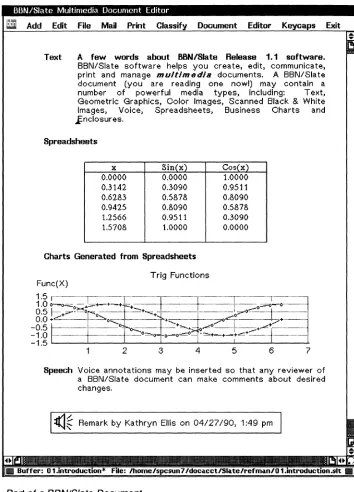
In a BBN/Slate document, non-text elements are embedded within structured text. For example, this chapter includes graphic
elements embedded within a document framework that contains chapters, sections, subsections, and various paragraphs, nested lists, and captions.
Figure 1-2
~ Add Edit File Mail Print Document Editor
Text A few words about B8N/Slate Release 1.1 software.
BBN/Slate software helps you create, edit, communicate, print and manage multimedia documents. A BBN/Slate document (you are reading one nowl) may contain a number of powerful media types, Including: Text, Geometric Graphics, Oolor Images, Scanned Black & White Images, Voice, Spreadsheets, Business Oharts and .Enclosures,
Spreadsheets
x Sin(x)
0.0000 0,0000
0 . .3142 0,.3090
0.628.3 0,5878
0.9425 0,8090
1.2566 0,9511
1.5708 1,0000
Charts Generated from Spreadsheets
Trig Functions Func(X)
Cos(x)
1.0000 0,9511 0,8090 0,5878 0,.3090 0,0000
=m~~~w~*~]
1 2 3 4 5 6 7Speech Voice annotations may be inserted so that any reviewer of
a BBN/Slate document can make comments about desired changes,
(j~ Remark by Kathryn Ellis on 04127/90, 1:49 pm
Part of a BBNISlate Document
[image:22.542.159.513.43.535.2]1.3.1
Text
Graphics
Basic Media Types
There are seven media types in the BBN/Slate Document Editor:
• text
• graphics
• images
• spreadsheets
• charts
• speech
• enclosures
A summary of each one is presented here.
You can format text in a wide range of styles. You can adjust margins, tab stops, line spacing, justification, and the font of a passage, and make other formatting choices. BBN/Slate has predefined styles for you to use, but you can also develop your own styles and use them for creating new documents. You can organize your document into various sectioning strategies. A
standard sectioning discipline exists that includes chapters, sections, and subsections. Tables of contents for sections, figures, and tables are generated automatically.
Formatting is done as you enter the text and you can immediately see the effect of any formatting changes you make. You may display individual characters, words, phrases, or passages in normal, bold, italic, or bold italic font, or in a font which is
smaller or
larger
than the surrounding text, as subscript or superscript,underlined, double underlined, or overstruck.
Figure 1-3
Images
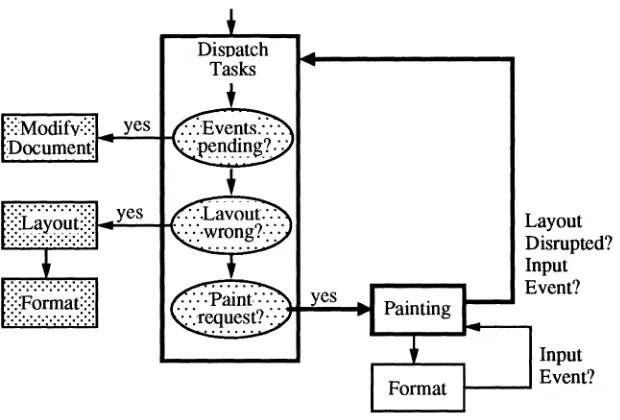
images. You can shade closed regions (such as polygons) with textures (regular patterns that fill the regions), and you can make the individual objects in a drawing overlap one another. Figure 1-3 shows a simple line drawing.
Sample Line Drawing
DisDatch Tasks
Layout Disrupted? Input Event?
Input
1 - - -... Event?
[image:24.542.157.467.138.348.2]Figure 1-4
Spreadsheets
Sample Image
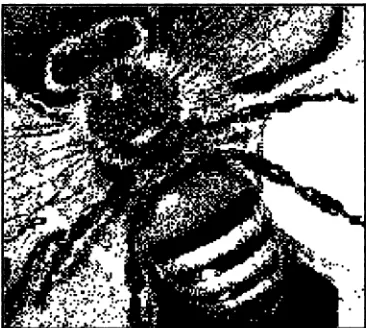
You can put images into the system several ways: by using an image scanner (discussed in Chapter 7); by capturing the graphical display of another program on the workstation display using a screen capture program (Chapter 7); by direct insertion of a file generated by some other program; or by using the multimedia Document Editor to "paint" an image.
Images are black and white pictures, while rasterfiles may be black and white, grayscale, or color pictures.
[image:25.542.156.339.35.199.2]Figure 1-5
Charts
Figure 1-6
Speech
Year
Prod 1
Prod 2
Prod 3
Maximum
1985
12
34
23
34
1986
13
35
24
35
1987
15
37
30
37
1988
14
34
22
34
Average
14
35
25
35
Sample Spreadsheet
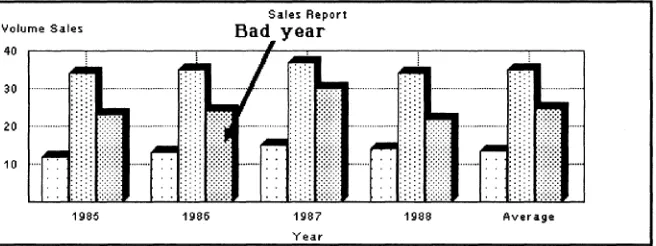
You can include a line, bar, and pie chart based on values in a spreadsheet. As values in the spreadsheet change, the graphical depiction of those values in charts change as well. Even though charts are automatically generated, you can edit them like any other graphical object. For example, in Figure 1-6 below, the commentary "Bad Year" and the arrow were added on top of the chart that was generated by the spreadsheet.
Volume Sales
Sales Reporl
Bad year
40 ~--~---~--~I~~---~---~---.
I
~:
. , ... :"""""' ... +
... .. . . :[,:,:,:: •... j;
I···
.. . .
~
... .. ... r
:1:::\·, .... ." L:,
I:::L30 I ... ·.. .: ... 1':
20 I ... · ....
, ... ~
I..
I····.... , .:I::::::::::.· ... 'L
1985 1985 1987 1988 Average
Year
Sample Chart
[image:26.542.166.489.57.157.2] [image:26.542.167.495.307.430.2]Figure 1-7
Enclosures
Figure 1-8
1.3.2
; '
:::: Ellis 05/10/90, 11 :38 am (13 seconds)
Sample Speech Passage
The Document Editor automatically adds a caption indicating the author, the date and time the passage was recorded, and the length of the speech passage. You can also edit the text caption. A reader of a BBN/Slate document can hear a voice element by pointing to the icon with the cursor and invoking a playback command. The icon representing a speech passage is not shown when a document is printed.
You can enclose any external file within a document. An enclosure can contain text, data, an executable program, or any other information. Enclosures greatly extend your ability to
communicate information to others by letting you create documents that explain or describe files that are embedded within them. For presentation purposes, BBN/Slate represents each enclosure in a document by the envelope icon (Figure 1-8).
c::::J
Data: Project Plan and Pert Chart [163308 bytes]Sample Enclosure
You can use the Document Editor to add a caption indicating the type of enclosed file, the file contents, and its size. A reader of a BBN/Slate document can perform a variety of operations on an enclosure, including editing, printing, and executing it.
Document Structure
1. Individual characters, or sequences of characters (words,
phrases, passages) in a block of characters possess language and font attributes.
2. Entire blocks of characters are formatted in a simple style.
3. Other non-text media types (e.g., a line drawing or a spreadsheet) are equivalent to instances of simple text formatting styles.
4. Compound formatting styles are used to create various types of lists.
5. Sectioning and captioning styles can be used to organize a document.
A sequence of simple text elements, other non-text media elements, compound elements, and sectioning and captioning elements
together form a document.
BBN/Slate documents are structured because the Document Editor knows about the relationship between the "underlying" elements of the document and will take actions to preserve that structure. Details of the approach to document structuring include:
1. Individual characters, or sequences of characters (words, phrases, passages) in a block of characters are presented with a set of language and font attributes.
In BBN/Slate, the language is English; with the BBN/Slate Multilingual Option, you can select the language {rom the set of languages configured for your system. After choosing a language, you can select several alternatives for font attributes as appropriate in each of the following areas:
Family
Face
The general style of the font. Standard font families include TimesRoman, Helvetica, and TV (a fixed-width font).
Figure 1-9
Size
Superscript and
Subscript
The size of the font. There are nonnally 5 sizes:
8 point, 10 point, 12 point, 14 point, and
18
point.
Some fonts have different size selections. A sequence of characters may be elevated (superscript) or lowered (subscript) from the surrounding characters.
Lining Any sequence of characters may be underlined, double-underlined or overstruck.
2. Entire blocks of characters are formatted in a simple style.
Examples of simple styles include paragraph, noindenr, and
center as shown in Figure 1-9.
This is an example of a paragraph
formatting style.
This is an example of a
noindent
formatting style.
This is an example
of a
center
formatting style.
Simple Text Formatting Styles
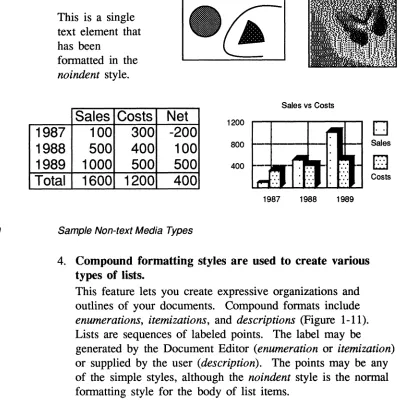
3. Other non-text media types (e.g., a geometric drawing or a spreadsheet) are equivalent to instances of simple text formatting styles.
Figure 1-10
This is a single text element that has been
fonnatted in the
noindent style.
Sales vs Costs
Sales Costs Net
1987
100
300 -200
1200D
1988
500
400
100
800 Sales1989 1000
500
500
4000
..
Total
1600 1200
400
Costs1987 1988 1989
Sample Non-text Media Types
4. Compound formatting styles are used to create various types of lists.
This feature lets you create expressive organizations and outlines of your documents. Compound fonnats include
enumerations, itemizations, and descriptions (Figure 1-11). Lists are sequences of labeled points. The label may be
generated by the Document Editor (enumeration or itemization)
[image:30.542.100.499.55.458.2]Figure 1-11
1.
This is point one of a text block formatted with the enumeration style.2.
This is point two.o
This is point one of a text block formatted with the itemization style.o
This is point two.GNP
This is the description of the first
item in the
description style.
CPI
This is the description of the
second item.
Sample Compound Text Formatting Styles
Compound fonnatting styles may be nested. When you nest
Figure 1-12
A.
This is point 1
1.
This is subpoint 1
o
This is the first item
+
This is a point under the first
item.
Notice that these points can be
as complex as you want and
can include internal structure of
their own.
+
This is another point.
o
This is the second item
2.
This is subpoint 2
B.
This is point 2
Sample Nested Compound Styles
5. Sectioning and captioning styles can be used to organize a document.
Sectioning styles are composed of a
counter
(see Chapter 5) and some optional sUlTounding text. Examples of these styles include chapter, section, subsection, caption-figure, andFigure 1-13
Chapter 1. Economic Measures
1.1 Background
1.2 Gross National Product 1.3 Consumer Price Index
Figure 1-1: GNP 1900-1980
Chapter 2. Economic Cycles
2.1 Background 2.2 Recessions
Figure 2-1: Recessions 1900-1980
Sample Sectioning and Captioning Styles
6. A sequence of simple text elements, other non-text media elements, compound elements, and sectioning and captioning elements together form a document.
2
2.1
BBN/Slate User Interface
This chapter describes how you use the user interface to "navigate" through the interactive elements of BBN/Slate' s software design. It tells you how to use:
• the mouse (Section 2.1)
• BBN/Slate menus (Section 2.2)
• dialog boxes (Section 2.3)
• scroll bars (Section 2.4)
• keyboard editing commands (Section 2.5)
The user interface's keyboard component can be customized easily through key bindings and configurable menus. Information
regard-ing this capability can be found in the Customizing Manual.
Using the Mouse
Mouse operations generally have three components: the button name, the action, and an optional modifier.
A standard format describing any mouse operation is:
modifier BUTTON action (e.g., control RIGHT hold)
When the modifier is omitted, the format is:
BUTTON action (e.g., LEFf click)
Button Name
Action
Modifier
There are three buttons:
LEFT
MIDDLE
RIGHT
Selects and executes menu choices and confmns dialog boxes.
Displays available help messages for menu items. Selects and executes menu choices.
There are four types of button actions:
click
hold
release
drag
Pushing and releasing the., button quickly -- like typing on a keyboard. This action executes specific choices.
Depressing the mouse button and holding the button down. This action activates pop-up menus. Letting the button come up after it has been held. A combination of hold, moving the mouse pointer followed by release. This action selects objects and sublevel menu choices.
A key you hold down while using the mouse. Possible modifier keys are:
shift
control
Either one of the Shift keys The Control key
In addition, Chapters 3 through 13 end with a section on mouse usage pertaining to the topic of that chapter.
2.2
2.2.1
Working with Menus
BBN/Slate "s extensive menu system enables you to perfonn most editing and document management functions simply by making a menu selection with the mouse. Throughout the Document Editor and the Document Manager, menus present the list of available choices. The way you select menus and items from the menu bar depends on whether you have pop-up or stay-up menus. These menus are discussed in the next subsection.
Pop-up and Stay-up Menus
Throughout the Document Editor and the Document Manager, menus are sensitive to the current location of the mouse pointer. The way you select menus and items from the menu bar depends on whether you have stay-up or pop-up menus. BBN/Slate defaults to the setting you have for your window manager menus (i.e., if you have stay-up menus activated in the window manager, you have stay-up menus in BBN/Slate).
To select a pop-up menu:
1. LEFT or RIGHT hold on the menu name.
2. Drag to highlight the desired item.
3. Release to select the highlighted item.
Note: fIf a menu name is followed by an arrow, that choice leads
to a submenu.
To select a stay-up menu:
1. LEFT or RIGHT click on the menu name.
2. Drag to highlight the desired item.
2.2.2
Figure 2-1
Most instructions throughout this book assume that you are using pop-up menus.
Selecting Menus and Submenus
Figure 2-1 shows a sample menu. Note that the Text menu is always available within text media.
To select the Text menu, RIGHT hold anywhere within the Document Editor's display area.
Text
*
Command with SubmenuAdd
Fonts Language
Currently Selected Styles
Command - -•• • • " • • •
1
Sample Pop-up Menu
nten
*
Group
Ungroup +-_ .... _Simple Command
Search •••
Select *
Lists
*
Describe Item ..• Menu Choice with
Dialog Box
Each BBN/Slate menu has a title and a list of commands. A horizontal line separates the list of commands from the title. Any menu may contain commands, submenus, or a mixture of both. Menu choices that end in three dots ( ••• ), such as Describe Item ••• (Figure 2-1), bring a dialog box to the screen.
To select a command from a submenu:
1. RIGHT drag over the menu until the item you want is highlighted.
2. Continue to RIGHT drag past the submenu's name, in the direction of the arrow until the submenu appears and until the desired submenu command is highlighted.
3. RIGHT release. The entire menu disappears, and the highlighted command is executed.
To deselect a submenu and make another selection:
2.2.3
Figure 2-2
Menu Naming Conventions
Throughout the BBN/Slate documentation, menu commands are named with the convention: menu name-command name. For example, the command to change text to italic is Text-Fonts-Italic and is shown in Figure 2-2. It indicates that the top-level menu is Text, Fonts is a submenu of Text, Face is a submenu of Fonts, and Italic is an option of the Face menu.
Top-level (Main) Menu
First-level Submenu (Fonts-Face)
Second-level Su
(Tm}
Text II (Fonts-Face-ltal
,
bmenu Ic)
I Add ~I
Language Family Bold
Styles Size Bold Italc
Edit Lines Normal
Counters Clean Ut
Group Ungroup
Currently Selected Search ...
Select ~
(Text-Fonts-Face-Usts ~
Descrl::le Item •••
Pop-up Menu with Submenus Displayed
2.2.4
Figure 2-3
Getting Help in Menus
You can display brief help messages describing the items on a menu by using MIDDLE click (or MIDDLE hold) while a menu item is highlighted. The message remains on the screen until you select the item or move the mouse pointer to another item. If you use MIDDLE hold while moving the mouse through a menu, the help message for each item is displayed. Figure 2-3 shows a menu with a help message displayed.
Top-level <fain) Menu
Text
Fonts
..
Language ~
Styles ~
Edit
Counters ~
Grwp lkIgroup
Search •••
Select
LWiii _ _ _
.,!!!!!!!l1
A bulleted listI
2.2.5
Figure 2-4
Active and Inactive Menu Commands
Sometimes not all of the commands listed on a menu are
appropriate in a given context. For instance, the Edit submenu of the top-level Edit menu contains commands for cutting and pasting objects between a document and the clipboard (a temporary storage area). If no object in the document is selected, however, it would be inappropriate to invoke the Cut command.
When a command is inappropriate for the current editing context, BBN/Slate displays that command's named dimmed, that is, in a light grey color instead of the usual black. Figure 2-4 shows a menu with some commands dimmed.
You cannot select dimmed commands, nor are they highlighted when the mouse pointer passes over them. In addition, Help is not displayed for dimmed menu items.
~ Add Fie Mal Print
:
::::::=i::~~:;~~~~~=:commandS (unavailable InCOI:IY
GI83.'
Paste
(l'I(mQe
current context)
2.2.6
2.3
Review of Menus
• BBN/Slate uses pop-up and stay-up menus and submenus.
• To display the top-level menu, use RIGHT hold. To select a command, move the mouse pointer over the command name so that it is highlighted, and release the button.
• To display a submenu, use RIGHT hold to display the top-level menu. Move the mouse pointer over the submenu name so that it is highlighted and move the mouse to the right until the submenu appears. To select a command from the submenu, move the mouse pointer over the command name so that it is highlighted, and release the button.
• To deselect a menu or submenu, move the mouse pointer away from the menu so that no command is highlighted, and release the button.
• To get Help on a menu or submenu item, first display the menu. Then move the mouse pointer over the item name so that it is highlighted, and use MIDDLE click.
• To browse through Help on all the menu items, display the menu or submenu as directed above. Use MIDDLE hold over each item in tum to display its Help message.
• Menu items are dimmed when selecting them would be inappropriate.
Dialog Boxes
Messages
Fields
Command Buttons
to specify what the new style should look like. Dialog boxes also present warning messages and ask for confirmation before taking irreversible actions or actions that may cause work to be lost (such as closing the editor without saving your document).
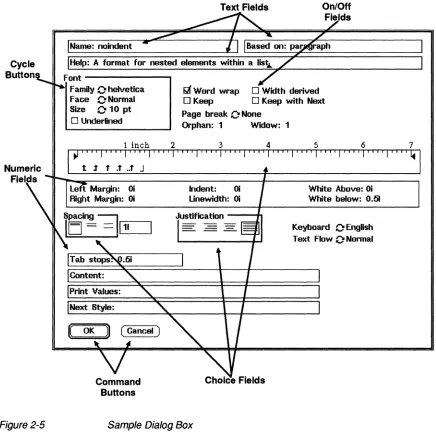
When a dialog box appears on the screen, the command that is displayed waits until you complete or cancel the dialog box. The dialog box takes over the keyboard and mouse while it is in the Document Editor window, allowing only dialog box commands to be issued within that window. Figure 2-5 shows a sample dialog box. Each dialog box has one or more of the following
components.
A message is simply text to warn or inform you. A message may explain why a dialog box has been displayed and what information is required before a command can be completed, or it may provide a warning that some command requires confirmation before
proceeding.
Fields are places where you can give the necessary information about a command. Most fields consist of a label or name that identifies the field and an area in which to enter the data associated with that field. The data are the field's value. In Figure 2-5, for example, there is a field whose name is Name and whose value is noindent.
Five basic field types can occur in a dialog box. They are on/off fields, text fields, toggle fields, choice fields, and numeric fields. Each of the five types is described in more detail in Section 2.3.2.
Cycle Button
Figure 2-5
Text Fields
Name: noindent
Help: A format for nested elements within a lis1j.
Font---~
FamDy C helvetica Face C Normal
Size C 10 pt
o
Underlined(Gancel)
Command Buttons
iii Word wrap
o
Keepo
Width derivedo
Keep with Next Page break C NoneOrphan: 1 Widow: 1
Choice Fields
White Above: Oi White below: 0.51
Keyboard C EngHsh Text Flow C Normal
2.3.1
Figure 2-6
2.3.2
Getting Help in a Dialog Box
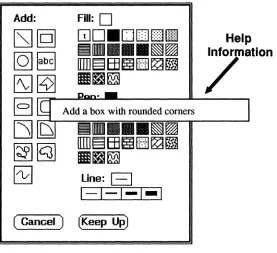
Help is always available for the command buttons and fields of a dialog box. Sometimes it is convenient to browse through the items in a dialog box, examining the description of each one to see what kinds of options are available. Using MIDDLE hold, while the pointer is near any item (field name, field value, or command button), displays the help message for whichever item is pointed to (see Figure 2-6). Help messages are displayed until you release the middle mouse button.
Add:
line:
1 1
1-1-1-1-1
( GanGel) (Keep Up)
Help Information
Field Types in Dialog Boxes
Help
7
8110nI
Text Fields
Numeric Fields
On/Off Fields
Cycle Buttons
Text fields consist of a name, and a box in which you can type text. If the box is not wide enough to contain all of the text, the text scrolls horizontally as the cursor moves beyond the left or right edge of the box. If a dialog box has more than one text or numeric field, the active field (the Help field in Figure 2-6) contains the text cursor to start with. Some text fields check for valid input whenever you change their values, while others allow you to enter any text. You can edit the contents of a text field using the commands in Table 2-1.
Numeric fields are like text fields, except that they only allow you to type in numbers. Some numeric fields (like those in Figure 2-5) allow dimensions such as inches or lines to be specified with the numbers. You can edit the contents of a numeric field using the commands in Table 2-1.
On/Off fields describe options that can take on only one of two values (e.g., on/off, true/false, or enabled/disabled). An on/off field is shown as a small box with a name next to it. When you
LEFT click while the mouse pointer is in an unselected box, the option is selected (on, true), and a mark appears in the box. When you LEFT click while the mouse pointer is in a selected box, the option is deselected (off, false) and the mark disappears. In Figure 2-5, Word Wrap is selected, while Width Derived is deselected.
Choice Fields (Icons)
Each value is represented by a small icon, or picture (see, for example, the Spacing or Justification fields in Figure 2-5). The value you choose with the mouse pointer and LEFf click on is indicated by a box.
In addition to the field types described above, virtually all dialog boxes contain one or more command buttons. Some command buttons are represented as rounded boxes (for example, OK and Cancel) with the name of the button inside, while others are represented by icons like those in certain choice fields.
2.3.3
2.3.4
Selecting Fields and Values in Dialog Boxes
Dialog boxes in BBN/Slate use a simple point-and-click approach to selecting fields and values. In general, to change the value of a field, simply move the pointer to the correct value and click on the
LEFT mouse button. The procedure for each field type is as follows:
• LEFT click anywhere on a text or numeric field places a text cursor at the end of its value and makes that value available for editing. If the text cursor is already in this field, using
LEFT click on it positions the cursor at the character nearest the mouse pointer.
• LEFT click anywhere on an on/off field, and the value toggles between the selected and deselected states.
• LEFT click on one of the cycle buttons in a choice field sets the value indicated by the button's label or the icon selected.
You may change values as often as you like until you confirm or cancel the dialog box. To cancel the dialog box and remove it from the screen, LEFT click on the Cancel command button. When you choose any other command button, the dialog box disappears and BBN/Slate executes the appropriate command.
Pop-up versus Permanent Dialog Boxes
Dialog boxes normally function in a pop-up fashion much like menus; they appear on the screen when they are needed and disappear when they are confirmed or canceled. All dialog boxes are initially in pop-up mode.
Figure 2-7
until you explicitly close them. You can use them repeatedly without waiting for them to be displayed and removed between each use. Dialog boxes that can be made permanent include a command button labeled Keep Up (see Figure 2-7).
Add:
[S][g]
[Q]§g
~~
EJ[Q]
~[bSJ~~
~
Fill:
0
GJO.DDEl~
.IID • • •
~~mn~IEE~Iill~~ 1II~1llil
Pen: •
GJO.DDEl~
I!Im • • •
~~ mn~IEE~Iill~~ 1II~1llilline:B
1-1-1-1-1 ( Cancel) (Keep Up)
Pop-up and Permanent Dialog Boxes
Add:
[S][g]
[Q]~~~
EJ[Q]
~[S]~~
~
Fill:
0
GJO.ODIDB
litmllll • • • ~~
[ill §l bid ~Hdl ~ ml
Maim
Pen: •GJO.DDlDml
~IW • • • ~~
l1I1§lbld~gjB1ml
Ma~
line:
B
I-I 1-1-1 (Take Down)
2.3.5
It is important to remember that most dialog boxes are associated with a particular media type (text, spreadsheet, and so on). A permanent media-specific dialog box remains on the screen even when you are editing some other media type. You may change field values in a permanent dialog at any time, but command buttons are active only when you are editing an object of the appropriate media type.
Active versus Inactive Fields in Dialog Boxes
Sometimes not all of the items in a dialog box are appropriate in a given context. When a field does not make sense, it is removed from the dialog. Such fields are referred to as inactive fields.
For instance, the BBN/Slate image editor's Scale command displays the dialog box shown in Figure 2-8. This dialog offers two different options for scaling an image: interactively (by
Figure2-B
2.3.6
Scaling Mode
@ Interactive
o
Specified factor Constraint@ Same aspect ratio
o
Width only[
OK))
o
Height onlyo
Unconstrained(Cancel)
Scaling Mode
o
InteractiveI
Scale factor: J.I
@ Specified factor
Constraint
@ Same aspect ratio
o
Width only[
OK]
o
Height onlyo
Unconstrained( Cancel)
Active versus Inactive Fields
Name Selection Dialog Boxes
There is one additional type of dialog box that is used in
BBN/Slate, the name selection dialog box. Name selection dialog boxes are used to choose one value from a set of names. It may be the name of a media type, the name of a text font or fonnatting style, or another function or feature name.
Figure 2-9
2.3.7
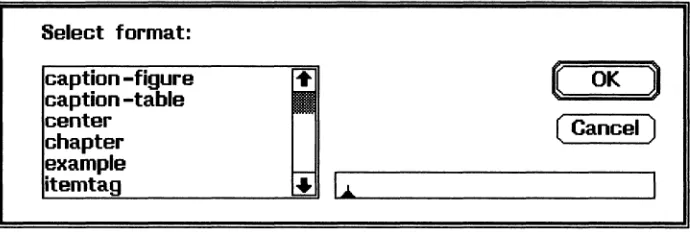
example shown in Figure 2-9, typing ce to select center would be sufficient, but typing just c would not.) Names that are not currently visible may be seen by clicking or holding anyone of the mouse buttons while the pointer is over the up or down arrow.
Select format:
[ OK
J
(Cancel)
I ..
A Name Selection Dialog Box
The text field has a name completion facility, which means you only have to type in enough characters so that the selection is unique. Typing Space completes the name. In addition to Space, any key that normally moves the cursor out of a text field (e.g., Return, "n, or "p) completes the name in a name selection dialog box. Clicking on OK will also complete the name. In addition, if the name is unique (i.e., only one name matches what was typed so far), OK completes the name and then confirms the dialog box.
Review of Dialog Boxes
• BBN/Slate uses dialog boxes when it needs more information before executing a command.
• Dialog boxes pop up on the screen when needed. You can make some dialog boxes permanent.
• Dialog boxes may contain messages, fields, and command
buttons.
• Fields may be on/off fields, text fields, cycle button fields,
choice fields, or numeric fields. Fields may be inactive when
2.4
• To change the value of an on/off or choice field, move the mouse pointer to the appropriate field and LEFT click.
• To change the value of a text or numeric field, move the mouse pointer to that field and LEFT click, then edit the value. You can edit text and numeric values using the keyboard editing commands described in Table 2-1.
• To confirm a dialog box, LEFT click on OK. If there is no OK command, LEFT click on any command except Cancel to invoke that command. To confirm a dialog box from the keyboard, press the Return key.
• To cancel a dialog box, LEFT click on Cancel.
• To get help on any item in a dialog box, move the mouse pointer to that item and MIDDLE click.
• To browse through Help on all of the items in a dialog box, use MIDDLE hold and move the mouse pointer to each item in tum to display its Help message.
Using Scroll Bars
You may need to display more information than will fit in the window. For example, the editor may be displaying a long
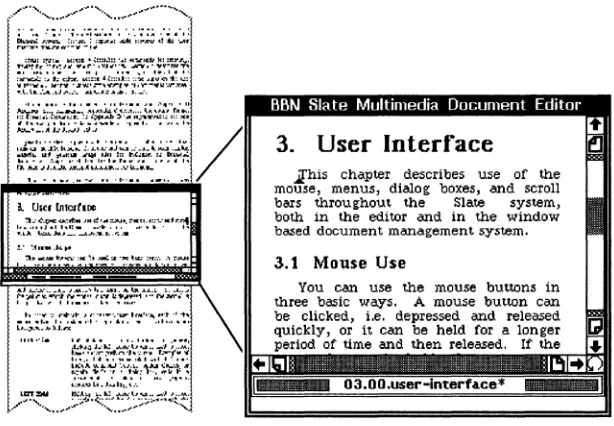
document -- too long to be entirely visible in the window, even if the window is extended to the full height of the screen. In this case, the window displays as much of the document as it can; it provides a viewport onto the document (see Figure 2-10). To see parts of the document that are not currently displayed, you move the viewport to bring them into view. Scroll bars provide one way to move the viewport over a document.
Figure 2-10
2.4.1
3. User Interrace
jfhis chapter describes use of the mouse, menus, dialog boxes, and scroll bars throua:hout the Slate system, both in the editor and in the window based document management system.
3.1 Mouse Use
You can use the mouse buttons in three basic ways. A mouse button can be clicked, i.e. depressed and released or It can be held for a Ion ger time and then released. If the
The Window as a Viewport onto a Document
Windows may have horizontal scroll bars for scrolling left and right, vertical scroll bars for scrolling up and down, or both. Figure 2-10 shows a window with both horizontal and vertical scroll bars.
Scroll Bar Components
Each scroll bar is composed of nine sections. There are two scroll arrows, two icons that represent pages, two crosshatched areas that represent the edges of a document, a scroll area (which may be partially or completely filled by a grey box called the scroll
bubble), and a small icon that looks like a curved arrow, called the
Figure 2-11
2.4.2
3. User Interface
.ihis chapter describes use of 1he mouse, menus, dialog boxes, and scroll bars throughout the Slate system, both in the editor and in the window based document management system.
3.1 Mouse Use
Scroll Area
- - - Scroll Bubble
You can use the mouse buttons in 1hree basic ways. A mouse button can
be Clicked, l.e. depressed and released Bottom Edge
quickly, or it can be held for a longer Page Down
period of time and then released. If 1heT.~I:=: Scroll Down
~ Redisplay
The Components of a Scroll Bar
Getting Around in a Document
' - - - - Scroll Right ' - - - - Page Right - - - Right Edge
Scroll bars can move the viewport over the document to make different sections of the document visible. Moving the viewport up causes earlier portions of the document to become visible. Moving the viewport down causes later portions to become visible.
Scroll Arrows
Page Icons
Edge Icons
Redisplay Icon
Scroll Bubble
LEFT click while the mouse pointer is over either scroll arrow in a vertical scroll bar moves the viewport approximately one line down. RIGHT click over either arrow moves the viewport one line up.
LEFT click while the mouse pointer is over either scroll arrow in a horizontal scroll bar moves the viewport approximately one character width to the right. RIGHT click over either arrow moves the viewport one character width to the left.
If a mouse button is held instead of clicked, the viewport continues to move until the button is released.
Clicking any mouse button while the mouse pointer is over a page icon moves the viewport approximately one screen in the direction indicated by the icon. The viewport actually moves slightly less than one full screen so that you can keep your place in the document.
If a mouse button is held instead of clicked, the viewport continues to move screen-by-screen until the button is released.
Clicking any mouse button while the mouse pointer is over an edge icon (left, right, top, or bottom) moves the viewport as far as possible in the chosen direction.
Clicking any mouse button while the mouse pointer is over the redisplay icon redraws the contents of the window.
The scroll bubble indicates the area of the document that is currently visible in the window. The length of the bubble
indicates how much of the document is visible, and the position of the bubble within the scroll area indicates which part of the
Scroll Area
2.5
LEFT click while the mouse pointer is in the scroll area moves the corresponding point in the current viewport to the top of the screen. Thus, clicking the left button while the pointer is half wa: down the scroll bar moves a line halfway down the current
viewport to the top of a new viewport. RIGHT click moves it to the bottom of the screen.
MIDDLE click moves the viewport to the area of the object bein~
viewed that corresponds to the fractional position of the pointer within the entire scroll bar. Thus if the pointer is one-third from the top of the scroll bar, then MIDDLE click would position the viewport one-third from the beginning of the object being viewed.
Keyboard Editing Commands
Table 2-1 Keyboard Editing Commands for Text and Numeric Fields
Keystroke Function
DEL ESC-d ESC-f "A "B "D "E "F "K "N
"p "y
text-delete-back
text-delete-forward-word text-forward-word
text-start-of-line text-backward-character text-delete-forward text-end-of-line
text-forward-character text-kill-line
text-down-line text-up-line text-paste
3
Document Manager
You organize, manage, and select BBN/Slate documents with the Document Manager. The Document Manager presents information about two types of objects: documents and folders. A document is a BBN/Slate multimedia document; it is equivalent to a file in the UNIXTM file system. A folder is a collection of documents; it is equivalent to a subdirectory in the UNIX file system. When you specify a folder in the Document Manager, a summary of all documents within that folder are displayed.
The names of your folders are shown in a small scroll able list within the Document Manager. You can change the currently viewed folder as well as select documents and perform operations on them. Operations that you can perform from Document Manager command buttons include:
Viewing: Filing: Mail: Folders: Conferencing: Integration:
show, next, print, sort, select save, move, delete
compose, reply, forward, send, cancel, new mail folder, save
conf filter
The BBN/Slate Document Manager interacts with the BBN/Slate Document Editor, causing the Document Editor to read new
3.1
This chapter describes:
•
•
•
• •
the Document Manager and how it interacts with the Document Editor (Section 3.1)
the Document Manager's upper pane: the Document Summary Pane (Section 3.2)
the Document Manager's lower pane: Command Button and Folder Display Pane (Section 3.3)
infonnation on working with folders (Section 3.4)
mouse interaction within the Document Manager (Section 3.5)
Document Manager and Document Editor Display
To enter the BBN/Slate environment, type slate at the UNIX prompt in a UNIX window. This command opens two new windows (see Figure 3-1). The first window is a two-pane
flflN/SI,\tl': Fold",. - - «MailBox» 0 of 1 sr;lPLwd
1: 4 Apr 90 BBN
BBNI
Welcome to BBN/Slate Release 1.1
Folder: ..
+Malibox
+customlze +eUls +getstart
Release 1.1
Used under license from
BBN Software Products Corporation
Copyright (c) 1990 by
BBN Systems and Technologies Corporation All rights reserved.
...
....
...
....
Document Manager
[image:61.542.61.455.48.552.2]Document Editor
Reference Number
The Document Manager window has a top pane: the Document Summary Pane, and a bottom pane: the Command Button and Folder Display Pane (see Figure 3-2). When you first open this window, the top Document Summary pane displays a list of any documents in your incoming mail folder (if you have one).
The Command Button and Folder Display Pane provides several command buttons (e.g., the show button) and a list of all your BBN/Slate folders. A plus sign (+) precedes the folder name. From the Document Manager window you can list, print, file, delete, and mail documents.
When you want to create or edit BBN/Slate documents, you do so by activating BBN/Slate Document Editor from the Document Manager window.
Document Summary Pane
( show) (compose) ( send )( cancel) (forward)
done
Command Button and Folder Display Pane
( print) ( sort )
( slIlect ) Folder: +MailbolSl,.
[image:62.542.49.446.272.473.2]( conf ) ( next ) ( reply ) ( delete ) ( folder ) save
3.2
Reference
Number
Document
Status
Date
Author
Document Summary Pane
A document summary, in the Document Manager's top pane, lists information for each document (see Figure 3-2). It consists of five fields, described here.
Indicates how many documents are in a folder and where a document exists in the folder.
Documents in a folder are numbered sequentially, beginning with 1. When you remove documents from a folder, or add new ones, the numbers are regenerated.
Possible entries in this field are:
N (New) Document has not been seen before by the Document Manager.
U (Unseen) Document has not yet been displayed in the Document Editor or printed.