OPERATORS
MANUAL
CGC
7900
SEiuESCHROMATICS
CGC 7930 COLOR GRAPHICS COMPUTER SYSTEM
USER'S MANUAL
Copyright (C) 1981 by Chromatics, Inc. 2558 Mountain Industrial Boulevard
Tucker, Georgia 30084 Phone (404) 493-7300
TWX 810-766-8399
PUBLICATION COMMENT FORM
Please use this sheet to give us feedback on the enclosed documentation. Your comments on errors or omissions, suggested changes, format of presentation, etc., will be helpful in preparing future manuals. Wherever possible, refer to specific page numbers in your comments below. After completing this form, mail to:
Chromatics, Inc.
2558 Mountain Industrial Boulevard Tucker, GA 30084
Attn: R&D Department
Name: Date: __________ __
Company Name:
Name/Model Number of Product: ____________________________ _
Title of Publication:
Date of Publication Release: Preliminary? ____ _
TABLE OF CONTENTS
PREFACE
COMl-1AND REFERENCE LIST
CONVENTIONS USED IN THIS DOCUHENT
SECTION ONE - GENERAL SYSTEM INFOR1~TION
INTRODUCTION
CGC 7gea OVERVIEW INSTALLATION·
CONVERGENCE AND DEGAUSSING
CONVERGENCE AND DEGAUSSING CONTROLS
CODES AND CODE SEQUENCES CODE HIERARCHY
THE KEYBOARD
RESET, BOOT, SOFT BOOT WARM START
TERMINAL EMULATOR LOCAL
HALF DUPLEX FULL DUPLEX
ASSIGNING PHYSICAL DEVICES
PHYSICAL DEVICE ASSIGNMENT LIST KEYBOARD SYNC
SERIAL COMMUNICATIONS SERIAL PORT PINOUTS SERIAL PORT CONNECTORS
RECOM~mNDED SERIAL PORT WIRING
SET SERIAL BAUD RATE
SET SERIAL PARITY, WORD LENGTH, STOP BITS SET HOST EOL SEQUENCE
CASE TABLE
CREATE BUFFER OPERATIONS CREATE BUFFER "ON" CREATE BUFFER "OFF"
REDRAW THE CREATE BUFFER TRANSMIT THE CREATE BUFFER APPEND TO CREATE BUFFER DEFINE A SUB-BUFFER VIEW A SUB-BUFFER KILL A SUB-BUFFER
INSERT INTO SUB-BUFFER LITERAL CREATE
DELAY
WINDOWS
SET WINDOW LIMITS
TEST
VISIBLE CONTROL-CHARACTERS SELECT CHARACTER SET
FUNCTION KEYS BEZEL KEYS
TONE GENERATOR
LIGHT PEN
REAL TIME CLOCK SET CLOCK DISPLAY TIME
THAW
_ DEFAULT RAM ALLOCATION
NUMERICAL DATA
WINDOW VARIABLES
WINDOW VARIABLE ASSIGNMENTS OPERATE ON WINDOW VARIABLE
DISPLAY AND TRANSMIT WINDOW VARIABLE WINDOW VARIABLE USES
BINARY MODE
SECTION TWO - THE OVERLAY THE OVERLAY: INTRODUCTION OVERLAY DEFAULTS
OVERLAY OPERATIONS OVERLAY CURSOR CONTROL
OVERLAY CURSOR BLINK ON/OFF OVERLAY ROLL AND PAGE
OVERLAY COLOR AND BLINK SET FOREGROUND COLOR SET BACKGROUND COLOR OVERLAY BLINK ON OVERLAY BLINK OFF
MODIFY OVERLAY VISIBLE ATTRIBUTES
OVERLAY PLOTTING FUNCTIONS
SECTION THREE - THE BITMAP THE BITMAP: INTRODUCTION BITMAP DEFAULTS
BITMAP OPERATIONS BITMAP CURSOR CONTROL
SET CURSOR COLOR BITMAP ROLL ~~D PAGE
SET BITMAP CHARACTER SIZE
SET BITMAP INTERCHARACTER SPACING
OVERSTRIKE
COLOR LOOKUP TABLE
CHANGE COLOR LOOKUP TABLE ENTRY (RGB) CHANGE COLOR'LOOKUP TABLE ENTRY (HVS) DEFAULT COLOR LOOKUP TABLE
BITMAP BLINK
SELECT BLINK PLANE(S) BITMAP COLOR AND BLINK
SET FOREGROUND COLOR SET BACKGROUND COLOR BLINK ON
BLINK OFF
PLOT SUBMODES FILL DOT VECTOR
CONCATENATED VECTOR CIRCLE
TWO-POINT CIRCLE RECTANGLE
TRIANGLE,
SET VECTOR WIDTH BOLD VECTOR
CONCATENATED BOLD VECTOR INCREMENTAL X-BAR
INCREMENTAL Y-BAR INCREMENTAL VECTOR POLYGON
FILLED POLYGON (TILER) CURVE
ARC
RAY
VECTOR-DRAWN CHARACTERS EXITING PLOT SUBMODES
RASTER PROCESSOR GRAPHICS DEFINE SOURCE RASTER COpy RASTER
COpy RASTER WITH OVERSTRIKE SET RASTER DIRECTION
COMPLEX FILL ALGORITHMS AREA FILL
EDGE ~ILL
SCALE FACTORS (VIRTUAL COORDINATES) SCALING ON/OFF
WINDOW AND SCALE
RUBBER BAND
PAN AND ZOOM ABSOLUTE PAN ABSOLUTE ZOOM
JOYSTICK
PLANE SELECT
PLANE VIDEO SWITCH
EXPANDED IMAGE MEMORIES SELECT INAGE
PLANE/VIDEO/BLINK SELECT WRITING TO THE SECOND I~~GE
APPENDIX A - SPECIAL CODES
APPENDIX B - 'HUE, VALUE, SATURATION THE COLOR CUBE
THE HEXCONE
APPENDIX C - MONITOR MONITOR OPERATIONS THE INLINE EDITOR DUMP MEMORY
CHANGE MEMORY MOVE MEMORY
CO~1PARE MEMORY FILL MEMORY SET MEMORY VIRTUAL SEARCH CHECKSUM MEMORY
EVALUATE MATH EXPRESSION LOAD
PUNCH END PUNCH
EXAMINE REGISTERS TRACE (SINGLE STEP) TRACE DISPLAY
APPENDIX D - TP~PS D- 1
APPENDIX E - ASCII CODES E- 1
STANDARD ASCII CHARACTER SET E- 2
79g0 User's Manual Page i-I
PREFACE
(DIFFERENCES BETWEEN CG SERIES AND THE CGC 7900)
This list is by no means a complete reference to the CGC 7900. Its intended purpose is to point out some changes in operating procedure between the Chromatics CG series computers and the new CGC 7900. Please refer to the main body of this User's Manual for detailed instructions on operating the CGC 7900.
1. Decimal numbers must alw~ys be delimited by a comma or s~micolon. (Due to allowing 16-bit numbers)
2. Foreground colors are set by using the ~ key and then the color key. Background uses SHIFT SET.
3. Pressing a Plot Submode key will automatically invoke Plot mode and turn on the ~ key light.
4. CREATE,
fILL,
BLINK, and most other lighted keys: Pressing the key turns the function on and turns on the light in the key; pressing the key again will turn it off (similarly to the CG). Alternatively, using SHIF~ with the key will always turn the function off, regardless of whether the key is currently lit •. 5. The DEFINE key is used to set up user-defined function keys.
6. Logical device assignment method is changed due to the increased number of devices available:
Logical devices are now numbered 0 to 4
Physical devices (including windows) now labeled A to Z ASSIGN is used to assign output, SHIFT ASSIGN for input.
Page i-2 Chromatics CGC 7900
8. Overlay cursor is produced by hardware. Its color is always white.
9. Character size in Bitmap: both X and Y dimensions are entered together, as ~ <X>, <Y>, (using the ~. key)
la. Complex area fill (optional) will work with any colors (including black).
11. In addition to Escape and Mode, ,two other codes are in use: Plot and User. Plot codes cause entry into a Plot Submode. User codes cause execution of a program or alter the configuration of the 79aa in some important way.
12. Escape codes can be entered into the Create Buffer, using the "Literal Create" command.
13. Coordinate axes in Bitmap range from a to la23 in X, and a to 767 in Y. The 0, ~ position is the upper left corner. The "Scale" command allows varying the coordinate system over a wide range.
7900 User's Manual
COMMAND REFERENCE LIST
This section is a brief guide to the operation of the The commands are listed here as they would be entered keyboard. For details on any command, consult the descriptions in the main body of this manual.
Terminal Emulator and I/O:
SHIFT USER H Half Duplex SHIFT USER F Full Duplex SHIFT USER L Local
Page 1-3
CGC 790" •
from the detailed
ASSIGN <log><phy><phy><phy><phy> Assign Output SHIE:;t ASSI~H <log><phy> Assign Input
SHIFT USER S <port>,<baud>, Set Baud Rate
SHIFT USER SHIFT s <port>,<blts><par><stop> Set Format
Create Buffer:
CREATE Create On
SHIFT CREATE Create Off
REDRAW Redraw the Create Buffer ~ Transmit the Create Buffer
SHIF:;t USER A Append to Create Buffer CTRL X Define a Sub-Buffer
SHIFT VIEW <n>, View a Sub-Buffer SHIFT USER K <n), Kill a Sub-Buffer
SHIFT USER A <n>, Insert into Sub-Buffer
Page i-4 Chromatics CGC 7900
Window Functions:
WINDOW <XI>,<Yl>,<X2>,<Y2>, Set window limits SHIFT WINDOW Default window size
SCALE <XI>,<YI>,<X2>,<Y2>, Set window scale factors SHIFT SCALE Default- scale factors
~ : <n>, Plane Select ~? Keyboard sync
Text and Cursor functions:
~ / SHIFT ROLL Roll or Page mode
~ V <window> <9 or 1> Visible Controls on/off CTRL N / CTRL Q A7 character set on/off
~ <char> Fill window with character
~ <X>,<Y>, Set Bitmap character size
MODE I <dX>,<dY>, Set Bitmap intercharacter spacing
~ \ <0 or 1> Overstrike on/off
CURSOR
ON /
SHIFT CURSOR ON Cursor on or off MODE Q <color> Set cursor color (Bitmap only) MOYEx-x
<X>,<Y>, Move cursor (absolute) to X-YColors:
7900 User's Manual
SET <color> Set foreground color
SHIFT SET <color> Set background color BLINK / SHIFT BLINK Blink on/off
~ SHIFT b <n>, Select Blink Plane(s)
Page i-S
CHANGE <color> <R>,<G>,<B>, Change RGB in Lookup Table SHIFT CHANGE <color> <H>,<V>,<S>, . Change HVS in Lookup
Patterns (optional):
MODE <Xl>,<Yl>, <X2>,<Y2>, Define Source Raster ~ <X>,<Y>, Copy raster
~ SHIFT u <X>,<Y>, Copy raster with overstrike
~ SHIFT f <n>, Set raster direction
~ T <0 or 1> Set vector type (patterns on/off) COLORSWAP <colorl>,<color2>, Swap colors
Page i-6
Plotting:
Chromatics eGC 790~
~ / SHIFX FILL Fill attribute on/off ~ / SHIFT PLOT Enter Plot or Alpha
~ <X>,<Y>,
'VECTOR <Xl>,<Yl>,<X2>,<Y2>,
CONCAT VECTOR <Xl>,<Yl>, [<X>,<Y>, ••• ] CIRCLE <X>,<Y>,<R>,
SHIFT PLOT 0 <X>,<Y>,<Xl>,<Yl>, Two-point circle REeT <Xl>,<Yl>,<X2>,<Y2>,
TRIANGLE <Xl>,<Yl>,<X2>,<Y2>,<X3>,<Y3>, SHIFT V. WIDTH <w>, Set vector width SHIFT PLOT SHIFT v <Xl>,<Yl>,<X2>,<Y2>, SHIFT PLOT SHIFT w <Xl>,<Yl>,<X2>,<Y2>, SHIFT INC X-BAR <Xa>,<Y3>,[<Xl>, ••• ] SHIFT INC Y-BAR <xa>,<y~>,[<Yl>,.~.]
~HIE~
INC
VECTOR <X>,<Y>,[dXdY ••• ]Bold Vector Concat Bold
POLYGON
<Xl>,
<Yl> , <X2> , <Y2>, [<X>, <Y>, ••• ] ;CPRVE <Xl>,<Yl>, <X2>,<Y2>, <X3>,<Y3>, <X4>,<Y4>, ARC <X>,<Y>,<radius>,<start>,<delta>,
BaI <X>,<Y>,<radius>,<angle>,
V.
79g~ User's Manual
Zoom and Pan:
~ (with arrow keys) Pan M2 HOME Reset Pan
M2 CLEAR LINE Pan to cursor location
SHIFT PAN X-Y <X>,<Y>, Pan to X-Y (absolute) ESC SHIFT m <X>,<Y>, Relative Pan
M2 ERASE PAGE Zoom Up M2 RECALL Zoom Down
ESC Z <char><char> Absolute Zoom
Miscellaneous:
Page i-7
OVERLAY / SHIFT OVERLAY Address Overlay or Bitmap MODE V <n> Modify Overlay present attributes
~ v <n> Modify Overlay future attributes ~ S <n>, Plane Video Switch
SHIFT TONE <Hz>,<Hz>,<Hz>,<millisec>, Make tones DEFINE <Fn> <commands> <Fn> Define Function Key CTRL Z Flush input buffer, cancel code sequence
SHIFT PLOT E <angle>, <0 or 1> Vector-drawn characters SHIFT OSER \ <0 or 1> Joystick on/off
7903 User's Manual Page i-9
CONVENTIONS OSED IN THIS DOCUMENT
1. Any keys which have labeled caps will be called by their full names, capitalized and underlined. For example, the carriage return key will be denoted by
RETURN
2. Color keys will be called by their name, similar to the example above.
3. All punctuation shown in the examples must be typed exactly as shown. Commas must be typed literally. Spaces will be denoted by
SPACE
4. The modifier keys, ~, SHIFT,
Hl,
andHZ,
must be held down while striking the key they are to modify. Note that these four keys do not generate any characters on their own, but simply modify the character which is struck simultaneously. This process of holding down a modifier key while striking another key will be denoted by the modifier AND the key being underlined together. For example,CTRL F
would indicate that the ~ key should be held down while striking the F key. If two or more modifiers are needed simultaneously, they will all be underlined together:
CTRL SHIFT T
would mean that BOTH modifiers, SHIFT and~, should be held down while striking the T key.
5. Variable parameters will be enclosed in angle brackets,
< >.
Any items enclosed in these brackets will be expla'ined in full in the text which immediately follows.
6. Optional parameters will be enclosed in square brackets { ]. Any items which may be repeated will be followed by an ellipsis
Page i-l~ Chromatics CGC 790~
Example of (5) and (6):
<X>, [<Yl>,<Y2>, ••• ]
The parameter <X> is required. The parameters" <Yl>, <Y2>, and so on, are optional. Any number of these may be included. All three types of parameters would be explained immediately beneath the example which contained them.
7900 User's Manual Page 1-1
7900 User's Manual Page 1-3
INTRODUCTION
This is the User's Manual for the Chromatics CGC 7900 Color Graphic Computer. It discusses how to operate the 7900, and gives examples of the system's capabilities. If you are just beginning to learn about the 7900, this is the first mantial you should read.
Page 1-4 Chromatics CGC 7900
CGC 790B OVERVIEW
The CGC 7900 is the successor to Chromatics' CG Series of color graphics computers. Many of the same philosophies have been retained in the development of the 7900, and a user who is familiar with ,the CG will quickly become accustomed to the 790~.
The 7900 contains three processors. Most system functions revolve around the MC68000 processor, selected for its high speed (8 megahertz) and large memory addressing range (16 megabytes). This powerful processor gives the 7900 outstanding capability for stand-alone computing applications. And when the
7900 is acting as a terminal (connected to a host system), the 7900's power relieves the host of many of the tasks normally required in a graphics environment. The 7900 also includes a processor in the keyboard, and a Raster Processor to provide high performance and speed in graphics operations.
Many graphics systems have suffered from a drawback: the need to have a separate, Ndumb N terminal, for command level interaction between the system and the operator. The 7900 addresses this need by providing a character-oriented NOverlayN display in addition to the high-resolution Bitmap graphics display_ With its eight standard colors and blink, the Overlay is a very effective tool for operator interaction. When not needed, the Overlay can become instantly ntransparent N to reveal a high-resolution graphics image in the Bitmap.
The concept of logical and physical devices, used in Chromatics' CG Series of computers, has been expanded and applied to the 7900. All programs in the 7900 communicate only with Logical Devices, known by a number (0 through 4). 7900 software associates each Logical Device to one or more Physical Devices. This association may be changed at any time, allowing total flexibility in programmed input/output. Any program can accept input from any Physical Device, and transmit output to any Physical Device.
7900 Userrs Manual Page 1-5
All 7900 features discussed in this manual, and all currently available optional features, are contained in a single stand-alone package. Standard features include: l28K bytes of buffer memory, one or four planes of Bitmap image memory, a keyboard with 151 keys (21 lighted), 32 user-definable keys, two serial ports, a 19-inch color' display screen, and a PROM software package which allows easy control of all system functions.
Page 1-6 Chromatics CGC 7900
INSTALLATION
Unpack the CGC 7900 according to the instructions supplied in the shipping carton. Retain the packing material so that it may be used for shipping the 7900 in the future.
CAUTION: If your 79~H) system includes the optional Hard Disk drive, REMOVE the locking screw which was used to secure the drive during shipment! See instructions on your unit for details. FAILURE TO REMOVE THIS SCREW WILL DESTROY THE HARD DISK, AND VOID YOUR WARRANTY 1
Connect the 7900 power cord to a source of 110 volt AC, power (50 hertz optional), capable of supplying at amperes. For reliable operation, the 7900 power should from a circuit with any heavy motors or industrial which could create transients on the power lines. This equipment such as refrigerators and air conditioners.
60 hertz least 10 NOT come equipment includes
The 7900 has no strict environmental requirements. But, like any precision instrument, the 7900 will perform best if it is not subjected to excessive heat or dust. 7900 ventilation removes heat from the unit through vents in the front and rear;
these vents should not be obstructed. The rear door should remain CLOSED during normal operation to provide proper air flow through the 7900 chassis.
7900 power is applied by pressing the square, lighted switch on the front of the unit (above the keyboard). The switch illuminates whenever the system's five volt power supply is operating. When turning the 7900 on, observe the indicator
light on the keyboard, just above the cursor keypad. I t will
glow green as the unit performs internal power-on diagnostics. The green light will extinguish after one or two seconds. By this time, the picture tube should have warmed up, and a blinking cursor should be visible on the screen.
79~0 User's Manual Page 1-7
CONVERGENCE AND DEGAOSSING
The 7900 analog circuitry requires periodic adjustment to maintain best performance. Convergence is the adjustment which causes the red, blue and green portions of the picture to join properly without "fringesn or other artifacts around the edges
of the display. Degaussing is the process which demagnetizes the screen, removing residual magnetic fields which can affect color purity. Controls for both of these adjustments are located behind the door on the right side of the CRT
(Cathode-Ray Tube, or picture tube). These controls are conveniently located so that a "touch-up" alignment may be performed whenever necessary.
The degaussing switch is located at the top of the recessed area behind the door. The need for degaussing is indicated by a lack of purity, and can be seen easily by generating a red screen: Hold down the SHIFT key and press~. Release SHIFT and press the RED key and the ERASE PAGE key. If the screen is not uniformly red (it may contain areas where the red tends toward green or purple), the 7900 should be degaussed.
To degauss the screen, press the Degauss button. Colors screen will shimmer for a moment as the degaussing occurs.
on the process
You must wait at least 15 minutes after turning the system power on, before degaussing will function. After pressing the switch, degaussing proceeds automatically for several seconds. Once degaussing is complete, it may not be restarted for another 15 minutes. If you press the switch again before 15 minutes have elapsed, degaussing will NOT occur, and you will have to wait another 15 minutes before attempting it again.
It is generally necessary to degauss the screen after moving the unit, even if you are only moving it across a room. A weekly degaussing is also beneficial.
If you intend to degaussing first. outlined below.
degauss AND converge
Then proceed to the the 7900, convergence perform steps
Page 1-8 Chromatics CGC 79~0
NOTE: Use a small screwdriver (a jeweler's screwdriver is ideal) and BE GENTLE when adjusting convergence. The convergence potentiometers are fragile.
NOTE: Do not attempt convergence until the unit has warmed up for at least 15 minutes. Convergence may drift until the 7900 has completely warmed up.
7903 User's Manual Page 1-9
CONVERGENCE AND DEGAUSSING CONTROLS
Degauss - _ _ ~_
@
Red
Blue
o
7900 User's Manual Page 1-11
CODES AND CODE SEQUENCES
The 790~ system is controlled through the keyboard, or through a communications port from a host system. The 7900 software allows all important system functions to be accessed through ASCII characters, which make up codes or code sequences. We define a code to be a single ASCII character typed on the keyboard, or received from a host. A code sequence is a set of such characters.
Certain code sequences cause no immediate change in the visible state of the system. Commands such as "Set Color" have an effect on future displays, but do not alter anything currently being displayed. This can be disconcerting to an operator, since there is no feedback to indicate that the code sequence was accepted properly. It may be helpful to compare such code sequences to similar commands on a familiar office typewriter: the "set tab stop" function of a typewriter does not generate any feedback to indicate acceptance of this command. The command is silently accepted.
The 790~ software is thus a bit terse; the altern~tive would be a system whose "verbose" output might interfere with the designs of an applications programmer. (Of course, an applications program can generate as much verbosity as is required.)
The 79"~ recognizes four ."prefix" codes: Escape, User, Plot and Mode. When a prefix code is entered, it signals the system that one or more additional codes is about to follow, and that the entire code sequence should be taken together to perform a function.
These prefix codes are NOT the same as the modifiers, Shift, Ctrl, Ml and M2. Modifiers do not generate codes; they merely alter the key which is pressed simultaneously with the modifier. The prefix keys DO generate codes on their own, and thus the prefix key must be pressed and released before the next key is struck.
Some of the named keys on the upper part of the keyboard cause actions which are equivalent to pressing more than one key on the lower keyboard. For example, pressing ~ to enter the ·Plot Rectangle" mode, is equivalent to entering the sequence
Page 1-12 Chromatics' CGC 7900
If you enter a code iequence which is not defined in the 7900 software, a "bong" sound will be produced from the speaker, as a warning. The same sound will be heard if you attempt to access an optional software feature which is not installed in your unit.
790" User's r-tanual . Page 1-13
Escape Code Sequences
Format:
~ <char> [<argl> <arg2> ••• l
An Escape code sequence consists of the Esc character, followed by a single character <char> which defines the type of Escape code sequence. This may be followed by one or more arguments, <arg>, depending on what the sequence requires. All arguments
fall into one of two categories:
Numbers: decimal or hexadecimal numbers which are delimited by a comma or semicolon. Characters: a single ASCII character.
In addition, a few Escape code sequences will accept an arbitrary number of arguments. Details are described in each command where applicable. In these cases, a special delimiter character (usually the semicolon) is used to signal the enc of the argument
list.
To produce an Escape code sequence, you would press and release the ~ key, then press whatever other keys are necessary to complete the sequence. The argument list is determined by the particular Escape code sequence you are executing, and examples will be found throughout this manual.
Page 1-14 Chromatics CGC 7900
User Code Sequences
Format:
SHIFT USER <char> [<argl> <arg2> ••• l
The User character is produced by holding down the SHIFT key and pressing the key marked USER. The definitions of <char> and <arg> are identical to those for Escape code sequences.
790~ User's Manual Page 1-15
Plot Code Sequences
Format:
SHIFT PLOT <char>
Where <char> is a single character. A Plot code sequence will place the window in a Plot submode, such as Vector, Circle, Arc, etc. Plot code sequences affect only the currently assigned window.
The Plot character is produced by holding down the SHIFT modifier key and pressing the key marked ~.
NOTE: The PLOT key used in this context is the key labeled Plot and Mode, located in the typewriter area of the keyboard. It is NOT the same as the lighted ~ key in the upper keyboard area. The lighted ~
Page 1-16 Chromatics CGC 7900
Mode Code Sequences
Format:
~ <char> [<char>, <char>, ••• l
790~ User's Manual Page 1-17
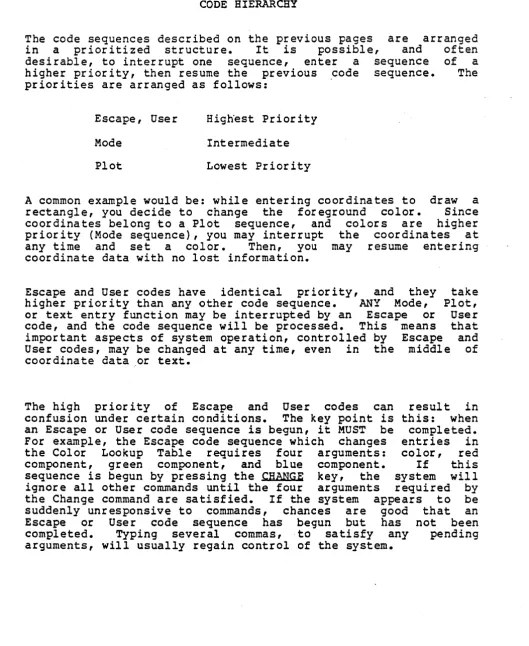
CODE HIERARCHY
~he code sequences described on the previous pages are arranged In a prioritized structure. It is possible, and often desirable, to interrupt one sequence, enter a sequence of a higher priority, then resume the previous code sequence. The priorities are arranged as follows:
Escape, User Highest Priority
Mode Intermediate
Plot Lowest Priority
A common example would be: while entering coordinates to draw a rectangle, you decide to change the foreground color. Since coordinates belong to a Plot sequence, and colors are higher priority (Mode sequence), you may interrupt the coordinates at any time and set a color. Then, you may resume entering coordinate data with no lost information.
Escape and User codes have identical priority, and they higher priority than any other code sequence. ANY Mode,
take Plot, User that and of or text entry function may be interrupted by an Escape or
code, and the code sequence will be processed. This means important aspects of system operation, controlled by Escape User codes, may be changed at any time, even in the middle coordinate data ,or text.
[image:38.615.44.573.82.728.2]79~3 User's Manual Page 1-19
THE KEYBOARD
The 7ge3 system keyboard is divided into several areas. Each area is designed for a specific purpose, and the keys in each area are arranged and color-coded for ease of operation.
In general, keys on the keyboard are marked t~ree ways:
The marking on the top of the key is the primary function of that key. Pressing the key alone, without using any modifiers, will cause that code to be sent from the keyboard.
The marking on the front of the key (if marked in white) is the code which is output when the SHIFT modifier is used in conjunction with the key.
The marking on the front of the key (if marked in blue) is the code which is output when the ~ modifier is used in conjunction with the key.
In the center of the keyboard, you will find
a
sculptured, typewriter-like set of keys. With few exceptions, these keys may be used just as if they were a standard typewriter. On the right of this set are the control keys, RETURN (carriage return), Lt (line feed), and BREAK (used t~ interrupt a running program). On the left are the modifiers, SHIFT, ~,Hl,
andHZ.
The high speed REPEAT key is also in this area.Any key on the keyboard may be caused to either low or high speed. To repeat a speed, simply hold the key down. To cause repeat, hold down both the desired key and key.
repeat, at key at low high speed the REPEAT
Page 1-20 Chromatics CGC 7900
To the far left are two special keys: QUIET L~K and ALPHA LaCE. These two are alternate-action keys. Pressing one of these keys will lock it in the down (on) position; pressing it again will
release it to the up (off) position.
QUIET LOCK will disconnect the built-in speaker when it is in the down (on) position.
ALPHA LOCK will reverse the case of all letters ty~ed from the typewriter section of the keyboard. When it ~s up (off), letters typed on the typewriter keyboard will be upper case when the shift key is not being used. They will come out in lower case when the shift key is used. (This is the opposite of a normal typewriter, but is useful when the unit is acting as a terminal.) To reverse this, and return to standard typewriter usage, press the ALPHA LOCK key into the down (on) position. Now characters typed on the typewriter keyboard will be in lower case, and SHIFT will change them to upper case. This will primarily be useful for text editing applications.
Unless specifically stated, all examples in this manual will assume you have both QUIET LOCK and ALPHA LOCK keys in their normal (up) position.
To the right of the keyboard are two smaller, special purpose keypads. The cursor keypad is used-to position the cursor, and for text editing functions such as inserting and deleting lines. The numeric keypad is intended as an easy way to input numeric data. The keys on the numeric keypad duplicate the functions of their counterparts on the typewriter keyboard.
The special function keys on the upper half of the keyboard are used to access most of the system's features. The majority of this manual is dedicated to explaining, in detail, what each of these keys will do. In general, the following comments apply: The name on top of the key represents its primary function. The name on the front of the key
function, and is accessed by holding pressing the key.
represents
7900 User's Manual Page 1-21
Keys which have a built-in light are keys whose functions may be
in one state or the opposite state. For example, the BLINK key has a light, and at any time, the "blink" attribute may either be on or off. The condition of the light will tell which state the system is in. (In some cases, it is possible for the keyboard lights to be "out of sync" with the rest of the system, in which case they will not present true information. See "Keyboard Sync" and ftAssign" for the details.)
Lighted keys have an additional feature: Pressing a lighted key will turn a function on if it is off, and turn it off if it is currently on. Thus, repeatedly pressing a lighted key will toggle the light in that key on and off. The function produced by a key depends on whether the light in that key is currently on or off. (Using SHIFT with a lighted key will, however, always turn the function OFF.)
The character Control-Z acts as a ftflush" command. clear out the keyboard buffer, so that any keystrokes not yet been executed will no longer wait in Control-Z will also cancel any pending Mode, Plot, User code sequences which are expecting arguments.
It will that have the queue. Escape, or
To execute the "flush" command, hold down the CTRL modifier and press the Z key:
CTRL Z
Two keys on the keyboard are not currently defined.
the BASIC and CALC MOPE keys. They are
7900 User's Manual Page 1-23
RESET, BOOT, SOFT BOOT
The 7900 recognizes several types of initialization procedures.
At power-up time, a special type of initialization occurs, which erases all memory· in the system (except CMOS). The image memories are erased, and all of user memory is zeroed.
Pressing the RESET key initializes all hardware to default states. All I/O ports are initialized, and all buffers are flushed. Any operations in progress are immediately halted. (In fact, Reset may be the only way out of some operations.) Following Reset, the Terminal Emulator program is executed by default (this may be altered with the Thaw command). Reset leaves the contents of memory essentially unchanged. The Reset command may not be stored in the Create Buffer, since it is a hardware function and does not generate a normal code sequence. The most common use of the RESET key is to halt a process, such as a picture being drawn from the Create Buffer.
After pressing the RESET key, it may be necessary to wait several seconds before the system will again respond to input. When the system acknowledges RESET, the green indicator near the cursor keypad will illuminate briefly.
Boot is designed to cold-start the system. It is executed by pressing CTRL BOOT on the keyboard. Boot initializes most of the
79fJ0 system, based on default parameters (either in PROM or in the optional battery-powered CMOS memory). After Boot, the Terminal Emulator is executed unless CMOS contains orders to execute a different program. CTRL SOQT is the simplest way to reload most of the default parameters in the 7900 system. The Boot command may not be stored in the Create Buffer.
Page 1-24 Chromatics CGC 790~
C~OS memory (optional) retains information concerning how the system is configured at Boot time. CMOS is set 'up using the Thaw command, to define buffer sizes and other defaults. As long as the data in CMOS remains intact, it continues to be used at Boot time. It is possible for a user to sufficiently scramble CMOS data so that the system cannot boot; in this case, the keys ~ SHIFT
Ml.
M2. RESET should be pressed simultaneously (releasing RESEI first) to clear out CMOS and force the system to boot from PROM data instead. This sequence destroys any defaults entered by Thaw, so it is not recommended unlessabsolutely necessary. See ·~haw· for details.
The preceding two sequences (using
Hl HZ
~ SHIFT or ~ SHIFT in conjunction with RESET) should be usedonly when necessary. You are cautioned against getting
into the habit of using these sequences, since they will destroy any work in progress.
SOFT BOOT initializes only the window receiving the command. It reloads all default window parameters, such as color, character size, and other values associated with a 'window. It may be used to set a window to a known state at any time. Soft Boot is executed by pressing the SOFT BOOT key, and this command may be stored in the Create Buffer. Besides reloading the default window parameters, the SOFT BOOT key also erases the Overlay.
To reload the window parameters without erasing the Overlay, enter the sequence
~ =
This performs the same functions as the SOFT BOO~ key, but without erasing anything.
7900 User's Manual Page 1-25
WARM START
Format:
SHIFT USER W
Programs which interact with the user and take over control of the 79aa system may often be re-entered' after an interruption. For example, if you are editing a file with a text editor, you may wish to enter the Disk Operating System (DOS) to examine your disk directory, then continue editing.
The general form execute the Warm allow themselves vector" so that action to occur.
for re-entering an interrupted program is to start sequence, SHIFT USER W. Programs which to be re-entered will take over the "warmstart typing this sequence will cause the proper
If a program is in a "runaway" condition, such as a very long listing that will not terminate, it is generally possible to stop the program by pressing RESET, followed by SHIFT USER W. In a properly designed program, this will interrupt the current process but not destroy any data in memory.
The details of program itself. question.
7900 User's Manual Page 1-27
TERMINAL EMULATOR
The Terminal Emulator is a program which executes automatically when the 7900 is booted. It configures the system to act like a communications terminal. The primary function of the Terminal Emulator is to read characters from input devices and transmit these characters to output devices. The default input devices are the keyboard (device K), and RS232 serial port (device L). The default output devices are Window A (device A), and the RS232 serial port (device L). As is the case with most of the 7900's defaults, these assignments may easily be changed.
The Terminal Emulator allows a choice of Local, Half or Full duplex, and a wide variety of baud rates to suit many peripheral or host devices. This section describes each configuration, and other options available in the Terminal Emulator.
NOTE: The terms Loca~, Half, and Full, have no meaning except within a program such as the Terminal Emulator. Other programs may also communicate wit~ external devices, but they do so through the logical device assignment system. See ftAssign. ft
If another program is running, the Terminal Emulator may be re-entered by pressing the key marked TERMINAL.
The code sequence structure of the CGC 7900 is affected by the configuration (half, full or local) of the Terminal Emulator. Escape and User code sequences are processed on the input stream, so typing and Escape or User code sequence will always result in immediate processing, regardless of the system configuration. On the other hand, Mode and Plot codes are not processed until they reach an output device which recognizes them (the windows). If the 79~0 is operating as a full duplex terminal, the host system must echo Mode and Plot codes or they will not be executed by the 7900.
If it is necessary to transmit an Escape or User code to the host system, and NOT have this code trapped by the 79~0 code processing scheme, you must hit two Escapes or Users in a row:
Page 1-28 . Chromatics CGC 7900
LOCAL
Local operation is one of the three communications arrangements which are provided.
In Local operation, Logical Input Device
e
(normally the keyboard) is connec"ted to Logical Output Device 0 (normally a window). The external device is ignored. This is the default arrangement, and must be used whenever a host or peripheral device is not connected.Format:
SHIFT USER L (Local operation)
Hold down the SHIfT modifier and press the ~ key.
7903 User's Manual Page 1-29
HALF DUPLEX
In Half duplex, Logical Input Device 3 is connected to Logical Output Devices 3 and 1. This is the only case where a means is provided to connect one Logical Input Device t~ more than one Logical Output Device (see ftAssigning Physical Devices ft ). Also, in Half duplex, Logical Input Device 1 is connected to Logical Output Device 3.
Format:
SHIFT QSER H (Half duplex operation)
The following figure illustrates the connections defined in Half duplex.
LoglnDev 3 (keyboard)
LoglnDev 1 (serial port)
LogOutDev 1 (serial port)
LogOutDev 9 (window)
(The device assignments in par"entheses are defaul t assignments. These may be altered with the ASSIGN key.)
Page 1-30 Chromatics CGC 7900
FULL DUPLEX
If the external device is a host computer, or other intelligent interface, Full duplex may be required. Full duplex is similar to Half, in that it defines a path to an external device. In Full duplex, the external device is required to echo back the characters it receives. Thus, anything typed on the keyboard will be received back from the external device as an echo, and the double assignment shown above is not required.
All data received from the host will be displayed, whether it originated as data from the 790~ or was originated by the host.
Format:
SHIFT USER F (Full duplex operation)
The following figure illustrates the connections defined in Full duplex.
LogInDev ~ -"- LogOutDev 1 (keyboard) / ( se rial po r t )
LogInDev 1
,
LogOutDev ~(serial port) / (window)
7900 User's Manual Page 1-31
ASSIGNING PHYSICAL DEVICES
Assigning output devices:
Format:
ASSIGN OPTPUT <n> <dev> <dev> <dev> <dev>
Where:
<n> is the Logical Device number (3 thru 4)
<dev> is the letter corresponding to a physical device (see table)
Each Logical Output Device may devices. This allows transmitting window, or sending to a window simultanously.
access up commands
and a
to four physical to more than one peripheral device
All four physical devices must be specified. If less than four are required, you must enter dummy devices using the character
z.
Example:
ASSIGN OUTPUT 1 A B Z Z
Logical Output Device number I has been devices A and B (the first two windows). used.
Example:
ASSIGN OUTPUT
a
A K Z Zconnected
Two dummy to physical devices are
Logical Output Device 0 has been connected to physical device A (the first window), and the keyboard lights (see below). No other physical devices are connected to Logical Output Device
a.
This is the default condition.Physical Output Device K is the keyboard lights. The keyboard handler interprets all codes it receives, and decides which lights should be on or off. For example, when the ElLL key is
Page 1-32 Chromatics CGC 790~
on the light in that key. It is possible to assign other Logical Output Devices to the keyboard lights, or to arrange the assignments so that the keyboard lights receive no information at all. If this is done, the keyboard lights may not reflect the current state of the system.
Example:
ASSIGN OUTPUT ~ A K T Z
Logical Output Device ~ has been connected to window A, to the keyboard lights (K), and to the tone generator (T). Physical output device T is a special configuration of the tone generator. When assigned in this manner, it will sound a "click" every time a key is pressed. Some users appreciate this feedback, especially if they are not used to typing on a computer keyboard. Please note that we have maintained a connection to the keyboard lights in this assignment.
Assigning Input Devices:
Format:
SHIFT ASSIGN INPUT <n> <dev>
Input devices are assigned using the SHIFT ASSIGN key. Only one physical input device Logical Input Device.
modifier with the is assigned to a
790~ Userls Manual Page 1-33
PHYSICAL DEVICE ASSIGNHENT LIST
The following physical devices are defined:
OUTPUT DEVICES
A window A
B window B
C window C
D window D
E window E
F window F
G window G
H window H
K keyboard lights
L RS-232 serial port
M RS-449 serial port
P parallel p<?rt
T tone generator (click)
Z dummy
INPUT DEVICES
K keyboard
L RS-232 serial port
M RS-449 serial port
p parallel port
7900 User's Manual Page 1-35
KEYBOARD SYNC
Format:
The Keyboard Sync command forces the lighted keys on the keyboard to accurately reflect the status of the current window
(the window receiving the Keyboard Sync command).
Remember that most Mode code sequences alter only the state of the window which receives them, and consider the following set of events: The user is addressing window A (the default window), and presses one of the lighted keys. The key lights to indicate the window has changed states. For example, assume the user has turned on the nBlinkn attribute, and the BLINK key is now lit. (The Appendix tells us that the nBlinkn command is a Mode code sequence, and will only affect the window which receives it.)
Now, suppose the user aSSigns his output to window B (using the nAssign n command above). Window B has not received a "Blink On" command, so it does not have its nBlink" attribute turned on. But the keyboard lights still reflect the status of window A! This can result in considerable confusion. To avoid these problems, always perform two steps whenever aSSigning output to a window:
1. Remember to assign the keyboard lights (device K) whenever assigning output to a new window.
79~0 User's Manual Page 1-37
SERIAL COMMUNICATIONS
The 7900 is equipped with two serial ports, for communication to a host computer or other device. One of these ports is RS-232, the other is RS-449. (RS-232 has been the -industry standard" interface for data communications for many years, and RS-449 is a new standard now coming into use.) A Case Table provides translation of characters to and from the host system.
Each port uses an interrupt-driven input and output buffer. The default size of each buffer is 2048 bytes. Each port defaults to 7 bits, even parity, one stop bit, 9600 baud. All of these defaults may be altered using the "Thaw- command.
HANDSHAKING: Often, it will not be possible to transmit data continuously into or out of the 7900, due to delays in processing data. The interrupt-driven buffers allow the system to handle a certain amount of delay, but if the buffers become full, some form of -handshaking- is required so that the receiving system may tell the transmitting system to pause. The 7900 recognizes two types of handshake: software handshake· (also known "as X-On / X-Off protocol), and hardware handshake.
When connecting the serial ports for software handshake (or if no handshake will be required), the ports should be connected according to the diagram on the following page. Due to the fact that many systems use non-standard wiring on serial ports, you should study this diagram carefully and connect ONLY those pins required for -your application. RS-232 communication generally requires only 3 wires.
Page 1-38 Chromatic~ CGC 7900
The diagrams also show how an RS-449 port may be used t·o communicate \iith an RS-232 device. This arrangement will often work, but success will be determined by the exact nature of the equipment at each end. It is important to realize that an RS-449 receiver will withstand signals up to plus or minus 15 volts, but some RS-232 drivers will produce up to 25 volts and could damage the RS-449 receiver. (-This danger is not present if you are interfacing between Chromatics CG Series and/or 7903 Series computers, since the maximum voltage used in these systems is 12 vol ts • )
When connecting RS-449 equipment at both ends, note that a ground line is not included in the interface. Depending on your installation, best results may be obtained by providing a ground line between equipment. On the 79~3, ground is available on pin 7 of the RS-232 port, or chassis ground may be used.
RS-232 communications cables, or cables between RS-232 and RS-449 ports, should be kept under 53 feet in length. A cable between RS-449 devices may be up to 2333 feet.in length.
Send) ,
used and for if a which leave NOTE: The 7ge~ requires that CTS (Clear To
the equivalent RS-449 signals, NOT be handshaking purposes. THE SYSTEM MAY device is connected to the serial
Ntoggles N CTS on and off. User devices CTS unconnected, or condition this signal TRUE.
CRASH
ports should
to be always
7900 User r s Hanual
SERIAL PORT PINOUTS
RS-232 (25-pin connector)
Pin # Signal Descr iption
2 TxD Transmitted Data (output)
3 RxD Received Data (input)
4 RTS Request To Send (output)
5 CTS Clear To Send (input) .
6 DSR Data Set Ready (input) 7 Gnd ~ignal Ground
20 DTR Data Terminal Ready (output)
Other pins are not connected in the 7900.
RS-449 (37-pin connector)
Pin # Signal Description
4 SD-A Send Data (output: equiv. to TxD) 22 SD-B
6 RD-A Receive Data (input: equiv. to RxD)
24 RD-B
Page 1-39
7 RS-A Request to Send (output: equiv. to RTS)
25 RS-B
9 CS-A Clear to Send (input: equiv. to CTS)
27 CS-B
11 DM-A Data Mode (input: equiv. to DSR)
29 DM-B
13 RR-A Receiver Ready (output: equiv. to DTR)
31 RR-B
18
20 TM RC Test Mode Receiver Common (used for (input: equiv. to DSR) TM only)
Page 1-40 Chromatics CGC 790~
SERIAL PORT CONNECTORS
The two serial port connectors are locateq on the rear edge of the CPU card, on the right side of the chassis. After connecting your cables, the rear door of the 79~0 should be closed to maintain proper ventilation. Sufficient clearance exists under the door to allow a serial port cable to .. exi t.
CUSTOMER.
JNPUT3
7~0~ User's Manual Page 1-41
RECOM~mNDED SERIAL PORT WIRING
The connections below are recommended for applications where software handshaking (X-On / X-Off) will be used. If a modem is used (instead of a terminal), the definitions of "transmitn and "receive" must be reversed at the modem connector.
RS-232 Terminal
TxD RxD Gnd 2 3 7
RS-232 Terminal
TxD Gnd RxD 2 7 3
RS-449 Terminal
SD-A 4 SD-B 22
RD-A 6 RD-B 24
Gnd
RS-232 Terminal
3 2 7 RxD TxD Gnd
RS-449 Terminal
24 6 22 RS-449 6 24 4 22 RD-B RD-A SD-B Terminal RD-A RD-B SD-A SD-B
Page 1-42 Chromatics CGC 7900
If hardware handshaking is required, the following wires will also need to be connected (in addition to the wires listed above) •
RS-232 Terminal
DTR '2rcJ
DSR 6
RS-232 Terminal
DTR 23 Gnd 7
DSR 6
RS-449 Terminal
RR-A 13
RR-B 31
DM-A 11 DM-B 29
RS-232 Terminal
6 DSR •
2'" DTR
RS-449 Terminal
29 DM-B 11 DM-A
31 RR-B
RS-449 Terminal
11 DM-A 29 DM-B
Format:
Where:
,g00
User's ManualSET SERIAL BAUD RATE
SHIFT USER S <port I>, <baud rate>,
<port i> is the identifying number of the serial port,
<baud rate> is the baud rate to which the port should be set.
Page 1-43
Two serial ports are installed in the standard CGC 7903 system. They are identified by number as follows:
RS-232 serial port: 3
RS-449 serial port: 1
Sixteen standard baud rates are provided:
50
75 113 134.5 153 330 60" 120" 18"" 2""0 24"" 36"" 48"" 72"" . 963" 1923"
Page 1-44 Chromatics CGC 7900
If an unrecognized baud rate is entered, no action will be taken.
Examples:
SHIFT USER S 0,300, (set RS-23"2 port to 3~H~ baud)
SHIFT USER S . 1,1200, (set RS-449 port to 1200 baud)
7900 User's Manual Page 1-45
Format:
Where:
SET SERIAL PARITY, WORD LENGTH, STOP BITS
SHIFT USER SHIFT s <port I>, <bits> <parity> <stop>
<port i> is the identifying number of the serial port
<bits> specifies the number of bits per character (5, 6, 7, or 8)
<parity> specifies EVEN, ODD, or NO parity (E, 0, or N)
<stop> specifies the number of stop bits per character (see below)
NOTE: each of the three parameters <bit~>, <parity>, and <stop> is entered as a single character. No commas are used to separate them.
NOTE: This command requires entering a lower case letter, RSR. If the ALPHA LOCK key is in its normal (up) position, it is necessary to hold the SHIFT key while preSSing the S key to produce a lower case s.
Two serial ports are installed in the standard CGC 7900 system. They are identified by number as follows:
RS-232 serial port:
a
RS-449 serial port: 1
<bits> is a single character. It may be "Sft, R6ft , -7", or RSR. <bits> determines bits transmitted for each character sent
(excluding parity bits).
either the character the number of data out the serial port
<parity> is the single character "E", "0", or
Page 1-46 Chromatics CGC 7900
<stop> is the single character "1", "2", or "3". If <stop>
=
1, one stop bit is transmitted after each character. if <stop> = 2, two stop bits are transmitted. «stop> = 3 is a special case and produces 1.5 stop bits per character.)Examples:
SHIFT USER SHIFT s 0, 7Nl
SHIFT USER SHIFT s 1, SE2
7 bits, no parity, one stop bit.
5 bits,
even parity, two stop bits.
Both serial ports default to 7 bits, even parity, one stop bit. This corresponds to standard ASCII transmission. (This can be changed using the "Thaw" command.)
The three parameters may be entered in any order; thus, 7El is the same as 17E or E17.
7900 User's Manual Page 1-47
SET HOST EOL SEQUENCE
Format:
SHIFT USER SHIFT z <n),<n),<n),<n),<n),<n),<n),<n),
Where:
<n) is the decimal equivalent of an ASCII character •
. NOTE: This command requires entering a lower case character, "z". If the ~~PHA LOCK key is in its normal (up) position, it is necessary to press the SHIFT key with the "Zn key to produce a lower case nzn.
The Set Host EOL (End-Of-Line) Sequence command is used in conjunction with other commands, to allow a host system to read data from the 7900 system. The commands which transmit the values of Window Variables also transmit the EOL Sequence.
The Host EOL Sequence may contain up to eight characters. Each character is entered as a decimal number. Refer to Appendix E for the decimal equivalents of ASCII characters. If your required EOL Sequence includes less than eight characters, zeros must be entered to bring the total number of characters to eight.
Example:
SHIFT OSEB SHIFT z 4,0,0,0,0,0,0,0,
The Host EOL Sequence is now a Control-D, required by seme systems as an End-Of-Text marker.
Example:
SHIFT USER SHIFT z 13,1~,0,~,~,~,~,0,
Page 1-48 Chromatics CGC 7900
CASE TABLE
The 7900 is designed to be a highly flexible terminal for any host computer system (in addition to its stand-alone computing ability). Since several characters (Mode, Plot, Escape and User) are ftreservedft by the 7900 software for control sequences, these characters would not normally be available for use by a host system. If the host system assigned a special meaning to one or more of these codes, a conflict could occur. The Case Table allows characters transmitted or received through 'a serial port to be translated, into whatever characters the host system requires.
The Case Table is a list of 256 eight-bit values. Whenever a character is transmitted through EITHER of the serial ports, it is first translated through the Case Table. This translation occurs on characters which are received AND transmitted, and occurs on BOTH serial ports in the same manner. A separate Case Table is not provided for each port.
If the Case Table is loaded with the values 0 through 255, no translation occurs. For example, an ASCII 'A' would index into location 65 in the table and find the value 65. The value from the Case Table would be transmitted, which causes the Case Table to appear transparent.
790~ User's Manual Page 1-49"
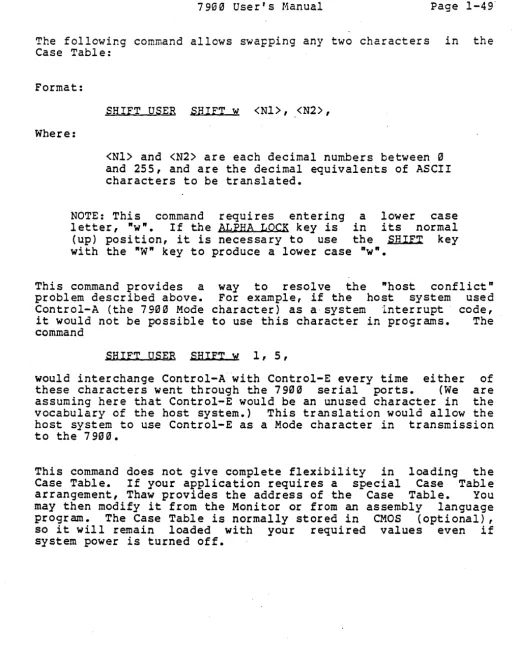
The followir.g command allows swapping any two characters in the Case Table:
Format:
SHIFT USER SHIFT w <Nl>, <N2>, Where:
<Nl> and <N2> are each decimal numbers between ~
and 255, and are the decimal equivalents of ASCII characters to be translated.
NOTE: This command requires entering a lower case letter, "w". If the ALPHA LOCK key is in its normal (up) position, it is necessary to use the SHIFT key with the "W" key to produce a lower case "w".
This command provides a problem described above. Control-A (the 790~ Mode it would not be possible command
way to resolve the "host conflict" For example, if the host system used character) as a" system interrupt code, to use this character in programs. The
SHIFT USER SHIFT w 1, 5,
would interchange Control-A with Control-E every time either of these characters went through the 7900 serial ports. (We are assuming here that Control-E would be an unused character in the vocabulary of the host system.) This translation would allow the host system to use Control-E as a Mode character in transmission to the 7900.
[image:70.623.39.555.47.702.2]7900 User's M~nual Page 1-51
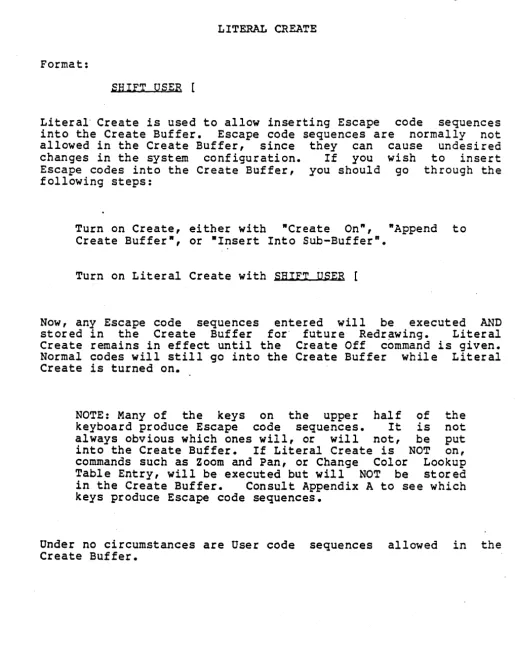
CREATE BUFFER OPERATIONS
The Create Buffer is an area of system memory used to store commands and characters. When the Create Buffer is in the "on" condition, any characters or commands typed will be executed normally; they will also be stored in the Create Buffer. After a set of instructions has been stored in the Create Buffer, it may be repeated using the REDRAW key. Commands also allow editing the contents ·of the Create Buffer.
If the Create Buffer fills up, characters "are no longer stored in the Create Buffer. However, the CREATE key remains lit, and the Create Buffer remains full. The system does not provide a warning for this condition. (In practice, the Create Buffer seldom fills up. The Create Buffer is normally allocated a larger portion of system memory than any other buffer in the 7900.)
Page 1-52 Chromatics CGC 7900
CREATE BUFFER ·ON·
Format:
CREATE
Pressing the CREATE key causes that key to illuminate, indicating that the Create Buffer is ~on.~ This action initializes the buffer, so if there was any information in it previously, it is now gone. All characters or commands typed at this point will enter the Create Buffer.
Format:
SHIFT CREATE
Holding down the SHIFT modifier and pressing CREATE will off the Create Buffer. Anything typed after this command not be stored in the Create Buffer. The lamp in the CREATE will extinguish.
turn will key
7903 User's Manual Page 1-53
REDRAW THE -cREATE BUFFER
Forma t:
REPRAW
The contents of the Create Buffer are transmitted to Logical Output Device 0. Under default conditions, this will cause the Create Buffer contents to be transmitted to the screen. Only RESET can interrupt a REDRAW.
If the Create Buffer is riot already off when REPRAW is executed, REDRAW turns it off.
TRANSMIT THE CREATE BUFFER
Format:
The content~ of the Create Buffer are transmitted to Logical
Page 1-54 Chromatics CGC 79~0
APPEND TO CREATE BOFFER
Format:
SHIFT USER A
The Create Buffe~ is turned back on, but is not initialized. Anything typed will be appended to the end of the Create Buffer. The previous contents of the Create Buffer are still intact.
NOTE: This command shoulq NOT be used if there is nothing in the Create Buffer (as would be the case after power-up). Append will not work properly if the Create Buffer has not been initialized using Create On.
The Append function is terminated using SHIFT CREATE.
DEFINE A SOB-BOFFER
In many cases, you will want to set up a very complex sequence of commands in the Create Buffei. It is useful to be able to define Sub-Buffers, which can -be manipulated individually. A Sub-Buffer is established by inserting a Control-X into the Create Buffer. Up to 32767 sub-buffers may exist.
Format:
CTRL X
(Hold down the ~ modifier and type an X.)
Format:
Where:
79~0 Userrs Manual
VIEW A SUB-BUFPER
SHIFT VIEW <n>,
<n> is a decimal number, corresponding to the Sub-Buffer you wish to view.
Page 1-55
Sub-Buffers are numbered consecutively, beginning with the number 0. To view any Sub-Buffer, hold down the SHIFT modifier and press the key marked~. Then enter the number of the Sub-Buffer you want to see. The contents of that Sub-Buffer will be redrawn to Logical Output Device 0 (normally the screen).
Example:
SHIFT VIEW 0,
The first Sub-Buffer will be redrawn. If no Sub-Buffer markers exist, this will perform the same function as REPRAW.
Example:
SHIFT VIEW 3,
Page 1-56
Format:
Where:
Chromatics CGC 7900
KILL A SUB-BUFFER
SHIFT USER K
<n>,
<n> is a decimal number corresponding to the Sub-Buffer you wish to eliminate.
The Sub-Buffer numbered <n>, if it exists, will be eliminated. All Sub-Buffers with numbers greater than <n> will move down one number. All Sub-Buffers with numbers less than <n> will be untouched.
Example:
SHIFT USER K 0,
Sub-Buffer 0 (the first one) will be killed. Sub-Buffer I will become Sub-Buffer
a,
2 becomes 1, and so on. If no Sub-Buffer markers exist, the entire Create Buffer is killed. (This can also be accomplished by typing CREATE, followed by SHIFT CREATE.)Example:
SHIFT USER K 4,