User Guide
Getting Started with Desmos
Variables and Sliders
Graphable Expressions
Settings, Zoom, and Language
Tables
Lists and Statistics
Regressions
Notes, Folders, and Images
Supported Functions
Keyboard Shortcuts
1
2
4
6
7
8
9
10
11
12
Getting Started with Desmos
Making a graph
Save
Save As or Rename
Open Graph
Hide list
Add Item
Delete
Undo and Redo
Duplicate
Convert to table
Change color
Hide
Delete all
Edit List
Welcome to Desmos!! To create a new graph, just type your expression in the expression list bar. As you are typing your expression, the calculator will immediately draw your graph on the graph paper.
Click here to save your graph or press ctrl+s. Click here to save a copy of
your graph or rename it. You can also press ctrl+shift+s. Revisit your saved
graphs and example graphs here.
Push your expressions list to the side to give full attention to your graph. Add a new
expression, table, text box, folder, or image.
Click here to remove your expression. You can also press ctrl +z
to undo and ctrl + y to redo.
Add a copy of the expression below the current one.
Generate a table from the expression.
Choose a new color for the expression. Click here
to hide individual expressions. Long-hold to change the color or style.
Delete all of your expressions here.
Variables and Sliders
Any time you have free variables in an expression, the calculator will offer to let you define them with sliders:
You can use the same variables in several expressions to plot curves that will change together. For example:
These two lines stay perpendicular to each other for any value of m.
The value of c defines two parallel lines that move up and down together.
To adjust the limits and interval of your slider, click either of the values at the ends of the slider bar. Input your desired values and click the expression or the graph to complete the adjustment.
To create a movable point, enter a point with a variable for at least one coordinate. Click and drag the point around the graph to change the value of the parameter(s). To make graphs more interactive, use
parameters from your movable point in your expressions. For example, you can graph the line y-b=m(x-a) and plot the movable point (a,b) to see the line move when you drag the point - don’t forget to add sliders!
Saving a graph
Sharing a graph
Permalink
Image
Embed
You will need to be signed in to save and open your graphs.
Save a graph by pressing the button located to the right of the title bar or pressing ctrl+s on your keyboard.
Access your saved graphs by clicking the my graphs icon:
Clicking in the top toolbar will allow you to share your graphs.
Underneath the social sharing options, you will see a permalink for your graph. You can copy this link and share it with anyone. When they open it, they will see your graph and all of the equations.
Grab a screenshot of your graph by clicking the Image button. An image of your graph will open in a new window, which you can print or right-click to save as an image.
Copy the HTML embed code to post your graph in a website or wiki. You can also use the BBCode for your graph to share in any of our partner forums. Email your graph by
Graphable Expressions
Type of Graph
Example
Notes
Regular function
x in terms of y
Inequalities
Polar
y=2x+1
x=√(1-y )
x≤2y
r=sin(5θ)
Strict inequalities are plotted with dashed lines
Expressions with r and theta (θ) will be interpreted as polar
Use the {condition: value, default} format for piecewise functions.
2x -1<y<4
2
Piecewise
y={-1<x<1:-1, 1}
Domain and range
restrictions
x=sin(y){-π<y<π}
y=x{-2<x<2}
Add the restriction at the end of the equation.Try the restrictions tour in the help menu.
Type of Graph
Example
Notes
Movable Point
Parametric
List Expressions
Learn more about lists on page 8.Learn more about regressions on page 9.
Regression
Implicit
Point List
(a,b)
(sin(2t), cos(3t))
y = x + [1,3,5]
y ~ mx + b
x +y =1
y +sin(x)y+x=2
(1,1), (2,2), (3,3)
Use a parameter for at least one coordinate
Solutions of equations involving x and y can be plotted without solving for x or y
Parametric equations have the same form as points. Any point with functions of t for coordinates will be plotted as a parametric equation You can plot several points by separating them with commas
2 2
1 1
2
Settings, Zoom, and Language
Graph Paper
Angles
Projector Mode
In the graph paper section you can change the grid and axes. Click the green circular icons to choose between Cartesian and Polar grids and show or hide axes and labels.
Click the gray arrow next to an axis to adjust the window size, add a step (try “pi”), or add arrows.
Choose between radians and degrees here.
Using projector mode will make the graph and axes lines thicker, and the number labels larger. This is great for students sitting in the back of the classroom who are looking at Desmos on the projector.
Zoom
Language
Other ways to zoom:
You may zoom in and out of the calculator by using the zoom buttons in the zoom menu. If your axes are no longer square, click the square option. To return to the default view, click the default option.
To change the language of the calculator interface, click the icon and select your language from the list. If you don’t see your language and would like to help with translation, email us at
If you are using a touch-enabled device, you may also use the pinch and zoom technique within the graphing space. While using a computer with a mouse, you can use the scroll wheel for zooming. Click and drag within the graphing window to pan your graph within the graphing space.
Tables
Add Column
Add Row
Add Table
Options Menu
Convert to Table
Make a new column by hitting the right arrow key or clicking in the top cell of the column.
Make a new row by hitting the down arrow key or clicking in the cell. Click the “Add Item”
button to create a new table.
Click the icon to change color, connect or hide the points, or insert a new column.
In edit mode, click the “convert to table” icon to create a table from your expression.
Lists and Statistics
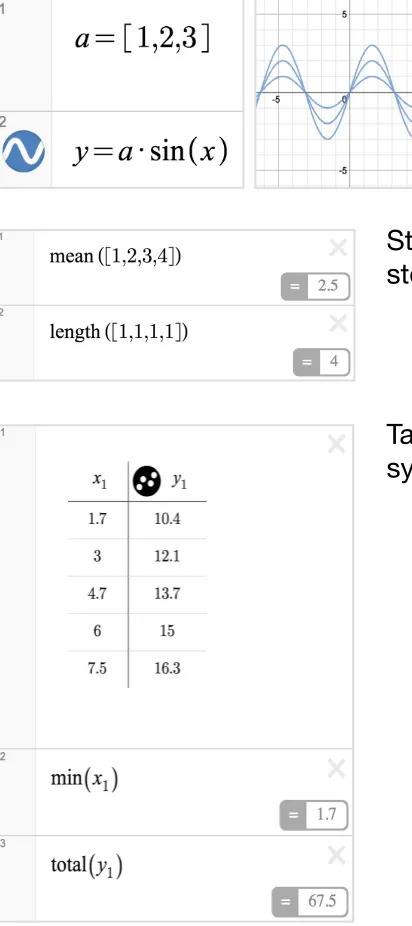
You can make lists in Desmos using square brackets like this: [1,1,2,3,5,8]
You can create lists with evenly spaced elements. [1,...,10] is a list of the integers
between 1 and 10. [1,3,...,11] is a list of the odd integers between 1 and 11.
You can use lists anywhere in expressions that
you would use a number.
Statistics functions like mean, median, min, max, and
stdev take a list as an argument and return a number.
~ is our magic regression symbol. Basically, if you connect two lists of data with a ~,
we adjust every free parameter to make the lists as close to each other as possible.
Since table columns are each lists, the easiest way to make a regression is to create
a new table of data, and then write an equation like y ~mx +b. Here, we’ll adjust m &
b to find the best linear model. If you instead type y ~ax +bx +c, we’ll find the best
quadratic fit.
You can click to plot residuals, or use residuals in other expressions. For example
mean(e ) is the mean of the squares of the residuals.
If x and y are table columns,
then y ~ m x + b is a
regression that finds the least
squares values of m and b
and plots the best fit line.
Regressions
1
1 1
1 12 1
1 1
12
1
1 1
Notes, Folders, and Images
Folders allow grouping expressions, collapsing groups, and
showing/hiding a whole group at once.
You can drag equations
into the folder - a gray
line will show up to the
left of the equation to let
you know it’s in the folder. You can click the arrow next to
the folder name to expand/collapse the folder contents and
clicking the folder icon will show/hide the contents.
Add a note from the expression drop down, or by pressing
the quote key “ in an empty expression box.
In addition to expressions and tables, you can add helpful
non-math items to your expression list.
Add an image from the
drop down, or drag
your image into the
expression list.
You can edit image position and size by
manually setting it in the expression list
or dragging the blue points on the graph
paper.
Amazing photo by Dan Meyer
Note
Folder
You can also create your own functions, which can be defined with any letter (except for the special ones, like x,y,r, t, and e). Your custom functions can then be used like any other function on this list. For example, if you type f(x) = x^2, you can then graph y = f(x+1), which
is the same parabola but shifted over to the left:
Supported Functions
Exponents & Logs
Stats & Probability
Trig Functions
Misc
Precalc & Calculus
Define your own function
exp(x)
ln(x)
log(x)
log (x)
x
√x
sin(x)
cos(x)
tan(x)
sec(x)
csc(x)
cot(x)
arcsin(x)
arccos(x)
arctan(x)
arcsec(x)
arccsc(x)
arccot(x)
sinh(x)
cosh(x)
tanh(x)
sech(x)
csch(x)
coth(x)
total(x )
sum of all elements in a list
length(x )
number of elements in a list
mean(x )
median(x )
min(x )
max(x )
quantile(x , p)
mad(x )
mean absolute deviation
stdev(x )
sample standard deviation
stdevp(x )
population standard deviation
var(x )
variance
cov(x , x )
covariance
corr(x , x )
Pearson correlation coefficient of two lists
nCr(n, r)
Number of combinations
nPr(n, r)
Number of permutations
Keyboard Shortcuts
Symbols
∑ : Type “sum”
π : Type “pi”
θ : Type “theta”
√ : Type “sqrt”
∏ : Type “prod”
Open Graph: ctrl + o
Save: ctrl + s
Save-As or Rename: ctrl + shift + s
Undo: ctrl + z
Redo: ctrl + y
New expression: Press “enter”
Move up/down: Press the and arrow keys
Move left/right: Press the and arrow keys
Add a new text box: Press the quotation keys (“ ”)
Delete an expression: Press “delete”