H Y P E R I O N
®S Y S T E M
T M9
P E R F O R M A N C E S C O R E C A R D
T MR E L E A S E 9 . 2
Copyright 1999–March 10, 2006 Hyperion Solutions Corporation. All rights reserved. Hyperion Solutions Corporation. All rights reserved.
“Hyperion,” the Hyperion logo, and Hyperion’s product names are trademarks of Hyperion. References to other companies and their products use trademarks owned by the respective companies and are for reference purpose only.
All other brand and product names are trademarks or registered trademarks of their respective holders.
No portion of this manual may be reproduced or transmitted in any form or by any means, electronic or mechanical, including photocopying, recording, or information storage and retrieval systems, for any purpose other than the purchaser’s personal use, without the express written permission of Hyperion Solutions Corporation.
Notice: The information contained in this document is subject to change without notice. Hyperion Solutions Corporation shall not be liable for errors contained herein or consequential damages in connection with the furnishing, performance, or use of this material.
Hyperion Solutions Corporation 5450 Great America Parkway Santa Clara, California 95054
Contents iii
Contents
Preface . . . iii Purpose . . . ix Audience . . . x Document Structure . . . xWhere to Find Documentation . . . xi
Help Menu Commands . . . xi
Conventions . . . xii
Additional Support . . . xiii
Education Services . . . xiii
Consulting Services . . . xiii
Technical Support . . . xiii
Documentation Feedback . . . xiii
CHAPTER 1 About Performance Scorecard and Designing Applications . . . 15
About Performance Scorecard . . . 16
Key Concepts . . . 17 Business Objects . . . 17 Applications . . . 17 Domains . . . 17 Business Objects . . . 18 Frameworks . . . 18 Maps . . . 18 Measures . . . 19
Dimensions and Dimensional Measure Templates . . . 20
Scorecards . . . 20
Alerts . . . 20
About Creating Applications . . . 21
Working With Business Objects . . . 21
Business Object Naming Conventions . . . 21
Duplicate Business Objects . . . 22
Locked Business Objects . . . 22
Using Performance Scorecard With Other Hyperion Products . . . 24
CHAPTER 2 Getting Started . . . 27
Before Using Performance Scorecard . . . 28
Logging On . . . 28
The User Interface . . . 29
Masthead . . . 30
View Pane . . . 30
Contents Pane . . . 31
The Object View . . . 31
My View . . . 33
The Browser View . . . 33
Customizing Views . . . 35
CHAPTER 3 Working With Performance Management Frameworks. . . 37
Ways of Working With Frameworks . . . 38
The Application Framework . . . 38
About the Provided Frameworks . . . 38
The Balanced Scorecard Framework . . . 38
The Stern Stewart Integrated EVA Framework . . . 38
Baldridge Criteria . . . 39
The Key Performance Indicator Tracking Framework . . . 39
About Creating a Framework . . . 40
Creating a Framework . . . 40
Defining General Settings . . . 40
Creating Perspectives . . . 41
Creating Strategic Themes . . . 42
Defining Strategy and Accountability Element Types at the Framework Level . . . 43
Customizing Framework Terminology . . . 45
Testing The Framework . . . 45
Modifying Frameworks . . . 46
Copying Frameworks . . . 47
Deleting Frameworks . . . 47
CHAPTER 4 Working With Employees . . . 49
About Employees . . . 50
Creating Employees . . . 51
Modifying Employee Data . . . 53
Copying Employees . . . 53
Deleting Employees . . . 53
CHAPTER 5 Working With Maps . . . 55
Contents v
Strategy Maps . . . 56
Cause and Effect Maps . . . 56
Accountability Maps . . . 57
Map Elements . . . 57
The Map Editor . . . 59
The Map Builder Frame . . . 60
The Map Navigator . . . 60
Map Element Boxes . . . 60
Before Creating Maps . . . 60
Creating Strategy Maps . . . 61
Opening a Workspace . . . 61
Creating Strategy Elements . . . 61
Setting up Strategy Elements . . . 62
Creating Accountability Maps . . . 63
Opening a Workspace . . . 63
Creating Accountability Elements . . . 63
About Creating a Cause and Effect Map . . . 64
Creating a Cause and Effect Map . . . 64
Creating and Importing the Map Background . . . 65
Adding Strategy Elements to the Map . . . 66
Modifying Maps . . . 68
Modifying Strategy and Accountability Maps . . . 68
Modifying Cause and Effect Maps . . . 69
Linking Maps . . . 71
Copying Maps . . . 72
Deleting Maps . . . 72
CHAPTER 6 Working With Measures and Dimensional Measures. . . 73
About Measures . . . 74
How Measures Work . . . 74
Basic Terms and Concepts . . . 75
Units . . . 75
Frequency . . . 75
Uncollected Measures . . . 78
Formulas and Variables . . . 78
Employees . . . 79
Performance Indicators and Ranges . . . 80
Measure Types . . . 81 Basic Measures . . . 81 Composite Measures . . . 81 Primary Measures . . . 82 Secondary Measures . . . 82 Dimensional Measures . . . 82
About Creating Measures . . . 82
Workflow . . . 82
About the Measure Setup Page . . . 83
Before Creating Measures . . . 86
Defining Units . . . 86
Creating Targets . . . 87
Creating Performance Indicators . . . 88
Modifying Performance Indicators . . . 89
Defining Scoring Limits . . . 90
Creating Measures . . . 90
Defining General Measure Attributes . . . 90
Defining Formulas . . . 92
Defining the Frequency . . . 92
Defining Report Options . . . 93
Assigning Employees . . . 95
Defining Performance Ranges . . . 95
Modifying Measures . . . 96
Copying Measures . . . 97
Deleting Measures . . . 97
About Generating Dimensional Measures . . . 98
About Dimensional Outlines . . . 98
About Dimension Measure Templates . . . 100
Creating a Dimensional Outline . . . 100
Generating Dimensional Measures . . . 101
About Modifying Dimensional Outlines . . . 103
Modifying Dimensional Outlines . . . 103
Modifying Measure Templates . . . 104
Copying Measure Templates . . . 104
Deleting Measure Templates . . . 105
CHAPTER 7 Building Scorecards. . . 107
About Scorecards . . . 108
Weights . . . 108
Ranges and Performance Indicators . . . 109
Before Creating Scorecards . . . 109
Creating Scorecards . . . 109
Identifying the Scorecard Subject . . . 110
Adding Scorecard Items . . . 110
Weighting Scorecard Components . . . 112
Defining Scorecard Ranges . . . 113
Modifying Scorecards . . . 114
Contents vii
Creating Date Sets . . . 114
Modifying Date Sets . . . 115
Modifying Ranges . . . 115
Deleting Ranges . . . 116
CHAPTER 8 Specifying Preferences. . . 117
Specifying Scoring Limits . . . 118
Handling Unavailable Data . . . 118
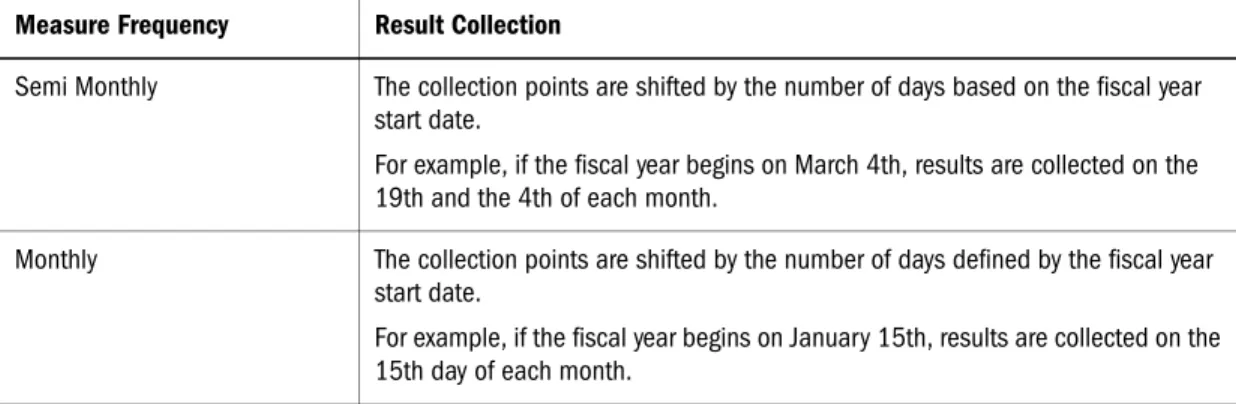
Specifying Frequencies for Measure Result Collection . . . 120
About Frequency Settings . . . 120
Applying Frequency Settings . . . 120
Setting up the Calendar . . . 121
Defining the Fiscal Year Start Date . . . 121
Selecting a Year Type . . . 122
Adding Links to External Web Pages . . . 123
Specifying Scorecard Display Preferences . . . 124
Creating Reporting Periods and Categories . . . 124
Modifying the Masthead . . . 125
Changing the Layout . . . 125
Adding a Logo . . . 125
APPENDIX A Restricted Characters For Dimensions, Members, and Aliases. . . 127
General Restrictions . . . 128
Restricted Characters and Spacing . . . 128
Restricted Commands . . . 128
Restricted Words . . . 129
APPENDIX B Creating Complex Formulas . . . 131
About the Formula Editor . . . 132
Working With Measure Formulas . . . 132
Working With Performance Indicators . . . 132
Layout and Components . . . 132
Formula Syntax and Conventions . . . 137
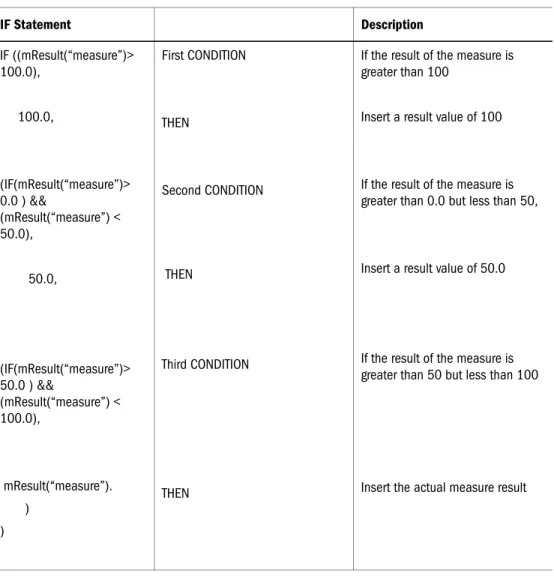
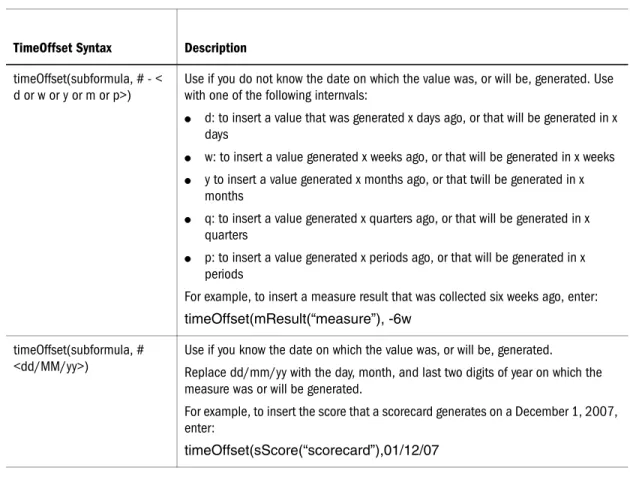
Placeholders . . . 138 Value . . . 138 Arg . . . 138 Attribute . . . 139 Inserting Functions . . . 139 Mathematical Functions . . . 139 Statistical Functions . . . 141 IF Statements . . . 145 Using isNoValue . . . 147 Time-Related Functions . . . 147
Using Application Data . . . 150
Measures . . . 150
Using Scorecards . . . 153
Using Variables . . . 154
Using Dimensional Measures . . . 155
Validating Formulas . . . 157
Resolving Common Errors . . . 158
Validating all Formulas . . . 158
APPENDIX C Frequently Asked Questions. . . 161
Images and Attachments . . . 162
Maps . . . 162
Measures and Scorecards . . . 164
Alerts . . . 165
Preface ix
Preface
Welcome to Hyperion® SystemTM 9 Performance ScorecardTM (Performance Scorecard). Performance Scorecard is a Web-based solution that assists your organization to articulate its corporate strategy, translate strategy into actions, set goals, and monitor performance using recognized performance management methodologies.
This preface contains the following information: ● “Purpose” on page ix
● “Audience” on page x
● “Document Structure” on page x
● “Where to Find Documentation” on page xi ● “Help Menu Commands” on page xi ● “Conventions” on page xii
● “Additional Support” on page xiii ● “Documentation Feedback” on page xiii
Purpose
This guide describes how to use Performance Scorecard to create applications that embody corporate and departmental strategy and reflect progress toward performance goals. This includes performing tasks such as:
● Working with performance management frameworks. ● Building Strategy, Accountability, and Cause and Effect maps. ● Defining measures and performance target.
● Building scorecards to evaluate and monitor the performance of employee, strategy elements, and accountability teams.
Audience
This guide is written for application designers who are responsible for creating and
maintaining applications. Application designers are users that have the designer security role applied to their user account.
Document Structure
The following table identifies the information that this guide provides.
Table i
topic Description
Chapter 1, “About Performance Scorecard and Designing Applications”
Describes the concepts and key functions used in Performance Scorecard.
Describes the steps that you perform to create the business objects that form applications.
Chapter 2, “Getting Started” ● Describes how to log on.
● Describes the application designing environment.
● Describes tasks that an administrator must perform before you can use Performance Scorecard.
Chapter 3, “Working With Performance Management Frameworks”
Describes how to use frameworks.
Chapter 4, “Working With Employees” Describes how to create employees to represent people who use Performance Scorecard.
Chapter 5, “Working With Maps” ● Describes how to build Strategy, Accountability, and Cause and Effect maps.
● Describes how to link the maps of distinct areas in your organization to form cohesive strategy and responsibility structures.
Chapter 6, “Working With Measures and Dimensional Measures”
● Describes the kinds of measures that you cqn create. ● Describes how to work with measures.
● Describes how to define dimensional outlines. ● Describes how to generate dimensional measures.
Chapter 7, “Building Scorecards” Describes how to create scorecards to monitor the performance of employees, strategy elements, and accountability elements. Chapter 8, “Specifying Preferences,” Describes how to define preferences for an application
Describes how to specify the fiscal year start date. Appendix A, “Restricted Characters For
Dimensions, Members, and Aliases”
Identifies the characters that you cannot use in dimension, member, and alias names.
Help Menu Commands xi
Where to Find Documentation
You can access Performance Scorecard documentation as follows:
● The Information Map on the Help menu (provides help in HTML and PDF format) ● The Hyperion Download Center that you can access from the Hyperion Solutions web site.
➤
To access documentation from the Hyperion Download Center:1 Go to the Hyperion Solutions Web site and select Services > WorldWide Support > Download Center.
Note: Your Login ID for the Hyperion Download Center is your e-mail address. The Login ID and Password required for the Hyperion Download Center are different from the Login ID and Password required for Hyperion Support Online through Hyperion.com. If you are not sure whether you have a Hyperion Download Center account, follow the on-screen instructions.
2 In Login ID, enter your e-mail address. 3 Enter your password.
4 In Language, select the appropriate language and click Login.
5 If you are a member of multiple accounts, select the account to use for the current session. 6 Select Performance Scorecard from Product List and follow the on-screen instructions.
Help Menu Commands
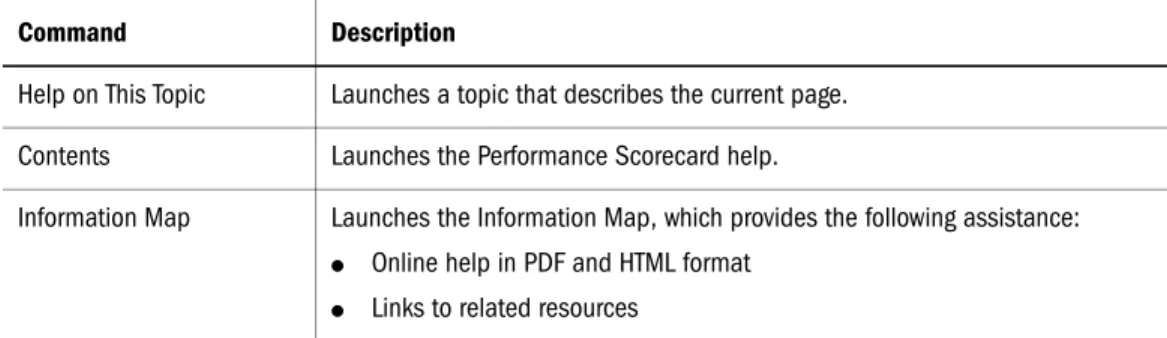
The following table describes the Help commands in Performance Scorecard:
Appendix B, “Creating Complex Formulas” Describes how to define formulas for measures and performance ranges.
Appendix C, “Frequently Asked Questions” Provides answers to the most frequently asked questions and troubleshooting information.
Table ii
Command Description
Help on This Topic Launches a topic that describes the current page. Contents Launches the Performance Scorecard help.
Information Map Launches the Information Map, which provides the following assistance: ● Online help in PDF and HTML format
● Links to related resources
Table i
Conventions
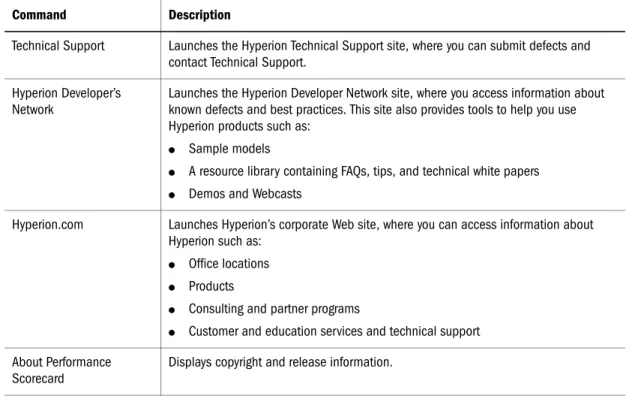
The following table describes the typographical conventions used in this document. Technical Support Launches the Hyperion Technical Support site, where you can submit defects and
contact Technical Support. Hyperion Developer’s
Network
Launches the Hyperion Developer Network site, where you access information about known defects and best practices. This site also provides tools to help you use Hyperion products such as:
● Sample models
● A resource library containing FAQs, tips, and technical white papers ● Demos and Webcasts
Hyperion.com Launches Hyperion’s corporate Web site, where you can access information about Hyperion such as:
● Office locations ● Products
● Consulting and partner programs
● Customer and education services and technical support About Performance
Scorecard
Displays copyright and release information.
Table iii
Item Description
Bold Bold text indicates words or characters that you type exactly as they appear on the page. Bold in procedural steps highlights major interface elements. CAPITAL LETTERS Capital letters denote commands and various IDs. (Example: CLEARBLOCK
command)
Exampletext Courier font indicates that the material shown is a code or syntax example. Italics Italics in a product-related term in the body of a book indicates that the term is
also included in the glossary of the book.
Ellipses (...) Ellipsis points indicate that text has been omitted from an example. Mouse orientation This document provides examples and procedures using a right-handed
mouse. If you use a left-handed mouse, adjust the procedures accordingly. Menu options Options in menus are shown in the following format: Menu > Command. n, x The variable n indicates that you must supply a generic number; the variable x
indicates that you must supply a generic letter.
Table ii
Documentation Feedback xiii
Additional Support
In addition to documentation and online help, Hyperion offers the following product information and support:
● “Education Services” on page xiii ● “Consulting Services” on page xiii ● “Technical Support” on page xiii
For information about education, consulting, or support options, go to the Hyperion Solutions web site.
Education Services
Hyperion offers instructor-led training, custom training, and eTraining covering all Hyperion applications and technologies. Training is geared to administrators, end users, and information systems (IS) professionals.
Consulting Services
Experienced Hyperion consultants and partners implement software solutions tailored to clients’ particular reporting, analysis, modeling, and planning requirements. Hyperion also offers specialized consulting packages, technical assessments, and integration solutions.
Technical Support
Hyperion provides enhanced electronic-based and telephone support to clients to resolve product issues quickly and accurately. This support is available for all Hyperion products at no additional cost to clients with current maintenance agreements.
Documentation Feedback
Hyperion strives to provide complete and accurate documentation. Your opinion of the documentation is important to use. Please submit any comments about the documentation to http://www.hyperion.com/services/support_programs/doc_survey/index.cfm.
About Performance Scorecard and Designing Applications 15
C h a p t e r
1
About Performance Scorecard
and Designing Applications
This chapter describes how Performance Scorecard enables you to define, communicate, and track strategy throughout your organization. It also explains the underlying concepts of Performance Scorecard and describes the business objects you create to form applications. In This Chapter About Performance Scorecard . . . 16Key Concepts . . . 17
Business Objects. . . 18
About Creating Applications . . . 21
Working With Business Objects . . . 21
Ways of Working in Performance Scorecard. . . 22
About Performance Scorecard
Performance Scorecard enables you to create, evaluate, and refine corporate and departmental strategy to adapt to changing business requirements.
Use Performance Scorecard to perform the following tasks:
● Depict and evolve corporate and departmental strategy and accountability structures by: ❍ Using a performance management framework that identifies the role of areas such as
customer focus, that are key to your organization.
❍ Creating Strategy maps that show how high level strategic goals translate into processes and actions.
❍ Assigning individual or groups of employees to a strategic goal or action. ❍ Creating Accountability maps that represent the reporting hierarchy.
● Evaluate the performance of strategy elements, business areas, and employees by:
❍ Creating measures that quantify data that is critical to the health of your organization such as internal costs or net profit.
❍ Creating scorecards that evaluate the progress of individual employees, strategy elements, and accountability elements.
● Monitor and react to performance changes by:
❍ Subscribing to alerts that notify you when the performance of key business objects depart from an acceptable range.
For information, refer to the Hyperion System 9 Performance Scorecard User’s Guide. ❍ Generating reports that reflect the progress of strategy initiatives, accountability
elements, and employees.
Key Concepts 17
Key Concepts
The following topics describe the underlying concepts of Performance Scorecard: ● “Business Objects” on page 17
● “Applications” on page 17 ● “Domains” on page 17
Business Objects
The items you create in Performance Scorecard such as strategy elements and measures are called business objects. Business objects are like building blocks that you assemble to perform different tasks.
For example, you build Strategy maps that represent corporate or departmental strategy by first creating and then organizing strategy elements. Similarly, to create scorecards to assess the performance of employees, accountability teams, and strategy elements, you must first
composed of measures.
The interaction of business objects is called an application. Changes to business objects are recorded in the Audit Report that an administrator can access.
See “Business Objects” on page 17.
For information about the order in which to create business objects, see “About Creating Applications” on page 21.
Applications
An application is a concept that refers to how business objects work together to form strategy, accountability, and scorecard structures. Since an application is a concept, you cannot open, create, or delete applications.
If your organization is large, have multiple application designers create applications for each distinct corporate area (domain).
Domains
You can group business objects functionally or by location using domains. Domains represent distinct departments or locations (such as regional offices) in your organization.
For example, to create an application for the Human Resources department, have an
administrator create a Human Resources domain with which you can associate the following objects:
● Employees and their scorecards ● Measures
For more information, refer to the Hyperion System 9 Performance Scorecard Administrator’s Guide.
Business Objects
This topic describes the function of the following business objects: ● “Frameworks” on page 18
● “Maps” on page 18 ● “Measures” on page 19
● “Dimensions and Dimensional Measure Templates” on page 20 ● “Scorecards” on page 20
● “Alerts” on page 20
Frameworks
Frameworks are business methodologies such as the Balanced Scorecard, that identify the importance of business areas that are fundamental to most organizations.
Use frameworks to logically group measures that relate to each area. You can also use
frameworks as the basis of Strategy maps since they enable you to group related strategy goals, elements, and actions.
You can use the frameworks Performance Scorecard provides, or customize one of these frameworks to suit your needs. See “Working With Performance Management Frameworks” on page 37.
Maps
You can create three kinds of maps to depict the strategy and accountability structures in your organization:
● “Strategy Maps” on page 18 ● “Accountability Maps” on page 19 ● “Cause and Effect Maps” on page 19
If you use domains to represent departments or offices with individual strategies, you can link these maps to represent a cohesive whole. See “Linking Maps” on page 71.
Strategy Maps
Identifying and articulating strategic goals for all levels of your organization is central to performance management. Without a central, comprehensive, and communicated strategy, your organization is not properly positioned to achieve or reevaluate its goals.
Business Objects 19
After creating a Strategy map that translates high-level strategic goals into processes and actions (strategy elements), assign the responsible employees. This enables employees to understand how their responsibilities contribute to corporate strategy. See “Creating Strategy Maps” on page 61.
Accountability Maps
Use Accountability maps to represent the reporting structure of the following business areas (or accountability elements):
● Departments
● Task forces and committees ● Individual employees
See “Creating Accountability Maps” on page 63.
Cause and Effect Maps
Cause and Effect maps illustrate how perspectives and strategy elements interact to support the corporate or domain strategy. Links between elements on a Cause and Effect map indicate how changes to ne element affect others. This enables you to anticipate and adjust to strategy changes. See “About Creating a Cause and Effect Map” on page 64.
Measures
Measures enable you to collect objective, quantifiable data that indicates progress toward a performance or strategy target. For example, if one strategic goals is improved product quality, you could create measures called “number of product returns” or “poor customer satisfaction”. These measures would reflect product quality by identifying the number of product returns and dissatisfied customers.
Use measures to evaluate the performance and progress of the following: ● Individual or groups of employees
● Strategic objectives and other strategy elements ● Other logically-grouped scorecards
You assign employees to measures to perform tasks such as entering results and defining targets.
You can use data from Hyperion® System™ 9 Enterprise Metrics™ to create dimensional measures.
Dimensions and Dimensional Measure Templates
Dimensions are hierarchical categories that you can use to organize measures. They enable you to:
● Analyze measures by groups, such as products, distribution channels, and geographic areas. For example, a dimension called Geography could group measures for North America, Europe, and Australia.
● Generate dimensional measures that collect data where measures intersect, such as sales by region.
● Generate a multidimensional Analytic Services database of application data as described in the Hyperion System 9 Performance Scorecard Administrator’s Guide.
● Generate application data to an external data source to use with other Hyperion products as described in the Hyperion System 9 Performance Scorecard Administrator’s Guide.
Scorecards
Scorecards enable you to assess and monitor the performance of the following: ● Accountability elements, such as departments and committees
● Strategy elements, such as strategic objectives ● Employees
Scorecards use performance indicators to represent varying performance levels. See “Building Scorecards” on page 107.
Alerts
Alerts notify you by e-mail when the performance of business objects departs from an acceptable range that you define. Create alerts to monitor the performance of the following: ● Measures
● Scorecards ● Employees
● Strategy and Accountability elements
Alerts also prompt you when tasks such as measure result collection are approaching, due, or overdue.
Note: You can create public alerts, to which other users can subscribe.
Working With Business Objects 21
About Creating Applications
Hyperion suggests that you create the business objects in the following order: 1. Frameworks 2. Employees 3. Measures 4. Accountability elements 5. Strategy elements 6. Strategy maps 7. Accountability maps 8. Scorecards
Working With Business Objects
The following topics describe the rules that you must follow when you create business objects. It also explains why business objects become locked. The following topics are covered:
● “Business Object Naming Conventions” on page 21 ● “Duplicate Business Objects” on page 22
● “Locked Business Objects” on page 22
Business Object Naming Conventions
You must give business objects of the same type a unique name. For example, you can give a scorecard and target the same name, but not two targets.
The following topics specify the characters that you cannot use in names, and how case is used in names:
● “Restricted Characters” on page 21 ● “Name Case” on page 22
Restricted Characters
Do not use characters that are illegal for the following components in business object names: ● Hyperion® System™ 9 BI+™ Analytic Services™
● The relational database that you are using
Name Case
Business object names are not case-sensitive. Consequently, a measure called NetProfit and another measure called netprofit are considered the same.
Duplicate Business Objects
If you use a database used with a previous release, business objects with the same are appended with Name <#>.
For example, if three measures called SalesSingapore exist, the last two measures are renamed as SalesSingapore1 and SalesSingapore2. The following measures would then exist: ● SalesSingapore
● SalesSingapore1
● SalesSingapore2
Locked Business Objects
Business objects become locked, meaning that you can not modify them, in the following circumstances:
● The collection extension for a measure has elapsed.
This means that results cannot be entered or modified. To enter results after the collection extension has expired, ask your administrator to remove the Result Collection Admin restriction from your user account.
● When another user is editing the business object.
This prevents overwriting. You must wait until the user is finished.
Tip: If you think a business object is incorrectly locked, ask your administrator to break the lock using the Locked Business Object Report.
Ways of Working in Performance Scorecard
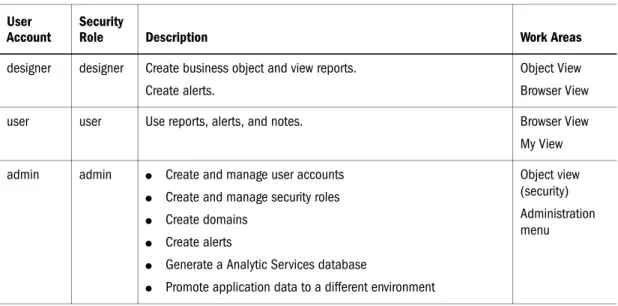
The tasks that you can perform and the data that you can access are determined by the security role that an administrator assigns to your account. Performance Scorecard provides three user accounts with corresponding security roles.
Ways of Working in Performance Scorecard 23
The following figure
depicts how business objects such as measures and employees, are used in reports.Table 4 Using Provided User Accounts User
Account
Security
Role Description Work Areas
designer designer Create business object and view reports. Create alerts.
Object View Browser View
user user Use reports, alerts, and notes. Browser View
My View admin admin ● Create and manage user accounts
● Create and manage security roles ● Create domains
● Create alerts
● Generate a Analytic Services database
● Promote application data to a different environment
Object view (security) Administration menu
Using Performance Scorecard With Other Hyperion Products
You can use Performance Scorecard data such as measure values and employees in other Hyperion product applications. You can also use data in external sources in Performance Scorecard applications. The following figure illustrates this data flow.
Using Performance Scorecard With Other Hyperion Products 25
For information about sharing employees and their accounts among Hyperion product applications, refer to the Hyperion System 9 Performance Scorecard Administrator’s Guide.
Getting Started 27
C h a p t e r
2
Getting Started
This chapter identifies the tasks administrators must perform before you can use Performance Scorecard. It also describes the layout of Performance Scorecard and explains how to access different data.
In This Chapter Before Using Performance Scorecard . . . 28 Logging On . . . 28 The User Interface . . . 29 Customizing Views . . . 35
Before Using Performance Scorecard
Before using Performance Scorecard, administrators must:
● Configue the product as described in the Hyperion System 9 Performance Scorecard Installation Guide.
● Create your user account to which the designer security role is assigned.
● Optional: Assign a domain to your user account that represents the physical or functional area in which you work.
Logging On
This topic explains how to log on to Performance Scorecard and access the Object view.
➤
To log on:1 Start the application server.
Tip: On Windows: Start > Programs > Hyperion Solutions > System 9
Applications+> Performance Scorecard 9.2 > startHPSon<application server>.
2 Navigate to http://<machine deploying HPS>:<port number>/HPSWebReports.
Note: This URL is case-sensitive.
The Logon page is displayed. 3 Enter your user account and password.
Note: This information is case-sensitive.
Tip: To log on using the designer account, enter designer as the account and hyperion as the password.
4 Optional: If you use LDAP or NTLM, enter the domain.
The User Interface 29
The Object View provides links to the business objects that you create, such as maps and measures.
See “The User Interface” on page 29 to learn about the layout.
The User Interface
F igure 1 Performance Scorecard Views and Panes
For more information, see: ● “Masthead” on page 30 ● “View Pane” on page 30 ● “Contents Pane” on page 31
Masthead
The masthead enables you to:
● Access data gathered or created on a different date using Report Date list. ● Evaluate performance against a different target by using the Report Target list.
View Pane
You can use the following views:
● Object: Use to create or modify business objects such as employees, maps, and measures. ● My View: Customize to display only the measures, scorecards, alerts, and initiatives that you
frequently access.
The User Interface 31
Contents Pane
The contents pane displays information based on the link, toolbar button, or menu option that you use.
The Object View
Maps Explorer: Places the maps that you create by in folders for each map type
Click each link in the object view to access a list of all existing business objects of that type. For example, to view all measures click Measures List.
To view map elements, expand the map explorer as shown below.
Note: If you have the admin security role assigned to your account, a Security explorer is displayed you can use to create domains, accounts, and security roles.
Table 5
Menu Command Description
File
Preferences Select to define a homepage, change your password, and modify aspects of the user interface.
Note: Select System Default Preferences to apply these changes to an entire application.
For information, refer to the Hyperion System 9 Performance Scorecard User’s Guide.
Application Preferences Select to apply preferences to an entire application. See “Specifying Preferences” on page 117.
Print Select to print the current page.
Export to Excel Select to export scorecard and measure data on reports to Microsoft Excel. For information, refer to the Hyperion System 9 Performance Scorecard User’s Guide.
Logoff Select to close the application and return to the Logon page. View
Refresh Select to reload the current page with updated data.
Home Select to go to another page that you specify as your launch page. Masthead Select to maximize or minimize the masthead.
Hide / Show View pane Select to hide or show the view pane. Reports
For information about reports, refer to the Hyperion System 9 Performance Scorecard User’s Guide.
Forum
Search Select to open a forum using search criteria such as words, phrases, dates and categories. For information about forums, refer to the Hyperion System 9 Performance Scorecard User’s Guide. General Forum Select to open a general forum in which you can create and reply
to notes that discuss business objects. Favorites
Add Current Page Select to add the current page to your favorites.
For information, refer to the Hyperion System 9 Performance Scorecard User Guide.
Edit Favorites Select to modify the URL address of a favorite Web page, or change the order in which your favorites are organized. For information, refer to the Hyperion System 9 Performance Scorecard User Guide.
The User Interface 33
My View
This view displays all business objects that you can access in tree format. Click each business object to access details.
You can customize MyView to display only the scorecards, measures, and initiatives that you frequently access. See “Customizing Views” on page 35.
The Browser View
The Browser View displays the scorecards, measures, and initiatives that you can access. Scorecards are organized by type in Employee, Strategy map, and Accountability map explorers as shown below.
Administration For information about the tasks that administrators can perform, refer to the Hyperion System 9 Performance Scorecard Administrator’s Guide.
Formula Errors Select to list the measures and performance indicators that have errors in their formulas.
For information, see “Validating Formulas” on page 157. Help Select to launch the Information Map from which you can access
online help, documentation, support contacts, and other resources.
Table 5 (Continued)
Employee Scorecard Explorer: Lists all employee scorecards that you can view.
Map Scorecard Explorer: Drill down to access the scorecards of strategy and accountability elements on a map.
Initiatives Explorer
Dimensional measures are shown in hierarchies.
Click a business object to access more information. For example, click a scorecard to launch the Scorecard Details Report.
For information about reports, refer to the Hyperion System 9 Performance Scorecard User’s Guide.
Customizing Views 35
Customizing Views
You can change what data is displayed by default on each view by performing either of the following tasks:
● Filtering scorecards, measures, and initiatives. For information, refer to the Hyperion System 9 Performance Scorecard User’s Guide.
● Defining a homepage as described in the Hyperion System 9 Performance Scorecard User’s Guide.
Working With Performance Management Frameworks 37
C h a p t e r
3
Working With Performance
Management Frameworks
Frameworks are business methodologies that identify the importance of business areas (perspectives), such as financeand customer relations. Frameworks help you define your business strategy based on time-honored perspectives that provide a strategic and competitive advantage. Widely used frameworks include the Balanced Scorecard Collaborative framework and the Stern Stewart Integrated EVA framework
Frameworks enable you to perform the following tasks:
● Identify the primary areas in your organization such as information and analysis. ● Group measures that monitor the performance and health of perspectives.
For example, organizations inthe banking industry, you could place the following measures that track customer data in the Customer perspective:
❍ Loan quality
❍ Aggregate credit score
● Identify the types of strategy and accountability elements you use to build maps.
In This Chapter Ways of Working With Frameworks . . . 38 The Application Framework . . . 38 About the Provided Frameworks . . . 38 About Creating a Framework . . . 40 Creating a Framework . . . 40 Modifying Frameworks . . . 46 Copying Frameworks . . . 47 Deleting Frameworks . . . 47
Ways of Working With Frameworks
You can create frameworks in two ways:
● Customizing a framework such as the Balanced Scorecard Performance Scorecard provides. The framework that you use is the base framework.
● Using customperspectives that are not provided with a framework
The Application Framework
Hyperion recommends that you use different framework to build sample Strategy and Accountability maps until you know which framework best represents your organization. When you know which framework works best, make it the application framework.
About the Provided Frameworks
You can customize the following frameworks that Performance Scorecard provides: ● “The Balanced Scorecard Framework” on page 38
● “The Stern Stewart Integrated EVA Framework” on page 38 ● “Baldridge Criteria” on page 39
● “The Key Performance Indicator Tracking Framework” on page 39
The Balanced Scorecard Framework
The Balanced Scorecard framework uses the following four perspectives.
The Stern Stewart Integrated EVA Framework
Use the Stern Stewart Integrated EVA framework (Stern Stewart) to measure not just profitability, but also economic value add and shareholder value. This framework uses the following equation to identify the true profitability of your organization:
Table 6
Perspective Description
Financial Defines how your organization works with its shareholders.
Customer Describes your organization creates value for, and interacts with its client base. Internal Defines the process your organization uses internally to create superior
products.
About the Provided Frameworks 39
Net Operating Profit - Total Capital Charges = Economic Value Add The Stern Stewart framework uses the following four perspectives.
Baldridge Criteria
The Baldridge Criteria framework largely emphasises the role of processes in corporate strategy. This framework uses seven perspectives.
The Key Performance Indicator Tracking Framework
If you do not use a performance management framework, use the Key Performance Indicator (KPI) Tracking framework. This enables you to build maps without an underlying structure and not organize measures by perspective.
Table 7
Perspective Description
EVA and EVA drivers Identifies the financial components of EVA and the financial EVA drivers map. Customer Describes how to drive revenue by defining the customer base and managing
customer needs.
Cost Identifies how the cost of items such as production, materials, labor transform into services and products, through activities and processes.
Capabilities Identifies the tasks required to maintain, develop, and renew the knowledge needed to satisfy customer needs.
Table 8
Criteria Description
Leadership Defines how your organization creates leadership opportunities.
Strategic planning Identifies how strategic objectives and goals correspond with corporate vision and direction.
Customer and market focus Identifies key customer relationships, acquisitions and business expansions. Information and analysis Emphasizes the importance of measure, analyzing, and improving
performance. Use to examine the availability of data.
Human resources focus Describes how to arrange your organization to improve employee cooperation, communication, and knowledge-sharing.
Process management Examines how non-product and non-service process such as supply chain management lead to business growth.
About Creating a Framework
You perform the following tasks to create a framework
● Indicate if you are using a framework provided with Performance Scorecard. See “Defining General Settings” on page 40.
● Create perspectives. If you are using a base framework, customize the perspectives used by that framework. See“Creating Perspectives” on page 41.
● Create the strategic themes you can use to group strategy elements on Strategy and Cause and Effect maps. See “Creating Strategic Themes” on page 42.
● Identify the types of strategy and accountability elements that you use to build maps. See “Defining Strategy and Accountability Element Types at the Framework Level” on page 43. ● Define the sequence in which to place strategy and accountability element levels on maps.
See “Defining Strategy and Accountability Element Types at the Framework Level” on page 43.
● Optional: Abbreviate the name of strategy and accountability element types. See “Defining Strategy and Accountability Element Types at the Framework Level” on page 43.
● Replace the default terms for strategy and accountability elements with custom terms. See “Customizing Framework Terminology” on page 45.
● Use the framework in a test environment to build sample Strategy and Accountability maps. If the framework meets your needs, make it the Application Framework. See “Testing The Framework” on page 45.
Creating a Framework
This topic describes how to create frameworks. The element hierarchies that you define determine the order in which elements are placed on Strategy and Accountability maps. For information about how each item is used, see in “Testing The Framework” on page 45.
Defining General Settings
This section describes how to create frameworks.
➤
To create frameworks:1 On the Object View, select Framework List. The Custom Frameworks List is displayed.
If another user selected an application framework, it is displayed above the Framework List. 2 Click Add. The Framework Setup page is displayed.
Creating a Framework 41
3 Enter the following information:
● Name
● Purpose of the framework or how it is used
4 To build your framework using a provided framework, select the framework from Base Framework.
Caution! Do not select Application Framework unless the framework will be used to create actual, not sample, Strategy and Accountability maps.
5 Click Save.
6 Create or modify perspectives for the framework. See “Creating Perspectives” on page 41.
Creating Perspectives
This topic describes how to define framework perspectives.
➤
To create perspectives:1 On the Framework Setup page, select the Display Perspectives check box. 2 Click Add in Perspectives. The Perspective Setup dialog box is displayed.
3 In Order Number, enter a number that represents the order in which to display the perspective on Cause and Effect maps..
For example, to display the perspective as the third perspective, enter 3. 4 Enter the name and describe the purpose of the perspective.
5 Click Save.The perspectives are added to the framework.
Creating Strategic Themes
Strategic themes are high-level categories that enable you to group perspectives and strategy elements. Commonly used themes include:
● Revenue growth ● Cost reduction
● Productivity improvement ● Customer base
This topic describes how to define strategic themes you can use to organize strategy elements on Strategy and Cause and Effect maps
➤
To create strategic themes:1 On the Framework Setup page, select Display Themes.
2 Click Add in Strategic Themes. The Strategic Theme Setup dialog box is displayed.
3 Enter a number in Order Number that specifies the order in which to display the theme on maps. 4 Enter the name of the strategic theme and summarize how it is used.
Creating a Framework 43
6 Set up the element types that you use to build maps. See “Defining Strategy and Accountability Element Types at the Framework Level” on page 43.
Defining Strategy and Accountability Element Types at the
Framework Level
You can perform the following tasks using the Strategy Hierarchy and Accountability Hierarchy tabs:
● Identify the kinds of elements such as strategic objectives and business areas, you will use to build Strategy and Accountability maps.
● Define the default order in which strategy and accountability element levels are used on maps by creating a default hierarchy.
For example, you can have the critical success factor level be used below the strategic objective level. This means that if you select a strategic objective on a map and add a new strategy element, the element is a critical success factor.
● Abbreviate the name of each kind of element.
For example, you can shorten strategic objective to SO. Full, long names are used in reports. Short names are used on maps.
See:
● “Setting Up The Strategy Element Hierarchy” on page 43 ● “Setting Up the Accountability Element Hierarchy” on page 44
Setting Up The Strategy Element Hierarchy
This topic describes how to identify the kinds of strategy elements such as strategic objectives and critical processes, you will use to build Strategy maps. It also describes how to arrange each element type level on maps.
Note: If you are using a base framework, a strategy elements hierarchy is already defined. However, you can modify this hierarchy.
➤
To set up strategy elements:1 On the Framework Setup page, select Strategy Hierarchy. The Framework Strategy Hierarchy dialog box is displayed.
2 Click Add.
Note: Add elements in the order in which to place them on Strategy maps.
F igure 2 Sample Strategy Element Hierarchy
3 Click Save.
4 Define the accountability elements that you use to build Accountability maps. See “Setting Up the Accountability Element Hierarchy” on page 44.
Setting Up the Accountability Element Hierarchy
This topic describes how to identify the kinds of accountability elements such as teams and departments that you use to build Accountability maps.
It also describes how to change how the accountability element type layers is automatically applied to Accountability maps. For example, you can have the Task Force level always appear beneath the Accountability Team level.
➤
To set up accountability elements:1 On the Framework Setup page, select Accountability Hierarchy. The Framework Accountability Hierarchy dialog box is displayed.
2 Click Add to create the kinds of accountability elements such as business areas, departments, and employees that you use.
Note: Add elements in the order in which to place them on Accountability maps.
3 Enter the full and shart name of each element.
For example, the order in Figure 3 means that elements added beneath Business Areas are Departments.
Creating a Framework 45 F igure 3 Sample Accountability Element Hierarchy
4 Click Save.
5 Optional: Replace framework terms with those more meaningful to your organization. See “Customizing Framework Terminology” on page 45.
Customizing Framework Terminology
This topic explains how to customize default fraymework terminology.
➤
To customize framework terminology:1 On the Framework Setup page, select Terminolog. The Framework Terminology dialog box is displayed.
Terms used by a base framework you chose are displayed in the Term column 2 Enter a different term in Customized Term.
3 Click Save. The terms you entered are now used instead of the default terms.
Testing The Framework
This section describes how the strategy and accountability element defined for the sample framework are used in maps.
Assume the following hierarchy was defined for strategy elements: ● Entity: Prism
● Strategic theme: Theme ● Strategic objective: SO ● Critical success factor: CSF ● Action
As shown below, new boxes that you add below the entity are strategic objectives and have SO as their short name. Similarly, new boxes that you add below critical success factors are actions.
New Strategic Theme
New Action
Modifying Frameworks
You can edit all frameworks except those Performance Scorecard provides.
Caution! Changing the application framework removes all existing perspectives from measures and strategy elements. It also deletes any custom strategy hierarchies.
➤
To modify frameworks:1 On the Object view, select Framework List to display the Custom Frameworks List. 2 Select the framework and click Edit.
Deleting Frameworks 47
3 Modify the framework by changing the settings described in “About Creating a Framework” on page 40.
Copying Frameworks
To copy frameworks, select the framework on the FrameworkList and click Copy. Modify the copy as required.
Deleting Frameworks
You cannot delete a framework from the Framework List if it is the application framework or the only framework in the application.
To delete custom frameworks, select the framework from the Framework List and click Delete.
➤
To delete an application framework:1 On the Framework List, select the framework to use instead of the current application framework and click
Edit.
2 Select Application Framework on the Framework Setup page. 3 Click Save.
Working With Employees 49
C h a p t e r
4
Working With Employees
This chapter describes how to create employees to represent people that use Performance Scorecard. This includes assigning employees to a domain that represents the geographic or functional area in which they work, such as a department. It also explains how to modify employee profiles and how to remove employees from an application.
Note: To use employees in other Hyperion products applications, administrators can import their accounts. Refer to the Hyperion System 9 Performance Scorecard Installation Guide.
In This Chapter About Employees. . . 50 Creating Employees . . . 51 Modifying Employee Data. . . 53 Copying Employees . . . 53 Deleting Employees . . . 53
About Employees
Employees represent any Performance Scorecard user, such as analysts, contractors, or consultants.
Administrators must create user accounts for each employee, to which they must attach the employee. This, in addition to domains, determines the information they can access when they log on.
Domains represent areas in your organization such as a department (Manufacturing) or a location (regional office).You can place employees in a domain if one has been defined by an administrator. This grants the employee access to the other objects, such as measures and scorecards, in the domain.
If an administrator gives an employee implicit domain access when they create their user account, the employee can access data in all domains beneath the domain. This gives the employee access to data generated in lower-level domains.
Creating Employees 51
For example, assume that a sample organization contains the domains shown in the figure below. Assume that an employee called Ted Jones is Manager of Manufacturing and that an administrator assigned implicit domain access to his account. This means Ted can access data in the Cookware, Storage, Domestic, and Industrial domains. However, he cannot access data in Sales and Marketing.
To restrict data, administrators can modify the security role attached to an employee’s account.
Creating Employees
This topic explains how to create employees.
➤
To create an employee:1 On the Object View, click Employee List. The Employee List is displayed.
2 Click Add. The General tab of the Employee Setup General page is displayed.
3 Enter the following employee information:
● The first and last name ● Number
● Job title
● Department and manager
Tip: If you do not know the department or manager, click Search. If you know the first letter of the department or manager name, enter the letter followed by an asterisk (*). For example, s* lists all employee and department names beginning with s. Click Search to view all data.
Deleting Employees 53
4 Optional: Associate the employee with a distinct physical or functional area, click Select in Domain.
Tip: You can also place employees in a domain from the Employee List by selecting the employee, clicking Domain Assignment, and selecting the domain from the list that displays.
5 To include a picture of the employee, click Browse in Picture and navigate to the directory containing the image file.
6 Enter the following contact information:
● E-mail address. This is used to send alerts and becomes a link on reports ● Business and home address
● Home and business phone number ● Cell phone number
7 Optional: To create a scorecard to monitor emplloyee performance, select Scorecard. See “Building Scorecards” on page 107.
Modifying Employee Data
To modify employees, click Employee List , select the employee, click Edit, and modify the profile.
Copying Employees
To duplicate employees, click Employee List , select the employee and click Copy. The copied employee is displayed as Copy of <employee name>.
Deleting Employees
Working With Maps 55
C h a p t e r
5
Working With Maps
This chapter describes how to build and modify Strategy, Accountability, and Cause and Effect maps. It also explains how to link maps to depict how the maps of distinct domains or
department are functionally and strategically connected.
In This Chapter About Maps . . . 56 The Map Editor . . . 59 Before Creating Maps . . . 60 Creating Strategy Maps . . . 61 Creating Accountability Maps . . . 63 Creating a Cause and Effect Map . . . 64 Modifying Maps. . . 68 Linking Maps. . . 71 Copying Maps . . . 72 Deleting Maps . . . 72
About Maps
This topic describes how to use the following kinds of maps to represent organizational or departmental strategy and reporting structures:
● “Strategy Maps” on page 56
● “Cause and Effect Maps” on page 56 ● “Accountability Maps” on page 57
It also describes the strategy and accountability elements that you use to build maps.
Strategy Maps
Current status as measured by a scorecard
Status of the lowest Scoring bar showing performance as a percent scoring element attached to this element
Strategy maps enable you to create, develop, and communicate the strategic plan of your entire organization, or areas in your organization such as departments and offices.
Create a Strategy map to divide high-level strategic goals into lower-level elements and actions for which business units or employees are responsible. This enables employees to understand how their efforts contribute to overall corporate strategy.
You can attach measures and scorecards to elements on Strategy map to monitor their progress. The following figure identifies the items that reflect the performance of Strategy elements.
If areas of your organization use separate Strategy maps, you can link these maps together to represent how the strategy of each area forms an integrated corporate strategy.
Cause and Effect Maps
Cause and effect maps identify how Strategy elements are interrelated and how they work together to meet your organization’s strategic goals. For example, a strategy element called “Improved Product Quality” probably impacts strategy elements called “Reduce product returns” and “Increase customer satisfaction” since a low level of product returns indicates good product quality. Consequently, Cause and Effect maps enable you to anticipate how changes in one strategy element affect other strategy elements. See “About Creating a Cause and Effect Map” on page 64.
About Maps 57
You can organize elements on Cause and Effect maps using the perspectives and strategic themes defined by the framework you are using. See “Defining Strategy and Accountability Element Types at the Framework Level” on page 43.
Accountability Maps
Accountability maps depict the reporting structure of your organization, as shown in below. Create Accountability maps to identify the departments, business units, teams, and employees responsible for strategy elements.
If your organization is very large, create Accountability maps for each distinct area or domain. For example, using the organization shown in the figure above, you could create maps for the following departments:
● Employee Services and Customer Services ● Franchising
● Administration and Accounting ● Sales and Marketing
● Property and Construction
Link maps to indicate how each area forms the corporate accountability structure. For more information, see“Creating Accountability Maps” on page 63.
Map Elements
Map elements represent the strategy and accountability elements such as goals, business areas, teams, and actions that you create and organize to form maps.
The application framework determines the kinds of strategy and accountability elements that you can use. It also determines the default order in which they are placed on maps. For example, the following table describes the elements provided with the Balanced Scorecard framework.
Table 9
Element Description
Entity Represents the highest level on a map.
If you create a single Strategy map for your organization, the entity represents your organization.
If you are creating a map to represent the strategy of individual business areas or domains such as the Sales department, the Sales department is the entity. Place the map box that represents the entity at the top of the map.
Strategic objective (SO) Represents high-level goals that must be met to achieve a strategy statement. For example, if part of your corporate strategy is to increase the net profit, you could create and use the following SO’s:
● Expanded client base ● Decreased internal costs
You can divide SOs into lower-level SOs or critical success factors. For example, the following SOs could be divided into the following:
● Expanded client base ❍ Potential clients identified ❍ Approach potential clients ● Decrease costs
❍ Reduce employee bonus amounts ❍ Reduce non essential costs
Critical success factor (CSF) Represents a policy of procedure that must exist for you to achieve a strategic objective. For example, a CSF for the SO “Decreased internal spending” could be “Non essential costs identified”, since eliminating necessary costs will help decrease internal spending.
Critical process (CP) Represents a process or policy that must exist for you to achieve a critical success factor or a strategic objective.
Action Represents tasks that must be performed for you to achieve a strategic objective or establish a CSF or CP. For example, the following actions support the SO “Decrease costs”:
● Track expenditures by department ● Evaluate expenditures on a monthly basis
Critical business area (CBA) Represent a distinct business area or group of employees in an organization or domain such as the following:
● Department ● Task force ● Committee
The Map Editor 59
Tip: To change the name of each element type and the order in which they are placed on maps, see“Defining Strategy and Accountability Element Types at the Framework Level” on page 43.
The Map Editor
You build Strategy, Accountability, and Cause and Effect maps in the map editor.
➤
To launch the map editor: 1 On the Object View, select Maps.An explorer for each kind of map is displayed. Existing maps are grouped in each explorer. The strategy and accountability elements used on each map are displayed hierarchically as shown below.
Map Explorers
Existing maps
Strategy elements
2 Perform one of the following tasks:
● To create a map, perform these tasks:
❍ Click on the explorer for the type of map to create. ❍ Click Add on the Map List dialog box.
Map Builder Frame Map Navigator showing your current position on a map Tool Bar Menu Bar
Refer to the following sections to learn about the tools that you will use: ● “The Map Builder Frame” on page 60
● “The Map Navigator” on page 60 ● “Map Element Boxes” on page 60
The Map Builder Frame
Use this area to create and organize map elements. To set up elements, right-click and select Properties.
The Map Navigator
The map navigator displays your current position on the map. The visible area is indicated in red. Close the map navigator by clearing Navigator.
Map Element Boxes
Create boxes for each strategy or accountability element that you create to use on maps. If a map element is gray, it belongs to another map to which the current map is linked. Double-click the element to launch the map to which it connects.
Before Creating Maps
Before building maps, ensure that you have selected an application framework. See“Working With Performance Management Frameworks” on page 37.
Creating Strategy Maps 61
Creating Strategy Maps
A Strategy map represents how high-level corporate goals can be broken down into specific strategic elements and actions.
You perform the following tasks to create a Strategy map:
● Open a blank workspace in the map editor. See “Opening a Workspace” on page 61. ● Create and arrange elements to form the map. See “Creating Strategy Elements” on page 61. ● Define the properties of each element, such as the accountability element that is responsible
for the strategy element. See “Setting up Strategy Elements” on page 62.
Tip: Because you must identify the business areas responsible for the strategy elements on a Strategy map, define these areas before creating Strategy maps. See“Creating Accountability Elements” on page 63.
Opening a Workspace
This section describes how to open a workspaceor to create a Strategy map.
➤
To open a workspace:1 On the Object View select Maps > Strategy. The Strategy Map List is displayed. 2 Click Add.
A new workspace opens in the map editor.
3 Click Unnamed Strategy Map in the title bar and enter the map name.
4 Create boxes to represent each strategy element for the map. See “Creating Strategy Elements” on page 61.
Creating Strategy Elements
This topic describes how to build a Strategy map by creating map boxes for each strategy element.
➤
To create strategy elements:1 Click . A box is added to the map. 2 Right-click the box and select Properties.
The Element Properties dialog box is displayed.
3 Enter the name of the strategy element, such as Reduce Costs, in Element Name. 4 Specify the element type, such as strategic objective from Element Type.