A Curriculum Unit on Programming and Robotics
Prof. Marina U. Bers, Louise Flannery, Elizabeth Kazakoff, and R. Jordan Crouser
DevTech Research Group
Eliot Pearson Department of Child Development Tufts University
http://ase.tufts.edu/DevTech/tangiblek/
Acknowledgements
The authors would like to express their gratitude to the following people for their hard work in piloting this curriculum and for their valuable feedback:
Nehama Libman, Tufts University
Jared Matas & Miriam Newman, Jewish Community Day School of Boston Ken Lee and Alyssa Ettinger, Tufts University
Rachael Fein, Tufts University Michael Horn, Northwestern University
Thanks also to the teachers and children at the three schools and three summer camps that piloted this curriculum.
The development and piloting of this curriculum is part of collaborative research by the Tufts Developmental Technologies Research Group and the Tufts Human Computer Interaction Lab. This research is supported by the National Science Foundation Advanced Learning Technology Grant No. DRL-0735657
Table of Contents
Introduction 5 The Curriculum 6 Materials 7 Pedagogy 8 Classroom Management 9 Assessments 12Lesson One – Sturdy Building 17
Lesson Two – What Is a Robot? 20
Lesson Three – Hokey-Pokey: Sequence of Instructions 25 Lesson Four – Again & Again until I Say When: Loops and parameters 28 Lesson Five – Through the Tunnel: Sensors and Loops 31 Lesson Six – The Robot Decides: Sensors and Branches 34
Lesson Seven –Final Projects 37
Appendix A Robotics across Themes 41
Appendix B Songs and Games 43
Appendix C The Engineering Design Process 45
Appendix D A Sample Design Journal 54
Appendix E A Sample Engineer’s License 61
Appendix F Working with CHERP and the LEGO® RCX 64 Appendix G Starter Ideas for Mobile Robot Designs 66
Appendix H List of Materials and Robotic Parts 68
Tables and Figures
Tables
Table 1: Powerful Ideas within the Activities 13 Table 2: ITEEA Standards and Massachusetts Frameworks Addressed 14
Figures
Figures 1-7: The Engineering Design Process 46
Figures 8-9: A Sample Engineer’s License 61
Figures 10: Starter Ideas for Mobile Robot Designs 65
Introduction
The Tangible Kindergarten project studies how, when given age-appropriate tools, young children can actively engage in computer programming and robotics in a way that is consistent with developmentally appropriate practice. This research project explores the creation of novel human-computer interaction techniques to support learning with technology in early elementary school, with a focus on kindergarten. Since many modern graphical user interfaces are not designed with the
developmental needs of such young learners in mind, they are generally ill-suited for use in early elementary school classrooms, especially for computer programming activities. To overcome this problem, this research project has created a tangible-graphical hybrid programming language
specifically for young children, the Creative Hybrid Environment for Robotics Programming, or CHERP. See http://ase.tufts.edu/DevTech/tangiblek/research/cherp.asp for more information.
Rather than using a keyboard to type programs to control robots, children using CHERP physically construct programs by connecting interlocking wooden blocks with labels which both a computer and young child can recognize. Children also have the option to use graphical icons manipulated on-screen with a mouse, or to switch between the two interfaces. This hybrid approach creates a unique opportunity to separate the intellectual act of computer programming from the confounding factors of many programming interfaces. It therefore provides a medium for young learners to experience success with computer programming of robotic objects.
Just as young children can read age appropriate books, computer programming can be made accessible by providing young children appropriate tools. When implemented with a curriculum such as the
The Curriculum
This curriculum introduces powerful ideas from computer science, specifically programming in a robotics context, in a structured, developmentally appropriate way. The term powerful idea refers to a central concept within a domain that is at once personally useful, interconnected with other disciplines, and has roots in intuitive knowledge that a child has internalized over a long period of time.1 The
powerful ideas from computer science addressed in this curriculum include: the engineering design process, robotics, control flow by sequencing and by instructions (loops and branches), parameters, and sensors. See Table 1 for more in-depth descriptions. These powerful ideas are explored in the context of a curriculum that draws on the theme of transportation and can be adapted to many other common early childhood themes (see Appendix A). Each session follows the same basic structure: 1) warm up games to playfully introduce or reinforce concepts, 2) introduction of the powerful idea through a challenge, 3) work individually or in pairs, 4) technology circle, 5) free-explorations, and 6) assessment. Teachers should adapt the lesson structure and its components to suit their class’s needs.
Pacing
The curriculum unit is designed to take about 20 hours of classroom time, 10 hours of activities and 10 hours for work on final projects. This numbers are certainly not set in stone. Depending on children’s developmental levels and prior experience with digital technology, programming, and
robotics, students might need more or less time than the guidelines here indicate. Ideally, these lessons would be spread out over several months with 2-3 timeslots a week spent on the curriculum (either activities, group conversations, or free-exploration). Less frequent exposure makes it harder for students to retain and build on the ideas in the lessons. One issue for each teacher to resolve is how long to allot for each session, keeping in mind that each lesson can be spread out over several sessions to accommodate the classroom schedule and students’ attention spans for this work. Depending on the
1
Papert, S. (1991). What’s the big idea: Towards a pedagogy of idea power. IBM Systems Journal, 39(3-4), 720-729.
students, a class may benefit from between 1 and 2 hours to devote to their robotics and programming activities at a time.
Some classes or students may benefit from further division of the activities into smaller steps or from more time to explore each new concept before moving onto the next, either in the context of free-exploration or with teacher-design challenges. Each of the powerful ideas here can easily be expanded into a more unit of study; the activities provide an introduction to each concept. For instance, students could explore a range of different activities and challenges with sensors to learn how they work in more depth.
To supplement the structured challenges, two to three hours of free-exploration are allotted throughout the curriculum. These open-ended sessions are vital for children to fully understand the complex ideas going on with their robotic creations and programs. The free-explore sessions also serve as a time for teachers to observe students’ progress and understandings. These sessions are as
important for learning as the lessons themselves! In planning and adjusting the timeframe of this curriculum, free-explore sessions should not be left by the wayside. Rather, if time is tight, teachers can consider leaving out a particular lesson altogether, giving children enough time to really understand and work with the ideas they are introduced to rather than skimming over all the lessons presented in this curriculum.
Materials
The robotic pieces referred to in this curriculum come from the LEGO® Company’s Mindstorms™ robotics construction kit. In the next few years there may be other robotics construction sets on the market for early childhood education and which could be used with this curriculum. A second, and important, type of material used in the curriculum is the incorporation of inexpensive crafts and
recycled materials. Current robotic construction kits utilize materials such as LEGOs®, which can be very expensive and challenging for young children with small hands to use. They also do not necessarily
of crafts and recycled materials, a practice already common in other domains of early childhood education, lets children build with a range of materials with which they are already comfortable. It may also bring down the costs associated with acquiring robotic supplies, since a blend of materials may reduce the need for complete, LEGO®-based kits and instead require the purchase of only select robotic parts which give functionality and movement to the creations.
For example, a kindergarten class in Boston created a robotic Freedom Trail, using cardboard boxes to recreate the historical buildings of the city. The children integrated the use of relatively more expensive LEGO® pieces, such as light sensors, to bring their constructions to life2. This activity, while engaging for the children, also proved very successful for the teacher, who was already familiar with the use of recyclable materials and felt less intimidated by not having to learn about the mechanics of LEGO® bricks.
Pedagogy
The theory of constructionism (Papert, 1993) claims that children learn best when they
construct artifacts and knowledge by playing with and exploring concrete materials. The social context of these explorations is also crucial, and teachers can provide scaffolding by creating a learning
environment that supports children’s explorations and experimentation. Through questions and observations, the teacher engages students in articulating and extending their own observations, thought processes, and explorations. The teacher may not directly answer students’ questions but rather show them how to find it themselves. This kind of exploration fosters an environment in which what we often see as “failure” is actually a natural step of the learning process, a signal to ask questions and explore further. A more detailed account of working with young children and technology,
especially robots, can be found in Blocks to Robotics: Learning with Technology in the Early Childhood Classroom (Bers, 2008). See that book or an excerpt from it included in Appendix D for a description of
2
Bers, M. (2008). Blocks to Robots: Learning with Technology in the Early Childhood Classroom. New York, NY: Teacher’s College Press .
supporting students with planning versus tinkering styles of approaching robotics, programming, designing, and problem-solving.
Classroom Management
Teaching robotics and programming in an early childhood setting requires careful planning and ongoing adjustments as needed when it comes to classroom management issues. These issues are not new to the early childhood classroom or teacher, but they may play out differently during robotics activities because of the novelty and behavior of the materials themselves. Issues and solutions other than those described here may arise from classroom to classroom; teachers should find what works in their particular circumstances. In general, provide and teach a clear structure and set of expectations for using materials and for the routines of each part of the lessons (technology circles, clean up time, etc). Make sure the students understand the goal(s) of each activity. Posters and visual aids can facilitate children’s attempts to answer their own questions and recall new information.
Group Sizes
The curriculum refers to whole-group versus pair or individual work. In fact, some classrooms may benefit from other groupings. Piloting of this curriculum has shown that kindergarteners are better able to explore the main activities in the lessons when they have their own materials to work with and can go to other students for help, rather than collaborating with the same materials. Whether individual work is feasible depends on the availability of supplies, which may be limited for a number of reasons. However, an effort should be made to allow students to work in as small groups as possible, preferably individually, while working on the challenges. On the other hand, the curriculum includes numerous conversations which are enriched by multiple voices, viewpoints, and experiences. Some classes may be able to have these discussions as a whole group. Other classes may want to break up into smaller groups to allow more children the opportunity to speak and to maintain focus. Some classes structure robotics time to fit into a “center time” in the schedule, in which students rotate through small stations
teachers when they have questions and lets teachers tailor instruction and feedback as well as assess each students’ progress more easily than during whole-group work. It is important to find a structure and group size for each of the different activities (instruction, discussions, work on the challenges, and the final project) that meet the needs of the students and teachers in the class.
Technology Circles
Group discussions, called technology circles in this curriculum, can be a good way to introduce and reinforce the important concepts of each activity, share strategies, and more. Some teachers have all the children sit together in the rug area for this. There are challenges to be addressed in order for technology circles to successfully serve their purposes. Kids’ excitement to use the materials during introductory conversations or their post-hard work tiredness during wrap-up discussions may necessitate special attention to the structure and expectations for group discussions. For instance, these conversations may need to be rather concise, making it a challenge to cover the many complex ideas presented in this curriculum’s activities. To cover all the important ideas without losing the children’s attention, the discussions might be broken up and held throughout the day rather than all at once. It can also be helpful to make a “Robot Parking Lot” for all the robots to go while they are not being worked on so children have empty hands help them focus at the technology circles. Each classroom will have its own routines and expectations around group discussions and circle times, so teachers are encouraged to adapt what already works in their class for the technology circles in this curriculum.
Managing Materials
Classroom-scale robotics projects require a lot of parts and materials, and the question of how to manage them brings up several key issues that can support or hinder the success of the unit. The first issue is accessibility of materials. Some teachers give the same kit of materials to each child, pair, or table of several children. Other teachers keep materials sorted by type and place all the materials in a central location. Since different projects require different robotic and programming elements, this
set-up may allow children to take only what they need and leave other parts for children who need them. A word of caution, however: If materials are set-up centrally, they must be readily visible and accessible so children don’t forget what is available to them or find it too much of a hassle to get what they need. Regardless, it is important to find a clearly visible place to set up materials for demonstrations, posters or visual aids to display for reference, and for robotics and programming materials for each lesson.
The second question is of usability. In some cases, children’s desks or tables do not provide enough space to build a robot or explore with the tangible blocks while a computer is also set up on it. In this case, making use of the floor space is crucial. One option is for children to work on the floor. They can also use both the desk and floor if they keep the computer set-up on the desk, aim the camera at the floor, and place their tangible code on the floor under the camera to maximize the usable space in their immediate area. Care must be taken to ensure that children have enough space to use the
materials available to them. If this is not the case they may tend towards choosing materials that fit the space but not their robotics or programming goal or their interface preference.
Another question is of individual differences. Teachers know that different children will prefer different computer interactions and may need different components for their unique robot and program. The classroom culture should support that idea, for instance by portraying the tangible programming blocks and the graphical interface are equal tools that can be used to accomplish the same goals. This promotes the attitude that a material or interface is not inherently better or worse than another; rather it is good in a particular context: that a child can successfully use it to accomplish a particular task.
Teachers should carefully consider how to address these issues surrounding materials in a way that makes sense for their class’s space, routines, and culture. Then, it is crucial to make expectations for how to use and treat materials explicit. These issues are important not only in making the curriculum logistically easier to implement, but also because, as described in the Reggio Emilia tradition, the
Assessments
Children employ many different concepts and skills to create and program their own robots. The assessments at the end of each lesson distill those ideas down to the 2-3 core ideas of each activity. They are scored on a scale indicating how much support was needed for the child to succeed at that concept or skill, from 0 (cannot achieve) to 5 (achieves without assistance). The final projects employ most or all the concepts covered in the lessons, depending on students’ individual projects.
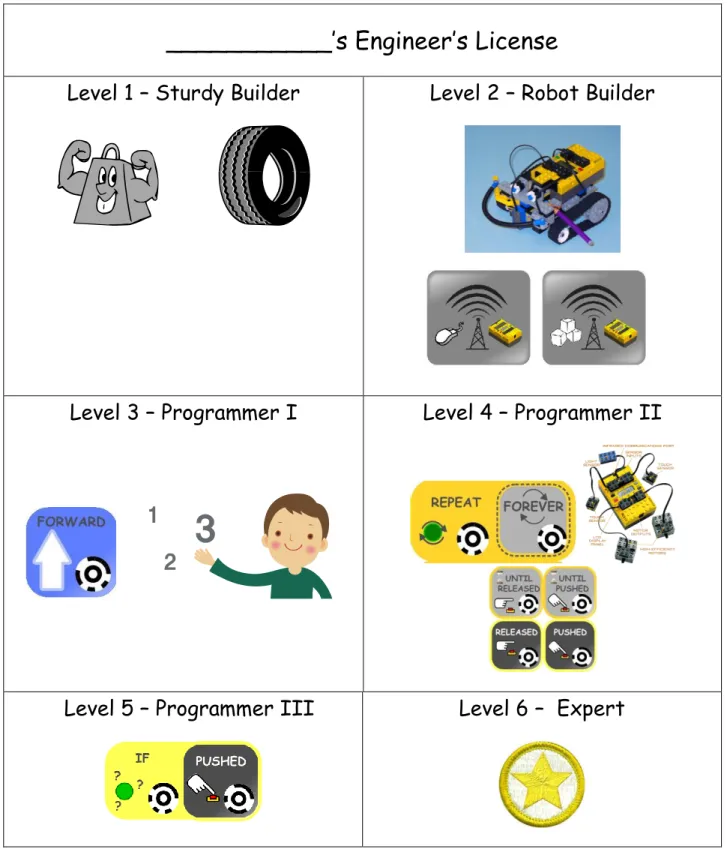
To keep assessment manageable in a busy classroom and also give children a tool to self-regulate their exploration process and self-assess, the assessment criteria given with each lesson can constitute a sequence of concrete achievements leading up to an “Engineer’s License.” Each lesson is associated with a different level, e.g. “Sturdy Builder” or “Programmer I,” that incrementally completes the license, at which point the child is ready to start a final project. During the course of each lesson, children will explore and learn at different rates. When they think they have accomplished the criteria for that lesson’s assessments, they demonstrate this to a teacher, who marks that licensure level on their certificate or helps them identify missing components. Children re-attempt any level until they have mastered it. This format allows for individual differences, helps teachers manage the amount of time assessment takes, and provides a fluid way for teachers to assess both individual progress and that of the whole class. Teachers should feel free to come up with their own analogy for the incremental assessment described here as “licenses.” One teacher likened it to levels of achievement in video games that you must complete before moving on to harder challenges. See Appendix E for a sample Engineer’s License.
The design journal for planning the final project can also provide a means of documentation. Appendix D shows a sample design journal. The writing can be done by children or by teachers taking dictation as appropriate. The components of the journal should be tailored for the nature of the final project. This format can also be adapted simply to document the final version of the project.
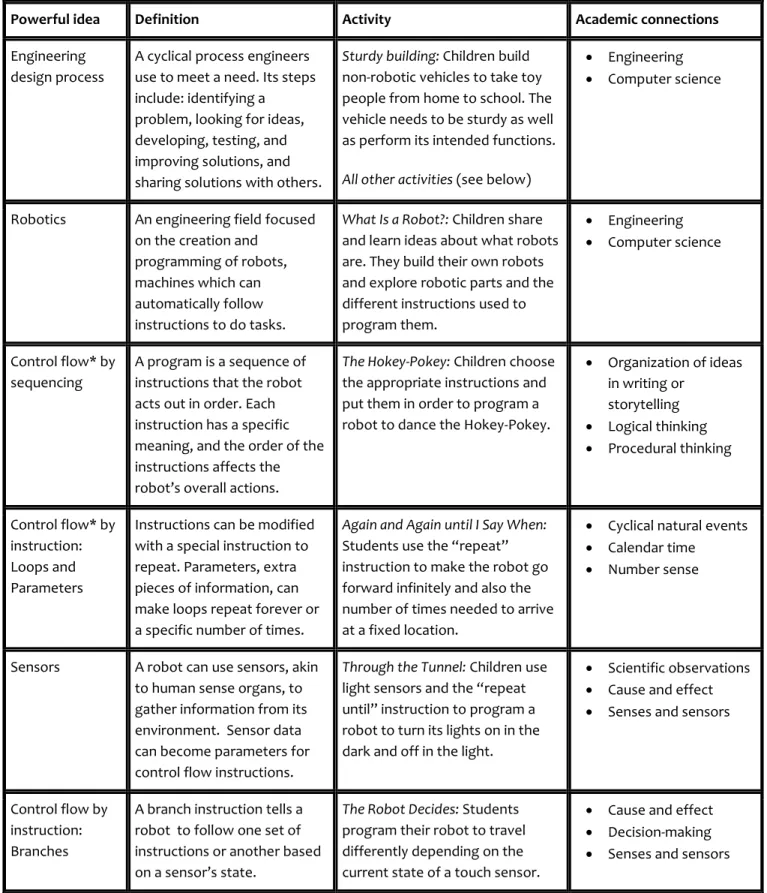
Table 1:
Powerful Ideas within the Activities
Powerful idea Definition Activity Academic connections
Engineering design process
A cyclical process engineers use to meet a need. Its steps include: identifying a problem, looking for ideas, developing, testing, and improving solutions, and sharing solutions with others.
Sturdy building: Children build non-robotic vehicles to take toy people from home to school. The vehicle needs to be sturdy as well as perform its intended functions.
All other activities (see below)
Engineering Computer science
Robotics An engineering field focused on the creation and
programming of robots, machines which can automatically follow instructions to do tasks.
What Is a Robot?: Children share and learn ideas about what robots are. They build their own robots and explore robotic parts and the different instructions used to program them. Engineering Computer science Control flow* by sequencing A program is a sequence of instructions that the robot acts out in order. Each instruction has a specific meaning, and the order of the instructions affects the robot’s overall actions.
The Hokey-Pokey: Children choose the appropriate instructions and put them in order to program a robot to dance the Hokey-Pokey.
Organization of ideas in writing or storytelling Logical thinking Procedural thinking Control flow* by instruction: Loops and Parameters
Instructions can be modified with a special instruction to repeat. Parameters, extra pieces of information, can make loops repeat forever or a specific number of times.
Again and Again until I Say When:
Students use the “repeat” instruction to make the robot go forward infinitely and also the number of times needed to arrive at a fixed location.
Cyclical natural events Calendar time
Number sense
Sensors A robot can use sensors, akin to human sense organs, to gather information from its environment. Sensor data can become parameters for control flow instructions.
Through the Tunnel: Children use light sensors and the “repeat until” instruction to program a robot to turn its lights on in the dark and off in the light.
Scientific observations Cause and effect Senses and sensors
Control flow by instruction: Branches
A branch instruction tells a robot to follow one set of instructions or another based on a sensor’s state.
The Robot Decides: Students program their robot to travel differently depending on the current state of a touch sensor.
Cause and effect Decision-making Senses and sensors
*“Control flow” is the concept that programmers can control the order in which a robot follows the instructions in its program through various programmatic methods, some of which are included in this curriculum and describe in this table.
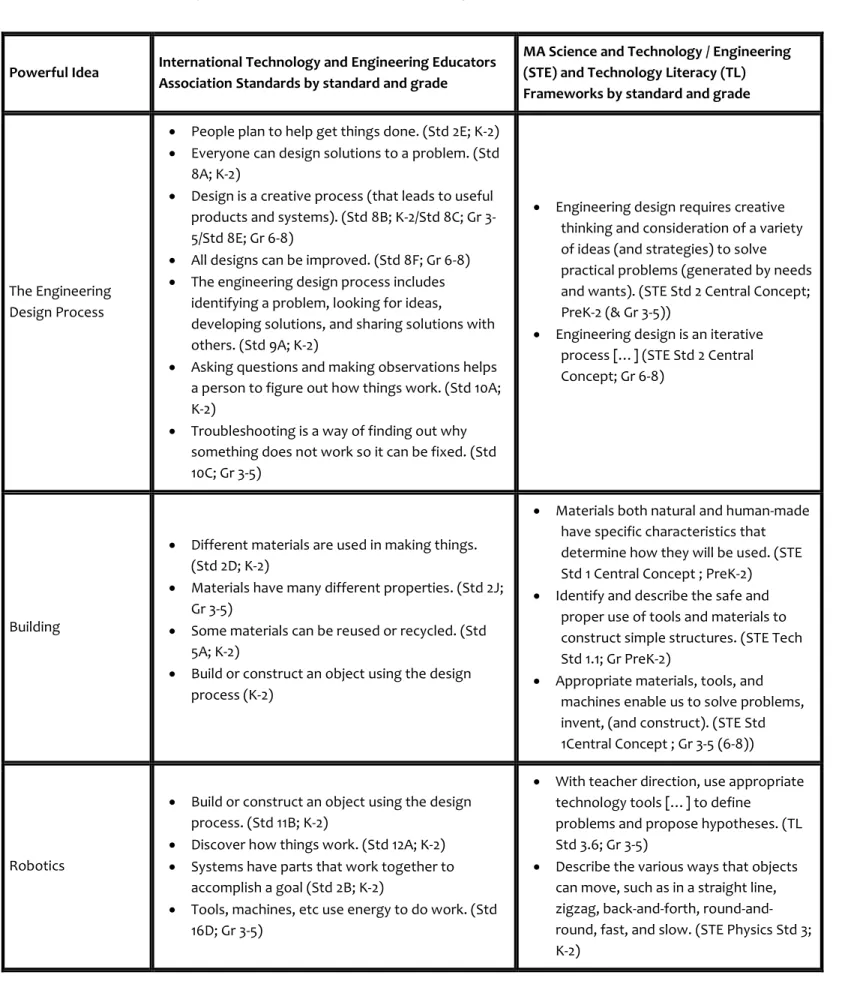
Table 2:
ITEEA Standards and MA Frameworks Addressed
Powerful Idea International Technology and Engineering Educators Association Standards by standard and grade
MA Science and Technology / Engineering (STE) and Technology Literacy (TL) Frameworks by standard and grade
The Engineering Design Process
People plan to help get things done. (Std 2E; K-2) Everyone can design solutions to a problem. (Std
8A; K-2)
Design is a creative process (that leads to useful products and systems). (Std 8B; K-2/Std 8C; Gr 3-5/Std 8E; Gr 6-8)
All designs can be improved. (Std 8F; Gr 6-8) The engineering design process includes
identifying a problem, looking for ideas,
developing solutions, and sharing solutions with others. (Std 9A; K-2)
Asking questions and making observations helps a person to figure out how things work. (Std 10A; K-2)
Troubleshooting is a way of finding out why something does not work so it can be fixed. (Std 10C; Gr 3-5)
Engineering design requires creative thinking and consideration of a variety of ideas (and strategies) to solve practical problems (generated by needs and wants). (STE Std 2 Central Concept; PreK-2 (& Gr 3-5))
Engineering design is an iterative process […] (STE Std 2 Central Concept; Gr 6-8)
Building
Different materials are used in making things. (Std 2D; K-2)
Materials have many different properties. (Std 2J; Gr 3-5)
Some materials can be reused or recycled. (Std 5A; K-2)
Build or construct an object using the design process (K-2)
Materials both natural and human-made have specific characteristics that determine how they will be used. (STE Std 1 Central Concept ; PreK-2)
Identify and describe the safe and proper use of tools and materials to construct simple structures. (STE Tech Std 1.1; Gr PreK-2)
Appropriate materials, tools, and machines enable us to solve problems, invent, (and construct). (STE Std 1Central Concept ; Gr 3-5 (6-8))
Robotics
Build or construct an object using the design process. (Std 11B; K-2)
Discover how things work. (Std 12A; K-2) Systems have parts that work together to
accomplish a goal (Std 2B; K-2)
Tools, machines, etc use energy to do work. (Std 16D; Gr 3-5)
With teacher direction, use appropriate technology tools […] to define
problems and propose hypotheses. (TL Std 3.6; Gr 3-5)
Describe the various ways that objects can move, such as in a straight line, zigzag, back-and-forth, round-and-round, fast, and slow. (STE Physics Std 3; K-2)
People write programs for robots (and robots act out instructions)
Recognize and use everyday symbols (Std 12C; K-2)
People use symbols when they communicate by technology (Std 17C; K-2)
The study of technology uses many of the same ideas and skills as other subjects. (Std 3A; K-2)
Identify and explain how symbols and icons […] are used to communicate a message (STE Tech Std 3.4; Gr 6-8)
Sequencing / control
flow None at this point None at this point
Sensors The natural world and human-made world are different. (Std 1A; K-2)
Characteristics of natural and human-made materials (STE Tech Std 1.1; PreK-2) Human beings and animals use parts of
the body as tools (STE Tech Std 2.2; PreK-2)
Differentiate between living and nonliving things. Group both living and nonliving things according to the characteristics that they share. (STE Bio Std 2; K-2)
Lesson 1
Powerful Idea:
Sturdy Building
The Engineering Design Process
Overview: Time: 45-60 minutes
Students design and build non-robotic vehicles to transport small toy people from home to school. They use the engineering design process to explore how to make their vehicles sturdy.
This lesson can be done before or after the following lesson, which introduces the robotic parts and how to program. The powerful ideas in Lesson 1, building sturdily and using the engineering design process, will prove important to the success of the children’s robots and should be rearticulated and discussed during each activity.
Prior Knowledge Objectives
Students will understand that… Students will be able to…
None, but
Prior experience building with LEGO® and crafts or recycled materials is helpful.
LEGO® bricks and other materials can fit together to form sturdy structures.
The engineering design process is useful for planning and guiding the creation of artifacts.
Build a sturdy, non-robotic vehicle using LEGO® bricks and other materials.
Use the engineering design process to facilitate the creation of their vehicle.
Materials / resources:
LEGO® bricks and a variety of crafts and recycled materials for building and decorating Large “Home” and “school” icons or models, placed several feet apart on the floor Poster showing the steps of the engineering design process (see Appendix C)
Activity description
Warm up (5 minutes): Sing “The Wheels on the Bus,” which focuses on transportation and the ideas that vehicles are made out of different parts and that those parts have unique functions.
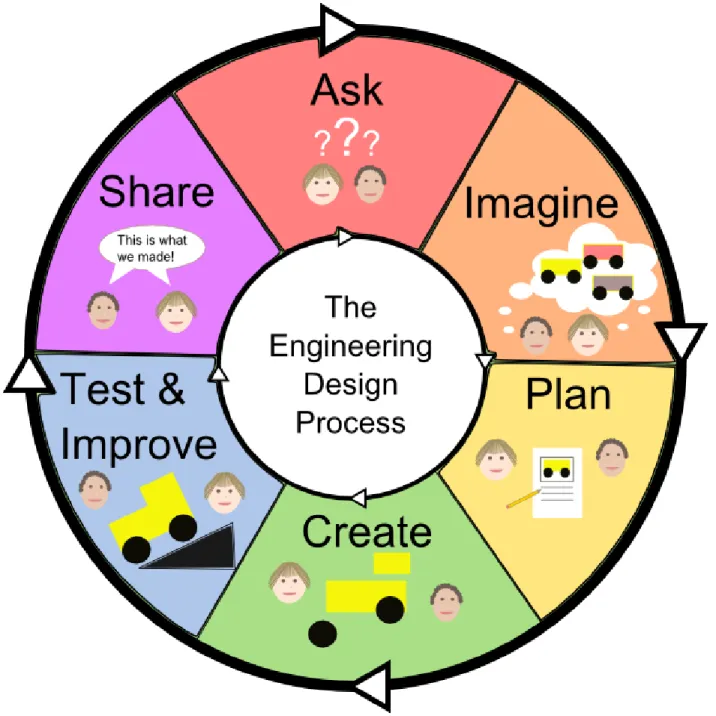
Introduce the concepts and the task (10 minutes): “Today we will be building cars (or other vehicles) to drive toy people around, and we’re going to use a tool to help us make sure our cars do their job well.” Discuss what an engineer is and introduce the steps of the engineering design process (see Appendix C for a poster).
What is an engineer?
An engineer is anyone who invents or improves things (for instance, just about any object you see around you) or processes (such as baking methods) to solve problems or meet needs. Any man-made object you encounter in your daily life was influenced by engineers.
Individual / pair work (30 minutes): Students follow the steps of the engineering design process and use LEGO® and crafts or recycled materials to create a vehicle that can transport small toy people from home to school. They may use both structural and aesthetic materials. Students should demonstrate to a teacher that their vehicles meet the following criteria as they are ready.
The criteria for a successful vehicle are that: a. It should have wheels that roll,
b. You should be able to push it between two locations on the floor, c. It must include a place for the toy people to ride in, and
d. It must stay intact while being handled and pushed along the floor.
Note:
Whether students work in pairs versus individually is left up to the teachers’ discretion based on several factors. Materials may be limited, making pair work necessary. Teachers may also have goals for children’s social development that an explicit focus on sharing and teamwork throughout this curriculum can
support. On the other hand, teamwork can be challenging at this age, so students may benefit from having their own materials and the option rather than the requirement to collaborate with others when it makes sense.
Technology Circle: After about 30 minutes of building, students share their creations. They may: a. explain the features of their vehicle,
b. show how their vehicle moves,
c. describe the features of their final design that make it sturdy, d. talk about what they found easy and difficult, and
e. share anything they changed from their original plan. Free-play: ~30 minutes
Assessments for Lesson 1 Student’s name: __________________________ Level 1: Sturdy Builder
When a child attempts this license level, also assess them according to the following scale. Use NA if not applicable.
If assessing a child based on a partially complete project, note this in the “Notes” section. In this case, assess the child based on their understanding of the core concepts below and how effectively they implemented them on the part of the project they did complete.
5 4 3 2 1 0 Complete Achievement of goal/task/ understanding Mostly Complete Achievement of goal/task/ understanding Partially Complete Achievement of goal/task/ understanding Very Incomplete Achievement of goal/task/ understanding Did Not Complete goal/task/ understanding Did not attempt/Other
Skill Achievement Level
1.Vehicle has a working means of motion. 5 4 3 2 1 0 NA 2.Vehicle remains intact while being handled and moved as it is designed to
move.
5 4 3 2 1 0 NA
Notes:
Overall Debugging:
1. A. Recognizes that something is not working. 5 4 3 2 1 0 NA 2. B. Keeps original goal or changes to an acceptable alternative. 5 4 3 2 1 0 NA 3. C. Has a hypothesis of the cause of the problem. 5 4 3 2 1 0 NA
4. D. Attempts to solve the problem. 5 4 3 2 1 0 NA
Lesson 2
Powerful Idea:
What Is a Robot?
Robots have Special Parts to that let them Follow
Instructions
Overview:
Time: 90 minutes. These activities can be divided into multiple sessions.
This session has two parts. During Part 1, students explore how to program a robot using CHERP. During Part 2, students discover the parts a LEGO® robot needs and build their own robotic vehicles.
Prior Knowledge Objectives
Students will understand that… Students will be able to… LEGO® bricks and other
materials can fit together to form sturdy structures. The engineering design
process is useful for planning and guiding the creation of artifacts.
Symbols (pictures, icons, words, etc) can represent ideas or things.
Some ability to recognize letters or to read is helpful, but not required.
Robots need moving parts, such as motors, to be able to perform behaviors specified by a program.
The robotic ‘brain’ (RCX) has the programmed
instructions that make the robot perform its behaviors. The RCX must communicate
with the motors for the motors to function.
Describe the components of a robot, including the ‘brain’ (RCX), motors, and wires. Upload a program to a robot
via the tangible blocks or graphical icons, computer interface, and LEGO® IR tower.
Build a sturdy, robotic vehicle using LEGO® bricks and other materials.
Materials / resources:
Pictures of different robots and non-robotics Large icons for games and reference displays
Part 1: One simple pre-built two-motor RCX vehicle per pair of students Computers with CHERP software, webcams, IR towers, programming blocks Part 2: One set of robotic parts for each student/pair
LEGO® bricks and a variety of crafts and recycled materials for building and decorating Some partially built vehicles (or pictures of them) to show possible sturdy motor attachments Location icons or models (e.g. “home and “school”), placed several feet apart on the floor
Note:
It is important to establish rules or expectations for how students should treat each others’ materials, programs, and robots. Find a time for students generate these group expectations. Students may be better able to imagine reasonable expectations after using the robots or programming interface once.
Activity description Warm up activities:
1) Jump for the robots! Children will be shown about 10 different images of robots and non-robots. They jump up and down if they think the picture shown is of a robot. Later, make an “Is It a Robot?” chart putting these images in one of three categories: Robots, Maybe or Sort of Robots, and Not Robots.
2) Yes or No? Students jump up (or make another movement) for statements they think are true and sit down for statements they think are false. Adults record who jumps up or sits down.
Extension: Incorporate graphing into this exercise by making a chart with True and False for each question along the horizontal axis and number of students along the vertical axis. Have students place a marker (sticker, symbol, etc) with their initials in the “True” column or the “False” column. There are many other possible variations.
1. Robots are machines (YES). _____
2. All robots are made of the same materials (NO). _____ 3. Robots must have moving parts (YES). _____
4. Robots can think by themselves (NO). _____ 5. All robots look like alike (NO). _____
6. Robots must be able to move around the room (NO). _____ 7. Robots are operated using remote controls (NO). _____
8. People tell robots how to behave with a list of instructions called a program (YES). _____ 9. Some robots can tell what is going on around them (YES). _____
(Examples: sensing light, temperature, sound, or a touch.) 10. Robots are alive (NO). _____
3) Discussion: What is a robot? As a class, children discuss what they think a robot is and examples of robots they know of. Children and teachers can bring in pictures of these objects later and put them on the “Is It a Robot?” chart. The teacher shows a pre-built RXC vehicle and a non-robotic vehicle. The class identifies that you have to push the non-robot to make it move. You can also push the robot, but (as the teacher shows) you can give it instructions and push a button to make it follow them. Why can the robot do this? It has special parts, which the teacher overview now. Students will learn about them more later.
Notes:
The RCX, which is like the robot’s body, has an ‘ear’ for ‘hearing’ programs from the computer. It also has its own ‘computer ‘brain’;’ which remembers instructions and tells the other parts what to do. The motors are like muscles that move the wheels. Wires connect the motors to the computer ‘brain’ like nerves connect our brains to our muscles.
It might help to discuss whether robots are (or are for) boys or girls. The girls in the class may especially benefit from their teacher affirming that robots aren’t innately masculine or only for boys.
Part 1. Programming a Robot
Introducing the concepts and task: Explore what we can program the robots to do.
1. Communication with a robot: Explain that we can tell a robot what to do, as long as we use a language it understands. Encourage the students to offer examples of how people communicate (speaking, writing, drawing, facial expressions, etc) and other languages they (or people they know) can speak. Discuss the idea of translating between languages, and the need to translate what we want a robot to do into the robot’s language. A program is another word for instructions we give the robot.
2. Show how to use the two programming interfaces. If we want to make our robot go forward, we find the appropriate wooden blocks (or graphical icons) by their pictures or words and put the program together. Show how to make, upload, and run a simple block program. Then, show that you can make a graphical (“screen”) programs by editing the graphical version of the block
program. Upload and run it. Emphasize that the blocks and the icons on the screen offer two ways of programming the same instructions.
To Upload from the Tangible Programming Blocks
Place the program in the camera’s field of view, and place the robot’s ‘ear’ in front of the IR tower. Click the “Upload from blocks” button. The computer takes a photo to “see” the blocks, and shows us the program on the screen.
To Upload from the Graphical Icons
Click and drag the icons together; they “snap together” when they are close enough and can make a logical sequence. Place the robot’s ‘ear’ in front of the IR tower. Click the “Upload from screen” button.
Finally,
in either case, the computer sends the program to the robot. When the robot beeps, it has successfully downloaded the program. Press the green “Run” button on the RCX to make it do the program. If the robot doesn’t move as expected, brainstorm why that might be and try to fix it.Really,
when we click on an “Upload” button, the computer reads the circular codes on the icons and translates the program to robot language, which is made of 0’s and 1’s! Then the computer sends the message to the robot using infrared light. …That’s a lot of translating between many special kinds of languages from our idea to a robot moving! (This may also be too much information for many students. Knowing enough to make the process work is enough.)Learning the Instructions for the Robot:
Pair work: (10-15 minutes) Pairs explore putting different programs on pre-built robots to see what each instruction makes the robot do and to learn the process of successfully uploading tangible and graphical programs.
Whole class games: Review and reinforce instruction icon meanings.
1. Ask the students to pick a block and demonstrate what they think it means. For example, a student might pick up a “shake” block and shake his body.
2. Play Simon Says using large pictures of the block icons as prompts. For example: Simon Says… Forward! (Show the “forward” icon,) or, Simon Says… Shake, Spin (Show the “shake” and “spin” icons). Use the Begin and End blocks around the instructions if you choose. If not, emphasize the need for the Begin and End blocks in a CHERP program another way. Use this game as to observe any challenges students have in their interpretations of the blocks and their internalizations of the movement the icons represent.
Part 2: Building an RCX Robot
Introducing the concepts and task: Build a robotic vehicle that transports toy people.
1. Revisit the question of the robotic and non-robotic vehicles’ movement. Review the robot’s key parts and their functions.
2. Individual/pair work: Students build their own robotic vehicles. Allow the students to build how they see fit, but remind them that a working robot must have a computer “‘brain’,” motors, properly connected wires, and an unobstructed IR receiver. When they think they have a working robot, they bring it to a testing station where they upload “Begin, Forward, End” and run it. (See Appendix F for set-up tips.) This test is to ensure that their robot follows the instruction properly and that it is sturdy. Teachers can help make sure the robots’ wires are properly oriented so that the motors turn as expected to make the robot go forward. Have the students name their robots!
Technology Circle: After about 45 minutes of building, have the students share their creations with the rest of the class (or a small group). During this time, students can share the parts and features of their robot, share what they found easy or difficult, or share what makes their robot sturdy.
What do you think will happen if you make a robot that is missing one of its pieces? Try it out! Concluding activity: Simon Says, or another game. See Appendix B for examples.
Free-play: ~45 minutes
1. Exploring robots parts: Students rebuild the robots they started or build new ones to explore different designs that incorporate all the necessary parts and strategies for sturdiness. They also explore what happens if you build robots without all the necessary parts.
2. Exploring programs: Students create and upload programs to a working robot to to become familiar with the icons and the process of uploading a program to the robot. Give students plenty of time to
work on this! It is critical for them to have experience programming robots with programs of their
choice – often random combinations of blocks. This experience allows them to see what’s possible and move from “Wow, I made it move!” to “I wonder if I can make it do ______?” This exploration prepares young programmers to try to program specific, planned behaviors.
Assessment for Lesson 2 Student’s name _____________________________ Level 2: Robot Builder
When a child attempts this license level, also assess them according to the following scale. Use NA if not applicable.
If assessing a child based on a partially complete project, note this in the “Notes” section. In this case, assess the child based on their understanding of the core concepts below and how effectively they implemented them on the part of the project they did complete.
5 4 3 2 1 0 Complete Achievement of goal/task/ understanding Mostly Complete Achievement of goal/task/ understanding Partially Complete Achievement of goal/task/ understanding Very Incomplete Achievement of goal/task/ understanding Did Not Complete goal/task/ understanding Did not attempt/Other
1. Knows their robot needs specific parts for specific actions and uses those parts.
5 4 3 2 1 0 NA
2. Attaches all necessary robot parts so that they work correctly (i.e. wheels to motors, motors to RCX, wires to ports).
5 4 3 2 1 0 NA
3. Knows how to program the robot with TUI or GUI. 5 4 3 2 1 0 NA Notes:
Overall Debugging:
1. A. Recognizes that something is not working. 5 4 3 2 1 0 NA 2. B. Keeps original goal or changes to an acceptable alternative. 5 4 3 2 1 0 NA 3. C. Has a hypothesis of the cause of the problem. 5 4 3 2 1 0 NA
4. D. Attempts to solve the problem. 5 4 3 2 1 0 NA
Lesson 3
Powerful Idea:
Hokey-Pokey
The Order of Instructions Matters
Overview: Time: 45-60 minutes
Each day, play Simon Says with the programming instructions (or another game, see Appendix B) as an opening and / or closing activity.
For the Hokey-Pokey, students choose the appropriate instructions and put them in order to program a robot to dance the Hokey-Pokey. This activity can be done with many other children’s songs. If you wish, think of other songs and how to program a robot to dance to the words. Be creative (the children will be)!
Prior Knowledge Objectives
Students will understand that… Students will be able to… A robot is a machine that can
act on its own once it receives proper instructions.
Each icon corresponds to a specific instruction
A program is a sequence of instructions that is followed by a robot
The order of the blocks dictates the order in which the robot executes the instructions
Point out or select the appropriate block or icon corresponding to a planned robot action
Connect a series of blocks by fitting the pegs of one block into the hole of the following block
Upload a program to the computer and transmit it to a robot
Materials / resources:
Large icons for games and reference displays
One working robot, built in Lesson 2, for each child or pair
Activity description
Warm-Up: Play Simon Says or another game from Appendix B to review the actions each icon represents. Introduce the concepts and task. Show an example robot and have the class name it. “Today we will give instructions, or programs, to our robots so they will do the Hokey-Pokey.” The whole class sings and dances the Hokey Pokey to make sure everyone remembers it. Conclude with a “robot verse”:
You put your robot in, you put your robot out, You put your robot in, and you shake it all about. You do the Hokey Pokey, and you turn yourself around.
And that’s what it’s all about. (Clap, clap.)
Hokey-Pokey: individual/pair work. Students program their robot to do the Hokey Pokey dance. 1. When all groups are done, everyone does the Hokey Pokey with the robots!
Technology circle:
1. Draw attention to what order to put the blocks in. Is it the Hokey-Pokey if the right blocks are in a different order?
2. Extra: Ask where else you encounter programs, which are a kind of procedure that is followed automatically, a set of instructions. Examples: using a recipe to bake a cake or following directions to drive to a friend’s house.
Concluding activity: Simon Says, or another game. See Appendix B for other suggestions. Free-Play ~30 minutes
Students continue to create and upload programs to a robot. As students are ready, prompt them to plan ahead about what they want the robot to do.
Assessment for Lesson 3 Student’s name _____________________________ Level 3: Programmer I
When a child attempts this license level, also assess them according to the following scale. Use NA if not applicable.
If assessing a child based on a partially complete project, note this in the “Notes” section. In this case, assess the child based on their understanding of the core concepts below and how effectively they implemented them on the part of the project they did complete.
5 4 3 2 1 0 Complete Achievement of goal/task/ understanding Mostly Complete Achievement of goal/task/ understanding Partially Complete Achievement of goal/task/ understanding Very Incomplete Achievement of goal/task/ understanding Did Not Complete goal/task/ understanding Did not attempt/Other
1. Selects the right instructions. 5 4 3 2 1 0 NA
2. Arranges instructions in the correct order. 5 4 3 2 1 0 NA
Notes:
Overall Debugging:
1. A. Recognizes incorrect instructions or order by reading the program or watching the robot run the program.
5 4 3 2 1 0 NA
2. B. Keeps original goal. 5 4 3 2 1 0 NA
3. C. Has a hypothesis of the cause of the problem. 5 4 3 2 1 0 NA
4. D. Attempts to solve the problem. 5 4 3 2 1 0 NA
Lesson 4
Powerful Ideas:
Again and Again until I Say When!
Loops and Number Parameters
Overview
Time: 90 minutes
Students will learn about a new instruction that makes the robot repeat other instructions infinitely or a given number of times. They use these new instructions to program their robots to move between two destinations on opposite ends of “road” with a turn in it.
Prior Knowledge Objectives
Students will understand that… Students will be able to…
Arranging the same blocks in a different order will result in a different program.
An instruction or sequence of instructions may be modified to repeat. Some programming
instructions, like ‘Repeat,’ can be qualified with additional information.
Recognize a situation that requires a looped program. Make a program that loops. Use number parameters to
modify the number of times a loop runs.
Materials / resources:
Large icons for games and reference displays
One working robot, built in Lesson 2, for each child or pair
Computers with CHERP software, webcams, IR towers, programming blocks “Home” and student-made destination icons or models for the robots’ trips
Activity description
Warm-Up: Game or song that uses repetition. See Appendix B for examples. Introduce the concepts: Repeats
1. Introduce the “Repeat Forever” and “End Repeat” blocks. What does it mean to repeat something? Make a model repeating program to demonstrate the proper syntax. What will the robot do? Emphasize that the robot only repeats the instructions in between the “Repeat” and the “End Repeat” blocks. The robot does the program in order: any instruction before the “Repeat,” the repeating chunk, and then any instructions after the “End Repeat.”
2. Make a road of tape on the floor, and have the students choose the destination at its end. All together, build a program to make the robot drive along just the long portion of an “L” shaped road, but with no number parameter: [Begin, Repeat Forever, Forward, End Repeat, End]. 3. Upload the program to a robot and run it. The robot drives past the end of the road. Ask the
students to think about how to resolve this issue. Introduce the Number Parameters (“Numbers”) and model how to add them to the repeating program so that it loops the given number of times before stopping. Now what happens to instructions placed before “Repeat” or after “End Repeat”? 4. Use the display icons to post the program (including the Number Parameter) visibly in the room. The task: Robot Trips (individual/pair work). Students explore a situation in which some but not all the instructions need to be repeated.
1. The students program the robot to drive from one destination to another along an “L” shaped road, making the robot stop when it arrives. (Stopping close to the destination icon counts!) Set up several roads, perhaps of different lengths, with one leg of each road being at least 2-3 “Forwards” long.
Notes:
Adaptation: Break the challenge into parts: first have students program their robots to drive along one part of their road before adding the turn and the second leg of the journey. Such adjustments can make a big difference for some students as using Repeats can be complex.
Technology Circle:
1. Students share their programs and discuss how Repeats work, especially how order is important. Concluding Activity: Song or game. See Appendix B for examples.
Free-play: ~30 minutes
Students need to explore the new instructions. They should build programs that use (or don’t use) them. In doing so, they will gain comfort with sequencing the blocks correctly, how the robot follows instructions before, between, or after the “Repeat” and “End Repeat” blocks, and when Repeats are
Assessment for Lesson 4
Student’s name______________________ Level 4: Programmer II-AWhen a child attempts this license level, also assess them according to the following scale. Use NA if not applicable.
If assessing a child based on a partially complete project, note this in the “Notes” section. In this case, assess the child based on their understanding of the core concepts below and how effectively they implemented them on the part of the project they did complete.
5 4 3 2 1 0 Complete Achievement of goal/task/ understanding Mostly Complete Achievement of goal/task/ understanding Partially Complete Achievement of goal/task/ understanding Very Incomplete Achievement of goal/task/ understanding Did Not Complete goal/task/ understanding Did not attempt/Other
1. Knows when and how to use Repeats. 5 4 3 2 1 0 NA
2. Knows when and how to use number parameters. 5 4 3 2 1 0 NA
3. Selects the right instructions. 5 4 3 2 1 0 NA
4. Arranges the instructions in the correct order. 5 4 3 2 1 0 NA
Notes:
Overall Debugging:
1. A. Recognizes incorrect instructions or order by reading the program or watching the robot run the program.
5 4 3 2 1 0 NA
2. B. Keeps original goal. 5 4 3 2 1 0 NA
3. C. Has a hypothesis of the cause of the problem. 5 4 3 2 1 0 NA
4. D. Attempts to solve the problem. 5 4 3 2 1 0 NA
Lesson 5
Powerful Ideas:
Through the Tunnel
Sensors and Loops
Overview
Time: 2 hoursThe students program a robot vehicle to drive through a dark tunnel and turn its headlights on.
Notes:
The LEGO® sensors detect light vs. dark or touched vs. not touched. CHERP uses this information in a binary way: “Do I see light?” or, “Is the touch sensor button pressed?” Yes or no? CHERP does not use information about degrees of brightness or pressure.
Sensors MUST be attached to Port 1 (one at a time) to work. Sensors must be triggered at the right moment. Set the sensor (press the touch sensor or create the desired light) before running the program. The light bulb MUST be attached to Port B, but it can be attached by a wire and placed elsewhere on the robot. You need to program the light to turn off at the end of the program or else it will remain on, even when you press Run again. Alternatively, you can turn the robot on and off before rerunning the program. The light sensors can be finicky in different lighting. TEST OUT THIS ACTIVITY BEFORE HAVING STUDENTS TRY IT. If the light sensors don’t work well in your classroom, it is possible to do this lesson using touch sensors. Lesson 6 also uses sensors, so it is reasonable to also choose just one of Lessons 5 or 6 to do.
Prior Knowledge Objectives
Students will understand that… Students will be able to…
Examples of human or animal sense organs and that people and animals use information provided by their senses to help make decisions.
A robot can feel and see its surroundings with a sensor. A robot can react to
collected data by changing its behavior.
Certain instructions (like “Repeat”) can be modified with sensor data.
Connect a light or touch sensor to the correct port on the RCX.
Write a program that includes waiting for a specific condition.
Materials / resources:
Large icons for games and reference displays
One working robot, built in Lesson 2, for each child or pair
Computers with CHERP software, webcams, IR towers, programming blocks
A cardboard box (or other material) to create a dark tunnel for the robots to drive through A LEGO® light, light (or touch) sensor, and 2 short wires for each robot
Activity description
Warm-Up: Game or song that uses the 5 human senses. See Appendix B for examples. Introduce the concepts: Sensors and Sensor Parameters:
1. Discuss examples of human / animal senses and how these senses let us gather information about what’s going on around us, so that we can make decisions based on this information.
2. Show the Light Sensor and explain how it works. (It detects light, but is not a camera. It tells the robot if it’s light or dark out, but doesn’t tell it what to do.) How might this be useful? Add these to the Robot Parts poster if one is being used.
3. We need programming instructions to tell the robot what to do with the information from its sensors. Show the Repeat blocks, which are now familiar, and the new Until Light/ Until Dark blocks. Create an example program together, such as: [Begin, Repeat Until Light, Shake, End Repeat, Spin, End]
4. Run the program, and have students discuss what the robot is doing. 5. Display the reference program visibly in the room.
The task: Through the Tunnel: individual/pair work.
1. The students add a light and a sensor to their robot and program their vehicle to drive into a dark tunnel and turn on its light when it’s inside. You can use either sensor: a light sensor is like an eye and the touch sensor can be thought of as a light switch in this program.
2. As an extension, they can program the robot to continue driving and turn off its light when it exits the tunnel.
3. The final program could look something like: [Begin, Repeat Until Dark (or Pushed), Forward, End Repeat, Light On, Forward, Light Off, End]
Technology Circle:
Understanding how the sensors work and how CHERP uses the information from them can be
challenging. Have students discuss their understandings of the sensors and why different programs do or do not accomplish the goal.
Concluding Activity: Song or game. See Appendix B for examples. Free-play ~45 minutes
Have students explore adding sensors to robots and making programs with Repeats and Sensor Parameter instructions. Sensors use complex concepts and often work in unexpected ways. Offer support in observing the robot’s behavior so students may fully understand these concepts.
Assessment for Lesson 5 Student’s name ______________________ Level 4: Programmer II-B
When a child attempts this license level, also assess them according to the following scale. Use NA if not applicable.
If assessing a child based on a partially complete project, note this in the “Notes” section. In this case, assess the child based on their understanding of the core concepts below and how effectively they implemented them on the part of the project they did complete.
5 4 3 2 1 0 Complete Achievement of goal/task/ understanding Mostly Complete Achievement of goal/task/ understanding Partially Complete Achievement of goal/task/ understanding Very Incomplete Achievement of goal/task/ understanding Did Not Complete goal/task/ understanding Did not attempt/Other
1. Knows how to use sensors and what they are for. 5 4 3 2 1 0 NA 2. Knows when and how to use sensor parameters. 5 4 3 2 1 0 NA
3. Selects the right instructions. 5 4 3 2 1 0 NA
4. Arranges instructions in the correct order. 5 4 3 2 1 0 NA
Notes:
Overall Debugging:
1. A. Recognizes incorrect instructions or order by reading the program or watching the robot run the program.
5 4 3 2 1 0 NA
2. B. Keeps original goal. 5 4 3 2 1 0 NA
3. C. Has a hypothesis of the cause of the problem. 5 4 3 2 1 0 NA
4. D. Attempts to solve the problem. 5 4 3 2 1 0 NA
Lesson 6
Powerful Ideas:
The Robot Decides
Sensors and Branches
Overview Time: 90 minutes
The students program a robot vehicle to take different actions based on the state of a sensor.
Notes:
The LEGO® sensors detect light vs. dark or touched vs. not touched. CHERP uses this information in a binary way: “Do I see light?” or “Is the touch sensor button pressed?” Yes or no? CHERP does not use information about degrees of brightness or pressure.
Sensors MUST be attached to Port 1 (one at a time) to work. They must be triggered at the right moment. Set the sensor condition (press the touch sensor or create the desired light) before rerunning the program. The light sensors can be finicky in different lightings. TEST OUT THIS ACTIVITY BEFORE HAVING STUDENTS TRY IT. If the light sensors don’t work well in your classroom, use the lesson’s adaptations for touch sensors. Lesson 6 also uses sensors, so it is reasonable to also choose just one of the two lessons.
Prior Knowledge Objectives
Students will understand that… Students will be able to… Some instructions can be
qualified with additional information.
A robot can feel and see its surroundings with a sensor. A robot can react to
information it collects by changing its behavior.
A robot can ‘choose’ between two sequences of instructions depending on the state of a sensor.
Connect a light or touch sensor to the correct port on the RCX.
Identify a situation that needs a branched program. Make a program that uses a
branch.
Materials / resources:
Large icons for games and reference displays
One working robot, built in Lesson 2, for each child or pair Light or touch sensor, a short and long wire for each robot
Computers with CHERP software, webcams, IR towers, programming blocks “Home” and destination icons or models placed on the floor, tape roads
Activity description Warm-Up: Game or song. See Appendix B for examples. Introduce the concept: “If”
1. In the programs so far, the robot has only one choice of what instructions to do next. Today we will learn an instruction that give the robot two choices, and the robot uses a sensor to know which set of instructions to follow each time the program is run. Solicit examples of times we rely on sensors to help us make decisions. (If I feel something prickly, I’ll move away from it. Or, if I see it’s rainy out, I’ll bring an umbrella; if not, I’ll leave the umbrella at home.)
2. Play “Simon Says” to help the students gain familiarity with the thought process behind branches. For example, “Simon says, ‘If the lights are on, jump twice, (if not, stand on one foot).”
3. Introduce If, End-If blocks and light/dark and pushed / released parameters. Make and act out a model program together. Upload it to a robot to see how it works. It is best to start out with a program that uses only “If” and to save the “If Not” segment for an extension if students are ready for it. Students will have a much better understanding of how “If” gives the robot choices once they have run the program themselves in both sensor conditions.
4. Once the students run the program, use the reference icons to post the program in the room. The task: The Robot Chooses a Program: individual/pair work. Here are several suggestions of challenges. 1. Touch sensor: Students use the touch sensor to set a “switch” for the robot to take a trip (or not)
when its program is run.
2. Light Sensor: The robot is at the park. Program the robot so that when you start the program, the robot will go home if it’s dark out.
3. Extension: Students program their robot to follow one branch of a T-shaped map or another
depending on light sensor input. The robot starts at the base of the T, and the sun is shining (or not) at it. If it’s still ‘light out,’ the robot has time to go play at the park (to the right). If not, the robot should go right home (to the left). (This can be adapted to use a touch sensor.)
Technology Circle:
1. Students share the program they made, what it does, and anything they found easy, hard, or surprising during the activity. Children sometimes think that Ifs make the robot do one program or the other whenever the sensor is in that state rather than as a one-time decision-maker for which set of instructions the robot will follow. This is important to identify and clarify with demonstrations. Concluding activity: Song or game. See Appendix B for other suggestions.
Free-play ~30 minutes
Let students explore building programs with the If blocks. This exploration gives them a chance to learn how to use the block in a program, think of situations that require it, and further understand how to use
Assessment for Lesson 6 Student’s name: ____________________________ Level 5: Programmer III
When a child attempts this license level, also assess them according to the following scale. Use NA if not applicable.
If assessing a child based on a partially complete project, note this in the “Notes” section. In this case, assess the child based on their understanding of the core concepts below and how effectively they implemented them on the part of the project they did complete.
5 4 3 2 1 0 Complete Achievement of goal/task/ understanding Mostly Complete Achievement of goal/task/ understanding Partially Complete Achievement of goal/task/ understanding Very Incomplete Achievement of goal/task/ understanding Did Not Complete goal/task/ understanding Did not attempt/Other
1. Knows how and when to use Ifs. 5 4 3 2 1 0 NA
2. Knows how and when to use If Nots (if applicable). 5 4 3 2 1 0 NA
3. Selects the right instructions. 5 4 3 2 1 0 NA
4. Arranges instructions in the correct order. 5 4 3 2 1 0 NA
Notes:
Overall Debugging:
1. A. Recognizes incorrect instructions or order by reading the program or watching the robot run the program.
5 4 3 2 1 0 NA
2. B. Keeps original goal. 5 4 3 2 1 0 NA
3. C. Has a hypothesis of the cause of the problem. 5 4 3 2 1 0 NA
4. D. Attempts to solve the problem. 5 4 3 2 1 0 NA
Lesson 7
Community Routes: Final Projects
Overview Time: ~10 hours
This project should be tailored to fit with a curriculum unit, project, or event happening in the classroom so that it meets the goals of the teachers and the interests of the students and teachers. Students work together to build and program a robot to demonstrate their understandings and ideas related to the robotics and programming curriculum as well as the content of the project theme or topic. During the course of the final project, students put to use all the concepts learned during the previous lessons but transfer them to a new context. When possible, teachers should encourage the use of crafts and recycled materials.
Individual/pair work:
a. Students plan their robot and program in a design journal (see Appendix D).
b. Students build a robot and decorate it with LEGOs® and crafts and recycled materials. c. Students program their vehicles to exhibit a behavior representing an aspect of the project’s
theme.
d. Students articulate the goal of their robot and its program and how they accomplished it. (Teachers can document and print children’s responses to these questions to go along with the design journals.)
e. Students practice how they will present their creations at the final exhibition. Presentations: Students share :
a. the vehicle they made,
b. why they chose the features they did for their robot,
c. the goal of their program and why they wanted it to do that / what it represents, d. the final program they built, and
e. anything that was hard, easy, surprising, interesting, etc about the process. Materials / resources:
Large icons for games and reference displays
Robotic parts (RCXs, motors, wheels, sliders, wires, lights, sensors, and batteries) for each child or pair to make a robot, plus extras
Crafts and recycles materials for robots and for building an environment for them to run in Computers with CHERP software, webcams, IR towers, programming blocks
Assessment for Lesson 7 Student’s name: _____________________ Level 6: Expert
Part 1: Assess each child along these scales when they have finished their final project.
5 4 3 2 1 0 Complete Achievement of goal/task/ understanding Mostly Complete Achievement of goal/task/ understanding Partially Complete Achievement of goal/task/ understanding Very Incomplete Achievement of goal/task/ understanding Did Not Complete goal/task/ understanding Did not attempt/Other
1. Has a goal for the project. 5 4 3 2 1 0 NA
2. Selects the right instructions to accomplish the goal. 5 4 3 2 1 0 NA 3. Arranges instructions in the correct order to accomplish the goal. 5 4 3 2 1 0 NA
4. Knows how and when to use Repeats. 5 4 3 2 1 0 NA
5. Knows how and when to use number parameters. 5 4 3 2 1 0 NA 6. Knows how to use sensors and what they are for. 5 4 3 2 1 0 NA 7. Knows how and when to use sensor parameters with Repeats. 5 4 3 2 1 0 NA 8. Knows how and when to use Ifs with sensor parameters. 5 4 3 2 1 0 NA
Notes:
Overall Debugging:
1. A. Recognizes incorrect instructions or order by reading the program or watching the robot run the program.
5 4 3 2 1 0 NA
2. B. Keeps original goal. 5 4 3 2 1 0 NA
3. C. Has a hypothesis of the cause of the problem. 5 4 3 2 1 0 NA
4. D. Attempts to solve the problem. 5 4 3 2 1 0 NA