Reference book
BeoSound 9000WARNING:
To prevent fi re or electric
shock, do not expose this appliance to
rain or moisture. Do not expose this
equipment to dripping or splashing
and ensure that no objects fi lled with
liquids, such as vases, are placed on
the equipment.
To completely disconnect this
equip-ment from the AC Mains, disconnect
the power supply cord plug from the
AC receptacle.
This symbol indicates that a
dangerous voltage constitut ing
a risk of electric shock is
present within this unit.
This symbol indicates that there
are important operating and
maintenance instructions in the
literature accompanying this
unit.
CAUTION: To reduce the risk of
electric shock, do not remove
cover (or back).
No User-serviceable parts inside.
Refer servicing to qualified
service personnel.
3
BeoSound 9000 – The music entertainment centre
The BeoSound 9000 is an extraordinary
CD player with a built-in radio.
BeoSound 9000 gives you perfect
sound reproduction and changes tracks
and CDs at a formidable pace. You will
experience six Compact Discs as one
piece of music – virtually one CD.
The system can be placed anywhere you
want music – in traditional placements;
on a table, hanging on a wall, or on the
specially designed, vertical stand. The
choice is yours.
The BeoSound 9000 represents a new
and visual way of experiencing music.
4
To get to know your Bang & Olufsen product, two guides are at your disposal.
The Guide provides information on daily use. The Reference book gives a thorough overview of all aspects.
To the right, you fi nd the contents of this Reference book, the main chapters of the Guide are listed below:
• Your key to using BeoSound 9000, 4
• Using the CD player, 6
• Using the radio, 9
• Adjust the volume, 10
Contents of the Reference book
Before you start…
6 Cautions
How to set up BeoSound 9000
7 Placing your BeoSound 9000
9 Centering the CD drive mechanism
33 Option programming
Connect the cables
10 Aerial 10 Loudspeakers 10 Extra equipment 10 Master Link 11 Digital output 11 To the mains
Getting started
12 Close-up operation panel
Set the time
13 Using the built-in clock
Make BeoSound 9000 start or stop
at a specifi c time
14 Set a Timer
15 Set a Timer for single date
15 Set a weekly Timer
16 Checking or clearing Timers
17 Switching the Timer function on or off
17 Choose location for the Timer function
Playing CDs
18 Loading CDs
19 CD playback
Playing CDs in different ways
20 Choosing a sequence of discs
20 Playing CDs and tracks in random order
Playing favourite CD tracks
21 Select and store a series of tracks
21 Enable or disable playback of a track series
Name your CDs
22 Name a CD
22 See the list of CD names
Positioning CDs
23 Load and adjust a CD manually
23 Clear the positioning
Display CD information
24 Switching between displays
Playing other sources
25 Listen to external sources
Guide
BeoVision Avant
Reference book BeoVision Avant
The Guide The Reference
5
Using the radio
26 Presetting radio stations
26 Clearing presets
Optimise radio sound
27 Fine tuning a radio station
27 Mono/stereo reception
Name radio stations
28 Naming radio stations
28 Clear a name
Play your radio stations
29 Playing radio
29 Switching between displays
Adjust and store sound settings
30 Sound adjustments
Using the Beo4 remote control
31 Beo4 remote control operation
Use BeoSound 9000 with a video
system
32 A fully integrated setup
32 An AV integrated setup
33 Option programming
Looking after BeoSound 9000
34 Cleaning BeoSound 9000
35 Handling your CDs
The PIN-code system
36 Activate the PIN-code system
36 Change or delete a PIN-code
37 Using your PIN-code
37 Did you forget your PIN-code?
Key to using this guide
Use this key to identify what a button, source or status display looks like in an instruction sequence.
Buttons on the BeoSound 9000 close-up operation panel or on the Beo4 remote control
Displays on the BeoSound 9000 Displays on the Beo4 remote control RADIO CD OK CD EDIT ? CD R ANDOM
6
We recommend that you follow this
procedure when you set up your
BeoSound 9000:
– Place the BeoSound 9000 where
you want to use it.
– If you wish to mount
BeoSound 9000 on a wall bracket
or fl oor stand accessory, then
assemble the accessory according
to the folder enclosed with it.
– Set up your loudspeakers (or, if the
BeoSound 9000 is to be used in a
Bang & Olufsen AV system, set up
this system) following the
procedures described in the guides
enclosed with these products.
– Connect all cables to their sockets
on the rear panel of the
BeoSound 9000 – remember not
to connect it to the mains yet!
– Arrange the cables in the cable
cover grooves and attach the cover
to the rear of the BeoSound.
– Connect BeoSound 9000 to the
mains.
Cautions
■ Make sure that the BeoSound 9000 is set up, placed and connected, in accordance with the instructions in this guide.
■ The BeoSound 9000 is designed for indoor use in dry, domestic environments only, and for use within a temperature range of 10–40° C (50–105° F).
■ Avoid placing the BeoSound 9000 in direct sunlight or direct artifi cial light (e.g. a spotlight), or near objects generating electrical noise (e.g. dimmers), as this will reduce the sensitivity of the remote control receiver.
■ Place the BeoSound 9000 so that ventilation will not be impeded, and remember to leave enough space above or in front of the BeoSound 9000 for the glass door to open, and to facilitate close-up operation.
■ If you are going to hang the
BeoSound 9000 on the wall, always use the correct size and type of screws and wall plugs to support the weight of the BeoSound 9000 (depending on the material and the construction of the wall). If in doubt, consult your Bang & Olufsen retailer.
■ Light partition walls are often constructed of gypsum panels – known as drywall or wall board – secured to vertical studs. Gypsum is not a satisfactory material to support the weight of the BeoSound 9000!
■ If you wish to hang your BeoSound 9000 on a gypsum wall, using one of the brackets, we recommend that at least one mounting screw be a lag screw, which is screwed securely into a vertical wall stud.
■ If you wish to hang BeoSound 9000 on the wall we recommend that you conceal the cables using the optional Cable Covers, as shown on the opposite page.
■ When you are lifting the BeoSound 9000 out of the box we recommend that you, in order to avoid fi ngermarks on the surfaces, use the two foam packing shells placed at each end of the BeoSound 9000.
Before you start…
7
As illustrated in this section,
BeoSound 9000 is designed for a
variety of placements. It can be
placed on a special stand, on a shelf
or a table in various positions – or
hanging on the wall (using one of the
optional wall brackets).
This section also describes how to
centre the CD mechanism for the
different setup situations mentioned
here – this is very important for the
proper functioning of the CD player!
The section
Getting started
describes
how to turn the close-up operation
panel (and the display) so it can be
read from your preferred angle.
How to set up BeoSound 9000
NOTE! Depending on the placement you have chosen for your BeoSound 9000, the carriage will situate itself in various positions. If you choose to place BeoSound 9000 vertically, the carriage will move to the top end of BeoSound 9000. If you choose to place the BeoSound 9000 horizontally, the carriage will situate itself next to the operation panel.
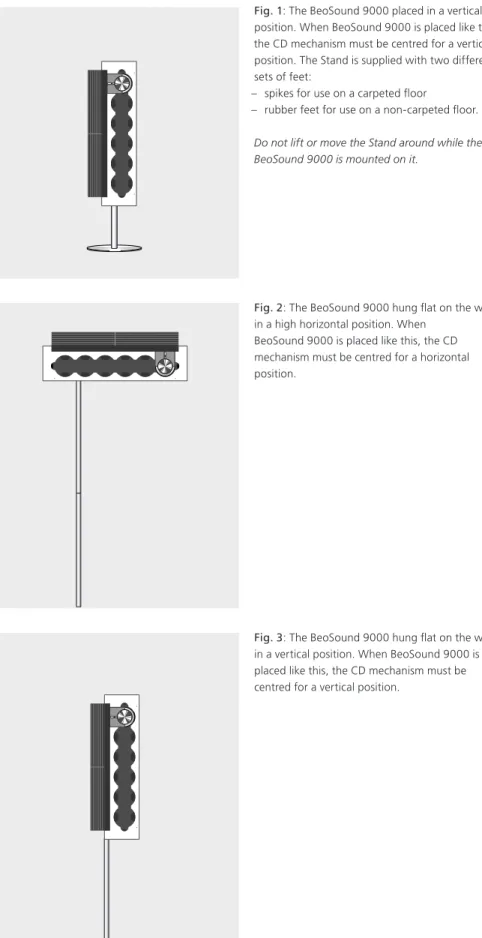
Fig. 2: The BeoSound 9000 hung fl at on the wall in a high horizontal position. When
BeoSound 9000 is placed like this, the CD mechanism must be centred for a horizontal position.
Fig. 1: The BeoSound 9000 placed in a vertical position. When BeoSound 9000 is placed like this, the CD mechanism must be centred for a vertical position. The Stand is supplied with two different sets of feet:
– spikes for use on a carpeted fl oor
– rubber feet for use on a non-carpeted fl oor. Do not lift or move the Stand around while the BeoSound 9000 is mounted on it.
Fig. 3: The BeoSound 9000 hung fl at on the wall in a vertical position. When BeoSound 9000 is placed like this, the CD mechanism must be centred for a vertical position.
8
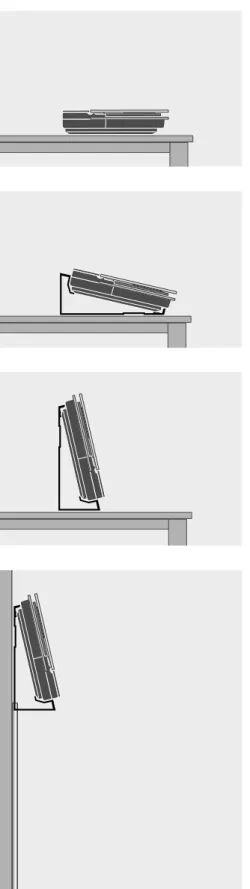
>> How to set up BeoSound 9000Fig. 4: The BeoSound 9000 placed fl at on a level surface, e.g. a table or shelf. When
BeoSound 9000 is placed like this, the CD mechanism must be centered for a fl at position (factory setting).
Fig. 6: The BeoSound 9000 placed in a near upright position on a level surface, e.g. a table or shelf. When BeoSound 9000 is placed like this, the CD mechanism must be centered for a horizontal position.
Fig. 7: The BeoSound 9000 hung low on the wall in a near upright position. When BeoSound 9000 is placed like this the CD mechanism must be centered for a horizontal position.
Fig. 5: The BeoSound 9000 placed in a slant position on a level surface, e.g. a table or shelf. When BeoSound 9000 is placed like this, the CD mechanism must be centered as for a fl at position (factory setting).
9
Centering the CD drive mechanism
The CD mechanism is spring suspended in order to make the BeoSound 9000 ‘party-safe’. By centering the CD mechanism, you adjust the tension of the spring suspension to allow for different placements.It is very important for the functioning of the CD player that you adjust the spring suspension correctly!
The spring suspension in the two adjustment holes can be set to four different positions:
a) Use this setting when BeoSound 9000 is placed in the Bracket as in fi gs 6 and 7.
b) Use this setting when BeoSound 9000 is placed either on its Stand, or hung vertically on the wall as in fi gs 1 and 3.
c) Use this setting when BeoSound 9000 is hung horizontally on the wall as in fi g 2.
d) Use this setting when BeoSound 9000 is placed either fl at on a table, or in the Bracket as in fi gs 4 and 5. This is the factory setting.
How to center the spring suspension
Enclosed with the Stand and the Brackets, you will fi nd a small plastic tool, which you must use for this purpose:
> Locate the two adjustment holes in the bottom plate of BeoSound 9000.
> Pry off the two small plastic plugs (using the chisel-shaped end of the tool).
> Insert the other end of the tool (the arrow-shaped end) and turn the tool so that the arrow in each hole points into the correct direction. > When fi nished put back the two plastic plugs
again.
In all but the fl at and the near fl at positions, both arrows in the holes must point upwards when fi nished. In the fl at position (factory setting) they must point towards the centre of BeoSound 9000.
d c
a
10
Connect the cables
Aerial connections
In order to obtain optimal reception of radio stations it is essential to use the correct type of aerial (FM and/or AM) or cable net connection. Let your Bang & Olufsen retailer advise you.
> Connect your FM signal to the socket marked FM and your AM signal, if any, to the socket marked AM.
> When using indoor aerials (either an FM dipole or AM loop aerial), tune in to the radio station you want and then turn the aerial horizontally until optimum signal is received.
Loudspeakers
You may choose to loop the signals through from speaker to speaker, as mentioned in the User’s guide for your loudspeakers, or you may connect one speaker to each of the two sockets.
> Connect your active Bang & Olufsen loudspeakers to the sockets marked PL. Remember to set the L • R • LINE switch on your active speakers to L and R (left and right channel), respectively.
Extra equipment
The AUX socket enables you to connect e.g. a tape recorder or a record player (with built-in preamplifi er). However, as this socket does not carry Data Link signals, you will not be able to operate the connected equipment by remote control. Just select A.AUX and then operate the extra equipment close-up.
> Connect your extra equipment to the socket marked AUX.
Master Link connection
You can connect a video system or BeoLink system to the Master Link socket, in order to achieve an integrated AV system. The AV system may be set up in one room, or split up on two rooms.
The Master Link connection may also be used to distribute sound to other rooms in the house, in a BeoLink system. For further information, please contact your retailer.
> Using a Master Link cable, connect one end to the socket marked ML (Master Link) on the BeoSound 9000 and the other end to the corresponding socket on the TV.
You can use your BeoSound 9000 in
a stand-alone setup or connected to
a Bang & Olufsen video system with
a Master Link cable. The Master Link
socket on the back of
BeoSound 9000 can also be used for
the distribution of sound to any room
you like.
Use the diagram and the label on the
socket panel for reference when
locating the sockets.
Do not connect the BeoSound 9000
to the mains until you have fi nished
connecting the cables.
AM aerial Master Link connection Loud-speakers Extra equipment FM aerial Digital output
NOTE! For further information about a setup other than the stand-alone option, please refer to Use BeoSound 9000 with a video system.
11
Digital output
The socket marked DIG. OUT carry the digital signals from the CD player, and is intended for connecting digital equipment (output only).
Mains connection
Plug the mains lead into the socket marked ~. When you have made all the connections, replace the cover to hide the socket compartment.
For safety reasons fasten the mains cord as shown, before running it out from the socket compartment.
Remove the cover in the bottom plate of the BeoSound 9000 to gain access to the sockets. The socket compartment contains the socket for the mains cord.
The cover has two perforated sections, which you can pry off in order to make a hole through which to run the cables. Select one in an appropriate position to suit your setup. If you have set up the BeoSound 9000 on the Stand, (see How to set up BeoSound 9000), a different cover must be used. This new cover is supplied with the Stand. Finally, connect the BeoSound 9000 (and the other units in your system) to the mains.
12
Getting started
When you have fi nished the setting
up procedure, the BeoSound 9000 is
ready for use.
Keep BeoSound 9000 in stand-by
mode to facilitate easy access and to
ensure that Clock and Timer settings
are always available.
Close-up operation panel
In order to make reading easier in all placement situations, you can rotate the close-up operation panel (and thus the display):> Turn off the power.
> Open the lid to gain access to the close-up operation panel.
> Lift off the operation panel by inserting a fi nger where indicated, lift the panel out, rotate it, and insert it again (connectors fi rst).
When you turn on the BeoSound 9000 a tiny red light appears in the display, indicating that the system is in stand-by mode, ready to be used.
> Press the load button to open the glass door. > Remove the carton strip behind the CD clamp
and the foam packing (these items are for protection of the CD drive and the glass door during transport).
You can rotate the CD clamper lid (with the Bang & Olufsen name) in order to ensure that the name always appears in a horizontal position (and not upside down).
1 2
13
Set the time
The BeoSound 9000 has a built-in
clock indicating time, date and year.
If you want to make use of the Timer
function described on the following
pages, you must fi rst make sure that
the built-in clock in the
BeoSound 9000 has been set
correctly.
You can check the clock on the
display to ensure that it is set
correctly. If this is not the case you
can change the setting in the process.
You can also set the BeoSound 9000
to show the clock permanently, even
when the system is in stand-by.
Using the built-in clock
When you want to make BeoSound 9000 display the correct time and be able to use the different Timer functions, you must fi rst set the built-in clock.
Press to access the built-in clock
Press to set time, date or year
Press to accept the changes and reveal the next display – repeat this setting procedure for date and year When you have set or changed the year, the display reads CLOCK OK?
Press to store your new clock setting
Press to show the time Press to see the date and year
To display the time permanently… Press when Date and Year is displayed, to change the display to time and ON e.g. 14:40 ON
Press again to cancel the permanent showing of the clock e.g. 14:41 OFF.
If you should make a mistake or change your mind while you are setting the clock, just press CHECK – and start over.
…
JAN for January FEB for February MAR for March APR for April MAY for May JUN for June JUL for July AUG for August SEP for September OCT for October NOV for November DEC for December
The time display will be interrupted by the messages which follow other functions or operations, but it will return to displaying the time. CLOCK 14 : 40 ON CLOCK 14 : 41 OFF CLOCK m p OK CLOCK OK? OK CLOCK CLOCK
When setting the clock, the display shows the time, date and year for your settings. It has a 24 hour clock – and it shows…
14
Start or stop at a specifi c time
You can make BeoSound 9000 start
or stop playing at designated times
through out the day and week.
The BeoSound 9000 can store up to
15 such Timer settings and you can
use it to e.g. wake you in the
morning to your favourite CD or
radio station.
If, for example, you want the
BeoSound 9000 to stop playing at a
specifi c time in the evening, simply
set a Timer with STANDBY as the
source.
When you set a Timer for Monday,
Tuesday and Thursday, the Timer will
be executed on these days, every
week.
If you use the BeoSound 9000 in a
fully integrated Bang & Olufsen setup
(see
Use BeoSound 9000 with a
video system
), you have to set the
Timer function to ON or OFF via the
TV. The display on the
BeoSound 9000 will read
TV OPERATED.
Set a Timer
For a Timer stand-by setting all the BeoSound 9000 needs to know, is the time you want it to stop playing, and how often. As soon as you choose a stand-by Timer, a display will prompt you to choose when the Timer should stop.
Press to start programming settings Press to choose a source for your Timer or choose a Timer stand-by
Press to accept the source
Then program when you want the Timer to start and stop… Press repeatedly until you have found the exact time for starting a Timer play
Press to accept Start Timer
Repeat the procedure with the and OK buttons to program the exact time for stopping a Timer. If you should change your mind while you are setting a Timer, simply press a source button, CD or Radio, to exit the Timer programming function. While you are setting a Timer, pressing the CHECK button will take you back one step in the sequence.
When you program a Timer for your available sources, you will have to choose the station/channel where you want to program a Timer play. When you choose a station for RADIO, the station you listened to last will appear. For TV and SAT channel 1 will appear as your fi rst option.
From your available broadcasted sources e.g. TV and RADIO, you can only choose stations/ channels that have already been stored. Using your Beo4 remote control…
> Press the red button for more than 1.5 sec. until the display reads TIMER?
> Press GO to continue. Use the GO button, the buttons and and the number buttons 0 – 9
during the timing procedure to see options and select between these.
TIMER m p OK m p OK
15
Set a Timer for single date
When you want to program a Timer for a single date, you must choose the ‘Single date’ option in the Timer menu.Choose the single date option from the menu, in the display – SINGLE DATE? appears Press to display the date you want to program a Timer for
The display shows the date
Press to accept the selection
Press to store your Timer programming and return to normal source operations
The display shows that you have stored the settings
If you choose SINGLE DATE, the cue DATE and today’s date in the display prompts you to choose a date within the next year.
Set a weekly Timer
When you want to program a weekly Timer as a Timer play or Timer stand-by, you must choose the ‘Days’ option in the Timer menu. If you choose DAYS, the display will prompt you to fi ll in the weekdays on which you want the system to carry out the Timer.
Choose the Days option from the menu, in the display – DAYS? appears Press to access a display where you can fi ll in the days you want to program the Timer for Press to include a weekday Press to exclude a weekday
When you have gone through the whole week the display will prompt you to store your Timer entry Press to store your Timer entry
The display shows that you have stored the settings
The display for weekly programming entails the fi rst letters of the days you accepted (M, T, W, T, F, S, S) and underscores (_ ) for the days you did not choose.
When you set the BeoSound 9000 to carry out a Timer on forthcoming, selected weekdays, these
days are presented as abbreviations: MON for Monday
TUE for Tuesday WED for Wednesday THU for Thursday FRI for Friday SAT for Saturday SUN for Sunday
m p SINGLE DATE? m p DATE 15 NOV? m p OK TIMER STORED m p DAYS? OK m FRI? M _W T p OK? M _W TF_ S OK TIMER STORED
NOTE! The list of sources shown in the display contains N.MUSIC (for music tracks stored on your PC) and N.RADIO (for radio sites on the Internet). These sources are available if you have connected your BeoSound 9000 to BeoLink PC 2 and have access to the Internet.
16
Checking or clearing Timers
You can look up each Timer programming entry to check its contents or cancel it completely.Press to check your Timers
Press to see Timer programming number and source for the individual Timer entries Press repeatedly to display the details of a particular programming When the display reads OK?…
Press to display NEXT? to see your next Timer programming entry Press to see your next entry – If there are no more entries, NO MORE, will appear in the display
Press clear while information regarding a Timer programming is displayed in the display – CLEARED will appear
on the display
The fi rst display shows Timer entries in numerical order with source and station number, the second shows the indication of time for starting and stopping, and the third displays the days for which the Timer is set. This is an on-off programming. In all three instances, clearing of the settings is possible. >>Start or stop at a specifi c time
CHECK m p OK OK? m p NEX T? OK NO MORE CLEAR CLEARED
17
Switching the Timer function on or
off
The Timers you have programmed into the BeoSound 9000 can all be executed with or without activating the loudspeakers which are either directly connected to the BeoSound 9000 or are connected to it via BeoLink. The Timer ON/OFF function determines whether a Timer Play can be heard on the loudspeakers.
Choose location for the Timer
function
In order to hear your Timer play programmings, you must activate the loudspeakers in the room or rooms where you want music by switching the Timer function to ON. If you set the Timer function to OFF, your speakers will be muted.
Press to cut in or press again to cut out the loudspeakers When you fi rst press ON/OFF, TIMER ON or TIMER OFF will appear in the display, according to the setting you have previously made
If you therefore choose to set the speakers next to your BeoSound 9000 to OFF, but set your extra speakers in your bedroom to ON, the Timer play will be carried out, and you will hear it through your extra speakers in your bedroom.
However, if all Timer functions for the speakers connected to the BeoSound 9000 as well as on all your connected systems are set to OFF, a Timer will not be activated.
ON/OFF
TIMER ON TIMER OFF
18
Playing CDs
When you have loaded your
BeoSound 9000 with 1–6 CDs, you
are ready to start playing your CDs.
When you press the CD button to
start playing, the CD where the
carriage is situated will start playing
from the beginning.
You can easily change between the
different CDs and the individual tracks,
to achieve the sequence of tracks you
prefer.
When your fi rst CD has fi nished
playing, the carriage automatically
moves to the next CD you have
loaded and starts playing this new
CD.
If you choose to hear another source,
the CD player switches off
auto ma tically.
Loading CDs
When you want to have access to load or remove your CDs, simply use the load button on the front of BeoSound 9000.
Press to raise the glass door
Press to lower the glass door
Press to lower the door and start playing If you leave the glass door open, it will close automatically after 5 minutes. If BeoSound 9000 is left paused or stopped for more than 30 minutes, it automatically switches to stand-by. If the glass door is open and the carriage is placed over a CD you want to remove, simply move the carriage to another position by pressing the direct CD selection button in front of a compartment. The carriage registers whether the CD
compart ments you ask for are empty or not, and until the glass door is opened again, it will remember the state of the compartments.
The CD must be loaded with the text side facing you. Hold the CD by its edges and insert the CD (top section). To unload the CD, hold it by its edges and push the CD slightly forward to release it. CD
19
CD playback
When you want to play a specifi c CD, simply press the direct CD selection button* placed next to the CD compartment. The carriage then moves to the CD you have chosen, and playback starts.
Press to play a CD Press to play the next track on a CD Press to play the same track again or press twice to play the previous track Press to pause playback Press to resume playing Press to raise the volume
Press to lower the volume
Press to silence the speakers
Press again to recall the sound
Press to switch to stand-by
*The CD selection buttons can also be used to step through the tracks of your CDs. Press the button once – and you select the CD, press it continuosly – and you step through the tracks of the chosen
CD.
When you are using your BeoSound 9000 CD player, a tiny red indicator is lit beside all the occupied compartments.
If, for example, you choose a sequence of discs to be played, only the indicators next to the CDs you have chosen will be lit, even though you have loaded six CDs. CD m p PAUSE CD VOL r VOL u MUTE MUTE •
20
Choosing a sequence of discs
The select option allows you to choose a specifi c sequence of CDs you wish to listen to. The CDs you have chosen will start playing in numerical order.Playing CDs and tracks in random
order
The random play function plays CDs and tracks on individual CDs in a random order. Also chosen CDs and track series can be played in random order.
Playing CDs in different ways
Make BeoSound 9000 play your
favourite CDs in the particular
sequence you want, or play your CDs
in random order to vary your listening
experience.
Every time a CD is included in a
sequence, the red indicator next to
the CD compartment lights up.
You can choose to combine the
RANDOM function with the EDIT
function and play your favourite
tracks in a random order. You can
also combine these two functions
with SELECT and choose to play only
your favourite tracks from for
instance two CDs in random order.
Refer to Playing favourite CD tracks
for further information about the
EDIT function.
Press to start playback of a CD
Press to make SELECT DISC appear
Press the direct CD selection buttons next to the CDs you want to include…
Press to start clearing a sequence and play all six CDs
Press to clear the sequence
To leave out a CD you have included in the sequence…
Press to be able to remove a CD*, and…
…press the direct CD selection button next to the CD you want to remove
To listen to a CD you have not included in your disc sequence, simply press the direct CD selection button next to the CD you want to hear, and playback will start immediately.
Press to start playing a CD
Press to display RANDOM ON and cut in the random play function
Press twice to display RANDOM OFF and cancel the random play function CD SELECT SELEC T DISC SELECT CLEAR CD RANDOM R ANDOM ON RANDOM R ANDOM OFF SELECT
*NOTE! The SELECT option lasts for 25 seconds from when you pressed SELECT. If you press a direct selection button after the SELECT option has ended, the disc you chose will start playback immediately and override your sequence. When it has fi nished playing, BeoSound 9000 will continue playing the sequence you chose before.
21
Playing favourite CD tracks
The edit function enables you to
program series of tracks for your
individual CDs and store them
permanently. Editing a CD means
that you include or exclude each track
on the CD while scanning it as
described to the right.
The fi rst 15 seconds of each track on
the CD will be played. On the display
the track number you are currently
playing will appear. During this
15-second playback, you must include
the particular track into the series or
exclude the track. As soon as you
press either button, the next track on
the CD starts playing*.
Select and store a series of tracks
Before making your own series of tracks you must start playing the CD.Enable or disable playback of a
track series
Whenever you load an edited CD, only the selected tracks will be played. These are played in numerical order. However, you can choose to listen to the entire CD. You can also delete the series of tracks you have made, to always play the CD in full.
Press to play CD Press to scan the CD EDITING? appears on the display
Press to start scanning the tracks
Press to include a track number in the series, or…
…Press to exclude a track number from the series
EDITING OK appears when you have included or excluded the last track
Press to accept the track series
To clear a track series…
Choose the CD which track series you want to clear…
Press to access the programming option Press to clear the track series altogether
Press to play a CD Press to start edited playback
EDIT ON appears Press twice to play a CD in full and cancel EDIT – EDIT OFF appears If you cancel the edit function while an edited CD is playing, all tracks beyond the current track number will be played. The EDIT function remains ON until you cancel it – even in stand-by. CD EDITING EDITING? OK m p EDITING OK OK CD EDIT EDIT ON EDIT EDIT OFF EDITING CLEAR
*NOTE! If you do not choose whether you want to include or exclude a track within the 15 second playback, the CD player will include the track automatically. If you choose to leave EDITING before you have scanned, accepted or excluded all the tracks on the CD, the remaining tracks will be regarded as excluded from the track series.
22
Name your CDs
To distinguish between your
individual CDs, you can name them.
The name will then be shown in the
display when you load the CD.
You can store a total of 200 names in
your BeoSound 9000. Each name
may contain up to 12 characters,
including numbers. If you have not
given a name to the CD, the track
number, track time or elapsed time
will appear in the display instead.
You can access a list of CD names in
the display.
Name a CD
The CD you are naming must be playing in the BeoSound 9000. If the CD has already been named, you can change the name or delete it, or you can just leave the function by pressing CD.
See the list of CD names
When the list is displayed, you can delete the names and any stored series of tracks at the same time.
Press to play CD Press to access the naming function. ‘A’ is blinking in the fi rst character position Press to reveal the characters one by one Press to move to the next character, press repeatedly to store the name, or…
Press while you are naming CDs or track series in order to automatically store the name and exit the naming function To clear a name…
> Press NAMING to access the naming function. > Press CLEAR to clear the name.
> Press CD to return to normal source operation. The naming function can also be accessed from your Beo4 remote control…
> Press the blue button for more than 1.5 sec. to call up NAMING? in the display.
> Press GO and use the and buttons to select characters.
> When you have fi nished, press and hold the GO
button to move to the storing level. > Press GO to accept and EXIT to leave the CD
naming procedure.
Press to play CD Press to access the naming list, CD LIST appears briefl y, then the name of the current CD appears, for example GLENN MILLER Press to list the names one by one and return to names further up the list
Press to clear a name while the appropriate name is displayed Press to return to normal source operation
If the carriage is situated on a CD which has been given a name or the CD has been edited, the name or number of this CD will appear in the display when you access the list. If the CD under the carriage is unknown, the CD list will appear in the display and you have to press the or buttons to get a name or number displayed. If you attempt to name or program track series for more than 200 CDs the display will read CD LIST FULL, and you will have to clear an entry before you can add another.
CD NAMING A _ _ _ _ _ _ _ _ _ _ _ m p OK CD CD NAMING CD LIST GLENN MILLER m p CLEAR CD
NOTE! It is only possible to name CDs with the Beo4 remote control if your BeoSound 9000 is in Option 1, refer to page 33 for further information about Option settings.
23
For your aesthetic enjoyment you can
position your individual CD to make
the graphical design and text on the
CD present itself to your satisfaction.
When you store a position for each
CD, the BeoSound 9000 will
remember these positions. No matter
how many times you remove and
reload the CDs, the individual CDs
will be returned to these positions
every time they stop turning*.
Load and adjust a CD manually
When you have loaded a CD, you adjust the position of the CD manually. Then you move the carriage to this particular CD and access the positioning function for CDs in order to store the position you have chosen.Press the direct CD selection button next to the CD to move the carriage…
Press to select the CD you want to position Press to save the position for the CD while it is playing POSITION OK? appears Press to store the position you chose for the CD when it was loaded
Repeat this procedure for all the CDs you have loaded…
Positioning CDs
Clear the positioning
If you want to clear the position for a CD, move the carriage to the CD in question.
Press to select the CD you want to clear Press to access the positioning function to clear the position Press to clear the position SELECT SELECT POSITION OK? OK SELECT SELECT CLEAR
*NOTE! Some CDs do not contain the information required by the BeoSound 9000 in order to store positions for CDs. Therefore, you may experience that the position you have stored for a CD is not adhered to by the BeoSound 9000. You will, of course, still be able to play the CD in question.
24
Display CD information
Switching between displays
Your chosen display indication for the CD player will remain in the display panel and only disappear temporarily when you undertake another operation on the BeoSound 9000 operation panel. Then the information which accompanies this operation will appear in the display for a short period of time.Press to play a CD Press repeatedly to change the CD display indication
The displays show the name of the CD, the number and track number of the CD, and the number of the CD along with the elapsed time of the current track in minutes and seconds.
The BeoSound 9000 display can give
you three different types of
information about the CD being
played:
– Name*
– Number of CD and track
– Number of CD and elapsed track
time
To switch from one display to the
other, you must press the OK button
repeatedly while the CD is playing.
CD OK
*NOTE! You have to name the CD before a name appears in the display, please refer to Name your CDs for further information about naming.
25
Playing other sources
Connecting extra equipment to your
BeoSound 9000 enables you to listen
to the sound of an external source
through the speakers connected to
your BeoSound 9000. However, all
control operations must be carried
out on the extra equipment you
connect.
You can record the source, CD or
radio, you are playing on the
BeoSound 9000 via the AUX-socket
onto Audio tape or another available
media. The recording function must
be carried out via the controls of the
extra equipment.
Listen to external sources
While you are playing an external source through your BeoSound 9000, you can still use the functions which relate to sound, please refer to the chapter Adjust and store sound settings.Press to select extra equipment Press to raise the volume
Press to lower the volume
Press to silence the speakers immediately – Press again to recall the sound
Extra equipment must be connected to the AUX-socket on the back of the BeoSound 9000. You will be able to record digital signals from the BeoSound 9000 to a Digital Audio Recorder via the digital output socket. Please refer to ‘Connect the cables’ for further information.
Connect Headphones to the socket placed in a low position on the side of the BeoSound 9000 cabinet.
If you are recording from the BeoSound 9000 onto Audio tape, you will not be able to listen to another source, CD or radio, other than the one you are recording. If you change source while recording, you will then record this new source onto your Audio tape.
A.AUX
VOL r
VOL u
MUTE
NOTE!: Please contact you Bang & Olufsen retailer for complete information about which Bang & Olufsen or non-Bang & Olufsen products can be used with the BeoSound 9000.
26
Using the radio
To be able to use the radio, you must
fi rst tune in to the radio stations you
want to store and then store them on
programme numbers of their own.
You can change the programme
number of your radio station any
time – also without being in the
process of tuning.
You can store up to 60 radio stations
and if you like, you can give them a
short name which you choose
yourself. Please refer to
Name radio
stations
for further information.
Presetting radio stations
Letting the BeoSound 9000 tune in your radio stations, ensures that you get all available stations. Once you have found a radio station, you can fi ne tune it, if the reception is poor.
Press to turn on the radio
Press to start the tuning function
Press to select AM or FM, switches from one to the other, check display for an indication of which one you have chosen
Press to search for a radio station up or down the frequency band
Press to accept the station you have found Press to change the displayed programme number
Press to select a programme number – up or down
Press to store your new radio programme – STORED appears in the display
If a station needs fi ne tuning, or you wish to switch between mono and stereo sound on radio programs, please see ‘Optimise radio sound’.
Clearing presets
If you want to cancel one of your radio presets, you can do so using the CLEAR function.
Press to turn on the radio
Press to search for a programme number Press to clear the programme Press to confi rm the clearing of the radio programme
CLEARED will appear in the display RADIO TUNE AM/FM m p OK P.NO. m p OK STORED RADIO m p CLEAR OK CLEARED
27
Optimise radio sound
Fine tuning a radio station
The fi ne tuning function enables you to move slowly through the frequencies, or to detune a programme slightly because of noisy reception.
Mono/stereo reception
Your BeoSound 9000 automatically switches to mono if the stereo signal is not strong enough to produce an acceptable stereo sound. You can overrule this automatic function if you wish and select mono manually.
If a radio station is not tuned in clearly
enough, it may be because the
programme needs to be fi ne tuned.
You can also choose to alter the sound
to your satisfaction by choosing
between mono or stereo reception.
Press to turn on the radio programme you want to fi ne tune The number of the last played radio programme is displayed, e.g. 11 Press to make the frequency appear in the display, e.g. 88.4 Press to access the fi ne tuning function The display indicates that you can now fi ne tune the station Press to fi ne tune the station towards a higher or lower frequency Press to accept the fi ne tuned station
Press again to store station and programme number
Once you have fi ne tuned the station, you can choose a different programme number if you like before you store it. Please refer to ‘Presetting radio stations’ for further information.
Press to turn on the relevant radio station Press to select the tuning function and press repeatedly until you have reached the settings for mono/ stereo reception The display shows the choices…
Press to select between the mono or stereo setting
Press to store your new tuning on the programme number RADIO R ADIO 11 TUNE P11 88.4 TUNE FINE 88.4 m p OK OK RADIO TUNE STEREO? MONO? m p OK
28
You can name all the radio stations
you have stored. Choosing a name is
completely up to you.
If you happen to make a mistake or
change your mind while you are
naming a radio station, simply press
the NAMING button again – and
start over.
If you want to clear the name after
you have keyed it in, press CLEAR
instead of OK and the name you
have keyed in will be erased.
Name radio stations
Naming radio stations
Naming your radio stations can help you remember a station not only by its number but by a particular name. When you are listening to a radio station, its name will appear in the display*. Once you have completed entering a name, you store the name and it will then appear every time you choose this station again.
Press to turn on the radio station you want to name
Press to start the naming function. The fi rst of the twelve character positions blinks, indicating that you can start entering a name
Press to reveal the characters one by one Press to reveal previously shown characters Press to move to the next character position Press to store the name of the radio station NAMING OK will appear in the display
Press to store he name and exit the naming function
You can press RADIO at any time to store and exit the naming function…
Clear a name
If you have left the naming function and want to clear the name, return to the naming function and clear the name. If you do not name your stations, the station’s own name may appear instead, provided such a name is being transmitted by the radio station itself*.
Press to access the naming function Press to clear the name RADIO NAMING A _ _ _ _ _ _ _ _ _ _ _ m p OK OK NAMING OK RADIO NAMING CLEAR
*NOTE! Such a name can only be transmitted if your BeoSound 9000 is equipped with the RDS facility. The RDS facility is not a standard feature in all BeoSound 9000, but it will be available as an optional extra.
29
Playing your radio stations
Having tuned in the radio stations
you want, as shown on the previous
pages, you are ready to listen to the
radio.
Playing radio
When you turn on the radio, the station you were last listening to starts playing, and it will be indicated in the display, which radio station is playing. If you have given a name to the radio station, the display will read out that name.
Press to turn on the radio
Press to step through your radio stations Press to switch to stand-by
Switching between displays
The display can give you four different types of information about the radio station you are listening to: Station name or RDS*, station number and radio frequency. The information you have chosen to display will remain on the BeoSound 9000 display until you choose another of the displays illustrated below.
Press to turn on the radio
Press repeatedly to change the radio display indication, to show… Station name indication Programme number indication Radio frequency indication RADIO m p • RADIO OK CL ASSIC R ADIO 5 P5 FM 89.9
30
Adjust and store sound settings
Press to access the treble adjustment function
Press to access the bass adjustment function Press to access the balance adjustment Press to raise or lower the treble or bass levels; or adjust the balance between the left and right speaker Press to see the status of the loudness adjustment function – LOUDNESS ON or LOUDNESS OFF Press LOUDNESS again to change the setting Press to accept all sound levels – SOUND OK? appears on the display
Press to store all sound levels
If you have not stored your sound adjustments…
Press to reset the sound levels to their previously stored settings
The fi rst four displays are examples of levels that the different sound functions can be set to. Volume can be adjusted in steps of two within a range of 00 to 72, treble and bass levels can be adjusted within a range of -4 to +4 and the balance setting (here neutral) can be adjusted within a range of 8 to either side. The fi fth example is a display, which shows the setting for the loudness function
– ON if loudness is switched on, and OFF if loudness is switched off. The SOUND OK? display prompts you to store the current sound setting.
Sound adjustments
If you wish to alter the settings for sound, simply access the relevant function, make your adjustments and store the new setting.
All sound levels are set to neutral
values from the factory, but you can
make your own sound adjustments
and store them.
The treble and bass levels can be
raised or lowered as you like and you
can alter the balance, i.e. the
distribution of sound emerging from
the loudspeakers to suit your listening
position.
The BeoSound 9000 also features a
loudness function which you can
activate or deactivate as you like. The
loudness function makes the music
more dynamic. It compensates for
the human ear’s lack of sensitivity to
high and low frequencies when
listening to low music.
You can reset the sound levels to their
original settings at any time. If you
change your mind and do not wish
to store your adjustments, simply
press a source button on the
BeoSound 9000 control panel.
Stored sound settings apply each
time you switch on BeoSound 9000.
TREBLE BASS BALANCE m p LOUDNESS LOUDNESS ON LOUDNESS OFF OK SOUND OK? OK RESET
NOTE! When BeoSound 9000 is used in a fully integrated setup (see Use BeoSound 9000 with a video system), sound must be adjusted as described in the guide for your video system. The display on the BeoSound 9000 will read TV OPERATED.
31
Using the Beo4 remote control
The BeoSound 9000 CD player is
operated from a distance via the
Beo4 remote control.
The Beo4 remote control operates all
the primary functions in the
BeoSound 9000 such as turning on
the radio or the CD player, changing
radio stations, CD tracks or CDs. It
also selects stations or CDs to be
played, adjusts sound functions,
pauses playback and fi nally switches
to stand-by.
The Beo4 remote control enables you
to select specifi c tracks on CDs, select
sequences of specifi c discs to be
played, search forward and backward
on CDs, switch on the random order
playback and edited order playback
functions as well as it selects extra
equipment.
Press to switch on the radio Press to switch on the CD player
Step through your radio stations, or tracks on a CD. Press when RANDOM is shown in the display, to activate the function, and press to switch it off when the function is displayed Use the number buttons to key in a radio station number or CD number. To select a track, press LIST until TRACK is shown in the display*, then use the number buttons to key in the track number Press to change to the previous or following CD Press to pause playback any time
Press to resume playback – The GO button equals OK on the BeoSound 9000 operation panel Press to display extra buttons or functions*, e.g. RANDOM
Press to activate the source or function in the Beo4 display
To turn the volume up or down, press in the middle to mute speakers, press again to recall sound
Switch the BeoSound 9000 to stand-by TV LIGHT RADIO
SAT DVD CD
V TAPE RECORD A TAPE
7 8 9 4 5 6 TEXT 0 MENU 1 2 3 LIST EXIT STOP GO RADIO CD m p 0 – 9 l n STOP GO LIST R ANDOM GO r u •
*NOTE! In order to display the relevant extra buttons on the Beo4, you must add them to the Beo4 list of functions. Please refer to Beo4’s own User’s Guide for information about how to add extra buttons to the Beo4.
32
Use BeoSound 9000 with a video system
To use the BeoSound 9000 together
with a Bang & Olufsen video system
they must be connected by a Master
Link cable, this is a so-called Audio/
Video (AV) integrated setup.
If you choose to interconnect your
Bang & Olufsen products, you can
distribute the sound from your
sources throughout your home.
Many different setups are available,
please contact a Bang & Olufsen
retailer for further information.
Option programming is a prerequisite
for integrated setups. It is not
necessary if BeoSound 9000 is only
connected to speakers!
Using BeoSound 9000 with a video
system also requires that you use a
Beo4 remote control. Refer to
Using
the Beo4 remote control,
or the
Beo4’s own User’s guide.
An AV integrated setup
In an AV integrated setup, a pair of active speakers are connected to the
BeoSound 9000. You can hear any source you like in the loudspeakers of either system. The BeoSound 9000 and the video system do not have to be placed in the same room.
A fully integrated setup
When BeoSound 9000 is used in a fully integrated setup, the speakers are connected to the video system, and the video system takes over some of the functions mentioned in this guide. Furthermore, all remote control operations (audio and video) must be directed to the video system. Please refer to the guide for the video system, for further information.
To play TV, video or satellite sound on the BeoSound speakers…
Pressuntil AV* appears in the Beo4 display Press to hear TV sound, video sound, or a satellite TV/radio program
To play the radio or CD on the TV speakers… Pressuntil AV* appears in the Beo4 display Pressto hear radio sound, or… …press to hear a CD To play a source in the AV system…
Press a source button on the Beo4, e.g. CD, RADIO, TV, etc. Simulcast radio/TV transmissions – to watch a TV channel while listening to the sound from a radio station…
Pressto switch on the TV
Press repeatedly until AV* appears in the Beo4 display Pressto switch on the radio and start simulcast transmission CD RADIO TV TV LIST AV RADIO LIST AV TV V TAPE SAT LIST AV RADIO CD
*NOTE! In order to display AV on the Beo4, you must add it to the list of functions. Please refer to the Beo4’s own User’s guide for information on how to add functions to the Beo4.
33
Option programming
For BeoSound 9000 to be part of an AV setup, you must make sure it is set up to function with the other products you have connected. This means that you must program the BeoSound 9000 to the correct option.
> Hold the • button while pressing LIST. > When the Beo4
display reads OPTION?, press GO. > Press LIST to display A.OPT and then key in the appropriate number (0, 1, 2, 5
or 6).
Switch your entire Bang & Olufsen system to stand-by, and then (using the Beo4 remote control):
BeoSound 9000 has fi ve different option settings:
Option 0. Used in a one-room AV setup. This Option is selected automatically if no speakers (or headphones) are connected directly to the BeoSound 9000.
Option 1 (factory setting). Used when the BeoSound 9000 is used on its own, or when it is connected to active speakers in an AV integrated setup.
Option 2. Used when the BeoSound 9000 is set up in one room and connected to a video system set up in another room.
Option 5. Used when the BeoSound 9000 is set up in a link room which also comprises a Bang & Olufsen television.
Option 6. Used when the BeoSound 9000 is set up in a link room without a Bang & Olufsen television.
In a fully integrated system, your BeoSound 9000 acts as a mere audio source. The sound is reproduced through the speakers in the BeoVision TV – or, as shown here, through a set of active speakers connected to the TV.
In a one-room AV integrated setup, a pair of active speakers has been connected to the BeoSound 9000.
In a two-room AV integrated setup, your BeoSound 9000 has been set up with a set of active speakers in one room, and the video system in another.
Option 2 Option 0
Option 1 Option 1
34
Looking after BeoSound 9000
Normal maintenance, such as
cleaning the BeoSound 9000, is the
responsibility of the user. To achieve
the best result, please follow the
instructions.
Do not use alcohol or other solvents
to clean any part of BeoSound 9000!
Surfaces
Before you start cleaning BeoSound 9000, we recommend that you open the glass door and then switch off the mains. In this way all surfaces are accessible for cleaning.
Use a soft, dry cloth to wipe dust off the BeoSound 9000. To clean the surfaces, we recommend that you use a mild window cleaner.
CD mechanism
The circuit controlling the movement of the CD carriage has a built-in safety function which protects your fi ngers, etc. from being hit by the fast moving carriage. This circuit depends on light/refl ections, and works via opto-coupling devices built into the two small ‘pegs’ (A). When the glass door is opened, or
if something interrupts the light-circuit, the carriage slows down in speed, and fi nally comes to a halt.
Over time dust may build up and thus reduce the light emitted to and from the opto-coupling devices. Dust particles on the inside of the glass door may also cause extraordinary refl ections which may be interpreted by the safety function in a wrong way.
So, in order to prevent malfunction of the safety circuit, we recommend that you wipe dust off the two pegs (A) on a regular basis. Likewise, when cleaning the surfaces of BeoSound 9000, remember also to clean the inner surface of the glass door.
A
A
NOTE! Treat the glass door with great care! If it cracks or chips, or if it is damaged in any other way, it must be replaced immediately as it could otherwise cause great bodily harm. If the glass door should need to be replaced, please contact your Bang & Olufsen retailer.
35
Handling your CDs
IMPORTANT! If you experience any problems when trying to play a particular CD always check it for faults (scratches, fi ngerprints, dust or dirt, etc.). Dust may build up on the CDs, especially if you leave them sitting in the BeoSound 9000 for a long time.
If there are no visible faults on the CD, please contact your Bang & Olufsen retailer. Do not attempt to clean the optics of the CD mechanism yourself – this must be done by a qualifi ed technician only!
We do not recommend using special cleaning CDs in BeoSound 9000!
If dust builds up in the opto-coupling devices, the CD carriage will slow down, and the cue ‘CLEANING REQUIRED’ appears in the BeoSound 9000 display. When the cue appears you must:
> Switch off the BeoSound 9000. > Wipe dust off the two ‘pegs’ (A). > Clean the inner surface of the glass door. > Switch BeoSound 9000 on again.
36
The PIN-code system
You can protect your BeoSound 9000
by entering a four-digit PIN (Personal
Identifi cation Number) code. Should
your BeoSound 9000 be
disconnected from the mains for
more than 30 minutes, only those
who know your PIN-code can gain
access to your BeoSound 9000.
If the PIN-code is not entered, the
BeoSound 9000 automatically
switches to standby after 3 minutes.
To activate the PIN-code system, to
change your code or to delete it
altogether, your BeoSound 9000
must be in stand-by mode.
If you should lose or forget your code,
contact your Bang & Olufsen retailer
for a master code that disables your
PIN-code and gives you access to
your BeoSound 9000.
Activate the PIN-code system
While the BeoSound 9000 is in stand-by mode you can set up the PIN-code.Change or delete your PIN-code
While the PIN-code function is turned on you can always make changes to the PIN-code.Press twice followed by PAUSE to activate the PIN-code function. The display shows NEW PIN for 1.5 sec.… …then you can enter a
PIN-code
Press to select a digit*
Press to accept the digit The digit is replaced by a
and the next under-score blinks. Continue to enter the last three digits in the same manner.
If you wish to change the entered digits… Press to start entering from the beginning When the PIN-code has been entered…
Press to accept the PIN-code. The display shows CONFIRM for 1.5 sec.… …then re-enter the
PIN-code
Press to confi rm the PIN-code
The display shows that your setting is stored If an incorrect code is entered the second time you must set up the PIN-code from the beginning.
Press twice followed by PAUSE to activate the PIN-code function Enter the current PIN-code. The display shows NEW PIN?
Press to choose from the two options NEW PIN? or PIN OFF?
Select NEW PIN? to change your PIN-code Enter the new PIN-code Press to accept the new PIN-code. The display shows CONFIRM for 1.5 sec.…
…then re-enter the new PIN-code
Press to confi rm the new PIN-code The display shows that your new PIN-code is stored
Select PIN OFF? to delete your PIN-code… The PIN-code function is disabled and the display shows DELETED for 3 sec. For security reasons it is only possible to change or verify the PIN-code fi ve times within a period of 3 hours. If an incorrect code is entered fi ve times, BeoSound 9000 is turned off, and must be left in stand-by mode for 3 hours, before you may try again. p p PAUSE NEW PIN PIN _ _ _ _ m p OK RESET OK CONFIRM PIN _ _ _ _ OK STORED PIN _ _ _ _ OK CONFIRM PIN _ _ _ _ OK STORED DELETED p p PAUSE PIN _ _ _ _ NEW PIN? m p NEW PIN? PIN OFF?
*NOTE! It is also possible to enter the digits using the number keys 0 – 9 on your Beo4 remote control.
37
Using your PIN-code
When a PIN-code has been programmed, and the BeoSound 9000 has been disconnected from the mains for more than 30 minutes, you must enter the PIN-code when the BeoSound 9000 is turned back on.
Did you forget your PIN-code?
Should you forget your PIN-code you can require a fi ve-digit Master Code from your Bang & Olufsen retailer.Enter the PIN-code Press to select a digit
Press to accept the digit When the PIN-code has been entered the display returns to the relevant source display e.g. RADIO 1
If an incorrect PIN-code is entered the display will show ERROR and you may try again. After the fi fth try, the BeoSound 9000 is turned off, and must be left in stand-by mode for 3 hours, before you can try again.
When you have received a Master Code… When the display is open for PIN-code input…
Press the button for more than 3 seconds to change the display to fi t 5 digits
Enter the Master Code Press to select a digit
Press to accept the digit The display shows that the PIN-code lock is off When the Master Code is entered, the
BeoSound 9000 can be used without entering the code again. PIN _ _ _ _ m p OK R ADIO 1 PIN _ _ _ _ p PIN _ _ _ _ _ PIN _ _ _ _ _ m p OK DELETED
38
For your information…
Your needs as a user are given careful consideration during the design and development process of a Bang & Olufsen product and we strive to make our products easy and comfortable to operate.
Therefore, we hope that you will take the time to tell us about your experience with your Bang & Olufsen product. Anything which you consider important – positive or negative – may help us in our efforts to refi ne our products.
Thank you!
Write to: Bang & Olufsen a/s Consumer Service dept. 7210 Peter Bangs Vej 15 DK–7600 Struer
or fax: Bang & Olufsen
Consumer Service +45 97 85 39 11 (fax.)
or e-mail: [email protected]
Visit our Web-site on…
www.bang-olufsen.com
This product fulfils the conditions stated in the EEU directives 89/336 and 73/23.
CLASS 1 LASER PRODUCT
The black and yellow label on the compact disc player serves as a warning that the apparatus contains a laser system and is classified as a class 1 laser product. In case any difficulties arise with the compact disc player, please contact a Bang & Olufsen retailer. The apparatus must be opened by qualified service personnel only.
CAUTION: The use of any controls, adjustments or procedures other than those specified herein may result in hazardous radiation exposure.
NOTE: This equipment has been tested and found to comply with the limits for a class B digital device, pursuant to part 15 of the FCC Rules. These limits are designed to provide reasonable protection against harmful interference in a residential installation.
This equipment generates, uses and can radiate radio frequency energy and, if not installed and used in accordance with the instructions, may cause harmful interference to radio
communications. However, there is no guarantee that interference will not occur in a particular installation. If this equipment does cause harmful interference to radio or television reception, which can be determined by turning the equipment off and on, the user is encouraged to try to correct the interference by one or more of the following measures:
– Reorient or relocate the receiving antenna. – Increase the separation between the equipment
and receiver.
– Connect the equipment into an outlet on a circuit different from that to which the receiver is connected.
– Consult the retailer or an experienced radio/TV technician for help.
This class B digital apparatus meets all requirements of the Canadian Interference-Causing Equipment Regulations.