2015-2016 FIRST
®
Tech Challenge
Control System Troubleshooting
Guide
Volunteer Thank You
Thank you for taking the time to volunteer for a FIRST Tech Challenge Event. FIRST and FIRST Tech Challenge rely heavily on Volunteers to ensure Events run smoothly and are a fun experience for Teams and their families, which could not happen without people like you. With over 4,500 Teams competing annually, your dedication and commitment are paramount to the success of each Event and the FIRST Tech Challenge program. Thank you for your time and effort in supporting the mission of FIRST!
Sponsor Thank You
Thank you to our generous sponsors for your continued support of the FIRST Tech Challenge!
Revision History Revision Date Description
1 10/10/2015 Initial Release
2 11/20/2015 Updated Sections on WiFi Direct troubleshooting. Also added better display filters to be able to use Wireshark more effectively to look for malformed packets.
3 11/21/2015 Links updated to www.firstinspires.org and branding updates
Contents
Introduction ... 6
What is the FIRST Tech Challenge? ... 6
FIRST Tech Challenge Core Values ... 6
Gracious ProfessionalismTM ... 7
Youth Protection Program ... 8
Youth Protection Expectations and Guidelines ... 8
NOTICE OF NON-DISCRIMINATION ... 8
1.0 Introduction ... 9
1.1 Android-based Platform... 9
1.2 Point-to-Point Control ... 9
1.3 Focus of this Document ... 10
2.0 Wi-Fi Direct Technology ... 11
2.1 Wi-Fi Direct Group Owner ... 11
2.2 Examining Android’s Wi-Fi Direct Configuration Activity ... 11
2.2.1 Accessing the Wi-Fi Direct Configuration Activity ... 11
2.3 Troubleshooting Wi-Fi Direct Connections ... 14
2.3.1 Is the Robot Controller On? ... 14
2.3.2 Are Both FIRST Tech Challenge Apps Installed? ... 14
2.3.3 Is Either Device Also Connected to Another Network? ... 15
2.3.4 Are there Lots of Devices Trying to Pair Simultaneously? ... 15
2.3.5 Are Android Devices Rebooting Upon FIRST Tech Challenge Driver Station Startup or Wi-Fi Direct Scanning? ... 15
3.0 Monitoring and Troubleshooting the Wireless Environment ... 19
3.1 The Wireless Spectrum ... 19
3.2 Monitoring the Wireless Spectrum ... 20
3.2.1 Wi-Fi Analyzer ... 20
3.2.2 Mac OS Airport Utility ... 21
3.2.3 Fluke AirCheck™ Wi-Fi Tester... 22
3.2.4 MetaGeek inSSIDer ... 23
3.2.5 Wireshark ... 23
3.3.1 Ping Times ... 26
3.3.2 Is the Wi-Fi Channel Too Busy? ... 27
3.3.3 Are There Too Many Robots Operating on the Same Channel? ... 28
3.3.4 Is There a Wi-Fi Suppressor Operating in the Vicinity? ... 28
3.3.5 Are the Wireless Radio Signals Being Blocked by Metal? ... 29
3.3.6 Is There Malicious Activity Occurring? ... 30
4.0 Accommodating a Large Number of Robots ... 31
4.1 Wi-Fi Event Checklist ... 31
4.2 Distributing Robots Across Multiple Channels ... 31
4.2.1 Wi-Fi Channel Overlap ... 31
4.2.2 Factors to Consider When Selecting Wi-Fi Channels ... 31
4.3 Using the ZTE Speed Channel Changing App ... 32
4.3.1 Downloading the App from Google Play ... 33
4.3.2 Using the Wi-Fi Direct Channel Changing App ... 36
4.3.3 Un-Pairing then Re-Pairing the Driver Station to the Robot Controller. ... 38
5.0 Troubleshooting Common Issues ... 41
5.1 FIRST Tech Challenge Driver Station ... 41
5.1.1 Gamepad is Not Recognized ... 41
5.1.2 Driver Station Goes to Sleep While Op Mode is Running... 42
5.1.3 Driver Station Powers Off Unexpectedly ... 42
5.1.4 Unable to Find a Specific Op Mode in the Driver Station’s List of Available Op Modes ... 42
5.1.5 Gamepad Left Joystick is Not Working ... 42
5.2 Robot Controller ... 42
5.2.1 Robot Controller is Unable to Find a USB Device ... 42
5.2.2 User code threw an uncaught exception: null ... 43
5.2.3 User code threw an uncaught exception: number XXX is invalid; ... 43
5.2.4 Unable to find a hardware device with the name “…” ... 44
6.0 Useful Tips and Tricks ... 45
6.1 Use a Pair of Android Devices to Monitor Wi-Fi Channel ... 45
6.2 Use the Log Files to Help Troubleshoot Problems... 45
7.0 Wireshark ... 47
7.1 Creating a Capture Filter for DEAUTH Packets ... 47
7.2 Using a Display Filter to Look for Malformed Probe Responses ... 50
8.0 Getting Additional Help ... 55
Appendices ... 56
Introduction ... 57
Verify the Date and Time ... 57
The FIRST Tech Challenge Log Files ... 57
Viewing the FIRST Tech Challenge Robot Controller Log File ... 57
Finding the Log Files ... 59
File Manager App ... 59
Using Windows File Explorer to Locate the Log Files ... 61
Viewing the Contents of the Log File ... 64
Non-Windows Users ... 66
Using the Android Debug Bridge for Troubleshooting... 66
“Shelling” into an Android Device ... 66
Pulling a File from the Android Device ... 69
Using Android Studio to View Log Messages ... 70
Creating Your Own Log Statements within an Op Mode ... 70
Example Op Mode ... 71
Creating a logcat Filter in Android Studio ... 71
Appendix B: Resources & Support ... 74
Game Forum Q&A - http://ftcforum.usfirst.org/forum.php ... 74
FIRST Tech Challenge Game Manuals – Part I and II - http://www.firstinspires.org/node/4271 ... 74
FIRST Headquarters Support ... 74
FIRSTINSPIRES.ORG ... 74
FIRST Tech Challenge Social Media ... 74
Product Support ... 74
Introduction
What is the FIRST Tech Challenge?
FIRST Tech Challenge is a student-centered activity that focuses on giving students a unique and stimulating experience. Each year, Teams participate in a new Game that requires them to design, build, test, and
program autonomous and driver-operated Robots that must perform a series of tasks.
The Playing Field for the Game consists of the FIRST Tech Challenge Game Pieces set up on a foam-mat surface, surrounded by a metal and Lexan Field frame.Each
Tournament features Alliances, which are comprised of two Teams, competing against one another on the Playing Field. Teams work to overcome obstacles and meet challenges, while learning from and interacting with their peers and adult Mentors.Students develop a greater appreciation of science and technology and how they might use that knowledge to impact the world around them in a positive manner. They also cultivate life skills such as:
Planning, brainstorming, and creative problem-solving.
Research and technical skills.
Collaboration and Teamwork.
Appreciation of differences and respect for the ideas and contributions of others. To learn more about FIRST Tech Challenge and other FIRST Robotics Competitions, visit
www.firstinspires.org.
FIRST Tech Challenge Core Values
FIRST asks everyone who participates in FIRST Tech Challenge to uphold the following values:
We display Gracious Professionalism with everyone we engage with and in everything we do. We act with integrity.
We have fun.
We are a welcoming community of students, Mentors, and volunteers. What we learn is more important than what we win.
We respect each other and celebrate our diversity.
Students and adults work together to find solutions to challenges. We honor the spirit of friendly Competition.
We behave with courtesy and compassion for others at all times. We act as ambassadors for FIRST and the FIRST Tech Challenge. We inspire others to adopt these values.
FIRST Tech Challenge is More Than Robots! While competing, students develop personal and professional skills they will be able to rely on throughout their life.
Gracious Professionalism
TMFIRST uses this term to describe the program’s intent. This is one of the most important concepts that can be taught to a young person who is learning to get along in the work world. At FIRST, Team members help other Team members, but they also help other Teams.
Gracious Professionalism is not clearly defined for a reason. It can and should mean different things to everyone.
Some possible meanings of Gracious Professionalism include:
Gracious attitudes and behaviors are win-win.
Gracious folks respect others and let that respect show in their actions.
Professionals possess special knowledge and are trusted by society to use that knowledge responsibly.
Gracious Professionals make a valued contribution in a manner pleasing to others and to themselves.
In the context of FIRST, this means that all Teams and participants should:
Learn to be strong competitors, but also treat one another with respect and kindness in the process.
Avoid leaving anyone feeling as if they are excluded or unappreciated.
Knowledge, pride and empathy should be comfortably and genuinely blended.
In the end, Gracious Professionalism is part of pursuing a meaningful life. When professionals use knowledge in a gracious manner and individuals act with integrity and sensitivity, everyone wins, and society benefits.
Watch Dr. Woodie Flowers explain Gracious Professionalism in this short video.
“The FIRST spirit encourages doing high-quality, well-informed work in a
manner that leaves everyone feeling valued. Gracious Professionalism seems to be a good descriptor for part of the ethos of FIRST. It is part of what makes FIRST different and wonderful.”
- Dr. Woodie Flowers, National Advisor for FIRST
An example of Gracious Professionalism is patiently listening to a Team’s question and providing support despite having several pressing things to do on the day of the Event.
Youth Protection Program
The purpose of the FIRST Youth Protection Program (FIRST YPP) is to provide coaches, mentors, volunteers, employees, others working in FIRST programs, Team members, parents, and guardians of Team members with information, guidelines, and procedures to create safe environments for everyone participating in FIRST programs. The FIRST YPP sets minimum standards recommended for all FIRST activities. Adults working in FIRST programs must be knowledgeable of the standards set by the FIRST YPP, as well as those set by the school or organization hosting their Team.
Youth Protection Expectations and Guidelines
Coaches and Mentors are expected to read and follow elements in the FIRST Youth Protection Program guide that are labeled as required. These are mandatory in the United States and Canada, and may not be waived without the approval of the FIRST Youth Protection Department.
FIRST recommends that the standards set forth in the FIRST Youth Protection Program guide be applied outside of the United States and Canada to the extent possible. At a minimum, local regulations regarding
youth protection must be complied with.
Forms are available here: http://www.firstinspires.org/resource-library/youth-protection-policy
Information on the US Screening process is available here: http://www.firstinspires.org/sites/default/files/uploads/about/US-Screening-Screen-Shots.pdf
Information on the Canadian Screening process is available here: http://vimeo.com/30137373
You can find FAQ and additional information about the FIRST Youth Protection Program on the FIRST website at: http://www.firstinspires.org/resource-library/youth-protection-policy
NOTICE OF NON-DISCRIMINATION
United States Foundation for Inspiration and Recognition of Science and Technology (FIRST®) does not discriminate on the basis of race, color, national origin, sex, disability, or age in its programs and
activities. The following person has been designated to handle inquiries regarding the non-discrimination policies:Lee Doucette
,
Youth Protection Program Manager,
200 Bedford Street,
Manchester, NH 03101,
603-666-3906, Ext. 250.Everyone working with FIRST Teams should be familiar with the FIRST YPP policies.
1.0 Introduction
1.1 Android-based Platform
For the 2015-2016 season, the FIRST Tech Challenge adopted an Android-based Control System for its Robot Competition. This document provides tips and recommended procedures for avoiding potential problems with the new Android-based Control System. It also provides information to help troubleshoot and resolve common problems with the system.
1.2 Point-to-Point Control
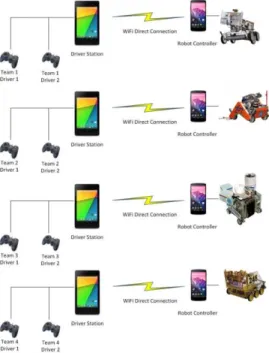
The new Control System that is used for the FIRST Tech Challenge Competitions uses a point-to-point communication model. Each Team has an Android device that acts as a Driver Station (or DS). The Driver Station establishes a secure and unique wireless connection with a second Android device that is mounted on the Robot and which is known as the Robot Controller (or RC).
Figure 1 – Each DS-RC pair has its own unique wireless connection.
This point-to-point control model is different from the previous Samantha Field Control System (FCS). The older Samantha FCS uses a centralized control model. With the older Samantha FCS model, each Robot would connect to a single wireless router on the Field. Driver input and feedback from the Robot were sent through this wireless router.
With the Samantha FCS, it was the Event Host who was responsible for setting up, maintaining and troubleshooting the FCS laptop, gamepads, USB hubs, and wireless router. Teams were responsible for bringing their Robots and their Samantha radio modules and they would “pair” or connect their Robots to the FCS’s wireless network at the Event.
With the new Android-based Control System, it is the Teams that are responsible for bringing, maintaining, and troubleshooting the wireless Control System for their Robot. At an Event, each Team will have a Driver Station and a Robot Controller. The two components will be paired with a secure and unique wireless connection.
Figure 3 - Each Team will have its own DS, RC and Wi-Fi Direct network connection.
1.3 Focus of this Document
Although Teams will be responsible for providing and maintaining their Robot Control System, they may occasionally encounter problems which require assistance from a Field Technical Advisor (FTA), Control System Advisor (CSA), and/or a Wi-Fi Technical Advisor (WTA). Also, there are steps that an Event Host, FTA, CSA, and/or WTA can take before and during an Event to help mitigate wireless issues with the new Control System.
This document provides information on steps that can be performed before and during an FIRST Tech Challenge Competition to help ensure that the wireless systems run smoothly. This document also provides tips on how to diagnose/troubleshoot commonly encountered problems.
This document was not intended to teach users how to operate the new FIRST Tech Challenge Control System. This document assumes that the reader has a basic understanding on how to configure and use the components of the system. For information on how to use the new Control System, please visit the FIRST Tech Challenge Robot Building Resources web page and click on the Intelitek Training Resources link listed under the Android-Based Technology category of the page.
2.0 Wi-Fi Direct Technology
The Driver Station and Robot Controller are Android devices that run special FIRST Tech Challenge apps to create a unique and secure wireless connection between the two devices. Wi-Fi Direct is a wireless
specification that allows Wi-Fi Direct enabled devices to connect to each other without the need for a wireless access point.1 The Android operating system supports Wi-Fi Direct with its Wi-Fi Peer-to-Peer (P2P)
technology. The FIRST Tech Challenge Robot Controller and Driver Station apps use Android’s Wi-Fi P2P technology to establish a secure and persistent wireless connection.
2.1 Wi-Fi Direct Group Owner
For a Wi-Fi Direct P2P connection, one of the connecting devices acts like a Wi-Fi access point and is referred to as the group owner. The other connecting device acts as connecting client to the group owner. For the FIRST Tech Challenge application, the Robot Controller is the device that acts as the group owner for the P2P connection.
2.2 Examining Android’s Wi-Fi Direct Configuration Activity
The Android operating system has a built in configuration screen or activity that can be used to view and configure the Wi-Fi Direct settings. Note that for the FIRST Tech Challenge Apps, you typically do NOT want to use the Android Wi-Fi Direct menu to pair your devices. Instead, you should use the Pair with Robot
Controller activity that is available from the Settings menu of the FIRST Tech Challenge Driver Station app to pair/unpair your devices.
Even though Teams should pair/unpair their devices through the FIRST Tech Challenge Driver Station’s activity, it is still useful to be familiar with Android’s Wi-Fi Direct configuration activity. As an FTA/CSA you might need to use this screen to check on the configuration of an Android device, and to clear/erase remembered groups or do other tasks to help get a Robot back in action.
2.2.1 Accessing the Wi-Fi Direct Configuration Activity
To access this screen, on your Android device, launch the Settings activity then click on the Wi-Fi item to launch the Wi-Fi configuration activity:
1
Figure 4 - Launch the Wi-Fi activity.
To access the Wi-Fi Direct menu, touch the three vertical dots in the lower right hand corner of the screen to display a pop-up menu. Select Wi-Fi Direct from the pop-up menu to display the Wi-Fi Direct configuration activity. Note that the screenshots in this document were generated using a ZTE Speed phone running Android Kit Kat. The screen images and menu text might vary from device to device.
Figure 5 – Wi-Fi Direct activity.
Towards the top of the activity, the Wi-Fi name of the Android device (in this example “ZTE-017”) is displayed. Teams can change the name by clicking on the RENAME DEVICE button at the bottom of the screen. If this button is not visible at the bottom of the screen, a user can also rename the device by touching the three vertical dots in the lower right hand side and selecting the Rename device option from the pop-up menu. Below the device’s name, there is a list of available Wi-Fi Direct devices listed (under the heading PEER DEVICES). In this example, we see three devices, “ZTE-018”, “ZTE-029”, and “ZTE-030” listed with status of available.
Below the list of available peer devices, is a list of REMEMBERED GROUPS. When you establish a Wi-Fi Direct connection with another Android device, a remembered group will appear for that connection. The next time your device tries to connect to its paired device, it will attempt to use the information in the remembered group to establish the connection.
In Figure 5 there is a single remembered group DIRECT-Qn-ZTE-018 listed. This is the remembered group that Android device named “ZTE-017” uses to connect to Android device “ZTE-018”.
Sometimes you will see multiple remembered groups listed on this screen. This can occur if you have used your Android device to connect to more than one Wi-Fi direct device previously. For example, suppose the device named “ZTE-017” were to connect to a device called “LEE-RC”. In this case, multiple remembered groups might appear in the Wi-Fi Direct activity (see Figure 6).
Multiple groups might also appear if you paired your device to the same Android device, but on different wireless channels. For example, suppose you had “ZTE-017” paired to “ZTE-018” on channel 1 of the 2.4GHz
band. Then you later switched the operating channel for 018” to 6. When you re-pair 017” to “ZTE-018”, it will create a new remembered group.
Figure 6 - Multiple Remembered Groups can be listed.
Over time, your Android device can accumulate a lot of remembered groups if you have used it to connect to a variety of different devices or under different circumstances (for example, switching channels frequently). It is OK to leave the remembered groups in the list. However, sometimes it is helpful to clean up old and unused remembered groups. To “forget” a remembered group, simply touch and hold the remembered group that you want to forget. The Android device will prompt you if it’s OK to forget the select group. Hit the OK button to forget the group.
2.3 Troubleshooting Wi-Fi Direct Connections
Ideally, the Teams should be able to use the Pair with Robot Controller activity of the FIRST Tech Challenge Driver Station App to pair to the target FIRST Tech Challenge Robot Controller. Once the devices have been paired through the FIRST Tech Challenge Driver Station app, they should automatically reconnect to each other when both devices are turned on andboth devices have their respective FIRST Tech Challenge apps running.
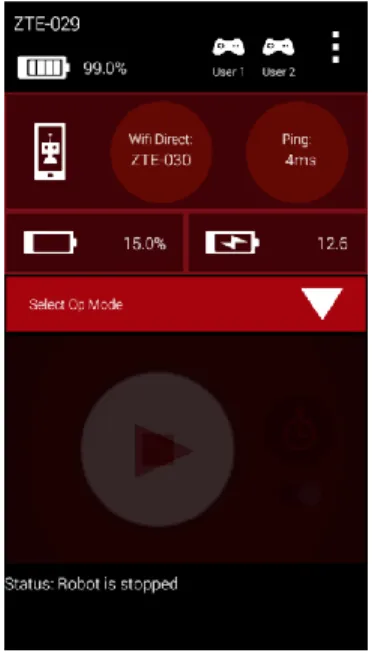
Figure 8 - When the Driver Station is connected, it displays useful status info.
When your Driver Station is able to connect to the Robot Controller successfully, it will display useful status information (see Figure 8) on its screen including the name of the device that it is connected to (“ZTE-030” in Figure 8), the average ping times between the Driver Station and Robot Controller and voltage info for the Robot Controller and the main Robot battery.
2.3.1 Is the Robot Controller On?
It sounds fairly obvious, but if you are having problems connecting to your Robot Controller, check the following items,
Is the Robot Controller device turned on?
Is the Robot Controller device running the FIRST Tech Challenge Robot Controller app? Is the FIRST Tech Challenge Robot Controller app in the foreground (and NOT minimized)? Is the Robot Controller device in Airplane mode with Wi-Fi enabled?
The Robot Controller device must be powered on and have the FIRST Tech Challenge Robot Controller app running before the Driver Station can connect to it.
2.3.2 Are Both FIRST Tech Challenge Apps Installed?
If you are having problems pairing the Android devices, please make sure that you do not have the FIRST Tech Challenge Driver Station app and the FIRST Tech Challenge Robot Controller app installed at the same time on a single Android device. The apps have the potential to cause Wi-Fi Direct conflicts if they are both installed. Make sure neither device has both apps installed at the same time.
2.3.3 Is Either Device Also Connected to Another Network?
For the FIRST Tech Challenge Competitions, we recommend that the Driver Station and Robot Controller devices are not connected to any other networks other than each other. It is possible and often desirable to connect your Android to an alternate wireless network:
Teams like to use the wireless ADB mechanism2 to debug their apps.
Teams might need to connect to a wireless network to download something to their phone from the Internet (like the FIRST Tech Challenge apps from the Google Play store).
Teams might have used the Android device to check their e-mail or look up something on the Internet (we do not recommend doing this).
For Competition use, we recommend that the Teams make sure that their Android devices are not connected to any other Wi-Fi or Wi-Fi Direct network. We also recommend that the Teams forgetany other Wi-Fi or Wi-Fi Direct network, with the exception of primary Wi-Fi Direct connection between the Driver Station and Robot Controller.
If a Team’s Driver Station is having trouble connecting to the Robot Controller, check the following, Check to see if either android device is connected to another Wi-Fi or Wi-Fi Direct device.
If either Android device is connected to another wireless network, disconnect the device from the other network, forget the other network, and restart the Driver Station and Robot Controller apps.
2.3.4 Are there Lots of Devices Trying to Pair Simultaneously?
Before an Android device can connect to another device, it will scan the wireless spectrum to determine what Wi-Fi Direct enabled devices are available in the vicinity. This discovery process can be negatively affected if there is a high concentration of Wi-Fi Direct devices in the vicinity that are also scanning the spectrum for available devices. For instance, if there are a large number of devices in the vicinity, the target device that you are trying to connect to (“ZTE-018” for example) might not be visible in your list of available Wi-Fi Direct devices on your Android phone.
If you are at an Event and the Android devices are consistently unable to find each other, or if the devices have trouble establishing a connection, it could be due to the presence of so many other Wi-Fi Direct enabled
devices. If this is the case, one option would be to remove the pair of devices that you are trying to connect together away from the crowd, and pair the two devices further away so that the other devices do not interfere with the discovery and pairing process.
Another option is to turn off the Android devices in the vicinity, and then have the teams turn on and pair their devices in successive small groups of no more than four teams or eight devices at a time. A wait time of a few minutes between each small group is recommended.
Paradoxically, once the devices are connected, they can withstand a reasonable amount of wireless traffic and noise and still operate reliably. This means that once a Team has been able to pair/connect its Android
devices, the Team should be able to use the devices, even if there are a relatively high number of other devices operating in the vicinity.
2.3.5 Are Android Devices Rebooting Upon FIRST Tech Challenge Driver Station Startup or Wi-Fi Direct Scanning?
If you are at an Event where some or all of the Android devices reboot when the FIRST Tech Challenge Driver Station apps are first launched or whenever the devices try to do a Wi-Fi Direct scan, then there might be a
2
device that is generating malformed probe response packets in the vicinity. These wireless packets with malformed data can cause an Android device running the Kit Kat version of the operating system to reboot whenever the device tries to do a Wi-Fi Direct scan.
Figure 9 - Does your Android device reboot when you launch the FIRST Tech Challenge app or if you try to do a Wi-Fi Direct Scan?
There is a bug in Android Kit Kat in which a probe response that contains malformed device information can cause the Android device to reboot.
An organization known as Core Security first reported this problem. Details of this problem can be found at the following URL: http://www.coresecurity.com/advisories/android-Wi-Fi-direct-denial-service
What the security report demonstrates is that Kit Kat devices that have this vulnerability will reboot if they encounter a certain type of wireless packet that contains improperly formatted data. One of the most common causes of this problem that we have seen in the field is an Android device that is configured with certain non-alphanumeric characters contained within its device name. For example, if a team or a spectator has an Android device that has a newline character (‘\n’ or 0x0a in ASCII) in the Wi-Fi Direct name, this device can cause Android Kit Kat devices to reboot whenever these Kit Kat devices attempt to do a Wi-Fi Direct scan. If you are at an Event and you see Kit Kat Android devices (such as the ZTE Speed) rebooting whenever you first launch the FIRST Tech Challenge apps or when you try to search for other Wi-Fi Direct devices, then there might be a device that is inadvertently or intentionally sending out probe responses with malformed data (for example, a newline embedded in the data).
This vulnerability is associated with Android Kit Kat and is supposed to be addressed in later versions of the Android operating system. Unfortunately, the ZTE Speed phones that are used by FIRST Tech Challenge are Kit Kat devices and susceptible to this vulnerability.
Try to Find Devices with Non-Alphanumeric Characters in Their Wi-Fi Direct Names
Robot rule <RS02> specifies that teams must name their Robot Controller with their official FIRST Tech Challenge Team number and a –RC (e.g., “1234-RC”) and teams must name their Driver Station with their official FIRST Tech Challenge Team number and –DS (e.g., “1234-DS”). Spare Android devices should be named with the Team number followed by a hyphen then a letter designation beginning with “B” (e.g., “1234-B-RC”, “1234-C-RC”).
If a team inadvertently or intentionally adds additional, non-alphanumeric characters to their Wi-Fi Direct Name this device can cause Driver Stations (running Android Kit Kat) to crash and reboot when the device attempts to scan for the presence of other devices. One of the most common causes that we have seen is an
embedded newline character in the Wi-Fi Direct name. Since the touch screens on the Android devices are relatively small, users often accidentally hit the RETURN key when typing in the Wi-Fi Direct network name of the device. If an Android device has a newline in its network name, then it could inadvertently cause problems due to this vulnerability.
Figure 10 - A newline character can cause devices with this vulnerability to reboot on Wi-Fi Direct scan.
If your Android Kit Kat devices are rebooting whenever teams launch the FIRST Tech Challenge Driver Station or any other time a user attempts to do a Wi-Fi Direct scan, please check with the names of the Android
devices at your Event and see if you can find one with a newline character or other non-alphanumeric character embedded in it.
If you have an Android device that is not vulnerable to this reboot bug (such as an updated device with a patch for this vulnerability) you can do a Wi-Fi Direct scan and look for any Wi-Fi Direct names that are displayed with an underscore character (‘_’) or any other unusual (non alphanumeric) character in it (see Figure 11).
Figure 11 - An embedded newline character would look like an underscore character '_'.
It is possible that there is a device that is in the vicinity that contains malformed data in a different Field, which might make it difficult to identify the device. There are techniques available to detect the presence of these problematic packets (see the section entitled 7.2 Using a Display Filter to Look for Malformed Probe
Responses of this document). These techniques, however, require access to some sophisticated tools (such as Wireshark running on a computer that has a wireless adapter that can run in monitor mode) which might not be available at every FIRST Tech Challenge Event.
Pair Devices in Isolation
If you are at an Event and you are unable to find the offending device that is causing problems with the Wi-Fi Direct discovery, you have the option of pairing the Team’s devices in isolation. Similar to the problem
described in section entitled 7.2 Using a Display Filter to Look for Malformed Probe Responses of this manual, for this scenario you can remove Android devices from the main group and pair them in isolation. Once the devices are paired, they will not do a Wi-Fi Direct scan and are no longer susceptible to the vulnerability. This vulnerability should not affect a Driver Station-Robot Controller pair once they have established a secure connection unless you power cycle the phones or if you swipe close or kill the FIRST Tech Challenge Driver Station app, in which case one of the phones will scan when you first launch the FIRST Tech Challenge Driver Station app.
FTAs have reported that at some early events where there was a phone broadcasting bad data causing this problem, teams left the venue with their phones (and went down the hallway or outside the building) and paired their phones away from the other devices and then went back in to the venue afterwards.
Pair the Devices in Small Groups
If you think the problem is caused by a misconfigured Android phone, then you can request that Teams turn off all of their devices, and then turn on and pair the phones in small groups. Once a set of phones has been paired, they should no longer be vulnerable to this bug (unless you power cycle the phones or if you swipe close or kill the FIRST Tech Challenge Driver Station app, then one of the phones will scan when you first launch the FIRST Tech Challenge Driver Station app). Pairing in groups can help you identify which phone is the one causing problems.
3.0 Monitoring and Troubleshooting the Wireless Environment
The new FIRST Tech Challenge Control System uses Wi-Fi Direct technology to connect the Driver Station devices to the Robot Controllers. Wi-Fi Direct networks can be managed like normal Wi-Fi networks. The techniques and tools that you might use to monitor and troubleshoot the Samantha Field Control System or a corporate Wi-Fi network can be applied to the Wi-Fi Direct networks used by the new Control System. This chapter provides some basic information to help the FTA/CSA/WTA keep the wireless environment clean and operational at an Event.
3.1 The Wireless Spectrum
Wi-Fi enabled devices use wireless radios to send digital information back and forth to each other. These devices operate at specific frequencies within legally allocated portions of the wireless spectrum. Currently, most Wi-Fi enabled devices have the ability to operate at a base frequency of 2.4GHz. Newer (and often more expensive) devices also often have the ability to operate at a base frequency of 5GHz.
The current FIRST Tech Challenge-approved Android devices for this season only operate at the 2.4GHz frequency. We hope to offer Android devices that have built in 5GHz radios, but for now, in an effort to minimize the cost of the devices, the approved Android devices only have 2.4GHz enabled radios.
In the U.S., there is a band of 11 channels (1 through 11 in Figure 12 shown below) in the 2.4GHz region that a Wi-Fi enabled device can use to communicate. Other regions outside of the U.S. often allow Wi-Fi devices to operate on a few additional channels.
Figure 12 – In the U.S., there are 11 Wi-Fi channels in the 2.4GHz band. Other countries allow a few additional channels.3
Although there are 11 (or more) operating channels that are available to use, you can see in Figure 12 that the adjacent channels overlap each other. This means that if you have two devices operating on wireless channels that are not separated by 5 channel “widths”, then the radios from each device will interfere with each other. Ideally, if you want to avoid interference between two channels, you should make sure there is at least a 5-channel width separation in between the two 5-channels. For example, 5-channels 1 and 6 have enough spacing in between so they won’t interfere with each other. However, channels 1 and 5 overlap slightly and there will be some interference between the two overlapping channels.
In practice a little bit of overlap between the channels might be OK. If one or more channels in the spectrum is very noisy and unusable at an Event, then you might have to consider moving your devices to alternate, possibly overlapping channels.
3
This diagram was copied from Wikipedia ( https://en.wikipedia.org/wiki/List_of_WLAN_channels#/media/File:2.4_GHz_Wi-Fi_channels_(802.11b,g_WLAN).svg) on 9/20/15.
Each wireless channel can only support a limited number of devices operating on the same channel. As the number of devices that are operating on a channel increases, the amount of noise and interference on that channel increases.
The FIRST Tech Challenge Driver Station and FIRST Tech Challenge Robot Controller apps can tolerate a fair amount of noise and interference. This means that it is usually possible to support a relatively large number (25 to 35 or more) Driver Station-Robot Controller pairs on a single 2.4 GHz Wi-Fi channel. However, if there are other sources of traffic on a Wi-Fi channel (including non-Wi-Fi enabled devices) then the wireless connectivity of the Driver Station-Robot Controller pairs can suffer.
3.2 Monitoring the Wireless Spectrum
There are some tools that are available to an FTA, CSA, or WTA that can be helpful in monitoring activity on the wireless spectrum.
3.2.1 Wi-Fi Analyzer
Wi-Fi Analyzer is a free app that is available on the Google Play store that you can install onto your Android device. https://play.google.com/store/apps/details?id=com.farproc.Wi-Fi.analyzer&hl=en
Unfortunately, this app is not available on Apple’s iOS platform. It will only run on Android. We have not yet identified a similar app that is available for iOS devices.
Wi-Fi Analyzer lets you see what wireless networks are operating in your venue. The app has a very useful graphical display that shows the available networks and overlays the networks onto a graph that shows the operating channels for each network. The app also displays the relative strength of each network.
Figure 13 - Wi-Fi Analyzer screen shot.4
An FTA, CSA, WTA or Event Host can use the Wi-Fi Analyzer tool to see which networks are present at a venue. If there are some unauthorized wireless networks on a channel, the FTA, CSA, or WTA might be able to identify them using Wi-Fi Analyzer. Wi-Fi Analyzer can also be used to determine which wireless channel a Team’s Driver Station-Robot Controller pair is using.
Note that if you run the Wi-Fi Analyzer app on an Android device that has a dual-band (2.4GHz and 5GHz) radio, then you can monitor channels on the 2.4GHz and 5GHz bands.
An FTA, CSA, WTA or Event Host can also use the app to help plan which channels the Teams should use for their Robot communication. In general, the Robots should operate on the Wi-Fi channel with the least number
4
of other wireless networks on that channel (assuming there aren’t any other sources of interference on that channel).
While the Wi-Fi Analyzer app is a helpful tool, it does have some limitations:
Wi-Fi Analyzer will not display any activity from non-Wi-Fi signals operating on the same frequency. For example, if someone is operating a wireless microphone system at the venue, the microphone might be transmitting on the same frequency (2.4GHz) as the FIRST Tech Challenge devices. Wi-Fi Analyzer does not have the ability to detect and display non-Wi-Fi activity so it would not be able to tell an Event Host if there was interference from something like a wireless microphone.
Wi-Fi Analyzer only lists wireless networks and the relative signal strength of each network. It does not provide any information on how much activity is occurring on a network. An Event Host can use the app to see what Wi-Fi networks are operating on a channel, but the Host cannot determine if any of the networks are very busy and use up a lot of the available capacity on a channel.
Wi-Fi Analyzer will not display any hidden Wi-Fi networks that might be operating on a channel. Typically when someone setups up a wireless network, they have the option of hiding the network. The Wi-Fi Analyzer app will not list a hidden Wi-Fi network.
3.2.2 Mac OS Airport Utility
If you have access to a Mac OS computer, you can use the airport utility function to scan for locally available wireless networks. In order to use the airport utility, you must have the airport executable file included in your Mac OS shell’s search path. You can also place a symbolic link to the airport utility in the /usr/sbin folder of your Mac’s file system. From a Mac OS command terminal, you can use the following command to create the symbolic link (note you’ll need to use super user status and provide your account’s password in order to create the link): sudo ln -s /System/Library/PrivateFrameworks/Apple80211.framework/Versions/Current/Resources/airport /usr/sbin/airport
From a Mac OS command terminal, if you type in the following command airport --scan
The computer will conduct a scan of the wireless environment and list available local networks that it detected.
Figure 14 – The command “airport –scan” will list available visible Wi-Fi networks.
The airport --scan utility has similar limitations to the Wi-Fi Analyzer app described in the section entitled “Wi-Fi” section 0 of this document. Also this command line argument does not run continuously. A user has to repeatedly issue the command (or write a script to do so) in order to get a continuous listing of available Wi-Fi networks.
3.2.3 Fluke AirCheck™ Wi-Fi Tester
A company called Fluke makes an expensive, but very powerful wireless network monitoring tool. The Fluke Aircheck™ Wi-Fi Tester is a handheld device that can be used to monitor the wireless spectrum at an Event. Details regarding the Aircheck device can be found on the Fluke website:
http://www.flukenetworks.com/enterprise-network/network-testing/AirCheck-Wi-Fi-Tester
The Fluke Aircheck is similar, but even more powerful than the previous tools that we’ve listed. The Aircheck has the ability to display information about any wireless network in the vicinity. Unlike the Wi-Fi Analyzer app and the Apple airport utility, the Fluke meter can also provide information about hidden wireless networks.
Figure 15 - Fluke Aircheck™ Wi-Fi Tester.
Unlike the Wi-Fi Analyzer app, the Fluke monitor can also tell the user how much wireless activity (both Wi-Fi and non-Wi-Fi) is occurring on a specific wireless channel. The Fluke monitor can estimate how much of channel’s capacity is being consumed. This can help an FTA, or CSA, or WTA determine if a wireless channel is “clean” or “noisy”.
It is important to note that the Fluke monitor measures both Wi-Fi and non-Wi-Fi activity on a wireless channel. This feature can be useful for determining if other non-Wi-Fi devices (such as a wireless audio-visual system or a Bluetooth device) are affecting the Wi-Fi connections on a specific channel.
The Fluke Aircheck can be equipped with an external directional antenna. The external antenna can be very helpful in locating the source of a wireless signal. An FTA/CSA/WTA can use the antenna to monitor the strength of a wireless signal. The signal strength will increase as the antenna is pointed at the source of the signal.
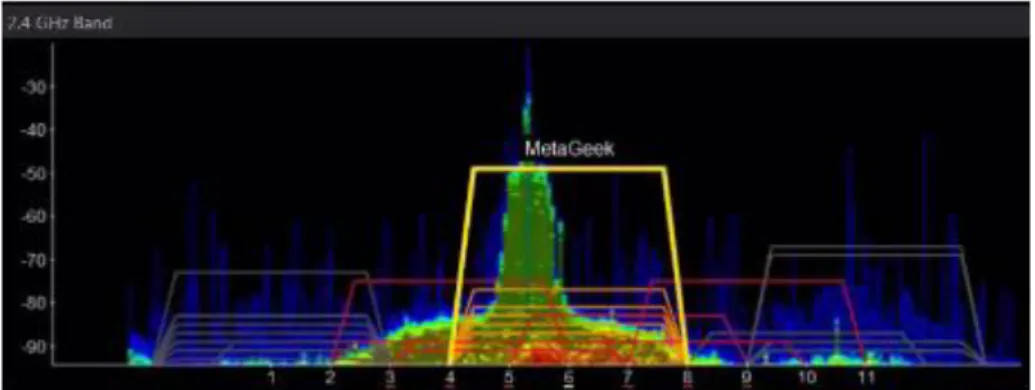
3.2.4 MetaGeek inSSIDer
A company called MetaGeek makes software and hardware devices that provide similar capabilities to the Fluke monitor at a slightly lower price. MetaGeek’s inSSIDer software with their Wi-Spy Mini or DBx hardware can be used to monitor wireless channels and see Wi-Fi and non-Wi-Fi traffic on the wireless spectrum.
Figure 17 - MetaGeek's inSSIDer software with the Wi-Spy Mini or DBx hardware shows Wi-Fi & non-Wi-Fi activity. Details regarding inSSIDer and the Wi-Spy Mini and Wi-Spy DBx hardware can be found on the MetaGeek website:http://metageek.com
The MetaGeek software and Wi-Spy Mini or DBx hardware require a laptop running Windows 8, 7 or Vista to operate.
3.2.5 Wireshark
There is a free software application called Wireshark which can be used to help monitor and diagnose wireless issues. Wireshark is a powerful tool that requires specialized knowledge to operate.
Details on how to install and operate Wireshark can be found at the following website: https://www.wireshark.org/
7.0 Wireshark of this document provides instructions on how to use Wireshark to look for some specific problems with your wireless network. However, for detailed instructions on how to use Wireshark, consult the Wireshark website.
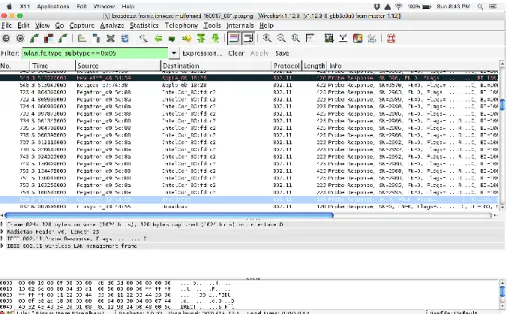
Wireshark is a tool that lets you capture and analyze the wireless packets that are being sent through the airwaves. In order to be able to use Wireshark to capture these wireless packets, you need to have a specially equipped computer. In order to be able to capture the wireless packets in your venue, your computer must support monitor mode operation for your wireless adapter.
Normally, when your computer’s wireless card receives a wireless packet, it looks at the destination address of the packet. If the packet is not addressed to the computer’s wireless adapter, then it will ignore the packet. If your computer is set up so that it can operate in monitor mode, then the wireless adapter will capture all of the wireless packets that it receives, regardless of the destination address of the packets.
Wireshark can be installed on Mac, Linux and Windows computers. Not every computer, however, supports monitor mode for their wireless adapters. Most Windows PCs do NOT allow for monitor mode. You can purchase an external wireless adapter (that connects through the USB port of the computer) to use Wireshark with a Windows PC (consult the Wireshark website for details).
Apple Mac computers support monitor mode operation of their wireless adapters. If you have a Mac computer you can install and run Wireshark in monitor mode. You do not need any special hardware to support monitor mode on a Mac OS machine.
For the Linux operating system, some, but not all, wireless adapters have drivers that support monitor mode operation. If you are a Linux user, you might need to consult the Wireshark documentation, as well as the Linux documentation to determine if your setup supports monitor mode.
Figure 18 – Wireshark is a powerful tool, but it requires special knowledge and a Wi-Fi adapter that supports monitor mode. If you do have a computer that supports monitor mode operation, then you can use Wireshark to capture and analyze samples of wireless packets at your venue:
1. With Wireshark you can estimate the retry rate for a wireless network. Every Wi-Fi packet that has a specific destination address is supposed to be acknowledged by its target recipient. If packet is not
acknowledged, then the sender will attempt to retransmit the packet to the recipient. The retry rate is a ratio of retry packets to the total number of packets. The retry rate for a Wi-Fi network is an indicator of connection quality. As the retry rate increases, the Wi-Fi connection quality tends to decrease. Under ideal conditions (only one pair of wireless devices, no external interference, devices are stationary and relatively close to each other, the devices are equipped with quality radios and antennas) the retry rate should be around or under 5%. However, in practical conditions, the observed retry rates typically will be much higher (10% to 40%). In general, a lower measured retry rate corresponds to a clean wireless environment. If your observed retry rates are constantly hovering around or above 35% then your wireless channel might have a lot of interference and/or excessive traffic.
2. You can use Wireshark to examine the wireless data to look for evidence of problems such as a DEAUTHENTICATION attack or a malformed Wi-Fi Direct probe response.
3. You can use Wireshark to see what Wi-Fi devices are transmitting in or near your venue (although other tools like the Fluke Aircheck meter or the MetaGeek inSSIDer software might be better suited for this task).
3.3 Troubleshooting the Wireless Environment at an Event
If you are at an Event and you suspect that there might be wireless causing problems at the Event, there are some things that you can look at to try and diagnose the problem and see if it really is a wireless issue.
3.3.1 Ping Times
If you are at an FIRST Tech Challenge Event, you can use the ping time feature of the FIRST Tech Challenge Driver Station app as an indicator of network quality. When a Driver Station is connected to a Robot Controller, it will periodically send a heartbeat packet to the Robot Controller. The Robot Controller is supposed to
respond to each ping and send an acknowledgement packet (aka “ACK”) back to the Driver Station. The Driver Station constantly measures the amount of time that it takes to send a heartbeat packet to the Robot Controller and to receive an acknowledgement packet back from the Robot Controller. This amount of time is known as the ping time.
Figure 19 - Ping time represents the time it takes for a packet to be sent to and acknowledged by the Robot Controller. Whenever a Driver Station is connected to a Robot Controller, the average ping time is displayed in the upper right hand corner of the FIRST Tech Challenge Driver Station app (see Figure 20).
Figure 20 - The average ping time is displayed in the upper right hand corner (highlighted in yellow in this image). The average ping time can be used as an indicator of connection quality for a Driver Station-Robot Controller pair. If the wireless connection between the Driver Station and the Robot Controller does not have a lot of noise, traffic or interference, then the average ping time is generally smaller. If the noise, traffic, or interference increases, then the Wi-Fi devices on a channel tend to resend packets more frequently, which causes the average ping time to increase.
At an Event, an FTA, CSA, or WTA should have access to a pair of Android devices (preferably the ZTE Speeds, because these devices allow you to change the channel manually) that he/she can use to monitor the wireless connection quality on a Wi-Fi channel at the venue. If the ping time is low (on the order of 5 msec or less) then the wireless connection quality is very good (exceptional). If the observed ping time hovers at a high value (such as 250 msec or more) then the wireless connection quality is poor and the FTA, CSA, or WTA should try and identify the cause of the poor connectivity.
Note that the average ping time only provides a measure of quality for the operating Wi-Fi channel. It does not indicate quality for the entire set of channels. For example, if you have a pair of devices that are operating on channel 1, the ping times observed for this pair of devices is primarily useful for monitoring the wireless quality of channel 1. If you wanted to measure the wireless quality for channel 6 or 11, then you would have to
change the operating channel for your devices, reconnect them, then look at the ping times for the newly selected channel.
If a Team is encountering issues with communicating with their Robot, look at the ping times on their Driver Station to determine if the Robot Controller has a responsive connection (ping times less than 50 msec, preferably on the order of 5 msec).
Using the average ping time is a convenient way to determining if a wireless channel is clear and relatively noise-free. If the ping times are low, then the channel is mostly likely free of other Wi-Fi and non-Wi-Fi traffic.
3.3.2 Is the Wi-Fi Channel Too Busy?
In addition to ping times, an FTA, CSA, or WTA can use other tools, such as the Fluke Aircheck meter or the MetaGeek inSSIDer application, to get a more detailed view of the wireless activity on a Wi-Fi Channel. If you are at an Event and you have access to a device like the Fluke Aircheck meter, then you can examine the activity level for each wireless channel and determine if a channel is being saturated.
Figure 21 - The Fluke Aircheck meter shows Wi-Fi (light blue) & non-Wi-Fi (gray) activity on each channel.5
5
Image from the Fluke website (http://www.flukenetworks.com/enterprise-network/network-testing/AirCheck-Wi-Fi-Tester) downloaded on 9/21/15.
In Figure 21 you can see the Wi-Fi (shaded in light blue) and non-Wi-Fi (shaded in gray) activity on each Wi-Fi channel. You can see that channel 3 in the example has a lot of non-Wi-Fi (gray) activity and that the channel is very busy. You can also see that channel 7 has less activity and is not very busy.
Also note that adjacent Wi-Fi channels for the 2.4GHz band overlap, so activity on one channel might have a negative effect on activity of a nearby channel.
If you notice high activity levels, then you can try to find and disable the devices that are causing the interference. You can also try to move the Driver Station-Robot Controller devices to a different, less busy channel.
Potential Sources of Wi-Fi Interference
Potential sources of Wi-Fi interference include the following,
Wireless access points that belong to the venue (such as an access point used to provide wireless access within a school).
Unauthorized Team or spectator access points. Mobile hotspots.
Wi-Fi enabled cameras or other devices (such as Gameboys, etc.).
Potential Sources of Non-Wi-Fi Interference
Potential sources of non-Wi-Fi interference include the following,
Bluetooth devices (which also operate in the 2.4GHz band of the spectrum). Wireless audio/visual systems (including wireless microphones and cameras). Cordless telephones and headsets.
Remote control cars, helicopters, drones and planes. Microwave ovens.
3.3.3 Are There Too Many Robots Operating on the Same Channel?
Related to a channel being too busy, if there are too many Robots operating on a channel, then the average wireless connection quality might suffer. FIRST has done stress testing where we had a high number of Driver Station-Robot Controller devices operating reliably on a single Wi-Fi Channel. We were able to operate close to 50 pairs on a single 2.4GHz Wi-Fi channel. However, in practice, the number of Robots that can operate on a single channel will vary with a variety of factors. If there is a lot of external wireless interference on a channel, then the number of Robots that can operate on a channel will decrease.
If you are at an Event and you suspect that there are too many Robots operating on a single channel, you can try to distribute the Robots evenly across available, less busy channels. Ideally, the channels should be spaced at least 5 channel-widths apart, to avoid any overlap. However, if necessary, you can move Robots to
overlapping channels.
3.3.4 Is There a Wi-Fi Suppressor Operating in the Vicinity?
Many IT organizations use Wi-Fi suppressors to suppress any unauthorized Wi-Fi access points operating in a venue. These suppressors have a list of authorized wireless networks that are allowed to operate within the venue. If the suppressors detect an unauthorized wireless network, it will send out packets to disrupt the operation of the unauthorized network. Many of these suppressor functions are built-in to modern wireless access points.
Each Driver Station-Robot Controller pair establishes its own Wi-Fi network. If there is a Wi-Fi suppressor operating in the vicinity, then the suppressor disrupts the operation of any Driver Station-Robot Controller in the area. If you suspect that there is a Wi-Fi suppressor operating at a venue, then you need to work with the venue’s IT staff before the day of the Event to disable the suppressor for any scheduled FIRST Tech
Challenge Events.
Note that even though Wi-Fi suppressor technology is gaining popularity, according to the FCC,6 federal law “prohibits the operation, marketing, or sale of any type of jamming equipment, including devices that interfere with cellular and Personal Communication Services (PCS), police radar, Global Positioning Systems (GPS), and wireless networking services (Wi-Fi). There is an FCC Enforcement Advisory that warns that Wi-Fi blocking is prohibited.”7
3.3.5 Are the Wireless Radio Signals Being Blocked by Metal?
If you are at an Event and you suspect that one or more Robots are having wireless issues (higher ping times, less responsive Robots, etc.), then you should make sure that radio signals from the Driver Station and the Robot Controller are not being blocked or screened by large sheets or pieces of metal.
For example, if the Robot Controller Android device is mounted deep within the frame of the Robot and if there are pieces of sheet metal or aluminum channel blocking or obscuring the Android device, then the radio signal from the Robot Controller might get blocked and/or reflected. This can attenuate/reflect signals to and from the Robot Controller. Also, if the Android device is mounted directly onto a metal plate on the Robot, the signal can also be blocked, reflected or attenuated (remember, the antenna on many Android devices are located near the back pane of the device).
Figure 22 - Metal music stands like this one can block, reflect or attenuate the signals to/from the Driver Station. Similarly, if the Driver Station Android device is placed on something like a sheet metal plate, or if the Driver Station device is enclosed in some kind of metal housing, then the signals to and from the Driver Station might be blocked, reflected or attenuated.
As an example, we conducted some experiments using a metallic music stand as a Driver Station stand for a ZTE phone. We used Wireshark to monitor the activity with and without the music stand in place. We observed that the wireless retry rate for the Android device sitting on the music stand was about twice as high as the wireless retry rate for the same device when it was sitting on a wooden table. Even though the human driver during the test did not perceive any difference in responsiveness of the Robot when the music stand was in place, the Wireshark data indicated that the quality of the wireless connection was worse whenever the music
6
See https://www.fcc.gov/encyclopedia/jammer-enforcement (accessed on 9/25/15).
7
stand was in place. We attribute the increase in retry rate to the metal music stand attenuating/reflecting the radio signals to/from the Driver Station.
Ideally, the Robot Controller and Driver Station devices should be mounted in a way that protects the devices, but doesn’t block the radio signals travelling to/from the devices. In most cases, the radios will work fine, even if they are partially (or almost fully) obscured by metal. However, whenever the radios are obscured, the signals are attenuated, therefore if the attenuation is high enough, the devices might start to experience wireless connection problems.
3.3.6 Is There Malicious Activity Occurring?
Unfortunately, it is possible for a motivated individual to disrupt Wi-Fi networks using tools and techniques that are described on the Internet. This vulnerability is true for most Wi-Fi networks, including the Wi-Fi networks that are established by the FIRST Tech Challenge Driver Station-Robot Controller pairs.
There is an amendment to the 802.11 standard (802.11w) that makes it more difficult to conduct many of these types of attacks, but unfortunately the amended standard is not yet available on the Android platform. For now, the Android devices used at FIRST Tech Challenge Events are vulnerable to certain wireless attacks.
There are tools that can help detect when certain wireless attacks have occurred. The section entitled 7.0 Wireshark of this document describes how to use Wireshark to look for clues that indicate that certain wireless issues are present. However, these tools are not always available at many FIRST Tech Challenge Events. If you are at an Event where you suspect that some malicious activity is occurring, you can try to use any available tool to identify the party that is conducting the malicious activity. You can also rely on good, old-fashioned “detective work” to look for suspicious activity in and around the Competition Fields. Also, if you believe malicious activity is occurring, you can remind spectators and participants that this type of behavior is ungracious and punishable by disqualification from the Event and possibly the season.
4.0 Accommodating a Large Number of Robots
4.1 Wi-Fi Event Checklist
The new wireless Control System is a point-to-point system. This means that each Driver Station-Robot pair will establish its own Wi-Fi network at an Event (see Figure 3). If there are a large number of Robots in a venue, then there will be a large number of wireless networks operating in the venue. If there are a very large number of wireless networks operating in a small area, then there could be interference between the networks. At smaller Events with lower numbers (< 30 or 40) of Robots, the likelihood of significant interference caused by the Robot-Driver Station activity is relatively small. As long as there isn’t any other source of interference (such as Bluetooth devices operating on the Field or wireless audio/video systems broadcasting on the same frequency) the new FIRST Tech Challenge Control System should be able to operate properly.
At larger Events (>30 or 40 Robots) some steps might need to be taken before the Event and during the Event to help keep things running smoothly. FIRST Tech Challenge has published a Wi-Fi Event Checklist that contains detailed steps that an Event Host or technical volunteer can take to help keep the wireless environment operating smoothly.
4.2 Distributing Robots Across Multiple Channels
4.2.1 Wi-Fi Channel OverlapIf there is an Event that will have a large number of Robots (> 40 bots) in a small area, you should consider distributing the Robots across multiple channels. Ideally, the lower the number of Robots there are per
channel, the less traffic and interference there will be per channel. Note that Wi-Fi channels that are less than 5 channel widths apart overlap (see Figure 12).
Ideally, you should distribute your Robots on channels that are at least 5 channel widths apart. For example, if you were to configure one group of Robots to channel 1 and a second group to channel 5, the two groups of Robots would overlap slightly since the second channel is only 4 channel widths away from the first channel. If the second group of Robots were moved from channel 4 to channel 6, then the two groups would no longer overlap since they are 5 channel widths apart.
Sometimes it might not be possible to space your Robots 5 channel widths or greater apart. For example, one portion of the spectrum might be very noisy, and the Robots are unable to operate on channels in or near that portion of the spectrum. In this case, it still might be beneficial to place the Robots in groups on separate, overlapping channels. Even though the channels overlap slightly, placing the Robots onto these channels might produce lower ping times and more responsive Robots when compared to keeping all of the bots on the same channel.
4.2.2 Factors to Consider When Selecting Wi-Fi Channels
If you would like to configure your Robots to operate on more than one channel, here are some factors to consider when doing your planning:
1. How many Robots will be present? The data rates for the control streams of the Robot are relatively low. If the wireless environment at your venue is clean, then a single channel should be able to support a pretty large number of Robots. In our testing, we were able to run 46 pairs of Android devices in a very tight area (approximately 14’ x 14’) with good reliability and responsiveness.
If your Event will have a modest number of Robots (less than 40), and if your wireless environment is relatively clean, then you probably do not need to worry about moving Robots around to different channels.
If you do have a large group of Robots, then you should consider dividing them up so you have a maximum of 35 to 40 groups per channel if possible. For example, if you have 70 Robots, you can divide them into two groups of 35. You can also break up a large number of Robots into even small groups and then place them onto multiple, overlapping channels if needed.
2. Before you select your channels, are the target channels clear? Before you move your Robots to a specific channel, you should do some tests on the channel to verify that it is clear.
a. Use Wi-Fi Analyzer or a similar tool: You can use a tool like Wi-Fi Analyzer to see how many access points are present on a channel. Remember, Wi-Fi Analyzer only shows you the visible (non-hidden) wireless network. Also, Wi-Fi Analyzer does not show you how busy a channel is, it only shows you what visible Wi-Fi networks are on a channel.
b. Use a pair of Android devices to monitor ping times: If a target channel looks relatively clean, you should use a pair of Android devices running the FIRST Tech Challenge Driver Station and FIRST Tech Challenge Robot Controller apps to monitor the ping times on the target channel. You’ll need a pair of Android devices that support channel changing (like the ZTE Speed). You should switch to the target channel and test to make sure you can select and run an op mode (like the NullOp sample op mode). If the average ping times for the test Android devices are low (< 5msec) then the channel is clear. If the average ping times are high (>50 msec) then there might be some type of interference on the channel.
c. If available, use a more sophisticated tool to monitor the target channels: If you have access to a more sophisticated tool like the Fluke Aircheck meter, you can use it to sweep a target channel. You want to use the tool to check for visible and hidden Wi-Fi networks. You also want to check to see how much Wi-Fi and non-Wi-Fi traffic is present on the channel. If the activity level is low on a target channel, then it should be safe to place your Robots on the channel.
3. What type of Android devices will the Teams be using? Not every Android device permits Wi-Fi Direct channel changing. Currently (as of September 2015) the ZTE Speed phone allows channel changing. If you download a specific app from the Google Play store (the app is free), then you should be able to switch the operating Wi-Fi Direct channel for your ZTE phone. The Motorola Moto G phones do not yet have the ability to switch the Wi-Fi Direct channels using the FIRST Tech Challenge SDK. However, the Motorola Moto G phones have their own internal algorithm for selecting a Wi-Fi Direct channel and according to the manufacturer takes into account the wireless activity before selecting a channel.
Technically speaking, a rooted Android device should also allow the FIRST Tech Challenge Robot Controller app to do a channel change. The FIRST Tech Challenge Robot Controller needs root or super user status so it can modify a Wi-Fi Direct supplicant file (i.e., configuration file) to force the channel change. Currently (as of September 2015) only the ZTE Speed and Motorola Moto G phones are allowed for the FIRST Tech Challenge Competitions. FIRST does not recommend rooting your Android devices, since there is a chance that you will damage (i.e., “brick”) the devices during the rooting process.
4.3 Using the ZTE Speed Channel Changing App
Currently (September 2015) the only FIRST Tech Challenge approved Android device that supports Wi-Fi Direct channel changing is the ZTE Speed. This section contains information on how to use an app to change the Wi-Fi Direct channel on a ZTE Speed phone. The material was taken from the FIRST Tech Challenge Training Manual entitled ZTE Channel Changing App (first released on 8/3/2015).
4.3.1 Downloading the App from Google Play
The channel changing app is available on Google Play for free for download. Note that this app should be installed on the Android device that is acting as your Robot Controller (i.e., the device that is acting as the Wi-Fi Direct Group Owner). You do not need to install this app on your Driver Station Android device.
IMPORTANT NOTE: This Wi-Fi Direct channel changing app will only work on the ZTE Speed phone. It will not work on other Android devices. It can only change the Wi-Fi Direct channel for a ZTE Speed phone.
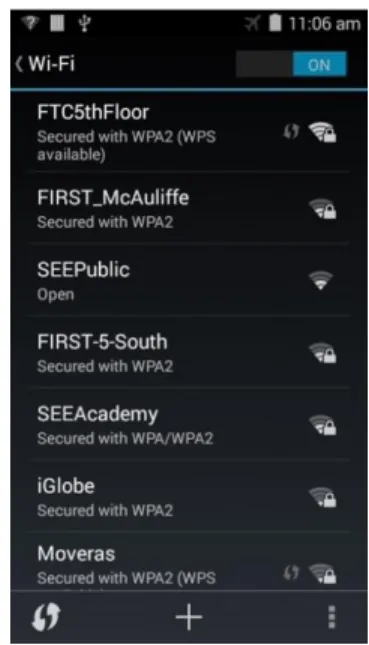
The ZTE Speed channel changing app is located on Google Play. To install the app, you first need to connect the ZTE phone to an available wireless network that has access to the Internet. Launch the Settings activity on your phone, and select the Wi-Fi item to display the Wi-Fi activity.
Figure 23 - Select your wireless network from the Wi-Fi activity.
Select your desired wireless network from the Wi-Fi activity and provide the password information required to access the wireless network.
Once you have connected successfully to your wireless network, launch the Google Play Store app from your phone. The Play Store app might prompt you to either login to an existing Google account or create a new one. Follow the onscreen instructions to either create a new (free) account or login to your existing account.
Once you have successfully logged in to Google Play, click on the search icon (a little magnifying glass) and search for the phrase “Wi-Fi Direct Channel Changing”
Figure 25 - Search for the phrase "Wi-Fi direct channel changing"
Once you have found the Wi-Fi Direct Channel Changing app, click on it and follow the onscreen instructions to install. Note that the application might prompt you to enter a credit card number or some other method of payment. The app is free and no payment method is required. You should be able to hit the “Skip” button to skip the process of providing a method of payment.
If you were able to install the app successfully, then there should be the Wi-Fi Channel Editor icon on your Android device.
Figure 27 - After installing the app, you should see an icon on your Android's screen.
IMPORTANT NOTE: After you have successfully installed the app, go to your Wi-Fi settings menu and “forget” the wireless network that you used to connect to Google Play. In general, you do not want to be connected to any wireless networks with the exception of your FIRST Tech Challenge Driver Station device.
4.3.2 Using the Wi-Fi Direct Channel Changing App
Changing the Channel
After you have successfully installed the Wi-Fi Direct channel changing app onto your Robot Controller ZTE Speed phone, you have two ways to launch it:
1. Click on the Wi-Fi Channel Editor icon to launch the app (see Figure 27).
2. You can also launch the app from the FIRST Tech Challenge Robot Controller app. Go to the Settings menu of the FIRST Tech Challenge Robot Controller app and select the Change Wi-Fi Channel item to launch the channel changing app.
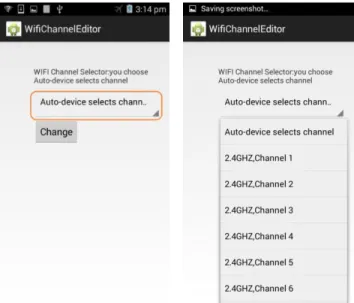
Figure 29 - Click on Change Wi-Fi Channel from the Settings menu to launch the app. To change the channel, use the drop down spinner control to select your desired channel.
Once you have selected your desired channel, press the Change button to force the Robot Controller device to change its channel.
Figure 31 - Press the Change button to force the channel change.
The app should display a notification indicating that the listening and operating channel for the Wi-Fi group owner has been changed.
4.3.3 Un-Pairing then Re-Pairing the Driver Station to the Robot Controller.
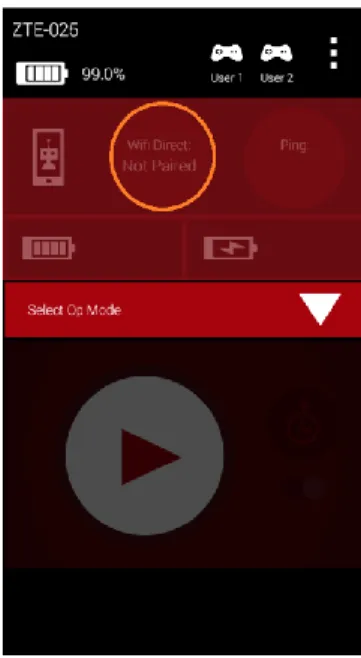
Note that after you have changed the channel on your Robot Controller Android device, you might have to un-pair your Driver Station from the Robot Controller, and then re-un-pair the Driver Station back to the Robot Controller.
To un-pair the Driver Station from the Robot Controller, launch the Settings menu from the Driver Station app and select the Pair with Robot Controller item.
Figure 33 - Select Pair with Robot Controller. From the Pair with Controller screen, select None to un-pair your phone.