MERLIN
®Identifier
Notice
Every effort was made to ensure that the information in this book was
complete and accurate at the time of printing. However, information is subject to change.
Federal Communications Commission (FCC)
Interference Notice
This equipment has been tested and found to comply with the limits of a Class A digital device, pursuant to Part 15 of FCC rules. These limits are designed to provide reasonable protection against harmful interference when the equipment is operated in a commercial environment. This equipment generates, uses, and can radiate radio frequency energy and, if not installed and used in accordance with the instruction manual, may cause harmful interference to radio communications. Operation of this equipment in a residential area is likely to cause harmful interference in which case the user will be required to correct the interference at his or her own expense.
FCC Requirements
1. The Federal Communications Commission (FCC) has established Rules
which permit this system to be directly connected to the telephone network. Connection to the telephone network shall be through a standard network interface jack USOC RJ11C. These USOCs must be ordered from your Telephone Company. This equipment should not be used on party lines or coin lines.
2. If this system is malfunctioning, it may also be causing harm to the telephone network; this system should be disconnected until the source of the problem can be determined and until repair has been made. If this is not done, the telephone company may temporarily disconnect service.
3. The telephone company may make changes in its technical operations and
■
number (REN) which can be found on the back or bottom of the control unit. [The ringer equivalence number (REN) is used to determine how many devices can be connected to your
telephone line. In most areas, the sum of the RENs of all devices on any one line should not exceed five (5.0). If too many
devices are attached, they may not ring properly.]
When this equipment is permanently disconnected from the line(s).
Port ID REN/SOC FIC USOC
MERLIN 0.0B/9.0Y 02LS2 RJ11C
Identifier Always connected in parallel with MERLIN Phone System
5. Repairs to this equipment can be made only by the manufacturers, their
authorized agents, or by others who may be authorized by the FCC. [In the event repairs are needed on this equipment, please contact the AT&T National Service Assistance Center (NSAC) at 1 800 628-2888 or your authorized AT&T dealer.]
Canadian Department of Communications (DOC)
Interference Information
This digital apparatus does not exceed the Class A limits for radio noise emissions set out in the radio interference regulations of the Canadian Department of Communications.
understand and take appropriate steps to deal with this crime because under applicable tariffs, you will be responsible for payment of associated toll
charges. AT&T can not be responsible for such charges and will not make any allowance or give any credit resulting from toll fraud.
Toll fraud can occur despite the preventative efforts of network providers and equipment manufacturers. Toll fraud is a potential risk for every customer with telecommunications equipment having one or more of the following features: (1) remote access, (2) automated attendant, (3) voice mail, (4) remote
administration and maintenance, and (5) call forwarding (remote). This is not a product or design defect, but a risk associated with equipment having one or more of the features described above. If your new telecommunications
equipment possesses any of these features, please consult the relevant portion of your documentation for further details and specific procedures to reduce the risk of toll fraud or contact your AT&T dealer for further details.
Trademarks
MERLIN and MERLIN LEGEND are registered trademarks of AT&T.
MERLIN II, MERLIN PLUS, MLX, Partner Plus, and Spirit are trademarks of AT&T. Microsoft is a registered trademark of Microsoft Corporation.
PROCOMM PLUS and Datastorm are registered trademarks of Datastorm Technologies, Inc.
Windows is a trademark of Microsoft Corporation.
Warranty
AT&T provides a limited warranty to this product. Refer to the “Limited Use Software License Agreement” card provided with this package.
Ordering Information
The order number for this book is 518-601-100. To order additional books, call 1 800 432-6600 in the U.S. and 1 800 255-1242 in Canada.
Support Telephone Numbers
2.
3.
4.
Never install telephone jacks in wet locations unless the jack is specifically designed for wet locations.
Never touch uninsulated telephone wires or terminals unless the telephone has been disconnected at the network interface.
■ ■ ■ ■ ■ ■ ■ ■ ■
1
Introduction
1MERLIN Identifier Components and Features 2 Supported Telephone Equipment 5 MERLIN Identifier Database 5
System Administration Overview 7
2
Installing the MERLIN Identifier
System
STEP 1: Verify MERLIN Identifier Components Required MERLIN Identifier Components Optional Equipment STEP 2: STEP 3: STEP 4: STEP 5: STEP 6:
Mount the MERLIN Identifier Control Unit
Wire the MERLIN Identifier Control Unit
Mount the MERLIN Identifier Display Units
Wire the MERLIN Identifier Display Units
Connecting Administrative Components
Set Up MERLIN Identifier Parameters Notes on Entering Data
STEP 7:
Entering the Administration Password Changing the Administration Password Setting Up the Telephone Lines
Setting Up the Printer Serial Port
■
■
■
3
Administering the MERLIN
Identifier Database
MERLIN Identifier Database Description Caller Names
Telephone Numbers
Advantages of Using the Wild-Card Character
Setting Up and Maintaining the Database Maintaining the Database Directly
Maintaining the Database Using File Transfers
Changing the Administration Mode
33
33 34 34 35
36 37 40
43
4
Troubleshooting
45A
Technical Reference
49B
Parts Reference
55C
MERLIN MLX Telephone Wiring
591
MERLIN® Identifier is a MERLIN telephone system adjunct that lets businesses use Caller ID* service to support business
operations. If your regional telephone company provides Caller ID service, your business can use the MERLIN Identifier system to do the following:
■
■
■
Display the telephone number of an incoming call if the call was made from a local exchange with Caller ID
service within your LATA (Local Area Telephone Access)
Display the caller’s name if the incoming call’s telephone number matches a telephone number and name in the MERLIN Identifier database, or it can display the name and number if both are provided by the telephone company
Beep to ensure that the caller receives attention if the incoming call’s telephone number has been designated as a “priority” call in the MERLIN Identifier database
* Caller ID is a Custom Local Area Signalling Service (CLASS) offered by
regional telephone companies for selected calling areas or exchanges. Contact your telephone company to find out the telephone exchanges providing Caller ID in your LATA calling area.
Review information for the last 18 calls on each of four telephone lines to ensure that callers have received timely service
If the MERLIN Identifier system is used with a purchased
Windows™-based contact management software application, or your own custom database management software running on a personal computer (PC), you can use the MERLIN Identifier system to do the following as well:
■
■
■
■
■
Set up a business-specific profile (database) of additional caller information that displays automatically when a
call’s telephone number matches a telephone number already in the profile
Add notes or memos to the profile as the call progresses
Transfer caller names and telephone numbers between the MERLIN Identifier database and the PC database profile
Maintain a call history log of incoming calls, both answered and unanswered
MERLIN Identifier
Components and Features
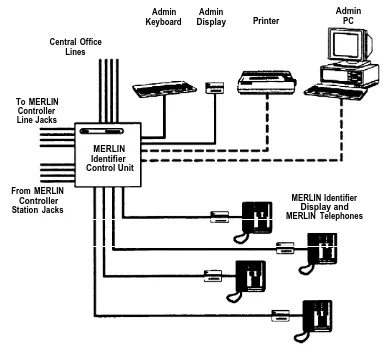
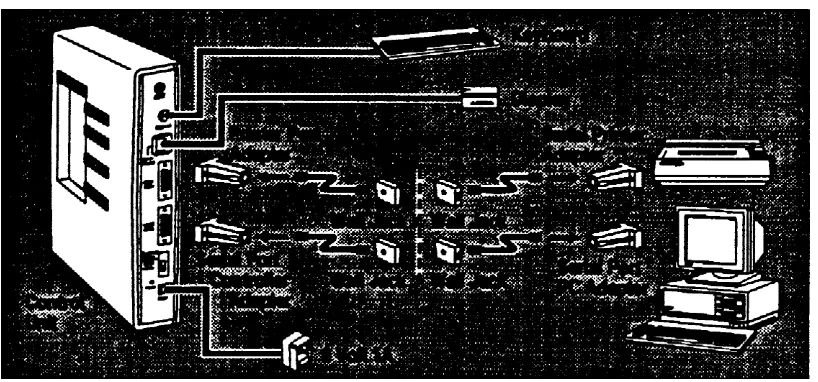
The MERLIN Identifier system consists of a Control Unit, individual Display units, an Administrative Keyboard, and an Administrative Display unit. Optionally, the MERLIN Identifier system can
connect to a personal computer (PC) for administrative or
database management functions and to a serial printer to output Caller ID information. Refer to Figure 1 as you read about the MERLIN Identifier component descriptions that follow.
Admin Admin Admin Keyboard Display Printer PC
Central Office Lines
To MERLIN Controller Line Jacks
MERLIN Identifier Control Unit
From MERLIN
Controller MERLIN Identifier
Station Jacks Display and
MERLIN Telephones
Figure 1.
MERLIN Identifier Components
MERLIN Identifier Control Unit
provides Caller ID functions, administrative functions, and the MERLIN Identifier database. For each incoming call, the MERLIN Identifier system sends the following information to the MERLIN Identifier Displays: the last two digits of the line number on which the call was received, the time and date of the call as recorded at the Central Office, and if the caller’s exchange provides Caller ID service, the caller’s telephone number as well.If the telephone number matches a record in the MERLIN Identifier database that has a name associated with it, the MERLIN Identifier system also sends the caller’s name to the MERLIN Identifier Displays. If the Central Office sends the caller’s name with the telephone number and there is no matching name in the database, the name supplied by the Central Office is sent to the MERLIN Identifier Displays.
MERLIN Identifier Displays
display the information sent to them from the MERLIN Identifier Control Unit—both Caller ID information as it is received and MERLIN Identifier database information that corresponds to the caller’s telephone number. If the caller’s MERLIN Identifier database record has a “priority flag,” the MERLIN Identifier Display can be set to beep to call attention to it. The MERLIN Identifier Display can also be set to beep at every call, or never to beep at all. Users can scrollthrough the information displayed for the last 18 callers on each of up to four Central Office lines.
See the MERLIN Identifier User’s Quick Reference for more information on MERLIN Identifier Displays.
MERLIN Identifier Administrative Display and Keyboard
are used by the system administrator to set up the MERLIN Identifier system and maintain the MERLIN Identifier database. MERLIN Identifier command menus, messages, and prompts aredisplayed on the Administrative Display. Single character administrative commands are entered on the Administrative Keyboard and simultaneously displayed on the Administrative Display.
Administrative PC
is a customer-provided PC that can be used in place of the standard Administrative Display and keyboard to provide additional administrative features such as expanded menus and prompts, and data transfers between the MERLIN Identifier database and database software running on the PC.NOTE:
The Administrative PC requires asynchronous communications software to communicate with the MERLIN Identifier Control Unit.
Serial Printer
provides a printed copy of Caller ID information, such as line number, caller’s telephone number, caller name from MERLIN Identifier database, and day and time of call, as it is received by the the MERLIN Identifier Control Unit. This printed copy can be used as a source of data for the MERLIN Identifier database. If desired, you can connect a PC instead of the printer to capture the Caller ID output for use in your own custom PC applications.Supported Telephone Equipment
The MERLIN Identifier system supports all past and present MERLIN telephone systems and stations.
MERLIN Identifier Database
The MERLIN Identifier Control Unit lets you create and maintain a database of approximately 2500 caller records consisting of a 10-digit telephone number and a 16-character name. If many of the caller names are less than 16 characters, even more caller records can be maintained.
The system administrator is responsible for creating and maintaining the MERLIN Identifier database. Using either the Administrative Display and Keyboard, or optionally, an
Administrative PC, the system administrator enters the telephone numbers and names of callers into the MERLIN Identifier
database as they should appear on the MERLIN Identifier Displays.
Database Integrity
The following features ensure the integrity of the caller information in the MERLIN Identifier database:
■
■
■
■
Password entry is required before access to administrative database functions is permitted
Access to administrative functions “times-out” after 120 seconds of keyboard inactivity—password entry is required before the administrative functions can be accessed again
Record locking during edit prevents the “half-edited” database records from displaying at the MERLIN
Identifier Display—the original, unedited record displays instead
Capacitor power backup retains data for a minimum of 72 hours following power loss
Database Transfers
The system administrator can transfer caller information between the MERLIN Identifier database and a database management system running on the Administrative PC. Both database upload and download transfers are supported using asynchronous communications software, such as PROCOMM PLUS®
or Windows Terminal*, and either XMODEM or text file transfer protocols.
* Although other asynchronous communications software may work, only
PROCOMM PLUS 2.01 and Windows 3.1 Terminal are recommended for use with MERLIN Identifier.
System Administration Overview
The MERLIN Identifier system administrator is initially responsible for the planning, set up, and installation of the MERLIN Identifier system. This requires the following efforts:
Ordering Caller ID service for the lines to be monitored by
■
■
■
■
■
■
the MERLIN Identifier system
Determining the location and requirements for the MERLIN Identifier equipment
Identifying the MERLIN phones that require MERLIN Identifier Displays (each requires an AC outlet nearby)
Determining whether to administer MERLIN Identifier from a PC or a MERLIN Identifier Display and keyboard
Setting up MERLIN Identifier database maintenance procedures and source data documents
Setting up and maintaining a PC database management system, if one is used
Once the MERLIN Identifier system has been installed, the system administrator is responsible for maintaining the MERLIN Identifier database and training MERLIN Identifier users.
2
Installing the MERLlN® Identifier system consists of the following installation steps:
Step 1.
Step 2.
Step 3.
Step 4.
Step 5.
Step 6.
Step 7.
Verifying that you have the necessary MERLIN Identifier components
Mounting the MERLIN Identifier Control Unit
Wiring the MERLIN Identifier Control Unit
Mounting the MERLIN Identifier Displays
Wiring the MERLIN Identifier Displays
Connecting the Administrative components
Setting up MERLIN Identifier parameters
STEP 1: Verify MERLIN
Identifier Components
Make sure that you have the following before you install the MERLIN identifier system:
■
■
■
■
■
■
Caller ID service on the Central Office lines to be monitored by the MERLIN Identifier system
MERLIN Identifier components for your planned installation
AC power outlets for each MERLIN Identifier Display, the MERLIN Identifier Control Unit, and any optional
equipment
Required MERLIN
Identifier Components
Your AT&T MERLIN Identifier system shipment should contain the components you ordered. Verify your shipment against the
individual MERLIN Identifier parts list options found in Appendix B.
At a minimum, your order should contain the following:
MERLIN Identifier Control Unit and cover, 9 volt 1 ampere power transformer, modular cords with RJ45 plugs,
modular cords with RJ11 plugs, and mounting screws
For keyboard administration, a keyboard, keyboard adapter cable, two keyboard mounting brackets,
MERLIN Identifier Display, display wall mounting, 9 volt 200 milliampere power transformer, a modular cord with RJ45 plugs, and mounting screws
For PC administration, a modular cord with RJ45 plugs and RJ45-to-DB9 and RJ45-to-DB25 adapters
■ One or more MERLIN Identifier Displays, each with a
9 volt 200 milliampere power transformer, a modular cord with RJ45 plugs, a modular cord with RJ11 plugs, and a phone mounting bracket or a display wall
mounting and mounting screws
Optional Equipment
If you ordered it, your shipment may also include a serial printer, two modular cords with RJ45 plugs, an RJ45-to-DB9 adapter, and an RJ45-to-DB25 adapter.
STEP 2: Mount the MERLIN
Identifier Control Unit
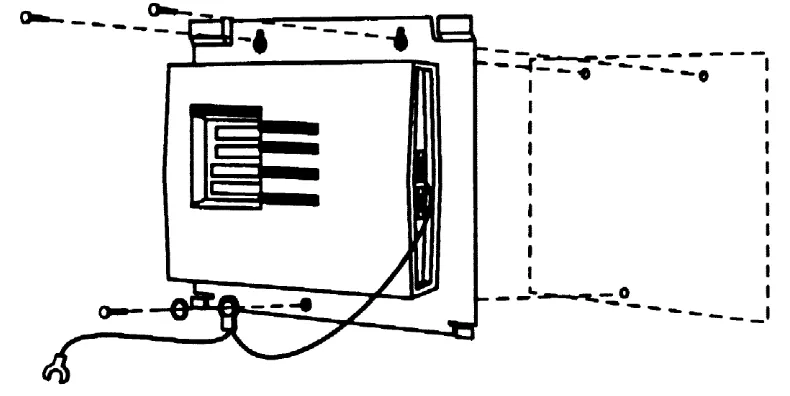
The MERLIN Identifier Control Unit should be mounted near the MERLIN Controller—placed on a desk, on a shelf, or mounted on a plywood sheet attached to the wall studs. If you place the MERLIN Identifier Control Unit on a desk or shelf, make sure that you have adequate space to work. If you mount the MERLIN Identifier Control Unit on the wall, refer to Figure 2 as you follow the instructions below:
1. Position the MERLIN Identifier Control Unit on the plywood surface near the MERLIN Controller and an AC power outlet, and mark points on the plywood surface for the pilot holes.
WARNING:
Do not use the supplied mounting screws if you are
mounting the MERLIN Identifier Control directly to the wall and not to plywood. Instead, use wall fasteners, such as screws with expansive wall anchors or Molly bolts, to ensure permanent and secure mounting.
Figure 2.
Mounting the MERLIN Identifier Control Unit
2.
3.
4.
5.
■
■
Remove the MERLIN Identifier Control Unit and drill pilot holes in the mounting surface for the #6 x 1/2-inch self-tapping screws (supplied) or for the wall fasteners you have selected.
Do one of the following:
If you are mounting to plywood, align the mounting holes in the MERLIN Identifier Control Unit base with the pilot holes and drive #6 x 1/2-inch screws
through the top two mounting holes.
If you are mounting directly to the wall, first install the wall fasteners, then align the mounting holes in the MERLIN Identifier Control Unit base with the pilot holes and drive the screws or bolts through the top two mounting holes.
Drive a screw or bolt through the lockwasher, grounding wire eyelet terminal, and bottom mounting hole.
Attach the grounding wire spade terminal to an approved ground.
STEP 3: Wire the MERLIN
Identifier Control Unit
Refer to Figures 3 and 4 as you follow the instructions below to wire the MERLIN Identifier Control Unit:
1. Disconnect the Central office line cords from the MERLIN Controller jacks labeled “LINES” and plug them into the corresponding MERLIN Identifier Control Unit jacks labeled “C.O. LINES IN” (see Figure 3).
NOTE:
If it has not already been done, you should label all lines going in and coming out of the MERLIN Controller.
Figure 3.
Rerouting the Central Office Lines
2.
3.
4.
Using the modular cords with RJ11 plugs, bridge each Central Office line to the MERLIN Controller by plugging one end into the MERLIN Identifier Control Unit jacks labeled “TO PBX” and the other end into the MERLIN Controller jacks labeled “LINES” (see Figure 3).
Disconnect the station line cords from the MERLIN
Controller jacks labeled “STATlONS” and plug them into the corresponding MERLIN Identifier Control Unit jacks labeled “TO STATIONS” (see Figure 4).
Figure 4. Rerouting the Station Lines
Using the modular cords with RJ45 plugs, bridge each station line to the MERLIN Controller by plugging one end into the MERLIN Identifier Control Unit jacks labeled
“FROM PBX” and the other end into the MERLIN Controller jacks labeled “STATIONS” (see Figure 4).
STEP 4: Mount the MERLIN
Identifier Display Units
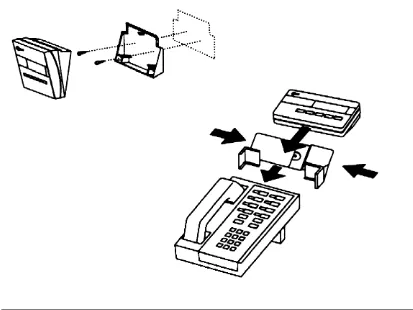
MERLIN Identifier Display units can be mounted directly on a wall or to the MERLIN telephone. Refer to Figure 5 as you follow the instructions to mount the MERLIN Identifier Display units.
Figure 5. Mounting the MERLIN Identifier Display Units
Wall Mounting
To mount the MERLIN Identifier Display unit to the wall, follow the instructions below:
1.
2.
3.
4.
Position the wall mounting bracket on the wall near the MERLIN telephone and an AC power outlet, and mark points for the pilot holes.
Remove the wall mounting bracket, drill pilot holes, and install the plastic screw anchors.
Reposition the wall mounting bracket over screw anchors and drive the #6 x 1/2-inch self-tapping screws through the mounting holes and into the anchors.
Align the slots on the back of the MERLIN Identifer Display with the three prongs on the wall mounting bracket, and snap the MERLIN Identifier Display into place.
Telephone Mounting
To mount the MERLIN Identifier Display unit to a MERLIN
telephone, follow the manufacturer’s instructions included with the telephone mounting bracket.
STEP 5: Wire the MERLIN
Identifier Display Units
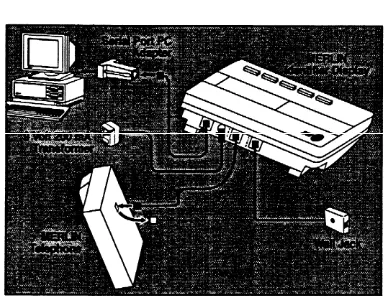
Refer to Figure 6 as you follow the instructions to connect the MERLIN Identifier Display unit to the MERLIN telephone and to a PC.
Figure 6. Wiring the MERLIN Identifier Display Units
Connecting the Display to a
MERLIN Telephone
Follow the instructions below to wire MERLIN Identifier Display units to MERLIN telephones:
Remove the station cord from the back of the MERLIN telephone and plug it into the MERLIN Identifier Display jack labeled “LINE.”
1.
2.
3.
1.
Plug one end of the 18 inch, modular cord with RJ45 plugs into the MERLIN Identifier Display jack labeled “TEL” and the other end into the jack on the back of the MERLIN telephone.
Plug the 9 volt 200 milliampere transformer power cord into the MERLIN Identifier Display port labeled “9V-DC” and the transformer into an AC power outlet.
The MERLIN Identifier Display should display the following to show that it is powered on:
MERLIN IDENTIFIER
Connecting the Display to a PC
A PC running a purchased, Windows™-based contact management software application or asynchronous
communications software can be used to capture Caller ID information from a MERLIN Identifier Display. The MERLIN
Identifier Displays come with a modular cord and an RJ11-to-DB9 adapter. If your PC’s serial port requires a DB25 connection, you must purchase a DB9-to-DB25 adapter.
To connect a PC to a MERLIN Identifier Display, refer to Figure 6 and follow the steps below:
Unplug the the MERLIN Identifier Display power cord and switch off the PC.
2.
3.
4.
5.
■
■
Connect one end of the modular cord into the MERLIN Identifier Display jack labeled “RS232” and the other end to the jack in the RJ11-to-DB9 adapter.
Connect the DB9 adapter to the PC’s serial port, either COM1 or COM2.
Start the PC and either the contact management software application or the asynchronous communications software.
If you use the contact management software
application, follow the manufacturer’s instructions to set up and operate the software.
If you use your own communications software, set up the PC’s communications software as a direct
connection with the parameters as given under “Connecting the Administrative PC” in “STEP 6,” and start the communications program capture feature.
Reconnect the MERLIN Identifier Display power cord.
STEP 6: Connecting
Administrative Components
You can administer the MERLIN Identifier system from either an Administrative Display using a PC Keyboard or from an
Administrative PC running asynchronous communications software. Refer to Figure 7 as you follow the instructions to connect your administrative components.
WARNING:
To prevent damage to the MERLIN Identifier Control Unit and equipment you connect to it, remove their power cords before connecting them.
Figure 7.
Connecting Administrative Components
Connecting the Administrative
Keyboard and Display
To connect the Administrative Keyboard and Display to the MERLIN Identifier Control Unit:
1.
2.
Plug the Administrative Keyboard cord to the MERLIN Identifier Control Unit port labeled “Keyboard.” Use the supplied adapter cable if your keyboard cord ends with a 5-pin DIN connector.
If no shelf or desk space is available for the Administrative Keyboard, mount the keyboard wall mounting brackets on the wall near the MERLIN Identifier Control Unit using the #6 x 1/2-inch self-tapping screws (supplied) and plastic wall anchors.
3. 4. 5. 6. 7. 8.
Follow the instructions under “STEP 4” to mount the MERLIN Identifier Display to be used as the Administrative Display.
Plug one end of the modular cord into the Administration Display jack labeled “LINE” and the other end into the MERLIN Identifier Control Unit jack labeled “Admin Display.”
Slide the Administrative Mode switch to the “Keybd/Display” position.
Plug the transformer power cord into the MERLIN Identifier Administration Display port labeled “9V-DC” and the
transformer into an AC power outlet.
The MERLIN Identifier Control Unit power LED should light and the
ENTER PASSWORD
prompt should display on the Administrative Display screen.Switch on the power to the MERLIN Identifier Control Unit.
Install the MERLIN Identifier Control Unit cover by sliding it into position from the top.
Connecting the Administrative PC
The Administrative PC can be situated in the same room as the MERLIN Identifier Control Unit or located in another room. If you want to locate the Administrative PC in another room, you will need to install a jack near the MERLIN Identifier Control Unit and another jack near the Administrative PC, and run an inside wire between the two jacks before using the procedure that follows.
To connect an Administrative PC to the MERLIN Identifier Control Unit:
1.
labeled “RS232 Admin.”
Connect the RJ45-to-DB9 adapter labeled “Serial Port Controller” to the MERLIN Identifier Control Unit port
2.
3.
4.
5.
Connect one of the following RJ45 adapters to the Administrative PC’s serial port:
■
■
■
■
For a 9-pin COM port, connect the RJ45-to-DB9 adapter labeled “Serial Port PC.”
For a 25-pin COM port, connect the RJ45-to-DB25 adapter labeled “Serial Port PC.”
Do one of the following:
If the Administrative PC is in the same room as the MERLIN Identifier Control Unit, connect a modular cord with RJ45 plugs directly between the “Serial Port Controller” adapter and the “Serial Port PC” adapter.
If the Administrative PC is in a separate room, connect a modular cord with RJ45 plugs directly between the “Serial Port Controller” adapter on the MERLIN Identifier Control Unit and its designated wall jack. Then connect a modular cord with RJ45 plugs directly between the “Serial Port PC” adapter on the Administrative PC’s serial port and its
designated wall jack.
Slide the MERLIN Identifier Control Unit Administrative Mode switch to the “RS232 Admin” position.
Start the Administrative PC and the communications software.
6.
7.
8.
Set up the Administrative PC’s communications software as a direct connection with the following parameters:
Port: COM1 or COM2 to match physical connection Speed: 1200 bps
Data length: 8 bits Stop Bits: 1 bit Parity: none Duplex: full
Plug the 9 volt 1 ampere transformer power cord into the MERLIN Identifier Control Unit port labeled “9V-DC” and the transformer into an AC power outlet.
The MERLIN Identifier Control Unit power LED should light and the
ENTER PASSWORD
prompt should display on the Administrative PC screen.Install the MERLIN Identifier Control Unit cover by sliding into position from the top.
Connecting a Serial Printer
Depending on your MERLIN Identifier system requirements, you may also want to connect a serial printer to the MERLIN Identifier Control Unit to collect Caller ID information.
The serial printer can be situated in the same room as the
MERLIN Identifier Control Unit, or located in another room. If you want to locate the serial printer in another room, you will need to install a jack near the MERLIN Identifier Control Unit and another jack near the serial printer, and run an inside wire between the two jacks before using the procedure that follows.
To connect the serial printer to the MERLIN Identifier Control Unit, refer to Figure 7 and follow the steps below:
1. Unplug the the MERLIN Identifier Control Unit power cord and the printer’s or PC’s power cord.
2.
3.
4.
5.
6.
Connect the RJ45-to-DB9 adapter labeled “Printer Port Controller For use with Printer only” to the MERLIN Identifier Control Unit port labeled “Serial Printer.”
Connect the RJ45-to-DB25 adapter labeled “Serial Printer” to the printer’s serial port.
Do one of the following:
■
■
If the serial printer is in the same room as the MERLIN Identifier Control Unit, connect a modular cord with RJ45 plugs directly between the “Printer Port
Controller For use with Printer only” adapter and the “Serial Printer” adapter.
If the serial printer is in a separate room, connect a modular cord with RJ45 plugs directly between the “Printer Port Controller For use with Printer only” adapter on the MERLIN Identifier Control Unit and its designated wall jack. Then connect a modular cord with RJ45 plugs directly between the “Serial Printer” adapter on the serial printer and its designated wall jack.
Connect the power cord to the printer or PC and an AC power outlet.
Reconnect the MERLIN Identifier Control Unit power cord.
Be sure to follow the instructions in “Setting Up the Printer Serial Port” in “STEP 7” to set up the correct line termination required by the serial printer.
Connecting a PC
Instead of the Printer
A PC running asynchronous communications software can be used instead of a serial printer to capture Caller ID information from the MERLIN Identifier Control Unit. If you are using an
Administrative PC, the same PC can be used if it has a free serial port or you install a switch box.
The PC can be situated in the same room as the MERLIN
Identifier Control Unit or located in another room. If you want to locate the PC in another room, you will need to install a jack near the MERLIN Identifier Control Unit and another jack near the PC, and run an inside wire between the two jacks before using the procedure that follows.
To connect a PC to the MERLIN Identifier Control Unit, follow the steps below:
1.
2.
3.
Unplug the the MERLIN Identifier Control Unit power cord and switch off the PC.
Connect the RJ45-to-DB9 adapter labeled “Printer Port Controller Serial Port Only” to the MERLIN Identifier Control Unit port labeled “Serial Printer.”
Connect one of the following adapters to the PC’s serial port:
■
■
For a 9-pin COM port, connect the RJ45-to-DB9 adapter labeled “Serial Port PC.”
For a 25-pin COM port, connect the RJ45-to-DB25 adapter labeled “Serial Port PC.”
4.
5.
6.
7.
8.
Do one of the following:
■
■
If the PC is in the same room as the MERLIN Identifier Control Unit, connect a modular cord with RJ45
plugs directly between the “Printer Port Controller Serial Port Only” adapter and the “Serial Port PC” adapter.
If the PC is in a separate room, connect a modular cord with RJ45 plugs directly between the “Printer Port Controller Serial Port Only” adapter on the MERLIN Identifier Control Unit and its designated wall jack. Then connect a modular cord with RJ45 plugs directly between the “Serial Port PC” adapter on the PC’s serial port and its designated wall jack.
Reconnect the PC’s power cord and start the PC and the communications software.
Set up the PC’S communications software using the
parameters as given under “Connecting the Administrative PC” in “STEP 6.”
Start the communications program capture feature.
Reconnect the MERLIN Identifier Control Unit power cord.
STEP 7: Set Up MERLIN
Identifier Parameters
■
■
■
■
■
■
■
■
■
After the MERLIN Identifier system has been installed, the following initial system parameters must be set up:
Changing the default administration password
Setting up the telephone lines
Setting up the serial port
Notes on Entering Data
The MERLIN Identifier system simplifies the entry of commands and database information in the following ways:
Displaying upper-case for all letters, whether you type them in upper- or lower-case
Employing mnemonic commands that are entered by typing a single character
Supporting type-over edit mode only (<Insert> key not supported)
Supporting the <Backspace> and <Tab> keys to position the cursor
(Administrative PC Only) Supporting a Beginner mode where prompts and menus are displayed, and an
Advanced mode where menus are displayed only upon request
(Administrative PC Only) Displaying a menu of commands when you enter
?
orH
(for Help)Entering the Administration Password
You can access the MERLIN Identifier system administration and database functions only by entering the administration password. The password is
IDENTIFIER
until you change it.■ To enter the administration password, type the password
and press <Enter>.
To prevent others from viewing the password, the MERLIN Identifier system does not display the password as you type it.
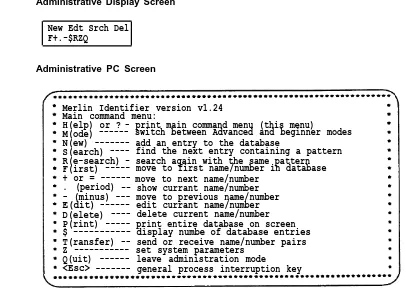
After you enter the password, the MERLIN Identifier system displays the menu as shown in Figure 8.
Administrative Display Screen
New Edt Srch Del F+.-$RZQ
Administrative PC Screen
Merlin Identifier version v1.24 Main command menu:
H(elp) or ? - print main command menu (this menu)
M(ode) --- switch between Advanced and beginner modes N(ew) --- add an entry to the database
S(earch) ---- find the next entry containing a pattern R(e-search) - search again with the same pattern F(irst) --- move to first name/number in database + or = --- move to next name/number
. (period) -- show currant name/number - (minus) --- move to previous name/number E(dit) --- edit currant name/number D(elete) ---- delete current name/number P(rint) --- print entire database on screen T(ransfer) -- send or receive name/number pairs Z --- set system parameters
Q(uit) --- leave administration mode
<Esc> --- general process interruption key $ --- display numbe of database entries
Figure 8. MERLIN Identifier Administration Menu
See Appendix A for a complete list of the MERLIN Identifier system administration and database commands.
NOTE:
Be sure to log off by entering
Q
(for Quit) on the Administrative Keyboard or pressing <Esc> at the Administrative PC until theENTER PASSWORD
prompt displays. The MERLIN IdentifierControl Unit also logs you off automatically if there is no keyboard activity for 120 seconds.
Changing the Administration Password
The administration password prevents unauthorized users from accessing MERLIN Identifier system administration and database functions. The password can be any combination of 1–12
alphabetic or numeric characters. For security reasons, you
should use at least 6 characters for the password and change the password periodically.
To change the administration password, follow the instructions below:
1.
2.
3.
4.
5.
6.
7.
Enter the current password.
Enter
Z
to access the System Parameter menu.Enter
P
(for Password).Enter the current password when prompted.
Enter the new password when prompted. (It does not display.)
Enter the new password again when prompted to confirm that you entered it correctly. (It does not display.)
Press <Esc> to exit the System Parameter menu.
Setting Up the Telephone Lines
The MERLIN Identifier system lets you attach MERLIN Identifier Displays to up to four Central Office telephone lines. The MERLIN Identifier Display shows the last two digits of the telephone line numbers you set up.
To assign telephone numbers, follow the instructions below:
1.
2.
3. 4.
5.
6.
■
■
1.
2.
Enter the Administration password.
Enter
Z
to access the System Parameter menu.Enter the number, 1–4, of the telephone line you want to set.
Enter the last four digits of the telephone line number.
You must enter all four digits even though only the last two digits show on the MERLIN Identifier Displays.
Repeat Steps 3 and 4 for each line number to be monitored by a MERLIN Identifier Display.
Press <Esc> to exit the System Parameter menu.
Setting Up the Printer Serial Port
Serial printers require one of the following line terminations:
Carriage return (<CR>)
Carriage return plus a line feed (<CR><LF>)
To set up the MERLIN Identifier Control Unit printer port, follow the instructions below:
Verify the line termination required by the printer.
Enter the Administration password.
3.
4.
5.
Enter
Z
to access the System Parameter menu.The current printer status is displayed, either
<CR> only
or
<CR><LF>.
Type
C
to toggle the line termination between a carriage return (<CR>) and a carriage return plus a line feed(<CR> <LF>).
Press <Esc> to exit the System Parameter menu.
3
MERLIN Identifier
Database Description
The MERLlN®
Identifier database stores records in the following format:
PAAAAAAAAAAAAAAAANNNNNNNNNN
where:
P
is a Priority flag.AAAAAAAAAAAAAAAA
is the 1-to-16 character caller name.NNNNNNNNNN
is the caller’s 10-digit telephone number.The MERLIN Identifier database can store approximately 2500 records. Because the MERLIN Identifier database stores caller records using variable record-length format, more memory is available to store additional records when caller names are less than the 16 characters allotted. For example, if 900 records use 13-character names instead of all 16 characters, an additional 100 database records with 16-character names could be stored.
Caller Names
All upper-case alphabetic characters and punctuation marks can be used for caller names. The MERLIN Identifier system stores database records in alphabetical order by caller name. To
facilitate recognition of names on the MERLIN Identifier Displays, always record caller names in the same format—such as last name first. For example, enter SUE WALLACE and BERT WASHINGTON into the database as
WALLACE, SUE
andWASHINGTON, BERT,
orSUE WALLACE
andBERT
WASHINGTON,
but notWALLACE, SUE
andBERT
WASHINGTON.
Telephone Numbers
Telephone numbers are stored in the database using standard area code, exchange, and number format. All 10 digits of the telephone number must be used.
Depending on your data collection and call tracking needs, you may not want to differentiate calls based on all digits of telephone numbers. The MERLIN Identifier system lets you substitute the question mark (“?”) as a wild-card character in place of individual digits in the telephone number.
Advantages of Using the
Wild-Card Character
Using one or more wild-card characters offers the following advantages in storing telephone numbers in the database and displaying Caller ID information:
■
■
■
■
Each wild-card character used in a telephone number replaces 10 individual digits (0 through 9)—thus a single wild-card character has the potential to reduce the
database by 9 records, two wild-card characters have the potential to reduce the database by 99 records, and so on
Selected ranges of telephone numbers could be assigned to a single record
All telephone numbers within a calling exchange could be represented by just a single database record
All telephone numbers within an area code could be represented by just a single database record
The following examples show how the wild-card character can be used to address business needs.
Example 1:
A local delivery service in the 901 area code has been monitoring its telephone calls and finds that a significant number of calls involved telephone numbers 555-4100 to555-4199. A further check reveals that a single company uses all 100 of those telephone numbers. To use a single database record to represent all 100 of the company’s telephone numbers, a caller record with telephone number
901-555-41??
and thecompany’s name has been set up in the MERLIN Identifier database. Now any time a telephone order is placed from telephone numbers 555-4100 to 555-4199, the delivery service knows to send the delivery person to the same company.
Example 2:
The delivery service in “Example 1” only delivers within a five mile radius. The manager has identified four surrounding telephone exchanges outside the radius likely to place an order, but to which deliveries would not be made: 332, 125, 976, and 212. To immediately identify those exchanges to employees, the following telephone numbers were added to the MERLIN Identifier database with the nameNO DELIVERY:
901-332-????, 901-125-????, 901-976-????,
and901-212-????.
Now whenever a delivery request comes in from those exchanges, the employee politely explains that the location is outside the delivery range.Setting Up and
Maintaining the Database
The MERLIN Identifier database enables you to match the names of frequent callers to their telephone numbers. This database can be set up in the following ways:
■
■
Using the Administrative Keyboard and Display or Administrative PC to enter individual caller records directly into the database from the following sources:
Your files or paper records
Caller ID information output from the serial printer attached to the MERLIN Identifier Control Unit
Transferring data from computer-based applications: —
—
—
—
—
Database files
Mailing list files
Plain ASCII text files
Maintaining the Database Directly
The following MERLIN Identifier database functions can be performed from Administrative Keyboard and Display or the Administrative PC:
■
■
■
■
Adding a new record
Searching for a specific record to display, edit, or delete
Editing an existing record
Deleting an existing record
Adding Database Records
To add a record to the MERLIN Identifier database, follow the instructions below:
1.
2.
3.
4.
5.
Enter the administration password.
Enter
N
(for New).The MERLIN Identifier system displays the following
characters to prompt the correct entry of the caller record:
---
1-to-16 chararcter caller name-
000-000-0000
Priority flag (default is no priority)and 10-digit caller telephone number
Type over the dashes with the name of the caller.
(Priority Callers (Only) Move the cursor to the minus sign (-) and press the Plus (+) key to identify a priority caller.
Type over the
000-000-0000
with the telephonenumber. The MERLIN Identifier ignores dashes and spaces between the area code, exchange, and line number fields.
Type all 10 digits, including the area code.
6.
7.
Press <Enter> to save the record.
If a record with the identical telephone number already exists, enter
Y
to confirm its replacement.Repeat Steps 2 through 6 to add more records.
Selecting Database Records
Use the following commands to select a MERLIN Identifier database caller record for displaying or subsequent
administration tasks:
Command
MERLIN Identifier System Response
F
(First) Select the first caller record in the database+
(Plus) Scroll to the next caller record in the database.
(Period) Display the currently selected caller record-
(Minus) Scroll to the previous caller record$
Display the number of records in the databaseThe MERLIN identifier database contains the following lines to tell you when the beginning or end of the database has been reached:
BEGINNING OF DATABASE
END OF DATABASE
Searching for Specific
Database Records
To search for a record containing a specific string of characters in the caller name, follow the instructions below:
1.
2.
3.
Enter the administration password.
Enter
S
(for Search).NOTE:
The search starts from the current record. If you want to search the entire database, enter
F
(for First) before entering the Search command.Enter the string of characters to search for.
The MERLIN Identifier system displays a record with a caller name containing the search string entered.
Repeating the Last Search
Searches may not always display the caller record you want.
To repeat the search using the same string of characters defined in the last search:
■ Enter
R
(for Re-search).The MERLIN Identifier system displays the next record with a caller name containing the search string entered.
Editing Database Records
To edit the current record after selecting or displaying it, follow the instructions below:
1.
2.
3.
1.
2.
Enter
E
(for Edit).Move the cursor to the information to be changed and type the changes.
Press <Enter> to save the record.
If the record already exists, enter
Y
to confirm its replacement.Deleting a Database Record
To delete the current database record after selecting or displaying it, follow the instructions below:
Enter
D
(for Delete).You are prompted to confirm the deletion.
Enter one of the following:
Y
to delete the recordN
to cancel the deletionMaintaining the Database Using
File Transfers
■
■
The MERLIN Identifier Transfer command lets you download MERLIN Identifier database records for use in other applications or to make a backup copy of the database. The Transfer
command also lets you maintain caller names and telephone numbers in a PC application and upload the records to the MERLIN Identifier database.
There are no restrictions on downloading MERLIN Identifier database records to the Administrative PC. However, the following restrictions apply when uploading records to the MERLIN Identifier database:
■
■
■
■
■
■
■
Record format must not exceed the following record format or the record will be discarded by MERLIN Identifier:
PAAAAAAAAAAAAAAAANNNNNNNNNN
where:
P
is “+” to indicate a Priority record.AAAAAAAAAAAAAAAA
is the 1-to-16 character caller name.NNNNNNNNNN
is the caller’s 10-digit telephone number.Only the first 16 characters of the name are accepted— any others are discarded
Records must be delimited by a carriage return <CR>; no field delimiters can be used
First line of the upload file must contain the uppercase words
BEGINNING OF DATABASE
Last line of the upload file must contain the uppercase words
END OF DATABASE
File upload is destructive—new records are added and records with matching phone numbers are overwritten
If more records are uploaded than will fit in the database, the extra records are discarded and the MERLIN
Identifier system displays the last record that was successfully uploaded
Downloading Database Records
To download records from the MERLIN Identifier database to the Administrative PC, follow the instructions below:
1. 2. 3. 4. 5. 6. 1. 2.
Start the communications software on the Administrative PC.
Enter the administration password.
Enter
T
(for Transfer).Enter one of the following:
■
■
X
to download using the XMODEM protocolT
to download as standard ASCII text charactersEnter
R
(for Receive).Initiate the download file transfer option for the
Administrative PC communications program and specify a target filename of your own choosing.
Uploading Records
CAUTION:
When uploading a large database during a heavy incoming call period, some Caller ID data may be missed. It is recommended that such transfers be made during evening hours or other light call traffic periods.
It is recommended that you sort the records on your Administrative PC before you upload them to the MERLIN Identifier database.
To upload records from the Administrative PC to the MERLIN Identifier database, follow the instructions below:
Start the communications software on the Administrative PC.
Enter the Administration password.
3.
4.
5.
6.
1. 2.
Enter
T
(for Transfer).Enter one of the following:
X
to upload using the XMODEM protocol■
■
T
to upload as standard ASCII text charactersEnter
S
(for Send).Initiate the upload file transfer option for the Administrative PC communications program.
Changing the
Administration Mode
If you are using the Administrative PC, you can speed up
administration tasks by changing the mode from Beginner (factory default setting) to Advanced. In Advanced mode, the MERLIN Identifier system does not display extended prompts or the command menu unless you type
?
orH
for Help.To toggle the Administration Mode between Beginner and Advanced, follow the instructions below:
Enter the Administration password.
Enter
M
(for Mode).4
If you encounter a problem with MERLlN®
Identifier, be sure to look for possible causes in this chapter before calling the AT&T Helpline or your AT&T Authorized Dealer.
Common problems
■
■
Many common problems involve loose, physical connections and loss of power. Be sure to check all
connections, switches, and outlets before calling for help.
If you do not get caller telephone numbers on the MERLIN Identifier Display units, do the following:
—
—
—
Contact your local telephone company and verify that you have Caller ID service to the Central Office lines you want to monitor.
Verify that you have the correct Central Office lines and station lines connected to the MERLIN Identifier Control Unit.
Change your automated attendant setting to answer after 2 or 3 rings (Caller ID information is transmitted between the first and second ring).
Power LED does not light on MERLIN Identifier Control Unit
■
■
■
■
■
■
■
■
Make sure you are using the 9 volt 1 ampere power transformer and not the 9 volt 200 milliampere power transformer supplied with the MERLIN Identifier Display units.
Make sure that the power cord is firmly seated in the 9V-DC port on the MERLIN Identifier Display unit.
MERLIN Identifier Display unit does not appear to have power
Make sure that the power cord is firmly seated in the 9V-DC port on the MERLIN Identifier Display unit.
Check for power at the AC outlet.
MERLIN Identifier Control Unit appears to be locked up
(does not receive calls and/or cannot be administered)
Reset MERLIN Identifier Control Unit by moving Administrative Mode switch to opposite position and back again.
Serial printer is not printing
Verify that you are using the correct adapters and the modular cords.
Verify that you have the correct line termination, either <CR> or <CR><LF>.
If using inside wiring to connect the printer to the MERLIN Identifier Control Unit, verify that the correct inside wires and jacks are being used.
Administrative PC does not communicate with the MERLIN
Identifier Control Unit
■
■
■
■
■
■
■
■
■
Verify that the Administrative Mode switch is in the “RS232 Admin” position.
Verify that you are using the correct adapters and modular cords.
If using inside wiring to connect the PC to the MERLIN Identifier Control Unit, verify that the correct inside wires and jacks are being used.
Verify that you are using the correct PC serial port.
Verify your communication settings for the PC.
PC software does not communicate with the Display unit
Verify that you are using the correct adapters and modular cords.
Verify that you are using the correct PC serial port.
Verify your communication settings for the PC.
Verify your software installation.
A
MERLIN Identifier System
Record Formats
The MERLlN®
Identifier system record formats use the fields that follow:
P
is either “-” for a non-Priority record or “+” for a Priority recordAAAAAAAAAAAAAAAA
the caller nameNNNNNNNNNN
the caller telephone numberLLLL
orLL
the four- or two-digit line numberMM/DD
the date of call (month/day)HH:MM
the time of call (hour:minute)T
A
for AM orP
for PMMERLIN Identifier Database Record Format
PAAAAAAAAAAAAAAAANNNNNNNNNN
Serial Printer Output Record Format
LLLL NNN-NNN-NNNN AAAAAAAAAAAAAAAA MM/DD HH:MM T <CR or CRLF option>
MERLIN Identifier Display Output Record Format
LL NNNNNNNNNN AAAAAAAAAAAAAAAA MM/DD HH:MMT <CR>
Serial Cable Pin Configurations
The following tables list the pin assignments for the RS232 adapters included with MERLIN Identifier system components. Adapters are identified by their labels.
NOTE:
All modular cords supplied with the MERLIN Identifier system components are polarized—other similar-looking modular cords may not be compatible with the adapter pin configurations.
Serial Port Controller (RJ45-to-DB9)
RJ45 Female
DB9 MaleRed Pin 2
Yellow Pin 3
Green Pin 5
Black Pin 7
Serial Port PC (RJ45-to-DB9)
RJ45 Female
DB9 FemaleRed Pin 2
Yellow
Green
Black
Pin 3
Pin 5
Pin 7
Serial Port PC (RJ45-to-DB25)
RJ45 Female
DB25 FemaleRed Pin 5
Yellow Pin 4
Green Pin 3
Black Pin 2
Printer Port Controller—For Use with
Printer Only (RJ45-to-DB9)
RJ45 Female
DB9 FemaleRed Pin 8
Yellow Pin 3
Green Pin 5
Serial Printer (RJ45-to-DB25)
RJ45 Female
DB25 MaleRed Pin 20
Yellow Pin 3
Green Pin 7
N/C Pins 4, 5, 6, 8
Printer Port Controller (Serial Port Only) (RJ45-to-DB9)
RJ45 Female
DB9 FemaleRed Pin 3
Yellow Pin 7
Green Pin 5
MERLIN Identifier
Command Reference
The following tables define the MERLIN Identifier system
administration commands and indicate whether a command is only available for administering the MERLIN Identifier system by the Administrative PC.
Main Menu Commands
Command
Admin.
Description
PC Only
D
(Delete) No Deletes the current database record.E
(Edit) No Displays the current database record for editing.F
(First) No Displays the first record in the database.H
(Help) or?
Yes Displays the commands available for the current menu.M
(Mode) Yes Switches between Beginner and Advanced system administration modes.N
(New) No Prompts for the entry of a new caller name.P
(Print) Yes Displays the contents of the MERLIN Identifier database on the screen.Q
(Quit) or No Exits the Main menu. <Esc>R
(Re-search) No Repeats the search using the same string of characters.Command
Admin.
Description
PC Only
S
(Search) No Finds the next database record containing a specified string of characters.T
(Transfer) Yes Displays the database Transfer Menu. See “Transfer Subcommands.”Z
(System No Displays the System Parameter Menu. Parameter) See “System ParameterSubcommands.”
+
(plus) No Displays the next database record.-
(minus) No Displays the previous database record..
(period) No Displays the current database record.$
(dollar sign) No Displays the number of database records.System Parameter Subcommands
Command
Admin.
Description
PC Only
C
(Carriage) No Switches the serial printer port line termination between a carriage return <CR> and carriage return and a linefeed <CR><LF>.H
(Help) Yes Displays the commands available for the current menu.P
(Password) No Changes the database password.D
(Display) No Displays all four line numbers.1
(Line 1) No Sets the first line number.2
(Line 2) No Sets the second line number.Command
Admin.
Description
PC Only
3
(Line 3) No Sets the third line number.4
(Line 4) No Sets the fourth line number.<Esc> No Exits System Parameter Menu.
Transfer Subcommands
Command
Admin.
Description
PC Only
M
(Help) Yes Displays the commands available for the current menu.R
(Receive) Yes Initiates a file download to the MERLIN Identifier database.S
(Send) Yes Initiates a file upload from the MERLIN Identifier database.T
(Text) Yes Specifies a plain ASCII text file transfer.X
(XMODEM) Yes Specifies an XMODEM file transfer. <Esc> No Exits Transfer Menu.B
The following tables show the parts included with each MERLIN®
Identifier system component package.
Controller Assembly with Administrative Display and Keyboard
PE Code 6128 KBD COM Code 406 891 556
Parts Name
Quantity
Controller 1 (with mounting plate) #6 x 1/2" Self-Tapping Screws 3 (for mounting Controller) Cable phone 8-conductor x 7' 4 (Controller to MERLIN)
Cable phone 4-conductor x 7' 4 (Controller to MERLIN CO lines) Power Adapter 9V 2.5mm plug 1 (9 Volt 1 Amp plug—Black) Controller Cable Cover 1
Keyboard 101 1
Keyboard Mounting Brackets 2 Keyboard Cord Adapter 1
Cable phone 8-conductor x 7' 1 (Controller to Admin. Display) #6 x 1/2" Self-Tapping Screws 6 (for mounting keyboard) Display Assembly 1 (with wall mounting)
Documentation 3
Controller Assembly with PC Administration
PE Code 6128 PCA COM Code 406 891 564
Parts Name
Quantity
Controller 1 (with mounting plate) #6 x 1/2" Self-Tapping Screws 3 (for mounting Controller)
Cable phone 8-conductor x 7' 4 (Controller to MERLIN) Cable phone 4-conductor x 7' 6 (Controller to MERLIN CO
lines) and RS232 connections Power Adapter 9V 2.5mm plug 1 (9 Volt 1 Amp plug—Black) Controller Cable Cover 1
Adapter (Serial Port @ Controller) 1 Adapter (Serial Port @ PC DB25) 1 Adapter (Serial Port @ PC DB9) 1
Documentation 2
Display Assembly with Mounting Bracket
PE Code 6128 DIS COM Code 406 891 572
Parts Name
Quantity
Display Unit 1
Power Adapter 1 (9 Volt 200ma plug—Black) Cable phone 8-conductor x 18" 1 (Display to phone)
Cable phone 4-conductor x 7' 1 (RS232 port to PC)
Adapter (DB9 to 4-conductor 1 (Converter DB9 port to phone
phone) connector)
Mounting Bracket 1 #6 x 1/2" Self-Tapping Screws 2 and wall anchors
Documentation 1
Display Assembly with Phone Mounting
PE Code 6128 BKT COM Code 406 891 598
Parts Name
Quantity
Mounting Bracket with knob 1
Velcro 1
Database Management Software
PE Code 6128 SFW COM Code 406 891 721
Parts Name
Quantity
Software 1
Documentation 1
Printer Option
PE Code 4200 572 COM Code 406 716 464
Parts Name
Quantity
AT&T Model 572 1 Call Accounting Terminal (CAT) Printer
Power cord 1
Cable DB9 1
Documentation 1
Parts Ordered Individually
Parts Name
COM Code
Adapter (@ Controller DB9) 406 960 955 For RS232 only
Adapter Kit, PC Administration 406 960 930 Adapter Kit, Printer 406 960 948 Bracket, Display Phone Mount 406 891 937 Cable, Serial Port RS232 406 891 903 Controller to PC
Controller with Mounting Panel 406 891 648
Display 406 891 663
Fixture, Display Wall Mount 406 891 929 Keyboard 101 406 891 655 Manual, MERLIN Identifier 406 891 713 Installation and Administration
MERLIN Identifier User’s Quick 406 891 705 Reference for Display
Software, Database Management 406 891 721
C
When the MERLIN®
Identifier is used with a MERLIN LEGEND®
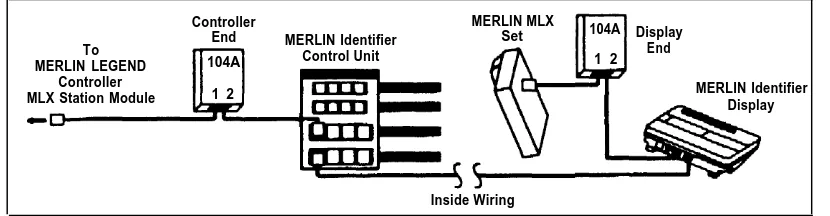
system having MLX™ sets, a pair of installer-wired 104A
termination outlets is required for each MLX set to be connected to a MERLIN Identifier Display unit.
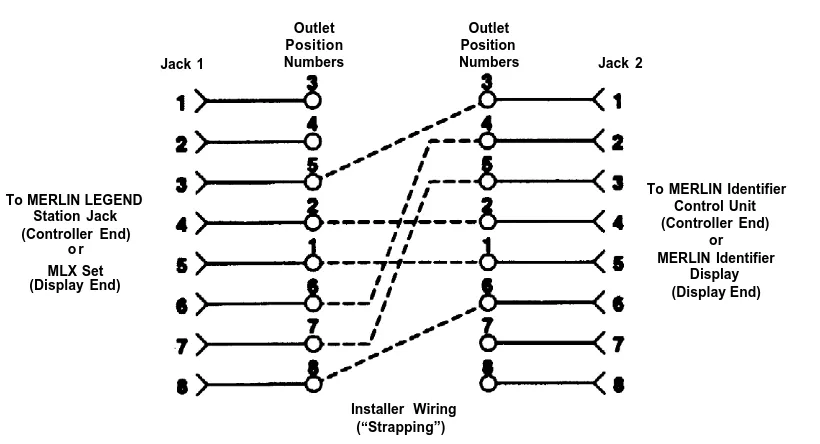
Figure 9 shows the location of the 104A termination outlets with respect to the other MERLIN Identifier system components. Figure 10 shows the internal “strapping” required for the 104A termination outlets.
Controller MERLIN MLX
End Set 104A Display
To MERLIN Identifier End
MERLIN LEGEND 104A Control Unit 1 2 Controller
MLX Station Module 1 2 MERLIN IdentifierDisplay
Inside Wiring
Figure 9. MERLIN Identifier Cabling for MERLIN LEGEND
MLX Sets
Outlet Position Jack 1 Numbers
Outlet Position
Numbers Jack 2
To MERLIN LEGEND Station Jack (Controller End)
o r MLX Set (Display End)
To MERLIN Identifier Control Unit (Controller End)
or MERLIN Identifier
Display (Display End)
Installer Wiring (“Strapping”)
Figure 10. 104A Termination Outlet Strappings to Connect
MERLIN LEGEND MLX Sets to MERLIN Identifier