Lucent Technologies
Bell Labs InnovationsPARTNER MAIL™
Voice Messaging System
Installation and Use
Lucent Technologies -formerly the communications systems and technology
AT&T
units of AT&T585-322-101 Issue 1
Intellectual property related to this product (including trademarks) and registered to AT&T Corporation has been transferred to Lucent Technologies Incorporated.
Any references within this text to American Telephone and Telegraph Corporation or AT&T should be interpreted as references to Lucent Technologies Incorporated. The exception is cross references to books published prior to December 31, 1996, which retain their original AT&T titles.
CAUTION:
Environmental and electrical conditions must meet the specifications as listed on pages 20 and 21.
Important Safety Instructions
Always follow these basic safety precautions when using the system: 1.
2. 3.
4. 5.
6.
Read and understand all instructions.
Follow all warnings and instructions marked on the product.
Never spill liquid on the product or drop objects into the ventilation slots and openings. Doing so may result in serious damage to the components. Repair or service must be performed by a qualified repair person. The product is provided with a three-wire grounding type plug. This is a safety feature. DO NOT defeat the safety purpose of the grounding type plug. DO NOT staple or otherwise attach the AC power supply cord to building surfaces.
DO NOT use the product near water or in a wet or damp place (such as a wet basement).
CAUTION:
DO NOT block or cover the ventilation slots and openings. They prevent the product from overheating. DO NOT place the product in a separate enclosure unless proper ventilation is provided.
Additional Safety Instructions
for Installation Personnel
1. 2.
3.
4. 5.
DO NOT install telephone wiring during a lightning storm.
DO NOT install telephone jacks in a wet location unless the jack is specifically designed for wet locations.
Never touch uninsulated telephone wires or terminals, unless the telephone line has been disconnected at the network interface.
Use caution when installing or modifying telephone lines. The system carriers must be securely wall mounted.
CAUTION:
If any wiring from the extension jacks leaves the building premises, you must install AT&T IROB protectors (see “Requirements for Out-of-Building
Extensions” on page 21).
CAUTION:
Contents
About This Guide
■ How to Use this Guide viii
■ Conventions x
■ Related Guides x i
1
Introduction
1-1■ Responsibilities 1-2
■ System Services and Features 1-4
2
Installation
2-1■ Preparing for Installation 2-2
■ Installing the PARTNER MAIL Unit 2-4
■ Add or Replace Voice-Processing Card 2-12
3
PARTNER II System Programming
■ PARTNER II System Planning Forms
■ Introduction to System Programming ■ Initial System Programming
■ Programming Automated Attendant ■ Programming Call Answer Service ■ Programming Night Service (#503) ■ Telephone Button Programming
3-1
3-2 3-3 3-5 3-8 3-10 3-12 3-13
Contents
4
PARTNER MAIL - Initial Programming
■ ■ ■ ■ ■ ■ ■ ■ ■
Introduction to Programming Before Programming
Programming System Parameters Programming the Schedule
Program Automated Attendant Menus Programming System Greetings Modifying Mailboxes
Creating Group Lists Assigning Line Ownership
4-1 4-2 4-5 4-7 4-14 4-17 4-25 4-28 4-31 4-33
5
Verifying System Operation
5-1■ Automated Attendant Service 5-2
■ Call Answer Service 5-4
■ Voice Mailbox Transfer 5-5
■ Voice Mail Service 5-6
6
PARTNER MAIL Administration
■ Guidelines for Administration ■ Administration Menu Hierarchy
■ Planning Forms
■ Accessing the Main Menu ■ Changing System Parameters ■ Changing the Schedule ■ Changing the Main Menus ■ Changing Mailbox Assignments ■ Changing Group Lists
■ Changing Line Ownership
Contents
■ Changing Greetings ■ Voice Mail Service
6-51 6-56
7
Troubleshooting
7-1A
Appendix A: Factory Settings
A-1Glossary
G-1Index
IN-1Figures
1
Introduction
1-11-1. Overview of PARTNER MAIL Services 1 - 5
1-2. PARTNER MAIL System as Immediate Call Handler 1 - 8 1-3. PARTNER MAIL System as Delayed Call Handler 1 - 9
2
Installation
2-1. 2-2. 2-3. 2-4. 2-5. 2-6. 2-7. 2-8. 2-9. 2-10. 2-11. 2-12. 2-13.PARTNER MAIL Unit
Wall-Mounting the PARTNER MAIL Unit Mounting the PARTNER MAIL Unit
Connect PARTNER MAIL to PARTNER System PARTNER MAIL Unit - Rear Panel
PARTNER MAIL RMD Switch Settings
The PARTNER MAIL Remote Maintenance Device Remove Unit from Wall-mount
Remove Screw from Unit
Voice Processing Card Switch Settings Installing a Voice Card
Installing the Cover
Mounting the PARTNER MAIL Unit
2-1 2-4 2-5 2-6 2-8 2-9 2-10 2-11 2-13 2-14 2-15 2-16 2-17 2-18
4
PARTNER MAIL - Initial Programming
4-1. 4-2. 4-3. 4-4. 4-5. 4-6. 4-7. 4-8.
PARTNER MAIL System Programming Menus Programming PARTNER MAIL System Parameters Programming the Schedule
Figures
6
PARTNER MAIL Administration
6-1. 6-2. 6-3. 6-4. 6-5. 6-6. 6-7. 6-8.
Administration Menu Hierarchy System Parameters
Schedule
Changing the Automated Attendant Main Menus Mailbox Administration Options
Changing Group Lists Line Ownership System Greetings
6-1
6-4 6-7 6-11 6-15 6-31 6-42 6-47 6-51
About This Guide
This guide provides instructions for installing, administering and maintaining the PARTNER MAILTM
Voice Messaging System on the PARTNER®
II Release 3
Communications System. This guide is intended for technicians who install, maintain, and repair communications systems and implementors who initially program the system.
In addition to installation and administration instructions, this guide contains a table of factory settings in Appendix A, a glossary of terms, an index, and three removable pages located at the back of the guide. These pages provide the following:
■ Instructions for using the General Mailbox, which you should give to the System Operator or to whomever in your company is responsible for maintaining the General Mailbox.
■ A chart showing all of the PARTNER MAIL system functions that are
administered from the Administration Main Menu.
■ A form for providing feedback on this guide, which you can fax or mail to
AT&T.
About This Guide
How to Use this Guide
Refer to the following table for a list of Installation, Programming, and Administration items, the tasks under each, and corresponding chapter number.
ITEM TASKS CHAPTER NUMBER
Installing the Wall-Mount the Unit Chapter 2 PARTNER MAIL Connect the PARTNER MAIL
system system to PARTNER II Release 3
Connect the RMD
Add Voice-Processing Card(s)
Programming Initial Programming Chapter 3
PARTNER II for Program Automated Attendant
PARTNER MAIL Service
Program Call Answer Service Program Night Service Button Program for the RMD
Program Telephone Buttons
Initial Programming Program System Parameters Chapter 4 of the PARTNER Program the Schedule
MAIL system Program Automated Attendant Greetings
Program Automated Attendant Menus
Program Mailboxes Create Group Lists Program Line Ownership
Performing Test Automated Attendant Chapter 5 Acceptance Tests Service
Test Call Answer Service Test Voice Mail Service
Performing System Refer to “Administration Menu Chapter 6 Administration Items” in the next section.
Troubleshooting Identify and correct problems Chapter 7 with the PARTNER MAIL
system.
About This Guide
Administration Menu Items
Refer to the following table for a list of Administration Menu items, and the tasks under each. All Administration menu items are documented in Chapter 6.
MENU ITEM TASKS
1. System Parameters Program Fax Extension
Program System Operator Extension Program General Mailbox Owner Assign System Administrator’s
Extension
Program Fax Message Receiver
2. Schedule Parameters Change the System Date and Time Temporary Schedule Changes
3. Automated Attendant Program Selector Code Actions Create Submenus
Create Announcements Change Main Menus Record prompts
4. Mailboxes Create, change, and delete
5. Group Lists Scan, delete and modify
6. Line Ownership Review, assign, modify and delete
7. System Greetings Change Automated Attendant Greetings Change Voice Mail Greeting
About This Guide
Conventions
The following conventions are used throughout this guide:
EXTENSION means press the buttons on the dialpad for the appropriate extension.
[ # ] means press the pound button. The pound button is frequently used as a termination character, enabling the system to detect the end of an extension or password you have entered.
PASSWORD means press the buttons on the dialpad for the appropriate password.
MAlLBOX means press the buttons on the dialpad to dial the Mailbox number of a subscriber. Usually the Mailbox number is a subscriber’s extension.
[ ✱ ] means press the star button on the dialpad.
The prompts or responses played by the system are shown in this manner:
Record at the tone.
✔ means that the programmable setting to the left of the ✔ is the factory setting.
About This Guide
Related Guides
The following guides are available to help you set up, use, and maintain the PARTNER MAIL system when it is installed with the PARTNER®
II Release 3 Communications System.
YOU can order additional copies of the related system guides listed in the following table from the AT&T Customer Information Center. Phone numbers are listed on the inside front cover.
Portions of the documentation may be available in French and Spanish. For more information, contact your AT&T authorized representative.
Guide Title Order Number
PARTNER MAIL system
Installation and Use 585-322-101
Planning Guide and Forms 585-322-501
User’s Quick Reference 585-322-701
PARTNER II Release 3 Communications System
Programming and Use 518-455-311
System Planner 518-455-315
Quick Reference for Use with MLS-Series Telephones 518-455-306
Installation 518-455-313
Introduction
1
The PARTNER MAIL Voice Messaging System is a single unit that adds the capabilities of Automated Attendant service, Call Answer Service, and Voice Mail Service to the PARTNER II Release 3 Communications System.
The PARTNER MAIL system automates call handling by answering calls and presenting the caller with a menu of options so that the call can be routed directly to the desired extension. The PARTNER MAIL system routes calls and fax
transmissions, answers calls, provides after-hours service and allows subscribers to send and receive messages.
The PARTNER MAIL system is available in two configurations: single voice processing card (2-port) and two voice processing cards (4-port).
A Remote Maintenance Device (RMD) is included to provide AT&T Service personnel remote access to the PARTNER MAIL system.
Introduction
Responsibilities
Take a moment to identify the personnel resonsible for planning, installing, programming, and maintaining the PARTNER MAIL system. With the exception of the Implementor / Technician, the all of the remaining functions could be performed by a single person.
System Planner
The system planner works closely with the PARTNER II System Manager to coordinate the programming. (In many companies, the System Administrator for the PARTNER MAIL system and the System Manager for the PARTNER System are the same person.) The two systems must function as an integrated unit.
Implementor / Technician
The implementor or technician installs the PARTNER MAIL system and performs the initial programming. An implementor or technician must also program the initial settings for the PARTNER System to integrate it with the PARTNER MAIL system. The implementor needs the completed planning forms to program the systems.
System Administrator
The PARTNER MAIL System Administrator maintains the PARTNER MAIL system by modifying mailboxes, changing menus and greetings, and reporting any system problems. The System Administrator should provide a copy of the procedure titled
Forwarding General Mailbox Messages to the General Mailbox Owner. This
procedure is included at the back of this guide.
General Mailbox Owner
Messages that are not directed to a subscriber's mailbox may be stored in the General Mailbox. The General Mailbox Owner forwards messages from the General Mailbox to the intended subscriber’s mailbox. The System Administrator should provide a copy of the procedure titled Forwarding General Mailbox Messages to the General Mailbox Owner. This procedure is included at the back of this guide.
Introduction
System Operator
The System Operator is the receptionist or system user who is primarily responsible for answering calls. Typically, this person is also the General Mailbox Owner.
Fax Message Receiver
The Fax Message Receiver is the person to notify whenever a fax is received at a fax extension.
Introduction
System Services and Features
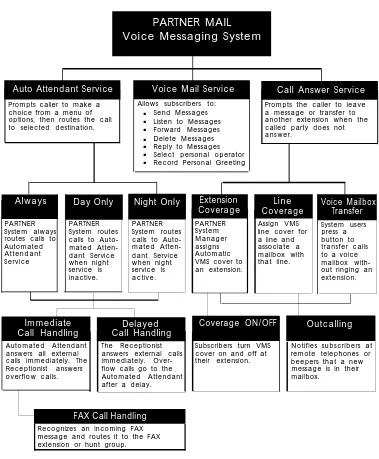
Figure 1-1 provides an overview of the sevices offered by the PARTNER MAIL system. Read the following descriptions of the Automated Attendant service, Call Answer Service, Voice Mail Service and their related features; then keep in mind the type of service and features your company needs.
Introduction
PARTNER MAIL
Voice Messaging System
Auto Attendant Service Voice Mail Service Call Answer Service
Prompts caller to make a Allows subscribers to: choice from a menu of Send Messages options, then routes the call Listen to Messages to selected destination. Forward Messages Delete Messages Reply to Messages ■ ■ ■ ■ ■ ■ ■
Select personal operator Record Personal Greeting
Always Day Only Night Only Extension Coverage Line Coverage Voice Mailbox Transfer PARTNER System always routes calls to Automated Attendant Service
PARTNER System routes calls to Auto-mated Atten-dant Service when night service is inactive. PARTNER System routes calls to Auto-mated Atten-dant Service when night service is active. Immediate Call Handling Delayed Call Handling
Coverage ON/OFF Outcalling
Automated Attendant The Receptionist answers all external answers external calls calls immediately. The immediately. Over-Receptionist answers flow calls go to the overflow calls. Automated Attendant
after a delay.
FAX Call Handling
Recognizes an incoming FAX message and routes it to the FAX extension or hunt group.
Prompts the caller to leave a message or transfer to another extension when the called party does not answer. PARTNER System Manager assigns Automatic VMS cover to an extension.
Assign VMS line cover for a Iine and associate a mailbox with that line. System users press a button to transfer calls to a voice mailbox with-out ringing an extension.
Subscribers turn VMS cover on and off at their extension.
Notifies subscribers at remote telephones or beepers that a new message is in their mailbox.
Figure 1-1. Overview of PARTNER MAIL Services
Introduction
■
Automated Attendant Service
The Automated Attendant service consists of a greeting and a multi-level menu, which provides callers with a number of options that enable them to reach an extension, a group of extensions, or obtain information, by pressing a single digit or by dialing an extension number.
This service provides several benefits to callers and your company. The Automated Attendant service:
■
■
■
Efficiently routes calls to the correct party.
Prompts the caller to leave a message or try another extension if the called party does not answer or the phone is busy.
Enables the caller to access the dial-by-name directory if they do not know the extension that they need.
Plays announcements of frequently requested information (such as directions or business hours) as menu options, thereby freeing an employee’s time for other tasks.
Receives and transfers fax calls to a designated extension(s).
■
The PARTNER MAIL Automated Attendant service is useful for many businesses, such as banks, insurance agencies, post offices, and stores. A bank could, for example, use Automated Attendant service to allow its customers to select
information from a multi-level menu. This information could include current mortgage interest rates or the current interest rates on money market funds. The Automated Attendant service also allows callers to wait to speak to a customer representative.
The menu frees the bank employees to handle customer transactions while the Automated Attendant service provides general information. In a business like this, the PARTNER MAIL System Administrator would program the Automated Attendant service to allow callers to stay on the line or enter an extension to reach a banker.
Selection Considerations
When planning PARTNER MAIL Automated Attendant service you must decide:
■ Which outside lines (if any) are answered by the Automated Attendant service. ■ When you want the PARTNER System to route calls to the PARTNER MAIL
system — Always, Day Only, or Night Only. This is called the VMS Hunt
Schedule.
Introduction
■ If you want Immediate Call Handling (the Automated Attendant service answers most calls, and your receptionist and other system users serve as a backup) or Delayed Call Handling (the system users handle most calls and the Automated Attendant services is the backup). This is called the VMS Hunt
Delay.
The following three sections explain how to make selections for each feature of the Automated Attendant service.
Selecting Outside Lines for Automated Attendant Service
Select the outside lines that require the Automated Attendant service.
Selecting the VMS Hunt Schedule
You can set the PARTNER II Release 3 system to route outside calls to the PARTNER MAIL Automated Attendant service always, during the day only, or only during the night. The schedule that you select and the greeting that the caller hears depend upon the setting of the PARTNER II Night Service button. When Night Service is ON — and the Hunt Schedule is Always or Night only — the PARTNER MAIL Automated Attendant service plays the Night Greeting. When the Night Service button is OFF — and the Hunt Schedule is set to Always or Day only — the Day Greeting plays. What follows is a summary of the three choices:
■ Always ✔ : Causes the PARTNER System always to route outside calls to the PARTNER MAIL Automated Attendant service for call handling.
■ Day Only: Causes the PARTNER System to route outside calls to the
PARTNER MAIL Automated Attendant service only when the Night Service is OFF.
■ Night Only: Causes the PARTNER System to route outside calls to the
PARTNER MAIL Automated Attendant service only when the Night Service is ON.
Introduction
Selecting the VMS Hunt Delay
You must set the Automated Attendant service to handle calls in one of two ways: Immediate Call Handling or Delayed Call Handling.
Immediate Call Handling
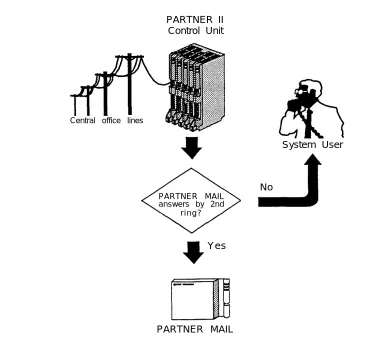
The PARTNER MAIL system answers incoming calls after the second ring by playing the Automated Attendant Day or Night Greeting (Figure 1-2). Callers using rotary phones or callers requesting assistance can be transferred to the receptionist’s extension or any other predesignated extension.
PARTNER II Control Unit
Central office lines
PARTNER MAIL answers by 2nd
r i n g ?
Yes
System User
No
PARTNER MAIL
Figure 1-2. PARTNER MAIL System as Immediate Call Handler
Introduction
Fax Call Handling
The Automated Attendant service recognizes and routes fax calls the fax machine(s) if the PARTNER MAIL system has a Fax Extension or Fax Extension Hunt Group administered. You must select Immediate Call Handling to use the Fax Call Handling feature. Fax Call Handling eliminates the need to dedicate a line for fax machines. You can enhance this feature by designating a Fax Message Receiver as described earlier in this chapter.
Delayed Call Handling
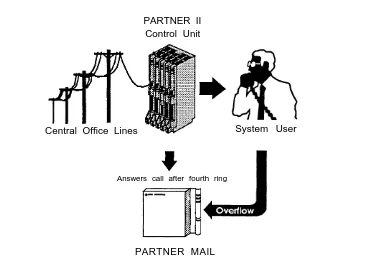
An outside call rings at the system extensions. If a system user does not answer the call after the fourth ring, the PARTNER System sends the call to the Automated Attendant service as shown in Figure 1-3. This delay allows any system user to answer the call before the PARTNER System routes the call to the PARTNER MAIL system.
PARTNER II Control Unit
Central Office Lines System User
Answers call after fourth ring
PARTNER MAIL
Figure 1-3. PARTNER MAIL System as Delayed Call Handler
Introduction
Voice Mail Service
The Voice Mail Service allows subscribers (people registered on the PARTNER MAIL system) to perform these tasks:
■
■
■
■
■
■
Listen to messages.
Create a message and send it to one or more subscribers.
Receive a message and forward it to one or more subscribers, with additional comments, if desired.
Record their own personal greeting and name.
Assign their own password, which they can change at any time to ensure that messages are kept confidential.
Designate a subscriber to serve as their Personal Operator. The PARTNER MAIL system connects callers to a Personal Operator if they press [ 0 ] after a personal greeting plays.
In addition, the Voice Mail Service allows the System Administrator to do the following:
■ Create group lists to enable subscribers to send a single message to several subscribers.
■ Use the Broadcast feature to send a single message to all subscribers. ■ Perform administration of the PARTNER MAIL system.
Subscriber's Mailbox
By default, the PARTNER MAIL system provides mailboxes for extensions 10 through 57. Users assigned to those extensions are PARTNER MAIL subscribers. Except for the General Mailbox, a user’s extension number and mailbox number are the same. When a caller leaves a message, the PARTNER MAIL system places the message in the called subscriber’s mailbox, and turns ON the message light at the subscriber’s system phone. Subscribers with the Outcalling feature can also have the system call an off-site telephone, or beeper to inform the subscriber that a new message has arrived in his or her mailbox. The Outcalling feature is described later in this chapter.
Introduction
Call Answer Service
Call Answer Service provides three major features:
■ Extension Coverage ■ CO Line Coverage ■ Voice Mailbox Transfer
Call Answer Service is useful to employees who rely exclusively on the telephone, are on the road during the day, or may be unavailable much of the time. With Call Answer, potential clients can leave detailed messages in the employee’s mailbox. The employee can retrieve the message at his or her convenience and get back to the client. These features and two additional features are described below.
Extension Coverage
Extension coverage consists of the following:
■ Automatic VMS Cover which allows callers to leave messages or transfer to
another extension when the extension called is busy or does not answer, and
■ the VMS Cover button which enables users to turn VMS Cover ON and OFF at their extension.
Automatic VMS Cover
When VMS cover is activated at the called extension, the system greets the caller with the called party’s personal greeting or with the system greeting if a personal greeting is not recorded. The caller may do one of the following:
■ Press [ 0 ] to transfer to the System Operator or the called party’s personal
operator.
■ Press [ ✱ ] [ 8 ] to transfer to another extension.
■ Record a message that the PARTNER MAIL system leaves in the called party’s mailbox.
VMS Cover Button
Regardless of the Automatic VMS Cover setting, the PARTNER System enables users to press a programmed button to turn Voice Mail Cover ON or OFF at an extension. Users must program a button with lights on their system telephone (MLS-34D, MLS-18D, MLS-12, MLS12D, MLS-6, MLC-6 model telephones) for this
purpose.
Introduction
CO Line Coverage
The PARTNER MAIL system provides two levels of line coverage if you do not want to use PARTNER MAIL Automated Attendant service, or you want to provide
coverage for a private line.
CO Line Coverage consists of assigning VMS Line Cover to a line enabling callers who call in on the covered line to leave messages in the General Mailbox if no
owner is assigned to the line and no one answers the call. To enhance this feature, the System Administrator assigns PARTNER MAIL Line Ownership to specify a subscriber's extension (mailbox) as the “owner” of the covered line. When a call comes in on the covered line, the system routes the caller to the line owner’s
mailbox if the call is not answered. The caller has the option of leaving a message or transferring to another extension.
Voice Mailbox Transfer
Users may program buttons on their system phones that allow them to transfer callers directly to another subscriber’s voice mailbox without causing the phone to ring at the subscriber’s extension. This feature is useful when handling a call for a person who is not at his or her desk. You can transfer callers to the subscriber’s voice mailbox where they can leave a message.
Outcalling
The Outcalling feature enables the PARTNER MAIL system to notify a subscriber at a remote telephone, or activate the subscriber’s beeper, when a new message is in the subscriber’s mailbox. Subscribers who have the Outcalling feature administered to their mailbox, can remotely log on to PARTNER MAIL Voice Mail Service and retreive the new message or turn Outcalling ON or OFF. They can also enter and change their outcalling telephone, beeper or pager number using the Voice Mail Service (see the previous section).
Installation
2
This chapter provides instructions for installing the PARTNER MAIL system and for connecting it to the PARTNER II Communications System Release 3.
Installation
Preparing for Installation
Verify that you have all the required PARTNER MAIL system and PARTNER II Release 3 parts, and that the installation site meets the given environmental conditions before beginning installation.
Parts Checklist
The AT&T PARTNER MAIL Voice Messaging System shipment should contain the following parts:
PARTNER MAIL Unit
■
■
■
■
■
PARTNER MAIL Cabinet
Wall-mount and Cable Manager Bracket and screws
NOTE:
The cabinet and bracket are together referred to as the PARTNER MAIL unit.
For a single voice-processing card configuration: two (2) 8-foot modular telephone cords
For a dual voice-processing card configuration: four (4) 8-foot modular telephone cords
PARTNER MAIL power cord
RMD (Remote Maintenance Device) cable
Remote Maintenance Device (shipped separately)
■ RMD
■ Modular telephone cord ■ RMD power cord
Installation
PARTNER II Release 3 Hardware Requirements
The following PARTNER II Release 3 equipment is required to install the PARTNER MAIL system:
■ PARTNER II Release 3 Control Unit equipped with Processor Module
■ Release 2 206 Module
Preparing the Site
The PARTNER MAIL unit should be wall-mounted adjacent to the PARTNER II System’s Control Unit, on the same mounting surface if possible.
WARNING:
If there is not sufficient room on the existing mounting surface, either secure a new surface (a piece of plywood) or attach the PARTNER MAIL unit directly to wall studs. This will best ensure permanent mounting and will prevent wall damage.
To help ensure trouble-free operation, maintain the following environmental conditions:
■ Dust-free area (preferably in an office environment)
■ Vibration free area
■ Relative humidity 8% to 85%
■ No exposure to liquids (avoid areas near drinking fountains, coffee makers,
and so on)
■ Recommended Temperature range: 60°F (15°C) to 80°F (26°C)
Maximum Temperature range: 40°F (4°C) to 104°F (40°C)
■ Adequte clearance around PARTNER MAIL unit
■ Do not place objects on top of the PARTNER MAIL unit ■ Do not block the PARTNER MAIL unit’s vents or openings
Installation
Installing the PARTNER MAIL Unit
Installation of the PARTNER MAIL unit (Figure 2-1) involves the following three phases:
■ Mounting the unit on the wall near the PARTNER II Release 3 processor, ■ Connecting the unit to the PARTNER II Release 3 system,
■ Connecting the Remote Maintenance Device (modem) to the PARTNER MAIL
unit and to the PARTNER System.
Before you begin, be sure the installation site has been prepared properly.
Figure 2-1. PARTNER MAIL Unit
Installation
Mounting the PARTNER MAIL Unit
1. Remove the bracket from the shipment package.
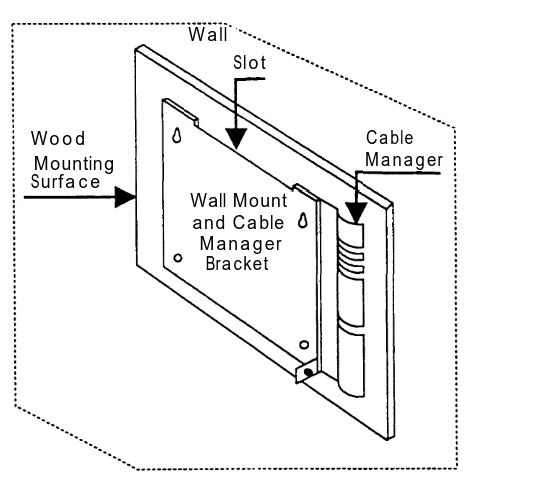
2. Use the bracket as a template to mark the points on the wood surface where you will insert the wall-mounting screws. Position the bracket on the surface so that the slot is upward (Figure 2-2).
WARNING:
Be sure to install the wall-mounting screws in wall studs or in a piece of plywood to ensure permanent mounting and to prevent wall damage.
Wall
Slot
Wood Cable
Mounting Manager
Surface
Wall Mount and Cable Manager
Bracket
Figure 2-2. Wall-Mounting the PARTNER MAIL Unit
3. Secure the bracket onto the surface using the four #8 screws provided.
Installation
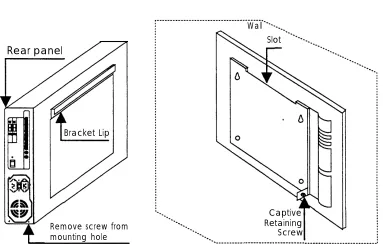
4. Remove the #6-32 hex-head screw from the rear panel of the unit. 5. Insert the PARTNER MAIL unit’s bracket lip into the bracket slot. 6. Tighten the captive retaining screw into the mounting hole on the unit.
Wall
Slot
Rear panel
Bracket Lip
Captive
Remove screw from mounting hole
Retaining Screw
Figure 2-3. Mounting the PARTNER MAIL Unit
Installation
Connecting the Unit
to the PARTNER II Release 3 System
1. Route the line cords through the slots on the cable manager.
2. Connect two (or four) modular telephone cords into the ports 1 — 2 or 1 — 4 on the PARTNER MAIL system.
3. Refer to PARTNER II Release 3 Planning Form B1, and locate the extension jack numbers for the PARTNER MAIL system cords.
NOTE:
Do not connect the PARTNER MAIL system cords to the top extension jack of any 206 Module or to power failure transfer extensions 10, 16, 22, 28, 34, 40, 46, or 52.
NOTE:
For proper operation, do not connect the PARTNER MAIL system cords to a PARTNER System Release 1 206 module (the 206 module Iabled R1.0).
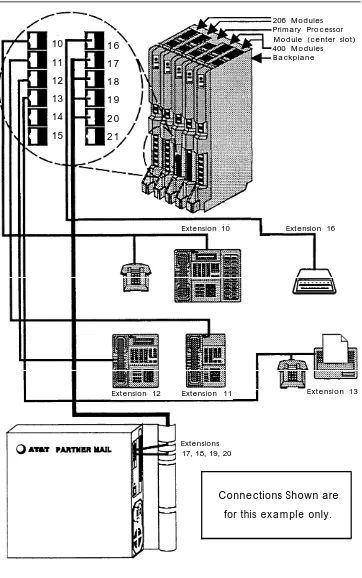
4. Connect the other end of the modular telephone cords into extension jacks on the PARTNER II Release 3 206 Module(s) (Figure 2-4).
NOTE:
Be sure to connect the cords from the lowest-numbered port to the lowest-numbered jack and from the highest-numbered port to the highest-numbered jack.
Installation
10
11
12
13
14
15
1 6
1 7
1 8
1 9
2 0
2 1
Extension 10
206 Modules Primary Processor Module (center slot) 400 Modules Backplane
Extension 16
Extension 12 Extension 11 Extension 13
Extensions 17, 18, 19, 20
Connections Shown are
for this example only.
Figure 2-4. Connect PARTNER MAIL to PARTNER System
Installation
5. Plug the power cord into the unit’s AC Power IN socket (Figure 2-5).
6. Check the Voltage Selector Switch to ensure that it is set for your local power source (Figure 2-5).
7. Plug the power cord into a properly grounded AC electrical source.
NOTE:
It is strongly recommended that you connect the PARTNER MAIL unit into the same electrical circuit as the PARTNER II Release 3 so that the two units share a common ground.
8. Turn the Power Switch ON (Figure 2-5).
9. After 2-minutes all Status Indicator Lights should be green indicating that all PARTNER MAIL system ports are ready to receive calls (Figure 2-5).
Status Indicator Lights
Voltage Selector Power Port 4 Not Used Switch (110V/230V) Switch Port 3
Port 1 Port 2
Not Not Used Used
Vent Not (COM2)
(Do not block) AC Power IN Used
Remote Maintenance Device Connector (COM1)
Figure 2-5. PARTNER MAIL Unit - Rear Panel
Installation
Connecting the Remote Maintenance Device
to the Unit
1. The RMD switches are preset at the factory. Confirm that the switches, located on the underside of the RMD, are set as shown in Figure 2-6.
Figure 2-6. PARTNER MAIL RMD Switch Settings
Installation
2.
3.
4.
5. 6. 7. 8. 9.
NOTE:
If you reset the switches, turn the RMD OFF and ON so that the new settings take effect.
Use the RMD cable to connect the RS-232-C port on the RMD to the COM1 port on the PARTNER MAIL unit (Figure 2-7).
Refer to PARTNER II Planning Form B1 to determine the PARTNER II extension jack for the RMD.
Use the provided modular telephone cord to connect the RMD telephone line port to the extension jack on the PARTNER II 206 Module (refer to
Figure 2-4).
NOTE:
Be sure to connect the cords from the lowest numbered port to the lowest numbered jack, and from the highest numbered port to the highest numbered jack.
Attach the RMD Power Cord to the RMD (Figure 2-7).
Plug the power cord into a properly grounded AC electrical source. Turn the RMD ON (Figure 2-7).
The following red status lights are lit: HS, AA, TR, and MR.
Write the 206 Module extension jack number which connects to the RMD onto a label, and affix the label to the RMD for ongoing maintenance.
Remote Maintenance Device Remote Maintenance Device
(Front View) (Back View)
Remote Maintenance Device
AC Telephone On/Off
Power IN RS 232-C Line Port Switch
Figure 2-7. The PARTNER MAIL Remote Maintenance Device (modem)
Installation
Add or Replace Voice-Processing Card
NOTE:
After you have installed the voice processing card, ensure that the extensions on the PARTNER System where you connect the new PARTNER MAIL system ports, are administered to the VMS Hunt Group as described in Chapter 3.
DANGER:
Only qualified personnel should replace the Voice Processing Cards. Personal injury or damage to the cards may result if the cards are installed incorrectly.
Customers with a 2-port configuration may want to upgrade to a 4-port configuration to support a greater volume of calls or an increased number of subscribers. To upgrade from two to four ports, you need to add a voice-processing card.
Removing the PARTNER MAIL Unit
1. Turn the PARTNER MAIL unit OFF.
2. Unplug the PARTNER MAIL system power cord.
DANGER:
The PARTNER MAIL unit must be unplugged before removing the cover. Hazardous voltage is inside. Failure to comply could cause electric shock.
3. Disconnect all modular telephone cords from the PARTNER MAIL unit.
Installation
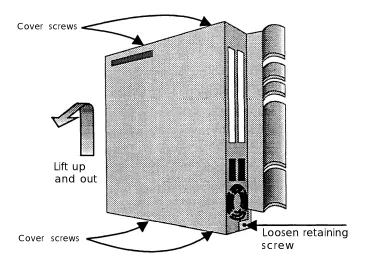
4. Loosen the captive retaining screw (Figure 2-8).
5. Carefully lift the unit up and out of the bracket, and place it on a sturdy flat tabletop (Figure 2-8).
Cover screws
Lift up
and out
Loosen retaining
Cover screwsscrew
Figure 2-8. Remove Unit from Wall-mount
6. Remove the four screws located on the right and left sides of the PARTNER MAIL unit.
7. Remove the cover.
Installation
Verifying Switch Setting
WARNING:
To avoid damaging any electrical component, wear a grounded Static Wrist Band before handling PARTNER MAIL system circuitry.
1. Remove the screw from the upper card slot (Figure 2-9). 2. Remove the clear plastic slot plate.
Remove screw
Socket
Figure 2-9. Remove Screw from Unit
Installation
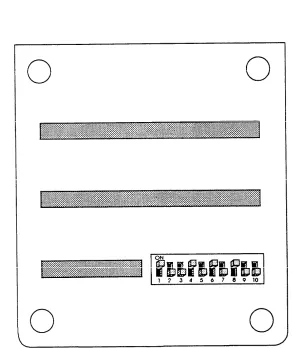
3. Use Figure 2-10 to verify the switch settings on the voice-processing card being installed.
Dip Switch
Voice Processing Card
Card 1: Ports 1 and 2
Card 2: Ports 3 and 4
Figure 2-10. Voice Processing Card Switch Settings
Installation
Installing the Voice Processing Card
1. Install the voice-processing card into the upper slot so that the connector of the card fits securely into the female connector inside the PARTNER MAIL
unit (Figure 2-11).
2. Install the plastic card spacer so that it holds the upper and lower cards at the center of the unit, but does not touch any of the components on either card. 3. Tighten the screw that holds the bracket on the left edge of the unit to secure
the upper card (Figure 2-11)
Tighten Screw
Figure 2-11. Installing a Voice Card
Installation
4. Replace the cover so that the latch fits under the front lip on the unit (Figure 2-12).
5. Install and tighten the four cover screws.
Latch
Front Lip
Figure 2-12. Installing the Cover
Installation
Remounting the PARTNER MAIL Unit
1. Mount the unit by inserting the PARTNER MAIL system bracket lip into the bracket slot on the wall-mount (Figure 2-3, Figure 2-13).
Wall PARTNER MAIL
Cabinet Slot
Cable Manager
Wall Mount and Cable Manager
Bracket Wood
Mounting Surface
Retaining Bracket PARTNER MAIL
Bracket
Captive
Mounting hole for Retaining
Captive Retaining Screw Screw
Figure 2-13. Mounting the PARTNER MAIL Unit
2. Tighten the captive retaining screw on the wall mount.
3. Refer to PARTNER II Release 3 Planning Form B1, and locate the extension jack numbers for the PARTNER MAIL system modular cords.
Installation
4.
5. 6.
7. 8.
NOTE:
Do not connect the PARTNER MAIL system to the top extension jack of any 206 Module or to power failure transfer extensions 10, 16, 22, 28, 34, 40, 46, or 52.
NOTE:
For proper operation, do not connect the PARTNER MAIL system cords to a PARTNER System Release 1 206 module (the 206 module Iabled R1.0).
NOTE:
Be sure to connect the cords from the lowest-numbered port to the lowest-numbered jack and from the highest-numbered port to the highest-numbered jack.
Connect the modular telephone cords from the PARTNER MAIL system ports to the PARTNER System extension jacks.
Connect the power cord to the PARTNER MAIL unit.
Plug the PARTNER MAIL system power cord into a properly grounded AC source.
Turn the PARTNER MAIL system power switch ON.
If the PARTNER MAIL system and the PARTNER System have already been programmed, perform the Acceptance Tests in Chapter 5.
PARTNER II
System Programming
3
Use the procedures in this chapter to program the PARTNER II Release 3 Communications System so that it works with the PARTNER MAIL system as an integrated unit. When the PARTNER System is installed, it uses factory settings that reflect the most common usage of the equipment. You can change these settings as required to customize them for the customer’s site.
You can program the PARTNER System from extension 10 or 11. Since an
extension cannot be in program mode and handle calls at the same time, and since extension 10 is generally administered as the PARTNER MAIL System Operator's extension, you may find it more convenient to program from extension 11 while the receptionist continues to handle calls from extension 10.
System Programming changes settings for the system as a whole, or for individual lines or extensions. You can also use System Programming to set up dialing restrictions, define groups, or set up auxiliary equipment, (Refer to PARTNER®
II Communication System Release 3 Programming and Use for more information on
the various System Programming options). Refer to the completed PARTNER II Release 3 System Planner when you are changing system settings, and be sure that any changes in programming are recorded on the planning forms.
PARTNER II System Programming
PARTNER II System Planning Forms
Before programming the PARTNER System, ask the PARTNER System Manager for the following planning forms:
■
■
■
■
Form A: System Configuration
Records basic information about the customer’s business and the customer’s AT&T sales representative or authorized dealer. The customer indicates the line number and type of PARTNER MAIL system coverage required for each line, and other settings required to program the PARTNER System for the PARTNER MAIL system.
Form B1: System Lines
Records information for each system extension. This includes the type of telephone or auxiliary equipment at the extension, the name of the system user. or a description of how a specific extension is used.
Form B2: Customized Extension Settings
Records feature settings that apply to a specific extension or group of
extensions. This includes the creation of Hunt Groups, and the assignment of features such as VMS Line Cover, and Auto Extension Privacy.
Form C: Telephone Button Programming Templates
Shows where to program features on system telephones (34D, MLS-18D, MLS-12, MLS-6, MLC-6H model telephones).
PARTNER II System Programming
Introduction to System Programming
System Programming requires a System Telephone (34D, 18D, or MLS-12D phone with a display) at extension 10 or 11, with a programming overlay placed over the phone’s dialpad. System Programming procedures are identified by # and a 3-digit code (for example, the procedure used to program the System Date is #101).
You can program the system in one of two ways:
■
■
Direct Method: enables you to access a programming procedure directly by dialing the code for that procedure. This method works best when you are only using a few procedures during the programming session, and you know the codes.
For example, press [ # ] [ 1 ] [ 0 ] [ 3 ] to change the system time.
Cycle Method: enables you to cycle through a sequence of procedures in numerical order by pressing [ Next Procedure ] or [ Prev Procedure ]. You should use this method when programming PARTNER II Release 3 for the first time, or when you are changing a series of related settings. However, procedures #399, #609, and #728 are skipped when you cycle through procedures
N O T E :
You can talk on the telephone while you program. This is useful if you need to talk to someone at the AT&T Helpline about programming. However, you must place the call before you enter programming mode, and you must use the handset to talk, not the speakerphone.
PARTNER II System Programming
Using Programming Overlays
During System Programming, the normal functions of several buttons on the display phone at extension 10 or 11 change. For example, the left [ Intercom ] becomes [ System Program ], which is the button used to enter programming mode. To identify these buttons while programming, place the appropriate programming overlay provided with the system on the dialpad of the phone at extension 10 or 11.
Use the following special buttons while programming:
■
■
■
■
■
■
■
■
[ Next Procedure ] and [ Prev Procedure ] cycle forward and backward through the programming procedures. (Example: #101, #102, #103 ...)
[ Next Item ] and [ Prev Item ] cycle forward and backward through the parameters offered by a procedure. (Example: Extension 10, 11, 12...)
[ Next Data ] and [ Prev Data ] cycle forward and backward through data values offered by a procedure. (Example: 1 Assigned, 2 Not Assigned)
[ Remove ] returns the current setting to the factory setting.
[ Enter ] indicates the end of a variable length entry, such as a telephone number in the Allowed Phone Number List.
[ System Program ] starts the System Programming process.
[ Central Tel Program ] starts the Central Telephone Programming process. This enables you to program system telephones from extension 10 or 11.
[ Feature ] when followed by [ 0 ] [ 0 ], enters and exits the programming mode.
Accessing System Programming
Before you can program any of the procedures in this chapter, you must access the System Programming feature as follows:
1. At extension 10 or 11, press [ Feature ] [ 0 ] [ 0 ]. 2. Press [ System Program ].
3. Press [ System Program ].
Now you can enter specific procedure numbers. Make sure the overlay is in place over the system phone’s dialpad.
PARTNER II System Programming
Initial System Programming
Regardless of whether you are programming the PARTNER System to use PARTNER MAIL Automated Attendant Service, Call Answer Service or both, you must program the procedures outlined below. Completing these procedures enables you to access the PARTNER MAIL hunt group and program the PARTNER MAIL system.
After you complete the procedures below, refer to “Chapter 4 — PARTNER MAIL Initial Programming” and perform all initial programming for the PARTNER MAIL system. After completing the initial programming of the PARTNER MAIL system, return to this chapter an complete PARTNER System programming for the PARTNER MAIL Automated Attendant Service and Call Answer Service.
Assign VMS Ports Using
Hunt Group Extensions (#505)
Use this procedure to assign all PARTNER MAIL system extensions (extension jacks on the PARTNER System’s 206 Module where modular telephone cords from the PARTNER MAIL system are connected) to VMS Hunt Group 7.
1.
2.
3.
4. 5. 6.
7.
Locate the two or four PARTNER MAIL system extensions on PARTNER II Form B1.
Access System Programming as described in “Accessing System Programming” and press [ # ] [ 5 ] [ 0 ] [ 5 ].
Press [ 7 ] at the Group: prompt NOTE:
To avoid misoperation during a power loss, do not attach the
PARTNER MAIL system to the Power Failure Transfer extensions 10, 16, 22, 28, 34, 40, 46, and 52.
Enter the PARTNER MAIL system EXTENSION at the Extension: prompt. Press [ Next Data ] until the display reads 1 Assigned
To program the next extension, press [ Next Item ] or [ Prev Item ] until the extension appears, then repeat step 5.
Choose:
— Press [ # ] and the system program number to program another feature, or
— Press [ Next Procedure ] to program another feature, or
— Press [ Feature ] [ 0 ] [ 0 ] to exit programming.
PARTNER II System Programming
Assign the Transfer Return Extension (#306)
This procedure ensures that a call routed by the system to a user’s extension, that does not answer and does not have coverage, is transferred to the System
Operator’s extension (normally extension 10). Assign a Transfer Return Extension for each PARTNER MAIL system extension as described below.
1.
2.
3.
4.
5.
6.
Locate the two or four PARTNER MAIL system extensions on PARTNER II Form B1.
Access System Programming as described in “Accessing System Programming” and press [ # ] [ 3 ] [ 0 ] [ 6 ].
Enter the first PARTNER MAIL system EXTENSION at the Trns Ret Ext
prompt.
Enter the System Operator's EXTENSION (normally [ 1 ] [ 0 ]) at the Data
prompt.
To program another extension press [ Next Item ] or [ Prev Item ] until the extension number appears on the display, then repeat step 4.
Choose:
— Press [ # ] and a system program number to program another feature, or — Press [ Next Procedure ] or [ Prev Procedure ] to program another feature, or
— Press [ Feature ] [ 0 ] [ 0 ] to exit programming.
Program the PARTNER II System
for the RMD
Use the following procedures to remove all lines from the RMD (Remote Maintenance Device), and to assign Automatic Extension Privacy to the RMD.
Remove Lines Using Line Assignment (#301)
1.
2.
3. 4.
Refer to PARTNER II Form B1 to determine the RMD extension, and refer to PARTNER II Form B2 to determine the customized extension settings for the RMD.
Access System Programming as described in “Accessing System Programming” and press [ # ] [ 3 ] [ 0 ] [ 1 ].
Enter the RMD EXTENSION at the Extension: prompt. Press [ Remove ] to remove all existing line assignments.
PARTNER II System Programming
5. Choose:
— Press [ # ] and a system program number to program another feature, or — Press [ Next Procedure ] or [ Prev Procedure ] to program another feature, or
— Press [ Feature ] [ 0 ] [ 0 ] to exit programming.
Assign Automatic Extension Privacy (#304) to the RMD
Use the procedure below to assign Automatic Extension Privacy to the RMD extension so that users on the same line cannot interrupt RMD transmissions.
1. Refer to PARTNER II Form B1 to identify the RMD extension. 2. Access System Programming as described in “Accessing System
Programming” and press [ # ] [ 3 ] [ 0 ] [ 4 ].
3. Enter the RMD EXTENSION at the Extension: prompt. 4. Press [ Next Data ] until the display reads: 1 Assigned.
5. Choose:
— Press [ # ] and a system program number to program another feature, or — Press [ Next Procedure ] or [ Prev Procedure ] to program another feature, or
— Press [ Feature ] [ 0 ] [ 0 ] to exit programming.
At this point, go to “Chapter 4 — PARTNER MAIL Initial Programming" and perform all initial programming for the PARTNER MAIL system. After completing the initial programming, return to this chapter and complete the following as indicated on the PARTNER II Release 3 System Planning forms:
■ Automated Attendant Service
■ Call Answer Service ■ Telephone Buttons
PARTNER II System Programming
Programming Automated Attendant
This section presents the procedures required to program the PARTNER II Release 3 for use with PARTNER MAIL Automated Attendant Service.
Assign VMS Hunt Delay (#506)
Set the delay for either Immediate or Delayed Call Handling. 1.
2.
3.
4.
5.
Locate “VMS Hunt Delay” on PARTNER II Form A.
Access System Programming as described in “Accessing System Programming” and press [ # ] [ 5 ] [ 0 ] [ 6 ].
If “Immediate Call Handling” is checked (the factory setting for Automated Attendant Service) press [ Next Data ] until the display reads: 1 Immediate.
If “Delayed Call Handling” is checked press [ Next Data ] until the display reads:
2 Delayed.
Choose:
— Press [ # ] and a system program number to program another feature, or — Press [ Next Procedure ] or [ Prev Procedure ] to program another feature, or
— Press [ Feature ] [ 0 ] [ 0 ] to exit programming.
Assign the VMS Hunt Schedule (#507)
Specify when the Automated Attendant Service handles calls. 1. Locate “VMS Hunt Schedule” on PARTNER II Form A.
2. Access System Programming as described in “Accessing System Programming” and press [ # ] [ 5 ] [ 0 ] [ 7 ].
3 If:
the customer checked “Always” (the factory setting), press [ Next Data ] —
until 1 Always is displayed.
— the customer checked “Day only”, press [ Next Data ] until 2 Day Only is displayed.
— the customer checked “Night only”, press [ Next Data ] until 3 Night Only is displayed.
PARTNER II System Programming
4. Choose:
— Press [ # ] and a system program number to program another feature, or — Press [ Next Procedure ] or [ Prev Procedure ] to program another feature, or
— Press [ Feature ] [ 0 ] [ 0 ] to exit programming.
Assign Group Call Distribution (#206)
Assign outside lines, which are to be answered and provided PARTNER MAIL Automated Attendant service, to the VMS Hunt Group 7.
1.
2.
3. 4. 5. 6.
7.
Locate Lines on PARTNER II Form A which have “VMS-AA” written in the “Line Coverage” column.
Access System Programming as described in “Accessing System Programming” and press [ # ] [ 2 ] [ 0 ] [ 6 ].
Press [ 7 ] at the Group: prompt,
Enter a two-digit Line number at the Line: prompt. Press [ Next Data ] until 1 Assigned is displayed.
To program another line, press [ Next Item ] or [ Prev Item ] then repeat the previous step.
Choose:
— Press [ # ] and a system program number to program another feature, or — Press [ Next Procedure ] or [ Prev Procedure ] to program another feature, or
— Press [ Feature ] [ 0 ] [ 0 ] to exit programming.
Programming Fax Extensions
If using the Automated Attendant Service to handle fax calls, refer to the PARTNER®
II Release 3 Programming and Use document for the procedures required to
program the PARTNER II to recognize your fax extensions or groups.
PARTNER II System Programming
Programming Call Answer Service
This section presents the forms and procedures required to program the PARTNER II Release 3 for use with PARTNER MAIL Call Answer Service. This includes Extension and CO Line coverage.
Automatic VMS Cover (#310)
Review PARTNER II Form B2 to determine which users require the Automatic VMS Cover feature. This feature determines if an extension is normally covered by the Call Answer Service. This means that an unanswered intercom or transferred call goes to PARTNER MAIL for Call Answer Service. Assign Automatic VMS Cover to the extensions listed on Form B2 as described below:
1.
2. 3. 4.
5.
Access System Programming as described in “Accessing System Programming” and press [ # ] [ 3 ] [ 1 ] [ 0 ].
Enter the EXTENSION at the Extension: prompt. Press [ Next Data ] until the display reads Assigned.
To program another extension, press [ Next Item ] or [ Prev Item ] until the extension number appears on the display, then repeat step 3. Choose:
— Press [ # ] and a system program number to program another feature, or — Press [ Next Procedure ] or [ Prev Procedure ] to program another feature, or
— Press [ Feature ] [ 0 ] [ 0 ] to exit programming.
NOTE:
Refer to “Telephone Button Programming” found at the end of this chapter to program a VMS Cover button to enable subscribers to turn VMS Cover ON and OFF at their extensions.
PARTNER II System Programming
CO Line Coverage
Use the Group Call Distribution (#206) procedure to assign outside lines to the VMS Line Cover option. PARTNER MAIL answers calls on these lines after four rings. If a Line Owner is assigned (see note below), PARTNER MAIL transfers the caller to the Line Owner’s mailbox. If there is no Line Owner assigned, PARNTER MAIL transfers the caller to the General Mailbox. Callers at remote sites may also use Group Call
Distribution to access PARTNER MAIL if the Automated Attendant Service is not in operation by pressing [ ✱ ] [ 7 ] when the PARTNER MAIL system answers.
1.
2.
3. 4. 5. 6.
7.
Locate Lines on PARTNER II Form A which have “VMS-MAIL” written in the “Line Coverage” column.
Access System Programming as described in “Accessing System Programming” and press [ # ] [ 2 ] [ 0 ] [ 6 ].
Press [ 7 ] at the Group: prompt,
Enter a two-digit Line number at the Line: prompt. Press [ Next Data ] until 3 VMS Line Cover is displayed.
To program another line, press [ Next Item ] or [ Prev Item ] the line number appears on the display, then repeat the previous step.
Choose:
— Press [ # ] and a system program number to program another feature, or — Press [ Next Procedure ] or [ Prev Procedure ] to program another feature, or
— Press [ Feature ] [ 0 ] [ 0 ] to exit programming.
NOTE:
To assign Line Ownership, perform the PARTNER MAIL Line Ownership procedure in Chapter 4 of this guide.
PARTNER II System Programming
Programming Night Service (#503)
Use the procedure below to assign a Night Service Button onto the MLS-model system phone at the System Operator's extension. Keep the following mind:
■
■
■
■
1 .
2 .
3 .
4 . 5 .
6 .
You can only program a Night Service button on extension 10.
You can only program a Night Service button on an MLS-model system phone.
You must program Night Service on a button with lights. Refer to “Night Service Button (#503)” in PARTNER®
II Communications System Release 3 Programming and Use for details on how to set up Night
Service.
Locate the “NightSVC” label on PARTNER II Form C (the button programming template).
Access System Programming as described in “Accessing System Programming” and press [ # ] [ 5 ] [ 0 ] [ 3 ].
Choose:
— To assign Night Service to the first available button on the system phone, press [ Next Data ] until the display reads:
Night Service 1 Assigned-Ext10
— To assign Night Service to a specific button, press [ 3 ]. The display reads:
Night Service 3 Select Button
Press the progammable button with lights indicated on Form C. Choose:
— Press [ # ] and a system program number to program another feature, or — Press [ Next Procedure ] or [ Prev Procedure ] to program another feature, or
— Press [ Feature ] [ 0 ] [ 0 ] to exit programming. Label the Night Service button at extension 10.
PARTNER II System Programming
Telephone Button Programming
PARTNER II Form C provides button templates for each type of MLS and MLC telephone. We recommend that you program a button on each subscriber's system telephone for the following features:
■ VMS Cover
■ Voice Mailbox Transfer
■ Auto Dial into PARTNER MAIL
The procedures below utilize Centeral Telephone Programming.
VMS Cover Button (F15)
To give subscribers the ability to turn Voice Mail coverage ON and OFF, you may program a VMS Cover button at the subscriber’s system phone as described below:
1.
2. 3. 4.
5.
6.
Locate the “VMSCover” label on PARTNER II Form C (the button programming template).
Press [ Feature ] [ 0 ] [ 0 ] [ System Program ] [ System Program ] [ Central Tel Program ]. Enter the EXTENSION for the system telephone being programmed. Press a programmable button with lights.
Press [ Feature ] [ 1 ] [ 5 ]
Program another button for this extension or press [ Feature ] [ 0 ] [ 0 ] to exit programming mode.
PARTNER II System Programming
Programming Voice Mailbox (F14)
The Voice Mailbox Transfer feature enables the System Operator, or any system user, to transfer calls directly to the called party’s mailbox, without ringing the extension. If, for example, a caller wants to talk to a subscriber who is on vacation, the receptionist can transfer the call to the subscriber's mailbox by pressing the Voice Mailbox button followed by the called party’s extension. PARTNER MAIL would answer the call using the called party’s greeting (if he or she recorded a greeting), and the caller could then leave a message for the called party.
1.
2. 3. 4.
5.
6.
Locate the “VMBox” label on PARTNER II Form C (the button programming template).
Press [ Feature ] [ 0 ] [ 0 ] [ System Program ] [ System Program ] [ Central Tel Program ]. Enter the EXTENSION of the system telephone being programmed. Press a programmable button.
Press [ Feature ] [ 1 ] [ 4 ].
Program another button for this extension or press [ Feature ] [ 0 ] [ 0 ] to exit programming mode.
Programming Auto Dial into PARTNER MAIL
To provide one-touch dialing into PARTNER MAIL, program an Auto Dial button for all subscribers either at the subscribers’ system telephones or through Centralized Telephone Programming.
1.
2. 3. 4.
5.
6.
Locate the “VMS” label on PARTNER II Form C (the button programming template).
Press [ Feature ] [ 0 ] [ 0 ] [ System Program ] [ System Program ] [ Central Tel Program ]. Enter the EXTENSION of the system telephone being programmed. Press a programmable button.
Press [ Intercom ] [ 7 ] [ 7 ] [ 7 ] (the Partner Mail Hunt Group).
Program another button for this extension or press [ Feature ] [ 0 ] [ 0 ] to exit programming mode.
PARTNER MAIL
Initial Programming
4
This chapter provides guidelines and procedures for initial programming of the PARTNER MAIL system. The terms program and administer are used interchangably throughout this guide.
PARTNER MAIL - Initial Programming
Introduction to Programming
PARTNER MAIL system programming is performed by placing a call to the PARTNER MAIL system and logging in as the System Administrator. The System Administrator uses the dialpad on a touch-tone phone to program the PARTNER MAIL system. The PARTNER MAIL system plays voice prompts in response to the touch-tones that you press on the dialpad.
Only the System Administrator may program the PARTNER MAIL system by accessing the “hidden” option 9 from the Voice Mail Menu.
PARTNER MAIL System Programming
Menus
Figure 4-1 illustrates the menus available from the Administration Main Menu. You must access the PARTNER MAIL system Administration Main Menu before administering any of the seven submenus listed in Figure 4-1. Refer to the Administration Map inside the front cover of this guide for a complete listing of all PARTNER MAIL system administration menus and submenus.
PARTNER MAIL - Initial Programming
Voice Mail Service
Enter System Administrator Extension +
#
Enter System Administrator Password +
#
Voice Mail
Menu
9
Administration
Main Menu
System Parameters
Automated Attendant
Group Lists
System Greetings
1 3 5 7
Schedule Mailboxes Line
Ownership
2 4 6
Figure 4-1. PARTNER MAIL System Programming Menus
PARTNER MAIL - Initial Programming
Accessing the Administration Main Menu
Use the following procedure to access the PARTNER MAIL system Administration Main menu.
1.
2.
3.
4.
Press [ Intercom ] [ 7 ] [ 7 ] [ 7 ] or a preprogrammed button.
Enter the System Administrator's MAlLBOX (initially [ 9 ] [ 9 ] [ 9 ] [ 7 ]) and press [ # ].
Enter the System Administrator’s PASSWORD (initially [ 1 ] [ 2 ] [ 3 ] [ 4 ]) and press [ # ].
— The system plays the seven items on the the Voice Mail Menu (Figure 4-1).
— The system does not play menu item 9, the Administration Menu. The System Administrator is the only subscriber who can select the “hidden” menu option 9 from the Voice Mail Menu.
Press [ 9 ] to program.
The system plays the system programming options.
Refer to Appendix A for a list of all factory settings. You should confirm a factory setting, as instructed, even if you are not changing the setting.
Programming Hints
■ You do not need to wait for a prompt before proceeding to the next step if you
are experienced with PARTNER MAIL system programming.
■ Press [ ✱ ] [ # ] to return to the previous menu. ■ Press [ ✱ ] [ 4 ] to repeat the current menu options.
■ Press [ ✱ ] [ 7 ] to return to the System Administration Menu. ■ Press [ ✱ ] [ ✱ ] [ 9 ] to exit from the PARTNER MAIL system.
■ To avoid background noise, speak into the handset to record names,
greetings, and announcements instead of using the speakerphone.
PARTNER MAIL - Initial Programming
Before Programming
Before you program the PARTNER MAIL system, ensure that the programming and planning tasks described below are completed.
PARTNER II Programming
A technician must program the PARTNER II Communications System for the PARTNER MAIL system as described below before you program the PARTNER MAIL system:
■ Assign all PARTNER MAIL system extensions to Hunt Group 7. ■ Assign the Transfer Return Extension for the PARTNER MAIL system
extensions.
Refer to “Chapter 3 — PARTNER II System Programming" for instructions.
Planning Forms
Obtain completed copies of all PARTNER II and PARTNER MAIL system planning forms.
Planning forms provide the names, extensions, mailboxes and other information required to complete the PARTNER MAIL system administration.
PARTNER MAIL System Planning Forms
Obtain completed copies of the following forms from the PARTNER MAIL System Administrator
■ Form 1: Mailbox Assignments ■ Form 2: System Parameters ■ Form 3: Voice Mail Greeting
■ Form 4: Automated Attendant Settings
■ Form 5: Automated Attendant Day Greeting and Menu ■ Form 6: Automated Attendant Night Greeting and Menu ■ Form 7: Automated Attendant Submenus
■ Form 8: Automated Attendant Announcements. ■ Form 9: Group Lists
■ Form 10: Line Ownership
PARTNER MAIL - Initial Programming
PARTNER II Planning Forms
Obtain completed copies of the following forms from the PARTNER II System Manager
■ Form A: System Configuration
■ Form B1: System Extensions
■ Form B2: Customized Extension Settings ■ Form C: Button Programming Templates
PARTNER MAIL - Initial Programming
Programming System Parameters
Program the PARTNER MAIL System Parameters (Figure 4-2) regardless of the services used.
Administration
Main Menu
System
Parameters
1
Extension Owner Mailbox Receiver
4 5
FAX System General System FAX
Extension Operator Mailbox Administrator Message
6 7 8
Figure 4-2. Programming PARTNER MAIL System Parameters
PARTNER MAIL - Initial Programming
Assigning the
System Administrator Mailbox
■
■
1.
2.
3.
4.
5.
Refer to PARTNER MAIL Form 2: System Parameters to locate the desired mailbox number.
Factory Setting: 9997
Change the factory setting for System Administrator’s mailbox to prevent unauthorized programming of the PARTNER MAIL system.
Access the Administration Main Menu as described in an earlier section.
PARTNER MAIL plays the system programming options.
Press [ 1 ] to program System Parameters.
Press [ 7 ] to change the System Administrator Mailbox.
The current mailbox number plays.
Choose:
— To change the System Administrator Mailbox dial the new MAlLBOX followed by