Auto-Table-Extract: A System To Identify And
Extract Tables From PDF To Excel
Rohit Sahoo, Chinmay Kathale, Milind Kubal, Shaveta Malik
Abstract: Detection of the table and extracting information from it plays an essential role in the domain of document analysis. Tables are the simplest way to illustrate vital information in a structured format. To further utilize the learning from an ever-increasing knowledge source, it requires effective tools that can automatically extract such vital information from the documents into the desired format. Table detection and extraction from documents is a challenging task because tables can have a variety of layouts. A good number of researches have been carried out in the field of table detection, but the majority of them are not able to identify and extract the information from borderless and partially bordered tables. In this paper, we hav e proposed a Machine Learning based system called Auto-Table-Extract. This tool identifies and extracts the tables from PDF documents and dumps the data into excel sheets. It works with all kinds of PDF containing bordered, borderless, or partially bordered tables. This system can extract data from both searchable and scanned PDF. The system’s performance is commensurate to other table detection and extraction methods, but it overcomes limitations of both detecting borderless as well as partially bordered tables and proves to be an efficient solution for the detection of tables from diverse documents.
Index Terms: Table Detection, Table Extraction, Layout Analysis, Machine Learning, PDFMiner, K-Means Clustering, Tesseract OCR.
————————————————————
1
INTRODUCTION
In today’s world, most of the documents help us to present and share a variety of information. They contain tables to represent the data that shows associations between concepts. Tables are extensively used for exhibiting structural and functional information. They are present in diverse classes of documents, including scientific documents, Invoices, Payrolls, legal documents, Resume, Receipts, newspapers, and research articles. Tables facilitate readers to compare quickly, interpret, and understand the facts present in documents. Tables are an effective and compact means of displaying information such as numeric values [1]. The difficulty of identifying tables in digital documents is that tables can be placed anywhere in a document having various other elements such as figures and texts. People identify tables within documents quickly, but extracting information from it to excel would be time-consuming. Tables have varying layouts and variety of encodings [2]. A considerable number of researches are carried out in the field of table detection, but most of the techniques have their limitations in identifying and extracting the tables. Existing commercial and open-source techniques for identifying and extracting information from tables are unable to place the extracted table content in a particular cell of an excel file. They are also unable to identify and extract tables from completely borderless tables or partially bordered tables. The contents from a table are not appropriately inserted while extracting the information to the excel file, which makes it difficult for people to analyze the extracted data.
To overcome these limitations, we have proposed the Auto-Table-Extract system, which automatically detects and extracts information from the table in a pdf file and dumps it into the excel file. Our approach uses two methods called Tables with Border (For tables with fully recognizable borders) and Table without Border (For partially bordered or borderless tables) for the identification and extraction of tables based on whether the tables have a border. The system first checks whether the pdf is scanned or searchable (texts inside the table are selectable). If the pdf is scanned, the system uses Tesseract OCR to make the text searchable. For the tables having borders, the coordinates are used to determine the table and text contained in it. And for the tables without borders, the clustering technique are used to determine the table and text inside it. The rest of the paper is organized as follows: Section 2 describes the Literature Review. Section 3 describes our methodology that consists of the two methods used for the identification and extraction of tables. Section 4 describes the Results and Discussion, which shows the evaluation and explains the experimental results. Section 5 concludes the paper and provides some directions for future research.
2
LITERATURE
REVIEW
Several researchers have reported their work regarding table detection in document images. Shafait et al. [3] presented a technique for table detection in heterogeneous documents. It integrates this system into an open-source Tesseract OCR engine. It performs well on a wide category of documents, but it is a traditional technique and is not data-driven. Hu et al. [4] presented another concept for table detection while considering single columned input images. We cannot apply this concept on pages having multiple column layouts. Harit et al. [5] introduced a unique table detection technique that identifies the table header and trailer patterns. The major drawback of this technique is that it will not give good results whenever the table header and trailer patterns in document images are not unique. Kasar [6] proposed an approach to identify tables by locating horizontal and vertical line separators from an input image using a run-length approach. This approach uses Support Vector Machine (SVM) for table detection, where a set of 26 low-level features are passed to it from each group of horizontal and vertical lines. The drawback
_________________________________
• Rohit Sahoo, Department of Computer Engineering, Terna
Engineering College, Navi-Mumbai, India. Email:
• Chinmay Kathale, Department of Computer Engineering, Terna
Engineering College, Navi-Mumbai, India. Email:
• Milind Kubal, Department of Computer Engineering, Terna
Engineering College, Navi-Mumbai, India. Email:
218 of this approach is that it cannot detect and identify tables that
are partially bordered or borderless. Jahan et al. [7] proposed a technique that uses two methods to identify and extract the table regions from document images which are finding local thresholds for word spacing and line-height to find the location of the tables. The drawback of this method is that it identifies both table regions and surrounding text regions, so this technique is not good at locating the table regions. Anh et al. [8] proposed a hybrid technique for the detection of tables in document images. To detect tables, the system has to first identify and categorize the text and non-text regions in the document images. After finding the text and not-text regions, the system uses a hybrid technique to determine the candidate table regions and examines them to find the table regions in the document images. The drawback of this hybrid technique is that the system cannot locate table regions if the tables are spread over multiple columns. This technique does not work well with scanned images as it does not apply any heuristic filter to handle noisy images. To overcome and rectify the observed drawbacks from the prior techniques, we have proposed the Auto-Table-Extract system, which automatically detects and extracts information from the table in a pdf file and dumps it into the excel sheet. This system overcomes the limitation of identifying the partially bordered and borderless tables using a machine learning algorithm. It also works well with scanned images as it uses an open-source OCR engine.
3 METHODOLOGY
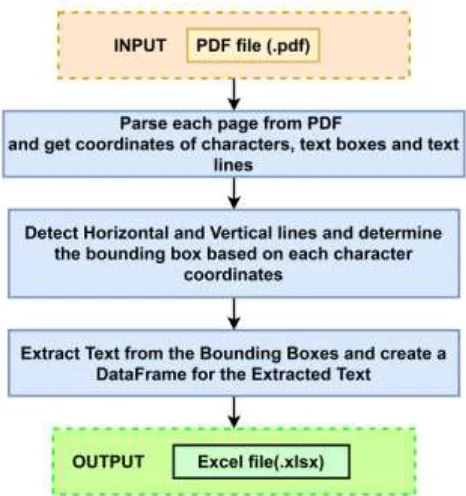
The Auto-Table-Extract system is capable of identifying tables within PDF documents and extracting the information from it. Table detection is the process of identifying tables from a document, extracting the cells contained in a table. The Auto-Table-Extract system consists of three main modules: 1) Document conversion 2) Layout Analysis 3) Table detection and extraction. The Fig. 1 represents the working of Auto-Table-Extract system. The input to this system is a PDF document. This PDF document can be scanned or searchable (selectable text). The ocrmypdf, which is a Tesseract based OCR, is used for document conversion from scanned to searchable PDF. Using PDFMiner, Layout analysis is applied over the PDF document. PDFMiner can determine coordinates of lines, text boxes, figures, characters, and rectangles. The Auto-Table-Extract system uses two methods to identify and extract tables. The extracted data of the table is dumped into an excel sheet. The two methods used for identification and extraction are 1) Table with Border ( For tables with fully recognizable borders) 2) Table without Border (For partially bordered or borderless tables ).The Table with Border method is used to determine the tables with the help of coordinates of text lines, characters, and text boxes provided by the PDFMiner. The Table without Border method uses the clustering method and coordinates of the text line to determine the table and extract its contents. Further, a Pandas DataFrame consisting of extracted data is created, which is used to make the excel sheet containing the data. The output of the Auto-Table-Extract system is an Excel document with the table’s information extracted from the PDF. In the following sections, we describe the two methods called Table with Border and Table without Border built into the system to perform automatic table detection and extraction.
Fig. 1. Auto-Table-Extract System
3.1 Table with Border Method
The Table with Border method is used for the pdf having a well-defined bordered table. This method determines the tables with the help of coordinates provided by the PDFMiner and ignores the paragraph and figures outside the table.
The Fig. 2 shows the overall working of the Table with Border Method. This method is used for the PDFs having a well-defined bordered table. This method determines the tables with the help of coordinates provided by the PDFMiner and ignores the paragraph and figures in the table. The input to this method should be a PDF document which must include a table having well-defined borders. In this method, parse every page of pdf and apply the algorithm on every page individually. In PDFMiner, textboxes include the coordinates (x1, y1)
represent top-left and (x2, y2) bottom-right corners of the
bounding box. Text boxes are composed of text lines. Characters grouped in text lines form one or more words. A text line also includes its corresponding bounding box coordinates. PDFMiner provides coordinates, text font, and text size for each character. In PDFMiner’s output, the coordinates of a page are top-left (0,0) and bottom-right (approximately 750,850). With the help of PDFMiner, find all the coordinates of characters, boxes, and text lines. Then, we have to determine horizontal and vertical lines in the PDF document. To determine the horizontal and vertical lines, consider two points (x0, y0) and (x1, y1). If | x1 - x0 | > |y1 - y0 |
then the line is horizontal, else the line is vertical. To determine the cell position of all the text, we have to find the bounding box of every character in that text.
Fig. 3. Determine Horizontal and Vertical lines for character A
Considering the Fig. 3, we have to find the bounding box for each text “AUTO”, “TABLE”, “EXTRACT” and “SYSTEM”. The algorithm starts with the first character of the first string and then determines the left and right vertical lines for a character. The algorithm also determines the upper and lower horizontal lines for each character in the table. Then, to determine the bounding box of a particular character based on the coordinates, find the maximum value of the left vertical line (max(V_Left)), the minimum value of the right vertical line (min(V_Right)), the maximum value of lower horizontal line (max(H_Down)) and the minimum value of upper horizontal line (min(H_Up)). We need to calculate all these values for every character to determine its bounding box. Once the bounding boxes are found for all the characters in the table, join the characters based upon their respective bounding box to make a string. Considering the Fig. 4, we have determined the bounding box for the text “AUTO”. Similarly, we need to find the bounding box for all other texts. The extracted data from the table is used to create a Pandas DataFrame. This
DataFrame is then used to dump the values into the excel sheet.
Fig. 4. Determine Bounding Box
3.2 Table without Border Method
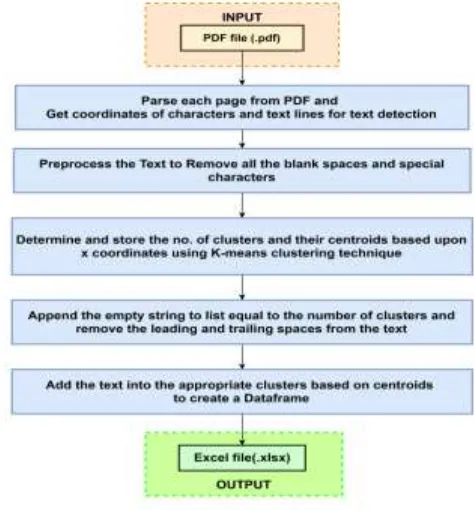
The Table without Border method is used for the pdf that doesn’t has a well-defined bordered table. This method determines the data within the tables with the help of coordinates provided by the PDFMiner and ignores the paragraph and figures outside the table.
Fig. 5. Table without Border Method
220 their centroids based on the x coordinates of text in the pdf
using K-Means clustering. K-means is a centroid-based algorithm, or a distance-based algorithm, where we calculate the distances to assign a point to a cluster. In K-Means, it associates each cluster with a centroid. The main aim of the K-Means algorithm is to minimize the sum of distances between the points and their respective cluster centroid. Store the calculated centroids for further processing. Calculate the minimum distance for the new line using the y coordinates. This minimum distance is calculated to identify only the tabular data, and it doesn’t add any paragraph data into the excel sheet. Append empty strings to the list equal to the number of clusters, so the tabular data is properly extracted to the excel sheet. Pre-process all the texts of the table by removing leading and trailing spaces from the text. Add the text into their appropriate clusters based on the calculated centroids. The extracted data from the table is used to create a Pandas DataFrame. This DataFrame is then used to dump the values into the excel sheet.
4 RESULTS
AND
DISCUSSION
Performance Evaluation of Auto-Table-Extract was carried out by performing a standardized assessment of its ability to identify tables from PDF documents and extract the data into an excel sheet. This system was not only able to detect the bordered tables but also detected the borderless and partially bordered tables accurately. The performance of the system is evaluated based on three model evaluation metrics called precision, recall and F1 score.
A. Precision
Precision can be evaluated by finding out the number of tables that were correctly identified to the total number of identified tables by the Auto-Table-Extract system.
(1)
B. Recall
Recall can be evaluated by finding the number of tables that were correctly identified by the Auto-Table-Extract system to the total number of tables present in the document.
(2)
C. F1 score
F1 score can be evaluated with the help of precision and recall which were calculated by the equations (1) and (2). The below equation (3) is the formula for the F1 score.
(3)
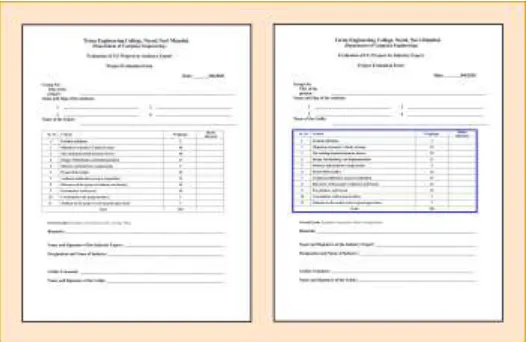
The Fig. 6 represents that the Auto-Table-Extract system was able to detect bordered tables in a PDF document accurately. The Fig. 7 represents that the system was able to detect partially bordered tables accurately from a PDF document. The Fig. 6 and Fig. 7 have a precision of 1 as the system was able to identify tables accurately from the provided PDF
documents. To, determine how accurately our method can identify tables and extract contents from it, we have implemented our method and evaluated with a considerable number of PDF documents. The system was also evaluated for the scanned as well as for the searchable PDF documents.
Fig. 6. Detected bordered table accurately
Fig. 7. Detected partially bordered tables accurately
The Auto-Table-Extract system was tested with a dataset comprised of 146 PDF documents. The dataset contains scanned as well as searchable PDF documents. The PDF documents consisted tables along with text paragraphs, graphics, and mathematical formulas, etc. The document also comprised of tables which were bordered, borderless as well as partially bordered.
TABLE 1
Performance Evaluation
Type of PDF Precision Recall F1 score
PDF with only bordered tables
0.91 0.88 0.89
PDF with bordered, borderless and partially bordered
tables.
The performance evaluation for the system is shown in Table 1. The Table 1 represents the model evaluation metrics which are precision, recall and F1 score used for performance evaluation of Auto-Table-Extract system. The performance of the system is comparable with some state-of-the-art commercial and open-source tools available in the market and overcomes the drawbacks of the same.
5 CONCLUSION
AND
FUTURE
SCOPE
The paper presents a system called Auto-Table-Extract which is used to identify tables from PDF documents and extract data into an excel sheet using machine learning. It works with all kinds of PDF documents containing bordered, borderless, and partially bordered tables. The system also works with PDFs that are scanned as well as searchable. A searchable PDF is the document in which the text can be selected. For Scanned PDF, the system uses a Tesseract based OCR for document conversion from scanned PDF to searchable PDF. Using PDFMiner, Layout analysis is applied over the PDF document to determine the coordinates of lines, text boxes, figures, characters, and rectangles. Based upon the table category, the appropriate method i.e. Table with Border method or Table without Border method will be applied over the PDF document. The output of the system will be an excel sheet containing all the tabular data. We evaluated the Auto-Table-Extract system on a considerable number of PDF documents. Auto-Table-Extract system overcame the drawbacks of the prior methodologies. It performed well not only on searchable documents but also on scanned documents. It also works well with PDF having multiple pages. The performance of the system is evaluated based on three model evaluation metrics called Precision, Recall, and F1 score. In the future, we plan to optimize the algorithms which can recognize partially bordered tables and borderless tables more accurately.
REFERENCES
[1] M. Ohta, R. Yamada, T. Kanazawa, And A. Takasu, “A Cell-Detection Based Table-Structure Recognition Method,” In Proceedings Of The Acm Symposium On Document Engineering. Acm, 2019, Pp. 1–4.
[2] A. Gilani, S. R. Qasim Et Al. “Table Detection Using Deep Learning,” In 14th Iapr International Conference On Document Analysis And Recognition, 2017.
[3] F. Shafait And R. Smith, “Table Detection In Heterogeneous Documents,”In Proceedings Of The 9th Iapr International Workshop On Document Analysis Systems. Acm, 2010, Pp. 65–72.
[4] J. Hu, R. S. Kashi, D. P. Lopresti, And G. Wilfong, “Medium Independent Table Detection,” In Electronic Imaging. International Society For Optics And Photonics, 1999, Pp. 291–302.
[5] G. Harit And A. Bansal, “Table Detection In Document Images Using Header And Trailer Patterns,” In Proceedings Of The Eighth Indian Conference On Computer Vision, Graphics And Image Processing. Acm, 2012, P. 62.
[6] T. Kasar, P. Barlas, S. Adam, C. Chatelain, And T. Paquet, “Learning To Detect Tables In Scanned Document Images Using Line Information,” In Document
Analysis And Recognition (Icdar), 12th International Conference On. Ieee, 2013, Pp. 1185 1189.
[7] M. A. Jahan And R. G. Ragel, “Locating Tables In Scanned Documents For Reconstructing And Republishing,” In Information And Automation For Sustainability (Iciafs), 2014 7th International Conference On. Ieee, 2014, Pp. 1–6.