HP StorageWorks
Legal and notice information
© Copyright 1999–2006 Hewlett-Packard Development Company, L.P.
Hewlett-Packard Company makes no warranty of any kind with regard to this material, including, but not limited to, the implied warranties of merchantability and fitness for a particular purpose. Hewlett-Packard shall not be liable for errors contained herein or for incidental or consequential damages in connection with the furnishing, performance, or use of this material.
This document contains proprietary information, which is protected by copyright. No part of this document may be photocopied, reproduced, or translated into another language without the prior written consent of Hewlett-Packard. The information is provided “as is” without warranty of any kind and is subject to change without notice. The only warranties for HP products and services are set forth in the express warranty statements accompanying such products and services. Nothing herein should be construed as constituting an additional warranty. HP shall not be liable for technical or editorial errors or omissions contained herein.
Java™ is a U.S. trademark of Sun Microsystems, Inc.
Microsoft®, Windows®, and Windows NT® are U.S. registered trademarks of Microsoft Corporation. Oracle® is a registered U.S. trademark of Oracle Corporation, Redwood City, California.
UNIX® is a registered trademark of The Open Group.
About this guide . . . 7
Intended audience . . . 7
Prerequisites. . . 7
Related documentation . . . 7
Document conventions and symbols . . . 8
HP technical support . . . 9
HP-authorized reseller. . . 9
Helpful web sites . . . 9
1 Installation . . . 11
Installation overview . . . 11
Verifying system requirements . . . 12
Verify management station requirements. . . 12
Verify Web client requirements . . . 13
Verify disk array firmware requirements . . . 14
Verify host agent disk space requirements for Path Connectivity. . . 14
Verify HBA support for Path Connectivity . . . 15
Verify Command Line Interface (CLI) requirements . . . 18
Installing Command View . . . 19
Prepare for upgrade. . . 19
Implement the recommended network configuration . . . 19
Set up ports to bypass a network firewall . . . 20
Other supported firewall configurations . . . 21
Alternate firewall case 1: Firewall running on Command View management station . . . 21
Alternate firewall case 2: Firewall running on SVP . . . 21
Using multiple LAN cards . . . 21
Modifying the connection bindings order on Windows 2000, Windows Server 2003, or Windows XP . 22 Verify the host system name . . . 22
Confirming or modifying the system name . . . 22
Install SSL for secure communication (optional) . . . 22
Install the SNMP service . . . 22
Verify the SNMP configuration . . . 23
Install Command View . . . 23
Uninstall Command View XP . . . 23
Installing Command View XP 2.2B . . . 23
Modify or repair Command View . . . 24
Uninstall Command View . . . 24
Verify Command View services . . . 24
Set Up SMI-S XP . . . 26
Installing SMI-S XP. . . 26
Verifying SMI-S XP installation . . . 26
Contents
Disabling SMI-S CIMOM service . . . 29
Restarting SMI-S CIMOM service . . . 29
SSL support . . . 29
Enabling SSL . . . 30
Disabling SSL . . . 30
Viewing certificates using the Keytool command . . . 31
Viewing all certificates using the Keytool command. . . 31
Uninstalling SMI-S XP . . . 31
Set up event notification and history reporting . . . 31
Setting up Command View . . . 31
Migrate data, settings, and preferences from a different management station . . . 31
Migrating your data with the Backup Utility . . . 31
Saving or restoring your data from the Windows command line . . . 32
Disable the Web Proxy service . . . 32
Disabling proxy service in the Internet Explorer browser . . . 32
Adding the IP address of the disk array to the list of web proxy excluded addresses . . . 32
Adding IP addresses in Internet Explorer . . . 32
Adding IP addresses in Mozilla . . . 32
Verify the Internet Explorer browser requirements and configuration. . . 33
Verify the Mozilla browser requirements and configuration . . . 33
Install Java on clients running Mozilla on HP-UX . . . 33
Change the Session Timeout value . . . 33
Add disk arrays to Command View . . . 34
Install license keys . . . 35
Install the Command View client Command Line Interface (CLI) . . . 35
Accessing the Command View GUI . . . 36
Setting up Path Connectivity. . . 36
Add switches through Path Connectivity . . . 37
Adding switches . . . 38
Install Path Connectivity host agents . . . 38
Prerequisites. . . 38
Preliminary host agent installation tasks . . . 39
Preparing for installation on Microsoft Windows platforms . . . 39
Preparing for installation on UNIX platforms (HP-UX, Solaris, and AIX) . . . 39
Preparing for installation on UNIX platforms (Linux) . . . 39
Installing host agents with the remote deployment tool . . . 40
Designating a single host . . . 40
Designating multiple hosts. . . 40
Installing the host agents . . . 41
Uninstalling the host agents with the remote deployment tool. . . 41
Updating the host agent access files using the remote deployment tool . . . 41
Installing host agents using the local method . . . 42
Downloading the host agent file . . . 42
Installing the host agent locally . . . 42
Uninstalling a host agent locally . . . 42
Add or remove host agent installation files . . . 43
Verify data collection from disk arrays, hosts and switches . . . 43
Verifying that Path Connectivity is working correctly . . . 43
Install the Path Connectivity Command Line Interface (CLI) . . . 43
Integrating the snap-in modules into Command View . . . 43
HP StorageWorks Application Policy Manager . . . 43
Integrating Command View with other platforms. . . 44
Integrating with HP OpenView Storage Area Manager . . . 44
Running Command View from a Storage Area Manager management station . . . 44
Event notification . . . 45
2 Troubleshooting . . . 47
Unable to start Command View . . . 47
General Command View connection errors . . . 49
Host agent deployment errors. . . 51
Host agent uninstallation errors . . . 52
SVP reboot failure. . . 52
A Installation checklist. . . 55
Verifying the system requirements . . . 55
Installing Command View . . . 55
Other related procedures . . . 55
Setting up Command View . . . 56
Setting up Path Connectivity . . . 56
Other related procedures . . . 56
Integrating the snap-in modules into Command View . . . 56
Integrating Command View with other platforms . . . 56
Index . . . 57
Figures
1 Example of a network with added security from a firewall. . . 192 Internet Options (Internet Explorer) . . . 33
Tables
1 Document conventions . . . 82 Management station requirements . . . 12
3 Web client requirements. . . 13
4 Operating systems and host disk space requirements . . . 14
5 Path Connectivity HBA support . . . 15
6 Ports used for inbound traffic to the SVP . . . 20
7 Ports used for outbound traffic from the SVP . . . 20
8 Ports to be opened for a firewall on the Command View management station . . . 21
9 Command View services. . . 25
10 SMI-S XP configuration files. . . 27
11 Parameters in the cim.properties file. . . 27
12 Extended features . . . 35
13 Supported switches . . . 37
14 Command View host agent compatibility with Storage Area Manager host agents . . . 44
15 Unable to start Command View . . . 47
16 General connection errors . . . 49
17 Host agent deployment errors . . . 51
About this guide
This guide provides information about:• Installing Command View XP, Path Connectivity, SMI-S XP, and the snap-in modules
• Setting up the XP disk arrays
• Integrating Command View XP with other platforms
Intended audience
This guide is intended for customers and HP authorized service providers who are experienced with the following:
• Disk array hardware and software
• Storage systems
Prerequisites
Prerequisites for installingthis product include:
• Reading through the installation guide
• Meeting all the minimum installation requirements
• Reviewing the readme.txt file on the CD for any last-minute announcements
Related documentation
In addition to this guide, please refer to other documents for this product: • HP StorageWorks Command View XP Path Connectivity user guide
• HP StorageWorks Command View XP Path Connectivity Command Line Interface (CLI) reference guide
• HP StorageWorks Command View XP for XP Disk Arrays user guide
• HP StorageWorks Command View XP Command Line Interface (CLI) reference guide
Document conventions and symbols
CAUTION: Indicates that failure to follow directions could result in damage to equipment or data.
IMPORTANT: Provides clarifying information or specific instructions.
NOTE: Provides additional information.
TIP: Provides helpful hints and shortcuts.
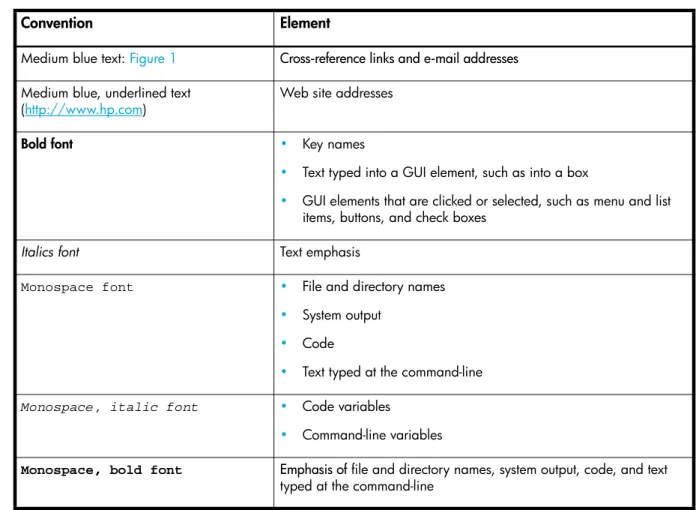
Table 1 Document conventions
Convention Element
Medium blue text: Figure 1 Cross-reference links and e-mail addresses
Medium blue, underlined text
(http://www.hp.com) Web site addresses
Bold font • Key names
• Text typed into a GUI element, such as into a box
• GUI elements that are clicked or selected, such as menu and list items, buttons, and check boxes
Italics font Text emphasis
Monospace font • File and directory names
• System output
• Code
• Text typed at the command-line
Monospace, italic font • Code variables
• Command-line variables
Monospace, bold font Emphasis of file and directory names, system output, code, and text
typed at the command-line
HP technical support
Telephone numbers for worldwide technical support are listed on the HP web site: http://www.hp.com/support/.
Collect the following information before calling:
• Technical support registration number (if applicable)
• Product serial numbers
• Product model names and numbers
• Applicable error messages
• Operating system type and revision level
• Detailed, specific questions
For continuous quality improvement, calls may be recorded or monitored.
HP strongly recommends that customers sign up online using the Subscriber’s choice web site at http://www.hp.com/go/e-updates.
• Subscribing to this service provides you with email updates on the latest product enhancements, newest versions of drivers, and firmware documentation updates as well as instant access to numerous other product resources.
• After signing-up, you can quickly locate your products by selecting Business support and then Storage under Product Category.
HP-authorized reseller
For the name of your nearest HP-authorized reseller:
• In the United States, call 1-800-345-1518
• Elsewhere, visit http://www.hp.com and click Contact HP to find locations and telephone numbers
Helpful web sites
For additional product information, see the following web sites:
• http://www.hp.com
• http://www.hp.com/go/storage • http://www.hp.com/support/
1 Installation
HP StorageWorks Command View XP is a disk array management platform for HP StorageWorks XP48/XP512/XP128/XP1024/XP10000/XP12000 disk arrays. This guide describes how to install Command View.
In addition to disk array management functions, Command View includes Path Connectivity functionality. Path Connectivity diagnoses and reports the status of connections between disk arrays and hosts that consume disk array storage space.
Both Command View and Path Connectivity have graphical user interfaces and command line interfaces. Additional software (known as snap-in modules) can be purchased to expand Command View functions. This includes HP StorageWorks Performance Advisor XP and HP StorageWorks Application Policy Manager.
Information about the integration of Command View with other management platforms such as HP OpenView is included in this installation guide.
This chapter contains detailed descriptions of the installation procedures listed in ”Installation checklist” on page 55.
Installation overview
Installing Command View involves the following tasks:
• Verifying that you have met or exceeded the requirements for the management station, any clients, disk array firmware, host agent disk space, host bus adapters (HBAs), and CLI
• Installing Command View on the management station
• Setting up Command View
• Setting up Path Connectivity (optional)
• Integrating snap-in modules into Command View, if needed
Verifying system requirements
NOTE: Refer to the readme.txt file on the Command View CD for the most current requirements and any last-minute announcements.
Verify management station requirements
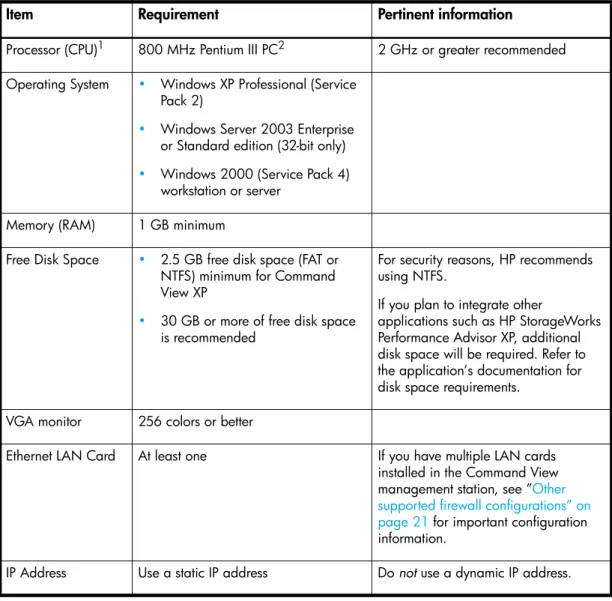
The management station is the Windows-based host on which Command View is installed. Make sure the workstation that serves as the Command View management station meets the minimum requirements.
Table 2 Management station requirements
Item Requirement Pertinent information
Processor (CPU)1 800 MHz Pentium III PC2 2 GHz or greater recommended Operating System • Windows XP Professional (Service
Pack 2)
• Windows Server 2003 Enterprise or Standard edition (32-bit only)
• Windows 2000 (Service Pack 4) workstation or server
Memory (RAM) 1 GB minimum
Free Disk Space • 2.5 GB free disk space (FAT or NTFS) minimum for Command View XP
• 30 GB or more of free disk space is recommended
For security reasons, HP recommends using NTFS.
If you plan to integrate other
applications such as HP StorageWorks Performance Advisor XP, additional disk space will be required. Refer to the application’s documentation for disk space requirements.
VGA monitor 256 colors or better
Ethernet LAN Card At least one If you have multiple LAN cards installed in the Command View management station, see ”Other supported firewall configurations” on page 21 for important configuration information.
Verify Web client requirements
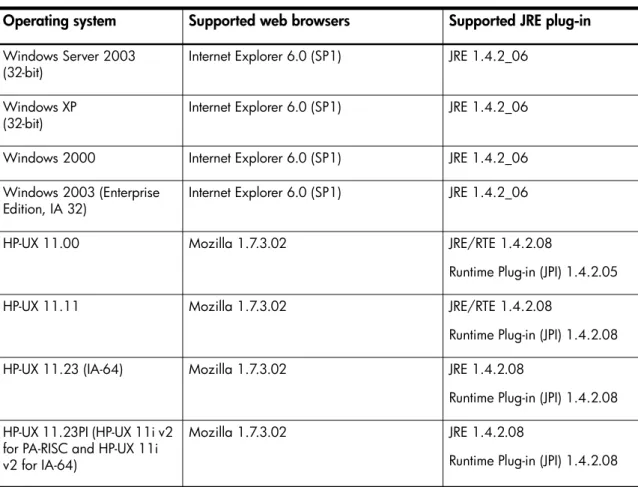
The Web client is any computer used to access Command View through a Web browser. Make sure any computer used as a Web client uses the supported operating system, Web browser, and Java software.
Monitor Screen resolution of at least 800 by 600 pixels
1The Command View XP management station must be a single-processor server only. The management
station is not supported on multi-processor servers.
2 These values assume that you are using the array management GUI only and you are only monitoring
a few hosts by Path Connectivity. HP strongly recommends at least a 2 GHz processor and 2 GB RAM if you are running multiple snap-in applications on the same system or if you are using the SMI-S component. For optimal performance, do not run Command View XP and its snap-in applications with other CPU-intensive applications. For example, the HP OpenView Storage Area Manager management server should not run on the same system as the Command View XP management server.
Table 2 Management station requirements (continued)
Item Requirement Pertinent information
Table 3 Web client requirements
Operating system Supported web browsers Supported JRE plug-in
Windows Server 2003
(32-bit) Internet Explorer 6.0 (SP1) JRE 1.4.2_06 Windows XP
(32-bit) Internet Explorer 6.0 (SP1) JRE 1.4.2_06 Windows 2000 Internet Explorer 6.0 (SP1) JRE 1.4.2_06 Windows 2003 (Enterprise
Edition, IA 32) Internet Explorer 6.0 (SP1) JRE 1.4.2_06 HP-UX 11.00 Mozilla 1.7.3.02 JRE/RTE 1.4.2.08
Runtime Plug-in (JPI) 1.4.2.05 HP-UX 11.11 Mozilla 1.7.3.02 JRE/RTE 1.4.2.08
Runtime Plug-in (JPI) 1.4.2.08 HP-UX 11.23 (IA-64) Mozilla 1.7.3.02 JRE 1.4.2.08
Runtime Plug-in (JPI) 1.4.2.08 HP-UX 11.23PI (HP-UX 11i v2
for PA-RISC and HP-UX 11i v2 for IA-64)
Mozilla 1.7.3.02 JRE 1.4.2.08
NOTE: If you install an earlier version of the JRE after installing the supported version, do not set the client browser to use the older JRE. Choosing the older JRE as the default JRE may cause Command View to work incorrectly.
In addition to these requirements, review the browser configuration requirements. For Internet Explorer, see ”Verify the Internet Explorer browser requirements and configuration” on page 33. For Mozilla, see ”Verify the Mozilla browser requirements and configuration” on page 33.
Verify disk array firmware requirements
Command View requires that the managed disk arrays have certain minimum firmware levels. Refer to the HP StorageWorks Command View XP Readme for more information.
Verify host agent disk space requirements for Path Connectivity
If you plan to use Path Connectivity, verify that the host agent operating system and disk space requirements are met for each host.Path Connectivity host agents run on various hosts in your SAN that consume disk space. They are responsible for collecting data-to-LDEV mapping and host HBA information. Table 4 shows which operating systems are supported and the host disk space requirements for that operating system.
Table 4 Operating systems and host disk space requirements
Operating system Disk space
Windows 2000 (Service Pack 4)
Windows Server 2003 Enterprise Edition (IA 32) 120 MB Windows Server 2003 Enterprise/DataCenter Edition
(IA 64) 200 MB
HP-UX 11.00
HP-UX 11.11 Total: 224 MB/opt: 113 MB /etc: 1 MB /var: 110 MB HP-UX 11.23 (IA-64) Total: 322 MB /opt: 251 MB /etc: 1 MB /var: 70 MB HP-UX 11.23PI
(HP-UX 11i v2 for PA-RISC and HP-UX 11i v2 for IA-64) Total: 322 MB/opt: 251 MB /etc: 1 MB /var: 70 MB Solaris 8
Solaris 9 Total: 132 MB/opt: 65 MB /etc: 1 MB /var: 66 MB
On UNIX systems, the tmp directory is used during the Path Connectivity host agent deployment process. If your tmp directory does not have sufficient space for the installation, use your Volume Management System (for example, Online JFS or Veritas) to extend the available disk space in the tmp directory. Failure to ensure that the tmp directory can accommodate the space requirements in Table 4 may cause an installation failure.
Verify HBA support for Path Connectivity
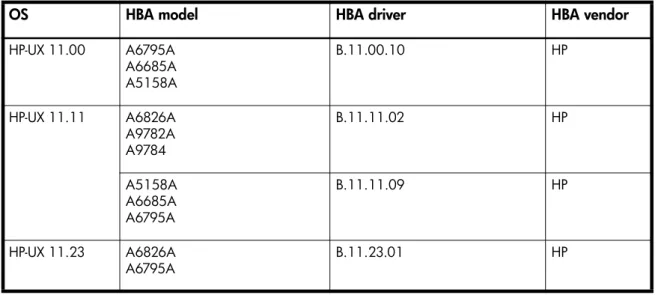
If you plan to use Path Connectivity, verify that your HBA(s) are supported.
The following table lists HBAs that HP has verified to work properly with Path Connectivity. Fibre Channel connectivity to XP disk arrays using these HBAs is subject to disk array firmware compatibility. Please consult your HP support representative for further questions.
For Path Connectivity to collect all necessary information about the HBA, you should install the HBA SNIA library provided by the HBA driver vendor.
AIX 5.1
AIX 5.2 Total: 346 MB/opt: 210 MB /etc: 6 MB /var: 65 MB /usr: 65 MB Red Hat Linux Advanced Server 2.1, 2.4.9 kernel (IA
32)
Red Hat Enterprise Linux 3.0 (2.4.21) (IA 32)
SuSE Linux Enterprise Server 8 (SLES8)/ United Linux, (2.4.21 kernel) (IA 32)
Total: 144 MB /opt: 70 MB /etc: 4 MB /var: 70 MB
Table 4 Operating systems and host disk space requirements (continued)
Operating system Disk space
Table 5 Path Connectivity HBA support
OS HBA model HBA driver HBA vendor
HP-UX 11.00 A6795A A6685A A5158A
B.11.00.10 HP
HP-UX 11.11 A6826A A9782A A9784
B.11.11.02 HP
A5158A A6685A A6795A
B.11.11.09 HP
HP-UX 11.23 A6826A
Windows 2000 LP8000 (HP 176479-B21)
LP952L 5-4.82a4 (SNIA 1.8),5-5.00a10-1 (SNIA 1.12.2.0), 5-2.13a4 (SNIA1.8),
5-2.20a12-2 (SNIA 1.12.2.0) 5-5.10a9(2.0.4.0)
5-2.22a891.40
Emulex
D8602B (HP Netserver only) 2.0.25.44 HP KGPSA-CB
FCA2101 FCA2355
5-4.82a14 (SNIA 1.6),
5-4.82a16 (SNIA 1.6) HP
FCA2408,
FCA2404/FCA2404DC 5-4.82a16 (SNIA 1.6)5-5.10a9 HP FC2214/FCA2214DC,
FC Mezzanine Card for BL20P 5-8.2.0.73 (SNIA 1.27.15.0)8.2.0.73(1.27.15.0) 9.0.0.13
5-5.10a9
HP
QLA2200F
QLA2300F 8.1.5.12 (SNIA 1.27.06)8.1.5.15(1.27.13 QLogic QLA2310F
QLA2340 8.2.0.10 (SNIA 1.27.12), 8.2.2.10 (SNIA 1.27.15) QLogic Windows Server
2003 (32-bit) LP9002 LP9002DC LP952
5.2-22a8 (SNIA 1.4) 5-5.00a10-1(1.12.2.0) 5-5.10a9(2.0.4.0) 5-2.20a12-2(1.12)
Emulex
LP1050
LP1050DC 5.5.10a9 (SNIA 2.0.4.0) Emulex FCA2101
FCA2355 5-4.82a16 (SNIA 1.6) (32 bit)5-5.10a9 HP FCA2408,
FCA2404 5-4.82a16 (SNIA 1.6) (32-bit) HP FC2214/FCA2214DC,
FC Mezzanine Card for BL20P 5-8.2.0.73 (SNIA 1.27.15.0) (32-bit) 8.2.0.73 (SNIA 1.27.15.0) (32-bit) 9.0.0.13
8.2.0.73(1.27.15.0)"
HP
FCA2214/FCA2214DC 8.2.0.13 (SNIA 1.27.15.0) HP Windows Server
2003 (Enterprise Edition, 64-bit)
LP982 (2 GB) 6.5.00a11-1 (SNIA 1.5.20)
(64-bit) Emulex
A7298A
AB232A 6.5.00a11-1 (SNIA 1.5.20) (64-bit) HP
Table 5 Path Connectivity HBA support (continued)
Red Hat Linux Advanced Server 2.1/Red Hat Enterprise Linux 3.0
LP9002 (2 GB) LP9000 LP8000 LP952 (2 GB)
4.20p (SNIA 1.3)
4.21g Emulex
FC2214/FCA2214DC,
FC Mezzanine Card for BL20P 6.04.00 HP FCA-2214
FCA-2214DC 6.06.506.04.00 6.04.00
HP
QLA2340
QLA2342 6.06.506.04.00
6.06.10(2.01b5)
QLogic
SuSE Linux Enterprise Server 8 (SLE8)
FC2214/FCA2214DC 6.04.00 6.06.50 7.00.03
HP
Solaris 8 QLA 2310F V3.22 (SNIA 2.02) 4.08(2.02) 4.13.01(3.05)
Qlogic
QLA 2340 V4.08 (SNIA 2.02)
4.13.01(3.05) Qlogic FCE-6410
FCE2-6410 FCE2-6412
4.1.5 (SNIA 2.0)
4.1.6(2.0) JNI
FCC 6460 FCX-6562 FCX2-6562
5.3.1 (SNIA 2.0) JNI
X6799A 11.8.0 SUN
Table 5 Path Connectivity HBA support (continued)
Verify Command Line Interface (CLI) requirements
If you are installing the Command View Command Line Interface (CLI) and/or Path Connectivity Command Line Interface (CLI), verify the minimum requirements are met:
• The CLI client version of Command View must be the same as the version installed on the Command View management station.
• Be sure that JRE 1.4.2_06 (Windows) or JRE/RTE 1.4.2.08 (HP-UX) is installed on the client platform (the system from which you run the CLI). Other operating systems or JRE versions are not supported.
• The CLI client platform must have network connectivity to the Command View management station.
• To run the CLI from a telnet session using a command prompt window, use a command prompt window that supports the X Windows function, such as Reflection X, or use the command line login method, such as e2ecli -p user/user.
Solaris 9 LP9002L
LP9802DC 5.01e-1 (SNIA 1.6a) Emulex FCE-6410
FCE2-6410 FCE2-6412
4.1.3 (SNIA 2.0),
4.1.5 (SNIA 2.0) JNI
FCI-1063
FC64-1063 2.5.18 (w/ SNIA 1.0 lib) JNI FCE-1063
FCE2-1063 4.1.3 (w/ SNIA 2.0 lib) JNI FCE-1473 5.1.1 (w/ SNIA 2.0 lib) JNI FCE-6460 (2 GB)
FCE2-6560 (2 GB) FCX-6562 (2 GB) FCX2-6562 (2 GB) FCC-6460 (2 GB) FCC2-6560 (2 GB)
5.1.1 (SNIA 2.0), 5.2.1 (SNIA 2.0), 5.3.0.1 (SNIA 2.0)
JNI
QLA2340
QLA2342 4.08 (SNIA 2.02)4.13.01(3.05) QLogic X6799A
X6767A 11.8.0 Sun
AIX 5.1 IBM 6228 V5.1.0.15
5.1.0.35 5.2.0.10
IBM
AIX 5.2 IBM 6228 V5.2.0.10 IBM
IBM 6239 V5.2.0.10 IBM
Table 5 Path Connectivity HBA support (continued)
Installing Command View
Prepare for upgrade
If you are upgrading from a previous version of Command View XP, consider the following before installing the new version:
• Command View XP 2.2B does not support the XP256 disk array except as external storage.
• Command View XP 2.2B does not support XP1024 and XP128 disk arrays with firmware version 21.09.XX or lower or early versions of 21.10.XX. Refer to the HP StorageWorks Command View XP Readme document for the required firmware version.
• A specific disk array cannot be managed by multiple Command View XP management servers. For example, a specific array can not appear in the list of actively managed arrays of two different management servers.
• Before installing Command View XP 2.2B on the management server, uninstall all host agents using the version of Command View XP currently installed.
• If you have Command View XP 1.8.X or lower installed on your management server, use the Windows Add/Remove Programs utility to uninstall the current version of Command View XP, before installing Command View XP 2.2B on the management server.
• All user-entered data (for example, array lists, users, passwords, and user-entered Path Connectivity information) will be retained when you upgrade from Command View XP 2.0/2.1 to Command View XP 2.2B.
Implement the recommended network configuration
For enhanced security, HP recommends using a network firewall to isolate the Service Processor (SVP) from the rest of the corporate intranet. To implement this:
• Install a firewall using a router or firewall software on a separate workstation with two LAN cards, one LAN card for a separate network to the SVP and the other for connecting to the intranet (see Figure 1).
• If you are using firewall software, consider installing antivirus software on the same machine.
• The firewall needs to allow only the ports mentioned in ”Set up ports to bypass a network firewall” on page 20.
Set up ports to bypass a network firewall
When placing XP disk arrays behind a firewall, you must open certain ports to enable access by the Command View management station and clients.
NOTE: For the XP128/XP1024/XP10000/XP12000, Command View array management web clients communicate directly with the array. Therefore, access through the firewall is needed for each
XP128/XP1024/XP10000/XP12000 web client.
To support Command View access through a firewall, assuming that all inbound and outbound traffic is blocked by default, you must allow access to the ports listed in Table 6 and Table 7.
Table 6 Ports used for inbound traffic to the SVP
Array Port Protocol Usage
XP128/XP1024/ XP10000/ XP12000
Port 80 TCP Used by Command View Web clients
XP128/XP1024/ XP10000/ XP12000
Port 443 TCP TCP used by Command View Web clients for https communication XP128/XP1024/
XP10000/ XP12000
Ports 1099 and
51099 TCP Used by Command View Web clients and the Command View management station for managing the disk array XP48/XP512 Port 161 UDP Used by the Command View
management station for managing the disk array
Table 7 Ports used for outbound traffic from the SVP
Array Port Protocol Usage
XP48/XP128/ XP512/XP1024/ XP10000/ XP12000
Port 162 UDP Used for sending SNMP traps from the SVP
Other supported firewall configurations
Alternate firewall case 1: Firewall running on Command View management station
Table 8 shows the necessary changes for a firewall running on the Command View management station, assuming that by default it does not restrict outgoing traffic and blocks all inbound traffic.Alternate firewall case 2: Firewall running on SVP
Assuming that all SVP outbound traffic is unrestricted by the SVP’s firewall, configure the ports listed in Table 6.
Using multiple LAN cards
Table 8 Ports to be opened for a firewall on the Command View management station
Array Port Protocol Usage
XP48/XP128/ XP512/XP1024/ XP10000/ XP12000
Port 80 inbound TCP Used for Command View web and CLI clients
Used for the Command View management station if it is used as a web or CLI client
XP48/XP128/ XP512/XP1024/ XP10000/ XP12000
Port 443
inbound TCP Used for Command View web clients, CLI clients, and the Command View management station if it is used as a web or CLI client when the Command View management station is configured for SSL
XP48/XP128/ XP512/XP1024/ XP10000/ XP12000
Port 5988
inbound TCP Used by SMI-S clients
XP48/XP128/ XP512/XP1024/ XP10000/ XP12000
Port 5989
inbound TCP Used by SMI-S clients that use HTTPS/WEBM
XP48/XP128/ XP512/XP1024/ XP10000/ XP12000
Port 161
inbound UDP Used for incoming SNMP traffic from HP Enterprise Integrations SNMP clients XP48/XP128/ XP512/XP1024/ XP10000/ XP12000 Port 162
To set the LAN card as the first network card, modify the bindings order of the network adapters to bind that network card first. To modify the connection bindings order, you must be logged on as a member of the Administrators group.
Modifying the connection bindings order on Windows 2000, Windows Server
2003, or Windows XP
1. Open the Network and Dial-up Connections window by right-clicking the My Network Places icon on the desktop and then choosing Properties.
2. From the Advanced menu, select Advanced Settings.
3. Select the connection you want to move, and then click the up or down arrow to change the order.
4. Click OK to save your changes.
Verify the host system name
The host system name should not contain spaces or non-alphanumeric characters.
Confirming or modifying the system name
1. From the Control Panel in Windows, click System.
2. Depending on your version of Windows, click the Network Identification tab or the Computer Name tab to display the system name.
3. To modify the system name, click Properties (Windows 2000) or Change (Windows Server 2003, Windows XP).
4. Enter a new system name and click OK to save your changes.
Install SSL for secure communication (optional)
Command View uses the Apache Web Server, which supports secure communication using SSL. However, some manual configuration is required. The default Command View installation is non-SSL.
Refer to the Apache Web Server SSL Configuration for Command View Applications white paper (hpss_apache_whitepaper.pdf) for SSL configuration instructions. The file is located in two places:
• The root directory of the Command View installation CD.
• In Command View, under the Support > Reference Documents menu item.
Install the SNMP service
If you are integrating Command View with another application that will receive events from Command View through SNMP or if you want Command View to receive traps from the disk arrays so the traps will be displayed in the events history pane, be sure that the SNMP service is installed on the Command View management server.
1. From the Control Panel in Windows, click Add/Remove Programs > Add/Remove Windows Components.
2. Select Management and Monitoring Toolswithoutselecting the check box.
3. Click Details in the lower right corner of the window.
4. Select the Simple Network Management Protocol check box.
Verify the SNMP configuration
1. From the Control Panel in Windows, click Administrative Tools > Services > SNMP Services.
2. Verify that SNMP Services and SNMP Trap are displayed in the Network Services list and running.
Install Command View
If you have a previous version of Command View XP installed, you must uninstall it prior to installing Command View XP 2.2B. Refer to ”Uninstall Command View XP”, and then follow the instructions in ”Installing Command View XP 2.2B”.
If this is a new Command View XP installation, follow the instructions in ”Installing Command View XP 2.2B”.
NOTE: The user performing the installation must have administrative rights on that machine.
Uninstall Command View XP
If you have a previous version of Command View XP installed, you must uninstall it prior to installing Command View XP 2.2B. Refer to the installation guide for the currently installed version of Command View XP for more information on uninstalling the management station.
Installing Command View XP 2.2B
If you have a previous version of Command View XP installed, you must uninstall it prior to installing Command View XP 2.2B. Refer to ”Uninstall Command View XP” above.
1. Verify that the system on which you are installing Command View XP meets or exceeds minimum requirements for the management station. Refer to ”Verify management station requirements” on page 12.
2. Insert the Command View CD in the CD drive.
3. The CD browser menu should start automatically. If not, run launch.exe located on the CD.
4. From the CD browser menu, click Install Command View XP.
NOTE: Some of the links on the CD browser menu will not work until Command View is installed.
5. Click Continue Install. A window appears that displays important information for this release of Command View XP.
6. Review the information and click OK.
7. Click Next.
8. After viewing theSystem Recommendations dialog box, click Next.
14.The setup program transfers application files to the destination folder and configures Command View. When complete, click Finish.
Modify or repair Command View
Use the Modify option to install or uninstall components. Use the Repair option to reinstall Command View.
1. Insert the Command View CD in the CD drive.
2. The CD browser menu should start automatically. If not, run launch.exe located on the CD.
3. From the CD browser menu, click Install Command View XP.
4. Click Continue Install.
5. Click Next.
6. To modify Command View: a. Click Modify and click Next.
b. Select the components you want to install and clear the components you want removed. c. Click Next.
d. Select the operating systems that your hosts are running in the Choose Host Agent Platforms window, and click Next.
e. The setup program transfers and/or removes application files to and from the destination folder, and configures Command View. When complete, click Finish.
7. To repair Command View: a. Click Repair and click Next.
b. The setup program transfers application files to the destination folder and configures Command View. When complete, click Finish.
Uninstall Command View
Complete the following instructions only if you need to uninstall Command View.
1. From the Control Panel in Windows, click Add/Remove Programs.
2. Select HP StorageWorks Command View XP.
3. Click Change.
4. Click Next.
5. Select Remove and click Next.
6. Click Remove.
7. Click Finish. A message appears indicating that uninstallation was successful.
8. Reboot the management station to ensure the Command View XP services are completely removed.
Verify Command View services
Verify that all the necessary Command View services are running. To view the services, from the Control Panel in Windows, click Administrative Tools > Services.
NOTE: If you have elected not to install the Hpss Apache server (you installed the Apache Secure Socket Layer (SSL) server instead), the setup program will continue to install and configure the Hpss Apache files and service, but will not start the Hpss Apache service. For further instructions about installing an
SSL-enabled (non-Hpss) Apache server, refer to the document hpss_apache_whitepaper.pdf located in the root directory of the Command View CD or under the Support tab in Command View.
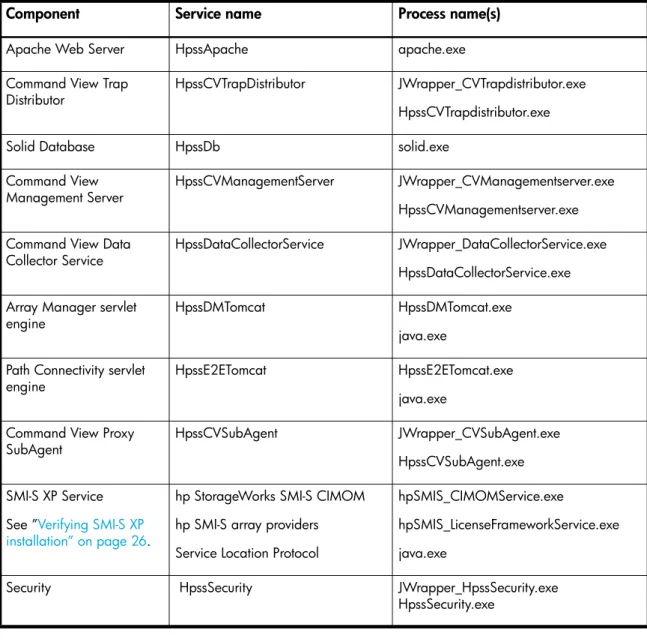
Table 9 shows the services you need to verify.
NOTE: The HpssCVsubAgent service is disabled by default. You can start this service from Administrative
Table 9 Command View services
Component Service name Process name(s)
Apache Web Server HpssApache apache.exe Command View Trap
Distributor HpssCVTrapDistributor JWrapper_CVTrapdistributor.exe HpssCVTrapdistributor.exe
Solid Database HpssDb solid.exe
Command View
Management Server HpssCVManagementServer JWrapper_CVManagementserver.exe HpssCVManagementserver.exe Command View Data
Collector Service HpssDataCollectorService JWrapper_DataCollectorService.exe HpssDataCollectorService.exe Array Manager servlet
engine HpssDMTomcat HpssDMTomcat.exe
java.exe Path Connectivity servlet
engine HpssE2ETomcat HpssE2ETomcat.exe java.exe
Command View Proxy
SubAgent HpssCVSubAgent JWrapper_CVSubAgent.exe HpssCVSubAgent.exe SMI-S XP Service
See ”Verifying SMI-S XP installation” on page 26.
hp StorageWorks SMI-S CIMOM hp SMI-S array providers Service Location Protocol
hpSMIS_CIMOMService.exe
hpSMIS_LicenseFrameworkService.exe java.exe
Security HpssSecurity JWrapper_HpssSecurity.exe HpssSecurity.exe
The main menu is displayed, indicating that Command View is running correctly. If you cannot log in, refer to ”Troubleshooting” on page 47.
CAUTION: Please note that you cannot manage an XP disk array with more than one Command View management station at a time.
Set Up SMI-S XP
SMI-S XP provides the WBEM interface for the management of the XP128, XP1024, XP10000, and XP12000. SMI-S XP is a component of Command View and runs as a service. The XP disk array is modeled per the SNIA Storage Management Initiative Specification (SMI-S) version 1.0.2.
Additional information about SMI-S XP is available in the HP StorageWorks SMI-S XP release notes, which is available from the Support tab in Command View.
Installing SMI-S XP
SMI-S XP is automatically installed when you select Typical in the Command View Installation Wizard. If you do not want to install SMI-S XP, select the Custom mode installation in the Installation Wizard. In the subsequent window, clear the hp StorageWorks SMI-S XP Service check box to avoid installing SMI-S XP. After installation, SMI-S XP, by default, starts in the SSL mode. If the client application does not support SSL communication with the SMI-S server, you need to disable the SSL mode. See ”Disabling SSL” on page 30 for more information.
NOTE: After you install SMI-S XP, the hp StorageWorks SMI-S CIMOM service is created. This service is enabled, by default.
Verifying SMI-S XP installation
To verify that the SMI-S XP installation was successful, complete the following procedure:
1. Click Services in the Control Panel.
2. Verify that the hp StorageWorks SMI-S CIMOM service is listed.
Configuring SMI-S XP
You need to edit the cim.properties file before using SMI-S XP. This file is located in the following directory:
<Install Drive>:\Program Files\Hewlett-Packard\SMI-S\cimom
NOTE: The user performing the installation must have administrative rights on that machine.
To install SMI-S (InstallScript MSI package) on Windows 2000 SP4, Windows XP SP2, or Windows 2003 systems, you must have the “Impersonate a client after authentication” privilege. You can set this previlege in the User Rights Assignment section of the Local Security Policy.
Table 10 describes the configuration file that you can modify before using SMI-S XP.
You can connect through the Windows Terminal Services to edit the configuration file. Use Notepad to edit the configuration file.
Table 11 describes the parameters in the cim.properties file that you can modify.
Table 10 SMI-S XP configuration files
File Description
cim.properties Configures CIMOM-related parameters for
enabling SSL, JAAS, and so on.
Table 11 Parameters in the cim.properties file
Parameter Description
EnableSSL Specifies if SSL is enabled or disabled. Set to True to enable SSL. Set to False to disable SSL.
LogResponseSeparate Specifies if the requests and response packets must be separated or not. Set to True to separate the requests and response packets.
LogFilesCount Indicates the number of log files maintained by the CIMOM. The default number is 5. Modify this value to change the number of log files. When you initiate the CIMOM, it starts logging to the <serverDebugFile>+0 file. (The
serverDebugFile is specified in the cim.properties file).
When the file size reaches the specified threshold (MaxLogFileSize), the CIMOM starts logging into the next file in the ascending order and overwrites the last modified file.
MaxLogFileSize Specifies the maximum size of each log file in bytes. The default size of each log file is 15 MB. You can modify the default size of the log files. When a log file reaches the specified threshold, the CIMOM starts logging in to the next log file.
Min_Memory_Usage Specifies the minimum Java heap size for the CIMOM server. The default value is 20 MB.
Max_Memory_Usage Specifies the maximum Java heap size for the CIMOM server. The default value is 119 MB.
UserAccountsManager.bat located in the home directory. This is the directory where the CIMOM is installed. Typically, it is in the following directory:
<Install Drive>:\Program Files\Hewlett-Packard\SMI-S\cimom
To find the list of switch options supported, run the UserAccountsManager.bat file with the -h option. Following are the tasks that you can perform using the UserAccountsManager.bat file:
• List groups and users
• Add users
• Change a user password
• Remove a user
• View help
Listing groups and users
To list the groups and users, execute the following command: UserAccountsManager -LG
NOTE: The -LG is the only input parameter that you can use to list the available groups and users. Currently, the available groups are Administrator and User. You cannot add or remove groups. User
accounts in the Administrator group have complete control of all operations. User accounts in the User group can only execute read-only operations.
Adding users
To add a user, execute the following command:
UserAccountsManager -AU -G <Group> -U <UserName> -P <Password> where:
-G is the option for the group name for the user -U is the option for the name of the user -P is the option for the password for the user
Example: UserAccountsManager -AU -G Administrator -U Tom -P Vanilla2
NOTE: A user name can exist in only one group.
Changing a user password
To change a user password, execute the following command:
UserAccountsManager -CP -U <UserName> -O <OldPassword> -N <NewPassword> where:
-U is the option for the user name
-O is the option for the previous password of the user -N is the option for the new password for the user
UserAccountsManager -DU -U <UserName> where:
-U is the option for the user name
Example: UserAccountsManager -DU -U Tom
Viewing help files
To view the help, execute the following command: UserAccountsManager -h
where:
-h is the option for the help system Example: UserAccountsManager -h
Starting and stopping SMI-S XP
By default, the SMI-S CIMOM service is enabled. You can set the services to one of the following states:
• Automatic: It is the default state of the service. The service starts when the Command View services are started or restarted, or when the machine is started.
• Manual: If the service is enabled to start manually, the service starts when the Command View services are started or restarted, but it does not start when the machine is started.
• Disabled: If the service is disabled, which is the default, the service does not start when the Command View services are started or restarted, or when the machine is started.
Enabling the SMI-S CIMOM service
1. From the Control Panel in Windows, click Administrative Tools.
2. Click Services.
3. Double-click the hp StorageWorks SMI-S CIMOM service to open the service Properties dialog box.
4. From the Startup type list, select Automatic or Manual.
5. Click OK to save your changes.
Disabling SMI-S CIMOM service
1. From the Control Panel in Windows, click Administrative Tools.
2. Click Services.
3. Double-click the hp StorageWorks SMI-S CIMOM service to open the service Properties dialog box.
4. From the Startup type list, select Disable.
5. Click OK to save your changes.
Restarting SMI-S CIMOM service
1. From the Control Panel in Windows, click Administrative Tools
You can replace the certificate with a different certificate if you have administrator privileges. Be sure to retain the certificate name (hpSMIS.cert). A client that wants to use SSL must copy the certificate from the <Install Drive>:\Program Files\Hewlett-Packard\SMI-S\cimom and put it into its trust store.
A trust store is a repository of trusted certificates that are recognized by the client program. When the SMI-S certificate is “trusted” by a client program, the client communicates with the SMI-S server using SSL. SSL helps secure the client/server communication by providing clients with the ability to authenticate the entity that claims to be the SMI-S server. SSL also protects the integrity of the data transmitted between the client and the server.
Enabling SSL
To enable SSL, set the EnableSSL property in the cim.propertiesfile to True. This file is located in the following directory:
<Install Drive>:\Program Files\Hewlett-Packard\SMI-S\cimom When you enable SSL, all client connections use the https protocol.
If the client is implemented using Java, complete the following procedure to issue the certificate:
1. Import the server certificate into the client trust store. a. Copy the server certificate to the client system.
b. Execute the following Java keytool command to import the certificate into the client trust store. $ keytool -import -alias hpsmis -file hpSMIS.cert
-keystore mytruststore
2. You are prompted to enter a password.
NOTE: This password is required for modifying mytruststore in the future. If a trust store does not currently exist, the keytool command creates the trust store and then imports the specified certificate.
3. To specify a trust store, execute the following command in the client application at the command prompt:
$-Djavax.net.ssl.trustStore Example:
$ java -Djavax.net.ssl.trustStore=mytruststore
<MyClient> <system> root/cimv2 5989 ssl
4. If the client application is programmed to update the trust store file, you must type the password you used to create the trust store.
-Djavax.net.ssl.trustStorePassword Example:
$ java -Djavax.net.ssl.trustStore=mytruststore -Djavax.net.ssl.trustStorePassword=wbem01
<MyClient> <system> root/cimv2 5989 ssl
The CIMOM server will now work in the SSL mode and operates on port 5989.
Disabling SSL
To start the CIMOM in the non-SSL mode, complete the following procedure:
3. Change the value of enableSSL=True to enableSSL=False
4. Start the hp StorageWorks SMI-S CIMOM service. See ”Starting and stopping SMI-S XP” on page 29 for more information.
The CIMOM server will now work in the non-SSL mode and operates on port 5988.
Viewing certificates using the Keytool command
To view certificates in a certificate file, execute the following command: $keytool -printcert -file hpSMIS.cert
Viewing all certificates using the Keytool command
To view all certificates in the trust store, execute the following command: $keytool -list -v -keystore mytruststore
Uninstalling SMI-S XP
SMI-S XP is uninstalled as part of the Command View uninstallation procedure.
Set up event notification and history reporting
To set up event notification and reporting, use the instructions located in Command View under Support > Integrating HP StorageWorks Command View XP with Other Products. By setting up event notification, Command View can display events, which are communicated to other management applications through SNMP traps. For additional information, refer to ”Integrating with miscellaneous management
applications” on page 45.
Setting up Command View
Migrate data, settings, and preferences from a different
management station
If you are moving from an existing management station to a new management station, use the Backup Utility to migrate Command View data, settings, and preferences. You can use this tool to preserve your data and configuration preferences when upgrading hardware by saving your existing settings and then restoring them on the new management station.
To use the Backup Utility, both management stations must have Command View XP 2.2B or later installed. This tool is not compatible with older versions of Command View XP.
Migrating your data with the Backup Utility
1. Click Start > Programs > HP StorageWorks > Backup Utility. The Backup Utility window is displayed.
2. Complete the backup process:
a. Click Backup. The Open File window appears.
b. Choose a location, such as a network drive or shared file system, to save the backup file and click Open. A confirmation window appears.
a. Click Restore. The Open File window appears.
b. Navigate to where the backup file is located and click Open. A confirmation window appears. c. Click Yes to proceed. The Restore Progress status window appears.
d. When the restore process is completed, the Finished button becomes available. Click Finished. A confirmation message appears.
e. Click OK.
Saving or restoring your data from the Windows command line
• To save your files, enter %HPSS_HOME%\bin\backuputility -backup <target-path>. The <target-path> is the location, such as a network drive or shared file system, where you want to
save the backup file.
• To restore your files, enter %HPSS_HOME%\bin\backuputility -restore
<target-path/file-name>. The <target-path/file-name> is the full path and name of the
backup file you want to restore.
Disable the Web Proxy service
When you are using a Web browser to manage an XP128/XP1024/XP10000/XP12000, disable the Web proxy on the client by completing one of the following:
• Internet Explorer only: Disable the proxy server in your browser, or
• Internet Explorer or Mozilla: Add the XP128/XP1024/XP10000/XP12000 IP address to the list of excluded addresses (that are not to be directed through a Web proxy service).
Disabling proxy service in the Internet Explorer browser
1. In Internet Explorer, select Tools > Internet Options > Connections > LAN Settings.
2. Clear the Use a proxy server check box.
3. Click OK. Click OK again to exit and save changes.
Adding the IP address of the disk array to the list of web proxy excluded addresses
Adding IP addresses in Internet Explorer
1. In Internet Explorer, select Tools > Internet Options > Connections > LAN Settings > Advanced.
2. Enter the IP address of the disk array in the Exceptions box. If you are entering more than one IP address, use semicolons to separate each IP address.
3. Click OK. Click OK again to exit and save changes.
Adding IP addresses in Mozilla
1. In Mozilla, select Edit > Preferences > Advanced > Proxies.
2. Click Manual Proxy Configuration.
3. Enter the IP address of the disk array in the No Proxy for field. If you are entering more than one IP address, use commas to separate each IP address.
Verify the Internet Explorer browser requirements and
configuration
If you are using Internet Explorer, complete the procedures in this section to verify that the browser options are set correctly and any additional configurations are made. If you are using Mozilla, skip to ”Verify the Mozilla browser requirements and configuration” on page 33.
1. In Internet Explorer, select Tools > Internet Options > Advanced.
2. Verify that the following settings are enabled: • Browsing > Disable script debugging • HTTP 1.1 settings > Use HTTP 1.1
• HTTP 1.1 settings > Use HTTP 1.1 through proxy connections • Use Java 2 v1.4.2 for <applet> (requires restart)
Figure 2 Internet Options (Internet Explorer)
3. Click OK to close the Internet Options window and save your changes.
Verify the Mozilla browser requirements and configuration
If you are using Mozilla for your Command View browser client sessions, verify that the correct JRE/RTE has been installed.
Install Java on clients running Mozilla on HP-UX
Verify that the correct Java software is installed on the client. For Command View to run correctly in Mozilla, install both JRE/RTE 1.4.2.08 and JPI 1.4.2.05 for HP-UX on the computer running HP-UX. Download the software by going to http://www.hp.com/products1/unix/java/.
1. Locate the CommandView.properties file in the \hpss\dm\tomcat\ webapps\hpstmgmt\webroot\Stormgmt directory.
2. Use a word processor or text editor to open the file. Look for the SESSION_TIMEOUT_PLAN setting by locating the following line:
SESSION_TIMEOUT_PLAN=ONCE:60
3. Replace 60 with the number of minutes you want a session to last before it times out due to inactivity. This setting is applicable to all XP disk arrays.
4. If you are managing an XP128/XP1024/XP10000/XP12000, also consider changing ONCE to ALWAYS. The default is ONCE:60.
Most users will want to choose the ONCE setting. Using this setting means that Command View checks the CommandView.properties file only once, when someone adds a device or restarts the server, and then sets the session timeout value at that time.
Certain users may find they need the flexibility of the ALWAYS setting, which ensures that Command View always determines the timeout value. Using this setting means that Command View checks the CommandView.properties file every time a user in Modify mode clicks a tab to manage an XP128/XP1024/XP10000/XP12000 (Identity and Status tabs excluded). You may want to consider using this setting if you or someone else needs to change the timeout value on the SVP, but you want to override that when using Command View. Note that this setting adds an additional delay of
approximately 45 seconds when loading a new pane.
If you are managing an XP48/XP512, Command View ignores the ONCE or ALWAYS setting because the ALWAYS setting is not available.
5. Save and close the file.
6. Restart Command View services by selecting Start > Programs > HP StorageWorks > Restart Services.
Add disk arrays to Command View
1. Start Command View.
2. Log on using administrator as the user ID and administrator as the password.
3. Click the Device Administration tab.
4. Enter the disk array’s IP address in the Agent IP Address field. A Hewlett-Packard customer engineer can provide you with this IP address once the array’s SVP is installed.
5. Press Enter or click Submit.
The Serial Number, Product Type, and Product Number fields are filled in automatically.
6. If the Device Name field is blank, enter a name for the disk array.
7. For an XP1024, click the left DKU type and right DKU type from the drop-down lists.
9. Select the Manage Array check box to enable extended features of Command View as described in Table 12. Generally, if you want to use any feature besides the GUI for
XP128/1024/XP10000/XP12000, you should select Manage Array.
10.Click Save and then click OK to confirm. Repeat the previous steps to add more disk arrays.
Install license keys
If you need to install any license keys that enable disk array product features such as Business Copy or Continuous Access, use the License Key Management (Install) pane in Command View to install them. For more information about license keys, refer to the HP StorageWorks Command View XP user guide.
1. Start Command View.
2. Log in, using administrator as the user ID and administrator as the password.
3. Click Licensingin the left panel in Command View.
4. Click the disk array you want to access from the Serial Number column. The License Key Management main pane is displayed.
5. From the License Key Management main pane, click Install. The License Key Management (Install) pane is displayed.
6. Select the check box for each license key you want to install.
7. Enter the license key code(s).
8. Click OK to add the license key and return to the License Key Management main pane.
Install the Command View client Command Line Interface (CLI)
Command View has a Command Line Interface (CLI). Use the CLI to manage and monitor XP disk arrays from the operating system prompt of a system located anywhere on the network, including the Command View management station.1. Get the cvcli.tar file by navigating to the Command View Support tab. Select Support >
Download Page > Command View Command Line Interface (CV CLI) Download Section > CV CLI Client.
2. Un-tar the cvcli.tar file to any location on the CLI host. For a Windows host, use WinZip 7.0 or
Table 12 Extended features SMI-S (All
array models) Event Notification (All array models)
CV CLI (All
array models) XP48, XP512 GUI XP128, XP1240 XP10000, & XP12000 GUI
Managed
Array Selected Functional Functional Functional Functional Functional Unmanaged
• CVCLI.properties: CLI properties file.
• CVCLI.txt: Installation instructions for the CLI client.
4. To complete the installation, follow the instructions in the CVCLI.txt file.
Additional information about the CLI is in the HP StorageWorks Command View XP Command Line Interface (CLI) reference guide, located on the Command View CD, or from the Support tab in Command View.
Accessing the Command View GUI
1. Start the browser and enter the Command View management station’s host name or IP address as the URL. The Command View initial window is displayed.
or
1. Point your browser directly at the array public IP address (for example, http://123.45.67.15).
2. Enter the user name and password.
3. Click OK.
4. After the user name and password have been verified, the Device Launcher pane is displayed if you logged into the Command View server, and the Device Manager Identity pane is displayed if you logged directly into the array.
Setting up Path Connectivity
Path Connectivity identifies, maps, and diagnoses the connections (or paths) between your XP disk array and hosts that consumes storage on the disk array.
Path Connectivity is installed as part of the Command View installation, and it is required to manage an XP disk array with Command View. However, you have to perform additional steps (primarily installing host agents) to make Path Connectivity active.
Path Connectivity runs on the Command View management station. Path Connectivity has a Command Line Interface (CLI) that can run on a host connected to the Command View management station.
Add switches through Path Connectivity
The following table lists the switches Path Connectivity supports. Consult your HP representative for additional questions.
Table 13 Supported switches
Switch model Tested firmware
Brocade 2400, Brocade 2800 HP FC Switch 6164 (32/64 ISL Ports)
CPQ StrorageWorks Fibre Channel SAN Switch 8 CPQ StrorageWorks Fibre Channel SAN Switch 16 CPQ StrorageWorks Fibre Channel SAN Switch 8-EL CPQ StrorageWorks Fibre Channel SAN Switch 16-EL CPQ StrorageWorks Fibre Channel SAN Switch integrated /32
CPQ StrorageWorks Fibre Channel SAN Switch integrated /64
2.6.2 , 2.6.2a,2.6.2b(recommended) 2.6.1c
2.6.2b 2.6.2c (recommended) 2.6.2b 2.6.2c (recommended) 2.6.2b 2.6.2c (recommended) 2.6.2b 2.6.2c (recommended) 2.6.2b 2.6.2c (recommended)
2.6.2b 2.6.2c (recommended) HP SureStore FC 1Gb/2Gb Switch 16B
HP SureStore FC 1Gb/2Gb Switch 8B HP SureStore FC 1Gb/2Gb Entry Switch 8B
HP StorageWorks SAN Switch 2/8 EL, 2/8 power pack HP StorageWorks SAN Switch 2/16, 2/16 power pack, 2/16-EL
FC SAN Switch 2/8, 2/16 (3200/3800) CPQ StorageWorks SAN Switch 2/8 EL CPQ StorageWorks SAN Switch 2/16 EL CPQ StorageWorks SAN Switch 2/16
3.1.2 , 3.1.2a,3.1.3a (recommended) 3.1.2 , 3.1.2a,3.1.3a (recommended) 3.1.2 , 3.1.2a,3.1.3a (recommended) 3.1.3b, 3.2.0 (recommended)
3.1.3b, 3.2.0 (recommended) 3.1.3b, 3.2.0(recommended)
3.1.3b, 3.2.0(recommended) 3.1.3b, 3.2.0(recommended) 3.1.3b, 3.2.0(recommended)
HP StorageWorks SAN Switch 2/32, 2/32 power pack HP StorageWorks Core Switch 2/64, 2/64 power pack
4.2.2b (recommended) 4.2.2b (recommended) HP StorageWorks SAN switch 2/8V, 2/8V power pack,
2/8V GSA, 2/8V GSA power pack
HP StorageWorks SAN switch 2/16V, 2/16V GSA HP StorageWorks SAN Switch 2/16N FF, 2/16N power pack, 2/16N FF GSA, 2/16N FF GSA power pack HP StorageWorks SAN Director 2/128, 2/128 power
4.2.0b, 4.2.0c, 4.2.2a (recommended) 4.2.0b, 4.2.0c, 4.2.2a (recommended) 4.2.0b, 4.2.0c, 4.2.2a (recommended)
Although these switches are supported, Path Connectivity does not automatically detect them in your SAN. Use the Path Connectivity Fibre Channel Switch Management screen to add switches.
Adding switches
1. Start Command View.
2. Click the Path Connectivity link in the left pane.
3. Click Administration.
4. Click Switch Mgmt in the navigation tree.
5. Enter the IP address or DNS name of the switch to be added in the Enter IP Address or DNS name below field.
6. Click Add. The list on the left displays the switch.
7. Repeat steps 5 and 6 until all switches are added.
8. Click Apply.
The Path Connectivity Data Collection Service will try to communicate with newly-added switches on its next scheduled switch polling cycle.
Install Path Connectivity host agents
Prerequisites
The following prerequisites are necessary for installing Path Connectivity host agents:
• One of the supported operating systems (see ”Verify host agent disk space requirements for Path Connectivity” on page 14).
• You must have administrator access to the remote host.
HP SureStore Director FC-64
HP StorageWorks Edge Switch 2/16, 2/24, 2/32, 2/64 HP StorageWorks Director 2/64, 2/140
McDATA ES-3016, ES-3032
CPQ McData Sphereon 3016 Fabric Switch CPQ McData Sphereon 3032 Fabric Switch
05.02.00-13, 06.01.00-18, 06.02.00-22 (rec.) 05.02.00-13, 06.01.00-18, 06.02.00-22 (rec.) 05.02.00-13, 06.01.00-18, 06.02.00-22 (rec.) 05.02.00-13, 06.01.00-18, 06.02.00-22 (rec.) 05.02.00-13, 06.01.00-18, 06.02.00-22 (rec.) 05.02.00-13, 06.01.00-18, 06.02.00-22 (rec.) HP StorageWorks Edge Switch 2/12 05.05.00-12, 06.01.00-18, 06.02.00-22
(recommended) McData ED-5000 (not Windows 2003) 4.04.04-02 Cisco MDS 9120
Cisco MDS 9140 Cisco MDS 9216 Cisco MDS 9506 Cisco MDS 9509
1.2.1a, 1.2.1b, 1.3.4a , 2.0.1b (recommended) 1.2.1b 1.3.4a, 2.0.1b (recommended)
1.3.4a , 2.0.1b (recommended) 1.2.1b, 1.3.4a, 2.0.1b (recommended) 1.2.1b, 1.3.4a, 2.0.1b (recommended)
Table 13 Supported switches (continued)
• Only one remote deployment tool may run at a given time.
• Review the online Host Software Installation checklist. To view the checklist, start the host agent deployment utility and click Host Software Installation Checklist. Click the link for the remote host’s operating system.
CAUTION: Do not deploy Path Connectivity host agents and Command View SDM host agents to the same host system. They cannot coexist.
There are two ways to install Path Connectivity host agents:
• Use the Host Agent Deployment tool.
• Download the host agent to the remote host from the Support tab in Command View. Then, manually invoke the installation executable as described in ”Installing host agents using the local method” on page 42.
NOTE: If you plan to install the HP OpenView Storage Area Manger 3.2 host agent and Command View XP Path Connectivity host agent on the same host, you must install the Storage Area Manager host agent first and then install the Command View XP Path Connectivity host agent.
Please review the README file on the Command View CD to find limitations regarding host agent installation.
Preliminary host agent installation tasks
If you choose to use local install instead of remote deployment, you do not need to share the drive or set up services such as rexec and rsh on the hosts.
Preparing for installation on Microsoft Windows platforms
1. Be sure you have root, superuser, or administrator access to the system.
2. Share the system drive (for example, C$).
Preparing for installation on UNIX platforms (HP-UX, Solaris, and AIX)
1. Be sure you have root or superuser access to the system.2. Be sure the exec/rexec and FTP functions are enabled. On these platforms, the services should be enabled by default. For more details, consult the configuration instructions to enable exec/rexec from the corresponding operating system manual.
3. Configure the root/superuser account to allow remote access via the exec/rexec and FTP services.
Preparing for installation on UNIX platforms (Linux)
1. Be sure you have root or superuser access to the system.
• Enter rpm -Uvh /mnt/cdrom/RedHat/RPMS/rsh-ser*. You may need to mount your CD-ROM if the OS cannot find the directory. The command mount /dev/cdrom should work.
3. Verify that the rexec service is started. • Enter ntsysv at the command prompt. • Check the rexec and rsh services and click OK.
• Restart the service by entering service xinetd restart. • Edit /etc/pam.d/login. Comment out (add “#” to the line):
# auth required /lib/security/pam_securetty.so • Edit /etc/pam.d/rexec. Comment out (add “#” to the line):
# auth required /lib/security/pam_securetty.so • Edit /etc/pam.d/ftp. Comment out (add “#” to the line):
# auth required /lib/security/pam_listfile.so item=user sense=deny file=/etc/ftpusers onerr=succeed
• Restart the service by entering service xinetd restart.
4. Configure the root/superuser account to allow remote access via the exec/rexec and FTP services. • Run the /usr/sbin/ntsysv command and enable wu-ftpd.
• Edit /etc/pam.d/ftp by commenting out the following line with #:
auth required /lib/security/pam_listfile.so item=user sense=deny file=/etc/ftpusers onerr=succeed
• Edit /etc/ftpusers by removing or commenting out the following line with #: root
• Edit /etc/ftpaccess as follows:
Change allow-uid ftp to allow-uid ftp root. Change allow-gid ftp to allow-gid ftp root. • Run the /sbin/service xinetd restart command.
Installing host agents with the remote deployment tool
NOTE: If Performance Advisor XP 2.2B is installed on the same management station as Command View XP, the remote deployment tool installs both the Command View Path Connectivity and Performance Advisor XP host agents on the target hosts.
Designating a single host
1. Launch the remote deployment application by clicking Start > Programs > HP StorageWorks > Host Agent Deployment Tools > Install Host Agent.
2. Add a single host by entering the host name or IP address, admin user name, and password.