Quick Note 017
MIB file creation and basic usage with SNMP clients
June 2015Page | 2
Contents
1 Introduction ... 3
2 Version ... 3
2.1 Corrections ... 3
3 Supported MIBs ... 4
4 SNMP Configuration ... 5
4.1 Setting up Router Specific ID information ... 5
4.2 Checking the SNMP enterprise values. ... 6
5 Get the MIB file from the TransPort ... 8
5.1 Firmware Version 5212 or later ... 8
5.2 Firmware Version up to 5202 ... 9
5.2.1 Get the MIB data from the TransPort... 9
5.2.2 Generating the MIB file ... 11
6 The basics of using MIB files with SNMP ... 12
7 Configuration and Firmware/Hardware ... 15
7.1 Configuration File ... 15
Page | 3
1
INTRODUCTION
This guide details the steps involved in generating a .MIB file for use with an SNMP client.
This guide has been written for technically competent personnel who are familiar with the use for DIGI hardware and understand the use of SNMP.
Whilst this guide is carried out using the web interface only it is perfectly feasible to carry out each stage at the command line, these commands will be highlighted at the relevant places.
2
VERSION
Version Number Status 1.0 Published
1.1 Updated and rebranded 1.2 Updated for new web UI
2.0 Updated for new firmware and tests added
2.1
Corrections
Requests for corrections or amendments to this application note are welcome and should be addressed to:
Page | 4
3
SUPPORTED MIBS
As well as the Device Generated MIB, described in this quick note, DIGI Transport devices also support the Sarian-Monitor MIB and a number of standard MIBs. A list of supported standard MIBs is provided below. The Sarian Monitor MIB has a restricted set of parameters that you can poll any DIGI Transport device with to retrieve statistics relating to WWAN, Config, PPP and System parameters.
The DIGI Transport range of routers supports a number of standard MIBs as well as DIGI Transport MIBs, described above, these MIBs are listed below:
The following standard MIBs are supported:
SNMP MIB (RFC3418) Interfaces MIB (RFC2233)* IP MIB (RFC2011)
IP Forwarding Table MIB (RFC2096) TCP MIB (RFC2012)
UDP MIB (RFC2013) VRRP MIB (RFC2787) SNMP MPD MIB (RFC3412) SNMP USM MIB (RFC3414)**
* The following groups/tables in RFC2233 are not supported:
ifXTable, ifStackTable, ifRcvAddressTable
** The following groups/tables in RFC3414 are not supported:
usmUserTable
DIGI supported MIBs:
Device Generated MIB Sarian-Monitor MIB
Please note: The Device Generated MIB described in this Quick Note is a MIB that is specific to the serial number, firmware release, firmware build and model number of the unit it was generated from. If the firmware is updated a new MIB file will need to be generated. The same MIB file generated on one router, cannot be used on another router, even if the hardware is identical.
Page | 5
4
SNMP CONFIGURATION
4.1
Setting up Router Specific ID information
When polling the router, it is possible to have the SNMP application be able to identify the device by a unique name and provide location and contact information.
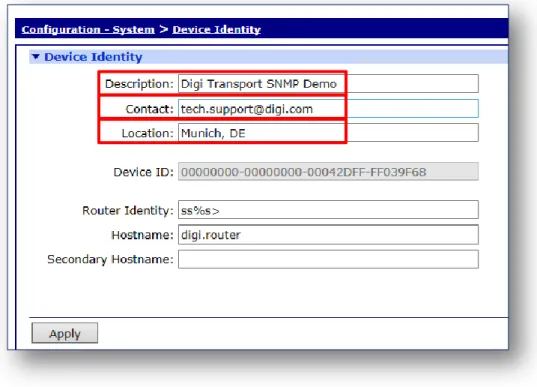
Navigate to Configuration > System > Device Identity and setup the details, but enter information that relates to you:
Figure 1: Optional System Information Configuration
Next click ‘Apply’ at the bottom of the page, and then save the new configuration to flash. If configuring this option via a terminal session the commands used are listed below:
snmp 0 name < Name to identify your router.> snmp 0 contact <Name of contact>
snmp 0 location <Location of device>
Parameter Setting Description Name: DIGI Transport Router
SNMP Demo Name to identify the router. Contact: [email protected] Name of contact.
Page | 6
4.2
Checking the SNMP enterprise values.
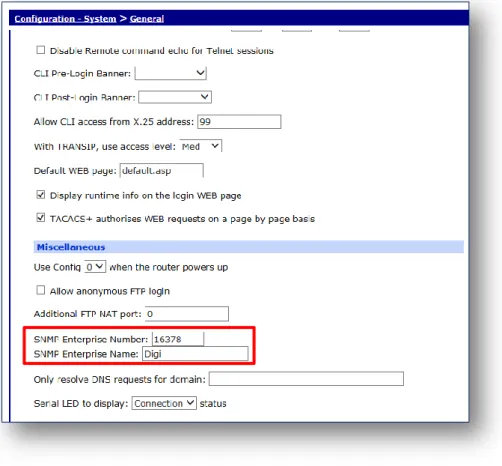
Check the SNMP Enterprise number and name. Navigate to Configuration > System > General and check the miscellaneous section, the highlighted settings below should be as default:
Figure 2: Enterprise number and name entry
Where <enterprise #> is the SNMP enterprise number and <enterpriseName> is the SNMP enterprise name specific to the installation.
Parameter Setting Description SNMP enterprise
number 16378 SNMP enterprise number SNMP enterprise
Page | 7 Please note: If the default enterprise number and name shown above is changed and it is intended to use the Sarian-Monitor MIB, the values in the Sarian-Monitor MIB file will also need changing to the details specific to the installation:
sarian OBJECT IDENTIFIER ::= { enterprises 16378 } sarian-monitor OBJECT IDENTIFIER ::= { sarian 10000 }
For example if using enterprise number 23134 and enterprise name digitransport change the above to:
digitransport OBJECT IDENTIFIER ::= { enterprises 23134 }
sarian-monitor OBJECT IDENTIFIER ::= { digitransport 10000 }
Then save the file and reload into the SNMP management system.
Please Note: If the enterprise number is changed, the Digi Transport will need to be rebooted for the new value to take effect.
Please Note: Whenever the Enterprise name and Number are changed, these must be identical and consistent across all MIBs generated or loaded into the management system. If the values in either of the DIGI Transport MIBs correspond with other MIB values in the organisation, the responses received may not be correct when polling through the devices via the SNMP management system. Using the defaults above should not lead to any such conflicts.
Page | 8
5
GET THE MIB FILE FROM THE TRANSPORT
5.1
Firmware Version 5212 or later
Since firmware version 5212, the MIB file is automatically generated and it can be directly downloaded from the device. Find below an example of downloading the MIB file for a WR44v2 via an FTP client:
Page | 9
5.2
Firmware Version up to 5202
In older release (up to and including 5202) the MIB file needs to be manually generated following the steps described in this section.
5.2.1
Get the MIB data from the TransPort
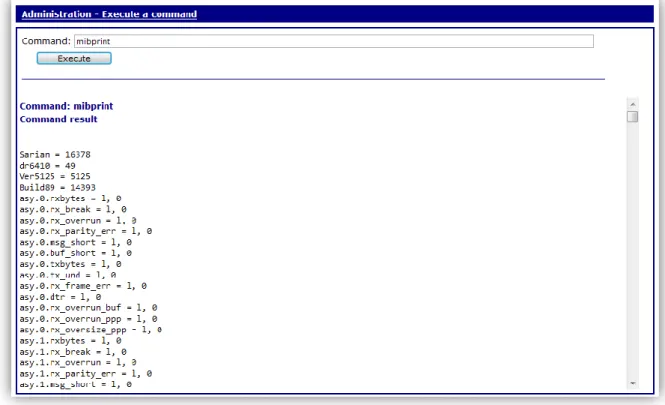
The next step is to get the DIGI Transport to output the MIB data. Navigate to Administration - Execute a command page type ‘MIBprint’ in the text box. Then click ‘Execute’.
Figure 3: Mibprint example
If connected to a terminal session then the same command can simply be issued. At the command prompt (listed below):
mibprint
An example of the output received from the web interface when the command has been input is listed below.
Page | 10 There is a large output, this should then be copied into a text file, and saved into a folder for use in the next step.
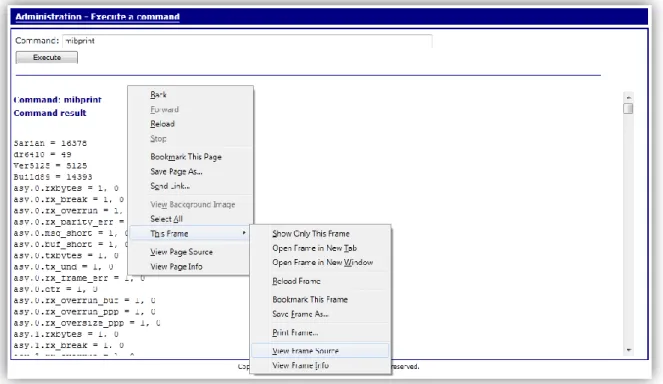
Please note: If using Firefox web browser this is done slightly differently. Right click on the frame containing the output select This frame → View Frame Source (as shown below), then copy and paste from the window that is opened.
When pasting the output into a text file, make sure that the output retains its formatting with carriage returns <CR>. If the output is pasted and has wrapping enabled or is all on one line, the rest of this procedure will fail.
Page | 11
5.2.2
Generating the MIB file
In order to generate the MIB file from the text file, download the correct MIB.exe file from the DIGI website. This can be found at:
http://transport.digi.com/downloads/mibexe
Please note: There are two versions of the MIB.exe file, MIB1exe.zip and MIB2.exe.zip. MIB1exe.zip should be used for firmware versions up to 4832
MIB2exe.zip should be used for firmware releases after 4832
There is included in each .zip file a copy of the Sarian-Monitor MIB file that should work for most DIGI Transport devices.
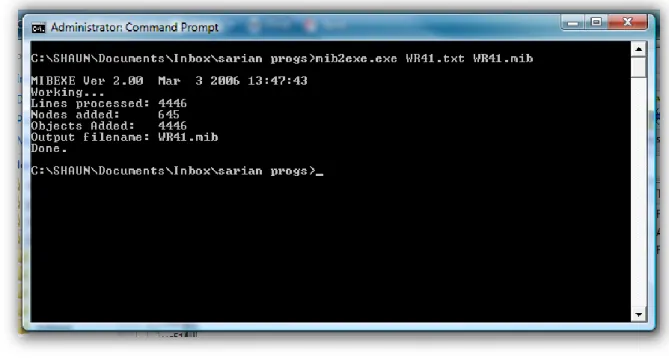
When the zip is downloaded, extract it to the same folder where the text file is saved. Open the command prompt and browse to the folder containing the MIB2exe.exe file and the previously created text file. Use the MIB2exe.exe file to generate the .MIB file from the text file. The command is listed below:
MIB2exe.exe <text file name>.txt <new MIB file name>.MIB
Where <text file name> is the name of the text file and <new MIB file> is the name of the .MIB file being created. In the example below both values are WR41. An example of the typical output for this can be seen below.
Figure 6: Compile the MIB
This will have generated a .MIB file in the folder in which the MIB2exe.exe and the initial .txt file was stored. This can then be used with an SNMP client.
Please note: The same device with a different firmware revision and/or different features enabled will need a different MIB file creating; this is due to additional features that may be available on different unit and the unique values attributed to firmware version, firmware build and model number that forms part of the initial MIB tree.
Page | 12
6
THE BASICS OF USING MIB FILES WITH SNMP
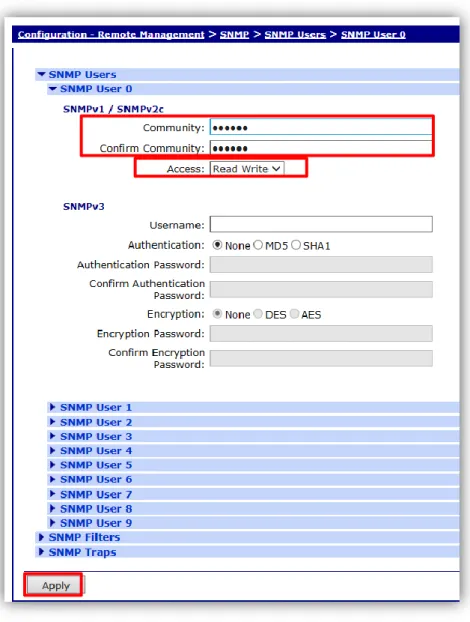
In order to monitor the device with an SNMP client SNMP users need to be configured. Navigate to Configuration - Remote Management > SNMP > SNMP Users > SNMP User 0.
The below example uses the community name: Public.
Figure 7: Setup the community string
If you want also to set some configuration setting, you need to set the SNMP user access as read and write as un the example above.
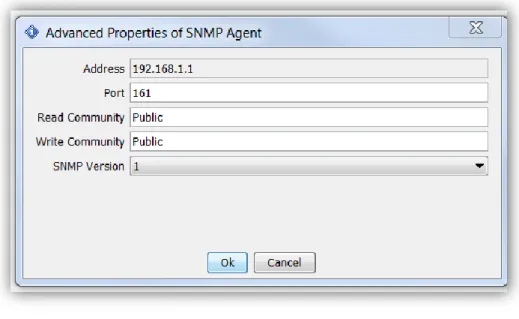
Page | 13 Once this has been set, use a MIB client to poll the DIGI Transport device for required information. Usually in the MIB browser client you need to set the IP address of the TransPort and the community name:
Below is a screenshot of the output of a get for the Device Identity settings that have been setup for this device.
In the left hand pane, the tree that the MIB tool has built from the MIB that was generated above. In the middle pane, a query for OIDs related to SNMP configuration is performed and results are
shown
The results show what we have configured in previous sections
Page | 14 The MIB file can be also used to set a value for a specific OID with an SNMP SET, the example below shows how to change the SNMP name configured above.
If also the SNMP user has been configured with read and write access, the SET will succeed:
And performing another SNMP GET on this OID, the result will be the new value:
Page | 15
7
CONFIGURATION AND FIRMWARE/HARDWARE
7.1
Configuration File
This is the configuration used for the purpose of this Quick Note. The CLI commands relevant for the configuration of SNMP are highlighted:
eth 0 IPaddr "192.168.1.1" addp 0 enable ON
lapb 0 ans OFF lapb 0 tinact 120 lapb 1 tinact 120 lapb 3 dtemode 0 lapb 4 dtemode 0 lapb 5 dtemode 0 lapb 6 dtemode 0 ip 0 cidr ON
def_route 0 ll_ent "ppp" def_route 0 ll_add 1
dhcp 0 IPmin "192.168.1.100" dhcp 0 respdelms 500
dhcp 0 mask "255.255.255.0" dhcp 0 gateway "192.168.1.1" dhcp 0 DNS "192.168.1.1"
sntp 0 server "time.etherios.com"
snmp 0 name "DIGI Transport Router SNMP Demo" snmp 0 contact "[email protected]"
snmp 0 location "Munich, DE" snmpuser 0 eCommunity "CCp0VkxP" snmpuser 0 access "rw"
ppp 0 timeout 300 ppp 1 name "W-WAN" ppp 1 phonenum "*98*3#" ppp 1 username "username" ppp 1 epassword "KD5lSVJDVVg=" ppp 1 IPaddr "0.0.0.0"
ppp 1 timeout 0 ppp 1 use_modem 1 ppp 1 aodion 1 ppp 1 autoassert 1 ppp 1 r_chap OFF ppp 3 defpak 16 ppp 4 defpak 16
web 0 prelogin_info ON web 0 showgswiz ON
ftpcli 0 hostname "ftp1.digi.com"
ftpcli 0 directory "support/firmware/transport/MC7354_carrier_firmware" modemcc 0 info_asy_add 4
modemcc 0 apn "none" modemcc 0 link_retries 30 modemcc 0 stat_retries 30 modemcc 0 sms_interval 1 modemcc 0 sms_access 1 modemcc 0 sms_concat 0 modemcc 0 apn_2 "none" modemcc 0 link_retries_2 30 modemcc 0 stat_retries_2 30 modemcc 0 sms_interval_2 1 modemcc 0 sms_access_2 1
Page | 16
modemcc 0 sms_concat_2 0 ana 0 l1on ON
ana 0 lapdon 0 ana 0 asyon 1 ana 0 logsize 45 cmd 0 unitid "ss%s>" cmd 0 cmdnua "99"
cmd 0 hostname "digi.router" cmd 0 asyled_mode 2
cmd 0 tremto 1200 cmd 0 rcihttp ON user 0 access 0
user 1 name "username"
user 1 epassword "KD5lSVJDVVg=" user 1 access 0
user 2 access 0 user 3 access 0 user 4 access 0 user 5 access 0 user 6 access 0 user 7 access 0 user 8 access 0 user 9 access 0
local 0 transaccess 2
sslsvr 0 certfile "cert01.pem" sslsvr 0 keyfile "privrsa.pem" ssh 0 hostkey1 "privSSH.pem" ssh 0 nb_listen 5
ssh 0 v1 OFF cloud 0 ssl ON
Page | 17
7.2
Hardware and Firmware
Here is the Firmware and Hardware details of the WR21 used in the testing of this QN:
Digi TransPort WR21-L42B-DE1-XX Ser#:237416
Software Build Ver5.2.11.4. Jun 5 2015 04:39:32 WW
ARM Bios Ver 7.42u v43 454MHz B987-M995-F80-O8140,0 MAC:00042d039f68
Async Driver Revision: 1.19 Int clk Ethernet Port Isolate Driver Revision: 1.11 Firewall Revision: 1.0 EventEdit Revision: 1.0 Timer Module Revision: 1.1 (B)USBHOST Revision: 1.0 L2TP Revision: 1.10 PPTP Revision: 1.00 TACPLUS Revision: 1.00 MODBUS Revision: 0.00 RealPort Revision: 0.00 MultiTX Revision: 1.00 LAPB Revision: 1.12 X25 Layer Revision: 1.19 MACRO Revision: 1.0 PAD Revision: 1.4 X25 Switch Revision: 1.7 V120 Revision: 1.16 TPAD Interface Revision: 1.12 GPS Revision: 1.0 TELITUPD Revision: 1.0 SCRIBATSK Revision: 1.0 BASTSK Revision: 1.0 PYTHON Revision: 1.0 CLOUDSMS Revision: 1.0 TCP (HASH mode) Revision: 1.14 TCP Utils Revision: 1.13 PPP Revision: 5.2 WEB Revision: 1.5 SMTP Revision: 1.1 FTP Client Revision: 1.5 FTP Revision: 1.4 IKE Revision: 1.0 PollANS Revision: 1.2 PPPOE Revision: 1.0 BRIDGE Revision: 1.1 MODEM CC (SIERRA LTE) Revision: 5.2 FLASH Write Revision: 1.2 Command Interpreter Revision: 1.38 SSLCLI Revision: 1.0 OSPF Revision: 1.0 BGP Revision: 1.0 QOS Revision: 1.0 PWRCTRL Revision: 1.0 RADIUS Client Revision: 1.0 SSH Server Revision: 1.0 SCP Revision: 1.0 SSH Client Revision: 1.0 CERT Revision: 1.0 LowPrio Revision: 1.0 Tunnel Revision: 1.2 OVPN Revision: 1.2 TEMPLOG Revision: 1.0 QDL Revision: 1.0