Polycom
®
Video Edge
™
(PVE
™
) 1000
© 2010 Polycom, Inc. All rights reserved.
Polycom, Inc. 4750 Willow Road
Pleasanton, CA 94588-2708 USA
No part of this document may be reproduced or transmitted in any form or by any means, electronic or mechanical, for any purpose, without the express written permission of Polycom, Inc. Under the law, reproducing includes translating into another language or format.
As between the parties, Polycom, Inc., retains title to and ownership of all proprietary rights with respect to the software contained within its products. The software is protected by United States copyright laws and international treaty provision. Therefore, you must treat the software like any other copyrighted material (e.g., a book or sound recording).
Trademark Information
Polycom®, the Triangles logo, ReadiManager®, SoundPoint®, SoundStation®, ViaVideo®, VoiceStation®, Vortex®, and VSX® are registered trademarks of Polycom, Inc. Convene™ , Global Management System™, iPower™, MGC™, People+Content™, People On Content™, Polycom Conference Suite™, Polycom Converged Management Application™ (CMA™), Polycom Distributed Media Application™ (DMA™), Polycom HD Voice™, Polycom PathNavigator™, Polycom VideoPlus™, Polycom VoicePlus™, PVX™, RAS™, ReadiConvene™, RMX 2000™, RSS™, V2iU™, VBP™, VS4000™, and VTX™ are trademarks of Polycom, Inc.
All other trademarks are the property of their respective owners.
Patent Information
The accompanying product is protected by one or more U.S. and foreign patents and/or pending patent applications held by Polycom, Inc.
Contents
Contents
Video Edge Administrator Guide
Introduction . . . 1
Setting Up the Video Edge Architecture in the Polycom VMC 1000 . . . 1
Video Edge Profiles . . . 2
Video Edge Groups . . . 5
Adding a Video Edge Delivery Option in the Polycom VMC 1000 . . . 7
Monitoring your Polycom Video Edge Appliance . . . 10
A Appendix A
Proxy Modes . . . 19No Proxy . . . 20
Reverse Proxy . . . 20
Video Edge Administrator Guide
This guide explains how to configure the Polycom Video Edge appliance as a distribution option in the Polycom Video Media Center. It contains the following sections:
• Introduction
• Setting Up the Video Edge Architecture in the Polycom VMC 1000
• Adding a Video Edge Delivery Option in the Polycom VMC 1000
• Monitoring your Polycom Video Edge Appliance
Introduction
In order to effectively deploy a Video Edge distribution system, users must configure the system as a delivery option within the Polycom Video Media Center. The Polycom Video Media Center provides a complete administrative interface for the Polycom Video Edge network appliance.
For more information on configuring delivery options within the Polycom VMC 1000, consult the Polycom VMC 1000 Administrators Guide.
Setting Up the Video Edge Architecture in the Polycom VMC
1000
After registration, the Polycom VMC 1000 will automatically update configurations on the Video Edge devices at the intervals dictated in the overarching System Configuration page. The Polycom Video Edge
architecture consists of three separate levels of organization and configuration:
• Video Edge Profiles
• Video Edge Groups
Polycom PVE 1000 Administrator Guide Setting Up the Video Edge Architecture in the Polycom VMC 1000
Each level must be separately configured in the Polycom Video Media Center. This section will define each element and provide a step-by-step guide to configuration within the Polycom VMC 1000 Administrative Portal.
Video Edge Profiles
The Video Edge profile is the primary layer of administrator control over crucial Video Edge distribution parameters.
A Video Edge device profile configured in the Polycom VMC 1000 does not correspond to a single physical device. Instead, it is a collection of configurable properties that can then be associated with a Video Edge Group. The profile then applies to the devices within the Video Edge Group.
To configure a Video Edge Profile:
1 Log in to the Polycom VMC 1000 Administrative Portal.
2 Navigate to Delivery > Video Edge Device Profiles. If any profiles have already been configured, they will now appear.
Setting Up the Video Edge Architecture in the Polycom VMC 1000 Video Edge Administrator Guide
3 Click Add. The Add Profile screen should appear.
4 Enter a Name for the profile, as well as an optional Description.
5 Under Windows Streaming Server Properties, choose a Proxy.
WMS can be configured in one of three modes: Server (No Proxy),
Polycom PVE 1000 Administrator Guide Setting Up the Video Edge Architecture in the Polycom VMC 1000
the intended use for the edge and the request routing model on the network. Please see “Proxy Modes” on page 19.
A Video Edge proxy mode is a static setting. It cannot change dynamically.
6 If the Video Edge is a Forward or Reverse Proxy, designate the Origin Server for the proxy.
The Origin Server typically refers to the streaming server on the VMC appliance.
7 Choose whether to Enable HTTP Streaming. If HTTP Streaming is enabled, you must designate an available HTTP Streaming Port.
8 If the edge will support multicast broadcasting, select Multicast Enabled. You must then enter Multicast Addresses and Multicast TTL.
9 Select Caching Enabled for a Video Edge that caches VOD content. Dictate a Cache Quota, the amount of disk space (in megabytes) allocated for the cache.
10 Dictate a HTTP Cache Quota.
11 Under Content Distribution Properties, administrators can dictate a set of restrictions on bandwidth use and system processes.
— Restricted Bandwidth Period Begins and Ends: a specific daily period can be established during which download bandwidth is limited.
Note: HTTP streaming is highly recommended. It is required for the Polycom Social Video Portal, as well as on networks that block RTSP streaming.
Setting Up the Video Edge Architecture in the Polycom VMC 1000 Video Edge Administrator Guide
Specify Download Bandwidth During Restricted Period as a ceiling on bandwidth during the restricted bandwidth period; specify
Download Bandwidth During Non-Restricted Period for normal operations.
— Maximum Download Time: a job will be aborted after this timeframe (in seconds) has elapsed.
— Inactive Job Timeout: a job will be timed out after this timeframe (in days) has elapsed.
— Manifest Request Frequency: dictates how often manifest files are requested from the Polycom VMC 1000.
12 Click Save.
Video Edge Groups
Video Edge devices need to be able to be grouped together with the purpose of applying a common configuration profile. Video Edge groups provide this functionality.
To set up a Video Edge group:
1 Navigate to Delivery > Video Edge Groups. The Video Edge Device Groups menu should appear. Any extant groups will appear in the menu.
Note: the periods are configured based on the local time of the Video Edge device, not the time of the Polycom VMC 1000.
Polycom PVE 1000 Administrator Guide Setting Up the Video Edge Architecture in the Polycom VMC 1000
2 Click Add. The Add Group screen should appear.
3 Provide a Device Group Name.
4 The list of configured Video Edge devices should appear in the lefthand column; select which devices you wish to enroll in the group and click the rightward arrow.
5 Choose a Profile for Edge Device. This configuration profile will apply to all devices enrolled in this group.
6 If you wish to add Live Distribution Nodes to the group, enroll them from the available device list. Designate a profile for these devices. Request routing is determined by proximity. Requests will fail over from the Distribution Nodes to the Edge Devices and from the Edge Devices to the origin server.
Adding a Video Edge Delivery Option in the Polycom VMC 1000 Video Edge Administrator Guide
Adding a Video Edge Delivery Option in the Polycom VMC
1000
In order for content distribution to occur, a Video Edge Delivery Option must be set up and made active within the Polycom VMC 1000. The delivery option is the final step and overarching level of administrator control over delivery processes.
Delivery options must be set up with Video Edge Groups. A single device can constitute a group and consequently a delivery option. For larger enterprise video deployments, however, Video Edge clouds can be configured.
To add a Video Edge cloud as a delivery option:
1 Log into the Polycom VMC 1000 Administrative Portal. Navigate to
Delivery > Delivery Options.
Polycom PVE 1000 Administrator Guide Adding a Video Edge Delivery Option in the Polycom VMC 1000
3 The Add Delivery Option screen will appear.
4 Enter the Delivery Option Name and an optional Description.
5 Select the Video Edge Groups or group that you wish to enroll in the Delivery Option. Because Video Edge clouds are homogenous environments, these groups must share a proxy configuration.
6 Choose your proximity setting.
The Polycom Proximity Service allows customers to map ranges of IP Addresses to a specific edge server for the purposes such as redirection and local caching of resources. This mapping may be used in place of a DNS-based redirection where end users are routed to a FQDN based on the configuration of their local DNS Server. To configure the service, select the Edit button beside Edge Proximity Mappings.
Adding a Video Edge Delivery Option in the Polycom VMC 1000 Video Edge Administrator Guide
7 Designate download, VOD, and/or live access points by clicking Add.
See following subsections for information on configuring each type of access point.
8 Click Save.
To add a download access point:
1 Select Download from the context menu. The Add Delivery Access Point screen will appear.
2 Enter the Access Point Name.
3 Choose a Server from the dropdown list.
4 Designate the Access Point of Origin.
5 Click Save.
To add a VOD access point:
1 Select VOD from the context menu. The Add Delivery Access Point screen will appear.
2 Enter the Access Point Name.
3 Choose a Format from the drop-down menu.
4 Choose a Server from the drop-down menu.
5 Designate the Access Point of Origin.
6 Click Save.
To add a Live access point:
1 Select Live from the context menu. The Add Delivery Access Point screen will appear.
2 Enter the Access Point Name.
3 Select a Format from the drop-down menu.
4 Select the Origin Servers.
5 Designate Playlist Customization.
6 Designate an Edge Provisioning Requirement.
7 Detail Edge Server-Side Playlist Customization.
Polycom PVE 1000 Administrator Guide Monitoring your Polycom Video Edge Appliance
Monitoring your Polycom Video Edge Appliance
The Polycom Video Edge appliance provides intrinsic monitoring capability, accessible from the Polycom VMC 1000 management application.
To access Video Edge monitoring tools:
1 From the System menu, navigate to Delivery > Video Edge Devices.
2 Click the Monitor icon beside the device you wish to monitor.
3 A new window with the RHQ login page appears. The default login credentials are rhqadmin/rhqadmin.
Monitoring your Polycom Video Edge Appliance Video Edge Administrator Guide
4 Once logged in, you will presented with the monitoring dashboard Navigate to Overview > Dashboard if it does not appear.
The dashboard provides easy access to Alerts, recent and scheduled
Polycom PVE 1000 Administrator Guide Monitoring your Polycom Video Edge Appliance
5 To alter system information settings, navigate to Administration > System Configuration > Settings.
6 To access the services associated with a given PVE 1000, locate the Video Edge device by using the “Search Resources” Tool in the upper left-hand corner of the dashboard.
Alternatively, navigate to Resources > Platforms. Choose the Video Edge instance you wish to review from the platforms that appear.
7 From the platform, you can monitor individual resources on the platform. These can be accessed in the upper left-hand corner of the Platform page, pictured below.
Monitoring your Polycom Video Edge Appliance Video Edge Administrator Guide
8 The most commonly-accessed resources are:
a CPU:
Polycom PVE 1000 Administrator Guide Monitoring your Polycom Video Edge Appliance
Monitoring your Polycom Video Edge Appliance Video Edge Administrator Guide
Polycom PVE 1000 Administrator Guide Monitoring your Polycom Video Edge Appliance
Monitoring your Polycom Video Edge Appliance Video Edge Administrator Guide
Polycom PVE 1000 Administrator Guide Monitoring your Polycom Video Edge Appliance
A
Appendix A
This appendix explains the proxy modes of the Polycom Video Edge (PVE) 1000 appliance profiles. This appendix contains the following sections:
• Proxy Modes
Proxy Modes
The Polycom Video Edge Profile can be assigned one of three proxy modes: no proxy, reverse proxy, and forward proxy. The proxy mode refers to the expected path of user requests to WMS. Each proxy mode is explained below. The proxy modes used at your organization will depend on your needs and network configuration. Please contact Polycom support for further
information.
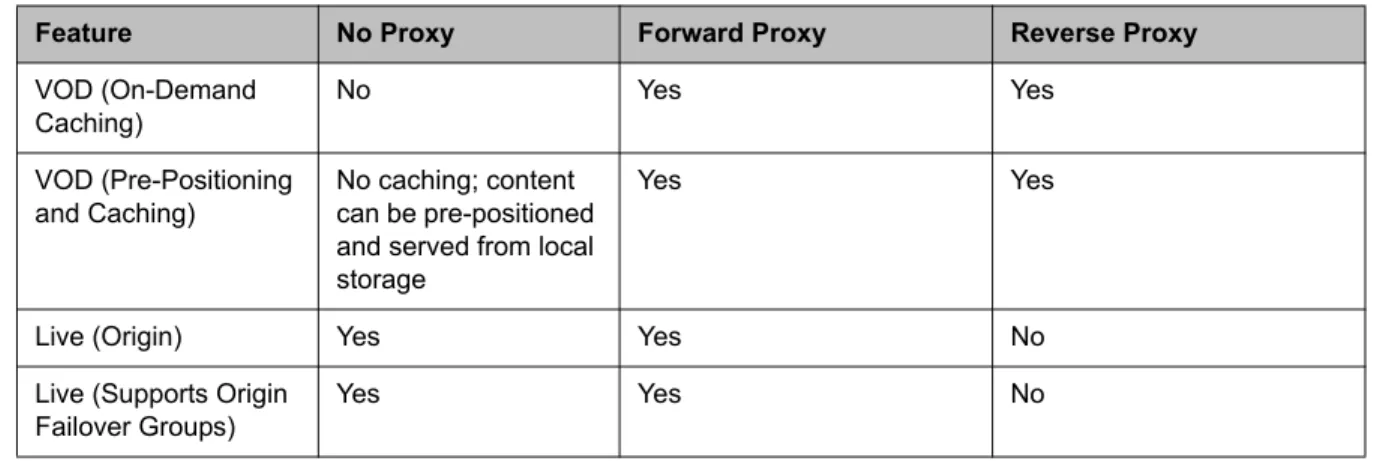
The table below shows several for distribution and edge servers.
Table A-1 Features Supported by Video Edge Proxy Modes
Feature No Proxy Forward Proxy Reverse Proxy
VOD (On-Demand Caching) No Yes Yes VOD (Pre-Positioning and Caching) No caching; content can be pre-positioned and served from local storage
Yes Yes
Live (Origin) Yes Yes No Live (Supports Origin
Failover Groups)
Polycom Video Edge Administrator Guide Proxy Modes
No Proxy
In no proxy mode, a VideoEdge group behaves as a streaming server. All edges will be provisioned; caching cannot be enabled. A group in no proxy mode can support multicast, unicast, and failover.
Reverse Proxy
A Video Edge group operating in reverse proxy mode has the origin preconfigured within it. If caching is not enabled for the profile, the request will be redirected directly to the origin server.
Reverse proxy mode provides request routing without proximity, but can work with proximity as well. Reverse proxy mode cannot have failover.
Forward Proxy
A forward proxy provides a common access point for streaming content. Forward proxy mode only allows the distribution of VOD files. Live broadcasts are not supported in forward proxy mode.