Product Guide
McAfee Endpoint Encryption 7.0
For use with ePolicy Orchestrator 4.6 Software
COPYRIGHT
Copyright © 2012 McAfee, Inc. Do not copy without permission. TRADEMARK ATTRIBUTIONS
McAfee, the McAfee logo, McAfee Active Protection, McAfee AppPrism, McAfee Artemis, McAfee CleanBoot, McAfee DeepSAFE, ePolicy Orchestrator, McAfee ePO, McAfee EMM, McAfee Enterprise Mobility Management, Foundscore, Foundstone, McAfee NetPrism, McAfee Policy Enforcer, Policy Lab, McAfee QuickClean, Safe Eyes, McAfee SECURE, SecureOS, McAfee Shredder, SiteAdvisor, SmartFilter, McAfee Stinger, McAfee Total Protection, TrustedSource, VirusScan, WaveSecure, WormTraq are trademarks or registered trademarks of McAfee, Inc. or its subsidiaries in the United States and other countries. Other names and brands may be claimed as the property of others.
LICENSE INFORMATION License Agreement
NOTICE TO ALL USERS: CAREFULLY READ THE APPROPRIATE LEGAL AGREEMENT CORRESPONDING TO THE LICENSE YOU PURCHASED, WHICH SETS FORTH THE GENERAL TERMS AND CONDITIONS FOR THE USE OF THE LICENSED SOFTWARE. IF YOU DO NOT KNOW WHICH TYPE OF LICENSE YOU HAVE ACQUIRED, PLEASE CONSULT THE SALES AND OTHER RELATED LICENSE GRANT OR PURCHASE ORDER DOCUMENTS THAT ACCOMPANY YOUR SOFTWARE PACKAGING OR THAT YOU HAVE RECEIVED SEPARATELY AS PART OF THE PURCHASE (AS A BOOKLET, A FILE ON THE PRODUCT CD, OR A FILE AVAILABLE ON THE WEBSITE FROM WHICH YOU DOWNLOADED THE SOFTWARE PACKAGE). IF YOU DO NOT AGREE TO ALL OF THE TERMS SET FORTH IN THE AGREEMENT, DO NOT INSTALL THE SOFTWARE. IF APPLICABLE, YOU MAY RETURN THE PRODUCT TO MCAFEE OR THE PLACE OF PURCHASE FOR A FULL REFUND.
Contents
Preface 7
About this guide . . . 7
Audience . . . 7
Conventions . . . 7
Find product documentation . . . 8
1 Introduction 9 Comprehensive McAfee Endpoint Encryption . . . 9
What is McAfee Endpoint Encryption . . . 9
How McAfee Endpoint Encryption works . . . 10
Product components . . . 10
Features . . . 12
Requirements . . . 13
Requirements testing for client systems . . . 15
2 Installing EEPC 17 Installing the EEPC client . . . 17
Overview of the installation process . . . 17
Install the EEPC and Help extensions . . . 18
Check in the EEPC software packages . . . 19
Register Windows Active Directory . . . 19
Configure automation server task for LDAP synchronization . . . 20
Deploy EEPC to the client system . . . 20
Send an agent wake-up call . . . 21
Install EEPC using a third-party tool . . . 22
Add users to a system . . . 23
Assign a policy to users . . . 23
Configure UBP enforcement . . . 24
Assign a policy to a system . . . 25
Enforce EEPC policies on a system . . . 25
Edit the client tasks . . . 26
Enable the Pre-Boot Smart Check feature . . . 26
Upgrading from EEPC 6.x.x . . . 28
Overview of the upgrade process . . . 28
User experience summary . . . 28
Uninstalling the EEPC client . . . 29
Deactivate the EEPC client . . . 29
Remove EEPC from the client system . . . 30
Remove the EEPC extensions . . . 31
Remove the EEPC software packages . . . 31
Manually uninstall EEPC from the client system . . . 31
Extracting the MSI packages (EEAgent and EEPC) . . . 35
Extract the EpeOaGenXML.exe file . . . 35
Extract and download the Key Server Public Key . . . 35
Create the user configuration file . . . 36
Creating the offline activation package . . . 36
Generate the offline activation package . . . 37
Performing offline activation . . . 38
Install the McAfee Agent package . . . 38
Install the EEAgent and EEPC software packages . . . 38
Install the offline activation package and activate EEPC . . . 39
Log on to the client system . . . 40
Perform recovery tasks using EETech . . . 40
4 Installing EEMac 43 Installing the EEMac client . . . 43
Overview of the installation process . . . 43
Deploy McAfee Agent to the Mac OS X client . . . 44
Deploy McAfee Agent to Mac OS X client through SSH . . . 45
Install the EEMac extensions . . . 46
Check in the EEMac software packages . . . 46
Register Windows Active Directory . . . 47
Configure automation task for LDAP synchronization . . . 47
Deploy EEMac to the client system . . . 48
Send an agent wake-up call . . . 49
Add users to a system . . . 49
Assign a policy to a system . . . 50
Enforce EEMac policies on a system . . . 50
Edit the client tasks . . . 51
How to run the MER tool for EEMac . . . 51
Upgrading from EEMac 1.x/6.x to EEMac 7.0 . . . 52
Overview of the upgrade process . . . 52
User experience summary . . . 53
Uninstalling the EEMac client . . . 53
Deactivate the Endpoint Encryption Agent . . . 53
Remove EEMac from the client system . . . 54
Remove the EEMac extensions . . . 55
Remove the EEMac software packages . . . 55
Manually uninstall EEMac from the client system . . . 56
5 Managing McAfee Endpoint Encryption policies 57 Policy management . . . 57
Policy categories . . . 57
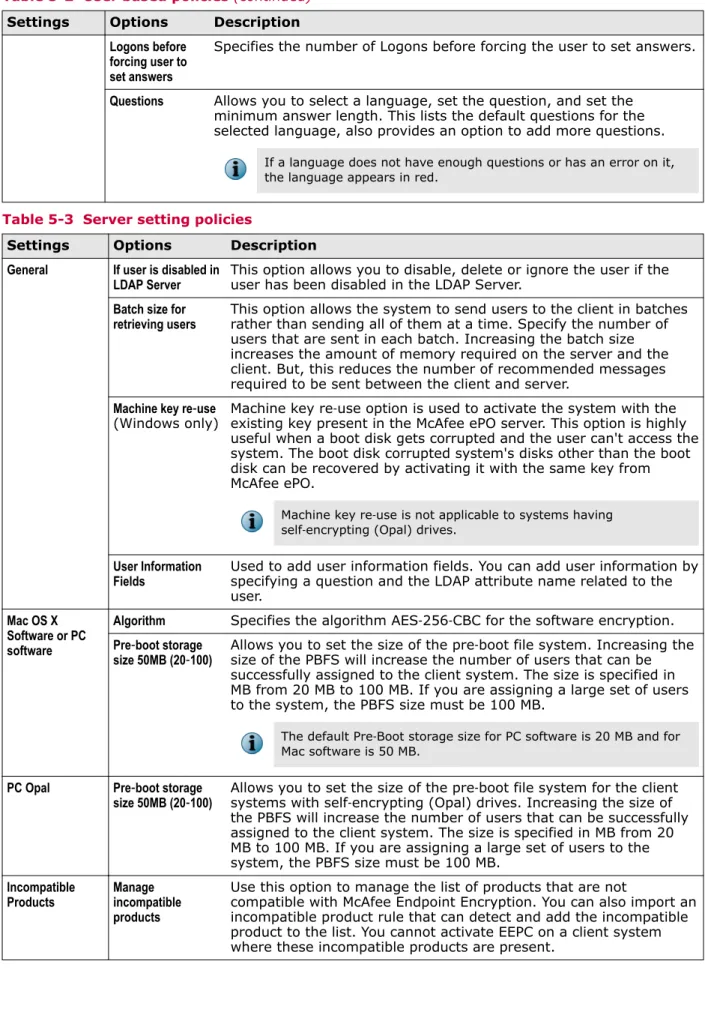
Create a policy from the Policy Catalog . . . 68
Edit EE policy settings from Policy Catalog . . . 68
Assign a policy to a system group . . . 69
Enforce EE policies on a system group . . . 69
6 Managing McAfee Endpoint Encryption users 71 View the list of users assigned to a system . . . 71
Remove users from a system . . . 72
Edit user inheritance . . . 72
How EEPC controls the Windows logon mechanism . . . 73
Enable Single-Sign-On (SSO) on a system . . . 73
Synchronize the EEPC password with the Windows password . . . 74 Contents
Managing the blacklist rule with the ALDU function . . . 76
Add an ALDU blacklist policy . . . 76
Configure global user information . . . 77
Manage logon hours . . . 78
Define EE permission sets for McAfee ePO users . . . 78
7 Managing client computers 81 Add a system to an existing system group . . . 81
Move systems between groups . . . 82
Select the disks for encryption . . . 83
Enable or disable the automatic booting . . . 83
Enable or disable the temporary automatic booting for PC . . . 84
Enable or disable the temporary automatic booting for Mac . . . 85
Set the priority of encryption providers . . . 85
Maintain a list of incompatible products . . . 86
Enable Accessibility (USB audio devices) in the Pre-Boot environment . . . 87
Allow user to update self-recovery answers . . . 88
Manage the default and customized themes . . . 88
Assign a customized theme to a system . . . 89
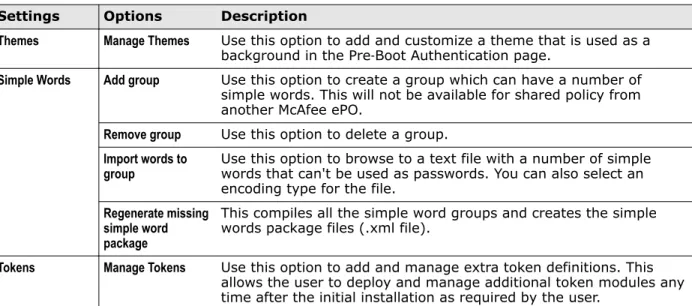
Manage simple words . . . 90
Endpoint Encryption system recovery . . . 91
8 McAfee Endpoint Encryption out-of-band management 93 The EEDeep extension . . . 93
Enable the out-of-band feature . . . 93
Configure the Out Of Band - Remediation functionality . . . 94
Configure the Out Of Band - Unlock PBA feature . . . 95
Configure the Out Of Band - User Management feature . . . 97
9 Configuring and managing tokens/readers 99 Modify the token type associated with a system or group . . . 99
How to use a Stored Value token in Endpoint Encryption for PC . . . 100
Associate a Stored Value token with a system or group . . . 100
How to make Single-Sign-On (SSO) work . . . 100
How to use a PKI token in Endpoint Encryption . . . 101
Associate a PKI token with a system or group . . . 101
How to make SSO work for EEPC . . . 101
How to use a Self-Initializing token in Endpoint Encryption . . . 101
Associate a Self-Initializing token with a system or group . . . 102
How to make SSO work for EEPC . . . 102
Setup scenarios for the 'Read Username from Smartcard' feature . . . 102
Set up using the Subject field . . . 103
Set up using the Subject Alternative Name - Other Name field . . . 103
How to use a Biometric token in Endpoint Encryption for PC . . . 104
How to use a UPEK Biometric token in Endpoint Encryption for PC . . . 104
How to use a Validity Biometric token in Endpoint Encryption for PC . . . 106
10 Managing EE reports 107 Queries as dashboard monitors . . . 107
Create EE custom queries . . . 108
View the standard EE reports . . . 108
Endpoint Encryption client events . . . 110
Create the EE dashboard . . . 112
View the EE dashboard . . . 113 Contents
11 Recovering users and systems 115
Enable or disable the self-recovery functionality . . . 115
Perform the self-recovery on the client computer . . . 116
Enable or disable the administrator recovery functionality . . . 116
Perform administrator recovery on the client computer . . . 117
Generate the response code for the administrator recovery . . . 118
End user self-recovery in Mac systems . . . 118
Perform end user self-recovery on a Mac system . . . 119
12 FIPS 140-2 certification 121 Pre-requisites to use EEPC in FIPS mode . . . 121
Install the EEPC client packages in FIPS mode . . . 121
Impact of FIPS mode . . . 122
Uninstalling the EEPC client packages in FIPS mode . . . 122
13 Common Criteria EAL2+ mode operation 123 Administrator guidance . . . 123
User guidance . . . 123
Index 125
Preface
This guide provides the information you need to configure, use, and maintain your McAfee product. Contents
About this guide
Find product documentation
About this guide
This information describes the guide's target audience, the typographical conventions and icons used in this guide, and how the guide is organized.
Audience
McAfee documentation is carefully researched and written for the target audience. The information in this guide is intended primarily for:
• Administrators — People who implement and enforce the company's security program.
• Users — People who use the computer where the software is running and can access some or all of its features.
Conventions
This guide uses these typographical conventions and icons. Book title, term,
emphasis Title of a book, chapter, or topic; a new term; emphasis.
Bold Text that is strongly emphasized.
User input, code,
message Commands and other text that the user types; a code sample; a displayedmessage. Interface text Words from the product interface like options, menus, buttons, and dialog
boxes.
Hypertext blue A link to a topic or to an external website.
Note: Additional information, like an alternate method of accessing an
option.
Tip: Suggestions and recommendations.
Important/Caution: Valuable advice to protect your computer system,
software installation, network, business, or data.
Warning: Critical advice to prevent bodily harm when using a hardware
Find product documentation
McAfee provides the information you need during each phase of product implementation, from
installation to daily use and troubleshooting. After a product is released, information about the product is entered into the McAfee online KnowledgeBase.
Task
1 Go to the McAfee Technical Support ServicePortal at http://mysupport.mcafee.com. 2 Under Self Service, access the type of information you need:
To access... Do this...
User documentation 1 Click Product Documentation.
2 Select a product, then select a version. 3 Select a product document.
KnowledgeBase • Click Search the KnowledgeBase for answers to your product questions. • Click Browse the KnowledgeBase for articles listed by product and version. Preface
1
Introduction
McAfee Endpoint Encryption delivers powerful encryption that protects data from unauthorized access, loss, and exposure. With data breaches on the rise, it is important to protect information assets and comply with privacy regulations.
Contents
Comprehensive McAfee Endpoint Encryption What is McAfee Endpoint Encryption
How McAfee Endpoint Encryption works Product components
Features Requirements
Requirements testing for client systems
Comprehensive McAfee Endpoint Encryption
This guide indicates Endpoint Encryption (EE) as the term to describe EEPC and EEMac. The content that refers to the term Endpoint Encryption (EE) is applicable to both EEPC and EEMac. Procedures and other details that are different for EEPC and EEMac setup are described in separate sections indicating its individual product name, for example, EEPC or EEMac.
The McAfee Endpoint Encryption (EE) suite provides multiple layers of defense against data loss with several integrated modules that address specific areas of risk. The suite provides protection for individual computers, roaming laptops, MacBooks, and Mac desktops with 64‑bit Extensible Firmware Interface (EFI).
This guide discusses these McAfee Endpoint Encryption solutions: • McAfee Endpoint Encryption for PC
• McAfee Endpoint Encryption for Mac
What is McAfee Endpoint Encryption
McAfee Endpoint Encryption (EE) is a strong cryptographic facility for denying unauthorized access to data stored on any system or disk when it is not in use.
It prevents the loss of sensitive data, especially from lost or stolen equipment. It protects the data with strong access control using Pre‑Boot Authentication and a powerful encryption engine.
To log on to a system, the user must first authenticate through the Pre‑Boot environment. On a
successful authentication, the client system's operating system (Microsoft Windows or Mac OS X) loads and gives access to normal system operation. McAfee Endpoint Encryption is completely transparent to
1
McAfee Endpoint Encryption is the encryption software installed on client systems and the managing component on the servers. It is deployed and managed through McAfee®
ePolicy Orchestrator®
(McAfee ePO™
) using policies. A policy is a set of rules that determine how McAfee Endpoint Encryption software functions on the user’s computer.
How McAfee Endpoint Encryption works
McAfee Endpoint Encryption protects the data on a system by taking control of the hard disk or self‑encrypting drive (Opal), from the operating system. For more information about Opal, see Features . The Endpoint Encryption driver encrypts all data written to the disk; it also decrypts the data read off the disk.
The McAfee Endpoint Encryption software is installed on the client system. After the installation has completed, and depending on the settings within the Endpoint Encryption policy assigned to the client system, the client system might start to activate Endpoint Encryption. Until a successful activation, encryption doesn't start, and Pre‑Boot Authentication does not appear if the system is restarted. During the activation process, the system synchronizes with McAfee ePolicy Orchestrator (McAfee ePO) and acquires user data, token data, and Pre‑Boot theme data.
However, the system can be activated without synchronizing with the McAfee ePO server while following the Offline Activation process.
Only once this activation process is successfully completed; Endpoint Encryption takes control of the disk and starts to enforce any encryption policy. Once activation has successfully completed, restart the system so that the user authenticates and logs on through the Pre‑Boot environment, which will then load the operating system.
Product components
Each McAfee Endpoint Encryption component or feature as explained below plays a part in protecting your systems.
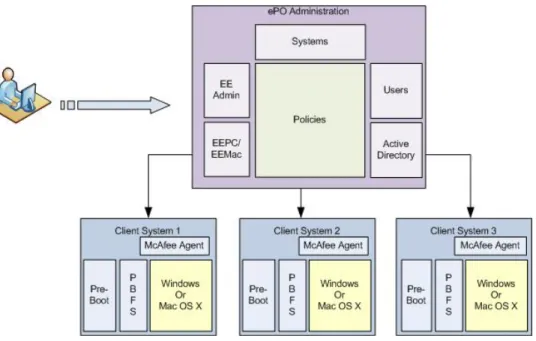
McAfee ePolicy Orchestrator Administration
The McAfee ePO server provides a scalable platform for centralized policy management and enforcement of your security products and systems on which they reside. The McAfee ePO console allows the administrator to manage McAfee Endpoint Encryption policies on the client computer. The console also allows you to deploy and manage McAfee Endpoint Encryption products. It provides comprehensive reporting and product deployment capabilities; all through a single point of control.
This guide does not provide detailed information about installing or using the McAfee ePO software. See the product documentation for your version of McAfee ePO.
Policies
McAfee Endpoint Encryption is managed through McAfee ePO using a combination of User Based Policies and Product Settings Policies. The McAfee ePO console allows the administrator to enforce policies across groups of computers or on a single computer. Any new policy enforcement through McAfee ePO overrides the existing policy that is already set on the individual systems. For information regarding policies and how they are enforced, see the product documentation for your version of McAfee ePO.
1
IntroductionEEPC/EEMac
The EEPC/EEMac extension installed in McAfee ePO defines the encryption algorithm, product settings, and server settings for the client system. The EEPC/EEMac software package checked in to McAfee ePO defines the actual Endpoint Encryption software that is installed on the client system.
Endpoint Encryption Admin
The Endpoint Encryption administration system called EE Admin defines the generic Endpoint
Encryption settings for Product Settings Policies, User‑Based Policies, Add local domain user settings, and Server settings for the users. This is common for both EEPC and EEMac.
LDAP Server
McAfee Endpoint Encryption acquires users through the Windows Active Directory (AD). You must have a registered LDAP server to use Policy Assignment Rules, to enable dynamically assigned permission sets, and to enable manual and automatic user account creation.
Client system components
For McAfee ePO to communicate, the client system should be configured with the components such as: • For EEPC
• Windows operating system • McAfee Agent for Windows • For EEMac
• Mac OS X platform • McAfee Agent for Mac
The ePolicy Orchestrator server deploys the EE Agent and the EE product to the client system. The user installs the McAfee Agent on a Mac client system using install.sh file, which is picked up from the Windows‑based system where the McAfee ePO server is installed. However, on Windows‑based systems, ePolicy Orchestrator itself deploys the McAfee Agent to the client system.
For more details and procedures, see the product documentation for your version of McAfee ePO. McAfee Endpoint Encryption product components are depicted in Figure 1.
Introduction
Figure 1-1 Product components
Features
These features of McAfee Endpoint Encryption are important for your organization's system security and protection.
• EE leverages the McAfee ePO infrastructure for automated security reporting, monitoring, deployment, and policy administration.
• EE integrates itself fully into McAfee ePO so that the management can be performed from this console.
• EE enables transparent encryption without hindering users or system performance. • EE enforces strong access control with Pre‑Boot Authentication.
• EEPC supports locking/unlocking and managing of self‑encrypting drives (Opal 1.0) from Trusted Computing Group (TCG).
• EEPC supports Intel® Active Management Technology (Intel® AMT) for remotely managing and securing systems in conjunction with ePO Deep Command.
• EEMac allows an end‑user to self‑remediate most of the Pre‑Boot issues on a Mac OSX system, without contacting the administrator.
• The McAfee Recovery feature in EEMac allows the end‑user to perform emergency when the system fails to reboot or its PBFS is corrupt.
Support for self
‑
encrypting (Opal from Trusted Computing Group) drive
EEPC 7.0 provides a management facility for Opal drives, which are self‑contained, standalone Hard Disk Drives (HDD) that conform to the TCG Opal standard. The drive is always encrypted by the on board crypto processor, however, it might or might not be locked. Though Opal drives handle all of the encryption, they need to be managed by management software like McAfee ePO. If an Opal drive is not managed, it behaves and responds like a normal HDD.
1
IntroductionOpal self‑encrypting drives will be supported on UEFI systems where the system is Windows 8 logo compliant and if the system was shipped from the manufacturer fitted with an Opal self‑encrypting drive.
Opal self‑encrypting drives may not be supported on UEFI systems if the system is not Windows 8 logo compliant, or if the system did not ship from the manufacturer fitted with an Opal self‑encrypting drive.
This is because a UEFI security protocol that is required for Opal management is only mandatory on Windows 8 logo compliant system where a Opal self‑encrypting drive is fitted at the time of shipping. Those shipped without self‑encrypting drives may or may not include the security protocol. Without the security protocol, Opal management is not possible.
EEPC 7.0 will support the Opal encryption provider on UEFI systems fitted with an Opal drive if the UEFI protocol EFI_STORAGE_SECURITY_COMMAND_PROTOCOL is present on the system.
However, this does not affect support for Opal drives under BIOS. The combination of EEPC and McAfee ePO for Opal provides: • Centralized management
• Reporting and recovery functionality
• Secure Pre‑Boot Authentication that unlocks the Opal drive • Efficient user management
• Continuous policy enforcement
The overall experience and tasks of an administrator and users in installing and using EEPC, are the same, whether the target system has an Opal drive or a normal HDD. The installation of the product extension, deployment of the software packages, policy enforcement, and the method of management are the same for systems with Opal and Non‑Opal HDD.
To activate a system using Opal locking, Windows 7 SP1 or above is required. On systems with Opal drives where the Operating System is Windows 7 RTW or below, PC software encryption will be used. When any OPAL system activated using OPAL encryption is reimaged and restarted without removing Endpoint Encryption, the user is locked out of the system. This happens because:
• The Pre‑Boot is held off the disk and it is still active.
• The Pre‑Boot File System is destroyed during the imaging process.
Opal activation might occasionally fail because the Microsoft defragmentation API used fails to defragment the host. For this to happen, the activation will restart at the next ASCI.
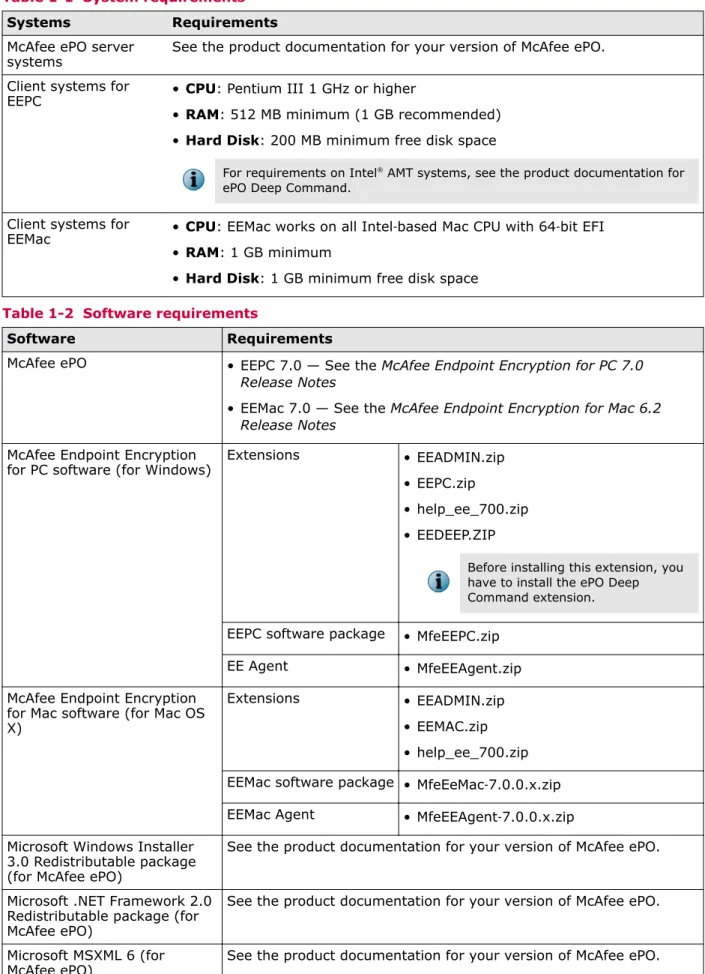
Requirements
These are the requirements for your computer that you should be aware of before installing EEPC and EEMac.
Introduction
Table 1-1 System requirements
Systems Requirements
McAfee ePO server
systems See the product documentation for your version of McAfee ePO. Client systems for
EEPC • CPU: Pentium III 1 GHz or higher
• RAM: 512 MB minimum (1 GB recommended) • Hard Disk: 200 MB minimum free disk space
For requirements on Intel® AMT systems, see the product documentation for ePO Deep Command.
Client systems for
EEMac • CPU: EEMac works on all Intel‑based Mac CPU with 64‑bit EFI • RAM: 1 GB minimum
• Hard Disk: 1 GB minimum free disk space Table 1-2 Software requirements
Software Requirements
McAfee ePO • EEPC 7.0 — See the McAfee Endpoint Encryption for PC 7.0 Release Notes
• EEMac 7.0 — See the McAfee Endpoint Encryption for Mac 6.2 Release Notes
McAfee Endpoint Encryption
for PC software (for Windows) Extensions • EEADMIN.zip • EEPC.zip
• help_ee_700.zip • EEDEEP.ZIP
Before installing this extension, you have to install the ePO Deep Command extension. EEPC software package • MfeEEPC.zip
EE Agent • MfeEEAgent.zip McAfee Endpoint Encryption
for Mac software (for Mac OS X)
Extensions • EEADMIN.zip • EEMAC.zip • help_ee_700.zip EEMac software package • MfeEeMac‑7.0.0.x.zip EEMac Agent • MfeEEAgent‑7.0.0.x.zip Microsoft Windows Installer
3.0 Redistributable package (for McAfee ePO)
See the product documentation for your version of McAfee ePO.
Microsoft .NET Framework 2.0 Redistributable package (for McAfee ePO)
See the product documentation for your version of McAfee ePO.
1
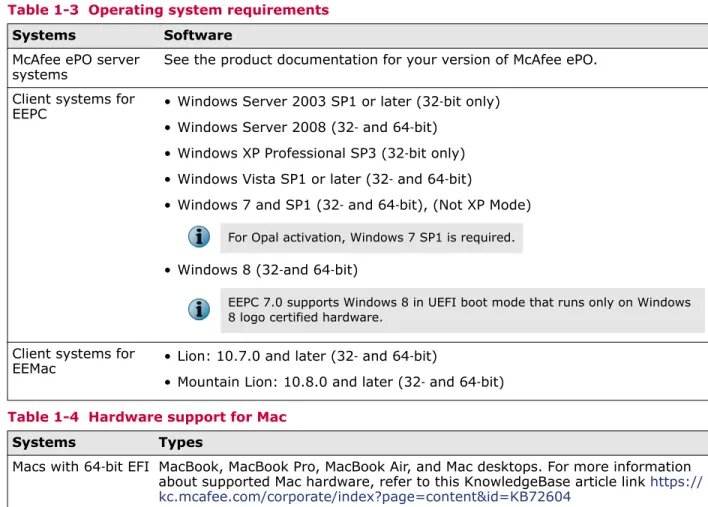
IntroductionTable 1-3 Operating system requirements
Systems Software
McAfee ePO server
systems See the product documentation for your version of McAfee ePO. Client systems for
EEPC • Windows Server 2003 SP1 or later (32‑bit only) • Windows Server 2008 (32‑ and 64‑bit)
• Windows XP Professional SP3 (32‑bit only) • Windows Vista SP1 or later (32‑ and 64‑bit)
• Windows 7 and SP1 (32‑ and 64‑bit), (Not XP Mode) For Opal activation, Windows 7 SP1 is required. • Windows 8 (32‑and 64‑bit)
EEPC 7.0 supports Windows 8 in UEFI boot mode that runs only on Windows 8 logo certified hardware.
Client systems for
EEMac • Lion: 10.7.0 and later (32‑ and 64‑bit)
• Mountain Lion: 10.8.0 and later (32‑ and 64‑bit) Table 1-4 Hardware support for Mac
Systems Types
Macs with 64‑bit EFI MacBook, MacBook Pro, MacBook Air, and Mac desktops. For more information about supported Mac hardware, refer to this KnowledgeBase article link https:// kc.mcafee.com/corporate/index?page=content&id=KB72604
Requirements testing for client systems
McAfee Endpoint Encryption for PC requirements must be met before it can be installed on a client system.
McAfee Endpoint Encryption GO (EEGO) 7.0
McAfee provides the McAfee Endpoint Encryption GO (EEGO) 7.0 utility for system administrators to determine which systems are compatible for installing and activating EEPC. EEGO runs a set of compatibility tests on a client system, and then creates a report through the McAfee ePO console that summarizes the readiness of the managed systems.
The McAfee Endpoint Encryption system policy can be configured to prevent activation of encryption on client systems that fail EEGO testing.
Make sure that EEGO is not a pre‑requisite for installing EEPC and it comes as a separate package. If the system is connected to the McAfee ePO server, the system sends the readiness status to McAfee ePO through McAfee Agent.
The overall EEGO installation and deployment process can be simplified into the following steps. This assumes that the user has already successfully installed McAfee ePO and has McAfee Agent installed on all appropriate client systems that successfully communicates with McAfee ePO.
Introduction
1 Install the EEGO extension (EEGO.ZIP) in McAfee ePO. Repeat the same procedures used for installing the product extension.
2 Check in the EEGO software package (EegoPackage.ZIP) to McAfee ePO. Repeat the same procedures used for checking in the product package.
3 Deploy Endpoint Encryption GO to the client system. Repeat the same procedures used for the product deployment task.
4 Enforce EEGO policies to the client system.
After restarting, the client system communicates with the McAfee ePO server and pulls down the assigned Endpoint Encryption GO policy, runs the tests and reports the system diagnostic information according to the defined policies.
If you select the Only activate if health check (Endpoint Encryption : Go) passes option and then uninstall EEGO from the client, it is not possible to deselect this option. As a result of this, EEPC will fail to activate.
Also, the status of EEGO endpoints can be monitored through various chart representations available in McAfee ePO.
EEGO runs these tests for installing EEPC:
• Incompatible product detection: SafeBoot, HP ProtectTools 2009, Bitlocker, PointSec, Truecrypt, GuardianEdge, Symantec Endpoint Encryption, SafeGuardEasy and PGP Whole Disk Encryption. • Smart Controller predictive failure, a test that reports if the Operating System is reporting that the
S.M.A.R.T. controller is indicating an imminent failure.
• Disk Status, a test for BIOS based systems, reports if the disk (MBR and partition structure) is suitable to install EEPC.
Make sure to note that EEGO is not supported for UEFI systems.
• Datachannel communication status, a test reporting of the success or failure of the Datachannel communication from the client to the McAfee ePO server.
• Datachannel communication delay, a test in milliseconds of the delay of the communication between the McAfee ePO server and the endpoint.
If any of these requirements is not valid, and the EEPC system policy is configured to abandon activation if the EEGO tests fail, EEPC activation will be abandoned.
EEGO is capable of detecting a series of circumstances that might impact the rollout of EEPC. However, EEGO does not replace the need to perform due diligence testing prior to a rollout.
Pre
‑
boot Smart Check
The Pre‑Boot Smart Check is functionality in EEPC that performs various tests to ensure that the EEPC pre‑boot environment can work successfully on a device. It will test the areas that have been identified to cause incompatibility issues in the past.
If a device fails the Pre‑Boot Smart Check it will not activate EEPC and will not proceed. You can view the audit log to get the latest information on any progress of the check from the last time the device synchronized with McAfee ePO.
The Pre‑Boot Smart Check can be used in conjunction with EEGO and help administrators during initial deployments. EEGO will perform checks and validation in the operating system, and the Pre‑Boot Smart Check will perform checks/validations outside of the operating system. The combined usage can
1
Introduction2
Installing EEPC
This chapter covers the high‑level process of installing, upgrading, and uninstalling the EEPC client. Contents
Installing the EEPC client Upgrading from EEPC 6.x.x Uninstalling the EEPC client
Installing the EEPC client
The EEPC extensions and software packages are checked in to the McAfee ePO server for the management functionality. This is necessary before deploying the software and configuring the policies.
This release supports migrating your EEPC 5.x.x installed systems and upgrading EEPC 6.x.x installed systems to EEPC 7.0. For more details and procedures on migrating your EEPC 5.x.x installed systems to EEPC 7.0, see the McAfee Endpoint Encryption for PC 7.0 Migration Guide.
• In this guide, EEPC 5.x.x refers to EEPC 5.2.6 or later versions • EEPC 6.x.x refers to EEPC 6.1 Patch 2 or later versions
Make sure that you remove any competitor's encryption products from your system. Also, do not install any other encryption products after installing EEPC.
Overview of the installation process
The EEPC client software is deployed from the McAfee ePO server and installed on the client system through the McAfee Agent.
The client system requires a restart to complete the installation. After the restart, the client communicates with the McAfee ePO server, pulls down the assigned Endpoint Encryption policies, assigned users, and encrypts the system according to the defined policies. EEPC creates the Pre‑Boot File System (PBFS) on the client system at the time of activation. The assigned users can be initialized through the Pre‑Boot screen after the subsequent restart.
The overall EEPC installation and deployment process can be simplified into the following steps. The entire installation and deployment process is the same for both PC software and Opal encrypted drives.
This assumes that the user has already installed McAfee ePO and has the McAfee Agent installed on various systems, which successfully communicate with the McAfee ePO server.
1 Install the EEAdmin, EEPC, and EEDeep extensions into McAfee ePO.
Make sure to note that EEDeep is an optional extension and can be installed only if you want to use ePO DeepCommand with EEPC.
2 Check in the EEPC software packages (MfeEEAgent.zip and MfeEEPC.zip in the order) to the McAfee ePO server.
3 Configure the registered server (Windows Active Directory).
4 Configure and run the automation server task for LDAP Synchronization. 5 Deploy the Endpoint Encryption Agent to the client system.
6 Deploy the EEPC software package to the client system.
7 Restart the client system. You should now be able to see the Quick Settings | Show Endpoint Encryption Status option in McAfee Agent System Tray on the client system.
8 Add users to the system or a group of systems.
9 Create a custom product settings policy or edit the default policy, then assign it to the system or a group of systems.
10 Create a custom user‑based policy or edit the default policy, then assign it to a user or a group of users on a system. Configure UBP enforcement if using Policy Assignment Rules.
The Show Endpoint Encryption Status changes from Inactive to Active only after adding the user(s) and enforcing the policies correctly.
11 Verify the Endpoint Encryption System Status by right‑clicking McAfee Agent System Tray on the client system, then clicking Quick Settings | Show Endpoint Encryption Status.
In some cases, EEPC installed systems might fail to lock OPAL disks during reboot. Subsequent policy enforcement might fail until a full power‑cycle is performed. For more details, refer to the
KnowledgeBase article https://kc.mcafee.com/corporate/index?page=content&id=KB73889.
Install the EEPC and Help extensions
You can view and configure the policies and settings of EEPC by installing the product and help extensions into the repository on the McAfee ePO server 4.6.
Before you begin
• You must have appropriate permissions to perform this task.
• You must install the extensions in order: EEADMIN.zip, EEPC.zip, help_ee_700.zip, and EEDeep.zip.
Task
1 Log on to the ePolicy Orchestrator server as an administrator.
2 Click Menu | Software | Extensions | Install Extension to open the Install Extension dialog box. 3 Click Browse and select the extension file EEADMIN.zip, then click OK. The Install Extension page
appears with the extension name and version details. 4 Click OK.
2
Installing EEPCCheck in the EEPC software packages
The software package needs to be checked in to the master repository so that you can deploy the software to the client system using ePolicy Orchestrator. You must check in two packages:
MfeEEAgent.zip and MfeEEPC.zip in the order. Before you begin
• You must have appropriate permissions to perform this task.
• Before checking in the software packages, make sure there are no pull or replication tasks running.
• If you are installing the EEPC 7.0 on the Windows 8 client system, we recommend that you install the McAfee Agent 4.6 Patch 2 package Task
1 Log on to the ePolicy Orchestrator server as an administrator.
2 Click Menu | Software | Master Repository, then click Actions | Check In Package to open the Check In Package wizard.
3 From the Package type list, select Product or Update (.zip), then browse and select the MfeEEAgent.zip package file.
4 Click Next to open the Package Options page.
5 Click Save. When the package is checked in, it appears in Packages in the Master Repository list on the Master Repository page.
6 Repeat steps 2 through 5 to install the MfeEEPC.zip package.
The new package appears in the Packages in Master Repository list on the Master Repository page under the respective branch in the repository.
Register Windows Active Directory
It is necessary to register Windows Active Directory with McAfee ePO to in order to create EEPC users. Before you begin
Make sure that you have the appropriate permissions to modify the server settings, permission sets, users, and registered servers.
Task
1 Log on to the ePolicy Orchestrator server as an administrator.
2 Click Menu | Configuration | Registered Servers, then click New Server to open the Registered Server Builder wizard.
3 From the Server type drop‑down list on the Description page, select LDAP Server, specify a unique user‑friendly name and any details, then click Next.
Installing EEPC
4 On the Details page:
a Select Active Directory from LDAP server type, then type the Domain name or the Server name.
Use DNS‑style domain name. While using DNS‑style domain name, make sure that the McAfee ePO system is configured with appropriate DNS setting and can resolve the DNS‑style domain name of the Active Directory. The Server name is the name or IP address of the system where the Windows Active Directory is present.
b Type the User name.
The User name should be of the format: domain\Username for Active Directory accounts.
c Type the Password and confirm it.
d Click Test Connection to verify that the connection to the server works, then click Save.
Configure automation server task for LDAP synchronization
You can create many tasks that run at scheduled intervals to manage the McAfee ePO server and McAfee Endpoint Encryption software. Run this task to synchronize EEPC with the user Active Directory.
Before you begin
You must have appropriate permissions to perform this task. Task
1 Log on to the ePolicy Orchestrator server as an administrator. 2 Click Menu | Automation | Server Tasks to open the Server Tasks page. 3 Click Actions | New Task to open the Server Task Builder wizard.
4 On the Description page, name the task, add a description about the task, select Enabled under Schedule status, then click Next.
5 From the Actions drop‑down list, select EE LDAP Server User/Group Synchronization and accept the default values.
6 Click Next to open the Schedule page.
7 Schedule the task, then click Next to display the Summary page. 8 Review the task details, then click Save.
In addition to the task running at the scheduled time, you can run this task immediately by clicking
Run next to the task on the Server Tasks page.
Deploy EEPC to the client system
The McAfee ePO repository infrastructure allows you to deploy the EEPC product to your managed systems from a central location. Once you have checked in the software package, use this Product Deployment client task to install the product on managed systems. For more details and procedures on how to perform this task, see the product documentation for your version of McAfee ePO.
Before you begin
You must have appropriate permissions to perform this task.
2
Installing EEPCTo perform a check on requirements and compatibility of the client system, you need to deploy EEGO 7.0 to the client system. For more information about deploying EEGO 7.0 to the client system, see the Requirements testing for client systems section.
Task
1 Click Menu | Policy | Client Task Catalog, select McAfee Agent | Product Deployment as Client Task Types, then click Actions | New Task. The New Task dialog box appears.
2 Make sure that Product Deployment is selected, then click OK. 3 Type a name for the task you are creating and add any notes. 4 Next to Target platforms, select Windows to use the deployment. 5 Next to Products and components set the following:
a Select Endpoint Encryption Agent for Windows 7.0.0.x to specify the version of the EEAgent to be deployed.
b Click + and select Endpoint Encryption for PC 7.0.0.x to specify the version of the EEPC package to be deployed.
c Set the Action to Install, then select the Language of the package, and the Branch.
6 Next to Options, select if you want to run this task for every policy enforcement process (Windows only) and click Save.
7 Click Menu | Systems | System Tree | Systems, then select the system on which you want to deploy product and click Actions | Agent | Modify Tasks on a single system.
8 Click Actions | New Client Task Assignment. The Client Task Assignment Builder wizard appears.
9 On the Select Task page, select Product as McAfee Agent and Task Type as Product Deployment, then select the task you created for deploying product.
10 Next to Tags, select the desired platforms to which you are deploying the packages, then click Next: • Send this task to all computers
• Send this task to only computers that have the following criteria — Use one of the edit links to configure the criteria.
11 On the Schedule page, select whether the schedule is enabled, and specify the schedule details, then click Next.
12 Review the summary, then click Save.
Send an agent wake-up call
The client computer gets the policy update whenever it connects to the McAfee ePO server during the next Agent‑Server Communication Interval (ASCI). The policy update can be scheduled or forced. The agent wake‑up call option forces the policy update to the client system. For information on adding a new system, see the product documentation for your version of McAfee ePO.
Before you begin
You must have appropriate permissions to perform this task.
Installing EEPC
Task
1 Log on to the ePolicy Orchestrator server as an administrator.
2 Click Menu | Systems | System Tree, then select a system or a group of system(s) from the left pane. 3 Select the System Name(s) of that group.
4 Click Actions | Agents | Wake Up Agents from the drop‑down menu.
5 Select a Wake‑up call type and a Randomization period (0‑60 minutes) by which the system(s) respond to the wake‑up call sent by ePolicy Orchestrator.
6 Select Get full product properties for the agent(s) to send complete properties instead of sending only the properties that have changed since the last agent‑to‑server communication.
7 Select Force complete policy and task update for the agent to send the complete policy and task update. 8 Click OK.
To view the status of the agent wake‑up call, navigate to Menu | Automation | Server Task Log.
Install EEPC using a third-party tool
Although McAfee ePO has all required features for deploying EEPC, you might need to use a third‑party tool to deploy the product.
Before you begin
• Make sure that your McAfee ePO version is at least 4.6 Patch 4 or later. • Make sure that your McAfee Agent for Windows version is at least 4.6 or later.
• Make sure that you have installed the EEPC 7.0 extensions (EEAdmin.zip and EEPC .zip) on McAfee ePO.
• Make sure that your LDAP server is registered in McAfee ePO.
There are two files required to be installed, and two versions of each file, different per OS type. • Agent installer files: MfeEEAgent32.msi or MfeEEAgent64.msi
• Plug‑in installer files: MfeEEPc32.msi or MfeEEPc64.msi
For more information about enabling the logs when installing EEPC through msi, see https:// kc.mcafee.com/corporate/index?page=content&id=KB76569.
Task
1 Determine whether your client computer is running a 32‑bit or a 64‑bit version of Windows operating system.
2 Log on to the target computer using an administrator account that has sufficient rights for installing the software.
3 Copy the agent and plug‑in installer files for your operating system, to a temporary location on the client system.
4 Install the agent: double‑click the agent installer file for your operating system.
2
Installing EEPC5 Install the plug‑in: double‑click the plug‑in installer file for your operating system. 6 Restart the client system to complete the installation of EEPC.
After restarting the client system, you need to add users and configure the required encryption
policies on McAfee ePO. On enabling the correct encryption policy, the encryption begins after the next agent‑to‑server communication.
Add users to a system
Use the ePolicy Orchestrator server to add the EEPC users to the client system. The EEPC software can be activated on a client system only after adding a user and enforcing the required encryption policies correctly.
Before you begin
You must have appropriate permissions to perform this task. Task
1 Click Menu | Data Protection | Encryption Users to open the My Organization page. 2 Select a group or system(s) from the System Tree pane on the left.
To add users to a particular system, select the required system from the System Tab under the My Organization pane on the right.
3 Click Actions | Endpoint Encryption | Add Users to open the Add Endpoint Encryption Users page. 4 Add users: Click + in the Users field, browse to the users list, select the Users, then click OK. 5 Add groups: Click + in the From the groups field, browse to the users groups list, select the groups,
then click OK.
6 Add an organizational unit: Click + in the From the organizational units field, browse to the organizational unit list, select the unit, then click OK.
7 In the Add Endpoint Encryption Users page, click OK.
Assign a policy to users
You need to configure and assign the policies to the users, if required, and specify which user or group of users are allowed or not allowed to use the Policy Assignment Rules. The allowed users get their required User Based Policies.
Before you begin
You must have appropriate permissions to perform this task.
For more details and procedures on how to perform this task, see the product documentation for your version of McAfee ePO.
You can apply a Policy Assignment Rule to custom policies apart from My Default policies. Task
1 Click Menu | Policy | Policy Assignment Rules to open the Policy Assignment Rules page.
2 Click Actions | New Assignment Rule. The Policy Assignment Builder wizard opens to the Details page. Installing EEPC
4 In the Rule Type field, select either System Based or User Based accordingly. 5 Click Next to open the Assigned Policies page.
6 Click Add Policy to select a policy, define these options:
From this drop‑down list... Select this...
Product Endpoint Encryption 7.0.0
Category User Based Policies
Policy My Default
7 Click Next to open the Selection Criteria page.
8 In the Comparison field, select either System is in group or subgroup or System is in group. In the Value field, the My Organization system tree group is selected by default. 9 Click Next to open the Summary page.
10 Click Save.
A policy is assigned to selected users.
Configure UBP enforcement
By default, all users inherit the default user‑based policy assigned to a system, and are prevented from using Policy Assignment Rules. This allows maximum system scalability.
To allow a user to use a non‑default UBP, you must enable the Configure UBP enforcement option for that user. This allows Policy Assignment Rules to be performed to select a specific non‑default user‑based policy for the user. If not enabled, Policy Assignment Rules are not performed and the user inherits the default user‑based policy.
When the Configure UBP enforcement option is enabled for a user who is not assigned with a Policy Assignment Rule, activation will fail on the client systems.
EEPC 7.0 requires that you specify which groups of users are allowed to use the Policy Assignment Rules. The allowed users get their required user‑based policy. Users who are not allowed to use the Policy Assignment Rules inherit the default user‑based policy assigned to the system.
Task
1 Click Menu | Reporting | Queries & Reports then select Endpoint Encryption from Shared Groups in the Groups pane. The standard EE query list appears.
2 Run the EE: Users query to list all the Endpoint Encryption users. 3 Select a user (or users) from the list to enforce the policy.
4 Click Actions | Endpoint Encryption | Configure UBP enforcement. The Configure UBP enforcement page appears.
5 Select Enable or Disable, then click OK to configure the UBP enforcement state.
At each ASCI, McAfee ePO ensures that all the relevant user‑based policies are deployed to each client in addition to the user‑based policy for the logged on user configured with UBP enforcement. On selecting Enable, Policy Assignment Rules are enabled for the selected users, and a specific UBP is assigned to the user according to the rule defined. Policy Assignment Rules are enabled for the
2
Installing EEPCAssign a policy to a system
You can assign the required policy in the Policy Catalog to any system or system group. Assignment allows you to define policy settings once for a specific need, then apply the policy to multiple locations.
Before you begin
You must have appropriate permissions to perform this task.
When you assign a new policy to a particular group, all child groups and systems that are set to inherit the policy from this assignment point, get the set policies.
Task
1 Click Menu | Systems | System Tree, then on the Systems tab under System Tree, select a group. All the systems within this group (but not its subgroups) appear in the details pane.
2 Select the target system, then click Actions | Agent | Modify Policies on a Single System. The Policy Assignment page for that system appears.
3 From the Product drop‑down list, select Endpoint Encryption 7.0.0. The policy Categories under Endpoint Encryption are listed with the system’s assigned policy.
4 Select the Product Settings policy category, then click Edit Assignments.
5 If the policy is inherited, select Break inheritance and assign the policy and settings below next to Inherit from. 6 From the Assigned policy drop‑down list, select the Product Setting policy.
From this location, you can edit the selected policy or create a new policy.
7 Select whether to lock policy inheritance so that any systems that inherit this policy can't have another one assigned in its place.
8 When modifying the default policy or creating the new policy, select any one of the disk encryption options other than None, by navigating to Encryption (tab) | Encrypt. The default option None does not initiate the encryption, but will enable the Pre‑Boot Authentication.
Make sure that you select the correct encryption provider and set the priority, as appropriate. For systems with Opal drive, the encrypt options other than All disks and Boot disk only, are not supported. Also, for systems with Opal drive, make sure to set the highest priority in order to use Opal in the organization.
9 Click Save.
Enforce EEPC policies on a system
Enable or disable policy enforcement for EEPC on a client system. Policy enforcement is enabled by default, and is inherited in the System Tree.
Before you begin
You must have appropriate permissions to perform this task.
For more details and procedures on how to perform this task, see the product documentation for your version of McAfee ePO.
Task
1 Click Menu | Systems | System Tree | Systems tab, then under System Tree, select the group where the system belongs. The list of systems belonging to this group appears in the details pane.
Installing EEPC
3 Select Endpoint Encryption 7.0.0, then click Enforcing next to Enforcement status.
4 Select Break inheritance and assign the policy and settings below to change the enforcement status. 5 Next to Enforcement status, select Enforcing or Not enforcing accordingly, then click Save.
After restarting, the client system communicates with the McAfee ePO server and pulls down the assigned EEPC policies and encrypts the system according to the defined policies. The assigned user can be initialized through the Pre‑Boot screen after the subsequent restart.
Edit the client tasks
The McAfee ePO server allows you to create and schedule client tasks that run on managed systems. You can define tasks for the entire System Tree, for a specific group, or for an individual system. Like policy settings, client tasks are inherited from parent groups in the System Tree.
Before you begin
You must have appropriate permissions to perform this task.
For more details and procedures on how to perform this task, see the product documentation for your version of McAfee ePO.
Task
1 Click Menu | Policy | Client Task Catalog, then select McAfee Agent | Product Deployment as Client Task Types. 2 Click the task to edit. The Client Task Builder wizard opens.
3 Edit the task settings as needed, then click Save.
The managed systems receive these changes during the next agent‑server communication.
Enable the Pre-Boot Smart Check feature
Enable this feature to perform the hardware compatibility check prior to EEPC activation and encryption.
Before you begin
You must have appropriate permissions to perform this task.
When you enable this feature, it modifies the EEPC activation sequence and creates a pre‑activation stage, where a series of hardware compatibility checks are performed prior to actual activation and subsequent encryption to successfully activate EEPC on platforms where BIOS issues might exist. This feature is available only for BIOS systems using PC software encryption, and is not available for UEFI or Opal systems.
Make sure to note that there will be several reboots of the client system before the Smart Check is completed.
This feature's process flow is explained clearly as follows:
• System receives the system policy with Pre‑Boot Smart Check enabled
• System activates with default Pre‑Boot configuration, but encryption will not commence • System forces a restart to occur
• User must log on through Pre‑Boot
2
Installing EEPC• If there is a compatibility issue on the platform, the system will not reach Windows • The user will have to hard‑boot the system
• Pre‑Boot will start in a different Pre‑Boot configuration • User must log on through Pre‑Boot
Repeat this until all Pre‑Boot configurations are exhausted
• If no Pre‑Boot configurations manage to successfully boot Windows, EEPC will be removed from the system at the next boot through to Windows
Task
1 Click Menu | Systems | System Tree, then select a group under System Tree.
2 Select a System (s), then click Actions | Agent | Modify Policies on a Single System. The Policy Assignment page for that system appears.
3 From the Product drop‑down list, select Endpoint Encryption 7.0.0. The policy Categories under Endpoint Encryption appears with the system's assigned policy.
4 Select the Product Settings policy category, then click Edit Assignments. The Product Settings page appears. 5 If the policy is inherited, select Break inheritance and assign the policy and settings below next to Inherit from. 6 Select the policy from the Assigned policy drop‑down list, then click Edit Policy. The Policy Settings page
appears.
From this location, you can edit the selected policy, or create a new policy.
7 In the Encryption Providers tab, select the Enable Pre‑Boot Smart Check option to update this policy on to the client systems.
This feature is applicable only for BIOS based systems using PC software encryption. After you select this option, the Force system restart once activation completes option is selected automatically.
8 Click Save.
After the policy is applied on to the client systems, EEPC activation starts and completes after a period of time. EEPC is not in 'Active' state now. The user will be notified that the system will restart in a moment, and after a specific time period, the system restarts automatically.
After the client system restart, authenticate to PBA, and if the system is successfully booted into Windows, the EEPC status switches to 'Active' and EEPC is activated successfully.
However, if the system is not able to boot into Windows (or the PBA cannot run), due to hardware compatibility issues, the user will need to manually power off the system and try again. On each retry (several reboots will be required before smart‑check fails and boots into Windows), the PBA will configure a different set of compatibility configurations to work around any issues on the client system to boot into Windows. After all configurations are exhausted, the client system will bypass the PBA and boot directly into Windows. The client system will then deactivate and record the failure by sending an audit message to McAfee ePO, then PBA will be removed and EEPC activation will fail.
Installing EEPC
Upgrading from EEPC 6.x.x
The primary goal of upgrading is to update the product components while maintaining all of the existing encryption, policies, users, authentication details, Single Sign On (SSO) details, audit, and tokens.
Overview of the upgrade process
Use this high‑level process to upgrade EEPC 6.x.x client systems.
1 Install the required EEPC 7.0 extensions on the McAfee ePO server. You can also upgrade the 6.x.x extensions with 7.0 extensions.
2 Check in the Endpoint Encryption Agent for Windows 7.0.0.x and Endpoint Encryption for PC 7.0.0.x packages to the McAfee ePO server.
3 Define the appropriate policy settings for 7.0 as needed.
4 Make sure that you have assigned the required UBP to the user assigned to the client system. EEPC 7.0 required that you specify which groups of users are allowed to use the Policy Assignment Rules. The allowed users get their required User Based Policies. Users who are not allowed inherit the default User Based Policies assigned to the system.
5 Deploy EEAgent 7.0.0.x and EEPC 7.0.0.x to the client system. 6 Restart the client system after the deployment task.
After the upgrade, the only visible change is the version numbers in various modules lists.
After restarting the client system, the new files and drivers are in place. The EEPC 7.0 encryption status dialog box shows the status as Active throughout the upgrade process.
User experience summary
This table highlights the summary of the user experience during the client upgrade from EEPC 6.x.x.
State Pre‑Boot Comments
Before deployment EEPC 6.x.x The client system has EEPC 6.x.x installed.
During deployment EEPC 6.x.x The EEPC 7.0 deployment forces the restart of the client system. After deployment
and restart EEPC 7.0 • The EEPC 6.x.x system status remains as Active throughout theupgrade process. • The user credentials for both Windows and Pre‑Boot logons are
the same as EEPC 6.x.x for 7.0.
• SSO to Windows continues to function as it did before the upgrade.
2
Installing EEPCUninstalling the EEPC client
To uninstall EEPC from the client, the Endpoint Encryption for PC extensions and the software packages need to be removed, and the policy settings have to be disabled.
Here are some important steps involved in removing the software. • Disable the EEPC product setting policy.
• Make sure that the Endpoint Encryption System Status is Inactive. • Uninstall EEPC from the client system.
Deactivate the EEPC client
To deactivate the EEPC client, you need to modify the product setting policy of EEPC on the McAfee ePO console.
Before you begin
You must have appropriate permissions to perform this task. Task
1 Click Menu | Systems | System Tree | Systems, then select a group under System Tree. All systems within this group (but not its subgroups) appear in the details pane.
2 Select a system, then click Actions | Agent | Modify Policies on a Single System. The Policy Assignment page for that system appears.
3 From the Product drop‑down list, select Endpoint Encryption 7.0.0. The policy Categories under Endpoint Encryption are listed with the system’s assigned policy.
4 Select the Product Setting policy category, then click Edit Assignments.
5 If the policy is inherited, select Break inheritance and assign the policy and settings below that is present next to Inherit from.
6 From the Assigned policy drop‑down list, select a product setting policy. From this location, you can edit the selected policy, or create a new policy.
7 Select whether to lock policy inheritance any systems that inherit this policy can't have another one assigned in its place.
8 On the General tab, deselect Enable policy.
On Opal systems, make sure that you select the correct encryption provider and set the priority, as appropriate, so that the policy enforcement occurs correctly.
9 Click Save on the Policy Settings page, then click Save on the Product Settings page. 10 Send an agent wake‑up call.
On disabling the product setting policy, all the encrypted drives get decrypted, and the Endpoint Encryption status becomes Inactive. This can take a few hours depending on the number and size of the encrypted drives. However, client systems with Opal drives become Inactive very quickly.
Installing EEPC
Remove EEPC from the client system
The McAfee ePO repository infrastructure allows you to remove the EEPC product from your managed systems from a central location. To remove the software package from the client system, use this Product Deployment client task.
Before you begin
• You must have appropriate permissions to perform this task.
• Make sure that you remove EEPC from the client system before removing the product extensions from McAfee ePO.
For more details and procedures on how to perform this task, see the product documentation for your version of McAfee ePO.
Task
1 Click Menu | Policy | Client Task Catalog, select McAfee Agent | Product Deployment as Client Task Types, then click Actions | New Task. The New Task dialog box appears.
2 Make sure that Product Deployment is selected, then click OK. 3 Type a name for the task you are creating and add any notes. 4 Next to Target platforms, select Windows to use the deployment. 5 Next to Products and components set the following:
a Select Endpoint Encryption for PC 7.0.0.x to specify the version of the EEPC package to be removed. b Click + and select Endpoint Encryption Agent for Windows 7.0.0.x to specify the version of the EEAgent to
be removed.
c Set the Action to Remove.
6 Next to Options, select if you want to run this task for every policy enforcement process (Windows only) and click Save.
7 Click Menu | Systems | System Tree | Systems, then select the system on which you want to remove product and click Actions | Agent | Modify Tasks on a single system.
8 Click Actions | New Client Task Assignment. The Client Task Assignment Builder wizard appears.
9 On the Select Task page, select Product as McAfee Agent and Task Type as Product Deployment, then select the task you created for removing the product.
10 Next to Tags, select the desired platforms from which you are removing the packages, then click Next:
• Send this task to all computers
• Send this task to only computers that have the following criteria — Use one of the edit links to configure the criteria.
11 On the Schedule page, select whether the schedule is enabled, and specify the schedule details, then click Next.
12 Review the summary, then click Save.
2
Installing EEPCRemove the EEPC extensions
To uninstall the EEPC extension and the checked in packages, you need to remove them from the McAfee ePO server.
Before you begin
Make sure that you deactivate the Endpoint Encryption Agent before removing the EEPC extension from McAfee ePO.
Because EEPC and EEMac are being managed by a single McAfee ePO server, you can remove the EEAdmin extension only when the McAfee ePO management is not required for both products. You need to remove the EEPC.zip, EEADMIN.zip, and EEDeep.zip extensions in the order by following the below procedure.
Task
1 Log on to the ePolicy Orchestrator server as an administrator.
2 Click Menu | Software | Extensions, then select Endpoint Encryption. The Extension page appears with the extension name and version details.
3 Click Remove. The Remove extension confirmation page appears. 4 Click OK to remove the extension.
Remove the EEPC software packages
When you deactivate and remove the EEPC software from the client system, you need to remove the EEPC software packages from the McAfee ePO server.
Before you begin
Make sure that you deactivate the Endpoint Encryption client before removing the EEPC software package from McAfee ePO.
You need to remove both the software packages MfeEEAgent.zip and MfeEEPC.zip in the order by following the below procedure.
Task
1 Log on to the ePolicy Orchestrator server as an administrator.
2 Click Menu | Software | Master Repository. The Packages in Master Repository page appears with the list of software packages and their details.
3 Click Delete next to the EEPC software packages. 4 Click OK to confirm.
Manually uninstall EEPC from the client system
Although McAfee ePO has all the required features for removing the product from the client system, you can also manually uninstall EEPC from the client system.
Before you begin
• You must have administrator privileges to perform this task.
• Make sure that you deactivate the Endpoint Encryption client before initiating the manual removal process.
Installing EEPC
Task
1 After deactivating the Endpoint Encryption Agent, on the client system, browse to these registry values and double‑click the Uninstall command. The Edit String dialog box appears.
• For EE Agent on 32‑bit system: HKEY_LOCAL_MACHINE\SOFTWARE\Network Associates\ePolicy Orchestrator \Application Plugins\EEADMIN_1000.
• For EEPC on 32‑bit system: HKEY_LOCAL_MACHINE\SOFTWARE\Network Associates\ePolicy Orchestrator \Application Plugins\Endpoint Encryption.
• For EE Agent on 64‑bit system: HKEY_LOCAL_MACHINE\SOFTWARE\Wow6432Node\Network Associates\ePolicy Orchestrator\Application Plugins\EEADMIN_1000.
• For EEPC on 64‑bit system: HKEY_LOCAL_MACHINE\SOFTWARE\Wow6432Node\Network Associates\ePolicy Orchestrator\Application Plugins\Endpoint Encryption.
2 Copy the Value data from the Edit String dialog box, paste and run it on the command prompt. You can retain /q and add /norestart commands to run a silent removal and to avoid restarting the
system after uninstalling the EEPC software.
The uninstall option switch /q might not work for Windows Vista and Windows 7, where User Access Control (UAC) is set to protect.