Configuring Secure Network
Communications for SAP
Part No: 821–2598 March 2011
Copyright © 2008, 2011, Oracle and/or its affiliates. All rights reserved. License Restrictions Warranty/Consequential Damages Disclaimer
This software and related documentation are provided under a license agreement containing restrictions on use and disclosure and are protected by intellectual property laws. Except as expressly permitted in your license agreement or allowed by law, you may not use, copy, reproduce, translate, broadcast, modify, license, transmit, distribute, exhibit, perform, publish or display any part, in any form, or by any means. Reverse engineering, disassembly, or decompilation of this software, unless required by law for interoperability, is prohibited.
Warranty Disclaimer
The information contained herein is subject to change without notice and is not warranted to be error-free. If you find any errors, please report them to us in writing. Restricted Rights Notice
If this is software or related documentation that is delivered to the U.S. Government or anyone licensing it on behalf of the U.S. Government, the following notice is applicable:
U.S. GOVERNMENT RIGHTS
Programs, software, databases, and related documentation and technical data delivered to U.S. Government customers are"commercial computer software"or "commercial technical data"pursuant to the applicable Federal Acquisition Regulation and agency-specific supplemental regulations. As such, the use, duplication, disclosure, modification, and adaptation shall be subject to the restrictions and license terms set forth in the applicable Government contract, and, to the extent applicable by the terms of the Government contract, the additional rights set forth in FAR 52.227-19, Commercial Computer Software License (December 2007). Oracle America, Inc., 500 Oracle Parkway, Redwood City, CA 94065.
Hazardous Applications Notice
This software or hardware is developed for general use in a variety of information management applications. It is not developed or intended for use in any inherently dangerous applications, including applications that may create a risk of personal injury. If you use this software or hardware in dangerous applications, then you shall be responsible to take all appropriate fail-safe, backup, redundancy, and other measures to ensure its safe use. Oracle Corporation and its affiliates disclaim any liability for any damages caused by use of this software or hardware in dangerous applications.
Trademark Notice
Oracle and Java are registered trademarks of Oracle and/or its affiliates. Other names may be trademarks of their respective owners.
Intel and Intel Xeon are trademarks or registered trademarks of Intel Corporation. All SPARC trademarks are used under license and are trademarks or registered trademarks of SPARC International, Inc. AMD, Opteron, the AMD logo, and the AMD Opteron logo are trademarks or registered trademarks of Advanced Micro Devices. UNIX is a registered trademark of The Open Group in the United States and other countries.
Third Party Content, Products, and Services Disclaimer
This software or hardware and documentation may provide access to or information on content, products, and services from third parties. Oracle Corporation and its affiliates are not responsible for and expressly disclaim all warranties of any kind with respect to third-party content, products, and services. Oracle Corporation and its affiliates will not be responsible for any loss, costs, or damages incurred due to your access to or use of third-party content, products, or services.
Contents
Configuring Secure Network Communications for SAP... 5
Overview of Secure Network Communications for SAP ...5
Communication using Secure Network Communications ...6
Configuring the SAP Server and Java CAPS ...8
Setting up Secure Network Communications on the SAP Server ...8
Using Secure Network Communications in Java CAPS ... 17
Specifying SAP BAPI Outbound Properties ... 18
Specifying SAP BAPI Inbound Properties ... 19
Configuring Secure Network Communications
for SAP
The following section provide instructions on how to configure Secure Network
Communications (SNC) for the SAP System architecture. SNC provides an interface to an external security product for . SAP Systems, allowing basic security measures like SAP authorization and user authentication based on passwords.
This document covers the following information:
■ “Overview of Secure Network Communications for SAP” on page 5 ■ “Setting up Secure Network Communications on the SAP Server” on page 8 ■ “Using Secure Network Communications in Java CAPS” on page 17 ■ “Specifying SAP BAPI Outbound Properties” on page 18
■ “Specifying SAP BAPI Inbound Properties” on page 19
Overview of Secure Network Communications for SAP
Secure Network Communication (SNC) is a software layer in the SAP System architecture that provides an interface to an external security product. SAP Systems provide basic security measures like SAP authorization and user authentication based on passwords.
With SNC you can include protection by an external security product. SNC provides application-level, end-to-end security. It secures all communications between two
SNC-protected components. For example, between SAPGUI and a SAP System Application Server. SNC protection only applies to connections that use SAP protocols (dialog, RFC or CPIC protocols). For example, from a SAP Application System Server to an External RFC or CPIC program like SAP Java Connector.
SNC secures the data communication paths between the various SAP System components. There are three levels of security protection you can apply.
■ Authentication only— When using the Authentication only protection level, the system
verifies the identity of the communication partners. This is the minimum protection level offered by SNC.
■ Integrity protection— When using Integrity protection, the system detects any changes or
manipulation of the data which may have occurred between the two end points of a communication.
■ Privacy protection— When using Privacy protection, the system encrypts the messages
being transferred to make eavesdropping useless. Privacy protection also includes integrity protection of the data. This is the maximum level of protection provided by SNC.
Communication using Secure Network
Communications
SNC protects the logical link between the end points of a communication. The link is initiated from one side (the initiator) and accepted by the other side (the acceptor). For example, when a SAPGUI starts a dialog with the SAP System, the SAPGUI is the initiator of the communication and the application server is the acceptor. Both sides of the communication link need to specify SNC options.
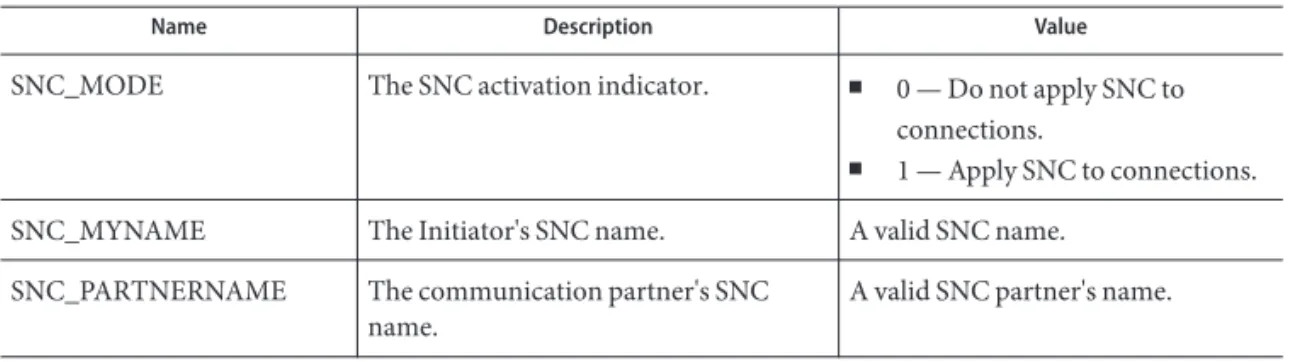
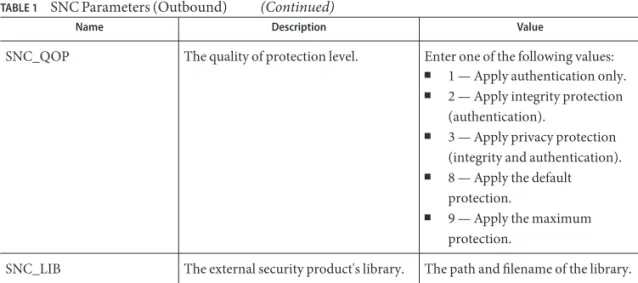
The initiator must specify:
■ Whether the communication should use SNC protection. ■ The SNC name of the communication partner (the target name). ■ The location of its own external library.
■ The data protection level to apply.
TABLE 1 SNC Parameters (Outbound)
Name Description Value
SNC_MODE The SNC activation indicator. ■ 0 — Do not apply SNC to connections.
■ 1 — Apply SNC to connections. SNC_MYNAME The Initiator's SNC name. A valid SNC name.
SNC_PARTNERNAME The communication partner's SNC name.
A valid SNC partner's name.
TABLE 1 SNC Parameters (Outbound) (Continued)
Name Description Value
SNC_QOP The quality of protection level. Enter one of the following values:
■ 1 — Apply authentication only. ■ 2 — Apply integrity protection
(authentication).
■ 3 — Apply privacy protection
(integrity and authentication).
■ 8 — Apply the default protection.
■ 9 — Apply the maximum protection.
SNC_LIB The external security product's library. The path and filename of the library.
The acceptor must specify:
■ Whether or not it should only accept SNC-protected communications. ■ Its own SNC name.
■ The location of its own external library. ■ The data protection levels to accept.
TABLE 2 SNC Parameters (Inbound)
Name Description Value
SNC_MYNAME The Acceptor's SNC name. A valid SNC name. SNC_QOP The quality of protection
level.
Enter one of the following values:
■ 1 — Apply authentication only.
■ 2 — Apply integrity protection (authentication). ■ 3 — Apply privacy protection (integrity and
authentication).
■ 8 — Apply the default protection. ■ 9 — Apply the maximum protection.
SNC_LIB The external security product's library.
The path and filename of the library.
When SNC is initialized, the system dynamically loads the functions provided by the external library. Afterwards, when two components communicate using SNC, the SNC layer first processes the messages being sent and then sends them over the network using the SAP Network Interface. During this step, the SNC layer uses the functions provided by the external library to process the messages accordingly (for example, to apply encryption). The SNC layer accesses the external library using the GSS-API V2 interface. After processing the messages, the
Overview of Secure Network Communications for SAP
system sends them over the SAP Network Interface in the usual manner. Upon receipt, the SAP System component receiving the messages applies the corresponding external library functions in a similar manner, but reverses the process (for example, decryption).
For example when secure network communication occurs between SAPGUI and the SAP Server (where SNC is already enabled)sapgui.exe hs0017 01
SNC_PARTNERNAME="p:CN=sap01.hs0017, OU=TEST01, O=SAP, C=DE" SNC_QOP=9 SNC_LIB="C:\SECUDE\LIB\SECUDE.DLL"
The connection is established to the application server hs0017. The application server's SNC name is: p:CN=sap01.hs0017, OU=TEST01, O=SAP, C=DE. The level of protection is 9, indicating that the maximum level of protection should be applied to the connection, and the shared library is located at:C:\SECUDE\LIB\SECUDE.DLL.
Configuring the SAP Server and Java CAPS
Perform the following steps to configure Secure Network Communications:
■ “Setting up Secure Network Communications on the SAP Server” on page 8 ■ “Using Secure Network Communications in Java CAPS” on page 17 ■ “Specifying SAP BAPI Outbound Properties” on page 18
■ “Specifying SAP BAPI Inbound Properties” on page 19
Setting up Secure Network Communications on the
SAP Server
The following sections cover the installation and configuration of SNC.
■ “To Install the SAP Cryptographic Library” on page 8 ■ “To Create the PSE for the Server” on page 9
■ “To Set Additional Parameters” on page 11
■ “Profile Parameter Settings on the Gateway” on page 13 ■ “To Create the for the Client” on page 13
▼
To Install the SAP Cryptographic Library
Extract the contents of the SAP Cryptographic Library installation package.
Copy the library file and the configuration tool (sapgenpse.exe) to the directory specified by the application server's profile parameter DIR_EXECUTABLE.
In the following example, this directory is represented with the notation $(DIR_EXECUTABLE).
1 2
Windows NT:
■ DIR_EXECUTABLE:<DRIVE>:\usr\sap\<SID>\SYS\exe\run\
■ Location of SAP Cryptographic Library:
<DRIVE>:\usr\sap\<SID>\SYS\exe\run\sapcrypto.dll
Check the file permissions for the SAP Cryptographic Library. Make sure that<sid> adm(or
SAPService <SID>under Windows) is able to execute the library's functions.
Copy the ticket file to the sec subdirectory in the instance directory $(DIR_INSTANCE).
■ DIR_INSTANCE:<DRIVE>:\usr\sap\<SID>\<instance>
■ Location of the ticket:<DRIVE>:\usr\sap\<SID>\<instance>\sec\ticket
Set the environment variable SECUDIR to the sec subdirectory.
The application server uses this variable to locate the ticket and its credentials at runtime. If you set the environment variable using the command line, the value may not be applied to the server's processes. Therefore, setting SECUDIR in the startup profile for the server's user or in the registry is recommended.
Note –These instructions are available athttp://help.sap.com/
saphelp_erp2004/helpdata/en/96/709b3ad94e8a3de10000000a11402f/frameset.htm
▼
To Create the PSE for the Server
Start transaction RZ10 and select the instance profile used by the server startup.
Add the instance parametersnc/identity/as.
Set the instance parametersnc/identity/asto the specific name of the server.
For example:snc/identity/as p:CN=IDS, OU=IT, O=CSW, C=DE(Do not forget to add"p:"in front of the name, as shown below).
Note –While specifying the distinguished name for your Client/Server PSECN=xx, OU=xx,
O=xx, C=xx, the cryptographic tool validates the country code for the"C=xx"attribute. 3
4
5
1 2 3
Configuring the SAP Server and Java CAPS
This example shows an X.500 Name. It is formed from different elements that represent a hierarchical name space. Where CN = Common Name, OU = Organizational Unit, O = Organization and C = Country.
Restart your server.
After restarting your server you can now create the SNC PSE.
Start the STRUST transaction, right click SNC (SAPCryptolib), and choose Create.
Accept the SNC ID which is taken from the instance parametersnc/identity/as.
Double click SNC (SAPCryptolib) and choose Assign Password to add a password for the SNC (SAPCryptolib) PSE.
Type in a password.
The Password can contain both letters and numbers. Without the password the server would not start when you set the instance parametersnc/enableto 1.
Save the settings.
4
5 6 7
8
9
▼
To Set Additional Parameters
Start transaction RZ10 and select the instance profile used by the server startup.
Set the parameters as listed in the table below.
Parameter Description Value
snc/enable Activates SNC on the application server.
Default value is 1.
snc/gssapi_lib The path and file name of the GSS-API V2 shared library. Path and file name where the SAP Cryptographic Library is located.
■ For UNIX: usr/sap/<SID>/SYS/exe/
run/libsapcrypto.so
■ For Windows: C:\usr\sap\<SID>
\SYS\exe\run\sapcrypto.dll snc/identity/as The SNC name of the application
server.
Syntax: p:Distinguished_Name> The <Distinguished Name part must match the Distinguished Name that you specify when creating the SNC PSE. For example p:CN=ABC, OU=Test, O=MyCompany, C=US
snc/data_protection/max The maximum level of data protection for connections initiated by the SAP System.
The maximum level of data protection settings:
■ 1: Authentication only ■ 2: Integrity protection ■ 3: Privacy protection
snc/data_protection/min The minimum data protection level required for SNC communications.
The minimum level of data protection settings:
■ 1: Authentication only
■ 2: Integrity protection
■ 3: Privacy protection
1
2
Configuring the SAP Server and Java CAPS
Parameter Description Value
snc/data_protection/use Default level of data protection for connections initiated by the SAP System
The default level of data protection settings:
■ 1: Authentication only
■ 2: Integrity protection
■ 3: Privacy protection
■ 9: Use the value from snc/data_
protection/max snc/accept_insecure_cpic Determines if unprotected
incoming CPIC connections on an SNC-enabled application server will be accepted or not.
The settings for accepting CPIC connections:
■ 0: do not accept
■ 1: accept snc/accept_insecure_gui Determines if logon attempts
coming from the SAP interface that are not protected with SNC on an SNC-enabled application server will be accepted or not.
The settings for accepting logon attempts:
■ 0: do not accept
■ 1: accept
snc/accept_insecure_r3int_rfcDetermines if unprotected internal RFC-connections on an SNC-enabled application server will be accepted or not.
The settings for accepting unprotected internal r3int RFC-connections:
■ 0: do not accept
■ 1: accept snc/accept_insecure_rfc Determines if unprotected
internal RFC-connections on an SNC-enabled application server will be accepted or not.
The settings for accepting unprotected internal RFC-connections:
■ 0: do not accept ■ 1: accept
snc/permit_insecure_start Permits the starting of programs without using SNC-protected communications, even when SNC is enabled.
The settings to permit the starting of programs:
■ 0: do not allow
■ 1: allow snc/extid_login_diag ■ 0: do not accept
■ 1: allow
snc/extid_login_rfc ■ 0: do not accept
■ 1: allow
Setting the profile parameter snc/enable to1activates SNC on the application server. If this parameter is set but the SNC PSE and credentials do not exist, then the application server will not start. Therefore, setting the SNC parameters should be the last step in the configuration procedure.
These values will enable you to connect to the system without encryption.
Save the settings.
3
Restart the application server again.
Profile Parameter Settings on the Gateway
To use SNC for securing connections that connect via the SAP gateway, you also need to set the appropriate parameters in the gateway profile. The gateway itself does not directly use the routines from the security product; however, it does supply the SNC configuration parameters to the programs that it starts. Release 3.1 does not offer SNC protection for the RFC and CPIC communication protocols. In Release 3.1, you need to set the profile parameter
snc/permit_insecure_comm to the value"1".
Note –The rest of the description in this section applies only as of Release 4.0.
The following profile parameters are relevant for the gateway settings:
■ snc/enable— For a gateway to accept SNC-protected connections, you need to set the
profile parameter snc/enable to the value1. The gateway then knows that an SNC environment is in operation and takes the following precautions: - In addition to the standard port (sapgw<nn>), it opens a"secured"port (sapgw<nn>s), where it accepts only connections that use SNC protection. - It starts programs only when SNC protection for the communication is used. You may explicitly allow the starting of programs without using SNC protection by setting the parameter snc/permit_insecure_start (see the description below)
■ snc/gssapi_lib— As with the application server, if snc/enable = 1, then the parameter
snc/gssapi_lib must contain the path and file name of the external library. The gateway passes this information to the external programs that it starts.
■ snc/permit_insecure_start (snc/permit_insecure_comm in Release 3.1)— If snc/enable
= 1, then the gateway does not start or register any external programs without using SNC-protected communications (as default). You can explicitly override this configuration by setting the parameter snc/permit_insecure_start to the value"1". The gateway will then start or register programs even if SNC protection is not used for the communication. The parameter is only necessary if programs without SNC protection are to be directly started by or registered on the gateway. If the gateway is started directly on an application server, it uses the application server's profile settings. In this case, the parameters snc/enable and snc/gssapi_lib are set in the application server's profile. For the gateway, you then only need to consider the parameter snc/permit_insecure_start (or snc/permit_insecure_comm). If a gateway is to be started independent of the SAP System application server ("Stand Alone Gateway"), then you need to consider all of the above mentioned parameters.
▼
To Create the for the Client
Create a directory on your system to store the PSE.
4
1
Configuring the SAP Server and Java CAPS
Copy the ticket license file and the SAP Certified Client Cryptographic library (ex. SECUDE) to the directory you just created.
Make sure you set the SECUDIR environment variable to this directory, copy the library to a different directory, and add this path to your"PATH"environment variable.
Execute the following command to generate the PSE
The client PSE is named as RFC.pse. From the command line, you can specify the distinguished name. For example:"CN=RFC, OU=IT, O=CSW, C=DE"
> sapgenpse gen_pse -v -p RFC.pse
Got absolute PSE path"<your path>/RFC.pse". Please enter PIN: ********
Please reenter PIN: ********
get_pse: Distinguished name of PSE owner: CN=RFC, OU=IT, O=CSW, C=DE Supplied distinguished name:"CN=RFC, OU=IT, O=CSW, C=DE"
Generating key (RSA, 1024-bits) ... succeeded. certificate creation... ok
PSE update... ok PKRoot... ok
Generating certificate request... ok.
PKCS#10 certificate request for"<your path>/RFC.pse"
Execute the following command to export the Client Certificate of the newly created PSE.
The exported certificate is named as RFC.crt.
> sapgenpse export_own_cert -v -p RFC.pse -o RFC.crt Opening PSE your path>/RFC.pse"...
No SSO credentials found for this PSE. Please enter PIN: ********
PSE open ok.
Retrieving my certificate... ok. writing to file ... ok
2
3
4
Import the Client Certificate to Server PSE.
You can import the client Certificate via Transaction STRUST.
a. Open the Node SNC (SAPCryptolib).
b. Enter the SAPCryptolib password.
c. Click on the Import certificate button.
d. Set the file format to Base64 and choose the file.
e. Click Add to Certificate List.
Export the Server Certificate.
Export the Server Certificate via the Transaction STRUST.
a. At node SNC (SAPCryptolib), double click on your own certificate so it displays in the Certificate field.
b. Click Export certificate.
c. From the File tab, choose Base64 for the File format and provide a name for the file.
Import the Server Certificate to the Client PSE.
On the command line run:
> sapgenpse maintain_pk -v -a SNC.crt -p RFC.pse Opening PSE your path>/RFC.pse"...
No SSO credentials found for this PSE. Please enter PIN: ********
PSE open ok.
Adding new certificate from file"SNC.crt"
---Subject : CN=IDS, OU=IT, O=CSW, C=DE
Issuer : CN=IDS, OU=IT, O=CSW, C=DE Serialno: 00
KeyInfo : RSA, 2048-bit
Validity - NotBefore: Wed Mar 6 21:37:32 2008 (060927193732Z) 5
6
7
Configuring the SAP Server and Java CAPS
NotAfter: Fri Jan 1 01:00:01 2038 (380101000001Z)
---PKList updated (1 entries total, 1 newly added)
Create the cred_v2 file.
After setting up the client PSE you must create a file called cred_v2 which is used to securely give the RFC Program access to the PSE without providing the password for the PSE. On the command line run:
> sapgenpse seclogin -p RFC.pse -O root running seclogin with USER="root" creatingcredentials for yourself (USER="root")...
Please enter PIN: ********
Added SSO-credentials for PSE "<your path>/RFC.pse" "CN=RFC, OU=IT, O=CSW, C=DE"
Note –When you generate the cred_v2 file, the seclogin must be carried out under the account of
the <sid>adm.
Allow SNC RFC Connection.
Now you need to map the x.509 certificates that were created for the user accounts on the SAP Server.
a. Start Transaction SM30 and enter the view VSNCSYSACL.
This view is used to restrict the SNC RFC Connections by an Access Control List (ACL). You will see an alert window pop-up, just click on the"right"symbol.
b. Choose"E"for the Type of ACL entry.
c. Enter System ID and SNC name.
Note –Do not forget the"p:"in front of the DN.
d. Check the boxes according to the following figure.
e. Save the entry.
Note –When trying to edit the entry, you might see an alert window pop-up. Just click on the
"right"symbol and make your changes. 8
9
Map the X.509 Certificate to the User.
The X.509 Certificate must be accepted for a successful Login.
a. Start Transaction SM30.
b. Enter VUSREXTID and click Maintain.
Using the view VUSREXTID, you can setup a mapping between the Distinguished Name provided by a X.509 Certificate and an ABAP User.
c. Choose the Distinguished Name for the External ID type.
d. Create a new entry and activate it.
Using Secure Network Communications in Java CAPS
Secure Network Communication connections are provided to the SAP Server duringdesign-time and runtime in the SAP BAPI Adapter. Perform the following tasks to use SNC in Java CAPS:
■ “To Create a SAP BAPI OTD Using Secure Network Communications” on page 17 ■ “To Create a SAP IDOC OTD Using Secure Network Communications” on page 18
▼
To Create a SAP BAPI OTD Using Secure Network Communications
Begin creating a SAP BAPI OTD using the SAP BAPI OTD Wizard.
At the step to Select Login Parameters, select the Enable SNC checkbox.
Specify the following parameters.
■ SNC Library Path: The path to the Security Library you are using, for example:<your drive>:/Secude/secude.dll
■ SNC Partner Name: The SNC Name you specified for the SAP Server (Server PSE), for
example:p:CN=IDS, OU=IT, O=CSW, C=DE
■ X.509 Certificate: The certificate information of your Client PSE
■ SNC My Name: The name you specified for the Client PSE, for example:p:CN=RFC, OU=IT, O=CSW, C=DE
The SNC Quality of Protection is defaulted to 1, since only authentication during the OTD creation is provided.
Finish the SAP BAPI OTD Wizard.
10
1 2 3
4
Configuring the SAP Server and Java CAPS
Note –You can connect to SAP Server without using SNC. Simply leave theEnable SNC
checkbox disabled and only specify the enabled parameters.
▼
To Create a SAP IDOC OTD Using Secure Network Communications
Secure Network Communication connections are provided to the SAP Server for SAP IDOC OTD creation, when you select the metadata source from theSAP directlyoption.Begin creating a SAP IDOC OTD using the SAP IDOC OTD Wizard.
At the step to Select Login Parameters, select the Enable SNC checkbox.
Specify the following parameters.
■ SNC Library Path: The path to the Security Library you are using, for example:<your
drive>:/Secude/secude.dll
■ SNC Partner Name: The SNC Name you specified for the SAP Server (Server PSE), for
example:p:CN=IDS, OU=IT, O=CSW, C=DE
■ X.509 Certificate: The certificate information of your Client PSE
■ SNC My Name: The name you specified for the Client PSE, for example:p:CN=RFC, OU=IT, O=CSW, C=DE
The SNC Quality of Protection is defaulted to 1, since only authentication during the OTD creation is provided.
Finish the SAP IDOC OTD Wizard.
During runtime, you can enable SNC for both outbound and inbound. You can specify the SNC parameters in the SAP BAPI External System.
Note –You can connect to SAP Server without using SNC. Simply leave theEnable SNC
checkbox disabled and only specify the enabled parameters.
Specifying SAP BAPI Outbound Properties
In the Outbound SAP BAPI Adapter node, of the SAP BAPI External System properties window, a new Client Security Settings section has been created. You can specify the SNC properties in this section.
If you select Yes for the value ofEnable SNCthen you must specify the following parameters:
■ SNC Library Path : The path to the Security Library you are using. For example:<your drive>:/Secude/secude.dll
1 2 3
4
■ SNC Partner Name : The SNC Name you specified for the SAP Server (Server PSE). For
example:p:CN=IDS, OU=IT, O=CSW, C=DE
■ X.509 Certificate: The certificate information of your Client PSE
■ SNC My Name: The name you specified for the Client PSE. For example:p:CN=RFC, OU=IT,
O=CSW, C=DE
■ SNC Level of Protection: Level of data protection for connections initiated by the SAP
System. You can specify the following Level of Protection values:
■ 1: Apply authentication only
■ 2: Apply integrity protection (authentication)
■ 3: Apply privacy protection (integrity and authentication) ■ 8: Apply the default protection
■ 9: Apply the maximum protection
Note –To use the values"8"or"9", you need to make sure you have set the instance parameters
snc/data_protection/maxandsnc/data_protection/useduring the SNC configuration on the SAP Server.
Specifying SAP BAPI Inbound Properties
In the Inbound SAP BAPI Adapter node, of the SAP BAPI External System properties window, a new Server Security Settings section has been created. You can specify the SNC properties in this section.
If you select Yes for the value ofEnable SNC, you must specify the following parameters:
■ SNC Library Path : The path to the Security Library you are using. For example:<your drive>:/Secude/secude.dll
■ X.509 Certificate: The certificate information of your Client PSE
■ SNC My Name: The name you specified for the Client PSE. For example:p:CN=RFC, OU=IT, O=CSW, C=DE
■ SNC Level of Protection: Level of data protection for connections initiated by the SAP
System. You can specify the following Level of Protection values:
■ 1: Apply authentication only
■ 2: Apply integrity protection (authentication)
■ 3: Apply privacy protection (integrity and authentication) ■ 8: Apply the default protection
■ 9: Apply the maximum protection
Configuring the SAP Server and Java CAPS
Note –To use the values"8"or"9", you need to make sure you have set the instance parameters snc/data_protection/maxandsnc/data_protection/useduring the SNC configuration on the SAP Server.