Applications Manager
Version 8.0
Getting Started Guide
Applications Manager Getting Started Guide
By Jack Ireton
Document number: AM80START-032009 UC4 Software, Inc. 2009
All Rights Reserved. Printed in USA Restricted Rights Legend
Use, duplication, or disclosure of the Programs is subject to restrictions stated in your contract with UC4 Software, Inc. Use, duplication, or disclosure of the Programs by Government is subject to restrictions for commercial computer software and the Programs shall be deemed to be licensed with Restricted Rights under Federal Law.
The information contained in this document is subject to change without notice. UC4 Software, Inc. does not warrant that this documentation is error-free.
If you find errors in this document, please contact Applications Manager Documentation. Applications Manager is an unregistered trademark of UC4 Software, Inc.
All other product names and services identified throughout this book are trademarks or registered trademarks of their respective companies.
Applications Manager Version 8.0 Getting Started Guide iii
Contents
About This Guide ...vi
Where to Go for More Information ...viii
1. Introduction to Applications Manager ...1
1.1 Welcome to Applications Manager ... 2
1.2 How Do I Get Started? ... 4
1.3 Applications Manager Architecture... 6
1.4 Configuring Applications Manager for Your Enterprise ... 8
1.5 Objects Reduce Development and Maintenance ... 10
1.6 Overview of Applications Manager Objects... 12
1.7 Moving Around in the Applications Manager Client... 16
2. Administration ...19
2.1 Overview of Applications Manager Administration ... 20
2.2 Installing the Automation Engine, Agent, and Web Server... 22
2.3 Controlling Access to Applications Manager and its Objects ... 24
2.4 Controlling Access to Hosts and Databases ... 26
2.5 Managing Output ... 28
2.6 Retaining Output Files and Operations Records ... 30
2.7 Setting Automation Engine Options... 32
2.8 Moving Objects from One System to Another ... 34
3. Development ...37
3.1 Overview of Development in Applications Manager ... 38
3.2 Creating Jobs to Run Programs and Scripts ... 40
3.3 Creating Process Flows to Run a Series of Jobs ... 42
3.4 Adding Dependencies to Jobs... 44
3.5 Passing Parameters to Programs and Scripts... 46
3.6 Adding IF - THEN Logic to Jobs and Process Flows... 48
3.7 Retrieving Values from Databases ... 50
3.8 Scheduling Jobs and Process Flows... 52
3.9 Running a Custom or Third-Party Application ... 54
3.10 Getting Notified when a Task Fails... 56
3.11 Detecting Failed Tasks by Scanning Output ... 58
4. Operations ...61
4.1 Overview of Operations in Applications Manager... 62
4.2 Monitoring the System... 64
4.3 Finding Out Which Tasks Will Run During Your Shift... 66
4.5 Handling Task Exceptions...70
4.6 Taking Actions on Tasks ...72
4.7 Viewing and Editing Task Details ...74
4.8 Running Tasks Outside the Batch Cycle...76
4.9 Viewing and Printing Task Output ...78
4.10 Controlling Task Priority and Load on the System ...80
4.11 Preventing Applications Manager from Launching Tasks ...82
About This Guide
The Applications Manager Getting Started Guide provides an overview of how operators, developers, and administrators use Applications Manager. By reading the appropriate topics in these chapters, you will learn how the various Applications Manager features relate to your job.
Welcome to UC4 Applications Manager. The Getting Started Guide is intended to help you learn your way around Applications Manager.
Text Conventions
The following text conventions are used throughout this guide:
• User interface field names, menu items, and window names are written in bold.
• File names and text within scripts are written in a bold arial font.
• Variable text is written <within brackets>. In the example below <run ID number> represents the actual run ID number of a requested job.
If you submit a large process flow, the message will read, ‘Task submission in progress: Run ID = <run ID number>’ until all components of the process flow have been placed into the Backlog.
Cross-Reference Conventions
Cross-references to topics within a manual list the topic name and number as shown in the following example: For information on task details in the Backlog, see topic 4.7 Viewing and Editing Task Details.
Cross-references to topics in other Applications Manager manuals list the manual name as shown in the following example: For information on external predecessors, see topic 5.5 Working with External Predecessors in the Development Guide.
Applications Manager Version 8.0 Getting Started Guide vii
Unique Format
The manual is written as a series of topics, with all but a few topics presented on two facing pages. Illustrations are always displayed within the topic. These features make it easy to find where a topic starts and ends, and eliminate flipping pages to find an illustration.
In some rare cases a topic cannot fit onto two pages. To draw attention to these exceptions, we have included a continuation symbol...
...in the lower right corner of the second page.
Each topic begins with a heading followed by a summary paragraph set off by horizontal rules. The summary paragraph states the key concepts presented in the topic. If a topic has a subtopic, the subtopic is also presented on two facing pages. The topic heading is carried over to the subtopics, and is displayed in smaller letters above the subtopic heading.
To get a quick overview of a chapter, read the summary paragraph for each topic and look at the figures and figure captions.
Where to Go for More Information
The most up-to-date Applications Manager documentation is available in the online manuals. You can access the manuals from the Help menu in the Applications Manager client. PDF manuals are also available, but may not be as current. The knowledge base on the UC4 Support site provides write-ups to address problems and frequently asked questions. Additionally, support technicians are available based on your support contract.
Online Manuals
Complete online versions of the Applications Manager manuals are accessible by selecting
Applications ManagerManual from the Help menu on the Applications Manager desktop or by clicking the Help button in various client windows. If you select Help while defining an object, Applications Manager opens the corresponding help topic. Occasionally new
functionality is added to an Applications Manager version and bugs are fixed throughout each version's life cycle. The most recent edits to the manuals are included in the online help of each build.
PDFs on the Support Site
PDF files for Applications Manager, Operations Manager and Rapid Automation agents are available on the UC4 Support site:
http://support.uc4.com
PDF files are usually only generated when an application is first released. For the most up to date information, see the online help that ships with the application.
Knowledge Base
The knowledge base provides write-ups to address problems and frequently asked questions. It is searchable by error message, category, and text. The knowledge base is located on the UC4 Support site.
Applications Manager User Forum
The Applications Manager User Forum is a place where you can network with other
Applications Manager users to trade tricks, tips and best practices. Check on the latest product developments, find out about new service offerings, and make new friends and connections. The forum is located on the UC4 Support site.
Where to Go for More Information ix
Contacting UC4 Support
If you encounter problems with Applications Manager, you can solve most problems using:
• The instructions provided in the Applications Manager manuals.
• The knowledge base available at the UC4 Support site.
You can access the UC4 Support site from the Applications Manager desktop by going to the Help menu and selecting Applications Manager Support.
If you are unable to resolve a problem, contact UC4 Technical Support. Except for emergencies, we suggest opening a support call from the UC4 Support site. All support calls received via the Web are reviewed within one business day.
UC4 Technical Support via phone is available from 6:00 A.M. to 5:00 P.M. Pacific Standard Time, Monday through Friday. Emergency (24 x 7) technical support is available. Contact your UC4 Account Manager if you are interested in purchasing emergency support.
You can contact UC4 Technical Support at:
Before you call UC4 Technical Support, please have the following information available:
•Version number of Applications Manager you are running
•Operating system on which Applications Manager is running (e.g. Sun, Hewlett-Packard)
•Operating system host name
•Operating system login information for the Applications Manager account(s)
•Database login information for the Applications Manager account(s)
•Problem reference number if you are making a follow-up call on a previous problem If you are calling UC4 Technical Support for the first time, please be prepared to provide your name, company name, location, and phone number.
The UC4 Technical Support representative will give you a problem identification (PID) number. Please write down the number. If you call again about the same problem, the number will allow the representative to more quickly access the history of the problem.
United States Europe
Web: http://support.uc4.com Web: http://support.uc4.com Telephone: 1-877-277-9679 Telephone: +43 (2233) 7788-22 Email: [email protected] Email: [email protected] Fax: 425-562-9350 Fax: +43 (2233) 7788-99
1
Introduction to Applications Manager
1.1.1 Welcome to Applications Manager ... 2
1.2 How Do I Get Started? ... 4
1.3 Applications Manager Architecture ... 6
1.4 Configuring Applications Manager for Your Enterprise ... 8
1.5 Objects Reduce Development and Maintenance ... 10
1.6 Overview of Applications Manager Objects ... 12
1.1 Welcome to Applications Manager
When fully implemented, Applications Manager can reduce IT operating expenses, speed the development process, and improve processes.
Congratulations! You have just purchased the most powerful and flexible process automation and task scheduling tool for distributed environments. You can use Applications Manager software to automate enterprise scheduling, integrate applications, and accelerate business processes. If you fully implement Applications Manager, you can reduce IT operating expenses, speed the development process, and improve business processes. The benefits are summarized in Figure A below.
Figure A. Applications Manager automates scheduling, integrates applications,
Applications Manager Version 8.0 Getting Started Guide 3
Reduce Operating Expenses
Applications Manager includes features that enable you to approach full automation of operations. These features include predecessors, conditions, and substitution variables. Underlying these features is the ability of Applications Manager to make scheduling decisions based on queries of your corporate databases. Applications Manager is, in the true sense of the word, a “smart” scheduler. Full automation allows you to allocate operations resources to other critical tasks, reducing your operations expenses.
Speed Development
In a traditional development environment, scripts drive operations. Scripts incorporate the information required to run one or more programs on a set schedule, direct output, and handle exceptions. The problem with scripts is the time required to write and maintain them. For example, if an output device definition changes, you must change it in every script.
Applications Manager takes the individual components of a script such as programs, schedules, output devices, and variables, and lets you define them as discrete objects. You can then combine the objects in an unlimited number of combinations to handle your operations. There are two distinct advantages:
• You can change an object in one place, and have the changes roll over to every use of the object.
• You can quickly put objects together to build a process flow.
Improve Business Processes
There is a good possibility that many of the procedures you have in place today are based on the capabilities of older or legacy systems. Operations ran using scripts, heavily dependent on operator intervention. Developers wrote programs based on manual input from operators and users. With Applications Manager, many of these processes can be streamlined and automated.
Getting the Most Out of Applications Manager
For your company to get the largest return on its investment in Applications Manager, development, production, and operations must work together. As a group, you need to examine each of your current processes and how you can use Applications Manager to improve those processes. The result should be that development spends less time writing programs, production uses smart scheduling to reduce total execution time and balance load on servers, and operations focuses on monitoring and troubleshooting, rather than running tasks.
1.2 How Do I Get Started?
How you get started with Applications Manager depends on whether you are an Applications Manager administrator, developer, or operator.
With the power and flexibility of Applications Manager comes complexity. You will need to invest some time learning the product to reap the rewards. So, how do you get started? That depends on your role. Are you primarily an Applications Manager administrator, developer, or operator? Below we present Getting Started road maps for each major type of user.
Applications Manager Administrator Road Map
If you are the Applications Manager administrator, consider proceeding as follows:
•Finish reading this guide.
•Install the development instance of Applications Manager if it’s not already installed. See the Installation Guide for detailed installation instructions.
•Read through the Administration Guide.
•Determine the initial set of user groups that you will create to control access to the functions in Applications Manager.
•Set up user logins for the initial group of people that will be using Applications Manager. The key users in the beginning will be the developers.
Developer Road Map
If you are a developer, consider proceeding as follows:
•Finish reading this guide.
•Get your user name and password from your Applications Manager administrator so that you can log into the Applications Manager client.
•Read through the Development Guide.
•Select one relatively simple series of processes that you want to automate in Applications Manager.
•Create jobs for each program.
•Create a process flow and add the jobs to the process flow. If you have been running programs with scripts, the process flow should replace the scripts.
Operator Road Map
If you are an operator, consider proceeding as follows:
•Finish reading this guide.
•Get your user name and password from your Applications Manager administrator so that you can log into the Applications Manager client.
•Read through the User Guide.
•Experiment with the Explorer window, running some of the pre-loaded jobs that ship with Applications Manager.
Applications Manager Version 8.0 Getting Started Guide 5
Reading this Guide
We included this as the first step in the road maps above, but we wanted to repeat the suggestion here. Continue reading this Getting Started Guide. Regardless of your role with Applications Manager, we recommend reading the entire Getting StartedGuide. It will give you a good overview of all the tasks that should be performed to get the maximum benefit from Applications Manager. While you may not perform all the tasks, it will be useful for you to know what others are doing with the product.
Getting Training
Applications Manager offers an on-site three-day basic training class and self-training courses that orient you to the product and show you how to use the major features. These resources provide a fast and easy way to get started with Applications Manager. For more information on UC4 training, see the UC4 Web site.
1.3 Applications Manager Architecture
Applications Manager consists of an automation engine and local agent, database, RMI server, and clients. In larger systems, you may have remote agents as well.
The Applications Manager architecture has been designed to create a robust, scalable system. At a minimum, an Applications Manager installation includes the following components:
•Applications Manager automation engine and local agent
•Applications Manager Oracle database
•RMI server
•Apache Web Server
•Clients
In larger systems, you may also have one or more remote agents. Figure A shows the basic components.
Automation Engine
The automation engine is the execution logic or brain of Applications Manager. It monitors job and process flow schedules and, at the appropriate time, sends them to the designated local or remote agent for execution. The automation engine communicates with the Applications Manager database, where all object definitions are stored.
Figure A. An Applications Manager architecture
Applications Manager Version 8.0 Getting Started Guide 7
Local Agent
At a minimum, a basic Applications Manager setup will include a single automation engine and its local agent. The local agent runs programs or executes scripts on the host machine where the Applications Manager automation engine is installed. It receives commands from the
automation engine.
Applications Manager Database
Applications Manager uses object definitions stored in an Oracle database to give it an advantage over all other schedulers. When you create a job, process flow, or other Applications Manager object, the definition is stored in the Applications Manager Oracle relational database. You can then use the objects to build more complex objects. For example, you might define a database login, then assign that login to many different jobs. If the login changes, you change it in one place, and Applications Manager uses the new definition everywhere it is referenced. This object-oriented approach makes it easy to update and maintain the Applications Manager system.
Client
You access Applications Manager through a Java client. The client machine is the PC used to access the Applications Manager graphical user interface. This means you can access Applications Manager from any PC, Apple Macintosh, or Sun Workstation that has a Web browser. Client software provides access to all Applications Manager functions and features. The clients communicate directly with the Applications Manager automation engine. You can have any number of clients.
Remote Agent
In larger systems, you may have one or more Applications Manager remote agents on other servers. A remote agent must be installed on each machine where tasks are executed. Any number of remote agents can report to a single automation engine. Remote agents may run on UNIX, Windows, VMS, and OS/400 platforms.
The automation engine will schedule and control task execution on all the agents assigned to it. The agent monitors tasks until they complete.
1.4 Configuring Applications Manager for Your Enterprise
How you configure Applications Manager will depend on the size of your enterprise.
The size of your enterprise computing environment will dictate the Applications Manager configuration. To get you started, we will describe the typical configurations for small, medium, and large environments.
Small System
Even if you are installing Applications Manager on a small system, you will need the following components:
•Applications Manager automation engine and local agent
•Applications Manager Oracle database
•Clients
This configuration is illustrated in Figure A.
Medium System
If you are installing Applications Manager in a medium sized system, you will most likely add several Applications Manager remote agents to execute programs on other machines. This configuration is shown in Figure B.
Large System
In a large system, you may choose to install
two or more Applications Manager automation engines. This is illustrated in Figure C.
An Applications Manager automation engine can process hundreds of thousands of tasks a day, so the choice to install more than one automation engine is usually not because of load. A more likely reason is that you are running Applications Manager in different data processing centers and do not want to depend on network connections between the automation engine and remote agents.
AppMaster, an Applications Manager add-on product, can monitor multiple automation engines. AppMaster is useful if you want to monitor your entire system from a single monitor.
Figure A. Small Applications Manager
Applications Manager Version 8.0 Getting Started Guide 9
Figure B. Medium Applications Manager configuration
1.5 Objects Reduce Development and Maintenance
Applications Manager replaces scripts with an object-oriented approach to process automation.
In a traditional operations environment, scripts drive process automation. Scripts incorporate the information required to run one or more programs, direct output, and handle exceptions. The problem with scripts is the time required to write and maintain them.
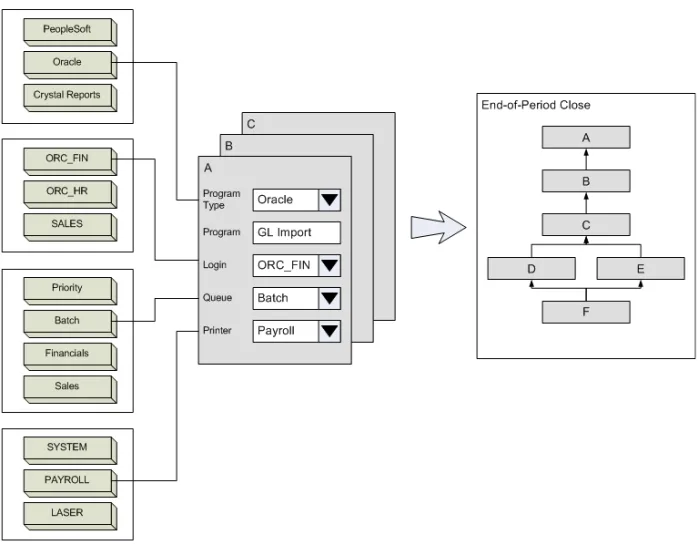
Applications Manager takes the individual components of a script such as program interfaces, database logins, queues, and output devices, and lets you define them as discrete objects. You can then combine the objects in an unlimited number of combinations to handle your process automation and operations. And you can do all of this without detailed knowledge of the operating systems. Another advantage is that when an object is changed, those changes roll over to every use of the object.
Figure A shows several program types, logins, queues, and output devices defined. These are combined to create jobs. The jobs are then combined to create process flows. For example, Job A in the figure uses the following objects:
Program type: ORACLE Login: ORC_FIN Queue: BATCH
Output Device: PAYROLL
The program specified for Job A is “GL Import.” This is the name of the program that will be run by this job, and is not an object in Applications Manager.
The “End-of-Period Close” process flow is made up of Jobs A through F. Notice that Jobs D and E can run concurrently, while Jobs A, B, C, and F run sequentially.
All of the objects defined in the illustration, including the jobs and process flow, can be reused in Applications Manager.
Reports
To help you review the objects that have been created, Applications Manager includes many object reports. The reports list all objects of each type, and in some cases, additional information about the objects.
Applications Manager Version 8.0 Getting Started Guide 11
Figure A. Applications Manager uses an object-oriented approach to replace the tedious tasks of
1.6 Overview of Applications Manager Objects
You use a variety of objects to accomplish your work in Applications Manager.
The previous topic describes some of the objects you use to build jobs. This topic describes all of the objects available in Applications Manager. The objects are presented below in the same order they are listed in the sub-menus under Object Admin on the Applications Manager Desktop. Their organization is based on the users who are most likely to create each object.
Administration
Agent groups–balance the load between agents on one or more machines.
Agents–are instances of Applications Manager. An agent is installed on each
machine where tasks are executed. An agent can be an automation engine’s local agent, a remote agent, or an application-specific agent such as Oracle Applications or PeopleSoft.
Logins–allow operators and programmers to run programs that access a database
or host without having to know the login and password.
Output devices–define any output device including printers, faxes, and email.
You can print to a single output device, or, through the use of distribution lists, multiple output devices.
Output groups–define organizational classes of output devices. When you define
Applications Manager output devices, you assign them to one or more output groups.
Output interfaces–interface between Applications Manager and an output
device.
User authorities–control user access to Applications Manager windows and can
give users add privileges for objects. You assign user authorities to your user groups.
User groups–control access to all areas of Applications Manager. In a traditional
system, you create groups of users, output devices, and applications. User groups can contain any combination of objects, and objects can be assigned to any number of user groups.
User options–are the same options assigned to users, but as objects, they are
assigned to a user group. When user options are assigned to a user group, all users in that user group will have that user option set to true for them. You cannot add, edit, or delete user option objects like other Applications Manager objects. You can only assign them to user groups.
Users–control access to Applications Manager. You can assign names, access
Applications Manager Version 8.0 Getting Started Guide 13
Development
Applications–logically group jobs and process flows. Used to filter lists of jobs and
process flows.
Calendars–define groups of days, such as holidays, that you can use for schedules.
Schedules can run on, or skip, the days in a calendar.
Data types–specify the format for data passed to programs. They can include SQL
statements that validate responses and allow you to pick from lists.
Environment variables–store values you define for one or more variables as a
single Applications Manager object.
Jobs–are the basic building blocks in Applications Manager. For each program you want to run (such as FTP, application, or database load), you must create a job. A job contains all the information required to execute a program and handle its output. Jobs are run both individually and as components of Applications Manager process flows. Furthermore, a job can be a component of as many process flows as you wish. If you change a job definition, the change is applied to every process flow that includes it.
Libraries–define the path for the program that a job runs.
Message templates–specify text to include in notification output files. They allow
the use of substitution variables and replacement values for variable text.
Notifications–send dynamic messages that are based upon on a task’s status
through email or any other defined output device.
Output scans–scan output for text strings that indicate if a task has failed or
succeeded.
Process flows–are containers that include one or more components (jobs and other
process flows), general scheduling information for the process flow, specific eligibility for each of its components, and conditions that must be met for each component to run.
Program types–define how programs accept input and handle output.
Reports–view reports for data in the Applications Manager database. Developers
and administrators can create custom SQL reports in the Applications Manager client.
Substitution variables–store values that can be used in jobs and process flows.
Applications Manager lets you use substitution variables, such as #today, in prompts and execution conditions assigned to jobs.
Operations
Queues–control the flow of tasks. All tasks must pass through an Applications
Manager queue to be executed.
Thread schedules–are assigned to one or more queues or agents. Thread
schedules define the number of concurrent tasks that can run through a queue or agent at different times of the day.
1.7 Moving Around in the Applications Manager Client
The Applications Manager desktop includes a work space for windows and taskbar buttons similar to the desktop used by many Windows applications. You can access all Applications Manager features and options using icons and menu items on the desktop.
When you log in to Applications Manager, you are taken to the desktop shown in Figure A. From the desktop, you can access all Applications Manager features and functions.
Opening Windows with the Toolbar
The toolbar at the top of the window displays a row of object icons. When you mouse over an icon, a ToolTip displays the name of the icon. Clicking an icon opens the corresponding window. You can also access the windows from the Operations and Object Admin menus. Users can choose which icons they want displayed in the toolbar.
Listings under the Activities menu open windows such as Explorer where you monitor the system, and Requests where you run ad hoc tasks.
Listings under the Object Admin menu open selector windows where you can view, add, edit, or delete definitions of objects such as jobs, process flows, and output devices.
Applications Manager Version 8.0 Getting Started Guide 17
Selecting Active Windows with the Taskbar
When you open a window, an icon is placed in the taskbar running across the bottom of the desktop. The taskbar gives you quick access to any open window, making it easy for you to switch back and forth while editing objects.
Using Selector Windows to Add, Edit, and Delete Objects
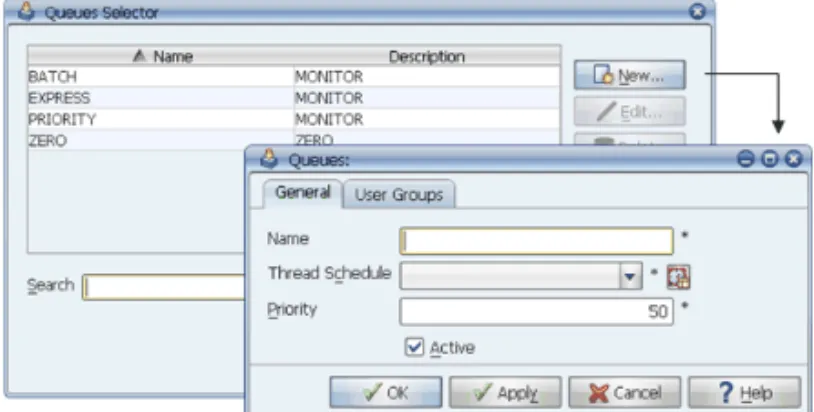
Selector windows are used to manage Applications Manager objects. They are displayed when you select an icon from the toolbar or an item from the Object Admin menu. There is a selector window for each type of Applications Manager object. From a selector window, you can add, edit, and delete objects. In Figure B, the New button is selected on the QueuesSelector
window and a new queue is being defined.
Jumping to Selector Windows from Fields
In many object definitions, you will see icons at the end of the data entry fields. For example, in Figure B, there is a schedule icon at the end of the Thread Schedule field. Clicking on this icon will open the Thread Schedules Selector window where you can create a new thread schedule or edit an existing thread schedule.
Filtering Selector Window Lists
If you create a large number of a particular type of object, such as jobs, you can filter the list displayed in the selector window by typing the first few letters of an object in the Search field. This is much faster than scrolling down the list. The Search field supports regular expressions and Oracle wildcards (such as %, &, and .).
Figure B. To add a new object or edit or delete an
2
Administration
2.2.1 Overview of Applications Manager Administration ... 20 2.2 Installing the Automation Engine, Agent, and Web Server ... 22 2.3 Controlling Access to Applications Manager and its Objects ... 24 2.4 Controlling Access to Hosts and Databases ... 26 2.5 Managing Output ... 28 2.6 Retaining Output Files and Operations Records ... 30 2.7 Setting Automation Engine Options ... 32 2.8 Moving Objects from One System to Another ... 34
2.1 Overview of Applications Manager Administration
If you are an Applications Manager administrator, you will be responsible for maintaining the Applications Manager automation engine and agents, and controlling access to Applications Manager and the various objects.
If you are an Applications Manager administrator, you will be responsible for ensuring the system is up and running, and that users can access the system. How much more you are responsible for will depend on the structure of your IT shop. At the very least, you will probably be expected to:
•Ensure that the Applications Manager automation engine, agents, RMI server, and Web server are up and running.
•Provide Applications Manager user IDs and logins to developers, production analysts, operations personnel, network administrators and database administrators.
•Set the automation engine options.
You may also be responsible for one or more of the following:
•Defining host and database logins
•Defining output devices
•Managing retention of Applications Manager records and report output
•Migrating Applications Manager objects between development, test, and production instances
2.2 Installing the Automation Engine, Agent, and Web Server
The Applications Manager installation program installs the Applications Manager automation engine and its local agent, the RMI server, and optionally the Apache Web server.
The Applications Manager installation program can install a complete working instance on a single machine. The instance will include the following:
•Applications Manager automation engine
•Applications Manager local agent
•RMI (Remote Method Invocation) server to support the automation engine
•Apache Web server (or equivalent server) to “serve” the Java client to a PC or other workstation
Acceptable Configurations
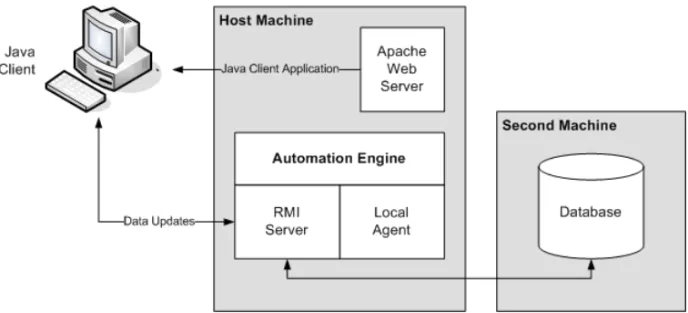
All components can reside on a single machine, or they can be spread across several machines. Figure A shows all components on a single machine.
Figure A. Applications Manager configuration with all major
Applications Manager Version 8.0 Getting Started Guide 23
Figure B shows a more likely scenario where the Applications Manager automation engine, local agent, RMI server, and Apache Web server are all on one machine, and the Applications Manager database is on another machine.
Applications Manager Database
Applications Manager uses an Oracle database to store all object definitions. Before installing Applications Manager, you must set up the Applications Manager database, giving it a specific set of grants. This is a relatively easy procedure that your database administrator should be able to perform in a few minutes. The required grants are documented in the Installation Guide.
2.3 Controlling Access to Applications Manager and its
Objects
Using the Applications Manager security features, you can control access to Applications Manager and the objects within it.
To access Applications Manager, each user must be assigned a user login. Usually the Applications Manager administrator is in charge of creating the user logins. The user login window is shown in Figure A.
The login allows a user to enter the Applications Manager client. Once the user is in the client, access to objects and to different areas of the product, often referred to as managers, is controlled by user groups.
User Groups Are Important
User Groups control access to the Applications Manager and its objects. When you create a user login, you assign
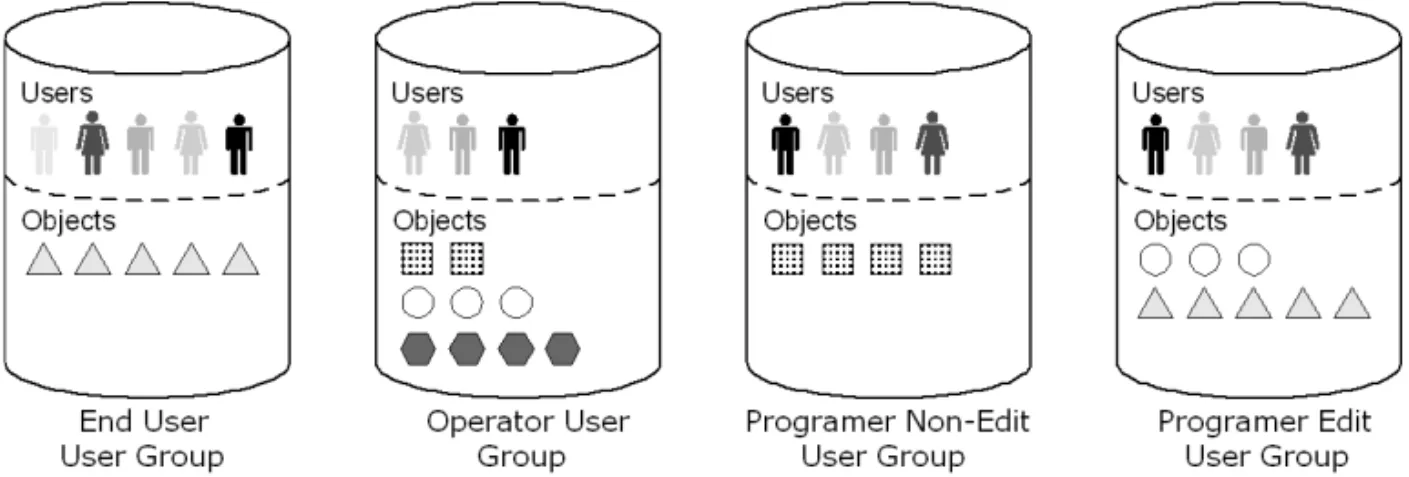
one or more user groups to the user. You can think of user groups as containers. After creating a user group, you add objects and users to the user group. Users have access to all the objects in the container.
It’s important for you to give some thought to the user groups that will best serve the security needs of your organization. For example, if you are a very small shop, you may need only a few user groups such as administrator, developer, and operations. If you are a large shop, you may want to use a more extensive set of user groups such as: administrator, financial applications developer, sales inventory application developer, customer relations application developer, network administrator, database administrator, operator, and production analyst. Each user group would give access to different parts of Applications Manager and to a different set of objects.
The top row in Figure B illustrates three typical user groups: programmer, operator, and end-user. Figure B also shows two additional programmer user groups: edit and non-edit. The two user groups make it possible to give programmers read-only access to some objects, and edit access to other objects.
Figure A. Log into Applications Manager on the Logon
Applications Manager Version 8.0 Getting Started Guide 25
The programmers would be assigned to both user groups. For example, you might give programmers read-only access to:
• Objects that ship with the product (such as system jobs and process flows).
• Objects that might be created by an Applications Manager administrator (such as output devices).
• Objects that might be created by a database administrator (such as logins).
• Certain objects such as queues (to give access to the Explorer window).
On the other hand, you would give programmers edit access to the jobs and process flows that they create.
By having the two user groups, you have the flexibility to give a group of users the access they require to accomplish their job. You would most likely want an edit and non-edit user group for operators as well. End-users may only require a single non-edit user group because they would not be creating objects.
DBA User Group
When you first install Applications Manager, there is one user group called “DBA” that is assigned to the default user. The “DBA” user group gives the default user access to all functions and objects in Applications Manager. By logging in as the default user (see the Installation Guide for the default user name and password), you can then define additional users.
Figure B. User Groups can be thought of as containers. After creating a user group, you add
objects and users to the user group. You might also customize your user groups into edit and non-edit.
2.4 Controlling Access to Hosts and Databases
Using the Applications Manager security features, you can control access to hosts and databases.
A common security breach in traditional operations environments is the need to hard code host and database passwords into scripts used to run tasks. For example, if you are running an FTP task from a script, you have to include the target host login and password. Or if you are running a program that accesses a database, you have to hard code the database login and password. Applications Manager solves this problem with login objects.
Logins Window
In Applications Manager, you can define host and database logins using the Logins window. An example database login is shown in Figure A. An example host login is shown in Figure B.
Login Objects Used by Developers
The advantage of the Applications Manager logins is that developers can use them without having to know the host or database password. They simply select a login from a drop-down list box.
Figure A. Database login
Applications Manager Version 8.0 Getting Started Guide 27
For example, when a developer defines a job to run a task that must access a database, the developer can select a database login as shown in Figure C.
You can control the logins that are displayed in the list box by using Applications Manager user groups. Only the logins that are included in a user group assigned to the developer will be displayed. Security is maintained, and the developer’s task is made easier.
Encrypted Passwords
In both host and database logins, the login names are displayed as plain text, but the passwords are encrypted. The only person who knows the password is the person who entered it in Applications Manager. This ensures a high level of security.
Reduced Maintenance
By defining the database and host logins as objects in Applications Manager, you can update a login in one place and have that change take effect everywhere the login is used. This greatly reduces your maintenance time.
2.5 Managing Output
Applications Manager can capture output from any task it runs, send the output to any type of output device, and make the output available for viewing online through the Applications Manager Java client.
Applications Manager includes a built-in output distribution function that can send output to almost any type of output device including traditional printers, fax machines, plotters, and email. But Applications Manager also can make the output available for online viewing directly from the Applications Manager client.
Output Device Objects
For Applications Manager to send output to an output device, you must define that output device as an object in Applications Manager. When you have defined the output device, you can assign it to one or more Applications Manager jobs. If the output device changes, you only need to update the output device definition in Applications Manager in one place.
Talking to Output Devices
When Applications Manager sends output to an output device such as a laser printer, it uses an output interface script. The script builds the appropriate print command for the device. Writing the scripts is straightforward and is typically handled by your network administrator.
Applications Manager Version 8.0 Getting Started Guide 29
Applications Manager ships with several output interface scripts already defined, including output interfaces for UNIX, Linux, and Windows. Below is an example of the UNIX script that ships with Applications Manager:
file=$1 shift
eval "lp $* $file" exit $?
As an Applications Manager administrator, you may define output devices in Applications Manager, or you may provide access to a network administrator to define the device.
Online Viewing
When Applications Manager runs a task, such as an Oracle Applications or PeopleSoft task, it builds the appropriate commands using an Applications Manager program type interface script. Also incorporated in the script is the ability to register the output from the task and make it available instantly for online viewing. This capability is an integral part of Applications Manager.
When determining how to make the best use of Applications Manager output management, you should examine this ability to view output online and how it might affect how you currently distribute output.
Applications Manager interface scripts are available for the most popular enterprise
applications, and UC4 Global Services Offerings services can create custom scripts for almost any application.
2.6 Retaining Output Files and Operations Records
The Applications Manager SYSTEM process flow deletes outdated output files and clears old records from the history tables.
In today’s post-Sarbanes/Oxley environment, retention policies are more important than ever for audit purposes. You must be able to show that the tasks in a process flow executed
successfully and produced the desired output. As the Applications Manager administrator, you may be responsible for assuring that output files and history records are being retained for the required length of time.
SYSTEM Process Flow
Output files and history records are purged by the Applications Manager SYSTEM process flow that ships with the product. The process flow includes two jobs:
•DELDEFAULT: purges output files based on settings in the job definition
•HISTORY_PURGE: purges old history files based on parameters set in the HISTORY_PURGE job
By default, the SYSTEM process flow runs every day at midnight. You can change the schedule to accommodate your operations environment.
Output File Retention Set at the Job Level
In Applications Manager, when a developer defines a job to run a program, the developer can choose how long to retain the output files generated by the task. On the Output tab of the Jobs
window, the developer can set:
•Retention days.
•Maximum number of revisions.
These two settings work together to determine how long output files are retained. Note that Applications Manager will use the maximum number of revisions only if that option is set for the automation engine.
Applications Manager Version 8.0 Getting Started Guide 31
History Records Retention
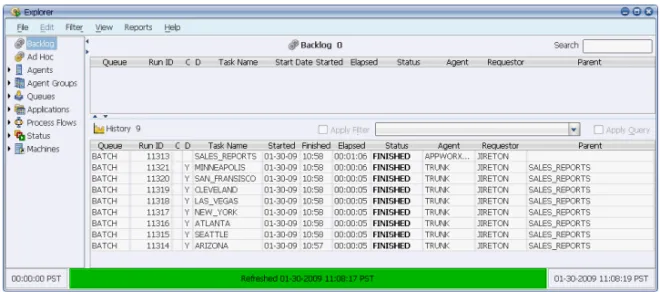
History records are displayed in the Explorer window in the History pane as shown in Figure A. How long these records are available for viewing in the History pane is determined by the prompt value set for the HISTORY_PURGE job in the SYSTEM process flow.
Archiving Records
The SYSTEM process flow purges output files and History records, but it does not archive the files or records. If you wish to perform archive functions, consider building an archive process flow that executes the functions. For example you could create a process flow that prints a report of the History records, moves the records to an archival database, and moves the output files to an archival directory. This archival process flow could be scheduled to run before the SYSTEM process flow.
Note: You should never modify the SYSTEM process flow because it is reinstalled every time
you upgrade or reinstall Applications Manager. If you want to modify the SYSTEM process flow, copy it to another process flow, then modify the copied process flow and run it instead of the SYSTEM process flow.
2.7 Setting Automation Engine Options
You can control the behavior of the Applications Manager automation engine by setting the automation engine options.
When you install Applications Manager, there are a number of options set for the automation engine by default. These options control a wide range of behaviors. The default settings represent the most common settings used by Applications Manager customers.
If you want to change these options, you can do so from the Automation Engine Options tab for the automation engine in the Agents window shown in Figure A.
Figure A. The Automation Engine Options tab of
2.8 Moving Objects from One System to Another
When you want to move Applications Manager objects from one system to another, you use the Export and Import features. When importing, you can map objects, including objects that were not exported. You can save the map file and use it for other imports.
If you are like many Applications Manager customers, you will maintain development, test, and production instances of Applications Manager. This raises the issue of how to move Applications Manager objects created in the development instance to the test and production instances. Migration from one machine to another is one of the most error-prone tasks in the IT
environment. Applications Manager provides export and import utilities that make the process easy and reliable.
Moving Applications Manager objects from one instance to another is a simple three-step process:
1. Export the objects from the source machine. 2. Move the export file to the target machine. 3. Import the objects to the target machine.
Figure A. Use the export and import utilities to move
Applications Manager objects from one instance to another.
Applications Manager Version 8.0 Getting Started Guide 35
Exporting Objects
To export objects, use the Exports window and build an export list. The list can include any number of objects. You can export all Applications Manager objects except agents, agent groups, logins, and users. When you select an object, Applications Manager automatically identifies any supporting objects. For example, if you include a job, Applications Manager identifies any output devices assigned to the job and gives you the opportunity to add the output devices to the export list. You can save the export list and reuse it the next time you want to export objects. After building the export list, you run the export program. The program generates the export file.
Moving the Export File
After generating the export file, you transfer the file from the source machine to the target machine.
Importing Objects
On the target machine, use the Imports window to import the objects from the export file. When you load the file into the Imports window, support objects such as agents, agent groups, logins, and users that could not be included in the file will be flagged. You can then map these objects to corresponding objects on the target machine.
For example, suppose you are exporting from a development machine to a test machine. An exported job was defined to run on the DEV agent. On the test machine, the corresponding agent is TEST. You simply map the DEV agent to the TEST agent.
When you have completed mapping the objects, you can save the map for repeated use, ensuring consistency.
Applications Manager Version 8.0 Getting Started Guide 37
3
Development
3.3.1 Overview of Development in Applications Manager ... 38 3.2 Creating Jobs to Run Programs and Scripts ... 40 3.3 Creating Process Flows to Run a Series of Jobs ... 42 3.4 Adding Dependencies to Jobs ... 44 3.5 Passing Parameters to Programs and Scripts ... 46 3.6 Adding IF - THEN Logic to Jobs and Process Flows ... 48 3.7 Retrieving Values from Databases ... 50 3.8 Scheduling Jobs and Process Flows ... 52 3.9 Running a Custom or Third-Party Application ... 54 3.10 Getting Notified when a Task Fails ... 56 3.11 Detecting Failed Tasks by Scanning Output ... 58
3.1 Overview of Development in Applications Manager
As a developer, you will create objects used to define jobs and run tasks.
When we talk about development in Applications Manager, we are referring to the creation of jobs to run tasks, and the addition of jobs to process flows. If you are a developer, you will most likely:
•Create jobs to run programs and scripts.
•Create process flows to run a series of jobs.
•Add dependencies to process flow components to establish the correct execution order in process flows.
•Define job parameters.
•Add IF - THEN logic to jobs and process flows to ensure the correct conditions exist before they execute.
•Automate retrieval of values from databases to eliminate data entry errors.
•Schedule jobs and process flows to automate production.
Objects
As you build jobs and process flows, you will use a number of objects including:
•Applications to categorize jobs and process flows
•Libraries to specify paths to programs
•Program types to interface with programs and applications
•Database and host logins
•Substitution variables to store values used in job parameters
•Queues to control load on your systems
•Output devices to distribute output
There are many other objects that you may use, or that may be used by the Applications Manager administrator or operators.
Naming Conventions
You should put some thought into naming conventions for your objects because you cannot readily rename objects in Applications Manager. This is not a problem if an object is not used in very many places because you can copy the object, give it a new name, then replace the old object with the new object. But if you have used the object in many places, copying and replacing is not practical.
Applications Manager Version 8.0 Getting Started Guide 39
Replacing Scripts with Jobs and Process Flows
One of the greatest returns on your investment in Applications Manager can be realized by replacing your scripts with Applications Manager jobs and process flows. Long scripts that have been used to run nightly batch processing can be broken up, and each program run by the script can be replaced by a job. Those jobs can then be combined to create a process flow that
duplicates, or improves, the job flow in the original script. Elements in the script that handle output should be replaced by Applications Manager output devices.
If the scripts require manual intervention by operators, every attempt should be made to use Applications Manager predecessors, conditions, and substitution variables to automate these manual steps. Predecessors and conditions can ensure that the jobs in a process flow execute in the correct sequence and that the correct conditions have been met for the tasks to execute successfully. Substitution variables can be used to automatically enter values for parameters where the values are retrieved from your corporate database at the time of execution. These three features (predecessors, conditions, and substitution variables) give you the power to automate operations to a greater extent than is possible with any other distributed scheduler.
Scheduling
Depending on the size of your organization, you may be responsible for scheduling jobs and process flows, or this responsibility may fall to production analysts. Either way, Applications Manager has an extensive set of features for scheduling jobs and process flows. You should be able to create schedules that closely match your corporate data processing procedures.
3.2 Creating Jobs to Run Programs and Scripts
A job is an object you create to run a program or script in Applications Manager. After you have defined a job, you can run it by itself on an ad hoc basis, schedule it to run automatically, or add it, along with other jobs, to a process flow.
A job is an Applications Manager object that specifies all the information required to run a program or script. Jobs are among the most important objects in Applications Manager. After you have defined a job, you can:
•Run the job manually from the Requests window.
•Run the job on a set schedule.
•Add the job to one or more process flows.
When Do I Need to Create a Job?
You need to create a job when you want to run a program, application, or script from Applications Manager. For example, you would create a job to:
•Perform a data load.
•Run an Oracle GL import job.
•Run a UNIX script.
•Execute an FTP.
•Run a report.
Basic Information Required to Create Jobs
The basic information required to create a job is listed below:
•The name of the program or script to be run
•The name of the program type that will build the appropriate command to run the program or script
•The name of the Applications Manager agent where the program or script will be run
•If required, a host or database login
•If required, prompts to define the parameters required to run the program or script
•The output device or devices that will receive the output generated by the program or script
Applications Manager Version 8.0 Getting Started Guide 41
The General tab for a sample job is shown in Figure A. Note the additional tabs where you would enter other information such as output devices, logins, schedules, prompts, predecessors, and conditions.
The Role of Program Types Scripts
You must assign a program type to every job you create. Behind the program type is an interface script that tells Applications Manager how to run the job. The script:
• Builds the command that executes the program.
• Passes any parameters required to run the program.
• Detects errors generated by the program.
• Registers the output generated by the program so it can be printed by Applications Manager and viewed online through the Applications Manager client.
• Terminates the program.
Applications Manager ships with, or has available as extensions, a number of program types and matching program type scripts including:
If you need to run a custom application or a third-party application, you will need to create a new program type and matching program type script. The Development Guide manual gives detailed information on creating program type scripts. UC4 also offers consulting services to create the scripts.
•UNIX and Windows shell scripts •SQL*Plus programs
•Java programs •Oracle
•SCT Banner •PeopleSoft
3.3 Creating Process Flows to Run a Series of Jobs
Process flows are used to execute jobs in a sequence. Process flows replace scripts in a traditional operations environment.
If you are using scripts to run your nightly batch processing, review those scripts to see how you can convert them to jobs and process flows. Long scripts that have been used to run nightly batch processing can be broken up, and each program run by the script can be replaced by a job. Those jobs can then be combined to create a process flow that duplicates, or improves, the job flow in the original script.
If the scripts require manual intervention by operators, every attempt should be made to use Applications Manager predecessors, conditions, and substitution variables to automate these manual steps. Predecessors and conditions can ensure that the jobs in a process flow execute in the correct sequence and that the correct conditions have been met for the tasks to execute successfully. Substitution variables can be used to automatically enter values for parameters where the values are retrieved from your corporate database at the time of execution. These three features (predecessors, conditions, and substitution variables) give you the power to automate operations to a greater extent than is possible with any other distributed scheduler.
Example Process Flow
For example, suppose you have a script that executes the following steps:
1. Purge data
2. FTP data from mainframe 3. Load data
4. Cleanse Data
5. Run three reports against the data 6. Perform a GL import
7. Perform a GL post
In Applications Manager, you might create a process flow that would look like Figure A. Notice that each step is completed
sequentially. The three reports are run as a
sub process flow, and are processed simultaneously. However, the GL_IMPORT step will not execute until the three reports have run.
Process Flow Size
How large should you make a process flow? There are no hard and fast rules. A process flow may contain up to 999 components. A component can be a job or another process flow. When you add a process flow to another process flow, it is considered a sub process flow. Sub process flows can include their own sub process flows. While you can sub process flow to 32 levels, three levels of sub process flows is sufficient for most implementations.
Applications Manager Version 8.0 Getting Started Guide 43
Below are some guidelines to help you decide how large to make a process flow:
• If your entire nightly batch processing centers around one application, and each job is tightly integrated with the other jobs, you could run your entire nightly batch processing from one single process flow.
• If you have several processing runs that deal with different applications with no
interaction, you might consider creating a process flow for each application. Each process flow could be scheduled to run at a set time during the batch processing window.
• If you are running nightly batch processing that involves multiple applications with many interrelated jobs, you might create a number of sub process flows, then add those sub process flows to one main nightly batch processing process flow scheduled to run at the beginning of your batch processing window.
• If you are modeling a process flow that is used in several different batch processing sequences, you may want to create the flow as a separate process flow that you can then add to several other larger process flows. This takes advantage of the fact that process flows are reusable objects in Applications Manager. If the process flow changes, you can make edits to the process flow in one place and they will take effect everywhere the process flow is in use.
To a great extent, whether you use a few large process flows, or create many smaller process flows will depend on the preferences of your operations group. Applications Manager can accommodate both approaches.
Managing Large Process Flows
If you choose to create large process flows, sub process flows and groups can help you manage them. Both sub process flows and groups can be expanded and collapsed to show and hide their components. Collapsing sub process flows and groups can make it easier to see the big picture in a large process flow. Figure B shows a collapsed sub process flow called DATA_REPORTS. In contrast to sub process flows that are independent objects added to a process flow, groups are created within a process flow from components that already exist in the process flow. Groups are used to manage collections of components. For example, groups can display parallel flows in a process flow more clearly. Groups, like sub process flows, can be collapsed to save real estate in the process flow window. Unlike sub process flows, groups are not independent objects. They exist only with the process flow where they are created and you cannot copy or reuse them.
Figure B. A
Collapsed sub process flow
3.4 Adding Dependencies to Jobs
To determine the order of execution in a process flow, you add predecessor links between the components in a process flow. You can also add dependencies to standalone jobs. Basic predecessor links are automatically created when building process flows. Additional predecessor features allow for greater complexity and versatility.
In Applications Manager, execution order of components in a process flow is determined by dependencies. You define dependencies by adding predecessor links between components. By default, when you add components to a process flow using the drag-and-drop method,
Applications Manager automatically adds success predecessor links between the components. The result is that you can quickly and easily build simple process flows similar to the one shown in Figure A.
You also can add predecessor links to standalone jobs. In this case, the links identify other tasks that must complete before the standalone job will execute.
Internal vs. External Predecessor Links
The process flow shown in Figure A relies on internal predecessors links, which means all links are contained within the parent process flow, in this case
NIGHTLY_PRODUCTION. But what if a step in this process flow was dependent on a step in another process flow completing successfully? You would need to create an external predecessor link as shown in Figure B. The link goes from the FTP job in the NIGHTLY_PRODUCTION process flow to the CK_DISK job in the External References box.
Figure A. Sample process flow
Figure B. External predecessor
Applications Manager Version 8.0 Getting Started Guide 45
Types of Predecessor Links
There are several types of internal and external predecessor links. They are described briefly below.
Note that predecessor logic in Applications Manager can be complex. You should thoroughly study the predecessor chapter in the Development Guide before beginning to create process flows.
Link Type Description
Success (default) The predecessor component has completed successfully.
Note: The Applications Manager success logic is quite
sophisticated; there are other scenarios which cause success requirements to be satisfied. See the Development Guide for more details.
Started The predecessor component has started or has been skipped in this run of the process flow.
Complete The predecessor component has completed processing. The actual status does not matter.
Success since
last run The predecessor component has completed successfully since the last time the job ran. This link type is only available for external predecessors. It is useful for process flows that run multiple times a day.
Success (skip on
failure) The task runs if the predecessor runs successfully, but skips if the predecessor fails. This type of predecessor is often used for branching logic along with the Failure (skip on success) predecessor described below.
Failure (skip on
success) The task runs if the predecessor fails, but skips if the predecessor runs successfully. This type of predecessor is often used for branching logic along with the Success (skip on failure) predecessor described above.
Success only when FINISHED
The predecessor runs and goes into a FINISHED status. This link type is only available for external predecessors. If the external predecessor is deleted, it will not satisfy the predecessor link requirements.
3.5 Passing Parameters to Programs and Scripts
Prompts pass parameters to a program or script run by a job.
If you are creating an Applications Manager job that runs a program or a script that takes one or more parameters, you must create prompts for the job. For example, the employees.sql script
shown below runs a report of employees for a department. The script has one variable
dept_name shown in bold. set verify off set feedback off set termout off spool &so_outfile
column ename heading 'Employee|Name' column dname heading 'Dept|Name' select emp.ename, dept.dname from emp, dept
where dept.dname = '&dept_name' and emp.deptno = dept.deptno; spool off
While creating the job to run this program, you would include a prompt where the department name could be entered. Figure A shows an FTP job that takes seven parameters:
Types of Prompts
There are four types of prompts you can create. The type of prompt determines how the information is entered. The different types of prompts are described below.
Prompt Type Description
Default The prompt has a default value that users are not allowed to change. Use this type of prompt when the parameters for a job do not change frequently.
Fill-in The prompt may or may not have a default value. Users are allowed to change the value. Use this type of prompt when you do not want to retrieve the value from a database.
Figure A. Prompts are used to pass parameters to a program or