SQL Server™ 2005
Integration Services
SQL Server™ 2005: Integration Services ...3
Lab Setup...4
Exercise 1 Understanding the SSIS Interface ...5
SQL Server™ 2005: Integration Services
Objectives
NOTE: This lab focuses on the concepts in this module and, as a result, may not comply with Microsoft® security recommendations.
NOTE: The SQL Server 2005 labs are based on beta builds of the product. The intent of these labs is to provide you with a general feel for some of the planned features in the next release of SQL Server. As with all software development projects, the final version may differ from beta builds in both features and user interface. For the latest details on SQL Server 2005, please visit
http://www.microsoft.com/sql/2005/.
After completing this lab, you will be able to:
• Create a SQL Server 2005 Integration Services (SSIS) package
• Create an SSIS package project
• Monitor the progress of an SSIS package
• Log results from an SSIS package to both a text file and the Windows Event log
Scenario
Prerequisites
Estimated Time to Complete This
Lab
Lab Setup
Tasks
Detailed Steps
Log in
Log in to Microsoft Windows® using the
Administrator
user account.
The password is
Pass@word1
Exercise 1
Understanding the SSIS Interface
In this exercise, you will examine and execute a simple SSIS package that loads data into a
dimension table by using the Data Flow task. You will then create a new project data source and
a new package that mimics the design of the first package.
The SSIS Designer is hosted in Business Intelligence Development Studio, an environment
based on the Microsoft Development Environment (Microsoft Visual Studio® 2005) shell. This
environment provides an integrated development environment for designing, creating, testing,
debugging, and extending SSIS packages. To ease the complexity of designing SSIS packages,
separate editors for data flow and control flow are provided.
To implement the data load, you will:
• Use Business Intelligence Development Studio to create a new project and add a pre-built package to a project.
• Execute a package and view the graphical presentation of package execution. • Examine the new interface.
• Create a new data source.
• Create a new package, add a data source to the package, and use the Data Flow Task to load a dimension table with a Derived Column transform in the package.
Tasks
Detailed Steps
Task 1: Launch the SSIS design environment
1. From the Windows task bar, select Start | All Programs | Microsoft SQL Server 2005 CTP | Business Intelligence Development Studio.
Business Intelligence Development Studio provides the environment in
which SSIS packages are designed.
2. Click File | New | Project.
3. In the Project Types pane of the New Project dialog box, click the Business Intelligence Projects folder.
4. In the Templates pane, click the Integration Services Project icon. 5. In the Name text box, replace the default name with SSIS Exercise 1. 6. In the Location text box, enter C:\SQL Labs\User Projects. Make sure the
Create directory for solution checkbox is unchecked, and then click OK.
This creates a new SSIS project called
SSIS Exercise 1
in a new
solution, and creates a default empty package named
Package.dtsx
.
A solution is the largest unit of management in the Business
Intelligence Development Studio environment. A solution contains one
or more projects.
A project is a collection of SSIS packages, Data Sources, Data Source
Views, and other items that you can use during package development.
Tasks
Detailed Steps
Task 2: Add an existingSSIS package to the project
1. Select Project | Add Existing Item.
For the exercises in this lab, you will use objects stored in the
C:\SQL
Labs\Lab Projects\SSIS Lab
folder.
2. In the Add Existing Item - SSIS Exercise 1 dialog box, navigate to C:\SQL Labs\Lab Projects\SSIS Lab\SSISLabDimProduct.dtsx and then click Add.
This step adds an existing SSIS package to the SSIS Exercise 1 project.
Task 3: Open the SSISPackage Designer
NOTE: If the Solution Explorer is not visible, select the View | Solution Explorer menu item.
• In the Solution Explorer, expand the SSIS Packages folder if necessary, and then double-click the SSISLabDimProduct.dtsx package.
Double-clicking on the package object opens the SSIS Package
Designer for the package.
The package that you are looking at loads data from a SQL Server
OLTP data source to the product dimension table in the Adventure
Works data warehouse.
Task 4: Examine the package contents
NOTE: If the Properties window is not visible during Step 3, select the View | Properties Window menu item. NOTE: In Step 5, the Data Flow tab is selected.
1. On the top of the SSIS Package Designer, verify that the Control Flow tab is selected.
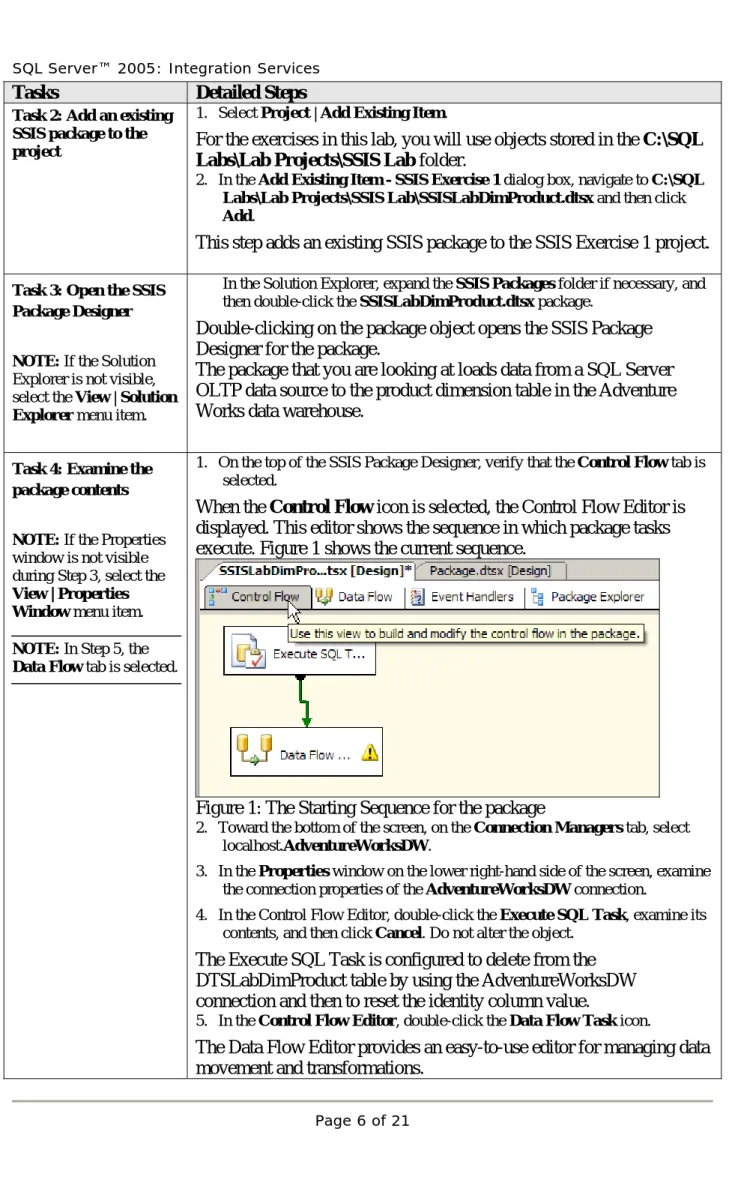
When the
Control Flow
icon is selected, the Control Flow Editor is
displayed. This editor shows the sequence in which package tasks
execute. Figure 1 shows the current sequence.
Figure 1: The Starting Sequence for the package
2. Toward the bottom of the screen, on the Connection Managers tab, select localhost.AdventureWorksDW.
3. In the Properties window on the lower right-hand side of the screen, examine the connection properties of the AdventureWorksDW connection.
4. In the Control Flow Editor, double-click the Execute SQL Task, examine its contents, and then click Cancel. Do not alter the object.
The Execute SQL Task is configured to delete from the
DTSLabDimProduct table by using the AdventureWorksDW
connection and then to reset the identity column value.
5. In the Control Flow Editor, double-click the Data Flow Task icon.
The Data Flow Editor provides an easy-to-use editor for managing data
movement and transformations.
Tasks
Detailed Steps
6. Double-click each of the objects, examine their contents, and then click Cancel on each. Do not alter any of the objects.
The OLE DB Source object specifies the OLE DB data source table or
view. You can also define its source by using a SQL query with or
without parameters.
The Derived Column transform is an example of one type of transform
that you can use. It enables the creation of new columns based on an
expression you specify. You can create new columns by evaluating
expressions and adding the columns to the data flow. An expression
can contain any combination of columns from the transformation input,
package variables, functions, and operators.
The OLE DB Destination object specifies the OLE DB data destination
table, view, or query. In the OLE DB Destination Editor dialog box,
you can also map source columns to destination columns. Fast Load
can also be configured for optimizing the processing of the Data Flow
Task.
7. At the top of the designer window, select the Control Flow tab.
Task 5: Execute the package in debug mode
1. Select the Debug | Start menu item.
When you click
Start
on the Debug menu, the package executes in
Debug mode. Because the
Control Flow
tab was selected in the View
pane, you will view the Control Flow Editor of the package as it runs.
While the package executes, notice how the colors change:
• Gray indicates waiting to execute. • Yellow indicates currently executing. • Green indicates success.
• Red indicates failure.
2. Wait until the package completes its execution. Then in the View pane, click the Progress tab. You should not see any error messages.
After executing a package, while in Debug mode, you can select
Progress
from the
View
pane and review the results of the package
execution including start times, end times, elapsed times, and error
messages.
3. Select the Debug | Stop Debugging menu item. 4. Close the Output window if it is visible.
Task 6: Create a new SSIS package
1. In the Solution Explorer, in the SSIS Exercise 1 solution, right-click the SSIS Exercise 1 project, and then select Add | New Item from the context menu. 2. From the Add New Item – SSIS Exercise 1 dialog box, select the New SSIS Package template item. Enter SSISLabExercise1 in the Name text box, and then click Add.
Tasks
Detailed Steps
Task 7: Create a newdata source
1. In the Solution Explorer, expand the SSIS Exercise 1 folder, right-click the Data Sources folder, and then select New Data Source from the context menu.
2. In the Data Source Wizard dialog box, on the Welcome to the Data Source Wizard page, click Next.
The Data Source Wizard creates a data source that can be reused across
packages.
3. On the Select how to define the connection page, make sure the Create a data source based on an existing or new connection radio button is chosen. Click the New button.
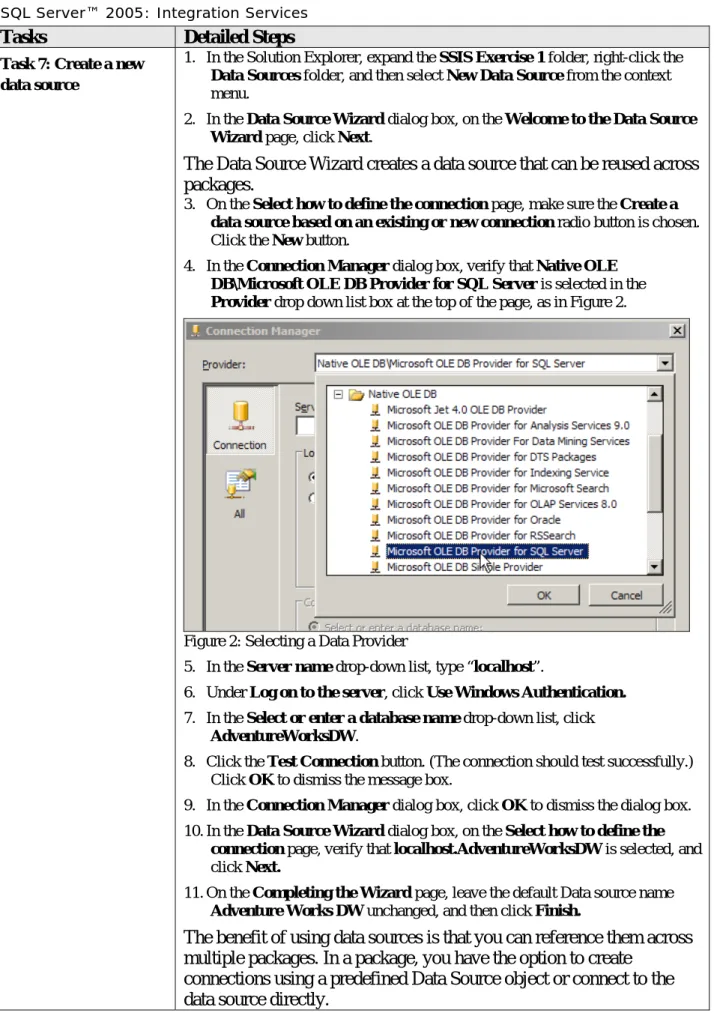
4. In the Connection Manager dialog box, verify that Native OLE DB\Microsoft OLE DB Provider for SQL Server is selected in the Provider drop down list box at the top of the page, as in Figure 2.
Figure 2: Selecting a Data Provider
5. In the Server name drop-down list, type “localhost”.
6. Under Log on to the server, click Use Windows Authentication. 7. In the Select or enter a database name drop-down list, click
AdventureWorksDW.
8. Click the Test Connection button. (The connection should test successfully.) Click OK to dismiss the message box.
9. In the Connection Manager dialog box, click OK to dismiss the dialog box. 10.In the Data Source Wizard dialog box, on the Select how to define the
connection page, verify that localhost.AdventureWorksDW is selected, and click Next.
11.On the Completing the Wizard page, leave the default Data source name Adventure Works DW unchanged, and then click Finish.
The benefit of using data sources is that you can reference them across
multiple packages. In a package, you have the option to create
connections using a predefined Data Source object or connect to the
data source directly.
Tasks
Detailed Steps
Task 8: Create a newconnection from a data source
1. Toward the bottom left of the development environment, below the
Connection Manager tab, right-click inside the empty pane, and then click New OLE DB Connection.
2. In the Configure OLE DB Connection Manager dialog box, highlight the localhost.AdventureWorksDW data connection, and then click OK.
This adds a new connection that points to the AdventureWorksDW
Data Source. This connection can be used across package tasks.
Task 9: Add the ExecuteSQL Task to the package
1. Verify that the Control Flow tab is selected at the top of the design surface. 2. Select the View | ToolBox menu item to verify that the Toolbox window is
visible. At the top of the Toolbox window, click the Pin icon so the pinhead is above the pin needle to prevent the pane from minimizing. Figure 3 shows the toolbox once it’s pinned down.
Figure 3: Use the pin icon to determine whether the toolbox is pinned
down.
3. In the Control Flow Items list of the Toolbox, right-click Control Flow Items and click Sort Items Alphabetically. If necessary, to navigate through the list, use the arrows to move up and down.
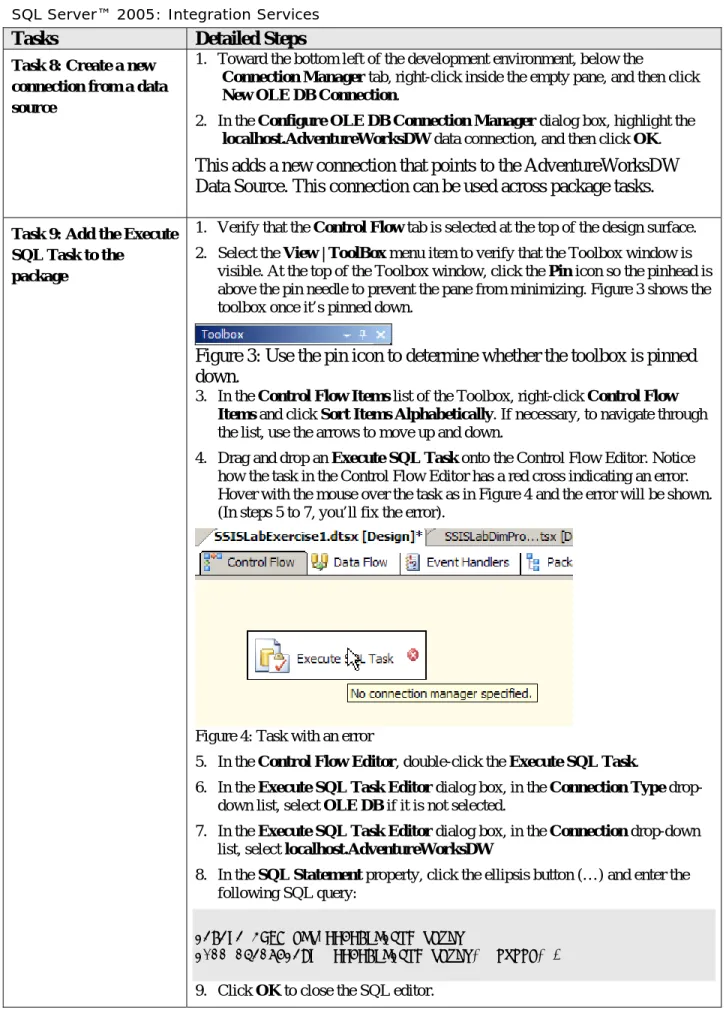
4. Drag and drop an Execute SQL Task onto the Control Flow Editor. Notice how the task in the Control Flow Editor has a red cross indicating an error. Hover with the mouse over the task as in Figure 4 and the error will be shown. (In steps 5 to 7, you’ll fix the error).
Figure 4: Task with an error
5. In the Control Flow Editor, double-click the Execute SQL Task.
6. In the Execute SQL Task Editor dialog box, in the Connection Type drop-down list, select OLE DB if it is not selected.
7. In the Execute SQL Task Editor dialog box, in the Connection drop-down list, select localhost.AdventureWorksDW
8. In the SQL Statement property, click the ellipsis button (…) and enter the following SQL query:
DELETE FROM dbo.SSISLabDimProduct
DBCC CHECKIDENT (SSISLabDimProduct, reseed, 0) 9. Click OK to close the SQL editor.
Tasks
Detailed Steps
10.Click OK to close the Execute SQL Task Editor dialog box.
Task 10: Add the Data Flow Task to the package
NOTE: Notice that the Data Flow tab is selected. In the Toolbox, notice that the Data Flow Sources group is visible and that the Data Flow Editor is open.
1. In the Toolbox, in the Control Flow Items list, drag and drop a Data Flow Task onto the Control Flow Editor.
2. In the Control Flow Editor, click the Execute SQL Task, click the green control flow arrow and drag and drop it onto the Data Flow Task. The designer should look like Figure 5.
Figure 5: Use the Designer to lay out your task flow.
This creates an
On Success
precedence constraint for the Data Flow
Task. When the package executes, the Execute SQL Task must
successfully run before the Data Flow Task will run.
3. In the Control Flow Editor, double-click the Data Flow Task.
Task 11: Add an OLE DB Source object
1. In the Toolbox, from the Data Flow Sources list, drag and drop an OLE DB Source object onto the Data Flow Editor.
2. In the Data Flow Editor, double-click the OLE DB Source object. 3. In the OLE DB Source Editor dialog box, in the OLE DB connection
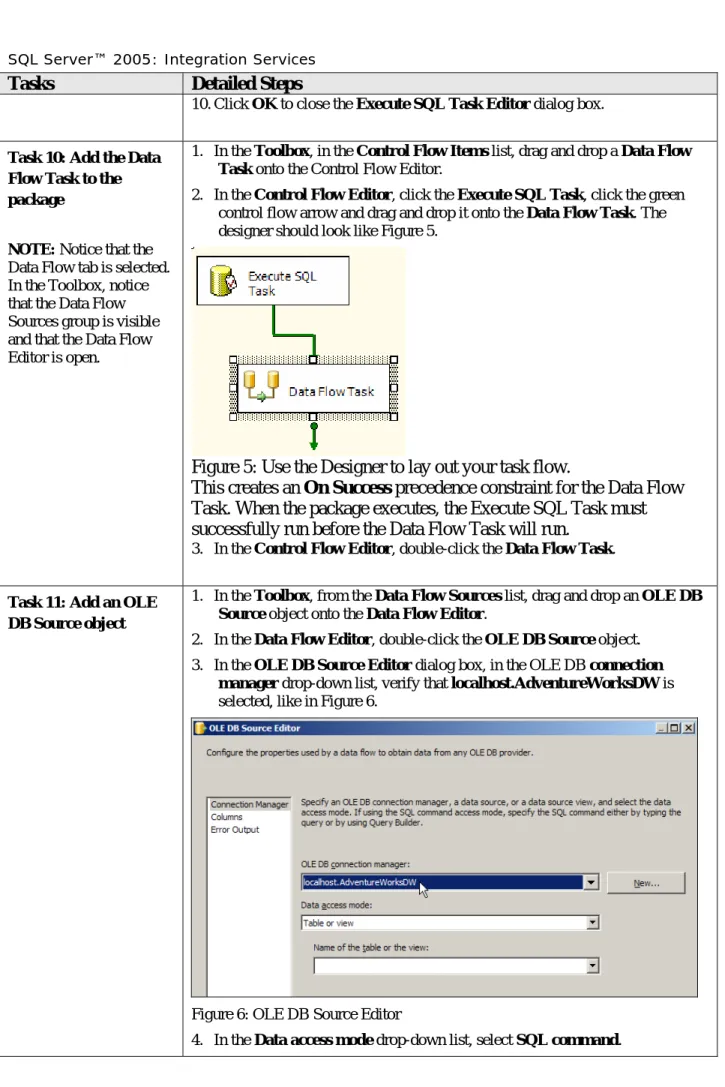
manager drop-down list, verify that localhost.AdventureWorksDW is selected, like in Figure 6.
Figure 6: OLE DB Source Editor
Tasks
Detailed Steps
5. Click the Browse button, navigate to the C:\SQL Labs\Lab Projects\SSIS Lab\SourceQuery.sql file, and then click Open.
The SourceQuery.sql file contains an SQL statement that selects
product data from the AdventureWorks OLTP database.
6. Review the SQL query, click Parse Query, click OK to dismiss the message box, and then click OK to close the OLE DB Source Editor dialog box.
Task 12: Add a Derived Column transform
1. In the Toolbox, from the Data Flow Transformations list, drag and drop a Derived Column transform onto the Data Flow Editor.
2. In the Data Flow Editor, click the OLE DB Source object, click the green data flow arrow and drag and drop it onto the Derived Column transform. 3. In the Data Flow Editor, double-click the Derived Column transform. 4. In the Derived Column Transformation Editor dialog box, fill in one row
of data in the grid at the bottom half of the dialog box to derive the Size column by using the table below.
Column Name Value
Derived Column Name Size
Derived Column <add as new column>
Expression SUBSTRING(ProductAlternateKey,9,2)
Data Type Unicode string (DT_WSTR)
Length 50 5. Click OK.
Task 13: Add an OLE DB Destination object
1. In the Toolbox, from the Data Flow Destinations list (you might need to scroll the Toolbox), drag and drop an OLE DB Destination object onto the Data Flow Editor.
2. In the Data Flow Editor, click the Derived Column transform, and drag and drop the green data flow arrow onto the OLE DB Destination object. 3. In the Data Flow Editor, double-click the OLE DB Destination object. 4. In the OLE DB Destination Editor dialog box, in the OLE DB connection
manager drop-down list, verify that locahost.AdventureWorksDW is selected.
5. In the Name of the table or view drop-down list, select [dbo].[SSISLabDimProduct].
6. Click on the Mappings item in the navigation pane on the left in the OLE DB Destination Editor.
7. Verify the source-to-destination column mappings by using the following table. In the table below, if the Input column contains a blank value, do not map an input column to the destination column.
Input Column Destination Column
ProductAlternateKey ProductAlternateKey ProductSubCategoryKey ProductSubCategoryKey
Tasks
Detailed Steps
WeightUnitMeasureCode WeightUnitMeasureCode SizeUnitMeasureCode SizeUnitMeasureCode ProductName ProductName StandardCost StandardCost FinishedGoodsFlag FinishedGoodsFlag Color Color SafetyStockLevel SafetyStockLevel ReorderPoint ReorderPoint ListPrice ListPrice Size Size Weight Weight DaysToManufacture DaysToManufacture ProductLine ProductLine DealerPrice DealerPrice Class Class Style Style ModelName ModelName LargePhoto LargePhoto EnglishDescription EnglishDescription GermanDescription GermanDescription ChineseDescription ChineseDescription ArabicDescription ArabicDescription ThaiDescription ThaiDescription <ignore> ProductKeyNote that you are ignoring the Input Column for the ProductKey. This
is an Identity column.
Tasks
Detailed Steps
Task 14: Save all files inthe project and execute the SSIS package NOTE: You can execute a package by right-clicking the package or by selecting the Debug | Start menu item.
1. Select the File | Save All menu item.
• Verify that the Data Flow tab is selected at the top of the designer.
• In the Solution Explorer, right-click the SSISLabExercise1.dtsx package, and then click Execute Package.
While the package executes, notice how the colors change:
• Gray indicates waiting to execute.• Yellow indicates currently executing. • Green indicates success.
• Red indicates failure.
Also note the number of records that have been processed and loaded.
Figure 7 shows the completed flow.
Figure 7: After completion, the diagram includes the number of
affected rows.
4.
When the package finishes its execution, select
Debug |
Stop
Debugging
.
Task 15: Verify package results
1. From the Windows task bar, select Start | All Programs | Microsoft SQL Server 2005 CTP | SQL Server Management Studio. If asked to authenticate, select the default values and click OK.
2. Select the New Query button in the upper-left corner of the toolbar, and then select Database Engine Query from the drop-down menu. If asked to authenticate, accept the default values.
3. In the Query window, type the following query:
USE AdventureWorksDW
SELECT * FROM SSISLabDimProduct
SELECT COUNT(*) AS RecordCount FROM SSISLabDimProduct 4. Press F5 to execute the query.
5. Verify that the correct number of records has been loaded: 295.
Exercise 2
Populating a Fact Table Using Lookups and Aggregates
Suppose that the management team at Adventure Works wants to analyze sales data by reseller,
product, sales territory, and time.
The sales summary star is a summarized sales schema, which contains:
• The fact table: SSISLabFactSalesSummary• The product dimension: DimProduct, DimProductSubCategory, and DimProductCategory tables • The reseller dimension: DimReseller table
• The sales territory dimension: DimSalesTerritory table • The time dimension: DimTime table
In this exercise, you will add functionality to an existing package to load a fact table view. You
will use the Lookup transform with the Data Flow task to create relationships on application keys
and return surrogate keys to load into the fact table. You will then use the Aggregate transform to
sum, average, and group values before loading into the destination. You will also configure
logging for this package.
To implement the data load, you will:
• View the existing package and the lookup transforms defined for the fact table load. • Add another lookup transform to the package to return a surrogate key value.
• Configure the Aggregate transform to perform aggregate functions (sum, average, and group by) to column values and copy the result to the transformation output.
• Define logs for the package.
• Save, execute, and view results of the package execution.
Tasks
Detailed Steps
Task 1: Open the SSIS Exercise 2 solution and examine the existing SSIS package
NOTE: In Step 9, Data Flow icon is selected in the View pane.
1. On the Windows task bar, select Start | All Programs | Microsoft SQL Server 2005 CTP | Business Intelligence Development Studio. 2. Go to File | Open | Project/Solution.
3. In the Open Project dialog box, navigate to the C:\SQL Labs\Lab
Projects\SSIS Lab\SSIS Exercise 2\SSIS Exercise 2.sln file, and then click Open.
4. In the Solution Explorer, expand the SSIS Exercise 2 folder, expand the SSIS Packages folder, and then double-click the SSISLabExercise2.dtsx package.
5. If prompted by the Synchronize Connection Strings dialog box, choose OK. 6. Verify that the Control Flow tab is selected.
7. At the bottom of the screen, on the Connections tab, select the
AdventureWorksDW connection and then on the lower right side of the screen, in the Properties window, examine the connection properties. 8. In the Control Flow Editor, double-click on the Execute SQL Task object
and examine its properties.
Tasks
Detailed Steps
10.Double-click each of the objects, examine their contents, and then click Cancel on each. Do not alter any of the objects.
Note the following:
• The Execute SQL Task object does not contain any SQL statements at the moment.
• The OLE DB Source object points to a SQL statement based on the SSISLabSalesStage table.
• The different Lookup transforms (Employee, Product and Reseller) use the application keys stored in the SSISLabSalesStage table to retrieve dimension foreign keys to load the fact table. Foreign key retrieval is just one example of how you can use Lookup transforms.
• The package currently has several lookups already identified. In subsequent steps, you will add another Lookup.
Task 2: Edit the Execute SQL Task to clean up the fact table.
NOTE: In a production environment, you probably don’t want to clean up the table like this. Here you do it just to make sure the exercise succeeds.
In this task, you will edit the Execute SQL Task in order to clean up the
fact table;
SSISLabFactSalesSummary
.
1. Click on the Control Flow tab at the top of the designer. 2. Double-click the Execute SQL Task.
3. In the Execute SQL Task Editor dialog box, in the Connection Type drop-down list, select OLE DB if it is not selected.
4. In the Execute SQL Task Editor dialog box, in the Connection drop-down list, make sure localhost.AdventureWorksDW is selected.
5. In the SQL Statement property, click the ellipsis button (…) and enter the following SQL query:
DELETE dbo.SSISLabFactSalesSummary 6. Click OK to close the SQL editor. 7. Click Parse Query to verify the SQL.
Tasks
Detailed Steps
Task 3: Add anotherLookup transform to the package
1. Double click on the Data Flow Task object.
2. In the Toolbox, from the Data Flow Transformations list, drag and drop a Lookup transform onto the Data Flow Editor.
3. In the Data Flow Editor, click the Reseller Lookup transform, and drag and drop the green data flow arrow onto the Lookup transform.
4. In the Data Flow Editor, double-click the Lookup transform. 5. In the OLE DB connection manager drop-down list of the Lookup
Transformation Editor dialog box, verify that localhost.AdventureWorksDW is selected.
6. In the Use a table or view drop-down list, select [dbo].[DimTime], and then click the Columns tab.
7. On the Columns tab, inside the Available Input Columns table, right-click, and then select Create Relationships.
8. In the Create Relationship dialog box, in the Input Column, select OrderDateAlternateKey; in the Lookup Column, select
FullDateAlternateKey, and then click OK.
9. On the Columns tab, in the Lookup Column box at the bottom of the page, select TimeKey; in the Lookup Operation, verify that <add as new column> is selected. In the Output Alias column, remove the default name, type OrderDateKey, and then click OK.
10.Finally, right click on the Lookup icon and click Rename and give the newly added lookup a more interesting name such as Order Date Lookup.
This Lookup transform creates a relationship on the
OrderDateAlternateKey
from the staging table and the
FullDateAlternateKey
in the Time dimension (both are application
keys from the source) and then looks up the associated
TimeKey
(surrogate key) value.
Task 4: Add an Aggregate transform
1. In the Toolbox, from the Data Flow Transformations list, drag and drop an Aggregate transform onto the Data Flow Editor.
If you cannot see the Aggregate transform, right-click on the
Data
Flow Transformations
header, select
Sort Items Alphabetically
, and
then use the Toolbox arrows to scroll to the top of the list.
The Aggregate transform applies aggregate functions to column values
and copies the result to the transformation output. You can apply
multiple aggregations to one input column and each aggregation is
uniquely identified in the output.
2. In the Data Flow Editor, click the lookup added in the previous Task, and drag and drop the green data flow arrow onto the Aggregate transform. 3. In the Data Flow Editor, double-click the Aggregate transform.
4. In the Aggregation Transformation Editor dialog box, in the Available Input Columns table, in the following order, select
• EmployeeKey • OrderDateKey
Tasks
Detailed Steps
• ProductKey • ResellerKey • DiscountAmount • ExtendedAmount • OrderQuantity • SalesAmount • SalesOrderNumber • UnitPrice • UnitPriceDiscountPctUse the following table to fill in the
Output Alias
and
Operation
columns at the bottom of the screen.
Note that the shaded records in the table require name changes for the
output alias.
Input Column Output Alias Operation
EmployeeKey EmployeeKey Group By
OrderDateKey OrderDateKey Group By
ProductKey ProductKey Group By
ResellerKey ResellerKey Group By
DiscountAmount DiscountAmount Sum ExtendedAmount ExtendedAmount Sum OrderQuantity OrderQuantity Sum SalesAmount SalesAmount Sum SalesOrderNumber OrderCount Count
UnitPrice AverageUnitPrice Average UnitPriceDiscountPct AverageDiscountPercent Average
Click
OK
once the table is correct.
You are using the Aggregate transform to aggregate columns because
you are loading a summary fact table that does not include all of the
detailed order line item information.
Task 5: Add an OLE DB Destination object
1. In the Toolbox, in the Data Flow Destinations list, drag and drop an OLE DB Destination object onto the Data Flow Editor.
2. In the Data Flow Editor, click the Aggregate transform, and drag and drop the green data flow arrow onto the OLE DB Destination object.
3. In the Data Flow Editor, double-click the OLE DB Destination object. 4. In the OLE DB Destination Editor dialog box, make sure the Connection
header is selected in the left hand navigation pane. Verify that
localhost.AdventureWorksDW is selected in the OLE DB connection manager drop-down list.
5. In the Name of the table or view drop-down list, select [dbo].[SSISLabFactSalesSummary].
Tasks
Detailed Steps
6. Select the Mappings item from the left-hand navigation pane and verify that all columns are selected and that the rows in the Available Input Columns and Available Destination Columns panes map one-to-one as shown in the following table, and then click OK.
Input Column Destination Column
OrderDateKey OrderDateKey ResellerKey ResellerKey EmployeeKey EmployeeKey ProductKey ProductKey OrderQuantity OrderQuantity SalesAmount SalesAmount AverageDiscountPercent AverageDiscountPercent AverageUnitPrice AverageUnitPrice OrderCount OrderCount ExtendedAmount ExtendedAmount DiscountAmount DiscountAmount
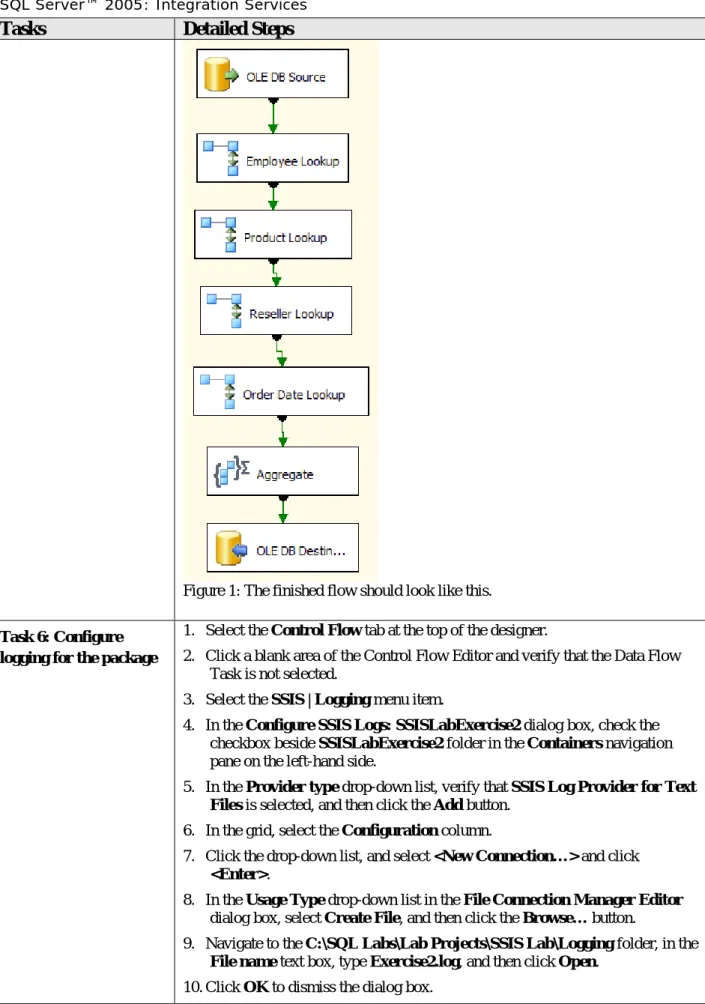
Note that you can use auto layout on the Format menu to organize your
package layout. To do this, click an empty area within the Data Flow
Editor and then select the
Format
|
Auto Layout
|
Diagram
menu
item.
Tasks
Detailed Steps
Figure 1: The finished flow should look like this.
Task 6: Configure logging for the package
1. Select the Control Flow tab at the top of the designer.
2. Click a blank area of the Control Flow Editor and verify that the Data Flow Task is not selected.
3. Select the SSIS | Logging menu item.
4. In the Configure SSIS Logs: SSISLabExercise2 dialog box, check the checkbox beside SSISLabExercise2 folder in the Containers navigation pane on the left-hand side.
5. In the Provider type drop-down list, verify that SSIS Log Provider for Text Files is selected, and then click the Add button.
6. In the grid, select the Configuration column.
7. Click the drop-down list, and select <New Connection…> and click <Enter>.
8. In the Usage Type drop-down list in the File Connection Manager Editor dialog box, select Create File, and then click the Browse… button.
9. Navigate to the C:\SQL Labs\Lab Projects\SSIS Lab\Logging folder, in the File name text box, type Exercise2.log, and then click Open.
Tasks
Detailed Steps
11.Back in the Configure SSIS Logs: SSISLabExercise2 dialog box, select the Configuration column and from the drop-down list select Exercise2. 12.In the Provider drop-down list, select SSIS Log Provider for Windows
Event Log, and then click the Add button.
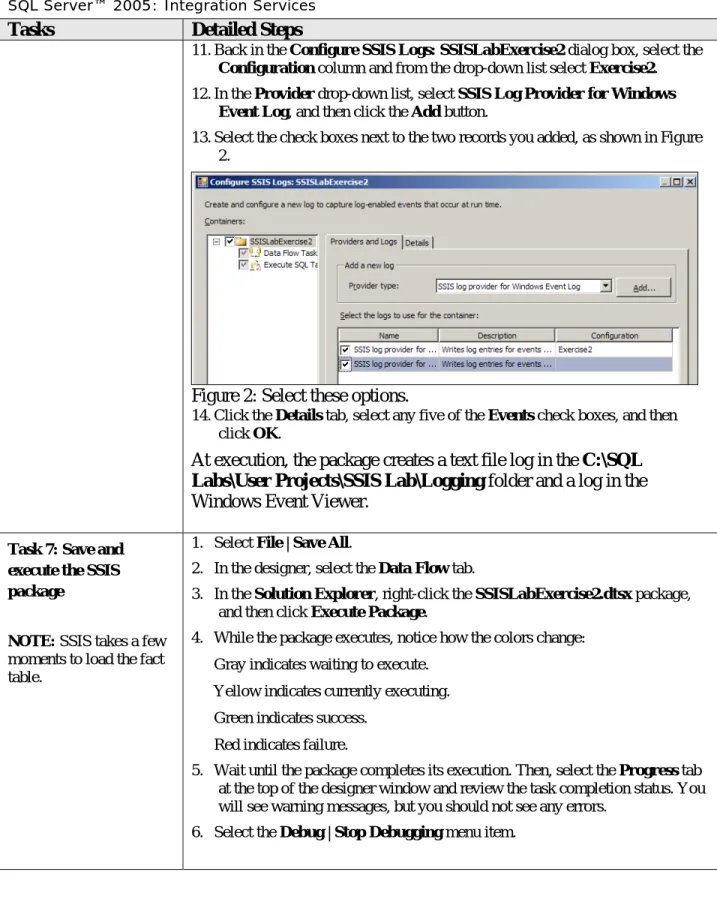
13.Select the check boxes next to the two records you added, as shown in Figure 2.
Figure 2: Select these options.
14.Click the Details tab, select any five of the Events check boxes, and then click OK.
At execution, the package creates a text file log in the
C:\SQL
Labs\User Projects\SSIS Lab\Logging
folder and a log in the
Windows Event Viewer.
Task 7: Save and execute the SSIS package
NOTE: SSIS takes a few moments to load the fact table.
1. Select File | Save All.
2. In the designer, select the Data Flow tab.
3. In the Solution Explorer, right-click the SSISLabExercise2.dtsx package, and then click Execute Package.
4. While the package executes, notice how the colors change: • Gray indicates waiting to execute.
• Yellow indicates currently executing. • Green indicates success.
• Red indicates failure.
5. Wait until the package completes its execution. Then, select the Progress tab at the top of the designer window and review the task completion status. You will see warning messages, but you should not see any errors.
Tasks
Detailed Steps
Task 8: Verify packageresults
1. From the Windows task bar, select Start | All Programs | Microsoft SQL Server 2005 CTP | SQL Server Management Studio.
2. Select the New Query button in the upper-left corner of the toolbar, and then select New SQL Server Query from the drop-down menu. If asked to authenticate, accept the default values.
3. In the Query window, type the following query:
USE AdventureWorksDW
SELECT * FROM SSISLabFactSalesSummary
SELECT COUNT(*) AS RecordCount FROM SSISLabFactSalesSummary 4. Press F5 to execute the query.
5. Verify that the correct number of records has been loaded: 21,052.
6. Close SQL Server Management Studio without saving the SQL Query file.
Task 9: View package logs
1. Open Windows Explorer, navigate to the C:\SQL Labs\Lab Projects\SSIS Lab\Logging\ folder, double-click the Exercise2.log file to view the log details, and then close the file.
2. From the Windows task bar, select Start | Administrative Tools | Event Viewer. Select the Application log and look for Information events with a source of SQLISPackage.
In this lab, you performed the following exercises:
• Examined the SSIS interface• Populated a table using lookups and aggregates
• Created SSIS logs in the Windows Event log and a text file