How to Construct a Web Site: A Brief Introduction
1John H. Ristroph, Ph.D., P.E.
University of Louisiana at Lafayette
Engineering and Technology Management Program
Abstract
This paper provides a fast track introduction to Web sites, including ways to avoid extensive editing of existing, heavily formatted technical notes that contain a variety of tables, equations, or figures. It explains enough of the basics of hypertext markup language (HTML) to create simple home pages that contain basic descriptive information and links to other pages, and then it provides an example of such a page.
General Characteristics of Web Sites
Web sites are placed on a computer having a web server, software that receives requests for files, retrieves the files, and routes them onto a network. A site’s files are stored in folders or directories, just like computer users typically organize files. For example, the directory C:\website on a local computer named engr.gooduniv.edu might contain a file named index.htm. Inputting the URL http://engr.smart_u.edu/website on a remote browser causes the local server to send index.htm. When the remote browser sees a htm (or html) extension, it knows that the file contains HTML and displays it. If a remote site wants a file other than index.htm (or index.html), then the URL must explicitly name that file.
Browsers such as Microsoft’s Internet Explorer or NetScape’s Navigator can work with other software to display non-HTML files. The ability to include non-HTML files in a site is important because it allows some existing files, such as a Word document with equations2 and heavy formatting, to be used without modification or with little effort. Microsoft’s web site (www.microsoft.com) offers free downloads of readers for Microsoft Office files, such as Word documents (doc) and Excel spreadsheets (xls). Adobe’s site (www.adobe.com) allows free downloads of its reader for .pdf (portable definition format) files produced by its Acrobat system. Acrobat provides printer drivers that can produce a .pdf file instead of printed output. For example, instead of sending output from some program to a BrandX printer, send it to the Acrobat “printer” to create the pdf file. If a browser does not recognize an extension, such as xyz, it requests where the incoming file is to be stored. This provides a convenient mechanism for downloading a variety of files for student use.
Directory organization should be planned carefully to allow for easy file management and growth of the site. Changing the directory structure might cause the URL’s used at remote sites to no longer work. Also files at the site might have a large number of URL’s within them that would have to be changed.
If a site contains a mix of HTML and other types of files, then links for downloading any required readers should be provided. Using HTML files whenever possible maximizes access to a site, and its basics are easily mastered. HTML files can be created by using an ASCII text editor, such as Windows’ Notepad, or there are a variety of word processors designed explicitly to generate HTML files. Some systems that do not use HTML as a native format, such as Word, can export and import HTML files. Provided below is a brief introduction to HTML. It is sufficient for creating simple files using Notepad, and it allows editing of the sometimes less than satisfactory output of some word processors.
1
Gulf-HTML
HTML files are ASCII files that usually contain formatting instructions known as tags within brackets. For example, a browser will display
… initial text <I>italized text</I> trailing text … in an HTML file as
… initial text italized text trailing text …
on the screen. Extra spaces, tabs, and blank lines frequently appear in HTML files to make them easier to check for errors, but browsers ordinarily ignore them. Instead, tags and special symbols must be used to display extra spaces and other formatting effects. Similarly, the width of the lines in an HTML file is not important, since browsers expand or contract text to make it fit the browser window.
Some of the more important tags and symbols are described below, enough to begin building a web site. It is easy to experiment with these tags. Just enter trial examples (such as the text containing the italics tag above) in Notepad and then save the file with a name such as c:\erase\test.htm. Now switch to a browser window and enter the file’s name on the address line to display its formatted version. Switch back to the Notepad window, edit the HTML file some more and save it. Then switch back to the browser and refresh its screen (e.g., clicking View and then Source in Microsoft’s Internet Explorer) to see the results.
Paired Tags
Most tags are matched pairs, such as <I> and </I>, with a slash before the trailer. They are shown in upper case, but HTML generally is not case sensitive, so they also can be in lower case. A few commonly used tags are presented in the order that they frequently are used in an HTML file. There are many more tags, plus options known as attributes for some of the tags below, that are capable of controlling most aspects of displays.
• <HTML> and </HTML> must enclose the entire file.
• <HEAD> and </HEAD> begin and end the header which includes information about the file, such as its title or other items used by Web search engines.
• <TITLE> and </TITLE> begin and end the title that appears at the top of the browser’s window.
• <BODY> and </BODY> enclose the body of the document to be displayed by the browser.
• <CENTER> and </CENTER> surround text that is to be centered with a blank line after it.
• <H1> and </H1> to <H6> and </H6> start and stop different sized headings (1 for large and 6 for small) that are in bold text with space before and after.
• <P> and </P> mark the beginning and ends of paragraphs that browsers separate with a carriage return and a blank line.
• <I> and </I> mark italicized text.
• <B> and </B> mark bold text.
• <CODE> and </CODE> mark text displayed as a monospaced computer font.
• <PRE> and </PRE> mark "preformatted" text where the browser should use extra spaces, tabs, and blank lines in the HTML file. This is an exception to the general rule that can make life much easier.
• <OL> and </OL> mark an "ordered" or numbered list.
• <UL> and </UL> start and stop an "unordered" or bulleted list. An unordered list can appear by itself or within an ordered list.
• <LI> and </LI> marks the beginning and end of each list item in either type of list. Attributes
Many tags can contain additional information known as “attributes.” For example, the paragraph tags <P ALIGN = LEFT> </P> cause a paragraph to be left justified, the default. Other values of the ALIGN attribute are CENTER, JUSTIFY, and RIGHT.
Single Tags
A few tags do not have to appear as pairs, such as the ones shown below.
• <BR> breaks a line without inserting an extra blank line like the <P> and </P> pair does.
• <HR> inserts a horizontal line.
• <IMG SRC = "filename.ext"> inserts the image in filename.ext, where .ext typically is .gif or .jpg.
• <!--comments that do not display--> uses the initial <! to signal that what follows is a comment not to be displayed. Inclusion of the two dashes (--) is not mandatory, but it does help some software. Special Characters
Some symbols, such as the less-than and greater-than signs, cannot be displayed unless they are entered in a special way. Many special symbols are assigned numbers, and such symbols are displayed by entering &# followed by the symbol number and a semi-colon. For example, the symbols
< > & # are entered in an HTML file as:
< > & #
Some symbols are entered with an initial & followed by an abbreviation, such as   for a non-breaking space that can be used to force paragraph indentations or extra spacing.
Hyperlinks
The paired tags <A> and </A> designate an "anchor" such as the location of a file or even a specific place within it. The hypertext reference attribute produces a hyperlink, as illustrated by the following examples.
A reference to a file in the same directory as the HTML file given by
… visit <A HREF = "same.htm"> description of same.htm </A> to see … appears on the screen as:
… visit description of same.htm to see … Standard DOS naming conventions allow use of relative
or absolute addresses of files on the same machine. For example, the link <A HREF="../Over/Down.htm"> another directory </A> in MyFile.htm in directory MyDir refers to the file Down.htm in directory Over shown in Figure 1. Notice that references are always enclosed in quotes.
If the reference is to a file on another machine, then give the file’s name as part of an URL. For example, the reference "http://engr.smart_u.edu/dir1/dir2/index.htm" points to the file
named index.htm on the machine engr.smart_u.edu in the directory \dir1\dir2. Notice that the hypertext reference uses front slashes for directories (as does Unix), but Windows and DOS use back slashes.
The preceding anchors describe links to other files. Anchors also can designate locations within a file. For example, consider placing the anchor
... <A NAME = "NicePlace"></A> ... in one place in a file and the link
... <A HREF = "#NicePlace"> go to a nice place </A>
in another place in the same file. The first of these two anchors does not appear on the browser's display, and the second one displays as:
... go to a nice place ...
Clicking the second anchor causes the display to move back to the location of the first anchor. Links to specific locations in other files use a syntax like "http://engr.smart_u.edu/dir1/dir2/index.htm#NicePlace".
MyDir
Over
MyFile.htm Down.htmThe hypertext reference also can be an e-mail address. For example:
… send mail to < A HREF="mailto:NiceGuy@smart_u.edu" > Fritz Thibodeaux < /A > and smile … appears as
… send mail to Fritz Thibodeaux and smile …
Learning More
The foregoing provides enough information to make a simple home page, but it is only a start. There are many more tags and attributes with capabilities for tables, frames, interactive forms, and more. Intermediate HTML is explained at http://engr.usl.edu/emgt/ristroph/it/inthtml.doc, but a Word viewer is required. The National Center for Supercomputing Applications at http://www.ncsa.uiuc.edu/General/Internet provides more extensive coverage, plus references to other sites. There also are a variety of easy-to-read paperback texts, such as the one used in preparing this article. [1].
Example
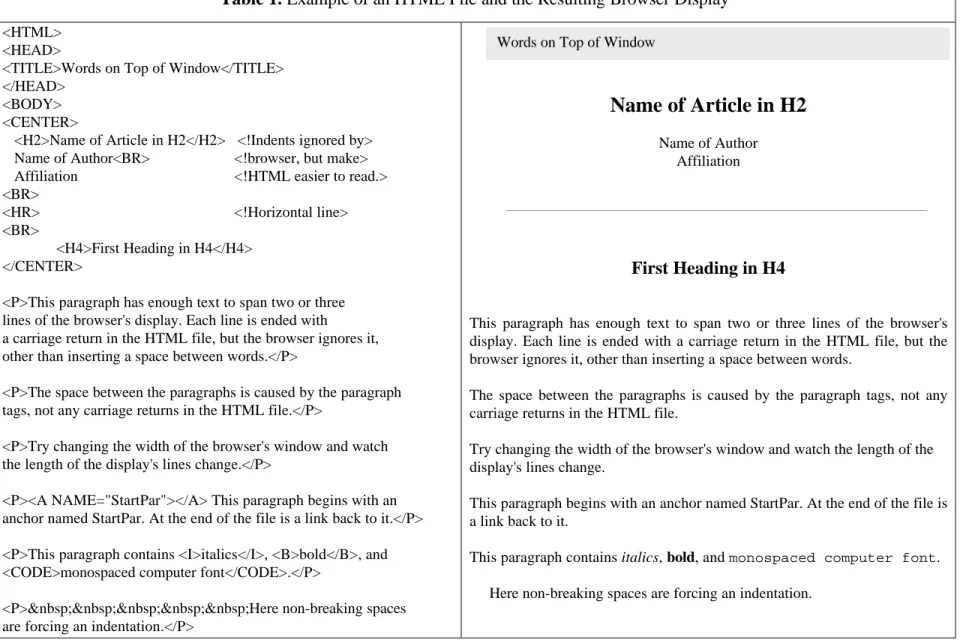
The HTML file shown on the left of Table 1 on the following pages illustrates most of the tags discussed above, plus a few more attributes. It produces the browser display shown on the right side.
Conclusion
Learning enough to start developing a Web site is relatively painless, and the extra knowledge for more advanced sites can be obtained on a need-to-know basis. Using Notepad and a browser meets basic needs, and HTML editors are recommended for more advanced development. HTML files prepared in this manner can be smaller and faster to download than HTML files exported from word processors or doc and pdf files. Moreover, exports from word processors frequently need some editing, so a knowledge of HTML is helpful.
The fastest way to put documents on a Web site is to use doc or pdf files, but these files are larger and slower to transmit, plus they require users to download readers. Nonetheless, someone without much time or with many existing files that contain equations or heavy formatting might not really have a choice. It is far better to have a functional, but not elegant, site that students can use and benefit from than to have no site at all.
Bibliography
1. Arpajian, Scott, How to Use HTML 3, Ziff-Davis Press, Emeryville, CA, 1996.
Table 1.
Example of an HTML File and the Resulting Browser Display
<HTML> <HEAD>
<TITLE>Words on Top of Window</TITLE> </HEAD>
<BODY> <CENTER>
<H2>Name of Article in H2</H2> <!Indents ignored by> Name of Author<BR> <!browser, but make> Affiliation <!HTML easier to read.> <BR>
<HR> <!Horizontal line> <BR>
<H4>First Heading in H4</H4> </CENTER>
<P>This paragraph has enough text to span two or three lines of the browser's display. Each line is ended with
a carriage return in the HTML file, but the browser ignores it, other than inserting a space between words.</P>
<P>The space between the paragraphs is caused by the paragraph tags, not any carriage returns in the HTML file.</P>
<P>Try changing the width of the browser's window and watch the length of the display's lines change.</P>
<P><A NAME="StartPar"></A> This paragraph begins with an anchor named StartPar. At the end of the file is a link back to it.</P> <P>This paragraph contains <I>italics</I>, <B>bold</B>, and <CODE>monospaced computer font</CODE>.</P>
Name of Article in H2
Name of Author Affiliation
First Heading in H4
This paragraph has enough text to span two or three lines of the browser's display. Each line is ended with a carriage return in the HTML file, but the browser ignores it, other than inserting a space between words.
The space between the paragraphs is caused by the paragraph tags, not any carriage returns in the HTML file.
Try changing the width of the browser's window and watch the length of the display's lines change.
This paragraph begins with an anchor named StartPar. At the end of the file is a link back to it.
This paragraph contains italics, bold, and monospaced computer font. Here non-breaking spaces are forcing an indentation.
<PRE>
Here the indentation, spacing , line breaks, and blank lines,
are controlled by using preformatted text. The browser uses a monospaced font here. Changing the width of the browser window does not change where the lines break. Try it.
</PRE>
<P>Here is an ordered list with an unordered one imbedded in it. The spacing below is to make the browser easier to read. The browser controls the spacing in the display.
<OL>
<LI>Ordered item 1 shows different hyperlinks:</LI> <UL>
<LI><A HREF="linkref.htm">same directory link</A></LI> <LI><A HREF="../Over/Down.htm">another directory</A></LI> <LI><A HREF="http://hi.ho.edu/dir">another machine</A></LI> <LI><A HREF="mailto:[email protected]">email Joe</A></LI> </UL>
<LI>Ordered item 2 does nothing.</LI> </OL>
</P>
<P>Here is a blue ball. <IMG SRC="blueball.gif"> In this case, the file containing the picture (blueball.gif) is in the same directory. There also are size and alignment attributes for images.</P> <P>Click this blue ball: <A HREF="#StartPar">
<IMG SRC="blueball.gif" ALT="BlueBall" BORDER="0"></A> It is a hypertext reference to the anchor named StartPar earlier in the document. The ALT text appears instead of the ball if a browser is not displaying images or if the image cannot be found. Setting BORDER to 0 removes the border that would otherwise surround this link.</P>
</BODY>
Here the indentation, spacing , line breaks, and blank lines,
are controlled by using preformatted text. The browser uses a monospaced font here. Changing the width of the browser window does not change where the lines break. Try it.
Here is an ordered list with an unordered one imbedded in it. The spacing below is to make the browser easier to read. The browser controls the spacing in the display.
1. Ordered item 1 shows different hyperlinks: • same directory link
• another directory • another machine • email Joe
2. Ordered item 2 does nothing.
Here is a blue ball:hIn this case, the file containing the picture (blueball.gif) is in the same directory. There also are size and alignment attributes for images. Click this blue ball:hIt is a hypertext reference to the anchor named StartPar earlier in the document. The ALT text appears instead of the ball if a browser is not displaying images or if the image cannot be found. Setting BORDER to 0 removes the border that would otherwise surround this link.