[ LiB ] [ LiB ]
• Table of Contents
Learn JavaScript ™ In a Weekend ®
By Jerry Lee Ford, Jr.
Publisher: Premier Press Pub Date: 2003
ISBN: 1-59200-086-X Pages: 472
Learn JavaScript In a Weekend, 2nd Edition is the ultimate guide to
integrating JavaScript into Web pages. With step-by-step instructions, readers will learn how to effectively use JavaScript, the most popular scripting
language used for Web development today. Setting itself apart from
competitors, this is the only beginner-level book to cover both JavaScript and Jscript. The author includes an introduction to computer and network
automation using JScript. To enforce the material covered throughout the book, there are a number of new scripts introduced and available for download on the book's companion Web site.
Features
Covers the most current versions of JavaScript (Version 1.5) and
JScript (Version 5.6). Much of the competition still focuses on previous versions of these languages.
Incorporates the latest versions of Netscape and Internet Explorer while much of the competition still focuses on previous versions of these browsers.
The author differentiates the book from its competition by also covering JScript and its role as a WSH scripting language. JavaScript will entail about 70% of the book, while about 30% will be dedicated to JScript. A JavaScript programming primer for beginning programmers and Web page developers will also be included.
[ LiB ] [ LiB ]
• Table of Contents
Learn JavaScript ™ In a Weekend ®
By Jerry Lee Ford, Jr.
Publisher: Premier Press Pub Date: 2003
ISBN: 1-59200-086-X Pages: 472
Learn JavaScript In a Weekend, 2nd Edition is the ultimate guide to
integrating JavaScript into Web pages. With step-by-step instructions, readers will learn how to effectively use JavaScript, the most popular scripting
language used for Web development today. Setting itself apart from
competitors, this is the only beginner-level book to cover both JavaScript and Jscript. The author includes an introduction to computer and network
automation using JScript. To enforce the material covered throughout the book, there are a number of new scripts introduced and available for download on the book's companion Web site.
Features
Covers the most current versions of JavaScript (Version 1.5) and
JScript (Version 5.6). Much of the competition still focuses on previous versions of these languages.
Incorporates the latest versions of Netscape and Internet Explorer while much of the competition still focuses on previous versions of these browsers.
The author differentiates the book from its competition by also covering JScript and its role as a WSH scripting language. JavaScript will entail about 70% of the book, while about 30% will be dedicated to JScript. A JavaScript programming primer for beginning programmers and Web page developers will also be included.
[ LiB ]
• Table of Contents
Learn JavaScript ™ In a Weekend ®
By Jerry Lee Ford, Jr.
Publisher: Premier Press Pub Date: 2003 ISBN: 1-59200-086-X Pages: 472 Dedication ACKNOWLEDGMENTS ABOUT THE AUTHOR Introduction
What This Book Is About Who Should Read This Book? What You Need to Begin How This Book Is Organized Special Features of This Book
Chapter FRIDAY EVENING. Introducing JavaScript and JScript Introducing JavaScript and JScript
What Kinds of Things Can You Do with JavaScript and JScript? A Little History Lesson
JavaScript and Browser Compatibility Integrating JavaScript with HTML JavaScript and Case Sensitivity
Different Ways to Integrate JavaScript into Your HTML Pages Taking a Break
Introducing JScript What's Next?
Chapter SATURDAY MORNING. Learning the Basics of JavaScript Coding A Few Words about Scripting
Working with Values Take a Break
JavaScript and JScript Statements Streamlining Your Scripts with Functions Using Arrays
Object-Based Programming Working with Built-In Objects What's Next?
Working with Browser-Based Objects A Brief Overview of Browser Object Models Browser Objects
Creating Custom Objects Handling Events
Take a Break
Using JavaScript to Manage Frames Using JavaScript to Manage Forms What's Next?
Chapter SATURDAY EVENING. Doing Really Cool Things with Your Web Pages Controlling the Status Bar
Improving Browser Navigation Taking Advantage of Dialog Boxes Take a Break
Working with Different Types of Browsers Other Neat Stuff
Basic Graphics and Animation What's Next?
Chapter SUNDAY MORNING. Advanced JavaScript Coding Baking JavaScript Cookies
Debugging Your JavaScripts Take a Break
Overview of the On-line Bookmall Web Site Crafting the Index Page
The Featured Book Navigating the Bookmall Finishing the Bookmall Receiving Customer E-Mail What's Next?
Chapter SUNDAY AFTERNOON. Learning How to Use JScript and the WSH An Overview of the WSH Object Model
JScript Runtime Objects Take a Break
Working with the Windows File System Opening and Closing Files
Creating Report and Log Files Processing File Contents Administering Files and Folders What's Next?
Chapter SUNDAY EVENING. Using JScript to Automate Windows Tasks Automating Windows Desktop Tasks
Executing Windows Commands
Working with Networks and Network Resources Taking a Break
Interacting with the Windows Registry and Application Event Log Automating Script Execution
What's Next?
What's on the Web Site?
Integrating JavaScript with HTML GLOSSARY
[ LiB ] [ LiB ]
Dedication
[ LiB ] [ LiB ]
ACKNOWLEDGMENTS
There are a number of individuals who deserve a lot of credit for the effort that they put into this book. I especially want to thank Arlie Hartman who served as the book's acquisitions editor. I also want to thank the book's project editor, Kim Benbow, for her guidance and suggestions. Finally, I want to acknowledge the book's copy editor, Gene Redding, and its technical editor, Burt LaFontaine, as well as everyone else at Premier Press for all their hard work.
[ LiB ] [ LiB ]
ABOUT THE AUTHOR
Jerry Lee Ford, Jr. is an author, educator, and an IT professional with over 15 years' experience in information technology, including roles as an automation analyst, technical manager, technical support analyst, automation engineer, and security analyst. In addition, he has a master's degree in business administration from Virginia Commonwealth University in Richmond, Virginia. Jerry is also the author of 13 other books including Learn VBScript In a Weekend, Microsoft Windows Shell Scripting and WSH Administrator's Guide, VBScript Professional Projects and Microsoft Windows XP Professional Administrator's Guide. He has over five years' experience as an adjunct instructor teaching networking courses in information technology. Jerry lives in Richmond, Virginia, with his wife, Mary, and their children William, Alexander, and Molly.
[ LiB ] [ LiB ]
Introduction
Congratulations on your decision to learn JavaScript and JScript. JavaScript is a powerful scripting language that, when combined with HTML, allows you to create exciting and powerful Web pages. You can use these Web pages to run a small business or to share information with family and friends over the Internet. JScript is a Microsoft implementation of JavaScript that can be used as a scripting language for automating repetitive or complex desktop and system tasks.
What you are probably asking yourself is, "Can I really learn to program using JavaScript and JScript in a single weekend?" The answer is "Yes!" I am not promising that you will become a programming guru in just a few days, but if you will dedicate a full weekend to this book and follow along with its
examples, you will be able to write your own JavaScripts and JScripts. In no time you will be able to make dramatic improvements to your Web pages as well as develop scripts that automate any number of Windows desktop tasks.
Syntactically, JavaScript and JScript are virtually identical. So by learning how to write JavaScripts, you are also learning how to work with JScript as well. Where the two languages differ is in the environments in which they execute. JavaScripts are embedded inside HTML pages and run by Web browsers. JScripts, on the other hand, are written as plain text files that are executed directly from the Windows desktop by the Windows Script Host or WSH.
As long as you have basic Windows skills and a good HTML background, you'll find that this book will provide you with all the information and examples you need to get up and running with both of these exciting scripting languages in a single weekend.
[ LiB ] [ LiB ]
What This Book Is About
This book is about learning how to write JavaScripts in order to create exciting Web sites. It is also designed to teach you how to leverage the skills and knowledge that you'll develop working with JavaScript in order to create JScripts that automate desktop tasks. Basic experience with Windows and HTML is assumed. The book provides the rest for you. By the time the weekend is over, you will have learned how to do the following:
Integrate JavaScripts into your Web pages
Use JavaScript to take control of the browser status line
Use JavaScript to display pop-up alert, prompt, and confirmation dialog boxes so that you can interact with your visitors
Use JavaScript to add graphic effects to Web pages
Use JavaScript to create Web page banners, clocks, and other animation effects Use JavaScript to validate forms and e-mail the contents of those forms to yourself Write JavaScripts that collect and save visitor information
Write JScripts that automate Windows tasks, such as the creation of new user accounts and disk and printer management
Write JScripts that can read text files and create log and report files
Write JScripts that can create shortcuts and configure the Windows Start menu and Quick Launch bar
[ LiB ] [ LiB ]
Who Should Read This Book?
This book is for anyone who is ready to begin spicing up their Web pages using JavaScript, or anyone who wants to become more efficient by learning how to automate the execution of repetitive or
complex Windows tasks. Before working with JavaScript, you'll need to be comfortable working with Netscape Navigator or Microsoft Internet Explorer. Of course, you'll need to know a little HTML as well. Likewise, you'll need to know the basics of working with Windows in order to be able to leverage the power of JScript. This means that you should already know how to perform such tasks as well as know how to create a shortcut, how to create, delete, and modify text files and folders in addition to knowing how to configure the Windows Start menu.
NOTE
If you feel that your HTML skills are a little weak, you might want to brush up on them by reading Premier Press's Learn HTML In a Weekend. However, if you are only a little rusty, you'll probably be able to pick things back up by reviewing the HTML code used in this book.
It is also helpful (but not required) that you know another programming language such as Basic, Perl, or C. This book provides an ideal quick start guide for more seasoned programmers. Although knowledge of another computer programming language is not a prerequisite for success, having this type of background will make your learning experience this weekend a little easier and less stressful. Do not worry if you lack this experience; everybody has to start somewhere. JavaScript and JScript are perfect languages to start with.
[ LiB ] [ LiB ]
What You Need to Begin
The great thing about JavaScripts and JScripts is that they are easy to create. You do not have to spend a lot of money on programming tools before you can begin developing scripts. To begin developing JavaScripts, all that you'll need is
A computer. Just about any computer will work because you don't need a lot of horsepower to develop and test JavaScripts.
Internet access. Whether it is from work or home, you must be able to access the Internet so that you can upload your Web pages to your Web site.
An Internet Web browser. Several Internet browsers support JavaScript, including Microsoft Internet Explorer, Netscape Navigator, and Opera. You need at least one of these browsers to test your JavaScripts. However, it's a good idea to have copies of all of them to make sure that your JavaScripts work correctly with each browser.
A Web site. If you do not already have your own Web site, the odds are that your local Internet service provider can set you up with one.
A text editor. You can use any basic text editor to write and save your JavaScripts. You can even use the Windows Notepad application.
A graphics editor. This tool is optional, though it is required if you plan to add any graphic images to your Web pages. For example, you might want to design your own banner pages or Web site logo.
Unlike many programming languages, JScript doesn't require you to learn how to work with a complicated integrated development environment or IDE before you can develop scripts that run directly from the Windows desktop. To begin developing JScripts, all that you'll need is
Windows 95, 98, Me, NT, XP, 2000, or 2003. Only Windows computers support JScript. The Windows Script Host or WSH, version 5.6. Available for free at
http://msdn.microsoft.com/scripting.
JScript 5.6. Available for free at http://msdn.microsoft.com/scripting. A text editor. Like JavaScript, any text editor, including Notepad, will do.
[ LiB ] [ LiB ]
How This Book Is Organized
This book is written so that you can complete it in seven sessions over the course of a single weekend. Of course, you can read it anytime you want. The first five chapters focus on providing you with a strong JavaScript programming foundation. The last two chapters leverage this material by teaching you how to apply what you have learned to the development of JScripts. The basic outline of the book is shown here:
Friday Evening: "Introducing JavaScript and JScript." This chapter provides prerequisite background information for working with JavaScript and JScript. It overviews the kinds of enhancements you can make to Web pages using JavaScript. Background information includes a brief history of JavaScript and a discussion of browser compatibility. You'll then learn how to write your first JavaScript. This chapter also includes an overview of JScript and the WSH. This will include an overview of both technologies and a brief examination of the WSH architecture, which provides the environment in which JScripts execute.
Saturday Morning: "Learning the Basics of JavaScript Coding." This chapter provides you with a programming foundation. It discusses scripting and script syntax before starting a series of lessons that outline the basic programming statements that comprise the JavaScript and JScript languages. You will learn how to work with variables, literals, functions, expressions, operators, statements, and arrays. The chapter concludes by covering object-oriented programming and outlining the JavaScript object model.
Saturday Afternoon: "Using JavaScript to Build Better Web Pages." This chapter reviews objects made available to JavaScript by browsers and demonstrates how to access these objects. The chapter also provides a discussion on JavaScript events and how to handle them with event handlers. The chapter concludes with a discussion on how to use JavaScript to control HTML frames and forms.
Saturday Evening: "Doing Really Cool Things with Your Web Pages." In this chapter, things start getting really exciting. You'll learn how to write JavaScripts that manipulate the browser status line, create scrolling messages, and open pop-up dialog boxes. The chapter includes a discussion on the differences between Netscape Navigator and Internet Explorer and how to work with both browsers using JavaScript. The chapter concludes by covering the use of plug-ins and the application of graphics and animation.
Sunday Morning: "Advanced JavaScript Coding." This chapter concludes the book's JavaScript coverage by exploring how to use cookies to store and retrieve information about visitors to your
Web site. The chapter also provides a solid review of the techniques involved in debugging JavaScripts. Finally, the chapter ends by demonstrating how to put your new JavaScript programming skills to use by developing the On-line Bookmall Web site.
Sunday Afternoon: "Learning How to Use JScript and the WSH." This chapter covers the objects that make up the WSH object model, including their properties and methods. It also goes over JScript's runtime objects. It teaches you how to write JScripts that can access the Windows file system and shows you different ways of performing file and folder administration. You'll learn how to create text documents and log files as well as how to open and read text files.
Sunday Evening: "Using JScript to Automate Windows Tasks." This chapter focuses on showing you how to use JScript and the WSH to perform a number of different automation tasks. These tasks will include the creation of Windows shortcuts, the customization of the Windows Start menu and Quick Launch Toolbar, how to write messages to the Windows Event Log, and how to read and write to the Windows registry. In addition, you will learn how to work with Windows commands, access network resources, and schedule script execution.
"What's on the Web Site?" This tells you where you can find examples of all the scripts that are presented in this book. Copies of each are available for download from
http://www.courseptr.com.
Glossary: This presents a list of terms used throughout this book.
NOTE
Please go to http://www.courseptr.com to find Appendixes A, B, and C.
Appendix A: "A Brief JavaScript and JScript Object Reference." This appendix provides a brief outline of JavaScript objects and identifies the properties and methods associated with them. Appendix B: "A Summary of JavaScript Events and Event Handlers." This appendix
provides a brief outline of JavaScript events and the event handlers associated with them. Appendix C: "JavaScript and JScript Reserved Words." This appendix identifies JavaScript and JScript reserved words.
[ LiB ] [ LiB ]
Special Features of This Book
This book applies a number of conventions to help make it easier for you to use, including
NOTE
Notes provide additional information that is good to know but which may not be essential to the topic being discussed.
NOTE
TIP
Tips suggest alternative techniques and shortcuts that can help you to work faster and more efficiently.
NOTE
CAUTION
Cautions warn you of situations where errors or unforeseen problems could arise.
[ LiB ] [ LiB ]
Chapter FRIDAY EVENING. Introducing
JavaScript and JScript
What are JavaScript and JScript?
Integrating JavaScript into HTML pages Writing your first JavaScript
Understanding JScript and the Windows Script Host Configuring the JScript execution environment
Welcome to Learn JavaScript in a Weekend. This book will teach you everything that you need to know to get started using this exciting and fun Web scripting language. By the time the weekend is over, you'll be ready to update your Web site to make it a lot more interactive and entertaining for your visitors. This book also will teach you how to create scripts using JScript (which is Microsoft's version of JavaScript) to automate all sorts of tasks on Windows operating systems.
In this chapter you will learn the background information that you need to know about JavaScript. This will include learning where it came from, what browsers support it, and the steps involved in creating and testing your JavaScripts.
To develop JScripts that run directly from the Windows desktop, you'll also need to learn about the Windows Script Host (WSH). This chapter will explain the WSH's basic architecture and show you how to configure it and use it to run your first JScript. By the time you go to bed tonight, you'll have the foundation you need to finish the rest of this book and begin your journey as a JavaScript and JScript programmer.
[ LiB ] [ LiB ]
Introducing JavaScript and JScript
JavaScript is a computer language specially designed to work with Internet browsers. It lets you create small programs called scripts and embed them inside Hypertext Markup Language (HTML) pages in order to provide interactive content on your Web pages. JScript is Microsoft's implementation of JavaScript. In addition to running within Internet Explorer, Microsoft also provides a version of JScript that can be used as a desktop scripting language with the Windows Script Host.
The WSH is an optional scripting environment that supplies Windows operating systems with the capability to run scripts directly on the Windows desktop. Both languages support the same collection of programming statements.
JavaScript and JScript are interpreted languages. This means that scripts written in these languages are not compiled before they are executed (as is typical of most programming languages such as C++). Every script statement must first be converted into binary code (a computer language made up of 0s and 1s that the computer can understand) in order to execute. Unlike complied programs, which are converted to binary code in advance, JavaScript and JScript statements are processed at execution time. This means that they run a little slower than compiled programs. The upside is that this makes writing and testing JavaScripts and JScripts very intuitive and easy. You simply write a few lines of code, save your script, and test it without having to stop and compile it into executable code.
JavaScript and JScript are object-based scripting languages. This means that they view everything as
objects. For JavaScripts, the browser is an object, a window is an object, and a button in a window is an object. JScript has access to a different set of objects. For example, JScript has the capability to access objects such as files, drives, and printers.
Every object has properties, and you can use JavaScript and JScript to manipulate these properties. For example, with JavaScript you can change the background color of a browser window or the size of a graphic image. In addition to properties, objects have methods. Methods are the actions that objects can perform. For example, JavaScript can be used to open and close browser windows. By manipulating their properties and executing methods, you can control objects and make things happen.
JavaScripts support event-driven programming. An event is an action that occurs when the user does something such as click on a button or move the pointer over a graphic image. JavaScript enables you to write scripts that are triggered by events. Did you ever wonder how buttons dynamically change colors on some Web sites when you move the mouse over them? It's simply a JavaScript technique known as a rollover. The event is the mouse moving over the button (object). This triggers the execution of an event handler, which is a collection of JavaScript statements that replaces the button with another one that uses a different color.
JavaScripts and JScripts that run within Web browsers have access to objects located on Web pages. On the other hand, JScripts that run within the WSH have access to desktop resources such as toolbars, files, printers, and the Windows registry.
Because JavaScript and JScript run in different environments, they work with different objects, and they have different capabilities. For example, using JScript you can create scripts that can copy and move files, access data stored on network drives, administer local and network printers, and configure the Windows desktop and Start menu.
Because JavaScript and JScript are so closely related, you can learn one language by learning the other. The difference between the two resides in the location in which they execute and the objects to which they have access. Tomorrow morning you will get a thorough language review of all the statements that make up JavaScript and JScript. Because the first part of this book focuses on JavaScript, all the
examples will be presented using that language. However, from a programming standpoint, most of the scripting statements that you will see can be applied directly to JScript programming.
[ LiB ] [ LiB ]
What Kinds of Things Can You Do with JavaScript and
JScript?
The relatively simple and straightforward HTML that helped to make the Internet explode upon the scene in the mid-1990s enables you to create Web pages that display static information. Over the years, HTML has lost much of its luster. Markup languages are great for formatting the display of text, but they lack the capability to interact with visitors. People surfing the Internet have come to expect and demand more than a static presentation of data from Web sites. If you want people to visit your Web site, to enjoy themselves, and to return again, then you have to find ways to make it more interesting. One of the best ways to do this is with JavaScript.
JavaScript provides your Web pages with the capability to do many exciting things. The following list provides a preview of what you will learn how to do with JavaScript in this book.
Display pop-up messages that display and collect information from visitors Create rotating banners
Open new windows
Redirect people using older browsers to non-JavaScript HTML pages
Detect the browsers and plug-ins being used by people visiting your Web site Validate forms and package their contents in an e-mail message
Perform simple animations such as rollovers
Exercise greater control over HTML frames and forms Take control of the status bar and create scrolling messages
JavaScript can do a lot of different and exciting things. However, there is one thing that it cannot do. JavaScripts cannot run outside of the browser. This "limitation" helps make JavaScript more secure because users do not have to worry about somebody writing a JavaScript that might erase their hard drive or read their address book and extract private information.
JavaScript, as covered in this book, focuses on client-side scripting. By client-side scripting I means scripts that execute within the browsers of people that visit your Web pages. A server-side version of JavaScript also exists.This version of JavaScript is designed to run on Web servers and is used by professional Web site developers to create scripts that provide dynamic content based on information received from visitors, as well as from information stored in a server-side database. A discussion of server-side JavaScript is beyond the scope of this book. From this point on, when I refer to JavaScript, I will be talking about client-side scripting. Like JavaScript, JScript is limited by the constraints of its execution environment. When run by the WSH, JScripts don't have access to Web content. They don't work with HTML frames or forms. Instead, the WSH opens up a whole new execution environment that provides JScripts with the capability to access both local and network computer resources. In this context, JScript's primary reason for existing is to facilitate the development of scripts that automate tasks.
JScript provides an especially powerful tool for developing scripts that can automate repetitive and mundane tasks or tasks that are complicated and prone to error when performed manually. The following list provides a preview of what you will learn how to do with JScript in this book.
Create and configure desktop shortcuts Generate text reports and log files
Manage the Windows file system by copying, moving, and deleting files and folders Manage operating system resources such as Windows services, the registry, and event logs Create and administer user accounts
Manage local and network resources such as network printers and disk drives Interact with and control other applications
[ LiB ] [ LiB ]
A Little History Lesson
Years ago, the programmers at Netscape Communications Corporation recognized that HTML alone was not robust enough to support interactive Web programming. In 1995 they developed a scripting language called LiveScript, which gave Web page developers greater control over the browser. Later, Sun Microsystems came along and developed a new programming language named Java. Java quickly became a hot item and received an enormous amount of media and industry attention. Netscape added support for Java in Netscape Navigator 2. At the same time, Netscape decided to change the name of LiveScript to JavaScript, which earned the scripting language a little more attention thanks to its name. That's about all the two languages have in common. Neither is related to the other, although both are supported by modern Internet browsers as a way of delivering interactive Web content.
Netscape has continued to enhance and improve JavaScript over the years and has released a number of new versions of Netscape Navigator along the way, as shown in Table 1.1.
Table 1.1. HISTORICAL VIEW OF INTERNET BROWSER SUPPORT FOR JAVASCRIPT
JavaScript Netscape Version Internet Explorer Version
1.0 Navigator 2 Internet Explorer 3
1.1 Navigator 3 Internet Explorer 4
1.2 Navigator 4 Internet Explorer 4
1.3 Navigator 4.5 Internet Explorer 5
1.5 Navigator 6 and 7 Internet Explorer 5.5 and 6
One problem that has plagued Internet development over the years is a lack of standardization. The European Computer Manufacturing Association (ECMA) has taken a lead role in working toward standardizing JavaScript, which it refers to as ECMAScript. The ECMA-262 specification outlines standards with which JavaScript 1.3 is compliant. JavaScript 1.5 is compliant with ECMA-262 revision 3.
NOTE
Netscape is now working on JavaScript 2.0, which it promises will be compatible with the fourth revision of ECMAScript. At the same time, JScript .NET, Microsoft's next version of JScript, is also being developed based on ECMAScript revision 4.
Microsoft first released JScript in 1996 as a scripting language for Internet Explorer 3.0, which was basically just Microsoft's own implementation of JavaScript 1.0. Later, JScript 2 was released as a component of IIS 3.0, turning JScript into a server-side scripting language that, when embedded inside ASP pages, could access server-side databases and create HTML pages with dynamic content.
NOTE
Internet Information Server (IIS) is a Microsoft Web server application that supports the creation of Web sites and is used by companies all over the world to host their Web sites.
Active Server Pages (ASPs) are executable files that run on IIS and deliver dynamic HTML content.
JScript 3 was released in a number of different environments, which include the following: Internet Explorer 4
IIS 4
Windows Scripting Host
As one of the two default scripting languages provided as part of Microsoft's new Windows Scripting Host, JScript 3 became a desktop scripting language capable of interacting directly with computer resources. Next, JScript 4 was delivered as part of Microsoft's Visual Studio development suite. The major feature added to this version of JScript was the capability to interact directly with the Windows file system.
NOTE
Microsoft's Visual Studio development suite is a collection of different software languages and software development tools that assist software developers in creating robust
JScript version 5 was released along with the joint introduction of Internet Explorer 5 and Windows 2000. The current version of JScript, version 5.6, was introduced in 2001 along with Windows XP and Internet Explorer 6.
[ LiB ] [ LiB ]
JavaScript and Browser Compatibility
When JScripts are processed by the WSH, browser compatibility issues do not affect JScript programmers.
However, browser compatibility has always been a major issue for JavaScript programmers. The two most popular Internet browsers since the mid-1990s have been Microsoft's Internet Explorer and Netscape's Communicator. Microsoft and Netscape traditionally have had different opinions as to how browsers should work. As a result, Netscape Communicator versions 2, 3, and 4 performed differently in many situations than Internet Explorer versions 3, 4, and 5. HTML pages and JavaScripts often behaved differently when asked to do the same thing on either browser.
One key difference between these earlier versions of Internet Explorer and Netscape Communicator was their object models. Browsers abstract their content and functionality in the form of objects. JavaScript interacts with browsers by interacting with these objects. The problem was that Netscape and Internet Explorer had different object models, so some objects that existed in one browser did not exist in the other. However, with the advent of the ECMAScript standards, things have become a lot more consistent in recent years. As a result, in most circumstances, HTML or JavaScript processed by Netscape Communicator version 6 or 7 should be processed pretty much the same as if it were
processed by Internet Explorer 5.5 or 6. However, even with the latest versions of both browsers, small differences in implementation still exist. The only way to be sure that your JavaScripts will behave as expected on both browsers is to test them using both browsers.
Another browser issue that JavaScript programmers still have to be concerned with is what version of JavaScript the various browsers support. JavaScript support began with the Netscape 2 browser, but that browser supports only the initial version of JavaScript. Microsoft began to provide JavaScript support only in Internet Explorer 3. The problem is that there are still a lot of people out there running older versions of both browsers, and trying to accommodate them all is very difficult.
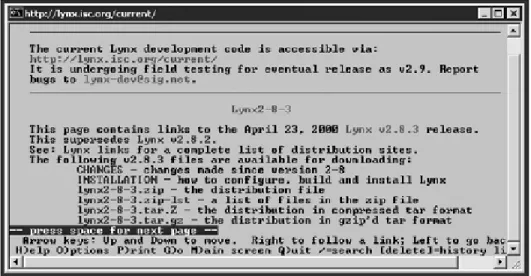
Not all browsers are created equal. In fact, things are made more difficult because Microsoft and Netscape are not the only companies that make browsers. Other browsers provide varying degrees of JavaScript support. For example, the Lynx browser, shown in Figure 1.1, is a simple text-based browser that does not support graphics or JavaScript.
Figure 1.1. The Lynx browser is lightning fast when interacting with Web sites that support text-only content.
One option is to ignore all non-JavaScript browsers and stay with Netscape Navigator and Internet Explorer. You might also write scripts that support only the latest versions of both browsers. This will probably satisfy 98 percent of your potential visitors. However, if you want to attract as many people as possible to your Web site, you may want to consider finding ways to accommodate older browsers. We'll look at different options for dealing with that problem tomorrow.
One other Internet browser that you might want to be on the lookout for it called Opera, pictured in Figure 1.2. It is currently available for trial download at www.opera.com. It is less than half the size of its Netscape and Internet Explorer competitors. Still, it provides support for all the features that you'd expect, including support for JavaScript. Best of all, it loads Web pages fast. There is just one catch: It is not free. More and more people are starting to pay attention to it, and you may want to get a copy of it for testing.
[ LiB ] [ LiB ]
Integrating JavaScript with HTML
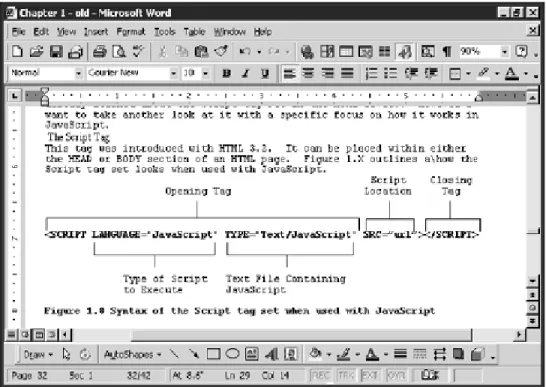
JavaScripts are collections of programming statements that you embed in HTML documents by placing them within the <SCRIPT> and </SCRIPT> tags. These tags can be placed within either the head or body
section of an HTML page. Figure 1.3 outlines the syntax that you must follow when using these tags in an HTML page.
Figure 1.3. Syntax of the <SCRIPT> and </SCRIPT> tags when used with JavaScript.
NOTE
Testing your JavaScripts with multiple browsers is simply a matter of downloading and installing them and then using them all to see how they handle your scripts. If you also want to test how older versions of those browsers work, you may need another
computer. As of the writing of this book, I was able to download versions as old as Netscape 3 and Internet Explorer 3 from popular shareware sites such as
www.tucows.com and www.download.com.
Several arguments can be included within the first <SCRIPT> tag. The LANGUAGE attribute specifies the
version of JavaScript you want to use. Here are your available options:
LANGUAGE="JavaScript" LANGUAGE="JavaScript1.1" LANGUAGE="JavaScript1.2" LANGUAGE="JavaScript1.3" LANGUAGE="JavaScript1.5" NOTE
Different versions of the Netscape Navigator and Internet Explorer browsers support different versions of JavaScript (as shown in Table 1.1, earlier in this session).With so many different versions of JavaScript and browsers, things can get very confusing.You may want to write your JavaScripts so that they conform to the lowest common denominator (that is, so that your scripts don't use features in versions of JavaScript newer than the oldest version that visitors to your Web site are likely to have). Another option is to write your JavaScripts to accommodate different browser versions.
The LANGUAGE attribute is the old way of specifying the type of script embedded within an HTML page.
According to the HTML 4.0 specification, the TYPE attribute is now the proper way to go. However,
you can continue to use both attributes if you want, in order to ensure that older browsers don't get confused. When working with JavaScripts, the TYPE attribute will always be Text/JavaScript.
Another way to work with JavaScripts is to store them in external files that have a .js file extension
and then to reference those files from within your HTML pages. To accomplish this, you use the SRC
attribute to specify the location of an external JavaScript file. Referencing an external script makes it a little more difficult for users to view your JavaScript source code. It also makes it possible to share the same JavaScripts among multiple HTML pages. Once you have defined the opening and closing tags, you can begin placing JavaScript statements between them.
Your First JavaScript"Hello World"
So far, we've introduced JavaScript and JScript, discussed their capabilities and differences, and gone over their history. We then discussed JavaScript browser compatibility issues and learned the syntax
required to use the <SCRIPT> and </SCRIPT> tags to embed JavaScripts within HTML pages. Now it's
time to create your first JavaScript. It's going to be a very basic example, so don't get your hopes up too high. By tomorrow night, you'll be writing much more sophisticated scripts.
In this example, you will create the classic "Hello World" script that every programming book since the beginning of time has used as its introductory example. After all, who am I to defy such an honored tradition?
Before you get started, I want to say a quick word about HTML and JavaScript editors. There are plenty of them available, and their features and capabilities vary as much as their prices. It really does not matter which editor you ultimately decide to use. In fact, for the code you see in this book, I used the Notepad program that comes with Windows XP Home Edition.
NOTE
TIP
Most JScript programmers have a script editor that they always work with. Modern script editors provide a number of features that facilitate and expedite script development, making them a lot more useful than Notepad. For example, most script editors will provide statement color coding. In addition, they can be configured to indent script statements automatically. Script editors may also provide wizards or templates that assist in the creation of new scripts. Some editors will even let you test your scripts from directly within the editor, saving you the trouble of having to load your HTML pages into your Web browser each time you want to test them. For example, HomeSite is a very popular editor among Web developers and can also be used when developing JScripts. To learn more about HomeSite, check out its home page at http://www.macromedia.com/software/homesite.
The first thing I did before approaching any of the coding examples in this book was to create an HTML template that I could use over and over again. Every time I worked on a new script, I used Notepad to open my template and type in my JavaScript statements. Then I chose File and selected Save As from the Notepad menu to save my script with a new file name. If you are using a full-featured HTML editor, it may automatically provide you with a starting template whenever you create a new HTML page. If not, you may want to build and use a template like I did. My template is shown here:
<HTML> <HEAD>
<TITLE>Script 1.1 - Insert Descriptive Title Here</TITLE> </HEAD>
<BODY> </BODY>
</HTML>
As you can see, my template contains the <HEAD></HEAD>, <TITLE></TITLE>, and <BODY></BODY>
tag sets all wrapped inside the starting and ending <HTML></HTML> tag set. If you want to do so, create
your own template now. When you are done, add the following lines inside the body section:
<SCRIPT LANGUAGE="JavaScript" TYPE="Text/JavaScript"> document.write("Hello World");
</SCRIPT>
These three statements will make up your first JavaScript. You should recognize the first and last lines as script tags that tell your browser to execute the enclosed JavaScript statements. This script has just one statement. This statement tells the browser to write the message "Hello World" on the current document, which is the window in which the HTML page opened.
Once you have added the three lines of JavaScript to your template, it should look like this:
<HTML> <HEAD>
<TITLE>Script 1.2 - Sample HTML Page</TITLE> </HEAD>
<BODY>
<SCRIPT LANGUAGE="JavaScript" TYPE="Text/JavaScript"> document.write("Hello World");
</SCRIPT> </BODY> </HTML>
Testing Your First Script
Now that you have typed in your first script, you need to save it. I called my script HelloWorld.html.
The HTML extension identifies the page as an HTML page. Your computer uses the information in the
file's extension to associate the file with a particular application. An .html extension tells the operating
system to open its default browser and pass the HTML file to it. Alternatively, you can use the .htm
extension, which is also recognized as an extension for HTML pages.
If you are using a full-featured HTML editor, the editor may enable you to test your script with the click of a button. Because Notepad has no such automatic HTML testing feature, I simply started up a browser and used it to open the HelloWorld.html file. The browser opened my page and ran the script.
Depending on the browser installed on your computer, the process of testing your script is slightly different as outlined in the following procedures.
Testing with Netscape Communicator: Start Netscape Navigator.
1.
In the menu bar, click on File and then click on Open Web Location. 2.
Type the location of your HTML page and click on Open. Alternatively, click on the Choose File
button to browse and find the HTML page and then select it and then click on Open. Netscape Navigator opens the page as shown in Figure 1.4.
Figure 1.4. Testing your first JavaScript using Netscape Communicator
3.
Testing with Internet Explorer: Start Internet Explorer. 1.
In the Internet Explorer menu bar, click on File and then click on Open. The Open dialog box appears.
2.
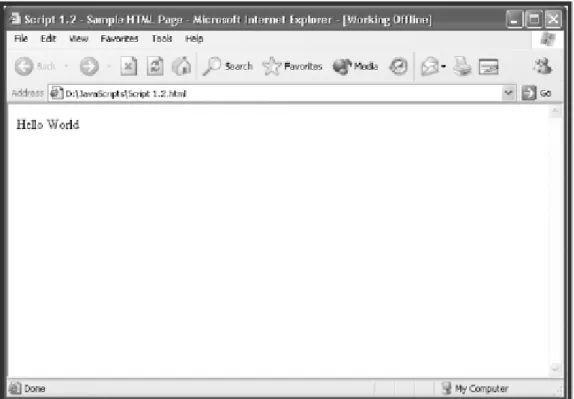
Type the location of your HTML page and click on OK. Alternatively, click on the Browse button, locate and select your HTML file and then click on OK. Internet Explorer opens the page 3.
as shown in Figure 1.5.
Figure 1.5. Testing your first JavaScript using Internet Explorer
3.
After loading your new script and making sure that it works the way that you intended in both Netscape Navigator and Internet Explorer, you know that you probably have a good script. However, both
Internet Explorer and Netscape Communicator do a really good job of hiding errors when they occur. I will show you how to look for and fix these errors on Sunday morning. If you did not see the Hello World message displayed, then you probably mistyped something, so go back and reopen your HTML
page and double-check your work. For now, I'll assume that you saw what you expected when you loaded your Web page and everything is okay.
[ LiB ] [ LiB ]
JavaScript and Case Sensitivity
You have to be extremely careful when keying in the text of your JavaScripts. JavaScript is a case sensitive programming language (unlike HTML, which enables you to use different capitalization when defining HTML tags). Case sensitivity means that you must type JavaScript elements exactly as they appear in this book in order for them to work. For example, as far as JavaScript is concerned, the words
document and Document refer to two different things, so pay special attention when typing your scripts. If I had accidentally typed a capital D in the document.write() statement used in the preceding
example, my script would have experienced an error. As a result, the Hello World message would not
[ LiB ] [ LiB ]
Different Ways to Integrate JavaScript into Your HTML
Pages
As you know, there are two places you can put your JavaScripts in an HTML page: in either the head or body section. In addition, I have told you that you can either embed JavaScript directly into the HTML page or reference it in as an external .js file. One more way you can integrate JavaScript into an
HTML page is as a component in an HTML tag.
Placing JavaScripts in the Body Section of the HTML page
JavaScripts embedded with the <SCRIPT> and </SCRIPT> tags can be placed anywhere in the body
section of an HTML page. Scripts embedded in the body section are executed as part of the HTML document when the page loads. This enables the script to begin executing automatically as the page loads. For example, the statements shown below demonstrate how to embed a JavaScript within the body section of an HTML page.
<BODY>
<SCRIPT LANGUAGE="JavaScript" TYPE="Text/JavaScript"> document.write("This JavaScript is located in the body section");
</SCRIPT> </BODY>
Similarly, you can embed multiple JavaScripts in HTML pages:
<BODY>
<SCRIPT LANGUAGE="JavaScript" TYPE="Text/JavaScript"> document.write("This first JavaScript is located in the body section");
</SCRIPT> <BR>
<SCRIPT LANGUAGE="JavaScript" TYPE="Text/JavaScript">
document.write("This second JavaScript is also located in the body section");
</SCRIPT> </BODY>
Placing JavaScripts in the Head Section of the HTML page
JavaScripts also can be placed anywhere within the head section of your HTML pages. Unlike scripts embedded within the body section of HTML pages, scripts embedded in the head section are not necessarily automatically executed when the page loads. In some cases, they are executed only when called for execution by other statements within the HTML page. Most JavaScript programmers move all functions and most variables to the head section because this ensures that they will be defined before being referenced by scripts located in the body section of the page.
NOTE
Variables are containers for storing information in computer memory. Functions are groups of JavaScript statements that you can call to perform a specific task. I'll talk more about the benefits of using functions and variables tomorrow.
The following statements show an HTML page with a JavaScript embedded in the head section. This script will automatically execute when the HTML page is loaded.
<HTML> <HEAD>
<TITLE>Script 1.3 - Sample HTML Page</TITLE>
<SCRIPT LANGUAGE="JavaScript" TYPE="Text/JavaScript"> window.alert("This JavaScript is located in the head section"); </SCRIPT> </HEAD> <BODY> </BODY> <HTML>
As Figure 1.6 shows, this script displays a message in a pop-up dialog. I'll explain how the script did this tomorrow.
This next HTML page contains an embedded JavaScript that will not automatically execute when the HTML is loaded by the browser.
<HTML> <HEAD>
<TITLE>Script 1.4 - Sample HTML Page</TITLE>
<SCRIPT LANGUAGE="JavaScript" TYPE="Text/JavaScript"> function DisplayMsg() {
window.alert("This JavaScript is located in the head section"); } </SCRIPT> </HEAD> <BODY> </BODY> </HTML>
This pop-up dialog is not displayed this time because the JavaScript statement that displays it has been embedded within a function called DisplayMsg(). As a result, the JavaScript is executed only when
called upon to execute from someplace else in the HTML page. For now, don't concern yourself with worrying about what a function is. Just understand that they can be used to create JavaScripts in the HTML page's head section that do not execute automatically.
Referencing JavaScript in an External .js File
To store your JavaScripts in external files, you need to save them as plain text files with a .js file
extension. You then need to add the SCR attribute to the opening <SCRIPT> tag in your HTML page as
demonstrated here.
<SCRIPT SRC="Test.js" LANGUAGE="JavaScript" TYPE="Text/JavaScript"> </SCRIPT>
In this example, an external JavaScript named Test.js has been specified. This external JavaScript can
contain any number of JavaScript statements. However, it cannot contain any HTML whatsoever. Otherwise you'll end up with an error. For example, the contents of the Test.js script might be as
simple as this:
document.write("This is an external JavaScript.");
There are many advantages to putting JavaScripts in externally referenced files. For starters, by moving JavaScripts out of your HTML pages you make your HTML pages smaller and easier to work with. In addition, you can reuse the JavaScripts stored as external files over and over again by referencing them from any number of HTML pages. This way if you create a script that you want to reference from multiple HTML pages, you can do so without having to embed the same script in different HTML pages over and over again. As a bonus, should you ever want to modify the functionality of an externally stored script, you may do so without having to visit every HTML page where you would otherwise have embedded it.
NOTE
References to external JavaScripts can be placed in either the head or the body section of the HTML page.There is no limit to the number of external references that you can make, and there is no limit to the number of statements you can place in an external JavaScript.
Placing JavaScript in an HTML Tag
JavaScript can also be placed within HTML tags, as shown in the following example.
In this example, the JavaScript onLoad=document.write("Hello World!") statement has been added
to the HTML <BODY> tag. This particular JavaScript statement tells the browser to write the enclosed
text when the browser first loads the HTML page.
Placing small JavaScript statements inside HTML tags provides an easy way to execute small pieces of JavaScript code. Of course, this option really is beneficial only when executing small JavaScript statements and is impractical for larger JavaScript statements or situations that required multiple lines of code. However, as you will learn tomorrow, you can also trigger the execution of JavaScripts embedded in an HTML page's head section by embedding calling statements inside HTML tags.
NOTE
You may have noticed the unusual spelling of the word onLoad in the previous example.The L in the middle of the word is capitalized, and rest of the word is in lowercase letters.This
type of notation is known as camelback notation.This is a perfect example of JavaScript's case sensitivity. If you change the capitalization of this word in any way, you'll get an error when you run your JavaScript.
[ LiB ] [ LiB ]
Taking a Break
Okay, now is probably a good time to take a few minutes and stretch your legs before we continue. When you return I will start your overview of JScript and the WSH. This will include an examination of the WSH architecture and a look at how JScript fits into it. In addition, you will learn a little bit about how to work with the Windows command prompt. Finally, the chapter will conclude by showing you how to configure the WSH so that it works the way you want it to, both from the Windows
[ LiB ] [ LiB ]
Introducing JScript
JScript is one of two default scripting languages supplied by Microsoft to use with the WSH. The other scripting language supplied with the WSH is VBScript. Functionally, JScript and VBScript are pretty much equivalent. Both are great scripting languages for automating small tasks.
NOTE
VBScript is a scripting language based on a subset of the Visual Basic programming
language. Like JavaScript,VBScript can also be used for Web page development. However, while Internet Explorer supports VBScript, it does not work with Netscape Communicator. This makes VBScript a less universally accepted scripting language. In addition, VBScript is proprietary.This means that Microsoft owns it, whereas the current version of JavaScript and JScript are based on the ECMAScript standards, so no one company controls its future. As a result, many people prefer JavaScript and JScript to VBScript.
JScript and JavaScript provide a better collection of built-in mathematical functions that assist in performing complex calculation. VBScript, on the other hand, provides better support for working with arrays. I'll talk more about functions and arrays on Saturday morning. The decision as to whether to use JScript or VBScript to automate Windows tasks is really just a matter of personal preference. People with a JavaScript background will be able to make the move to JScript with very little effort. Likewise, people with a strong Visual Basic programming background may prefer learning VBScript.
NOTE
Several other third-party scripting languages are available that also can be used with the WSH.These languages include PERL, Python and REXX. A discussion of these scripting languages is beyond the scope of this book.To learn more about compatible versions of PERL and Python visit www.activestate.com.To learn more about REXX visit www-4.ibm.com/software/ad/obj-rexx.
The main reason for using JScript and the WSH is to save you time by automating system tasks. At the heart of every one of Microsoft's Windows operating systems is an intuitive graphical user interface
(GUI). This GUI is designed to make the computer easy to use. All that you have to do is grab on to the mouse and point and click your way around.
Unfortunately, the GUI is not well suited to many tasks, particularly those that are highly repetitious or that involve many steps. For example, suppose that you are responsible for defining new user accounts on a shared computer in your department at work, and one day your boss comes in with a floppy disk containing a file with a list of 100 newly hired employees.
Using the GUI, you'd probably spend hours in front of the computer defining new user accounts, during which time no one else could use the computer to get any work done. On the other hand, you could write JScript and use the WSH to run it in less than an hour. This script could even be designed to read the file provided by your boss and to create a new user account for each name stored in the list. Once executed, the script would create the new user accounts within seconds. Best of all, once it is written, you could return and run the script again in the future with no additional work on your part to create new user accounts.
NOTE
On Windows NT, XP, 2000, and 2003 operating system, Microsoft also supplies a built-in scripting language known as Windows shell scripting. Unlike the WSH, which supports script execution on all Windows operating systems (starting with Windows 95),Windows shell scripting is not supported by Windows 95, 98, and Me.While not as robust as the WSH,Windows shell scripting does provide a viable scripting option. If you want to learn more about Windows shell scripting, I recommend that you check out Windows Shell Script Programming for the Absolute Beginner, written by Jerry Lee Ford, Jr.You might also want to check out the Microsoft Windows Shell Scripting and the WSH Administrator's Guide
(Premier Press), also by Jerry Lee Ford, Jr.
Introducing the Windows Script Host
The WSH is an optional software component that supports the execution of scripts on Windows
operating systems. It is tightly coupled with the operating system, meaning that it provides direct access to a number of Windows resources, including these:
The Windows desktop and Start menu The Windows Quick Launch Bar The Windows file system
Local and network printers and drives Windows applications
Windows services User accounts
The Windows registry
The WSH provides the most complete scripting environment available today for all Windows operating systems. When combined with a scripting language such as JScript, it provides a perfect platform for developing scripts that can automate virtually any Windows task.
What Operating Systems Are Compatible with the WSH?
So far Microsoft has released three versions of the WSH. WSH 1.0 was released initially as an add-on for Windows NT and 95. It was also supplied with Windows 98 when that operating was released. WSH 2.0 was introduced with Windows Me and 2000. The current version of the WSH is version 5.6, which was shipped with Windows XP and 2003.
Table 1.2 summarizes the versions of the WSH that were shipped with various Windows operating systems. As you can see, WSH does not support execution on Windows 3.X operating systems.
Table 1.2. WSH OPERATING SYSTEM SUPPORT
Operating System Support for WSH Version No.
Windows 3.X No -Windows 95 Yes -Windows 98 Yes 1.0 Windows Me Yes 2.0 Windows NT Yes -Windows 2000 Yes 2.0 Windows XP Yes 5.6 Windows 2003 Yes 5.6
sure that you have upgraded the version of the WSH that is installed to the most current version. Microsoft provides access to the most current version of the WSH through its official scripting Web site, msdn.microsoft.com/scripting, where you can download WSH for free.
A Brief Overview of the WSH Architecture
The WSH provides built-in support for both JScript and VBScript. In addition, it can support any party, WSH-compatible scripting language, including PERL, Python, and REXX. In the future, third-party software developers may provide other WSH-compatible scripting languages. Microsoft designed the WSH to be very extensible, as evidenced by the number of third-party scripting languages that have already been set up to work with it. However, because JScript and VBScript are supplied with the WSH, they are the most commonly used scripting languages.
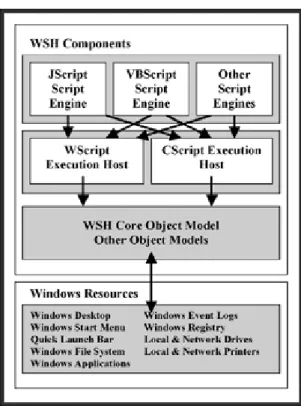
To work effectively with the WSH, you need to understand its architecture. Figure 1.7 provides a depiction of the different components that make up the WSH. As you can see, the WSH consists of scripting engines, execution hosts, and a core object model. In addition, it can work directly with object models supplied by other software applications.
NOTE
If you are comfortable developing scripts using more than one WSH-supported scripting language, the WSH enables you to create a special kind of script known as a Windows script file.These script files enable you to combine two or more scripts into a single script. This enables you to create scripts that take advantage of the strengths of different languages when automating tasks. For example, you might want to create a Windows script file that takes advantage of JavaScript's collection of mathematical functions and VBScript's strong support for creating and manipulating arrays. Since teaching you scripting languages other than JavaScript and JScript is outside the scope of this book, I won't be going into Windows script files any further. However, if you already know another scripting language, after you have completed reading this book you might want to visit msdn.microsoft.com/scripting to learn more about this WSH feature.
The WSH is a 32-bit application. Its architecture consists of three separate layers. First there are the various WSH-supported scripting engines. These scripting engines interpret script statements and pass them on to an execution host for processing.
The WSH provides two different execution hosts. The WScript execution host is designed to support the execution of scripts directly from the Windows desktop. The CScript execution host, on the other hand, is designed to support the execution of scripts from the Windows command prompt. Each of these execution hosts exists as a separate executable file named Wscript.exe and Cscript.exe,
respectively.
With one exception, the WScript and CScript execution hosts provide the same level of functionality. This exception is the WScript execution host's capability to enable scripts to display text messages and collection input from users using graphical pop-up dialogs. This makes the WScript execution host the proper choice for scripts that need to interact directly with users. The CScript execution host, on the other hand, generally is used to run scripts that do not interact with users or to run scripts for users who are comfortable working from the Windows command prompt. However, the WScript execution host can be used to run scripts from the command line as well. Unless your script is designed to generate graphical pop-up dialogs, the choice of which script execution host to use is completely arbitrary. The purpose of the WSH core object model is to provide access to Windows resources. It accomplishes this by defining objects that represent actual resources. These objects can then be accessed and
manipulated by scripts, thus allowing the scripts to access and manipulate the resources that the objects represent. Examples of the types of objects that the WSH makes available include objects that represent Windows shortcuts, files, folders, and disk drives. The WSH also provides objects that represent
network resources such as network drives and printers. On top of all this, the WSH object model also provides access to system resources such as Windows events logs and the Windows registry.
Every object that is presented by the WSH is associated with a collection of properties and methods. For example, a file is an example of an object. File objects have file names and file extensions. By accessing these file object properties, your JScripts can locate files that they want to work with. In addition, by modifying file object properties, your JScripts can rename files and change their file types. The file object also provides JScripts with access to a number of different methods that enable you to create, delete, rename, copy, and move Windows files. Figure 1.7 provides a partial listing of the kinds of system resources exposed by the WSH core object model. On Sunday afternoon I'll cover the objects exposed by the WSH core object model and provide you with examples of how to access and
manipulate them.
Writing Your First JScript
In order to create a JScript, you only need to open your text editor, create a plain text file, add a few JScript statements to it, and then save it with a .js file extension. For example, create a new JScript
called Script 1.5.js and add the following statements to it. //Script 1.5 - Your first JScript
WScript.Echo("Hello World!");
The first statement is a comment that was embedded within the file to document the script's name and purpose. The second statement displays a text message. The composition of the second statement is as follows. First the WScript object is referenced. This object is different from the WScript execution
host. Then a method called Echo, which belongs to the WScript object, is executed and passed the text
string "Hello World!". Don't worry if this all sounds a little confusing or overwhelming now. By the
time that you get through Sunday evening, you'll understand how this stuff works. For now, just follow along and focus on the steps involved in creating and executing your first JScript.
When executed by either the WScript or CScript execution host, this JScript displays its message. However, depending on which execution host you choose to use when running the script, the results will vary significantly. For example, if you were to run this script from the Windows command prompt using the CScript execution host, you'll see the output shown in Figure 1.8.
NOTE
You may have noticed in Figure 1.8 that the name of the JScript file to be run was enclosed within a matching pair of double quotation marks. I had to do this because the script's file name contained a blank space. Otherwise the use of the double quotation marks would not have been required.
If you were to run the scripts directly from the Windows desktop by double-clicking on it, Windows would, by default, run it using the WScript execution host. As a result, the script's output would be displayed in the form of a graphical pop-up dialog, as shown in Figure 1.9.
NOTE
You can also use the WScript execution host to run scripts from the Windows command prompt,in which case the script will run exactly as if you had started it from the Windows desktop.
Getting Comfortable with the Windows Command Prompt
Even some of the most experienced computer users have limited experience working with the Windows command prompt and little if any understanding of the Windows commands that are available. However, if you plan on becoming a serious JScript programmer, you need to get comfortable working with the Windows shell.
The Windows shell provides a text-based interface between the user and the operating system. Instead of using the computer's mouse to point and click your way through the Windows graphical user
interface, you work with the Windows shell by typing in text commands. The Windows shell translates these commands into a format the operating system can understand. Likewise, the Windows shell translates any output returned by the operating system into a format that people can understand. You enter commands for the Windows shell to process by typing them in at the Windows command
prompt. For example, on a computer running Windows XP, you would start up a new Windows shell session by clicking on Start, All Programs, Accessories, and then Command Prompt. The Command Prompt window appears and displays the Windows command prompt, as shown in Figure 1.10.
Figure 1.10. The Windows command prompt
NOTE
TIP
As a shortcut, you can start up a new Windows shell session and access the Windows command prompt by clicking on Start, Run, typing CMD, and then clicking on OK.
As you can see in Figure 1.11, by default the Windows command prompt is represented in the form of a drive letter followed by a colon, a backslash, and the greater than character (>). Just to the right of the command prompt you will see a blinking cursor, which indicates that the Windows shell is ready to accept new command input. As an example, type VER and then hit the Enter key. The VER command
instructs the Windows shell to display information about the version of Windows currently running on the computer, as demonstrated here.
Figure 1.11. Configuring the way the WScript execution host runs scripts that are started from the Windows desktop
C:\>ver
Microsoft Windows XP [Version 5.1.2600] C:\>
The Windows shell passes the command to the operating system, collects the results of the command, and displays them in the back in the Windows console, after which the Windows command prompt is redisplayed.
Now, let's look at how to use the command prompt to run your new JScript using the CScript execution host. All that you have to do is type CScript, a space, and the name of your script and then press the Enter key as demonstrated below.
CScript "Script 1.5.js"
Likewise, to run your script from the command prompt using the WScript execution host, you would type the following.