American Journal of Software Engineering and Applications
2017; 6(6): 128-136http://www.sciencepublishinggroup.com/j/ajsea doi: 10.11648/j.ajsea.20170606.11
ISSN: 2327-2473 (Print); ISSN: 2327-249X (Online)
Monitoring and Controlling Tap Water Flow at Homes Using
Android Mobile Application
Kuganesan Kumar, Moamin A. Mahmoud
Collage of Computer Science and Information Technology, Universiti Tenaga Nasional, Selangor, Malaysia
Email address:
[email protected] (K. Kumar), [email protected] (M. A. Mahmoud)
To cite this article:
Kuganesan Kumar, Moamin A. Mahmoud. Monitoring and Controlling Tap Water Flow at Homes Using Android Mobile Application. American Journal of Software Engineering and Applications. Vol. 6, No. 6, 2017, pp. 128-136. doi: 10.11648/j.ajsea.20170606.11
Received: April 12, 2017; Accepted: April 25, 2017; Published: November 28, 2017
Abstract:
House owners with tight schedule or have a busy lifestyle tend to forget to monitor their houses effectively. For example, they or their elderlies or their children might forget to close a water tap after using it so much. To visually check every water taps in the house consumes time, tedious, and requires a family member to be at the house. Currently, this could not be done remotely. This paper presents the development of an online mobile application (app) that monitors and controls the water flow through taps whenever there is an unusual reading of the water usage at home. The primary goal of this system is to enable a user in monitoring and controlling the water flow at home via an online mobile application’s (app) graphical user interface (GUI). This would make the monitoring process more efficient and convenient for house owners.Keywords:
Tap Water Flow, Controlling and Monitoring System, Mobile Application1. Introduction
Managing water consumption is vital for life preservation. Knowing water consumption at homes can have a great impact water saving. Even families could change habits of consumption [1]. Reports have warned of an impending global water crisis due to surging population growth, climate change, reckless consumption, and chronic waste [2]. Giving a grim assessment of the state of the planet’s freshwater, especially in developing countries, the report describes the outlook for coming generations as worrisome [2]. However, to visually check every water taps in the house consumes time, tedious, and requires a family member to be at the house.
To remotely do so, we propose a system that monitors and controls the water flow through taps whenever there is an unusual reading of the water usage at home. The Water Flow Monitoring and Controlling System is an interactive android-based mobile application. It is equipped with external hardware to sense a tap’s water flow rate and control (on/off) the water supply line when necessary. Registered users can login and view their respective house’s current water flowage from the screen’s dashboard interface. The external hardware updates the water flow rate (L/Hour) every 1 second to a database via the Internet connection. If the users decide to
turn on or off the water supply taps at their homes, it can be done via the on/off button provided in the screen’s dashboard interface. A user’s on/off instruction is set within the database; the hardware synchronizes this instruction and performs the desired action. Set Timer and Set Schedule are two additional functions provided to users. The Set Timer function enables the users to set a timer to turn on/off a water supply tap via a desired countdown (for short duration control). The Set Schedule function enables the users to set a timer to turn on/off a water supply tap on a desired date (for long duration control).
2. Related Work
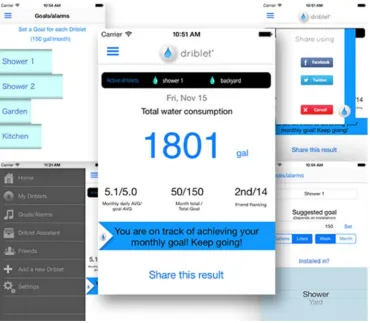
Figure 1. Driblet smart meter and Application.
The Aquamonitor Meter Probe as shown in Figure 2 is a stand-alone unit for water consumption recording and monitoring without need for SIM cards, internet or network connections or ongoing monthly costs. The MeterProbe is a compact weatherproof unit that can be pipe or surface mounted on or near the water meter and is powered from a single long life battery. [3]
Figure 2. MeterProbe and Application.
The main limitation of these applications is they only monitor the water flow, if any abnormal reading captured by the application, a homeowner need to manually close the tap. In other words, these applications do not provide a controlling function to close the tap remotely when it is necessary. Thus, in this paper we present our work to overcome the controlling problem.
3. Development Tools (Hardware)
The Arduino Uno is a microcontroller board that can be programmed using Arduino IDE (Figure 3) [4]. This board capable of accept input data and process it then output the data. It has 14 digital input/output pins, 6 analog inputs, 16 MHz clock speed, a USB connection port, a power jack, an ICSP header and a reset button. It contains everything needed to support the microcontroller; simply connect it to a computer with a USB cable or power it with an AC-to-DC adapter or battery to operate it. It operates under 5V DC power [5].
American Journal of Software Engineering and Applications 2017; 6(6): 128-136 130
Figure 3. Arduino UNO Board.
A solenoid valve, as shown in Figure 4, is an electromechanically operated valve. The valve is controlled by an electric current through a solenoid. Solenoid valves are the most frequently used control elements in fluidics. Their tasks are to shut off, release, dose, distribute or mix fluids. They are found in many application areas. Solenoids offer fast and safe switching, high reliability, long service life, good medium compatibility of the materials used, low control power and compact design. [7]
This project will be using solenoid valve to turn on and off the main pipe of the house when the user send instruction from his/her mobile phone via internet. The instruction is then received by Arduino board through Wi-Fi module; this instruction is processed and a signal is send to the solenoid valve from the Arduino board to perform the action user instructed.
Figure 4. Solenoid Valve.
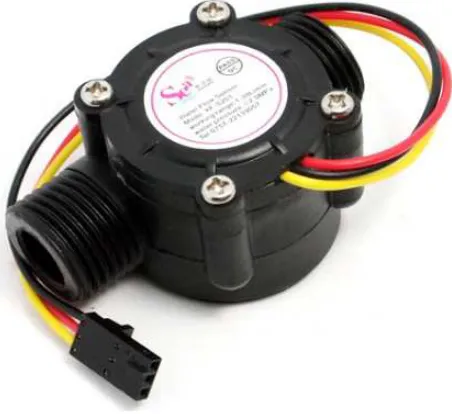
A water flow sensor is a device for sensing the rate of fluid flow through a pipe line which it is fixed. The water flow sensor is fixed between a pipe lines then this sensor will detect the rate of the water flowing through it. A continuous reading will be outputted while the speed of water flow through it is constant; if the speed is high the reading outputted will be high too. In case there is no water flow
through it there will be no reading, the sensor will output 0 rate of flow. [6]
This project will be using the water flow sensor to continuously detect the water flow rate through the main pipe. The readings outputted by the sensor will be send to the Arduino board, this readings will be processed and forwarded to the Wi-Fi module. Finally this readings will be inserted into the database via internet. Below is the figure of water flow sensor:
Figure 5. Water Flow Sensor.
The ESP8266 Wi-Fi Module is a self-contained system on chip (SOC) with integrated TCP/IP protocol stack that can give any microcontroller access to Wi-Fi network as shown in Figure 6. The ESP8266 is capable of either hosting an application or offloading all Wi-Fi networking functions from another application processor. The ESP8266 module is an extremely cost effective board with a huge, and ever growing, community. With this Wi-Fi module the Arduino board is able to send and receive data from the internet [8].
This project will be using ESP8266 Wi-Fi board to add Wi-Fi functionality for the Arduino board. Any data is processed by the Arduino board is send and received through the ESP8266 Wi-Fi module to insert or fetch to/from the database via internet.
4. Monitoring and Controlling Tap Water Flow
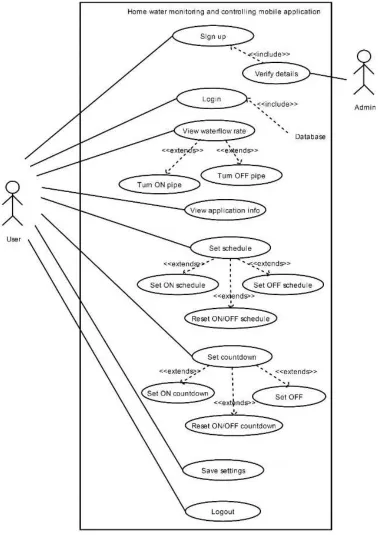
The use case diagram shown in Figure 7 depicts two users who interact with the system, end user and administrator. It elaborates how each one of them will interact with the system:
Figure 7. The use case diagram.
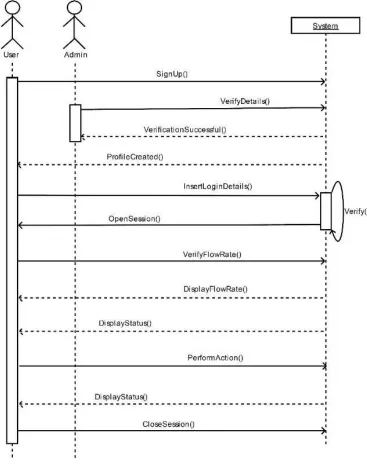
A sequence diagram shows an interaction, which represents the sequence of messages between instances of classes, components, subsystems, or actors. Time flows down the diagram, and it shows the flow of control from one participant to another. Use sequence diagrams to visualize
instances and events, instead of classes and methods. More than one instance of the same type can appear on the diagram. More than one occurrence of the same message can also appear.
American Journal of Software Engineering and Applications 2017; 6(6): 128-136 132
that prototypes the real system. Therefore it is very important to design the phase as it will reflect the real system. Another important part of this phase is the database design. The entity, attributes, their relationship, the data dictionary and the database diagrams are defined in this phase. This will be very
useful during the development of the database for the system. With this we can design and develop the database correctly. Besides that, this phase also includes interface design, which will explain roughly how the real system’s interface will look.
Figure 8. The sequence diagram.
5. Development and Testing
The Water Flow Monitoring and Controlling System is an interactive android-based mobile application. It is equipped with external hardware to sense a tap’s water flow rate and control (on/off) the water supply line when necessary. Registered users can login and view their respective house’s current water flowage from the screen’s dashboard interface. The external hardware updates the water flow rate (L/Hour) every 1 second to a database via the Internet connection. If the users decide to turn on or off the water supply taps at
Figure 9. The Application Architecture.
This paper achieves the first stage of the proposed plan to develop an agent-based approach to remotely monitoring and controlling tap water flow. Deploying intelligent software agents shall extend the capability of the system as software agents have been widely used in distributed artificial intelligence and due to their autonomous, self-interested, rational abilities [9, 10, 11, 12], and social abilities [13, 14, 15, 16], agents are well-suited for automated control systems.
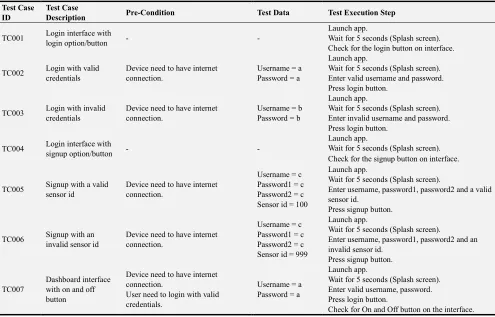
Table 1. Tested Cases and Results.
Test Case ID
Test Case
Description Pre-Condition Test Data Test Execution Step
TC001 Login interface with
login option/button - -
Launch app.
Wait for 5 seconds (Splash screen). Check for the login button on interface.
TC002 Login with valid
credentials
Device need to have internet connection.
Username = a Password = a
Launch app.
Wait for 5 seconds (Splash screen). Enter valid username and password. Press login button.
TC003 Login with invalid credentials
Device need to have internet connection.
Username = b Password = b
Launch app.
Wait for 5 seconds (Splash screen). Enter invalid username and password. Press login button.
TC004 Login interface with
signup option/button - -
Launch app.
Wait for 5 seconds (Splash screen). Check for the signup button on interface.
TC005 Signup with a valid sensor id
Device need to have internet connection.
Username = c Password1 = c Password2 = c Sensor id = 100
Launch app.
Wait for 5 seconds (Splash screen).
Enter username, password1, password2 and a valid sensor id.
Press signup button.
TC006 Signup with an
invalid sensor id
Device need to have internet connection.
Username = c Password1 = c Password2 = c Sensor id = 999
Launch app.
Wait for 5 seconds (Splash screen).
Enter username, password1, password2 and an invalid sensor id.
Press signup button.
TC007
Dashboard interface with on and off button
Device need to have internet connection.
User need to login with valid credentials.
Username = a Password = a
Launch app.
Wait for 5 seconds (Splash screen). Enter valid username, password. Press login button.
American Journal of Software Engineering and Applications 2017; 6(6): 128-136 134
Test Case ID
Test Case
Description Pre-Condition Test Data Test Execution Step
TC008
Dashboard activity fetch data from the database and update on interface’s text view
Device need to have internet connection.
User need to login with valid credentials.
Hardware need to be up and running with different water flow speed.
Username = a Password = a
Launch app.
Wait for 5 seconds (Splash screen). Enter valid username, password. Press login button.
Observe the water flow rate changes on the interface.
TC009
Dashboard interface’s off function
Device need to have internet connection.
User need to login with valid credentials.
Hardware need to be up and running with water flowing through the hardware’s sensor. (ON state)
Username = a Password = a
Launch app.
Wait for 5 seconds (Splash screen). Enter valid username, password. Press login button.
Press off button.
Observe the water flow rate changes on the interface and its status.
TC010
Dashboard interface’s on function
Device need to have internet connection.
User need to login with valid credentials.
Hardware need to be up and running with no water flowing through the hardware’s sensor. (OFF state)
Username = a Password = a
Launch app.
Wait for 5 seconds (Splash screen). Enter valid username, password. Press login button.
Press on button.
Observe the water flow rate changes on the interface and its status.
TC011
Settings interface with logout, about and save option/button
Device need to have internet connection.
User need to login with valid credentials.
Username = a Password = a
Launch app.
Wait for 5 seconds (Splash screen).
Enter valid username, password. Press login button.
Navigate to setting interface by clicking the setting option in the menu on top right corner.
Check for logout, about and save button.
TC012 Settings interface’s about function
Device need to have internet connection.
User need to login with valid credentials.
Username = a Password = a
Launch app.
Wait for 5 seconds (Splash screen). Enter valid username, password. Press login button.
Navigate to setting interface by clicking the setting option in the menu on top right corner.
Press about button.
TC013 Settings interface’s logout function
Device need to have internet connection.
User need to login with valid credentials.
Username = a Password = a
Launch app.
Wait for 5 seconds (Splash screen). Enter valid username, password. Press login button.
Navigate to setting interface by clicking the setting option in the menu on top right corner.
Press logout button.
TC014
Settings interface’s countdown to turn ON function
Device need to have internet connection.
User need to login with valid credentials.
Hardware need to be up and running with no water flowing through the hardware’s sensor. (OFF state)
Username = a Password = a
Launch app.
Wait for 5 seconds (Splash screen). Enter valid username, password. Press login button.
Navigate to setting interface by clicking the setting option in the menu on top right corner.
Press set button on countdown ON. Select the count down.
Press save button.
TC015
Settings interface’s countdown to turn OFF function
Device need to have internet connection.
User need to login with valid credentials.
Hardware need to be up and running with water flowing through the hardware’s sensor. (ON state)
Username = a Password = a
Launch app.
Wait for 5 seconds (Splash screen). Enter valid username, password. Press login button.
Navigate to setting interface by clicking the setting option in the menu on top right corner.
Press set button on countdown OFF. Select the count down.
Test Case ID
Test Case
Description Pre-Condition Test Data Test Execution Step
TC016
Settings interface’s schedule to turn ON function
Device need to have internet connection.
User need to login with valid credentials.
Hardware need to be up and running with no water flowing through the hardware’s sensor. (OFF state)
Username = a Password = a
Launch app.
Wait for 5 seconds (Splash screen). Enter valid username, password. Press login button.
Navigate to setting interface by clicking the setting option in the menu on top right corner.
Press set date button on schedule ON.
Select the schedule ON date (select today’s date). Press ok.
Press set time button on schedule ON.
Select the schedule ON time (select current time with advance of 3min).
Press ok.
Press save button.
TC017
Settings interface’s schedule to turn OFF function
Device need to have internet connection.
User need to login with valid credentials.
Hardware need to be up and running with water flowing through the hardware’s sensor. (ON state)
Username = a Password = a
Launch app.
Wait for 5 seconds (Splash screen). Enter valid username, password. Press login button.
Navigate to setting interface by clicking the setting option in the menu on top right corner.
Press set date button on schedule OFF.
Select the schedule OFF date (select today’s date). Press ok.
Press set time button on schedule OFF.
Select the schedule OFF time (select current time with advance of 3min).
Press ok.
Press save button.
6. Conclusion
In this paper, we develop an online mobile app that monitors and controls the water flow through taps whenever there is an unusual reading of the water usage at home. The developed App enables a user in monitoring and controlling the water flow at home via an online mobile application’s (app) graphical user interface (GUI). This makes the monitoring process more efficient and convenient for house owners.
In the future work, we shall develop an agent-based system that monitors the water flow and autonomously take measurements on behalf of homeowner whenever there is an unusual reading. The agent will be embedded in the external hardware.
References
[1] Ruiz, R. P. (2013, December 14). Driblet. Retrieved from Dragon Innovation.
[2] Baichan, N. (2015, December 6). Phoenix Sun. Retrieved from Phoenix Sun: http://phoenixsun.co.za/28634/water-every-drop-is-so-precious
[3] AquaMonitor. (2016). Retrieved from aquaMonitor: http://aquamonitor.com.au/meterprobe/
[4] Arduino IDE. (n.d.). Retrieved from Arduino IDE: https://www.arduino.cc/en/Main/Software
[5] Arduino UNO. (n.d.). Retrieved from Aruino UNO.
[6] Wikipedia Flow Sensor. (2015, June 18). Retrieved from Wikipedia Flow Sensor.
[7] Wikipedia Solenoid Valve. (2015, December 12). Retrieved from Wikipedia Solenoid Valve.
[8] SparkFun ESP8266. (n.d.). Retrieved from Spark Fun ESP8266: https://www.sparkfun.com/products/13678
[9] Ahmed M., Ahmad M. S., and Yusoff M. Z. M.,, Mitigating Human-Human Collaboration Problems using Software Agents, The 4th International KES Symposium on Agents and Multi-Agent Systems – Technologies and Application (AMSTA 2010), pp. 203-212, ISBN: 3-642-13479-3 978-3-642-13479-1, Gdynia, Poland, 23 – 25 June 2010.
[10] Jassim, O. A., Mahmoud, M. A., & Ahmad, M. S. (2015). A Multi-agent Framework for Research Supervision Management. In Distributed Computing and Artificial Intelligence, 12th International Conference (pp. 129-136). Springer International Publishing.
[11] Mahmoud, M. A., Ahmad, M. S., & Yusoff, M. Z. M. "A Conceptual Automated Negotiation Model for Decision Making in the Construction Domain." Distributed Computing and Artificial Intelligence, 13th International Conference. Springer International Publishing, 2016..
American Journal of Software Engineering and Applications 2017; 6(6): 128-136 136
[13] Mahmoud, M. A., & Ahmad, M. S. (2015, August). A self-adaptive customer-oriented framework for intelligent strategic marketing: A multi-agent system approach to website development for learning institutions. In Agents, Multi-Agent Systems and Robotics (ISAMSR), 2015 International Symposium on (pp. 1-5). IEEE.
[14] Mahmoud, M. A., Ahmad, M. S., & Yusoff, M. Z. M. "Development and implementation of a technique for norms-adaptable agents in open multi-agent communities." Journal of Systems Science and Complexity 29.6 (2016): 1519-1537.
[15] Mahmoud, M. A., Ahmad, M. S., & Yusoff, M. Z. M. (2016, March). A Norm Assimilation Approach for Multi-agent Systems in Heterogeneous Communities. In Asian Conference on Intelligent Information and Database Systems (pp. 354-363). Springer Berlin Heidelberg.