by Robert Kao and Dante Sarigumba
BlackBerry
®
FOR
by Robert Kao and Dante Sarigumba
BlackBerry
®
FOR
About the Authors
Robert Kaois one well-rounded professional. His ability to translate his tech-nical knowledge and communicate in many languages with users of all types inevitably led him to develop BlackBerry applications for various financial firms in New York City — that truly global city. A graduate of Columbia University — with a Computer Engineering degree, of course — he currently lives in Somerset, NJ.
Authors’ Acknowledgments
I would like to thank my father (MHK) and mother (SYT) for everything they’ve done for me because I wouldn’t be here without their kindness and support. I would also like to thank my lovely wife Marie-Claude and little Jade for understanding all the weekends and nights that I missed while writing this book. Finally, I would like to thank Paul, Cathy, little TJ, and rest of my family for the same.
—Robert Kao
My sincere thanks to Aben Alvarez, Anna Kanyek-Sy, Jun Abad, and Ninky Avenir for their help and support during the early phase of this book. As always, my profoundest thanks to my dear wife and soul mate, Yosma, whose patience and understanding were invaluable during the writing of this book.
—Dante Sarigumba
Collectively, we’d like to thank Eric Giguere for getting us started on the path of book writing, as well as Carol McClendon, our agent, for her help getting this book started. Thanks as well to Richard Evers of Research In Motion for a wealth of information and guidance. For their insights, assistance, and extraordinary patience, thanks to Jennifer Y. Lee; Veru Narula; and Greg Croy, Paul Levesque, Teresa Artman, Colleen Totz, and the rest of the Wiley staff. Without you all, this book would not have been possible.
Contents at a Glance
Introduction ...1
Part I: Meet and Greet Your BlackBerry ...7
Chapter 1: Your BlackBerry Is NOT an Edible Fruit? ...9
Chapter 2: Turning On Your BlackBerry (And Keeping It Happy) ...27
Part II: Getting Organized with Your BlackBerry...57
Chapter 3: Remembering Your Acquaintances...59
Chapter 4: Never Miss Another Appointment — Ever!...89
Chapter 5: Being Your Own Taskmaster ...103
Chapter 6: Making Notes and Calculations ...121
Part III: Getting Online with Your BlackBerry...137
Chapter 7: You’ve Got (Lots of) E-Mail ...139
Chapter 8: Too Cool for E-Mail...173
Chapter 9: Surfing the Internet Wave...203
Chapter 10: Calling Your Favorite Person ...229
Part IV: Working with Desktop Manager...253
Chapter 11: Synching the Intellisync Way ...255
Chapter 12: Installing Applications ...275
Chapter 13: Running Redirector ...287
Chapter 14: Protecting Your Information ...299
Part V: The Part of Tens ...309
Chapter 15: Ten (Or So) New Features on the New Generation BlackBerry...311
Chapter 16: Ten Great BlackBerry Accessories...317
Chapter 17: Ten Productive BlackBerry Applications ...323
Chapter 18: Ten Fun Games on Your BlackBerry ...327
Chapter 19: Ten Must-Have BlackBerry Programs...331
Chapter 20: Ten (More or Less) Web Site Categories for BlackBerrry Browsing ...337
Table of Contents
Introduction...1
About This Book...1
Who Are You? ...2
What’s in This Book ...2
Part I: Meet and Greet Your BlackBerry ...3
Part II: Getting Organized with Your BlackBerry...3
Part III: Getting Online with Your BlackBerry ...3
Part IV: Working with Desktop Manager...3
Part V: The Part of Tens...4
So Many Models, So Little Time ...4
Icons in This Book...4
Where to Go from Here...5
Part I: Meet and Greet Your BlackBerry ...7
Chapter 1: Your BlackBerry Is NOT an Edible Fruit? . . . .9
Know Your BlackBerry History ...10
How It All Works: The Schematic Approach ...11
The role of the network service provider ...11
Connecting to your personal computer ...12
Connecting to the Enterprise...13
Doing the BlackBerry world-traveler thing ...14
Oh, the Things You Can Do! ...15
Internet at your fingertips ...15
Me and my great personal assistant ...16
A computer in the palm of your hand ...16
Look Dad, no hands!...17
Going new look or traditional: Your BlackBerry choices ...18
Anatomy 101: The Body and Features of Your BlackBerry...19
Display screen...20
QWERTY keyboard...21
Escape button ...24
Trackwheel ...24
Final BlackBerry Tidbits!...24
Power efficiency ...25
Memory management ...25
Freenews ...334
Ascendo Fitness for BlackBerry ...334
BBToday ...334
SportSeeker...335
Chapter 20: Ten (More or Less) Web Site Categories
for BlackBerrry Browsing . . . .337
Weather ...338
AccuWeather.com...338
Yahoo! Weather ...338
News ...338
BBC News ...338
USA Today ...339
Yahoo! News ...339
ABC News ...339
PR Newswire ...340
Google...340
Portals ...340
Yahoo! Mobile ...341
PliNkIT!...341
MSN Mobile ...341
Business Sites ...342
Fidelity Anywhere...342
BusinessWeek Online ...342
Financial Times ...342
Travel Sites ...343
Other Browsing Categories...343
BlackBerryGoodies ...344
FedEx tracking ...344
UPS tracking ...344
Amazon Anywhere ...344
The Onion...344
Wired News ...345
wcities ...345
Introduction
H
i there, and welcome to BlackBerry For Dummies.If you already have a BlackBerry, this is a great book to have around if you want to discover new features or you need something to slap open and use as a quick refer-ence. If you don’t have a BlackBerry yet (but plan to get one) and have some basic questions (like “What is a BlackBerry?” or “How can a BlackBerry help me be more productive?”), you can benefit by reading this book cover to cover. No matter what your current BlackBerry User Status is — BUS, for short — we’re here to help you get the most out of your BlackBerry.We can tell you, right off the bat, that a BlackBerry is not a fruit you find at the supermarket but rather is a) an always-connected handheld device that b) has e-mail capabilities with an Internet browser built in. With your BlackBerry, you are in the privileged position of always being able to receive e-mail and browse the World Wide Web.
On top of that, a BlackBerry has all the features you’d expect from a personal organizer, including a calendar, to-do lists, and memos. Oh, and did we men-tion that a BlackBerry also has a mobile phone built in? Talk about multitask-ing! Imagine being stuck on a commuter train: With your BlackBerry by your side, you can compose e-mail while conducting a conference call — all from the comfort of your seat.
In this book, we show you all the basics but then go the extra mile by high-lighting some of the lesser-known (but still really handy) features of the BlackBerry. Your BlackBerry can work hard for you when you need it as well as play hard when you want it to. (Need we say that we’re ready, willing, and able to show you where to get great games for your BlackBerry?)
About This Book
We cover basic and advanced topics, but we stick to those that we consider the most practical and frequently used. So, whether you already know the basics, you can be certain that if you use/want to use a certain function of your BlackBerry, we likely cover it here.
Who Are You?
In writing this book, we tried to be considerate of your needs, but because we’ve never met you, our image of you is as follows. If you find that some of these images are true about you, this might just be the book for you:
⻬You have a BlackBerry, and you want to find out how to get the most from it.
⻬You don’t have a BlackBerry yet, and you’re wondering what one could do for you.
⻬You’re looking for a book that doesn’t assume that you know all the jargon and tech terms used in the PDA industry. (PDA stands for p er-sonal digital assistant, by the way.) Take that, you jargon, you!
⻬You want a reference that shows you, step by step, how to do useful and cool things with a BlackBerry without bogging you down with unneces-sary background or theory.
⻬You’re tired of hauling your ten-pound laptop with you on trips, and you’re wondering how to turn your BlackBerry into a miniature traveling office.
⻬You no longer want to be tied to your desktop system for the critical activities in your life, such as sending/receiving e-mail, checking your calendar for appointments, and surfing the Web.
What’s in This Book
BlackBerry For Dummiesconsists of five parts, and each part consists of dif-ferent chapters related to that part’s theme.
Part I: Meet and Greet Your BlackBerry
personalize and express yourself through your BlackBerry. This part wraps up with must-knows about security and where to go for help when you get into trouble with your BlackBerry.
Part II: Getting Organized
with Your BlackBerry
Part II deals with the fact that your BlackBerry is also a full-fledged PDA. We show you how to get your BlackBerry to keep your contacts in its Address Book as well as how to manage your appointments and meetings in Calendar. We also show you how to create a to-do list and have Calendar manage your to-do’s for you so you don’t miss a task. As you’ll see, most BlackBerry appli-cations interconnect with one another, working hard for you.
Part III: Getting Online
with Your BlackBerry
Part III shows you how you can use the true strengths of the BlackBerry — its always connected e-mail and its Web surfing functionality — but it doesn’t stop there. We also point out to you how you can use other forms of mes-sages on the BlackBerry that you might not have known about, such as PIN-to-PIN messages. To top it off, we show you how to multitask with the built-in phone along with other BlackBerry applications.
Part IV: Working with Desktop Manager
In Part IV, we detail the BlackBerry Desktop Manager and show you some of the hoops you can put it through with your BlackBerry, including making backups and installing BlackBerry applications from your PC on to your BlackBerry. And we didn’t forget to cover important stuff like data synching your appointments/ contacts with desktop applications like Outlook or Lotus Notes.
Part V: The Part of Tens
So Many Models, So Little Time
When you first visit the Research In Motion (RIM, the brains behind the BlackBerry device) Web site, you might be overwhelmed by the many differ-ent variations of BlackBerry. There are black ones, blue ones, some with col-ored screens, monochrome ones, ones with QWERTY keyboards, some with a QWERTY-like keyboard (which RIM calls SureType). . . . Whew!
Don’t worry, it isn’t as complicated as it seems; let us break it down for you. We generally don’t like to generalize things, but you can pretty much divide BlackBerry into two categories: the 7100 series and the not-7100 series, which we refer to in this book as 72xxmodels. (OK, we could just as easily have called it the 75xx model or the 87xx model, since they are also not 7100, but you’ve got to draw the line somethere right?) And why did we make such a separation? How you operate the 7100 series is a bit different compared with the 72xxmodels: The 7100 series uses the RIM SureType keyboard; the 72xx
models have QWERTY keyboards. But just because how it operates is different doesn’t mean the functions of the 7100 and 72xxseries are different. Beneath the surface, they are quite similar. For example, both the 7100 series and 72xx
models can do e-mail, phone, and address book functions. How you get to your e-mail or address book application is a bit different in each. It’s that simple. Of course, there are other small (yet important) differences, which we denote in this book with a 7100 icon (see the following section).
This book is written with the latest model of the 7100 series and 72xxmodels in mind. If you have a slightly older model, not to worry; you can still find this book quite useful because the functionality is still similar. You just might dis-cover, however, that some of the newer functions we cover in this book may not be available on your particular (older) BlackBerry.
Icons in This Book
Text marked with this icon applies to only the BlackBerry 7100 series.
If a paragraph sports this icon, it means we’re talking about BlackBerry devices that are provided by your employer.
Here’s where you can find not-so-obvious tricks that can make you a BlackBerry power-user in no time. Pay special attention to the paragraphs with this icon to get the most out of your BlackBerry.
This icon highlights an important point that you don’t want to forget because it just might come up again. We’d never be so cruel as to spring a pop quiz on you, but paying attention to these details can definitely help you.
Look out! This icon tells you how to avoid trouble before it starts.
Where to Go from Here
If you want to find out more about the book, or have a question or comment for the authors, please visit us at www.dummies.com/go/blackberry.
In this part . . .
Chapter 1
Your BlackBerry Is NOT
an Edible Fruit?
In This Chapter
䊳A berry, berry long time ago
䊳Checking out your BlackBerry behind the scenes
䊳Seeing what your BlackBerry can do
䊳Comparing new- and old-generation models
䊳Meeting and greeting your BlackBerry
䊳Not sweating the minor stuff
B
ecause you’re reading this book, you probably have a BlackBerry (um, and we’re pretty sure that you’re not eating it). We’re just curious, though — what actually convinced you to buy this particular handheld mobile device? Was it the always-connected e-mail? Or the wireless calendar sync? Was it the QWERTY keyboard? Or was it the really good sales pitch? We know; the list could go on and on — and we might never hit on the exact reason why you got yours. In fact, for some of you, your company simply handed you one. But for whichever reason you bought or acquired your BlackBerry, congratulations; you made an intelligent choice.The same smarts that made you buy or obtain your BlackBerry are clearly at it again. This time, your native intelligence led you to pick up this book, per-haps because your intuition is telling you that there’s more to this whole BlackBerry than meets the eye.
corner? Need to see (right now) what’s showing in your local movie theaters, or what the weather will be like later tonight, or the best place to shop? Need to get directions to that cozy bed and breakfast, or news headlines, or stock quotes? Want to do some online chatting or view some pictures online? You can do all these things (and more) by using your BlackBerry.
BlackBerry is also a full-fledged personal digital assistant (PDA). Out of the box, it provides you with the organizational tools you need to set up to-do lists, manage your appointments, take care of your address books, and more.
Being armed with a device that’s a phone, an Internet connection, and a PDA all built into one makes you a power person. With your BlackBerry (along with this resourceful book), you really can increase your productivity and better organize yourself. Watch out, world! Person bearing a BlackBerry coming through!
If you stick with us throughout this book, you’ll find out all you need to get the most out of your device or maybe even stave off (or save) a troubled relationship. (Well, the last one is a bit of an exaggeration, but we got your attention, right?)
Know Your BlackBerry History
Your BlackBerry is truly a wondrous thing, boasting many features beyond your ordinary mobile phone. And its “sudden” popularity didn’t happen overnight. Like any other good product out there, BlackBerry has come a long way from its (relatively humble) beginnings.
In the days when the Palm Pilot ruled the PDA world, Research In Motion (RIM; the maker of the BlackBerry) was busy in its lab, ignoring the then-popular graffiti input method to design its own device with the QWERTY keyboard — the kind of keyboard people were already used to from working on their PCs. RIM didn’t stop there, however. It also added an always-connected e-mail capability, making this device a must-have among government officials as well as professionals in the finance and health industries.
Throughout the book, you’ll see sections that apply to prosumers/enterprise users, indicated by the icon you see here in the margin. If your BlackBerry was given to you by your employer and your device is set up so that you can use only your company e-mail address for e-mailing, you can consider your-self an enterprise user.
On the other hand, if you bought your BlackBerry on your own from a net-work service provider, like T-Mobile, consider yourself a consumer.
Why the division? It’s simple. A few features, such as the wireless address book lookup or wireless calendar sync, need the BlackBerry Enterprise Server to be connected to a central e-mail server. Such a connection is often available in large corporations, but no individuals that we could think of would have their own private BlackBerry Enterprise Server. (Although any-thing’s possible, we suppose.)
How It All Works: The
Schematic Approach
For those of you who always ask, “How do they do that?” you don’t have to go far; this little section is just for you.
The role of the network service provider
Along with wondering how your BlackBerry actually works, you might also be wondering why you didn’t get your BlackBerry from RIM instead of a network service provider like Cingular or T-Mobile? Why did you need to go through a middle-person? After all, RIM makes BlackBerry.
Network service providers don’t build alliances for nothing, right? In return, RIM gave them the right to brand their names on the BlackBerry they offer for sale. For example, a T-Mobile 7100t looks different from a similar model you get from Vodafone. Which leads to another question: Do BlackBerry func-tionalities actually differ from phone model to phone model? Quick answer: On the core BlackBerry applications (such as Tasks and Address Book), you find no major differences. However, some BlackBerry features, such as Instant Messaging, might or might not be supported by the network service provider. (See Chapter 9 for more details on Instant Messaging.)
Just to keep the scorecard straight, when we come across features available from one network service provider that aren’t available from other providers, we’ll be sure to point them out.
Connecting to your personal computer
Nowadays, a personal computer is a household necessity. We spend so much time on them, and so much information is stored in them. No surprise, BlackBerry works hand in hand with your PC. The USB cable that comes with your BlackBerry does more than just charge your device. All the chapters in Part IV of this book are dedicated to guide you in making use of this impor-tant connection with the help of the BlackBerry Desktop Manager and all the
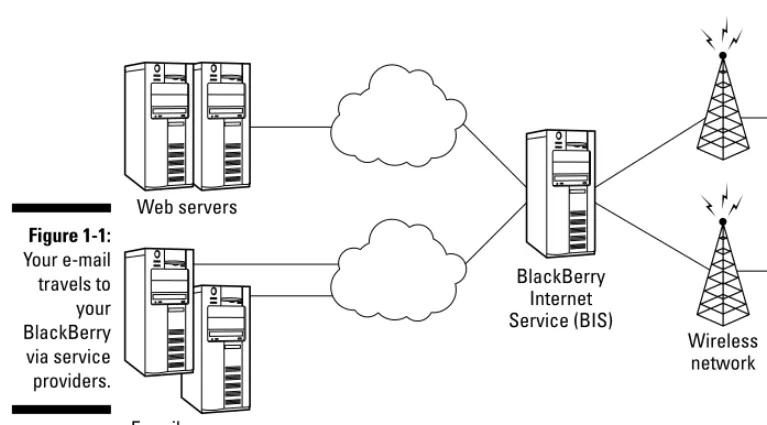
Web servers
E-mail servers (personal and Enterprise)
BlackBerry Internet Service (BIS)
Wireless network
Figure 1-1:
Why is this a factor? Or, to put this more bluntly, what’s it to you? Well, because CDMA and GSM/GPRS aren’t compatible with each other — which is what hap-pens when you have competing technologies going for all the marbles in the marketplace — your phone works on only one technology. When you travel outside North America, you face the burning question: “CDMA or GSM/GPRS?” (The non-acronym version of this question is “Will my BlackBerry work on this country’s network or won’t it?”) If you currently work with GSM/GPRS, you should be okay because most non-North American countries are on GSM/GPRS networks. If you’re a CDMA kind of person, you might have some “issues,” as they say. When in doubt, talk to your network service provider.
Oh, the Things You Can Do!
Always-connected e-mail is still what makes BlackBerry very attractive and is likely first in the long list of reasons why you got your BlackBerry in the first place. And, if you need to go global, you can use your BlackBerry in 30 coun-tries. Just hop off your flight, turn on your BlackBerry, and voilà!:e-mails on your BlackBerry while you’re 6,000 miles away from home. You can receive and send e-mails whether you are in Hong Kong, London, Paris, or New York. Your significant other can get in touch with you wherever you are — just to say hi or to remind you that you’d promised Aunt Edna a case of Chanel No. 5. (One caveat here — you need to make sure that your network service provider has the technology to go global. See the earlier “Doing the BlackBerry world-traveler thing” section for more info.) Generally speaking, you can receive and send e-mails just like when you’re at home.
Although e-mail is BlackBerry’s strength, that’s not the only thing it can do. This section goes beyond e-mail to point out some of the other major benefits you can get from your device.
Internet at your fingertips
Yup, you can browse the Web with your BlackBerry. Even better, you can continue chatting with your friends through Instant Messenger, just as if you never left your desktop computer. You can also get up-to-the-minute informa-tion when you want it, when you need it. Just imagine getting an alert when your stock is tanking. True, that’s not a good thing to happen, but this infor-mation is critical for you to act in a timely manner.
Intrigued? Your questions about how your BlackBerry can take advantage of the Web are answered in due time (in Chapter 10 of this book, to be precise).
Me and my great personal assistant
You might be saying, “But I’m really a busy person, and I don’t have time to browse the Web. What I doneed is an assistant to help me better organize my day-to-day tasks.” If you can afford one, by all means go ahead and hire a per-sonal assistant. If not, the next best thing is a perper-sonal digitalassistant (PDA). Many PDAs are on the market today, the most popular ones being those mar-keted by Palm and WinCE. Getting a PDA can be a big help — and mucho less expensive than hiring a secretary.
So, are we telling you to go out and buy a PDA? No way! Put away that credit card because you don’t need to go that route.
Whip out that BlackBerry of yours and take a closer look. That’s right, your BlackBerry is also a full-fledged PDA, able to help you remember all your acquaintances (see Chapter 3), manage your appointments (Chapter 4), keep a to-do list (Chapter 5), and much more.
In Chapters 3–6 of this book, you can read up on all the tricks and tips for managing your life using your BlackBerry. Heck, we even show you how your BlackBerry calendar can be wirelessly synced with your Outlook calendar (Chapter 7). Talk about an informational cornucopia!
A computer in the palm of your hand
A remarkable communication device? Check. A full-fledged PDA? Check. Yup, a BlackBerry is a pretty sophisticated product, but what we’ve described so far is just the tip of the iceberg. Don’t underestimate the device because of its size: Your BlackBerry is, in reality, a pretty powerful computer despite its small size.
collaborations. With the growing popularity of the device, software develop-ers outside of RIM are taking advantage of this growing market — which means literally hundreds of applications are now out there for you to down-load.
Download? Absolutely! BlackBerry supports the downloading of applications through the BlackBerry Browser. And of course, it’s wireless. (See Chapter 9.) For example, you can download more productivity tools like spreadsheet applications or applications to view and edit office documents written in Word or other word processing programs. The number of BlackBerry applica-tions is growing — and growing fast.
To be honest, there’s no way to foresee how many applications will be on the market when this book is published. And the price of an application varies, depending on how sophisticated the program is, so we can’t really give firm numbers right now. But if you’re curious, check out Chapter 17, where we describe some of the best business applications out there. You should be able to find some treasures suited to your field of work.
Does all this talk about productivity tools make your eyes glaze over? Well, “All work and no play” does something or other, so we have no qualms about shift-ing toward the more fun topics, such as games. BlackBerry comes out of the box supplied with just a single game, but you should look upon this merely as an appetizer (or at least the free candy that gets you wanting more). If do find yourself wanting more, go to the candy store — that is, the Web — to find an infinite variety of games designed for your BlackBerry. Chapter 18 highlights some of the more fun games out there, all available for downloading.
Look Dad, no hands!
Your BlackBerry comes equipped with an earphone that doubles as a mike for hands-free talking. This accessory is your doctor’s prescription for pre-venting the stiff neck that comes from wedging your BlackBerry with your shoulder against your ear. At the very minimum, it helps free your hands so you can eat Chinese take-out. And, if you happen to be a New York resident, you’re required by law to use an earphone while driving when you use a cell-phone. (Not that we recommend using your cellphone while driving, but if you really need to make that call, going hands-free is better and safer.)
cell-Anatomy 101: The Body and
Features of Your BlackBerry
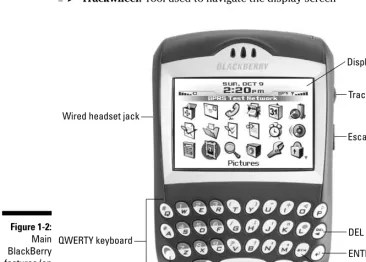
Progress being what it is, every new model of BlackBerry comes better equipped than the previous one. But generally speaking, most of the improve-ments have occurred under the hood, which means that what you actually see outside has remained relatively constant. No matter what type of BlackBerry you have, then, you’re going to find the following four basic fea-tures, as shown in Figures 1-2 and 1-3:
⻬Display screen:Graphic user interface (GUI) of the BlackBerry
⻬QWERTY keyboard:Input for the BlackBerry
⻬Escape button:Button used to cancel a selection
⻬Trackwheel:Tool used to navigate the display screen
Display screen
Trackwheel
Escape button
DEL key
ENTER key
Symbol key
Power/Backlight key
Shift key ALT key
QWERTY keyboard Wired headset jack
Figure 1-2:
Display screen
When you first turn on your BlackBerry, the display screen displays the
Home screen,which is your introduction to the GUI of your BlackBerry. The GUI represents the different applications found in your BlackBerry using graphic icons. Through the GUI, you can access your device’s applications and features.
When checking out those icons, just remember that how your own GUI looks depends on how you want it to look. The font and theme are all customizable. For more on personalizing your BlackBerry, see Chapter 2.
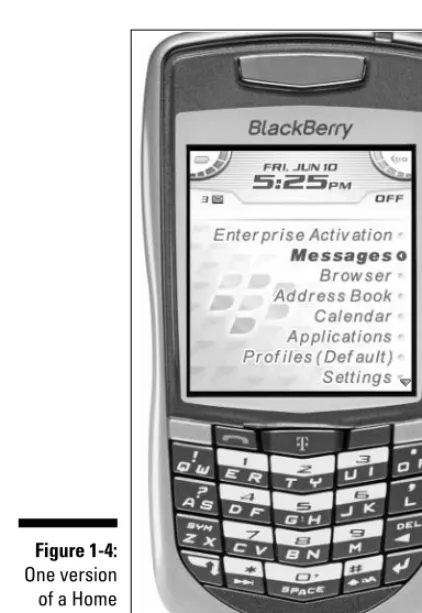
On the 7100 models, you might not see icons per se the first time you turn on your BlackBerry. Depending on the theme you’re using, you might see your applications listed in text form rather than as icons, as shown in Figure 1-4. (See Chapter 2 for more on customizing your theme.)
Display screen
Trackwheel
Escape button
SureType keyboard Wired headset jack
USB port
Send key
Symbol key ALT key
Next key
Shift key End key
Figure 1-3:
QWERTY keyboard
Unlike some PDA manufacturers out there — they know who they are — RIM chose the same QWERTY keyboard you know and love from your personal computer as the input method for the BlackBerry. We think that was a great decision because it means we don’t have to learn some new way of writing — graffiti or whatever — to get data into our BlackBerry. All we have to do is type on a keyboard — and we already know how to do that.
Whether you use your pinky or your index finger, how you type on your BlackBerry is up to you. Most people do, however, find that typing with two thumbs is the more efficient way to type on a BlackBerry.
Figure 1-4:
The 7100 model doesn’t have a full QWERTY keyboard; rather, it works with a QWERTY-based keyboard known as the SureTypekeyboard. The idea here is that many keys share letters (refer to Figure 1-2 to see how this looks) and that the SureType technology is smart enough to learn what key combina-tions come up with the words you want. Basically, with SureType, you can now type with only one thumb, and your BlackBerry learns the words that you frequently use.
Here are tips to speed up the learning curve when using SureType technology:
⻬Always finish typing a word before correcting it.This way, SureType learns what you want to type next time.
⻬If SureType got the word you’re typing right on the first try, simply use the spacebar to move on instead of clicking the trackwheel or pressing ENTER.
⻬Type! Type! Type!Because SureType learns how you type, the more you use it, the smarter it becomes in adapting to your style.
For more tips on mastering SureType, see Chapter 2.
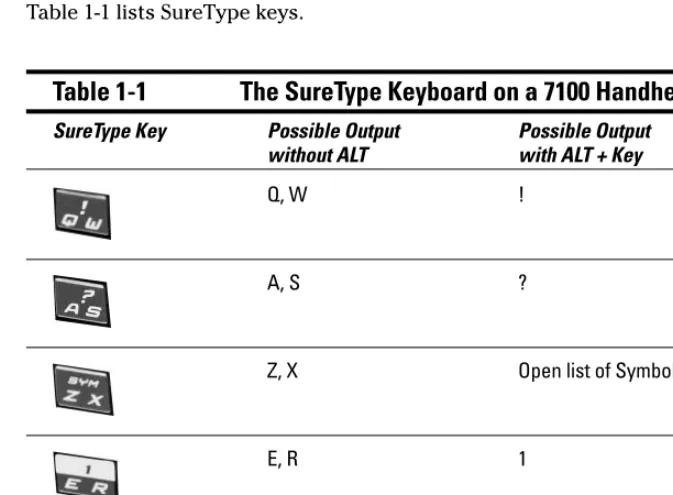
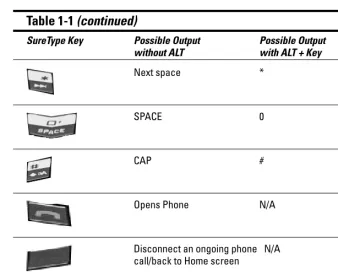
Table 1-1 lists SureType keys.
Table 1-1
The SureType Keyboard on a 7100 Handheld
SureType Key Possible Output Possible Output without ALT with ALT + Key
Q, W !
A, S ?
Z, X Open list of Symbols
E, R 1
SureType Key Possible Output Possible Output without ALT with ALT + Key
C, V 7
T, Y 2
G, H 5
B, N 8
U, I 3
J, K 6
M 9
O, P . or : or ;
L ’ or ,
Backspace N/A
ENTER N/A
ALT N/A
Table 1-1 (continued)
SureType Key Possible Output Possible Output without ALT with ALT + Key
Next space *
SPACE 0
CAP #
Opens Phone N/A
Disconnect an ongoing phone N/A call/back to Home screen
Opens Browser N/A
Escape button
A simple yet useful button, the Escape button allows you to return to a previ-ous screen or cancel a selection.
Trackwheel
The trackwheel allows you to navigate the display screen. And pressing the trackwheel allows you to confirm or enter a choice or selection.
Final BlackBerry Tidbits!
some of the hardware features that make buying the BlackBerry device a wise purchase.
Power efficiency
Now, anyone who has had an ear to the ground regarding BlackBerry knows its reputation as a highly efficient little machine when it comes to power con-sumption. If you have/had the old 62xx series, you know that the device could run for two weeks without recharging. Right at the onset, RIM designed and made its devices to consume power effectively.
With the addition of colored and high-resolution screens, the much-vaunted power efficiency has gone down somewhat, especially with newer models like the 7100 series. Power requirements on these devices have now increased to such an extent that you need to recharge roughly every two to three days. Realizing that this is a bit of a hassle, we offer a section in Chapter 2 where we spell out some tips on prolonging the life of your battery, especially when you’re traveling.
Memory management
We know that memory is the last thing on people’s mind when they buy a BlackBerry. Not many know the role ample memory plays for a device because you definitely have ample free memory on your device when you first receive it. The thing is, though, that this memory does not grow as you use BlackBerry. You’re stuck with a fixed amount of memory, which can prove limiting over time. As you install more and more applications, this free memory gets used up. In fact, you could eventually run out of memory altogether.
Does your device die when you run out of memory? No, thank goodness. Your BlackBerry is quite capable of monitoring the free memory on your device. If you’re ever in danger of reaching your upper limits, your BlackBerry has a memory management that cleans house to free this limited resource.
BlackBerry applications right out of the box are capable of figuring out what data just isn’t that important. For example, the BlackBerry Browser caches data in order to enhance your experience when browsing the Web. Caches
track-Chapter 2
Turning On Your BlackBerry
(And Keeping It Happy)
In This Chapter
䊳Putting your stamp on your BlackBerry device
䊳Working with keyboard shortcuts
䊳Keeping your BlackBerry energized (and rarin’ to go)
䊳Watching your BlackBerry’s back
䊳Knowing what to do if your BlackBerry breaks
R
egardless of how long you’ve had your BlackBerry — one week, one month, one year, or five years — you’ll want to have it around for as long as you possibly can. (Or, at least, until you have the bucks for that way-cool new model that’s surely coming down the pike.) And, for the duration that youdohave your device, you’ll want to trick it out so that your BlackBerry doesn’t feel and sound exactly like the couple of millions of other BlackBerry devices out there. (C’mon, admit it — your BlackBerry is definitely a fashion state-ment, so you better feel comfortable with what that statement is saying.)
In addition to customizing your BlackBerry so that it expresses the inner you, you want to make sure that you keep your BlackBerry in tip-top shape by watching out for things like your BlackBerry battery life and information security. Luckily for you, this chapter puts any and all such worries to rest by filling you in on all you need to know to keep your BlackBerry a finely-tuned (and yet quirkily personal) little PDA.
Making Your BlackBerry YOURS
Your wish is our command. Follow the tips and techniques outlined in this section and you, too, can have your very own personalized BlackBerry.
Branding your BlackBerry
Like any number of other electronic gadgets that you could possibly own, your BlackBerry comes to you off the shelf fitted out with a collection of rather white-bread factory settings. This section helps you put your name on your BlackBerry, both figuratively and literally. You can start by branding your name on your BlackBerry:
1. Highlight the Options (Settings) application from the BlackBerry Home screen and press the trackwheel.
2. Scroll through the list of options until you find the Owner setting and then press the trackwheel.
You see places to enter your owner information.
3. Enter your name in the Name field and then enter your contact infor-mation in the Inforinfor-mation field.
The idea here is to phrase a message (like the one shown in Figure 2-1) that would make sense to any possible Good Samaritan who might find your lost BlackBerry and want to get it back to you.
If you lock or don’t use your BlackBerry for a while, the standby screen comes on, displaying the owner information that you entered into the Options (Settings) screen. Read how to lock your BlackBerry, either Figure 2-1:
manually or by using an auto setting, as described in the later section, “Keeping Your BlackBerry Safe.”
4. Confirm your changes by pressing the trackwheel and then choosing Save from the contextual menu that appears.
Choose a language, any language
Branding your BlackBerry with your own John Hancock is a good start, but setting the language to your native tongue so you don’t need to hire a transla-tor to use your BlackBerry is equally important — and equally easy. You can also set your input method of choice here, which can affect whether your AutoText shows up. Don’t worry. We explain what that means.
Here’s how it’s done:
1. Highlight Options (Settings) from the BlackBerry Home screen and press the trackwheel.
2. Scroll through the list of options until you find the Language setting and then press the trackwheel.
Here you can choose the language and input method of your choice.
3. Select the Language field and scroll the drop-down menu until you see your native tongue.
Depending on your network provider, as well as what region (North America, Europe, and so on) you’re in, the language choices you have vary. Most handhelds sold in North America default to English or English (United States).
If your network provider supports it, you can install more languages into your BlackBerry by using the Application Loader in the BlackBerry Desktop Manager. For more information on Application Loader, please see Chapter 12.
4. Confirm your changes by pressing the trackwheel and then choosing Save from the contextual menu that appears.
Isn’t it great when you can actually read what’s onscreen? But don’t think that you’re done quite yet. You’ve still got some personalizing to do.
Typing with ease using AutoText
score a bit, your BlackBerry comes equipped with an AutoText feature,which is a kind of shorthand that can help you cut down on how much you actually have to type. Even if you have the 7100 model with SureType technology, you can still benefit by using the AutoText feature. (For more on SureType tech-nology, see Chapter 1.)
AutoText basically works with a pool of abbreviations that you set up — you then just type an abbreviation to get the word you associated with that abbreviation. For example, after setting up b/cas an AutoText word, anytime you type b/c, you automatically get becauseonscreen.
The whole AutoText thing works only if you set up your own personal code, mapping your abbreviations to their meanings. (This is why we’re discussing AutoText as part of our personalization discussion.) To set up your own code, do the following:
1. Highlight Options (Settings) from the BlackBerry Home screen and press the trackwheel.
2. Scroll through the list of options until you find AutoText and then press the trackwheel.
Here, you can choose to either see (or search for) existing AutoText words or create new ones.
3. Select New from the contextual menu and press the trackwheel.
The AutoText screen appears, as shown in Figure 2-2.
4. In the Replace field, enter the characters that you want to replace (in this example, b/c). Then type what replaces your characters in the With field (in this example, because).
Figure 2-2:
In order for your new AutoText setting to work (assuming that you didn’t choose All Locales as language for your AutoText), this option needs to match.
4. Confirm your changes by pressing the trackwheel and then choosing Save from the contextual menu that appears.
Inserting macros
If you frequently give out your BlackBerry phone number or your PIN within e-mails, you’ll appreciate macros. Basically, you can use the AutoText feature to add a customized word for preset items — things like your BlackBerry number, PIN, or just the date — so you don’t have to type them all the time.
Keep in mind that we’re talking about your BlackBerry PIN here — your device’s unique identifying number — and not the PIN someone would use to empty out your checking account with the help of one of those automated tellers. For more on BlackBerry PINs, see Chapter 8.
To add a macro for your phone number, for example, first call up the
AutoText screen. (AutoText is one of the options in Options [Settings].) Type an appropriate word in the Replace field (mynumwould work nicely), scroll to the With field, choose Insert Macro from the field’s drop-down menu, and then click the trackwheel. You’re prompted with a popup to select from a list of preset items; be sure to scroll to the Phone Number (%p) option.
After saving your setting, you can test your AutoText by drafting a simple e-mail.
Getting your dates and times lined up
Having the correct date, time, and time zone is quite important when it comes to your BlackBerry for, we hope, quite obvious reasons. Many of the fine features that make up the BlackBerry core experience, as it were, depend on the time, date, and time zone being accurate.
1. Highlight Options (Settings) from the BlackBerry Home screen and press the trackwheel.
2. Scroll through the list of options until you find the Date/Time setting and then press the trackwheel.
The Date/Time screen appears.
3. Highlight the Time Zone field, press the trackwheel, and then choose Change Option from the contextual menu that appears.
A drop-down list of time zones appears.
4. Scroll to the time zone you are in and press the trackwheel.
The Date/Time screen confirms the time zone that you select.
5. Continuing down the Date/Time screen, select the Month field, press the trackwheel, and then choose Change Option from the contextual menu that appears.
You’re prompted with an edit box with a current date setting.
6. Use the trackwheel to scroll to the proper month and then press the trackwheel.
You can see from the Date/Time screen that the Month field has been set.
7. Perform Steps 5 and 6 for the Date and Year fields.
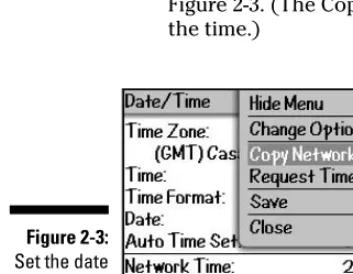
Note:If your BlackBerry is in network coverage, just press the track-wheel and choose Copy Network Time from the contextual menu that appears. The date is automatically entered into this field, as shown in Figure 2-3. (The Copy Network Time command sets both the date and the time.)
Figure 2-3:
8. Continuing down the Date/Time screen, highlight the Hour field, press the trackwheel, and then choose Change Option from the contextual menu that appears.
You’re prompted with an edit box with the current time setting.
9. Use the trackwheel to scroll to the proper time and then press the trackwheel.
You can see from the Date/Time screen that the Hour field has been set.
10. Perform Steps 8 and 9 for the Minute field.
Note:Similarly, if your BlackBerry is in network coverage, you can press the trackwheel and select Request Time from the contextual menu that appears. (Refer to Figure 2-3.) This is the quickest way to set the time on your BlackBerry. Note, however, that this sets only the time, not the date.
11. Continuing down the Date/Time screen, highlight the Auto Time Set field, press the trackwheel, and then choose Change Option from the contextual menu that appears.
A simple Enabled/Disabled drop-down menu appears. To have
BlackBerry auto-adjust to Daylight Savings Time, enable the Auto Time Set field.
12. To confirm your changes, press the trackwheel, and then choose Save from the contextual menu that appears.
Doing so saves your date and time settings in perpetuity — a really long time, in other words.
Customizing your screen’s look and feel
Right up there with making sure that your date and time settings are accurate is getting the display font, font size, and screen contrast to your liking. Now we know that some of you don’t give a hoot if your fonts are Batang or Bookman as long as you can read the text, but we also know that some of you won’t stop configuring the fonts until you get them absolutely right. For all you tweakers out there, here’s how you play around with your BlackBerry fonts:
1. Highlight Options (Settings) from the BlackBerry Home screen and press the trackwheel.
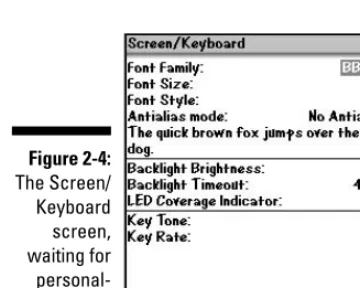
The Screen/Keyboard screen appears with various customizable fields, as shown in Figure 2-4.
3. Select the Font Family field and press the trackwheel.
You’re prompted with a drop-down list. From here, you can select one of the listed fonts. You’ll find there are anywhere from three to ten fonts for you to choose from, depending on the model you have.
4. Continuing down the Screen/Keyboard screen, select the Font Size field and press the trackwheel.
This activates the Font Size drop-down menu. Scroll to the font size of your choice. One thing to keep in mind is that the smaller the font size, the more you can see onscreen; however, a smallish font is harder on the eyes.
Note:As you scroll up and down the list of fonts and font sizes, notice that the text “The quick brown fox jumps. . . . “ in the background takes on the look of the selected font and sizes so that you can preview what the particular text looks like before you confirm your selection.
5. To confirm your changes, press the trackwheel, and then choose Save from the contextual menu that appears.
Similar to setting Font Size, you can also play with Font Style to set it to Bold, Italics, or None. At this point, you are probably wondering what Antialias Mode is for. Think of antialias as a way your BlackBerry renders the alphabet characters. With No Antialiasing set, your fonts will have round edges. On the other hand, with Antialiasing set, you fonts will have sharp edges. The differ-ence is quite subtle, so you can leave this setting if you choose to.
Figure 2-4:
Choosing Themes for your BlackBerry
If you have the 7100 series, your BlackBerry is preloaded with two different
Themes— Default (List) and Service Provider. Basically, your choices are going to be the Default (List) theme or the theme put together by your ser-vice provider — T-Mobile, for example.
If you don’t have a 7100 series, your BlackBerry still has the capability to download themes. We will point you to a couple of sites that you can down-load themes from.
Regardless of what BlackBerry model you have, to change your theme, follow these steps:
1. Highlight Options (Settings) from the BlackBerry Home screen and press the trackwheel.
2. Scroll through the list of options until you find the Theme setting and then press the trackwheel.
You see a list of available Themes here.
3. Scroll to the Theme you want and press the trackwheel.
4. Choose Activate from the contextual menu that appears.
You should be able to see the change immediately.
Just to give you a sense of what’s involved here, Figure 2-5 shows you how two different themes affect the Home screen of a 7100t model. The screen on the left is service provider specific (T-Mobile), whereas the screen on the right shows the default.
Figure 2-5:
If you don’t have a 7100 series model, you can still change your Theme. Although your BlackBerry might not be preloaded with themes, have no wor-ries: You can always download other themes here — just remember that you have to use your BlackBerry to access these URLs, not your PC:
⻬http://mobile.blackberry.com
⻬www.blackberrygoodies.com/bb/themes
Wallpaper for your BlackBerry
Like your desktop PC, you can customize your BlackBerry to have personalized wallpaper for your Home screen. You can set an image to be your BlackBerry Home screen background by using the BlackBerry Pictures application.
1. From the Home screen, scroll to Pictures application and press the trackwheel once.
This opens the Pictures application, where you can see some preloaded images that come with your BlackBerry.
2. Using the trackwheel, scroll to the image you want as your BlackBerry wallpaper and press the trackwheel once to bring up the Picture menu.
Doing so shows the Picture menu where you can see the option Set As Home Screen Image.
3. From Picture menu, scroll to Set As Home Screen Image and press the trackwheel once.
This sets the picture of your choice as the Home screen background.
4. Exit the Pictures application to see your new wallpaper.
You can download free wallpaper here — as long as you use your BlackBerry to access the URLs and not your PC:
⻬http://mobile.blackberry.com
⻬www.blackberrywallpapers.com
⻬www.blackberrygoodies.com/bb/wallpapers
After you have your BlackBerry’s look and feel just the way you want, there’s just one thing left to do before you can move on: getting your BlackBerry to
Let freedom ring
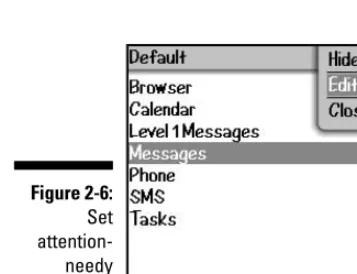
The whole appeal of the BlackBerry phenomenon is the idea that this little electronic device can make your life easier. One of the ways it accomplishes this is by acting as your personal reminder service — letting you know when an appointment is coming up, a phone call is coming in, an e-mail has arrived, and so on. Basically, your BlackBerry is set to bark at you if it feels there’s something it knows that you should know about. Figure 2-6 lists the kinds of things your BlackBerry considers bark-worthy, ranging from browser alerts to Tasks deadlines.
Different people react differently to different sounds. Some BlackBerry barks would be greatly appreciated by certain segments of the population, whereas other segments might react to the same sound by pitching their BlackBerry under the nearest bus. The folks at Research In Motion are well aware of this fact and have devised a great way for you to customize how you want your BlackBerry to bark at you — they call it your Profile.
You can jump right into things by using a predefined Profile, or you can create your own Profile. The upcoming sections take a look at both approaches.
Whether you create your own or customize a predefined Profile, each Profile is divided into seven categories. Each category is really just the application that you can define how it can alert you. The following is the list of applica-tions that you can define within each Profile on how they alert you:
⻬Browser:Will alert you when you receive a new channel push,which is just a Web page sent to your BlackBerry.
⻬Calendar:Will alert you when you have upcoming appointments. Figure 2-6:
⻬Level1 Messages (urgent e-mail messages):Will alert you with a special tone when you have an urgent e-mail. What’s considered an urgent mes-sage? E-mail can be defined as urgent by your sender. Also, a BlackBerry PIN-to-PIN message can be considered urgent. For more on PIN-to-PIN, please see Chapter 8.
⻬Messages:Will alert you when there is a new e-mail message in your inbox.
⻬Phone:Will alert you if there is an incoming call or a new voice mail.
⻬SMS:Will alert you when you have an SMS message.
⻬Tasks:Will alert you of an upcoming to-do deadline.
You can personalize all the listed applications depending on how you want to be alerted. Because the way you customize them is similar, we use the Messages application as an example in the text that follows, as we customize a predefined Profile that comes with your BlackBerry.
After this, we go over creating a new Profile from scratch. You might be won-dering: Why do I need to create a new Profile if I can personalize the prede-fined Profiles? Well, for those of you who like to keep the predeprede-fined settings the way they are and want to heavily personalize your Profile, creating a new Profile is the way to go.
Using factory settings
If you’re okay with customizing a predefined, factory-loaded Profile, just do the following:
1. Highlight the Profiles application from the BlackBerry Home screen and then press the trackwheel.
2. Scroll to the Default profile in the list, press the trackwheel highlight Edit from the contextual menu, and then press the trackwheel again.
The Default screen appears, listing the seven applications with alert capabilities that we mention in the preceding section. (Refer to Figure 2-6.)
3. In the Default screen, start by highlighting the Messages application, select Edit from the contextual menu, and then press the trackwheel.
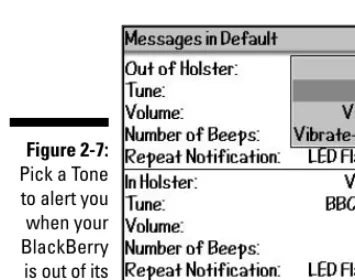
4. Highlight the Out of Holster field, choose Change Option from the contextual menu that appears, and then press the trackwheel.
You’re prompted with a drop-down list, spelling out your alert options.
5. Choose Tone from the drop-down list.
Doing so enables sound in the Out of Holster mode.
6. Highlight the Tune field in the Messages in Default screen, choose Change Option from the contextual menu, and then press the track-wheel.
You’re prompted with a set of tunes in a drop-down list.
Note:You’re not going to find “Stairway to Heaven” here, but you should be able to find something you like. If you can’t find one you like, you can always download ring tones and use them. See the section on download-ing rdownload-ing tones for more information.
7. Scroll down to select the tune you’d like.
As you scroll through the tunes and pause, BlackBerry plays the tune so you know what it sounds like before you change it.
8. To confirm your changes, press the trackwheel, and then choose Save from the contextual menu that appears.
As you might have guessed from how the Messages in Default screen is divided, your BlackBerry can notify you in different ways based on whether your BlackBerry is in plain view (Out of Holster) or tucked away next to your belt (In Holster). To set up a different sound for In Holster mode, just put the necessary info in the fields for the In Holster section — and be sure to pick a different tune this time. (Picking the same tune kind of defeats the purpose, doesn’t it?)
Figure 2-7:
As we mention before, you can do the same to personalize other applications listed in each Profile.
If you’re like us and you get more than 200 e-mails a day, you probably don’t want your BlackBerry sounding off 200 times a day. What you can do is set up your BlackBerry so that it notifies you only if an e-mail has been marked as
urgent,requiring your immediate attention. You can do this by setting the notification for your Messages application to None for both In Holster and Out of Holster. Then, in the Level1 Messages option (refer to Figure 2-6), you can set your desired notification for both In Holster and Out of Holster. That way, you have conveniently filtered out any unnecessary e-mail notifications, leaving just the urgent stuff to sound off to you.
Creating your own Profile
You need to know which applications on your BlackBerry have alert capabili-ties because you can then personalize each “Hey, you!” to your liking. You can have your BlackBerry so personalized that you can tell whether you’ve got a phone call or an incoming message just by how your BlackBerry sounds.
If you’re already familiar with the different applications and are clear how you want each one to alert you, go on and create your own Profile. As we mentioned before, you can achieve the same result by personalizing the pre-defined Profiles that come with your BlackBerry. But if you are one of those who like to keep the predefined Profiles the way they are, then go ahead and create a new Profile.
1. Highlight Profiles from the BlackBerry Home screen and press the trackwheel.
2. Press the trackwheel, highlight New from the contextual menu, and then press the trackwheel once more, as shown in Figure 2-8.
Figure 2-8:
A new Profiles screen appears, prompting you to name your profile.
3. Enter a name for your Profile in the Name field.
For this example, just type in My Profile.
4. Configure your new Profile.
Refer to Steps 3 and 4 of the “Using factory settings” section to cus-tomize each one of the seven applications.
5. Press the trackwheel and then choose Save from the contextual menu that appears.
Your newly created Profile appears listed in the Profiles screen.
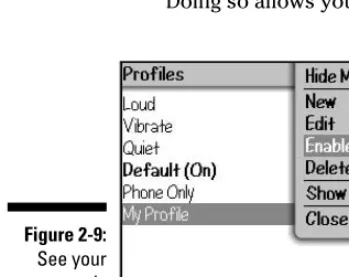
6. In the Profiles screen, scroll to My Profile, press the trackwheel, and then select Enable from the contextual menu that appears, as shown in Figure 2-9.
Doing so allows you to start using your newly created profile.
Regardless whether the ring tone is for an incoming call or an incoming e-mail, you can download more ring tones to personalize your BlackBerry.
You can download free ring tones here — just be sure to call up this URL with your BlackBerry and not your PC: mobile.blackberry.com.
Navigating Around
In this section, we show you the basic key commands for navigating around your BlackBerry using both the trackwheel and the QWERTY keyboard. Figure 2-9:
(Those of you out there with a 7100 get to use the trackwheel and the SureType keyboard.) Because the keyboard is different in 7100 series than in other models, Table 2-1 shows you two sets of basic key commands.
Table 2-1
Doing the Basics
7100 Key Combination 72XX Key Combination Action
Lock the handheld.
+Roll the ALT+Roll the trackwheel Move the cursor horizontally. trackwheel up or down.
up or down.
Roll the trackwheel Roll the trackwheel Move the cursor vertically.
up or down. up or down.
Move through a list of items (when a list appears).
+Roll the Shift+roll the Select multiple items (rows).
trackwheel. trackwheel.
+Letter Shift+Any letter key. Capitalize a letter.
+ Press SYM key. Symbol menu to insert
symbol
+ Shift+ALT key Num Lock
Hold in a text field. Switch between multitap and SureType mode.
SureType versus multitap
approach. The best way to explain multitap is by example: Say you want to type an hcharacter on the 7100. You search out the hon your keyboard but then notice to your dismay that the hshares a key with the letter g. What’s a person to do? Do you really want to go through life writing GHellofor Hello?
Actually, there’s a perfectly easy solution to your problem. To get the letter g,
you tap the GH key once. To get the letter h— the second letter in the key’s pair — you tap the key twice — hence, the term multitap.
What about SureType? When you are in SureType mode, your BlackBerry tries to help you do the communication thing by figuring out what word you are typing. For example, if you want to type in the word hi, you start by pressing by GH key and then the UI key. Doing so prompts SureType to dis-play a list of words it thinks might be what you’re aiming for, as shown in Figure 2-10. If the first listed word is what you want, simply press the SPACE key. The word is automatically selected, and you can continue to type. If what you really wanted to type appears a little later in the list, simply select it using the trackwheel. Over time, SureType learns the words you’re most likely to use and sticks those at the front of the list. Yup, that’s right — it gets smarter the more you use it.
Here are tips to speed up the learning curve on using SureType technology:
⻬Always finish typing a word before correcting it.This way, SureType learns what you want to type next time.
⻬If SureType got the word you’re typing right on the first try, simply use the Space key to move on instead of clicking the trackwheel or pressing ENTER.
⻬Type! Type! Type! Because SureType learns how you type, the more you use it, the more adept it becomes at adapting to your style. Figure 2-10:
Now, did you want
to type
One final tip takes some explaining. As you’d expect, SureType keeps all the words it’s learned in a safe place — a Wordlist, to be precise. It turns out that you can review your SureType Wordlist — and even add to it — using the Custom Wordlist option. (Using this option to add words or proper names to the list means that SureType doesn’t have to learn them when you are in the act of typing.)
To see/add words using the Custom Wordlist option
1. Highlight Options (Settings) from the BlackBerry Home screen and press the trackwheel.
2. Scroll through the list of options until you find the Custom Wordlist setting and then press the trackwheel.
This opens up Custom Wordlist. This is where you can see all the words that SureType has learned. (If just got your BlackBerry recently, there might be only a few words or even no words in this list, depending how often you’ve used SureType mode to type.)
3. From within the Custom Wordlist, you add a new word by pressing the trackwheel and then selecting New from the menu that appears.
Doing so brings up a dialog box prompting you to type in a new word, as shown in Figure 2-11.
4. To save your changes, press the trackwheel once and select Save from the menu that appears.
Getting people’s names right is one of those things that is tough with SureType, but thankfully, you can make sure all the names in your address book are automatically learned by SureType by doing the following: Figure 2-11:
Adding our favorite btw
1. Highlight Options (Settings) from the BlackBerry Home screen and press the trackwheel.
2. Scroll through the list of options in the menu that appears until you find the Language setting and then press the trackwheel.
You now see the Language option screen, where the handy Input Options button makes its home.
3. Scroll to the Input Options button and press the trackwheel once.
This brings up Fast Options screen with the following options:
•Frequency Learning:If turned on, the word used most frequently will appear first in the SureType word list while you type. (Refer back to Figure 2-10 to see what we mean.)
•Auto Word Learning:If turned on, SureType will learn as you type.
•Use Address Book as Data Source:If turned on, SureType will learn all the names in your address book.
By default, all the options in this screen are turned on.
4. Make sure the Use Address Book as Data Source option is turned on. If not, scroll to this field, press the trackwheel, select Change Option from the context menu, and then select On from the drop-down menu.
5. To save your changes, press the trackwheel once and select Save from the context menu.
General Keyboard Shortcuts
In many instances within this book, when we ask you to go to a BlackBerry application (Profile, for example), you have to first scroll to it from the Home screen and then click the trackwheel. You might be thinking “Hey, there must be shortcuts for this,” and you’d be right. This section covers such general keyboard shortcuts, all in the name of making your life easier. (Shortcuts that are a bit more application-specific get covered in the chapters dealing with a particular application.)
Before you get all excited about doing shortcuts, there’s one bit of house-keeping you need to take care of. In order for you to use some of these gen-eral keyboard shortcuts, you first have to make sure that the Dial From Home Screen setting — buried deep within the Phone application — is turned off.
phone calls. If you are not a frequent phone user and would like to access all applications with a press of a button, get ready to ditch Dial From Home Screen. (Keep in mind that 7100 uses don’t need to mess with their Dial From Home Screen settings, since their shortcuts work differently. 7100 users can always dial from their home screens.)
1. From the BlackBerry Home screen, highlight the Phone application and then press the trackwheel.
2. Press the trackwheel to bring up the contextual menu, highlight Options, and then press the trackwheel once more.
A screen listing a range of different options appears.
3. Highlight General Options from the list and press the trackwheel.
The General Options screen appears.
4. Scroll to the Dial From Home Screen field, press the trackwheel to bring up the contextual menu, and then highlight Change Option, as shown in Figure 2-12.
You see a drop-down menu with a rather limited set of choices — Yes and No, to be exact.
5. Choose No from the drop-down menu.
Doing so shuts down the Dial From Home Screen option, enabling you to use Home screen shortcuts.
6. To confirm your changes, press the trackwheel and then choose Save from the contextual menu that appears.
If you’re a frequent phone user on your BlackBerry, as opposed to an e-mail or Internet user, you might not want to turn the Dial From Home Screen fea-ture off.
Figure 2-12:
Using Home screen shortcuts
After you disable the Dial From Home Screen feature (see the previous sec-tion), you are free to use any and all Home screen shortcuts. (The name for these shortcuts is actually a pretty good fit because you can use these short-cuts only while you are at the Home screen.)
All the Home screen shortcuts described within this section work on the majority of BlackBerry models — with the notable exception of the BlackBerry 7100 series.
Okay, here goes. To call up the application listed in the first column of Table 2-2, press the key listed in the table’s second column.
Table 2-2
Home Screen Shortcuts
Application Shortcut Key
Messages M
Saved Messages V
Compose C
Search S
Address Book A
Alarm R
Tasks T
Profile F
Browser B
Calendar L
Calculator U
MemoPad D
Keyboard Lock K
On/Off and Backlight Power
Other (non-Home screen) shortcuts
The following shortcuts can be used at any time, regardless of which screen you’re currently in — or whether you have Dial From Home Screen enabled, for that matter:
⻬Quick menu:This keyboard shortcut (ALT+ESCAPE) is similar to the Alt+Tab keyboard combination on Windows PCs. It’s great when you want to quickly switch between applications, either to look up informa-tion or to check on something else while waiting for an event to occur (your browser to load, for example). Figure 2-13 shows you what the Quick menu looks like onscreen.
⻬Hide/Show/Move Application Position on the Home Screen:The old ALT-click trackwheel combination calls up the menu for hiding/show-ing/moving an application icon. (See Figure 2-14.) This is great for those times when you want to tidy up your Home screen by removing some little-used icons or when you just want to rearrange the icon order.
⻬Device Reset (also known as the 3-Button Salute):Pressing
ALT+CAP+DEL forces a manual reset, which is just what you need when your BlackBerry has crashed or when you install an application and it needs a manual reset. You can achieve the same result by pulling out the battery from the back of the BlackBerry.
⻬HelpME: In the BlackBerry world, SOS is actually spelled ALT+CAP+H. Use it when you’re on the phone with technical support. (It gives them things like your BlackBerry PIN, memory space, and BlackBerry version number so they have information about your BlackBerry when they try to troubleshoot your problems.)
Note:BlackBerry PIN isn’t a security password; rather, it is a unique number that identifies your BlackBerry, sort of like a serial number. But unlike a serial number, you can message another BlackBerry using PIN-to-PIN messages. For more on PIN-PIN-to-PIN messages, please see Chapter 8. Figure 2-13:
Power Usage and Consumption
Your BlackBerry comes equipped with a rechargeable, replaceable lithium battery that can have stand-by time(time when your BlackBerry is on but not being used) that lasts from three to seven days, depending on your BlackBerry model. As you would expect, a color screen BlackBerry consumes more bat-tery than a non-color screen BlackBerry. (Color screens are big consumers of battery juice.) Also, the more you use the backlight(the light that lets you see your display screen better) the more quickly your battery is going to run out. Finally, do keep in mind that your BlackBerry is an Internet-ready device (okay, okay, we know you know that, because that’s why you got it, right?) and that anything you can’t do without a network signal (sending and receiving e-mails, Internet browsing, talking on the phone) eats into your battery reserves in a big way. Typically, a color BlackBerry lasts around three days with normal use or five days stand-by time.
Like with any lithium battery, first condition your BlackBerry battery by dis-chargingit (letting your battery drain out) and then recharging. This way, you can get the most out of your battery.
We briefly mention here how recharging is handled/how best to do it/tips for charging on the go (charging while in your car?). Then we go into the battery conservation tips.
Here is a handy list of battery conservation tips to keep your BlackBerry up and running as long as possible while you’re on the go:
⻬Reduce backlight amount and timeout.Using the Screen/Keyboard option, adjust your backlight to a low setting. With the exception of the 7100 models, BlackBerry screens are usually quite legible while out-doors or in a well-lit environment. In addition, set the backlight timeout as low as possible. (You can get the details in setting Screen/Keyboard option in the “Customizing your screen’s