I
r=:
c::
c
c==
CP-6
I
=:J
I !
:==J
INTRODUCTION TO
~
---.---====---~----:.~~~---~---:~----
-
---::---:=3
r==:=---... ---
-.-r - - - . -_. - - - -=.
=-
= = . -=
--
ISUBJECT
CONTROL PROGRAM-SIX
(CP-6)
INTRODUCTION TO MAIL
Introductory Information for the
AOOVersion of the Honeywell Control
Program - Six (CP-6) Electronic MAIL System
SOFTWARE SUPPORTED
Software Release
AOOORDER NUMBER
HA03-00
October 1983
Preface
The CP-6 Introduction to MAIL is intended for new users of the CP-6 electronic
MAIL system, Software Release ADO. Sample terminal sessions are provided in a
modular format to guide you through the basic steps required to use the electronic MAIL system.
The Los Angeles Development Center of H~neywell Information Systems Inc. has
used the advanced communications features of the CP-6 operating system to
.create a text processing environment. This manual is a product of the text
processing environment.
Readers of this document may report errors or suggest changes through a STAR on the CP-6 STARLOG system. Prompt response is made to any STAR against a CP-6 manual, and changes will be incorporated into subsequent releases and/or
revisions of the manual. If high impact errors are discovered, patch~s to
this manual may be issued and distributed via communication lines.
The information in this publication is believed to be accurate in all
respects. Honeywell Information Systems cannot assume responsibility for any
consequences·resulting from unauthorized use thereof. The information
contained herein is subject to change. New editions of this publication may
be issued to incorporate such changes. The printed version of this manual may
be ordered from:
Honeywell Information Systems Inc. Publications Distribution Center 47 Harvard Street
Westwood, Massachusetts 02090
Telephones: Customers (617) 392-5235
Honeywell (HVN) 273-5215 (HED MA06)
The infonnation and specifications in this document are subject to change without notice. This document contains infonnation about Honeywell products or services that may not be available outside the United States. Consult your Honeywell Marketing Representative.
MODULE 1 Getting Acquainted • • •
What is MAIL? • • • • • • • •
Basic Concepts and Definitions What is a Processor? •
What is a Prompt? • • • • •
What is a Command? • • • • • • What are Options and Defaults? • What is a file? • • •
What is a Message? • • • • • •
What Information Needs to be Included in
What is a Folder? Central Folder?
What Does a Message Look Like? • • • • What is Wildcarding? • •
MODULE 2 Logging On to CP-6.
MODULE 3 Logging Off of CP-6
MODULE 4 Creating a Central Folder.
MODULE 5 Entering and Exiting MAIL.
MODULE 6 Processing Incoming Mail • •
the Add r.e s s ? •
MODULE 7 Setting Your Central Folder profile.
MODULE 8 Writing and Sending Messages • •
MODULE 9 Filing Messages • •
MODULE 10 Displaying On-Line HELP Information.
MODULE 11 Printing Messages on a Hardcopy.
MODULE 12 Building Mailing Lists • •
Index.
FIGURES
Figure 1-1. Figure 1-2.
Formatted Message Display. Summarized Message Display.
HA03-00 Table of Contents
About This Manual
This is an introductory manuaL intended for new or inexperienced users of the
CP-6 eLectronic MAIL system. This manuaL is composed of sequential modules.
The moduLes give examples of actual terminal sessions which you can tryon
your termlnal screen. Reading each module wiLL increase your familiarization
with MAIL at a comfortable pace. Each module is divided into at least two parts; some modules have an additional third or fourth part as weLL.
This manual presents the most commonLy used commands of the eLectronic MAIL system. It does not attempt to cover all the rules and options for a command
or every avaiLable command. For a compLete reference and list of commands,
you shouLd refer to the CP-6 MAIL Reference ManuaL (HA04).
ABOUT THIS MODULE'
This portion of each module briefLy describes what the moduLe is going to show you.
YOUR TERMINAL
This portion shows an actual MAIL session as it appears on the terminal, with
both your input and the MAIL response. Each YOUR TERMINAL portion is also
annotated to explain what is taking place on the terminal.
ONE STEP BEYOND
provides you with additional information about what took place in the terminal session and may tell you about further options to try.
TROUBLESHOOTING
Provides heLpful hints about what to do if something goes wrong.
To understand each exampLe compLeteLy, read each part of the moduLe in order. The first three modules expLain basic concepts and Logging on and off of the CP-6 computer. If you are aLready famiLiar with these procedures, skip over these moduLes.
NOTATION CONVENTIONS
In this introductory manuaL, severaL symboLs and notations are used to expLain what you do rather than what the computer does. These are:
Car e ted Let· t e r s
Letters inside carets, i.e., <>, indicate physicaL keys on the terminaL -- do not type the carets, onLy what is encLosed by the carets.
<CR>
ELLipses
means press carriage return. The carriage return is incLuded in some exampLes for cLarity. It is omitted in pLaces where pressing <CR> shouLd be assumed
from the exampLe shown.
A verticaL or horizontaL eLLipsis indicates that something has been omitted on purpose. It shouLd be cLear to you what foLLows or couLd be inserted.
means the rest of the Line foLLows
means a Line or Lines foLLow
RELATED MANUALS
The CP-6 MAIL Reference Manual (HA04) is the companion manual to this manual, the CP-6 Introduction to MAIL (HA03).
For a more complete list of manuals available to users of the CP-6 system, please refer to the information in the front of the reference manual.
MODULE
1
Getting Acquainted
What is MAIL?
MAIL is an interactive message handling system which provides you with capabilities for message viewing and manipulation, message preparation, and
message transmission. You shouLd think of the eLectronic MAIL system as a
combination of the LocaL maiLman, your personaL maiLbox, and a fiLing cabinet in which you file aLL of your correspondence in one easy-to-use system.
Messages are sent by addressing the person with a registered name. Several
options can be specified when a message is sent, such as copies, bLind copies,
message deferraL, and return receipt. When you receive a message, it includes
the sender, the subject, date, and other important information. Messages are
stored in fiLes calLed "folders" which you create.
After you read a message, it can be filed away, acknowledged, answered,
forwarded, or deleted. AdditionaL folders can be created to fiLe your
messages, as you wouLd in a fiLing cabinet.
During a MAIL session, you may access CP-6 EDIT so that you can edit messages. You can also dispLay on-line HELP information for the MAIL or SEND processors. The electronic MAIL system does away with much of the paper that you normalLy
use. Once you are accustomed to corresponding through your terminal, you will
notice a significant productivity increase as weLL as paper and cost savings.
Basic Concepts and Definitions
The electronic MAIL system uses some of the same concepts of a traditionaL
postal system. This moduLe presents definitions and concepts you shouLd know
to understand the similarities and differences between the traditionaL postal system and the CP-6 electronic MAIL system.
If you are aLready comfortabLe with your CP-6 system and understand the concepts of eLectronic MAIL systems, you will probably want to skip over the first few modules and go directLy to moduLe 6, entitLed "processing Incoming Mail".
HA03-00 MODULE 1
Getting Acquainted
What is a Processor?
A processor is a part of the computer's "brain" which "processes" the
information that it receives. When you use the electronic MAIL system, you
are using two processors: MAIL and SEND. When you drop a message in the
mailbox, the mailman picks it up and delivers it to the address you specified. Similarly, the SEND processor takes the information you have given it,
"processes" the information, and delivers the message. Once the message is delivered, the receiver uses the MAIL processor to read, answer, delete, or file the message.
The MAIL and SEND processors are just two of many CP-6 processors on the CP-6
system which you can use. Other processors which you may be familiar with
are: PCF, ARES, BASIC, COBOL, FORTRAN, TEXT, EDIT, etc.
What is a Prompt?
A prompt is a special symbol or word that appears at the beginning of a line to inform you that the computer is ready to receive a command from you. You enter the required information on the same line immediately following the
prompt. The CP-6 prompt (the system command level prompt) is an exclamation
point ( ! ) ; sometimes referred to as the "bang". The EDIT processor has two
prompts: the asterisk (*) and line numbers (1.000, 2.000, etc.) when you are
building or adding to a file.
MAIL and SEND have five different computer prompts. The (» greater-than sign
is the first prompt you see when you have successfully entered the MAIL
processor. When you are using the SEND processor to send a message, you are
prompted with TO:, followed by SUBJECT:, BODY:, and OPTIbNS:. At these
prompts, SEND is expecting information from you, which it uses to send your message.
What Is a Command?
A command is how you tell the computer what you want it to do. It is an instruction that has special meaning to the computer when it is used in a specific way. For instance, the command "LIST UNEXAM" typed after the (» greater-than prompt requests that MAIL print a summary list of all messages which have not been examined.
Each processor has many commands that you can use. Usually, you will begin
with a few essential and fundamental commands. As you gain experience, you
will use additional commands to do more things. Once you are familiar with
the commands presented in the examples for this introductory manual, you will want to refer to the CP-6 MAIL Reference Manual (HA04) for other commands.
HA03-00 MODULE 1
Getting Acquainted
What are Options and Defaults?
In addition to the numerous commands used with each CP-6 processor, some
commands also have a number of options. These options are part of the command syntax. Syntax is to computer commands what "grammar and punctuation" are to
English sentences. The grammar portion is the options or choices you have
when you use the command, and punctuation includes the required quotes,
slashes, etc., in some commands. If you say something to the computer that it
does not understand, it will tell you that it was not right. you can then reexamine the command and try reentering it until you get it right.
The computer also tries to to the most common option. do not explicitly tell the make certain assumptions. option for that command.
help you by making choices for you or "defaulting"
Another word for default is an assumption. If you
computer which command option you want, it will In other words, it will default to the assumed
It is very convenient to let the computer make these assumptions in many
cases. However, there are also many situations where these defaults are not
appropriate. To begin with, you will probably depend on many of the MAIL
defaults. Some of the defaults when you are using MAIL are:
• Unlimited storage space for messages
• Summarized list of new messages when MAIL is first entered
Later on in this introductory manual, you will learn how to change these default settings to meet your needs.
What is a file?
A "file" is an organized collection of information which is stored in the computer in such a way that the computer can keep track of each file and its
owner. It is stored so that the computer can read, retrieve, and process the
file when you tell it to do so.
Visualize an imaginary file cabinet of your own within the computer. Your
logon identification is the key to your file cabinet -- it makes your files available to you in much the same way as putting in a key and unlocking a
physical file cabinet. You must give each file a unique name for
identification s6 the computer can tell them apart. MAIL uses a special kind
of file called a folder.
HA03-00 MODULE 1
Getting Acquainted
What is a Message?
A message is the term used in MAIL when describing the combination of a
message and accompanying envelope. A MAIL message contains not only the body
of a message, but also the address, date and time, status (whether it is new, an acknowledgement, answer, forwarded message), and the name of the sender.
Messages are identified by number. Each message is numbered sequentially by
the MAIL processor. The message number is specified with some commands when
you want to process or manipulate the message.
What Information Needs to be Included in the Address?
When you send a message, you need to address the message in a way that can be
interpreted by MAIL. In general, you specify an address by entering the first
and last name of the message recipient at the TO: prompt. You do not need to
enter anything else. MAIL looks up the recipients' name, finds the location
of their mailbox, and delivers the message to their mailbox (central folder).
What is a Folder? Central Folder?
A folder is a file which is created in your logon account to store incoming
messages. You must have at least one folder to collect your messages. This
·folder is called the "central folder" and is the default folder for incoming
messages. Your central folder must be created before you can send and receive
messages. The central folder appears as a file in your logon account as
follows:
:MAIL CENTRAL
The ":MAIL " portion of the file name tells you that this is a MAIL folder. The "CENTRAL" is the name of the folder (the central folder in this example). With MAIL commands, a folder name is shortened by substituting a slash (I) for
the ":MAIL_" prefix to a folder name.
What Does a Message Look Like?
Messages have two parts, the formatted text of the message sent and a status
summary containing information about the message. When you process incoming
messages, they can be displayed on the terminal screen as either summarized or
formatted displays. Either message display includes message fields with
information such as the message sender, the date and time the message was sent, and the subject.
HA03-00 MODULE· 1
Getting Acquainted
Figure 1-1 is a sample of a formatted message display.
(1 ) Sent: 08/09/83 9:45 Rcvd: 08/09/83 9:46 (8 ) Number:
(2) To: LINDA SOCOL (9 )
(3 ) Subject: Review Meeting
(4) C: HAROLD PR IC E
(5) Bc: LARRY FELDMAN, LOUISE CALLEJO
(6 ) Re: Pe r your message
I
Linda,I
I
I have set a review meeting for tomorrow at 10:00. (7) Is there anythi~g else that needs to be done before theI
review?I
(10) Helen
-Figure 1-1. Formatted Message Display
From: 1
HELEN KLEIN
The numbers enclosed in parentheses in Figure 1-1 identify the fields in the formatted message.
(1) Date Field
Tells you the date and time when the message was sent (Sent:) and delivered -(Rcvd:). The date and time are assigned by MAIL.
(2) To Field
Shows you who the message is sent to.
(3) Subject Field
Gives a description of the message.
(4) Copy Field
Tells you who received a copy of the message.
(5) Blind Copy Field
Lists the names (addresses) of people who received blind copies of a message. The Blind Copy field is displayed only to those names which are entered on the blind copy list (i.e. others are not aware that the Blind Copy exists).
(6) Reference Field
Includes relevant text information included by the sender.
(7) Body Field
Contains the message body.
(8) Number Field
The message number assigned by MAIL when a message is delivered.
HA03-00 MODULE 1
Getting Acquainted
[image:15.612.80.544.70.235.2](9) From Field
Identifies who sent the message.
(10) Signed Field
[image:16.617.68.533.25.792.2] [image:16.617.58.552.84.222.2]The signature of the message sender. Appears below the message body.
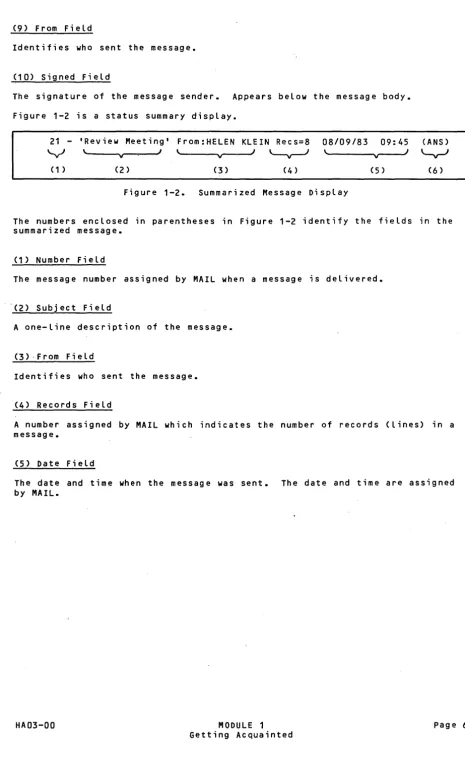
Figure 1-2 is a status summary display.
21
-'-yJ
(1 )
'Review Meeting'
\
v I
(2 )
From:HELEN KLEIN Recs=8
\. .... ---...v~-_JJ
'---v-l
(3 ) (4 )
08/09/83 09:45
'---v---J
(5 )
Figure 1-2. Summarized Message Display
(ANS)
"-v-J
(6 )
The numbers enclosed in parentheses in Figure 1-2 identify the fields in the
summarized message.
(1) Number Field
The message number assigned by MAIL when a message is delivered.
(2) subject Field
A one-line description of the message.
(3)· From Field
Identifies who sent the message.
(4) Records Field
A number assigned by MAIL which indicates the number of records (lines) in a message.
(5) Date Field
The date and time when the message was sent. The date and time are assigned by MAIL.
HA03-00 MODULE 1
Getting Acquainted
(6) Status FLag FieLd
When messages are dispLayed in summarized fashion, status fLags appear in
parenthesis at the end of a summarized message dispLay. They inform you about
the current status of the message you have received. The message status fLags
can be Listed in the summarized message are:
ACK message is an acknowLedgement of receipt
ANS message is an answer to a previous message
DEL message is to be deLeted on termination of MAIL session
ERR message is not deLiverabLe
FCOPY message is your copy of one you sent to someone eLse
FW D message is a forwarded message
MARK message has been specificaLLy tagg ed fa r speciaL handLing
NEW message is new (has not been previousLy Listed)
RR return receipt requested fa r this message
UNEXAM message has not been examined
Some of these status fLags are used and expLained in this manuaL. For further information, refer to the CP-6 MAIL Reference ManuaL (HA04).
What is Wildcarding?
WiLdcarding means that one or more messages, folders, or names can be seLected
and processed at the same time. The wiLdcard character is a question mark.
If, for exampLe, you want to deLete aLL the foLders in your account that have ·MEETING as part of their name, you enter the DELETE FOLDER command as foLLows:
>DELETE FOLDER /?MEETING?
The question mark impLies that any foLder found in your account which has the word "MEETING" as part or aLL of the foLder name be deLeted.
HA03-00 MODULE 1
Getting Acquainted
MODULE
2
Logging
On to CP-6
About This Module
Before you can use your CP-6 computer, the computer must recognize you as an
authorized user. Someone at your computer site, usually the system manager
through your manager or supervisor, will give you a computer logon identifier. A logon is a series of characters that identifies you to the computer. When you enter your logon, the computer recognizes you as an authorized user and you may then proceed to use the computer. Your logon is the way that the computer keeps track of who you are and the files that belong to you on the
computer. .
This module teaches you how to enter your identifier (which is called a logon)
at the terminal, thereby letting you talk to the CP-6 computer. If you
'already know how to logon and logoff of your CP-6 computer, you can skip this module and also the next one which talks about logging off.
NOTE: Your computer system may have a different logon procedure than that
described in this module. Check with your supervisor or system manager to
determine if this module applies to your terminal.
Your Terminal
HA03-00
First, locate the ON/OFF switch and turn yout terminal ON.
Next, you must connect your terminal to the computer over a
telephone line. Some terminals are connected manually using a
coupler device and a regular telephone. Others are connected
directly into the computer using a telephone cable so it is not necessary to actually dial and connect a telephone instrument
to the terminal. This kind of connection is commonly called a
"hardwired" computer connection.
If your terminal is "hardwired" to the computer, you may skip to the <8> below.
If you are using a telephone instrument to connect to the
computer, you must first activate the line. Turn on the
modem/coupler device, if it is separate from the terminal. This is a box usually found next to the terminal, or it may be two holes in the back or side of the terminal. Whichever it is, there will be two holes made to fit a traditional telephone
handset, with perforated holes inside. Dial the computer's
telephone number. Wait until you hear a high-pitched tone,
then put the handset or receiver into the modem/coupler.
MODULE 2 Logging On to CP-6
<8>
SLowly press the number <8> on the terminaL keyboard several times (this telLs the CP-6 system the speed of your terminaL). After typing the 8s, the computer shouLd respond by printing:
pLease type a Left parenthesis
Enter the left parenthesis (this teLLs the computer the general
type of terminal you have). The terminaL shouLd then respond
with a greeting, and print a few Lines of information. The information printed is not reaLly important to you right now,
the LOGON PLEASE: portion is aLL that is immediately
importa.nt.
***
CP-6 (803) AT YOUR SERVICE, LADC L66A10:15 03/31/83 FEP #0002 PATH#007E LINE#1AOO
LOGON PLEASE: <CR>
Now, you should very carefulLy enter your Logon. Pay close
attention to any capitaL Letters, numbers, or commas. Note
that nothing prints on the terminaL when you enter your logon. This is because you need to keep your Logon secret. Press the RETURN key (shown as <CR». If you enter the logon
incorrectLy, the computer responds with a message to that
effect. If you enter your Logon correctLy, the computer
responds with a message identifying the time and day, plus a
few bits of other information. You can repeat this step
severaL times if you are not successfuL the first time.
***
SYSID# 10358 ON LADC L66A AT 10:15:31.23 THU MAR 31. '83.HA03-00
When the'exclamation point prompt (!) appears on your terminaL,
you have successfuLLy Logged on to your CP-6 computer. This
prompt, aLso caLLed the "bang", is the system command level
prompt. This is the computer's way of telling you that from
this point you can use any CP-6 function available on the system that you know how or are permitted to use.
MODULE 2 Logging On to CP-6
One Step Beyond
In this module, you learned something about computer security. information controls access to the computer and to its powers. with a logon are permitted to use the computer.
The logon Only those
If your terminal setup and logon procedure was not like the one described in this module, you learned an important fact about computers in general -- that the equipment and setup varies greatly from computer site to computer site.
If you encountered problems while doing this module, do not be discouraged. Logon ;s a hurdle that all beginners must pass. After a few times, logging on will seem completely natural and very easy.
Part of your computer logon, usually the last segment, is your logon password. While the system manager controls the rest of your logon, you can change your
password whenever you wish. Your password in one form of computer security.
Keeping your password a secret is one step in protecting the information that you have in your account on the computer.
It is a good idea to change your password as soon as you are comfortable
logging on to the system, and then change it periodically in the future. This
1S very easy to do -- all you need to do is enter the following command at
your terminal:
!PASSWORD OLD=oldpassword, NEW=newpassword
At the exclamation point prompt, enter the words shown above in capital -letters, with your current password after OLD= and your new password after
NEW=. Use something meaningful to you so you can remember it easily and do not tell anyone.
Troubleshooting
PROBLEM:
You type the <8> key several times and nothing happens.
ACTION:
You are not connected to the computer. If you are using a physical telephone
coupler connection, check to be sure that you have inserted the handset into
the coupler correctly. There should be a diagram or instructions indicating
which way the telephone cord should point.
If you still have problems, locate a person who already knows how to logon and ask for help.
PR OB LEM :
You type the <8> key and the only thing that happens is that 8888 prints at the terminal.
ACTION:
Look around for a switch on the terminal or the modem (or both) that says LOCAL; make sure that the switch is not in the LOCAL position.
HA03-00 MODULE 2
Logging On to CP-6
PROBLEM:
The computer will not accept your logon even though you enter it correctly.
ACTION:
Press the escape «ESC» key and then press the letter <E> key. Now reenter your logon -- it will be printed on the terminal. Check to see if you are entering it exactly as it was given to you -- pay special attention to letter "0" and the number "0" because the computer can tell the difference. Also pay special attention to upper and lower case letters -- check to see if the CAPS LOCK key is on or off. If you are doing everything correctly, contact the system manager or some~ne with more CP-6 experience at your site for
assistance.
PROBLEM:
You have logged on successfully but the'response at your terminal from the computer is strange and does not look right.
ACTION:
The CP-6 system is capable of talking to a wide variety of terminals. You may not have your terminal profile set for the kind of terminal you are using. If you enter the correct profile for your terminal, your CP-6 computer knows how to "talk" to your terminal. Your profile for your terminal describes the important characteristics of your terminal to the CP-6 computer.
If you do not know (or no one has told you) what your terminal profile is, you can type DISPLAY PROFILE at the exclamation point prompt'to get a list of terminal profiles at your terminal. Look at the list to see if you can find the 'profile name that fits your terminal.
Then, type in the profile name that most accurately identifies your terminal. Following ;s an example for the Honeywell VIP7802 CRT terminal:
!PROFILE VIP7802 or
!PROFILE VIP7802 (PERM)
The "(PERM)" option makes the profile definition a permanent part of your
logon. The next time you logon the computer will automatically know your
terminal profile. If you do not use the same terminal every day, you may not want to make your profile permanent.
Parts of the logon procedure, including your terminal profile, can be done for you "automatically" by using a "setup" file each time you log on to the
system.
If this has not already been done for you, talk to someone with more CP-6 experience at your computer site for assistance.
HA03-QQ MODULE 2
Logging On to CP-6
MOQULE3
Logging Off of CP-6
About This Module
When you are finished working with the computer, you should notify the computer that you are leaving the system by logging off your terminal.
Your Terminal
!BYE <CR>
Type END to tell the computer that you are finished with what
you are doing. The computer responds by printing the
exclamation point prompt (!). You then type BYE (or OFF) and
press <CR>.
The computer prints a summary of your computer usage. The last
number in the summary gives the cost of the session.
CON=00:00:35:02 EX=00:00:00.37 SRV=00:00:02.27 PMME= 340 CHG= .00
Troubleshooting
PROBLEM:
You cannot log off the system.
ACTION:
Hold down the control «CTL» key and press the letter <Y>. Release the <CTL>
key. The computer prints two exclamation points (!!). Then type BYE.
If you still can not log off, ask someone with more CP-6 experience at your site for help.
HA03-00 MODULE 3
Logging Off of CP-6
AfODULE4
Creating a Central Folder
About This Module
When you use the electronic MAIL system, you will need a file or "mailbox" which can store all of your incoming and outgoing' messages. This file is called the "central folder". Your central folder must be created before you can use MAIL. This module explains how to create and use your central folder.
NOTE: If you or someone else has already created your central folder, you can skip this module and go on to the next one. This indicates that you h~ve been
pre-registered by someone at your site. The following message is displayed if
you have been pre-registered:
YOUR-NAME created using YOUR-NAME
Your Terminal
!MAIL <CR>
MAIL AOO HERE
First, enter MAIL at the system level prompt (!) and press <CR>.
MAIL responds with a greeting and the message that you do not have a central folder (:MAIL CENTRAL).
File :MAIL CENTRAL does not exist
You cu~ren£ly have no folder open
At the (» prompt, enter the CREATE FOLDER command and press
<CR>. This command criates your central folder. MAIL displays a message acknowledging that your central folder now exists in your account.
>CREATE FOLDER
ICENTRAL.YOURACCT created
>END
HA03-00
Return to the system level prompt by entering the END command and pressing <CR>.
To make sure that you really do have a central folder, enter the LIST command at the system level prompt (!) with
":MAIL CENTRAL" and press <CR>. The folder named
":MAIL-CENTRAL" appears as a file in your logon account. The comput;r also displays some status information about y' u central folder.
MODULE 4
Creating a Central Folder
!L :MAIL_CENTRAL ORG TY GRAN NGAV
KEY 1 1
1 files listed
One Step Beyond
REC LAST MODIFIED NAME
1 07:53 AUG 01'83 :MAIL CENTRAL
In this module, you have learned that the mailbox used in the electronic MAIL system is a file (folder) in your logon account called the central folder. As you progress in this manual, you will be shown how to create additional
folders in which to "file" messages that you wish to keep for future reference.
Troubleshooting
PROBLEM:
You try to create your central folder (mailbox) and receive the following message:
Error encountered trying to create folder. File :MAIL CENTRAL exists.
ACTION:
You already have a central folder. Proceed to the next module.
HA03-00 MODULE 4
Creating a Central Folder
MODULE
5
Entering and Exiting MAIL
About This Module
This moduLe describes how to enter and exit the CP-6 MAIL system. The MAIL
prompt and accompanying command dispLay are aLso discussed. Whenever you want
to see whether you have received messages, you must enter the MAIL system. You wiLL probabLy want to check your maiL in the morning, when you Log on, and
possibLy towards the end of the day. This module shows you:
• How to enter MAIL
• How to exit MAIL
• Introduces the MAIL prompt (»
• ExpLains the 'LIST NEW' message
Your Terminal
!MAIL <CR>
MAIL AOO HERE >LIST NEW None found
>END <CR>
HA03-00
To access the eLectronic MAIL system, enter the word "MAIL" at the system LeveL prompt ( ! ) and press <CR>.
MAIL responds by dispLaying the foLLowing messages:
If you receive this message, you have successfuLLy accessed the
MAIL processor. MAIL identifies the current version of the
product. The (» greater-than symboL is the prompt which
indicates that you are in MAIL and can issue any MAIL or SEND command at this point. "LIST NEW" is the defauLt foLder
command which is executed each time you access MAIL. It teLLs
MAIL to List aLL newLy received messages. In this exampLe, you
have no new messages, so MAIL responds with "None found".
To exit MAIL, enter the END command at the (» prompt and press <CR>.
MAIL responds by returning you to the system LeveL prompt (!).
MODULE 5
Entering and Exiting MAIL
Troubleshooting
PROBLEM: .
You enter the word MAIL at the system level prompt (!) and the following message is displayed:
File :MAIL CENTRAL does not exist
ACTION:
You have not yet creat~d your central folder. Read the previous module for information on how to create the central folder. Once you have a central folder you will be able to access the electronic MAIL system.
HA03-00 MODULE 5
MODULES
Processing Incoming Mail
About This Module
When you invoke MAIL from the system level prompt (!), a default command is executed and displayed on your terminal~ This command, "LIST NEW", is
executed for you each time you enter MAIL. It lists, in summarized form, any
new messages which you have received since the last time you looked in your
electronic mailbox. This initial message does not show you the body of the
message. After receiving the list of new messages, you can begin to read and
process them. Processing mail includes acknowledging, answering, forwarding,
and deleting messages. This module explains how to:
• List and read messages using the LIST MESSAGE and DISPLAY MESSAGE
commands.
• Acknowledge messages using the ACKNOWLEDGE MESSAGE command.
• Respond to messages using the ANSWER MESSAGE command~
• -Forward a copy of a message to others using the FORWARD MESSAGE command.
• Discard messages using the DELETE MESSAGE command.
Your Terminal
HA03-00
Enter the word MAIL at the system level prompt (!) and press <CR>.
MAIL responds with a greeting and the command "LIST NEW", followed by a list of the new messages you have received.
NOTE: To accommodate formatting, summarized messages are shown
on two lines. In actual us~ge, these messages are printed on
one line.
MODULE 6
processing Incoming Mail
MAIL AOO HERE >LIST NEW
1 - 'Review' From:HELEN KLEIN @SITE Recs=2 08/01/83 08:45
(NEW,UNEXAM)
2 - 'Visitors' From:John Smith /INFO @SITE Recs=1 08/01/83 08:48
(NEW,UNEXAM)
3 - 'Letter to the Board' From:LINDA SOCOL @SITE Recs=8 08/01/83 12:46
(NEW,UNEXAM)
4 - 'EmpLoyee Picnic' From:Sandra Jones @SITE Recs=9 08/01/83 17:35
(NEW,UNEXAM,FWD)
5 - 'Vacation Reminder' From:BiLL Hart @SITE Recs=49 08/01/83 17:57
(NEW,UNEXAM,RR)
6 - 'EmpLoyee Number' From:/PERSONNEL.WWSEC@SITE Recs=3 08/01/83 18:01
(NEW,UNEXAM)
If you want to read a message, you simpLy enter the DISPLAY MESSAGE command with the message number and press <CR>. The
number associated with each message is unique. The number is
used by MAIL to keep track of your messages so that MAIL can process the correct message.
>DISPLAY MESSAGE 1 <CR>
After you press <CR>, a formatted message is dispLayed.
Sent: 08/01/83 08:45 To: ELLEN SANDS Subject: Review
Rcvd: 08/01/83 08:49 Number: 1
From: HELEN KLEIN @L66A
I have scheduLed a review meeting for 10:00 today. pLease
acknowLedge this message if you can make it.
HeLen KLein
In this instance, the sender is requesting an acknowLedgement
to the message. You respond by entering the ACKNOWLEDGE
MESSAGE command with the message number and pressing <CR>. MAIL dispLays the summarized message to you with a message that it has been sent. Notice that the UNEXAM status fLag has been removed from the summarized message which is dispLayed, since it is no Longer an unexamined message.
>ACKNOWLEDGE MESSAGE 1 <CR>
1 - 'Review' From:HELEN KLEIN @SITE Recs=2 08/01/83 08:45 (NEW)
Message sent.
HA03-00
The recipient of the acknowLedgement receives a message identifying you as the sender and MAIL inserts the sentence "Message received and acknowLedged" in the message body.
Lets Look at aLL of the messages which you received once more. Enter the LIST MESSAGE command with the message numbers and press <CR>. MAIL teLLs you that six messages are Listed.
MODULE 6
Processing Incoming MaiL
>LIST MESSAGE 1-6 <CR>
1 - 'Review' From:HELEN KLEIN @SITE Recs=2 08/01/83 08:45
(NEW)
2 - 'Visitors' From:John Smith /INFO @SITE Recs=1 08/01/83 08:48
(NEW,UNEXAM)
3 - 'Letter to the Board' From:LINDA SOCOL @SITE Recs=8 08/01/83 12:46
(NEW,UNEXAM)
4 - 'EmpLoyee Picnic' From:Sandra Jones @SITE Recs=9 08/01/83 17:35
(NEW,UNEXAM,FWD)
5 - 'Vacation Reminder' From:BilL Hart @SITE Recs=49 08/01/83 17:57
(NEW,UNEXAM,RR)
6 - 'Employee Number' From:/PERSONNEL.WWSEC@SITE Recs=3 08/01/83 18:01
(NEW,UNEXAM) 6 messages listed
You decide to read message number 2. This message requires an
answer. Enter the ANSWER MESSAGE command with the message
number and press <CR>.
First, the message is Listed in summarized form. Then you are
prompted with a subject for the message (SUBJECT:). Enter any
subject-you wish and press <CR>. If you do not wish to enter a new subject, just press <CR>; the old subject is then used by MAIL as the new subject as well. Next, you are prompted for the body of the message (BODY:). Enter as many lines of text as you require. Press <CR> at the end of each line. To exit the message body, press <CR> on an empty Line. FinalLy, you
are prompted with OPTIONS:. At the OPTIONS: prompt, enter the
END command and press <CR> to send the message. You are then
returned to the (» greater-than prompt.
>ANSWER MESSAGE 2 <CR>
2 - 'Visitors' From:John Smith /INFO @SITE Recs=1 08/01/8~ 08:45
SUBJECT:Our Visitors <CR>
BODY:I wiLL be happy to give them a tour of our faciLities. <CR> <CR>
OPTIONS:END <CR> Message sent.
>
Continuing on, you read message number 3, and want to discard
it. Just enter the DELETE MESSAGE command specifying the
message number and press <CR>. MAIL dispLays a message stating
t~at one message is fLagged for deLetion. This means that the
message is tagged for deLetion, but it has not been physicaLLy
removed from your maiLbox. It is actuaLLy deLeted when you
exit MAIL. The reason for this is that you can opt to reverse your deLetion request if you change your mind before you END the current MAIL session.
>DELETE MESSAGE 3 <CR>
1 messages fLagged for deLetion
If you do change your mind, you can canceL the deLetion by entering the UNDELETE MESSAGE command with the same message number and press <CR>. The deLetion request is cancelLed. The message wiLL now not be deLeted when you end your MAIL session.
>UNDELETE MESSAGE 3 <CR>
1 messages no Longer fLagged for deLetion
HA03-00 MODULE 6
Processing Incoming MaiL
You can also forward a copy of any message, including any additional information in reference to the forwarded message. To do this, enter the FORWARD MESSAGE command with the message number and press <CR>. You are prompted for message
recipients, subject, body, and options. Respond as before to
these prompts. The information you enter now will precede the
header and message body of the forwarded message.
>FORWARD MESSAGE 4
·4 - 'Employee picnic' From:SANDRA JONES @SITE Recs=3 08/01/83 17:35
TO:Tom Baker <CR>
SUBJECT:A reminder about the Picnic <CR>
BODY:I'm forwarding a message about our picnic that includes <CR> the date and time. <CR>
<CR>
OPTIONS:END <CR> Message sent.
>
One Step Beyond
In this module you have learned how to process your incoming mail. Once you
are familiar with these commands for manipulating your MAIL messag"es, you can greatly reduce the amount of time spent taking care of daily correspondence.
In a matter of minutes, you can answer, delete, and forward letters. Here are
~ few additional commands which you can try:
>LIST ALL Lets you see all the messages in your
mailbox.
>ANSWER n RECEIVERS "n" is the message number you are answering, RECEIVERS tells MAIL to send your answer to everyone who received the original
message, including the sender.
>DELETE 1,3,5,9 Discards several messages at one time
(messages 1,3,5,9).
>DELETE 8-11 Discards messages 8 through 11.
>LIST SUBJECT='1Review1' Looks through your entire mailbox and
lets you see any messages which include the word "Review" in the Subject field. This is a special use of the LIST MESSAGE command, using the wildcard character (1).
You notice in the examples up to now, wherever a message command is used, the
word MESSAGE is always specified. However, the MESSAGE part is optional and
the other word (DISPLAY, ACKNOWLEDGE) can usually be abbreviated. In other
words, it works just as well to say DIS 1, or ACK 1, even abbreviating the
remainder of the command to three letters. Most MAIL commands can be
abbreviated to three letters.
HA03-00 MODULE 6
processing Incoming Mail
Troubleshooting
PROS LEM:
You forward a message and receive the message header back pLus the foLLowing message:
The MAIL foLder has not been created. Error address ->. accountname
ACTION:
This person does not have a maiLbox and therefore any messages which you try
to forward are returned as an error. Contact the person and make them aware
that they must create a maiLbox so that they can receive eLectronic maiL. Note that if an error is returned, the message you sent is Lost.
HA03-00 MODULE 6
processing Incoming MaiL
MODULE 7
Setting Your Central Folder Profile
About This Module
In the previous module, you were shown how to process your incoming mail. It is perfectly fine to use MAIL indefinitely without ever changing any of the default PROFILE settings which are set for you when your central folder was
created. However, there are a number of processing and housekeeping tasks
which can be performed by MAIL for you, if you change the profile setting in
your central folder. When you create your central folder, a default profile
is automatically set. The profile consists of seven different options. One
of the profile options which you have already encountered is the "LIST NEW"
command, which is invoked whenever you enter the el~ctronic MAIL system. This
module discusses:
• Profile options included when you create the central folder.
• Default settings for the profile options.
• Changes which you can make to these profile options to meet
·your individual needs.
Your Terminal
Enter the DISPLAY PROFILE command at the (» prompt and press
<CR>.
>DISPLAY PROFILE
The profile options and settings for your central folder are displayed.
FCOPY = N, GRANULES = 0, HEADERS=N
PAGE = N, RENUMBER = N, RETURN RECEIPT = N SETUP='LIST NEW'
HA03-00
Wherever there is an "N" in the options, it represents the word NO. All of these NO options can be changed to "y" or YES. You can also change the setup command to some other command, if you
choose. The profile options and settings are:
FCOPY requests that a file copy of each outgoing message be
saved. The copy is saved in the folder that you are sending the message from.
MODULE 7 Pag e 22
GRANULES granules is a unit of size used by the computer. This option tells MAIL how large your central folder can grow (i.e. how many messages it can hold). A value of zero
signifies that your central folder can expand indefinitely. If you want to limit its size, enter a number from 1 to 99. If the folder is limited in size, MAIL displays a warning message when the size limit is reached.
HEADERS specifies whether or not you want headers of messages to appear for confirmation when you enter certain commands.
PAGE specifies whether or not there should be a page break
betwee~ displayed messages. This is applicable when printing messages in hardcopy form (discussed later).
RENUMBER renumbers messages in your central folder after messages are physically deleted or moved.
RETURN RECEIPT delivers an automatic acknowledgement back to you, the message sender, when any outgoing message is read by the recipient(s).
SETUP executes any command entered between the single quotes each time MAIL is entered.
Any of these profile settings can be changed by entering the PROFILE command, the profile option, and its new sett;n~ as follows:
>PROFILE RENUMBER=Y
The RENUMBER option is changed to "y" (YES). Now when you enter MAIL again, all your messages are renumbered and the gaps
left by deleted or moved messages are gone. Display your profile again to verify that the change is made.
>DISPLAY PROFILE
FCOPY = N, GRANULES = 0, HEADERS=N
PAGE = N, RENUMBER = Y, RETURN RECEIPT = N SETUP='LIST NEW'
HA03-00 MODULE 7
Setting Your,: Central Folder Profi le
One Step Beyond
In this moduLe, you Learned how to modify the way MAIL manages your centraL
foLder. Some additionaL profiLe options are aLso avaiLabLe. They are not
currentLy visibLe to you when you enter the DISPLAY PROFILE command. These
options are onLy made visibLe if they are specified by you. For a compLete list of the profiLe options at your disposaL, enter:
>HELP PROFILE <CR>
This wiLL give you the on-Line HELP information for the PROFILE command.
FoLlow this command by entering two question marks at the (» prompt and press <CR>.
>?? <CR>
A compLete List of profiLe options, settings, descriptions, and defauLts are displayed at your terminal.
Troubleshooting
PROBLEM:
You enter the SETUP option with a new command and get a message that says "eh?" •
ACTION:
Reenter the command and check to see that you have entered the command for the SETUP'option between singLe quotes; doubLe quotes do not work.
>PROFILE SETUP='DISPLAY NEW'
The defauLt command which is automaticaLLy executed each time you enter MAIL is changed to DISPLAY NEW instead of LIST NEW.
>DISPLAY PROFILE
FCOPY = N, GRANULES = 0, HEADERS=N
PAGE = N, RENUMBER = Y, RETURN RECEIPT = N SETUP='DISPLAY NEW'
HA03-00 MODULE 7
Setting Your CentraL FoLder ProfiLe
MODULES
Writing and Sending
Messages
About This Module
Until now, you have only been reading and processing incoming messages. You
will also want to write and send your own messages. Messages are written and sent using another part of MAIL calLed the SEND processor.
SEND has four prompts: TO:, SUBJECT:, BODY:, and OPTIONS:. At the TO:
prompt, you enter the name(s) of the message recipients. At the SUBJECT: and
BODY: prompts you include the subject ~nd body of your message just as you
wouLd in an ordinary Letter. OptionaL SEND commands and message fieLds can be
entered at the OPTIONS: prompt; commands that edit, dispLay, or canceL your
message can be invoked. Message fieLds such as bLind copies, copies, or an
.added reference can be specified at the OPTIONS: prompt. These optionaL
fieLds are refLected in the message when sent. This moduLe expLains how to:
• Enter and exit the SEND processor.
• Respond to SEND prompts.
• Enter optionaL SEND commands and message fieLds at the
OPTIONS: prompt.
Your Terminal
>SEND
You can enter SEND at the MAIL prompt
(»,
if you are in MAIL aLready, or at the system LeveL prompt (!), if you are not in MAIL.SEND responds by prompting you with TO:. At this prompt, you
must suppLy the first and Last name of the person to whom the message is being sent (the address). You do not need to incLude any other information, but you must speLL the name correctly. Enter the name and press <CR>. You can add more
than one name by separating the names with commas. You must
enter a vaLid name after the TO: prompt -- a <CR> wiLL not work.
TO:JAY LOUIS <CR>
If SEND accepts the name, it asks you for the subject of your
message with the SUBJECT: prompt. Enter a short and meaningfuL
titLe and press <CR>. If a subject isn't necessary, just respond with <CR> at the prompt.
SUBJECT:Report on My Trip <CR>
HA03-00 MODULE 8 page 25
Now you are prompted for the body of the message with the BODY:
prompt. Begin writing the text of your message at this prompt.
Press <CR> when you reach the end of each line. Use as many lines as you need to convey your message. If you make a mistake on the line you are currently working on, use the
BACKSPACE key to move to the erro~ and retype it. If the error is on a previous line or you just want to reword some text, you will be able to correct it, but, you must wait until you are at the next prompt (OPTIONS:).
When you complete the last line of the message, press <CR>, then press <CR> again at the blank line.
BODY:I felt very encou~aged about the clients' response to our
product. I will be meeting with them again in the near future to discuss a possible contract.
<CR> <CR> <CR> <CR>
To change or add lines to your message, enter the EDIT command when you are prompted with OPTIONS:.
OPTIONS:EDIT <CR>
The computer responds by telling you that you are editing your message in a temporary file called *BODY and also tells you what version of CP-6 EDIT you are using. You can then begin editing your message using EDIT commands.
EDITing *BODY
~DIT B03 HERE
*TY
Enter the TY command to list all the lines in the message body.
·1.000 I felt very encouraged about the clients' response to our 2.000 product. I will be meeting with them again in the near 3.000 future to discuss a possible contract.
* EOF hit after 3.000
*AP
Append to the end of the message by entering the AP command at the (*) asterisk prompt. Press <CR> on the next empty line to end append mode.
4.000 Whenever it is convenient, we can meet and discuss the <CR> 5.000 matter further. <CR>
6.000 <CR>
You can reread each line as necessary to correct any typing
errors by backspacing and retyping. Enter the RR command with
the line numbers to reread.
Exit the EDITOR by entering the END command and pressing <CR>. You are returned to the OPTIONS: prompt in SEND.
*RR1-6
1.000 I was very encouraged by the clients' response to our <CR> 2.000 product. I will be meeting with them again in the near <CR> 3.000 future to discuss a possible contract. <CR>
4.000 Whenever it is convenient, we can meet and discuss the <CR> 5.000 matter further. <CR>
* EOF hit after 5.000
*END <CR>
Now examine the entire message after you have completed the editing by entering the DISPLAY MESSAGE command at the OPTIONS: prompt.
HA03-00 MODULE 8 Page 26
OPTIONS:DISPlAY MESSAGE <CR>
Sent: 08/09/83 10:32 Rcvd: 01/01/78 00:00
To: JAY LOUIS
Subject: Report on My Trip
Number: 0
From: HELEN KLEIN @SITE
I was very encouraged by the clients' response to our product. I will be meeting with them again in the near future to discuss a possible contract.
Whenever it is convenient, we can meet and discuss the matter further.
The OPTIONS: prompt is the last prompt you receive before your message· is sent. At this point, you can optionally enter several commands or message fields which affect the current message. For example, you can request that a copy of your message be sent to someone in addition to the person you entered at the TO: prompt. To send a copy of the message, enter the letter C with a colon "e:" followed by the name of the recipient. You can lnclude more than one name just by separating the names with commas.
OPTIONS:C:LINDA SOCOl
Another useful message field is blind copy. Enter the letters
BC with a colon "BC:" followed by the name(s) to receive a blind copy of your message. Anyone addressed in the TO: or C: fields will not see that blind copies of your message were sent.
OPTIONS:BC:lARRY FELDMAN
Add a reference field to your message by entering "REF:" with a brief title.
OPTIONS:REF:New Contract
To view a particular field in your message to make sure it is correct, enter the DISPLAY command and the field name.
OPTIONS:DISPlAY TO
I
The TO: field is displayed.
To: JAY lOUIS
You can also look at the subject field.
OPTIONS:DISPlAY SUBJECT Subject: Report on My Trip
OPTIONS:END Message sent.
>
HA03-00
To exit SEND and have your message delivered, enter the END
command at the OPTIONS: prompt. You must enter END at the
prompt, pressing <CR> is not sufficient.
If you want to throwaway the message, enter the CANCEL command at the OPTIONS: prompt.
SEND returns you to the (» prompt, if you ~ere in the MAIL processor (as in our example). If you were in SEND from the system level prompt (!), you are returned to the system level prompt after exiting SEND.
MODULE 8 Page 27
One Step Beyond
Another way to send a message is by first building a file with the EDIT
processor. You can anticipate the normal SEND prompts by providing this
information in the file you create. When you invoke SEND, the file name is included on the same line. SEND takes the file, processes it, and sends your
message without prompting you at all. If the information for the TO:,
SUBJECT:, or BODY: prompts are not in the file, SEND prompts you for the information.
Build the file and include the TO: and SUBJECT: fields as shown. Enter any optional fields that you would otherwise enter at the OPTIONS: prompt
following the SUBJECT:·field. Enter each field on a separate line. Add the
message body last and then enter the END command to exit EDIT building mode.
!BUILD ANNOUNCEMT <CR> EDIT B03 HERE
1.000 TO:Rene Meyers 2.000 SUBJECT:ANNUAL PIC
2.100 C:SANDRA LANE, ARTHUR BEAN 2.200 REF:Need a Headcount
3.000 We will be having our annual picnic for employees and their
4.000 families this coming weekend. please acknowledge this
5.000 message, if you are planning to attend. 6.000 <CR>
*END <CR>
. .
At the system level prompt (!), you enter SEND and the name of the file. SEND responds with "message sent", telling you that you have supplied all the
information needed to deliver the message.
!SEND ANNOUNCEMT <CR> Message sent.
If you would like to enter the OPTIONS separately, you can specify that with the SEND command.
!SEND ANNOUNCEMT (OPTIONS) <CR>
Troubleshooting
Problem:
You want to send a message to someone but at the TO: prompt you forget the name or you cannot spell it right, and MAIL keeps giving you an error message.
Action:
Press the break «BREAK» key on your keyboard and respond with the letter "Q" and <CR> to the following message:
TO:Enter C to continue, Q to Quit:Q <CR>
>
HA03-00 MODULE 8
Writing and Sending Messages
MODULE
9
Filing Messages
About This Module
Using MAIL for a whiLe wiLL eventuaLLy increase the number of messages stored
in your centraL foLder. Creating additionaL foLders can help you better
organize messages by subject, perhaps level of importance or urgency, just as is common in an office, on your desk or in a fiLing cabinet. The method you use to organize and file messages is completely up to you. This moduLe demonstrates how to:
• Create additional folders using the CREATE FOLDER command.
• Look at messages in a particuLar folder with the USE command.
• Move or copy messages from the central folder using the MOVE MESSAGE and
COpy MESSAGE commands.
• Delete fdlders using the DELETE FOLDER c~mmand.
Your Terminal
First, you enter the CREATE FOLDER command and the name of the
folder you want to create. Remember to precede the folder name
with a (/) slash.
>CREATE FOLDER /MEMOS <CR>
MAIL responds by telling you that a folder named "/MEMOS" has been created.
HELEN KLEIN /MEMOS created
>USE /MEMOS >LIST NEW None found
HA03-00
You are still in the central folder. To access the newly created folder, you enter the USE command and folder name. Each new folder you create initially executes the same default
command as for your central folder. Of course, no new messages
have yet been received.
MODULE 9 Filing Messages