Word Processing Basics
Using Microsoft Word
l a b
3
53
Objectives:
Upon successful completion of Lab 3, you will be able to
● Use Word to create a simple word processing document
● Understand the concept of word wrapping and when it is appropriate to press the Enterkey for a new line
● Format text fragments and paragraphs
Bold, italic, underline, font face, font size, and font color Paragraph alignment options: left, center, right, and justify ● Use the Search and Replace feature to find text and replace it with
substitute text
● Use the Spell Check feature to correct misspelled words
Understand that proper names and other correctly spelled words are not in the Spell Check dictionary
Resources required:
● A computer running any version of Word
Starter files:
● None
Prerequisite skills:
● Basic familiarity with using a mouse to point, click, double-click and drag, and basic familiarity with using a keyboard
● Windows manipulation skills—open, close, size, drag, maximize, minimize, and restore
● Basic familiarity with saving, finding, and opening files
NRC’s Top Ten Skills, Concepts, and Capabilities:
● Skills
Use a word processor to create a document • Data entry
• Formatting—text/paragraphs • Search/replace
● Concepts
Fundamentals of computers—word processing ● Capabilities
Think abstractly about Information Technology—building generic word processing concepts
Lab Lesson
Most people who use a computer daily use word processing skills. Word processing skills allow us to prepare text documents such as letters, memos, and other correspondence. In the past we would have used a typewriter. In the 1970s, the typewriter evolved into a word processing system, which could be as simple as an electric typewriter with a small screen display, or an old fashioned green screen computer. Today, the term “word processing” basically means creating a text
document and using a computer and word processing software such as Word. Just to make things a little more confusing, most modern word processing software allows us to create text documents that include pictures and drawings.
Let’s use Word to learn some basic word processing skills.
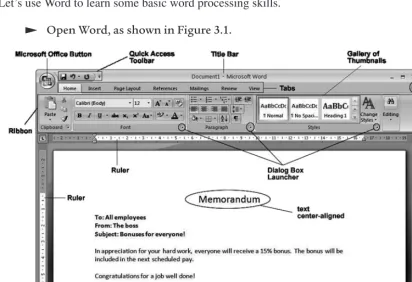
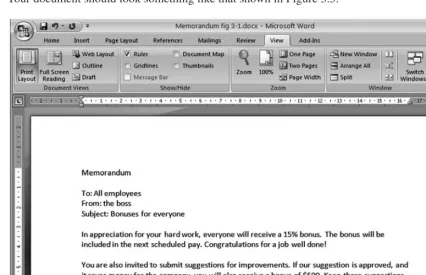
Open Word, as shown in Figure 3.1.
Figure 3.1 Word window.
Figure 3.1 shows parts of the Word window, which also contains a document in the window. This view displays rulers at the top and along the left side which indicate the size of the page. The document is displayed as it will look when printed. This type of display is referred to as
The ribbon and tabs are positioned at the top of the window. The position of these can be changed, so your window may look slightly different.
Position the mouse pointer over one of the toolbar buttons.
After a moment, you should see the name of the toolbar button and a description pop up. This way you don’t have to remember which button is which.
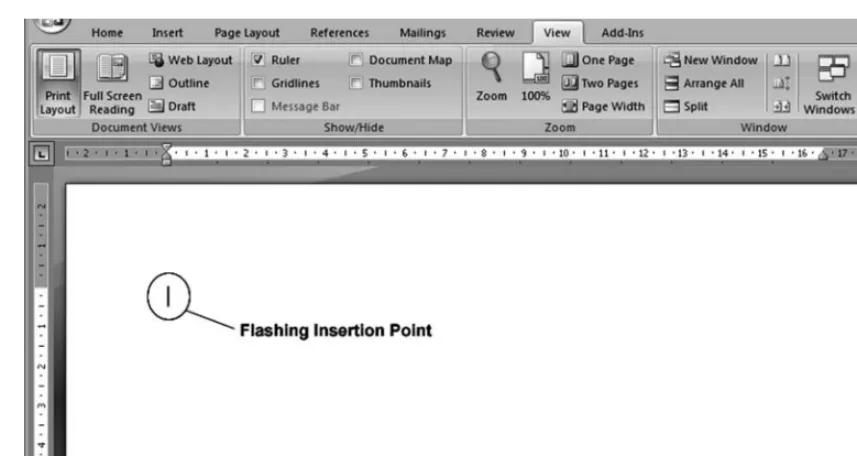
The ruler may be visible or hidden so you may not see it in your window. The status bar indicates the page number and other information about the document. The flashing insertion point indicates where the text will appear when typed. Some people refer to this as the cursor.
Let’s create the document shown in Figure 3.1. First, let’s ensure that the document is displayed in the print layout view so that the margins are displayed.
Click the Viewtab.
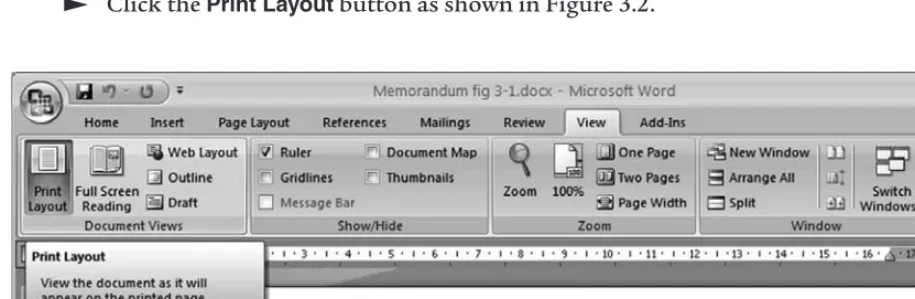
Click the Print Layoutbutton as shown in Figure 3.2.
Figure 3.2 Word View menu.
If your window was already in Print Layoutview, you will not see a change.
Figure 3.3 Windows showing flashing insertion point.
You will find that the text appears at the flashing insertion point when you type. If you make a mistake while you’re typing, you can press the Backspacekey to delete characters to the left of the flashing insertion point. Let’s try some quick keyboard skills. If you’re already comfortable using the Backspace, Delete, Shift, Caps Lock, and Arrowkeys, feel free to skip the Keyboard Skills section and continue to the Data Entry section.
Keyboard Skills
No need to worry about typing errors! We can fix them all. Let’s look at some techniques to edit text.
Type your name. To type an uppercase letter, hold the Shiftkey down while you type the letter. If you type an incorrect letter, press the Backspacekey to delete it.
Press the Enterkey to move the flashing insertion point down one line. Press the Caps Lockkey. You may see a light on your keyboard indicating that the Caps Lockkey is active.
Type your name. Notice that your name has been typed in all uppercase letters.
Press the Caps Lockkey to turn off the caps lock feature.
Press the Backspacekey a few times. Notice that the characters to the left of the flashing insertion point are deleted.
Press and hold down the letter “a” on the keyboard for a few seconds. It will repeat the letter. This repeat feature is available for most of the keys on the keyboard, including the Backspacekey.
Move the mouse pointer to your name and highlight it to select it. You can highlight it by dragging (hold the left mousebutton while you move the mouse, and release the button to finish).
When text is highlighted in this way, it is selected.
Press the letter “a” on the keyboard.
Notice that your name was replaced with the letter “a”.
Move the mouse pointer to your address, between the number and the street name.
Click the left mousebutton once to position the flashing insertion point at the mouse pointer position. Using this method we can position the flashing insertion point anywhere in a document.
Press the letter “a” key on the keyboard.
Notice that the letter “a” is automatically inserted to the left of the insertion point.
Press the left Arrowkey on the keyboard.
Notice that the flashing insertion point moves one character to the left but does not delete. The arrow keys can be used to move the flashing insertion point through the document without affecting the text.
Press the Deletekey on the keyboard.
Notice that the character to the right of the flashing insertion point was deleted.
Press the left, right, up, and down arrows on the keyboard to see how the flashing insertion point moves through the text. Feel free to hold the arrow keys down for a few seconds and notice that the movements repeat.
Now that we’ve learned or reviewed a few keyboard skills, let’s delete all of the text.
Drag through all of the text to select it. You can start at the top-left or the bottom-right and drag to the opposite corner to select all of the text.
Press the Deletekey to delete all of the selected text.
Data Entry
Let’s create a sample document.
Type: Memorandum Press the Enterkey.
Notice that the flashing insertion point is now positioned under the Memorandum text. Pressing the Enterkey moves the insertion point down to the next line.
Notice that the flashing insertion point has moved down another line. This gives us a blank line between the Memorandum title and the rest of the text.
Type: To: All employees Press the Enterkey. Type: From: the boss Press the Enterkey.
Type: Subject: Bonuses for everyone Press the Enterkey.
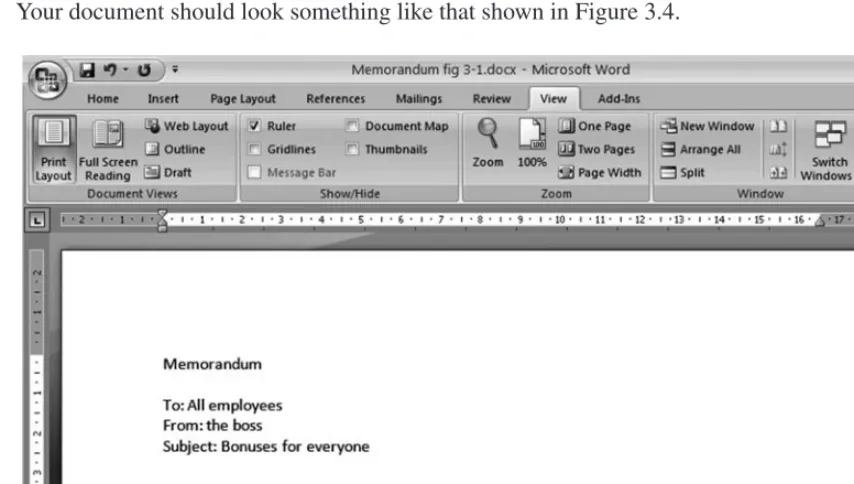
Your document should look something like that shown in Figure 3.4.
Figure 3.4 Word, Memorandum document data entry.
Press the Enterkey twice.
Next, we will type a paragraph. When typing a paragraph, do not press the Enterkey while you type the paragraph. The words will automatically wrap to the next line as appropriate. If you press the Enterkey at the end of each line in a paragraph, and later decide to change the page margins, you will find that the paragraph will not wrap properly. The Enterkey should be pressed only when you are entering a title or short line as we have done already, or when you need a blank line between paragraphs.
Type the following paragraph:
In appreciation for your hard work, everyone will receive a 15% bonus. The bonus will be included in the next scheduled pay. Congratulations for a job well done!
Type the following paragraph:
You are also invited to submit suggestions for improvements. If your suggestion is approved, and it saves money for the company, you will also receive a bonus of $500. Keep those suggestions coming!
Your document should look something like that shown in Figure 3.5.
Figure 3.5 Word, Memorandum document with paragraphs.
The information in our document is very plain. Let’s use some formatting features to add some interest and clarity.
Alignment
Let’s start by centering the Memorandum title.
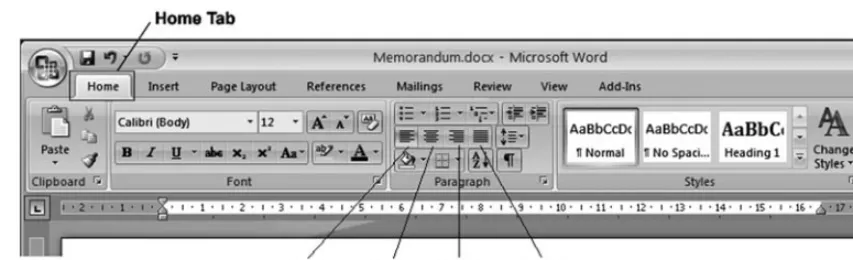
Click the Hometab.
Figure 3.6 Word alignment buttons.
We can use the alignment buttons to align titles, single lines of text, whole paragraphs, and pictures.
Position the flashing insertion point anywhere in the Memorandum title. You can position the flashing insertion point using the arrow keys on the keyboard, or by moving the mouse pointer and clicking once.
Click the Centeralignment button to center the Memorandum title.
The other alignment options include Left, Right, and Justify. Text is left-aligned by default. This means that the left edge of the text is flush with the left margin. This paragraph is left-aligned.
A paragraph that is right-aligned has the right edges of each line flush with the right margin. This paragraph is right-aligned. It is a bit more difficult to read, and this type of alignment is generally used for a small amount of text.
Justify alignment adds spaces between the words in the paragraph so that both the right and left edges are flush with the margins. This paragraph is justify-aligned. This type of alignment is popular for a newspapers and newsletters.
An entire paragraph can also be aligned. This paragraph is center-aligned. Notice that each line of the paragraph is centered. A paragraph that is center-aligned is also difficult to read. Most often center-alignment
is used for short lines of text, such as titles.
Let’s look at the alignment options using one of the paragraphs in the Memorandum document.
Position the flashing insertion point anywhere in the paragraph that begins with “In appreciation…”
Click the Right-alignbutton.
Notice that the paragraph is now right-aligned. Notice also that the other text in the document was not affected.
Click the Center-alignbutton.
Click the Justify-alignbutton.
Notice that the paragraph is now justify-aligned and looks more like a newspaper column. Again, none of the other text is affected.
Click the Left-alignbutton.
Notice that the paragraph is left-aligned once again.
Toolbars
In Word 2007, you can minimize the ribbon. The ribbon is not available in other versions of Word. In other versions, only the menu is available. Let’s minimize the ribbon and display it again.
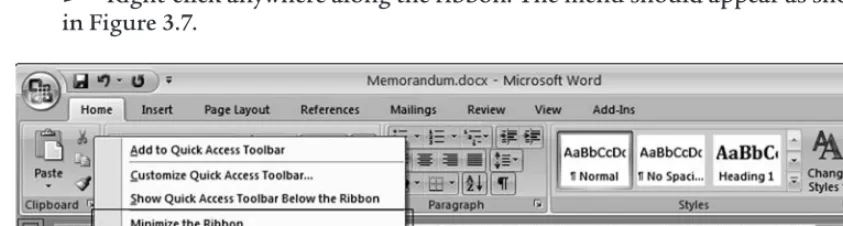
Right-click anywhere along the ribbon. The menu should appear as shown in Figure 3.7.
Figure 3.7 Word toolbar customize dialog box.
Click the menu item: Minimize the Ribbon.
Notice that the ribbon has disappeared and only the menu remains.
Right-click on one of the menu tabs to reveal the shortcut menu. Click the menu item: Minimize the Ribbon.
The ribbon should be visible again.
Undo and Redo
The undo feature will allow you to undo a task such as formatting. It will also allow you to undo several tasks, effectively rolling back the document task by task.
Click the Undobutton. located in the upper-left corner of the Word window.
Click the Redo button. located in the upper-left corner of the Word window.
Notice that the paragraph alignment is “redone” so that it is left-aligned again.
The undo and redo features are tremendously useful, but despite these features it’s important to save your document often.
Save a Document
Let’s save our memorandum document.
Click on the Savebutton located in the upper-left corner of the Word window.
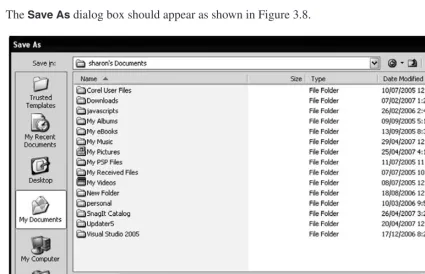
The Save Asdialog box should appear as shown in Figure 3.8.
Figure 3.8 Word Save As dialog box.
Notice that Word has used the first line of text from the document as a suggestion for the file name. The file save location in this example is the Documentsfolder.
Delete the Memorandum.docx name from the File namebox. In the File namebox type: memo-bonus
Click the Savebutton to save the file. It will be saved as memo_bonus.docx
Text Formatting
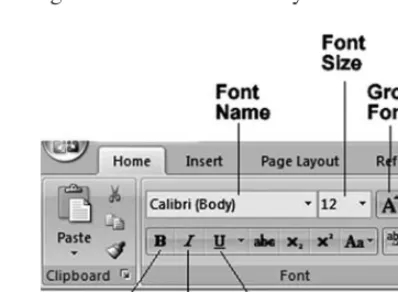
The text in our document is very plain. Let’s add some formatting features to add some interest and emphasis. We’ve already used the alignment buttons on the ribbon bar. The font box from the ribbon bar is displayed in Figure 3.9. We will use only a few of its features.
Figure 3.9 Word formatting toolbar.
Use the mouse to drag through the Memorandum title to select the title. Click the Boldbutton to add bold formatting. Since the text is selected, you may notice that the text appears dark and slightly larger.
Move the mouse pointer to one of the paragraphs and click to position the flashing insertion point away from the Memorandum title.
Clicking somewhere else in the document removes the selection highlighting. Notice that the Memorandum title is darker.
You can use the Boldbutton to remove the bold formatting as well.
Drag through the Memorandum title to select it. Click the Boldbutton to remove bold formatting.
Deselect the text as before by moving the mouse pointer to one of the paragraphs and click to position the flashing insertion point away from the Memorandum title.
Notice that the text has returned to normal without bold formatting. Let’s use the undo feature to re-apply the bold formatting.
Click the Undobutton to undo the last task. Notice that the text is bold again.
We can apply formatting to a large block of text rather than to one word or line at a time.
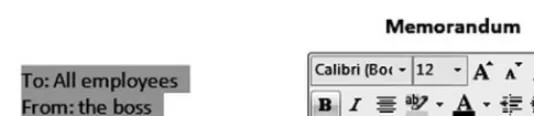
Drag through the To: From: and Subject: text to select it. The selected text is shown in Figure 3.10.
Figure 3.10 Word Memorandum document with selected text.
Click the Boldbutton on the toolbar to add bold formatting.
Similarly we can add italic and underline. Let’s add these formatting enhancements to other parts of the document.
Drag through “hard work” in the first paragraph to select it.
Click the Italicbutton on the ribbon bar or on the shortcut toolbar to add italic style to the text. Notice that the text is slanted to the right.
Italic formatting slants the characters. Use this sparingly in documents. It is suitable for emphasis, but it slows down the reader.
Drag through “15% bonus” in the first paragraph to select it.
Click the Underlinebutton to add underlining to the text. Notice that the text has a thin underline.
As we saw with the Boldformatting, the italic and underline formatting can also be applied or removed by clicking again on the corresponding buttons. Formatting can also be combined. Let’s add italic formatting to the Memorandum title.
Drag through the Memorandum title to select it.
Click the Italicbutton to apply italic formatting. Notice that the Memorandum title is slanted.
Font
In addition to adding style enhancements such as bold and italic to the text, we can also change the typeface and the size. The typeface (character set) is referred to as the font. You will have a variety of fonts available to choose from. Some are installed with Word, and others are installed by other applications packages you may have. There are also free fonts available for download from Web sites. Although there are a few fonts common to most computer systems, the list of available fonts varies greatly from one computer system to another. No need to worry, though. You will see the list, and examples of the fonts from which you can choose! Let’s change the font for the Memorandum title.
Figure 3.11 Word Font and Font Size.
The Memorandum title uses Calibri. You will notice that each font name is also a sample of the font itself. So you don’t have to wonder what the font looks like before you select it.
Feel free to take a few minutes to explore the font list available on your system. Use the scroll bar or move the mouse pointer up and down to scroll through the list. Select a few different fonts, one at a time, and they will be applied to the Memorandum title.
After you’ve finished exploring, select Arial from the font list. If Arial is not available, feel free to select a font you like.
Let’s increase the size of the title as well, since it’s an important part of the document. Font size is measured in points. An inch is 72 points, so a font that is 72 points has characters that are one inch tall. A good size for readable text is 10 or 12 point. Headings might be 16 or 20 point.
If the Memorandum title is not already selected, drag through it to select it. Click the drop-down arrow for Font Size.
Select 16 from the Font Size list.
Notice that the font is larger.
In addition to size and font, we can also change the color. In order to print in color, the document must be printed using a color printer. Let’s add a splash of color to our document.
Drag through the text “Congratulations for a job well done!” to select it. Click the drop-down arrow for Font Color as shown in Figure 3.12.
Figure 3.12 Word Font Color and color palette.
Click on one of the red swatches from the color palette.
Since the text is selected, the characters may appear red or may appear highlighted. We will see the red color when the text is no longer selected.
Click somewhere else in the document to deselect the text. Now you should see the red color has been applied to the text.
We have used the font box on the ribbon toolbar to add style and font enhancements to our text. These features and more are also available through the Fontdialog box shown in Figure 3.12.
Cut, Copy, and Paste
One of the strengths of using word processing software to compose a document is the ability to edit. We have practiced using the Delete, Backspace, and Insertkeys, which are useful for editing as we type. If we wish to copy or move blocks of text we can do this using the Cut, Copy, and Pastemethods.
Figure 3.13 Word Cut, Copy, and Paste buttons.
Select the text “Congratulations for a job well done!” by dragging through it. Click the Cutbutton.
Notice that the text has disappeared. Don’t worry, it’s in the clipboard waiting to be pasted to its new location. The clipboard is a temporary holding location for data when you use copy or cut.
Move the mouse pointer to the end of the document and click to place the flashing insertion point at the end of the document.
Press the Enterkey twice to move the flashing insertion point below the text, adding a blank line.
Click the Pastebutton to paste the text at the end of the document.
Depending on the version of Word you are using, a little clipboard icon may appear beside the pasted text. We will not use this feature here. If you see the clipboard icon, press the Esckey on the keyboard to remove it.
Figure 3.14 Word Memorandum document.
Let’s copy some text as well.
Select the text, “Bonuses for everyone.”
Click the Copybutton, as shown in Figure 3.13.
Move the mouse pointer to the end of the document, after “Congratulations for a job well done!” and click to position the flashing insertion point.
Press the Enterkey twice to move the flashing insertion point below the text and insert a blank line.
Click the Pastebutton to paste a copy of the text at the end of the document.
Again, if Word has placed a clipboard icon after you have pasted, press the Esckey to remove it.
A feature of using Copy and Paste is that you can paste multiple times.
Press the Enterkey to move the flashing insertion point down one line. Click the Pastebutton to paste another copy of the text at the end of the document.
Find and Replace
The boss has reviewed the document and decided that “everyone” is a bit too general. You’ve been asked to use “all employees” instead of “everyone.” Since “everyone” has been used several times in the document, the quickest way to replace it and ensure that we catch all instances, is to use the find and replace feature.
Click the Editingbutton on the ribbon bar to reveal the edit options as shown in Figure 3.15. The Edit options may be visible already if your Word window is large enough to support them.
Figure 3.15 Word Expand menu indicator.
Click the Replacemenu item.
The Find and Replacedialog box should appear as displayed in Figure 3.16, with the Replace
tab selected.
Figure 3.16 Word Find and Replace dialog box.
As indicated in Figure 3.16, in the Find whatbox, type: everyone
As indicated in Figure 3.16, in the Replace withbox, type: all employees Click the Replace Allbutton to replace all instances of “everyone” with “all employees”
A dialog box will appear indicating that 3 replacements were made. Click the
Word will search for all instances of “everyone” and replace each one with “all employees”. If you think this type of global replace is risky, you can use the Replacebutton to approve each replacement. This same dialog box is used for the Findfeature, which allows you to search for text in the document.
Click the Closebutton to close the Find and Replacedialog box if it is still open.
Notice that all instances of “everyone” have been replaced with “all employees” and formatting has been preserved.
Spell Checking
Most word processing software includes a spell checking feature. It can be configured to check your spelling as you type, or you can manually check the document when you’re ready. There are a wide variety of spell checking dictionaries available. American English is likely installed as the default dictionary on your computer. Other possible options include British English, French, Spanish, and other languages. If spelling is checked as you type, you will see a red wavy line underlining words that are not found in the dictionary. You should be aware that many proper names are not found in the dictionary, so a word may be spelled correctly even though it has a wavy line under it. You can add custom words to the dictionary, or ignore the misspelling indicator.
Let’s add some spelling errors to our document and use the spell checking feature to correct them.
Position the flashing insertion point at the end of the document. As before, you can move the mouse pointer to the end of the document and click to position the flashing insertion point.
Press the Enterkey twice to move the flashing insertion point below the last line, adding a blank line.
Since the last line had bold formatting, you should notice that the Boldbutton looks pressed. If you begin typing, the new characters will also be bold. Let’s turn the bold feature off.
Click the Boldbutton to turn the bold feature off. Type: Lokin forwardd to a grate year!
Figure 3.17 Word Spell Checking.
You can correct the spelling errors by manually editing, or you can right-click on the misspelled word and a short-cut menu will contain suggestions for possible corrections.
Notice that the word “grate” does not have a wavy red line under it. In fact, this word is spelled correctly, but the usage is incorrect. It should be “great.” This illustrates one of the pitfalls of relying on the spell checking feature. Words may be spelled correctly, but not used correctly. Even though the spell checking feature is available, it is still important to read your work carefully for errors.
Let’s correct the mistakes.
Figure 3.18 Word shortcut menu.
Notice that Word has suggested a variety of words to replace “Lokin.”
Click on the menu item “Looking” to replace the misspelled word.
Correct the word “grate,” replacing it with “great.” Use your editing skills to manually make the change.
Click the Savebutton to save the document and we’re done!
Click on the Microsoft Officebutton to reveal the drop-down menu. Click the Closemenu option to close Microsoft Word.
Many methods can be used to perform the tasks we have performed in this lab. The overview provided touched on using the ribbon bar for some tasks and the short-cut menu as well. As you continue learning more about Word, you will find yourself choosing a particular method. There is no single “right way” of doing things, so choose the method you like the best. The purpose of this lab was to expose you to a variety of methods to accomplish some basic tasks.
Review
This has been a busy lab! We have covered the following topics:
● Parts of Word ● Keyboard skills
● Data entry
Using word wrap for paragraphs
Pressing the Enterkey at the end of a paragraph or a short line of text. ● Undo and Redo
● Saving a Document
● Cut, Copy, and Paste using the standard toolbar ● Formatting
Text
• Bold, italic, font, font size, and font color using the ribbon bar Paragraph
• Alignment including left, center, right, and justify. ● Search and Replace
● Spell Check
Exercises
1. Use Word to create the following document. The completed document in shown in Figure 3.19 and the formatting enhancements are indicated in Figure 3.20. Spelling errors are included purposely to be corrected later.
Figure 3.20 Word Exercise 1 document showing formatting enhancements.
2. Use the Spell Checking feature to correct the spelling mistakes in the document that was created in Exercise 1.