Groups:
Use for Reports; events can be linked to one or more groups.
Groups
(Setup > Resources)&
Categories
(Setup > Combo Boxes)Setup
Rooms/Buildings
Main — Any room,area, or building
Division — A smaller area
or room within a Main
Breakout — A smaller area
or room within a Division
Key Points:
1. Defining Division/Breakouts allows reserving multiple rooms quickly. 2. A “Room” can be a building, a wing, a floor, a parking lot, a van, etc. 3. Create “New” buttons are controlled by highlight in list.
Categories:
Use for managing Event Planning displays; events link to only one category.
Most reports allow selecting from the list of Groups.
Enter/Select Category in Event Planning Edit Categories in Preferences > Field Text > Combo Boxes
Link groups to an events in Event Planning.
Setup —
continued
Daily Schedule — A Typical Example
1. Select Options All reports give these output options. PDF creates a
file for internet distribution.
HTML creates a file that can be added to your web site. Edit/Select become active when User Reports is installed.
Report sorts by time. Lists the Event / Times / Contact or Group / Room / Kitchen.
Reports —
(Results)
2. Select Group(s)
3. Select Output
Staff — Keys — Holidays —
optional itemsHolidays can be skipped when scheduling recurring events. Import utility adds many common holidays. Download file from
Logos website: logoscms.com/Products/Facility Scheduler.
Equipment
Tables/Chairs
If no groups are selected, events for all groups will print.
Reports —
continued
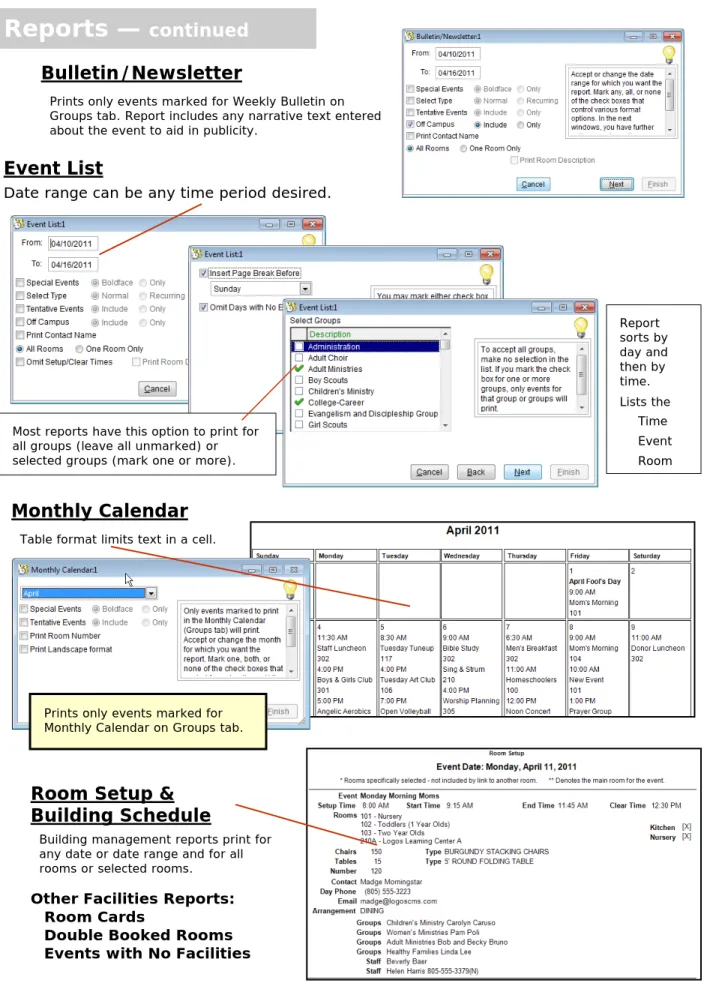
Event List
Date range can be any time period desired.
Report sorts by day and then by time. Lists the Time Event Room Most reports have this option to print for
all groups (leave all unmarked) or selected groups (mark one or more).
Monthly Calendar
Table format limits text in a cell.
Prints only events marked for Monthly Calendar on Groups tab.
Bulletin/Newsletter
Prints only events marked for Weekly Bulletin on Groups tab. Report includes any narrative text entered about the event to aid in publicity.
Room Setup &
Building Schedule
Building management reports print for any date or date range and for all rooms or selected rooms.
Other Facilities Reports: Room Cards
Double Booked Rooms Events with No Facilities
Scheduling —
Information for Reports
Add New Event
Click the magnifying glass and then the New icon . Or —
1. On Daily or Weekly tab, click in Planner at time event will begin.
2. Type Event Name and press Tab.
3. Click right mouse button and choose Edit.
Rooms Free
Locate & print a list of rooms that are available at a desired time on a date or a day of week in a date range.
Event Detail
Click on event in Planner, then click the right mouse button and choose Edit or click on magnifying glass icon.
Event Planning
Calendar View Tabs Daily Weekly Preview Monthly Yearly
List (Daily, sorted by Time) Limit views by Category.
Find Event… by Event,
Group, Room, Staff, Equipment… and/or Date
Use or edit the Request to
Schedule report to gather event
information.
Define Event View Tabs —
Event – Times/Type/
Category/Color
Start/End announced times
for event
Setup/Clear when
resources are reserved
Facility –
Rooms/Off-Campus
Setup/Equipment –
Arrange/Tables/Chairs
Staff – Contact Person
Staff Members/E-Mail
Groups – Publicity
Report Selections
Planning – Optional
Calendar icon returns to the Calendar Views.
NOTE: Save your new event (or any changes to the event times) BEFORE making selections on other tabs. This ensures that grids refresh correctly.
Event Type — Blue text explains how to change a Normal event to Recurring or Multiple Day. Resize the window by dragging the borders.
Facility Tab
Off Campus — Entry in Location
field defines Off Campus event.
Check Mark — Room is re-served for this event Lock — Room is reserved for another event or is linked to a Main/Division/ Breakout room reserved for this event. Setup/Equipment Tab Staff Tab
Primary check box
indicates room to feature on reports.
You may define room setup instructions and select equipment to reserve. Setup tab data prints on Event Confirmation
Event Profile Room Setup * * This report has the option to Print Only Events With Setup Info
Contact Person — who to
call or email about this event.
Key — Select a key if given to
Contact Person. Type Ctrl+0 (zero) to clear the field.
Staff — Mark those who are
involved with the event.
Email — First define your
system (Preferences) in order to send a message to a Contact Person (with option to include Staff) from here.
Recurrences
— Control Recurring EventsOnce an event has been saved, the Recurrences icon becomes active. Options are active based on status of the current event.
Groups Tab (Publicity)
Publicity — Defaults are set on
Field Text tab in Preferences. Items must be marked here to print on these two reports.
Groups — One or more groups
can be marked — most reports allow selecting by groups.
Set Recurring
Changes Normal (One-Time Event) to Recurring —
Regular — Mark Days, Weeks
and End Date.
Sporadic — Mark the actual
dates on the calendar.
Extend Recurring
Schedules Recurring Event ahead to a new data range.
Change Recurring
Moves occurrences ahead or back one or more days.
Multiple Day Schedule
Adds occurrences of an event that extends over continuous days, each with its own schedule.
Change Event Date
Moves an occurrence to a new date, with option to Retain Original Date.
Special Event —
Most reports allow boldfacing events marked as Special — or printing only these events.
Skip Holidays — Mark to not schedule event
on days marked as Holidays.
(Holidays can be defined to use or not use this feature.)
Change Event Time
Moves an occurrence to a new time on the same date, with option to Retain Original Time.
Save Your Event
1. Open the Event record — Either...
Double-click it in the Daily or Weekly Planner. Or — Right click it in the Planner and select from the popup menu. (Recurring Events have an option to Display Recur-rences.) Choose Edit if changing anything other than the date or time. Or —
Highlight it in the Planner and click the Magnifying Glass icon.
2. Make your changes — If changing Room or Equipment selections…
1st — Clear the check mark for any items that will not be used. 2nd — Save the event. See Step #3 below.
3rd — Select any new items to add to the event. 4th — Save the event again.
3. Save the event — Click the Save icon.
Recurring Events open this Change Event window. Select a Change option:
In this occurrence only
— changes a specific oc-currence without impacting any other occurrences.
In all occurrences —
up-dates all occurrences, in-cluding any in the past.
In all occurrences within the date range below — activates the
Range of change date fields to allow updating selected occurrences. Select OK to scan for conflicts and then save the changes.
Scheduling —
Update an Existing Event
CONFLICTS
A message like this appears if
conflicts are found when Setting or Extending a Recurring Event, or saving time, date or resource changes for an event
Select OK to Preview or Print the Conflicts report.
After printing or previewing, select Done. You are then if you wish to proceed.
Select Yes to save your event entries on all dates requested. On the dates that have
conflicts, the conflicting rooms or equipment will not be scheduled. (If an event is marked as Conditional on the Facilities tab, those resources will be scheduled.)
Select No if you decide the conflicts will cause too many problems and you want to
System & Users Tab
Maintain Users
System Administrator Only
Access (Right mouse button)
Event Planning — Read Only option allows lookup
Multiple databases — Archive
Backup Data
Backup regularly and frequently. Always backup before installing an upgrade or deleting old events.
Logos Global Backup automates the
process to protect your valuable data. Call for information —
877-995-6467.
Import/Export
Import Holidays
Go to logoscms.com/Products/Facility Scheduler to download Holidays file. Run the Holidays.exe routine to extract files for multiple years.
Then run this utility to import data for each desired year.
Export to Calendar Creator
Use for creating and printing attractive calendars.
Export to Google Calendar Export to Microsoft Outlook
Other Utilities
Delete Old Events (First Backup your data. See Below.)
Enter a Delete Before date — all events prior that will be cleared.
Run Reindex Data Tables (System menu), choosing All Tables and Pack. This re-moves deleted records from the data tables.
Fix Room Selections
Fix problems if events were deleted, but room assignments were not cleared.
UR Installed/Not Installed
Indicates if User Reports is installed to enable editing standard reports.