FACULTY OF SCIENCE
SCHOOL OF MATHEMATICS
AND STATISTICS
COMPUTING LABORATORIES
INFORMATION FOR STUDENTS
2014
These notes are copyright cthe University of New South Wales, 2014.
Maple is a registered trademark of Waterloo Maple Inc. MATLAB is a registered trademark of The MathWorks Inc.
Microsoft Windows is a registered trademark of the Microsoft Corporation.
The information in these notes is correct at the time of printing. Any changes will be announced through the School’s Web site at www.maths.unsw.edu.au, where an updated version of these notes may be placed if necessary. This version of the notes was produced on February 28, 2014.
Contents
1 Getting Started 4 1.1 Location . . . 4 1.2 Availability . . . 4 1.3 Student Accounts . . . 4 1.4 Your Files . . . 5 1.5 Printing . . . 5 1.6 Windows or Linux? . . . 5 1.7 Code of Conduct . . . 6 1.8 Remote Access . . . 61.9 Health and Safety . . . 7
2 The Windows Desktop 8 3 The Linux Desktop 9 3.1 What is Linux? . . . 9
3.2 Linux Desktop . . . 9
3.3 Some Differences between Linux and Windows . . . 11
3.3.1 Pathnames . . . 11
3.3.2 File Information . . . 11
3.3.3 USB Flash Drives . . . 11
3.3.4 Accessibility . . . 12
4 Getting Help 13 4.1 Helpdesk . . . 13
4.2 Lab Consultants . . . 13
Chapter 1
Getting Started
These notes give an overview of the student computing facilities provided by the School of Mathematics and Statistics. Your lecturer will tell you about any additional computing information specific to your course.
1.1
Location
The School of Mathematics and Statistics Computing Centre is located on the Mezzanine and Ground Floors of the Centre Wing of the Red Centre. The four student laboratories provide Windows and Linux computers:
Room Operating System Number of PCs M020 Windows or Linux 40
G012A Linux 35
G012B Windows or Linux 40 G012C Windows 38
Also on the Mezzanine level is the Computing Centre Helpdesk counter.
1.2
Availability
The student labs are generally available Monday to Friday from 8am to 9pm, and are closed on weekends and public holidays. In week 10 of Semesters 1 and 2, the G012 labs are not available for general use because we run student tests at that time.
The M020, G012A and G012C laboratories may be booked for classes, which have absolute priority over other use.
1.3
Student Accounts
To use any of the computers in the student labs you must have an account. At the beginning of each teaching semester, we create an account for each student who enrols in one of our courses for the first time. The user name for your account is your zID (the letter ‘z’ followed by your student number).
Before you can use your account you must have created a zPass and it must be unlocked. You can create or unlock your zPass using the UNSW Identity Manager (IDM) at
If you have trouble logging in to a computer in a School of Mathematics and Statistics lab, you should first try resetting your zPass using IDM.
Once created, your account is preserved from one semester to the next as long as you continue to be enrolled in at least one of our courses. However, we will delete your account at the beginning of the first semester in which you take no course taught by the School of Mathematics and Statistics. If, in a subsequent semester, you again enrol in one of our courses, then we will create a new account for you. All the files stored on your H-drive, see Section 1.4, are kept while you are enrolled as a student at UNSW.
1.4
Your Files
Each student at UNSW is given a networked home drive (known as the H-Drive) that should be automatically mounted when you log into any Windows or Linux computer within the School of Mathematics and Statistics. Keep all files for your courses on your H-drive as it can be accessed from most UNSW computers and from home, and it is automatically backed up for you. Further information regarding this service may be found at
https://www.it.unsw.edu.au/students/file/index.html
Information about how to access and modify your files from off campus is also included on this web page.
You should remember to delete files that you no longer need, especially any large files, or you may run out of file space.
1.5
Printing
The lab printers use the same payment system as the printers in the UNSW Library. Instructions for using this system and printing charges can be found at
https://www.it.unsw.edu.au/students/mps/index.html
In most cases you will print directly from an application used to display your document. However, the print job will then sit in an electronic queue until you use your student card at one of the printers to authorize use of your credit for printing.
1.6
Windows or Linux?
Both Windows and Linux are installed on the lab computers, and by restarting you can switch from one to the other. Typically, in a timetabled computing class all students will use the same operating system, chosen by the lecturer. However, when you use the labs out of class time you are free to use either operating system on any available computer, and the choice comes down to the application(s) you want to use and personal preference. Some applications, such as Microsoft Office (Word, Excel, Powerpoint), SAS, SPlus and SPSS, are available only on the Windows desktops, whereas others, such as compilers and software development tools, are installed only on Linux. However, three of the most important mathematical applications — Maple, Matlab and R — are installed on both the Windows and Linux desktops.
Note that the computing tests held in week 10 use a special “exam mode” version of the Linux desktop. If you have to sit for one of these tests then you should practice using the
Linux desktop beforehand, especially if your regular lab class is timetabled in a Windows lab.
1.7
Code of Conduct
All students must be aware of and abide by the Acceptable Use of UNSW ICT Resources
policy, a copy of which is at
https://my.unsw.edu.au/student/resources/ComputingCommunicationRule.html
The computing facilities provided by the School of Mathematics and Statistics must be used only for tasks related to the mathematics course(s) for which your computing account has been created. Misuse of computers is a serious offence and will be treated as a case of academic misconduct. This includes damage to or theft of any part of the equipment. A breach of security will be treated as a case of serious academic misconduct. Breach of security includes but is not limited to
• deliberately providing a password to another person (student or otherwise);
• attempting to gain unauthorised access to files within the system (hacking);
• deliberately introducing computer viruses;
• copying of assignments (by email or any other means).
These restrictions are imposed because computing resources are limited and there are thousands of other users of the system (over 4000 students with logins for the Red Centre labs). We all have to live and work together and you are expected to be considerate to other users. This is the bottom line when it comes to acceptable behaviour. If you have any doubts about whether an action is acceptable, dont do it.
Do not tell anyone else your zPass.
1.8
Remote Access
You can access the school’s Linux desktop environment from a remote computer by down-loading an NX client for Windows, Linux or Mac OSX from
http://www.nomachine.com/download.php
There is no cost for the client software. When you start the NX client, you need to provide the hostname
sigma.maths.unsw.edu.au
together with your zID and zPass. We also provide a second NX server, with hostname
sigma2.maths.unsw.edu.au, in case the first one is overloaded. Select the LAN option if you are connecting from a computer on the university campus.
Service should be available 24 hours per days, but is NOT guaranteed and no support will be provided outside of normal business hours (9–5 Monday to Friday). Although NX allows you to access the same software environment as on our lab PCs, the performance can be significantly slower (depending on the number of concurrent users). In particular, DO NOT rely on NX for anything critical, for example, a timed online test.
The service is provided solely for use related to your Mathematics or Statistics course. By using this service you agree to abide by the School’s Code of Conduct.
If you have trouble logging in, try changing your zPass using the UNSW identity man-ager.
Please report problems to the Maths and Stats helpdesk window in RC-M020.
1.9
Health and Safety
Using a keyboard or performing any repetitive task for a long uninterrupted period may cause physical discomfort and/or muscular or other injury. To lessen the risk of such problems, take a break at regular intervals and adopt a good body position, with wrists kept straight as much as possible and not rested on a sharp edge. Further advice is provided at
http://www.ohs.unsw.edu.au/officesafety/workstation_setup.html
If you feel pain, numbness, tingling, weakness, cramping, or stiffness in your hands, wrists, arms, shoulder, neck, or back, see a qualified health professional. If you have any workplace health and safety concerns please contact the School of Mathematics and Statistics General Office [email protected], Phone 9385 7111 or RC-3070.
Chapter 2
The Windows Desktop
The Windows environment used in the School of Mathematics and Statistics computer laboratories is Windows 7 Enterprise. We assume that you have used Windows 7 and are familiar with its basic operation.
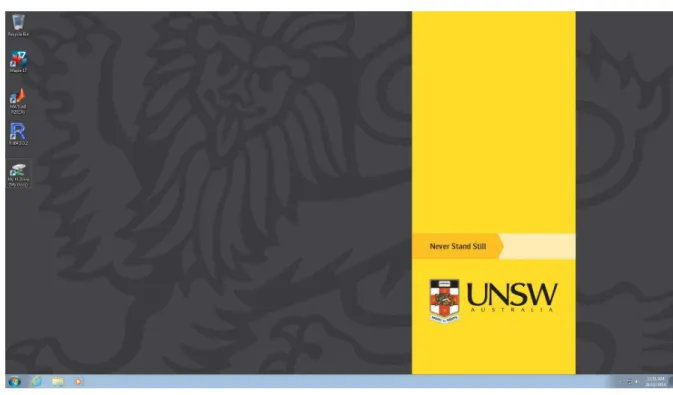
After you log in, you should see the desktop in Figure 2.1.
Figure 2.1: The Mathematics and Statistics Windows desktop
Keep any files you create in your H-drive folder (see Section 1.4), accessed from the “Start menu” by clicking on “Documents”.
The mathematical or statistical software you will need depends on the course(s) you are taking.
When you finish using one of the lab computers, make sure that you log out (not shut down).
Chapter 3
The Linux Desktop
Even if you have never used Linux before, you should quickly gain enough familiarity with it to use the mathematical software needed for your courses.
3.1
What is Linux?
Linux is an operating system used widely on servers and for scientific computing. In Mathematics and Statistics we use a Linux distribution called Ubuntu; other popular distributions include Debian, openSUSE and Fedora.
3.2
Linux Desktop
The KDE software suite provides GNU/Linux systems with a graphical desktop environ-ment; alternatives to KDE include Gnome and Xfce. In these notes, we use the term “Linux desktop” to refer to the combination KDE + GNU + Linux. KDE employs the familiar WIMP (window, icon, menu, pointing device) user interface model, originally created by Xerox and subsequently commercialised by Apple and Microsoft.
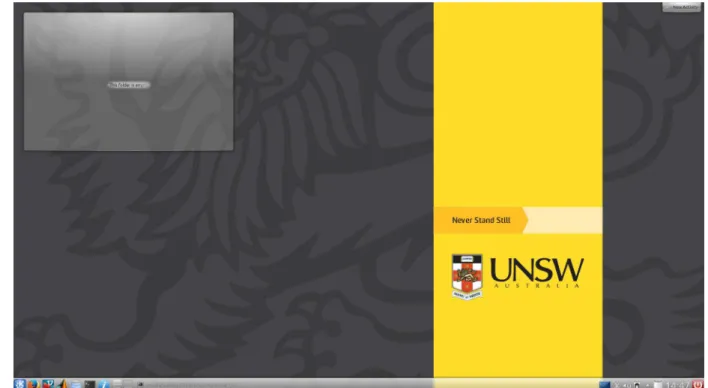
Figure 3.1 shows the Linux desktop as as configured for Mathematics and Statistics. Across the bottom of the screen is the taskbar. From left to right, the first few icons are
K-menu: access to many applications;
Firefox: web browser;
Maple: computer algebra application;
Matlab: numerical computing and visualisation;
Dolphin: the KDE file browser;
Konsole: the Linux command line.
Clicking on the K-menu opens the window shown in Figure 3.2, with tabs for “Favourites”, “Applications”, “Computer”, “Recently Used” and “Leave”. The “Applications” tab has submenus for different categories; for instance, under “Office” you will find the LibreOffice suite that can be used to open files created with Microsoft Office.
To log out, select the “Leave” tab; you should not normally shut down, suspend or hibernate one of the lab computers. You can restart if you want to use Windows.
Figure 3.1: The Mathematics and Statistics Linux desktop.
As a first exercise in using the Linux desktop,
• Create a folder for your course under your H-drive.
• Open Firefox, log on to UNSW Moodle
• Open a PDF file from one of your courses and save a copy in the folder you have just created under your H-drive.
The file browser can be used to copy the PDF file to a USB key, see Section 3.3.3.
3.3
Some Differences between Linux and Windows
The subsections below cover several features of Linux that might be confusing to new users.
3.3.1
Pathnames
In Windows, the full pathname of a file starts with a drive letter and a backslash\character serves as the separator between folder names; for example,
H:\MATH1131\MyNotes
By contrast, Linux has no drive letters, with all files belonging to a single tree under one root directory. (“Directory” is the UNIX term for a folder.) Also, the pathname separator is a forward slash so a typical example is
/home/nfs/z1234567/hdrive/MATH1131/MyNotes
As long as your files are stored under your H drive, they can be accessed from any computer on campus.
If you create a folder or file, do not use any spaces in the name, as doing so may create problems for some programs. Also Linux is case sensitive, while Windows is not.
3.3.2
File Information
You can use the File Manager to find out information about a file. Just hover the mouse pointer over a file’s icon and a summary of the file’s properties appears in the right sidebar. For more details, right-click on the file and select “Properties” to open a window with tabs marked “General”, “Permissions”, “Information” etc.
In many cases a file’s type will be obvious from its extension. For instance, the “.pdf” extension indicates an Adobe Portable Document Format file.
In Linux, binary executable programs usually have no extension, so you will not see any “.exe” files as in Windows. Also, line breaks in plain text files have different representations under Linux and Windows, which might create problems if you create a file using one operating system and open it using the other. Fortunately, this problem is less acute than in the past, with many applications able to handle both types of line break.
3.3.3
USB Flash Drives
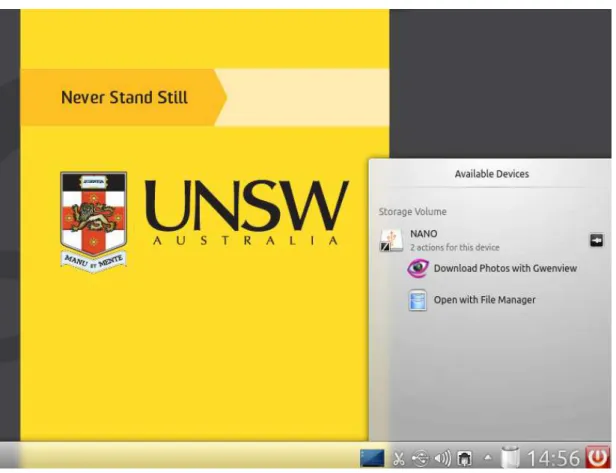
If you insert a flash drive in a USB port then, after a delay of a few seconds, an “Available Devices” window opens in the bottom right corner of the desktop, as shown in Figure 3.3. Select “Open with File Manager” to access the flash drive. When you are finished, open the “Available Devices” window by clicking on the USB icon (near the right end of the panel), and then click on the eject icon.
Figure 3.3: Inserting a USB flash drive.
3.3.4
Accessibility
You can customise many aspects of the Linux desktop from the K-menu: select “Applica-tions”> “Settings”>“System Settings”. In particular, “Application Appearance” allows
you to change the default desktop font sizes, while ”Desktop Effects”>“All Effects” allows
Chapter 4
Getting Help
It is important to attend all of your timetabled classes. These will provide the best oppor-tunity for getting help with the specific tasks needed in your course. Your lecturer may also provide online videos introducing the computing resources used in your course.
Apart from these notes, the following resources can provide computing help of a more general nature.
4.1
Helpdesk
The School of Mathematics and Statistics Computing Centre Helpdesk is located on the Mezzanine level, next to the M020 lab. The helpdesk counter is generally staffed from 9am to 5pm on weekdays. You should report equipment faults to the helpdesk. The helpdesk staff can assist with login or password problems, or with software problems of a general nature, but they are not able to help with the use of mathematical software.
4.2
Lab Consultants
The School of Mathematics and Statistics provides consultants in RC-G012 at various times to assist students enrolled in first year mathematics courses with Maple. Some consultants may also be able to assist first year students with Matlab. Further information on these consultants is provided in the first year course information booklets, in your UNSW Moodle course and from
www.maths.unsw.edu.au/currentstudents/maple-lab-consultants
4.3
Documentation
The School of Mathematics and Statistics has a Matlab Introduction and a set of Maple Notes. Both of these can be also be obtained from the School’s web page
www.maths.unsw.edu.au/currentstudents/first-year-computing-notes Both Maple and Matlab have extensive help facilities included in the software.