by
Why MailerQ?
Many email solutions require you to send your customer data to third parties. Keep your data secure on your own servers with MailerQ.
It is just as easy to integrate.
MailerQ is fast. Its sole purpose is to send emails. Storing, queuing and prioritizing messages is done in a separate AMQP message broker.
MailerQ gives you full control over queued messages. Monitor email delivery and intervene when necessary.
Prioritizing and routing messages has never been easier.
No Cloud
Fast
Flexible
Fast, flexible & efficient
email delivery software
Built on top of industry-standard AMQP message broker. Send millions of
emails per hour.
What is MailerQ?
MailerQ is a high performance Mail Transfer Agent (MTA) and is designed to deliver large volumes of email messages at very high speeds. It uses RabbitMQ, the industry standard AMQP message software, to queue its messages. MailerQ
offers maximum flexibility without compromising on stability
or performance.
How MailerQ works
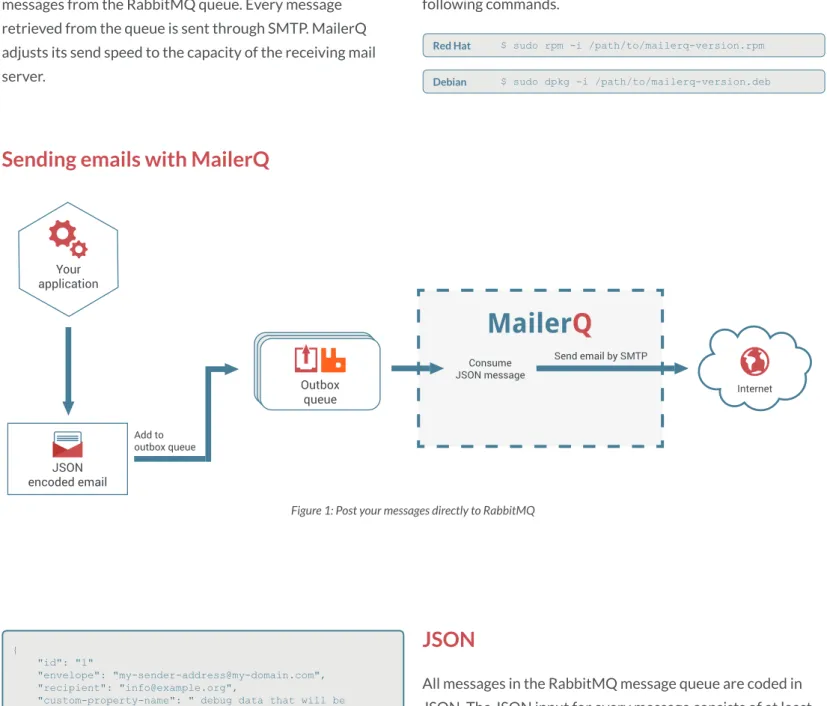
MailerQ has one goal: fast and reliable email delivery, but how does it work? You install the software on your own servers. MailerQ connects to your RabbitMQ server and retrieves messages from the RabbitMQ queue. Every message retrieved from the queue is sent through SMTP. MailerQ adjusts its send speed to the capacity of the receiving mail server.
Installing MailerQ
Installing the MTA on your server is easy: download MailerQ for Debian, Ubuntu or Red Hat based systems and install it
either by double-clicking on the file, or with one of the
following commands.
What is RabbitMQ?
RabbitMQ is open source AMQP message queue software. It allows you
to easily create reliable first-in-first-out message queues. MailerQ is built
on top of RabbitMQ and uses RabbitMQ to store and prioritize messages. MailerQ focuses solely on the sending process.
Download the latest version of RabbitMQ at www.rabbitmq.com. RabbitMQ can be installed on both Linux and Windows servers.
JSON
All messages in the RabbitMQ message queue are coded in JSON. The JSON input for every message consists of at least the envelope address, recipient, and the email body in MIME. Other properties can be added for additional delivery settings.
{
"id": "1"
"envelope": "[email protected]", "recipient": "[email protected]",
"custom-property-name": " debug data that will be visible only in RabbitMQ message",
"generated": "2015-01-01 00:00:00",
"key": "message-store-key-where-body-can-be-found" "maxdelivertime": "2015-01-01 01:00:00",
"maxattempts": 6,
"ips": ["231.34.13.156", "231.34.13.158"], }
Sending emails with MailerQ
Your application
JSON encoded email
Add to outbox queue
Send email by SMTP Consume
JSON message
Outbox
queue Internet
Figure 1: Post your messages directly to RabbitMQ
$ sudo rpm -i /path/to/mailerq-version.rpm
Red Hat
$ sudo dpkg -i /path/to/mailerq-version.deb
3 ways to get messages into RabbitMQ
1. Post directly to RabbitMQ
Publish a JSON encoded message directly into RabbitMQ's outbox queue. MailerQ reads the message from the queue and sends the email through
SMTP. (See figure 1)
2. Use MailerQ's built-in SMTP server
Configure your servers and/or software
to use MailerQ as SMTP server. MailerQ opens an SMTP port and messages sent to the port are automatically added to the queue. MailerQ reads from this queue and delivers the email.
3. Run MailerQ as command line utility
Start MailerQ as a command line utility
(like Postfix or Sendmail). MailerQ reads
messages from standard input, converts them into JSON and publishes them to RabbitMQ.
MailerQ configuration
Many things can be configured in MailerQ:
• Domains
• Deliveries
• IP addresses
• DKIM keys
• And more...
This configuration is stored in a relational database. Your own
applications may access this database and read or update its
data. MailerQ reloads its entire configuration every few
minutes and picks up changes automatically. Using a database is optional. MailerQ can also run without connecting to a relational database.
MySQL PostgreSQL SQLite
Chaining and clustering
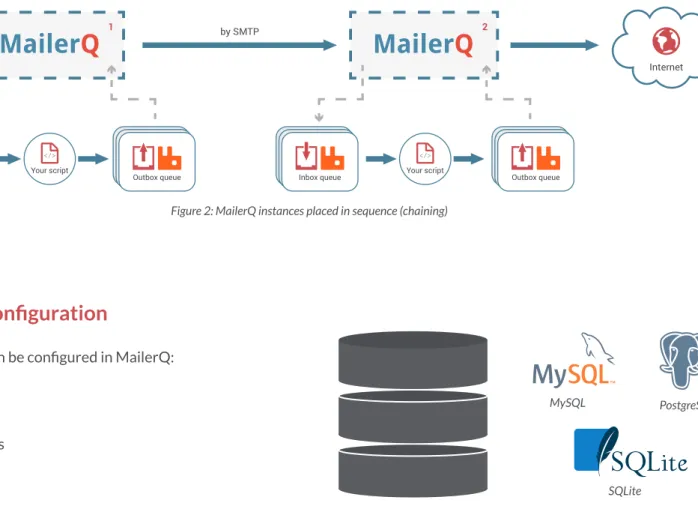
MailerQ instances can be connected in two different ways: chaining and clustering. When MailerQ instances are placed in sequence (chaining), messages are sent from one instance to
another through SMTP. Messages can be filtered and modified
by adding your own scripts – for example, to verify if an email
gets through spam filters, or to check if an email contains viruses. (See figure 2)
MailerQ instances can also be clustered. Clustered MailerQ instances communicate through a shared message queue. This way each MailerQ instance knows exactly what other instan-ces are active. If a message cannot be sent by one MailerQ instance (for example, because the desired IP address is not available on the server), MailerQ will automatically pass the message on to an instance that can send it.
by SMTP
Internet
Inbox queue Outbox queue
1
Your script Your script
Inbox queue Outbox queue
2
Improve your deliverability with MailerQ
MailerQ delivers email, anywhere and anytime. To Gmail, to Hotmail, and to remote servers anywhere in the world.
You can configure MailerQ's delivery settings on a global, IP,
domain, and even individual message level.
All you have to do is update the settings in the database, use the MailerQ management console, add the delivery properties
to the JSON, or meta fields to the MIME header.
MailerQ returns messages that cannot be delivered to RabbitMQ. Here they are stored in temporary queues and are retried automatically. The interval between retries increases with every retry. This process continues until the
email is delivered. Configure retries
yourself and set a retry limit, maximum delivery time, or the retry interval.
Some mail servers limit the number of connections or deliveries from a single IP address. You can specify from which IP addresses an email can be sent. If the
first IP address is unavailable, MailerQ
will automatically send your email from
the first available IP address. You can also configure MailerQ to send the email from specific IP addresses.
MailerQ supports DKIM. Store your private keys in the database or add them using the MailerQ management console.
Automatic retries Domain limits DKIM support
DKIM
MailerQ
management console
MailerQ comes with a web-based management console, where you adjust deliverability settings on the go. Monitor real-time performance of your IP addresses, reroute emails to
other IP addresses or set up flood patterns to react to server
responses. Adjust these settings, and more in your browser.
Per domain performance
Zoom in on a single IP address to get a detailed picture of their global and per domain performance or check the overall performance of your IP addresses on a single domain. This is updated in real-time, making it easy to instantly adjust settings to improve deliverability where needed.
Email throttling
MailerQ limits the amount of attempts, connections and the amount of messages over a
single SMTP connection to
specific domains. All settings can be adjusted on the fly in
the management console.
There is no need to set up throttling for example, hotmail.com, live.com as well as outlook.com. MailerQ recognizes domains that use the same mail servers and groups them automatically.
Flood patterns
Set up MailerQ to respond to specific errors from receiving mail servers. These flood patterns will automatically react
to these responses and overrule the default email throttling settings.
For example: set MailerQ to temporarily pause sending to domains that give the response 'connection rate limit exceeded' and slowly build up connections after the pause.
Live monitoring and logging
One of the cool features of the MailerQ management console is its live SMTP monitor. A HTML WebSocket connects to the
core MailerQ process. SMTP traffic received and set by Mail -erQ is sent to this WebSocket. Keep an eye on everything that is happening from your browser window.
MailerQ stores all details of send attempts in its log files. If
an attempt fails the logs show exactly what happened. For example '[email protected]' does not exist, or 'mailbox unavailable'.
Use your own scripts to easily handle results and notify you when an error persists.
Deliverability in the management console
"The management console allows you to
adjust deliverability settings on the go"
Processing results
All results are published back to RabbitMQ queues. Your application can retrieve messages from these queues and process the results.
The result queues
MailerQ publishes JSON encoded messages to the RabbitMQ result queues. The JSON output holds the same properties as the original message, making them easily recognizable for processing by your scripts and programs.
MailerQ has four different result queues:
• Results • Failed
• Success • Retry
These queues can be turned on or off and customized.
Retry queues
This queue stores transient results for all deliveries that have not yet failed or succeeded. These messages will be retried.
Success and failed queues
These queues are used for the messages that are delivered successfully or failed completely and receive a subset of the message published in the results queue.
Results queue
This queue is used by MailerQ to publish all results, both successful deliveries and failures.
Consume JSON message
Send email
Add result to JSON Retry If greylisted
Internet
Retry
queue Successqueue Failedqueue All resultsqueue Outbox
queue
Benefits of the retry queue
MailerQ moves messages that will be retried back into RabbitMQ. This way messages do not have to be moved
through MailerQ constantly. These queues are temporary, messages are retried at increasing intervals.
Store messages in a NoSQL database
To prevent MailerQ from loading messages from the queue at every send attempt, it can use a NoSQL database. By adding a unique key to the JSON that refers to the message body
stored in the database, MailerQ can retrieve the message body associated with the key. The message body is only loaded from the database once an SMTP connection is made.
Load message body once SMTP connection has been set up Temporarily store
System requirements
MailerQ is Linux based software, it runs on Debian based environments (Debian, Ubuntu, etcetera) and Red Hat based environments (Red Hat, Fedora, CentOS, etcetera). Before
you install MailerQ you first need to have access to a working
RabbitMQ (version 3.3.1+) message broker.
Optional
The MailerQ MTA supports a number of database engines:
MySQL, SQLite and PostgreSQL. The configuration for
domains (e.g. max delivery rate and max connect rate) is stored in a database.
JSON results
The input and output JSON look similar. The only difference is the 'result' property that is added to the output JSON.
{
"id": "1"
"envelope": "[email protected]", "recipient": "[email protected]",
"custom-property-name": "debug data that will be visible only in RabbitMQ message",
"generated": "2015-01-01 00:00:00", "maxdelivertime": "2015-01-01 01:00:00", "ips": ["231.34.13.156", "231.34.13.158"], "results": [
{
"attempt": 1,
"time": "2015-01-01 00:00:20", "type": "error",
"from": "231.34.13.156", "to": "receiving IP", "state": "mail from", "code": "421", "status": "4.7.0",
"description": "[GL01] Message
from("231.34.13.156")temporarily deferred" },
{
"attempt": 2,
"time": "2015-01-01 00:00:36", "type": "success",
"from": "231.34.13.156", "to": "receiving IP", "state": "accept", "code": "250", "status": "2.0.0",
"description": "Message accepted for delivery" }
] }
Different types of results
When MailerQ attempts to send an email there are three possible outcomes:
• The message was delivered
• The message could not be delivered (fatal error)
• The message could not be delivered (reschedule)
MailerQ adds a result property to the JSON at every outcome.
The first two outcomes are published to the result queue,
where your scripts can pick it up and process the message. The last outcome returns the message to a retry queue.
Understanding the results
Every attempted delivery adds a result property to the JSON. Emails with multiple retries keep their earlier results. If the delivery of an email fails, the JSON will specify the reason for the failure under 'type' in the result property (e.g. refused,
overflow, expired, nodata). You can read exactly what
happened to the email before it was sent in the RabbitMQ results queue.
Expired messages
Rescheduled emails that fail because the maximum delivery time has expired are directly moved to the results queue. These message are not retried, but still show a result property that normally triggers a retry.
{
"id": "1"
"envelope": "[email protected]", "recipient": "[email protected]",
"custom-property-name": " debug data that will be visible only in RabbitMQ message",
"generated": "2015-01-01 00:00:00",
"key": "message-store-key-where-body-can-be-found" "maxdelivertime": "2015-01-01 01:00:00",
"maxattempts": 6,
"ips": ["231.34.13.156", "231.34.13.158"], }
JSON input
MailerQ
www.mailerq.com
Copernica Marketing Software
www.copernica.com
About Copernica Marketing Software
With Copernica Marketing Software you can deliver relevant and timely communications using email, sms, landing pages and PDF.
MailerQ is made, maintained and supported by
Copernica Marketing Software, a leading provider of high quality marketing software located in Amsterdam, The Netherlands.