A+ Guide to Software:
Managing, Maintaining, and
Troubleshooting, 5e
Chapter 5
Objectives
• Learn about Windows utilities and tools you can use
to solve problems with Windows
• Learn how to optimize Windows to improve
performance
Windows Utilities and Tools to Support
the OS
• Tools covered
– Task Manager– System Configuration Utility (MSconfig) – Services console
– Computer Management console
– Microsoft Management Console (MMC) – Event Viewer
– Reliability and Performance Monitor – Registry Editor
Task Manager
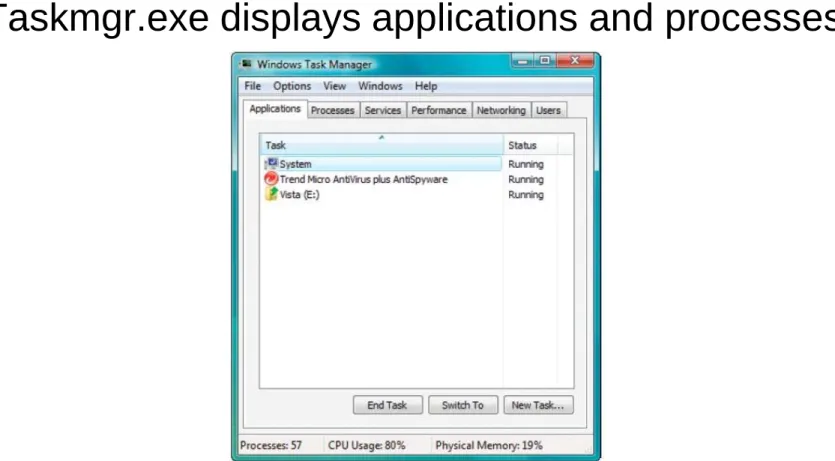
• Taskmgr.exe displays applications and processes
Figure 5-1 The Applications tab in Task Manager shows the status of active applications Courtesy: Course Technology/Cengage Learning
Task Manager (cont’d.)
• Accessing task manager
– Press Ctrl+Alt+Delete– Right-click taskbar blank area – Press Ctrl+Shift+Esc
– Vista Start Search box or XP Run dialog box
• Enter taskmgr.exe
• Applications tab
– States: running or not responding
• End task button at bottom of the window • Attempts a normal shutdown
Task Manager (cont’d.)
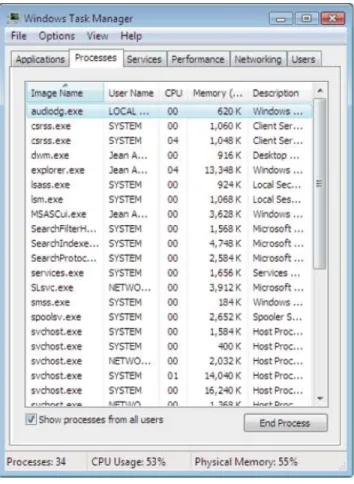
• Processes tab
– Lists system services and other processes, CPU time, and memory use
– Identifies applications slowing down a system
• Showing all processes running under current user
– System, Local Service, and Network Service accounts• Cannot display dialog box on-screen or interact with user
• Stopping a process
– Click End ProcessFigure 5-4 Vista processes for all users
Courtesy: Course
Technology/Cengage Learning
Figure 5-3 Processes running under the current user for a new Vista installation
Courtesy: Course
Task Manager (cont’d.)
• Viewing running application processes
– Select application listed on Applications tab
• Right-click it and select Go To Process
– End the process and all related processes
• Right-click the process and select End Process Tree • Do not end Windows critical process
• Process priority level
– Determines position CPU resources queue – Use Task Manager to change priority level
Task Manager (cont’d.)
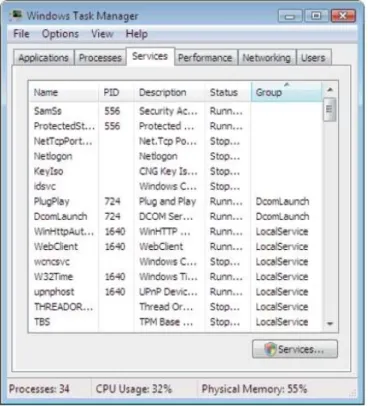
• Services tab
– Lists currently installed services with status
Figure 5-7 This Services tab of Windows Vista Task Manager gives the current status of all installed services
Courtesy: Course Technology/Cengage Learning
Task Manager (cont’d.)
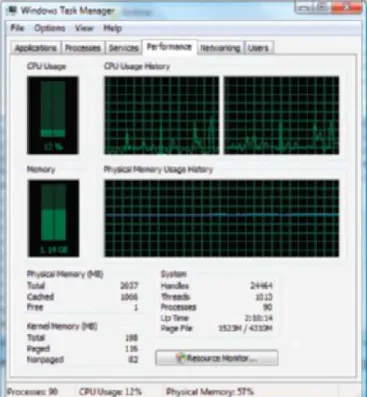
• Performance tab
– Identifies applications, processes using most CPU time
Figure 5-8 The Performance tab window shows details about how system resources are being used
Courtesy: Course
Task Manager (cont’d.)
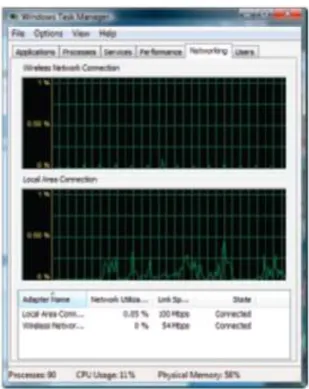
• Networking tab
– Displays how heavily network being used by a computer
Figure 5-9 Use the Networking tab of Task Manager to monitor network activity
Courtesy: Course
Task Manager (cont’d.)
• Users tab
– Shows all users currently logged on – Log off user to improve performance
Figure 5-10 Use Task Manager to log off a user
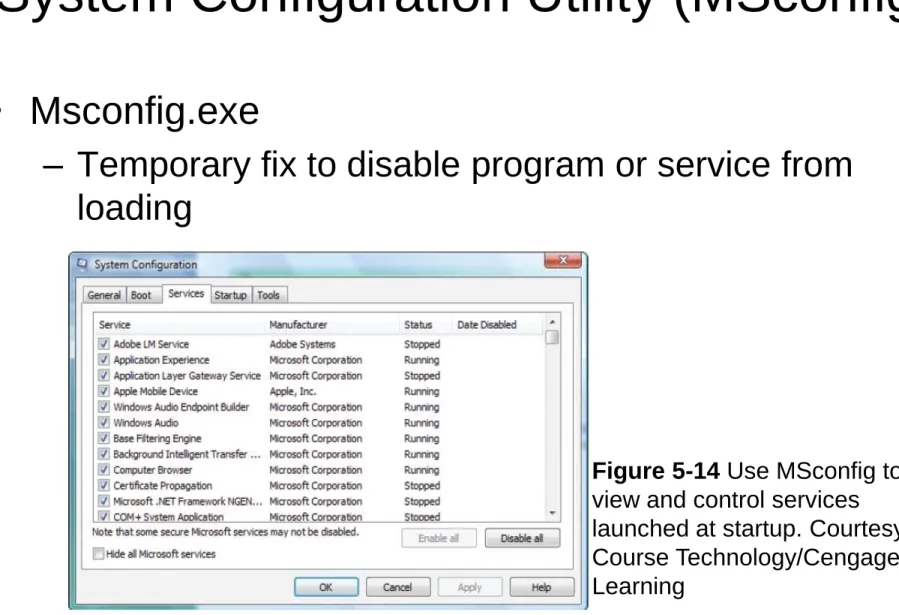
System Configuration Utility (MSconfig)
• Msconfig.exe
– Temporary fix to disable program or service from loading
Figure 5-14 Use MSconfig to view and control services
launched at startup. Courtesy: Course Technology/Cengage Learning
Services Console
• Launching the services console
– Vista Start Search box or XP Run dialog box
• Enter Services.msc
Figure 5-18 The Services window is used to manage Windows services Courtesy: Course Technology/Cengage Learning
Services Console (cont’d.)
• Selecting Properties
– Provides more information about a service
• Allows stopping or starting a service
• Service startup types
– Automatic (Delayed Start): starts shortly after startup, after the user logs on
– Automatic: starts when Windows loads – Manual: starts as needed
– Disabled: cannot be started
Computer Management
• Consolidates several Windows administrative tools
– Use to manage local PC and other network computers – Administrator authority required• Viewing may allow lesser privileges
• Accessing Computer Management in Vista
– Enter compmgmt.msc in Vista Start Search box
– Click Start, right-click Computer, and select Manage – Control Panel
• Click System and Maintenance, click Administrative Tools, and double-click Computer Management
Figure 5-20 Windows Computer Management combines several
administrative tools into a single easy-to-access window
Courtesy: Course Technology/Cengage Learning
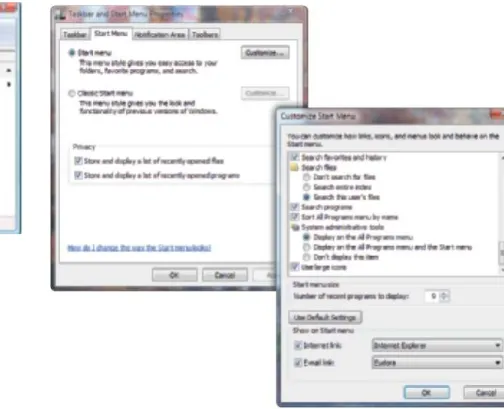
Figure 5-21 Use the Taskbar and Start Menu Properties window to change items on the Start menu
Courtesy: Course Technology/Cengage Learning
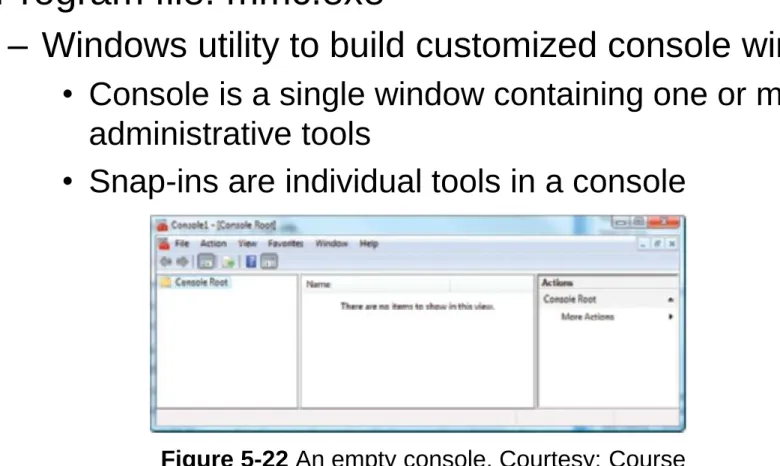
Microsoft Management Console (MMC)
• Program file: mmc.exe
– Windows utility to build customized console windows
• Console is a single window containing one or more administrative tools
• Snap-ins are individual tools in a console
Figure 5-22 An empty console. Courtesy: Course Technology/Cengage Learning
Event Viewer
• Eventvwr.msc
– Tool for troubleshooting problems with Windows, applications, and hardware
– Also a Computer Management snap-in
• Manages logs of events
– Three most important views of logs
• Application log • Security log • System log
Event Viewer (cont’d.)
• Logs new to Windows Vista
– Custom Views– The Setup log
– The Forwarded Events
– The Applications and Services Logs – The Subscriptions log
• System log: most important log other than security
– Records three error event typesEvent Viewer (cont’d.)
• Click log to view
• Save time reviewing logs by using filters
– To view most significant events when troubleshooting check Critical and Error under Event level
• Avoid ballooning log file
– Set size limit– Specify what happens when log reaches this limit
• Event viewer is most useful in solving intermittent
Reliability and Performance Monitor
• Perfmon.msc (another MMC snap-in)
– Collects, records, and displays events (i.e., Data Collector Sets)
• Windows XP
– Monitor called Performance Monitor or System Monitor
• Starting the monitor
– Use Administrative Tool applet in Control Panel – Open Computer Management Console
– Enter perfmon.msc in Vista Start Search box or XP Run box
Reliability and Performance Monitor
(cont’d.)
• Contains three monitoring tools
– Performance Monitor provides real-time view of Windows performance counters
– Reliability Monitor provides historical data showing stability
– Data Collector Sets utility collects data about the system
• Viewing system diagnostics data as a report
– Right-click System Diagnostics and select Latest Report from shortcut menu
The Registry Editor
• Difficult problems might require editing or removal of
a registry key
• Registry organization
– Registry• Database designed with a treelike structure (i.e., hierarchical database)
• Contains configuration information for Windows, users, software applications, and installed hardware devices
– Registry built in memory at startup
• Windows uses current hardware configuration and information taken from files
The Registry Editor (cont’d.)
• Registry organized into five treelike structures
– Each segment called a key– Each key can have subkeys
• Subkeys can have more subkeys and can be assigned one or more values
– Data is organized in hive files
Figure 5-36 The Windows registry is logically organized in an upside-down tree structure of keys, subkeys, and values
Courtesy: Course Technology/Cengage Learning
Figure 5-37 The relationship between registry subtrees (keys) and hives
Courtesy: Course
The Registry Editor (cont’d.)
• Five keys:
– HKEY_LOCAL_MACHINE (HKLM) – HKEY_CURRENT_CONFIG (HKCC) – HKEY_CLASSES_ROOT (HKCR) – HKEY_USERS (HKU)
The Registry Editor (cont’d.)
• Before editing the registry
– Back up registry• Use System Protection to create a restore point
• Back up a single registry key just before editing the key • Make an extra copy of the
C:\Windows\System32\config folder
• For Windows XP, back up the system state
– Back up and restore individual keys
Improving Windows Performance
• Assuming Windows is starting with no errors
– Use 11 step-by-step procedures• Search for problems affecting performance • Clean up Windows startup process
• Trouble starting windows
– Address those errors first before addressing performance
Improving Windows Performance
(cont’d.)
• Step 1: Perform routine maintenance
– Verify critical Windows settings– Clean up and defrag hard drive – Check hard drive for errors
– Disable and remove unwanted startup programs – Back up data
• Step 2: Check if hardware support the OS
– Vista Windows Experience Index– Vista Upgrade Advisor: checks compatibility – Run System Information Utility (msinfo32.exe)
Figure 5-41 Use the Windows Experience Index to get a snapshot of a computer’s performance and identify potential
bottlenecks
Courtesy: Course Technology/Cengage Learning
Figure 5-43 The Performance monitor tracking CPU performance
Courtesy: Course Technology/Cengage Learning
Improving Windows Performance
(cont’d.)
• Step 3: Check for performance warnings
– View warnings in Windows Experience Index window
• Advanced tools
– Clicking an issue
• Displays dialog box describing the issue • Gives suggestions to resolve it
– Investigate each issue one at a time
– Tools to assist in troubleshooting are listed in Advanced Tools window
Figure 5-44 Vista provides these warnings and tools to improve Vista performance
Courtesy: Course Technology/Cengage Learning
Figure 5-45 Windows reports four issues that are affecting performance Courtesy: Course Technology/Cengage Learning
Improving Windows Performance
(cont’d.)
• Step 4: Check the reliability monitor
– Determine if a problem with hardware or software installation is affecting performance
– Determine when time problem started
Figure 5-48 Use Reliability Monitor to search for when a problem began
Courtesy: Course
Improving Windows Performance
(cont’d.)
• Step 5: Disable the indexer for Windows search
– May cause problems• Step 6: Disable the Vista Aero interface
– Uses memory and computing power• May require memory or video card upgrade or leaving interface disabled
• Step 7: Disable the Vista Sidebar
Improving Windows Performance
(cont’d.)
• Step 8: Plug up any memory leaks
– Use Reliability and Performance Monitor
• Click down arrow on the Memory bar
– Use Task Manager Processes tab
• Click View and Select Columns
• Verify Memory Private Working Set, Handles, and Threads columns are checked
• Watch values over time for increases
– Solving memory leak
• Obtain update or patch from program manufacturer’s Web site
Improving Windows Performance
(cont’d.)
• Step 9: Consider disabling the Vista UAC box
– Might slightly improve performance• Disabling not recommended
• Step 10: Consider using Vista ReadyBoost
– Flash drive or secure digital (SD) memory card used to boost hard drive performance
• Acts as a buffer to speed up access time
– Best for hard drive less than 7200 RPM
– Windows automatically tests device qualifications
• 256 MB to 4 GB, 256 MB free space, 2 MB/sec of throughput
Improving Windows Performance
(cont’d.)
• Step 11: Clean windows startup
– Verify startup programs kept to a minimum
• Check startup folders in Windows XP
• Check Software Explorer in Windows Vista
– Cleaning Windows startup
• Use Safe Mode and MSconfig to find out more about the problem
Improving Windows Performance
(cont’d.)
• Step 11: Clean windows startup (cont’d.)
– Observe performance in Safe Mode• Improvement indicates nonessential program issue • Time a normal startup and a Safe Mode boot
• Significant difference: reduce Windows startup to essentials
• No improvement indicates problem with hardware device, critical driver, or Windows component
Improving Windows Performance
(cont’d.)
• Step 11: Clean Windows startup (cont’d.)
– Use MSconfig to find startup program affecting performance
• Recommended strategy: half-again search
– Disable or uninstall background processes and startup programs
• Permanently manage a service
• Use services console or Windows component responsible for the service
• Investigate service with good search engine • Reboot and test
Figure 5-60 Strategy to identify the program(s) causing the problem Courtesy: Course Technology/Cengage Learning
Improving Windows Performance
(cont’d.)
• Step 11: Clean Windows Startup (cont’d.)
– Check for unwanted scheduled tasks• Verify Task Scheduler contents
• Review details of all scheduled tasks • Look for hidden tasks
How To Manually Remove Software
• Manually uninstall
– Programs refusing to uninstall or giving errors when uninstalling
– Use as a last resort
• Try program’s uninstall routine • Manually delete program’s files • Manually delete registry entries
• Remove program from All Programs menu • Restart PC and watch for errors
How To Manually Remove Software
(cont’d.)
• Keys causing an entry to run only once at startup
– HKLM\Software\Microsoft\Windows\CurrentVersion\RunOnce
– HKLM\Software\Microsoft\Windows\CurrentVersion\R unServiceOnce
– HKLM\Software\Microsoft\Windows\CurrentVersion\R unServicesOnce
– HKCU\Software\Microsoft\Windows\CurrentVersion\R unOnce
How To Manually Remove Software
(cont’d.)
• Group Policy keys affecting startup
– HKCU\Software\Microsoft\Windows\CurrentVersion\P olicies\Explorer\Run
– HKLM\Software\Microsoft\Windows\CurrentVersion\P olicies\Explorer\Run
• DLL programs key
– Normal: do not delete unless positive
– HKLM\Software\Microsoft\Windows\CurrentVersion\S hellServiceObjectDelayLoad
How To Manually Remove Software
(cont’d.)
• Keys applying to all users and hold legitimate
startup entries
– Do not delete unless you suspect it to be bad
• HKLM\Software\Microsoft\Windows\CurrentVersion\Ru n
• HKCU\Software\Microsoft\Windows NT\CurrentVersion\Windows
• HKCU\Software\Microsoft\Windows NT\CurrentVersion\Windows\Run
• HKCU\Software\Microsoft\Windows\CurrentVersion\Ru n
How To Manually Remove Software
(cont’d.)
• Entries pertaining to background services
– HKLM\Software\Microsoft\Windows\CurrentVersion\R unService
– HKLM\Software\Microsoft\Windows\CurrentVersion\R unServices
• Key containing value named BootExecute
– Normally set to autochk• Causes system to run a type of Chkdsk program
– HKLM\System\CurrentControlSet\Control\Session Manager
Monitor the Startup Process
• Third-party tools monitoring startup changes
– WinPatrol by BillP Studios (free)• Runs in background
• Monitors registry changes, startup processes, IE settings, and system files
– Antivirus software
Figure 5-72 WinPatrol by BillP Studios alerts you when the startup process is about to be altered
Courtesy: Course
Summary
• Tools to optimize Windows
– Task Manager– System Configuration Utility (MSconfig) – Services console
– Computer Management console
– Microsoft Management Console (MMC) – Event Viewer
– Reliability and Performance Monitor
• Registry is organized into five treelike structures
– Registry EditorSummary (cont’d.)
• To troubleshoot a sluggish Windows system
– Follow 11 steps• Manually remove software
– Try program’s uninstall routine
– Manually delete the program’s files – Manually delete registry entries
– Remove the program from All Programs menu – Restart PC and watch for errors
– Fix orphaned entry (as necessary)