Centre for Learning and Academic Development (CLAD)
Technology Skills Development Team
Using MS Excel as a Database
(XL2103)
Author: Sonia Lee Cooke
(Some of the data in this course is based on previous Excel courses)
Version: 1.0, October 2012
© 2009 The University of Birmingham
All rights reserved; no part of this publication may be photocopied,
recorded or otherwise reproduced, stored in a retrieval system or
transmitted in any form by any electrical or mechanical means
without permission of the copyright holder.
Trademarks: Microsoft Windows is a registered trademark of
Microsoft Corporation. All brand names and product names used in
this handbook are trademarks, registered trademarks, or trade
names of their respective holders.
Contents
Page No.
ABOUT THE WORKBOOK ... 1
HOW TO DO SOMETHING ... 1
INTRODUCTION ... 2
AUTOMATIC FEATURES ... 2
AUTOCOMPLETE ... 2
AUTOCORRECT FEATURE ... 3
AUTO FILL A DATA SERIES ... 4
CUSTOM AUTOFILL LISTS ... 7
VALIDATION OF DATA ... 8
USING EXCEL AS A DATABASE ... 11
DATABASE DEFINITION ... 11
PARTS OF A DATABASE ... 12
GUIDELINES FOR CREATING A DATABASE ... 13
SPLITTING THE WORKSHEET WINDOW AND FREEZING THE PANE... 14
WORKING WITH EXCEL TABLES ... 15
CREATING EXCEL TABLES ... 15
RESIZING AN EXCEL TABLE ... 16
ADDING TOTALS TO AN EXCEL TABLE ... 17
INSERT,DELETE COLUMNS AND ROWS IN AN EXCEL TABLE ... 18
CONVERT AN EXCEL TABLE TO A RANGE OF CELLS ... 18
WORKING WITH DATA FORMS ... 19
SORTING ... 21
Order of Sorting ... 22
SORTING ON A SINGLE COLUMN ... 22
Sorting by Custom Series ... 24
USING AUTOFILTER ... 25
CUSTOM CRITERIA WITH AUTOFILTER ... 25
AUTOFILTER OPTIONS ... 26
Copying the Filtered Data ... 28
Clearing the Filter and remove AutoFilter ... 28
ADVANCED FILTERING ... 28
SUBTOTALS ... 30
Calculations on Filtered Data ... 30
SUBTOTALS AND OUTLINES ... 32
AUTOMATIC SUBTOTALS ... 32
About the workbook
The workbook is designed as a reference for you to use after the course
has finished. The workbook is yours to take away with you so feel free
to make any notes you need in the workbook itself
The workbook is divided into sections with each section explaining
about a particular feature of the program or how to do a particular task.
Sections that take you through a particular procedure step-by-step look
like this:
How to do something
Do this first.
Then do this.
Then do this to finish.
There are also a number of text boxes to watch out for throughout the
workbook. These will help you to get the most out of the course.
Tip
The thumbs-up symbol in the margin indicates a tip. These tips will help you work more effectively.
Danger!
The thumbs-down picture in the margin indicates common mistakes or pitfalls to be avoided.
Introduction
Data stored in an Excel worksheet in the form of a list can be used as a
simple database. The list consists of consecutive rows of related data.
The concept is similar to that of a table in an Access database (or any
other database). A column in a list is equivalent to a database field, and
each row is the equivalent of a record.
The features provided by Microsoft for the manipulation of lists have
shown a steady improvement with each release of MS Excel. These
notes are principally concerned with MS Excel 2010.
Automatic features
AutoComplete
AutoComplete
By default the AutoComplete feature of Excel is enabled. It is designed
to speed up repetitive data entry in lists (It should not be confused with
AutoCorrect). The feature was introduced (Office 97).
As you type into the active cell each character is compared with the text
in cells immediately above the active cell. If the initial characters match
those in another cell Excel fills in the rest of the matched text. If you
wish to accept the AutoComplete entry simply press any
arrow
key or
Enter
; otherwise continue typing.
To disable (or enable) AutoComplete:
Click on the File tab at the top left of the screen, then click on the
Options button, on the left the Excel Options dialogue box appears:
Select Advanced and under the Editing options, clear the check mark against Enable AutoComplete for cell values
Click OK to save the settings.
If you frequently need to enable/disable AutoComplete it would be
worthwhile recording a macro to toggle between the two states and attaching this to a button on the Quick Access Toolbar. There is a macro course - MS Word and MS Excel Macros and User Define Functions (MWX2101)
AutoCorrect feature
Often the same spelling or typing mistakes can be made repeatedly.
AutoCorrect fixes specific errors. These can be errors that you have
specified yourself e.g.
(errors that you know you make frequently)
, or
universally common errors that Excel already has a list of. These
corrections occur automatically, making AutoCorrect a huge time-saver
and allowing you to continue through the rest of your document
unaware of your spelling mistakes.
To add an entry of your own to the AutoCorrect list:
Click the File tab and then click on the Options button on the left. The Excel Options dialogue box appears:
Select Proofing on the left.
Click on the AutoCorrectOptions... button to open the
By default the AutoCorrect tab is active, ensure that the
Replace text as you type check box is selected. (You can use these check boxes to identify with conditions you want to be corrected).
Under Replace: click in the text box and type the new entry – e.g.
misspelling or an abbreviation of the word you want to add to the list, let’s say we want to add Learning Centre (type LC).
Type the new entry – e.g. correct spelling (Learning Centre) in the text box below With:
Click on the Add button to add it to the list.
Click on the OK button to close the AutoCorrect dialogue box, and then click on the OK button on the Excel Options window to return to the screen.
Click in the appropriate cell and type the abbreviation, then press the spacebar.
Auto Fill a Data Series
A frequent data entry task is entering a sequence of numbers or dates
down a column or across a row. The AutoFill feature allows formulae,
values, dates, months of the year, series of numbers or dates, and
custom lists such as names, part numbers and other information to be
entered in a range of cells.
The feature is invoked by hovering the mouse pointer over the Fill
Handle at the bottom right-hand corner of the active cell (the cursor
changes to a small black cross) and dragging down a row or across a
column.
There are many variants of AutoFill and it is worthwhile experimenting
with the following options:
Copy data from one or more cells
If the cell contents are not recognised by Excel as a known sequence, the selection is copied in the direction of “drag”.
Copy formatting
Normally both data and formats are copied. If you drag with the
right mouse button you will be presented with a short-cut menu on releasing the button. You can then choose either Fill
Formatting Only or Copy Cells (this copies both format and formulae)
Fill Date Series
Dates can be extended as a series by day, weekday, month or
year. Excel requires that dates are entered in a cell with either a forward slash or a hyphen (1/12/05 or 1-12-05) even if the date is then formatted to appear differently; e.g.1.12.05. You cannot enter a date using full points or spaces. AutoFill also recognises days of the week and months of the year in abbreviated form (first three letters) or spelled out in full.
Fill Number Series
Using AutoFill together with the Ctrl key will produce a series which increments the number in the active cell by one for each additional cell. Different sequences can be produced by entering the first two values of a sequence (e.g.101, 103), selecting the cells and dragging the fill handle:
AutoFill for Series of Text and Numbered Items
Text plus a number is extended by 1; e.g. Page 1, Page 2 etc…
Hover over the Fill Handle where the cursor will change to a
black cross.
Drag down the column or across the row with the left mouse
button to fill the series.
To copy an entry rather than extending the series hold down the
Ctrl key.
AutoFill for a Linear Series
Enter the first value(s) for the series. For a unique list, such as a
month, only one value is needed.
Drag down the column or across the row with the left mouse
button to fill the series.
Fill a Trend Series
If the series to be extended is not a simple linear one you can enter the first value, drag on the fill handle with the right mouse
button and select Series from the short-cut menu, the series dialogue box appears
Select Linear or Growth, click OK to fill the series.
Right mouse button. Using the right mouse button when dragging on the fill handle will always give you a short-cut menu from which you can choose what you want
To AutoFill a Non-linear Series
In a cell enter the initial value for the range.
Right drag the Fill Handle.
Select Series from the short-cut menu.
Select the appropriate options from the Series dialogue box, eg, to multiply by 2 and stop at 20
Alternatively
:
Enter the first two values for the series and select them.
Right drag the Fill Handle.
Choose Linear or Growth trend. From the short-cut menu
Excel calculates the step value between the values in either case and extends the series.
Custom AutoFill Lists
By default Excel has only four custom lists (days and months, see
Custom List dialogue box on page 6)
To add your own custom list:
Click on the File button, then click on the Options button, the
Excel Options dialogue box appears
Click on Advanced on the left and scroll down and under
General, click on the EditCustom Lists… button, the Custom Lists dialogue box appears
Click on the NEW LIST. Then type the items in the List Entries
box (press Enter after each item).
When complete click the Add button
You can also import an existing list by selecting the list you want to import and from the Custom Lists dialogue box click on the
Click on the OK button to return to the Excel screen
To insert the list to a worksheet type the first item and use the
Fill Handle to complete the range
Note
You cannot format list items, for example with subscripts for chemical formulae.
Validation of Data
Data validation, introduced in Office 97, allows the user to restrict what
can be entered into any individual cell or range of cells in a worksheet
by imposing a validation check on the cell(s). The validation criteria can
be any of those shown in the screen shots below and depending on the
data type, the appropriate limits and values can be set
To set up the validation criteria:
Let’s say we want to restrict a range of cells to three characters, you must set up the Validation criteria
Click on the Data tab and in the Data Tools group; click on Data
Validation button the Data Validation dialogue box appears. There are three tabs: Settings, Input message and
Error Alert.
Click on the Settings tab, under Allow: Click on the arrowhead
to the rightof Any value to display the list, select the appropriate option - e.g. Text length.
Under Data: select the appropriate option- e.g. Less than or equal to
Under Maximum: enter the value – e.g. 3.
To create an input message:
Click on the Input Message tab, if you want a message to appear when the cell is selected to remind you of what is
required. Enter a message in the Input message: text box, this message will appear when the cell is selected.
To create an error alert message:
Click on the Error Alert tab, set up this area if you want an error message to appear on the screen if data is entered that does not conform to that allowed.
Select one of the three options listed under Style:
Stop –Prevents entry of invalid data.- this optionwill not allow you to enter any more than what you have specified.
Warning –Does not prevent entry of invalid data - let you know the specified value, then ask if you would like to continue with your input.
Information – Does not prevent entry of invalid data -.gives you
information of the specified value.
Enter a title and text for the error message you want to appear on screen.
Click on the OK button
To set up a drop down list
You can restrict the data entry in a cell or range of cells by creating a
definitive list of allowed entries. To implement the list:
Select the cell(s) where you want the drop down list to appear
Click on the Data tab and in the Data Tools group; click on the
DataValidation button,the Data Validation dialogue box appears:
Click on the Settings tab, set up the Validation criteria.
Under Allow: Click on the arrowhead to the right of Any value
and List
Click in the Source: text box. Enter the range that contains the allowed entries. By clicking and dragging directly on the
Click on the OK button to return to the worksheet
Click in the any of the cell(s) in the range, notice at the right of the cell a dropdown list arrowhead appears.
Click on the arrowhead to reveal the list and select one of the items.
Using Excel as a Database
Database Definition
A database is a computerized record-keeping system. It is a tool for
organizing, managing, and retrieving information. Its overall purpose is
to maintain information and to make that information available on
demand. The information can be anything that is of significance to an
individual or organization.
A database can be compared to a filing cabinet. A filing cabinet
contains files of information stored in a certain sequence. Files in a
filing cabinet are called records in a database. Specific information in a
record is called a field. A group of fields make up a record and a group
of records make up a database. A row of entries is recognized as a
record. The individual cells by column are fields. Each column may
contain only one specific type of information for all the records.
Consistency with data entry is important. Information such as dates,
abbreviations, etc. should be consistent.
At a minimum, a database is a cell range consisting of one or more
columns and at least two rows. The first row of the database contains
field names and the following rows contain records.
Usually a record consists of the name of some item (student, employee,
equipment, etc.) and additional data pertaining to the item.
Parts of a Database
A database is made up of several parts. It is important to understand the
terms describing these parts:
Term
Definition
Field Name
A field name is a name that identifies the data stored
in a field. The top row of a database must contain the
field names.
Field
Each column in a database is a separate field, and
each of the cells within a column is a field. A
different field is used for each item that needs to be
accessed separately.
Record
A record is a single row in a database. Each record
contains the same categories of data as every other
record in the database.
Computed Field
A field containing formulas or functions
Database or Table A rectangular group of worksheet cells defined as
the table or database
Pivot Table
A Pivot table report is an interactive table that can be
used to summarise, analyse and present large
amounts of data by categories and subcategories.
You can rotate its rows and columns to see different
summaries of the source data.
Guidelines for Creating a Database
Excel uses a number of simple rules to automatically recognise a table
that can be manipulated as a database.
Guideline
Why?
Only have one Database on a
worksheet
The database can have up to 1,048,576 records. Some database management features, such as filtering, can be used on only one database at a time
Avoid putting blank rows and
columns in the database
So that Microsoft Excel can more easily detect and select the database.
A database cannot have a completely blank row or column.
Create column headings in
the first row of the database
Excel uses the headings to create reports and to find and organize data. Every column must have a heading in the same row. The heading should be separated from the data by a border, not a blank row.
Design the database so that
all rows have similar items in
the same column
This makes the database more meaningful and organized.
Try to break up information as
much as possible
This gives you more power to sort, filter and manipulate the database.
Each column should contain
the same type of information
This will make the database easier to read and understand. Freeze the worksheet pane just below the header row to assist data entry. See page 13 - Splitting the Worksheet and Freezing the worksheet pane.
Don’t use duplicate field
names
Duplicate field names can cause problems when entering and sorting information. Extra spaces should not be used at the beginning of any cell, as Excel will treat them differently when searching and sorting.
Tip
To select a table or range of cells, click on any cell in the table or database and press Ctrl * (asterisk) on the numeric keypad.
Splitting the Worksheet window and Freezing
the Pane
When working with a database, especially longer ones, it is usually also
a good idea to split and freeze the worksheet window so the field
headings remain visible as you move through the rest of the worksheet.
To split the worksheet window vertically and
horizontally:
Move the cursor over the vertical split box, located at the bottom right of the horizontal scroll bar. When the cursor changes to a
(horizontal double-headed arrow) drag the split box to the right of column A.
To get a horizontal split. Move the cursor over the horizontal split box, located at the top right of the vertical scroll bar. When the cursor changes to a (vertical double-headed arrow) drag the split box down directly beneath row 1.
To get the vertical split. Move the cursor over the vertical split box located at the bottom right of the horizontal scroll bar
Excel splits the worksheet window vertically and horizontally into four separate panes.
To freeze the pane
Move the cursor to a cell in column A directly under the header row.
Click on the View tab, in the Window group, click on Freeze Panes and select one of the options.
The frozen heading row will always be visible at the top of the worksheet, even if the database contains thousands of records.
Working with Excel tables
A task Excel can perform is keeping track of information in
tables
or
databases
. Some examples of things you might track in a table include
telephone numbers, clients, and employee rosters. Once you create a
table in Excel, you can easily find, organize, and analyse its information
with Excel’s rich set of table-management features.
Creating Excel tables
We’ll start this section by creating a table. You will learn how to create
an Excel table, and then add, modify, delete, and find information in it.
You’ll also learn how you can use Excel’s filter commands to display
specific information, such as records from a specific post code. When
you create a table using MS Excel, the following features are engaged
automatically: AutoFilter; a Table border; Resize handles; and Total
row.
To create an Excel table:
Select the cell range that you want to convert into an Excel table.
Click on the Insert tab, in the Tables group, click on Tables, the
Create Table dialogue box appears:
Under Where is the data for your table?, the cell range you selected automatically appears in the text box.
By default My table has headers is selected because your data already has field names that Excel will use as a header, if this option is not selected, click on it to select it.
Click on the OK button to convert the data into an Excel table, this also displays the Design tab with additional table features.
AutoFilter
Table border
Sizing handle
Click into any cell within the table range to deselect the table.
AutoFilter: The AutoFilter feature is now the default setting for Excel tables. Drop-down arrowhead appears in each column header which allows you to filter your data.
Resizing an Excel table
Sizing handle: is a small black triangle found at the bottom right-hand corner of the table, when you point on it you get a double-headed arrow.
You can make your table bigger or smaller by
clicking on the sizing handle and dragging it to the appropriate size. Alternatively, click on the Design tab then click on Resize Table in the Properties group, a Resize Table
dialogue box appears:
Select the new range for your table and click on the OK button.
In Excel tables, the columns contain fields, and the rows contain the records.
Records: Each record contains information about a thing or person, just like a listing in a phone book. The two records in this list are John Peters and Mary Smith.
Fields: Records are broken up into fields, which store specific pieces of information. Examples of field names in this set of data are First (first names), Last (last names), and Income (yearly income per person).
NOTE:
The Post Codes in this table are entered as text, not numbers. When you want to enter a number as text rather than a value, type an apostrophe (‘) before the number. If you didn’t add an apostrophe, Excel would remove the leading zeros (0) from any Post Codes beginning with (0), such as 01586. Alternatively, enter the values as: =”01586” and Excel will display as text value.
Adding totals to an Excel Table
Total row: is a row at the end of the table which displays total for each column. You can easily add a total row to your table by clicking on the Design tab and in the Table Styles Options
group, select Total Row.
Total Row Function Options
Function
Description
None
No function is inserted.Average
Calculates the average, or arithmetic mean, of the numbers in the column.Count
Counts the number of all nonblank cells, regardless of what they contain.Count Numbers
Counts the number of cells that contain numbers, including dates and formulas. Ignores all blank cells and cells that Total RowA total is inserted where the cursor is positioned, you can click on the arrowhead to the right of the cell to display a list of functions. If you click on any cell in this row, a drop-down menu of aggregate functions appears.
Max
Returns the largest value in a column.Min
Returns the smallest value in a column.Sum
Adds all of the numbers in a column.StdDev
Estimates standard deviation based on a sample. The standard deviation is a measure of how widely values are dispersed from the average value.Var
Estimates variance based on a sample.Insert, Delete columns and rows in an Excel Table
To insert columns or rows in an Excel Table:
Position the cursor where you want to insert one row or column, if you want to insert more than one rows or columns highlight the number of rows or columns you want to insert.
Click on the Home tab, in the Cells group, click on the arrowhead next to Insert
Select the required item from the list of options.
To Delete columns or rows in an Excel Table
Follow the instructions above and select the Delete option.
Convert an Excel Table to a range of cells
To convert an Excel table into a normal range of
cells:
Highlight the table, click on the Design tab, in the Tools group,
select Convert to Range the Microsoft
Click on the Yes button to convert the table to a normal range.
Working with Data Forms
Using the Data Form facility can make the entering or displaying of data
in a range or table simpler because it creates a form for each individual
record specified by the column headings. You can use a data form to
add, edit, find, and delete rows. The Data Form also makes it easier to
view individual records when a row of data is very wide and requires
repeated horizontal scrolling;
Make sure that there are no blank lines in the range of data
New records are inserted at the end of the table.
To display existing data using the Data Form:
Select any cell within the range or table which you want to add the Data Form.
The Form button is not visible on any of the Ribbons, to add the
Form button, click on the arrow to the right of the Quick Access Toolbar.
Click on the More Commands…, the Excel Options window appears:
Under Choose commands from: click on the arrowhead and select All Commands, a list of commands appears in the text box below, scroll down the list and select Form…
Click on the Add button to add the Form buttonto the Quick Access Toolbar list.
Click on the OK button, the form button is added to the Quick Access toolbar at the top left of the screen.
Click on the Forms button the DataForm dialogue box appears (labelled AutoFilter).
If you wish to search your data against certain criteria, click on the Criteria button, enter the criteria against individual fields.
Clicking on the or buttons, to take
you to the first record that meets the criteria depending on the cursor’s position. Subsequently clicking on the Find Next or
Find Prev buttons will bring up each record in turn that matches the criteria.
Click on the Close button when finish
Sorting
Sorting an Excel range of cells rearranges rows on the basis of the
contents of one or more columns in the database or range. This can be
done on text, dates and numerical data in either ascending or descending
order on each column. In Excel 2007, you can even use the colour of
cells or text as sort criteria. You can sort on up to 64 columns at a time,
but typically, you are unlikely to use more than a few.
Caution:
Excel will sort on the result of a formula. If formulae in the table contain relative references that are then sorted the results may be incorrect. Column headers are display as labels,
a maximum of 32 columns can be displayed
Add a new record at the end of the database
Find records based on the criteria you specify
Total number of records in the database
Current record number
Restore any changes made in the current record before you press the Enter key
Close the Data Form and return to the Worksheet
Displays previous or next record in the Data Form or find records that matches the search criteria
Order of Sorting
Excel follows a specific order based on the value (not format) of the
data. Dates and times are treated as values. All dates and times in a
column must be stored correctly in date and time format. If the date or
time is stored as text, Excel will not recognise the value as a date or
time and your sort will not be correct.
The following order is used in an ascending sort:
Numbers are sorted from the smallest negative number to the largest positive number.
Alphanumeric text is sorted character by character from left to right - .e.g., a cell containing the text “B200” will be placed after one containing “B2”and before one with “B22”.
Text is sorted in the following order 0 1 2 3 4 5 6 7 8 9 (space) ! " # $ % & ( ) * + , - . ./ : ; < = > ? @ [ \ ] ^ _ ` { } ~ A B C D E F G H I J K L M N O P Q R S T U V W X Y Z..
Logical values have FALSE placed before TRUE.
Error values are all equal.
Sorting on a single column
To sort a range of cells by the contents of a single
column:
Select a singlecell in the column you want to sort and click on the Data tab in the Sort & Filter group, click either on Sort A to Z or Sort Z to A options, Excel will automatically select the entire cell range or table and sort it on the column containing the active cell.
Alternatively, click on the Home tab and in the Editing group, click on Sort & Filter and select an option from the drop-down
Caution:
Do not select the entire column on which you want to sort; if you do, then only that column will be sorted and the rest of the database will remain the same. Excel will display a Sort Warning dialogue box with two options, if you select the option “continue with the current selection”, the sorting is done instantaneously and your database will not be sorted correctly.
Sorting on different levels
Using the Sort option from the Sort & Filter group on the Data
tab automatically selects the whole database (you will see it highlighted). If the first row of a table contains headings, in the
Sort dialogue box (see below)My data hasheaders will be checked.
Under Column, the headings will be used in the Sort by drop-down list, click on the arrowhead and select the required option.
Click on the Add Level option to add another sort level
If a single column contains both text and numbers; Excel will sort into the order of number and then text.
Use the blue up and down arrows to change the order in which the columns will be sorted.
Use the drop-down list in the Sort On column to specify which property to use for the sort.
Clicking on Options… on the Sort dialogue box opens the Sort Options dialogue box where you can check the CaseSensitive
Undoing: If the result of the sort is not correct undo it
immediately by clicking on the undo button on the Quick AccessToolbar at the top left of the screen.
Tip
If you think you may need to undo a series of sorts and return to the unsorted list add a column containing sequential numbers before you start.
Sorting by Custom Series
Excels default behaviour is to sort either alphabetically or numerically.
This may not always be appropriate, for example if you wish to sort by
months of the year.
To sort by custom series:
Click in a cell in the table containing the custom series you want to sort.
Click on the Data tab, in the Sort & Filter group, click on Sort to open the Sort dialogue box.
Under Column, choose the column that contains the custom series, by clicking on the drop-down arrowhead to the right of
Sort by.
Under Order, click on the drop-down arrowhead and choose
Custom List… this open the Custom List dialogue box.
If the custom series is already defined (e.g. you want to sort a list of months of the year into calendar order) select it in the list on the left.
If the custom series has not been defined yet add it as a new list in the way described on page 5.
Click on the OK button to close the Custom Lists dialogue box and OK again to apply the sort.
Using AutoFilter
The AutoFilter feature provides a simple and effective way to view
records in a list that meet certain criteria. When AutoFilter is turned on
in a range of cells set up as a Database the row headers show drop-down
arrows that allow you to specify the criteria. Rows that don’t meet the
criteria are hidden but redisplayed by selecting all from the drop-down,
or by turning AutoFilter off.
The Advanced filter method is more complex than AutoFilter but allows
more complex criteria and the ability to sort using criteria based on
formulae. See page 25, Advanced Filtering.
Custom Criteria with AutoFilter
To turn on the AutoFilter:
Place the cursor anywhere in the range of cells you want to filter.
Click on the Data tab, in the Sort & Filter group, click on Filter(a drop-down arrow is added to each column heading).
Clicking on the drop-down arrowhead produces a list of the unique entries in that column allowing one to be selected as a filter criterion.
Choosing another filter criterion for a different column can then refine the selection.
When a filter is applied, the drop-down arrows that are used in the filter change to show a funnel icon, and the row headings change to blue.
When you hover your mouse pointer over the heading of a filtered column, a screen tip displays showing the criteria you select, if the column is not filtered "(Showing All)" is displayed.
To clear a filter for a specific column or clear all filters, click on
(Select All) from the list.
AutoFilter Options
You can have up 10,000 text values in a list
You can expand the list by pointing unto the grid, when the cursor change to a double-headed arrow click and drag to make it bigger or smaller
Click on this option to display the Custom AutoFilter dialogue box. You can apply two criteria values within a column, or use comparison operators other than AND (the default operator)
You can sort or filter by specific cell colour Filtered column
In the Custom AutoFilter dialogue box, under Show rows where: you can use the drop-down arrow to display the following comparison operators, plus the And, Or check boxes to specify a filter.
In the example (Database above) you could display only those rows where the analyses had been performed by North or by
South ( =North Or =South).
Note
You can enter text and the wildcard characters:
“?” (question mark - represent one character) e.g. Sm?th finds "Smith" and "Smyth"
“*” (asterisk – represent any amount of characters) instead of using the drop-down lists in the right-hand box of Custom AutoFilter. *east finds
"Northeast" and "Southeast". Both North and South would also be displayed by using Region equals *h (both words end with ‘h’) as follows:
Copying the Filtered Data
The filtered list
(including titles but not drop-down arrows)
can be
copied to another part of the worksheet by simply selecting the data and
using the
Copy and Paste
commands, or dragging and dropping while
holding down the
Ctrl key
. To copy to another worksheet you must use
Copy and Paste
commands.
Clearing the Filter and remove AutoFilter
To clear the filter and return to the full list:
Click on the Data tab, in the Sort and Filter group, click on
Clear, alternatively,
Click on the AutoFilter arrowhead, choose (Select All) the full list is displayed.
To remove AutoFilter:
Click on the Data tab, in the Sort and Filter group, click on
Filter, to remove the AutoFilter arrowhead.
Advanced Filtering
Advanced filtering is by far the most powerful and flexible way to filter
your lists. It’s also by far the most difficult method, and requires more
work to set up and use. Advanced Filters do have several capabilities
their simpler AutoFilter cousins lack, including:
More complex filtering criteria: You can filter a list based on as many values in as many columns as you want.
The ability to extract the filtered records: Once you have created an Advanced Filter, you can copy the filtered records to a new location. This is the main reason most people use Advanced Filters.
The Advanced Filter allows you to filter your list by typing your AND and OR conditions into a separate criteria range on the worksheet
If you are setting complex criteria you will probably have to use
Advanced Filtering rather than AutoFilter; but even if the criteria are
straightforward, using Advanced Filtering allows you to see clearly
what you are doing.
To create the criteria range:
You must start by specifying an area for setting up the criteria. A criteria range is a cell range, located at the top of your list, which contains the filter criteria
Add at least four or five new rows above your data range or table (you can add more if you wish) ensure you have at least one blank row between the criteria range and your data range or table:
Select the cells that contain your headings, Copy and Paste
them into the top row above your data range or table. (as shown below)
In the Criteria range type the data you want to extract as shown above:
Entries in the same row of the Criteria Range will ‘ANDed’
Entries in different rows will be ‘ORed’.
Select any cell within the original data range.
Click on the Data tab, and in the Sort & Filter group, select
Advanced The Advanced Filter dialogue box appears:
Criteria range
Copy to another location allows you to copy the data to another part of the current worksheet.
List range: Excel will usually select the list range automatically as long as the active cell was within the data range.
Enter the Criteria range: that is the range for the cells that contain all the criteria, plus the column headings, in the rows above your data range
Note
A criteria range does not have to include all the headings. If you no longer need a Criteria row, you must delete the row and change the cell reference in the Criteria range: text box on the Advanced Filter dialogue box
Click OK. To filter the data range in-place
Subtotals
Calculations on Filtered Data
In versions of Excel prior to Office 97 it was not possible to calculate
anything other than a total of the filtered data. Any formulae referring to
the complete range in any column of the table would return the result
relating to the whole column regardless of any cells hidden by filtering.
In Excel you can now perform limited summary statistics calculations
using the Subtotal function on the visible cells of a filtered list. The
function has the following arguments:
=SUBTOTAL(function_number,ref1,ref2, …)
Function_number(includes rows that are hidden using Format from the Cells group on the Home tab)
Function_number (ignores rows that are hidden using Format from the Cells group on the Home tab)
Function
Name ref1, ref2, etc…
1 101 AVERAGE You can have up
154 references
2 102 COUNT
3 103 COUNTA
4 104 MAX
5 105 MIN
6 106 PRODUCT
7 107 STDEV
8 108 STDEVP
9 109 SUM
10 110 VAR
To obtain the average, enter the function
=SUBTOTAL(1,Ref1,Ref2).
If you use an absolute or mixed reference style e.g, A$1:A$10, for range
you can copy the formula across rows or down columns to add further
functions. For example if you copy the average formula down using the
Auto Fill handle
you can simply change the 1 to a 4. The
mixed reference will keep the range the same.
When you apply a filter to a list, the Subtotal values change to reflect
only the records that meet the criteria set by the filters
Filtering a list allows you to ask various “what if” type questions but the
answers disappear when the next question is asked to save the answers it
is necessary to copy and paste the result.
To copy and paste the result:
Apply the appropriate filter(s).
Select the filtered data range, or part of the data range, and the
subtotal values, if required.
Click on the Home tab, in the Editing group, click on Find & Select, and choose Go To Special… The Go To Special
dialogue box appears:
Select Visible cells only, and click on the OK button to return to the worksheet.
Click on the Copy button, in the Home tab.
Move to a separate part of the worksheet, or another
Note
Remember to indicate what filter criteria were used on the original data range somewhere in the pasted values.
Subtotals and Outlines
Subtotals and outlines are added in one step using the automatic
Subtotal Function. Excel uses the function to create new rows with the
Subtotals formulae. You can add multiple levels of subtotal where each
level becomes a level in the outline.
Automatic Subtotals
To set up Automatic Subtotals:
Before you start ensure that the data is sorted correctly – e.g. (lets say we wanted to get the subtotals for each Project in our data range), sort the column that contains the list projects. (See
Sorting on a Single column on page 22).
Click anywhere in the data range, then click on the Data tab and in the Outline group, select Subtotal to display the Subtotal
dialogue box:
Choose At each change in: “Project”
Use Function: “Sum” from the drop down lists Add subtotal to: “Profit”.
The worksheet appears with subtotals, a grand total and an outline area in the left margin.
Clicking on the
buttons
1
,
2
and
3
show/hide
the details
in the data range.
Click on button
1
to show only the
Grand Totals
.
Click on button
2
to show
Subtotals
and
Grand Totals
Click on button
3
to show the entire data
range
Drill Down with Outline
The outline feature works in a similar manner to that of Word.
The buttons at the top left of the sheet hide the detail rows. In the screen shot above some of levels 1 and 2 from the Subtotals worksheet are shown.
Clicking on a button will expand that particular level of detail. Clicking on a button will collapse the detail.
To remove Automatic Subtotals
Click on the Data tab and in the Outline group, select Subtotal
to display the Subtotal dialogue box
Click the Remove All button
Linking Lists using Data Validation and VLookup
You can link lists in Excel using the VLOOKUP (for vertical list) or
HLOOKUP (for horizontal list) functions. The VLOOKUP looks for a
value in the leftmost column of a data range or table, and then returns a
value in the same row from a column you specify.
An example using VLOOKUP
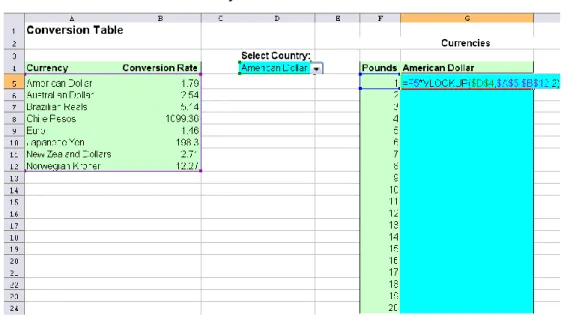
On the worksheet below, a table has been set up with currency conversion rates. Next to that in cell D4 is a List button that relates to all the countries in A5:A12. It is the formulae in cells
G5:G24 that links the drop-down list with the table to give the conversion of the currency values in F5:F24
To change the currency from American Dollars to Euros to
JapaneseYen etc…
Click on the drop-down arrowhead in cell D4 and select the country.
To change the exchange rates, you alter the value in the cells
B5:B12.
To add new currencies you merely add the new currencies and their conversion rates to the table.
The VLOOKUP function has the following arguments:
lookup value
is the value you want to find in the left most
column of your table or range
table array
is a reference to the table or range where the
lookup will take place.
col index num
is the column number in the table or range from
which the result will be returned.
range lookup
is an optional argument which specifies whether
the VLOOKUP function should use the range
lookup behaviour.
Range Lookup
Range lookup means that the VLOOKUP function will look for an exact match for the lookup value, but if it can’t find one, it will return the next highest value instead. This is often not the behaviour you want. It also requires that the lookup column must be sorted in ascending order. If you omit this argument, it defaults to TRUE, which means range lookup will be used. Unless you know you want this behaviour, always include FALSE as the last argument to the VLOOKUP function.
To enter the VLOOKUP formula as shown in G5 on
the example above:
Click in the cell where you want to enter the formula
Click on the Insert Function button , at the top of the screen to display the InsertFunction dialogue box.
From the Insert Function dialogue box you can Search for a function:, Or select a category, then in the Select a function:
list select VLOOKUP.