Linksys
Preface . . . . vii
Document Audience vii
Supported Firmware viii
Document Conventions viii
Document Purpose and Contents ix
Related Documentation x
Online Resources xi
Copyright and Trademarks xi
Technical Support xi
Finding Information in PDF Files xii
Finding Text in a PDF xii
Finding Text in Multiple PDF Files xii
Chapter 1: Introducing Linksys Analog Telephone Adapters . . . 15
Comparison of ATA Devices 16
Linksys ATA Connectivity Requirements 18
Linksys PAP2T Connectivity 18
Linksys SPA2102 Connectivity 19
Linksys SPA3102 Connectivity 20
Linksys SPA8000 Connectivity 21
ATA Software Features 22
Voice Supported Codecs 22
SIP Proxy Redundancy 23
Other Linksys ATA Software Features 23
Chapter 2: Basic Administration and Configuration of Your Linksys
ATA Device . . . . 28
Basic Services and Equipment Required 28
Downloading Firmware 29
Basic Installation and Configuration 30
Upgrading the Firmware for the Linksys ATA Device 30
Setting up Your Linksys ATA Device 31
Using the Administration Web Server 31
Connecting to the Administration Web Server 32
Setting Up the WAN Configuration for Your Linksys ATA Device 32
Registering to the Service Provider 33
Advanced Configurations 34
Upgrading, Rebooting, and Resyncing Your Linksys ATA Device 34
Upgrade URL 34
Resync URL 35
Reboot URL 35
Provisioning Your Linksys ATA Device 35
Provisioning Capabilities 36
Configuration Profile 36
Chapter 3: Configuring Your System for ITSP Interoperability . . 38
Configuring NAT Mapping with STUN 40 Determining Whether the Router Uses Symmetric or Asymmetric NAT 41
Firewalls and SIP 42
Configuring SIP Timer Values 43
Chapter 4: Configuring Voice Services . . . . 44
Supported Codecs 44
Using a FAX Machine (SPA2102, SPA3102 or SPA8000) 45
Fax Troubleshooting 46
Managing Caller ID Service 47
Silence Suppression and Comfort Noise Generation 48
Configuring Dial Plans 49
About Dial Plans 49
Editing Dial Plans 55
Secure Call Implementation 57
Enabling Secure Calls 57
Secure Call Details 58
Using a Mini-Certificate 58
Generating a Mini Certificate 59
SIP Trunking and Hunt Groups on the SPA8000 61
About SIP Trunking 62
Setting the Trunk Group Call Capacity 64
Inbound Call Routing for a Trunk Group 64
Contact List for a Trunk Group 65
Outgoing Call Routing for a Trunk Group 66
Configuring a Trunk Group 67
Trunk Group Management 68
Setting the Hunt Policy 69
Additional Notes About Trunk Groups 69
Chapter 5: Configuring Music on Hold . . . . 70
Using the Internal Music Source for Music On Hold 70
Using the Internal Music Source 70
Changing the Music File for the Internal Music Source 71
Configuring a Streaming Audio Server 71
About the Streaming Audio Server 71
Configuring the Streaming Audio Server 72
Using the IVR with an SAS Line 73
Chapter 6: Configuring the PSTN (FXO) Gateway . . . . 74
Connecting to PSTN and VoIP Services 74
How VoIP-To-PSTN Calls Work 75
One-Stage Dialing 75
Two-Stage Dialing 76
How PSTN-To-VoIP Calls Work 77
Terminating Gateway Calls 77
VoIP Outbound Call Routing 78
Configuring VoIP Failover to PSTN 79
Sharing One VoIP Account Between the FXS and PSTN Lines 80
PSTN Call to Ring Line 1 81
Symmetric RTP 81
Call Progress Tones 81
Call Scenarios 82
PSTN to VoIP Call with and Without Ring-Thru 82 VoIP to PSTN Call With and Without Authentication 83
Call Forwarding to PSTN Gateway 85
Appendix A: Linksys ATA Routing Field Reference . . . . 86
Status page 86
Product Information section 86
System Status section 87
WAN Setup page 87
Internet Connection Settings section 88
Static IP Settings section 88
PPPoE Settings section 88
Optional Settings section 89
MAC Clone Settings section 89
Remote Management section 90
QOS Settings section 90
VLAN Settings section 90
LAN Setup page 90
Networking Service section 91
LAN Networking Settings section 91
Static DHCP Lease Settings section 91
Application page 92
Port Forwarding Settings section 92
DMZ Settings section 92
Miscellaneous Settings section 93
System Reserved Ports Range section 93
Appendix B: Linksys ATA Voice Field Reference . . . . 94
Info page 94
Product Information section 95
System Status section 95
Line Status section 95
System Information section (PAP2T) 97
PSTN Line Status section (AG310 and SPA3102) 97
Trunk Status section (SPA8000) 99
System page 99
System Configuration section 100
Internet Connection Type section (PAP2T) 100
Optional Network Configuration section (PAP2T) 100 Miscellaneous Settings section (not used with PAP2T) 101
SIP page 102
SIP Parameters section 102
SIP Timer Values (sec) section 103
Trunking Parameters section (SPA8000) 109
Regional page 110
Call Progress Tones section 110
Distinctive Ring Patterns section 112
Distinctive Call Waiting Tone Patterns section 113
Distinctive Ring/CWT Pattern Names section 113
Ring and Call Waiting Tone Spec section 114
Control Timer Values (sec) section 114
Vertical Service Activation Codes section 116
Vertical Service Announcement Codes section (SPA2102, SPA8000) 119 Outbound Call Codec Selection Codes section 120
Miscellaneous section 121
Line page 123
Line Enable section 124
Streaming Audio Server (SAS) section 124
NAT Settings section 125
Network Settings section 125
SIP Settings section 126
Call Feature Settings section 128
Proxy and Registration section 128
Subscriber Information section 130
Supplementary Service Subscription section 130
Audio Configuration section 132
Gateway Accounts section (SPA3102/AG310) 132
VoIP Fallback to PSTN section (SPA3102/AG310) 133
Dial Plan section 133
FXS Port Polarity Configuration section 135
Trunk Group page (SPA8000) 135
Line Enable section 135
Network Settings section 136
SIP Settings section 136
Subscriber Information section 138
Dial Plan section 139
NAT Settings section 139
Proxy and Registration section 140
PSTN Line page (AG310 and SPA3102) 141
Line Enable section 142
NAT Settings section 142
Network Settings section 142
SIP Settings section 143
Proxy and Registration section 145
Subscriber Information section 146
Audio Configuration section 146
Dial Plans section 149
VoIP-To-PSTN Gateway Setup section 149
VoIP Users and Passwords (HTTP Authentication) section 150
Ring Settings section 151
FXO (PSTN) Timer Values (sec) section 151
PSTN Disconnect Detection section 153
International Control (Settings) section 155
Call Forward Settings section 157
Selective Call Forward Settings section 157
Speed Dial Settings section 158
Supplementary Service Settings section 158
Distinctive Ring Settings section 159
Ring Settings section 159
PSTN User page (AG310 and SPA3102) 160
PSTN-To-VoIP Selective Call Forward Settings section 160
PSTN-To-VoIP Speed Dial Settings section 161
PSTN Ring Thru Line 1 Distinctive Ring Settings section 161 PSTN Ring Thru Line 1 Ring Settings section 161
Appendix C: Provisioning Reference (WRP400) . . . 162
Appendix D: Troubleshooting . . . 171
Appendix E: Environmental Specifications . . . 174
PAP2T 174
SPA2102 174
SPA3102 175
SPA8000 175
RTP300 176
WRP400 176
WRTP54G 177
AG310 177
Appendix F: Warranty Information . . . 178
Limited Warranty 178
Exclusions and Limitations 178
Obtaining Warranty Service 179
Technical Support 179
Appendix G: Regulatory Information . . . 180
Federal Communications Commission Interference Statement 180Industry Canada Statement 180
Règlement d’Industry Canada 180
EC Declaration of Conformity (Europe) 181
User Information for Consumer Products Covered by EU Directive 2002/96/EC on Waste
Electric and Electronic Equipment (WEEE) 181
Appendix H: Safety Information . . . 188
Meaning of the Warning Symbol 188
General Safety Information 188
Power Safety Information 189
Appendix I: Software License Agreement . . . 190
Schedule 3 197
Appendix J: Contacts . . . 200
Preface
The Linksys ATA Administration Guide is intended to help VARs and Service Providers to manage and configure the Linksys Voice System (LVS). This preface provides helpful information about this guide and other resources that are available to you. Before you begin to use this guide, refer to the following topics:
• ”Document Audience,” on page vii • ”Document Conventions,” on page viii
• ”Document Purpose and Contents,” on page ix • ”Related Documentation,” on page x
• ”Online Resources,” on page xi
• ”Copyright and Trademarks,” on page xi • ”Finding Information in PDF Files,” on page xii
Document Audience
This document is written for the following audience:
• Service providers offering services using LVS products • VARs and resellers who need LVS configuration references
• System administrators or anyone who performs LVS installation and administration
NOTE: This guide does not provide the configuration information required by specific service providers. Please consult with the service provider for specific service parameters.
Supported Firmware
This guide supports the following firmware releases. The installed firmware must be at least the indicated in the table below.
Document Conventions
The following are the typographic conventions used in this document.
Product Firmware Version
PAP2T 5.1.6
SPA2102 5.2.5
SPA3102 5.1.7
SPA8000 6.1.3
RTP300 3.1.24
WRP400 1.00.06
WAG54GP2 Model Version 1: 1.01.02 Model Version 2: 2.01.06
AG310 1.00.04
Typographic Element Meaning
Boldface May indicate either of the following:
• A user interface element that you need to click, select, or otherwise act on
• A literal value to be entered in a field.
Italic May indicate either of the following:
• A variable that should be replaced with a literal value. • The name of a page, section, or field in the user interface
Document Purpose and Contents
This document provides information that an administrator needs to configure the Linksys Voice System, which typically consists of a SPA9000 IP PBX, one or more SPA900 Series IP phones, and the optional SPA400 PSTN gateway and voice mail server. This guide focuses primarily on the tasks that an administrator performs to configure a SPA9000 with the SPA9000 administration web server.
NOTE: This guide does not cover initial installation and configuration, SPA900 Series phone configuration, the Setup Wizard, or provisioning. See ”Related Documentation,” on page x. The information in this guide is organized into the following chapters and appendices:
Chapter Contents
Chapter 1, "Introducing Linksys Analog Telephone Adapters"
This chapter introduces the functionality of the Linksys ATA devices and describes the features that are available.
Chapter 2, "Basic Administration and
Configuration of Your Linksys ATA Device"
This chapter describes the equipment and services that are required to install your ATA device and explains how to complete the basic administration and configuration tasks.
Chapter 3, "Configuring Your System for ITSP
Interoperability"
This chapter provides configuration details for the purpose of helping you to ensure that your infrastructure properly supports voice services.
Chapter 4, "Configuring Voice Services"
This chapter describes how to configure your ATA device to meet the customer’s requirements for voice services. Chapter 5, "Configuring Music
on Hold"
This chapter explains how to configure Music on Hold using either a music file or streaming audio.
Chapter 6, "Configuring the PSTN (FXO) Gateway"
This chapter describes how to configure the Linksys SPA3102 and AG310 devices to provide PSTN connectivity.
Appendix A, "Linksys ATA Routing Field Reference"
This chapter describes the settings that you can configure under the Router and Network tabs in the administration web server pages.
Appendix B, "Linksys ATA Voice Field Reference"
This chapter describes the settings that you can configure under the Voice tab in the administration web server pages. Appendix C, "Provisioning
Reference (WRP400)"
The WRP400 can be provisioned remotely. This chapter provides information about the parameters that can be provisioned from an XML profile by using the Linksys profile compiler tool (SPC).
Appendix D, "Troubleshooting"
This appendix provides solutions to problems that may occur during the installation and operation of the Linksys ATA devices.
Appendix E, "Environmental Specifications"
Related Documentation
Refer to the following documentation to provide additional information about features and functionality of Linksys ATAs:
• Your Linksys ATA Quick Installation Guide • Your Linksys ATA User Guide
• SPA Provisioning Guide
The Linksys ATA Administration Guide is part of a complete suite of documentation that is available to assist you in using and configuring Linksys devices. The following documents are of special interest to Linksys Voice System administrators.
NOTE: These documents and more are available at Linksys.com. Appendix I, "Software License
Agreement"
Appendix H, "Safety Information"
Appendix J, "Contacts"
Document Title Description Intended Audience
Linksys Phone Administration Guide
• Configuration and management of IP phones • Deployment options with or
without the SPA9000 IP PBX • SPA9x2 series IP phones
VARs and Service Providers
Linksys SPA9x2 Phone User Guide
• Phone setup • Phone features • SPA9x2 series IP phones
VARS and phone end-users
Linksys Voice System Installation and Configuration Guide
• Network design considerations and site preparation
• Switch configuration • Initial installation and
configuration of the LVS components: SPA9000, SPA400, SPA900 series IP phones.
Online Resources
Website addresses in this document are listed without http:// in front of the address because most current web browsers do not require it. If you use an older web browser, you may have to add http:// in front of the web address.
Copyright and Trademarks
Technical Support
Linksys Voice SystemAdministration Guide
• Administration and configuration of system features using the SPA9000 and SPA400
• Deployment options for ITSP, PSTN, and ISDN services • SPA9000, SPA400, SPA900
series phones
VARs and Service Providers
Linksys Provisioning Guide • Provisioning LVS components Service Providers only
Resource Link
Linksys www.linksys.com
Linksys International www.linksys.com/international
Glossary www.linksys.com/glossary Network Security www.linksys.com/security
Linksys is a registered trademark or trademark of Cisco Systems, Inc. and/or its affiliates in the U.S. and certain other countries. Copyright © 2008 Cisco Systems, Inc. All rights reserved.
Adobe, Acrobat, and Flash are either registered trademarks or trademarks of Adobe Systems Incorporated in the United States and/or other countries. Other brands and product names are trademarks or registered trademarks of their respective holders.
Other brands and product names are trademarks or registered trademarks of their respective holders.
Finding Information in PDF Files
Linksys documents are published as PDF files. The PDF Find/Search tool within Adobe® Reader® lets you find information quickly and easily online. You can:
• Search an individual PDF.
• Search multiple PDFs at once (for example, all PDFs in a specific folder or disk drive). • Perform advanced searches.
Finding Text in a PDF
1. Enter your search terms in the Find box on the toolbar.
NOTE: By default, the Find tool is available at the right end of the Acrobat toolbar. If the Find tool does not appear, choose Edit > Find.
2. Optionally, click the arrow next to the Find text box to refine your search by choosing special options such as Whole words only.
3. Press Enter. Acrobat displays the first instance of the search term. Press Enter again to continue to more instances of the term.
Finding Text in Multiple PDF Files
The Search window lets you search for terms in multiple PDF files that are stored on your PC or local network. The PDF files do not need to be open.
1. Start Acrobat Professional or Adobe Reader.
2. Choose Edit > Search, or click the arrow next to the Find box and then choose Open Full Acrobat Search.
3. In the Search window, complete the following steps: a. Enter the text that you want to find.
b. Choose All PDF Documents in.
c. From the drop-down box, choose Browse for Location. Then choose the location on your computer or local network, and click OK.
d. If you want to specify additional search criteria, click Use Advanced Search Options, and choose the options you want.
e. Click Search.
4. When the Results appear, click + to open a folder, and then click any link to open the file where the search terms appear.
NOTE: For more information about the Find and Search functions, see the Adobe Acrobat online help.
Introducing Linksys Analog Telephone
Adapters
This guide describes the administration and use of Linksys analog telephone adapters (ATAs). Linksys ATA devices are a key element in the end-to-end IP Telephony solution. A Linksys ATA device provides user access to Internet phone services through one or more standard telephone RJ-11 phone ports using standard analog telephone equipment. The Linksys ATA device connects to a wide area IP network, such as the Internet, through a broadband (DSL or cable) modem or router.
This chapter introduces the functionality of the Linksys ATA devices and describes the features that are available.
Refer to the following topics:
• ”Comparison of ATA Devices” section on page 16
• ”Linksys ATA Connectivity Requirements” section on page 18 • ”ATA Software Features” section on page 22
Linksys ATA Telephone/fax
Ethernet
Broadband CPE (DSL, cable, fixed wireless)
Broadband
SIP proxy Layer 3
IP infrastructure PSTN Voice gateway
187254
V
V V
Comparison of ATA Devices
Each Linksys ATA device is an intelligent low-density Voice over IP (VoIP) gateway that enables carrier-class residential and business IP Telephony services delivered over broadband or high-speed Internet connections. A Linksys ATA device maintains the state of each call it terminates and makes the proper reaction to user input events (such as on/off hook or hook flash). The Linksys ATA devices use the Session Initiation Protocol (SIP) open standard so there is little or no involvement by a “middle-man” server or media gateway controller. SIP allows interoperation with all ITSPs that support SIP.
The following table summarizes the ports and features provided by the Linksys ATA devices described in this document.
NOTE: The information contained in this guide is not a warranty from Linksys, a division of Cisco Systems, Inc. Customers planning to use Linksys ATA devices in a VoIP service deployment are advised to test all functionality they plan to support before putting the Linksys ATA device
Product Name FXS (Analog Phone) FXO PSTN Connect-ion RJ-45 Internet (WAN) RJ-45 Ethernet (LAN) Configurable Voice Lines Description
PAP2T 2 — 1 — 2 Voice adapter with two
FXS ports.
SPA2102 2 — 1 1 2 Voice adapter with
router.
SPA3102 1 1 1 1 1 Voice adapter with
router and PSTN connectivity.
SPA8000 8 — 1 Maintenance
only
8 Voice adapter with support for up to eight FXS devices. Supports SIP Trunking for inbound call routing to trunk groups.
RTP300 2 — 1 4 2 IP router with two FXS
ports. Provides ATA device functionality.
WRP400 2 — 1 4 2 Wireless-G IP router with
two FXS ports. Provides ATA device functionality. Can be remotely provisioned.
WRTP54G WAG54GP2
2 — 1 4 2 Wireless-G IP router with two FXS ports. Provides ATA device functionality.
AG310 1 1 1 1 1 ADSL2+ gateway with
VoIP and PSTN connectivity. Provides ATA device functionality.
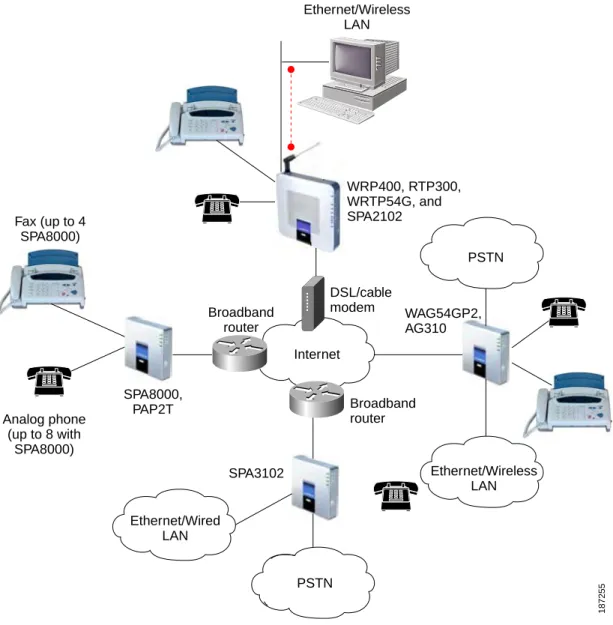
Figure 1 illustrates how the different Linksys ATA devices provide voice connectivity in a VoIP network.
Figure 1: How Linksys ATAs Provide Voice Connectivity
Notes on Figure 1:
• The AG310, SPA3102, SPA8000, and WAG54GP2 act as SIP-PSTN gateways. They provide PSTN connectivity in addition to a single FXS port. In addition, the AG310 and WAG54GP2 provide an ADSL2+ gateway.
• The WRP400, RTP300, and WRTP54G routers provide ports for analog telephone devices and provide QoS in the form of priority packet queueing.
SPA3102
Broadband router Broadband
router
SPA8000, PAP2T
DSL/cable
modem WAG54GP2, AG310 WRP400, RTP300, WRTP54G, and SPA2102 Ethernet/Wireless
LAN
Fax (up to 4 SPA8000)
Analog phone (up to 8 with
SPA8000)
PSTN Ethernet/Wired
LAN
Internet
187255
PSTN
Ethernet/Wireless LAN
Linksys ATA Connectivity Requirements
A Linksys ATA device can be connected to a local router, or directly to the Internet. Each phone connected to an RJ-11 (analog) port on the Linksys ATA device connects to other devices through SIP, which is transmitted over the IP network.
In order to ensure connectivity between the devices connected to its FXS ports, the Linksys ATA device requires the following functionality to be supplied on the network connected to its Ethernet port:
• Connection to an IP router with hairpinning support • Connection to an outbound Proxy server
When a phone connected to the Linksys ATA device communicates with another phone, it sends a SIP packet onto the internal LAN. The packet is then forwarded to the external LAN or directly to the Internet. The source address and source port on the original packet are assigned by the Linksys ATA device DHCP server. The address and port are translated by the Linksys ATA device using Network Address Translation (NAT) and Port Address Translation (PAT). The packet is then routed back to the internal network on the Linksys ATA device by the local router or the ISP router.
Problems can occur with calls between phones connected to the Linksys ATA device when an outbound proxy or a router with hairpinning support is not available. The Linksys ATA device cannot directly connect the two telephone devices, but requires a local or remote router to route the packet back to its destination on the local network from which it originated. The necessary routing can be provided by a router with hairpinning support, or by an outbound SIP proxy, which is typically provided by the Internet Telephony Service Provider (ITSP). When relying on the ITSP for interconnecting phones on the Linksys ATA device, local phones connected to the Linksys ATA device are unable to communicate with each other if the Internet connection is not available for any reason. It is recommended you connect the Linksys ATA device to a local router that provides hairpinning support to prevent this problem.
Linksys PAP2T Connectivity
As shown in the following figure, the PAP2T has two FXS ports (voice lines 1 and 2).
Line 1 Line 2
Internet IP Router (with
hairpinning) or Broadband modem
ITSP ISP
LAN WAN
Ethernet port Administrative
IVR (Line 1 or Line 2)
IP
Notes:
• The IVR functions are accessed by connecting an analog telephone to Line 1.
• For proper operation, the service provider should use an Outbound Proxy to forward all voice traffic when the PAP2T is located behind a router. If necessary, explicit port ranges can be specified for SIP and RTP.
Linksys SPA2102 Connectivity
As shown in the following illustration, the SPA2102 has two FXS ports (voice lines 1 and 2).
By default, the device attached to the LAN port is assigned the network address 192.168.0.0 with a subnet mask of 255.255.255.0. If there is a network address conflict with a device on the Ethernet port, the network address of the device on the LAN port is automatically changed to 192.168.1.0.
Notes:
• The IVR functions are accessed by connecting an analog telephone to Line 1.
• For proper operation, the service provider should use an Outbound Proxy to forward all voice traffic when the SPA2102 is located behind a router. If necessary, explicit port ranges can be specified for SIP and RTP.
Line 1 Line 2
Internet IP Router (with
hairpinning) or Broadband modem
ITSP ISP
SPA2102
LAN WAN
Ethernet port
LAN port Administrative
IVR (Line 1 or Line 2)
IP
IP
Administration
Linksys SPA3102 Connectivity
As shown in the following figure, the SPA3102 has one FXS port (voice line 1).
By default, the device on the LAN port is assigned the network address 192.168.0.0 with a subnet mask of 255.255.255.0. If there is a network address conflict with a device on the Ethernet port, the network address of the device on the LAN port is automatically changed to 192.168.1.0.
Notes:
• The IVR functions are accessed by connecting an analog telephone to Line 1.
• For proper operation, the service provider should use an Outbound Proxy to forward all voice traffic when the SPA3102 is located behind a router. If necessary, explicit port ranges can be specified for SIP and RTP.
Line 1 PSTN Line 1
Internet IP Router (with
hairpinning) or Broadband modem
ITSP ISP
SPA3102
Ethernet port
LAN port
LAN WAN
Administrative IVR (Line 1 or
Line 2)
IP
IP
Administration
PC 187259 PSTN
Linksys SPA8000 Connectivity
As shown in the following illustration, the SPA8000 consists of eight voice ports (voice lines 1-8).
By default, the device on the AUX port is assigned the network address 192.168.0.0 with a subnet mask of 255.255.255.0. If there is a network address conflict with a device on the Ethernet port, the network address of the device on the AUX port is automatically changed to 192.168.1.0.
In the illustration, one fax machine is connected to each pair of ports to illustrate that only one T.38 connection is supported by each of the four pairs of RJ-11 ports. Up to four fax machines can be connected to the SPA8000 router, but they must be distributed as shown.
Notes:
• With the SPA8000, use line 1 or line 2 to access the IVR functions. See the SPA8000 Quick Installation Guide for IVR instructions.
• For proper operation, the service provider should use an Outbound Proxy to forward all voice traffic when the SPA8000 is located behind a router. If necessary, explicit port ranges can be specified for SIP and RTP.
• The SPA8000 is not designed to forward IP packets to devices connected to its AUX port and that configuration is not supported.
• The SPA8000 also can be configured with trunk groups and trunk lines. See ”SIP Trunking and Hunt Groups on the SPA8000,” on page 61.
Line 1 Line 2
Internet IP Router (with
hairpinning) or Broadband modem
ITSP ISP
SPA8000
Line 4 Line 3
Line 6 Line 5
Line 8 Line 7
NAT/PAT Internal DHCP
server
LAN WAN
Ethernet port
AUX port Administrative
IVR (Line 1 or Line 2)
IP
IP 8 FXS (RJ-11/RJ-21 ) ports
Administration PC
ATA Software Features
The Linksys ATA device is a full featured, fully programmable phone adapter that can be custom provisioned within a wide range of configuration parameters. This section contains a high-level overview of features to provide a basic understanding of the feature breadth and capabilities of the Linksys ATA device.
The following sections describe the factors that contribute to voice quality: • ”Voice Supported Codecs,” on page 22
• ”SIP Proxy Redundancy,” on page 23
• ”Other Linksys ATA Software Features,” on page 23
Voice Supported Codecs
Negotiation of the optimal voice codec sometimes depends on the ability of the Linksys ATA device to match a codec name with the codec used by the far-end device. The Linksys ATA device allows the network administrator to individually name the various codecs that are supported so that the Linksys ATA device can successfully negotiate the codec with the far-end equipment. The administrator can select which low-bit-rate codec is to be used for each line. G.711a and G.711u are always enabled. Configure your preferred codec in the (FXS) tab in the Administration Web Server. See ”Linksys ATA Voice Field Reference,” on page 94. See also ”Supported Codecs,” on page 44 for a list of which codecs are supported on each Linksys ATA device.
NOTE: When no static payload value is assigned per RFC 1890, the Linksys ATA device can support dynamic payloads for G.726.
Codec (Voice Compression Algorithm)
Description
G.711 (A-law and mμ-law) This very low complexity codec supports uncompressed 64 kbps digitized voice transmission at one through ten 5 ms voice frames per packet. This codec provides the highest voice quality and uses the most bandwidth of any of the available codecs.
G.726 This low complexity codec supports compressed 16, 24, 32, and 40 kbps digitized voice transmission at one through ten 10 ms voice frames per packet. This codec provides high voice quality.
G.729a The ITU G.729 voice coding algorithm is used to compress digitized speech. Linksys supports G.729. G.729a is a reduced complexity version of G.729. It requires about half the processing power to code G.729. The G.729 and G.729a bit streams are compatible and interoperable, but not identical. G.723.1 The Linksys ATA device supports the use of ITU G.723.1 audio codec at 6.4
kbps. Up to two channels of G.723.1 can be used simultaneously. For example, Line 1 and Line 2 can be using G.723.1 simultaneously, or Line 1 or Line 2 can initiate a three-way conference with both call legs using G.723.1. Note: The WRP400 device does not support the G.723.1 audio codec.
SIP Proxy Redundancy
In typical commercial IP Telephony deployments, all calls are established through a SIP proxy server. An average SIP proxy server may handle thousands of subscribers. It is important that a backup server be available so that an active server can be temporarily switched out for
maintenance. The Linksys ATA device supports the use of backup SIP proxy servers (via DNS SRV) so that service disruption should be nearly eliminated.
A relatively simple way to support proxy redundancy is to configure your DNS server with a list of SIP proxy addresses. The Linksys ATA device can be instructed to contact a SIP proxy server in a domain named in the SIP message. The Linksys ATA device consults the DNS server to get a list of hosts in the given domain that provides SIP services. If an entry exists, the DNS server returns an SRV record that contains a list of SIP proxy servers for the domain, with their host names, priority, listening ports, and so on. The Linksys ATA device tries to contact the list of hosts in the order of their stated priority.
If the Linksys ATA device is currently using a lower priority proxy server, it periodically probes the higher priority proxy to see whether it is back on line, and switches back to the higher priority proxy when possible. SIP Proxy Redundancy is configured in the Line and PSTN Line tabs in the Administration Web Server. See”Linksys ATA Routing Field Reference,” on page 86.
Other Linksys ATA Software Features
The following table summarizes other features provided by Linksys ATA devices.
Feature Description
Streaming Audio Server See ”Configuring a Streaming Audio Server,” on page 71.
T.38 Fax Relay See ”Using a FAX Machine (SPA2102, SPA3102 or SPA8000),” on page 45. Silence Suppression See ”Silence Suppression and Comfort Noise Generation,” on page 48. Modem and Fax
Pass-Through
• Modem pass-through mode can be triggered only by predialing the number set in the Modem Line Toggle Code. (Set in the Regional tab.) • FAX pass-through mode is triggered by a CED/CNG tone or an NSE event. • Echo canceller is automatically disabled for Modem pass-through mode. • Echo canceller is disabled for FAX pass-through if the parameter FAX
Disable ECAN (Line 1 or 2 tab) is set to “yes” for that line (in that case FAX pass-through is the same as Modem pass-through).
• Call waiting and silence suppression is automatically disabled for both FAX and Modem pass-through. In addition, out-of-band DTMF Tx is disabled during modem or fax pass-through.
Adaptive Jitter Buffer The Linksys ATA device can buffer incoming voice packets to minimize out-of-order packet arrival. This process is known as jitter buffering. The jitter buffer size proactively adjusts or adapts in size, depending on changing network conditions.
The Linksys ATA device has a Network Jitter Level control setting for each line of service. The jitter level determines how aggressively the Linksys ATA device tries to shrink the jitter buffer over time to achieve a lower overall delay. If the jitter level is higher, it shrinks more gradually. If jitter level is lower, it shrinks more quickly.
Adaptive Jitter Buffer is configured in the Line and PSTN Line tabs. See
International Caller ID Delivery
In addition to support of the Bellcore (FSK) and Swedish/Danish (DTMF) methods of Caller ID (CID) delivery, Linksys ATAs provide a large subset of ETSI-compliant methods to support international CID equipment.
International CID is configured in the Line and PSTN Line tabs. See ”Linksys ATA Voice Field Reference,” on page 94.
Secure Calls A user (if enabled by service provider or administrator) has the option to make an outbound call secure in the sense that the audio packets in both directions are encrypted. See ”Secure Call Implementation” section on page 57.
Adjustable Audio Frames Per Packet
This feature allows the user to set the number of audio frames contained in one RTP packet. Packets can be adjusted to contain from 1–10 audio frames. Increasing the number of packets decreases the bandwidth utilized, but it also increases delay and may affect voice quality. See the RTP Packet Size parameter found in the SIP tab in the ”Linksys ATA Voice Field Reference,” on page 94.
DTMF The Linksys ATA device may relay DTMF digits as out-of-band events to preserve the fidelity of the digits. This can enhance the reliability of DTMF transmission required by many IVR applications such as dial-up banking and airline information. DTMF is configured in the DTMF Tx Mode parameter found in the Line tabs. See the ”Linksys ATA Voice Field Reference,” on page 94.
Call Progress Tone Generation
The Linksys ATA device has configurable call progress tones. Call progress tones are generated locally on the ATA device so an end user is advised of status (such as ringback). Parameters for each type of tone (for instance a dial tone played back to an end user) may include frequency and amplitude of each component, and cadence information. See the Regional tab in the
”Linksys ATA Voice Field Reference,” on page 94. Call Progress Tone Pass
Through
This feature allows the user to hear the call progress tones (such as ringing) that are generated from the far-end network. See the Regional tab in the
”Linksys ATA Voice Field Reference,” on page 94.
Echo Cancellation Impedance mismatch between the telephone and the IP Telephony gateway phone port can lead to end echo. The Linksys ATA device has a near-end echo canceller that compensates for impedance match. The Linksys ATA device also implements an echo suppressor with comfort noise generator (CNG) so that any residual echo is not noticeable. Echo Cancellation is configured in the Regional, Line, and PSTN Line tabs. See ”Linksys ATA Voice Field Reference,” on page 94.
Signaling Hook Flash Event
The Linksys ATA device can signal hook flash events to the remote party on a connected call. This feature can be used to provide advanced mid-call services with third-party-call-control. Depending on the features that the service provider offers using third-party-call-control, the following Linksys ATA features may be disabled to correctly signal a hook-flash event to the softswitch:
• Call Waiting Service (parameter call waiting serv set in the Line tab) • Three Way Conference Service (parameter three-way conf serv set in the
Line tab)
• Three Way Call Service (parameter three-way call serv set in the Line tab) You can configure the length of time allowed for detection of a hook flash using the Hook Flash Timer parameter on the Regional tab of the
administration web server. See ”Linksys ATA Voice Field Reference,” on page 94.
Configurable Dial Plan with Interdigit Timers
The Linksys ATA device has three configurable interdigit timers:
Initial timeout (T)—Signals that the handset is off the hook and that no digit has been pressed yet.
Long timeout (L)—Signals the end of a dial string; that is, no more digits are expected.
Short timeout (S)—Used between digits; that is after a digit is pressed a short timeout prevents the digit from being recognized a second time.
See ”Configuring Dial Plans,” on page 49 for more information.
Polarity Control The Linksys ATA device allows the polarity to be set when a call is connected and when a call is disconnected. This feature is required to support some pay phone system and answering machines. Polarity Control is configured in the Line and PSTN Line tabs. See ”Linksys ATA Voice Field Reference,” on page 94.
Calling Party Control Calling Party Control (CPC) signals to the called party equipment that the calling party has hung up during a connected call by removing the voltage between the tip and ring momentarily. This feature is useful for auto-answer equipment, which then knows when to disengage. CPC is configured in the Regional, Line, and PSTN Line tabs. See ”Linksys ATA Voice Field Reference,” on page 94.
Report Generation and Event Logging
The Linksys ATA device reports a variety of status and error reports to assist service providers to diagnose problems and evaluate the performance of their services. The information can be queried by an authorized agent, using HTTP with digested authentication, for instance. The information may be organized as an XML page or HTML page. Report Generation and Event Logging are configured in the System, Line, and PSTN Line tabs. See ”Linksys ATA Voice Field Reference,” on page 94.
Syslog and Debug Server Records
Syslog and Debug Sever Records log more details than Report Generation and Event Logging. Using the configuration parameters, the Linksys ATA device allows you to select which type of activity/events should be logged. Syslog and Debug Server allow the information captured to be sent to a Syslog Server. Syslog and Debug Server Records are configured in the System, Line, and PSTN Line tabs. See ”Linksys ATA Voice Field Reference,” on page 94.
SIP Over TCP To guarantee state-oriented communications, Linksys SPA2102 and SPA3102 devices allow you to choose TCP as the transport protocol for SIP. This protocol is “guaranteed delivery”, which assures that lost packets are retransmitted. TCP also guarantees that the SIP packages are received in the same order that they were sent. As a result, TCP overcomes the main disadvantages of UDP. In addition, for security reasons, most corporate firewalls block UDP ports. With TCP, new ports do not need to be opened or packets dropped, because TCP is already in use for basic activities such as Internet browsing or e-commerce. SIP over TCP is configured in the Line tabs. See ”Linksys ATA Voice Field Reference,” on page 94.
SIP Over TLS Linksys SPA2102 and SPA3102 devices allow the use of SIP over Transport Layer Security (TLS). SIP over TLS is designed to eliminate the possibility of malicious activity by encrypting the SIP messages of the service provider and the end user. SIP over TLS relies on the widely-deployed and standardized TLS protocol. SIP Over TLS encrypts only the signaling messages and not the media. A separate secure protocol such as Secure Real-Time Transport Protocol (SRTP) can be used to encrypt voice packets. SIP over TLS is configured in the SIP Transport parameter configured in the Line tab(s). See
”Linksys ATA Voice Field Reference,” on page 94.
Media Loopback Linksys SPA2102, SPA3102, and PAP2T devices allow service providers to use media loopback to quantitatively and qualitatively measure the voice quality experienced by the end user. One device acts as the audio transmitter and receiver while the other device acts as the audio mirror. The audio mirror transmits the audio packets that it receives back to the transmitter/receiver instead of transmitting the data sampled on its local microphone (IP phone) or attached analog telephone (ATA-type device). Media loopback is
configured in the User tab. See ”Linksys ATA Voice Field Reference,” on page 94.
Register Retry Enhancements
The Register Retry Enhancements feature for Linksys SPA2102, SPA3102, and PAP2T devices adds flexibility to the delay timers that are activated when the SIP REGISTER of a device fails. Once a SIP REGISTER failure response code is sent, a delay timer is selected depending on the type of registration failure response code. The delay timers can be one of the following:
• Reg Retry Random Delay—Random delay range (in seconds) to add to the Register Retry Intvl parameter when retrying a SIP REGISTER after a failure. The default is 0, which disables this feature.
• Reg Retry Long Random Delay—Random delay range (in seconds) to add to the Register Retry Long Intvl parameter when retrying a SIP REGISTER after a failure. The default is 0, which disables this feature. • Reg Retry Intvl Cap—The maximum value to cap the exponential
back-off retry delay. The exponential back-back-off retry delay starts with the setting found in the Register Retry Intvl parameter and doubles it on every REGISTER retry after a failure. In other words, the retry interval after a failure is always set to the seconds configured in the Register Retry Intvl
parameter. If this feature is enabled, the Reg Retry Random Delay setting is added on top of the exponential back-off adjusted delay value. The default value is 0, which disables the exponential back-off feature. Register Retry is configured in the SIP tab. See ”Linksys ATA Voice Field
DHCP Renewal on Timeout
Linksys SPA2102, SPA3102, and PAP2T voice devices typically operate in a network where a DHCP server assigns IP addresses to the devices. Because IP addresses are a limited resource, the DHCP server periodically renews the device lease on the IP address. Therefore, if a Linksys ATA device loses its IP address for any reason, or if some other device on the network is assigned its IP address, the communication between the SIP proxy and the device is either severed or degraded.
Whenever an expected SIP response is not received within a programmable amount of time after the corresponding SIP command is sent, the DHCP Renewal on Timeout feature automatically causes the device to request a renewal of its IP address. If the DHCP server returns the IP address that it originally assigned to the device, the Linksys ATA device is presumed to be operating correctly. If it returns a different address, the ATA device changes its IP address to the new address provided by the DHCP server. The Linksys ATA device then resets, and once again sends a SIP register request for the DHCP server to accept.
Basic Administration and Configuration of
Your Linksys ATA Device
This chapter describes the equipment and services that are required to install your ATA device and explains how to complete the basic administration and configuration tasks.
Refer to the following topics:
• ”Basic Services and Equipment Required” section on page 28
• ”Downloading Firmware” section on page 29
• ”Basic Installation and Configuration” section on page 30
• ”Upgrading the Firmware for the Linksys ATA Device” section on page 30
• ”Setting up Your Linksys ATA Device” section on page 31
• ”Using the Administration Web Server” section on page 31
• ”Upgrading, Rebooting, and Resyncing Your Linksys ATA Device” section on page 34
• ”Provisioning Your Linksys ATA Device” section on page 35
Basic Services and Equipment Required
To configure your Linksys ATA devices, you need the following services and equipment: • An integrated access device or modem for broadband access to the Internet • Internet Telephony Service Provider (ITSP) for Voice Over IP Telephone service • You must have to following information about your account:
– SIP Proxy (IP address or name) – Account information and Password
• Computer with Microsoft Windows XP or Windows Vista (for system configuration) • Analog phones
• UPS (uninterruptible Power Source) recommended for devices such as the Integrated Access Device, network switch, router, and PoE switch to ensure that your phone system continues to work during a power failure, just like your home phone.
Downloading Firmware
Always download and install the latest firmware for your Linksys ATA device before doing any configurations.
1. Direct your browser to the following URL: http://www.linksys.com
2. In the Search box near the top right corner of the page, type the model number of your Linksys ATA device.
3. In the search results list, click the Downloads link for your product. Refer to the following example.
4. When the Downloads page appears choose your product version from the Version drop-down list., if the page includes a Version prompt.
5. Under Firmware, click the link for the latest version of the firmware.
NOTE: If you are using Windows XP Service Pack 2 (SP2) and Internet Explorer, you may see the “Pop-up blocked” message in your browser information bar. If you see this message, click the information bar and select Temporarily Allow Pop-ups. Then click the link again. 6. Click Save in the File Download dialog box that appears.
7. In the Save As dialog box, choose a location for the file and then click Save. 8. When the download is complete, if prompted, click Close.
The name of the file depends on the firmware file of your device. If the firmware file you download is in zip format, double-click the file and extract its contents to a single folder or to the desktop. To extract the firmware file from the archive, use a utility such as WinZip, or use the built-in decompression features of Windows XP.
Basic Installation and Configuration
See your particular Linksys ATA device’s Quick Installation Guide and User Guide for instructions. If you are configuring the complete Linksys Voice System, also refer to the LVS Installation and Configuration Guide.
Upgrading the Firmware for the Linksys ATA Device
In this procedure, you install the firmware files that you downloaded previously.1. Determine the address of the Linksys ATA device:
a. Connect an analog telephone to the Phone 1 or Phone 2 port on the ATA device. b. Press **** on the keypad to access the IVR menu.
c. Press 110# to determine the Internet (WAN) IP address. 2. Make a note of the IP address that is announced.
NOTE: If the administration computer is connected to the Ethernet port of the Linksys ATA device, the default IP address is 192.168.0.1.
3. Use the administration computer to install the latest firmware:
a. Extract the Zip file, and then run the executable file to upgrade the firmware. b. When the Firmware Upgrade Warning window appears, click Continue.
c. In the next window that appears, enter the IP address of the Linksys ATA device, and then click OK.
d. In the Confirm Upgrade window, verify that the correct device information and product number appear. Then click Upgrade.
e. A progress message appears while the upgrade is in progress. The success window appears when the upgrade is completed. The device reboots.
f. Click OK to close the confirmation message.
g. To verify the upgrade, point the web browser to the IP address of the Linksys ATA device. Check the Router > Status page. The Software Version field should show the firmware version that you installed.
NOTE: You may need to refresh your browser to display the updated page reflecting the new version number.
Setting up Your Linksys ATA Device
After installation and basic configuration of your Linksys ATA device, you will use the administration web server to finish your configuration.
Linksys ATA devices support two levels of administration privileges: Administrator and User. Both privileges can be password protected.
NOTE: By default, there are no passwords assigned for either the Administrator account or the User account.
The Administrator account can modify all the web profile parameters and the passwords of both Administrator and User account. The User account can access only part of the web profile parameters. The parameters that the User account can access are specified using the
Administrator account on the Provisioning page of the administration web server. To directly access the Administrator account level privilege, use the following URL:
http://<ipaddress>/admin/voice
If the password has been set for the Administrator account, the browser prompts for authentication. The User account name and the Administrator account name cannot be changed.
When browsing pages with the Administrator account privilege, you can switch to User account privilege by clicking the User Login link.
If the User account password is set, the browser prompts for authentication when you click the
User Login link. From the User account, you can switch to the Administrator account by clicking the Admin Login link. Authentication is required if the Administrator account password has been set.
NOTE: Switching between User and Administrator accounts or between basic and advanced views discards any uncommitted changes on the web pages.
Using the Administration Web Server
This section describes how to use the administration web server to configure the advanced settings of the Linksys ATA device. It includes the following topics:
• ”Connecting to the Administration Web Server” section on page 32
• ”Setting Up the WAN Configuration for Your Linksys ATA Device” section on page 32
• ”Registering to the Service Provider” section on page 33
Connecting to the Administration Web Server
To access the Linksys ATA administration web server, perform the following steps.
1. Start Internet Explorer on a computer that is connected to the same network as the ATA device.
2. Determine the address of the Linksys ATA device.
a. Connect an analog telephone to the Phone 1 port of the ATA device. b. Press **** on the keypad to access the IVR menu.
c. Press 110# to determine the Internet (WAN) IP address.
NOTE: For more information on the IVR menu, see your Quick Installation Guide or User Guide for your device, or the LVS Administration Guide.
3. Direct the browser to the IP address of the ATA device.
4. The Router > Status page appears. By default, the page is in Basic User mode. Log on to the administrator view by clicking Admin Login, near the top right corner of the page. Then click Advanced.
NOTE: By default, no password is required. You can assign an administrative password later, but it is convenient not to use a password during the initial configuration.
Setting Up the WAN Configuration for Your Linksys ATA Device
1. Start Internet Explorer, connect to the administration web server, and choose Admin access with Advanced settings.
2. Click Network tab > WAN Setup.
3. Complete the WAN configuration for DHCP, static IP addressing, or PPPoE.
For DHCP:
a. Select DHCP from the Connection Type drop-down menu.
b. If you use a cable modem, you may need to configure the MAC Clone Settings. (Contact your ISP for more information.)
c. If your service uses a specific PC MAC address, then select yes from the Enable MAC Clone Service setting.
d. Then enter the PC’s MAC address in the Cloned MAC Address field.
For Static IP Addressing:
c. In the Optional Settings section, enter the DNS server address(es) in the Primary DNS and optional Secondary DNS fields.
For PPPoE:
a. Select PPPoE from the Connection Type drop-down menu. This is the correct setting for most DSL users.
b. Enter the values provided by the ITSP in the following fields: – PPPoE Login Name
– PPPoE Login Password – PPPoE Service Name
4. Click Submit All Changes. The Linksys ATA device reboots.
5. To verify your progress, click the Router tab and then click Status. Under System Status, confirm the WAN Connection Type, Current IP, Current Netmask, Current Gateway, and Primary DNS.
Registering to the Service Provider
To use VoIP phone service, you must configure your Linksys ATA device to the Service Provider. 1. Start Internet Explorer, connect to the administration web server, and choose Admin access
with Advanced settings.
2. Click Voice tab > Line N, where N is the line number that you want to configure. 3. Enter the account information for your ITSP. The following is the minimum required
configuration to connect the ATA device to an ITSP:
• User ID — The account number or logon name for your ITSP account (Subscriber Information section)
• Password — The password for your ITSP account (Subscriber Information section) • Proxy — The proxy server for your ITSP account (Proxy and Registration section) 4. After making any necessary changes, click the Submit All Changes button.
5. To verify your progress, perform the following tasks:
• After the devices reboot, click Voice tab > Info. Scroll down to the Line 1 Status section of the page. Verify that the line is registered. Refer to the following example.
• Use an external phone to place an inbound call to the telephone number that was assigned by your ITSP. Assuming that you have left the default settings in place, the phone should ring and you can pick up the phone to get two-way audio.
• If the line is not registered, you may need to refresh the browser several times because it can take a few seconds for the registration to succeed. Also verify that your DNS is configured properly.
NOTE: If the device has more than one Line tab, each line tab must be configured separately. Each line tab can be configured for a different ITSP.
Advanced Configurations
Other parameters may need to be changed from the defaults, depending on the requirements of a specific ITSP. Some of the commonly configured parameters include the following:
• Streaming Audio Server—You can enable an external music source for music on hold. See the ”Configuring a Streaming Audio Server,” on page 71 for further information. • NAT Settings—You can adjust these settings to resolve issues that arise when using a
ATA on a network behind a Network Address Translation (NAT) device. See the ”Network Address Translation (NAT) and Voice over IP (VoIP),” on page 38 for further information. • Subscriber Information—You can configure security parameters. See the ”Secure Call
Implementation,” on page 57 for further information.
• Dial Plan—You can configure a dial plan for a specific line. See the ”Configuring Dial Plans,” on page 49 for further information.
Upgrading, Rebooting, and Resyncing Your Linksys
ATA Device
The administration web server supports upgrading, rebooting, and resyncing functions through special URLs. Administrator account privilege is needed for these functions.
Upgrade URL
The Upgrade URL lets you upgrade the ATA device to the firmware specified by the URL, which can identify either a TFTP or HTTP server.
NOTE: If the value of the Upgrade Enable parameter in the Provisioning page is No, you cannot upgrade the ATA device even if the web page indicates otherwise.
The syntax of the Upgrade URL is as follows:
http://spa-ip-addr/admin/upgrade?[protocol://][server-name[:port]][/firmware-pathname]
If no port specified, the default port of the protocol is used. (69 for TFTP or 80 for HTTP) The firmware-pathname is typically the file name of the binary located in a directory on the TFTP or HTTP server. If no firmware-pathname is specified, /spa.bin is assumed, as in the following example:
http://192.168.2.217/admin/upgrade?tftp://192.168.2.251/spa.bin
Resync URL
The Resync URL lets you force the ATA device to do a resync to a profile specified in the URL, which can identify either a TFTP, HTTP, or HTTPS server. The syntax of the Resync URL is as follows:
http://spa-ip-addr/admin/resync?[[protocol://][server-name[:port]]/profile-pathname] NOTE: The SPA resyncs only when it is idle.
If no parameter follows /resync?, the Profile Rule setting from the Provisioning page is used. If no protocol is specified, TFTP is assumed. If no server-name is specified, the host that requests the URL is used as server-name.
If no port is specified, the default port is used (69 for TFTP, 80 for HTTP, and 443 for HTTPS). The profile-path is the path to the new profile with which to resync, for example:
http://192.168.2.217admin/resync?tftp://192.168.2.251/spaconf.cfg
Reboot URL
The Reboot URL lets you reboot the ATA device. The Reboot URL is as follows:
http://spa-ip-addr/admin/reboot
NOTE: The ATA device reboots only when it is idle.
Provisioning Your Linksys ATA Device
This section describes the provisioning functionality of the ATA device. This section includes the following topics:
• ”Provisioning Capabilities” section on page 36
• ”Configuration Profile” section on page 36
For detailed information about provisioning your ATA device, refer to the Linksys SPA Provisioning Guide.
Provisioning Capabilities
The ATA device provides for secure provisioning and remote upgrade. Provisioning is achieved through configuration profiles transferred to the device via TFTP, HTTP, or HTTPS. To configure Provisioning, go to Provisioning tab in the administration web server.
The ATA device can be configured to automatically resync its internal configuration state to a remote profile periodically and on power up. The automatic resyncs are controlled by
configuring the desired profile URL into the device.
The ATA device accepts profiles in XML format, or alternatively in a proprietary binary format, which is generated by a profile compiler tool available from Linksys. The ATA device supports up to 256-bit symmetric key encryption of profiles. For the initial transfer of the profile encryption key (initial provisioning stage), the ATA device can receive a profile from an encrypted channel (HTTPS), or it can resync to a binary profile generated by the Linksys-supplied profile compiler. In the latter case, the profile compiler can encrypt the profile specifically for the target ATA device, without requiring an explicit key exchange.
Remote firmware upgrade is achieved via TFTP or HTTP (firmware upgrades using HTTPS are not supported). Remote upgrades are controlled by configuring the desired firmware image URL into the ATA device via a remote profile resync.
For further information about remote provisioning refer to the Linksys SPA Provisioning Guide.
Configuration Profile
The ATA configuration profile can be either an XML file or a binary file with a proprietary format. The XML file consists of a series of elements (one per configuration parameter), encapsulated within the element tags <flat-profile> … </flat-profile>. The encapsulated elements specify values for individual parameters. Here is an example of a valid XML profile:
<flat-profile>
<Admin_Passwd>some secret</Admin_Passwd> <Upgrade_Enable>Yes</Upgrade_Enable> </flat-profile>
Binary format profiles contain ATA parameter values and user access permissions for the parameters. By convention, the profile uses the extension .cfg (for example, spa2102.cfg). The Linksys Profile Compiler (SPC) tool compiles a plain-text file containing parameter-value pairs into a properly formatted and encrypted .cfg file. The SPC tool is available from Linksys for the Win32 environment and Linux-i386-elf environment. Requests for SPC tools compiled on other platforms are evaluated on a case-by-case basis. Please contact your Linksys sales
representative for further information about obtaining the SPC tool.
The syntax of the plain-text file accepted by the profile compiler is a series of parameter-value pairs, with the value in double quotes. Each parameter-value pair is followed by a semicolon. Here is an example of a valid text source profile for input to the SPC tool:
Admin_Passwd “some secret”; Upgrade_Enable “Yes”;
The names of parameters in XML profiles can generally be inferred from the ATA configuration Web pages, by substituting underscores (_) for spaces and other control characters. Further, to distinguish between Lines 1, 2, 3, and 4, corresponding parameter names are augmented by the strings _1_, _2_, _3_, and _4_. For example, Line 1 Proxy is named Proxy_1_ in XML profiles. Parameters in the case of source text files for the SPC tool are similarly named, except that to differentiate Line 1, 2, 3, and 4, the appended strings ([1], [2], [3], or [4]) are used. For example, the Line 1 Proxy is named Proxy[1] in source text profiles for input to the SPC.
Configuring Your System for ITSP
Interoperability
This chapter provides configuration details for the purpose of helping you to ensure that your infrastructure properly supports voice services.
• ”Network Address Translation (NAT) and Voice over IP (VoIP),” on page 38 • ”Firewalls and SIP,” on page 42
• ”Configuring SIP Timer Values,” on page 43
Network Address Translation (NAT) and Voice over IP
(VoIP)
NAT is a function that allows multiple devices to share the same public, routable, IP address to establish connections over the Internet. NAT is present in many broadband access devices to translate public and private IP addresses. To enable VoIP to co-exist with NAT, some form of NAT traversal is required.
Some ITSPs provide NAT traversal, but some do not. If your ITSP does not provide NAT traversal, you have several options.
• ”NAT Mapping with Session Border Controller,” on page 38 • ”NAT Mapping with SIP-ALG Router,” on page 38
• ”Configuring NAT Mapping with a Static IP Address,” on page 39 • ”Configuring NAT Mapping with STUN,” on page 40
NAT Mapping with Session Border Controller
It is strongly recommended that you choose an ITSP that supports NAT mapping through a Session Border Controller. With NAT mapping provided by the ITSP, you have more choices in selecting a router.
NAT Mapping with SIP-ALG Router
If the ITSP network does not provide a Session Border Controller functionality, you can achieve NAT mapping by using a router that has a SIP ALG (Application Layer Gateway). The Linksys WRV200 router is recommended for this purpose, although any router with a SIP-ALG can be used. By using a SIP-ALG router, you have more choices in selecting an ITSP.
Configuring NAT Mapping with a Static IP Address
If the ITSP network does not provide a Session Border Controller functionality, and if other requirements are met, you can configure NAT mapping to ensure interoperability with the ITSP.
Requirements:
• You must have an external (public) IP address that is static.
• The NAT mechanism used in the router must be symmetric. See ”Determining Whether the Router Uses Symmetric or Asymmetric NAT,” on page 41.
• The LAN switch must be configured to enable Spanning Tree Protocol and Port Fast on the ports to which the SPA devices are connected.
NOTE: Use NAT mapping only if the ITSP network does not provide a Session Border Controller functionality.
1. Connect to the administration web server, and choose Admin access with Advanced settings.
2. Click Voice tab > SIP.
3. Scroll down to the NAT Support Parameters section, and then enter the following settings to support static mapping to your public IP address:
• Handle VIA received, Insert VIA received, Substitute VIA Addr: yes • Handle VIA rport, Insert VIA rport, Send Resp To Src Port: yes • EXT IP: Enter the public IP address for your router.
Voice tab > SIP: NAT Support Parameters
4. Click Voice tab > Line N, where N represents the line interface number. 5. Scroll down to the NAT Settings section.
• NAT Mapping Enable: Choose YES.
• NAT Keep Alive Enable: Choose YES (optional).
6. Click Submit All Changes.
NOTE: You also need to configure the firewall settings on your router to allow SIP traffic. See ”Firewalls and SIP,” on page 42.
Configuring NAT Mapping with STUN
If the ITSP network does not provide a Session Border Controller functionality, and if other requirements are met, it is possible to use STUN as a mechanism to discover the NAT mapping. This option is considered a practice of last resort and should be used only if the other methods are unavailable.
Requirements:
• STUN is a viable option only if your router uses asymmetric NAT. See ”Determining Whether the Router Uses Symmetric or Asymmetric NAT,” on page 41.
• You must have a computer running STUN server software.
• The LAN switch must be configured to enable Spanning Tree Protocol and Port Fast on the ports to which the SPA devices are connected.
NOTE: Use NAT mapping only if the ITSP network does not provide a Session Border Controller functionality.
1. Connect to the administration web server, and choose Admin access with Advanced settings.
2. Click Voice tab > SIP.
3. Scroll down to the NAT Support Parameters section, and then enter the following settings to enable and support the STUN server settings:
• Handle VIA received: yes • Handle VIA rport: yes • Insert VIA received: yes • Insert VIA rport: yes • Substitute VIA Addr: yes • Send Resp To Src Port: yes • STUN Enable: Choose yes.
Voice tab > SIP > NAT Support Parameters
4. Click Voice tab > Line N, where N is the number of the line interface. 5. Scroll down to the NAT Settings section.
• NAT Mapping Enable: Choose yes.
• NAT Keep Alive Enable: Choose yes (optional).
Voice tab > Line N > NAT Settings
NOTE: Your ITSP may require the SPA device to send NAT keep alive messages to keep the NAT ports open permanently. Check with your ITSP to determine the requirements. 6. Click Submit All Changes.
NOTE: You also need to configure the firewall settings on your router to allow SIP traffic. See ”Firewalls and SIP,” on page 42.
Determining Whether the Router Uses Symmetric or Asymmetric NAT
STUN does not work on routers with symmetric NAT. With symmetric NAT, IP addresses are mapped from one internal IP address and port to one external, routable destination IP address and port. If another packet is sent from the same source IP address and port to a different destination, then a different IP address and port number combination is used. This method is restrictive because an external host can send a packet to a particular port on the internal host only if the internal host first sent a packet from that port to the external host.Note This procedure assumes that a syslog server is configured and is ready to receive syslog messages.
1. Make sure you do not have firewall running on your PC that could block the syslog port (port 514 by default).
2. Connect to the administration web server, and choose Admin access with Advanced settings.