2
Agenda
•
Welcome and Introduction
•
Overview of Budget Forms and Stages
•
Getting Started in Budget Development
•
Creating Unit-Level Budget Forms
•
Creating Department-Level Budget Forms Registration Process
•
Processing Budget Requests
•
Viewing Budget Development Data/FSQs
•
Business Intelligence
4
1.
B
USINESS
I
NTELLIGENCE
Lesson Overview
The wvOASIS Business Intelligence (BI) portal is a web application that allows users to access and execute Web Intelligence reports. This section provides a high-level overview of the wvOASIS BI portal for Budget Development. Users are given step-by-step directions on how to access and navigate the BI portal, find their reports and interact with them.
The portal is an integrated analytics solution that provides insight into the State’s data for the Budget Development, Financial, Procurement, and Human resource and Payroll applications. In addition,
wvOASIS BI has capabilities that can be extended cross-application for Enterprise Reporting and Business Intelligence.
Learning Objectives
In this lesson, you will:
Access wvOASIS Business Intelligence Identify the Budget Development Reports Access a Budget Appropriation Request Report Execute a Budget Appropriation Request Report
Export a Budget Appropriation Request Report to MS Excel
1.1.
Budget Development Reports
The features that are available in wvOASIS BI vary based on user security profile or role, but for Budget Development, users will have the same level of access to all reports. However, users are limited to what data they can access in reports based on their security role that is established in the Budget
Development application.
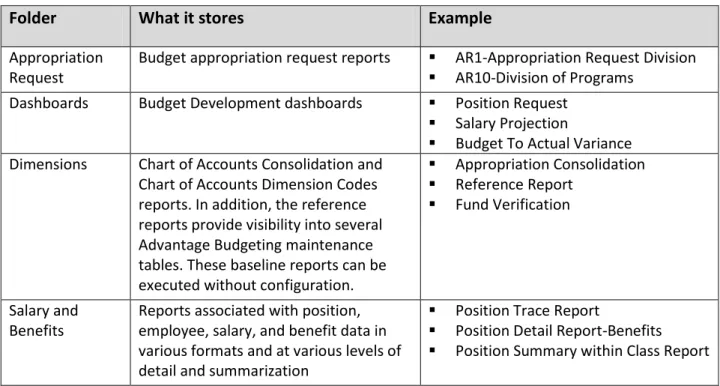
wvOASIS Business Intelligence solution is integrated with wvOASIS Budget Development, wvOASIS Financial, and wvOASIS Human Resource and Payroll applications. For Budget Development, wvOASIS BI is delivered with 38 baseline (out-of-the box) reports, 14 customized Appropriation Request reports. These reports are stored in folders where they are easily identified by functional area. The Budget Development folders are described in Table1.
5
Table 1: Budget Development Folders
Folder
What it stores
Example
Appropriation Request
Budget appropriation request reports AR1-Appropriation Request Division AR10-Division of Programs
Dashboards Budget Development dashboards Position Request Salary Projection
Budget To Actual Variance Dimensions Chart of Accounts Consolidation and
Chart of Accounts Dimension Codes reports. In addition, the reference reports provide visibility into several Advantage Budgeting maintenance tables. These baseline reports can be executed without configuration.
Appropriation Consolidation Reference Report
Fund Verification
Salary and Benefits
Reports associated with position, employee, salary, and benefit data in various formats and at various levels of detail and summarization
Position Trace Report
Position Detail Report-Benefits Position Summary within Class Report
1.2.
Navigating in Business Intelligence
Access the Business Intelligence Portal
The wvOASIS BI Portal provides a single point of entry for Budget Development reporting. To access the BI Portal:
1. Log in to MyApps.
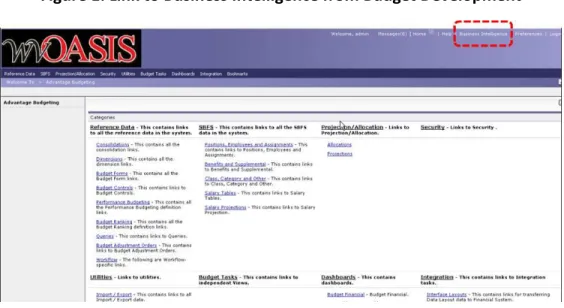
2. Click the Budget Development link. 3. Click the Business Intelligence link 4. Click the Document List link.
5. Access Budget Development folders
6
Figure 1: Link to Business Intelligence from Budget Development
Access Budget Development Folders
To access Budget Development folders, click the Document List link, either from the menu or from the Navigate section in the body of the portal.
Figure 2: wvOASIS BI Portal
Figure 1: Document List
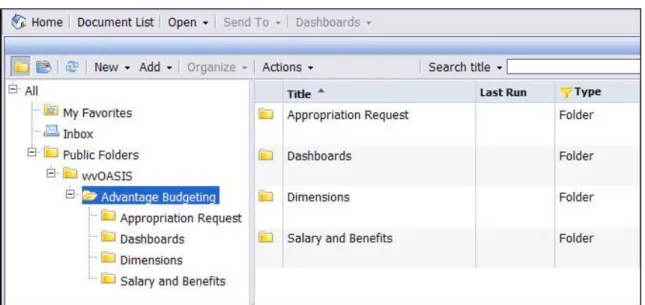
Click Public Folders wvOASIS Advantage Budgeting which takes you to the Budget Development folders as shown in Figure 4.
7
Figure 4: Budget Development Folders
Click the Appropriation Request folder and a list of Appropriation Request reports will display as shown in Figure 5.
Figure 5: List of Appropriation Request Reports
1.3.
Execute Budget Development Reports
Budget Intelligence reports are built with prompts or parameters that need to be reviewed and updated prior to executing the report. The prompts are set up to be required or optional.
Required prompts need to be filled in in order to execute a report while optional prompts are not required to be filled in (however, some may require an asterisk to support prior version of the software. In this the case the prompt literal or name will specify that you need to enter an asterisk (*). All reports have at least one required prompt.
8
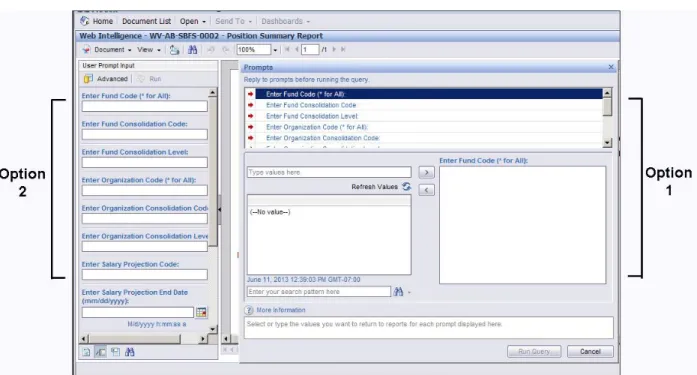
Prompts can be filled in using one of two options. The two options are shown in Figure 6.
Figure 6: Options for Executing a Report
Execute a Report Using Option 1
1. Click the Refresh All or Refresh Data button. The button name is dynamic and changes based on how many queries are associated with a report.
o When one query is associated with the report the button will be displayed as Refresh Data.
o When more than one query is associated with a report the button will be displayed as Refresh All. You have the option to refresh only one of the queries, or all of them.
2. A dialog box opens with a list of prompts to be filled in. Once the required prompts are filled in the Run Query button becomes active.
3. Click the Run Query button to execute the report.
In the prompts dialog box, you have the option of refreshing values by clicking on Refresh Values and searching for values in the Enter your search pattern here field.
9
10
Execute a Report Using Option 2
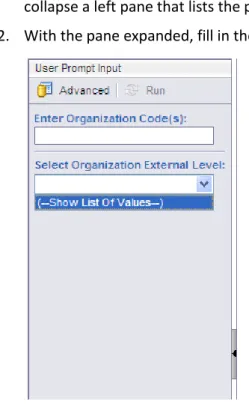
Option 2 is mostly used by users who are familiar with the values used in each report. This option only allows users to enter a value or click on Show List Of Values when available.
1. Click the triangle in the middle-left of the portal. This triangle button allows you to expand and collapse a left pane that lists the prompts.
2. With the pane expanded, fill in the prompts.
3. Click the Run button at the top of the page to execute the report.
Export Reports
To Export a report:
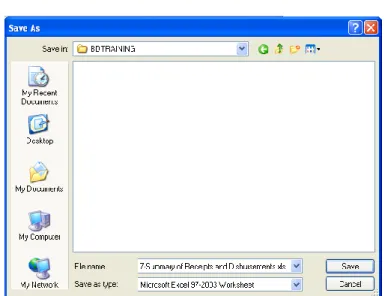
1. Click the Document button. 2. Click Save to my computer.
3. Select one of the desired options; Excel, PDF, CSV, or CSV (with options).
4. Save to the desired location. Keep in mind that users will only be able to save their reports to their local machines.
11
Figure 9: Save Report
Activity 1.1: Access, Execute, and Export the Position Summary Report
Scenario
You will execute a Position Summary Report to review positions within a department / unit. The report provides a single line for each position and summarizes the supplemental pays and benefits into pre-defined compensation types such as Health, Life, and Retirement.
Use the data provided in Table 2 to generate a report with the specified parameters.
Table 2: Parameters for Report
Field
Value
Description
Appropriation Code * An asterisk (*) wild card selects all values Appropriation
Consolidation Code
APPROP_CONSOL1 This option confines the report data to the Appropriation Hierarchy defined and used for the Salary Projection in wvOASIS Budget Development Application.
Appropriation Consolidation Level
3 This option returns data at the lowest level (Appropriation Codes) of Appropriation Consolidation selected above.
Fund * An asterisk (*) wild card selects all values
Fund Consolidation Code
FUND_CONSOL_1 This option confines the report data to the Fund Consolidation defined and used for the Salary Projection in wvOASIS Budget Development Application.
12
Level Codes) of Fund Consolidation selected above.
Organization Code Department number Data specific to your Department number. Ex. State Police would enter state level org 0612. Organization
Consolidation Code
WV_ORG_CONSOL_1 This option confines the report data to the Organization Consolidation defined and used for the Salary Projection in wvOASIS Budget
Development Application. Organization
Consolidation Level
4 This option will return data at the department level of Organization Consolidation selected above. Salary Projection Code STATEWIDE Returns the Estimated Salary Costs and FTE
calculated by the STATEWIDE projection execution in wvOASIS Budget Development application. Salary Projection Start
Date
07/01/2014 Salary Projection Start
Date
06/30/2015
Setup
Log in to MyApps portal and access the Budget Development application Pop-up blocker is disabled (Tools Pop-up Blocker Turn Off Pop-up Blocker)
Steps
A. Access the Position Summary Report.
1. In Budget Development, on the Top Navigation toolbar, click the Business Intelligence link. 2. On the Home Page Header Panel, click Document List.
13
3. In the Tree Panel, click the expand icon (+) to the left of Public Folders. 4. Click the expand icon (+) to the left of the wvOASIS folder.
5. Click the expand icon (+) to the left of the Advantage Budgeting folder.
6. Click the Salary and Benefits folder. The reports are listed in the Detail Panel on the right. 7. Double-click the WV-AB-SBFS-0002-Position Summary Report grid entry to open it.
B. Execute the Position Summary Report.
14
2. In the Workspace Toolbar, click the Refresh Data button.
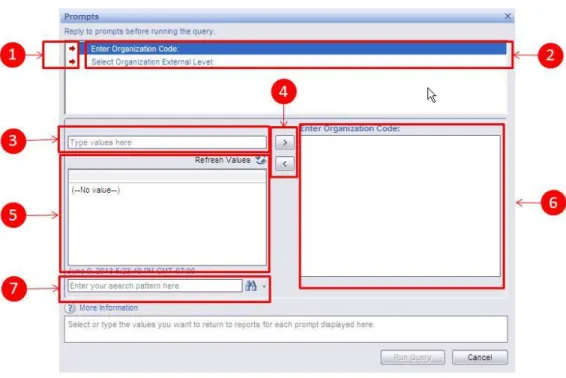
3. The Prompts box opens for updating report parameters. Prompts that have a red arrow in front of them are required prompts.
C. Enter the first two required prompts. 1. Enter the Appropriation Code.
15
a. Click the Enter Appropriation Code (*for All) line to highlight it.
b. In the blank field below the Prompts (where it says Type values here), enter *.
c. Click the right arrow to enter the code. Note that the red arrow changes to a green checkmark.
2. Enter the Appropriation Consolidation Code.
a. Click the EnterAppropriation Consolidation Code line to highlight it. b. From the box below the Refresh Values link, select APPROP_CONSOL1.
c. Click the right arrow to enter the code. Note that the red arrow changes to a green checkmark.
D. Use the same method as in step C to enter the remaining required prompts. 1. For Appropriation Consolidation Level, select 3.
2. For Fund Code, enter *.
3. For Fund Consolidation Code, select FUND_CONSOL_1. 4. For Fund Consolidation Level, select 3.
5. For Organization Code, enter your department number.
6. For Organization Consolidation Code, select WV_ORG_CONSOL_1. 7. For Organization Consolidation Level, select 4
8. For Salary Projection Code, select STATEWIDE. 9. For Salary Projection Start Date, enter 07/01/2014. 10. For Salary Projection End Date, enter 06/30/2015.
16
Note: If the Run Query button is disabled, check to make sure that all prompts have been entered. This button becomes active only when all required prompts have been entered.
12. The Retrieving Data window is displayed. In the Retrieving Data window, click the OK button. 13. If the report has multiple pages, click the► Go to next index icon to page through the report.
14. Click the View ▼down-arrow in the Workspace Toolbar to change viewing mode.
E. Export the Position Summary Report.
1. Click the Document ▼down-arrow in the Workspace Toolbar and select Save report to my computer as > Excel. Other options are PDF and Text.
2. In the File Download popup box, click the Save button.
17
4. In the Download Complete popup box, click the Open button to view the file. 5. Click the Close button.
Activity 1.2: Access and Execute the Appropriation Request Account Summary
(AR2)
Scenario
You will execute an Appropriation Request Account Summary (AR2) Report that provides a detailed overview of the requested and recommended amounts for the Appropriation Request. The Report provides the Prior Year Actual (with Actual Adjustments), Current Year Budgeted, Requested (agency requests) and Recommended (includes SBO recommendation and approved improvements) amount. The Report is grouped by Cabinet Code, Department Code, Unit Code, Primary Fund and Appropriation Code.
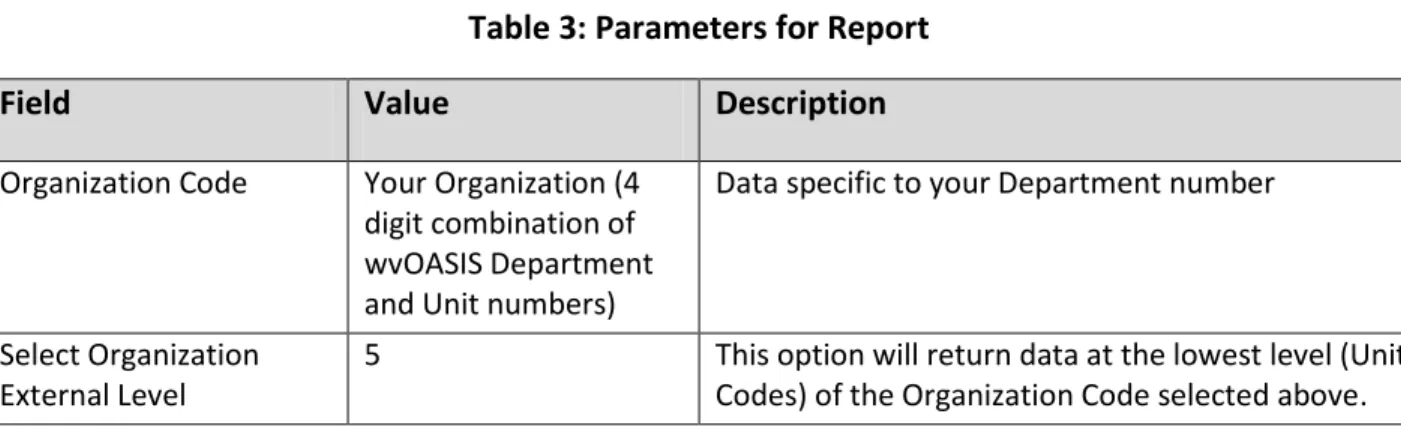
Use the data provided in Table 3 to generate a report with the specified parameters.
Table 3: Parameters for Report
Field
Value
Description
Organization Code Your Organization (4 digit combination of wvOASIS Department and Unit numbers)
Data specific to your Department number
Select Organization External Level
5 This option will return data at the lowest level (Unit Codes) of the Organization Code selected above.
Steps
A. Access the Appropriation Request Account Summary Report.
1. In Budget Development, on the Top Navigation toolbar, click the Business Intelligence link. 2. On the Home Page Header Panel, click Document List.
18
3. In the Tree Panel, click the expand icon (+) to the left of Public Folders. 4. Click the expand icon (+) to the left of the wvOASIS folder.
5. Click the expand icon (+) to the left of the Advantage Budgeting folder.
6. Click the Appropriation Request folder. The reports are listed in the Detail Panel on the right. 7. Double-click the WV-AB-AR2-Appropriation Request Account Summary grid entry to open it.
B. Execute the Appropriation Request Account Summary Report.
19
2. In the Workspace Toolbar, click the Refresh Data button.
3. The Prompts box opens for updating report parameters. Prompts that have a red arrow in front of them are required prompts.
C. Enter the two required prompts. 1. Enter the Organization Code.
a. Click the Enter Organization Code line to highlight it.
b. In the blank field below the Prompts (where it says Type values here), enter your four-digit department code.
20
c. Click the right arrow to enter the code. Note that the red arrow changes to a green checkmark.
2. Select the Organization External Level 4 for Department Level.
3. Click the Run Query button.
4. The Retrieving Data window is displayed. In the Retrieving Data window, click the OK button. 5. If the report has multiple pages, click the► Go to next index icon to page through the report.
6. Click the View ▼down-arrow in the Workspace Toolbar to change viewing mode.
Note: In Business Intelligence you can export your report to Excel or to a PDF File for any of the reports you run.
21
Activity 1.3: Access and Execute the Improvement Request (AR4)
Scenario
You will execute an Improvement Request (AR4). The Improvement Request report shows the On Going and One Time requested amount for the Improvement or Supplemental Request depending on the user entered prompt. The report is grouped by Organization Codes and by the Program Code. The
information is sorted by the Priority within a department. The report prompts for the Organization level and the Organization Code. Based on the requirements the user can execute the report for Unit or Department by selecting the appropriate values for the Organization level prompt.
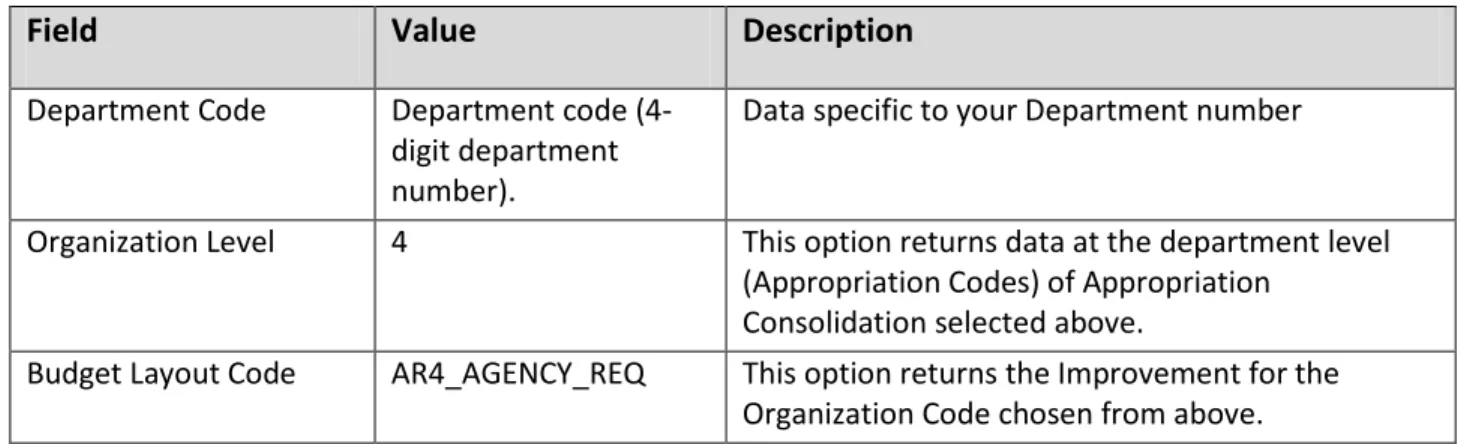
Table 4: Parameters for Report
Field
Value
Description
Department Code Department code (4- digit department number).
Data specific to your Department number
Organization Level 4 This option returns data at the department level (Appropriation Codes) of Appropriation
Consolidation selected above.
Budget Layout Code AR4_AGENCY_REQ This option returns the Improvement for the Organization Code chosen from above.
Steps
A. Access the Improvement Request (AR4) Report.
1. In Budget Development, on the Top Navigation toolbar, click the Business Intelligence link. 2. On the Home Page Header Panel, click Document List.
3. In the Tree Panel, click the expand icon (+) to the left of Public Folders. 4. Click the expand icon (+) to the left of the wvOASIS folder.
5. Click the expand icon (+) to the left of the Advantage Budgeting folder.
6. Click the Appropriation Request folder. The reports are listed in the Detail Panel on the right. 7. Double-click the WV-AB-AR4-Improvement Request – WV-AB-AR5-Supplemental Request grid
entry to open it.
B. Execute the Improvement Request Report.
1. The cover page of the Improvement Request Report is displayed. 2. In the Workspace Toolbar, click the Refresh Data button.
3. The Prompts box opens for updating report parameters. Prompts that have a red arrow in front of them are required prompts.
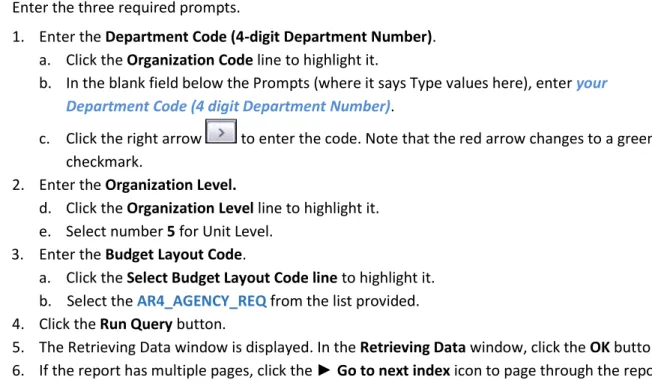
22 C. Enter the three required prompts.
1. Enter the Department Code (4-digit Department Number). a. Click the Organization Code line to highlight it.
b. In the blank field below the Prompts (where it says Type values here), enter your Department Code (4 digit Department Number).
c. Click the right arrow to enter the code. Note that the red arrow changes to a green checkmark.
2. Enter the Organization Level.
d. Click the Organization Level line to highlight it. e. Select number 5 for Unit Level.
3. Enter the Budget Layout Code.
a. Click the Select Budget Layout Code line to highlight it. b. Select the AR4_AGENCY_REQ from the list provided. 4. Click the Run Query button.
5. The Retrieving Data window is displayed. In the Retrieving Data window, click the OK button. 6. If the report has multiple pages, click the► Go to next index icon to page through the report.
Activity 1.4: Access and Execute a Summary of Estimated Receipts and
Disbursements (AR12)
Scenario
You will execute a Summary of Estimated Receipts and Disbursements (AR12).The Summary of Estimated Receipts and Disbursements report shows the Estimated Receipts and Disbursements by Organization and Fund. The report calculates the Estimated Beginning Balance for each Fund within a department and provides the Estimated Ending Balance based on the Estimated Revenue and
Disbursement. The report is grouped by Cabinet, Department, Fund Class and Fund Code. The report has a required prompt for Department Code.
Table 5: Parameters for Report
Field
Value
Description
Department Code Your Department (4 digit Department number)
23
Steps
A. Access the Summary of Estimated Receipts and Disbursements (AR12) Report.
1. In Budget Development, on the Top Navigation toolbar, click the Business Intelligence link. 2. On the Home Page Header Panel, click Document List.
3. In the Tree Panel, click the expand icon (+) to the left of Public Folders. 4. Click the expand icon (+) to the left of the wvOASIS folder.
5. Click the expand icon (+) to the left of the Advantage Budgeting folder.
6. Click the Appropriation Request folder. The reports are listed in the Detail Panel on the right. 7. Double-click the WV-AB-AR12-Summary of Estimated Receipts and Disbursements grid entry to
open it.
B. Execute the Summary of Estimated Receipts and Disbursements Report.
1. The cover page of the Summary of Estimated Receipts and Disbursements Report is displayed. 2. In the Workspace Toolbar, click the Refresh Data button.
3. The Prompts box opens for updating report parameters. Prompts that have a red arrow in front of them are required prompts.
C. Enter the required prompt. 1. Enter the Department Code.
a. Click the Department Code line to highlight it.
b. In the blank field below the Prompts (where it says Type values here), enter your Department Code (4 digit department number).
c. Click the right arrow to enter the code. Note that the red arrow changes to a green checkmark.
2. Click the Run Query button.
3. The Retrieving Data window is displayed. In the Retrieving Data window, click the OK button. 4. If the report has multiple pages, click the► Go to next index icon to page through the report.