Microsoft® Exchange Server
2007/Server 2010
Implementation Guide
The software described in this book is furnished under a license agreement and may be used only in accordance with the terms of the agreement.
Documentation version 6.5.1
Legal Notice
Copyright © 2010 Symantec Corporation. All rights reserved.
Federal acquisitions: Commercial Software - Government Users Subject to Standard License Terms and Conditions.
Symantec, the Symantec Logo are trademarks or registered trademarks of Symantec Corporation or its affiliates in the U.S. and other countries. Other names may be trademarks of their respective owners.
The product described in this document is distributed under licenses restricting its use, copying, distribution, and decompilation/reverse engineering. No part of this document may be reproduced in any form by any means without prior written authorization of Symantec Corporation and its licensors, if any.
THE DOCUMENTATION IS PROVIDED "AS IS" AND ALL EXPRESS OR IMPLIED CONDITIONS, REPRESENTATIONS AND WARRANTIES, INCLUDING ANY IMPLIED WARRANTY OF MERCHANTABILITY, FITNESS FOR A PARTICULAR PURPOSE OR NON-INFRINGEMENT, ARE DISCLAIMED, EXCEPT TO THE EXTENT THAT SUCH DISCLAIMERS ARE HELD TO BE LEGALLY INVALID. SYMANTEC CORPORATION SHALL NOT BE LIABLE FOR INCIDENTAL OR CONSEQUENTIAL DAMAGES IN CONNECTION WITH THE FURNISHING,
PERFORMANCE, OR USE OF THIS DOCUMENTATION. THE INFORMATION CONTAINED IN THIS DOCUMENTATION IS SUBJECT TO CHANGE WITHOUT NOTICE.
The Licensed Software and Documentation are deemed to be "commercial computer software" and "commercial computer software documentation" as defined in FAR Sections 12.212 and DFARS Section 227.7202.
Symantec Corporation 350 Ellis Street Mountain View CA 94043 USA
Symantec Technical Support maintains support centers globally. Technical Support’s primary role is to respond to specific queries about product feature and function, installation, and configuration. The Technical Support group also authors content for our online Knowledge Base. The Technical Support group works collaboratively with the other functional areas within Symantec to answer your questions in a timely fashion. For example, the Technical Support group works with Product Engineering and Symantec Security Response to provide alerting services and virus definition updates.
Symantec’s maintenance offerings include the following:
■ A range of support options that give you the flexibility to select the right amount of service for any size organization
■ A telephone and web-based support that provides rapid response and up-to-the-minute information
■ Upgrade insurance that delivers automatic software upgrade protection
■ Global support that is available 24 hours a day, 7 days a week worldwide. Support is provided in a variety of languages for those customers that are enrolled in the Platinum Support program
■ Advanced features, including Technical Account Management
For information about Symantec’s Maintenance Programs, you can visit our Web site at the following URL:
www.symantec.com/techsupp/ent/enterprise.html
Select your country or language under Global Support. The specific features that are available may vary based on the level of maintenance that was purchased and the specific product that you are using.
Contacting Technical Support
Customers with a current maintenance agreement may access Technical Support information at the following URL:
www.symantec.com/techsupp/ent/enterprise.html
Select your region or language under Global Support.
Before contacting Technical Support, make sure you have satisfied the system requirements that are listed in your product documentation. Also, you should be at the computer on which the problem occurred, in case it is necessary to recreate the problem.
Product release level
■ Hardware information
■ Available memory, disk space, and NIC information
■ Operating system
■ Version and patch level
■ Network topology
■ Router, gateway, and IP address information
■ Problem description:
■ Error messages and log files
■ Troubleshooting that was performed before contacting Symantec
■ Recent software configuration changes and network changes
Licensing and registration
If your Symantec product requires registration or a license key, access our technical support Web page at the following URL:
www.symantec.com/techsupp/ent/enterprise.html
Select your region or language under Global Support, and then select the Licensing and Registration page.
Customer service
Customer service information is available at the following URL:
www.symantec.com/techsupp/ent/enterprise.html
Select your country or language under Global Support.
Customer Service is available to assist with the following types of issues:
■ Questions regarding product licensing or serialization
■ Product registration updates such as address or name changes
■ General product information (features, language availability, local dealers)
■ Latest information about product updates and upgrades
■ Information about upgrade insurance and maintenance contracts
■ Issues that are related to CD-ROMs or manuals
Maintenance agreement resources
If you want to contact Symantec regarding an existing maintenance agreement, please contact the maintenance agreement administration team for your region as follows:
■ Asia-Pacific and Japan:[email protected]
■ Europe, Middle-East, and Africa:[email protected]
■ North America and Latin America:[email protected]
Additional Enterprise services
Symantec offers a comprehensive set of services that allow you to maximize your investment in Symantec products and to develop your knowledge, expertise, and global insight, which enable you to manage your business risks proactively. Enterprise services that are available include the following:
These solutions provide early warning of cyber attacks, comprehensive threat analysis, and countermeasures to prevent attacks before they occur. Symantec Early Warning Solutions
These services remove the burden of managing and monitoring security devices and events, ensuring rapid response to real threats.
Managed Security Services
Symantec Consulting Services provide on-site technical expertise from Symantec and its trusted partners. Symantec Consulting Services offer a variety of prepackaged and customizable options that include assessment, design, implementation, monitoring and management capabilities, each focused on establishing and maintaining the integrity and availability of your IT resources.
Consulting Services
Educational Services provide a full array of technical training, security education, security certification, and awareness communication programs. Educational Services
www.symantec.com
Technical Support
... 3Chapter 1
Introducing Symantec Mail Security for Microsoft
Exchange
... 13About Symantec Mail Security for Microsoft Exchange Server 2007/Server 2010 ... 13
What's new in Mail Security ... 14
Components of Mail Security ... 17
How Mail Security works ... 19
What you can do with Mail Security ... 19
Manage your Exchange environment using policies ... 20
Scan your Exchange server for risks and violations ... 20
Protect against threats ... 21
Keep your protection up-to-date ... 22
Identify spam email ... 22
Filter undesirable message content and attachments ... 23
Apply X-headers to messages for archiving ... 24
Manage outbreaks ... 25
Quarantine infected message bodies and attachments ... 26
Monitor Mail Security events ... 26
Generate reports ... 27
Send notifications when a threat or violation is detected ... 27
Manage single and multiple Exchange servers ... 27
Where to get more information about Mail Security ... 28
Chapter 2
Installing Symantec Mail Security for Microsoft
Exchange
... 29Before you install ... 29
Software component locations ... 31
About security and access permissions ... 33
System requirements ... 34
Server system requirements ... 34
Console system requirements ... 36
Installation options ... 36
Installing the Mail Security console ... 41
About installing Mail Security on remote servers ... 43
Silently installing Mail Security using an automated installation tool ... 47
About installing Mail Security in a Microsoft Cluster ... 48
About installing Mail Security on a Veritas Cluster Server ... 53
Post-installation tasks ... 57
Implementing SSL communications ... 58
Accessing the Mail Security console ... 60
About using Mail Security with other antivirus products ... 63
Setting scanning threads and number of scan processes ... 64
Uninstalling Mail Security ... 65
Removing the Mail Security resource instance from the Veritas Cluster Server ... 65
Chapter 3
Activating licenses
... 67About licensing ... 67
How to activate a license ... 68
If you do not have a serial number ... 69
Obtaining a license file ... 69
Installing license files ... 70
If you want to renew a license ... 71
Chapter 4
Managing your Exchange servers
... 73About managing your Exchange servers ... 73
Deploying settings and changes to a server or group ... 75
How to manage servers and server groups ... 76
Logging onto servers ... 76
Configuring Symantec Mail Security for Exchange 2010 on DAG setup ... 78
Modifying or viewing server or server group settings ... 80
Viewing the status of a server ... 81
Creating a user-defined server group ... 81
Adding servers to a group ... 82
Moving a server to another user-defined server group ... 83
Synchronizing group settings to a server ... 85
Restoring default settings to a server or group ... 85
Removing a server from group management ... 85
Removing a server group ... 86
Exporting and importing settings ... 86
Modifying the port and communication properties of a server ... 87
Chapter 5
Quarantining messages and attachments
... 89About the quarantine ... 89
Forwarding quarantined items to the Quarantine Server ... 90
Establishing local quarantine thresholds ... 91
Viewing the contents of the local quarantine ... 93
How to release messages from the local quarantine ... 94
Releasing messages from the local quarantine by email ... 94
Releasing messages from the local quarantine to a file ... 96
Deleting items from the local quarantine ... 96
Chapter 6
Protecting your server from risks
... 99About protecting your server from risks ... 99
How Mail Security detects risks ... 100
Configuring threat detection ... 101
Configuring security risk detection ... 104
Configuring file scanning limits ... 107
Configuring rules to address unscannable and encrypted files ... 108
Chapter 7
Identifying spam
... 111About spam detection ... 111
How Mail Security detects and processes spam ... 112
Configuring whitelists ... 113
How to detect spam using Symantec Premium AntiSpam ... 114
About registering Symantec Premium AntiSpam through an ISA server ... 115
Configuring your proxy server to download spam definition updates ... 115
Configuring Symantec Premium AntiSpam to detect spam ... 116
Chapter 8
Filtering content
... 127About filtering content ... 127
About default content filtering rules ... 128
About creating a content filtering rule ... 129
Configuring the conditions of a content filtering rule ... 129
Specifying the users and groups to which the rule applies ... 138
Specifying who to notify if a content filtering rule is violated ... 140
Configuring rule actions ... 141
What you can do with content filtering rules ... 149
Enabling or disabling content filtering for auto-protect scanning ... 150
Prioritizing content filtering rules ... 150
Deleting a content filtering rule ... 151
Specifying inbound SMTP domains ... 152
Refreshing the Active Directory group cache ... 152
How to enforce email attachment policies ... 153
Blocking attachments by file name ... 153
Configuring multimedia file detection ... 157
Configuring executable file detection ... 160
Managing match lists ... 162
About DOS wildcard style expressions ... 165
About regular expressions ... 166
Chapter 9
Scanning your Exchange servers for threats and
violations
... 171About the types of scanning that you can perform ... 171
How Mail Security scans messages on Exchange Server 2007/2010 roles ... 172
How Mail Security offloads Mailbox server scanning for Exchange Server 2007/2010 ... 177
How Mail Security optimizes scanning performance for Exchange Server 2007/2010 ... 177
Configuring auto-protect scanning ... 178
Configuring background scanning ... 178
Configuring advanced scanning options for auto-protect and background scanning ... 180
About manual scans ... 182
Configuring the manual scan parameters ... 182
Performing a manual scan ... 185
Stopping a manual scan ... 186
Viewing manual scan results ... 186
About scheduling a scan ... 186
Creating a scheduled scan ... 186
Editing a scheduled scan ... 187
Configuring scheduled scan options ... 187
Enabling a scheduled scan ... 191
Deleting a scheduled scan ... 192
Configuring notification settings for scan violations ... 192
Chapter 10
Managing outbreaks
... 195About outbreak management ... 195
About the criteria that defines an outbreak ... 196
Best practices for managing outbreak conditions ... 198
Enabling outbreak management ... 199
Configuring outbreak triggers ... 199
Configuring outbreak notifications ... 201
Clearing outbreak notifications ... 202
Chapter 11
Logging events and generating reports
... 203About logging events ... 203
Viewing the Mail Security Event log ... 204
Specifying the duration for storing data in the Reports database ... 206
Purging the Reports database ... 207
About logging performance counters to the MMC Performance console ... 207
About report templates ... 209
About report output formats ... 209
Creating or modifying a Summary report template ... 210
Creating or modifying a Detailed report template ... 215
Deleting a report template ... 219
What you can do with reports ... 219
Configuring the initial set up of the report consolidation feature ... 219
Generating a consolidated report ... 221
Generating a report on demand ... 221
Accessing a report ... 222
Printing a report ... 223
Saving report data ... 224
Deleting a report ... 225
Resetting statistics ... 225
Chapter 12
Keeping your product up to date
... 227Monitoring your version support status ... 227
About keeping your server protected ... 228
About setting up your own LiveUpdate server ... 230
Configuring a proxy server to permit LiveUpdate definitions ... 230
How to update definitions ... 232
Updating definitions on demand ... 232
Scheduling definition updates ... 233
About enhancing performance when updating definitions ... 234
Appendix A
Using variables to customize alerts and
notifications
... 235About alert and notification variables ... 235
Appendix B
Troubleshooting
... 237Why a file triggers the Unscannable File Rule ... 237
Reducing the incidence of malformed MIME false positives ... 239
Common error messages ... 240
Resolving installation issues ... 242
Introducing Symantec Mail
Security for Microsoft
Exchange
This chapter includes the following topics:
■ About Symantec Mail Security for Microsoft Exchange Server 2007/Server 2010
■ What's new in Mail Security
■ Components of Mail Security
■ How Mail Security works
■ What you can do with Mail Security
■ Where to get more information about Mail Security
About Symantec Mail Security for Microsoft Exchange
Server 2007/Server 2010
Symantec™ Mail Security for Microsoft® Exchange Server 2007/Server 2010 (Mail Security), a member of the Symantec Information Foundation™ product family, is a complete, customizable, and scalable solution that scans email that passes through or resides on the Microsoft Exchange server.
Mail Security protects your Exchange server from the following:
■ Threats (such as viruses, Trojan horses, worms, and denial-of-service attacks)
■ Security risks (such as adware and spyware)
1
■ Unwanted content
■ Unwanted file attachments
■ Unsolicited email messages (spam)
Mail Security also lets you manage the protection of one or more Exchange servers from a single console.
See“What you can do with Mail Security”on page 19.
The Exchange environment is only one avenue by which a threat or security risk can penetrate a network. For complete protection, ensure that every computer and workstation is protected by an antivirus solution.
See“About using Mail Security with other antivirus products”on page 63.
What's new in Mail Security
Table 1-1lists the new and the enhanced features in Mail Security.
Table 1-1 New and enhanced features
Description Feature
Mail Security supports Exchange Server 2010 on the following roles:
■ Edge Transport
■ Hub Transport
■ Mailbox Support for Exchange Server 2010
Global Group consists of all the servers that are managed through Mail Security console. When you configure and apply Global Group settings, the changes are propagated to all the servers in all the groups. Changes that are made at the Global Group level overwrites group settings of all individual and user-defined servers.
Addition of a Global Group for Exchange Server 2010
Table 1-1 New and enhanced features (continued)
Description Feature
Manual scans run on-demand and scan public folders and mailboxes. Scheduled scans run unattended usually at off-peak periods. All policies apply to manual and to scheduled scans, except antispam. You can specify which file folders and mailboxes to scan during a manual or scheduled scan. You can also specify the content filtering rules that you want to enable for the manual or scheduled scan.
Support for manual and scheduled scan for Exchange 2010
Mail Security provides comprehensive content filtering for messages and attachment content. It supports more than 300 attachment types. Mail Security lets you create the content filtering rules that apply to SMTP inbound and outbound mails and the Exchange Information Store. Content filtering rules let you filter messages for attachment names, attachment content, specific words, phrases, subject lines, and senders or recipients. Mail Security provides pre-cooked match list and let you define your own matchlist. You can also set content filtering rules for attachment size. Support for filtering contents in Exchange
2010
Web links are provided in the product installer that assist and guide you to troubleshoot the failures that are
encountered during installation. These links provide more information about the failure or a similar failure and the resolution steps and recommendations.
Troubleshooting installation issues with common error dialog
Table 1-1 New and enhanced features (continued)
Description Feature
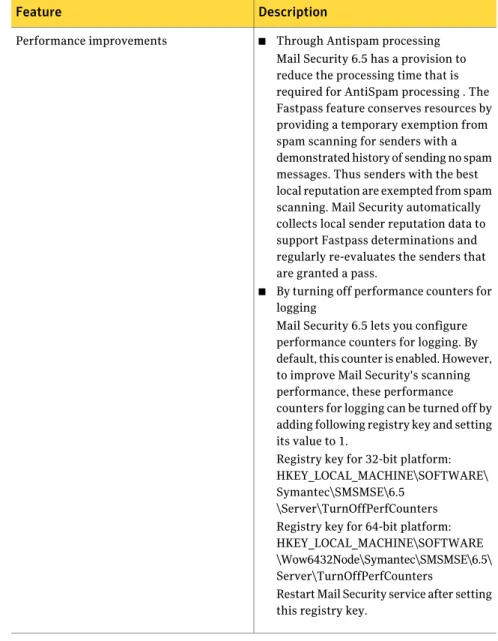
■ Through Antispam processing Mail Security 6.5 has a provision to reduce the processing time that is required for AntiSpam processing . The Fastpass feature conserves resources by providing a temporary exemption from spam scanning for senders with a demonstrated history of sending no spam messages. Thus senders with the best local reputation are exempted from spam scanning. Mail Security automatically collects local sender reputation data to support Fastpass determinations and regularly re-evaluates the senders that are granted a pass.
■ By turning off performance counters for logging
Mail Security 6.5 lets you configure performance counters for logging. By default, this counter is enabled. However, to improve Mail Security's scanning performance, these performance counters for logging can be turned off by adding following registry key and setting its value to 1.
Registry key for 32-bit platform: HKEY_LOCAL_MACHINE\SOFTWARE\ Symantec\SMSMSE\6.5
\Server\TurnOffPerfCounters Registry key for 64-bit platform: HKEY_LOCAL_MACHINE\SOFTWARE \Wow6432Node\Symantec\SMSMSE\6.5\ Server\TurnOffPerfCounters
Restart Mail Security service after setting this registry key.
Performance improvements
Note:Mail Security 6.5 does not support Windows 2000 and Exchange Server
Components of Mail Security
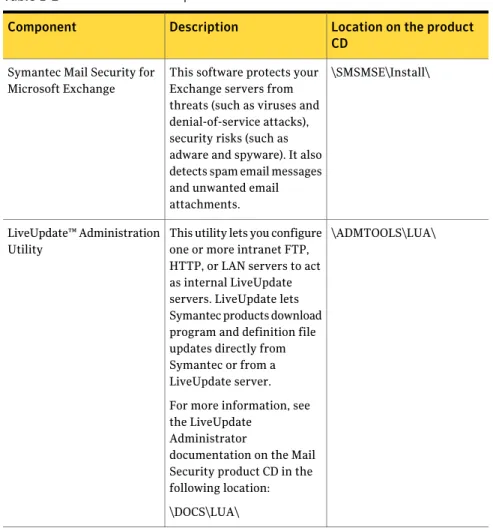
Table 1-2lists the components of Mail Security.
Table 1-2 Product components
Location on the product CD
Description Component
\SMSMSE\Install\ This software protects your
Exchange servers from threats (such as viruses and denial-of-service attacks), security risks (such as adware and spyware). It also detects spam email messages and unwanted email attachments. Symantec Mail Security for
Microsoft Exchange
\ADMTOOLS\LUA\ This utility lets you configure
one or more intranet FTP, HTTP, or LAN servers to act as internal LiveUpdate servers. LiveUpdate lets Symantec products download program and definition file updates directly from Symantec or from a LiveUpdate server. For more information, see the LiveUpdate
Administrator
documentation on the Mail Security product CD in the following location: \DOCS\LUA\ LiveUpdate™ Administration
Table 1-2 Product components (continued)
Location on the product CD
Description Component
\ADMTOOLS\DIS This utility lets Mail Security
forward infected messages and messages that contain certain types of violations from the local quarantine to the Central Quarantine, which acts as a central repository.
For more information, see the Symantec Central
Quarantine Administrator's Guide on the Mail Security
product CD in the following location:
\DOCS\DIS\CentQuar.pdf Symantec Central
Quarantine
\ADMTOOLS\Mgmt_Pack This component lets you
integrate Symantec Mail Security for Microsoft Exchange events with Microsoft Operations Manager 2005 (MOM). Pre-configured Computer Groups, Rule Groups, and Providers are automatically created when you import the management pack. These rules monitor specific Symantec Mail Security for Microsoft Exchange events in the Windows Event Log and the Windows Performance Monitor. For more information, see the Symantec Mail Security
for Microsoft Exchange Management Pack.
Mail Security for Microsoft Exchange Management Pack
How Mail Security works
Mail Security can scan messages and their attachments to detect the following:
■ Risks
Risks are comprised of threats and security risks
■ Threats
Threats include viruses, worms, and Trojan horses See“Configuring threat detection”on page 101.
■ Security risks
Security risks include adware, spyware, and malware See“Configuring security risk detection”on page 104.
■ Spam
See“About spam detection”on page 111.
■ Email attachment violations
■ Content filtering rule violations
See“About filtering content”on page 127.
Mail Security takes the actions that you specify in the respective policies when a violation is detected.
See“Manage your Exchange environment using policies”on page 20.
Mail Security contains a decomposer that extracts container files so that they can be scanned. The decomposer continues to extract container files until it reaches the base file or until it reaches its extraction limit. If the decomposer reaches the set limit before the base file is reached, the scanning process stops. Mail Security then logs the violation to the specified logging destinations, and the file is handled according to Unscannable File Rule.
See“Configuring rules to address unscannable and encrypted files”on page 108.
What you can do with Mail Security
Mail Security lets you do the following:
■ Manage your Exchange environment using policies
■ Scan your Exchange server for risks and violations
■ Protect against threats
■ Keep your protection up-to-date
■ Filter undesirable message content and attachments
■ Apply X-headers to messages for archiving
■ Manage outbreaks
■ Quarantine infected message bodies and attachments
■ Monitor Mail Security events
■ Generate reports
■ Send notifications when a threat or violation is detected
■ Manage single and multiple Exchange servers
Manage your Exchange environment using policies
Mail Security scans email messages and their attachments for violations to policies. A policy is a set of rules designed to detect potential risks to your Microsoft Exchange mail system.
Mail Security contains the following policies:
Contains rules controlling scanning limits, exceptions, and outbreak management
General
Contains rules for detecting threats in messages and attachments with viruses, virus-like characteristics, or security risks, such as adware or spyware
Antivirus
Contains rules for the following:
■ Detecting spam
■ Allowing specified senders to bypass antispam scanning
■ Specifying recipients whose email messages are not scanned for spam
Antispam
Contains rules for filtering inappropriate content in message bodies and attachments.
Also contains file filtering rules and match lists that let you detect and block messages by file name and file type. Content Enforcement
Scan your Exchange server for risks and violations
You can keep your server protected by performing any of the following types of scans:
When enabled, auto-protect scanning runs constantly and detects threats and violations in real-time. Auto-protect scanning applies to all policies, except antispam detection. Antispam scanning occurs continuously, in real-time as email traffic flows through your Exchange server. Auto-protect scans apply to everything on the Exchange server (that is, items in all public folders and mailboxes and messages that are routed by Microsoft Exchange).
See“Configuring auto-protect scanning”on page 178.
Auto-protect scans
Manual scans run on-demand and scan public folders and mailboxes. All policies apply to manual scans, except antispam. Antispam scanning occurs continuously , in real-time as email traffic flows through your Exchange server.
You can specify which file folders and mailboxes to scan during a manual scan. You can also specify the content filtering rules that you want to enable for the manual scan.
See“About manual scans”on page 182.
Manual scans
Scheduled scans run unattended, usually at off-peak periods. All policies apply to scheduled scans, except antispam. Antispam scanning occurs continuously, in real-time as email traffic flows through your Exchange server.
You can specify which file folders and mailboxes to scan during a scheduled scan. You can also specify the content filtering rules that you want to enable for the scheduled scan.
See“About scheduling a scan”on page 186.
Scheduled scans
Background scanning is a scan of the message store. You can perform background scanning during off-peak periods to enhance performance.
See“Configuring background scanning”on page 178.
Background scanning
When Mail Security detects a security risk or a violation during a scan, it takes the action that you specify for that policy. For example, when a threat is detected, Mail Security takes the action that you specify in the Antivirus Settings policy. See“About the types of scanning that you can perform”on page 171.
Protect against threats
Symantec engineers track reported outbreaks of threats (such as viruses, Trojan horses, and worms) to identify new risks. After a threat is identified, information about the threat (a signature) is stored in a definition file. This file contains information to detect and eliminate the threat. When Mail Security scans for
threats, it searches for these signatures. Definition files are downloaded using LiveUpdate or Rapid Release.
See“About keeping your server protected”on page 228.
Mail Security also uses Symantec Bloodhound heuristics technology to scan for threats for which no known definitions exist. Bloodhound heuristics technology scans for unusual behaviors, such as self-replication, to target potentially infected message bodies and attachments.
See“Configuring threat detection”on page 101.
Keep your protection up-to-date
Mail Security relies on up-to-date information to detect and eliminate risks. One of the most common reasons computers are vulnerable to attacks is that definition files are out-of-date. Symantec regularly supplies updated definition files. Using LiveUpdate, Mail Security connects to a Symantec server over the Internet and automatically determines if definitions need to be updated. If they do, the definition files are downloaded to the proper location and installed. If you need a quicker response for emerging threats, you can enable Rapid Release to get the most current definitions that are available.
If your organization has both front-end and back-end Exchange servers, you might want to consider using Rapid Release definitions on the front-end for the fastest response to new threats and certified Live Update definitions on the back-end mailbox servers.
See“About keeping your server protected”on page 228.
See“About using Mail Security with other antivirus products”on page 63.
You must have a valid license to update definitions. See“About licensing”on page 67.
Identify spam email
Spam is unsolicited bulk email, which most often advertises messages for a product or service. It wastes productivity, time, and network bandwidth.
Symantec Premium AntiSpam provides continuous updates to the premium antispam filters to ensure that your Exchange server has the most current spam detection filters that are available.
See“Configuring whitelists”on page 113.
You must have a valid Symantec Premium AntiSpam license to enable Symantec Premium AntiSpam.
See“About licensing”on page 67.
Filter undesirable message content and attachments
Mail Security lets you filter undesirable content using the following features:
Mail Security lets you create content filtering rules that apply to SMTP inbound and SMTP outbound mail and the Exchange
information store. Content filtering rules let you filter messages for attachment names, attachment content, specific words, phrases, subject lines, and senders. Mail Security takes the action that you specify in the rule when it detects a violation.
See“What you can do with content filtering
rules”on page 149.
Content filtering rules
Mail Security lets you use file filtering rules to filter email messages based on attached file names or file types, such as multimedia or executable files.
Mail Security uses file filtering rules to enforce email attachment policies. Mail Security provides the following pre-defined file filtering rules: File Name Rule, Multimedia File Rule, and Executable File Rule. These rules let you block attachments by file name and type. You can customize the File Name Rule by associating it with a match list to block attachments with specific names included in the match list.
Mail Security handles file filtering violations according to the action that you configure for the rule. Mail Security can notify administrator and senders (internal and external) of file filtering violations. You can customize the notification message.
See“How to enforce email attachment
policies”on page 153.
Mail Security uses match lists to filter email messages and attachments for specific words, terms, and phrases. In order to implement a match list, you must associate it with a content or file filtering rule. When the rule is applied to scan messages, it also scans for the terms in the match list. Mail Security provides pre-configured match lists for use with the File Name Rule or with content filtering rules. You can create new match lists and delete or edit words in an existing match list. Match lists support literal strings, DOS wildcard-style expressions, or regular expressions.
See“About regular expressions”on page 166.
See“About DOS wildcard style expressions”
on page 165.
See“Managing match lists”on page 162.
You can also use match lists to help manage outbreaks.
See“About outbreak management”
on page 195. Match lists
Apply X-headers to messages for archiving
Mail Security lets you apply X-headers to email messages that contain content filtering rule violations or are spam or suspected spam. The X-headers can be used by Symantec Enterprise Vault™ to search for and retrieve messages that are archived in the vault. Enterprise Vault is a data warehouse that provides secure, centralized archiving and retrieval of information.
Note:X-headers can only be applied to SMTP transported email messages. X-headers cannot be applied to messages that are scanned in the message store.
Mail Security provides default X-headers that are commonly used by Enterprise Vault. You can modify the default X-headers, or you can create your own. You can apply up to 25 X-headers for a single violation.
When a message triggers one or more violations and the disposition for any of the violations is to delete the message, no X-headers are applied. For example, a message is identified as spam, and the disposition is to reject the message. No X-header is applied to the message.
Table 1-3describes how Mail Security handles multiple content filtering violations based on where the violations occur within the message.
Table 1-3 How X-headers are applied for multiple violations
Examples Which X-headers are
applied Scenario
A single message violates a content filtering rule for message body and a separate content filtering rule for subject. Mail Security applies the X-headers that you specify for the message body rule and the X-headers that you specify for the subject rule.
In this example, the message can have up to 50 X-headers applied to it (up to 25 X-headers for the message body violation and up to 25 X-headers for the subject violation).
Mail Security applies X-headers for each rule that is violated for each message part.
Message parts include:
■ Message body
■ Subject
■ Sender
■ Attachment name
■ Attachment content Multiple violations in
different parts of a message
A message triggers violations for two different attachment content rules. Mail Security only applies the X-headers for first rule that was violated.
Note:X-headers are applied to the message even when the disposition is to delete the attachment but not the message body.
When a message triggers multiple violations for the same message part, Mail Security applies only the X-headers that you specify for the first rule that is triggered.
Multiple violations for the same message part
See“Processing spam messages”on page 118.
See“About creating a content filtering rule”on page 129.
Manage outbreaks
An outbreak occurs when the number of threats to the Microsoft Exchange system that are detected over a period of time exceeds a specified limit. Mail Security lets
you manage outbreaks quickly and effectively by setting outbreak rules and sending notifications when an outbreak is detected.
You can also select an action to take when an outbreak is detected, such as the following:
■ Delete the entire message
■ Delete the attachment or message body
■ Quarantine the attachment or message body
■ Log the event
■ Add Tag to the beginning of the subject line
You can set rules to define an outbreak based on event. For example, the same threat occurs a specified number of times within a specified time period. You can also configure Mail Security to send notifications and alerts in the case of an outbreak.
See“About outbreak management”on page 195.
Quarantine infected message bodies and attachments
Mail Security for Microsoft Exchange includes a local quarantine that can store infected message bodies and attachments that are detected during scans. You can configure Mail Security to quarantine threats and security risks, and file filtering violations in the local quarantine.
Quarantined items that contain threats can be forwarded to the Symantec Central Quarantine, if it is installed. The Symantec Central Quarantine program is available on the Mail Security product CD.
See“About the quarantine”on page 89.
Monitor Mail Security events
Mail Security logs events to the Windows Application Event Log. You can view events that are logged to the Windows Application Event Log from the console. See“Viewing the Mail Security Event log”on page 204.
Mail Security logs extensive report data on threats, security risks, violations, spam, and server information to the reports database. You can use this data to generate summary or detailed reports based on different subsets of the data. See“About logging events”on page 203.
See“Creating or modifying a Summary report template”on page 210. See“Creating or modifying a Detailed report template”on page 215.
Generate reports
Mail Security collects and saves scan data on your Exchange servers. You can create reports from the data, which gives you a history of risk detection activity and filtering violations. You can create a report for an individual server, or you can create a single Summary report that consolidates data for all of the servers in a server group.
See“Configuring the initial set up of the report consolidation feature”on page 219. Report templates let you define a subset of the raw report data that is collected by Mail Security for a single server. Report templates can include different categories or combinations of security-related statistics.
You can create different report templates to describe different subsets of the raw report data. After you create a report template, you use it to generate reports. Mail Security provides two pre-configured report templates that you can modify. You can also create your own report templates. When you create or modify a report template, Mail Security provides a wizard to guide you through the configuration process.
The types of report templates that you can create are as follows:
■ Summary
See“Creating or modifying a Summary report template”on page 210.
■ Detailed
See“Creating or modifying a Detailed report template”on page 215.
Send notifications when a threat or violation is detected
Mail Security provides several options for notifying administrators, internal senders, and email recipients of threats and violations.
Mail Security lets you define the conditions in which to send an alert. You can also customize the alert message text for each alert condition that you define. See“Configuring rules to address unscannable and encrypted files”on page 108. See“Configuring threat detection”on page 101.
See“Configuring notification settings for scan violations”on page 192.
Manage single and multiple Exchange servers
Mail Security can protect one or more Exchange servers. If your organization has multiple Exchange servers, you can manage all of the servers from the same console that you use to manage a single server. By switching between server view and group view, you can manage the configuration settings for individual servers,
a logical grouping of servers (such as all front-end servers), or all servers in a specific location.
See“About managing your Exchange servers”on page 73.
Where to get more information about Mail Security
Mail Security includes a comprehensive help system that contains conceptual, procedural, and context-sensitive information.
Press F1 to access information about the page on which you are working. If you want more information about features that are associated with the page, select a More Information link in the Help page, or use the Table of Contents, Index, or Search tabs in the Help viewer to locate a topic.
You can visit the Symantec Web site for more information about your product; the following online resources are available:
■ Provides access to the technical support Knowledge Base, newsgroups, contact information, downloads, and mailing list subscriptions
www.symantec.com/techsupp/ent/enterprise.html
■ Provides information about registration, frequently asked questions, how to respond to error messages, and how to contact Symantec License
Administration
www.symantec.com /licensing/els/help/en/help.html
■ Provides product news and updates
www.symantec.com/enterprise/index.jsp
■ Provides access to the Threat Explorer, which contains information about all known threats
Installing Symantec Mail
Security for Microsoft
Exchange
This chapter includes the following topics:
■ Before you install
■ System requirements
■ Installation options
■ Post-installation tasks
■ Uninstalling Mail Security
Before you install
Ensure that you meet all system requirements before you install Mail Security. Select the installation plan that best matches your organization's needs, and ensure that you have met the pre-installation requirements.
See“System requirements”on page 34. See“Installation options”on page 36. See“Uninstalling Mail Security”on page 65.
Install Mail Security on all of the following server roles in your organization:
■ Edge Transport servers, if available
■ Hub Transport servers
■ Mailbox servers
2
You must uninstall and reinstall the product if you change the server role on which Mail Security is installed.
Mail Security automatically installs custom transport agents when you install the product on Hub Transport or Edge Transport servers. The Mail Security transport agents consist of an antispam transport agent and an antivirus transport agent. By default, the Mail Security transport agents are installed with a lower priority than the Exchange transport agents. If you modify your transport agent priorities, ensure that the Mail Security transport agents remain a lower priority than the Exchange transport agents.
Do the following before you install the product:
■ If you are running Symantec Brightmail™ AntiSpam on the same server on which you want to install Mail Security, you must uninstall Symantec Brightmail AntiSpam before you install Mail Security. It is recommended that you not run Mail Security on the same server as Symantec Brightmail AntiSpam.
■ If you are using the email tools feature of Symantec AntiVirus™ Corporate Edition, you must uninstall the feature before you install Mail Security. The email tools feature of Symantec AntiVirus™ is not compatible with Mail Security or Microsoft Exchange.
■ If you are running any antivirus software that is on the server on which you want to install Mail Security, you must disable it before you install Mail Security.
After installation but before you re-enable the antivirus protection, configure your other antivirus programs to exclude certain folders from scanning. See“About using Mail Security with other antivirus products”on page 63.
■ Log on as a Windows domain administrator to install Mail Security components correctly.
See“Software component locations”on page 31.
■ Modify your screen resolution to a minimum of 1024 x 768. Mail Security does not support a resolution less than 1024 x 768.
■ Configure the default receive connector for the Exchange Hub Transport server to permit connections from anonymous users.
Before you install Mail Security on Exchange 2010 mailbox role, you must specify a domain user account. The domain user account must fulfill the following criteria.
■ Mail Security uses the domain user account as a service account and this account must have a mailbox.
■ The user must be a member of Organization Management group under the Microsoft Exchange Security Groups Organizational Unit.
■ By default, Organization Management group is a member of the local
Administrators group on all the exchange servers in the organization. If not,
then add the user to the local Administrators group.
■ You may use different user account for installations of Mail Security on other Exchange 2010 mailbox servers within that domain for better performance.
■ When the user updates the password, the same password must be provided to the Mail Security Service on all Exchange 2010 mailbox role servers.
Note:While installing Mail Security on local Exchange 2010 Mailbox server, in the Logon Information screen, specify the domain user credentials in the User
name and Passwordfields. Mail Security provides this user account Application Impersonation and Logon as service rights.
Ensure that the following IIS Role Service components are installed when you install Mail Security on Windows Server 2008 for Exchange 2010 and 2007 servers. This installation is applicable for both remote installation and local installation.
■ Application Development - ASP.NET
■ Security - Windows Authentication
■ Management Tools - IIS management console , IIS 6 Scripting Tools
Software component locations
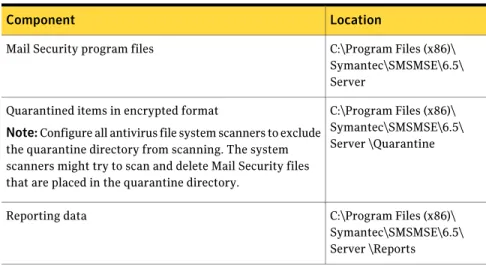
Table 2-1lists the default locations in which Mail Security installs software components.
Table 2-1 Software component locations
Location Component
C:\Program Files (x86)\ Symantec\SMSMSE\6.5\ Server
Mail Security program files
C:\Program Files (x86)\ Symantec\SMSMSE\6.5\ Server \Quarantine Quarantined items in encrypted format
Note:Configure all antivirus file system scanners to exclude the quarantine directory from scanning. The system scanners might try to scan and delete Mail Security files that are placed in the quarantine directory.
C:\Program Files (x86)\ Symantec\SMSMSE\6.5\ Server \Reports Reporting data
Table 2-1 Software component locations (continued)
Location Component
C:\Program Files (x86)\ Symantec\SMSMSE\6.5\ Server \Reports\<report name>
Data files for reports that are generated
C:\Program Files (x86)\ Symantec\SMSMSE\6.5\ Server \Reports\Templates Report templates
C:\Program Files (x86)\ Symantec\SMSMSE\6.5\ Server \MatchLists Match list files
C:\Program Files (x86)\ Symantec\SMSMSE\6.5\ Server \SpamPrevention Allowed senders files and Symantec Premium AntiSpam
configuration files
C:\Program Files (x86)\ Symantec\SMSMSE\6.5\ Server \Temp
Location where Mail Security scans items
Note:Configure all antivirus products that scan files to exclude the Temp directory from scanning. The system scanners might try to scan and delete Mail Security files that are placed in the Temp directory during the scanning process.
C:\Program Files (x86)\ Symantec\SMSMSE\6.5\ Server \bin
Dynamic-link libraries for Symantec Premium AntiSpam
C:\Program Files (x86)\ Symantec\SMSMSE\6.5\ Server \Config
Manual and scheduled scan mailbox configuration data
C:\Program Files (x86)\Symantec\ SMSMSE\6.5\Server \etc Configuration files for allowed and blocked senders for
Symantec Premium AntiSpam
C:\Program Files (x86)\ Symantec\SMSMSE\6.5\ Server \logs
Component logs for Symantec Premium AntiSpam
C:\Program Files (x86)\ Symantec\SMSMSE\6.5\ Server \stats
Statistical information on the effectiveness of Symantec Premium AntiSpam rules
Table 2-1 Software component locations (continued)
Location Component
C:\Program Files (x86)\ Symantec\CMaF\2.1 Console files
C:\Program Files (x86)\ Symantec\LiveUpdate Component to update virus definitions
Windows Server 2003 (x64) - C:\Program Files (x86)\Common Files\Symantec
Shared\SymcData\virusdefs32 Definitions
C:\ProgramData\Symantec Shared\Licenses
This license file location only applies to Windows Server 2008.
C:\Program Files (x86)\ Common Files\Symantec Shared\Licenses License files
C:\Program Files (x86)\ Symantec\
SMSMSE\6.5\Server\ Verity\bin
Verity content extraction component
C:\Program Files
(x86)\Symantec\CMaF\2.1\ bin
Mail Security Web service components
C:\Program Files (x86)\Symantec\
SMSMSE\6.5\Server \Policies Content filtering rules
C:\Program Files (x86)\Symantec\ SMSMSE\6.5\Server \ScanJobs
Scan job configuration
About security and access permissions
Mail Security automatically creates the following user groups and assigns them access when you install the product:
Permits read and write access to all Mail Security components and features. Users in this group can change settings for Mail Security through the console. The user who installs Mail Security is automatically added to the SMSMSE Admins group.
SMSMSE Admins
Permits read-only access to Mail Security components and features.
Users in this group cannot change settings for Mail Security. Users can view reports, event logs, and settings through console-only installations.
See“Installing the Mail Security console”
on page 41. SMSMSE Viewers
The user groups are domain-wide for Active Directory. You can use the Active Directory Users and Computers Microsoft Management Console (MMC) snap-in to change membership in the groups.
Users must be designated in one of the SMSMSE user groups to access the product. For example, administrators who are not in one of the SMSMSE user groups are not granted access to Mail Security. Adding a user to the SMSMSE Admins group does not automatically grant the user Windows Local Administrator, Windows Domain Administrator, or Exchange administrator rights.
Security is also set for the Mail Security registry key and file folders during the security set-up process. You must have administrator access to the local servers and domain administrator rights for the security set-up to proceed.
System requirements
Ensure that you meet the appropriate system requirements for the type of installation that you are performing.
See“Installation options”on page 36.
Server system requirements
You must have domain administrator-level privileges to install Mail Security. The server system requirements are as follows:
The operating system requirements for Microsoft Exchange 2010 are as follows:
■ Windows Server 2008 with SP2 (64-bit) Standard or Enterprise Edition
■ Windows Server 2008 R2 (64-bit) Standard or Enterprise Edition The operating system requirements for Microsoft Exchange 2007 are as follows:
■ Windows Server 2008 with SP1or later (64-bit) Standard or Enterprise Edition
■ Windows Server 2003 with SP2 (64-bit) Standard or Enterprise Edition
■ Windows Server 2003 R2 (64-bit) Standard or Enterprise Edition Operating
system
■ Exchange Server 2007 SP1/SP2
■ Exchange Server 2010 Exchange
platform
■ x64 architecture-based processor that supports Intel Extended Memory 64 Technology (Intel EM64T)
x64 architecture-based computer with AMD 64-bit processor that supports AMD64 platform
■ Only for Exchange 2007 Mailbox server role, Exchange Server MAPI client and Collaboration Data Objects 1.2.1
■ 1 GB of memory for Mail Security besides the minimum requirements for the operating system and Exchange. Approximately 4GB or more of memory is required.
■ 500-MB disk space is required for Mail Security. This space does not include disk space required for items such as quarantined messages and attachments, reports, and log data.
■ .NET Framework version 2.0
■ MDAC 2.8 or higher
■ DirectX 9 or higher
■ Microsoft Internet Information Services (IIS) Manager
■ Only for Exchange Server 2010, Microsoft .NET Framework 3.5 and Microsoft Windows Powershell 2.0
Minimum system requirements
Ensure that the components.NET Framework, MDAC, and DirectX are installed before you install Mail Security.
Adobe Acrobat Reader is not a requirement to install and run Mail Security. However, it is required to view the reports that are generated in .pdf format. You can download Adobe Acrobat Reader fromwww.adobe.com.
See“Installing Mail Security on a local server”on page 37.
See“Silently installing Mail Security using an automated installation tool”
See“About installing Mail Security on remote servers”on page 43. See“About installing Mail Security in a Microsoft Cluster”on page 48.
Console system requirements
You can install the Mail Security console on a computer on which Mail Security is not installed. The console system requirements are as follows:
■ Windows Server 2003/R2/SP2
■ Windows XP
■ Windows Vista
■ Windows Server 2008/R2/SP2 Standard and Enterprise Edition
■ Windows 7 Operating system
■ 512 MB RAM
■ 162 MB available disk space
This does not include the space required for items such as quarantined messages and attachments, reports, and log data.
■ .NET Framework version 2.0
■ Microsoft Internet Information Services (IIS) Manager Ensure that .NET Framework is installed before you install Mail Security.
Minimum system requirements
Adobe Acrobat Reader is not a requirement to install and run the Mail Security Console. However, it is required to view the reports that are generated in .pdf format. You can download Adobe Acrobat Reader fromwww.adobe.com.
See“Installing the Mail Security console”on page 41.
Installation options
Use any of the following installation procedures, depending on the type of installation that you want to perform:
You can install or upgrade Mail Security on a local computer that is running the Microsoft Exchange server.
See“Installing Mail Security on a local server”on page 37.
Local server
You can install Mail Security on remote servers through the product console.
See“About installing Mail Security on remote servers”on page 43.
You can install the product console on a computer that is not running Mail Security. This lets you manage your servers from any computer that has access to your Exchange servers.
See“Installing the Mail Security console”on page 41.
Console
You can install Mail Security using automated installation tools.
See“Silently installing Mail Security using an automated
installation tool”on page 47. Silent/automated
installation
You can install Mail Security in a Microsoft Cluster environment.
See“About installing Mail Security in a Microsoft Cluster”
on page 48. Microsoft cluster
server
You can install Mail Security in a Veritas cluster environment.
See“About installing Mail Security on a Veritas Cluster Server”
on page 53. Veritas cluster server
Installing Mail Security on a local server
Ensure that you have met the system requirements before you begin the installation process.
See“System requirements”on page 34.
Note:Symantec automatically installs MSXML 6.0 during installation if the installer does not detect this component.
You must be logged on as a member of the administrator group on the local computer and have domain administrator privileges on the computer on which you want to install Mail Security.
Computers must support 8dot3 formatted filenames for all NTFS file systems. To install Mail Security on a local server, do the following:
You can use the installation wizard to guide you though the installation process of selecting the product installation folder location and the type of installation that you want to perform. You can choose to retain your existing settings or use the new default settings if you are upgrading from a prior version of Mail Security.
When Mail Security detects a prior version of the product, it automatically uninstalls the prior version and then installs the new version.
Begin the installation process
You can specify if you want to automatically restart the Exchange Transport Service after installation, specify the Web service set-up values, designate an email notification address and SMTP server address, and review your setup configurations.
Configure additional setup options and confirm settings
You can install your licenses during installation.
See“About licensing”on page 67.
If you install a valid license, Mail Security lets you perform a LiveUpdate to obtain the most current definitions.
See“About keeping your server protected”on page 228.
Install your licenses
To begin the installation process
1
Insert the Mail Security product CD in the CD-ROM drive.The installation program launches automatically. If it does not, run cdstart.exe from the product CD.
2
Click Install Symantec Mail Security for Microsoft Exchange.3
In the InstallShield welcome panel, click Next.4
Click Next until you reach the License Agreement panel.5
In the License Agreement panel, click I accept the terms in the licenseagreement, and then click Next.
You must accept the terms of the license agreement for the installation to continue.
6
In the Existing Settings panel, select one of the following:Retains the existing settings that are supported for migration to the new version.
This is the default setting. Retain existing settings
Installs the product with the default settings, as if you were installing Mail Security for the first time.
Install with default settings
This panel only appears if you are upgrading from a prior version of Mail Security.
7
In the Destination Folder panel, do one of the following:■ To install the product in the default location, click Next. The default directory is as follows:
C:\Program Files (x86)\Symantec\
■ To install the product in a different location, click Change, select the location of the installation folder, click OK, and then click Next. Mail Security does not support directory names that contain multi-byte characters. If you intend to use the Symantec Premium AntiSpam, you cannot install the product to a directory whose name contains high ASCII characters.
8
In the Setup Type panel, click Complete, and then click Next.9
In the Symantec AntiVirus Corporate Edition Users warning dialog box, clickOK.
To configure additional setup options
1
In the Exchange Transport Service Reset Options panel, click Next to accept the default setting to automatically restart the Exchange Transport Service after installation.If you choose not to automatically restart the Exchange Transport Service after installation, you must do so manually. Otherwise, Mail Security will not function properly.
2
In the Web Service Setup panel, do one of the following:■ Click Next to accept the default values.
By default, the computer name resolves to the primary external network identification card (NIC). You can also use an IP address. The IP address validates the availability of the port.
IP/Name
By default, port 8081 is the port number for the Web service that is used by Mail Security. A different default port number appears if port 8081 is being used by another application.
Use a port number that is not used by another application if you change the port number. You should not use port 80. Port 80 is the port number that is used by the default Web service, which is hosted by IIS.
Port #
3
In the Notification Email Address panel, do one of the following to specify the email address from which email notifications are sent and to which notifications to the administrator are sent:■ Click Next to accept the default value. The default value is: Administrator
■ Modify the originator email address, and then click Next.
The Edge Transport server does not have access to Active Directory, so abbreviated email addresses cannot be resolved. If you are installing Mail Security on the Edge Transport server role, type a fully qualified email address (for example, [email protected]).
You can modify the address after installation is complete.
See“Configuring notification settings for scan violations”on page 192.
4
In the SMTP Server Host panel, specify the SMTP server address for sending email messages.If you are installing Mail Security on a Mailbox server only, you must specify a SMTP Transport server address. The Hub Transport server and Edge Transport server contain an SMTP transport that can receive email. The default server address is as follows: localhost.
5
In the Setup Summary panel, review the information, and then click Next. If you need to make any modifications, click Back to return to the appropriate panel.6
In the Ready to Install the Program panel, click Install. To install a license and update definitionsDo the following:
■ Click Browse, locate the license file, and then click Open.
■ Click Install, and in the confirmation dialog box, click OK.
■ Click Next. To install a license file
Click Skip, and then click Next.
See“About licensing”on page 67.
To install a license file later through the console
2
In the LiveUpdate panel, do one of the following:Click Yes, and then click Next.
In the LiveUpdate Options window, click Start. When LiveUpdate is complete, click Close. To perform a LiveUpdate
Click No, and then click Next.
See“About keeping your server protected”on page 228.
To perform a LiveUpdate at a later time
This panel only appears if you installed a valid license.
3
Click Finish.The option “Show the readme file” is checked by default. The Readme file contains information that is not available in the product documentation. A Mail Security icon is placed on the computer desktop when installation is complete.
4
In the User Credential Refresh Required panel, click OK.5
Log off and log on again.See“Post-installation tasks ”on page 57.
Installing the Mail Security console
The Mail Security console is a Windows application. The console lets you manage local and remote installations of Mail Security from a single computer. You can install and use the console on a computer on which Mail Security is not installed. This lets you manage Mail Security from a convenient location.
Ensure that you meet the system requirements before you install the console. See“Console system requirements”on page 36.
A Mail Security icon is placed on the computer desktop when installation is complete.
To install the Mail Security console
1
Insert the Mail Security product CD in the CD-ROM drive.The installation program launches automatically. If it does not, run cdstart.exe from the Mail Security product CD.
2
Click Install Multiserver Console.If the installation program detects that you have Windows XP or that there is no version of the Exchange server installed, the installation program defaults to console only installation options.
3
Click Next until you reach the License Agreement panel.4
In the License Agreement panel, check I accept the Terms in the licenseagreement, and then click Next.
5
In the Destination Folder panel, do one of the following:■ To install the product in the default location, click Next. The default destination directory is as follows:
C:\Program Files (x86)\Symantec\
■ To install the product in a different location, click Change, select the location of the installation folder, click OK, and then click Next. Mail Security does not support directory names that contain multi-byte characters. If you intend to use the Symantec Premium AntiSpam service, you cannot install the product to a directory whose name contains high ASCII characters.
6
Click Next until you reach the Notification Email Address panel.7
In the Notification Email Address panel, do one of the following to specify the email address from which email notifications are sent and to which notifications to the administrator are sent:■ Click Next to accept the default value. The default value is: Administrator
■ Modify the originator email address, and then click Next.
The Edge Transport server does not have access to Active Directory, so abbreviated email addresses cannot be resolved. If you are installing Mail Security on the Edge Transport server role, type a fully qualified email address (for example, [email protected]).
See“Configuring notification settings for scan violations”on page 192.
8
In the Setup Summary panel, review the information, and then click Next. If you need to make any modifications, click Back to return to the appropriate panel.9
Click Finish.The option “Show the readme file” is checked by default. The Readme file contains information that is not available in the product documentation.
10
In the User Credential Refresh Required panel, click OK.11
Log off and log on again.See“Post-installation tasks ”on page 57.
About installing Mail Security on remote servers
After you install Mail Security on a local server or install the console, you can install the Mail Security server component on remote servers.
Review the pre-installation information and system requirements before you install the product on remote servers.
See“Before you install”on page 29. See“System requirements”on page 34.
To install Mail Security on remote servers, do the following:
■ Customize installation settings, if needed.
Remote servers are installed with default installation settings. If you want to customize the installation settings and apply them to a remote server, you can add the custom features to the vpremote.dat file.
See“Customizing remote server installation settings”on page 43.
■ Install Mail Security on remote servers.
See“Installing Mail Security on a remote server”on page 46.
Note:Installing Mail Security remotely on cluster servers is not recommended for Exchange 2007 cluster, but is supported on Exchange 2010 DAG setup.
Customizing remote server installation settings
There may be cases in which you want to customize the installation of Mail Security on a remote Exchange server. For example, you might want to change the following settings:
■ Installation location
■ Default email address for notifications
■ Stop/start of IIS
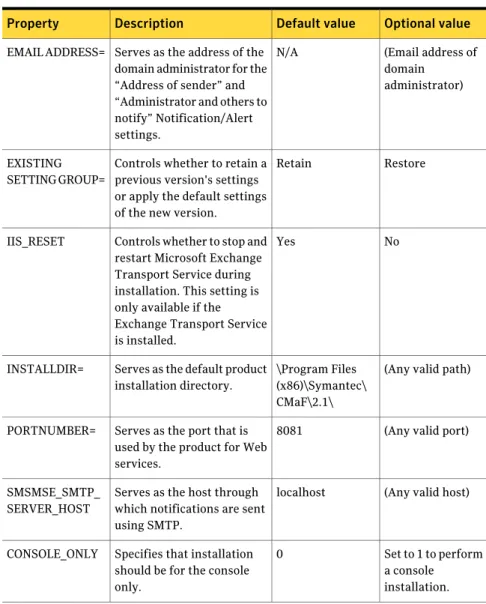
Table 2-2lists the remote customization options that you can modify.
Table 2-2 Remote customization options
Optional value Default value
Description Property
(Email address of domain
administrator) N/A
Serves as the address of the domain administrator for the “Address of sender” and “Administrator and others to notify” Notification/Alert settings.
EMAIL ADDRESS=
Restore Retain
Controls whether to retain a previous version's settings or apply the default settings of the new version. EXISTING
SETTING GROUP=
No Yes
Controls whether to stop and restart Microsoft Exchange Transport Service during installation. This setting is only available if the Exchange Transport Service is installed.
IIS_RESET
(Any valid path) \Program Files
(x86)\Symantec\ CMaF\2.1\ Serves as the default product
installation directory. INSTALLDIR=
(Any valid port) 8081
Serves as the port that is used by the product for Web services.
PORTNUMBER=
(Any valid host) localhost
Serves as the host through which notifications are sent using SMTP.
SMSMSE_SMTP_ SERVER_HOST
Set to 1 to perform a console installation. 0
Specifies that installation should be for the console only.
Table 2-2 Remote customization options (continued)
Optional value Default value
Description Property
Set to 1 to perform a silent
installation.
Note:Do not set to 1 to perform silent installation on Exchange 2010 mailbox server role.
0 Controls whether the console appears during installation. REMOTEINSTALL
Set to voums to perform a silent installation. N/A
Controls the mechanism for re-install.
REINSTALLMODE
Set to 1 to perform a silent
installation. ALL
Controls what features to install during re-install. REINSTALL
Warning:The following entry should not be changed: {setup.exe /s /v" NOT_FROM_ARP=1 REMOTEINSTALL=ALL REINSTALLMODE=voums REINSTALL=ALL”}.
You can append the entry. For example,setup.exe /s /v" NOT_FROM_ARP=1 REMOTEINSTALL=1 REINSTALLMODE=voums REINSTALL=ALL PORTNUMBER=1010”
To customize remote server installation settings
1
Locate the folder that contains the Mail Security console files. The default location is as follows:\Program Files (x86)\Symantec\CMaF\2.1\bin\Products\SMSMSE\6.5\Remote Install Files\vpremote.dat
2
Using WordPad or a similar tool, open the following file: vpremote.dat3
Insert one or more properties by doing the following:■ Type a space after the previous or existing entry inside the quotation marks.
■ Type the new property.
The property portion of each entry is case sensitive.