Every Door Direct Mail
®
Simplified Mailing Process //
User Guide
3
V.
Copyright © 2013 U.S. Postal Service®
2
Overview
What is Every Door Direct Mail® service?
3
What are My Mailing Options
4
Registration
New User Registration
5
Every Door Direct Mail for Retail®
5
Every Door Direct Mail for BMEU®
6
Using EDDM Tool
Step 1
Search
Location
8
Step 2
Deliveries
10
Table
View
//
Retail
10
Table
View
//
BMEU
15
Step 3
Select Drop Off Date
20
Step 4
Confirmation
21
Confirmation
//
Retail
21
Confirmation
//
BMEU
23
Step 5
Order Confirmation / Print
25
Confirmation & Print // Retail
25
Confirmation & Print // BMEU
27
Step 6
Saved Orders
29
Step 7
Order History
30
With Every Door Direct Mail® (EDDM®) service from the U.S. Postal Service®, you can reach the customers who matter most to your business – in nearby neighborhoods – and you don’t even need to know names or street addresses. Simply identify the neighborhoods you want to target and your printed pieces are delivered to the active addresses in your target area.
OVERVIEW
What is Every Door Direct Mail
®?
You can use Every Door Direct Mail to:
• Target a location without an address list. • Send out local mailings or national campaigns. • Build more traffic.• Find new customers. • Increase revenue.
Copyright © 2013 U.S. Postal Service®
4
Whether you’re a large or small business, Every Door Direct Mail® service can help get your marketing messages
into the hands of consumers.
What Are My Mailing Options?
• You must login to the tool to complete or save your order. New EDDM Retail® accounts can be created within https://reg.usps.com/register
• Appropriate documentation will be provided online to take with your mailing to the Post Office. • Mail pieces are limited to Standard Mail® flats only.
• Each mailpiece must be at least .007” thick (approx. 3 sheets of copy paper) and cannot exceed 3.3 oz. For more information, please reference the EDDM Quick Reference Guide: https://www.usps. com/business/pdf/quick-reference-guide.pdf
• Each mailpiece must display the Every Door Direct Mail - Retail indicia.
• For more information, please visit USPS® Every Door Direct Mail https://www.usps.com/business/ every-door-direct-mail.htm
• You must have or must obtain an active USPS Standard Mail® permit number.
• You may register or log in via https://reg.usps.com/register to access the online tool, or obtain updated delivery statistics via one of the appropriate NCSC products.
• You must bring appropriate documentation with your mailing to the BMEU where the permit is held. • Pieces may weigh up to 16 ounces, and postage prices may vary based on piece weight and entry
point. For more information, please reference the EDDM Quick Reference Guide: https://www.usps. com/business/pdf/quick-reference-guide.pdf
• For more information, please visit USPS Every Door Direct Mail https://www.usps.com/business/ every-door-direct-mail.htm
2. The other option is Every Door Direct Mail for BMEU (Business Mail Entry Unit).
Requirements are:
1. With Every Door Direct Mail - Retail
®your mailings are taken to the local Post Office™
for processing if they meet all of the following criteria:
Registration
New User Registration
Go to https://eddm.usps.com/eddm/customer/routeSearch.action
Select Register/Sign in Now within the Global Header.
You will be taken to the Create Your USPS.com Business AccountPage.
Note: existing customers, enter your username and password.
Enter the required information.
Select Create Account
And you’re registered. It’s that simple.
1
2
3
4
After your new USPS.com account has been created,
you will automatically be redirected to the online mapping tool so you can create your mailing.
Copyright © 2013 U.S. Postal Service®
6
Business Service: Every Door Direct Mail for BMEU®
For existing BMEU customers, return to Business Customer Gateway.
https://gateway.usps.com/bcg/login.htm
Select the Get Access link next to the EDDM® Listing
under the Mailing Services section.
6
Select Go To Service to go to EDDM® Tool
Copyright © 2013 U.S. Postal Service®
8
Using the EDDM® Tool
As you enter the Every Door Direct Mail tool, 7 easy steps help you select or enter desired mailing geographic information, review and edit geographic results, and print mailing documentation.
STEP 1 / Search Location STEP 2 / Select Deliveries STEP 3 / Select Drop-off Date STEP 4 / Confirmation
STEP 5 / Order Confirmation/Print STEP 6 / Saved Orders
STEP 7 / Order History
The following information is provided to assist you from the Retail and BMEU perspective.
Step 1
Search Location
To sign in to the EDDM Tool,
select the “Sign In Now” text that appears directly above the Search Location text field. A pop-up window will prompt you to sign into your USPS.com account. If you do not have an account, you can create a new one by selecting the “Sign Up Now” button on the right side of the window.
Results are displayed in Table View.
Step 2 – Selection results, Table View covered on page 12.
Begin your search to determine your mailing audience.
You can search by street address, city and state, or ZIP Code™ by entering in your search criteria into the text field within the Search Location box and selecting the Search button.
Note: If searching by City and State, you may be presented with the option to select up to 5 ZIP Codes to target for delivery. This is accomplished by select-ing the checkboxes that appear to the left of each ZIP Code.
It is also possible your search will result in more than one address result. If this is the case, you will need to select the appropri-ate address by selecting the checkbox to the left of that particular result.
3
2
Copyright © 2013 U.S. Postal Service®
10
Step 2
Select Deliveries
Table View
//
RETAIL
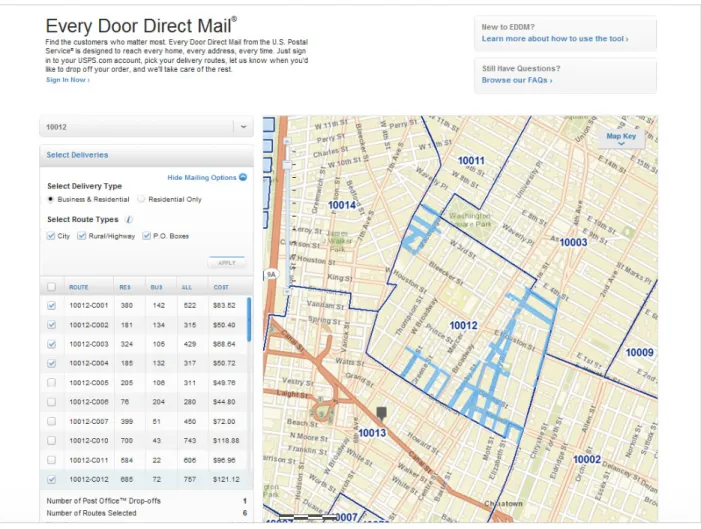
Selection results are available in a table for all search options.
In the Table view, results are displayed by indicating the total routes and the total possible deliveries based on the selection made in STEP 1, in addition to the approximate cost to mail.
The Table view displays selection results and an approximate mailing cost
for flats only to be dropped at a local Post Office™ retail unit. The Table view columns include: ROUTE / Identifies the particular route by ZIP Code and carrier route ID.
RES / Indicates the number of residential delivery points in a given route. BUS / Indicates the number of business delivery points in a given route. ALL / Indicates the total number of delivery points in a given route. COST / Indicates total cost for mailings included within that route.
Note: It is not possible to select a partial route.
All columns are sortable in ascending and descending order.
This can be accomplished by selecting the column text, which will first sort the column by descending order. Ascending order can be accomplished by selecting the column text again.
2
Within the Table view,
the Mailing Options text will bring up an action box that will allow you to apply additional filters to your search results. These filters include:
5
Select Delivery Types:
Business & Residential / Results will include business and residential delivery points.
Residential only / Results will only include residential delivery points.
A
Within the Map view, hovering over a route will show the route details
including the local Post Office which is the drop-off location for that route. Selecting on this route will add that route to your selected list of routes in the Table view.
4
3
Copyright © 2013 U.S. Postal Service®
12
Select Route Types:
City / Results will include delivery points where mail is delivered by a USPS® employee.
Rural/Highway / Results will include delivery points where mail is delivered by a USPS or contract employee.
PO Box™ / Results will include delivery points where mail is delivered to USPS Post Office™ Boxes. Includes personal and business boxes.
B
To select a filter, select the checkbox that appears to the left of the text. Selecting the Apply button will update the Table view results with your selections.
When searching by a full address, it will also be possible to revise search results based on location ra-dius. To accomplish this, you can use the location slider to revise search location by .25 mile increments. Selecting the Apply button will update the Table view results with your selections.
Within the Table view, you have the ability to select routes
by selecting the checkbox that appears to the left of each route name.
Note: The possibility exists that your route selections will require you to drop off mail pieces at more than one drop-off location. If this is the case, you will be prompted by an alert message that your selections require additional drop off locations. It is possible to continue forward with your order or remove that route from your selections.
• Your searched location will be indicated by a circular icon on the map.
• Hovering over a route within the table will apply a purple color to the route within the map.
• Selecting a “Business only” route within the table will apply a green color to the route within the map. • Selecting a standard route within the table will apply a blue color to the route within the map. • Selecting a PO Box™ route within the table will add a blue icon to the map.
There is also a key within the upper right corner of the map indicating each visual indicator.
When selections do not meet
Retail qualifications
(greater than 200 and 5,000 or fewer deliveries per ZIP Code™ per day), a message
appears indicating such. If your selections total more than 5,000 delivery points, you will be prompted to reduce that number.
When using the Table, the EDDM® map will change
to indicate your selections. Within the map, your route selections will be updated visually in the following ways:
8
7
Copyright © 2013 U.S. Postal Service®
14
Delivery totals and approximate cost are displayed below the table.
When logged in, selecting the Continue button will bring you to the STEP 3 – Select drop-off date. If you are not logged in, a message will prompt you to log in before proceeding to the next step.
9
At this stage, you also have the ability to save the progress of your order.
This can be accomplished by selecting the Save for Later text to the left of the Continue button.
10
Selecting this link will bring up a window
that will also allow you to add a nickname to your order. This step is optional.
11
Once your order has been saved,
you may review your saved order using the navigation links located in the top right corner of the page.
Table View
//
BMEU
The Table view displays selection results and an approximate mailing cost
for flats only to be dropped at a local Post Office™ retail unit. The Table view columns include: ROUTE / Identifies the particular route by ZIP Code™ and carrier route ID.
RES /Indicates the number of residential delivery points in a given route. BUS /Indicates the number of business delivery points in a given route. ALL / Indicates the total number of delivery points in a given route. COST / Indicates total cost for mailings included within that route.
Selection results are available in a table for all search options.
In the Table view, results are displayed by indicating the total routes and the total possible deliveries based on the selection made in STEP 1, in addition to the approximate cost to mail.
2
1
Copyright © 2013 U.S. Postal Service®
16
All columns are sortable in ascending and descending order.
This can be accomplished by selecting the column text, which will first sort the column by descending order. Ascending order can be accomplished by selecting the column text again.
Within the Map view, hovering over a route will show the route details
including the local Post Office™ which is the drop-off location for that route. Selecting on this route will add that route to your selected list of routes in the Table view.
2
3
Within the Table view,
the BMEU Mailing Options text will bring up an action box that will allow you to apply additional filters to your search results. These filters include:
Select Delivery Types:
Business & Residential / Results will include business and residential delivery points.
Residential only / Results will only include residential delivery points.
4
A
Select Route Types:
City / Results will include delivery points where mail is delivered by a USPS® employee.
Rural/Highway / Results will include delivery points where mail is delivered by a USPS or contract employee.
PO Box™ / Results will include delivery points where mail is delivered to USPS Post Office Box™, including personal and business boxes.Includes personal and business boxes.
Within the Table view you have the ability to select routes
by selecting the checkbox that appears to the left of each route name.
Note: The possibility exists that your route selections will require you to drop off mail pieces at more than one drop off location. If this is the case, you will be prompted by an alert message that your selections require additional drop off locations. It is possible to continue forward with your order or remove that route from your selections.
5
Drop-off Location:
Non-Discounted
Regional Plant / Destination Network Distribution Center (DNDC)
Local Plant / Destination Sectional Center Facility (DSCS)
Local PO / Destination Delivery Unit (DDU)
C
To select a filter, select the checkbox that appears to the left of the text. Selecting the Apply button will update that Table view results with your selections.
When searching by a full address, it will also be possible to revise search results based on location radius. To accomplish this, you can use the location slider to revise search location by .25-mile increments. Select-ing the Apply button will update that Table view results with your selections.
Copyright © 2013 U.S. Postal Service®
18
Delivery totals and approximate cost are displayed below the table.
Selecting the Continue button will bring you to STEP 3 – Select drop-off date.
7
At this stage, you also have the ability to save the progress of your order.
This can be accomplished by selecting the Save for Later text to the left of the Continue button.
8
Selecting this link will bring up a window
that will also allow you to add a nickname to your order. This step is optional.
9
Once your order has been saved, you may review your saved order
using the navigation links located in the top right corner of the page.
10
• Your searched location will be indicated by a circular icon on the map.
• Hovering over a route within the table will apply a purple color to the route within the map. • Selecting a standard route within the table will apply a blue color to the route within the map. • Selecting a PO Box route within the table will add a blue icon to the map.
There is also a key within the upper right corner of the map indicating each visual indicator.
When using the Table, the EDDM® map will change to indicate your
selec-tions.
If your selected routes total 5,000 or fewer delivery points then a window
will open to offer you the option to checkout using the EDDM Retail® checkout. Your mailing must com-ply with the requirements specific to EDDM Retail procedures.
Copyright © 2013 U.S. Postal Service®
20
Step 3
Select Drop-Off Date
Selecting the “Continue”
option will bring you to STEP 4 – Confirmation.
You may select a drop-off date for your EDDM® mailings
using the calendar.
NOTE: Dates may be selected up to 30 days in advance.
2
1
Step 4
Confirmation
Within the Confirmation step,
you will be required to agree to the terms & conditions for EDDM. This can be accomplished by selecting the terms & conditions box, which will bring up a new window containing this information, and selecting the checkmark to indicate agreement.
1
The confirmation step will include a summary of all information pertaining to your EDDM® order, including: • Total deliveries.
• Total order cost.
• Drop-off location, hours, address, and contact information. • Scheduled drop-off date.
Copyright © 2013 U.S. Postal Service®
22
Once you have agreed to the terms & conditions,
you will be presented with the option to Pay at Your Local Post Office, Pay Online, or Save for Later.
2
Selecting the Pay Online button
will take you into the online payment portal where you can complete your order.
Selecting the Pay at Post Office button
will take you to STEP 5 – Order Confirmation/Print
4
3
Selecting the Save for Later text
will bring up a window that will also allow you to add a nickname to your order. This step is optional. Once your order has been saved, you may review your saved order using the navigation links located in the top right corner of the page.
Confirmation
//
BMEU
You will also be required to select a Permit associated with your account
using the drop down menu below your EDDM® order total. If you do not have a Permit name associated with your account, you will not be able to continue with your order. To associate with a permit with your account, you will need to update your account in the Business Portal Gateway.
Within the Confirmation step
you will be required to select your Company/Mailer name using the drop down menu below your EDDM® order total. If you do not have a Company/Mailer name associated with your account, you will not be able to continue with your order. To associate a permit with your account, you will need to update your account in the Business Portal Gateway.
2
1
Copyright © 2013 U.S. Postal Service®
24
You will also be required to agree to the terms & conditions
for EDDM® service. This can be accomplished by reading the terms & conditions box and selecting the checkmark to indicate agreement.
3
Once you have agreed to the terms & conditions,
you will be presented with the option to Pay at Your Local Post Office (office where permit is held)
Selecting the Save for Later text
will bring up a window that will also allow you to add a nickname to your order. This step is optional. Once your order has been saved, you may review your saved order using the navigation links located in the top right corner of the page.
4
Step 5
Order Confirmation/Print
The order confirmation page will include a summary of the information
pertaining to your EDDM® order. This includes: • Total deliveries.
• Total order cost.
• Scheduled drop-off date.
1
Copyright © 2013 U.S. Postal Service®
26
Within the confirmation page,
there are several forms relating to your order that you will need to print prior to dropping off your order at the drop-off location, which are prepopulated with your order information. The forms include:
Retail Post Office Listing Form / Identifies the Post Office™ retail units that service the ZIP Codes and routes included in your mailing. The form is pre-populated with:
• Retail Post Office address. • Phone number.
• Fax number. • Hours of operations.
• The total number of mailpieces to submit to each unit. • Approximate cost at each unit.
2
A
Facing Slips / Includes information for the Post Office™ on how to process your EDDM order. One facing slip should be printed for each route selected.
C
Mailing Statement (USPS Form PS3587) / Includes information specific to your EDDM® mailing order, including:
B
• 5-Digit ZIP Code™. • Route Number.
• Number of mailpieces per route.
Printing can be accomplished by selecting each of the individual forms.
and printing manually or by selecting the blue Print Forms Now button.
Once you have printed your forms, you are ready to bring your EDDM order to your scheduled drop off location. You also have the ability to create new EDDM orders from this page by selecting the Create New Mailings button at the bottom of the page.
Note: You must bring your printed forms to your scheduled drop-off location in order to complete your order.
Confirmation & Print
//
BMEU
The order confirmation page
will include a summary of all of the information pertaining to your EDDM® order. This includes: • Total deliveries.
• Total order cost.
• Scheduled drop-off date.
1
Copyright © 2013 U.S. Postal Service®
28
Once you have printed your forms,
you will need to proceed to the Postal Wizard to complete your order.
You also have the ability to create new EDDM® orders from this page by selecting the Create New Mailings button at the bottom of the page.
Note: You must bring your printed forms to your scheduled drop-off location to complete your order.
3
Within the confirmation page,
there are several forms relating to your order that you will need to print prior to dropping off your order at the drop off location, which are prepopulated with your order information. The forms include: • PS Form 3602 (Mailing Statement).
• PS Form 8125 (Plant Verified Drop Shipment). • Facing Slip.
Step 6
Saved Orders
To review your saved orders,
select the Saved Orders link located on the top right of the page just above the EDDM® map on the EDDM tool page.
1
Within the saved orders page,
there will be several columns of information provided: • Date order was created.
• Nickname (if given one, not required). • Search term for saved order.
• Number of pieces in order. • Total amount.
2
To resume a saved order,
Select on Resume Order link in the far right column of the Saved Orders page. This will return you to the EDDM tool with all previous entries and selections completed.
3
To remove a saved order from view,
Select on the box in the far left column of the order. Then select the Remove button located in the lower left corner. You will be prompted to confirm removal of the order, at which point, the order will be removed from your saved order history.
Copyright © 2013 U.S. Postal Service®
30
Step 7
Order History
To review your order history,
Select the Order History link located on the top right of the screen just above the EDDM® map on the EDDM tool page.
1
Within the order history page,
there will be several columns of information regarding your orders: • Date order was created.
• Nickname (if given one, not required). • Search term for saved order.
• Number of pieces in order. • Total amount.
• Status of order.
2
To print, export, or remove orders,
Select on the box in the far left column of the order. Then select the Print, Export or Remove buttons at the bottom left of page.
3
To view the details of a specific order,
Select the View Details link in the far right column of that order.
To cancel an order,
Select the Cancel Order button on the right side of the order details page. Canceling an order automat-ically updates your daily allowable volume. This process can only be made for orders that were paid for at a local Post Office.
8
Within the order details page you will find:
• Order Status.
• Nickname of order (if given one). • Order number.
• Date order was created.
• Delivery Information: Shows the number of deliveries and local Post Office™ drop-offs of each order. • Drop-off date.
• Total amount. • ZIP Code(s).
• Option to reprint forms.
5
To repeat an order,
select the Repeat Order button at bottom right of page. This will take you to the EDDM® Tool page with your order’s routes already pre-selected.
6
To request a refund,
select the Request Refund button at the top right of the page. Once selected, you will be prompted to select what individual Post Office(s) from your order you would like a refund from. Each selection provides cost and amount of deliveries associated with each post office. Once selection(s) are made, select the Submit Request button. This process can only be made for orders that were EDDM – Re-tail® Orders that were paid for online.
Copyright © 2013 U.S. Postal Service®
32
To cancel delivery segment,
Select the Show Details button below the Deliveries Info area. Select the Cancel Drop-off button next to the delivery segment that you would like to cancel and confirm its removal.