613-000555 Rev. B
Management
Software
AT-S88
User’s Guide
For the AT-FS750/24POE Fast Ethernet Smart Switch
Copyright © 2007 Allied Telesis, Inc.
All rights reserved. No part of this publication may be reproduced without prior written permission from Allied Telesis, Inc. Allied Telesis is a trademark of Allied Telesis, Inc. Microsoft and Internet Explorer are registered trademarks of Microsoft Corporation. Netscape Navigator is a registered trademark of Netscape Communications Corporation. All other product names, company names, logos or other designations mentioned herein are trademarks or registered trademarks of their respective owners.
Allied Telesis, Inc. reserves the right to make changes in specifications and other information contained in this document without prior written notice. The information provided herein is subject to change without notice. In no event shall Allied Telesis, Inc. be liable for any incidental, special, indirect, or consequential damages whatsoever, including but not limited to lost profits, arising out of or related to this manual or the information contained herein, even if Allied Telesis, Inc. has been advised of, known, or should have known, the possibility of such damages.
3
Preface ... 3
Where to Find Web-based Guides ... 4
Contacting Allied Telesis ... 5
Online Support ... 5
Email and Telephone Support... 5
Warranty... 5
Returning Products ... 5
Sales or Corporate Information ... 5
Management Software Updates... 5
Chapter 1: Getting Started ... 7
Starting a Management Session ... 8
Quitting a Management Session ... 10
Chapter 2: Basic Switch Parameters ... 11
Configuring the IP Address, Subnet Mask, and Gateway Address ... 12
Enabling or Disabling DHCP ... 14
Configuring System Administration Information ... 15
Adding an Administrative User... 15
Modifying an Administrative User... 16
Deleting a User ... 16
Enabling or Disabling Password Protection ... 17
Configuring the System Management Information ... 18
Setting Up IP Address Access... 20
Adding an IP Address to the IP Access List... 20
Modifying an IP Address in the IP Access List... 21
Removing an IP Address from the IP Access List... 21
Enabling or Disabling IP Access ... 22
Rebooting the Switch... 23
Returning the AT-S88 Management Software to the Default Values ... 24
Chapter 3: Port Configuration ... 25
Enabling or Disabling a Port ... 26
Setting a Port’s Speed and Duplex Mode... 27
Enabling or Disabling Flow Control ... 29
Configuring Bandwidth Control... 30
Chapter 4: Power over Ethernet ... 33
PoE Overview... 34
Power Budgeting... 34
Implementation... 34
PoE Operation Modes... 35
Viewing the PoE Status ... 36
Setting the Power Management Mode ... 38
Allocating Power to the PoE Ports... 40
Diagnosing PoE Port Problems ... 41
Chapter 5: SNMP ... 43
Contents
SNMP Overview...44
Default SNMP Community Strings ...45
Setting Up the SNMP Community Table...46
Setting Up the Host Table...47
Setting Up SNMP Trap Receivers ...49
Chapter 6: Port Trunking ...51
Port Trunking Overview ...52
Static Port Trunk Overview...52
Static Port Trunk Guidelines ...53
Creating a Port Trunk...54
Modifying a Trunk ...56
Removing a Trunk...57
Chapter 7: Port Mirroring ...59
Port Mirroring Overview ...60
Configuring Port Mirroring ...61
Modifying a Port Mirror...64
Chapter 8: VLANs ...65
VLAN Overview...66
Port-based VLAN Overview ...68
VLAN Name...68
Group ID ...68
General Rules for Creating a Port-based VLAN...68
Tagged VLAN Overview ...69
Tagged and Untagged Ports ...69
Port VLAN Identifier...70
General Rules for Creating a Tagged VLAN ...70
Creating a Port-Based VLAN ...71
Creating a Port-Based VLAN...71
Modifying a Port-Based VLAN...72
Viewing a Port-Based VLAN...73
Creating a Tagged VLAN...74
Creating a Tagged VLAN ...74
Modifying a Tagged VLAN...76
Viewing a Tagged VLAN ...77
Changing a Port’s VLAN Mode ...78
Chapter 9: Class of Service (CoS) ...81
CoS Overview ...82
Scheduling...84
Strict Priority Scheduling ...84
Weighted Round Robin Priority Scheduling ...85
Configuring CoS...86
Mapping CoS Priorities to Egress Queues ...88
Specifying the Scheduling Algorithm ...89
Chapter 10: IGMP ...91
IGMP Snooping Overview...92
Enabling or Disabling IGMP Snooping...94
Chapter 11: STP and RSTP ...95
STP Overview ...96
Bridge Priority and the Root Bridge ...96
Path Costs and Port Costs...97
Port Priority ...99
AT-S79 Management Software User’s Guide
5
Hello Time and Bridge Protocol Data Units (BPDUs)... 100
Point-to-Point and Edge Ports ... 100
Mixed STP and RSTP Networks ... 102
Spanning Tree and VLANs ... 102
Enabling or Disabling Spanning Tree ... 104
Configuring the STP Bridge Settings... 107
Configuring the Spanning Tree Port Settings ... 109
Chapter 12: Security ... 111
Port-based Network Access Control... 112
Configuring the Bridge Settings ... 112
Configuring the Port Settings ... 114
Viewing the Port Access Control Status... 116
Initializing a Port... 116
Setting Up a Dial-In User... 118
Adding a Dial-in User ... 118
Modifying a Dial-in User ... 119
Deleting a Dial-in User ... 119
RADIUS ... 121
RADIUS Implementation Guidelines ... 121
Configuring RADIUS ... 122
Chapter 13: Statistics ... 125
Statistics Overview ... 126
Viewing the Traffic Comparison Statistic ... 127
Viewing the Error Groups ... 131
Viewing the Historical Status ... 133
Chapter 14: MAC Addresses ... 137
MAC Address Overview ... 138
Working with Dynamic MAC Addresses ... 140
Displaying the Dynamic MAC Addresses... 140
Changing the Aging Time... 142
Working with Static MAC Addresses ... 144
Adding a Static MAC Address... 144
Modifying a Static MAC Address... 145
Removing a Static MAC Address... 145
Chapter 15: Downloading New Management Software ... 147
Downloading New Management Software ... 148
7
Figure 1. Main Page ...8
Figure 2. IP Setup Page ...12
Figure 3. Save Configuration Page ...13
Figure 4. Administration Page ...15
Figure 5. Management Page ...18
Figure 6. IP Access List Page ...20
Figure 7. Reboot Page ...23
Figure 8. Save Configuration Page ...24
Figure 9. Physical Interface Page...26
Figure 10. Bandwidth Control Page...30
Figure 11. Power over Ethernet Page ...36
Figure 12. Port Diagnosis Example ...41
Figure 13. (SNMP) Community Table Page ...46
Figure 14. (SNMP) Host Table Page...47
Figure 15. (SNMP) Trap Setting Page...49
Figure 16. Static Port Trunk Example...52
Figure 17. Trunking Page ...54
Figure 18. Trunk Ports Selected...54
Figure 19. Mirroring Page...61
Figure 20. Ingress Ports Selected ...62
Figure 21. Egress Ports Selected...62
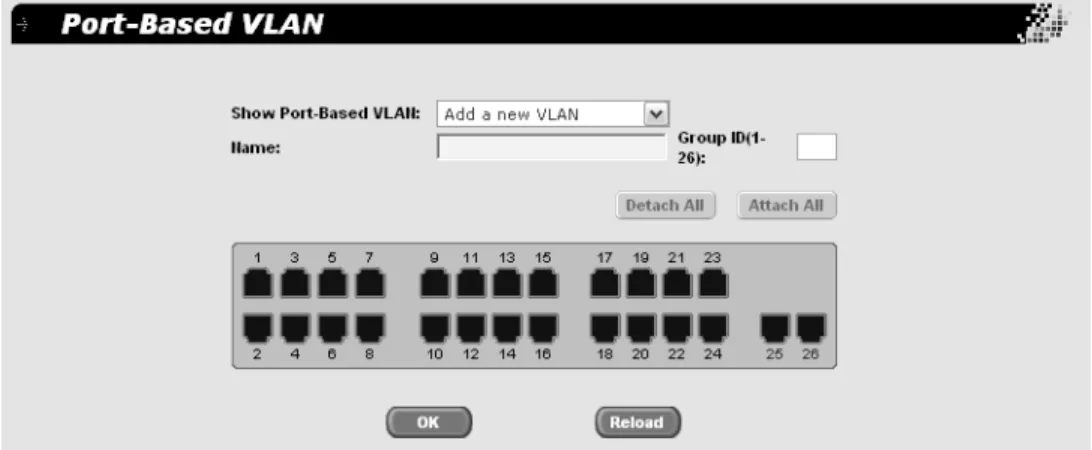
Figure 22. Port-Based VLAN Page...71
Figure 23. Port-based VLAN Ports Selected ...72
Figure 24. Tagged VLAN Page ...74
Figure 25. Add Tagged VLAN Page ...75
Figure 26. Tagged VLAN Ports Selected...76
Figure 27. VLAN Mode Page...78
Figure 28. Default Port VLAN & CoS Page ...86
Figure 29. CoS Page ...88
Figure 30. IGMP Snooping Page...94
Figure 31. Point-to-Point Ports ...101
Figure 32. Edge Port ...102
Figure 33. Point-to-Point and Edge Port...102
Figure 34. VLAN Fragmentation...103
Figure 35. Spanning Tree Page ...104
Figure 36. Port Access Control Page ...113
Figure 37. Port Access Control Status Page ...116
Figure 38. Dial-In User Page ...118
Figure 39. RADIUS Page ...123
Figure 40. Traffic Comparison Chart Page...127
Figure 41. Sample Traffic Comparison Chart ...130
Figure 42. Error Group Chart Page ...131
Figure 43. Sample Error Chart...132
Figure 44. Historical Status Chart...133
Figure 45. Sample Historical Status Chart...135
Figure 46. Dynamic Addresses Page ...140
Figure 47. Dynamic MAC Addresses Associated with a Port ...141
Figure 48. Dynamic MAC Addresses Associated with a VLAN ID...141
Figure 49. Dynamic MAC Addresses Associated with a MAC Address ...142
Figure 50. Static Addresses Page ...144
Figures
Figures
1
Table 1. Default Mappings of IEEE 802.1p Priority Levels to Priority Queues ...83
Table 2. Customized Mappings of IEEE 802.1p Priority Levels to Priority Queues ...83
Table 3. Example of Weighted Round Robin Priority ...85
Table 4. Bridge Priority Value Increments ...97
Table 5. STP Auto Port Costs ...98
Table 6. RSTP Auto Port Costs ...98
Table 7. RSTP Auto Port Trunk Costs ...98
Table 8. Port Priority Value Increments ...99
Tables
3
Preface
This guide contains instructions on how to use the AT-S88 management software to manage and monitor the AT-FS750/24POEFast Ethernet Smart Switch.
You can access the AT-S88 management software through a web browser from any management workstation on your network that has a web browser application.
This preface contains the following sections:
“Where to Find Web-based Guides” on page 4 “Contacting Allied Telesis” on page 5
Preface
Where to Find Web-based Guides
The installation and user guides for all Allied Telesis products are available in portable document format (PDF) on our web site at
www.alliedtelesis.com. You can view the documents online or download
AT-S88 Management Software User’s Guide
5
Contacting Allied Telesis
Online Support
You can request technical support online by accessing the Allied Telesis Knowledge Base: www.alliedtelesis.com/support/kb.aspx. You can use the Knowledge Base to submit questions to our technical support staff and review answers to previously asked questions.Email and
Telephone
Support
For Technical Support via email or telephone, refer to the Support & Services section of the Allied Telesis web site: www.alliedtelesis.com. Select your country from the list displayed on the website. then select the appropriate menu tab.
Warranty
For hardware warranty information, refer to the Allied Telesis web site:www.alliedtelesis.com/support/warranty.
Returning
Products
Products for return or repair must first be assigned a return materials authorization (RMA) number. A product sent to Allied Telesis without an RMA number will be returned to the sender at the sender’s expense. To obtain an RMA number, contact the Allied Telesis Technical Support group at our web site: www.alliedtelesis.com/support/rma. Select your country from the list displayed on the website. Then select the appropriate menu tab.
Sales or
Corporate
Information
You can contact Allied Telesis for sales or corporate information through our web site: www.alliedtelesis.com. To find the contact information for your country, select Contact Us -> Worldwide Contacts.
Management
Software Updates
New releases of management software for our managed products are available from either of the following Internet sites:
Allied Telesis web site: www.alliedtelesis.com Allied Telesis FTP server: ftp://ftp.alliedtelesis.com
If you prefer to download new software from the Allied Telesis FTP server from your workstation’s command prompt, you will need FTP client software and you must log in to the server. Enter “anonymous” for the user name and your email address for the password.
7
Chapter 1
Getting Started
This chapter contains the following sections:
“Starting a Management Session” on page 8 “Quitting a Management Session” on page 10
Chapter 1: Getting Started
Starting a Management Session
To start a management session on the switch, perform the following procedure:
1. In a web browser address box, enter the following IP address:
192.168.1.1
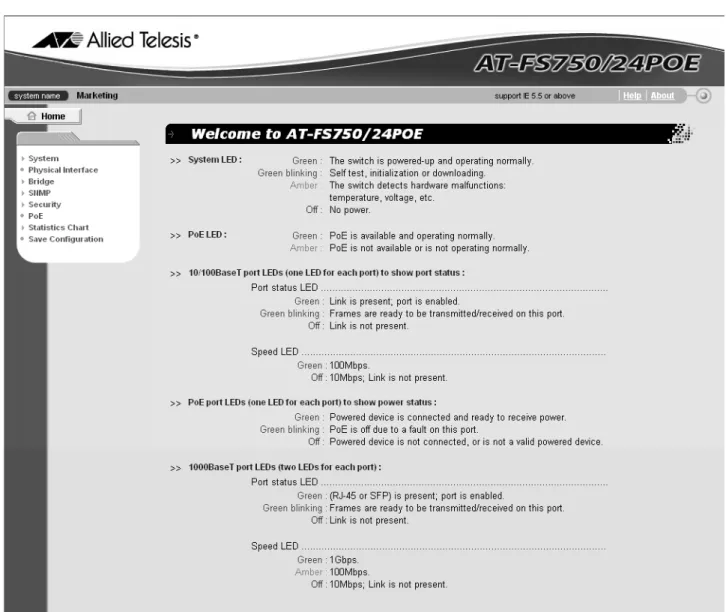
The main page for the AT-S88 management software is shown in Figure 1.
AT-S88 Management Software User’s Guide
9 Note
Because the switch initially has no login or password protection, Allied Telesis strongly suggests that you immediately do two things: Change the IP address, as described in “Configuring the IP Address, Subnet Mask, and Gateway Address” on page 12.
Add an administrative user and password who can access the switch, as described in “Adding an Administrative User” on page 15.
Chapter 1: Getting Started
Quitting a Management Session
11
Chapter 2
Basic Switch Parameters
This chapter contains the following sections:
“Configuring the IP Address, Subnet Mask, and Gateway Address” on
page 12
“Enabling or Disabling DHCP” on page 14
“Configuring System Administration Information” on page 15
“Configuring the System Management Information” on page 18
“Setting Up IP Address Access” on page 20
“Rebooting the Switch” on page 23
“Returning the AT-S88 Management Software to the Default Values” on page 24
Chapter 2: Basic Switch Parameters
Configuring the IP Address, Subnet Mask, and Gateway Address
Warning
Be sure to record the switch’s IP address in a safe place. When you change the switch’s IP address you lose your connection. Because the AT-FS750/24POE Fast Ethernet Smart Switch does not have a console port, your only means of managing the switch is through a web browser, which requires that you have the switch’s IP address. To configure the IP settings, perform the following procedure:
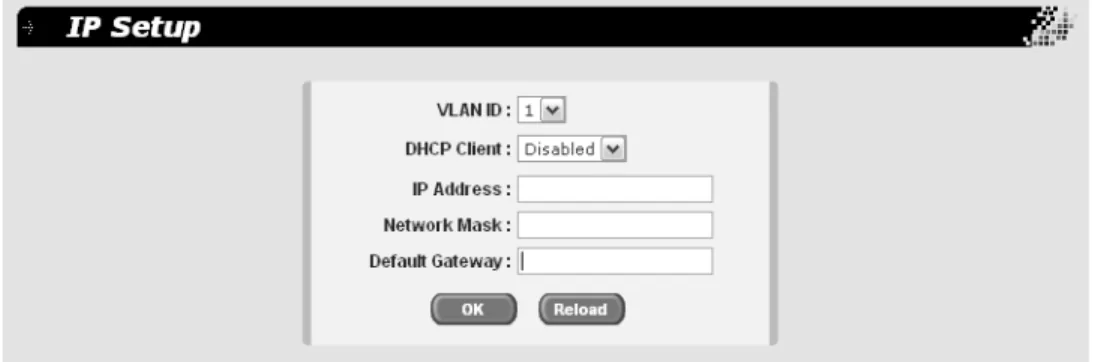
1. From the main menu, select System > IP Setup. The IP Setup page is shown in Figure 2.
Figure 2. IP Setup Page
2. From the VLAN ID list, select the VLAN you want the switch to be a part of.
Note
The default VLAN is 1. To create more VLANs, refer to Chapter 8, ”VLANs” on page 65.
3. In the IP Address field, enter an IP address for the switch.
4. In the Network Mask field, enter an IP address for the subnet mask. 5. In the Default Gateway field, enter the IP address of the default
gateway. 6. Click OK.
The settings are immediately implemented and you lose your connection to the switch.
AT-S88 Management Software User’s Guide
13
7. Log into the switch using its new IP address. 8. From the main menu, select Save Configuration.
The Save Configuration page is shown in Figure 3.
Figure 3. Save Configuration Page
Note
If you do not save your changes, they are discarded when you reboot the switch.
9. Click Save.
For information about DHCP, see “Enabling or Disabling DHCP” on page 14.
Warning
Be sure to record the switch’s IP address in a safe place. When you change the switch’s IP address you lose your connection. Because the switch does not have a console port, your only means of managing the switch is through a web browser, which requires that you have the switch’s IP address.
Chapter 2: Basic Switch Parameters
Enabling or Disabling DHCP
To enable or disable the DHCP client, perform the following procedure: 1. From the main menu, select System > IP Setup.
The IP Setup Page is shown in Figure 2 on page 12. 2. From the DHCP Client list, choose Enabled or Disabled.
The default setting is disabled.
Note
If you lose connectivity after enabling DHCP or to determine the switch’s new IP address in the future, use the SSM Utility. You can access the utility in one of the following ways:
- Click the SSM Utility link on the AT-FS750/48 Fast Ethernet Switch CD, and on the SSM Utility page, click the SSM Utility link.
- Download the SSM Utility files and documentation located in the SSM Utility folder on the AT-FS750/48 Fast Ethernet Switch CD. - Download the SSM Utility files and documentation from the Allied Telesis website, www.alliedtelesis.com.
AT-S88 Management Software User’s Guide
15
Configuring System Administration Information
You can allow multiple users to access and administer the system by adding their passwords to the system and/or set up password protection.
Note
When you start up the switch for the first time, you should add a user to the system, protected by a password, who will be managing the switch.
Adding an
Administrative
User
To add an administrative user to the system, perform the following procedure:
1. From the main menu, select System > Administration. The Administration page is shown in Figure 4.
Figure 4. Administration Page
2. In the User Name field, type a name for the new administrative user. 3. In the Password field, type a password for the user, and re-type the
name in the Confirm Password field. 4. Do one of the following:
Click Add to add the user.
Click Reload to clear the fields and start over.
Chapter 2: Basic Switch Parameters
6. To permanently save these settings in the configuration file, from the main menu, select Save Configuration.
The Save Configuration page is shown in Figure 3 on page 13. 7. Click Save.
Modifying an
Administrative
User
To modify an administrative user on the system, perform the following procedure:
1. From the main menu, select System > Administration. The Administration page is shown in Figure 4 on page 15.
2. In the list of users, select the user whose information you want to change.
The user name is displayed in the fields above.
3. To change the user’s name, in the User Name field, type a name for the new administrative user.
4. To change the user’s password, in the Password field, type a new password for the user, and re-type the name in the Confirm
Password field.
5. Do one of the following:
Click Modify to modify the user parameters.
Click Reload to clear the fields and start over. 6. Click OK.
7. To permanently save these settings in the configuration file, from the main menu, select Save Configuration.
The Save Configuration page is shown in Figure 3 on page 13. 8. Click Save.
Deleting a User
To remove a user from the system, perform the following procedure: 1. From the main menu, select System > Administration.The Administration page is shown in Figure 4 on page 15. 2. In the list of users, select the user you want to delete. 3. Click Remove.
AT-S88 Management Software User’s Guide
17 Note
Be careful not to delete all the users. You should have at least one user, with a password, to manage the switch.
4. Click OK.
5. To permanently save these settings in the configuration file, from the main menu, select Save Configuration.
The Save Configuration page is shown in Figure 3 on page 13. 6. Click Save.
Enabling or
Disabling
Password
Protection
To enable or disable password protection (authentication) for the users, perform the following procedure:
1. From the main menu, select System > Administration. The Administration page is shown in Figure 4 on page 15.
Note
Allied Telesis recommends that you keep password protection enabled to protect the switch from unauthorized changes. 2. In the Password Protection list, select one of the following:
Enabled
To enable the feature.
Disabled
To disable password protection. This is the default. 3. Click OK.
4. To permanently save these settings in the configuration file, from the main menu, select Save Configuration.
The Save Configuration page is shown in Figure 3 on page 13. 5. Click Save.
Chapter 2: Basic Switch Parameters
Configuring the System Management Information
This section explains how to assign a name to the switch, as well as specify the location of the switch and the name of the switch’s administrator. Entering this information is optional.
To set a switch’s management information, perform the following procedure:
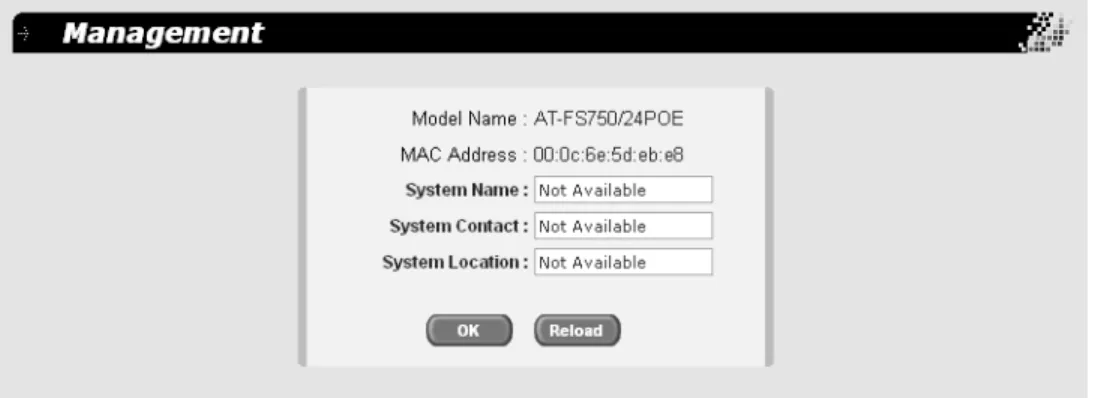
1. From the main menu, select System > Management. The Management page is shown in Figure 5.
Figure 5. Management Page
2. In the System Name field, enter a name for the switch (for example, Sales). The system name is optional and can contain up to 24 characters.
Note
Allied Telesis recommends that you assign a name to the switch. A name helps you identify a switch when you manage it, and can also help you avoid performing a configuration procedure on the wrong switch.
3. In the System Contact field, enter the name of the network
administrator responsible for managing the switch. The contact name is optional and can contain up to 24 characters.
4. In the System Location field, enter information to describe the location of the switch (for example, Third Floor). The location is optional and can contain up to 24 characters.
5. Do one of the following:
AT-S88 Management Software User’s Guide
19
Click Reload to clear the fields and start over.
6. To permanently save these settings in the configuration file, from the main menu, select Save Configuration.
The Save Configuration page is shown in Figure 3 on page 13. 7. Click Save.
Chapter 2: Basic Switch Parameters
Setting Up IP Address Access
You can restrict remote management of the switch by creating an IP access list. The switch uses the list to filter the management packets it receives and accepts and processes only those packets that originate from an IP address in the list. In addition to creating the list, you can disable or enable the IP access list filtering.
Adding an IP
Address to the IP
Access List
To add an IP address to the IP access list, perform the following procedure:
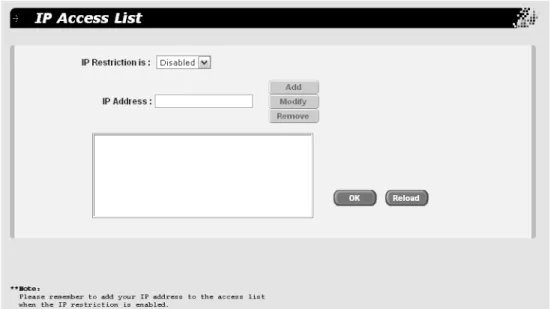
1. From the main menu, select System > IP Access List. The IP Access List page is shown in Figure 6.
Figure 6. IP Access List Page
2. In the IP Address field, enter the IP address of the management station to which you want to give access to the switch.
3. Click Add.
4. Do one of the following:
Click OK to save the IP address.
Click Reload to clear the fields and start over.
5. To permanently save these settings in the configuration file, from the main menu, select Save Configuration.
AT-S88 Management Software User’s Guide
21
6. Click Save.
Modifying an IP
Address in the IP
Access List
To modify an IP address in the IP access list, perform the following procedure:
1. From the main menu, select System > IP Access List. The IP Access List page is shown in Figure 6 on page 20.
2. In the IP address list, highlight the IP address you want to modify. The address is displayed in the IP Address field.
3. In the IP Address field, modify the IP address. 4. Click Modify.
5. Do one of the following:
Click OK to save the modifications.
Click Reload to clear the fields and start over.
6. To permanently save these settings in the configuration file, from the main menu, select Save Configuration.
The Save Configuration page is shown in Figure 3 on page 13. 7. Click Save.
Removing an IP
Address from the
IP Access List
To remove an IP address from the IP access list, perform the following procedure:
1. From the main menu, select System > IP Access List. The IP Access List page is shown in Figure 6 on page 20. 2. In the IP address list, select the IP address you want to remove. 3. Click Remove.
4. Click OK.
5. To permanently save these settings in the configuration file, from the main menu, select Save Configuration.
The Save Configuration page is shown in Figure 3 on page 13. 6. Click Save.
Chapter 2: Basic Switch Parameters
Enabling or
Disabling IP
Access
To enable or disable IP access for the users, perform the following procedure:
1. From the main menu, select System > IP Access List. The IP Access List page is shown in Figure 6 on page 20. 2. From the IP Restriction is list, choose one of the following:
Disabled - Disables IP restriction. This is the default.
Note
Before you enable IP access, remember to add your own IP address to the list. Otherwise, you will not be able to access the switch. Enabled - Enables IP restriction.
3. Click OK.
4. To permanently save these settings in the configuration file, from the main menu, select Save Configuration.
The Save Configuration page is shown in Figure 3 on page 13. 5. Click Save.
AT-S88 Management Software User’s Guide
23
Rebooting the Switch
Note
The reboot process stops network traffic and you lose your connection to the switch.
This process also discards any configuration changes that you have not permanently saved.
To permanently save any configuration changes, from the main menu, select Save Configuration, and click Save before proceeding.
To reboot the switch, perform the following procedure: 1. From the main menu, select System > Reboot.
The Reboot page is shown in Figure 7.
Figure 7. Reboot Page 2. Click Reboot.
Chapter 2: Basic Switch Parameters
Returning the AT-S88 Management Software to the Default Values
To restore the management software to the factory default values, perform the following procedure:1. From the main menu, select Save Configuration. The Save Configuration page is shown in Figure 8.
Figure 8. Save Configuration Page
Note
After the system defaults are restored, the switch is automatically rebooted and you lose your connection to the switch.
Refer to “Starting a Management Session” on page 8 for information about how to establish a new connection to the switch.
2. Click Restore to restore the factory defaults.
Note
The reboot process that occurs after the system defaults are restored stops network traffic.
25
Chapter 3
Port Configuration
This chapter contains the following procedures:
“Enabling or Disabling a Port” on page 26
“Setting a Port’s Speed and Duplex Mode” on page 27 “Enabling or Disabling Flow Control” on page 29 “Configuring Bandwidth Control” on page 30
Chapter 3: Port Configuration
Enabling or Disabling a Port
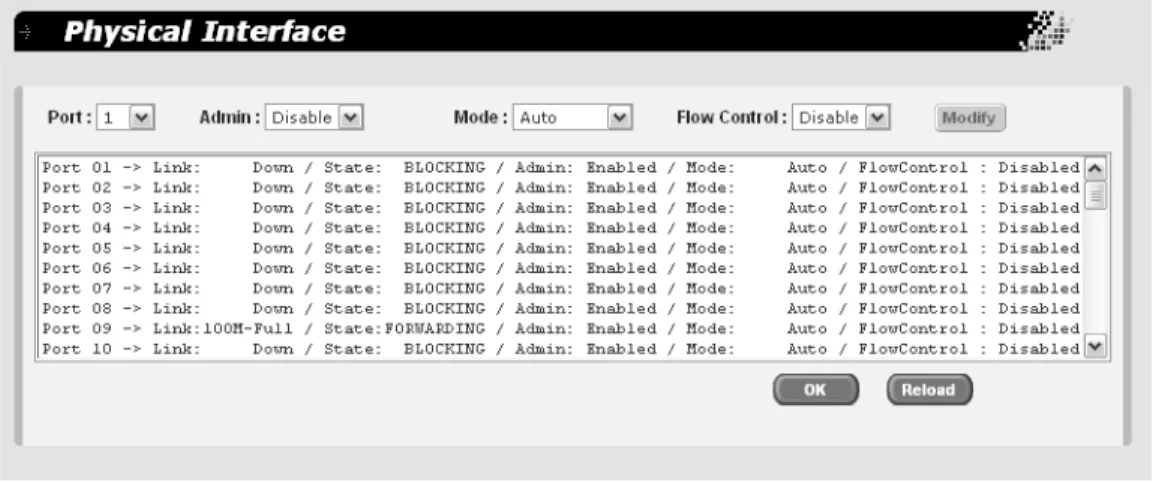
To enable or disable a port, perform the following procedure: 1. From the main menu, select Physical Interface.
The Physical Interface page is shown in Figure 9.
Figure 9. Physical Interface Page
2. In the Port List, select the port you want to configure, or scroll through the list below.
The port is highlighted in the port list.
3. In the Admin list, select Enabled or Disabled. 4. Click Modify.
The Admin status shown in the table for that port is changed. Continue to select and modify other ports as necessary.
5. Do one of the following:
Click OK to save the changes.
Click Reload to clear the setting and start over.
6. To permanently save these settings in the configuration file, from the main menu, select Save Configuration.
The Save Configuration page is shown in Figure 3 on page 13. 7. Click Save.
AT-S88 Management Software User’s Guide
27
Setting a Port’s Speed and Duplex Mode
To set the speed and duplex mode on the port, perform the following procedure:
1. From the main menu, select Physical Interface.
The Physical Interface page is shown in Figure 9 on page 26.
2. In the Port List, select the port you want to configure, or scroll through the list below.
The port is highlighted in the port list.
3. In the Mode list, select one of the following combinations of port speed and duplex mode:
Auto - The port uses Auto-Negotiation to set its speed and duplex mode. This is the default setting for all ports.
10M-Half - 10 Mbps, half-duplex
10M-Full - 10 Mbps, full-duplex
100M-Half - 100 Mbps, half-duplex
100M-Full - 100 Mbps, full-duplex
1G-Full - 1 Gbps, full-duplex.
When a twisted pair port on the switch is set to Auto-Negotiation, the default setting, the end node should also be using Auto-Negotiation to prevent a duplex mode mismatch. A switch port using
Auto-Negotiation defaults to half-duplex if it detects that the end node is not using Auto-Negotiation. This can result in a mismatch if the end node is operating at a fixed duplex mode of full-duplex. To avoid this problem when connecting an end node with a fixed duplex mode of full-duplex to a switch port, disable Auto-Negotiation on the port and set the port’s speed and duplex mode manually.
4. Click Modify.
The mode setting shown in the table for that port is changed. Continue to select and modify other ports as necessary.
5. Do one of the following:
Click OK to save the changes.
Chapter 3: Port Configuration
6. To permanently save these settings in the configuration file, from the main menu, select Save Configuration.
The Save Configuration page is shown in Figure 3 on page 13. 7. Click Save.
AT-S88 Management Software User’s Guide
29
Enabling or Disabling Flow Control
A switch port uses flow control to control the flow of ingress packets from its end node. Flow control applies only to ports operating in full-duplex mode.
A port using flow control issues a special frame, referred to as a PAUSE frame, as specified in the IEEE 802.3x standard, to stop the transmission of data from an end node. When a port needs to stop an end node from transmitting data, it issues this frame. The frame instructs the end node to cease transmission. The port continues to issue PAUSE frames until it is again ready to receive data from the end node.
The default setting for flow control on a switch port is disabled. 1. From the main menu, select Physical Interface.
The Physical Interface page is shown in Figure 9 on page 26.
2. In the Port List, select the port you want to configure, or scroll through the list below.
The port is highlighted in the port list.
3. In the Flow Control list, select Enabled or Disabled. 4. Click Modify.
The flow control setting shown in the table for that port is changed. Continue to select and modify other ports as necessary.
5. Do one of the following:
Click OK to save the changes.
Click Reload to clear the settings and start over.
6. To permanently save these settings in the configuration file, from the main menu, select Save Configuration.
The Save Configuration page is shown in Figure 3 on page 13. 7. Click Save.
Chapter 3: Port Configuration
Configuring Bandwidth Control
If the performance of your network is affected by heavy traffic, you can use bandwidth control to set the rate of various types of packets that a port receives. You can control ingress packet types, including broadcast, multicast, and Dlf packets or a combination of all three types, and limit their rates. For egress packets, you can only configure the rate. (Dlf packets are unicast packets that are broadcast because of a destination address lookup failure.)
To configure bandwidth control, perform the following procedure: 1. From the main menu, select Bridge > Bandwidth Control.
The Bandwidth Control page is shown in Figure 10.
Figure 10. Bandwidth Control Page
2. In the Ingress Bandwidth Control section, do the following: a. In the Port List, select the port you want to configure, or scroll
through the list below.
AT-S88 Management Software User’s Guide
31
b. In the Control list, select Enable to enable the control, or Disable
to disable it.
c. In the Mode list, select one of the following:
All
Affects broadcast, multicast, and Dlf packets.
Bcast
Controls only broadcast packets.
Bcast, Mcast
Limits broadcast and multicast packets.
Bcast, Mcast, Dlf
Limits broadcast, multicast, and Dlf packets.
d. In the Limit rate field, enter a number for the rate limit. The range is 70 to 250,000 packets per second. e. Click Modify.
3. In the Egress Bandwidth Control section, do the following: a. In the Port List, select the port you want to configure, or scroll
through the list below.
The port is highlighted in the port list.
b. In the Control list, select Enable to enable the control, or Disable
to disable it.
c. In the Limit rate field, enter a number for the rate limit. The range is 70 to 250,000 packets per second. d. Click Modify.
4. Do one of the following:
Click OK to save the changes.
Click Reload to clear the settings and start over.
5. To permanently save these settings in the configuration file, from the main menu, select Save Configuration.
The Save Configuration page is shown in Figure 3 on page 13. 6. Click Save.
Section I: Basic Features 33
Chapter 4
Power over Ethernet
Power over Ethernet (PoE) provides a way to distribute low-voltage power across the network using existing Ethernet cable to a powered device (PD). This allows the devices to operate without power adapters or AC outlets. Powered devices include IP telephones, wireless LAN access points, and surveillance cameras. Of the 24 ports on the AT-FS750/ 24POE Fast Ethernet Smart Switch Switch, 12 are PoE-capable. This chapter contains the following sections:
“PoE Overview” on page 34
“Viewing the PoE Status” on page 36
“Setting the Power Management Mode” on page 38
“Allocating Power to the PoE Ports” on page 40
Chapter 4: Power over Ethernet
PoE Overview
The twisted pair ports on the AT-FS750/24POE Fast Ethernet Smart switch feature Power over Ethernet (PoE). PoE is a mechanism for supplying power to network devices over the same twisted pair cables used to carry network traffic. This feature can simplify network installation and maintenance by allowing you to use the switch as a central power source for other network devices.
A device that receives its power over an Ethernet cable is called a
powered device. Examples of such devices can be wireless access points,
IP telephones, webcams, and even other Ethernet switches. An example of the latter is the unmanaged AT-FS705PD Ethernet switch from Allied Telesis. A powered device connected to a port on the switch will receive both network traffic and power over the same twisted pair cable.
The switch automatically determines whether a device connected to a port is a powered device or not. A powered device has a signature resistor or signature capacitor that the switch can detect over the Ethernet cabling. If the resistor or capacitor is present, the switch assumes that the device is a powered device.
Power Budgeting
The AT-FS750/24POE Fast Ethernet Smart switch provides a maximum of 15.4 W of power per port on six of the twelve ports for a total power consumption of 95 W, while at the same time furnishing standard 10/100 Mbps Ethernet functionality. A port connected to a network node that is not a powered device (that is, a device that receives its power from another power source) functions as a regular Ethernet port, without PoE. The PoE feature remains enabled on the port but no power is delivered to the device.You can allocate this power budget in one of two ways:
Maximum power (15.4 W) on each of 6 of the 12 PoE ports (Class 3)
Up to 7.3 W on all 12 PoE ports (Class 2)
Using the AT-S88 management software, you can enable or disable PoE on a per-port basis and change the amount of power a port can receive. The AT-S88 management software also allows you to prioritize the ports in the event that there is not enough PoE power for all the powered devices. This feature can help ensure that the most important powered devices connected to the switch are guaranteed to have power.
The default setting for PoE on the switch is disabled at the port level.
Implementation
A standard Ethernet twisted pair cable contains four pairs of strands for a total of eight strands. 10/100 Mbps network traffic requires only fourAT-S88 Management Software User’s Guide
35
strands, leaving four strands in the cable unused. The strands that carry the network traffic are 1, 2, 3, and 6, and the spare strands are 4, 5, 7, and 8.
The IEEE 802.3af standard, which is the standard for PoE, describes two modes for delivering power to the powered device over twisted pair cabling. Mode A uses the same strands that carry the network traffic. Mode B uses the spare strands. The PoE implementation on the
AT-FS750/24POE Fast Ethernet Smart switch is Mode B, where power is transmitted over strands 4, 5, 7, and 8.
Powered devices that comply with the IEEE 802.3af standard typically support both power delivery methods. So long as a powered device is compliant with the standard, it should be able to receive its power from the switch.
The PoE feature on the switch should also work with most legacy powered devices as long as the device can be powered by pins 4, 5, 7, and 8. A legacy device is a node that was manufactured before the IEEE 802.3af standard was completed and, consequently, may not adhere to the standard.
PoE Operation
Modes
You can configure the ports to operate in either an automation-based or allocation-based mode.
When you select automation-based power operation, the power
management function automatically determines the amount of power to allow for the device. The switch does this by detecting the device and determining its PoE class, from 0 through 4. The PoE class specifies the maximum input power level for the device.
If you select allocation-based power operation, you must configure the power allocation for each PoE port, up to 20,000 mW.
You can also prioritize the ports in the event there is not be enough PoE power for all the powered devices. This feature helps ensure that the most important powered devices connected to the switch will be guaranteed power.
Chapter 4: Power over Ethernet
Viewing the PoE Status
To view information about the system’s PoE operation, perform the following procedure:
1. From the main menu, select PoE.
The Power over Ethernet page is shown in Figure 11.
Figure 11. Power over Ethernet Page
The System Information section displays the following information about the current status of PoE on the switch:
Voltage
The input voltage available.
Min Shutdown Voltage
The minimum total PoE voltage allowed before the PoE ports are shut down.
AT-S88 Management Software User’s Guide
37 Max Shutdown Voltage
The maximum total PoE voltage allowed before the PoE ports are shut down.
Power Budget
The maximum amount of power available to all the PoE ports combined.
Power Consumption
The number of watts of PoE power that is now being consumed or has been allocated to the PoE ports.
Power Left
The number of watts of PoE power that is still available.
The Power Management Mode section is described in “Setting the Power Management Mode” on page 38 and the Port Diagnosis section is
Chapter 4: Power over Ethernet
Setting the Power Management Mode
You can configure how the AT-FS750/24POE Fast Ethernet Smart Switch allocates power to the PoE powered devices connected to the switch. The two modes are automation-based and allocation-based.
When you select automation-based power operation, the power management function automatically selects the mode of operation according to how you configured the port itself.
If you select allocation-based power operation, you must manually configure the power allocation for each PoE port, up to 20,000 mW. To set the power management mode, perform the following procedure: 1. From the main menu, select PoE.
The Power over Ethernet page is shown in Figure 11 on page 36. 2. For the Power Mode, select one of the following:
Automation-based
The power management function automatically selects the amount of power for each PoE port. You do not need to perform any other configuration, however you MUST save the configuration for PoE power to be applied to the port:
Allocation-based
You allocate how much power each port should receive.
If you chose allocation-based power budgeting, go on to step 9. 3. Click Modify.
4. Click OK.
5. From the main menu, select Save Configuration.
6. The Save Configuration page is shown in Figure 3 on page 13. 7. Click OK.
8. From the main menu, select PoE.
The Power over Ethernet page is shown in Figure 11 on page 36. If you switched from one mode to the other, click Reload to refresh the list of ports. When you switch from allocation-based to automation-based, the power allocations you made are not removed but have no function.
AT-S88 Management Software User’s Guide
39
9. In the Power Usage field, enter a number representing the percentage of the total power budget of the switch that you want to allocate in total for all the PoE ports (not for each individual PoE port).
Go on to “Allocating Power to the PoE Ports,” next, to perform the power allocation for each port.
Chapter 4: Power over Ethernet
Allocating Power to the PoE Ports
To allocate power to each PoE port, perform the following procedure: 1. From the main menu, select PoE.
The Power over Ethernet page is shown in Figure 11 on page 36. 2. In the Port Setting section, select a port from the Port list, or highlight
it in the table below.
3. To enable or disable a PoE port, from the Port State list, choose
Disable or Enable. The default is disable.
4. To set the port’s priority for receiving power in the event of some power loss on the switch, select a number from the Priority list. The lower the number that you select, the higher the port’s priority. If you assign the same priority to more than one port, power is allocated according to the physical order of the ports. For example, if you assign priority 5 to ports 3 and 11, in the event of a power loss port 3 will get available power and port 11 might not.
5. In the Allocation field, enter a number for the milliwats of power you want that port to receive.
6. Click Modify. 7. Click OK. 8. Click Reload.
Note
You MUST save the configuration for PoE power to be applied to the port.
9. From the main menu, select Save Configuration.
The Save Configuration page is shown in Figure 3 on page 13. 10. Click OK.
AT-S88 Management Software User’s Guide
41
Diagnosing PoE Port Problems
If the powered device on a PoE port appears to be operating abnormally, you can perform a diagnostic test on the port to identify a potential problem.
To perform port diagnosis, perform the following procedure: 1. From the main menu, select PoE.
The Power over Ethernet page is shown in Figure 11 on page 36. 2. In the Port Diagnosis section, select a port from the Port list and click
Query.
The Port Diagnosis section displays the current PoE status of the port, an example of which is shown in Figure 12.
Figure 12. Port Diagnosis Example
The port diagnosis information verifies whether or not the device connected to that port is a valid powered device along with other information about its power usage.
43
Chapter 5
SNMP
This chapter contains the following topics:
“SNMP Overview” on page 44
“Setting Up the SNMP Community Table” on page 46 “Setting Up the Host Table” on page 47
Chapter 5: SNMP
SNMP Overview
The Simple Network Management Program (SNMP) is another way for you to manage the switch. This type of management involves viewing and changing the management information base (MIB) objects on the device using an SNMP application program. By default, SNMP is enabled on the switch.
The procedures in this chapter show you how to create and manage SNMP community strings through which your SNMP application program at your management workstation can access the switch’s MIB objects. To manage a switch using an SNMP application program, you must load the Allied Telesis MIBs for the switch onto your management workstation containing the SNMP application program. The MIBs are available from the Allied Telesis web site at www.alliedtelesis.com.
To manage a switch using SNMP, you need to know the IP address of the switch and at least one of the switch’s community strings. A community string is a string of alphanumeric characters that gives you access to the switch.
A community string has several attributes that you can use to control who can use the string and what the string will allow a network management to do on the switch. The community string attributes are defined below:
Community String Name
You must give the community string a name. The name can be from one to 16 alphanumeric characters. Spaces are allowed.
Access Mode (Set)
This defines what the community string will allow a network manager to do. There are two access modes: Read and Read/Write. A community string with an access mode of Read can only be used to view but not change the MIB objects on a switch. A community string with a Read/Write access can be used to both view the MIB objects and change them.
Host Table
You can use this feature to control which management stations on your network can use a community string. If you specify a host IP address for a community string, then only those network managers working from particular workstations can use it. A community string can have up to eight IP addresses of management workstations assigned to it.
It is a good idea to assign host IP address to all community strings that have a Read/Write access (Set) mode and then assign the IP addresses of your management workstations to those strings. This helps reduce the chance of someone gaining management access to a switch through a community string and making unauthorized configuration changes.
AT-S88 Management Software User’s Guide
45 Trap Receivers
A trap is a signal sent to one or more management workstations by the switch to indicate the occurrence of a particular operating event on the device. There are numerous operating events that can trigger a trap. For instance, resetting the switch is an example of an occurrence that can cause a switch to send a trap to the management workstations. You can use traps to monitor activities on the switch.
Trap receivers are the devices, typically management workstations or servers, that you want to receive the traps sent by the switch. You specify the trap receivers by their IP addresses. You assign the IP addresses to the community strings.
Each community string can have up to eight trap IP addresses.
It does not matter which community strings you assign your trap receivers. When the switch sends a trap, it looks at all the community strings and sends the trap to all trap receivers on all community strings. This is true even for community strings that have a access mode of only Read. If you are not interested in receiving traps, then you do not need to enter any IP addresses of trap receivers.
Default SNMP
Community
Strings
The AT-S88 management software provides two default community strings: public and private. The public string has an access mode of Read Only and the private string has an access mode of Read/Write. If you activate SNMP management on the switch, you change the status of the private community string from open to closed to prevent unauthorized changes to the switch.
Chapter 5: SNMP
Setting Up the SNMP Community Table
To define the SNMP community names and their settings, perform the following procedure:
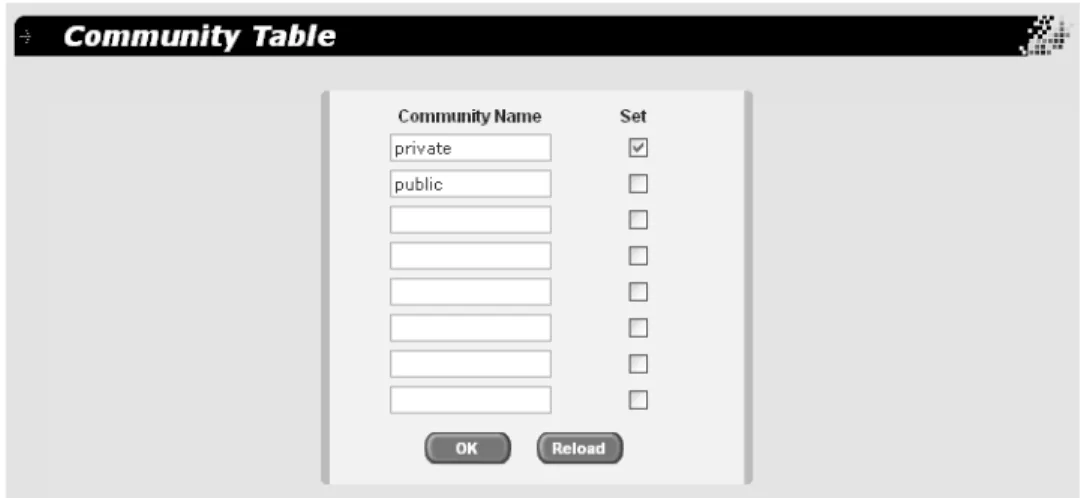
1. From the main menu, select SNMP > Community Table. The Community Table page is shown in Figure 13.
Figure 13. (SNMP) Community Table Page
2. To add a community name, enter it in one of the Community Name
fields.
3. To allow read/write access for any community name, click the adjoining box in the Set column.
If you do not click Set for a particular community name, that community name has read access only.
4. Do one of the following:
Click OK to save the community names. Click Reload to clear the fields and start over.
5. To permanently save these settings in the configuration file, from the main menu, select Save Configuration.
The Save Configuration page is shown in Figure 3 on page 13. 6. Click Save.
AT-S88 Management Software User’s Guide
47
Setting Up the Host Table
When you assign a host IP address to a community string, you identify which management workstations can access the string. A community string can have up to eight IP addresses of management workstations (hosts) assigned to it.
To set up the host table, perform the following procedure: 1. From the main menu, select SNMP > Host Table.
The Host Table page is shown in Figure 14.
Figure 14. (SNMP) Host Table Page
2. In the Host IP Address field, enter the IP address of a management workstation
3. In the Community list, select the name of the SNMP community that the host can access.
Continue to assign host addresses to the community strings you configured.
4. Do one of the following:
Click OK to save the SNMP hosts.
Click Reload to clear the fields and start over.
5. To permanently save these settings in the configuration file, from the main menu, select Save Configuration.
Chapter 5: SNMP
AT-S88 Management Software User’s Guide
49
Setting Up SNMP Trap Receivers
To set up the SNMP trap receivers, perform the following procedure: 1. From the main menu, select SNMP > Trap Setting.
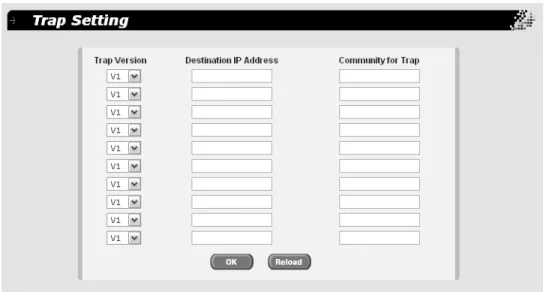
The Trap Setting page is shown in Figure 15.
Figure 15. (SNMP) Trap Setting Page
2. In the Destination IP Address field, enter the IP address of the management workstation where you want the traps sent.
3. In the Community for Trap field, enter the name of the community that will receive the traps.
4. In the Trap Version list, choose v1 or v2c for SNMPv1 or SNMPv2c. 5. Do one of the following:
Click OK to save the trap settings.
Click Reload to clear the fields and start over.
6. To permanently save these settings in the configuration file, from the main menu, select Save Configuration.
The Save Configuration page is shown in Figure 3 on page 13. 7. Click Save.
51
Chapter 6
Port Trunking
This chapter contains the following sections:
“Port Trunking Overview” on page 52 “Creating a Port Trunk” on page 54 “Modifying a Trunk” on page 56 “Removing a Trunk” on page 57
Chapter 6: Port Trunking
Port Trunking Overview
A port trunk is an economical way for you to increase the bandwidth between the Ethernet switch and another networking device, such as a network server, router, workstation, or another Ethernet switch. A port trunk is a group of ports that have been grouped together to function as one logical path. A port trunk increases the bandwidth between the switch and the other network device and is useful in situations where a single physical link between the devices is insufficient to handle the traffic load.
Static Port Trunk
Overview
A static port trunk consists of two to eight ports on the switch that function as a single virtual link between the switch and another device. A static port trunk improves performance by distributing the traffic across multiple ports between the devices and enhances reliability by reducing the reliance on a single physical link.
A static trunk is easy to configure. You simply designate the ports on the switch that are to be in the trunk and the management software on the switch automatically groups them together.
The example in Figure 16 illustrates a static port trunk of four links between two AT-FS750/24POE Fast Ethernet Smart Switches.
Figure 16. Static Port Trunk Example
Network equipment vendors tend to employ different techniques to implement static trunks. Consequently, a static trunk on one device might not be compatible with the same feature on a device from a different manufacturer. For this reason static trunks are typically employed only between devices from the same vendor. That is not to say that an Allied Telesis layer 2 managed switch cannot form a static trunk with a device from another manufacturer; but there is the possibility that the
implementations of static trunking on the two devices might not be compatible.
1088
AT-FS750/24POE
24 Port 10/100 Mbps WebSmart Switch with 2 Combo Uplinks + 12 POE Ports
2 3 4 5 6 7 8 9 1012 1113 14 15 16 17 18 19 20 21 22 23 24 25
26 PD ONPD ERROR LINK ACT 100M 10M 1000M100M PORT ACTIVITY 10M 1
1 3 5 7 9 11 13 15 17 19 21 23
2 4 6 8 10 12 14 16 18 20 22 24
POE PWR SYSTEM
10/100 POE PORTS
25 CLASS 1 LASER PRODUCT SFP 10/100/1000Base-T 26 SFP 10/100/1000Base-T UPLINK PORTS 10/100 PORTS 1088 AT-FS750/24POE
24 Port 10/100 Mbps WebSmart Switch with 2 Combo Uplinks + 12 POE Ports
2 3 4 5 6 7 8 9 1012 1113 14 15 16 17 18 19 20 21 22 23 24 25
26 PD ONPD ERROR LINKACT 100M 10M 1000M100M PORT ACTIVITY 10M 1
1 3 5 7 9 11 13 15 17 19 21 23
2 4 6 8 10 12 14 16 18 20 22 24
POE PWR SYSTEM
10/100 POE PORTS
25 CLASS 1 LASER PRODUCT SFP 10/100/1000Base-T 26 SFP 10/100/1000Base-T UPLINK PORTS 10/100 PORTS
AT-S88 Management Software User’s Guide
53
Also note that a static trunk does not provide for redundancy or link backup. If a port in a static trunk loses its link, the trunk’s total bandwidth is diminished. Though the traffic carried by the lost link is shifted to one of the remaining ports in the trunk, the bandwidth remains reduced until the lost link is reestablished or you reconfigure the trunk by adding another port to it.
Static Port Trunk Guidelines
Following are the guidelines for creating a static trunk:
Allied Telesis recommends using static port trunks between Allied
Telesis networking devices to ensure compatibility. While an Allied Telesis device might be able to form a static trunk with a device from another equipment vendor, there is the possibility that the
implementation of this feature on the two devices might not be compatible, resulting in undesired switch behavior.
A static trunk can contain up to eight ports.
The ports of a static trunk must be of the same medium type. They can
be all twisted pair ports or all fiber optic ports.
The ports of a trunk can be either consecutive (for example Ports 5-9)
or nonconsecutive (for example, ports 4, 8, 11, 20).
Before creating a port trunk, examine the speed, duplex mode, flow
control, and back pressure settings of all of the ports that will be in the trunk. Verify that the settings are the same for all ports in the trunk. If these settings are not the same, then the switch will not allow you to create the trunk.
After you have created a port trunk, a change to the speed, duplex
mode, flow control, or back pressure of any port in the trunk
automatically implements the same change on all the other member ports.
A port can belong to only one static trunk at a time.
The ports of a static trunk can be untagged or untagged members of the same VLAN.
The switch selects a port in the trunk to handle broadcast packets and packets of unknown destination. The switch makes this choice based on a hash algorithm, depending upon the source and destination MAC
Chapter 6: Port Trunking
Creating a Port Trunk
To create a port trunk, perform the following procedure: 1. From the main menu, select Bridge > Trunking.
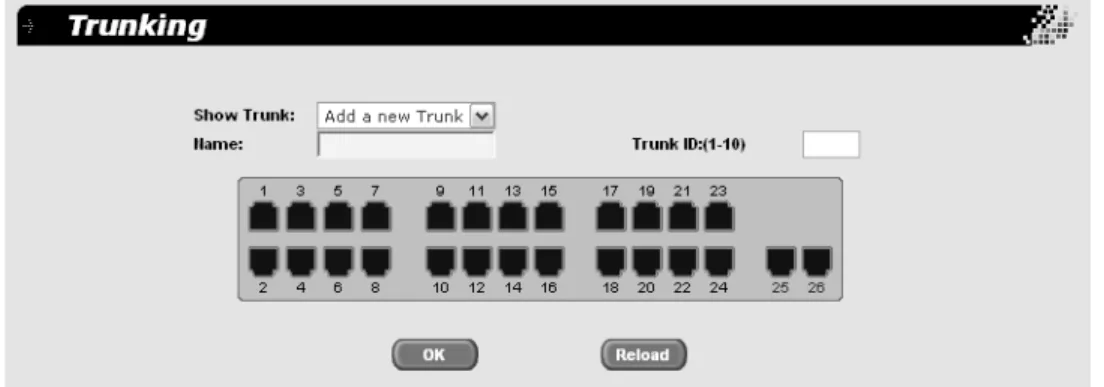
The Trunking page is shown in Figure 17.
Figure 17. Trunking Page 2. In the Show Trunk list, select Add a New Trunk. 3. In the Name field, type a name for the trunk.
4. In the Trunk ID field, choose a number for the trunk ID, from 1 to 10. 5. Select the ports you want to include in the trunk by clicking the port
icon in the graphic image of the switch front.
A check mark is placed for each port you select, as for example Figure 18.
Figure 18. Trunk Ports Selected
You can select up to a maximum of 8 ports for each trunk which must all be within the same VLAN.
AT-S88 Management Software User’s Guide
55
6. Do one of the following:
Click OK to save the trunk.
Click Reload to clear the trunk name and port selections and start
over.
7. To permanently save these settings in the configuration file, from the main menu, select Save Configuration.
The Save Configuration page is shown in Figure 3 on page 13. 8. Click Save.
Chapter 6: Port Trunking
Modifying a Trunk
To modify a port trunk, perform the following procedure: 1. From the main menu, select Bridge > Trunking.
The Trunking page is shown in Figure 17 on page 54. 2. In the Show Trunk list, select the trunk you want to modify. 3. Click OK.
The display is refreshed to show the trunk name you selected.
4. Select or de-select the ports you want to include in the trunk by clicking the port icon in the graphic image of the switch front.
A check mark is placed for each port you select, as for example Figure 18 on page 54.
5. Do one of the following:
Click OK to save the trunk.
Click Reload to clear the changes and start over.
6. To permanently save these settings in the configuration file, from the main menu, select Save Configuration.
The Save Configuration page is shown in Figure 3 on page 13. 7. Click Save.
AT-S88 Management Software User’s Guide
57
Removing a Trunk
To remove a port trunk, perform the following procedure: 1. From the main menu, select Bridge > Trunking.
The Trunking page is shown in Figure 17 on page 54. 2. In the Show Trunk list, select the trunk you want to remove. 3. Check the Remove Trunk box.
4. Click OK.
5. To permanently save these settings in the configuration file, from the main menu, select Save Configuration.
The Save Configuration page is shown in Figure 3 on page 13. 6. Click Save.
59
Chapter 7
Port Mirroring
This chapter describes port mirroring and contains the following topics:
“Port Mirroring Overview” on page 60 “Configuring Port Mirroring” on page 61 “Modifying a Port Mirror” on page 64
Chapter 7: Port Mirroring
Port Mirroring Overview
The port mirroring feature allows you to unobtrusively monitor the traffic being received and transmitted on one or more ports on a switch by having the traffic copied to another switch port. You can connect a network analyzer to the port where the traffic is being copied and monitor the traffic on the other ports without impacting network performance or speed. The port(s) whose traffic you want to mirror is called the source port(s). The port where the traffic will be copied to is called the monitor port. Observe the following guidelines when you create a port mirror:
You can select more than one source port at a time. However, the
more ports you mirror, the less likely the monitor port will be able to handle all the traffic. For example, if you mirror the traffic of six heavily active ports, the destination port is likely to drop packets, meaning that it will not provide an accurate mirror of the traffic of the six source ports.
The source and monitor ports must be located on the same switch.
You can mirror either the ingress or egress traffic of the source ports, or both.
AT-S88 Management Software User’s Guide
61
Configuring Port Mirroring
To configure port mirroring, perform the following procedure: 1. From the main menu, select Bridge > Mirroring.
The Mirroring page is shown in Figure 19.
Figure 19. Mirroring Page
2. Select the ports whose ingress traffic you want to monitor by clicking the port icon in the graphic image of the switch front at the top of the page.
Chapter 7: Port Mirroring
A check mark is placed for each port you select, as for example Figure 20.
Figure 20. Ingress Ports Selected
3. Select the ports whose egress traffic you want to monitor by clicking the port icon in the graphic image of the switch front at the top of the page.
A check mark is placed for each port you select, as for example Figure 21.
Figure 21. Egress Ports Selected
AT-S88 Management Software User’s Guide
63
5. In the Mirror Mode list, select Enable. 6. Do one of the following:
Click OK to save the port mirror.
Click Reload to clear the port mirror and start over.
7. To permanently save these settings in the configuration file, from the main menu, select Save Configuration.
The Save Configuration page is shown in Figure 3 on page 13. 8. Click Save.
Chapter 7: Port Mirroring
Modifying a Port Mirror
To modify a port mirror, perform the following procedure. 1. From the main menu, select Bridge > Mirroring.
The Mirroring page is shown in Figure 19 on page 61
2. Select or de-select the ports whose ingress traffic you want to monitor by clicking the port icon in the graphic image of the switch front at the top of the page.
3. Select or de-select the ports whose egress traffic you want to monitor by clicking the port icon in the graphic image of the switch front at the top of the page.
4. In the Monitor Port list, select the port to which the traffic will be sent, if you want to change that.
5. In the Mirror Mode list, select Enable. 6. Do one of the following:
Click OK to save the port mirror.
Click Reload to clear the port mirror and start over.
7. To permanently save these settings in the configuration file, from the main menu, select Save Configuration.
The Save Configuration page is shown in Figure 3 on page 13. 8. Click Save.
65
Chapter 8
VLANs
This chapter about VLANs contains the following sections:
“VLAN Overview” on page 66
“Port-based VLAN Overview” on page 68 “Tagged VLAN Overview” on page 69 “Creating a Port-Based VLAN” on page 71 “Creating a Tagged VLAN” on page 74 “Changing a Port’s VLAN Mode” on page 78