S
ETUP
G
UIDE
IronMail
Messaging Gateway Security
S-Class
© 2007 Secure Computing Corporation. All rights reserved. No part of this publication may be reproduced, transmitted, transcribed, stored in a retrieval system, or translated into any language in any form or by any means without the written permission of Secure Computing Corporation.
Trademarks
Secure Computing, IronMail, IronMail Edge, SafeWord, Sidewinder, Sidewinder G2, SmartFilter, Type Enforcement, SofToken, Enterprise Strong, Mobile Pass, G2 Firewall, PremierAccess, SecureSupport, SecureOS, Bess and Strikeback are trademarks of Secure Computing Corporation, registered in the U.S. Patent and Trademark Office and in other countries. G2 Enterprise Manager, SmartReporter, On-Box, Application Defenses, RemoteAccess, Sentian, Securing connections between people, applications and networks are trademarks of Secure Computing Corporation. All other trademarks, tradenames, service marks, service names, product names, and images mentioned and/or used herein belong to their respective owners.
Technical Support information
Secure Computing works closely with our reseller partners to offer the best worldwide Technical Support services. Your Secure Computing reseller is the first line of support when you have questions about our products and services; however, if you require additional assistance, contact us directly.
• To contact Secure Computing Technical Support directly, telephone +1.678.867.2999. If you prefer, send an e-mail to [email protected].
• To inquire about obtaining a support contract, refer to our "Contact Secure" Web page for the latest information at www.securecomputing.com.
• To use the Secure KnowledgeBase, go to www.securecomputing.com/goto/kb. Enter your company ID.
Customer Advocate information
To suggest enhancements in a product or service, or to request assistance in resolving a problem, please contact a Customer Advocate at +1.877.851.9080. If you prefer, send an e-mail to [email protected].
If you have comments or suggestions you would like to make regarding this document or any other Secure Computing document, please send an e-mail to [email protected].
Publication history
Date Part number Software release
C
HAPTER1
S
ERVERH
ARDWARES
ETUP... 1
Hardware ...1
General safety notes on IronMail appliances ...2
Specific temperature recommendations ...2
Installation for IronMail S-class Model 10 ...3
Installation for IronMail S-class Models 25, 50 and 100 ...5
Slide rail installation ...6
Uninterruptible power supply ...10
Attaching keyboard, mouse, and monitor ...11
Server power, controls, and indicators ...11
Model 10 front panel ...12
Models 25, 50 and 100 front panel ...13
Model 10 rear panel ...14
Models 25, 50 and 100 rear panel ...15
C
HAPTER2
N
ETWORKC
ONFIGURATION... 17
Network connectivity ...17
Network firewall configuration ...17
Internal mail server configuration ...24
DNS configuration ...24
C
HAPTER3
S
ETTINGU
PS
ECUREC
OMPUTINGI
RONM
AIL... 27
Configuring IronMail ...27
C
HAPTER4
B
ESTP
RACTICESC
ONFIGURATION... 43
SmartStart ...43
Using SmartStart ...44
Screen 1: Network Connectivity ...47
Screen 2: Software Updates ...48
Screen 3: Pre-Configuration ...49
Screen 4: Threat Response Updates ...50
Screen 5: Virus Updates ...51
Screen 6: SMTP Route Setup ...52
Screen 9: Report Setup ... 55
Screen 10: Alerts Setup ... 56
Screen 11: Add Accounts ... 57
Screen 12: Change the Admin Password ... 58
Screen 13: Finishing SmartStart ... 59
CHAPTER 1
Server Hardware Setup
Hardware
Physical installation of the IronMail appliance entails installing the device into a rack, and providing power and network connectivity. The following server platform is currently supported for the IronMail S-class.
•
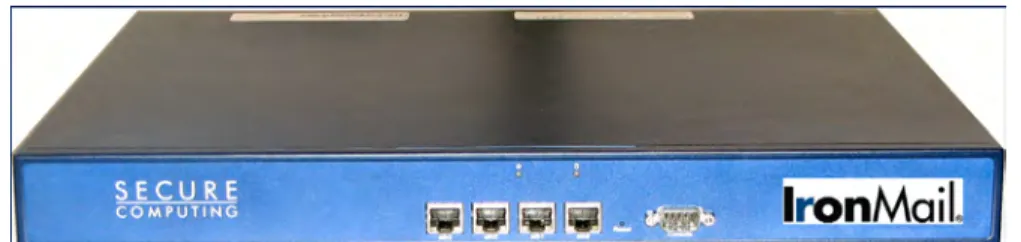
IronMail class is a 1U rackmount server platform designed with state-of-the-art features. The S-class is comprised of two main components: a rackmount chassis and a server with a single Intel® processor.Figure 1: IronMail S-class Model 10
General safety notes on IronMail appliances
•
There are no user-serviceable components inside the appliance. Opening IronMail’s chassis will void the service agreement.•
Adequate spacing above, below, and behind the IronMail appliance should be provided to allow proper airflow, and to prevent excessive heat build-up.•
Use only the mounting kits provided with IronMail appliances when installing IronMail, as improper mounting may result in hardware failure and hazardous conditions.•
Do not block any air vents; usually 15 cm (6 inches) of air space provides proper airflow.•
Plan the device installation starting from the bottom of the rack cabinet and install the heaviestdevice in the bottom of the rack.
•
Do not extend more than one device out of the rack cabinet at the same time—extending two or more devices simultaneously may cause the rack to become unstable.•
Remove the rack doors and side panels to provide easier access during installation•
Connect the server to a properly grounded outlet.•
Do not overload the power outlet when installing multiple devices in the rack cabinet.•
Follow accepted electrical and general safety precautions when installing any IronMail.Specific temperature recommendations
•
The operating temperature range for the IronMail S-class is 10 - 35°C /50 - 90°F.Rack precautions
•
Ensure that the leveling jacks on the bottom of the rack are fully extended to the floor with the full weight of the rack resting on them.•
In a single rack installation, stabilizers should be attached to the rack.•
In multiple rack installations, the racks should be coupled together.•
Always make sure the rack is stable before extending a component from the rack.Server precautions
•
Determine the placement of each component in the rack before installing the rails.•
Install the heaviest server components on the bottom of the rack first, and then work up.•
Allow the power supply units to cool before touching them.•
Always keep the rack's front door and all panels and components on the servers closed when not servicing in order to maintain proper cooling.Lifting and weight precautions
•
Use safe practices when lifting.Figure 3: Weight precaution indicators
•
For lifting objects with the following weights use the designated number of people:– For objects weighing more than or equal to18 kg (39.7 lb) use two people to lift the object. – For objects weighing more than or equal to 32 kg (70.5 lb) use three people to lift the
object.
– For objects weighing more than or equal to 55 kg (121.2 lb) use four people to lift the object.
•
Do on place any object weighing more than 50 kg (110 lb) on top of rack-mounted devices. Figure 4: Weight object iconInstallation for IronMail S-class Model 10
The IronMail S-class Model 10 may easily be mounted in a 2-post or 4-post rack.
Tools required:
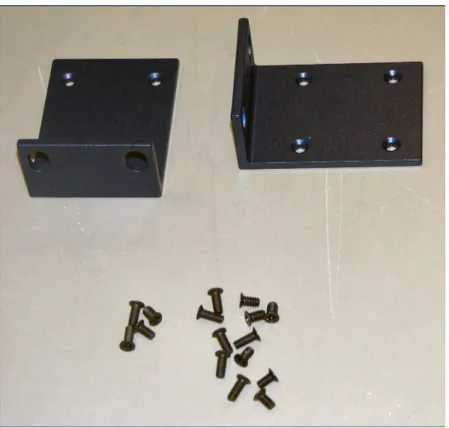
Figure 5: Contents of the S-class Model 10 mounting kit:
The following is a list of the items you need to install the server in your server rack. If any items are missing or damaged, contact Secure Computing product support at 678-867-2999 or email [email protected].
•
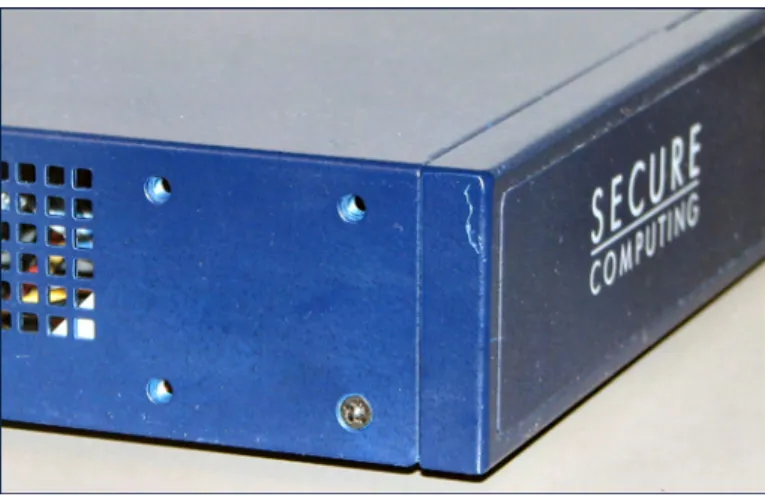
2 mounting bracketsFigure 6: Side view of Model 10 showing bracket mounting holes
Installing the appliance in the rack
1 Attach the brackets to each side of the Model 10 appliance using the screws supplied. 2 When the brackets have been mounted, position the appliance in the rack at the desired
place.
3 Use the mounting screws to attach the appliance securely to the rack.
Installation for IronMail S-class Models 25, 50 and 100
The IronMail S-class should be mounted in standard 4-post data center racks having a 19-inch-wide opening.
Tools required:
Figure 7: Contents of the S-class mounting kit:
•
Power cord•
Network Connection cord•
Bezel mounts with screws•
Mounting screwsSlide rail installation
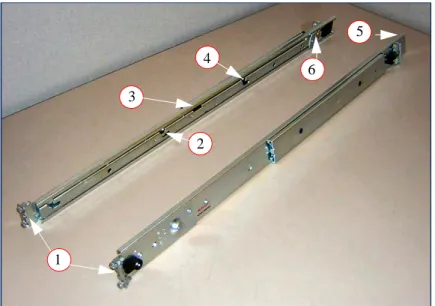
Figure 8: Slide mounting rails
1. Front Multi-Pin Adapter and Bracket 2. Component Release Lever
3. Slide Extension Release Lever
4. Component Mounting Channel (3 per rail) 5. Rear Multi-Pin Adapter and Bracket 6. Anti-Sag Bar Slider
Setting the multi-pin adapters for rack type
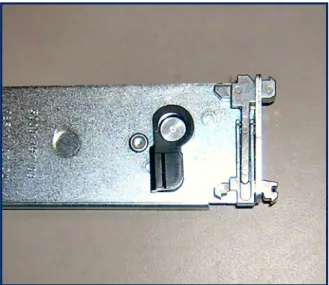
The 10-32 threaded hole in the center of the Multi-Pin Adapter is for securing the rails during shipping, and for the attachment of front panel blanks (if desired). The Slide rails are shipped with the Multi-Pin Adapters set for square holes. If your rack has square mounting holes, skip this section.
1. On each Slide Rail, reverse the Multi-Pin Adapter position to match the rack mounting hole type if necessary. Remove the Multi-Pin Adapter by rotating the Swivel Lock up, pressing the mounting pins together, and then pulling the adapter from the Multi-Pin Bracket.
1 2 3 4 5 6
Figure 9: Side rail with swivel lock in locked position
2. Install the Multi-Pin Adapter by pressing the pins together while inserting the adapter into the bracket. The Multi-Pin Adapter must be fully locked in the bracket. Ensure both mounting pins on the Multi-Pin Adapter are fully engaged in the Multi-Pin Bracket, then lock the Multi-Pin Adapter in place using the Swivel Lock
Figure 10: Side rail with swivel lock in open position
3. Repeat these steps for both ends of each Slide Rail.
Installing the slide rails into the rack
1. At all four rack uprights, determine the vertical position in the rack where the Slide Rails are to be installed. The top-most mounting hole for a particular rack unit (RU) mounting position is typically indicated by a mark or hole.
Caution: If Slide Rails are mounted in holes which are not vertically aligned (level) from front to back, the Slide Rail may be damaged and mounting will not be secure.
2. Noting the holes determined in the previous step, align the left Slide Rail with its mounting holes. 3. Hold the Slide Rail in the desired rack mounting position. At the rear of the Slide Rail, press the
Multi-Pin Adapter mounting pins together and insert the Slide Rail into the rack.
4. Ensuring you have selected the proper mounting holes on the rack upright, repeat the above step at the Slide Rail’s front mounting position. Ensure the Slide Rail is level.
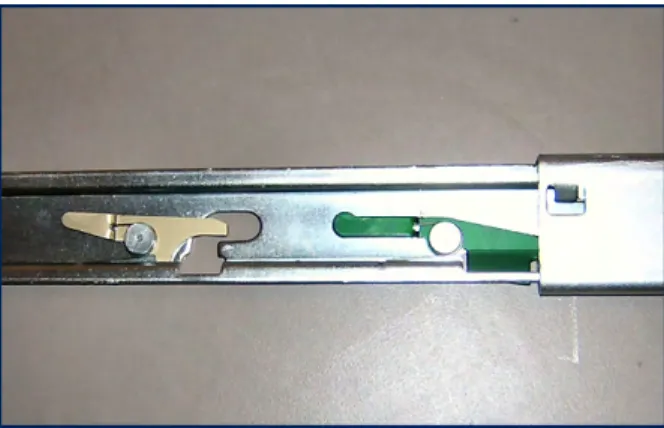
5. Extend the Slide Rail to its fully extended (locked) position. Press the Slide Rail Extension Release Levers to release the lock. Move the Slide Rail in and out through its entire range of motion to ensure it does not bind. If binding occurs, recheck the mounting positions
Figure 11: Slide rail showing release lever
.
6. Repeat steps 2 through 5 for the right Slide Rail, being certain that it is parallel and level with the left Slide Rail.
Installing the component into the slide rails
2. Align the mounting studs with the Component Mounting Channels on the Slide Rails.
3. Carefully place the component’s mounting studs in the Component Mounting Channels on the Slide Rails. Allow the component mounting studs to fully seat in the Component Mounting Chan-nels. The Component Release Levers (one on each rail) pivot out of the way and then back into place when the studs are fully engaged in the mounting channels. Ensure the Component Release Levers are in the locked position.
4. Press and hold both the left and right Slide Extension Release Levers and slowly slide the compo-nent and Slide Rails into the fully retracted position.
Uninterruptible power supply
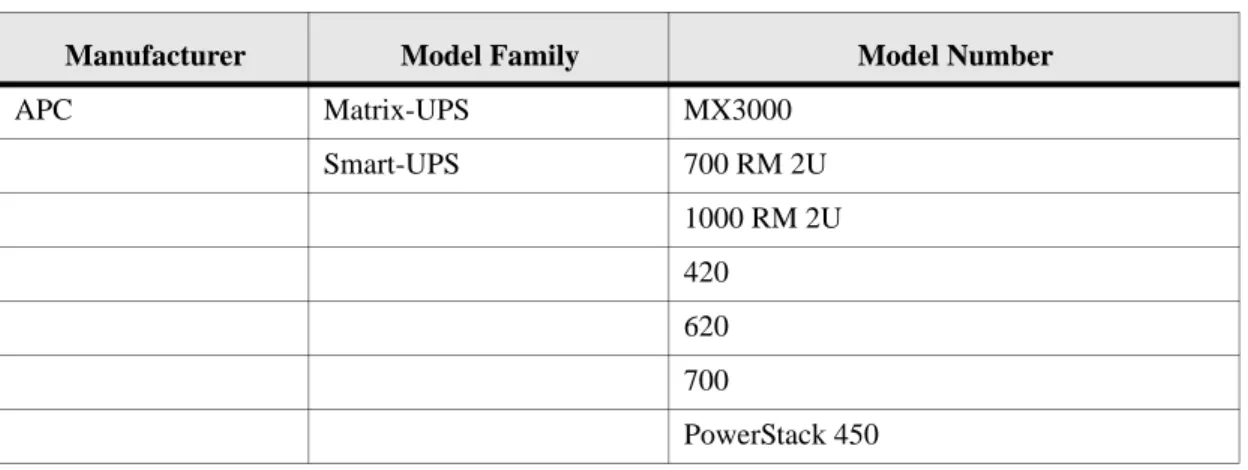
IronMail should only be used in conjunction with an Uninterruptible Power Supply (UPS). While many UPS devices are suitable for providing power, not all are able to “gracefully” shut down IronMail in an emergency loss of power. Many are incapable of interfacing with IronMail’s software. And worse, some are so incompatible they will shut down IronMail on their own, regardless of the presence or absence of adequate power! Therefore, Secure Computing encourages you to only connect the data cables for UPS models shown on the table on the following page which have been thoroughly tested for reliability and compatibility.
If you use a UPS other than one shown in the following table, do not attach a data cable from the UPS to IronMail’s serial port (when the serial port is configured as a UPS interface)
TABLE 1. Recommended UPS Hardware
Manufacturer Model Family Model Number
APC Matrix-UPS MX3000
Smart-UPS 700 RM 2U
1000 RM 2U 420
620 700
Please contact Secure Computing product support at 678-867-2999 or send an email to [email protected] to confirm if your UPS has been tested since the publication of this Setup Guide.
Attaching keyboard, mouse, and monitor
IronMail accepts the connection of keyboard, mouse, and monitor allowing you to connect to the appli-ance directly (in addition to, or in lieu of connecting through your local area network). Attach a monitor to the VGA port on the back of the appliance. Attach keyboard to the bottom PS-2 port on the back of the appliance. (The mouse and keyboard must be connected to the appliance before power is turned on.) You only have access to the command line interface when connected directly to the appliance—you do not have access to the graphical, browser-based Web Administration interface. The command line inter-face allows you to perform some of the functionality available in the Web Administration GUI, but more importantly, it allows you to restore the appliance to its factory default settings.
Server power, controls, and indicators
This section identifies the controls and indicators on the front and rear of the IronMail S-class server. It also describes the power features of the server.
Model 10 front panel
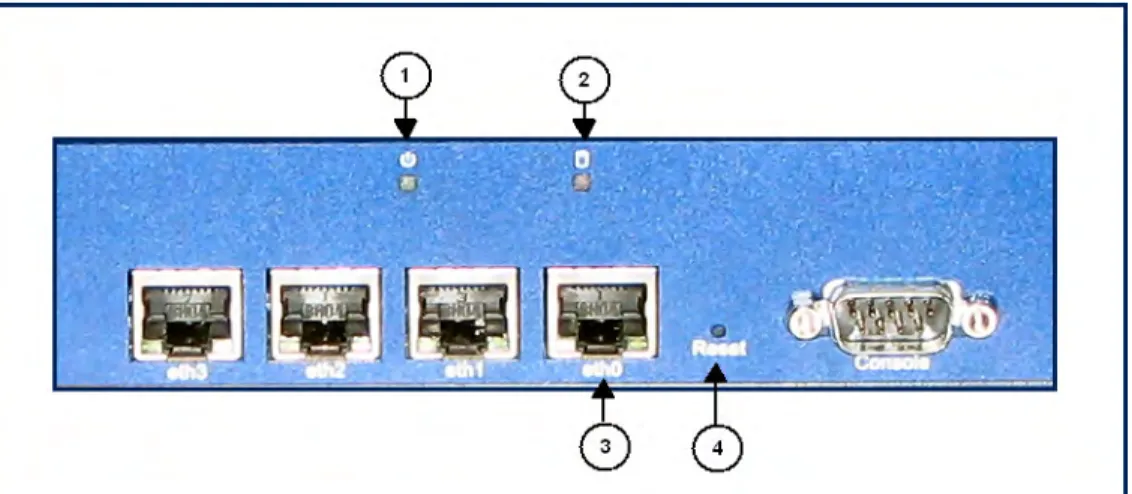
Figure 12: Model 10 front detail
TABLE 2. S-10 front panel controls
Item number Description
1 Power indicator light
2 Database access indicator light 3 Ethernet connection (network)
Models 25, 50 and 100 front panel
Figure 13: Model 25, 50 and 100 front detail
Control Panel Buttons
The IronMail S-class control panel provides important system monitoring and control information. LEDs indicate power on, network activity, hard disk drive activity and system overheat conditions. The control panel also includes a main power button and a system reset button.
There are two push-buttons located on the front of the chassis, accessed by removing the front bezel. These are (in order from left to right) a reset button and a power on/off button.
Reset: The reset switch reboots the system.
Caution: If IronMail is running and the Reset switch is pressed, IronMail is forced to “hard boot”–it immediately reboots without first gracefully shutting down. Hard-booting the IronMail appliance by pressing this switch can corrupt its internal databases, requiring that damaged files be rebuilt.
Power down or reboot the IronMail appliance only from within the Web Administration (GUI) or Com-mand Line interface.
Power: This is the main power switch, which is used to apply or turn off the main system power. Turn-ing off system power with this button removes the main power but keeps standby power supplied to the system. Press and hold the power button four seconds to turn the server off. (See also the power supply on/off switch information in the Rear Panel section of this chapter).
Control panel LEDs
The control panel located on the front of the server chassis has six LEDs. These LEDs provide critical information related to different parts of the system. This section explains what each LED indicates when illuminated and any corrective action you may need to take.
Overheat: Indicates an overheat condition in the chassis. This may be caused by air-flow obstruction in the rack, or the ambient room temperature being too warm. Check to make sure that the chassis cover is installed and that all fans are present and operat-ing normally. If the overheat condition continues, contact Secure Computoperat-ing product support at 678-867-2999 or email [email protected]. The unit will overheat if operated with the top removed.
NIC1: Indicates network activity on LAN1 when flashing.
NIC2: Indicates network activity on LAN2 when flashing. This indicator is not cur-rently in use.
Power: Indicates power is being supplied to the system's power supply. This LED should normally be illuminated when the system is operating.
Model 10 rear panel
The IronMail S-class Server is a 1U rackmount chassis. Its I/O panel provides one COM port, a PS/2 keyboard port, a VGA port and two Ethernet ports (only one port is usable).
Figure 14: Model 10 rear panel
Models 25, 50 and 100 rear panel
Figure 15: Model 25, 50 and 100 rear panel
The following is a description of the connectors on the rear of the IronMail S-class Server:
Power (black): A black power connector is on the left side of the server.
Keyboard (purple): Use to plug in a keyboard when configuring the server or using the IronMail S-class as a console.
Ethernet portmail traffic: Connect to second ethernet port from the left. TABLE 3. S-10 rear panel controls
Item number Description
1 Power cord socket
2 On/off switch
3 USB ports
VGA port (blue): Use to plug in a VGA monitor when configuring or attaching a console to IronMail S-class.
Serial port: May be configured as the port for an Uninterruptible Power Supply (UPS) or as the port for Command Line Interface (CLI) access.
CHAPTER 2
Network Configuration
Network connectivity
Your network administrator must assign an IP address, subnet mask, and host name for the IronMail appliance. (A host name “yourname” and domain name “yourdomain.com” results in the fully qualified domain name (FQDN) “yourname.yourdomain.com.”) The first time you connect to IronMail, you will be required to enter this and other information into its configuration database. Establishing network connectivity may require the assistance of your network administrator.
Based on your company’s network design, IronMail may be connected to the corporate network either in a De-Militarized Zone (DMZ) or on the internal LAN. Once the physical connection has been estab-lished, some configuration of the network firewall and Domain Name Service (DNS) will be required.
Network firewall configuration
It is recommended that you place IronMail in a DMZ if your network supports it. If so, you must create rules to allow the protocols for the following:
•
IronMail to internet•
Internet to IronMail•
IronMail to the internal mail server•
Internal mail server to IronmailFigure 1: De-militarized zone (DMZ) firewall routing
TABLE 1. DMZ firewall routing
ID number Description
Installing IronMail in a DMZ
There should be no open protocols from outside to inside (bypassing IronMail) when using a DMZ con-figuration. The following tables describe the ports you must open in your firewall to allow IronMail to function:
3 The DMZ IronMail 4 The mail server 5 Outgoing to the internet 6 Incoming from the internet
7 Incoming from the internal network 8 Outgoing to the internal network.
TABLE 2. IronMail to the internet
Port TCP/UDP Protocol Description
25 TCP SMTP Required for mail delivery
53 TCP/
UDP
DNS Optional for an IronMail (if your DNS is ouitside the network, you must open the port allowing IronMail to connect to it.
123 TCP NTP Required if using Network Time Protocol
162 SNMP trap manager (optional)
389 LDAP (used only if LDAP is enabled)
6277 UDP SLS Required if you wish to enable Statistical Lookup Ser-vice (SLS) lookup as part of your anti-spam strategy. 20022 TCP Secure Computing Required in order for IronMail to request updates.
TABLE 1. DMZ firewall routing
TABLE 3. Internet to IronMail
Port TCP/UDP Protocol Description
25 TCP SMTP Required for mail delivery.
80 TCP HTTP Optional for WebMail (secure HTTPS on port 443 is preferable).
110 TCP POP3 Optional (secure POP# on port 995 is preferable). 143 TCP IMAP4 Optional (secure IMAP4 on port 993 is preferable). 443 TCP HTTPS Optional for WebMail (for secure HTTPS proxying). 465 TCP SMTPS Optional for secure incoming messages.
993 TCP IMAP4S Optional (this is the preferred port to securely receive mail via IMAP4).
995 TCP POP3S Optional (this is the preferred port to securely receive mail via POP3).
6277 UDP SLS Required only if SLS lookups are enabled. 20022 TCP Secure Computing Required (allows Secure Computing to connect to
your IronMail for technical support.
TABLE 4. IronMail to intenal network
Port TCP/UDP Protocol Description
21 TCP FTP Optional if using FTP. 22 TCP SCP Optional if using SCP. 25 SMTP Required for mail delivery.
53 UDP DNS Optional for an IronMail (if your DNS is inside the network, you must open the port allowing IronMail to connect to it.
Installing IronMail in a network with no DMZ
If you do not have a DMZ, the IronMail may be installed on your internal network. If you install Iron-Mail inside the network, simply open the necessary ports in the firewall.
110 TCP POP3 Optional (you should open secure port 995 for POP3S instead).
143 TCP IMAP4 Optional (you should open secure port 993 for IMAP4S instead).
162 TCP SNMP Optional if using SNMP trap manager. 389 TCP LDAP Optional if using LDAP.
443 TCP HTTPS Optional for WebMail (for secure HTTPS proxying). 514 UDP Optional if using syslog server.
993 TCP IMAP4S Optional (this is the preferred port to securely retrieve mail via IMAP4S).
995 TCP POP3S Optional (this is the preferred port to securely retrieve mail via POP3S).
TABLE 5. Internal mail server to IronMail
Port TCP/UDP Protocol Description
22 TCP Command Line Interface
Optional (only if you want to access the command line interface from inside the network).
25 TCP SMTP Required for mail delivery.
10443 TCP HTTPS Required (this is the port used to connect to IronMail’s WebAdmin interface).
TABLE 4. IronMail to intenal network
Figure 2: No demilitarized zone (DMZ) firewall routing
TABLE 6. Non-DMZ firewall routing
ID number Description
1 The internet 2 The firewall
TABLE 7. IronMail to internet
Port TCP/UDP Protocol Description
25 TCP SMTP Required for sending mail.
123 TCP NTP Required if using Network Time Protocol.
53 UDP DNS Optional for an IronMail (if your DNS is outside the network, you must open the port to allow IronMail to connect to it).
20022 TCP Secure Computing Required in order for IronMail to request updates. 6277 UDP SLS Required if you wish to enable Statistical Lookup
Ser-vice (SLS) lookup as part of your anti-spam strategy.
TABLE 8. Internet to IronMail
Port TCP/UDP Protocol Description
25 TCP SMTP/SMTPS Required for mail delivery.
80 TCP HTTP Optional (you should open secure port 443 for HTTPS instead).
110 TCP POP3 Optional (you should open secure port 995 for POP3S instead).
143 TCP IMAP4 Optional (you should open secure port 993 for IMAP4S instead).
443 TCP HTTPS Optional for WebMail (for secure HTTPS proxying). 465 TCP SMTPS Optional (this is the preferred port to securely send
mail).
993 TCP IMAP4S Optional (this is the preferred port to securely retrieve mail via IMAP4).
995 TCP POP3S Optional (this is the preferred port to securely retrieve mail via POP3).
Most mail servers use only ports 25, 110, and 143 for sending and retrieving email. However, messages transmitted through these ports are unencrypted—attackers can read or intercept email sent this way. We recommend that you open the secure ports instead: 995 for POP3S and 993 for IMAP4S to force external users to retrieve their mail via SSL. (IronMail also provides the ability to send mail encrypted via TLS/SSL (Transport Layer Security/Secure Sockets Layer) on port 25.)
Internal mail server configuration
Configuration of your internal mail servers is very simple. Make IronMail the only IP address allowed to connect to your mail server, and re-direct your servers’ outbound mail flow to IronMail using a static route.
DNS configuration
DNS is a very complex subject, and there is no standard way in which it is implemented. In addition to the DNS server’s MX (Mail Exchange), A (address), PTR (pointer) and other records, some networks use Network Address Tables (NAT) to map servers internally. However you implement DNS, you must at least do the following: The MX record pointing to the IronMail must have a lower preference number (i.e. higher priority) than the other MX records for the domain. This allows all mail addressed to your domain to be routed to the IronMail appliance, and allows all other servers to perform DNS lookups and reverse lookups on IronMail.
Follow these configuration steps:
Step 1. Create the A record for the IronMail. The A records provide the forward mapping of
host-names to IP addresses.
Create the PTR record for the IronMail. PTR records provide the reverse mapping of IP 6277 UDP SLS Required for IronMail’s Statistical Lookup Service
spam-blocking tool. 20022 TCP Secure
Comput-ing
Optional (allows Secure Computing to connect to your IronMail for technical support).
TABLE 8. Internet to IronMail
Step 3. Create the MX record for each domain for which the IronMail will relay email. Create the MX
record number lower than the existing MX records.
Step 4. Note: Spammers have begun targeting secondary MXs for delivery of spam because often the
anti-spam features are not as robust as the primary MX. Secure Computing recommends that you remove all other MX records.
You can check whether reverse lookup is working using the “ping” command, with the “-a” switch. Pinging an IP address with that switch will do a reverse lookup, and display the resolved name:
C:\>ping -a 63.168.166.5
Pinging servername.yourdomain.com [63.168.166.5] with 32 bytes of data: Reply from 63.168.166.5: bytes=32 time=731ms TTL=242 Reply from 63.168.166.5: bytes=32 time=1081ms TTL=242 Reply from 63.168.166.5: bytes=32 time=1052ms TTL=242 Reply from 63.168.166.5: bytes=32 time=611ms TTL=242
CHAPTER 3
Setting Up Secure Computing
IronMail
The initial setup for IronMail includes at least two major components, and possibly a third. The Installer or Administrator must set up the basic IronMail appliance to allow its further configuration after the basic initialization is completed; they must also perform essential setup for connectivity to the internet and to the mail
network
. The third component is necessary only if the IronMail appliance is being set up as a Centralized Management Console (CMC
).Setup results in only the most basic configuration of IronMail. Once all initial setup is complete, the Administrator will perform the detailed configuration that prepares IronMail to protect the specific net-work.
In this chapter:
In this chapter, you will find information about the following topics:
•
Configuring IronMaill•
Initial Configuration WizardConfiguring IronMail
Preliminary Information
IronMail—whether intended as a stand-alone appliance or as a Centralized Management Console—uses a simple wizard to set the initial values required for it to become minimally functional. Before you run the wizard, obtain the information requested in the form below. Your network administrator should be
able to assist you in determining the network information. (A copy of this Information Gathering Form appears at the back of the Setup Guide so it may be removed for easy information gathering.)
Step 1. Have on hand the License Key that was e-mailed to you for the IronMail appliance. The
License Key contains information that determines whether this appliance is a
Centralized
Management Console
for enterprise environments or a stand-alone IronMail.Step 2. Create a
host name
for this appliance.Step 3. Determine the
domain name
to which this appliance belongs. Step 4. Assign anIP address
for this appliance.Step 5. Determine the
Subnet
Mask for this appliance. Step 6. Specify the Default Router the appliance will use.Step 7. Specify the IP Address of at least one of your DNS Servers (This appliance must be able to
connect to it.)
Step 8. Provide the fully qualified domain names of up to three Network Time
Protocol
servers.(IronMail identifies three servers by default.)
Step 9. Specify the appliance’s time zone by selecting from the pick list the city nearest the appliance.
(The selected city must be in the same time zone as IronMail.)
Step 10.For “stand-alone” IronMail only! — Specify the fully qualified domain name of your default
mail server. (If you have dedicated servers handling incoming and outgoing mail, or other ser-vices, select one to enter during the wizard setup—the remaining servers will be configured later.) This information is not necessary for configuring a Centralized Management Console.
Step 11. Specify the IP address of the default mail server you identified above. Step 12.Specify your default email domain.
Step 13.Determine if you want IronMail to use secure
POP3
or IMAP 4 with your internal server.(Your internal server must have a Security Certificate installed on it for secure POP3 or
IMAP4
to be implemented.).Verify this information with your Network Administrator prior to running the appliance’s Initial Con-figuration Wizard.
Initial Configuration Wizard
IronMail ships with a pre-installed, albeit unsigned, Security Certificate. IronMail only allows adminis-trative sessions with it over a secure
SSL
(https) connection, for which a Security Certificate isstructure. Until you install a valid Security Certificate from a Certificate Authority, your browser will display a Security Alert each time you logon to the appliance. Clicking Yes at the prompt allows you to proceed.
You must connect to the appliance to enter some preliminary values in an Initial Configuration Wizard in order to make the appliance initially functional. Use a client workstation (any Windows PC) as Iron-Mail’s “front end.” There are two ways you can connect to the appliance:
•
Use a network “cross-over” cable to physically connect a PC workstation to IronMail. (The cable plugs into the network port on each device.)•
Install IronMail in your existing network, but set a PC workstation’s netmask to match IronMail’s defaultIP address
and netmask.For either type of connection, the client workstation must temporarily change its IP address and net-mask to match IronMail’s default values (IP Address: 192.168.0.254, Netmask: 255.255.255.0). That is, change your workstation IP address to 192.168.0.xxx, and the netmask to 255.255.255.0 (where xxx is any number between 0-253).
1. Launch Internet Explorer on the client workstation and navigate to IronMail’s built-in default IP
address:
https://192.168.0.254
You must add the letter “s” after “http.”
The opening screen for the Installation Wizard displays. Click Next to begin the installation pro-cess.
Step 2. The first screen to appear is the Master Sale and License Agreement. After you have read the
agreement, click Accept or Decline. If you choose to Decline, the installation wizard will close and the appliance will not run. If you choose Accept, the wizard proceeds to the next step.
Step 3. The next screen that opens displays the Support Services Agreement. After you have read the
agreement, click Accept or Decline. If you choose to Decline, the installation wizard will close and the appliance will not run. If you choose Accept, the wizard proceeds to the next step.
Step 4. Select the language you wish to use for this installation of IronMail by choosing the name of
the language from the pick list. Select the character set for this IronMail from the second list.
Click Next.
Step 5. Copy the text file containing the License Key for the appliance, and paste the key into the
input field on the next screen.
You must include all of the beginning and ending lines that appear with the License Key, as shown: "======Begin CipherTrust License======" and "======End CipherTrust
After pasting in the key, click Next.
Step 6. Enter the
host name
for the appliance, created by your Network Administrator. The hostname is the text preceding the
domain name
. In the example "servername.yourdo-main.com" "servername" is thehost name
, and "yourdomain.com" is the domain name.Click Next.
Step 7. Enter the domain name for the domain to which the appliance will belong (e.g.,
"yourdo-main.com").
Click Next.
Click Next.
Step 9. Enter the
subnet
mask for this IronMail, as provided by your Network Administrator.Step 10.Enter the IP address for the Default Router for this appliance. The router address is provided
by the Network Administrator.
Click Next.
Step 11. Enter the IP address for at least one of your DNS Servers (you may have up to three). The
Click Next.
Step 12.Enter the IP address or the fully qualified domain name for up to three Network Time
Proto-col
(NTP) servers, as provided by the Network Administrator.Click Next.
Step 13.Specify the appliance's time zone by selecting from the pick list your own location or city, or a
Click Next.
Step 14.If you are configuring a stand-alone IronMail appliance, you must enter information about
your default email server. If you have more than one email server, enter only the information about the default server. You can configure additional servers after you complete the Installa-tion Wizard.
If you are configuring a
Centralized Management Console
, you do not have to provide information about internal mail servers. Skip this step by clicking Next, and proceed to verifying your information.Step 15.Verify that the information you have provided is correct. You can use the Back buttons to
return to previous steps and make corrections, should you detect errors. You may want to print this screen for your records once you have verified the information.
If you inadvertently enter the IP address incorrectly and fail to print this page showing the appli-ance's dot-decimal number, you will be unable to log onto IronMail when you later browse to what you thought was the correct address. Log onto IronMail via attached keyboard and command line interface to reset the appliance to its default factory settings.
Click Finish after the information has been verified.
CAUTION. Do not press Enter a second time or click the Refresh icon. This can cause problems with program integrity.
When the restart process has had time to finish (wait at least three minutes), you may log onto the appli-ance. Using your network browser, go to the IP address for the appliance and log in.
IronMail's opening SmartStart screen will display, allowing you to continue with “best practices” con-figuration.
Once a stand-alone IronMail is running, it is now acting as a proxy—incoming and outgoing mail will flow through IronMail to the email server you specified, and your exposure to the outside world has been "hardened.” However, many of IronMail’s features have not yet been enabled. Additional configu-ration is required as described in the remainder of the User Manual.
CHAPTER 4
Best Practices Configuration
The concept of “Best Practices” configuration is derived from Secure Computing’s desire to streamline the process of preparing the IronMail appliance for effective operation. SmartStart offers the means to do precisely that.
In this chapter
In this chapter, you will find information about the following topics:
•
SmartStart• Using SmartStart
SmartStart
The purpose for SmartStart is to provide the Administrator the ability to install best practices IronMail configurations at the time of initial appliance installation and setup. It allows the Administrator to install the current software upgrades, current Anti-Virus upgrades, the Pre-Configuration package, the current Threat Response Update (TRU), and several other common configuration entries.
The Administrator will complete the initial IronMail setup and installation as usual, applying the stan-dard Installation Wizard, as explained in the previous chapter and in the IronMail Setup Guide. Then, at the Administrator’s first login, the initial SmartStart screen displays.
Unless the SmartStart installation is interrupted, subsequent logons will bypass SmartStart and take the user directly to the Dashboard, as discussed later in this manual.
Note. SmartStart functionality is available only to the Admin user account. For any other user, the first login will open the Dashboard, IronMail’s regular opening screen.
Using SmartStart
Complete SmartStart installation requires completing the actions on 12 screens. It is important for the Administrator to remember a few basic rules for navigating SmartStart.
Step 1. You must select the specific SmartStart screen you wish to use by clicking the screen’s link in
the left menu. When you finish one screen, you can go to the next by clicking its link.
Step 2. If you need to leave the SmartStart Wizard before you have completed work with all screens,
you must leave by clicking Log Out at the top of the screen. The next time you log in, Iron-Mail will return you to the SmartStart screen from which you logged out.
Step 3. If you click Quit at the top of the screen, you will leave SmartStart, and will be taken to the
Dashboard screen. You will not automatically return to SmartStart when you log in again.
Step 4. Since some SmartStart steps need to be done in a specific order, please read the instructions on
each screen before you apply it.
The SmartStart Screen
Left Side: Menu
The left side of the screen contains the menu listing all 12 screens that may be used in SmartStart. You will use this menu to select the portion of the wizard you wish to apply.
You may click on any SmartStart screen link to open it without regard for the order on the menu. However, some of the steps must be taken in order. Read the screen instructions before you apply the screen.
Screen 1, the Network Connectivity check, is the opening screen for SmartStart, since connectivity is required to apply some of the other steps.
Upper Right: SmartStart information
The upper portion of the screen, as seen below, extending across the screen except for the left menu area, contains informative text about the screen you are currently viewing. It may provide instruc-tions and other important information about the step you are about to complete.
Lower Right: Configuration screens
The lower portion of all SmartStart screens, like the sample below, will contain the actual IronMail con-figuration screens required to complete the specific step you are applying.
IMPORTANT. The screen images that populate this portion of the SmartStart screen will retain their own instruction text or help text.
Accessing SmartStart
To access SmartStart as part of the initial installation and setup of the IronMail, the Administrator (Admin user account) simply logs into IronMail the first time.
Screen 1 of the SmartStart process opens.
Screen 1: Network Connectivity
The initial screen is designed to welcome the administrator, give basic SmartStart instruction, and test for Network Connectivity.
SmartStart Network Connectivity Check
This step tests the connectivity between your IronMail appliance and the Secure Computing update infrastructure. Connectivity is required in order to use the SmartStart feature for configuring your Iron-Mail. You will use the update infrastructure in some of the following steps to update the version of soft-ware installed on your appliance, to download the latest “best practices” Pre-Configuration or Threat Response Update packages, and to install the most current Anti-Virus engine updates and virus signa-tures.
When you have tested your network connectivity, go to the next screen by clicking that screen’s link in the left menu.
Screen 2: Software Updates
This step allows you to update the software on your IronMail appliance to the most current available version.
SmartStart Software Updates
Network connectivity is required for this step. Depending upon the version of the IronMail software currently installed, this update may require more than one step and may involve rebooting the appli-ance. If you need to install more than one release to get to the most current version, use this screen to download and install each upgrade in order, one upgrade at a time. If the appliance must be rebooted, you will be brought back to the SmartStart feature when you log in again.
Screen 3: Pre-Configuration
This screen allows you to access and install the Pre-Configuration package for your version of the Iron-Mail appliance software.
SmartStart Pre-Configuration Installation
This package sets general configuration parameters representing the current “best practices” in general administration for your IronMail appliance. Network connectivity is required for this step.
IMPORTANT. You should install the Pre-Configuration package after upgrading to the most recent version of the IronMail appliance software, and you should only install the Pre-Configuration that is appropriate for your version of the software.
After you have set up the installation on the screen at the bottom of the SmartStart page, use the com-mands on that screen to record your configuration. Then you may proceed to the next screen by clicking that screen’s link in the left menu.
Screen 4: Threat Response Updates
This screen allows you to access and install the latest Threat Response Update (TRU) package for your version of the IronMail appliance software.
SmartStart Threat Response Updates
This package sets optimal configuration parameters for protection from inbound e-mail threats. Net-work connectivity is required for this step.
IMPORTANT. You should install the TRU package after upgrading to the most recent version of the IronMail appliance software and after installing the Pre-Configuration package that is appropriate for your version of the software.
After you have set up the installation on the screen at the bottom of the SmartStart page, use the com-mands on that screen to record your configuration. Then you may proceed to the next screen by clicking that screen’s link in the left menu.
Screen 5: Virus Updates
This screen allows you to access and install the latest Anti-Virus engines and virus signatures for your version of the IronMail appliance software.
SmartStart Anti-Virus Updates
After you deploy the IronMail appliance, you will automatically receive new updates as they become available. Connectivity is required for this step.
Note. Anti-Virus protection is a licensed feature for your IronMail appliance. If you have not licensed this protection, please contact Secure Computing Support.
IMPORTANT. You should update Anti-Virus protection only after upgrading to the most recent ver-sion of the IronMail appliance software and after installing the Pre-Configuration package that is appro-priate to your version.
After you have set up the updates on the screen at the bottom of the SmartStart page, use the commands on that screen to record your configuration. Then you may proceed to the next screen by clicking that screen’s link in the left menu.
Screen 6: SMTP Route Setup
This screen allows you to configure SMTP routes for any additional internal (inbound) domains or external (outbound) domains you will need in order to route mail properly in your environment.
SmartStart SMTP Route Setup
After you have set up the routes on the screen at the bottom of the SmartStart page, use the commands on that screen to record your configuration. Then you may proceed to the next screen by clicking that screen’s link in the left menu.
Screen 7: Internal Server List
SmartStart Internal Server Setup
After you have added internal servers on the screen at the bottom of the SmartStart page, use the com-mands on that screen to record your configuration. Then you may proceed to the next screen by clicking that screen’s link in the left menu.
Screen 8: Allow Relay
SmartStart Allow Relay Setup
Allow Relay is the list of servers that are allowed to send e-mail to your IronMail appliance for any des-tination domain, not just for domains the appliance hosts through the SMTP Routing setup.
After you have added internal servers to the Allow Relay list on the screen at the bottom of the Smart-Start page, use the commands on that screen to record your configuration. Then you may proceed to the next screen by clicking that screen’s link in the left menu.
Screen 9: Report Setup
SmartStart Report Setup
After you have set up the reports using the screen at the bottom of the SmartStart page, use the com-mands on that screen to record your configuration. Then you may proceed to the next screen by clicking that screen’s link in the left menu.
Screen 10: Alerts Setup
SmartStart Alerts Setup
After you have set up the alerts using the screen at the bottom of the SmartStart page, use the commands on that screen to record your configuration. Then you may proceed to the next screen by clicking that screen’s link in the left menu.
Screen 11: Add Accounts
This screen allows the Administrator to add new user accounts that may access the IronMail appliance, and to configure the roles (permissions) assigned to those accounts.
SmartStart Add Accounts
The roles govern the functions these users may use and their ability to make changes to the configura-tion of the IronMail appliance.
After you have set up the accounts using the screen at the bottom of the SmartStart page, use the com-mands on that screen to record your configuration. Then you may proceed to the next screen by clicking that screen’s link in the left menu.
Screen 12: Change the Admin Password
SmartStart Change Admin Password
IMPORTANT. To protect the Admin account, it is essential that the password be changed from the default to a new password. This step is strongly recommended.
After you have changed the Admin password on the screen at the bottom of the SmartStart page, use the commands on that screen to record your configuration. Then you may proceed to another screen by clicking that screen’s link in the left menu.
Screen 13: Finishing SmartStart
This screen provides information that allows you to exit SmartStart gracefully, taking you back to the login screen.
If you have finished SmartStart, you may proceed from the opening screen (the Dashboard) to monitor IronMail’s status and activity.
Note. If you exit SmartStart before completing all the steps, be sure to note the steps you have com-pleted and those that still remain. It may be to your advantage to complete SmartStart before you exit, to ensure nothing is forgotten.
When You Have Finished SmartStart
If you have applied all the steps of SmartStart, your IronMail appliance is now configured for deploy-ment, using best practices configuration.
When you have completed all steps of the SmartStart process, you may exit SmartStart by clicking the
Exit SmartStart button at the bottom of Finish SmartStart screen. This will close SmartStart and take you to the IronMail login screen.
Log into IronMail using your user name and password, and you will see the IronMail What’s New screen (IronMail’s opening screen for your first login).
Web Gateway – Comprehensive protection against malware, viruses, data leakage and Internet misuse, while ensuring policy enforcement, regulatory compli-ance, and a productive application environment.
Messaging Gateway – Inbound defense against spam, viruses, denial-of-service and intrusions; outbound protection against data leaks and policy violations.
Network Gateway – World’s strongest firewall appliance contains the most comprehensive set of secu-rity solutions consolidated in one appliance and automatically discards huge volumes of unwanted traffic from known “bad” entities.
Identity & Access Management – Providing safe access to applications, data and resources through policy-driven security and strong authentication.
Trademarks
Secure Computing, SafeWord, Sidewinder, SmartFilter, Type Enforcement, SofToken, Enterprise Strong, Mobile Pass, G2 Firewall, PremierAccess, SecureSupport, SecureOS, Bess, Cyberguard, Total Stream Protection, Webwasher, Strikeback, and Delivering the Web You Want are trademarks of Secure
Secure Computing Corporation www.securecomputing.com
Corporate Headquarters
4810 Harwood Road San Jose, Ca 95124 USA Tel +1.800.379.4944 Tel +1.408.979.6100 Fax +1.408.979.6501
European Headquarters
1, The Arena Downshire Way Bracknell
Berkshire, RG12 1PU UK Tel +44.0.870.460.4766 Fax +44.0.870.460.4767
Asia/Pac Headquarters
1604-5 MLC Tower 248 Queen’s Road East Wan Chai, Hong Kong Tel +852.2520.2422 Fax +852.2587.1333
Japan Headquarters
Level 15 JT Bldg. 2-2-1 Toranomen Minato-Ku Tokyo 105-0001 Japan Tel +81.3.5114.8224 Fax +81.3.5114.8226