Table of Contents
Technology Overview . . . . 4
Common Use Cases To Leverage VMware ThinApp . . . . 4
Review of Key Features . . . . 5
Agentless Application Virtualization . . . . 5
Fast, Flexible Application Packaging . . . . 5
Fast, Flexible Application Delivery . . . . 5
Seamless Integration with Existing Infrastructure . . . . 5
Getting Started with VMware ThinApp . . . . 6
ThinApp Packaging Process . . . . 7
Packaging an Application Using Setup Capture . . . . 7
Enabling a ThinApp Package for Use in Horizon Application Manager . . . . 8
Using Active Directory Groups to Authorize ThinApp Packages . . . . 10
Modifying Settings in the Package.ini File . . . . 12
Enabling ThinApp Packages Created Prior to ThinApp 4.7 for
Horizon Application Manager . . . . 13
Harvesting Internet Explorer 6 and Using ThinDirect with Setup Capture . . . . 13
Utilizing ThinApp Converter for Automated Packaging . . . . 15
Deploying ThinApp Packages . . . . 17
Choosing Centralized or De-Centralized Deployment . . . . 17
Choosing Execution Mode . . . . 17
Streaming Execution Mode . . . . 17
Deployed Execution Mode . . . . 18
Application Registration . . . . 19
Role-Based Access to Applications . . . . 19
Script-Based Registration . . . . 19
MSI-Based Registration . . . . 19
Deployment Choices in ThinApp Setup Capture . . . . 20
Using ThinApp Assignments with VMware View . . . . 21
Utilizing AppLink to Combine ThinApp Packages . . . . 26
Integrating ThinApp Packages with Horizon Application Manager . . . . 27
Table of Contents Continued
Procedures to Deploy and Manage ThinApp Packages in
Horizon ApplicationManager . . . . 35
Enabling a ThinApp Package for Horizon . . . . 35
Creating the ThinApp Repository (Windows Application Share)
for Horizon Application Manager . . . . 35
Installing and Configuring the Horizon Connector . . . . 36
Security of Information That Is Communicated to the Horizon Cloud Service . . . . 63
Updating ThinApp Packages . . . . 64
Packaging Updates and Modifications . . . . 64
Recapture . . . . 64
Sandbox Merge . . . . 64
Post-Capture . . . . 64
Deploying Updates . . . . 64
Package Replacement . . . . 65
Side-by-Side Update . . . . 65
AppSync . . . . 65
Updating ThinApp Packages in Horizon Application Manager . . . . 66
Additional Resources . . . . 67
Technology Overview
VMware® ThinApp™ is an agentless application virtualization solution that decouples applications from their underlying operating systems to eliminate application conflict and streamline application delivery and management. ThinApp simplifies application virtualization and enables IT administrators to quickly deploy, efficiently manage, and upgrade applications without risk. With ThinApp, an entire Windows application and its settings can be packaged into a single executable and deployed to many different Windows operating systems without imposing additional cost and complexity to the server or client. Application virtualization with ThinApp eliminates conflicts at the application and operating system level and minimizes costly recoding and regression testing to speed application migration to Windows 7.
ThinApp virtualizes applications by encapsulating application files and registry settings into a single ThinApp package. IT administrators can deploy, manage, and update these ThinApp packages independently from the underlying operating system (OS). The virtualized applications do not make any changes to the underlying OS and behave the same across different desktop configurations, which provides a stable, consistent end-user experience, and ease of management.
As a key component of VMware View™, ThinApp adds smooth application management to your virtual desktop deployment. View is VMware’s virtual desktop offering, fully integrated with all of the advanced virtual infrastructure features of vSphere. You can manage and assign ThinApp virtualized applications in the same interface where you deploy and manage virtual desktops: the View Administrator console. Users access their View desktops from a wide variety of devices: from a Windows or Mac computer, from a Linux thin client or zero client, or from an iPad or Android tablet.
With ThinApp 4.7, administrators now have the capability of deploying ThinApp virtualized applications in Horizon Application Manager™. Horizon Application Manager is an enterprise-level, cloud-based application catalog and reporting mechanism that provides secure, managed user access to SaaS applications, federated web applications, and ThinApp virtualized Windows applications, all with a single secure sign-on. VMware Horizon provides a new management platform for entitling, deploying, and monitoring ThinApp packages.
Common Use Cases To Leverage VMware ThinApp
VMware ThinApp simplifies application delivery by encapsulating applications in portable packages that can be deployed to many endpoint devices while isolating applications from each other and from the underlying operating system. Common use cases for ThinApp are:
• Simplify Windows 7 migration—Migrate legacy applications that run on Internet Explorer 6 to 32- and 64-bit Windows 7 systems by packaging with ThinApp, to eliminate costly recoding, regression testing, and support costs.
• Eliminate application conflicts—Isolate desktop applications from each other and from the underlying OS to avoid conflicts.
• Consolidate application streaming servers—Enable multiple applications and “sandboxed” user-specific configuration data and settings to safely reside on the same server.
• Reduce desktop storage costs—Add ThinApp packages to View desktops and leverage the View deployment to reduce desktop storage costs and streamline updates to endpoints.
Review of Key Features
Agentless Application Virtualization• Agentless architecture—Designed for fast deployment and ease of management, ThinApp requires no agent code on target devices.
• Complete application isolation—Package entire applications and their settings into a single executable that runs independently on any endpoint, allowing multiple versions or multiple applications to run on the same device without any conflict.
• Built-in security—Application packages run only in user mode, so end users have the freedom and flexibility to run their preferred applications on locked-down PCs without compromising security.
Fast, Flexible Application Packaging
• Package once, deploy to many—Package an application once and deploy it to desktops or servers (physical or virtual, 32- or 64-bit) running Windows XP, Windows Vista, Windows 7, Windows Server 2003, or Windows Server 2008.
• Three-step Setup Capture—Use a three-step process for pre- and post-install system states to simplify application packaging and to support applications that require a reboot during the installation process. • Microsoft Internet Explorer 6 support—ThinApp now offers complete support for virtualizing Microsoft
Internet Explorer 6 (IE 6), which makes it easy to virtualize and deploy IE 6 application packages to 32- and 64-bit Windows 7 desktops.
• ThinApp Converter—ThinApp works with VMware vSphere™, VMware ESX®, and VMware Workstation™ images to convert silently installed applications into ThinApp packages through a command-line interface that allows for automation of application conversion.
• Relink—Upgrade existing ThinApp executables to incorporate new ThinApp runtime features quickly and easily without the need for associated project files.
Fast, Flexible Application Delivery
• ThinDirect—ThinApp ThinDirect gives end users the flexibility to seamlessly run IE 6 on Windows 7 desktops alongside newer browsers such as IE 8, and allows the administrator to configure web pages with IE 6 dependencies to ensure that URLs always open in the right browser.
• Application Link—Configure relationships between virtualized applications, plug-ins, service packs, and even runtime environments such as Java and .NET.
• Application Sync—Automatically apply updates over the web to applications on unmanaged PCs and devices. • Support for USB drives and thin clients—Deploy, maintain, and update applications on USB storage drives and
thin client terminals.
• Microsoft Windows 7 support—Virtualize legacy applications that are supported on Windows 7 to 32- and 64-bit Windows 7 systems. Streamline migration to Windows 7 and avoid costly, time-consuming recoding and regression testing.
Seamless Integration with Existing Infrastructure
• Zero-footprint architecture—Plug ThinApp directly into existing IT tools without the need to add dedicated hardware or backend databases.
• Integration with management tools—ThinApp creates standard MSI and EXE packages that can be delivered through existing application deployment tools from Microsoft, BMC, HP, CA, Novell, Symantec, LANDesk, and others.
• Support for Active Directory authentication—Add and remove ThinApp users from Active Directory groups, and prevent unauthorized users from executing ThinApp packages.
• Integrated application assignment in VMware View—ThinApp packages can be assigned to individual desktops or pools of desktops in View Manager to allow for streamlined application deployment.
Getting Started with VMware ThinApp
What you need to get started:
• VMware ThinApp software and product key
• Clean installation of a Windows operating system on a dedicated physical or virtual capture machine • Application installer file for application you want to virtualize
• (Optional) VMware View environment
To obtain the evaluation software and product key for 50 clients, go to
http://www.vmware.com/go/trythinapp
Your trial includes:
• VMware ThinApp Packager and 50 client licenses • VMware Workstation
Additional information can be found at the ThinApp Community website.
HTML- and PDF-based product documentation is available at the ThinApp documentation site. Supported Platforms
ThinApp supports various operating systems, applications, and systems.
• 32-bit platforms include Windows NT, Windows 2000, Windows XP, Windows XPE, Windows Server 2003, Windows Vista, Windows Server 2008, and Windows 7
• 64-bit platforms include Windows XP 64-bit, Windows 2003 64-bit, Windows Vista 64-bit, Windows Server 2008 64-bit, Windows Server 2008 R2 64-bit, and Windows 7 64-bit
• 16-bit applications running on 32-bit Windows operating systems
• 32-bit applications running on 32-bit and 64-bit Windows operating systems Not Supported
• 16-bit or non-x86 platforms, such as Windows CE • 64-bit applications
• Applications requiring installation of kernel-mode device drivers (ODBC drivers are supported because they are user-mode drivers)
• Products such as antivirus and personal firewalls • Scanner and printer drivers, and some VPN clients
ThinApp Packaging Process
The process of virtualizing an application with VMware ThinApp begins with the Setup Capture process and ends with the build into a read-only redistributable package that encapsulates all of the necessary components of the application along with the administrator-determined configuration settings necessary for implementation. The Setup Capture process creates a project to store the application and configuration settings. The build process compresses and embeds the project directories and configuration settings into the package. The project directory is the source location where the administrator can return to make subsequent updates or changes to the package configuration. The result of making a configuration change and rebuilding would be two separate packages created from the same VMware ThinApp project, but with different
configuration settings. The process of using Setup Capture, the project directories, and the build functionality is meant to be an iterative process, often referred to as ‘capture and build’.
While there are distinct operations in these phases, it is helpful for the administrator to be mindful of the future deployment model when using the Setup Capture process to package the application. Configuration settings that describe the update method, specific application characteristics, and integration with the local operating system are embedded into the package during the capture and build phases. Building the package is the logical transition point between creating and deploying the application. The subsequent phases of deploy and update utilize the package as a modular application container, which is then distributed and updated accordingly. It is important to note that the packaging process can produce an MSI package in addition to the default EXE-based package.
Product documentation for the Setup Capture process can be found at the ThinApp documentation site.
Packaging an Application Using Setup Capture
Install the VMware ThinApp software via the MSI onto a clean capture machine or place the ThinApp program files on a network share accessible from the capture machine.
Go to Start > Programs > VMware > ThinApp Setup Capture or run Setup Capture from a mapped network location that houses all of the VMware ThinApp program files.
Watch the Quick Start Video and utilize the contextual help for detailed guidance throughout the process.
Figure 1: ThinApp Setup Capture Welcome Window
VMware recommends that customers install only the basic components of the operating system for the machine that is used for capture. It is also recommended that you use the oldest version of the operating system that your users may be on to ensure that the application installation includes all required files during installation. The reason to capture from a clean machine is to ensure that all the files and components
necessary for the application are detected by the Setup Capture process. If there is application install logic that looks for a certain version of a .dll, and the capture machine finds it in the local operating system, then that .dll will not be included in the virtualized application package, and the application may not function when deployed to an operating system instance that has not been updated.
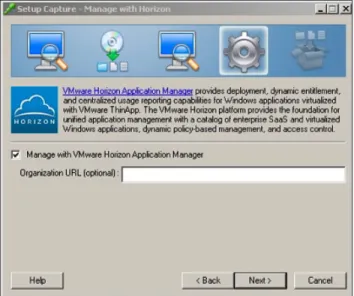
Proceed through the Setup Capture wizard. When you reach the Manage with Horizon window, you may choose to enable the ThinApp package for Horizon Application Manager.
Enabling a ThinApp Package for Use in Horizon Application Manager
With ThinApp Setup Capture, you can enable a ThinApp package to be managed by Horizon Application Manager. For details on the VMware Horizon components and how to set up Horizon to deploy and manage ThinApp packages, see the section titled Integrating ThinApp Packages with Horizon Application Manager. In ThinApp 4.7, the Setup Capture wizard is updated to include a new Manage with VMware Horizon Application Manager option. If you select this option, when the user tries to start the ThinApp package, ThinApp contacts the local Horizon Agent, and the Horizon Agent authorizes access to the ThinApp package through entitlements set up by IT administrators in Horizon Application Manager.
Figure 2: Manage with Horizon Window in the Setup Capture Wizard
The Horizon Agent must be installed on the user’s desktop for the user to launch a Horizon-enabled ThinApp package. The Organization URL field in the Manage with Horizon window of the Setup Capture wizard allows you to supply your organization’s Horizon Service URL. If the Horizon Agent is not installed on the desktop when the user tries to launch the ThinApp package, this URL leads to the Horizon Service, which will initiate Agent installation. By entering a value in this field during Setup Capture, the administrator facilitates the automation of the Horizon Agent installation.
|
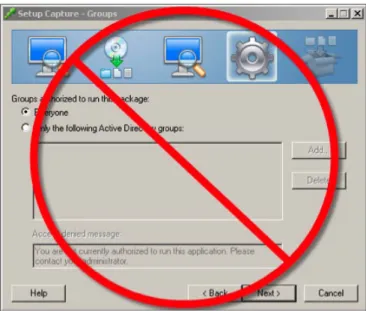
Figure 3: Skipped Groups Window in Setup Capture If You Enable for Horizon
When you advance through Setup Capture after enabling a ThinApp package for Horizon, you will also notice that the MSI package creation is automatically enabled for you. This is for possible future use in Horizon. The MSI package is created in the bin folder of the ThinApp project, along with the EXE and DAT files.
If you are already familiar with the Package.ini configuration file for a ThinApp package, you will notice three new parameters for the Horizon enablement.
Figure 5: New Package .ini Parameters for Horizon Enablement
• The AppID=genid entry in Package.ini causes ThinApp to assign a random GUID to the ThinApp package. The GUID is used by Horizon to identify the package in the Horizon ThinApp Repository and to check entitlement. The GUID provides a unique identifier that can be used across all of the VMware Horizon programs and services touching the ThinApp package.
• The NotificationDLLs parameter specifies the DLL (HorizonPlugin.dll) that the ThinApp runtime calls to check with the Horizon Agent for entitlement to run the application.
• The HorizonOrgUrl is your organization’s Horizon Service URL, which you have the option of specifying in Setup Capture. In this example, a generic URL is entered (https:/customerdomain.horizonmanager.com) you would enter your own Horizon Organization URL for this parameter. The Horizon Service at this URL will automatically initiate VMware Horizon Agent installation if the Agent is not already installed when the user tries to launch the ThinApp package.
In summary, the Setup Capture process can now be used to quickly and easily enable ThinApp packages to be managed in Horizon. For more details of how to use VMware Horizon to manage ThinApp packages, see
Integrating ThinApp Packages with Horizon Application Manager.
If you do not choose to enable the ThinApp package for Horizon, the Groups window appears in the Setup Capture sequence of windows.
Using Active Directory Groups to Authorize ThinApp Packages
The process of deploying virtualized applications offers administrators control and flexibility over which machines and users receive the application packages and the ability to launch the packages. Utilizing Active Directory allows an organization to use the existing processes and controls for group-based security. In addition to these organizational controls, VMware ThinApp allows an administrator to embed access control into the package. This access control mechanism is obfuscated from the end user when the package is built so it is impossible to identify or remove before the application is launched. In this way, the access control travels with the package if it is moved between devices after deployment.
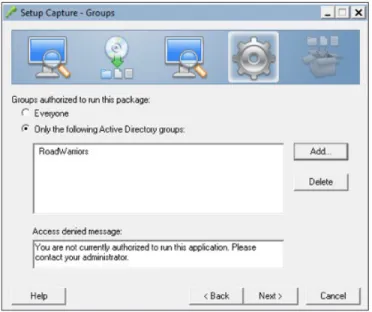
1. When the Groups window appears during Setup Capture, select Only the following Active Directory groups and click the Add button.
Figure 6: Groups Window of ThinApp Setup Capture The Select Groups window opens.
Figure 7: Select Groups Window in ThinApp Setup Capture
2. Select the Active Directory groups that you want to authorize for access to the application. • To specify objects, click Object Types.
• To specify a location in the forest, click Locations.
• To search object names, enter the names according to the examples in the dialog box.
• To locate user names in the Active Directory forest, click Advanced and use the Common Queries tab to search for groups according to names, descriptions, disabled accounts, passwords, and days since the last login.
The following example shows that an administrator has selected ‘RoadWarriors’ as the only Active Directory group able to launch this application.
Figure 8: Groups Window of ThinApp Setup Capture, with Entry
Modifying Settings in the Package.ini File
The last step of the Setup Capture wizard prompts the administrator for advanced configuration before commencing the build of the package. The Package.ini file contains configuration settings and resides in the captured application’s project folder.
1. Click Edit Package.ini.
2. Modify a parameter by removing the semicolon at the beginning of the line or by editing existing parameters.
3. For example, activate the RemoveSandboxOnExit parameter by deleting the semicolon at the beginning of the line so that RemoveSandboxOnExit=1 is enabled in Package.ini.
4. Modify any additional parameters and save the file.
5. Return to the Setup Capture wizard and click Build to complete the process and generate the ThinApp package.
Subsequent sections will refer to several Package.ini modifications. When making changes to these parameters, you first change the Package.ini, then rebuild the package to embed the administratively configured settings within the package. Rebuilding packages can be done at any time by browsing to the project folder and running the build.bat file.
Enabling ThinApp Packages Created Prior to ThinApp 4.7 for
Horizon Application Manager
If you have a ThinApp package captured and built prior to ThinApp 4.7, and you want to use that package with Horizon Application Manager, you need to recapture and then rebuild the application with ThinApp 4.7. The ThinApp 4.7 capture process has some internal changes; to integrate those changes, you need to recapture your application. If you simply add the new ThinApp 4.7 parameters to the Package.ini file for the pre-4.7 package, and then rebuild with ThinApp 4.7, the package may not work as expected. If you both recapture and rebuild the pre-4.7 ThinApp package, you ensure that the package will be fully enabled for Horizon.
Harvesting Internet Explorer 6 and Using ThinDirect with Setup Capture
VMware ThinApp 4.6 introduced a new feature that allows customers to capture Internet Explorer 6 on Windows XP. This feature comes with easy click-through packaging, full rendering to display IE6 application web pages, the ability to run virtualized IE6 and natively installed IE7 or IE8 concurrently on the same desktop, compatibility for all system shell commands, and 32-bit and 64-bit support.
Harvesting is a method of extracting the existing Internet Explorer 6 from the Windows XP operating system without actually installing the application. The following procedure outlines the steps to do this.
See the following Knowledge Base article for more detailed information:
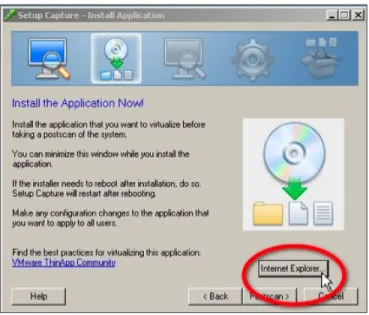
1. Important: To utilize the harvest method of capturing Internet Explorer 6, you must run Setup Capture on a Windows XP capture machine. Run Setup Capture and click the Internet Explorer button within the Install Application window to harvest IE6.
Figure 10: Internet Explorer Button in Install Application Window of ThinApp Setup Capture
2. Select Include an entry point for a fully virtualized Internet Explorer, then click OK.
3. Add any browser plug-ins or modifications, then click Postscan.
During the postscan, ThinApp harvests IE6 from the Windows XP capture machine.
4. Advance through the Entry Points, Groups, Isolation, Sandbox, and Quality Assurance windows. At this point you will be presented with a dialog box that will automatically redirect users going to specified hosts or URLs into the virtualized IE6 instance. These entries populate the ThinDirect.txt file and can be edited manually afterward. You can also do this dynamically on the end users’ workstations via Active Directory GPOs using the ThinDirect.ADM provided in the VMware ThinApp installation files. See the following blog post for details:
VMware ThinApp 4.6—What’s new?
Figure 12: Native Browser Redirection Window of ThinApp Setup Capture
5. Complete the Setup Capture wizard and click Build to generate the ThinApp package.
This procedure results in an IE6 package as an EXE or MSI package that can be deployed to Windows XP or Windows 7 and run in parallel with other virtualized browsers or native browsers. The ThinDirect functionality gives administrators the flexibility to seamlessly redirect end users to either virtual or native browsers based on a whitelisting model.
Utilizing ThinApp Converter for Automated Packaging
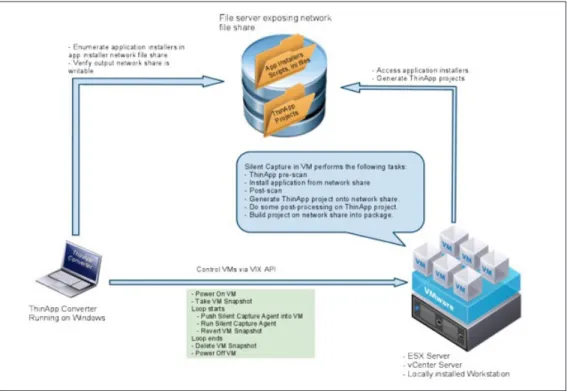
VMware ThinApp 4.6 introduced a way to automate the process of packaging applications utilizing VMware Workstation or vSphere virtual machines. ThinApp Converter allows the administrator to point at a source directory of application installers or MSI packages and then preconfigure the setup strings used and Package.ini settings as overrides for the resulting project directory.
See the following Knowledge Base article for more detailed information:
To utilize ThinApp Converter, you must specify the parameters used in the automation in the ThinAppConverter. ini file and then reference the appropriate file shares. The following diagram represents the components and process used for the automated packaging operation.
Deploying ThinApp Packages
The process for deploying ThinApp application packages is very simple, as there is no actual installation of the application, and interoperation with the local operating system is minimal. Deployment involves making a decision for a centralized or de-centralized model for application delivery and then integrating the virtualized applications into the desktop for end-user accessibility.
Note about ThinApp Deployment with VMware View
The following sections discuss both deployment and application registration with processes that can be utilized on either physical or virtual desktops. With the release of VMware View 4.5, ThinApp packages can be deployed from within the View Administrator console and automatically registered. This turnkey integration of View desktops and virtualized applications offer tremendous efficiency and operational savings for VMware View environments. For VMware View environments, we suggest you read through the concepts of execution mode and application registration to understand what happens automatically when you assign ThinApp packages through the View Administrator console. The specific steps to deploy ThinApp packages in VMware View environments are covered in the section Using ThinApp Assignments with VMware View.
Choosing Centralized or De-Centralized Deployment
The determination of centralized versus de-centralized deployment depends on the execution mode of the package. The same package can be deployed with either execution mode but each delivers different benefits and administration models. The following section describes the two methods of providing virtualized applications to end users.
Choosing Execution Mode
One of the decision points for virtualizing applications with VMware ThinApp is to choose which execution, or delivery, mode is appropriate for users, groups, and applications. There are two primary modes of delivery: • Streaming mode
• Deployed mode
Each of these options has requirements and benefits that are listed below. A hybrid approach, with some applications delivered streaming, and others deployed, is acceptable as well. Determine the appropriate execution mode for each application and user group.
Streaming Execution Mode
Streaming execution mode allows the application to be centrally stored and accessed by multiple users. Streaming execution mode is a one-to-many model that provides centralized deployment and update of the application package to multiple end users for execution via a Windows desktop shortcut.
The streaming mode of execution is often the best option for environments that are centralized and where desktops are always online. In streaming mode, the application is launched from a shortcut on the desktop or Start menu and then run from a remote location. The virtualized application is streamed into memory as the application requests files and registry settings.
Requirements
The user must always have access to the central network location where the ThinApp streaming packages reside.
Recommendations
The storage location that hosts the applications must be highly available such that the physical uptime of either the host or storage device does not impact the environment. The use of any number of SAN, DFS, or file-replication technologies is sufficient to accomplish the objective of making the file share highly available and redundant.
The path through the network between the client device and the central network location must be robust. A virtualized application utilizes standard SMB protocol. The amount of network traffic will vary based on the application and the functions used by the end user.
Benefits
Centralized management is the primary benefit of the streaming mode of execution. The one-to-many model of providing an application on one location for many users provides an efficient and effective model for application delivery. Providing access to the application merely involves placing a shortcut to the application on each desktop and can be automated through the use of the Thinreg utility in a login script.
The application packages, which can be large in size, do not have to be delivered to the end user devices, so there is no need to transfer large files across a network or integrate with a deployment mechanism to distribute them. Additionally, there is no local disk footprint on the end user device because the applications are streamed into memory.
For users who access applications from multiple devices, the streaming mode of execution provides a single point of administration and a consistent user experience across devices.
Deployed Execution Mode
Deployed execution mode application packages are first deployed to the end user’s system, and then accessed from the local device. Users execute the application from an application package that is local, which allows for offline application use.
Deployed execution mode involves distributing the virtualized application package to the end user’s virtual or physical desktop. The actual location of the package can be on the local file system or a USB device. In this distributed model, each client device receives the package locally and therefore can run the application regardless of network connectivity. End user devices that are occasionally or always offline will require this deployed execution mode.
Requirements
Distribution of the packages to the local device is required in this model. A number of options exist to fulfill this requirement: Active Directory-based publishing via Group Policy, third-party software deployment solutions, and/or custom scripted mechanisms. Users who are occasionally offline must have all applications and components deployed before working offline. Subsequent application deployment and updates are subject to network availability or a delayed update tactic such as providing CDs or USB devices with updates.
Recommendations
Integrate the delivery of packages, which can be large .exe or .msi files, with your existing organizational process. An existing process, such as Active Directory publishing via Group Policy, will have an already established support structure and administration workflow. You can use Group Policy to deploy software to groups, organizational units, or individuals. See the following KB article for details:
How to assign software to a specific group by using Group Policy in Windows Server 2003
Benefits
After the application package is delivered, application performance and availability is not subject to network or storage dependencies.
Application Registration
Application registration integrates the virtualized application packages with the desktop operating system. Registration of virtualized applications creates:
• Shortcuts on the desktop and in the Start menu
• File-type, protocol, and object-type associations so that applications launch automatically • Entries in the Add/Remove Programs applet of the Control Panel
The thinreg.exe tool in ThinApp handles application registration. ThinApp MSI packages use thinreg
to automatically perform application registration with the MSI installer, so registration always occurs for an application that is installed with an MSI. In addition, thinreg can be run from a script or from the command line. ThinReg.exe can be local to the operating system or on a remote share. One example is to place the
thinreg tool in the netlogon share and call it from a login script. Administrators can run thinreg against
an entire directory of ThinApp packages by using an asterisk (*) as a wildcard character.
Application registration is not mandatory; ThinApp packages will launch and execute without registration. However, end users and administrators can benefit from the results of registration.
VMware ThinApp allows IT organizations to determine whether to use streaming or deployed execution mode or to adopt a hybrid approach of managing one set of applications centrally while distributing others in deployed mode. The same virtualized application packages can be used for either execution mode. The application registration process performs the same function whether packages are local or remote. The
application registration entries are consistent regardless of the means used to perform the actual registration or where the package resides.
The process of registering applications takes into account the access control mechanisms that allow administrators to restrict usage to specified Active Directory groups, with role-based access to virtualized applications.
Role-Based Access to Applications
The registration process can enumerate which users have access to application packages, so the administrator can register an entire directory of application packages. ThinApp registers only the applications to which a user is entitled. An administrator can use a script that runs based on group membership, and the script will register only packages that are valid for a certain group or certain individuals. Two common methods of implementation using Active Directory are described briefly below.
Script-Based Registration
The thinreg executable can be incorporated into an existing login script with standard methods such as .bat,
WSH, KIX, or vbScript. See example below:
%logonserver%\netlogon\thinreg.exe /Q \\company.com\applications\*.exe Local Script Via Registry-Run Key or Active Directory GPO-Managed Login and Logout Script
IT organizations can implement the application registration process locally on workstations instead of incorporating registration into the login script. The Run key of the registry can call thinreg.exe file to perform the necessary functions on login. Placing thinreg.exe in the Windows directory simplifies the execution of the script and requires nothing more than the executable to function.
MSI-Based Registration
Organizations can integrate the delivery of ThinApp packages to run in deployed mode whether they are EXE- or MSI-based packages. These delivery mechanisms often have an already established support structure and administration workflow. You can use native Active Directory-based Group Policy to publish or assign MSI packages to groups, organizational units, or individuals. See the following Knowledge Base article for details:
Deployment of Virtualized Applications with Electronic Software Distribution (ESD) Tools and Active Directory An organization with an established mechanism for deploying MSI files, such as Active Directory, can deploy ThinApp MSI packages in the same manner that they would deploy native applications. Registering applications to the desktop makes use of the thinreg utility whether the package is deployed as an EXE-based package or as an MSI package. MSI-based packages are always ‘installed’ into the local operating system. However, ThinApp MSI packages actually contain the EXE-based package and the thinreg utility. The use of ThinApp
MSI packages does not actually install anything, but instead puts the application registration process into the MSI install. In summary, for organizations that use MSI-based ThinApp packages, there is no need to make use of the thinreg utility to perform application registration.
Deployment Choices in ThinApp Setup Capture
The last step of the Setup Capture wizard prompts the administrator for advanced configuration before commencing the build of the package. After the build process has completed, the ThinApp package is found in the bin folder of the project directory. If both an EXE and MSI package were created, then both types are available. The packages contain all of the configuration information specified during the Setup Capture process. To deploy the packages, simply copy or distribute the contents of the bin folder to the appropriate locations.
Portability of these packages gives administrators and end users significant flexibility for distribution. Use the
Active Directory authorization mechanism to secure these packages if necessary. Practice Utilizing Deployed Mode Execution
1. Copy the EXE- or MSI-based package to a local file system or USB drive. Note: For the MSI package, you must double-click to install the package. 2. Launch the application and test functionality.
Practice Utilizing Streaming Mode Execution 1. Copy the EXE-based package to a remote file share. 2. Create a shortcut from the package to your desktop. 3. Launch the application and test functionality.
Practice Utilizing ThinApp Packages on Multiple Operating Systems
1. Copy the EXE-based package to a Windows XP, Windows Vista, Windows 7, Windows Server 2003, or Windows Server 2008 machine.
2. Publish the application as a remote app using Microsoft Remote Desktop Services. 3. Publish the application from a Citrix XenApp or Presentation Server.
4. Launch the applications and test functionality.
Practice Deploying MSI Packages Using Active Directory or Third-Party ESD Utilize the following blog article for detailed considerations of GPO deployment:
Notes and Considerations on Deploying ThinApp Packaged Applications via Active Directory Group Policies
1. Create a GPO to assign an application.
Using ThinApp Assignments with VMware View
The VMware View Administrator assigns ThinApp packages to individual desktops or pools of desktops to allow for streamlined application deployment. The requirements to utilize this method are:
• MSI-based ThinApp packages • A file share
• VMware View 4.5 or later
This video reviews the setup and operation of ThinApp assignments in VMware View:
ThinApp Assignments in VMware View 4.5
Practice Creating MSI-Based Packages for Full and Streaming Deployment
ThinApp packages used for assignment through View Administrator must be in MSI format. The default selection of creating an MSI through the Setup Capture wizard will create a package that can be deployed only in Full (deployed) mode through View Administrator. To be able to deploy the package in streaming mode as well, the MSIStreaming parameter must be set to 1. For this reason, when creating packages for a VMware View environment it is recommended to create packages using the MSIStreaming=1 parameter.
1. During the Setup Capture process, edit the Package.ini MSIStreaming parameter and set
it to ‘1’.
Figure 14: MSIStreaming Parameter in Package.ini
2. To utilize existing packages, edit the Package.ini file to enable MSIStreaming=1, then rebuild the package.
3. Copy all the files from the bin directory to the file share that will serve as the View ThinApp Repository. Share the repository so that View Administrator and end users can access it. Consult the View product documentation for specifics on security recommendations.
Practice Creating the View ThinApp Repository and Populate It with ThinApp Packages 1. Add the ThinApp Repository, specify the appropriate path, and optionally provide a description.
Figure 15: ThinApp Configuration in View Administrator
2. Navigate to the ThinApp configuration section and choose to ‘Scan’ for new applications, selecting the ThinApp Repository specified previously.
3. Select the MSI packages to add them to VMware View Administrator.
Figure 17: Selecting MSI Packages in View Administrator
Practice Creating ThinApp Assignments in View Administrator
1. (Optional) Create ThinApp templates, which are groups of ThinApp packages. This allows you to make one assignment to a desktop or pool and deliver a group of applications instead of making multiple assignments. Click New Template, give it a name, and then add specific ThinApp packages to populate the template.
2. Select either a ThinApp Template or a single package and then click Add Assignment.
3. Select single or multiple desktops or pools and then choose the Installation type.
Figure 19: Add Pool Assignment Window in VMware View
4. Verify the Assignment and monitor progress by using the Events applet.
Practice Utilizing Script-Based Application Registration in View
For deployment to non-View managed desktops, the use of script-based application registration can be automated to provide role-based access to ThinApp packages.
The following video reviews the setup and operation of script-based application registration:
Role-Based Access to ThinApp Virtualized Applications
The Application Registration Guide also reviews this process in detail and can be used as a reference for this activity.
1. Choose whether to utilize a local script or login script to run the thinreg utility.
Create a script or edit an existing script to include the path to the file share hosting the ThinApp packages or to reference local directories that are populated with ThinApp packages.
For example:
%logonserver%\netlogon\thinreg.exe
\\company.com\applications\*.exe
2. Trigger the script by login or manually, and verify registration using the Add/Remove Programs Control Panel applet or by checking file-type associations.
3. Remove a user from the Active Directory authorized group and log out, then log in to see the application icon removed.
Utilizing AppLink to Combine
ThinApp Packages
Application Link is a feature that connects dependent application packages at runtime. This allows the administrator to build relationships between packages without using Setup Capture to package all needed components into a single package. Component packages are often more efficiently packaged, deployed, and updated separately.
Create links between packages for the following scenarios:
• Link runtime components, such as .NET, JRE, or ODBC drivers, with dependent applications. For example, you can link .NET to an application even if the local machine for the application does not allow for the installation of .NET or already has a different version of .NET.
• Package and deploy application-specific components and plug-ins separately from the base application. For example, you might separate Adobe Flash Player or Adobe Reader from a base Firefox application and link the components.
Practice Creating an Application Link Between Packages
Follow the process below to set up the link. You can also use nested links between multiple packages or create a link to a directory using a ‘*’ wildcard to establish links to all components in that directory.
1. Create the package with the component that you want to link, build the package as an EXE, and then rename the file to something other than an .exe extension to prevent users from running that package directly. A .dat extension will be used in this example:
AdobeFlashPlayer.dat
2. Create the capture of the originating package with the component already installed, for example, Mozilla Firefox.
3. In the originating package, Mozilla Firefox, open the Package.ini file and set the RequiredAppLinks parameter as follows in the [Build Options] section:
RequiredAppLinks=AdobeFlashPlayer.dat
4. Place both packages in the same directory, locally or on the central file share.
5. Launch the Mozilla Firefox application and then navigate to the Adobe site to verify Flash functionality.
Note: Application Links can be specified as Required or Optional in Package.ini. If specified as
Integrating ThinApp Packages with
Horizon Application Manager
Horizon Application Manager is a unified application catalog and broker in the cloud that presents end users with applications they can log into with a single sign-on. These applications can be:
• SaaS applications from public and private clouds • Web applications with federated identity • Windows applications virtualized with ThinApp
Before the advent of Horizon enablement, ThinApp packages could be deployed and managed with your existing application-deployment tools. Now VMware provides an alternative means of application deployment that is part of the VMware unified product set. Horizon Application Manager is a single portal that delivers not only ThinApp virtualized applications, but also SaaS and federated web applications, in the cloud.
Because the Horizon Service is a hosted cloud service, you have no server installation. Setup is browser-based. The administration portal and user portal are in the cloud, and the Horizon Connector and Horizon Agent are on
premise.
Horizon Components
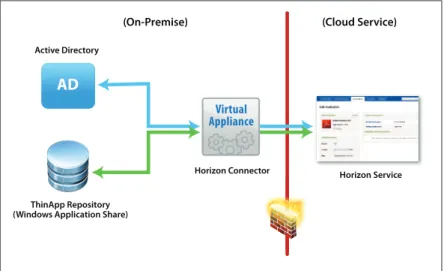
Following is a basic architectural diagram of the Horizon components.
(On-Premise) (Cloud Service)
ThinApp Repository (Windows Application Share)
Horizon Connector Active Directory Horizon Service
AD
Virtual ApplianceHorizon Application Manager includes the following components:
• Horizon Connector: A lightweight virtual appliance that you install on premise for Active Directory synchronization and secure authentication of users to ThinApp packages. The connector is in OVA format, and you need a compatible hypervisor, such as VMware vSphere, to run the virtual appliance.
The connector is the interface between Active Directory and the ThinApp Repository on premise and the Horizon Service in the cloud.
The Horizon Connector:
- Extracts user and group information from the Active Directory and synchronizes that information to the cloud-based Horizon Service (Note: Only user and group attributes, not passwords, are retrieved and sent to the Horizon Service.) To monitor Active Directory changes, you can set ‘filters’ in the connector to periodically synchronize Active Directory changes up to the Horizon Service.
- Connects to the Windows application share where ThinApp packages are stored, gathers package metadata, and synchronizes that metadata to the Horizon Service.
The connector can operate in the demilitarized zone (DMZ), inside the LAN, or both.
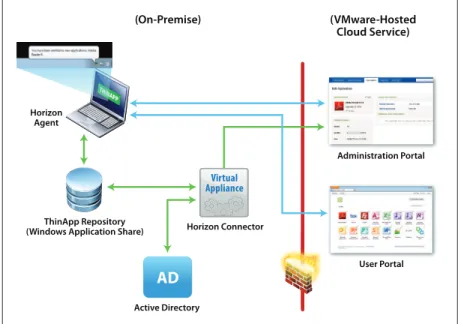
THINAPP (On-Premise) (VMware-Hosted Cloud Service) Horizon Connector Active Directory ThinApp Repository
(Windows Application Share) Horizon Agent Administration Portal User Portal
AD
Virtual Appliance T THHINFigure 22: Horizon Connector
• Horizon Service: An authentication hub to manage user access to cloud and virtualized Windows
applications. Active Directory users or groups are entitled to applications. Groups can also be defined in Horizon and then entitled.
The Horizon Service has two parts:
- User portal (sometimes referred to as Horizon Application Manager): Users access applications, including ThinApp packages, from the user portal.
Every organization has its own URL on the multi-tenant, cloud-based Horizon Service. User Portal Administration Portal Windows Application Management Horizon Service
AD
Figure 23: Horizon Service
• Horizon Agent: The Horizon Agent service is installed on each user desktop. Whenever a user tries to launch
a Horizon-enabled ThinApp package, the ThinApp runtime checks if the Agent is installed on the desktop. If it is not installed, the Horizon Service automatically initiates Agent installation. The Horizon Agent checks entitlement to launch the ThinApp package and allows the package to run if the user is entitled. Part of Horizon Agent installation is the installation of the Horizon system tray object.
Figure 24: Horizon Icon in the System Tray
• ThinApp Repository (Windows Application Share): Windows applications that have been converted to ThinApp packages are stored in a Windows application share (network file share) on premises. This is also
called the ThinApp Repository.
• Active Directory: Your Active Directory is a necessary component for Horizon Application Management.
Besides providing fast user access to securely managed virtual applications, Horizon Application Manager allows you to monitor and report on user and administrator activities and application launching and closure.
Description of User Activities in Horizon Application Manager
The Horizon administrator sets up the Horizon deployment and enables ThinApp packages to be managed by Horizon. For details on Horizon-enablement of ThinApp packages, see Enabling a ThinApp Package for Use in Horizon Application Manager. For details on setting up Horizon, see Procedures to Deploy and Manage a ThinApp Package in Horizon Application Manager.
For full details on user access to Horizon and user functions, see the Horizon User Help. Login and User Enrollment on the User Portal
Depending upon how the administrator sets up the Horizon deployment, the user needs the Horizon URL and an activation code to begin using Horizon. The administrator generally emails this information to the user. The end user can navigate to the Horizon Service user portal by:
• Opening a supported browser and typing in the URL to the user portal • Clicking on an email link
• Opening the Horizon system tray icon and clicking Open VMware Horizon Website to go to the Horizon user portal • Right-clicking the Horizon system tray icon and selecting Launch Horizon Website to open the user portal
The user logs in with user name and activation code. Horizon Connector matches user login information to the Active Directory.
The administrator may require the user to choose security settings, such as a personalized welcome message, a confidence image, or security questions.
Figure 27: Horizon User Portal Home Page
The user portal home page displays available SaaS and federated web applications and ThinApp virtualized Windows applications. The ThinApp packages on the user portal home page are those that have been downloaded to the user desktop for use.
If the user does not see an application they need, they click the Application Catalog button.
The Application Catalog on the user portal lists the applications that the user is entitled to. If an application was set to User-Activated by the administrator, the user determines if the application is downloaded to their desktop. Other applications will already have been automatically activated and downloaded to the user desktop if the administrator set them to Automatic.
In addition to the user portal of the Horizon Service, Horizon has a system tray facility that is installed with the Horizon Agent. From the system tray, the user can:
• See all of the ThinApp, SaaS, and federated web applications to which they are entitled (ThinApp virtualized packages appear in the list with a green checkmark after the Horizon Agent downloads and registers the packages)
• Launch any of the applications in the system tray by right-clicking the system tray icon and selecting Open Horizon folder, which opens the desktop folder with application shortcuts (the VMware Horizon Applications folder)
• Right-click the system tray icon and then click Sync Now to poll new entitlements and download any applications set to Automatic
Figure 29: Sync Now in the Contextual Menu of the System Tray Icon
• Right-click the system tray icon and then select Launch Horizon Website to open the Horizon Service user portal
• Open the system tray icon and select Open VMware Horizon Website to open the Horizon Service user portal
• Right-click the system tray icon and select Preferences to set the schedule for the Agent to poll the Horizon Service for changes in entitlements and to download new packages. (The user must have administrative rights to change the polling interval.)
Figure 31: Horizon Preferences from the System Tray Icon
Activation of Applications
Users can activate any application they see in their Application Catalog. They simply click the Activate button next to an application, and the application is downloaded to their desktop and added to the home page of their user portal. When the Horizon Agent downloads the application to the user’s desktop, it is placed by default in a folder called VMware Horizon Applications.
The Agent also registers the application for the user (creates desktop and Start menu shortcuts and icons, sets up file-type associations, and so on). (For more information about ThinApp registration and about customizing registration through Package.ini, see the ThinApp User’s Guide.) Then the user can access activated applications from their user portal home page, as well as from desktop shortcuts.
After an application has been downloaded and is available from desktop shortcuts, the Application Catalog of the user portal displays a green checkmark icon next to the activated application.
The application stays on the user’s desktop until the Agent has no record of entitlements for any user to the application, and an expiration window has passed.
The user can continue to use an open application, even if the application is expired or disentitled. After the user closes the application, their next launch is subject to entitlement approval by the Horizon Agent.
The Horizon Agent polls for changes in entitlement every sixty minutes, by default. If a user is newly entitled to an application, and the application is set to Automatic download, the Agent downloads the application to the user desktop. In addition, there is a Sync Now function in the Windows system tray, which the user can select to download all Automatic and User-Activated applications they are newly entitled to.
Use of Activated Applications
After a ThinApp package is downloaded to the user desktop, the user can launch the application by: • Clicking on the application from the home page of the Horizon Service user portal
• Right-clicking the Horizon system tray icon and selecting Open Horizon folder to open the VMware Horizon Applications folder, the default location where the Agent places the applications that it downloads
• Opening an application shortcut in the Start menu or on the desktop
Thus, the Horizon Service user portal is only one way for users to launch their Horizon-enabled ThinApp applications. The administrator can set up push for all applications so that users do not need to use the Horizon user portal. However the administrator may require user activation (and download) of some applications, and the user does this from the user portal.
Each time the user tries to launch a ThinApp package, the ThinApp runtime checks with the Horizon Agent for entitlement. The Agent checks entitlement by consulting its local cache of entitlement information. This local policy cache is filled with entitlement information that the Agent downloads on a scheduled basis from the Horizon Service. Entitlement may have changed since the last time the user accessed the application, so this ongoing check is essential.
The following diagram illustrates the workflows for: • Downloading of ThinApp packages to user desktops • Listing of ThinApp packages on the service
• Entitlement synchronization between the service and the Agent
• Entitlement checking from the ThinApp runtime in the package through the Agent and its offline policy (entitlement) cache
Fetch ThinApp packages
Monitor ThinApp packages Report ThinApp package changes to service Policy check before launching Download ThinApp package to desktop
Get ThinApp entitlements
Windows Desktop Horizon Service Offline Policy Cache ThinApp Package Horizon Connector Horizon Agent ThinApp Repository (Windows Application Share)
Downloaded ThinApp packages can also be used offline, when the user is disconnected from the network and the Horizon Service. Entitlement to the application may change while the user is offline, but they can continue to use the package until the Horizon Agent is able to check with the service for changed entitlement. The default length of time that a user can launch a ThinApp package and not reconnect to the network is thirty days. If the user does not reconnect to the network, the ThinApp package expires, and they cannot launch it.
Procedures to Deploy and Manage ThinApp Packages in Horizon Application Manager
To deploy and manage ThinApp packages in Horizon Application Manager, you must:• Enable the ThinApp packages for Horizon
• Create a ThinApp Repository (Windows Application Share) for Horizon Application Manager • Install and configure the Horizon Connector
• Enable IdP Discovery in the Horizon Service
• Set up entitlement to ThinApp packages in the Horizon Service • Install the Horizon Agent on user desktops
• Monitor and report with Horizon Application Manager Enabling a ThinApp Package for Horizon
For a ThinApp package to be listed in the Horizon Application Manager user portal, you must enable the ThinApp package for Horizon during the Setup Capture process. You must capture and build the package in ThinApp 4.7 or later. For instructions on enabling a ThinApp package for Horizon, see the Enabling a ThinApp
Package for Use in Horizon Application Manager section. Enablement is as simple as selecting one checkbox and optionally filling in the URL for the Horizon Service.
For instructions on updating a package created in a ThinApp release prior to 4.7, see Enabling ThinApp Packages Created Prior to ThinApp 4.7 for Horizon Application Manager.
Creating the ThinApp Repository (Windows Application Share) for Horizon Application Manager The Horizon ThinApp Repository (Windows Application Share) holds the Horizon-enabled ThinApp packages. The Horizon Connector communicates to the Horizon Service metadata about the ThinApp packages on the file share.
Before you set up entitlement to and management of the ThinApp packages in Horizon, you must create the file share for the ThinApp packages and place the packages there.
For the requirements for the file share that will hold the ThinApp packages, refer to the Installing and Configuring Horizon Connector guide and the Horizon Administration Help.
Each ThinApp package stored on the file share must have its own named folder to hold the EXEs and DAT file. Create a folder structure for the applications on the file share as follows:
\\Server\sharename\virt_appname1 \\Server\sharename\virt_appname2
The subfolder name for the virtual application does not have any particular restrictions, so you can customize as you wish.
For each ThinApp package you want in Horizon, copy the EXE and DAT files from the ThinApp project’s bin directory to the named application subfolder on the ThinApp Repository. Horizon currently uses only EXE-based virtualized applications. You do not need to copy the MSI packages from the bin directories. However, for possible future use, you can copy the MSI files, also. No errors will occur if you include the MSI packages on the ThinApp Repository.
Note: The file share must have Read Only access for everyone so that applications can be downloaded to user desktops and application metadata can flow freely to the connector.
Installing and Configuring the Horizon Connector
The Horizon Connector is the interface between 1) the Active Directory and the ThinApp Repository (Windows Application Share) on premise, and 2) the Horizon Service in the cloud. Installing and configuring the connector enables it to communicate with the service, the Active Directory, and the ThinApp Repository (Windows Application Share). The connector has a service that monitors the ThinApp Repository to push changed
package metadata up to the Horizon Service. For Active Directory changes, you can set ‘filters’ in the connector to periodically synchronize Active Directory changes to the Horizon Service.
Prior to installing the Horizon Connector, you must:
1. Prepare the vSphere instance for the installation of the connector. Configure the hardware, resource,
network, and firewall settings of the connector host. Network ports 443 and 8443 must be open for Horizon. Refer to the Installing and Configuring Horizon Connector guide.
2. Prepare Active Directory for the installation of the connector. In addition to the instructions in the
Installing and Configuring Horizon Connector guide, obtain the Active Directory information for the user who has the right to join machines to the Active Directory domain. If you are currently using Active Directory, this user already exists. You will use this information to provide users with access to ThinApp packages. You also need this information if you want to configure single sign-on with NTLMv2. When you configure the Horizon Connector via the connector setup wizard, you provide the following information:
- Fully qualified domain name of the Active Directory instance to join
- Username and password of the Active Directory user who has the right to join machines to the domain
3. Prepare Kerberos for the connector installation. You set up a user account for each connector instance
that will connect and authenticate users. Refer to the Prepare Kerberos for the Connector section of the
Installing and Configuring Horizon Connector guide. Kerberos mode is required to enable single sign-on for ThinApp virtualized applications. If you are also enabling users for SaaS or federated web applications from outside the enterprise network, see the instructions for username/password verification mode in the
Installing and Configuring Horizon Connector guide.
4. Download the connector virtual appliance from the VMware Download Center to the hypervisor where
you will install the connector. The connector is an OVA file and needs to be in a location accessible to your ESX/vSphere environment.
5. Convert the connector OVA virtual machine to a virtual machine format suitable for your hypervisor, if
necessary. Use the VMware OVF tool to convert the virtual appliance file.
For details on all of these operations, see the Installing and Configuring Horizon Connector guide.
After you have completed the preliminary steps, you can proceed with the installation and configuration of the Horizon Connector. These steps are:
1. Select File > Deploy OVA Appliance, and browse to the OVA file to create the Horizon Connector virtual appliance. Note: The Horizon Connector is an OVA virtual appliance and must be accessible to your hypervisor, such as an ESX/ESXi host, after you download it.
2. In the hypervisor, start the connector virtual appliance. Starting it allows you to use the connector virtual appliance interface, which is the connector command-line interface (CLI). The operating system underlying the connector is SUSE Linux, and it is configurable through the connector CLI.
Next, you use the connector setup wizard for essential configuration of the connector. In the setup wizard, you configure the connection and communication between the connector, the Horizon Service, the Active Directory, and the Windows application share where the ThinApp packages reside.
If you ever need to reconfigure the connector, you use the setup wizard again. After you complete the following steps in the setup wizard, more advanced configurations are necessary for certain implementations.
The first page of the setup wizard appears:
Figure 33: First Page of the Horizon Connector Setup Wizard
You have the option of importing settings from a previously saved connector configuration at this point. This section summarizes the connector configuration process. For details, see the Installing and Configuring
The setup wizard takes you through the following steps:
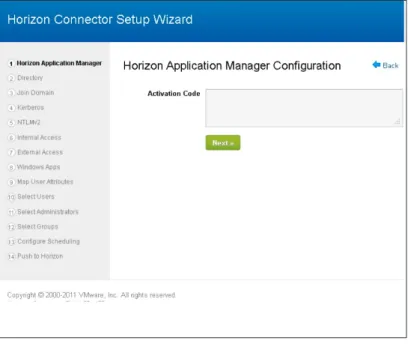
1. Horizon Application Manager: You enter the Activation Code for your Horizon account so that the
connector can communicate with the service. You received this activation code from VMware.
Figure 34: Horizon Application Manager Window of the Connector Setup Wizard
3. (Optional) Join Domain: Required if you want to 1) provide users with access to Windows applications virtualized with ThinApp, or 2) configure single sign-on with NTLMv2. You describe the Active Directory user account that has the right to join machines to the Active Directory domain.
Figure 36: Join Domain Window of the Connector Setup Wizard
4. (Optional) Kerberos: Required if 1) you want users to be able to access Windows applications virtualized with ThinApp, or 2) you want the connector to be in Connector Authentication mode. You configure the Kerberos protocol for secure interactions between users’ browsers and the Horizon Service. You must do preliminary configurations to prepare Kerberos before you configure Kerberos in the connector web interface. On the Kerberos page, you enter values from the user account that you set up when you prepared Kerberos for the connector. Also available later in the Advanced tab of the connector web interface after you complete the setup wizard.
5. (Optional) NTLMv2: You enable or disable the NTLMv2 protocol. Enable NTLMv2 if you are configuring the connector in Connector Authentication mode, and you want to provide NTLMv2 security instead of or in addition to that provided by Kerberos. Also available in the Advanced tab of the connector UI after you complete the setup wizard.
Figure 38: NTLMv2 Window of the Connector Setup Wizard
6. Internal Access: Configure the hostname or IP address of the connector virtual appliance to allow trust
between the connector and the service, which enables the exchange of metadata.
7. External Access: You must configure the hostname or IP address that is accessible from the public Internet, and enter SSL certificate information.
Figure 40: External Access Window of the Connector Setup Wizard
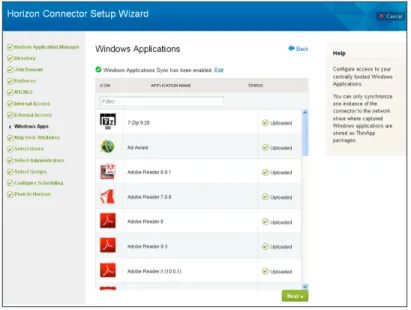
8. (Optional) Windows Apps: Required if you want users to be able to access virtualized Windows
applications from ThinApp. In this window, you enable Horizon access to ThinApp packages, give the path to the Windows application share, and schedule the frequency of synchronization between the connector and the service for information about the ThinApp packages. This information allows the connector to discover the ThinApp packages stored on the ThinApp Repository. Can be configured later through the Advanced tab of the connector web interface.
The syntax for the ThinApp Repository (Windows Application Share) is: \\servername.com\sharename
In this configuration, you set up retrieval of the list of ThinApp packages in the repository. The connector communicates that list to the Horizon Service. In Horizon Service configuration, you set up entitlement to these ThinApp packages.
Figure 41: Completed Windows Apps Window of the Connector Setup Wizard
9. Map User Attributes: You configure user attributes according to Active Directory settings.
10. Select Users: You specify which Active Directory users to synchronize between the connector and the service. Use the Filter Users tab. The View Results tab lets you see your selections. The View Errors tab provides a list of user entries that will not be synchronized because of errors.
Figure 43: Select Users Window of the Connector Setup Wizard
11. Select Administrators: Configure this page to specify the users who have administrator access to the service. You must specify at least one user. This configuration provides full administrative access to the specified users. Note: After you exit the connector setup wizard, you cannot configure this page again, unless you reset and then reconfigure the connector.
12. Select Groups: You configure the Active Directory group information to be synchronized between the connector and the service.
Figure 45: Select Groups Window of the Connector Setup Wizard
13. Configure Scheduling: You configure the frequency of synchronization between the connector and service for Active Directory information.
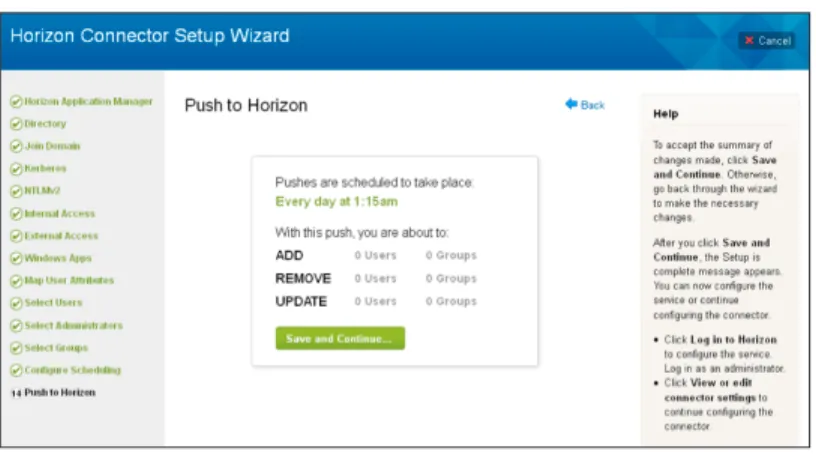
14. Push to Horizon: This shows you the Active Directory information to be sent to the Horizon Service, and then you can push that information to the service immediately. Save and Continue synchronizes the Active Directory information.
Figure 47: Push to Horizon Window of the Connector Setup Wizard
After you click Save and Continue, you are given a choice:
• Log in to Horizon: Proceed to the Horizon Service for configurations and setting up entitlements.
• View or edit connector settings: Refine or revisit connector configurations.
This is the final step of the connector setup wizard. You will want to test the connector setup before proceeding. Testing the Connector Setup
After you complete the connector setup wizard, test the connector. For suggested steps, see the Testing the Connector chapter of the Installing and Configuring Horizon Connector guide.
• If the connector is set up to your satisfaction, configure the connector logs and then proceed to the Horizon Service to configure the service and entitle users and groups to ThinApp packages.
• If the connector is not set up properly, reconfigure in the connector web interface. After you have completed the connector setup wizard, the web interface provides you with access to most of the same configuration pages for refinement to the configurations.
Optional Additional Connector Settings in the Connector Web Interface Re-enter the connector web interface.
To refine or revisit connector settings, select the Advanced tab and then a topic on the left navigation pane of the connector web interface.
For details on all of these operations, see the Installing and Configuring Horizon Connector guide. Following are some highlights of connector reconfiguration.
External Access: You can update the SSL certificate in this page. Be sure to Save your changes and to restart the connector for a new certificate to take effect.