Inside-Out:
Complete End-User Reference Guide for
Inside-Out Table of Contents
GETTING STARTED ... 4
LOGGING IN
... 4
LOGGING OUT
... 4
SEARCH ... 5
CONTENT AVAILABLE IN SEARCH
... 6
SELECTING SOURCES
... 7
MY SOURCE LISTS
... 8
USING THE LOOK UP OPTION
... 8
SEARCHING FOR A SOURCE
... 8
VIEWING SOURCE DETAILS
... 8
DISCONTINUED AND SEARCH ONLY SOURCES
... 9
DUPLICATE ARTICLES
... 9
SEARCH BUILDER FORM
... 9
FREE-TEXT SEARCHING
... 9
DOW JONES INTELLIGENT INDEXING™ SEARCH
... 14
VIEWING RESULTS
... 16
HOW TO USE THE DISCOVERY PANE
... 17
PROCESSING RESULTS
... 19
ALERT ... 21
ACCESSING ALERTS
... 21
ALERT — KEY FACTS
... 21
NEWS PAGES ... 22
FACTIVA PAGES
... 22
GROUP PAGES
... 22
USING NEWS PAGES
... 22
COMPANIES/MARKETS ... 23
COMPANY LISTS
... 23
HOW TO SEARCH BY NAME OR SYMBOL
... 23
QUOTES
... 23
CHARTING
... 24
COMPANY
... 25
NEWS
... 26
REPORTS
... 26
APPENDIX 1: SEARCHING EUR-LEX CONTENT IN
FACTIVA.COM
... 27
SEARCH BY EUR-LEX DOCUMENT NUMBER OR SECTOR TYPE
... 27
ACCESSING EUR-LEX SEARCH FROM NEWS PAGES
... 27
APPENDIX 2: QUICK GUIDE TO NUMBERS IN FACTIVA.COM ... 29
APPENDIX 3: IMPORTANT TECHNICAL REQUIREMENTS ... 30
BROWSERS
... 30
JAVASCRIPT
... 30
JAVA
... 30
FRAMES
... 30
4
Getting Started
Logging In
Academic institutions are sent a unique login URL when their
Factiva.com account is activated. This embedded link includes the institution‘s IP range and the Factiva.com user name and password. To access Factiva.com, simply click on the link on your library website or similar location. Because the embedded link already includes all the information required for your institution to access Factiva.com, it can only be used within your institution‘s IP range. If you are a remote user outside of this IP range, you will need to utilize your library‘s remote access authentication procedure. Please contact your library administrator if you need assistance logging into Factiva.com.
Logging Out
Your session is automatically set to time out when no activity is detected or whenever you close your browser completely. The default time out is 5 minutes but can be increased to 30 minutes. Please contact your library administrator if this period needs to be increased. If Factiva.com shuts down due to inactivity you will need to login to Factiva.com again.
5
Search
Factiva.com offers three search screens to suit your search skills and needs.
Simple Search
A single search box similar to popular Internet search engines for quick keyword searches.
Search Builder Form
Combines the simplicity of an Internet search engine and the power of Dow Jones Intelligent Indexing™ to guide researchers toward accurate search results.
6
Ja
n. 1
Search Builder
The search builder of Factiva.com allows you to conduct in-depth research using powerful Dow Jones Intelligent Indexing™ and free text. The interface offers easy browsing through industry, subject, region and company indexing terms, as well as source and language selection. Use the Look Up tab to find specific indexing terms. Use the free text box to enter words and phrases connected with powerful operators to create precise free text searches. When using the Search area of Factiva.com for the first time, your screen will have a collapsed view and simply a free text box present. To view Dow Jones Intelligent Indexing™ together with a free text search box, simply click the ‗+‘ icon next to Select Sources and Dow Jones Intelligent Indexing™.
Content Available in Search
The Search area gives you access to:over 20,000 sources in 22 languages including:
o continuously updated newswires from major global providers including Dow Jones and Reuters
o major national and regional newspapers including The New York Times,
The Wall Street Journal and
Financial Times
o magazines
o trade journals
o media transcripts
o Eur-lex database which includes directives, treaties, legislation, case law, and documents from the European Union. For more information on Eur-lex, see Appendix 1: Searching Eur-lex Content in Factiva.com.
over 12,000 top business and news websites
o monitored one to four times per day
o including content in 22 languages pictures
o 10,000 added per week
o From 10 sources over 4,000 blogs
over 150 multimedia sources
Dow Jones is continually adding content to Factiva.com. To get a complete source list for Factiva.com, go to http://www.proquest.com/en-US/products/titlelists/default.shtml
7
Ja
n. 1
Selecting Sources
The Select Sources and Dow Jones Intelligent Indexing™ section of Factiva.com lets you browse or search for particular publications, companies, subjects, industries and regions and add them to your search. Sources can be selected with using the Search Builder or Search Builder Form.
Source – includes browse options for all publications, web news and pictures available in Factiva.com. Also includes ―My Source Lists‖ which can be created by your institution‘s administrator.
Company – includes details for approximately 42,500 companies located worldwide, provided by Reuters Investor. Subject – Factiva.com has 720+ subject terms which are grouped around eight top-level terms:
Commodity/Financial Market News Content Types
Corporate/Industrial News Economic News
Editor's Choice - Industry Trends/Analysis International Political-Economic
Organizations Political/General News Sports/Recreation
These top-level terms expand to more granular terms, e.g. Corporate/Industrial News expands to detailed terms like Small Business/Entrepreneurs and New Products/Services. The Content Type subsection covers information which has a distinct format or type, such as in-depth analysis, rankings, chronologies, transcripts and interviews.
Industry - Factiva.com has 900+ industry terms to cover a huge range of business activity. These terms are structured hierarchically with 30 top-level business sectors:
Accounting/Consulting Advertising/Public Relations/Marketing Aerospace/Defence Agriculture/Forestry Airlines Automobiles Banking/Credit Business/Consumer Services Chemicals Clothing/Textiles Computers/Electronics Construction/Real Estate Consumer Products Energy Environment/Waste Management Food/Beverages/Tobacco Health Care Hotels/Restaurants/Casinos Insurance Internet/Online Services Investing/Securities Leisure/Arts Machinery/Industrial Goods Media Metals/Mining Paper/Packaging Pharmaceuticals Retail/Wholesale Telecommunications Transportation/Shipping
The top levels expand to more granular terms, e.g. Internet/Online Services expands to detailed terms like E-Commerce and Online/Direct Banking.
Region - groups content according to which region, country or state the article is about.
Language - provides a listing of publications or websites by language.
Pictures - from 10 sources including Reuters and McClatchy-Tribune.
8
Ja
n. 1
Adding Sources to a Search
You can choose to browse through the entries for any given index or you can search for a particular source name, company, subject, industry, or region by entering the term in the search box provided.
If you choose to browse through sources by industry, for instance, a list of industry categories will be displayed. Click on the ‗+‘ sign next to each industry to reveal sub-categories. To add that industry to your search, click on the title and you will see that it turns pink. If you wish to remove it from your search, click it again and it will automatically be removed. You can also add the code for that industry to your search by clicking on the arrow button that appears next to the industry name. NOTE: When using the free text search box you will need to combine your keywords/codes with Boolean operators. If you wish to exclude a particular source, double click the source to strike it through and this will automatically show the Boolean operator ‗not‘in your source selection.
My Source Lists
This category stores customized source lists that have been created by the institution administrator. Administrators can create up to 100 source lists per institution each containing up to 60 sources or groups of sources.
Using the Look Up Option
The Look Up option lets you search for particular terms across all the sources, companies, subjects, industries and regions available in Factiva.com and displays relevant matches.
Searching for a Source
To search for a particular source, click on Source and enter the name or subject of interest in the ―Find a Source‖ box and click the button. All titles where your entry was matched in the name or description will be returned unless you check the box ―Search Source Name/Alias only.‖
Details are provided for all sources included in Factiva.com
and you will see that each source has the symbols after the title. Click on the icon to add the code for that source to the free text search box. Click on the icon to display information about that source. Sources with an (asterisk) denote discontinued sources for which there is an archive but content is not longer received. Here are some of the details provided about a source:
NOTE: If you do not see the symbol, it is because it has not been enabled. Please contact your library administrator if you need assistance.
Viewing Source Details
Factiva.com provides the following types of content coverage for publications:
Full Text — indicates to-cover or near cover-to-cover coverage of a publication. However, some items found in print are not included, for example advertisements, classified ads and lengthy tabular material, such as stock quotations. Letters to the editor, obituaries, wire stories and syndicated columns may also be excluded.
Selected Full Text — coverage includes full-text articles that meet specific criteria based on the type of publication (e.g. newspaper vs. trade
publication). For newspapers, selected full text typically includes all articles with a business slant, major news items and articles from the business section of the paper. For trade publications, coverage generally includes items about new products, industry trends, mergers and acquisitions. Abstracts — summaries of articles. The extent of the publication that is abstracted varies widely. Generally, only a portion of a source is abstracted.
9
Discontinued and Search Only
Sources
Some sources are discontinued or can only be used in the Search area and cannot be used in Alerts. These are indicated with a (asterisk) alongside the source.
Note: Using Source Codes
If your institution has turned on the option to insert indexing into the free text search box, you will see the icon. Click on the
icon next to a source name and the source code will automatically drop into the free text search box. This will allow you to retrieve articles from that source alone. Alternatively you may type in rst= together with the source code into the free text search box. For example, entering rst=j will retrieve articles from The Wall Street Journal.
Duplicate Articles
This feature will identify duplicate articles in your search results. Turning this feature on will not change the total number of articles.
Limitations
Duplicates cannot be identified in your results if either of the following are true:
Your search string contains Chinese or Japanese characters.
Additionally, identification of duplicates is limited to: Only English, French, German, Spanish and Russian language content.
Only Publications and Web News content types. Only English language content loaded since 26 June 2008.
Only French, German, Spanish and Russian language content added since 17 December 2008.
Search Builder Form
The Search Builder Form allows users to take advantage of Dow Jones Intelligent Indexing™ while using simple search terms. The form gives users more flexibility with how words are searched than Simple Search but the form does not require knowledge of Boolean logic like free text searching.
Using the Search Builder Form fields:
All of these words
Use this search box to locate multiple key terms that must all appear in each document you retrieve. The more terms you enter, the fewer documents you will retrieve.
At least one of these words
Use this option to search for multiple key terms where only one term need be found in a document for it to be retrieved. The more terms you enter, the more documents you will retrieve.
None of these words
Use this search box to exclude key terms from your search. To exclude an exact phrase, enclose it in double quotes. The more terms you enter, the fewer documents you will retrieve. NOTE: The “None of these words” option should not be used alone. It should only be used if you also select to search for terms in at least one of the other search boxes.
Exact phrase
Use this search box to locate documents containing an exact phrase. You do not need to enclose your phrase in double quotes.
NOTE: Common words are ignored unless they are used in the Exact Phrase search box.
Free-Text Searching
You can create a search either by entering words in the free text search box or by using the Dow Jones Intelligent Indexing™, or by combining the two. Your search can be up to 2,048 characters long. You may enter search words in upper or lower case. For example, entering ‗unicef‘ will retrieve the same results as entering ‗UNICEF‘. Words with accents can be entered with or without the accent and retrieve the same results. For example, entering ‗économie‘ will retrieve the same results as ‗economie.‘
Searching using the free text search
box
You can use the free text search box to search across all the available sources in Factiva.com. You can use standard Boolean operators to create precise searching or you can enter your terms as a phrase. NOTE: Factiva.com will automatically assume you are searching for a phrase unless you enter a Boolean operator.
You can also choose to narrow your search to a particular date range using the date drop-down menu.
10
J
an.
1
More Search Options
Here you can choose to search within the full text of an article, by both headline and lead paragraph, by headline or by searching for particular authors. You can choose to exclude republished news, recurring pricing and market data, and obituaries, sports and calendars. You can also choose to receive your results by publication date, most recent first or
oldest first. Note: If your search produces an error you may need to change the fields being searched. In the “More Search Options” section choose to search the Full Article if your search produces an error.
11
J
an.
1
How to use operators
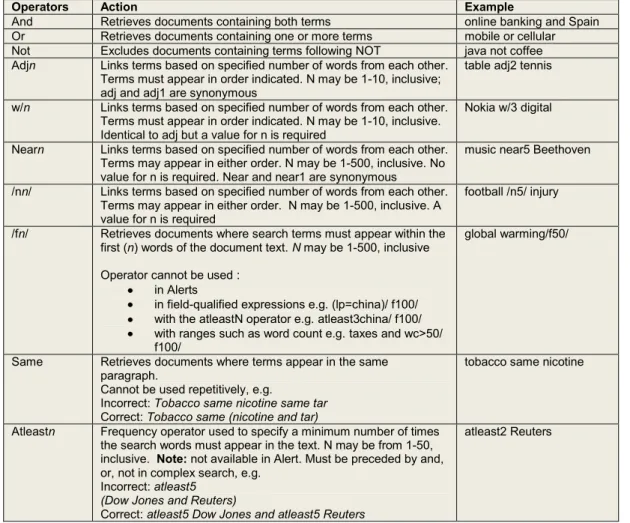
You can use the operators below to create a precise free text search.
Operators Action Example
And Retrieves documents containing both terms online banking and Spain Or Retrieves documents containing one or more terms mobile or cellular Not Excludes documents containing terms following NOT java not coffee Adjn Links terms based on specified number of words from each other.
Terms must appear in order indicated. N may be 1-10, inclusive; adj and adj1 are synonymous
table adj2 tennis w/n Links terms based on specified number of words from each other.
Terms must appear in order indicated. N may be 1-10, inclusive. Identical to adj but a value for n is required
Nokia w/3 digital Nearn Links terms based on specified number of words from each other.
Terms may appear in either order. N may be 1-500, inclusive. No value for n is required. Near and near1 are synonymous
music near5 Beethoven /nn/ Links terms based on specified number of words from each other.
Terms may appear in either order. N may be 1-500, inclusive. A value for n is required
football /n5/ injury /fn/ Retrieves documents where search terms must appear within the
first (n) words of the document text. N may be 1-500, inclusive Operator cannot be used :
in Alerts
in field-qualified expressions e.g. (lp=china)/ f100/ with the atleastN operator e.g. atleast3china/ f100/ with ranges such as word count e.g. taxes and wc>50/ f100/
global warming/f50/
Same Retrieves documents where terms appear in the same paragraph.
Cannot be used repetitively, e.g.
Incorrect: Tobacco same nicotine same tar
Correct: Tobacco same (nicotine and tar)
tobacco same nicotine
Atleastn Frequency operator used to specify a minimum number of times the search words must appear in the text. N may be from 1-50, inclusive. Note: not available in Alert. Must be preceded by and, or, not in complex search, e.g.
Incorrect: atleast5 (Dow Jones and Reuters)
Correct: atleast5 Dow Jones and atleast5 Reuters
atleast2 Reuters
Processing order of operators
When creating a search using multiple operators, it is best to use parentheses or square brackets to group similar terms or concepts. The processing order is as follows:
Hierarchy Level 1 2 3 4 5 6 Element
parentheses or square brackets same, adjN, w/N, nearN, /nN/, /fN/ atleast and field qualifiers, (e.g. by=smith) not
and or
Examples:
Brackets and Boolean
WRONG: wheat and pesticides or herbicides RIGHT: wheat and (pesticides or herbicides) Brackets and Same Operator
WRONG: Mercury same Venus same Mars RIGHT: Mercury same (Venus and Mars) Brackets and atleast Operator WRONG: atleast3 (salt and pepper) RIGHT: atleast3 salt and atleast3 pepper Parentheses are particularly important when constructing a
12
J
an.
1
How to use truncation
The documents you retrieve will contain an exact match of the words and phrases you enter unless you specify a truncation character or characters. When you use the $, * or ? characters, try to precede the $, * or ? characters with as much of the word as possible to ensure more precise results. For example, a search on advertis* will return better results and perform faster than adv*. Available truncation is as follows:
Character Action Example
$n Used at the end of a word string. At least three characters must be entered before $. The number entered after the symbol determines the maximum number of characters that will be searched for after the stem. Earn$4 retrieves earn, earning and earnings. n must be 1-9, inclusive. If no number is used, n is five.
earn$3
* Used at the end of a word string. At least three characters must be entered before *. No values should be entered. Lab* retrieves labor, laboratory. There is no limit to the number characters, beyond the stem term, that will be retrieved. Note: This is the recommended truncation character to retrieve many British English and American English spellings.
labo*
? Single wildcard character. At least three characters must be entered before ?.
Letters can be entered after the ?.
A letter must appear where ? is entered. Labo?r will retrieve Labour but not Labor.
globali?ation
How to enter words or phrases with
punctuation
The following punctuation marks are optional: hyphens, full stops, apostrophes, commas, and the slash (/) character. For example, entering ―Coca-cola‖ will retrieve the same results as entering ―Coca cola.‖ However, when searching for words or phrases that contain the & (ampersand), @ (at), or the + (plus) signs, these signs must be included in your free text terms search.
Reserved words
There are a small number of words that must be enclosed in double quotes in order for them to be searched. These words are:
and or not same near date For example, enter ―not for profit‖ or ―peas and carrots‖ to retrieve documents with those phrases.
Note: There are no unsearchable words (i.e ―stop words‖) in
Factiva.com.
How to search for articles by length
You can retrieve articles by the number of words they contain using wc>n or wc<n. Articles with fewer than 100 words tend to be short articles, wire stories or abstracts. Articles over 2,000 words tend to be longer and more analytical. Articles over 5,000 words tend to be media transcripts.
Examples:
For longer articles on stem cell research, enter:
atleast5 stem cell research and wc>2000
For short articles on the former Beatle George Harrison, enter George Harrison and wc<100
How to search in specific fields
You can search for free text terms in particular parts of the document. Use the ―Search for free-text term in‖ pull-down menu which can be found by clicking the ‗+‘ next to More Search Options. You can also search for words or phrases in particular fields by entering the field label, followed by an equals sign (=) and the words you would like to find in that field. For example, hlp=diamond ring or art=cabernet sauvignon.
To search for words or phrases in headlines and other words or phrases in the text of the document, enter, for example, hl=caffeine and td=health. When manually entering field labels in this manner, make sure the ―Search for free-text terms in‖ is set for Full Article.
13
J
an.
1
Document content is divided into different fields for searching and display purposes. The following table lists the label and name for each field along with what is contained in each:
Field Label Field Name What it contains
AN Accession Number Unique Factiva.com identification number assigned to each document
HL Headline Group Includes Source Section, Column and Headline
HLP Headline/Lead Paragraph Group Includes Section, Column, Headline, Correction and Lead Paragraph Fields
SE Section Section Name (Example: Business or Sports)
CLM Column Column Name (Example: Work and Family)
HD Headline Headline
CX Correction Correction Field
LP Lead Paragraph First two paragraphs of an article
BY Author Author, or by-line, of an article
WC Word Count Number of words in document
CR Credit Information Credit Information (Example: Associated Press)
SN Source Name Source Name
SC Source Code Source Code
NGC Source Group Name Publication Group Name (Example: ABIX) GC Source Group Code Publication Group Code (Example: ABXSMH)
ED Edition Edition of publication (Example: Final)
PG Page Page on which article appeared (Note: Page-One Story is a
Dow Jones Intelligent Indexing™ term)
VOL Volume The volume and/or number of the publication
LA Language Language in which the document is written
TD Text Text following the lead paragraphs
CT Contact Contact name to obtain additional information
RF Reference Notes associated with a document
ART Captions, Descriptions of Graphics Contains the content of captions or any descriptions of graphical elements
CO Dow Jones Ticker Symbol Dow Jones Ticker Symbol
FDS Factiva.com Data Symbol Dow Jones Intelligent Indexing™ Company Code for quoted
and unquoted companies RIC Reuters Instrument Code Reuters Instrument Code
IN Industry Code Dow Jones Intelligent Indexing™ Industry Code NS Subject Code Dow Jones Intelligent Indexing™ Subject Code
RE Region Code Dow Jones Intelligent Indexing™ Region Code
DE Descriptors Contains all available descriptors applied to a document including Dow Jones Intelligent Indexing™
PUB Publisher Name Publisher of information
Note: When you enter words and phrases in the free text search box and use the default setting of Full Article for ―Search for free-text terms in‖, you are searching the following fields:
SE, CLM, HD, CX, LP, TD, CT, RF, ART, BY and CR
You are not searching the indexing fields. To include indexing fields in your search, you must either select the appropriate Dow Jones Intelligent Indexing™ or enter a search as follows: market share or de=market share.
14
J
an.
1
How to select dates
For date searching, you may select from several pre-set dates, including ―All Dates,‖ ―In the last 3 months‖ (this is the default setting) or ―In the last day.‖ You may also enter your own date range by selecting the ―Enter Date Range‖ option.
How to select content language
Content for Factiva.com is available in 22 languages. The default is to search English language content. If you do not wish to search English content exclusively, you may select all content languages or specific languages by using the
Language option below the Sources tab. Once highlighted, the language selection will automatically be dropped into the Indexing box as part of your search creation.
Please note that initial language defaults are determined by the address supplied during registration. If the address provided corresponds to one of the 22 languages covered by
Factiva.com, your default languages will be English and the corresponding language. For example, if the address supplied during registration was in France, your initial language defaults would be English and French.
If you are experiencing difficulties displaying some language characters correctly, you may need to install the appropriate language fonts. Please contact your System Administrator for instructions on how to download additional language packs on your computer.
How to filter content
To exclude certain types of content from your search, use the ―Exclude‖ area which can be found by clicking on More Search Options. The three options you may choose to exclude are:
Republished news: excludes newswire articles from organizations such as The Associated Press
that are repeated in other publications; this option also excludes stories that have been picked up by sister publications.
Recurring pricing and market data: excludes regular prices for shares, foreign exchange, equities, funds and commodities.
Obituaries, sports, calendars…: excludes obituaries, calendars of events, letters, diaries, weather items, news about food and cooking, sports and recreation, birth, marriage and death announcements.
NOTE: Exclusion filters are maintained by applying Dow Jones Intelligent Indexing™ terms to certain articles. They are available for publications from February 2001 to the present.
Dow Jones Intelligent Indexing™
Search
Dow Jones Intelligent Indexing™ is a unique indexing process that assigns the following four types of codes universally across all content in the Search area:
Company Codes Industry Codes Regional Codes Subject Codes
Dow Jones Intelligent Indexing™
Key Facts:
These terms are based on indexing standards including NAICS (for Industry), ISO (for Regions) and IPTC (for News).
There are up to five levels of hierarchy within Dow Jones Intelligent Indexing™ — this means that when selecting the industry term for
Telecommunications, you will also be searching all of the granular telecommunications terms. Terms are reviewed quarterly for new additions. More information about Dow Jones Intelligent Indexing™ is available at www.factiva.com.
How to build a search using Dow Jones
Intelligent Indexing™
To build a search in the Search Builder or Search Builder Form, browse through the industry, region or subject terms or use the Look Up tab to find specific indexing terms or company codes. To add a source to your search, click once on the title and you will see that it turns pink. If you wish to search a number of sources simultaneously, continue to search, selecting a title until it turns pink. You will notice that the source terms are automatically assigned the OR operator as your search query develops. You can change the Boolean operator by clicking on the word OR.
To de-select a source, click on it again. If you wish to exclude a term by applying the NOToperator, double-click on the term you wish to eliminate and this will strike it through.
15
NOTE: The relationship between the Dow Jones IntelligentIndexing™ box and the free text search box is the Boolean AND operator.
You can also choose to search across all 42,500 companies that are listed in Factiva.com. Or you can choose to search and retrieve information for a specific company or companies. Simply enter the name of the company you are looking for in the ―Find a Company‖ search box, and click . To add the company to the search, click on the name - it will turn pink. Alternatively you can add the code for that company to the free text search box by clicking .
To search for a set of companies, enter the name of the first company you are looking for in the search box and select it so it turns pink. Enter the name of the second company in the search box and select it so it turns pink. Continue this process until you have added all your companies to your search. You will see that as you follow this process,
Factiva.com automatically assigns the OR operator to your list of companies. If you decide to remove a company from your search, click on the name again and it will be removed. If you wish to exclude a company from your list of results, simply click on the name twice from within Company Results and you will see that it is added to the search with the NOT Boolean operator:
Viewing details of your indexing terms
Each indexing term is provided with additional information about the code, a description/definition of the code and when the code was first applied in Dow Jones Intelligent Indexing™. Hover your mouse over the term to see the definition or click on the to get the full details. Similarly, if you have selected a company, click on the and you will see additional information about that company, the company code, location, primary industry and in most cases, the ultimate parent and subsidiaries.
Using codes in your search
There may be times when you choose to use the indexing codes in your search rather than the terms. To do this click on the next to the Dow Jones Intelligent Indexing™ term and it will automatically be dropped into the free text search box. For example, company codes are preceded with fds= (fds means Factiva.com Data Symbol). When selecting an industry, region or subject term you will see the actual code for those terms, such as in=iint for Internet and Online Services.
Codes are placed in the free text search box without
connectors. You must manually enter connectors between the codes. For example, if you select the industry code for Internet and Online Services and want to combine it with the region code for Italy, you would have to enter ANDbetween the codes (in=iint AND re=italy).
NOTE: This option is only available with the Search Builder for use in the free text search box.
Reverse Code Look Up
You can also locate Dow Jones Intelligent Indexing™ terms by entering the corresponding code in the Look up box. For example, if you enter the code c181 in the Look Up box and click on Run Search, you will get back the equivalent Dow Jones Intelligent™ Indexing term for
Acquisitions/Mergers/Takeovers.
This feature is particularly useful for users who have created complex searches using Dow Jones Intelligent Indexing™ codes. These search strategies often include indexing codes that may be difficult to identify upon revision. For example, a search strategy regarding Microsoft Corporation and Acquisitions, Mergers or Takeovers within the Software Industry may look like this:
16
J
an.
1
Viewing Results
Once you have run your search and would like to use the split screen option to view your results, ensure that you have clicked the Frames link located in the top right of your screen. The split screen will appear with your headlines, lead sentences, source name, by-line, date, word count and language in the left-hand frame. Select the headlines to view by clicking the individual boxes next to the headlines. Click the ―View Selected‖ icon ( ) and those selected articles will appear in the frame on the right.
To remove the split screen view, click on the No Frames link that appears on the right-hand side of the results list. To read articles in this view, simply click on their titles.
No Frames
Frames
How to select different display
formats
You can select from several article display formats. Click on the ―View as‖ pull-down menu to see your choices. You can choose:
Full Article – which displays the complete article Keywords in context – which displays your keywords in the context in which they appear in the article
Full Article/Report plus Indexing – which displays the complete article plus the relevant Dow Jones Intelligent Indexing™
Headline, Lead Paragraph, plus Indexing – which displays just the headline and lead paragraph of an article, plus its relevant Dow Jones Intelligent Indexing™
17
J
an.
1
How to use the Discovery Pane
After you run a search in Factiva.com, or retrieve a Company Snapshot, the Discovery Pane will be populated with filters, which provide a unique visualization of your results, and which you can use to narrow or refocus your search results.
Filters can be combined for added depth and insight into your results. For example, you could select to view all results from a particular week, from a single source and referencing a particular company.
Too add a filter simply click on the element within a filter. Filters can be removed as easily as they have been added. Click the name of a filter above your refocused results to remove it, and your results will be repopulated according to the remaining filters
.
If you ran your search in Search Builder, you may also remove filters after you have selected to Modify Search. When the search screen appears with your search strategy, the filters you selected from the Discovery Pane will appear in a separate channel under Select Sources and Dow Jones Intelligent Indexing™. You can click the filters here to remove them as well. Additionally, you may collapse/expand the entire Discovery Pane, by clicking the right hand border.It is possible to export a filter to save it locally as a static graphic. Note that the graphic you are saving is not interactive or dynamic. It is intended to be used as an example or illustration in documents, presentations and e-mail messages.
Click the Export link to the right of the filter name. Right-click on the image as it appears in a new window. Select to Save Picture As... and save it locally for later use.
Discovery Pane Filter Descriptions
Filter Description
The Date filter allows you to view your results in weekly increments for date ranges less than 6 months or in monthly increments if you select a date range of In the last 6 months or more. Mouse over a section of the bar chart and a pop-up will appear with the start date and end date and the number of articles in your results from that week or month.
Click a section of the bar chart and you will see results from that week or month only.
Please Note:
There is an indicator of article volume on the left edge of the filter, which is helpful if you select to export the filter and share it with others because an exported filter is static.
In Simple Search, you may use the pull-down menu select from a number of pre-set date ranges, including All Dates.
The News Clusters filter utilizes text mining technologies to identify top trends, relationships and patterns within your search results. News Clusters examine the first 100 articles to find repeated occurrences of hidden ideas or trends so you immediately uncover information from deep within your search results.
Mouse over your News Clusters, and related terms will be underlined together, so you can distinguish one cluster from another. Also on mouseover, a little pop-up will appear with the number of documents containing that cluster of terms. Click on the cluster to view those documents.
18
The Companies filter displays the 10 most common companies found in the Dow Jones Intelligent Indexing™ Company category associated with the articles in your search results.
The number of articles in your results associated with each company is displayed in the bar chart. Click a company name in the filter and you will see articles associated with that company from your results.
The Sources filter displays the 10 most common sources represented in your results. Click a source name to view articles from that source in your results.
The Subjects filter displays the 10 most common subjects found in the Dow Jones Intelligent Indexing™ Subject category associated with the articles in your search results. The number of articles in your results associated with each subject is displayed in the bar chart. Click a subject name in the filter and you will see articles associated with that subject from your results.
The Industries filter displays the 10 most common industries found in the Dow Jones Intelligent Indexing™ Industry category associated with the articles in your search results.
The number of articles in your results associated with each industry is displayed in the bar chart. Click an industry name in the filter and you will see articles associated with that industry from your results.
The Keywords filter is populated using text mining technologies to examine the first 100 articles in your results to extract the most frequently used terms and phrases related to your search. Mouse over your Keywords, and individual terms and phrases will be underlined so you can distinguish one term or phrase from another. Click on a keyword to view the documents containing that term or phrase.
19
Processing Results
How to use the More Like This
automatic search
The More Like This feature is available in the document view, located at the bottom of the document. The functionality works as follows:
• Document View — More Like This searches on words in the headline and lead paragraph and returns similar documents. In addition, from the article view, you can highlight words in the
document and then click More Like This. You will be most successful in retrieving relevant documents if you highlight specific words that are most significant
How to get more information on
related topics
You can easily conduct single-click indexing-based searches in Factiva.com. While viewing a document, you will see a yellow area below the More Like This link. This is populated with the Dow Jones Intelligent Indexing™ terms that have been automatically applied to the documents. Clicking a Region, Industry, or Subject term runs a new search based on that indexing term.
How to get more company information
When you select a related Dow Jones Intelligent Indexing™ company link, you can get more than news articles on the company. Clicking on the company name presents basic information about the company including location, its primary industry and stock activity.
You can also choose to run a search on this company or access a Company Snapshot. The Company Snapshot is available only for quoted companies and includes news
information about the company, financial results, reports and the option to create your own report.
From within the Company Snapshot, you can also move directly to the Quotes and Charting sections of Factiva.com. See page 23 for more information.
How to use tools for managing
information
Factiva.com product research determined that up to 40% of a professional searcher‘s online searching time is spent reformatting, delivering, and otherwise processing documents after they have been found. Accordingly, we developed document-handling options in Factiva.com to save you time:
Select Content to View
Use the Select icon to select and de-select all of your search results on the page. Use the selection boxes next to the documents to select individual items. To help you decide which articles, pictures, websites to view, headlines and lead sentences are displayed.
View Selected
Clicking the View icon will display selected documents in a
Factiva.com browser window in the format that you choose. Rich Text Format
Select the RTF icon to display documents in Rich Text Format. You will see a dialogue box asking if you wish to open the items or save them to your computer. The documents will be opened (or saved if you choose) and you will see them in your word-processing program.
Adobe PDF
The PDF button will allow you to export Headlines, Articles, or Headlines and Articles with a Table of Contents in a
presentation ready format.
Extensible Mark-up Language
XML is a flexible document format for saving and republishing articles.
E-mail Your Results
You can e-mail documents in any of the available display formats by clicking on the e-mail icon from the headline results page or from within a document. Follow these steps:
1. Select the documents you want to e-mail. You may send up to 100 items at once. Click to open the e-mail window.
2. Enter the e-mail address of the recipient as well as a Reply-To Address. Only one e-mail address may be entered in each box. You can add a message of up to 1,000 characters to the person who is receiving the documents.
3. You can add the headlines to a cover letter by choosing the appropriate box.
20
5. Select the type of e-mail output you want. Youroptions for publication and website results are HTML or Plain Text. No options are available for pictures or reports.
6. Click Send. You will receive a confirmation. NOTE: No formatting options are available for websites or reports. Website results include the headline, site name and publication date, lead paragraph and URL. When e-mailing reports, the full report is sent as an HTML attachment. Select the Terms of Use link for information about permitted uses of Factiva.com information.
Print Results
Select Format for Printing to strip out any links, background graphics and buttons. You can clean up a list of headlines, or clean up full articles, reports, pictures, and website
information. By clicking on the Printer icon, you will launch a new browser window containing your results. Use your browser‘s commands to print the items.
Save Results
Before saving your results, you will want to strip out any links and other items as with printing. By selecting the Save (disk) icon, you will launch a new browser window containing your results. Use your browser‘s commands to save the items. Depending on the browser you are using, you may be given the choice of saving the file as a Web Page or Text File.
21
Alert
Alert is a current awareness and alerting tool that scans articles upon arrival to Factiva.com and continuously ‗crawls‘ hundreds of websites for news that matches your interests. The search is performed automatically and your results are returned to Alert for online viewing.
Accessing Alerts
1. Select Alert from the menu bar.
2. Choose a folder from the drop-down list. 3. You are taken to the results for that folder.
4. You can choose to view articles by publication date, most recent first; publication date, oldest first; relevance or arrival time.
5. You can also choose to view the article in full, with the keywords in context, the full article plus the Dow Jones Intelligent Indexing™ for that article or the headlines/lead paragraph of the article plus Dow Jones Intelligent Indexing™.
Alert — Key Facts
You may view results from Alerts on the News Pages or in the Alert area.
Results are delivered to Alerts as soon as 30 minutes after the folder is set up.
Results remain in Alert for 14 days or until 250 documents have been accumulated, whichever comes first. When the document limit is reached, the oldest articles are deleted as new articles are delivered.
Company Alerts can be easily created by your library administrator.
Alerts, up to 5 per institution, are set up by your administrator.
22
News Pages
News Pages allow you to access the key content areas of Factiva.com from one screen. Your library administrator can create pages that include the ability to select, browse or search up to 10 publications in Newsstand, view Alerts, Saved Searches, industry-focused news, research on a global company, pricing information and breaking news. There are two main types of News Pages available to academic institutions:
Factiva Pages
These pages are the default pages created by Factiva.com
editors. They include access to articles from up to ten major news sources for a region from the Newsstand component, 5 to 10 market indexes, Editor‘s Links and Web Resources. Factiva Pages are currently available with coverage of 21 locations including Asia-North, Asia-Southeast, Australia, Canada, France, Germany, Italy, Spain, United States, United Kingdom, and Global.
Factiva Pages also include other special themed subject pages developed by Factiva.com editors in response to world events and issues, as well as industry-specific pages and a European Union page which includes access to Eur-lex. NOTE: Factiva Pages cannot be modified by subscribing institutions.
Group Pages
Group Pages are similar to the Factiva Pages except that they are created by subscribing institutions. Your library
administrator can create up to a hundred Group Pages for your institution. NOTE: Group Pages can only be set up and modified by the administrator.
Using News Pages
News Pages allow library administrators to choose from over 200 of the world‘s most influential newspapers and general business magazines, browsable by date and by section. News Pages include a 2-week rolling archive for daily publications and the most recent three issues for weekly and bi-weekly publications. Users can browse through the available issues of the news sources by date and by section. They can also search across all news sources in the free text search box at the top of the News Page using Boolean or advanced search operators.
23
Companies/Markets
Factiva.com provides detailed information on more than 31,000 world-wide public companies from Reuters. In this section, you can view company snapshots, retrieve quotes and create interactive charts.
Company Lists
If researchers frequently search for information about the same company or companies, your library administrator can create a ―Company List‖ which is a specific list of companies. This simplifies the process of requesting a Company Quick Search or searching for information about companies in the free text search area.
Institutions may create up to ten group ―Company Lists‖ and each list can contain up to 500 companies.
NOTE: Company Lists can only be set up and modified by the administrator.
How to search by name or symbol
You have the option to search for companies by name or symbol. When you look up a company by name, enter as much of the company name as possible, ending with an asterisk or dollar sign if you need to include a wildcard. Your search will look for aliases and trading names and a list of matching companies will be generated, including subsidiaries and recently acquired companies, the country where the company is headquartered, industry description and whether the company is quoted or unquoted.When requesting a company by symbol, you may enter either a U.S. ticker symbol or a Reuters Instrument Code (RIC). U.S. ticker symbols may be entered in either uppercase or lowercase. RICs are case sensitive. If you want to obtain multiple companies and know their symbols, you can enter up to 20 at a time, separated by spaces.
Quotes
The Quotes area of Factiva.com covers various types of securities, including equity and debt that trade on exchanges located around the globe. Specifically, pricing information is available for stocks, funds, market indexes and currencies. Current and historical pricing on actively traded issues is available for each instrument going back approximately 5 years.
Requested data can be presented in one of two formats: a formatted table or a static chart. For certain instruments, you will also be able to link to an interactive chart.
Quotes are provided by a leading market data supplier - Reuters Investor.
How to request quotes for active
stocks, or funds
1. Click Quotes from the Companies/Markets tab.
2. Select Stocks, Funds, Currencies or Market Indexes from the ―Select Instrument‖field. 3. Enter the symbol or name for your desired
instrument. When requesting a quote by symbol, you may enter either a U.S. or Canadian ticker symbol or a Reuters Instrument Code (RIC). Ticker symbols may be entered in either upper case or lower case. However, RICs are case sensitive. Up to 20 symbols, separated by spaces, can be entered at one time. If you choose to search by name, enter the name in upper case or lower case. If you are unsure of the exact spelling, truncate the name with an asterisk, and then click Look Up. Instruments matching your inquiry will appear. Check the box(es) next to the instruments you like. You can select up to 20. Alternatively, you can select up to 20 instruments from your Quotes List. 4. Select your desired date option from the ―Date
Range‖field.
5. Choose your output format. Formatted table is the default but you can choose a static chart if you wish.
6. Click Get Quote.
NOTE: RICs will only retrieve current market quotes. You must use the ticker symbol to retrieve historical quotes.
How to request quotes for market
indexes and currencies
1. Click Quotes from the Companies/Markets sub-menu.
2. Select either Currencies or Market Indexes from the ―Select Instrument‖field.
3. A list of available instruments for each type will appear.
4. Select the instruments you‘d like. To select more than one instrument (up to a maximum of 20), hold the CTRL key as you click the mouse.
5. If selecting a currency quote, it is necessary to select a cross rate. For example, if selecting ‗Euro‘ select a second currency such as the ‗Australian dollar‘ or ‗US dollar.‘
24
6. Select your desired date option from the ―DateRange‖field. ―Current Quote‖ is the default for Market Indexes and Currencies.
7. Choose your output format. Formatted table is the default but you can choose a static chart if you wish.
8. Click Get Quote.
Charting
The Charting area of Factiva.com allows you to draw charts for Stocks, Funds, and Market Indexes. These charts are interactive. They do more than just provide a graphical representation of an instrument‘s activity, but interactive charts will also supply the value for any given datapoint and one-click access to news for Stocksand Funds. Multiple chart types are available. Included are:
Candlestick High-Low
High-Low-Open-Close Line (default)
Charting additionally contains tools for comparative analysis. For example, you can chart a stock along with a market index, or a stock with its 10-day or 50-day moving average. Up to 10 instruments can be charted on one graph. Please note that a chart with 6 or more instruments will not contain interactive functions.
How to request an interactive chart
1. Click Charting from the Companies/Markets sub-menu.
2. Enter the symbol(s) for the Stocksor Funds you would like to chart. You may enter either a U.S. or Canadian ticker symbol or a Reuters Instrument Code (RIC). Ticker symbols may be entered in either upper case or lower case. However, RICs are case sensitive. Up to 10 symbols, separated by spaces, can be entered at one time. To chart a Market Index, check the box of the most popular indexes listed or choose another index from the ―Select Another Index‖drop down menu. Alternatively, you can select up to 10 chartable instruments from your Quotes List.
3. Select your desired date option from the ―Date Range‖field. Daily prices for the past 3 months is the default.
4. Choose your ―Display Options.” There are three fields to complete here. You can decide to display a Moving Averageon your chart. A Moving Average chart will not start on the first date of your time series, but it will use the first set of dates to calculate the average. For example, in a 10-day Moving Average chart, the chart will start on day 11 of the graph, as the first 10 days of data are used in the calculation of the average.
5. Additionally, you can choose your chart type and indicate whether you would like volume shown for your instrument in focus. If you are charting multiple instruments, the instrument in focusis indicated by the color blue.
6. To make another instrument the instrument in focus, under ―Charted Symbols,‖ click the triangle at the end of the instrument name.
7. Click Draw Chart.
NOTE: if you are displaying a single instrument, listed on the Y-axis will be the price of the instrument and on the X-axis you will find the date range. If you are displaying two or more instruments, the Y-axis will change to Percentage Value, while the X-axis will continue to list the date range. Should your interactive chart not appear contact your library administrator. Interactive Charts can be printed or saved using the processing icons at the bottom of the page.
Click-to-News
After retrieving a chart, you might need more details to help you develop the ―full picture‖ behind the instrument. You can evaluate the increase and decrease in datapoint values on a given chart by simply moving your mouse to any place on the chart. The actual values for the date selected will appear on mouse-over. Additionally, you can left-mouse click on any datapoint, for a charted stock or fund, and to access news for that time period, which may have had an affect on the instrument‘s performance.
25
J
an.
1
Company
This section lets you retrieve company snapshots of companies that interest you. Simply enter the company name or symbol and click the symbol. You can also choose companies from a company list that has been created by your administrator.
By starting with a company's Snapshot you get all the information you need to quickly understand changing business concerns. You can also click any link within the Snapshot to find targeted news, reports, charts, analysis and financial data.
The Snapshot view includes a comprehensive one-page summary, information channels, and supplemental links for additional details:
COMPANY SNAPSHOT PAGE SUMMARY
Company address and contact/phone details Stock Price Activity, as available
Discovery Pane Industry classification (Factiva primary industry, SIC, NAICS, NACE) Business/Trade description and Reports News Brief: Latest News, Web News, and Multimedia
Key Executives (Top 5) Performance/Segment Information Peer Group (default: nearest 10 by Sales, with relative rank
and sales figures) Top fundamentals (sales, number of employees, market cap, net income, net profit margin) Also included in the Company Snapshot view are information channels and supplemental links to the following detailed pages:
News
Financial Results Reports
26
J
an.
1
News
News links to the ―News Brief‖ with news articles from
Factiva.com. Use the links to view focused news articles related to Web News, Multimedia, or Suggested Categories. Click a headline to view the full article.
Notes:
Click the Back to Headlines link to return to the list of News articles.
Click the View More link, located at the far right side above the headlines, to view additional articles. The Previous link will bring you to the previous article in the list of headlines.
The Next link will bring you to the next article in the list of headlines.
You may return to the News at any time by clicking the Back to Headlines link, located at the top of the page.
Financial Results
5-year key financial reports are available for Public companies, with some exceptions. Financial information is provided by Reuters. Available financial statements are:
Balance Sheet - Annual Cash Flow - Annual Income Statement - Annual Key Ratios
You can also export this data into csv format for use with Microsoft Excel.
Notes:
Templates, provided by Reuters, are used for displaying financial statements.
More detailed financial results can be obtained from the Show Details link.
A link to load financial data into a spreadsheet is available on the right side, above the statement.
Reports
The reports you can run are:
Company Report
A detailed outline of the company‘s primary activities, top officers and executives, competition, history, products, services, key financial rations, and full balance sheet, income statement and cash flow statements.
Source: Factiva, Reuters Detailed Company Profile Report
A detailed outline of the company‘s primary activities, top officers and executives, competition, history, products, services, and key financial ratios.
Source: Factiva, Reuters Financial Health
A summary of this company‘s financial health. It provides latest key indicators, margins, valuation and effectiveness ratios, and share and dividend activity data.
Source: Reuters Ratio Comparison Report
Compares key financial ratios of this company against its industry, sector, and the S&P 500 Index aggregates. Source: Reuters
Custom Report
Build a custom report which can include the following categories: Business Summary, Financials and Market Activity, and News. Basic and Advanced Report Builders are available.
27
Appendix 1: Searching Eur-lex content in
Factiva.com
Eur-lex content can be searched in several ways in
Factiva.com. It can be accessed from the Search and News Page screens, and is also available as a search component that can be added to a Group News Page.
Eur-lex content dates back to 1st January 1951.
Please note that major Eur-lex subjects and keywords have been mapped to Dow Jones Intelligent Indexing™ terms.
Search by Eur-lex Document
Number or Sector Type
If you are receiving too many documents or don‘t get the results you are expecting in your Alert, you have several options for refining it (which you can also apply on the main Search screen):
Search Eur-lex Document Numbers as
they appear in the Headline
For example, searching HD=32007D0742 retrieves the headline: Commission Decision of 9 November 2007 establishing the ecological criteria for the award of the Community eco-label to electrically driven, gas driven or gas absorption heat pumps.
Search by specific Eur-lex Sectors
using SE=, the field tag for Section
Name
For example, sc=celexe and SE=2. This search combines the source code for Eur-lex English language, sc=celexe, and the section code for the Eur-lex Sector External Relations (Sector 2). It is recommended that you include either the source code* in your search strategy, or select Eur-lex from the Source Browser. You can add free-text terms and date ranges to further narrow your search. The following are the Eur-lex Sectors and identifying numbers available for searching with SE=:
Treaties (Sector 1)
External Relations (Sector 2) Secondary Legislation (Sector 3) Complementary Legislation (Sector 4) Preparatory Works (Sector 5)
European Courts: Court of Justice, Court of First Instance (Sector 6)
Parliamentary Questions (Sector 9) EFTA Relevance (Sector E)
Other acts published in the Official Journal (Sector C)
*Eur-lex Source Codes
English Language: SC=CELEXE French Language: SC=CELEXF German Language: SC=CELEXG
Accessing Eur-lex Search from News
Pages
1. The library administrator can add Eur-lex Search to a Group News Page.
2. From Factiva News Pages, use the pull-down menu and select European Union.
Searching Eur-lex Search from News
Pages
You have several search options and can enter various search criteria:
Document Numbers Eur-lex number EU number
Free text key terms, if desired Document type
Date
Eur-lex Search Tips from News Pages
Searching with an EU number requires entering the publication year for the document. For example, to retrieve EU document 1630 you must enter the year 2002. If you do not know the publication year, we suggest entering a free-text keyword search on the subject of the document, for example: cereals and rice.
Select a document type by highlighting the category - just click on the category to make a selection. You can select more than one category. To deselect a category just click on it again and the highlighting will be removed. You may also select and highlight All Documents. Document types can be expanded by clicking on the (+) expansion button next to a category allowing you to select additional types within that category.
Search using free text keywords is useful if you do not know the identifying document numbers, or wish to retrieve a series of documents on specific issues. As in searching Eur-lex in Search and News Pages, you can use the field tag se=, to search in the free text search box for specific Eur-lex Sectors using the designated sector number. Please select ―All Documents‖ when using se=.
Select Date Range: Select from the pull-down menu.
To return to News Page, click the Return to News Page link (located on the right-hand side, above Headlines) from the Headlines results page.
28
J
an.
1
The following Eur-lex documents are available from the News Page search: Treaties International Agreements Secondary Legislation Supplementary Legislation Preparatory Documents Case Law
National Implementation Measures - directives Parliamentary Measures
EFTA Documents
29
J
an.
1
Appendix 2: Quick Guide to Numbers in Factiva.com
This table describes the numbers that are referred to in
Factiva.com
.
Sources
Over 20,000
Websites
12,000+
Pictures
10,000 added weekly
from 10 sources
Multimedia
150+
Company Data from Reuters
42,500
Publically Traded Company Snapshots
31,000
Languages in Search and Alert
22
Saved Searches
100
Custom Source Lists
100
Sources or groups of sources in a custom list
350
Dow Jones Intelligent Indexing™ company codes
320,000+
Dow Jones Intelligent Indexing™ industry codes
918
Dow Jones Intelligent Indexing™ region codes
646
Dow Jones Intelligent Indexing™ subject codes
720
Company lists
10
Companies in a list
500
Alerts
5 per institution / 25
per consortium
Articles in each alert
250
Number of days for article storage in Alert Folder
14
Quotes lists
10
Instruments in one Quotes list
20
Market indexes, funds, corporate bonds*, stocks,
US Treasury Bills*, US Treasury Notes*, and US
Treasury Bonds*
*not available to academic subscribers