1. Product Registration
1.1. How do I register my Cummins engine?
Go to Cummins.com or everytime.cummins.com and click on the product registration link. The link will take you directly to the product registration website. Or you can complete the mail-in product registration card found in your owner’s manual.
Browser Compatibility Notice: Internet Explorer is the only currently-supported browser for the
Cummins Product Registration website. If you are using a different browser or have trouble using the online form, please submit your registration information (Company Name, Your Name, Address, City, State/Province/Region, Zip/Postal Code, Country, Engine Serial Number, and Aftertreatment Serial Number) to us via email at [email protected].
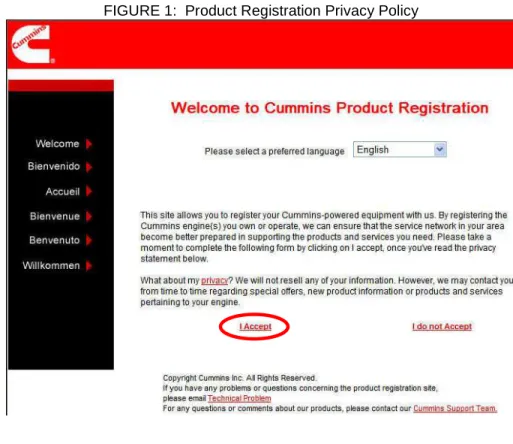
Read and accept the Cummins Product Registration Privacy Policy FIGURE 1: Product Registration Privacy Policy
1.2. What if I don’t want to provide my email address?
Cummins has a strict privacy policy. We will not sell your contact information to other parties. We will only use it to contact you about your product. An email address is requested in this form so that we can send you a confirmation of your registration. However, if you prefer, you can fill out the registration card found in your owner’s
2. Navigating the Product Registration Website
2.1. Select:
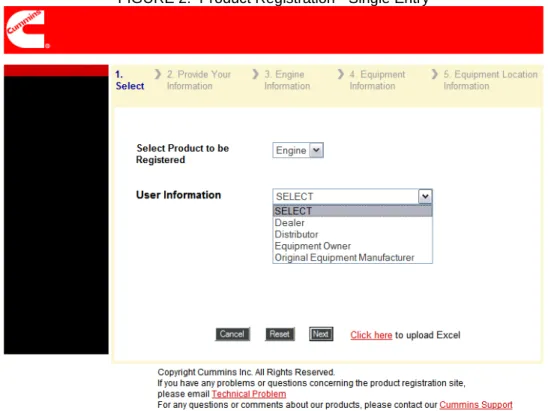
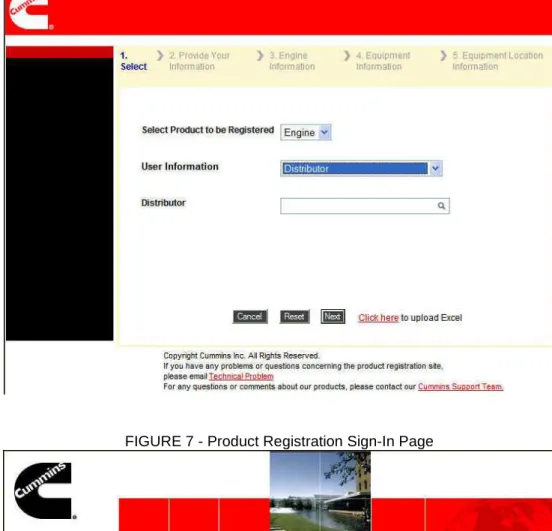
“Enter a single registration” (FIGURE 2) or select “Click Here to Upload Excel” to upload a spreadsheet with multiple registration entries.
NOTE: Upload Excel is for users that have login and password access, typically OEMs, distributors or dealers with a high volume of registrations to enter.
FIGURE 2: Product Registration - Single Entry
2.2. User Information Selection: Dealer
If you are registering equipment on behalf of a customer you must be a Cummins authorized dealer to make this selection. Otherwise, please complete the form by selecting “Equipment Owner.”
Distributor
If you are a Cummins distributor, select “Distributor” in the User Information. Type “Cummins” and the first few letters of your location to narrow down your selection.
***************************************************************************************************************************************************** Please note: Fields that include a magnifying glass are type-in fields. Type-in at least the first three letters of the word you are looking for and a drop down list will load.
3. Product Registration - Single Entry
3.1. Engine Information:
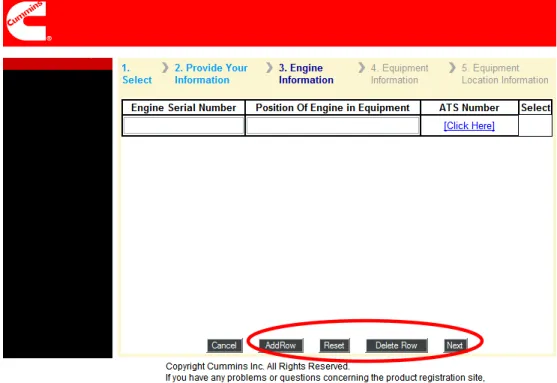
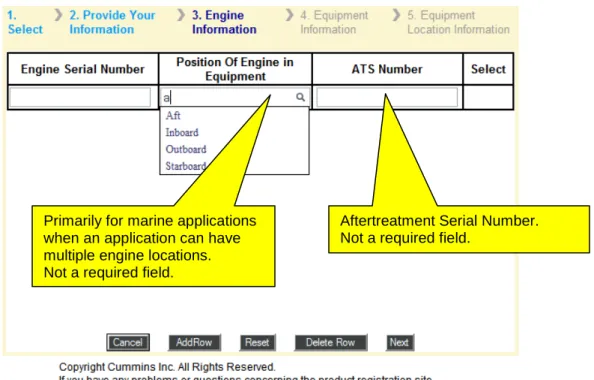
Next, you will be prompted to enter your eight digit numeric ESN (see FIGURE 4). “Position of Engine in Equipment” is an optional field and is primarily for marine applications when multiple engines are in one piece of equipment. Possible
selections are Aft, Fore, Inboard, Outboard, Starboard, Center, and Port. ATS refers to the Aftertreatment Serial Number. This is not a required field unless you have aftertreatment information.
At the bottom of the page there is an option to select “Add Row” or “Delete Row.” It is important to note, these buttons only apply to a piece of equipment that has multiple engines.
CAUTION: Do not use this screen to enter in multiple ESNs for different customers or equipment.
Click on “Next”
FIGURE 3a: Product Registration - Engine Information
3.2. Equipment Information:
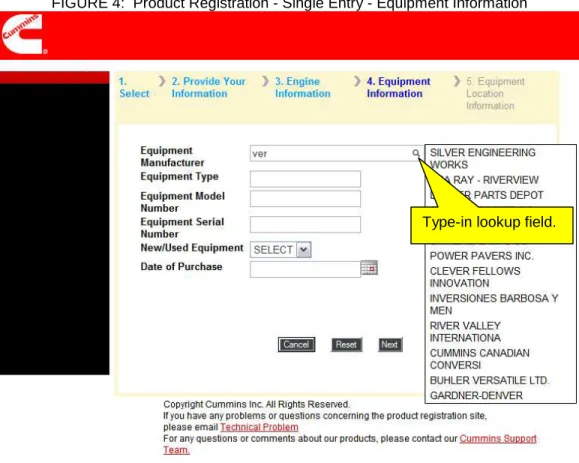
Now you will enter specific information on your equipment (FIGURE 4). Equipment manufacturer is a type-in field. Start typing in the name of manufacturer and a list will appear. If the name you are looking for is not listed in the drop-down keep typing until you are finished. For OEMs that have multiple listings, select the most appropriate. If you know the equipment type, model number, serial number and date of purchase be sure to add them. New/Used Equipment is a required field and must be selected before you can click “Next.”
Primarily for marine applications when an application can have multiple engine locations. Not a required field.
Aftertreatment Serial Number. Not a required field.
FIGURE 4: Product Registration - Single Entry - Equipment Information
3.3. Equipment Location Information:
If the primary location of the engine is different than the original address you would insert that information here. Otherwise, select the box labeled “Same as Equipment Owner’s Contact Address.”
Once you are finished you can either select “Finish,” which will exit you out of the website, or select “Register More Equipment.” Clicking on “Register More
Equipment” will take you back to the Engine Information page (FIGURE 5). You won’t have to start the process all over again by selecting your distributor name.
4. Product Registration Excel Upload - Batch Entry
From this point on the information included will be reviewing the excel upload process. Uploading to the website is for a select group and requires a Cummins password to access. If you would like more information on this process, please send an email to [email protected]. OEMs and dealers who will be working with a high volume of entries can setup an account utilizing a Cummins LDAP account
management.
FIGURE 6: Product Registration Excel Upload - Batch Entry
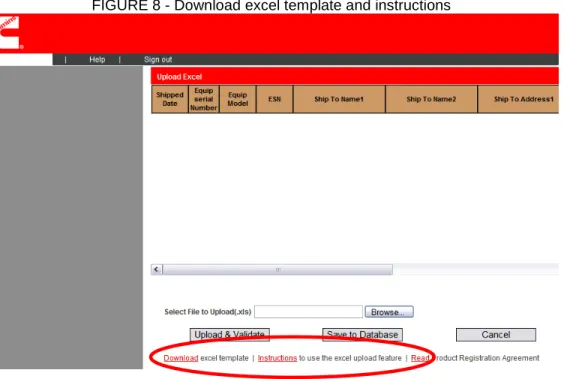
FIGURE 8 - Download excel template and instructions
Download the Excel template and read the instructions on the upload process. After selecting the file from the “Browse” button, select “Upload and Validate.” The data sender will be notified when the upload is complete and if any errors in the data have been found.
Click on “Save to Database”
Click “No” (FIGURE 9) and the invalid records will be purged Click “Yes” (FIGURE 9)
CAUTION: If “Save to Database” is not clicked before submitting another file, the previous file data will
be lost, as memory is cleared from the table if not saved.
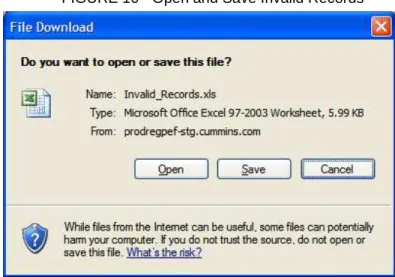
FIGURE 10 - Open and Save Invalid Records
Click “Open” (FIGURE 10) and the Excel file opens in a new window Click “Save” (FIGURE 10) and the file will be saved
Click “Cancel” (FIGURE 10) and the invalid records will be purged
If there are records that the system cannot upload/process, the data sender will be given a link (FIGURE 10) to download a file with records that contain errors, enabling the sender to fix those issues immediately. This link will appear shortly on the product registration page below the table showing the records that successfully loaded (the larger files with errors will take a bit longer to process).
After product registration receives files through the website, records are processed through the system, once every 24 hours.
When this process is followed, the data submitted is validated on-screen (if the form is filled out correctly) with an email that requirements were fulfilled.
If data is not correctly uploaded, or corrected in a timely fashion, ESNs relating to
information that is missing or invalid will be communicated back to those responsible for Serialization Reporting later as items still needed to reach Cummins goal of 100%
The Cummins Distributor installer of the serialized emissions-related components is responsible for recording this information within the work order of the Business Management System (BMS).
5. Product Registration Template Tips
5.1 MACROS
Macros must be ENABLED in order for any upload of data to be complete. 5.2 File Format
File formats (unique Excel spreadsheet) are provided by CMI and must be used. The data file should have a header with OEM information (Name, Company, and Month).
CAUTION: Changing any part of the Excel sheet will create problems with the upload process
5.3 Zip Code
In the United States some regions have four digit zip codes. The template requires a five digit zip code in order for the cell to be valid when it is uploaded. If you enter a four digit zip code, please add a zero before it. If you are outside of the United States, please insert NA into the zip code cell.
5.4 State/Province, Country
All country and state/province listings should be abbreviated, use only the proper 2 letter alpha code (example: Ontario = ON, California = CA, United States = US)
5.5 Frequency
It is recommended, between the first and fifteenth day of each month, to compile data from the shipments in the previous calendar month.
5.6 Product Registration Agreement
Read the privacy agreement on the product registration website (which can be accessed from Cummins.com) regarding concerns about confidentiality.
5.7 OEM Requirements
A. Collect the Vehicle Identification Number (VIN), Engine Serial Number (ESN), and aftertreatment assembly serial number combination (ATSN), at the time of vehicle or engine assembly.
B. OEMs/Distributors should submit data to CMI at least monthly.
– Cummins will provide a standard format to collect the data by means of either EDI (Electronic Data Interchange), or Product Registration/MS Excel Spreadsheet template.
5.8 Copy & Paste
Select “paste special” when pasting data from another source into the template. Be sure to only copy over the data as values only, excluding formatting from the source
6 . Recommendations for Reporting Serialization (Avoiding "Bad" Data)
A. The product registration template must be used or the data will be rejected/out-filed.
B. Do not change, alter sequence or add any columns to the Product Registration spreadsheet (as this will cause data records to outfile).
C. Do not change format of any fields in the Product Registration spreadsheet (Example: Do not change date format).
D. Do not bring other formats into Product Registration spreadsheet (Example: adding apostrophes in front of numbers to change #s to text)
E. For North America, all yellow fields are required in Product Registration and must have valid content (Do not put "NA" in fields or substitute that for real data). ATSN required only if the vehicle/chassis has Aftertreatment. If the
vehicle/chassis does not have Aftertreatment, leave this field blank – otherwise records will be rejected.
APPENDIX A: Excel Template
This appendix describes the columns in the Excel Template used to upload Product Registration data.
Column Letter and Title Description
Header:
OEM_Company_Name Name of equipment manufacturer who installed the engine
OEM_Contact_Name Name of person responsible for product registration at the OEM
OEM_Contact_Phone Phone number of OEM Contact Name
Report_for_Month Use this field to note the production month the data represents. If the data is from multiple months, use the ending month in this field
Year Production year
OEM_Customer_Code Code assigned by Cummins
Version: 1.0 This indicates the version of the Excel template downloaded to be sure
user has the latest version from website and/or if IT needs a reference
A Ship_Date Date which engine was shipped from OEM factory to first point of retail
sale
B Equip_Ser_Num Equipment serial number assigned by the OEM
C Equip Model OEM model designation distinguishing equipment
D Engine_Ser_Num Individual designation of engine assigned by Cummins Inc.
E Ship_to_Name1 Name of OEM, Dealer or End User receiving engine
F Ship_to_Name2 Secondary line for further details of OEM, Dealer orEnd User receiving
engine
G Ship_to_Addr1 Address of Ship To Name (such as street name and number)
H Ship_to_Addr2 Secondary address of Ship To Name (such as suite/apartment/etc.)
I Ship_to_City City of Ship To Name and Address
J State_Province See AEB 191.32: First Point of Sale requires two letter codes
K Zip zip code where engine is shipped
L Country See AEB 191.32: Country where engine is shipped
O SCR See AEB 191.25: A tracked, serial number for the Selective Catalytic Reduction unit
P DPF/SCR_Pre_assembled_unit See AEB 191.25: Both DPF and SCR are pre-assembled by CES into a configuration (i.e., switchback) which has a separate top level
assembly serial number than the DPF and SCRs as separate product. Q Engine_Location
_Same_as_Shipping_Location
Put X here if same as shipping location.
R Eng_Loc_Addr1 Address if different from Column G and H Ship_to_Addr1/2 (where
engine owner may be in different location than engine such as a boat slipped in a marina in one city/country but the owner lives in another city/country)
S Eng_Loc_Addr2 See R above
T Eng_Loc_City City if different from Column I Ship_to_City (where engine owner may
be in different location than engine such as a boat slipped in a marina in one city/country but the owner lives in another city/country)
U Eng_Loc_State_Province State/Province if different from Column J Ship_to_State/Province
(where engine owner may be in different location than engine such as a boat slipped in a marina in one city/country but the owner lives in another city/country)
V Eng_Loc_Zip Zip code if different from Column K Zip (where engine owner may be in
different location than engine such as a boat slipped in a marina in one city/country but the owner lives in another city/country)
W Eng_Loc_Country Country if different from Column L Country (where engine owner may
be in different location than engine such as a boat slipped in a marina in one city/country but the owner lives in another city/country)