VISUALIZING STRUCTURED TEXT: A PROTOTYPE GRAPHICAL TOOL FOR ANALYZING LARGE DOCUMENT COLLECTIONS
by
Helen A. Hawkins
A Masters paper submitted to the faculty of the University of North Carolina at Chapel Hill in partial fulfillment of the requirements for the degree of Master of Science in
Information Science in the School of Information and Library Science.
Chapel Hill, North Carolina November, 2005
Approved by
Helen A. Hawkins. Visualizing Structured Text: A Prototype Graphical Tool for Analyzing Large Document Collections. A Master’s Paper for the M.S. in I.S degree. December, 2005. 73 pages. Advisor: Gary Marchionini
In its early stages, the field of data visualization focused on representing data, which, though it had physical characteristics, was difficult if not impossible to see. From internal medicine to the ends of our reach into space, tools like magnetic resonance imagers and high-powered telescopes have collected, colored, and differentiated data for us. Those tools have changed the way we work with all kinds of data. But abstract ideas, by their nature, do not have physical attributes, so it is difficult to know where to begin to create representations of things like document structure. This project explores options for providing document visualizations to assist authors and information architects in analyzing their document collections. Though conduct of a user study falls outside the scope of this project, this paper also outlines a proposed method for evaluating the prototype.
Headings:
Information Navigation -- Visualization Information Retrieval -- Thumbnails
CONTENTS
CONTENTS ...1
LIST OF TABLES...3
LIST OF FIGURES ...4
CHAPTER 1 INTRODUCTION...5
CHAPTER 2 LITERATURE REVIEW ...8
CHAPTER 3 DESIGNING AND DEVELOPING THE PROTOTYPE...11
User interface design...12
Developing a working prototype ...16
Developing the transforms ...17
Creating a publishing environment ...20
CHAPTER 4 FUTURE DIRECTIONS...22
Quantitative evaluation ...23
Qualitative evaluation ...24
Considerations ...25
Significance of the work ...25
CHAPTER 5 CONCLUSIONS...27
Appendix I: Personas ...29
Primary: Marion ...29
Secondary: Evelyn ...30
Additional personas ...31
User Assistance Manager ...31
User Assistance Developer – not interested in new tools ...31
Appendix II: User goals ...33
Appendix III: User Assistance Developer scenarios for VISTAA...39
Identify inconsistencies in help topic structure ...39
Appendix IV: Information Architect scenarios for VISTAA ...41
Identify inconsistencies in help topic structure ...41
Compare topics by type across information components ...41
Visually verify structure according to guidelines...42
Verify short description ...42
Analyze topic metadata platform/product/audience/status/importance ...42
Appendix V: VISTAA Interface Design Decisions ...44
Appendix VI: VISTAA Architecture...55
Appendix VII: Items selected from the user assistance checklist ...56
Appendix VIII: VISTAA DITA XML to SVG transform ...57
Appendix IX: Pipelines added to the sitemap.xmap...68
LIST OF TABLES
LIST OF FIGURES
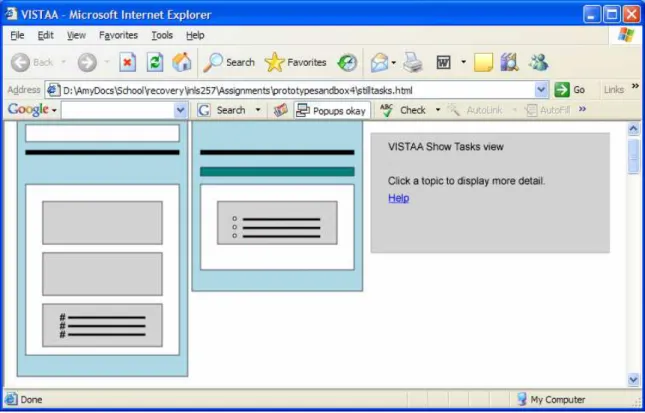
Figure 1. Initial VISTAA Screen ...14
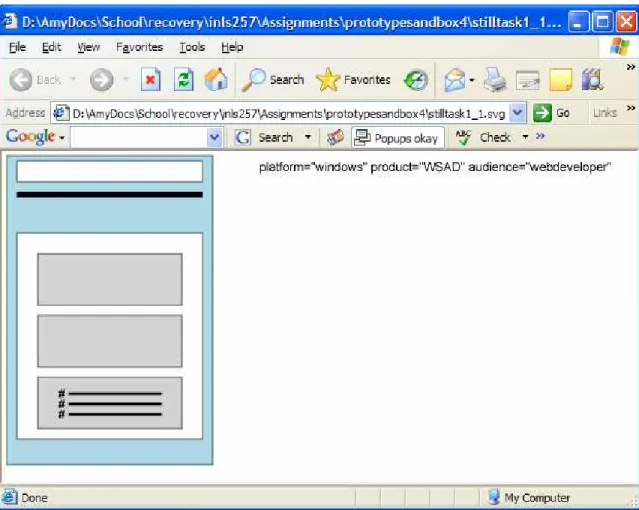
Figure 2. Help Screen ...14
Figure 3. Individual representation with metadata displayed on mouseover...15
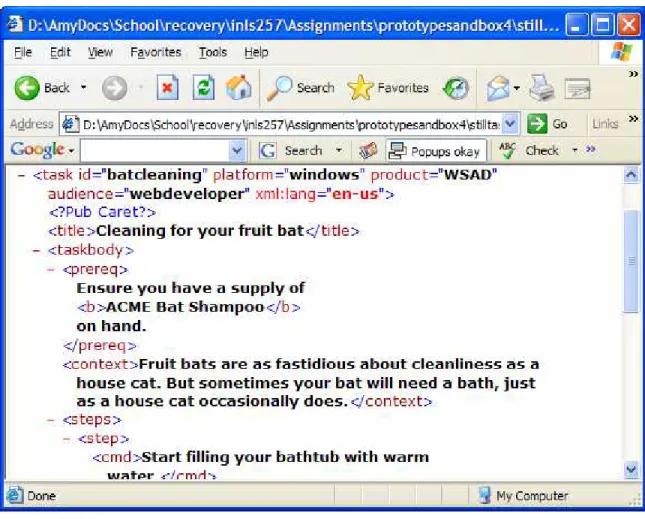
Figure 4. Individual topic tagging displayed after representation was clicked...16
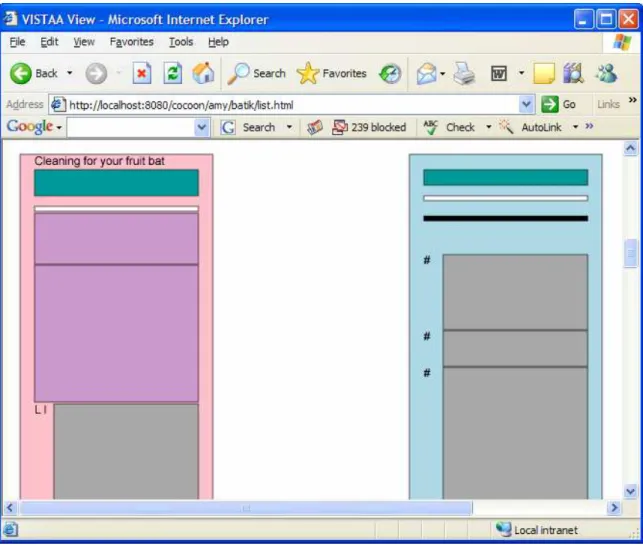
Figure 5. Working VISTAA prototype...20
Figure 6. Example DITA code ...47
Figure 7. Initial representation design ...48
CHAPTER 1 INTRODUCTION
In an age where so many text documents are “born digital,” and the potential for users to develop digital vertigo through sensory deprivation is great, it stands to reason that enthusiasm for defining space and form in digital libraries ought to be as great as it is for designing brick and mortar libraries. As we replace physical stacks with online article databases and electronic books, it seems intuitive that we ought to include in their digital form graphical representations. As we have learned from the gaming industry, it is possible (and, by some reckonings, sometimes preferable) to substitute virtual objects for physical objects. Thus, in constructing virtual libraries, it seems we would also want to model interactions on associated physical behaviors and develop virtual analogs to maintain and potentially enhance users’ experience with digital libraries.
Much of the exploratory and explanatory research in document visualization has suggested that visual browsing aids such as document previews and overviews would help readers retrieve relevant information more quickly. But many of the designs
informed by this research, though prototyped as much as 10 years ago, still have not seen wide implementation. While some digital libraries have implemented collection-level browsing systems, once users reach the individual document level, textual representations seem to be all that is typically available. Most of the systems that have gone to the next level seem to have been focused on surfacing meaning rather than structure. In other words, the document surrogates represent the semiotic content of the document. Although some interface design work that leverages document structure to improve users’
understanding of context and relationships within e-books has been favorably received, it has been mostly focused on augmenting meaning in digital texts.
amount of information about the meaning they contain. The level of engagement with any one document in such an environment is entirely under the control of the user. Even when a user selects a document to flip through, individual paragraphs typically do not telegraph their messages like street vendors or newspaper headlines. Introducing an interface layer that enables users to engage document structure with minimal information about meaning might help users focus on selecting the type of documents they want to browse.
A more precise question is whether graphical representations of large structured document collections could be used to improve content developers’ ability to ensure accuracy and completeness of individual documents in a collection. This paper proposes a methodology for designing a prototype tool for visualizing individual documents in large collections. It also documents an approach to developing such a tool and
recommends methods for testing such a tool.
Software documentation developers are known to be intensely interested in
consistent implementations of structure across large sets of electronic documents. Though outside the scope of this study, the reason for their interest is the perception that
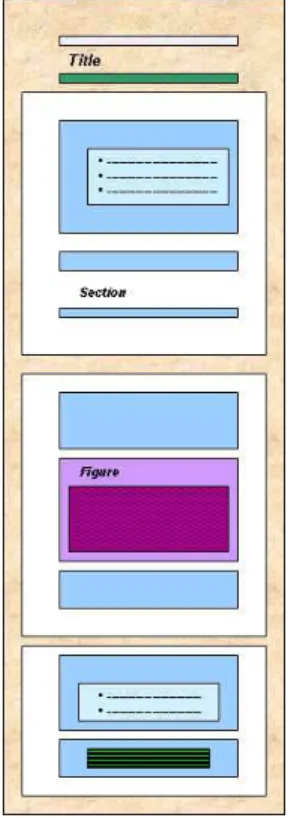
consistent use of structures within software help topics improves users’ ability to quickly scan documents and locate relevant information. Assuming this notion is correct, we can implement a system that provides document representations in the form of nested, color-coded boxes to show element types and hierarchies within documents. The system could display both collections and individual components of collections to help content
developers quickly and accurately identify documents that are incomplete, according to accepted development guidelines.
Because the current method of checking consistency across large documentation sets is so time-consuming and labor-intensive, it is typically only done across small groups of documents and in quick “spot checks” across collections. Rarely are groups of documents compared to each other to discover whether content developers are making the same decisions about how to structure information about which the guidelines are not specific.
might also be used to improve the overall quality of the document collection. Because such a tool would also provide these content developers with an easy way to move from the graphical representations of the collection to focus on individual documents and transition to tagged text where needed, an evaluation of the tool might inform the design of graphical document representations that could provide for digital libraries the visual structure and form cues users are accustomed to having in physical libraries.
CHAPTER 2 LITERATURE REVIEW
That graphical representations can help users more quickly identify certain types of documents is well attested in literature. As document collections grow, the importance of speed and accuracy in locating and identifying them increases significantly. One way to improve that speed may be to animate the representations. Just as controlled,
automated scrolling of documents on microfiche helps users locate documents, such a feature that provides users with similar control over their visual experience of documents in a collection might also be useful. Whether or not use of graphical representations of document structure will help content developers perform quality assurance tasks across collections of documents appears to be an open question, but there is sufficient evidence in the literature to suggest that it should.
In his book on information seeking in electronic environments, Marchionini alludes to the need for browsing support in digital libraries:
“It is important to note that in the case of books, those attributes that we browse first are well-established standards to aid browsing. Hildreth pointed out that these features of books both encourage and enhance browsing. Electronic environments are only beginning to build in systematic support for browsing.” (Marchionini 1995, 102). Though written 10 years ago, this statement is arguably still true.
Even though, as Woodruff writes, users are able to gist content-rich images in about the same amount of time it takes them to read one printed word, much of the research on text-based document visualization systems focuses on facilitating extraction of meaning from digital documents (Woodruff et al. 1998). Hearst’s work on the Tilebar interface investigates how visualizations of search results affect usability of digital
focus on gleaning meaning rather than analyzing structure. Other systems involving visualization of text-based documents that hybridize these approaches have also been proposed, but all appear to focus on improving the speed with which readers assimilate semantics.
In the last several years, however, researchers have begun to engage with the question of how to deal with retrieval issues posed by large document collections. One researcher finds that introduction of the graphical user interface in software has
significantly altered the number of digital documents users have to manage but notes that the mechanisms for handling them have improved only marginally (Faichney 2001, 13). Presumably the pervasiveness of software and the documentation it requires plays a role in this emerging conundrum. Other researchers, acknowledging this problem, recommend segmenting digital document collections to make them more manageable (Furnas 2003, 367-374). Compared with the process of opening each document separately, use of a set of graphical document surrogates or structural summaries seems certain to improve content developers’ ability to scan the structure of more documents in a shorter amount of time. Adding animation to a collection of surrogates then would likely speed the process of previewing and identifying incomplete documents even further (Wittenburg et al. 1998, 76, Wildemuth et al. 2003, 222).
Although most of the current research on document visualization focuses on surfacing meaning to the intended readership, a few researchers have looked at issues very close to the problems encountered by content developers. In an article on document structure signatures, Behera acknowledges the importance of visual memory in users’ ability to retrieve documents they have read or used previously (Behera et al. 2004, 178 - 187). Content developers who are constantly updating software documentation often need to retrieve the same document many times from a repository of hundreds of documents. In an article on document visualization, Jelinek defines XML-based documents as being of two types: message-oriented and data-oriented. He states that while tagging is essential to data-oriented files, it is usually not needed for readers to “retrieve the important
CHAPTER 3
DESIGNING AND DEVELOPING THE PROTOTYPE
Successful design of any useful tool begins with some level of understanding of the people who will use it and what they will use it for. But when a project involves visual representations of abstract concepts, it may be better to create a prototype first based on anticipated use cases and then iterate between user testing, design and development phases. In informal conversations with information professionals
developing software help topics, the idea of having a visual tool that would show them the structure of individual topics in a larger group seemed to appeal, but many people also expressed the need to see such a tool to really comment extensively on what it should do or how it should look. While the concept of providing users with a visual representation of a physical object that, for various reasons, a user cannot easily see is relatively easy to accept (a digital brain scan, a digital topographic map, etc.), the idea of graphically representing something as abstract as document structure seems to be more difficult to apprehend. For these reasons, this project focused primarily on the design of a user interface and development of a working prototype.
The initial design phase of this project included user analysis, task analysis, literature review, and the development of early user interface mockups. An informal walk-through of the user interface design was conducted to demonstrate to SILS user interface design students at UNC what users would see and how they might use the tool. The student’s feedback was then used to refine the initial interface design and prepare an architectural drawing to illustrate the proposed working prototype.
User interface design
Technological developments often fuel inventions and this was the case for this project. Development of the scalable vector graphic (SVG) markup language, a W3 specification for XML description of graphics, along with Adobe’s development of SVG viewer plugin to Microsoft’s Internet Explorer significantly reduced impedance to the mechanics of creating graphical representations from XML encoded documents.
Characteristics of the personas informed user goal definition, user scenario development and various design decisions.
Fictional personas were developed based on extensive personal knowledge of IBM user assistance developers (see Appendix I). The persona designated as the primary intended user for the tool was identified as a developer who authors software help topics in DITA XML using Arbor Tree’s Epic editor. The persona designated as the secondary intended user was an information architect tasked with ensuring the overall quality and usability of the help system. Additionally, two personas were created to help identify types of user assistance developers who might not want to use the visualization tool. The process of defining these users proved exceptionally useful in keeping the design on track.
For the purposes of this initial UI design, user goals and user scenarios were defined for the users who might want to use the tool. No goals were identified for users who were considered unlikely to want or need to use the tool. The literature on gaming describes use of an attract mode designed to draw in uninterested potential users and surreptitiously teach them how to get started, but such an interface would be a design project in and of itself and was judged outside the scope of this project.
added responsibility of making any changes they (or their Information Architect) deemed necessary. For example, in one scenario (see Appendix III), a user assistance developer uses the visualization tool to locate the task topic that does not contain any numbered steps. The likely scenario is that she started the topic, perhaps in a text editor, and coded the steps as an unordered list. Because each step in the visualization is marked with a pound or number sign, it is easy for her to identify the task that does not contain any numbered steps.
With the scenarios defined, development of an SVG-based user interface that would support those scenarios was begun. During development, a list of design questions was developed. For each design question, a list of likely options was considered, decision criteria were identified, and an option was selected. Each design decision was based on careful analysis of the literature and decision rationale was documented (see Appendix V). It is important to note that during the initial design phase (April 2004), probably because the SVG specification and supporting tooling were so new, no clear
recommendation was found in the literature for how to visually represent structured documents. However, only one month later, Jelinek’s paper on XML visualization suggested a design for representing “data-oriented” documents that was remarkably similar to the VISTAA representation design. His paper was considered in the development of the fully working prototype.
Figure 1. Initial VISTAA Screen
Figure 4. Individual topic tagging displayed after representation was clicked
Developing a working prototype
The next step in the development of the VISTAA prototype was development of the back-end logic to support the original interface design. This phase consisted of three basic activities: namely, development of the XSL transform code, set up of a web application to manage transforms and publishing, and iteration and expansion on the early interface design and proposed architecture and associated assumptions.
Developing the transforms
During the development phase, additional information about how user assistance developers and information architects use DITA was obtained in the form of published articles and developer checklists. In the original design phase, the focus was on the very broad issue of ease of use with the assumption that structural consistency in topics promoted usability. During this phase it emerged that the focus on consistency was actually supported by a narrower concept articulated as “completeness” (Hunt et. al., 2005) Not surprisingly, the original user scenarios remained valid, but the idea of providing users with visual representations that helped them distinguish between topics that were complete and those that were not was decidedly more easily implementable.
For the initial interface design, only SVG representations of DITA task topics were modeled. In the development phase, SVG representations designs were added for generic topics, concept topics, and reference topics. XSL templates were written to provide on-the-fly transforms to SVG of a selected set of DITA elements (see Appendix VII, namely:
• title
• prereq (things users need to do or understand before reading a topic or working through a task.)
• shortdesc (short description of the topic content)
• section
• step (numbered list of sequential actions)
• li
• b (bold - a presentation specification with no semantic significance)
the prototype, color representations are as follows (HEX HTML Color Codes) (Campeseto 2004, 20-22):
• lightblue - task topics
• lightgreen - reference topics
• pink - concept topics
• 996699 (purple) - generic topics
• 009999 (blue green) - topic titles
• black - task prerequisites
• white - topic short descriptions
• CCCCCC (medium gray) - sections within topics
• darkgray - steps and list item text
• CC99CC - (lilac gray) - paragraphs
Several aspects of the original design were altered because it became evident that strict adherence to some principles would not achieve the requisite goals. For example, use of visual indicators that mapped to “screens” proved problematic. The thinking was that number of screens would indicate topic length. Because writers sometimes “stub out” topics, create placeholders that are very short, or draft very long topics that then need to be broken up into multiple topics, extremes in lengths are potential indicators of
The original design called for surfacing topic metadata such as keywords that might be leveraged for information retrieval. However, in examining a check list used by user assistance developers (see excerpts from the checklist in Appendix VII), the type of topic metadata considered were topic prerequisites and short descriptions.
Several interactions recommended in the original design or modeled in the original mockup were altered or omitted from the working prototype for various reasons. The original design called for two modes of operation of the tool, one in which the user scrolled through multiple browser screens of representations in two columns and one in which the screens scrolled automatically. When the interface mockup was done, the animation capabilities of the SVG language, though robust in some respects, were lacking in some basic operations. Instead JavaScript was used to implement the autoscrolling behavior for demonstration purposes, but it was somewhat unreliable and not expected to perform well with large document collections. When the working prototype was
developed, the manual scrolling mode of the tool was prioritized over the automatic mode of the tool because the automatic mode would reuse all of the code implemented for the manual mode.
Figure 5. Working VISTAA prototype
Creating a publishing environment
Although Microsoft Internet Explorer will apply a single XSL transform to a single XML document on the fly, the browser is not able to handle multiple nested calls to multiple different kinds of files. Therefore, it was necessary to deploy the files to a web application that could manage multiple transformations. It would have been possible to write code to accomplish this task, but a cursory search of the web showed that Apache Cocoon already enables this functionality (Apache Cocoon: XML Development
in the sitemap file in the Cocoon root directory. In the local sitemap, several new pipelines were defined to handle any SVG files that were not already specified (see Appendix IX).
The new pipelines added the following features:
Upon request of a file with a name matching *.svg, use the XML generator, the file stylesheets/stilltasks1_1.xsl to transform the XML file to SVG and use
the svgxml serializer to create the output character stream.
Upon request for a file with a name matching *.XML, use the XML generator and use the XML serializer
Upon request for a file with a name matching *.dtd, pass the content through as text
Upon request for a file with a name matching *.ent, pass the content through as text
Upon request for a file with a name matching *.mod, pass the content through as text
CHAPTER 4 FUTURE DIRECTIONS
The purpose of this project was to thoroughly explore the state of the necessary technologies and supporting tooling to discover whether they were mature enough to make development of a structured text visualization tool possible. Clearly, they are mature enough, so the next step should be to evaluate the tool against its intended purpose, namely, making it easy for software documentation writers to visually analyze help topics coded in DITA XML.
Methodology for conducting this study must be drawn from two areas as there are no established standards for this particular type of system: namely, research into
visualization of text-based documents as well as testing of participants working with visualizations of non-text-based information such as music or biometric representations. A list of tasks that should be facilitated by use of the tool should be developed.
Participants would then be asked to perform the tasks. Data collected in the study should include the length of time it takes users to arrive at an answer as well as the accuracy of their answers. Use of the think aloud protocol should help gain an understanding of whether participants find the system to be easier to use than the alternative.
“completeness” problems in DITA encoded topics (e.g. the topic contains no short description, odd length topics, etc.).
The test should include quantitatively measured components such as time to task completion and accurate problem identification as well as qualitative measures such as satisfaction with features of the tools and their performance. Qualitative data might also include recommendations from participants regarding improvements to existing features or additions of features.
Quantitative evaluation
Each test should be carried out in the UNC Interaction Design Lab or a similar facility and videotaped. Each participant should be given 2 very similar sets of tasks to complete. Half of the participants should complete the first set of tasks using the Epic editor and the other half should complete the first set using VISTAA. For the second set of tasks, if users did the first set of tasks using Epic, they should use VISTAA to perform the second set and vice versa. Each set of tasks should be provided to the user as a set of questions. It would be best to have each participant read the question aloud before they begin the task to ensure that they are performing the correct task and that they have read the instruction correctly.
Participant results will be rated based on how quickly they are able to provide correct answers. However, because tool support for analyzing topics structure across a group of topics is currently minimal, few, if any, of the participants will be practiced at the task. Therefore, they might find the features of the tool novel and interesting enough that they feel inclined to “play” with them and actually spend more time on the task using the new tool than they do using the current tools and methods. One way to correct for this potential problem might be to try to identify any time when the user is off task and
subtract that from their over all time to completion.
Participants should be asked real-world questions that content developers would ask themselves when evaluating a documentation set. Example questions are as follows:
2. In the set of documents in directory A, what are the titles of the tree topics that contain only one paragraph?
3. In the set of documents in directory A, which file identified as a “task” contains no procedural steps?
Test monitors should time testers and record their answers. Table 1 shows an example of how the test data might look.
Table 1. Example Test Data
Participant/question Epic VISTAA
001 Time (sec) Correct Time (sec) Correct
1 160 Y 90 Y
2 90 Y 60 N
3 40 N 40 Y
4 120 N 40 Y
002
5 160 Y 40 Y
6 90 Y 60 N
7 40 N 40 Y
8 120 N 90 Y
Gathering these statistics would enable comparison of time to completion and accuracy across the tools. It may also provide insight into tasks that were difficult across participants, regardless of what tool was used. Results reports should include minimum task completion times, maximums, and averages for each task. We should be able to calculate accuracy rates based on the number of correct answers. A good sample should include a minimum of 20 participants, but it might be difficult to identify more people who have the requisite skills given that the DITA language is comparatively new.
Qualitative evaluation
of the test. Half of the group should participate in evaluation of each tool. Each participant should be asked to “think aloud” as they work through the task. Each
participant should be asked to rate their satisfaction with the aspects of both systems they are using. Though subjective, this information will provide some basis for determining how the quantitative results were achieved. Additionally, this exercise may provide
insight into how content developers approach the tasks, which might inform future tool enhancements and future test designs. A short follow-up interview might also be conducted to get an understanding of each user’s conceptualization of document
structure. Different perspectives on document structure might also inform future designs. After the test, the tapes should be evaluated to identify differences in the steps users take to complete tasks within and between tools. Focus should be given to indications of frustration with both tools, which might drive additional features into future prototype iterations.
Considerations
Though measures have already been taken to ensure that contrast and saturation in the representation should be sufficient to help colorblind participants distinguish between different elements, it is possible that this problem could introduce some error into results. If performance by gender is remarkably different, that information should be taken into account for future and larger studies and incorporated into the online demographics questionnaire.
It is remotely possible that some of the participants, in spite of the planned training, will not fully understand what they are supposed to be doing until several tasks into the test session. The number of tasks will need to be sufficient to ensure that enough useful data is gathered even if performance on the first tasks varies widely.
Significance of the work
They may be able to compare their own structural analysis with usability testing and user input of their help topics to produce well-informed guidelines that lead to better end-user experiences with software documentation.
More generally, this work builds on existing research to provide a starting point from which special purpose structural document visualizations might be developed. Developers of different kinds of content might be interested in different types of structure, but the basic approach of generating nested boxes to indicate hierarchical relationships, elements, and topic type, as used in VISTAA and in Jelinek’s study, (Jelinek et al. 2004, 65 - 72) might be useful to them as well.
CHAPTER 5 CONCLUSIONS
Digital vertigo is a broad concept and while most people understand it intuitively, most would also agree that it has many and varied causes. One likely contributor, though, is the difficulty people experience trying to gain some understanding of digital
information without reading it. Purists might make the case that people should just read, but market pressures make a different case. Software users are demanding more and higher quality documentation and product release cycles continue to grow shorter. Therefore, it is essential to find ways to improve the quality of documentation AND speed the documentation process. Providing content developers with the necessary tools to routinely perform quality checks and to gain a full understanding of what constitutes better structure is one way to do that.
Through design and development of this prototype, it is clear that the DITA language, the SVG specification and browser support are sufficient to begin designing visual tools to support analysis of structured documents. Further, applications like Cocoon are already robust enough to support some of the essential functions such as management of multiple different input file types, multiple different transforms and serialization of output.
Although DITA users are rapidly developing checklists and tagging guidelines to assist authors and information architects in achieving consistency in their tagging, there is still no clear consensus on what constitutes a well structured help system or a well
Appendix I: Personas Primary: Marion
Marion is 27 and has been working as a technical writer/user assistance developer for a large software company for 4 years. She is originally from Westford, MA, but now lives in Cary, NC and works in the Research Triangle Park.
Marion has a 2-year-old daughter and Marion’s husband is a professional photographer. Both of their schedules are relatively flexible, so they are able to work from home a few times a week and spend time with Sarah. Even so, their home life, like their work life, is busy. As a family, they feel they have no time to waste. “Working or playing, we try to get the most out of our time,” Marion says.
Marion has a home office, which she shares with her husband. At work, she has a cubicle decorated with plants and photos of the family and the family dog, Sparky. She splits her time about evenly between talking with programmers and testers at work and writing at home.
Marion admits to having done a geeky thing with her grocery list. “I coded it in XML and wrote an XSL transform so that I can customize the order of the items for different grocery stores.” It saves her time and she says she is as comfortable writing in the XML editor she uses at work as she is using a simple word processor.
Marion usually tries to leave the office by 4:30 p.m. to beat the traffic. After dinner, she tucks Sarah into bed around 7:30 p.m. and spends a few more hours working.
Despite the long hours, Marion enjoys her job and looks forward to a bright career. Her mix of technical and communication skills has served her well and she has the respect of the programmers, testers and HCI engineers with whom she works daily. Her only concern about her job is that there are many
Secondary: Evelyn
Evelyn is a 37-year-old information architect with 10 years’ experience designing and developing software documentation. She began her college
education as a pre-med, but after organic chemistry, decided Journalism might be a better path for her. Having moved north from her ancestral home in
Chattanooga, TN to work at a large software company in Research Triangle Park in North Carolina, Evelyn describes her feelings about her job as a “love/hate” relationship. “I love what I do, but I hate how long it takes and the hoops everyone has to jump through to get the product out the door,” she says.
Evelyn’s husband is an Information Technology Architect and travels regularly leaving Evelyn time to put in the extra hours required to get her job done. Although her job is theoretically information design, Evelyn ends up spending many hours trying to keep her email under control. In a typical day, she receives as many as 110 messages. Most messages contain TODOs for her and some require her to do a few hours’ research before she can respond to them. Consequently, Marion is very interested in productivity tools and efficiency.
Marion goes almost nowhere without her laptop. She has a wireless card and is able to connect to her company’s intranet from the coffee shop where she enjoys a Latte and does email most Saturday mornings before going to the grocery store.
reading specifications written by other information architects and providing feedback, analyzing help topics for consistency across the product and establishing guidelines for the UA developers on her team.
Automation is a constant issue for Evelyn. She often writes custom tools to automate her work or that of her team mates. Currently, analysis of existing help topics for structure and text-density is the key aspect of Evelyn’s job that she thinks needs automation.
Additional personas
User Assistance Manager
John a 42-year-old User Assistance Manager. He has a great deal of experience developing online help and other kinds of user assistance. He is not as familiar with XML as his employees. He spends most of his work hours on personnel issues and making sure work goes smoothly. However, during crunch times, John pitches in to help with a fresh set of eyes.
John has two teenagers at home and they keep him busy. Between soccer practice, piano lessons and the charity he works with on weekends, John is really busy. Any tool that saves him time or money is a good thing.
User Assistance Developer – not interested in new tools
Bruce’s life is complicated. He likes coding in HTML and thinks all of this structured markup stuff is just an added annoyance. The unfortunate thing about it is that just to get the stuff to transform properly requires Herculean effort. He’s seen his productivity decline substantially in the last 5 years as he moved from coding in HTML to SGML and ultimately to DITA XML.
Bruce is pretty sure that the structure of the information he produces really isn’t the most important thing to users and that separation of content and
It’s particularly annoying to him because he considers his focus to be on learning the software he’s documenting so he can explain it in ways that are clear to users. All of this fiddling with structure takes time away from his real job as well as time away from his wife and his 11-year-old. Seth is a chip off the old block and the apple of his dad’s eye. He’s a good student and, like his dad, personally invested in everything he does.
34
Essential Use Cases - Information Architect
1. Identify inconsistencies
in help topic structure
System generates SVG thumbnails and displays them
Type start command to show topics (showtasks or scrolltasks)
Visually verify structure according to guidelines and notify appropriate authors of problems {Visually compare topics across information Developed by several different authors.}
35
Essential Use Cases - Information Architect
2. Examine metadata for
adherence to guidelines
Record any problems and inform appropriate authors.
Type start command to display the thumbnails (showtasks or scrolltasks)
System generates SVG thumbnails and displays them
Analyze use of metadata against guidelines. (Click a topic and mouseover top block .)
Display clickable, visual representation of topic. Display metadata on mouseover
Display short description on mouseover Verify short description
(Click a topic and mouseover green block near the top of a topic.)
36
User Assistance Developer’s Goal
Evaluate legacy component documentation for
ease of use
Evaluate legacy component documentation for
ease of use
1
Identify inconsistencies in help topic structure and
fix problems
1
Identify inconsistencies in help topic structure and
fix problems
2
Examine metadata/short description for adherence to Guidelines and fix problems
2
37
Essential Use Cases - User Assistance Developer
1. Identify inconsistencies
in help topic structure
Fix any topics that are not named or structured correctly (for example, a concept topics is named *task.dita)
Type start command to show topics (showtasks or scrolltasks)
System generates SVG thumbnails and displays them
Verify structure according to guidelines
Display visual representation of template and each topic sorted by topic type
Compare topics to templates for information type (click help)
38
Essential Use Cases - User Assistance Developer
2. Examine metadata for
adherence to guidelines
Fix any topics that are not named or structured correctly (for example, a concept topics is named *task.dita)
Type start command to show topics (showtasks or scrolltasks)
System generates SVG thumbnails and displays them
Display metadata on mouseover. Analyze topic metadata
platform/product/audience/status/importance (click a topic and mouseover top blocks)
Display clickable, visual representation topic. Display metadata on mouseover
Verify short description
Appendix III:
User Assistance Developer scenarios for VISTAA (Visualization Tool for Authors and Architects)
Identify inconsistencies in help topic structure
Marion’s day starts with a 9:00 a.m. meeting with one of several teams she is part of, for example, User Assistance Development or the Web Tools Development team. Afterwards, she grabs a sandwich at the cafeteria and spends about two hours on email. She downloads a recent build of the product and starts playing with the most recently added function, comparing it to her notes and trying to use it to build a web application as she imagines a user would. Using an XML editor, she writes task instructions, documents the concepts users need to understand to do those tasks and develops supporting reference material (lists of options, icon definitions, etc.)
Her XML editor is DTD aware and the structure of her help topics is automatically validated as she writers. However, there are no clear guidelines to recommend how different kinds of information should be coded, so she finds herself spending a lot of time transforming the XML to HTML to see how it will look and even then it’s difficult for her to be sure she’s using similar encoding for similar information. To do some visual comparisons between topics, she uses a tool that renders the documents as graphical representations. To start the tool she types showtasks. Scrolling through the tasks she finds one that is particularly short. She clicks that topic. There she mouses over the title block. Marion remembers having started work on it Friday. Not having done a lot of XML coding and not being familiar with the VISTAA tool, she can’t remember exactly what the task should look like. She clicks Help, She realizes that the task doesn’t have any numbered steps in it, so it must not be done yet. In the browser, she clicks the thumbnail of the task she’d been working on and sees a note she left herself indicating that it is just a placeholder. Marion opens the file in an editor and finishes authoring the task topic.
Examine metadata for adherence to guidelines
They trade toddler stories. As she is about to leave, Jason mentions that one of the help tasks on one of the features he’s been developing doesn’t seem to have any metadata associated with it. Marion says she’ll check it out.
Appendix IV:
Information Architect scenarios for VISTAA (Visualization Tool for Authors and Architects)
Identify inconsistencies in help topic structure
Evelyn relaxes into her chair at 5:00 pm on a Monday afternoon. Finally, the meetings are over for the day. Now she can get some real work done. She opens a command prompt window, switches to the directory where she extracted all of the Web Tools help topics. She types scrolltasks.
A browser opens, displaying visual representations of each task topic. Evelyn quickly scans the web page and identifies a task topic that is using am ordered lists. She clicks the topic graphic to open it in a browser. By clicking the thumbnail again she opens the XML file in IE. Instead of using step elements in her XML source file, one of the UA developers, Marion, has used an ordered list. The generated HTML is similar, but not quite the same. Evelyn drafts a quick note to Marion asking her to recode these two topics, substituting steps for the ordered list elements.
Compare topics by type across information components
At 6:00 pm, Evelyn orders a pizza. It’s going to be a long night. She needs to finish analyzing all of the topics this week, so that the UA developers can make changes before the team sends all of its help topics for translation. In a command prompt window, Evelyn switches to the directory where she extracted all of the Web Tools help topics and all of the Java Tools topics. She types scrolltasks.
A browser opens, displaying visual representations of each task topic. One topic is significantly longer than all of the others and both contain many section elements. Evelyn clicks on one of the topic graphics to open it in separate browser window. By mousing over the title she can see that it is probably a concept rather than a task. She clicks the thumbnail. The tagging confirms that it is really a task. She sends a note to the UA
Visually verify structure according to guidelines
At 7:00 pm, Evelyn packs up her laptop and heads for home. She stops off at the coffee shop for a sugar-free, mocha latte. The barista is backed up, so, on a whim, Evelyn unpacks her machine, inserts the wireless card and boots up. Settled with her coffee after a few minutes, Evelyn switches to the directory where she extracted all of the Web Tools help topics and all of the Java Tools topics. She types showtasks.
A browser opens, displaying visual representations of each task topic. Evelyn scrolls past the topic graphics until she comes to a row with a very short task. She writes a quick note to let the UA Developer, Gary, to let him know at least one of the tasks he was working on doesn’t seem to be finished. She reminds him of the pending drop to translation.
Verify short description
At 8:30 am on Tuesday, Evelyn settles into her cube. She only has a few minutes before her first meeting, but decides she’ll try to squeeze in a little analysis before
heading out to the conference room. Evelyn switches to the directory where she extracted all of the Web Tools help topics and all of the Java Tools topics. She types showtasks.
A browser opens, displaying visual representations of each topic. Some of the topics have a short first paragraph, depicted by a thin green line, but many do have one. When transformed to HTML, the short description paragraph becomes the alternate text for any links to that topic. It’s not a huge amount of information, but it does enable users to mouse over a link and get a little more information on the topic before they click the link and wait to transit.
Evelyn dashes off a note to her team’s editor asking whether any style decision had been made on whether or not to use the short description element.
Analyze topic metadata platform/product/audience/status/importance
Appendix V:
VISTAA Interface Design Decisions
Q: What should the visual representation of the structure of a document look like?
Options: A) Blocks on a page, color coded, indented and to scale
B) Color enhanced tree structures
C) Color blocks for graphics and greeked text with important words or tags superimposed
Selected:
A) Blocks on a page, color coded and (as appropriate) indented and to scale
Criteria: Provide at-a-glance information about the structure of the document
Evidence:
“Representing the information in a visual form could allow the user to browse through this information and find interesting pieces of text. Documents have contents and histories. In many cases both could be represented by visualization techniques.” (Gersohn et al. 1998, 9-15) “Thus we advocate navigation’s retention as a measure but only one in a mix of measures needed to gain the full impression of a hypermedia’s worth. By subsuming it under the umbrella term “shape” we seek to establish an appropriate context for performance measures to be taken and for re-design options to be considered. . . . Shape remains a somewhat elusive construct and we recognize our own limitations in attempting to extract it for analysis, however we believe evidence for its existence is strong and its pragmatic utility is clear.” (Dillon et al. 1991, 106)
“This paper presents an approach of [sic] automatically generating thumbnails of musical signals via structural analysis, which identifies the recurrent structure of musical pieces from acoustic signals. . . . an improved version of the algorithm . . . will output structural
information including both the form and the beginning and end of each section.” (Chai et al. 2003, 223-226)
searching for the name of that object among other words.” (Woodruff et al. 2001, 199)
“We have presented enhanced thumbnails that work to combine the advantages of both text summaries and plain thumbnails. We have conducted a study to compare performance of enhanced thumbnails with plain thumbnails and text summaries. Across the collection of question categories, we found that enhanced thumbnails yielded the best and most consistent performance.” (Woodruff et al. 2001, 198-205)
“It is important to note that in the case of books, those attributes that we browse first are well-established standards to aid browsing. Hildreth pointed out that these features of books both encourage and enhance browsing. Electronic environments are only beginning to build in systematic support for browsing. (Marchionini 1995, 102)
Discussion of evidence:
Recommendations for ways to represent “aboutness” for collections of documents and individual documents are well-attested in the literature. I find numerous articles on studies describing testing of visual representations of search results, but again the focus is on representing relevance to a query, so it is focused on semantic content rather than document structure.
I find numerous articles about how to represent videos and images, but again the focus of most of these articles is “aboutness.” Some articles do focus on the structure in images and explore the possible utility of pattern matching across sets of “documents” (in this case, images). Research on pattern
matching in finger prints and photographs of faces is well attested, but most of these focus on digital representations of things that have physical
representations (pictures of people or fingerprints). In this case, we are considering documents that are “born digital,” that never had a visible existence to be graphically enhanced. However, because of the speed with which humans can scan graphical representations, (as well as their ability to quickly visually scan and find physical objects such as books on a shelf), it seems important to try to create graphical representations of digital
documents.
Because the user task we are trying to support is browsing and pattern matching among a set of documents as well as visual browsing of the structure of individual documents, we need to consider techniques applied to
developing visual representations of non-visual documents, for example, music. The article on thumbnailing music focuses on analyzing the structure of a document (in this case a song) for similarities to other songs for retrieval and recommendation. Using some of the principles Chai and Vercoe applied in their structural analysis coupled with user data describing structural features they are interested in, we can develop document overviews that should assist users in shifting some of the cognitive load associated with document
gaining an overview of individual document structure and provide them with support that helps them identify problems and develop strategies for
identifying problems.
Decision:
For this audience, document aboutness will not be the focus of their analysis, so we should try to represent the document structure. Because there seem to be no guidelines for how to do this, we should invent a representation, based on the familiar “document” or page metaphor and test it, making
Q: What constitutes an “appropriate use of color”?
Options: A) Applying a different color to each element, being careful to preserve element encapsulation and weighting
B) Use color sparingly for only the most important distinctions and use more muted and neutral colors for most of the interface.
Selected:
B) Use color sparingly for only the most important distinctions and use more muted and neutral colors for most of the interface.
Criteria:
Use colors that are “web safe,” use colors or levels of contrast that are distinguishable to colorblind users, choose color schemes that do not cause eye strain or cause confusion
Evidence:
“At work in this fine Swiss mountain map are the fundamental uses of color in information design: to label (color as known), to measure (color as quantity), to represent or imitate reality (color as
representation), and to enliven or decorate (color as beauty.)” (Tufte 1990, 81)
“One of the most depressing characteristics of technical documentation is the apparent length of each volume. User manuals are especially daunting by their weight and the very number of their pages. If their enormousness is broken into segments, they become less terrifying . . . .” (White 2003)
“. . . use color to draw attention . . . show structure and related items by grouping information and color coding . . . . use color sparingly . . . limit the number of colors used . . . . use the 216-color palette (the browser-safe color palette).” (Sammons 1999, 54)
According to surveys conducted by the Society for Technical
Communication since 2000, women outnumber men in the technical writing field more than 2 to 1, so the probability is high that most technical writers are not colorblind.
Discussion of evidence:
Using different colored backgrounds for different types of topics “labels” them and makes it easy to distinguish between them, at a glance. It also creates a boundary that facilitates distinguishing short topics from long ones. We can use different colored sections in our visual representations to
Decision:
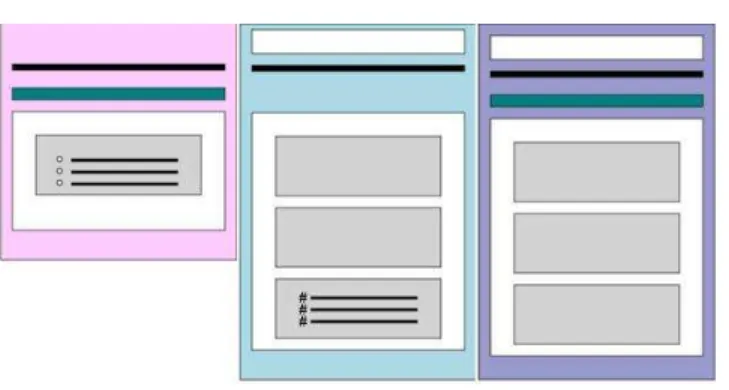
Almost all of our user scenarios center on the need to distinguish between documents and identify the presence or absence of important sections within those documents. Color will help most users do these tasks, but we will choose colors carefully to ensure that they are easily distinguishable even for those with varying degrees of color perception abilities. The use of color, especially in a document overview, may need to be less prominent than that shown in the above example. User testing is the only way to be sure what will work effectively and what will not, but here are some proposed designs:
Figure 8. Initial topic-type representations
These adhere to Tufte’s guidance regarding not using overly saturated or bright colors, but he recommends more muted colors. The 216-color palette is underserved in pastels. Earth tones might be considered instead.
The rationale behind assigning these colors is that they, roughly, follow the “cool” end of the spectrum from left to right. Concepts (left), Tasks (middle) and Reference topics (right) are typically referred to by authors and architects as CTR. Tasks are developed first and are usually considered the simplest topic type. This scheme uses all “cool” colors and blue is the “coolest.” To understand and apply Concepts and Reference topics, users often need a higher level of experience or expertise, so the warmer colors are applied to them in the order in which they are usually write.
Q: What information retrieval mechanisms should the system provide?
Options: A) Searching, B) Browsing, C) Both
Selected: B) Browsing
Criteria:
apt to look for things that are not in documents rather than things that are. Ultimately, this could lead to the addition of function that performs sorts or canned queries based on common structure problems.
For this project, however a search engine and interface are out of scope.
Evidence:
“Will investing in search systems divert resources from navigation systems? Because may site developers see search engines as the solution t the problems users have when trying to find information in their sites, search engines become Band-Aids for sites with poorly des1gned navigation systems and other architectural weaknesses.” (Rosenfeld et al. 2002, 133)
Discussion of evidence:
Many different approaches to searching are attested in the literature, but for most of them to be effective, the querent needs to have already defined, to some degree, the problem. After this user group has had some more time to work with this technology, they will need a search mechanism.
Decision:
Because DITA (the XML DTD being used) is very new and the concept of developing structured information is somewhat new, users likely would not know how to begin to use search to accomplish the task of analyzing the structure.
Providing them with a good way to visually browse multiple documents should support their most urgent information need. At some point, it might be helpful to provide ways for them to filter or sort the documents they analyze by characteristics of the document’s type or structure.
Q: Should we provide different modes of viewing the same document or document sets?
Options: A) User scrolls or pages down in browser B) Representations scroll automatically
C) Both
Selected: C) Both
Criteria: Allow users to select the mode that best suits their work
Evidence:
“As reported by Hutchins and his sources, the notion of locomotion in these navigators’ mental model of travel is that the traveler remains stationary while the terrain moves.” (Wittenburg et al. 1998, 76-82) “All user interface changes are animated using an accelerate-decelerate
animation model. Animation durations were chosen to be long enough so that the user can understand what is happening but also fast enough so that the user doesn’t feel as though they are waiting. Animations are performed in separate threads, and multiple animations can occur simultaneously.” (Faichney et al. 2001, 16)
Discussion of evidence:
Given the user audience, it makes sense to provide both an animated and still views of multiple documents. Users may want to scroll through large numbers of documents and it may not be practical for them to hold down the mouse button and use the scroll bar or use the page down button to view many documents.
However, if users want to view only a few documents at a time, they may be looking more closely at some than others. In such cases, it might not be possible to set the animation so that it fulfills their needs.
Decision:
Tentatively plan to have documents scroll automatically and stop on mouseover. Clicking once could display an individual document in a separate browser window. Clicking a document in that window would display the XML source.
Q: Should the visual browsing mechanism support both overview and detail views?
Options: A) Detail view only B) Overview only C) Both
Selected: C) Both
Criteria: Allow users to analyze the structure of groups of documents at a
high level of abstraction but then scrutinize individual ones with access to more detail. Finally, users should be able to easily access the source XML file. Evidence:
However, subjects are slower at answering questions with the overview interface . . . . With the fisheye interface, reading patterns show that subjects use more time on gaining an overview of the document and less time on reading the details. Thus, they read faster, but afterwards made more errors in answering questions about the content of the document.” (Hornbaek et al. 2004, 11-12)
“Overview+detail interfaces present multiple, coordinated views of data. For documents, the overview can be used for orientation and
navigation, while the detail view shows a portion of the full
representation of the document . . . Conventional “find-in-page” or “find-in-document” interfaces do not include an overview; instead, users enter a keyword and the system automatically scrolls the
document to the location of the next instance of that keyword. Because the system jumps to the new location without giving any context about that location, users often become disoriented. By contrast, a document overview+detail interface could allow search for words while
preserving and understanding of their location within a document.”(Suh et al. 2002, 251-258)
“. . . a new representational paradigm, called TileBars, which provides a compact and informative Iconic representation of the documents’ contents with respect to query terms . . . . Each large rectangle
indicates a document, and each square within the document represents a TextTile. The darker the tile, the more frequent the term . . . The Patterns in a column of TileBars can be quickly scanned and deciphered.” (Hearst 1995, 59-66 )
“Over the course of the studies, only half the documents were
recognizable in the form version. However people tended to recognize the form version of a document if that type had been used frequently and/or recently.” (Toms 2001, 20-23)
“The plain and enhanced thumbnails were presented in two columns. We sized the thumbnails to match the size of a typical text summary displayed at a normal font so as to study the most efficient use of that space. (Woodruff et al. 2001, 203)
Discussion of evidence:
Overall the evidence suggests that while graphical overviews themselves may not give users a clear understanding of content meaning on first viewing, they provide good mechanisms for navigating to documents or parts of
documents. Overviews are good substrates or launch points for layering on or moving to additional detail
Decision:
small graphics shown together might make it easier for users to spot differences.
Users will then be able to click on an individual thumbnail of a document and mouse over sections to see metadata, title, short description. Then users will be able to click the thumbnail to display the XML source file.
Q: Should some function for marking of individual documents be provided?
Options: A) Background color could be changed
B) Document could appear “dog-eared”
Selected: B) Dog-ear
Criteria: Allow users to mark documents they want to look at more closely.
Evidence:
In an article on the use of thumbnails and electronic dog-ears, Hoeben and Stappers found that users found this type of bookmarking to be useful. In their implementation, they used a click and drag motion to “dog-ear” thumbnails of pages. (Hoeben et al. 2000, 191-192)
Discussion of evidence:
This feature would likely be helpful for authors and architects, especially when they are using the scrolling views of topics.
Decision:
Appendix VII:
Items selected from the user assistance checklist Are the proper prerequisites listed in the topic?
Are the topics correctly typed?
Appendix VIII:
VISTAA DITA XML to SVG transform <?xml version="1.0" encoding="UTF-8"?>
<xsl:stylesheet xmlns="http://www.w3.org/2000/svg" xmlns:xsl="http://www.w3.org/1999/XSL/Transform"
version="1.0" xmlns:xlink="http://www.w3.org/1999/xlink"> <xsl:variable
name="localhost">http://localhost:8080/cocoon/samples/blocks/batik/</xsl:variable> <xsl:template match="/">
<svg xmlns="http://www.w3.org/2000/svg" xmlns:xlink="http://www.w3.org/1999/xlink"> <xsl:apply-templates/>
</svg> </xsl:template>
<xsl:template match="task">
<xsl:variable name="tasklength" select="string-length(/)"/> <xsl:element name="a">
<xsl:attribute name="xlink:href"> <xsl:copy-of select="$localhost"/>
<xsl:value-of select="@id"/>.xml</xsl:attribute> <xsl:element name="rect">
<xsl:attribute name="id"> <xsl:value-of select="@id"/> </xsl:attribute>
<xsl:attribute name="fill">lightblue</xsl:attribute> <xsl:attribute name="stroke">black</xsl:attribute> <xsl:attribute name="x">5</xsl:attribute>
<xsl:attribute name="y">10</xsl:attribute> <xsl:attribute name="width">200</xsl:attribute> <xsl:attribute name="height">
</xsl:attribute> </xsl:element>
<xsl:apply-templates/> </xsl:element>
</xsl:template>
<xsl:template match="reference">
<xsl:variable name="reflength" select="string-length(/)"/> <xsl:element name="a">
<xsl:attribute name="xlink:href"> <xsl:copy-of select="$localhost"/>
<xsl:value-of select="@id"/>.xml</xsl:attribute> <xsl:element name="rect">
<xsl:attribute name="id"> <xsl:value-of select="@id"/> </xsl:attribute>
<xsl:attribute name="fill">lightgreen</xsl:attribute> <xsl:attribute name="stroke">black</xsl:attribute> <xsl:attribute name="x">5</xsl:attribute>
<xsl:attribute name="y">10</xsl:attribute> <xsl:attribute name="width">200</xsl:attribute> <xsl:attribute name="height">
<xsl:copy-of select="$reflength"/> </xsl:attribute>
</xsl:element>
<xsl:apply-templates/> </xsl:element>
</xsl:template>
<xsl:template match="concept">
<xsl:variable name="conclength" select="string-length(/)"/> <xsl:element name="a">
<xsl:copy-of select="$localhost"/>
<xsl:value-of select="@id"/>.xml</xsl:attribute> <xsl:element name="rect">
<xsl:attribute name="id"> <xsl:value-of select="@id"/> </xsl:attribute>
<xsl:attribute name="fill">pink</xsl:attribute> <xsl:attribute name="stroke">black</xsl:attribute> <xsl:attribute name="x">5</xsl:attribute>
<xsl:attribute name="y">10</xsl:attribute> <xsl:attribute name="width">200</xsl:attribute> <xsl:attribute name="height">
<xsl:copy-of select="$conclength"/> </xsl:attribute>
</xsl:element> </xsl:element>
<xsl:apply-templates/> </xsl:template>
<xsl:template match="topic">
<xsl:variable name="topiclength" select="string-length(/)"/> <xsl:element name="a">
<xsl:attribute name="xlink:href"> <xsl:copy-of select="$localhost"/>
<xsl:value-of select="@id"/>.xml</xsl:attribute> <xsl:element name="rect">
<xsl:attribute name="id"> <xsl:value-of select="@id"/> </xsl:attribute>
<xsl:attribute name="y">10</xsl:attribute> <xsl:attribute name="width">200</xsl:attribute> <xsl:attribute name="height">
<xsl:copy-of select="$topiclength"/> </xsl:attribute>
</xsl:element> </xsl:element>
<xsl:apply-templates/> </xsl:template>
<xsl:template match="title">
<xsl:variable name="titlelength" select="string-length(text())"/> <xsl:variable name="precedinglength">
<xsl:copy-of select="preceding::node()"/> </xsl:variable>
<xsl:element name="rect">
<xsl:attribute name="fill">#009999</xsl:attribute> <xsl:attribute name="stroke">black</xsl:attribute> <xsl:attribute name="x">20</xsl:attribute>
<xsl:attribute name="y"><xsl:value-of select="string-length($precedinglength)+25"/></xsl:attribute>
<xsl:attribute name="width">170</xsl:attribute> <xsl:attribute name="height">
<xsl:copy-of select="$titlelength"/> </xsl:attribute>
</xsl:element>
<xsl:element name="text">
<xsl:variable name="precedinglength"> <xsl:copy-of select="preceding::text()"/> </xsl:variable>