NVIDIA RAID User’s
Guide
Version 2.0 A
NVIDIA Corporation
September 3, 2004
Published by
NVIDIA Corporation 2701 San Tomas Expressway Santa Clara, CA 95050 Notice
ALL NVIDIA DESIGN SPECIFICATIONS, REFERENCE BOARDS, FILES, DRAWINGS, DIAGNOSTICS, LISTS, AND OTHER DOCUMENTS (TOGETHER AND SEPARATELY, “MATERIALS”) ARE BEING PROVIDED “AS IS.” NVIDIA MAKES NO WARRANTIES, EXPRESSED, IMPLIED, STATUTORY, OR OTHERWISE WITH RESPECT TO THE MATERIALS, AND EXPRESSLY DISCLAIMS ALL IMPLIED WARRANTIES OF NONINFRINGEMENT, MERCHANTABILITY, AND FITNESS FOR A PARTICULAR PURPOSE.
Information furnished is believed to be accurate and reliable. However, NVIDIA Corporation assumes no
responsibility for the consequences of use of such information or for any infringement of patents or other rights of third parties that may result from its use. No license is granted by implication or otherwise under any patent or patent rights of NVIDIA Corporation. Specifications mentioned in this publication are subject to change without notice. This publication supersedes and replaces all information previously supplied. NVIDIA Corporation products are not authorized for use as critical components in life support devices or systems without express written approval of NVIDIA Corporation.
Trademarks
NVIDIA, the NVIDIA logo, 3DFX, 3DFX INTERACTIVE, the 3dfx Logo, STB, STB Systems and Design, the STB Logo, the StarBox Logo, NVIDIA nForce, GeForce, NVIDIA Quadro, NVDVD, NVIDIA Personal Cinema, NVIDIA Soundstorm, Vanta, TNT2, TNT, RIVA, RIVA TNT, VOODOO, VOODOO GRAPHICS, WAVEBAY, Accuview Antialiasing, the Audio & Nth Superscript Design Logo, CineFX, the Communications & Nth Superscript Design Logo, Detonator, Digital Vibrance Control, DualNet, FlowFX, ForceWare, GIGADUDE, Glide, GOFORCE, the Graphics & Nth Superscript Design Logo, Intellisample, M-BUFFER, nfiniteFX, NV, NVChess, nView,
NVKeystone, NVOptimizer, NVPinball, NVRotate, NVSensor, NVSync, the Platform & Nth Superscript Design Logo, PowerMizer, Quincunx Antialiasing, Sceneshare, See What You've Been Missing, StreamThru, SuperStability, T-BUFFER, The Way It's Meant to be Played Logo, TwinBank, TwinView and the Video & Nth Superscript Design Logo are registered trademarks or trademarks of NVIDIA Corporation in the United States and/or other countries. Other company and product names may be trademarks or registered trademarks of the respective owners with which they are associated.
Intel, Indeo, and Pentium are registered trademarks of Intel Corporation. Microsoft, Windows, Windows NT, Direct3D, DirectDraw, and DirectX are trademarks or registered trademarks of Microsoft Corporation. OpenGL is a registered trademark of Silicon Graphics Inc.
Other company and product names may be trademarks or registered trademarks of the respective owners with which they are associated.
Copyright
1.About NVIDIA RAID . . . 1
System Requirements . . . 2
Hardware Support . . . 2
Operating System Support . . . 2
RAID Arrays . . . 3
RAID 0 . . . 4
RAID 1 . . . 5
RAID 0+1. . . 6
Spanning (JBOD). . . 7
Summary of RAID Configurations . . . 8
NVIDIA RAID Features . . . 9
Additional RAID Features . . . 9
Features and Benefits Summary . . . .10
2.Setting Up Your RAID Configuration . . . 11
Basic Configuration Instructions. . . .11
Non-Bootable RAID Array . . . .11
Bootable RAID Array . . . .11
Setting Up a Non-Bootable NVIDIA RAID Array . . . .12
Setup Used in This Section . . . .12
Setting Up the BIOS . . . .13
Configuring the NVIDIA RAID BIOS . . . .15
Installing the NVIDIA RAID Software Under Windows . . . .21
Setting Up a Bootable NVIDIA RAID Array . . . .22
Setup Used in This Section . . . .22
Setting Up the BIOS . . . .23
Configuring the NVIDIA RAID BIOS . . . .25
Installing the RAID Drivers . . . .31
Initializing and Using the Disk Array. . . .33
3.Using the NVRAIDMAN Utility . . . 37
About the NVIDIA RAID Management Utility . . . .37
Viewing RAID Array Configurations . . . .38
Setting Up a Spare RAID Disk . . . .41
Assigning a Free Disk . . . .42
Assigning a Dedicated Disk . . . .43
Rebuilding a RAID Array . . . .47
Rebuilding Instructions . . . .47
More About Rebuilding Arrays . . . .51
Creating RAID Arrays . . . .52
Creating a Striped Array . . . .52
Creating a Mirrored Array . . . .57
Creating a Stripe Mirroring Array. . . .61
Creating a Spanning Array . . . .65
Deleting a RAID Array. . . .69
Morphing From One RAID Array to Another . . . .72
General Morphing Principles . . . .72
Morphing Instructions . . . .74
Hot Plug Array. . . . 104
4.NVIDIA RAID Frequently Asked Questions . . . 107
Basic RAID Questions . . . . 107
RAID ROM Setup Questions . . . . 109
Rebuilding Arrays Questions . . . . 109
Dedicated Disk Questions . . . 110
Windows RAID Application. . . 110
5.NVIDIA RAID Application Notes . . . 111
Installing NVIDIA RAID on a New Windows XP Operating System . . . . 112
Problem . . . . 112
Solution . . . . 112
Windows 2000 Limitation with Bootable RAID . . . 113
Problem . . . . 113
Solution . . . . 113
Installing the NVIDIA IDE Driver in Windows 2000 . . . . 115
Problem . . . . 115
Solution . . . . 115
Using GHOST with NVIDIA RAID . . . 116
Problem . . . . 116
A
BOUT
NVIDIA RAID
NVIDIA brings Redundant Array of Independent Disks (RAID) technology—which is used by the world’s leading businesses—to the common PC desktop. This technology uses multiple drives to either increase total disk space or to offer data protection. RAID techniques were first published in 1988 by a multivendor consortium—the RAID Advisory Board. RAID techniques were divided into different categories or levels. Originally, RAID levels focused on improving resiliency or data availability. As
additional RAID levels were defined, one was introduced for improving performance. For all levels, RAID techniques optimize storage solutions by using multiple disks grouped together and treating them as a single storage resource.
This chapter describes NVIDIA RAID in the following sections: • “System Requirements” on page 2.
• “RAID Arrays” on page 3 describes the RAID levels supported by NVIDIA RAID. • “NVIDIA RAID Features” on page 9 describes additional features offered by NVIDIA
System Requirements
Hardware Support
NVIDIA RAID supports the following NVIDIA® nForce™ versions: • nForce™4 • nForce4 Ultra • nForce4 SLI • nForce3 Pro250 • nForce3 250Gb • nForce3 Ultra • nForce3 250 • nForce3 150 • nForce2 MCP2S
Operating System Support
NVIDIA RAID supports the following operating systems: • Windows® XP Home Edition
• Windows XP Professional Edition • Windows 2000 Professional • Windows 2003 Server
RAID Arrays
This section describes the following types of RAID arrays that NVIDIA RAID supports: • RAID 0
RAID 0 defines a disk striping scheme that improves the disk read and write times for many applications.
• RAID 1
RAID 1 defines techniques for mirroring data. • RAID 0+1
RAID 0+1 combines the techniques used in RAID 0 and RAID 1 arrays. • Spanning (JBOD)
RAID 0
How RAID 0 Works
In a RAID 0 array, the controller “stripes” data across multiple drives in the RAID subsystem. RAID 0 breaks up a large file into smaller blocks and then performs disk reads and writes across multiple drives in parallel. The size of each block is determined by the stripe size parameter, which you set during the creation of the RAID set based on the system environment. This technique reduces overall disk access time and offers high bandwidth.
Figure 1.1 RAID 0 Array Diagram
RAID 0 involves no parity calculations to complicate the write operation. This makes RAID 0 ideal for applications that require high bandwidth but do not require fault tolerance. RAID 0 has the best performance and capacity of any RAID level, but the lowest availability (no fault tolerance). If one drive fails, the entire array fails because part of the data is missing with no way to recover it other than restoring from a backup.
Summary of Features and Benefits
• Benefits: Provides increased data throughput, especially for large files.
• Drawbacks: Does not deliver any fault tolerance. If any drive in the array fails, all data is lost.
• Uses: Intended for non-critical data requiring high data throughput, or any environment that does not require fault tolerance.
• Drives: Minimum: 1. Maximum: Up to 6 or 8, depending on the platform. • Fault Tolerance: No.
RAID 1
How RAID 1 Works
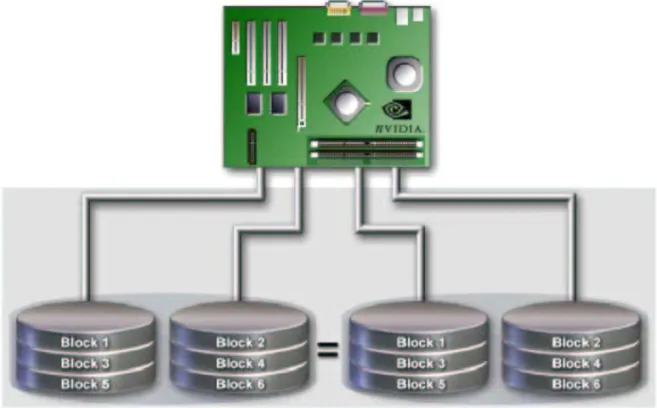
In a RAID 1 array, every read and write is carried out in parallel across two disk drives. The mirrored—or backup—copy of the data can reside on the same disk or on a second redundant drive in the array. RAID 1 provides a hot-standby copy of data if the active volume or drive is corrupted or becomes unavailable due to a hardware failure. RAID 1 techniques can be applied for high-availability solutions, or as a form of automatic backup that eliminates tedious manual backups to more expensive and less reliable media.
Figure 1.2 RAID 1 Array Diagram
RAID 1 provides complete data redundancy, but at the cost of doubling the required data storage capacity, resulting in 50% capacity utilization. Performance is roughly the same as for a single drive, although in some instances the dual write may be somewhat slower.
Summary of Features and Benefits
• Benefits: Provides 100% data redundancy. Should one drive fail, the controller switches to the other drive.
• Drawbacks: Requires two drives for the storage space of one drive. Performance is impaired during drive rebuilds.
• Uses: RAID 1 is ideal for small databases or any other application that requires fault tolerance and minimal capacity.
• Drives: Minimum, 2. Maximum, 2. • Fault Tolerance: Yes
RAID 0+1
How RAID 0+1 Works
RAID 0 drives can be mirrored using RAID 1 techniques, resulting in a RAID 0+1 solution for improved performance plus resiliency.
Figure 1.3 RAID 0+1 Array Diagram
The controller combines the performance of data striping (RAID 0) and the fault tolerance of disk mirroring (RAID 1). Data is striped across multiple drives and duplicated on another set of drives.
Summary of Features and Benefits
• Benefits: Optimizes for both fault tolerance and performance, allowing for automatic redundancy. May be simultaneously used with other RAID levels in an array, and allows for spare disks.
• Drawbacks: Requires twice the available disk space for data redundancy, the same as RAID level 1.
• Drives: Minimum: 4. Maximum: 6 or 8, depending on the platform. • Fault Tolerance: Yes
Spanning (JBOD)
How JBOD Works
JBOD stands for “Just a Bunch of Disks”. Each drive is accessed as if it were on a standard SCSI host bus adapter. This is useful when a single drive configuration is needed, but it offers no speed improvement or fault tolerance.
Figure 1.4 JBOD Array Diagram
Summary of Features and Benefits
• Benefits: JBOD provides the ability to combine odd size drives using all of the capacity of the drives.
• Drawbacks: Decreases performance because of the difficulty in using drives concurrently.
• Uses: JBOD works best if you have odd sized drives and you want to combine them to make one big drive.
Summary of RAID Configurations
Table 1.1 RAID Configuration SummaryArray Uses Advantages Drawbacks # Hard Disks Fault Tolerance RAID 0 Non-critical data
requiring high performance.
High data throughput. No fault tolerance. multiple None RAID 1 Small databases or any
other small capacity environment requiring fault tolerance.
100% data
redundancy. Requires two drives for the storage space of one drive.
2 Yes
RAID
0+1 Critical data requiring high performance. Optimized for both 100% data redundancy and performance. Allows spare disks.
Requires two drives for the storage space of one drive—the same as RAID level 1.
4+ Yes
JBOD Combining odd size drives into one big drive.
Combines and uses the capacity of odd size drives. Decreases performance because of the difficulty in using drives concurrently or to optimize drives for different uses.
NVIDIA RAID Features
Additional RAID Features
NVIDIA RAID offers the following additional features:
• Free Disk and Dedicated Spare Disk
A Free Disk or Dedicated Disk can be automatically used in case one drive of a fault-tolerant array fails. NVIDIA RAID defines a fault-fault-tolerant array as either RAID 1 or RAID 0+1. A free disk can be used by any available fault-tolerant array, while a dedicated disk can be used only by the array to which it is assigned.
• RAID Across PATA and SATA
NVIDIA RAID can span across both Parallel ATA as well as Serial ATA controllers. RAID operations can be performed on Parallel ATA hard drives, Serial ATA hard drives, or both Parallel and Serial ATA hard drives.
• Bootable RAID
NVIDIA RAID can be configured in a way to make it bootable. For example, two hard drives can be configured as a bootable mirrored RAID array.
• RAID on Multiple Disk Controllers
Unlike other RAID solutions that limits the user to a dedicated RAID controller, NVIDIA RAID software can use a drive on one RAID controller and another drive on a second RAID controller.
• Morphing
Morphing is the ability to convert from one RAID mode to another RAID mode. This allows the user to upgrade their current disk or array for better performance, higher security, and increased capacity. More importantly, this is accomplished without having to go through multiple steps. The morphing feature gives the user an upgradeable option to manage storage easily.
• Hot Plug Array
Hot plug, with respect to RAID, is the ability to add a disk to a system safely and without causing problems for the RAID software. For example, when a drive in a mirrored array fails, a user can launch the Hot Plug Array Wizard which instructs the user as to when a drive can be added safely to the system. As soon as the drive is added, the user can then finish running the RAID wizard and the drive becomes useable by the system.
Features and Benefits Summary
Features Benefits
RAID across PATA and SATA • Supports both Serial ATA and Parallel ATA disk devices within a single RAID Array.
• Single set up procedure applies to all drives. Spare Drive and Dedicated Drive
Support • Allows the user to dedicate a "spare" disk as a hot standby in the event of a array failure. • Offers additional protection in case of a failure in a
mirrored array.
Bootable RAID • Supports the use of a RAID drive for loading the operating system at power up for optimal performance Morphing • Allows the user to upgrade for more performance,
security, and capacity.
• Allows the user to change the current state of a disk/ array to another array with a one step process called "morphing", without losing any data during the configuration change.
Disk Failure Identification • Notifies the user when a disk fails and instructs you on which one to replace
S
ETTING
U
P
Y
OUR
RAID C
ONFIGURATION
Basic Configuration Instructions
The following are the basic steps for configuring NVIDIA RAID:
Non-Bootable RAID Array
1 Choose the hard disks that are to be RAID enabled in the system BIOS.
2 Specify the RAID level, either Mirroring (RAID 1), Striping (RAID 0), Mirrored Striping (RAID 0+1), or Spanning (JBOD) and create the desired RAID array.
3 Run the Windows nForce Setup application and install the RAID software.
4 Initialize the NVRAID Array Disks
See “Initializing and Using the Disk Array” on page 33.
Bootable RAID Array
1 Choose the hard disks that are to be RAID enabled in the system BIOS.
2 Specify the RAID level, either Mirroring (RAID 1), Striping (RAID 0), Mirrored Striping (RAID 0+1), or Spanning (JBOD) and create the desired RAID array.
3 Boot from the Windows CD and install the nForce RAID software.
4 Initialize the NVRAID Array Disks
Setting Up a Non-Bootable NVIDIA RAID Array
All of the tasks that are related to a non-bootable NVIDIA RAID Array can be performed from Windows using the NVRAIDMAN utility.
Setup Used in This Section
This section assumes the following setup:
• Boot Disk
One hard disk connected to the Primary IDE channel, and set to Master or Slave.
• RAID Array Disks
• RAID0
Two hard disks connected to the secondary IDE channel, where one is set to Master and the other set to Slave.
This example shows how to enable RAID 0 on the two hard disks. • RAID1
Two hard disks connected to the secondary IDE channel, where one is set to Master and the other set to Slave.
This example shows how to enable RAID 1 on the two hard disks. • JBOD/Spanning
Two hard disks connected to the secondary IDE channel, where one is set to Master and the other set to Slave.
This example shows how to enable a JBOD/Spanning array on the two hard disks. • RAID0+1
Two hard disks connected to the secondary IDE channel, where one is set to Master and the other set to Slave
Two SATA hard disks
Two hard disks will be used for striping and two hard disks will be used for mirroring.
Setting Up the BIOS
1 Start your computer, then press Delete to enter the BIOS setup. The BIOS CMOS Setup Utility window appears.
Figure 2.1 BIOS CMOS Setup Utility Main Window
2 Use the arrow keys to select Integrated Peripherals (see Figure 2.1), then press Enter. The Integrated Peripherals window appears.
Figure 2.2 Integrated Peripherals Window
Standard CMOS Features
^
Advanced BIOS Features Advanced Chipset Features
Integrated Peripherals
Power Management Setup PnP / PCI Configurations
Load Fail-Safe Defaults Load Optimized Defaults Set Supervisor Password Set User Pasword Save & Exit Setup Exit Without Saving
Esc : Quit
F10 : Save & Exit Setup : Select Item
Onboard IO, IRQ, DMA Assigment ...
Phoenix - Award BIOS CMOS Setup Utility
Phoenix - Award BIOS CMOS Setup Utility
:Move Enter:Select +/-/PU/PD:Value F10:Save ESC:Exit F1:General Help Integrated Peripherals
Item Help RAID Config
OnChip IDE Channel0 Primary Master PIO Primary Slave PIO Primary Master UDMA Primary Slave UDMA OnChip IDE Channel1 Secondary Master PIO Secondary Slave PIO Secondary Master UDMA Secondary Slave UDMA IDE Prefetch Mode Init Display First OnChip USB USB Keyboard Support USB Mouse Support Serial - ATA
SATA Spread Spectrum AC97 Audio [Press Enter] [Enabled] [Auto] [Auto] [Auto] [Auto] [Enabled] [Auto] [Auto] [Auto] [Auto] [Enabled] [PCI Slot] [V1.1 - V2.0] [Disabled] [Disabled] [Enabled] [Disabled] [Auto] Menu Level
3 Use the arrow keys to select the RAID Config (see Figure 2.2), then press Enter. The RAID Config window appears..
Figure 2.3 RAID Config Window
4 From the RAID Config window, enable RAID, then enable the disks that you want to use as RAID disks.
In Figure 2.3, the master and slave drives on the secondary IDE port are enabled as RAID disks.
Make sure to enable the SATA drives also if you are setting up a RAID 0+1 array.
5 Press F10 to save the configuration and exit. The PC reboots.
6 Enter the RAID BIOS Setup by pressing F10 when prompted, and proceed to set up the NVIDIA RAID BIOS as described in the next section.
Phoenix - Award BIOS CMOS Setup Utility
:Move Enter:Select +/-/PU/PD:Value F10:Save ESC:Exit F1:General Help RAID Config
Item Help RAID Enable
IDE Primary Master IDE Primary Slave IDE Secndry Master IDE Secndry Slave Ext SATA Phy Primary Ext SATA Phy Secndry
[Enable] RAID [Disabled] RAID [Disabled] RAID [Enabled] RAID [Enabled] RAID [Disabled] RAID [Disabled] Menu Level
F5: Previous Values F6: Fail-Safe Defaults F7: Optimized Defaults Int SATA Phy Primary
Int SATA Phy Secndry
RAID [Disabled] RAID [Disabled]
Configuring the NVIDIA RAID BIOS
The NVIDIA RAID BIOS setup lets you choose the RAID array type and which hard drives you want to make part of the array.
Entering the RAID BIOS Setup
1 After rebooting your computer, wait until you see the RAID software prompting you to press F10.
The RAID prompt appears as part of the system POST and boot process prior to loading the OS. You have a few seconds to press F10 before the window disappears.
2 Press F10.
The NVIDIA RAID Utility—Define a New Array window appears (Figure 2.4).
Figure 2.4 NVIDIA RAID Utility
By default, RAID Mode is set to Mirroring and Striping Block is set to Optimal.
NVIDIA RAID Utility - Define a New Array -
RAID Mode: Striping Block:
Free Disks
Loc Disk Model Name LocArray DisksDisk Model Name [ ] Add
[ ] Del
Mirroring Optimal
1.0.M
1.1.M ST380023ASST380023AS
Understanding the Define a New Array Window
Use the Define a New Array window to • Select the RAID Mode
• Set up the Striping Block
• Specify which disks to use for the RAID Array
Depending on the platform used, the system can have one or more channels. In a typical system there is usually one adapter and multiple channels, and each channel has a slave and a master.
The adapter/channel/master/slave status of each hard disk is given in the Loc (location) columns of the Free Disks and Array Disks lists.
Figure 2.5 Loc Column Information
In Figure 2.5, 1.0.M means the hard drive is attached to Adapter 1, Channel 0, and the drive is set to Master. The following is a list of all possible combinations:
Note: There is no such thing as Slave drive in Serial ATA. All drives are considered to be Master since there is a one-to-one connection between the drive and the adapter.
Parallel ATA
0.0.M Adapter 0, Channel 0, Master 0.0.S Adapter 0, Channel 0, Slave 0.1.M Adapter 0, Channel 1, Master 0.1.S Adapter 0, Channel 1, Slave Serial ATA
1.0.M Adapter 1, Channel 0, Master 1.1.M Adapter 1, Channel 1, Master 2.0.M Adapter 2, Channel 0, Master 2.1.M Adapter 2, Channel 1, Master
1.0.M
M: Master
S: Slave
Channel
Adapter - 0 is used for PATA drives
Using the Define a New Array Window
If necessary, press the tab key to move from field to field until the appropriate field is highlighted.
• Selecting the RAID Mode
By default, this is set to Mirroring. To change to a different RAID mode, press the down arrow key until the mode that you want appears in the RAID Mode box—either Mirroring, Striping, Spanning, or Stripe Mirroring.
• Selecting the Striping Block Size
Striping block size is given in kilobytes, and affects how data is arranged on the disk. It is recommended to leave this value at the default Optimal, which is 64KB, but the values can be between 4 KB and 128 KB (4, 8, 16, 32, 64, and 128 KB).
• Assigning the Disks
The disks that you enabled from the RAID Config BIOS setup page appear in the Free Disks block. These are the drives that are available for use as RAID array disks. To designate a free disk to be used as a RAID array disk,
1 Tab to the Free Disks section. The first disk in the list is selected
2 Move it from the Free Disks block to the Array Disks block by pressing the right-arrow key (Æ).
The first disk in the list is moved, and the next disk in the list is selected and ready to be moved.
3 Continue pressing the right-arrow key (Æ) until all the disks that you want to use as RAID array disks appear in the Array Disks block.
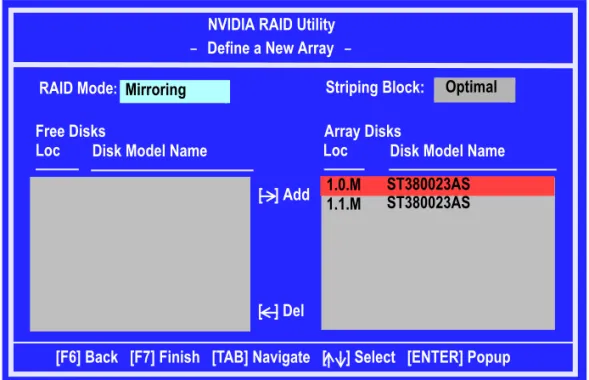
Figure 2.6 illustrates the Define a New Array window after two disks have been assigned as RAID 1 array disks.
Figure 2.6 NVIDIA RAID Utility—Array Disks Assigned NVIDIA RAID Utility - Define a New Array -
Free Disks
Loc Disk Model Name LocArray DisksDisk Model Name [ ] Add
[ ] Del
1.0.M
1.1.M ST380023ASST380023AS
[F6] Back [F7] Finish [TAB] Navigate [ ] Select [ENTER] Popup RAID Mode: Mirroring Striping Block: Optimal
Completing the RAID BIOS Setup
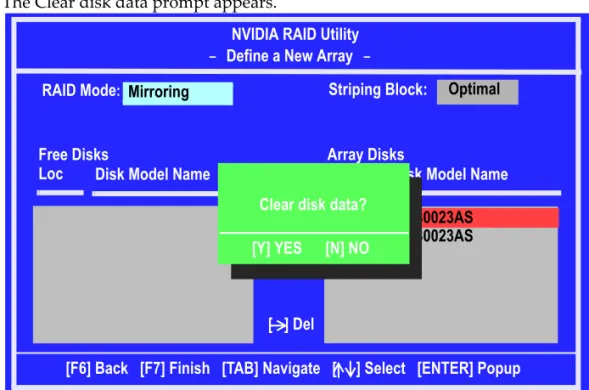
1 After assigning your RAID array disks, press F7.
The Clear disk data prompt appears.
Figure 2.7 Clear Disk Data Prompt 2 Press Y to clear all drive data.
The Array List window appears, where you can review the RAID arrays that you have set up.
Figure 2.8 Array List Window
NVIDIA RAID Utility - Define a New Array -
RAID Mode: Striping Block:
Free Disks
Loc Disk Model Name LocArray DisksDisk Model Name
[->] Add
[ ] Del
Mirroring Optimal
1.0.M
1.1.M ST380023ASST380023AS
[F6] Back [F7] Finish [TAB] Navigate [ ] Select [ENTER] Popup Clear disk data?
[Y] YES [N] NO
NVIDIA RAID Utility - Array List -
[Ctrl-X] Exit [ ] Select [B] Set Boot [N] New Array [ENTER] Detail Boot Id Status Vendor Array Model Name No 2 Healthy NVIDIA MIRROR 74.53G
3 Use the arrow keys to select the array that you want to set up, then press Enter.
The Array Detail window appears.
Figure 2.9 Array Detail Window
The Array Detail window shows information about the array that you selected, such as Striping Block used, RAID Mode, Striping Width, Disk Model Name, and disk
capacity.
4 If you want to mark this disk as empty and wipe out all its contents then press C.
5 At the prompt, press Y to wipe out all the data, otherwise press N.
6 Press Enter again to go back to the previous window and then press F10 to exit the RAID setup.
Now that the RAID setup has been configured from the RAID BIOS, the next step is to configure and load NVIDIA RAID drivers under Windows, as explained in “Installing the NVIDIA RAID Software Under Windows” on page 21.
Array 2 : NVIDIA MIRROR 74.56G - Array Detail -
[R] Rebuid [D] Delete [C] Clear Disk [Enter] Return Adapt Channel M/S Index Disk Model Name Capacity RAID Mode: Mirroring
Striping Width : 1 Striping Block 32K
1 0 Master 0 ST380023AS 74.56GB 1 1 Master 1 ST380023AS 74.56GB
Installing the NVIDIA RAID Software Under Windows
The existing Windows IDE Parallel ATA driver (as well as the Serial ATA driver if SATA is enabled) must be upgraded to use the NVIDIA IDE Parallel ATA driver (as well as the NVIDIA Serial ATA driver if SATA is enabled).
This section describes how to run the setup application and install the RAID software which will upgrade the Windows IDE driver and install the RAID software1.
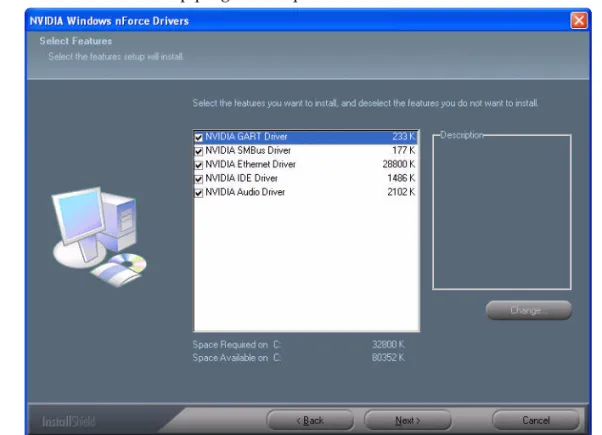
1 Start the nForce Setup program to open the NVIDIA Windows nForce Drivers page.
Figure 2.10 nForce Driver Installation Window 2 Select the modules that you want to install.
Make sure that the “NVIDIA IDE Driver” is selected.
You must install the NVIDIA IDE driver in order to enable NVIDIA RAID. If you do not install the NVIDIA IDE driver, NVIDIA RAID will not be enabled.
3 Click Next and then follow the instructions.
4 After the installation is completed, be sure to reboot the PC.
5 After the reboot, initialize the newly created array. See “Initializing and Using the Disk Array” on page 33.
1. See the application note “Installing the NVIDIA IDE Driver in Windows 2000” on page 115 for infor-mation on how to install the NVIDIA IDE Driver under Windows 2000.
Setting Up a Bootable NVIDIA RAID Array
This section explains how to configure a bootable NVIDIA RAID array.
Setup Used in This Section
This section assumes the following setup:
• Boot Disk
An IDE CD-ROM is connected to the Primary IDE channel, and set to Master or Slave. Make sure to have a bootable Windows XP/Windows 20002 CD inserted into the CD-ROM so you can boot from it.
• RAID Array Disks
• RAID 0
Two hard disks connected to the secondary IDE channel, where one is set to Master and the other set to Slave.
A fresh copy of Windows XP will be installed on the 2 striped hard disks. • RAID 1
Two hard disks connected to the secondary IDE channel, where one is set to Master and the other set to Slave.
A fresh copy of Windows XP will be installed on the 2 mirrored hard disks. • RAID 0+1
Two hard disks connected to the secondary IDE channel, where one is set to Master and the other set to Slave
Two SATA hard disks
A fresh copy of Windows XP will be installed on the mirrored-striped hard disks.
Setting Up the BIOS
1 Start your computer, then press Delete to enter the BIOS setup. The BIOS CMOS Setup Utility screen appears.
Figure 2.11 BIOS CMOS Setup Utility Main Screen
2 Use the arrow keys to select Integrated Peripherals (see Figure 2.11), then press Enter. The Integrated Peripherals screen (or a screen similar to it) appears.
Figure 2.12 Integrated Peripherals Screen
Phoenix - Award BIOS CMOS Setup Utility
Standard CMOS Features
^
Advanced BIOS Features Advanced Chipset Features
Integrated Peripherals
Power Management Setup PnP / PCI Configurations
Load Fail-Safe Defaults Load Optimized Defaults Set Supervisor Password Set User Pasword Save & Exit Setup Exit Without Saving
Esc : Quit
F10 : Save & Exit Setup : Select Item
Onboard IO, IRQ, DMA Assigment ...
Phoenix - Award BIOS CMOS Setup Utility
:Move Enter:Select +/-/PU/PD:Value F10:Save ESC:Exit F1:General Help Integrated Peripherals
Item Help RAID Config
OnChip IDE Channel0 Primary Master PIO Primary Slave PIO Primary Master UDMA Primary Slave UDMA OnChip IDE Channel1 Secondary Master PIO Secondary Slave PIO Secondary Master UDMA Secondary Slave UDMA IDE Prefetch Mode Init Display First OnChip USB USB Keyboard Support USB Mouse Support Serial - ATA
SATA Spread Spectrum AC97 Audio [Press Enter] [Enabled] [Auto] [Auto] [Auto] [Auto] [Enabled] [Auto] [Auto] [Auto] [Auto] [Enabled] [PCI Slot] [V1.1 - V2.0] [Disabled] [Disabled] [Enabled] [Disabled] [Auto] Menu Level
3 Use the arrow keys to select the RAID Config (see Figure 2.12).
4 Press Enter.
The RAID Config screen appears.
Figure 2.13 RAID Config Screen
5 From the RAID Config screen, enable RAID, then enable any of the disks that you want to use as RAID disks.
In Figure 2.13, the master and slave drives on the secondary IDE port are enabled as RAID disks.
Make sure to enable the SATA drives also if you are setting up a RAID0+1 array.
6 Press F10 to save the configuration and exit. The PC reboots.
7 Enter the RAID BIOS Setup by pressing F10 when prompted, and proceed to set up the NVIDIA RAID BIOS as described in the next section.
Phoenix - Award BIOS CMOS Setup Utility
:Move Enter:Select +/-/PU/PD:Value F10:Save ESC:Exit F1:General Help RAID Config
Item Help RAID Enable
IDE Primary Master IDE Primary Slave IDE Secndry Master IDE Secndry Slave Ext SATA Phy Primary Ext SATA Phy Secndary
[Enable] RAID [Disabled] RAID [Disabled] RAID [Enabled] RAID [Enabled] RAID [Disabled] RAID [Disabled] Menu Level
F5: Previous Values F6: Fail-Safe Defaults F7: Optimized Defaults
RAID [Disabled] RAID [Disabled]
Int SATA Phy Primary Int SATA Phy Secndry
Configuring the NVIDIA RAID BIOS
The NVIDIA RAID BIOS set up lets you choose the RAID type and which hard drives you want to make part of the array.
Entering the RAID BIOS Setup:
1 Wait until you see the RAID software prompting you to press F10.
The RAID prompt appears as part of the system POST and boot process prior to loading of the OS. You have a few seconds to press F10 before the screen disappears.
2 Press F10.
The NVIDIA RAID Utility—Define a New Array screen appears (Figure 2.14).
Figure 2.14 NVIDIA RAID Utility
By default, RAID Mode is set to Mirroring and Striping Block is set to Optimal.
NVIDIA RAID Utility - Define a New Array -
RAID Mode: Striping Block:
Free Disks
Loc Disk Model Name
Array Disks
Loc Disk Model Name
[ ] Add
[ ] Del
Mirroring Optimal
1.0.M
1.1.M ST380023ASST380023AS
Understanding the Define a New Array Window
Use the Define a New Array window to • Select the RAID Mode
• Set up the Striping Block
• Specify which disks to use for the RAID Array
Depending on the platform used, the system can have one or more channels. In a typical system there is usually one adapter and multiple channels, and each channel has a slave and a master.
The adapter/channel/master/slave status of each hard disk is given in the Loc (location) columns of the Free Disks and Array Disks lists.
Figure 2.15 Loc Column Information
In Figure 2.15, 1.0.M means the hard drive is attached to Adapter 1, Channel 0, and the drive is set to Master. The following is a list of all possible combinations:
Note: There is no such thing as Slave drive in Serial ATA. All drives are considered to be Master since there is a one to one connection between the drive and the adapter.
Parallel ATA
0.0.M Adapter 0, Channel 0, Master 0.0.S Adapter 0, Channel 0, Slave 0.1.M Adapter 0, Channel 1, Master 0.1.S Adapter 0, Channel 1, Slave Serial ATA
1.0.M Adapter 1, Channel 0, Master 1.1.M Adapter 1, Channel 1, Master 2.0.M Adapter 2, Channel 0, Master 2.1.M Adapter 2, Channel 1, Master
1.0.M
M: Master
S: Slave
Channel
Adapter 0 is used for PATA drives
Using the Define a New Array Screen
If necessary, press the tab key to move from field to field until the appropriate field is highlighted.
• Selecting the RAID Mode
By default, this is set to Mirroring. To change to a different RAID mode, press the down arrow key until the mode that you want appears in the RAID Mode box—either Mirroring, Striping, Spanning, or Stripe Mirroring.
• Selecting the Striping Block Size
Striping block size is given in kilobytes, and affects how data is arranged on the disk. It is recommended to leave this value at the default Optimal, which is 64KB, but the values can be between 4 KB and 128 KB (4, 8, 16, 32, 64, and 128 KB)
Assigning the Disks
The disks that you enabled from the RAID Config BIOS setup page appear in the Free Disks block. These are the drives that are available for use as RAID array disks. To designate a free disk to be used as a RAID array disk,
1 Tab to the Free Disks section. The first disk in the list is selected
2 Move it from the Free Disks block to the Array Disks block by pressing the right-arrow key (Æ).
The first disk in the list is moved, and the next disk in the list is selected and ready to be moved.
3 Continue pressing the right-arrow key (Æ) until all the disks that you want to use as RAID array disks appear in the Array Disks block.
Figure 2.16 illustrates the Define a New Array screen after two disks have been assigned as RAID1 array disks.
Figure 2.16 NVIDIA RAID Utility—Array Disks Assigned NVIDIA RAID Utility - Define a New Array -
Free Disks
Loc Disk Model Name LocArray DisksDisk Model Name [ ] Add
[ ] Del
1.0.M
1.1.M ST380023ASST380023AS
[F6] Back [F7] Finish [TAB] Navigate [ ] Select [ENTER] Popup RAID Mode: Mirroring Striping Block: Optimal
Completing the RAID BIOS Setup
1 After assigning your RAID array disks, press F7.
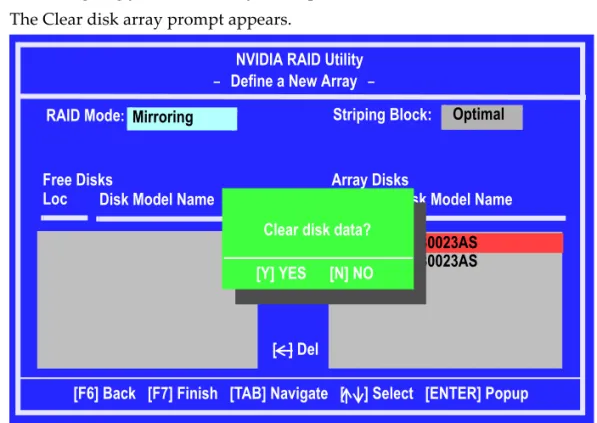
The Clear disk array prompt appears.
Figure 2.17 Clear Disk Data Prompt 2 Press Y to clear the disk data.
The Array List screen appears, where you can review the RAID arrays that you have set up.
Figure 2.18 Array List Window
NVIDIA RAID Utility - Define a New Array -
RAID Mode: Striping Block:
Free Disks
Loc Disk Model Name
Array Disks
Loc Disk Model Name
[->] Add
[ ] Del
Mirroring Optimal
1.0.M
1.1.M ST380023ASST380023AS
[F6] Back [F7] Finish [TAB] Navigate [ ] Select [ENTER] Popup Clear disk data?
[Y] YES [N] NO
NVIDIA RAID Utility
- Array List -
[Ctrl-X] Exit [ ] Select [B] Set Boot [N] New Array [ENTER] Detail Boot Id Status Vendor Array Model Name Yes 2 Healthy NVIDIA MIRROR 74.53G
3 Use the arrow keys to select the array that you want to set up, then press B to specify the array as bootable.
4 Press Enter to view and verify details. The Array Detail screen appears.
Figure 2.19 Array Detail Screen
The Array Detail screen shows various information about the array that you selected, such as Striping Block used, RAID Mode, Striping Width, Disk Model Name, and disk capacity.
5 If you want to mark this disk as empty and wipe out all its contents, press C.
6 At the prompt, press Y to wipe out all the data, otherwise press N.
7 Press Enter again to go back to the previous screen and then press F10 to exit the RAID setup.
Array 2 : NVIDIA MIRROR 74.56G - Array Detail -
[R] Rebuid [D] Delete [C] Clear Diskt [Enter] Return Adapt Channel M/S Index Disk Model Name Capacity RAID Mode: Mirroring
Striping Width : 1 Striping Block 32K
1 0 Master 0 ST380023AS 74.56GB 1 1 Master 1 ST380023AS 74.56GB
Installing the RAID Drivers
1 After you complete the RAID BIOS setup, boot from the Windows CD. The Windows Setup program starts.
2 Press F6 and wait a few moments for the Windows Setup screen to appear.
Figure 2.20 Windows Setup—Specify Devices 3 Specify the NVIDIA drivers.
a Insert the floppy that has the RAID driver, press S, then press Enter. The following Windows Setup screen appears::
Figure 2.21 Windows Setup—Select SCSI Adapter
Windows Setup
Setup could not determine the type of one or more mass storage devices installed in your system, or you have chosen to manually specify an adapter. Currently, Setup will load support for the following mass storage device(s): <none>
* To specify additional SCSI adapters, CD-ROM drives, or special disk controllers for use with Windows, including those for which you have a device support disk from a mass storage device manufacturer, press S.
* If you do not have any device support disks from a mass storage device manufaturer, or do not want to specify additional mass storage devices for use with Windows, press ENTER.
S=Specify Additional Devices ENTER=Continue F3=Exit
Windows Setup
You have chosen to configure a SCSI Adapter for use with Windows, using a device support disk provided by an adapter manufacturer.
Enter=Select F3=Exit
Select the SCSI Adapter you want from the following list, or press ESC to resutrn to the previous screen.
NVIDIA NForce Storage Controller (required) NVIDIA RAID CLASS DRIVER (required)
b Select “NVIDIA RAID CLASS DRIVER (required)” and then press Enter.
c Press S again at the Specify Devices screen, then press Enter.
d Select “NVIDIA NForce Storage Controller (required)” and then press Enter.
The following Windows Setup screen appears listing both drivers:.
Figure 2.22 Windows Setup—NVIDIA drivers listed
4 Press Enter to continue with Windows XP Installation.
Be sure to leave the floppy disk inserted in the floppy drive until the blue screen portion of Windows XP installation is completed, then take out the floppy.
5 Follow the instructions on how to install Windows XP.
After Windows XP is completely installed, it is recommended that you install the ForceWare software in order to access NVRAIDMAN—the RAID management tool.
Note: Each time you add a new hard drive to a RAID array, the RAID driver will have to be installed under Windows once for that hard drive. After that, the driver will not have to be installed.
Windows Setup
Setup will load support for the following mass storage device:
* To specify additional SCSI adapters, CD-ROM drives, or special disk controllers for use with Windows, including those for which you have a device support disk from a mass storage device manufacturer, press S.
* If you do not have any device support disks from a mass storage device manufaturer, or do not want to specify additional
mass storage devices for use with Windows, press ENTER. S=Specify Additional Devices ENTER=Continue F3=Exit
NVIDIA RAID CLASS DRIVER NVIDIA NForce Storage Controller
Initializing and Using the Disk Array
The RAID array is now ready to be initialized under Windows.
1 Launch Computer Management by clicking Start Æ Settings Æ Control Panel then open the Administrative Tools folder and double click on Computer Management.
2 Click Disk Management (under the Storage section). The Initialize and Convert Disk Wizards appears.
3 Click Next.
The Select Disks to Initialize window appears.
Figure 2.24 Select Disks to Initialize Page
The disks listed depend on how many arrays you have configured
4 Click Next.
The Select Disks to Convert window appears.
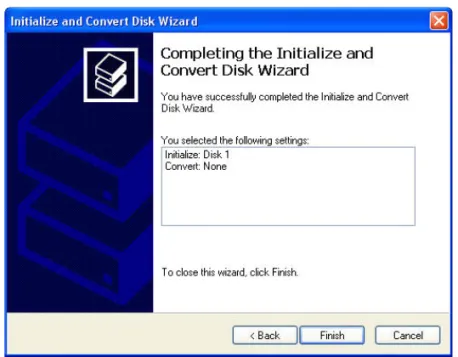
5 Check the disk in the list if you want to make the array a dynamic disk, then click Next. The Completing the Initialize and Convert Disk Wizard window appears.
6 Click Finish.
The Computer Management window appears.
Figure 2.27 Computer Management Window
The actual disks listed will depend on your system. In Figure 2.27, there is a 111 GB unallocated partition (which is the total combined storage of two 60 GB HD). You must format the unallocated disk space in order to use it.
7 Format the unallocated disk space.
Right click “Unallocated space”, select “New Partition…” and follow the Wizard instrucrtions.
U
SING
THE
NVRAIDMAN U
TILITY
About the NVIDIA RAID Management Utility
The NVIDIA RAID software ships with an application called NVRAIDMAN. This chapter describes the NVRAIDMAN tasks in the following sections:
• Viewing RAID Array Configurations
View an array configuration (mirrored, striped, mirrored-striped, JBOD, or any supported combination)
• Setting Up a Spare RAID Disk
• View free and/or dedicated free disks • Designate a free disk to a particular array • Rebuilding a RAID Array
• Rebuild a broken mirrored array
• Watch the progress of rebuilding of an array • Only applies to RAID 1 or RAID 0+1 arrays
• Creating RAID Arrays • Deleting a RAID Array
• Morphing From One RAID Array to Another • Hot Plug Array
Viewing RAID Array Configurations
To view your RAID configuration from Windows, launch the NVIDIA RAID Management utility by double-clicking NVRAIDMAN.
The RAID configuration information appears in the right-side pane, as shown in Figure 3.1.
Figure 3.1 NVRAID Management Utility Window
The following are examples of the information displayed for the various RAID levels. While the details of your own configuration will likely vary from what is shown, the examples serve to illustrate the basic differences between the RAID levels.
NVIDIA RAID Mirrored Array
Figure 3.2 shows an example of a two hard drive mirrored array using identical 34.4 GB1 SATA hard drives (WD360GB), where one drive is configured as Primary and the other drive is configured as Secondary.The total hard disk space used is 34.4 GB.
NVIDIA RAID Striped Array
Figure 3.3 shows an example of a two hard drive striped array using identical 34.48 GB SATA hard drives (WD360GB), where one drive is configured as Primary and the other drive is configured as Secondary. The total disk space used is 68.95GB.
Figure 3.3 NVRAIDMAN Striped Array Information
NVIDIA RAID Mirrored-Stripe Array
Figure 3.4 shows an example of a four hard drive mirrored-stripe array. The total disk space used is 68.95 GB.
The total storage space is 68.95 GB because the two upper drives (the drives with the 34.48 GB size) are first striped, and then they are mirrored onto the 69.25 GB drives.
Figure 3.4 NVRAIDMAN Stripe Mirroring Array Information
NVIDIA RAID Spanning (JBOD) Array
Figure 3.5shows an example of a two hard drive spanning array. The total disk space used is 68.95 GB.
NVIDIA RAID Mirrored Array and Striped Array
Figure 3.6 shows an example of a two hard drive mirrored array as well as a two hard drive striped array.
Setting Up a Spare RAID Disk
You can designate a hard drive to be used as a spare drive for a RAID 1 or RAID 0+1 array2. The spare drive can take over for a failed disk. NVIDIA RAID supports two types of spare drives:
• Free Disk
A free disk is a disk that is not part of any RAID array, but can be used by any available RAID 1 or RAID 0+1 array that requires a particular disk when one of its disks crashes or becomes unusable. The process is automatic and doesn’t require any user
interaction.
For example, if you have a system with four hard disks where one disk is used to boot the OS, two hard drives are set up in a mirrored array, and a fourth hard disk is set up as a free disk, then if one of the mirrored array drives fails, the free disk will be automatically assigned to the mirrored array to be used instead of the failed disk.
• Dedicated Disk
A dedicated free disk is a disk that is assigned to a RAID 1 or RAID 0+1 array and that disk is used by that array only when needed, for example during a system crash where a RAID mirrored drive is broken. The dedicated disk can be used only by the array that it is assigned to and not by any other array, unlike a free disk which can be used by any available RAID 1 or RAID 0+1 array.
Note: You must have at least two RAID arrays to use this feature.
Assigning a Free Disk
To mark a disk as free, or not a part of any array,
1 Enter the system BIOS setup and make sure that the drive that you want to mark as free is RAID enabled.
2 Enter the RAID BIOS and make sure that the drive is not part of any array (if one exists).
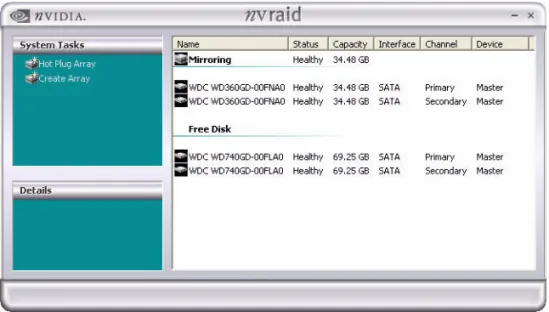
3 Boot into Windows and run the NVRAIDMAN program. The drive appears under the Free Disk section.
Figure 3.7 shows an example of the NVRAIDMAN display if you have a mirror array and two free disks.
Assigning a Dedicated Disk
To mark a disk as dedicated, or reserve it for use by a specific array, you must have at least one free disk and you must also have at least two RAID 1 or RAID 0+1 arrays created. In this example, there are four SATA drives and two PATA drives which are RAID enabled. Four SATA drives are used to create two mirrored arrays, while two PATA drives are used as free disks.
Step 1: Mark the Disk as a Free Disk
1 Enter the system BIOS setup and make sure that the drive that you want to mark as free is RAID enabled.
2 Boot into Windows and run the NVRAIDMAN program.
If the disk is not part of any RAID array, then it will appear under the Free Disk section of the RAID GUI.
Step 2: Dedicate the Free Disk to an Array
While running NVRAIDMAN, dedicate a free disk to an array by doing the following:
1 Right click one of the available free disks under the Free Disk section.
2 Select Designate Spare from the menu to launch the Spare Disk Allocation Wizard.
Figure 3.9 Spare Disk Allocation Wizard 3 Click Next.
The RAID Array Selection page appears.
4 From the RAID Array Selection page, select one of the arrays from the list. This is the array to which you want to allocate the dedicated free disk.
Note: In Figure 3.10 there are two arrays available.
5 Click Next.
The Completing the NVIDIA Spare Disk Allocation page appears.
6 Click Finish.
As shown in Figure 3.12, the ST380011A drive is now a dedicated free disk in the mirrored array.
Figure 3.12 Designated Spare Disk
If a system crash occurs that causes any of the two WD360GD drives to fail, the ST380011A hard drive will take over and be used in the newly formed mirrored array.
Removing a Dedicated Disk
Once a dedicated disk has been assigned to a particular array, it can be removed at any time. To remove the disk, right click on the dedicated disk and select the option to remove it.
For example, right click on the ST380011A drive and select Remove Disk as shown in
Rebuilding a RAID Array
Rebuilding is the process of recovering data from one hard drive to another. All data is copied from one hard drive to another and then the data is synchronized between the two hard drives. This applies only to RAID 1 as well as a RAID 0+1 arrays.
Rebuilding Instructions
After creating a mirrored array, you can rebuild the array using the following steps:
1 Go to Windows and run the NVIDIA RAID Management utility.
Figure 3.14 shows an example of a system with one mirrored array and two free disks.
2 Right-click on Mirroring. The popup menu appears.
Figure 3.15 Array Pop-up Menu
3 From the popup menu, click Rebuild Array. The NVIDIA Rebuild Array Wizard appears.
4 Click Next.
The Disk Selection page appears.
Figure 3.17 Disk Selection Page
5 Select the drive that you want to rebuild by clicking it from the list, then click Next. The Completing the NVIDIA Rebuild Array page appears.
6 Click Finish.
The array rebuilding starts after a few seconds, and a small pop-up message appears towards the bottom right corner of the screen as shown in Figure 3.19.
Figure 3.19 Rebuild Bubble Message
When the rebuilding process is finished you will see the pop up box shown inFigure 3.20.
Figure 3.20 Rebuild Finished Bubble Message
During the rebuilding process, the NVIDIA RAID Management utility screen shows the status under the System Tasks and Details sections.
More About Rebuilding Arrays
• Rebuilding Occurs in the Background
The rebuilding process takes some time to complete, and occurs in the background so as not to affect the performance of the system.
• Rebuilding Applies Only to RAID 1 or RAID 0+1 Arrays
Rebuilding an array works only when using RAID 1 and/or RAID 0+1. Rebuilding does not apply to RAID 0 and JBOD arrays.
• Rebuilding applies to a degraded fault tolerant array
You can rebuild a degraded mirrored array using any available Free Disk or Dedicated Disk.
For example, Figure 3.22 shows a mirrored array using two 34.48 GB drives while having two Free Disks each 55.90 GB large.
Figure 3.22 Free Disks Available for Rebuilding
To use one of these available free disks to rebuild your array, follow the same steps as explained in “Rebuilding a RAID Array” on page 47, except when prompted to select a disk, choose one of the two available free disks.
Creating RAID Arrays
This section includes examples of using NVRAIDMAN for • Creating a Striped Array
• Creating a Mirrored Array
• Creating a Stripe Mirroring Array
• Creating a Spanning Array
In these examples, the system is configured with four SATA hard disks.
Creating a Striped Array
NVRAIDMAN can be used to create a striped array from one disk up to the maximum supported number of disks in the system.
To create a two-disk Striped Array do the following:
1 Go to the system BIOS and make sure that the drives that you want to use are RAID enabled.
3 Create Array and the following screen will appear
Figure 3.23 Create Array Wizard—Welcome Screen 4 :Click Next and the following screen shot will appear:
5 Click the RAID Mode list arrow and select Striping, and leave the “Stripe Size” with its default value as shown in the following screen shot:
Figure 3.25 RAID Array Selection—Striping
6 Click Next, and the following screen shot will appear:
7 Select the two disks that you want to include in the stripe set.
In this example the upper two disks were selected as shown in Figure 3.27.
Figure 3.27 Free Disk Selection Page—Selecting Disks
To create a striped array with more disks, select additional disks from the list.
8 Click Next and the following screen shot will appear:
9 Click Finish and the following screen shot will appear:
Figure 3.29 Stripe RAID Array Created
As you can see from the above screen shot a striped array with two SATA disks has been created, while the other two disks are allocated as Free Disks.
Similarly, to create an array with three or more disks, simply make sure to add the number of disks that you want to use in the array during creation.
You can also “extend” the size of an existing striped array but that requires that you use morphing— the ability to convert from one RAID array to another as described in
Creating a Mirrored Array
The NVRAIDMAN application can be used to create a Mirrored Array. By definition, a mirrored array consists of two drives. Data is written to both drives, and if one drive fails then data can be recovered from the other drive.
To create a Mirrored Array, do the following:
1 Go to the system BIOS and make sure that the drives that you want to use are RAID enabled.
2 Boot to Windows and launch the NVRAIDMAN application, then click on Create Array and the following screen will appear
3 Click Next and the following screen will appear:
Figure 3.31 RAID Array Selection Page
4 Click Next and the following screen will appear:
5 Select the two drives that you want to use in the Mirrored array.
In this example the upper two disks were selected as shown in Figure 3.33.
Figure 3.33 Free Disk Selection Page—Selecting Disks 6 Click Next and the following screen shot will appear:
7 If you want to start rebuilding the array right away (copy data from one disk to the other), select the disk that you wish to preserve.
Do not select a disk if you do not want to rebuild the array at this time.
8 Click Next and the following screen shot appears:
Figure 3.35 Completing the NVIDIA Create Array Wizard Page 9 Click Finish.
If you selected a disk to preserve in step 7, the rebuilding process begins.
Creating a Stripe Mirroring Array
NVRAIDMAN can be used to create a Stripe Mirroring array which requires at least four disks to start such an array.
To create a Stripe Mirror Array do the following:
1 Go to the system BIOS and make sure that the drives that you want to use are RAID enabled.
2 Boot to Windows, launch the NVRAIDMAN application, then click on Create Array and the following screen will appear
3 Click on Next and the following screen will appear:
Figure 3.38 RAID Array Selection
4 Click on “RAID Mode:” and select “Stripe Mirroring” while leaving the Stripe Size set to its default value as shown in the following screen shot:
5 Click Next and the following screen will appear:
Figure 3.40 Free Disk Selection Page
6 Select the four drives that you want to use in the Stripe Mirroring array.
In this example all of the drives are selected as shown in the following screen shot:
7 Click Next and the following screen shot will eventually appear:
Figure 3.42 Completing the NVIDIA Create Array Wizard Page 8 Click Finish and the following screen shot will appear:
Figure 3.43 RAID Stripe Array Created
Creating a Spanning Array
NVRAIDMAN can be used to create a Spanning Array which requires at least one disk to start such an array.
To create a Spanning Array do the following:
1 Go to the system BIOS and make sure that the drives that you want to use are RAID enabled.
2 Boot to Windows and launch the NVRAIDMAN application, then click on Create Array and the following screen will appear
3 Click Next and the following screen will appear:
Figure 3.45 RAID Array Selection Page
4 Click the RAID Mode list arrow and select “Spanning” while leaving the Stripe Size set to its default value as shown in the following screen shot:
5 Click Next and the following screen shot will appear:
Figure 3.47 Free Disk Selection Page
6 Select the two drives that you want to use in the Spanned array.
In this example the upper two disks were selected as shown in the following screen shot:
7 Click Next and the following screen shot will appear:
Figure 3.49 Completing the NVIDIA Create Array Wizard Page 8 Click Finish and the following screen shot will appear:
Figure 3.50 RAID Spanned Array Created
Deleting a RAID Array
NVRAIDMAN can be used to delete an Array. To delete an Array do the following:
1 Launch the NVRAIDMAN application and right click on the RAID array that you want to delete (assuming that you have a RAID array already created) as shown in the following screen shot:
Figure 3.51 Selecting “Delete Array” from the Pop Up Menu
After the “Delete Array...” has been selected, the following screen shot appear:
Figure 3.52 Delete Array Wizard—Welcome Page
2 Click Next and the following screen shot will appear:
3 Click Finish and the array will be deleted and the following screen shot will appear showing all the free disks:
Figure 3.54 RAID Array Deleted
Morphing From One RAID Array to Another
In a traditional RAID environment, when a user wants to change the current state of a disk or a current array to a new RAID configuration, the process of reconfiguring the new array involves multiple steps. The user must back up the data, delete the array, re-boot the PC, and then reconfigure the new array.
NVIDIA RAID allows the end user to change the current state of the disk or array to another with a one-step process called ʺMorphingʺ. This section describes the NVIDIA Morphing process and explains how to use Morphing to convert from one RAID array type to another.
General Morphing Principles
NVIDIA RAID includes extensive support for morphing, a process of converting from one RAID mode to another RAID mode.
General Requirements and Limitations
• The new array capacity must be equal to or greater than the previous array.
For example, it is possible to morph from a RAID 1 array to a RAID 0 array as long as the RAID 0 array is the same size as (or larger than) the RAID 1 array.
• You can’t morph
• To or from a JBOD (Spanning) array • From RAID 1 to RAID 1
Specific Morphing Requirements
The following table lists the disk requirements for a new RAID array for various morphing combinations.
Table 3.1 RAID Array Disk Requirements for Morphing From To New Array Disk Requirementsi
i. m = quantity of disks in the new array. n = quantity of disks in the original array. RAID 0 RAID 0 m > n
Number of disks in the new array must be greater than the original array. RAID 1 m=2, n=1
RAID 1 array must include two disks, converted from a one disk RAID 0 array.
RAID 0+1 m >= 2 x n
Number of RAID 0+1 disks must be equal to or greater than twice the number of RAID 0 disks.
RAID 1 RAID 0 No additional restrictions. RAID 1 ** Not a valid combination ** RAID 0+1 No additional restrictions. RAID 0+1 RAID 0 m >= n/2
Number of RAID 0 disks must be equal to or greater than half the number of RAID 0+1 disks.
RAID 1 ** Not a valid combination **
RAID 0+1 m >= n + 2 ; where m must be an even number of disks.
The new array must include at least two more disks than the original array, and can include any even number of disks beyond that.
Morphing Instructions
This sections includes specific instructions for the following RAID morphing combinations:
• “Morphing from RAID 0 to RAID 0—Adding a Disk to a Stripe Set” on page 74
• “Morphing from RAID 0 (with One Disk) to RAID 1 (with Two Disks)” on page 79
• “Morphing from RAID 0 to RAID 0+1” on page 83
• “Morphing from RAID 1 to RAID 0” on page 88
• “Morphing from RAID 1 to RAID 0+1” on page 92
• “Morphing from RAID 0+1 to RAID 0” on page 97
• “Morphing from RAID 0+1 to RAID 0+1” on page 101
Morphing from RAID 0 to RAID 0—Adding a Disk to a Stripe Set
The following example shows you how to expand a RAID 0 array with two disks to include an additional disk.
1 Go to the system BIOS and make sure that the drives that you want to use are RAID
enabled.
2 Boot to Windows, launch the NVRAIDMAN application, then follow the steps outlined in “Creating a Striped Array” on page 52 to create a two disk stripe array.
When that is done, you should see a screen shot similar to the following:
Now that a two disk stripe array has been created, you can use the NVRAIDMAN convert feature to morph the array from a two-disk RAID 0 into a three-disk RAID 0 array.
3 Right click on the newly created striped array (or existing striped array) and a select “Convert Array...” as shown from the following screen shot:
Figure 3.56 Selecting “Convert Array” from the Pop Up Menu
4 After selecting “Convert Array...” the following screen shot will appear:
5 Click Next and the following screen shot will appear:
Figure 3.58 RAID Mode Selection Page
6 Click Next and the following screen shot will appear:
7 Select the disk (or disks) that you want to add to the existing striped array.
In this example, we are adding one disk (which is the upper disk) to the existing two-disk striped array. So, select the first two-disk and click Next and the following screen shot will appear:
Figure 3.60 Completing the NVIDIA Convert Array Wizard Screen
8 Click Finish then click on the newly created three disk striped array and the following screen shot will appear: