Appeon® for PowerBuilder® 2015
FOR WINDOWS, UNIX & LINUXCopyright © 2002-2014 by Appeon Corporation. All rights reserved.
This publication pertains to Appeon software and to any subsequent release until otherwise indicated in new editions or technical notes. Information in this document is subject to change without notice. The software described herein is furnished under a license agreement, and it may be used or copied only in accordance with the terms of that agreement.
No part of this publication may be reproduced, transmitted, or translated in any form or by any means, electronic, mechanical, manual, optical, or otherwise, without the prior written permission of Appeon Corporation.
Appeon, the Appeon logo, Appeon Developer, Appeon Enterprise Manager, AEM, Appeon Server and Appeon Server Web Component are registered trademarks of Appeon Corporation.
Sybase, Adaptive Server Anywhere (SQL Anywhere), Adaptive Server Enterprise,
iAnywhere, PowerBuilder, Sybase Central, and Sybase jConnect for JDBC are trademarks or registered trademarks of Sybase, Inc.
Java and JDBC are trademarks or registered trademarks of Sun Microsystems, Inc. All other company and product names used herein may be trademarks or registered trademarks of their respective companies.
Use, duplication, or disclosure by the government is subject to the restrictions set forth in subparagraph (c)(1)(ii) of DFARS 52.227-7013 for the DOD and as set forth in FAR 52.227-19(a)-(d) for civilian agencies.
Appeon Corporation, 1/F, Shell Industrial Building, 12 Lee Chung Street, Chai Wan District, Hong Kong.
1 Troubleshooting Appeon Install ... 1
1.1 InstallShield Errors ... 1
1.1.1 Error 1607 or 1628 ... 1
1.1.2 Error 1155 ... 2
1.1.3 DLL function call crashd error when launching an Appeon setup program ... 2
1.2 Install Appeon Server to .NET IIS ... 2
1.2.1 IIS configuration ... 2
1.2.1.1 IIS 7.0 or 7.5 ... 3
1.2.1.2 IIS 6.0 ... 4
1.2.2 Full access rights to IIS Web root ... 11
1.2.3 Enable 32-bit .NET framework on 64-bit Windows ... 13
1.2.3.1 IIS 7.0 or 7.5 ... 13
1.2.3.2 IIS 6.0 ... 15
1.3 Install Appeon Server to EAServer ... 16
1.3.1 EAServer cannot be started after Appeon Server install ... 16
1.4 Install Appeon Workspace ... 17
1.4.1 "Cannot install application because the certificate for *** is not valid" when installing Appeon Workspace on iOS 7.1 device ... 17
1.5 Install Appeon File Server ... 20
1.5.1 Appeon File Server Installation Incomplete ... 20
1.6 Install Appeon Server Web Component ... 20
1.6.1 Third-party Web Server problems with the SAP Sybase redirector plug-in ... 20
1.7 Upgrade Installation ... 20
1.7.1 "Bad interpreter: No such file or directory" error ... 20
1.7.2 Error 14004 "The license file is missing" ... 21
1.8 Frequently Asked Questions ... 21
1.8.1 How to install Appeon Server to multiple EAServer instances? ... 21
1.8.2 How to bind server instance to CPU? ... 21
1.8.3 How to create EAServer instances? ... 21
1.8.4 How to start the server instance? ... 22
1.8.5 How much better is the performance when multiple instances are used? ... 22
1.9 Need more help? ... 22
2 Troubleshooting Appeon Developer ... 23
2.1 Operating Appeon Developer toolbar ... 23
2.1.1 Appeon Developer toolbar does not respond when run by a non-administrator ... 23
2.1.2 "ADT is already running" error ... 23
2.1.3 Exiting Appeon Developer completely after an error ... 24
2.2 Appeon Developer Configuration ... 24
2.2.1 Testing connection fails during DB Type Profile configuration ... 24
2.2.2 "Error launching LoadConfig" ... 24
2.3.2 "Error loading ADTObjectList.xml" ... 25
2.3.3 "Error loading command string" ... 25
2.3.4 Feature analysis or deployment comes to a standstill ... 26
2.3.5 "This application has requested the Runtime to terminate it in an unusual way" error, when you deploy or analyze an application ... 26
2.3.6 "Error opening DLL Library adtxml.dll for external function" ... 26
2.4 Appeon Debugger ... 27
2.4.1 "Script Debugger Component Not Found" error ... 27
2.4.2 "Component Not Registered" error ... 27
2.4.3 "Script Debugger Disabled" error ... 27
2.5 Package Tool ... 27
2.5.1 "Failed to build the native mobile app" error when creating the Android APK package ... 27
3 Troubleshooting Web Deployment ... 31
3.1 Deployment Performance ... 31
3.1.1 Unusual deployment duration ... 31
3.2 Failed to deploy applications ... 31
3.3 Failed to deploy applications in server console ... 32
3.4 Failed to deploy Web applications in 64-bit JEUS server ... 33
3.5 Task 1: Application Source Code Export ... 33
3.5.1 "Cannot connect to DSN" error when using PB 10.5 with ASA 10/11/12 ... 33
3.5.2 Source Code Export process aborts with a fatal error ... 35
3.5.3 How to locate problematic objects in an application ... 35
3.5.4 "Error: Failure in exporting XML file" ... 36
3.5.5 Warning 61537 ... 37
3.6 Task 2: Application File Generation ... 37
3.6.1 Failure in Incremental Deployment ... 37
3.6.2 "Error launching LoadConfig" ... 37
3.6.3 "Failed to transfer command" ... 38
3.6.4 "Exception at: CString CparseEngine..." ... 38
3.6.5 "Error loading command string" ... 38
3.6.6 Feature Analysis and deployment freezes ... 39
3.6.7 "Fail to analyze application" and "Fail to analyze Menu Object A in the B application" errors ... 39
3.6.8 Error "Could not read object" ... 39
3.7 Task 3: Application Deployment ... 39
3.7.1 "Error: Failure in adding an application to [Server Name]" ... 39
3.7.2 Unable to write to FTP Server: "Error: Unable to find the destination directory" ... 40
3.7.3 Web application deployment to remote servers does not work ... 40
3.7.4 "Error: Unable to upload INI file" ... 40
3.7.5 "Unable to cast object of type 'System.String' to type 'System.Byte[]'" ... 41
4 Troubleshooting Web Applications ... 42
Operation aborted." error ... 46
4.1.3 "Failed to get resource from Appeon Server" error ... 47
4.1.4 "Unable to validate current license file. Please reinstall Appeon Server" ... 49
4.1.5 Failed to install the Download Center plug-in ... 50
4.1.6 Failed to manually download Appeon ActiveX ... 50
4.1.7 Failed to initialize Appeon Weblibrary Component ... 51
4.1.8 Demo Web applications do not load in Internet Explorer ... 52
4.1.9 Web applications do not load in Internet Explorer ... 52
4.1.10 IE browser fails to open Web applications ... 52
4.1.11 Error "Connect EAServer failed" when loading Appeon demo applications ... 53
4.1.12 Error "Create instance failed" when loading n-Tier NVO Web applications ... 53
4.1.13 "Create Session failed" ... 54
4.1.14 "Load application failed" ... 56
4.1.15 "Failed to invoke remote procedure" error ... 56
4.1.16 "Automation server could not create object" error on some clients ... 57
4.1.17 "Object doesn't support this property or method" error ... 57
4.2 Display errors ... 58
4.2.1 Distributed DataWindows are not displayed ... 58
4.2.2 Corrupt Chinese characters are displayed in a DataWindow ... 58
4.2.3 Text does not display or text is grayed out ... 59
4.2.4 DropDownListBox does not display completely ... 59
4.2.5 Nested reports over five pages do not display ... 59
4.2.6 Nested reports over 50 rows do not display ... 59
4.2.7 MDI windows do not display in full ... 59
4.2.8 Truncated display of data or controls in a DataWindow or Window ... 60
4.2.9 Extra space or padding between MDI client area and toolbar ... 60
4.2.10 Text displays in large size and is cut off ... 61
4.2.11 Unable to display the double-byte characters ... 61
4.3 Runtime issues ... 61
4.3.1 Error 10999 - Keyword not supported: 'dsn' ... 61
4.3.2 Cannot update Transaction Objects for WebLogic servers ... 61
4.3.3 Error 404 - File or directory not found ... 62
4.3.4 Http 404 not found error occurs when using WebSphere as the Application Server ... 62
4.3.5 "Stack overflow error" ... 64
4.3.6 "Could not Initialize JavaVM!" ... 64
4.3.7 "Failed to get DataWindow syntax from Appeon Server" ... 64
4.3.8 Window loses focus of I-beam cursor ... 64
4.3.9 Receiving "Server busy" error ... 65
4.3.10 "Error occurred while creating an object instance" on the status box ... 65
4.3.12 DropDownDataWindow value incorrectly selected ... 65
4.3.13 "Predefined error_message pfc_dwdberror" ... 65
4.3.14 Demo Web application fails to call EJB component ... 66
4.3.15 Error occurs when running Distributed DataWindow in Appeon Code Examples Demo ... 66
4.3.16 "EonToolset60 Load resource failed" ... 67
4.3.17 The SQL statement cannot perform correctly when the Web server is installed on a VMWare ... 67
4.4 Data operation ... 68
4.4.1 Retrieved data does not display in DataWindows ... 68
4.4.2 Unable to retrieve data from database ... 69
4.4.3 Database lock ... 70
4.4.4 Data missing in some DataWindows ... 71
4.4.5 DataWindows do not respond ... 71
4.4.6 Manipulation on BLOB files for ASE and SQL Anywhere ... 72
4.4.6.1 Manipulation on BLOB files for Adaptive Server Enterprise (ASE) ... 72
4.4.6.2 Manipulation on BLOB files for SQL Anywhere ... 72
4.4.6.3 Blob data cannot be correctly manipulated if it is over 4MB ... 72
4.4.7 Fail to parse the result meta of the Select statement ... 74
4.4.8 Fail to update data ... 74
4.4.9 Fail to update dynamically generated DataWindow ... 74
4.4.10 Update error: Failed to update database due to java.sql.SQLException... cannot insert the value NULL... ... 74
4.4.11 "Error converting data type A to B" ... 75
4.4.12 Fail to update DataWindows with newly entered Korean characters ... 75
4.4.13 SelectBlob and UpdateBlob have different results for non-binary fields ... 75
4.4.14 How to solve the messy code issue when retrieving data in Oracle ... 75
4.5 Others ... 76
4.5.1 Appeon Performance Analyzer continually popping up ... 76
4.5.2 ASE Chained mode issue ... 77
4.5.3 Windows open relatively slow ... 78
4.5.4 Web application is very slow if use SQL Anywhere 10 and Appeon Server for .NET ... 78
4.5.5 ASA/SQL Anywhere engine crashes when you insert data into AppeonDB ... 79
4.5.6 Server NVO cannot be activated when the Web application is running ... 79
4.5.7 An item which usually requires one click must be clicked twice to be selected ... 80
4.5.8 Special characters in URL cause missing parameters when being redirected ... 80
5.1 Loading AEM ... 81
5.1.1 AEM Web page cannot display or cannot display correctly in IE 9 ... 81
5.1.2 Cannot log into AEM in IE 10 ... 81
5.1.3 Server Error in '/Servlet' Application ... 81
5.1.4 Object reference not set to an instance of an object ... 89
5.1.5 Fail to pre-compile AEM ... 91
5.1.6 The AEM Web page cannot be displayed ... 91
5.1.7 Error "500 Servlet jspservlet: ..." ... 91
5.1.8 Fail to log into AEM with the default user name and password ... 91
5.1.9 Security settings in AEM do not take effect ... 92
5.2 Appeon Server ... 92
5.2.1 Error 10999 - Failed to start new transaction... ... 92
5.2.2 JBoss console reports "...Stopped deployment appeonserver.jar..." error ... 95
5.2.3 JBoss console hangs during startup process ... 96
5.2.4 "Remote connection failed: java.io.IOException: Message data for non-existent channel" ... 96
5.2.5 AEM cannot access WebSphere data sources when global security is on ... 96
5.2.6 Appeon Server is dead when dynamically creating a DataWindow ... 97
5.2.7 Appeon Server responds to user requests slowly ... 98
5.2.8 AEM cannot interface with a particular Appeon Server ... 98
5.2.9 "Failed to load the remote interface" error ... 98
5.2.10 JDBC/ODBC TDS data type discrepancy on SQL Anywhere ... 99
5.2.11 Empty/Null value update error if SQL Anywhere/ASE ... 99
5.2.12 Web application does not run when the database is disconnected by exception ... 99
5.2.13 "Table or view not found" error ... 100
5.2.14 "Table already exists" error ... 100
5.2.15 Appeondb is not started when EAServer starts ... 101
5.2.16 Fail to ping appeondb data source ... 101
5.2.17 Fail to ping appeonsample data source ... 107
5.2.18 Fail to ping data sources for SQL Server 2000 ... 114
5.2.19 "com.sybase.jaguar.util.JException: [Microsoft][SQLServer 2000 Driver for JDBC]Error establishing socket." ... 114
5.2.20 "java.sql.SQLException:[Microsoft][ODBC SQL Server Driver]Connection is busy with results for another hstmt" Error when using the Microsoft SQLServer database ... 115
5.2.21 Error converting data type varchar to datetime ... 115
5.2.22 "ORA-01461" error in AEM when test a data source ... 115
5.2.23 "oracle 9i failed: System.Data.OracleClient requires Oracle client software version 8.1.7 or greater" ... 116
5.2.24 Procedure 'appeon_procdataobjects' not found ... 116
WebLogic in Linux ... 119
5.2.28 The data source test will fail if the Shared memory is checked .... 119
5.2.29 "Library used incorrectly" error ... 120
5.3 Appeon Server Cluster ... 121
5.3.1 Loading application is slow when Appeon Cluster works in virtual machines ... 121
5.3.2 Retrieving data is slow when Appeon Cluster works in virtual machines ... 121
6 Troubleshooting PowerBuilder and EAServer ... 125
6.1 PowerBuilder issues ... 125
6.1.1 Nested reports over five pages do not display ... 125
6.1.2 Upgrading to a different Build of PowerBuilder ... 125
6.1.3 Data range issue with n-Tier NVOs ... 125
6.2 EAServer issues ... 125
6.2.1 java.io.IOException: Keystore was tampered with, or password was incorrect ... 125
6.2.2 "License error: 10999 ..." when starting Appeon Server in 64-bit OS ... 126
6.2.3 Errors occur when calling n-Tier application of EAServer with 64-bit JDK ... 128
6.2.4 "Cannot find the language resource file (dblgzh11.dll, dblgen11.dll)" ... 128
6.2.5 "Connection failed:..." error when installing EAServer in a 64-bit OS ... 128
6.2.6 Cannot start EAServer Manager ... 129
6.2.7 Starting EAServer fails ... 130
6.2.8 EAServer cannot start with the prompt that "the system 'admin' password has not yet been set" ... 130
6.2.9 "Create appeon component failed" error ... 131
6.2.10 Pinging data source fails when using the ASA/SQL Anywhere JDBC driver ... 131
6.2.11 Support for non-JDBC drivers ... 132
6.2.12 Failed to create new data sources ... 132
7 Error Messages ... 134
7.1 Error Message Formats ... 134
7.1.1 Error Message Numbers and Descriptions ... 134
7.1.2 Error Message Priority ... 134
7.2 Errors ... 135 7.2.1 Error 00001-09999 ... 135 7.2.2 Error 10001-15055 ... 137 7.2.3 Error 20001-20035 ... 143 7.2.4 Solutions ... 145 7.2.4.1 Error 00001 ... 145 7.2.4.2 Error 00002 ... 145 7.2.4.3 Error 00003 ... 146 7.2.4.4 Error 00004 ... 146
7.2.4.7 Error 00007 ... 147 7.2.4.8 Error 00008 ... 147 7.2.4.9 Error 00009 ... 147 7.2.4.10 Error 00010 ... 147 7.2.4.11 Error 00011 ... 147 7.2.4.12 Error 00012 ... 148 7.2.4.13 Error 00013 ... 148 7.2.4.14 Error 00014 ... 148 7.2.4.15 Error 00015 ... 148 7.2.4.16 Error 00016 ... 148 7.2.4.17 Error 00017 ... 149 7.2.4.18 Error 00018 ... 149 7.2.4.19 Error 00019 ... 149 7.2.4.20 Error 00020 ... 149 7.2.4.21 Error 00021 ... 150 7.2.4.22 Error 00022 ... 150 7.2.4.23 Error 00023 ... 150 7.2.4.24 Error 00024 ... 150 7.2.4.25 Error 00025 ... 151 7.2.4.26 Error 00026 ... 151 7.2.4.27 Error 00027 ... 151 7.2.4.28 Error 00028 ... 151 7.2.4.29 Error 00029 ... 151 7.2.4.30 Error 00030 ... 151 7.2.4.31 Error 00031 ... 152 7.2.4.32 Error 00032 ... 152 7.2.4.33 Error 00051 ... 152 7.2.4.34 Error 00052 ... 152 7.2.4.35 Error 00053 ... 153 7.2.4.36 Error 00054 ... 153 7.2.4.37 Error 00055 ... 153 7.2.4.38 Error 00056 ... 154 7.2.4.39 Error 00057 ... 154 7.2.4.40 Error 00058 ... 154 7.2.4.41 Error 00059 ... 154 7.2.4.42 Error 00060 ... 155 7.2.4.43 Error 00901 ... 155 7.2.4.44 Error 00902 ... 155 7.2.4.45 Error 00904 ... 155 7.2.4.46 Error 00905 ... 156 7.2.4.47 Error 00906 ... 156 7.2.4.48 Error 01001 ... 156 7.2.4.49 Error 01002 ... 156 7.2.4.50 Error 01003 ... 157 7.2.4.51 Error 01004 ... 157 7.2.4.52 Error 01005 ... 157
7.2.4.55 Error 02003 ... 158 7.2.4.56 Error 02004 ... 158 7.2.4.57 Error 02005 ... 159 7.2.4.58 Error 02006 ... 160 7.2.4.59 Error 02007 ... 160 7.2.4.60 Error 02010 ... 160 7.2.4.61 Error 02011 ... 160 7.2.4.62 Error 02012 ... 161 7.2.4.63 Error 02013 ... 161 7.2.4.64 Error 03001 ... 161 7.2.4.65 Error 03002 ... 161 7.2.4.66 Error 03003 ... 162 7.2.4.67 Error 03004 ... 162 7.2.4.68 Error 03501 ... 162 7.2.4.69 Error 03502 ... 162 7.2.4.70 Error 03503 ... 163 7.2.4.71 Error 03504 ... 163 7.2.4.72 Error 03505 ... 163 7.2.4.73 Error 03506 ... 163 7.2.4.74 Error 03507 ... 164 7.2.4.75 Error 03508 ... 164 7.2.4.76 Error 03509 ... 164 7.2.4.77 Error 03510 ... 165 7.2.4.78 Error 03511 ... 165 7.2.4.79 Error 04001 ... 165 7.2.4.80 Error 04002 ... 165 7.2.4.81 Error 04003 ... 165 7.2.4.82 Error 04004 ... 166 7.2.4.83 Error 04005 ... 166 7.2.4.84 Error 04006 ... 166 7.2.4.85 Error 09999 ... 166 7.2.4.86 Error 10001 ... 167 7.2.4.87 Error 10014 ... 167 7.2.4.88 Error 10015 ... 167 7.2.4.89 Error 10016 ... 167 7.2.4.90 Error 10017 ... 168 7.2.4.91 Error 10501 ... 168 7.2.4.92 Error 10502 ... 168 7.2.4.93 Error 10504 ... 168 7.2.4.94 Error 10505 ... 169 7.2.4.95 Error 10506 ... 169 7.2.4.96 Error 10507 ... 169 7.2.4.97 Error 10508 ... 169 7.2.4.98 Error 10999 ... 170 7.2.4.99 Error 11006 ... 170 7.2.4.100 Error 11007 ... 170
7.2.4.103 Error 11010 ... 171 7.2.4.104 Error 11011 ... 171 7.2.4.105 Error 11012 ... 172 7.2.4.106 Error 11013 ... 172 7.2.4.107 Error 11014 ... 172 7.2.4.108 Error 11015 ... 172 7.2.4.109 Error 11016 ... 173 7.2.4.110 Error 11017 ... 173 7.2.4.111 Error 11020 ... 173 7.2.4.112 Error 11021 ... 174 7.2.4.113 Error 11022 ... 174 7.2.4.114 Error 11023 ... 174 7.2.4.115 Error 11024 ... 174 7.2.4.116 Error 11025 ... 175 7.2.4.117 Error 11026 ... 175 7.2.4.118 Error 11027 ... 175 7.2.4.119 Error 11028 ... 175 7.2.4.120 Error 11029 ... 176 7.2.4.121 Error 11502 ... 176 7.2.4.122 Error 11503 ... 176 7.2.4.123 Error 11509 ... 177 7.2.4.124 Error 11512 ... 177 7.2.4.125 Error 11514 ... 177 7.2.4.126 Error 11515 ... 177 7.2.4.127 Error 11516 ... 178 7.2.4.128 Error 11517 ... 178 7.2.4.129 Error 11519 ... 178 7.2.4.130 Error 11520 ... 178 7.2.4.131 Error 11521 ... 179 7.2.4.132 Error 11522 ... 179 7.2.4.133 Error 11523 ... 179 7.2.4.134 Error 11524 ... 180 7.2.4.135 Error 12001 ... 180 7.2.4.136 Error 12008 ... 180 7.2.4.137 Error 12009 ... 180 7.2.4.138 Error 12010 ... 181 7.2.4.139 Error 12011 ... 181 7.2.4.140 Error 12012 ... 181 7.2.4.141 Error 12013 ... 181 7.2.4.142 Error 12015 ... 182 7.2.4.143 Error 12016 ... 182 7.2.4.144 Error 12017 ... 182 7.2.4.145 Error 12018 ... 183 7.2.4.146 Error 12019 ... 183 7.2.4.147 Error 12020 ... 183 7.2.4.148 Error 12021 ... 183
7.2.4.151 Error 12027 ... 184 7.2.4.152 Error 12028 ... 184 7.2.4.153 Error 12029 ... 185 7.2.4.154 Error 12030 ... 185 7.2.4.155 Error 12501 ... 185 7.2.4.156 Error 12502 ... 185 7.2.4.157 Error 12503 ... 186 7.2.4.158 Error 12504 ... 186 7.2.4.159 Error 12505 ... 186 7.2.4.160 Error 12506 ... 186 7.2.4.161 Error 12507 ... 187 7.2.4.162 Error 12508 ... 187 7.2.4.163 Error 12509 ... 187 7.2.4.164 Error 12510 ... 188 7.2.4.165 Error 12511 ... 188 7.2.4.166 Error 13001 ... 188 7.2.4.167 Error 13002 ... 188 7.2.4.168 Error 13003 ... 189 7.2.4.169 Error 13004 ... 189 7.2.4.170 Error 13005 ... 189 7.2.4.171 Error 13006 ... 190 7.2.4.172 Error 13007 ... 190 7.2.4.173 Error 13008 ... 190 7.2.4.174 Error 13009 ... 190 7.2.4.175 Error 13010 ... 191 7.2.4.176 Error 13011 ... 191 7.2.4.177 Error 13012 ... 191 7.2.4.178 Error 13013 ... 191 7.2.4.179 Error 13014 ... 192 7.2.4.180 Error 13015 ... 192 7.2.4.181 Error 13016 ... 192 7.2.4.182 Error 13017 ... 193 7.2.4.183 Error 13018 ... 194 7.2.4.184 Error 13019 ... 194 7.2.4.185 Error 13020 ... 194 7.2.4.186 Error 13021 ... 194 7.2.4.187 Error 13022 ... 195 7.2.4.188 Error 13023 ... 195 7.2.4.189 Error 13024 ... 195 7.2.4.190 Error 13025 ... 196 7.2.4.191 Error 13026 ... 196 7.2.4.192 Error 13027 ... 196 7.2.4.193 Error 13028 ... 196 7.2.4.194 Error 14001 ... 197 7.2.4.195 Error 14002 ... 197 7.2.4.196 Error 14003 ... 197
7.2.4.199 Error 14006 ... 198 7.2.4.200 Error 14009 ... 198 7.2.4.201 Error 14010 ... 199 7.2.4.202 Error 14016 ... 199 7.2.4.203 Error 14017 ... 199 7.2.4.204 Error 14018 ... 199 7.2.4.205 Error 14019 ... 200 7.2.4.206 Error 14020 ... 201 7.2.4.207 Error 14022 ... 201 7.2.4.208 Error 14024 ... 202 7.2.4.209 Error 14025 ... 202 7.2.4.210 Error 14026 ... 202 7.2.4.211 Error 14027 ... 202 7.2.4.212 Error 14028 ... 203 7.2.4.213 Error 14029 ... 203 7.2.4.214 Error 14030 ... 203
7.2.4.215 Error 14031 (.NET only) ... 203
7.2.4.216 Error 14032 ... 204 7.2.4.217 Error 14033 ... 204 7.2.4.218 Error 14501 ... 205 7.2.4.219 Error 14502 ... 205 7.2.4.220 Error 15002 ... 205 7.2.4.221 Error 15003 ... 205 7.2.4.222 Error 15004 ... 206 7.2.4.223 Error 15005 ... 206 7.2.4.224 Error 15006 ... 206 7.2.4.225 Error 15007 ... 206 7.2.4.226 Error 15009 ... 207 7.2.4.227 Error 15010 ... 207 7.2.4.228 Error 15011 ... 207 7.2.4.229 Error 15012 ... 207 7.2.4.230 Error 15013 ... 208 7.2.4.231 Error 15016 ... 208 7.2.4.232 Error 15020 ... 208 7.2.4.233 Error 15021 ... 208 7.2.4.234 Error 15022 ... 209 7.2.4.235 Error 15023 ... 209 7.2.4.236 Error 15051 ... 209 7.2.4.237 Error 15052 ... 210 7.2.4.238 Error 15053 ... 210 7.2.4.239 Error 15054 ... 210 7.2.4.240 Error 15055 ... 210 7.2.4.241 Error 20001 ... 211 7.2.4.242 Error 20002 ... 211 7.2.4.243 Error 20003 ... 211 7.2.4.244 Error 20004 ... 212
7.2.4.247 Error 20007 ... 212 7.2.4.248 Error 20008 ... 213 7.2.4.249 Error 20009 ... 213 7.2.4.250 Error 20010 ... 213 7.2.4.251 Error 20011 ... 213 7.2.4.252 Error 20012 ... 214 7.2.4.253 Error 20013 ... 214 7.2.4.254 Error 20014 ... 214 7.2.4.255 Error 20015 ... 215 7.2.4.256 Error 20016 ... 215 7.2.4.257 Error 20017 ... 215 7.2.4.258 Error 20018 ... 215 7.2.4.259 Error 20019 ... 216 7.2.4.260 Error 20020 ... 216 7.2.4.261 Error 20021 ... 216 7.2.4.262 Error 20023 ... 217 7.2.4.263 Error 20024 ... 217 7.2.4.264 Error 20025 ... 217 7.2.4.265 Error 20026 ... 217 7.2.4.266 Error 20027 ... 218 7.2.4.267 Error 20028 ... 218 7.2.4.268 Error 20029 ... 218 7.2.4.269 Error 20030 ... 219 7.2.4.270 Error 20031 ... 219 7.2.4.271 Error 20032 ... 219 7.2.4.272 Error 20033 ... 219 7.2.4.273 Error 20034 ... 220 7.2.4.274 Error 20035 ... 220 7.2.4.275 Error 20037 ... 220 7.2.4.276 Error 20038 ... 221 8 Technical Support ... 222 Index ... 225
1 Troubleshooting Appeon Install
This section contains information about general troubleshooting issues that might be encountered when installing Appeon for PowerBuilder. If you cannot resolve your problem with this troubleshooting guide, please contact technical support at http://www.appeon.com/ support.
1.1 InstallShield Errors
1.1.1 Error 1607 or 1628
On the Appeon installation menu, when clicking a component installation link that will launch InstallShield, the following error may occur: "1607: Unable to install InstallShield Scripting Runtime" or "1628: Failed to complete installation".
Cause A: This error often occurs if you click Install on the Appeon setup program main page
twice when the Appeon component installation program is already running.
Solution A: Follow the steps below to fix the problem.
Step 1: Check how many installation processes are running. To do this, press Ctrl+Alt+Del and select Task Manager. Go to the Processes tab in Windows Task Manager. Check whether setup.exe is running and how many setup.exe processes are running.
Step 2: End all setup.exe processes and restart setup.exe. Do not run the Appeon component installation program when the component installation program is already running.
Cause B: This error may also occur if previously the Setup program has exited with
exception.
Solution B-1: Restart your computer and attempt to install again.
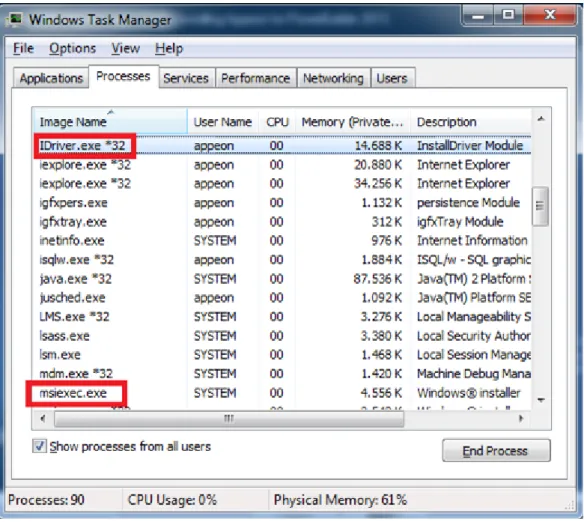
Solution B-2: End the process of msiexec.exe and IDriver.exe and then run the Appeon
Figure 1.1: Processes
For more causes and solutions, please refer to http://consumer.installshield.com.
1.1.2 Error 1155
During Setup, the error 1155 occurs, "1155: File ...\Appeon\appeon5.0 not found".
Cause: This error occurs because Appeon Setup failed to detect the ISScript8.msi file that is
used to install the InstallScript engine.
Solution: Find the ISScript8.msi file in the directory \Install\AppeonComponent\ (for
example, \Install\ADT\) and double-click it to run the InstallScript engine installer.
1.1.3 DLL function call crashd error when launching an Appeon setup program Cause: This error is not caused by an Appeon installation program. It is often system-related. Solution: Please go to the following Website and search for the error message. Detailed
information and solutions are provided: http://consumer.installshield.com/default.asp.
1.2 Install Appeon Server to .NET IIS
1.2.1 IIS configuration
The IIS configuration may affect Appeon Server. Verify the IIS settings according to the IIS version that Appeon Server is installed.
1.2.1.1 IIS 7.0 or 7.5
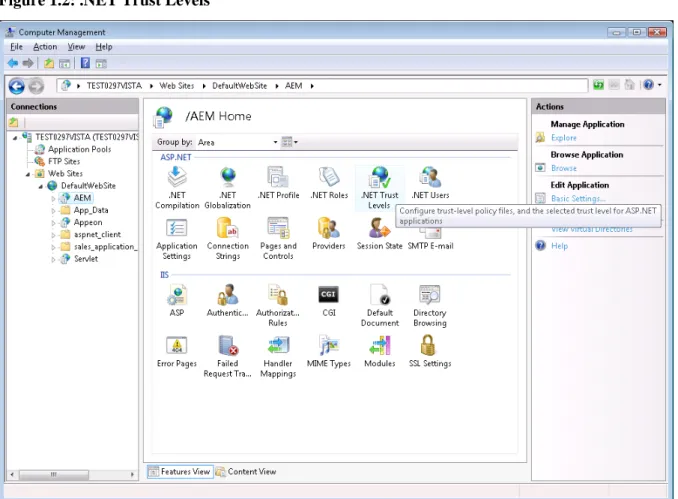
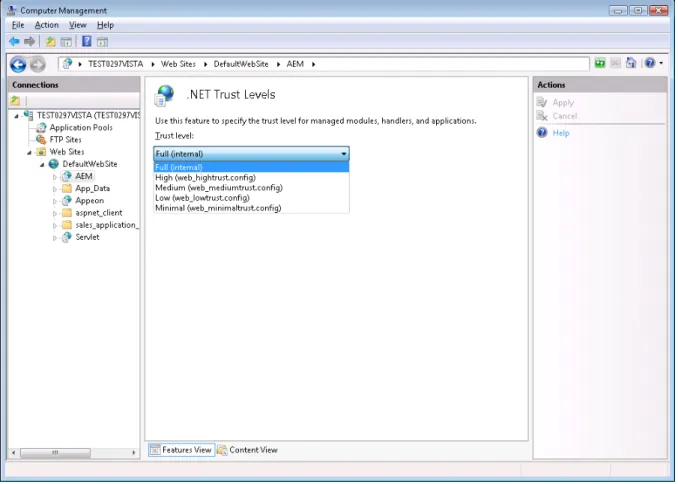
If Appeon Server is running on IIS 7.0 or 7.5, verify the .NET Trust Levels is set to Full (internal) for AEM, Appeon, and Servlet views respectively in IIS Manager. Following is an example of how to verify the .NET Trust Levels for AEM view, you can follow the similar steps to verify for Appeon view and Servlet view.
Step 1: Open IIS Manager, click Web Sites > DefaultWebSite > AEM, and double click
.NET Trust Levels.
Figure 1.2: .NET Trust Levels
Figure 1.3: Full (internal)
1.2.1.2 IIS 6.0
If Appeon Server is running on IIS 6.0, verify the following IIS settings after the Appeon Server installation:
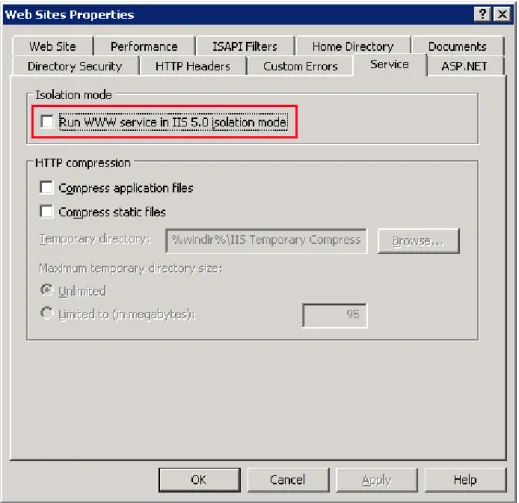
Step 1: Verify that the running mode of IIS is Worker Process Isolation Mode. • Open IIS Manager, right click Web Sites and select Properties.
• In the Web Sites Properties window, select the Service tab, and make sure the "Run WWW service in IIS 5.0 isolation mode" option is not selected.
Figure 1.4: Service
Figure 1.5: Web Service Extensions
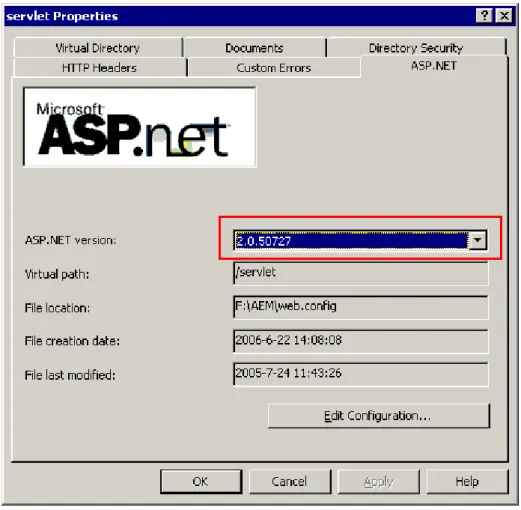
Step 3: Verify that the ASP.NET version of the AEM, Servlet, and Appeon virtual directories is 4.0.
The Appeon virtual directory is automatically configured during the Appeon Server installation.
Follow instructions below to check the ASP.NET version of the Servlet virtual directory. The steps to check the AEM virtual directory are similar.
• Right click Servlet under the Web site and select Properties.
• In the servlet Properties window, select the ASP.NET tab and check the ASP.NET version setting.
Figure 1.6: ASP.NET
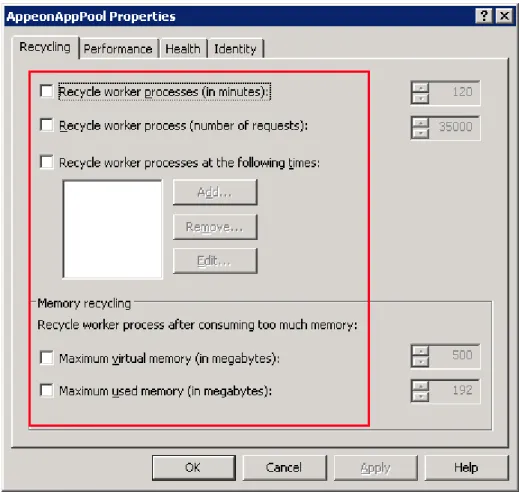
Step 4: Verify the application pool settings of AppeonAppPool for Appeon Server. By default, AppeonAppPool is automatically configured during the Appeon Server installation. It is not recommended to change the default settings.
During the runtime of an application, information such as user sessions and database
transaction will be stored in the memory. If Appeon Server is restarted, the information will be lost, which results in the failure of the application. Besides that, in order to guarantee the completeness of the information, Appeon Server cannot be run in multiple processes. Follow steps below to configure the application pool for Appeon Server:
• Right click AppeonAppPool and select Properties.
• In the AppeonAppPool Properties window, make sure the following settings are not selected in the Recycling tab.
Figure 1.7: Recycling
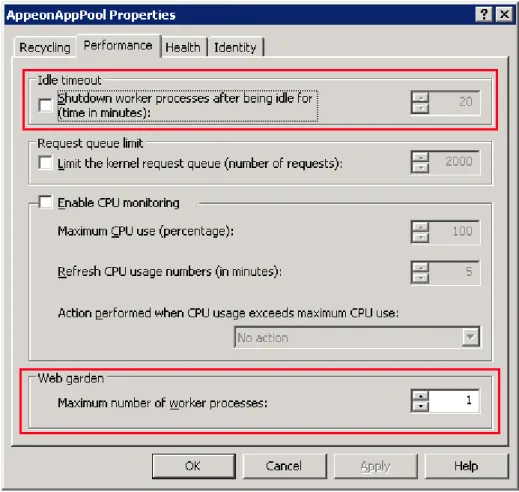
• Select the Performance tab. Verify that the Idle timeout setting is not selected, and the Web garden value is set to 1.
Figure 1.8: Performance
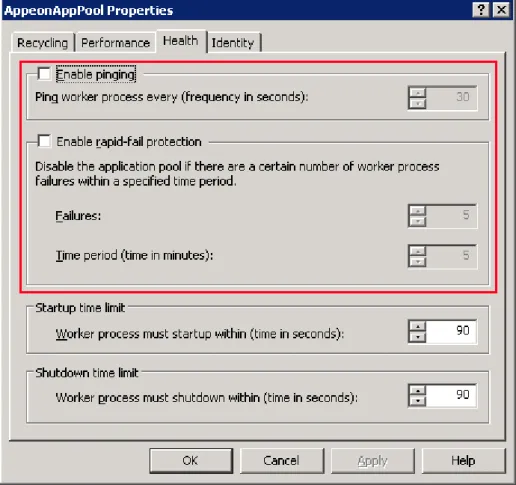
• Select the Health tab. Verify that the Enable pinging and Enable rapid-fail protection settings are not selected.
Figure 1.9: Health
Step 5: Verify the Web site properties.
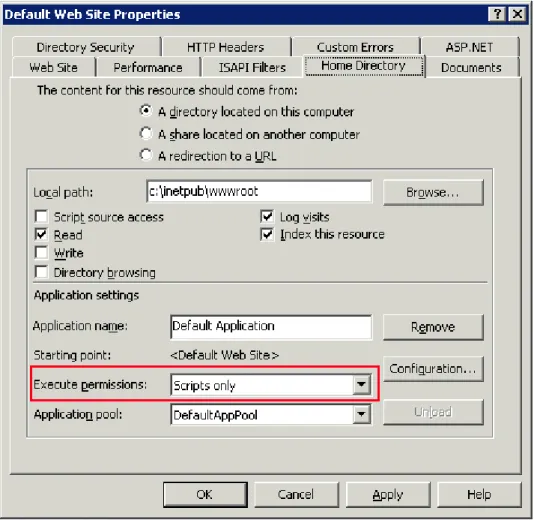
• Right click the Web site where Appeon Server is installed, and select Properties. • In the Web site properties window, select the Home Directory tab. Verify that the
Figure 1.10: Home directory
1.2.2 Full access rights to IIS Web root
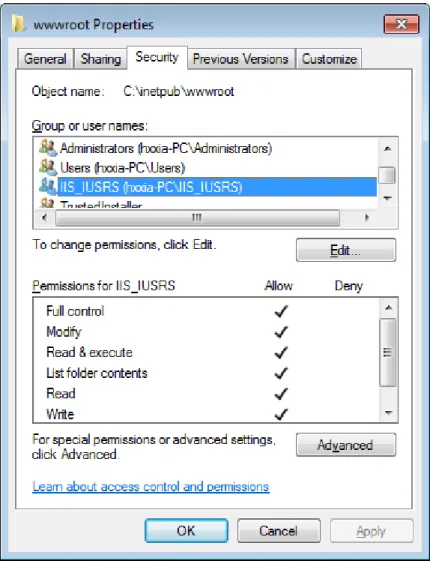
Follow steps below to check if IIS_IUSRS account is granted with full controls to the IIS Web root folder:
Step 1: Right click C:\Inetpub\wwwroot and select Properties from the popup menu. Step 2: On the Security tab, select IIS_IUSRS in the Group or user names list box, and then check if Allow is selected for Full control in the Permissions for IIS_IUSRS list box. If not, click the Edit button and follow Step 3 to grant full control.
Figure 1.11: Security
Step 3: Select IIS_IUSRS in the Group or user names list box, and then select the Allow check box for Full control. Click OK to save the settings.
Figure 1.12: Grant full control
1.2.3 Enable 32-bit .NET framework on 64-bit Windows
If you have installed a 32-bit Appeon Server on a 64-bit Windows operating system, and Appeon Server is not working properly, it is probably the 32-bit .NET framework is not configured successfully by the Appeon Server setup program. You may need to manually do the following configuration to enable it.
1.2.3.1 IIS 7.0 or 7.5
Step 1: Launch IIS Manager, expand the local computer, click Application Pools in the left pane, right-click Application Pools in the right pane, and then click Advanced Settings....
Figure 1.13: Application pools
Step 2: In the Advanced Settings window, set the Enable 32-Bit Applications to True. Click OK.
Figure 1.14: Advanced settings
1.2.3.2 IIS 6.0
Step 1: In the command prompt, go to the installation path of the .NET Framework where Appeon Server installs, for example C:\WINDOWS\Microsoft.NET\Framework\v4.0.30319. Step 2: Execute the following command. The 32-bit Application pool is successfully enabled if the Enable32BitAppOnWin64 is shown as True.
cscript.exe C:/inetpub/AdminScripts/adsutil.vbs set W3SVC/AppPools/Enable32BitAppOnWin64 "true"
Figure 1.15: Execute the command
Step 3: Type the following command to install the version of ASP.NET and to install the script maps at the IIS root and under:
%SYSTEMROOT%\Microsoft.NET\Framework\v4.0.30319\aspnet_regiis.exe -i
Step 4: Make sure the status of ASP.NET version v4.0.30319 (32-bit) is set to Allowed in the Web service extension list in IIS Manager. For details, refer to IIS 6.0 configuration.
1.3 Install Appeon Server to EAServer
1.3.1 EAServer cannot be started after Appeon Server install
Cause: There are two sets of EAServer 6.1/6.2 installed; one EAServer was installed
independently in the normal installation path, and the other was silently installed with Appeon Server installation.
Solution: It is recommended that you use the EAServer that was silently installed with
Appeon Server.
Step 1: Open the setenv.bat file in the bin folder under the EAServer installation directory in a text editor and make sure JAGUAR_HOST_NAME in the file is the same as the computer name.
Step 2: Verify that EAServer is not started as a Service. If it is started as a service, stop it and change the starting mode to "Manual".
Step 3: If EAServer runs on Windows, start EAServer from Windows Start > Programs >
Appeon for PowerBuilder 2015 > Appeon Server > InstanceName. If EAServer runs on
1.4 Install Appeon Workspace
1.4.1 "Cannot install application because the certificate for *** is not valid" when installing Appeon Workspace on iOS 7.1 device
On a device running on iOS 7.1, the following error occurs when downloading Appeon Workspace from the Appeon Workspace download center or the AEM login page.
Figure 1.16: Install error
Cause:
With the launch of iOS 7.1, Apple requires the enterprise apps manifest file (.plist) to be served over HTTPS. Attempts to install through HTTP cause the above message.
Analysis:
Actually only the .plist file needs to be served by HTTPS, the .ipa file does not. Therefore, you do not need to modify the .plist file, but only need to modify the OTA link to point to the HTTPS link of the .plist file, for example, itms-services://?action=download-manifest&url=https://app.xxx.com/AWS/6.8.0110.00.plist.
In downloadaws_template.html, the OTA link actually displays as 'itms-services://? action=download-manifest&url=' + ios_mobile_url, where you need to modify the value of "ios_mobile_url" to like this: https://app.xxx.com/AWS/6.8.0110.00.plist. With this change, iOS 7.1 will allow you to download and install Appeon Workspace. In fact, iOS 7.1, iOS 7 and iOS 6.x all support the OTA link over HTTPS, which means if you make this change, it will work for all iOS devices.
Solution A:
This new requirement for HTTPS on the Web server is introduced by Apple iOS 7.1 and it cannot be worked around by Appeon Mobile. The solution is either to configure the Web server to support HTTPS, or use a public HTTPS-enabled Web server like DropBox to work around this requirement.
Step 1: Configure to allow the .plist file to be accessed by HTTPS. There are two ways to do this:
• Install the SSL certificate on the Web site, and then add an HTTPS port to the Web site that hosts Appeon Workspace.
The HTTPS URL of .plist will change to https://app.xxx.com/AWS/6.8.0110.00.plist. Note: The default HTTPS port is 443. Therefore, the following two URLs work the same: https://app.xxx.com/AWS/6.8.0110.00.plist
It is also important to aware that you cannot use a self-signed certificate to bindings HTTPS port unless the device trusts the CA it came from. You either need to use a "real" SSL certificate or you need to import and trust the certificate on any devices that will install the app.
Figure 1.17: Configure HTTPS port
• If you do not want to apply for an SSL certificate in the Web site, you can work around this by taking advantage of DropBox to host the .plist file. Detail steps are below. 1. Upload your .plist file to DropBox. Suppose the file name is 6.8.0110.00.plist. 2. Get shared link of your .plist file, such as https://www.dropbox.com/
s/0oef1fmmjsuj5hf/6.8.0110.00.plist.
3. Replace www.dropbox.com with dl.dropboxusercontent.com in the shared link. So the HTTPS URL of your .plist file will be https://dl.dropboxusercontent.com/ s/0oef1fmmjsuj5hf/6.8.0110.00.plist.
Step 2: Back up the downloadaws_template.html file under the aws folder (C:\inetpub \wwwroot\appeon\aws), and then change the value of "ios_mobile_url" in this file to point to the HTTPS URL of the .plist file. For example,
var ios_mobile_url = web_server + '/' + filename + '.plist'; To this (when .plist is on your own Web server):
var ios_mobile_url = 'https://app.xxx.com/AWS/6.8.0110.00.plist'; Or to this (when .plist is on DropBox):
var ios_mobile_url = 'https://dl.dropboxusercontent.com/ s/0oef1fmmjsuj5hf/6.8.0110.00.plist';
Step 3: Access AEM using IP address or host name in the IE browser such as http://
demo.appeon.com/AEM. Do not use localhost such as http://localhost/AEM. Once the AEM login page is opened, Appeon Server will automatically update the downloadaws.html file in the aws folder.
Now any iOS-based device can successfully download and install Appeon Workspace via this HTTPS URL.
Note: If you are currently using the version 2013 R2 build 0110.00, then you will need to
be aware that the above changes will resolve the download button in the Appeon Workspace download center, but will not resolve the download link in the AEM login page, which means, if you download Appeon Workspace from the Appeon Workspace download center, this problem is resolved, however if you download Appeon Workspace from the AEM login page (as shown below), this problem still persists.
Figure 1.18: AEM login page (in 2013 R2 build 0110.00)
Solution B:
If you do not want to configure the SSL certificate on your Web server or use DropBox to work around the requirement, you can download the .ipa file to the PC through IE browser (for example, you can download the .ipa file from the Appeon Workspace download center (e.g. http://hostname/aws/), and then synchronize it from the PC to the iOS device using iTunes.
1.5 Install Appeon File Server
1.5.1 Appeon File Server Installation Incomplete
Cause: The Appeon File Server installer was interrupted before Appeon File Server could be
installed, as shown in the following figure.
Figure 1.19: Installation incomplete
Solution A: Restart the installer and try again.
Solution B: Configure IIS 6 Management Compatibility.
Go to Control Panel > Administrator Tools > Server Manager > Roles > Web Server. Expand the Role Service node in the right pane, and then select IIS 6 Management
Compatibility.
Note: Solution B is based on Windows 2008 R2 Standard operation system in this
troubleshooting guide. Path may differ from different versions of operation system.
1.6 Install Appeon Server Web Component
1.6.1 Third-party Web Server problems with the SAP Sybase redirector plug-in
If you use a third-party Web server such as Apache or IIS, you may find that the SAP Sybase redirector plug-in does not work for the Web server.
Cause: It is very likely that a step has been omitted during the configuration of the
third-party Web server or the plug-in.
Solution: Follow the troubleshooting instructions provided by SAP Sybase at http://
www.sybase.com/detail?id=1024955 or refer to the EAServer System Administration Guide.
1.7 Upgrade Installation
1.7.1 "Bad interpreter: No such file or directory" error
When you execute install.sh or upgrade.sh on a Unix/Linux system, the error "Bad interpreter: No such file or directory" comes up.
Cause A: The installation package is uploaded to the Unix/Linux system in the non-binary
transfer type.
Solution A: Select to transfer the installation package to the Unix/Linux machine in Binary
Cause B: The SH file was edited and saved on a Windows machine.
Solution B: Execute the command dos2unix install.sh/upgrade.sh on the Unix/Linux system,
which can convert the file type so as to make it work on the Unix/Linux system.
1.7.2 Error 14004 "The license file is missing"
Error 14004 saying "The license file is missing" occurs when upgrading the Appeon Server.
Cause: This issue only exists in Appeon 6.5.1 for .NET or earlier versions. When there are
server instances installed before, the server instances will not be upgraded during the upgrade process.
Solution: Use the Appeon Server Instance Configuration Wizard to delete all installed
instances from the Appeon Server and then re-install these instances. See Installation Guide for .NET for detailed instructions.
1.8 Frequently Asked Questions
1.8.1 How to install Appeon Server to multiple EAServer instances?
During the Appeon Server installation, you can only install Appeon Server to one EAServer instance. However, after the installation, you can manually install Appeon Server to other instances using EAServer Manager:
1. Under EAServer Manager, select Servers > server instance (for example, "server2") >
Installed Applications, right click it and select Install Application from the popup menu.
The Application Wizard launches. 2. Click Install an Existing Application.
3. On the Install Applications dialog, select "AppeonServer" and click OK.
1.8.2 How to bind server instance to CPU?
Appeon Server installation program will not bind the instance to CPU. You must manually bind it with the following steps:
Open Windows Task Manager, select the Processes tab, select the server process, such as jagsrv.exe, right click it and select Set Affinity from the popup menu to bind the process to one or more CPU.
Or you can use the Appeon Server Status Monitor to automatically bind the server instance to CPU using the "com.appeon.server.monitor.instance.cpus" setting. For detailed instructions, refer to the Section 3.2, “Configuring Status Monitor” in Appeon Server Configuration Guide
for J2EE.
1.8.3 How to create EAServer instances?
For detailed instructions, refer to the EAServer document at http://infocenter.sybase.com/ help/index.jsp. Select EAServer 5.3 > System Administration Guide > Creating and
Configuring Servers.
1. Under EAServer Manager, select Servers, right click it and select New Server from the popup menu. The New Server dialog opens.
2. Input the server name, for example, server2, and click Create New Server. Click OK to close the Server Properties window.
3. Create HTTP and IIOP listener for the new instance: Select Servers > server instance (for example, "server2") > Listener, right click it and select New Listener. Input the listener name, and click Create New Listener. Specify the protocol, port and host for the new listener.
1.8.4 How to start the server instance?
Use the following command: serverstart.bat -jdk14 -jvmtype server -servername
For detailed instructions, refer to the EAServer document at http://infocenter.sybase.com/ help/index.jsp. Select EAServer 5.3 > System Administration Guide > Creating and
Configuring Servers > Starting the server.
1.8.5 How much better is the performance when multiple instances are used?
Multi-instance scenario supports concurrent users by multiple times when the number of servers is the same and provides much better performance when the number of concurrent users is the same. Our tests on a customer project with 100 concurrent users show that the average response time for two instances binding to two CPUs is eight times faster than that for single instance binding to single CPU.
1.9 Need more help?
If you could not find a solution for your problem, it could be because it is a new problem or an intricate problem that happens only under specific circumstance or environment. In both cases, it is highly recommended that you follow steps below to generate and send the log file to us for investigation.
Step 1: Go to the Appeon folder in the installation package, open the Product.ini file in the text editor, find the RecordDllLog parameter in this file and set the value to 1 (this will enable the logging functionality), by default the value is 0 (which disables logging).
For example: [DllLog] RecordDllLog=1
Step 2: Run the installation package and reproduce the installation error.
Step 3: Go to …\System32\AppeonInstallLog (or …\SystemWOW64\AppeonInstallLog\ in 64-bit machine) and find the log files there.
Each Appeon component will have a separate log file, for example, AppeonADT2014.txt for Appeon Developer, AppeonDNS2014.txt for Appeon Server.
2 Troubleshooting Appeon Developer
This section deals with troubleshooting issues in Appeon Developer. If you cannot resolve your problem with this troubleshooting guide, contact technical support. For technical support information, visit http://www.appeon.com/support.
2.1 Operating Appeon Developer toolbar
2.1.1 Appeon Developer toolbar does not respond when run by a non-administrator
When UAC is on, if you run PowerBuilder under a non-administrator login account the first time after you install Appeon Developer or register the Appeon Developer toolbar (by using the ADT Register tool), the Appeon Developer toolbar does not respond when you click it in PowerBuilder. And when you exit PowerBuilder, you will be prompted with the following dialog box, and then when you open PowerBuilder again, the Appeon Developer toolbar works normally.
Figure 2.1: Program Compatibility Assistant
Solution A: Run PowerBuilder in the "Run as administrator" mode. After the first time, you
can run PowerBuilder in the normal mode.
Solution B: Choose Windows Start > All Programs > Appeon for PowerBuilder 2015 > Appeon Developer > Appeon Toolset.
Solution C: Exit PowerBuilder and run it again. The Appeon Developer toolbar works
normally except for the first time. Note that this solution does not work on Windows 8.
2.1.2 "ADT is already running" error
If you immediately click an Appeon Developer toolbar icon after canceling the processing of the deployment wizard, an "ADT is already running" error message pops up.
Cause: The Appeon Developer execution program EonADT50.exe is not promptly killed
when the Cancel button is clicked.
Solution: Wait a minute, and then click the toolbar icon.
2.1.3 Exiting Appeon Developer completely after an error
When an error occurs during an operation in Appeon Developer, you may want to exit Appeon Developer completely before restarting the operation.
Solution: Kill all of the following execution files in the task manager: EonADT61.exe,
EonCIS60.exe, EonADeploy60.exe, EonDWSQL80J.exe (or EonDWSQL90J.exe, or
EonDWSQL100J.exe, orEonDWSQL110J.exe), EonDWSQL80.exe (or EonDWSQL90.exe, or EonDWSQL100.exe, or EonDWSQL110.exe), EonPerReport60.exe, Eoninfomng60.exe, EonJsLog60.exe, screnc.exe and EonUFATool60.exe.
2.2 Appeon Developer Configuration
2.2.1 Testing connection fails during DB Type Profile configuration
In Appeon Developer Configuration, when creating or modifying a DB Type profile after specifying an Oracle database as the data source for the DB Type profile, testing the connection will fail for the profile. However, the data source can be successfully connected in the ODBC Data Source Administrator.
Cause: The ODBC driver used for the data source is not a dedicated driver for connecting to
an Oracle database.
Solution: Use either of these drivers for connecting to an Oracle database: Oracle in
OraHome920 or Microsoft ODBC for Oracle.
2.2.2 "Error launching LoadConfig"
The "Error launching LoadConfig" message is displayed when the user changes the settings in Appeon Developer Configuration or performs Task 2 of Appeon Deployment Wizard.
Cause & Solution: Refer to "Error launching LoadConfig".
2.3 Feature Analysis
2.3.1 "The XML page cannot be displayed" when opening a UFA report
When a UFA report is opened in Internet Explorer, the page displays an error message "the XML page cannot be displayed". The page also gives the following description in bold "Microsoft JScript runtime error Automation server cannot create object".
Cause A: The Internet Explorer used to open the UFA report is version 5.5 or earlier.
Solution A: Upgrade to the Appeon-certified Internet Explorer version: Internet Explorer 8.0
or above.
Cause B: The version of Internet Explorer is 6.0 SP2, which by default does not allow active
Solution B: Go to Internet Options > Security in Internet Explorer, make sure the option
"Allow active content to run in files on My Computer" is enabled.
2.3.2 "Error loading ADTObjectList.xml"
After Feature Analysis starts, it hangs and the following error message is displayed in the analysis status window: "Error loading ADTObjectList.xml". However, upon
verification, the ADTObjectList.xml file exists in the folder: \Appeon\Developer2015\Project \ApplicationName (indicating the application profile name)\Debug (or Release).
Solution: Delete the entire folder. Run the Feature Analysis again. 2.3.3 "Error loading command string"
While running Features Analysis, or Appeon Deployment, an error message box pops up and displays "Error loading command string".
Cause: This error typically occurs when the DataWindow syntax is not in the expected
PowerBuilder 9 or later format.
• The application has not been built or upgraded with PowerBuilder 9 or later.
• When the application is upgraded with a higher PowerBuilder version, some "old" syntax may still be included. This is because PowerBuilder provides backwards compatibility, but Appeon may not support the "old" syntax.
Solution A: Follow the steps below to fix the problem.
Step 1: Verify that no unsupported identifiers are used in the application.
Step 2: Remove or modify the problematic object(s) that contains "old" syntax from the PowerBuilder application by following the instructions in How to locate problematic objects in an application.
Step 3: Terminate Appeon Developer. Terminate the EonADT62.exe process if they are still running in the Windows Task Manager.
Step 4: Run Feature Analysis/Appeon Deployment again.
Solution B: Try the following steps if the problem is not resolved using Solution A.
Step 1: Delete the application profile in Appeon Developer Configuration.
Step 2: Delete the entire application folder under the Appeon Developer installation directory: \Appeon\Developer2015\Project\ApplicationName (indicating the application profile name).
Step 3: Terminate the EonADT62.exe processes if they are still running in Windows Task Manager.
Step 4: Recreate the application profile in Appeon Developer Configuration.
Step 5: Perform the desired Appeon function (Feature Analysis/Appeon Deployment) on the application profile again.
Solution C: If the problem is not resolved with Solution B, try the following steps.
Step 1: Uninstall Appeon Developer from Windows Control Panel > Add/Remove programs, or run the Uninstall program.
Step 2: Delete the entire Appeon Developer folder where Appeon Developer is installed, for example, C:\Program Files\Appeon\Developer2015.
Step 3: Reinstall Appeon Developer and reconfigure Appeon Developer's settings in Appeon Developer Configuration, such as the application profiles, server profiles and deployment profiles.
Step 4: Set the transaction object mapping to the correct data sources for the application in
AEM > Application > Transactions > Transaction Objects.
Step 5: Verify that Appeon Server (EAServer extended with Appeon Server components) is running and accepting connections.
Step 6: Perform the desired Appeon function (Feature Analysis/ Appeon Deployment) on the application profile again.
2.3.4 Feature analysis or deployment comes to a standstill
During Unsupported Feature Analysis or Task 2 of the Appeon Deployment Wizard, the user can see the "Start searching for related objects..." message normally displayed in the status window. However, the program does not proceed. The EonADT50.exe process is still running in the Windows Task Manager.
Cause: One or more of the Appeon Developer configuration files may have become corrupt. Solution: Follow the steps below to fix the problem.
Step 1: End the EonADT50.exe process using Windows Task Manager.
Step 2: Delete all Appeon-generated application files on both the Appeon Developer machine and the Web Server.
• On the Appeon Developer machine, delete all files in the directory: \Appeon \Developer2015\Project\ApplicationName.
• On the Web Server, delete all files in the application's deployment path (specified in Appeon Developer Configuration > Application Profiles > ApplicationName >
Application Profile Configuration > Basic Settings).
Step 3: Configure the Transaction Objects for the application in AEM Console >
Application > Transactions > Transaction Objects.
Step 4: Run Feature Analysis or Appeon Deployment again.
2.3.5 "This application has requested the Runtime to terminate it in an unusual way" error, when you deploy or analyze an application
When deploying or analyzing an application, you will receive a system runtime error message "this application has requested the Runtime to terminate it in an unusual way".
Cause: This is often caused by limited hard drive space.
Solution: Clean up the hard drive space to successfully run Appeon.
2.3.6 "Error opening DLL Library adtxml.dll for external function"
The application analysis stops and an error occurs. The error message displayed is "Error opening DLL Library adtxml.dll for external function"
Cause: Selecting the native interface option when you configure the DB type profile in
Appeon Application configuration window.
Solution: To solve the problem, reinstall the Appeon Developer.
2.4 Appeon Debugger
Solutions for the following Appeon Debugger problems: • "Script Debugger Component Not Found" error
• "Component Not Registered" error
• "Script Debugger Disabled" error
2.4.1 "Script Debugger Component Not Found" error
When clicking the Appeon Debugger button on the Appeon Developer toolbar, the "Script Debugger Component Not Found" error occurs.
Cause: Appeon Debugger requires Microsoft script debugger to be installed, but no
Microsoft script debugger is installed on the computer.
Solution: Verify that script debugger is installed. If you do not have any script debugger
installed, choose an appropriate one at Microsoft Website.
2.4.2 "Component Not Registered" error
When clicking the Appeon Debugger button on the Appeon Developer toolbar, the "Component Not Registered" error occurs.
Cause: Appeon Debugger needs to use Microsoft script debugger. However, although
Microsoft script debugger has been installed, the required components are not registered.
Solution: Reinstall the Microsoft script debugger. 2.4.3 "Script Debugger Disabled" error
When clicking the Appeon Debugger button on the Appeon Developer toolbar, the "Script Debugger Disabled" error occurs.
Cause: Appeon Debugger needs to use Microsoft script debugger. However, although
Microsoft script debugger is available to use, script debugging is disabled in Internet Explorer.
Solution: Enable script debugging in Internet Explorer: Go to Internet Options > Advanced
in Internet Explorer, de-select the option under Browsing: "Disable script debugging" in Windows 2000 and 2003.
2.5 Package Tool
2.5.1 "Failed to build the native mobile app" error when creating the Android APK package
When you use the Appeon Package tool to create the Android APK package, the following error occurs during the packaging process: "Failed to build the native mobile app!".
Solution:
Step 1: Make sure the settings (especially the following ones) are correctly specified in the Package tool.
• App Identifier should be specified in the format similar to the domain name e.g.
sales.appeon.com. It can only contain letters, or a combination of letters with dots, and/or numbers without spaces, but cannot start or end with dots and contain numbers between dots.
• Both the Alias and Alias Password settings should match with the keystore file that you specified to use. If you use the default keystore file provided by Appeon, the values of both fields should be appeon.
If the settings are correct, then the JDK under the Appeon developer directory is possibly destroyed, which causes this error.
Step 2: Run the command below in the cmd window to check if the JDK under the Appeon developer directory is working.
cd C:\Program Files\Appeon\Developer2015\Java\Jdk1.6.0_24\bin java
Figure 2.2: JDK Java command
If the execution result is different from what is shown in the figure, the JDK is probably destroyed. In this case, we would recommend you to reinstall Appeon Developer or copy a valid JDK into the Appeon Developer directory such as "C:\Program Files\Appeon \Developer2015\Java\Jdk1.6.0_24". If you choose to copy a JDK to the Appeon Developer directory, please pay attention to the following two notes:
• The directory structure of the JDK to be copied to the Appeon Developer directory should be consistent with that of the JDK to be replaced, otherwise Appeon Developer cannot call JDK properly.
• The version of the JDK to be copied to the Appeon Developer directory cannot be lower than 1.6.0_24. You can execute the command "java –version" under the bin folder of the JDK to check its version information, as shown below.
3 Troubleshooting Web Deployment
This section contains information about general troubleshooting issues related to Appeon Web application deployment. If you cannot resolve the problem with this troubleshooting guide, please contact technical support at http://www.appeon.com/support.
3.1 Deployment Performance
3.1.1 Unusual deployment duration
In some cases, you may find that the deployment of an application takes longer than you expected.
Cause: The application has not been fully built in PowerBuilder before Web deployment. Solution: Perform a "full build" for the application, and then deploy it using the Appeon
Deployment Wizard.
3.2 Failed to deploy applications
You may encounter a deployment failure and an error occurred saying Failed to generate DWSQL in the Log of Deployment Wizard, as shown in the figure below.
Figure 3.1: Failed to deploy applications
Cause: This is probably caused by using an earlier PowerBuilder version. Solution:
Step 1: Upgrade your PowerBuilder to the latest PowerBuilder version. For example, if you are using a PowerBuilder 10.5, then upgrade it to the latest PowerBuilder 10.5 version. Step 2: Test to ensure that the Database Connection in Appeon Developer Configuration > DB Type Profiles is successful.
Step 3: (Recommended) Full build your PowerBuilder application.
Step 4: Go to \%Developer%\Project\your_application\release or debug\dwsql\dwsql.log to get the last record, empty compiled this DataWindow in PowerBuilder (Add a character and delete this character in the edit source of PB).
3.3 Failed to deploy applications in server console
When deploying an application (such as the Appeon Web application or Appeon file service) in the server console (such as WebLogic, WebSphere, JEUS etc.), sometimes you receive an error message, similar to the message below thrown by WebSphere 7 console:
Messages
The EAR file could be corrupt and/or incomplete. Make sure that the application is at a compatible Java(TM)
Platform, Enterprise Edition (Java EE) level for the current version of WebSphere(R) Application Server. com.ibm.websphere.management.application.client.AppDeploymentException: [Root exception is org.eclipse.jst.j2ee.commonarchivecore.internal.exception.SaveFailureException: application.htm]
Cause: the WAR/EAR/JAR file compressed via one tool cannot be successfully
de-compressed by the other tool during deployment process in the server console.
Solution A: Use Winzip or WinRAR to compress the files again if Winzip or WinRAR is
installed. Detailed steps are below:
Step 1: Go to the Web root path that you specified in Web Server Profile Configuration windows in Appeon Developer Config tool.
Step 2: Find the WAR file of the Web application, for example, appeondemo.war. Step 3: Extract the WAR file to any folder, for example, to C:\appeondemo.
Step 4: Compress all the files in the folder to a WAR file again with the same WAR name (appeondemo.war). Compression tools such as Winzip and WinRAR are recommended, please use the tool and zip the files with default settings. Tools such as 7-Zip are not supported, please do not use the tool.
Step 5: Manually deploy the WAR file in the server console again.
Solution B: Use JDK to compress the files again if JDK is installed. Detailed steps are
below:
Step 1: Go to the Web root path that you specified in Web Server Profile Configuration windows in Appeon Developer Config tool.
Step 2: Find the WAR file of the Web application, for example, appeondemo.war. Step 3: Extract the WAR file to any folder, for example, to C:\appeondemo.
Step 4: Compress all the files in the folder to a WAR file again with the same name (appeondemo.war) by using the following commands:
cd C:\appeondemo
C:\Program Files\Java\jdk1.5.0_15\java.exe jar –cvf appeondemo.war *.* Step 5: Manually deploy the WAR file in the server console again.
Solution C:
If you are deploying the Appeon Web application (not the Appeon file service), then you could also use an Appeon Developer feature to compress files via JDK (prerequisite is that JDK is installed on the Appeon Developer machine):
Step 1: Open the Web Server Profile Configuration window from the Appeon Developer Config tool, in the File Compression Settings for War/Jar group box, select "JDK
Compression" and specify the JDK path. This will enable Appeon Deploy tool to compress files by using JDK on the Appeon Developer machine.
Step 2: Deploy the application via the Appeon Deploy tool. The WAR/EAR/JAR file compressed via JDK on the developer machine should be successfully de-compressed by JDK on the server machine.
3.4 Failed to deploy Web applications in 64-bit JEUS server
A file parsing error occurs in 64-bit JEUS server console when deploying the Appeon6.5-deployed-Web applications.
Cause: The application configuration file web.xml cannot be parsed by JEUS. Solution: Step 1: Go to the Web root path that you specified in Web Server Profile
Configuration windows in Appeon Developer Config tool.
Step 2: Find the WAR file of the Web application, find the folder "WEB-INF" and extract web.xml.
Step 3: Modify the following line in web.xml:
<web-app version="2.4" xmlns="http://java.sun.com/xml/ns/j2ee"> To
<web-app version="2.5" xmlns="http://java.sun.com/xml/ns/javaee">
Step 4: Use the modified web.xml file to replace the old one under "WEB-INF" folder. Step 5: Manually or automatically deploy the WAR file in JEUS console again.
3.5 Task 1: Application Source Code Export
3.5.1 "Cannot connect to DSN" error when using PB 10.5 with ASA 10/11/12
For users who installed ASA 10, 11, or 12, and installed Appeon Developer to PB 10.5 (by selecting PB 10.5 or selecting multiple PB versions but the highest version is PB 10.5 when installing Appeon Developer), the following errors would occur when deploying the Appeon demo application (as shown in the figure):
00901: Cannot connect to DSN. The database server is AppeonSample. Failed to generate DWSQL.
Note: These errors would not occur if Appeon Developer is installed to versions higher than PB 10.5, for example, if the user selected PB 10.5 as well as the other PB versions which are higher than PB 10.5 (such as PB 11.5 or PB 12.5) when installing Appeon Developer.
Figure 3.2: Deployment error
And when the user tests the connection with AppeonSample in the ODBC Data Source
Administrator -> System DSN, the following error occurs. Figure 3.4: Connection error
Cause: This issue is caused by the incompatible versions between the AppeonSample.db file
and the ASA database engine.
Solution: Replace the AppeonSample.db file with the file downloaded from the attachment
of this article in the Appeon support portal: http://support.appeon.com/index.php?/ Knowledgebase/Article/View/72/7/failed-to-connect-the-appeonsampledb-when-using-pb-105-with-asa-101112.
Note: you can find the location of the AppeonSample.db file from ODBC Data Source
Administrator.
3.5.2 Source Code Export process aborts with a fatal error
Task 1 (Application Source Code Export) is aborted with a fatal error "The memory cannot be "read"", or "Failure in exporting XML file".
Cause: The fatal error occurs when the PowerBuilder source code contains corrupt
object(s) that cannot be opened in PowerBuilder, or object(s) that are not fully upgraded to PowerBuilder 9 or later format.
Solution: Remove or modify the problematic object(s) from the PowerBuilder application
by following the instructions in How to locate problematic objects in an application, and perform the Application Source Code Export again.
3.5.3 How to locate problematic objects in an application
When trying to locate problematic objects in an application, the key is to find which PBL contains the problematic object(s), and then check the objects in the PBL.
Step 1: In Appeon Developer application profile settings, specify the PBL that contains the Application object in the application PBL list, and then perform Application Source Code Export.
Note: Only one PBL is specified in the PBL list in this step.
If Source Code Export produces a fatal error, it means that the PBL specified contains problematic object(s). Go to Step 3 for checking the objects in the PBL.
If the Source Code Export is successful, go to Step 2.
Step 2: In the Appeon Developer application profile settings, add one PBL to the PBL list, and perform Application Source Code Export.
If the Source Code Export produces a fatal error, it means that the PBL that was newly added contains problematic object(s). Go to Step 3 for checking the objects in the PBL.
If the Source Code Export is successful, repeat Step 2 until the PBL that contains problematic object(s) is found.
Step 3: (Supposing the PBL that contains problematic object(s) is PBL A) In the PowerBuilder application, back up PBL A. The backup PBL is PBL B.
Step 4: Remove all the objects from PBL A.
Step 5: Add one of the objects in PBL B to PBL A. Perform the Application Source Code Export.
If the Source Code Export produces a fatal error, it means that the object that was newly added is problematic.
If the Source Code Export is successful, repeat Step 5 till the problematic object is found.
3.5.4 "Error: Failure in exporting XML file"
Task 1 (Application Source Code Export) is aborted when the error “Failure in exporting XML file" occurs.
Figure 3.5: Failure in exporting XML files
Cause A: This error will occur when no database profiles for this application has been
configured in Appeon Developer Configuration > Application Profiles > ApplicationName > Application Profile Configuration >DB Type.
Solution A: Follow the instructions in Appeon Developer User Guide to configure the
database type profiles and perform “Full Deployment" on the application with the Appeon Deployment Wizard.
Cause B & Solution B: Refer to Source Code Export process aborts with a fatal error.
3.5.5 Warning 61537
During Task 1 (Application Source Code Export), a warning message is displayed in the status box, "61537: Unable to get object [object name]'s PB source code...".
Check whether this object exists in the PBL of the PowerBuilder application. If the object does not exist, refer to Cause A and Solution A; if the object exists, refer to Solution B.
Cause A: This issue may occur if the object and any references to the object are not removed
completely in the PowerBuilder application. When Appeon Developer searches the object list, some references can still be found.
Solution A: Follow the steps below to fix the problem.
Step 1: Create an object with the same object name in the PBL where the object was removed.
Step 2 : Incrementally build the application. Step 3: Delete the created object.
Step 4 : Try Appeon Deployment again.
Solution B: If for any other reason the issue still occurs, try the steps below.
Step 1: Export and import the object in PowerBuilder. Step 2: Full build the application.
Step 3: Try Appeon Deployment again.
3.6 Task 2: Application File Generation
3.6.1 Failure in Incremental Deployment
After the user upgrades PowerBuilder to a different build, errors may occur during an incremental deployment process.
Cause & Solution: Refer to Upgrading to a different Build of PowerBuilder.
3.6.2 "Error launching LoadConfig"
The "Error launching LoadConfig" message is displayed when the user changes the settings in Appeon Developer Configuration or performs Task 2 of the Deploy Wizard.
Cause: There is one of two possibilities that can occur.
1. The EonADT50.exe cannot be loaded. This can happen when the developer machine does not meet the minimum hardware requirements specified in Installation Guide for .NET. 2. The EonADT50.exe is loaded but fails to read the .DAT files.