9
9
9
9.0
.0
.0
.0 T
T
T
TRAINING
RAINING
RAINING
RAINING
View & Print
Degree Progress and
PAWS V PAWS V PAWS V
PAWS V9999.0.0.0.0 TrainingTrainingTraining Training View & Print Degree Progress and Academic Advisement ReportsView & Print Degree Progress and Academic Advisement ReportsView & Print Degree Progress and Academic Advisement ReportsView & Print Degree Progress and Academic Advisement Reports
Table of Contents
Overview ... 3
Notes ... 4
Setting-Up User Defaults ... 5
Requesting a Single Degree Progress Report ... 7
Requesting Multiple Degree Progress Reports ... 10
Requesting a Quick What-If Degree Progress Report ... 14
Printing a Degree Progress Report... 19
Requesting an Academic Advisement Report……….21
Printing an Academic Advisement Report………23
PAWS V PAWS V PAWS V
PAWS V9999.0.0.0.0 TrainingTrainingTraining Training View & Print Degree Progress and Academic Advisement ReportsView & Print Degree Progress and Academic Advisement ReportsView & Print Degree Progress and Academic Advisement ReportsView & Print Degree Progress and Academic Advisement Reports
OVERVIEW
Academic Advisement in PAWS
Academic Advisement is part of the PAWS system for students and staff. It is designed
to create a report for all undergraduate degree-seeking students indicating the status of
their primary degree requirements. This report is directly accessible to all
degree-seeking undergraduate students and many staff on PAWS.
Degree Progress Report (DPR) vs. Academic Advisement Report (AAR)
There are two different types of reports that are generated through Academic
Advisement. The differences between the two reports are in presentation and
functionality only; the requirements and student data on the two reports are the same.
1. Degree Progress Report (DPR) is a transcript-based report that is primarily
designed for administrative usage. The Degree Progress Report is available to
advisors/staff on PAWS. Students and faculty advisors do not have access to the
Degree Progress Report on PAWS.
2. Academic Advisement Report (AAR) is an interactive report that is primarily
designed for student usage. The Academic Advisement Report is available on
PAWS for students, advisors/staff, and faculty advisors.
Course Materials Overview
In this manual you will learn how to do the following:
•
Set-up user defaults for running a Degree Progress Report (DPR) and an
Academic Advisement Report (AAR)
•
Run a single Degree Progress Report (DPR)
•
Run Multiple Degree Progress Reports (DPR)
•
Run a Quick What-If Degree Progress Report (DPR)
•
Print Degree Progress Reports and Quick What-If Degree Progress Reports
(DPR)
•
Run an Academic Advisement Report (AAR)
•
Print an Academic Advisement Report (AAR)
•
Run a Program What-If Academic Advisement Report (AAR)
•
Run a Course What-If Academic Advisement Report (AAR)
For more information, please visit the Academic Advisement website:
PAWS V PAWS V PAWS V
PAWS V9999.0.0.0.0 TrainingTrainingTraining Training View & Print Degree Progress and Academic Advisement ReportsView & Print Degree Progress and Academic Advisement ReportsView & Print Degree Progress and Academic Advisement ReportsView & Print Degree Progress and Academic Advisement Reports
PAWS V PAWS V PAWS V
PAWS V9999.0.0.0.0 TrainingTrainingTraining Training View & Print Degree Progress and Academic Advisement ReportsView & Print Degree Progress and Academic Advisement ReportsView & Print Degree Progress and Academic Advisement ReportsView & Print Degree Progress and Academic Advisement Reports
SETTING-UP USER DEFAULTS
O
VERVIEW
User defaults are optional, but they will allow you to run a Degree Progress Report and an
Academic Advisement Report more quickly.
Navigation: Home >Set Up SACR >User Defaults
Step 1: Enter the following values on the User Defaults 1 tab
Academic Institution: Enter “UWMIL”
Career Group SetID: Enter “UWMIL”
Facility Group SetID: Enter “UWMIL”
Academic Career: Enter “UGRD”
Step 2: Enter the following values on the User Defaults 2 tab
SetID: Enter “UWMIL”
PAWS V PAWS V PAWS V
PAWS V9999.0.0.0.0 TrainingTrainingTraining Training View & Print Degree Progress and Academic Advisement ReportsView & Print Degree Progress and Academic Advisement ReportsView & Print Degree Progress and Academic Advisement ReportsView & Print Degree Progress and Academic Advisement Reports
Step 3: Enter the following values on the User Defaults 4 tab
Carry ID: Check box (allows IDs to be carried between pages)
Output Destination: Select “Page” from drop-down list
Transcript Type: Enter “UGADV”
Flexible Transcript Type: Leave blank
Advisement Report Type: Enter “UGAAR”
Note: Defaults on other tabs are either not recommended or not associated with viewing or
printing Degree Progress Reports.
Step 4: Click the
button
Note: Setting user defaults does not preclude you from accessing other options while using
PAWS V PAWS V PAWS V
PAWS V9999.0.0.0.0 TrainingTrainingTraining Training View & Print Degree Progress and Academic Advisement ReportsView & Print Degree Progress and Academic Advisement ReportsView & Print Degree Progress and Academic Advisement ReportsView & Print Degree Progress and Academic Advisement Reports
REQUESTING A SINGLE DEGREE PROGRESS REPORT
O
VERVIEW
Follow these steps to run a single Degree Progress Report.
Navigation: Home > Academic Advisement / Student Advisement / Student Advisement Report
PAWS V PAWS V PAWS V
PAWS V9999.0.0.0.0 TrainingTrainingTraining Training View & Print Degree Progress and Academic Advisement ReportsView & Print Degree Progress and Academic Advisement ReportsView & Print Degree Progress and Academic Advisement ReportsView & Print Degree Progress and Academic Advisement Reports
Step 2: Enter the following values on the Request Header tab
Institution: Select “UWMIL” from the drop-down list
Transcript Type: Select “UGADV” from the drop-down list
Output Destination: Select “Page” from the drop-down list
Future Release: Leave as “Immediate Processing”
Request Reason: Leave blank
Report Format: Leave as “Standard Report Format”
Step 3: Go to the Request Detail tab
Step 4: Enter the following values on the Request Detail tab
ID: Enter student’s Empl ID (or search using spyglass)
As of Date: Leave as default (current date) or back-date if necessary
PAWS V PAWS V PAWS V
PAWS V9999.0.0.0.0 TrainingTrainingTraining Training View & Print Degree Progress and Academic Advisement ReportsView & Print Degree Progress and Academic Advisement ReportsView & Print Degree Progress and Academic Advisement ReportsView & Print Degree Progress and Academic Advisement Reports
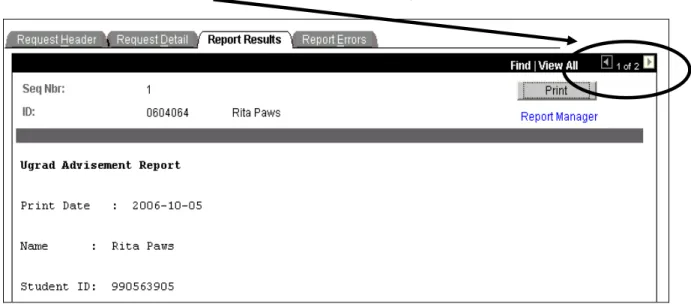
The Degree Progress Report will appear automatically in the “Report Results” tab.
To re-run the same student’s AA report, simply return to the “Request Detail” tab and click
again.
To request an Advisement Report for a different student, click the
button at the bottom
PAWS V PAWS V PAWS V
PAWS V9999.0.0.0.0 TrainingTrainingTraining Training View & Print Degree Progress and Academic Advisement ReportsView & Print Degree Progress and Academic Advisement ReportsView & Print Degree Progress and Academic Advisement ReportsView & Print Degree Progress and Academic Advisement Reports
REQUESTING MULTIPLE DEGREE PROGRESS REPORTS
O
VERVIEW
Follow these steps to run multiple Degree Progress Reports at one time.
Navigation: Home > Academic Advisement / Student Advisement / Student Advisement Report
PAWS V PAWS V PAWS V
PAWS V9999.0.0.0.0 TrainingTrainingTraining Training View & Print Degree Progress and Academic Advisement ReportsView & Print Degree Progress and Academic Advisement ReportsView & Print Degree Progress and Academic Advisement ReportsView & Print Degree Progress and Academic Advisement Reports
Step 2: Enter the following values on the Request Header tab
Institution: Select “UWMIL” from the drop-down list
Transcript Type: Select “UGADV” from the drop-down list
Output Destination: Select “Page” from the drop-down list
Future Release: Leave as “Immediate Processing”
Request Reason: Leave blank
Report Format: Leave as “Standard Report Format”
PAWS V PAWS V PAWS V
PAWS V9999.0.0.0.0 TrainingTrainingTraining Training View & Print Degree Progress and Academic Advisement ReportsView & Print Degree Progress and Academic Advisement ReportsView & Print Degree Progress and Academic Advisement ReportsView & Print Degree Progress and Academic Advisement Reports
Step 4: Enter the following values on the Request Detail tab
ID: Enter student’s Empl ID (or search using spyglass)
As of Date: Leave as default (current date) or back-date if necessary
Step 5: Click on the
button to add subsequent rows. Follow Step 4 outlined above to input
the “ID” and “As of Date” for the new row(s).
PAWS V PAWS V PAWS V
PAWS V9999.0.0.0.0 TrainingTrainingTraining Training View & Print Degree Progress and Academic Advisement ReportsView & Print Degree Progress and Academic Advisement ReportsView & Print Degree Progress and Academic Advisement ReportsView & Print Degree Progress and Academic Advisement Reports
The Degree Progress Reports will appear automatically in the “Report Results” tab.
The reports are separated by rows in the order you entered the requests on the “Request Detail”
PAWS V PAWS V PAWS V
PAWS V9999.0.0.0.0 TrainingTrainingTraining Training View & Print Degree Progress and Academic Advisement ReportsView & Print Degree Progress and Academic Advisement ReportsView & Print Degree Progress and Academic Advisement ReportsView & Print Degree Progress and Academic Advisement Reports
REQUESTING A QUICK WHAT-IF DEGREE PROGRESS REPORT
O
VERVIEW
A Quick What-If Degree Progress Report allows you to place students into a program that is not
their own to see how they meet the program requirements. Only administrative staff are
authorized to run a What-If Degree Progress Report; students do not have this access.
Navigation: Home > Academic Advisement / Student Advisement / Student Advisement Report
PAWS V PAWS V PAWS V
PAWS V9999.0.0.0.0 TrainingTrainingTraining Training View & Print Degree Progress and Academic Advisement ReportsView & Print Degree Progress and Academic Advisement ReportsView & Print Degree Progress and Academic Advisement ReportsView & Print Degree Progress and Academic Advisement Reports
Step 2: Enter the following values on the Request Header tab
Institution: Select “UWMIL” from the drop-down list
Transcript Type: Select “UGADV” from the drop-down list
Output Destination: Select “Page” from the drop-down list
Future Release: Leave as “Immediate Processing”
Request Reason: Leave blank
Report Format: Leave as “Standard Report Format
”
PAWS V PAWS V PAWS V
PAWS V9999.0.0.0.0 TrainingTrainingTraining Training View & Print Degree Progress and Academic Advisement ReportsView & Print Degree Progress and Academic Advisement ReportsView & Print Degree Progress and Academic Advisement ReportsView & Print Degree Progress and Academic Advisement Reports
Step 4: Enter the following values on the Request Detail tab
ID: Enter student’s Empl ID (or search using spyglass)
As of Date: Leave as default (current date) or back-date if necessary
Step 5: Click on the symbol next to “What-If Analysis”
Step 6: Click on the “Quick What-If” link in the box that appears.
Opens the ‘Quick What-If Analysis Report’ page with sections
for Career, Program, Plan, and Sub-Plan Information.
PAWS V PAWS V PAWS V
PAWS V9999.0.0.0.0 TrainingTrainingTraining Training View & Print Degree Progress and Academic Advisement ReportsView & Print Degree Progress and Academic Advisement ReportsView & Print Degree Progress and Academic Advisement ReportsView & Print Degree Progress and Academic Advisement Reports
Step 7: Enter the values below in the Career Information section.
Current Career: Leave blank
What-If Career: Enter ‘UGRD’
Career Requirement Term: Enter appropriate value for requirement term of what-if report
(value will drive requirements written at the career level)
Step 8: Enter the values below in the Program Information section.
Career Nbr: Leave as default (‘0’)
Program Requirement Term: Enter appropriate value for requirement term of what-if
report (value will drive requirements written at the program level)
What-If Program: Enter appropriate value for program of what-if report
Step 9: Enter the values below in the Plan Information section.
Current Plan: Leave blank
Plan Requirement Term: Enter appropriate value for requirement term of what-if report
(value will drive requirements written at the plan level)
What-If Plan: Enter appropriate value for plan of what-if report
PAWS V PAWS V PAWS V
PAWS V9999.0.0.0.0 TrainingTrainingTraining Training View & Print Degree Progress and Academic Advisement ReportsView & Print Degree Progress and Academic Advisement ReportsView & Print Degree Progress and Academic Advisement ReportsView & Print Degree Progress and Academic Advisement Reports
Step 10: (if applicable) Enter the values below in the Sub-Plan Information section.
Current Sub-Plan: Leave blank
Sub-Plan Requirement Term: Enter appropriate value for requirement term of what-if
report (value will drive requirements written at the sub-plan level)
What-If Sub-Plan: Enter appropriate value for sub-plan of what-if report
Step 11: Click the
button.
You will be automatically returned to “Request Detail” tab. The ‘Quick What-If Analysis’
message will appear to indicate the what-if was activated.
Step 12: Click
button.
The What-If Degree Progress Report will appear automatically in the “Report Results” tab. The
report will display the following verbiage to indicate it is a What-If Degree Progress Report:
PAWS V PAWS V PAWS V
PAWS V9999.0.0.0.0 TrainingTrainingTraining Training View & Print Degree Progress and Academic Advisement ReportsView & Print Degree Progress and Academic Advisement ReportsView & Print Degree Progress and Academic Advisement ReportsView & Print Degree Progress and Academic Advisement Reports
PRINTING A DEGREE PROGRESS REPORT
O
VERVIEW
Once the Degree Progress Report or What-If Degree Progress Report is generated in the
“Report Results” tab, you can re-format the report to print in .pdf format.
Step 1: Click the “Print” button.
The print request will then be processed and saved to the Report Manager. A “Saved” indicator
will appear in the upper right-hand portion of the screen to confirm the request has processed.
PAWS V PAWS V PAWS V
PAWS V9999.0.0.0.0 TrainingTrainingTraining Training View & Print Degree Progress and Academic Advisement ReportsView & Print Degree Progress and Academic Advisement ReportsView & Print Degree Progress and Academic Advisement ReportsView & Print Degree Progress and Academic Advisement Reports
Step 2: After the “Saved” indicator appears, click on the “Report Manager” link.
Step 3: Click the “Refresh” button until the “Posted” message appears under the “Status”
column and a “Details” link appears next to it.
Step 4: Click on the “Details” link. A new screen will automatically appear.
Step 5: Click on the file name ending in “.pdf” in the list that appears. The report will open in a
new window in .pdf format.
PAWS V PAWS V PAWS V
PAWS V9999.0.0.0.0 TrainingTrainingTraining Training View & Print Degree Progress and Academic Advisement ReportsView & Print Degree Progress and Academic Advisement ReportsView & Print Degree Progress and Academic Advisement ReportsView & Print Degree Progress and Academic Advisement Reports
REQUESTING AN ACADEMIC ADVISEMENT REPORT
O
VERVIEW
Follow these steps to process a single Academic Advisement Report (AAR). There is no option
for running multiple AARs using these administrative request pages.
Navigation: Home >Academic Advisement >Student Advisement > Request Advisement
Report
Step 1: Enter the following values in the “Add a New Value” fields that appear:
ID: Empl ID for the student
Academic Institution: “UWMIL”
Report Type: “UGAAR”
Step 2: Click the
button.
Step 3: Verify the student information in the request is correct. The Report Date will default to
PAWS V PAWS V PAWS V
PAWS V9999.0.0.0.0 TrainingTrainingTraining Training View & Print Degree Progress and Academic Advisement ReportsView & Print Degree Progress and Academic Advisement ReportsView & Print Degree Progress and Academic Advisement ReportsView & Print Degree Progress and Academic Advisement Reports
The AAR will automatically appear on the screen after processing is complete.
To re-process the same student’s AAR or process a new student’s AAR, click on the “Return to
Report Request” link at the bottom of the screen.
PAWS V PAWS V PAWS V
PAWS V9999.0.0.0.0 TrainingTrainingTraining Training View & Print Degree Progress and Academic Advisement ReportsView & Print Degree Progress and Academic Advisement ReportsView & Print Degree Progress and Academic Advisement ReportsView & Print Degree Progress and Academic Advisement Reports
Click the “View Report” link to view the previously processed report.
Click the
button to re-process the same student’s AAR.
Click the
button to process a different student’s AAR (this will automatically return you to
PAWS V PAWS V PAWS V
PAWS V9999.0.0.0.0 TrainingTrainingTraining Training View & Print Degree Progress and Academic Advisement ReportsView & Print Degree Progress and Academic Advisement ReportsView & Print Degree Progress and Academic Advisement ReportsView & Print Degree Progress and Academic Advisement Reports
PRINTING AN ACADEMIC ADVISEMENT REPORT
O
VERVIEW
Once the Academic Advisement Report is generated on the screen, you can re-format the
report to print in .pdf format.
Step 1: With the report on the screen, click on the “Return to Report Request” link at the bottom
of the screen to return to the request screen.
Step 2: Click on the
button to generate the report in .pdf format. The .pdf
report will automatically appear in a new window or tab.
NOTE: Make sure pop-up blocker is disabled for the
www.paws.uwm.edu site for the .pdf report
to appear properly.
PAWS V PAWS V PAWS V
PAWS V PAWS V PAWS V
PAWS V9999.0.0.0.0 TrainingTrainingTraining Training View & Print Degree Progress and Academic Advisement ReportsView & Print Degree Progress and Academic Advisement ReportsView & Print Degree Progress and Academic Advisement ReportsView & Print Degree Progress and Academic Advisement Reports
REQUESTING A WHAT-IF ACADEMIC ADVISEMENT REPORT
O
VERVIEW
There are two types of What-If Academic Advisement Reports:
1. Program What-If Academic Advisement Report: Allows a user to place students into
a program that is not their own to see how they meet the program requirements.
2. Course What-If Academic Advisement Report: Allows a user to view how coursework
that students are not enrolled in would apply toward their degree requirements.
Only administrative staff are authorized to run What-If Academic Advisement Reports; students
and faculty advisors do not have this access.
Program What-If Advisement Report
Navigation: Home > Academic Advisement > Student Advisement > Request Advisement
Report
Step 1: Enter the following values in the “Add a New Value” fields that appear:
ID: Empl ID for the student
Academic Institution: “UWMIL”
Report Type: “UGWIF”
Step 2: Click the
button.
Step 3: Verify the student information in the request is correct. The Report Date will default to
the current date.
PAWS V PAWS V PAWS V
PAWS V9999.0.0.0.0 TrainingTrainingTraining Training View & Print Degree Progress and Academic Advisement ReportsView & Print Degree Progress and Academic Advisement ReportsView & Print Degree Progress and Academic Advisement ReportsView & Print Degree Progress and Academic Advisement Reports
Step 4: Check the “Use Career Simulation” field in the What-If Information section. This will
automatically generate a “View/Change the Career Simulation” link next to the check box field.
Step 5: Click on the “View/Change the Career Simulation” link. The Create What-If Scenario
page will automatically appear.
PAWS V PAWS V PAWS V
PAWS V9999.0.0.0.0 TrainingTrainingTraining Training View & Print Degree Progress and Academic Advisement ReportsView & Print Degree Progress and Academic Advisement ReportsView & Print Degree Progress and Academic Advisement ReportsView & Print Degree Progress and Academic Advisement Reports
Step 6: Enter the following information in the Program What-If Data section:
Academic Institution: Select “University of Wisconsin – Milwaukee” from the drop-down
Academic Career: Select “Undergraduate” from the drop-down
Career Requirement Term: Enter the appropriate value
Requirement Term: Enter the appropriate value
Student Career Nbr: Leave as default
Academic Program: Enter program code for what-if program
Advisement Status: Select “Include” from the drop-down
PAWS V PAWS V PAWS V
PAWS V9999.0.0.0.0 TrainingTrainingTraining Training View & Print Degree Progress and Academic Advisement ReportsView & Print Degree Progress and Academic Advisement ReportsView & Print Degree Progress and Academic Advisement ReportsView & Print Degree Progress and Academic Advisement Reports
Step 7: Enter the following information in the Plan What-If Data section:
Requirement Term: Enter the appropriate value
Academic Plan: Enter plan code for what-if program
Plan Sequence: Leave as default
Advisement Status: Select “Include” from the drop-down
Step 8: Enter the following information in the Plan What-If Data section:
Requirement Term: Enter the appropriate value
Academic Sub-Plan: Enter sub-plan code for what-if program
Plan Sequence: Leave as default
Advisement Status: Select “Include” from the drop-down
NOTE: The
button should be clicked for any section to include additional programs, plans, or
sub-plans in the what-if report as needed.
Step 9: Click the
button. A “Saved” message will appear in the upper right-hand
corner of the screen.
PAWS V PAWS V PAWS V
PAWS V9999.0.0.0.0 TrainingTrainingTraining Training View & Print Degree Progress and Academic Advisement ReportsView & Print Degree Progress and Academic Advisement ReportsView & Print Degree Progress and Academic Advisement ReportsView & Print Degree Progress and Academic Advisement Reports
Step 11: Click the
button to run the Program What-If Academic Advisement
Report.
The Program What-If AAR will automatically appear with the title “Undergraduate What-If
Advisement Report” on the screen after processing is complete. No other notation will exist to
indicate the report is a program what-if rather than a regular AAR.
PAWS V PAWS V PAWS V
PAWS V9999.0.0.0.0 TrainingTrainingTraining Training View & Print Degree Progress and Academic Advisement ReportsView & Print Degree Progress and Academic Advisement ReportsView & Print Degree Progress and Academic Advisement ReportsView & Print Degree Progress and Academic Advisement Reports
Course What-If Advisement Report
Navigation: Home > Academic Advisement > Student Advisement > Request Advisement
Report
Step 1: Enter the following values in the “Add a New Value” fields that appear:
ID: Empl ID for the student
Academic Institution: “UWMIL”
Report Type: “UGWIF”
Step 2: Click the
button.
Step 3: Verify the student information in the request is correct. The Report Date will default to
the current date.
Step 4: Click the “Add a What-If Course” link.
Step 5: Enter the following values in the Course Search fields:
Career: “UGRD”
Term: Appropriate term code (typically current or upcoming term)
Subject: Appropriate subject code
PAWS V PAWS V PAWS V
PAWS V9999.0.0.0.0 TrainingTrainingTraining Training View & Print Degree Progress and Academic Advisement ReportsView & Print Degree Progress and Academic Advisement ReportsView & Print Degree Progress and Academic Advisement ReportsView & Print Degree Progress and Academic Advisement Reports
Step 6: Click the
button.
Step 7: Click the
symbol next to the course to select it for the course what-if. You may need
to select the
button to scroll further in the list or the “View 100” link to find the desired course.
PAWS V PAWS V PAWS V
PAWS V9999.0.0.0.0 TrainingTrainingTraining Training View & Print Degree Progress and Academic Advisement ReportsView & Print Degree Progress and Academic Advisement ReportsView & Print Degree Progress and Academic Advisement ReportsView & Print Degree Progress and Academic Advisement Reports
Step 8: (optional) If desired, enter a grade for each course that was selected.
Step 9: (optional) To select more courses for the Course What-If Advisement Report, click the
“Add a What-If Course” link again and repeat steps 5-7. To remove previously selected courses
from the request, click the
button.
Step 10: (optional) If any of the selected courses are topics courses, you will be given the option
to select a topic for the course.
Step 11: Once all of the desired courses are selected, click the
button to
generate the report.
The what-if courses will appear on the report in the appropriate requirements with a
symbol in the status column.
PAWS V PAWS V PAWS V
PAWS V9999.0.0.0.0 TrainingTrainingTraining Training View & Print Degree Progress and Academic Advisement ReportsView & Print Degree Progress and Academic Advisement ReportsView & Print Degree Progress and Academic Advisement ReportsView & Print Degree Progress and Academic Advisement Reports