QIC-60
Tape Backup
QIC-60
Tape· Backup
FCC Required Instructions
This equipment generates and uses radio frequency energy and if not in-stalled and used properly, i.e., in strict accordance with the operating instructions, reference manuals, and the service manual, may cause in-terference to radio or television reception. It has been tested and found to comply with the limits for a Class B computing device pursuant to Subpart
J
of Part 15 of FCC Rules, which are designed to provide reasonable protection against such interference when operated in a residential installation.If this equipment does cause interference to radio or television recep-tion, which can be determined by turning the equipment off and on, the user is encouraged to try to correct the interference by one or more of the following measures:
• Reorient the receiving antenna.
• Relocate the equipment with respect to the receiver.
• Move the equipment away from the receiver.
• Plug the equipment into a different outlet so that equipment and receiver are on different branch circuits.
If necessary, the user should consult the dealer or an experienced radioltelevision technician for additional suggestions. The user may find the following booklet prepared by a the Federal Communications Com-mission helpful:
"How to Identify and Resolve Radio-TV Interference Problems".
This booklet is available from the U.S. Government Printing Office, Washington, DC 20402, Stock No. 004-000-00345-4.
The manufacturer is not respoIlSlble for any radio or TV interference caus-ed by unauthorizcaus-ed modifications to this equipment It is the responsibility of the user to correct such interference.
You must use a shielded cable with any device connected to the
Contents
3 Read This First 3 Introduction 4 Features
6 System Requirements
Chapter 1 7 The QIC-60 Tape Backup
Chapter 2 13 Menu-Driven Operations 15 Main Menu Commands 17 Backup Menu Commands 25 Restore From Tape 35 Tape Directory 37 Tape Utilities Menu 40 Return to DOS 41 Help Menu
Chapter 3 45 Command-Driven Operations
Chapter 4 79 General Information 81 Tapes
85 Crossing DOS Versions
89 Interaction of the QIC-60 with other Applications and Utilities
Chapter 5 91 Technical Information 93 Specifications
95 Default Configuration Settings
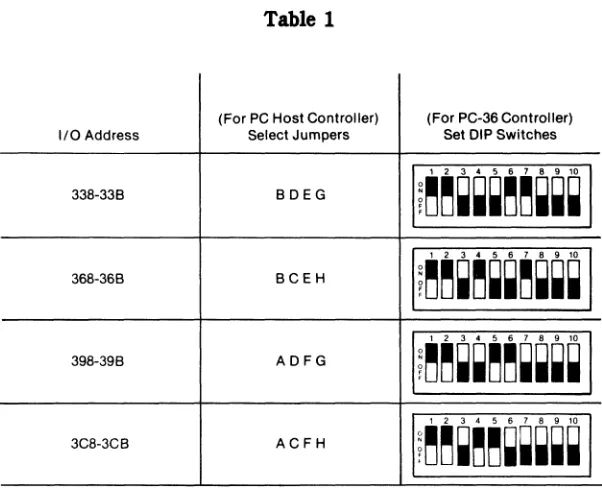
95 Channels, Interrupts, and I/O Addresses
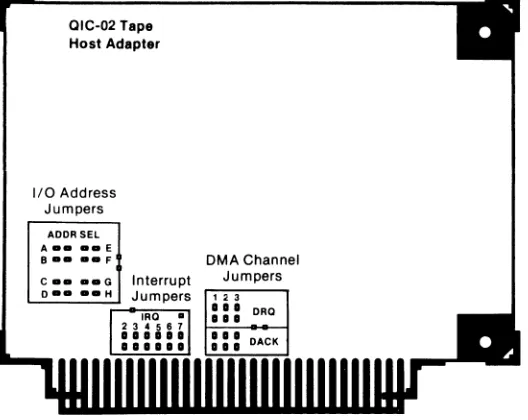
Chapter 6 99 Installation
101 Installing Hardware
(
101 Basic InstallationAppendixes
Al Appendix A: Maintenance of Tapes and HardwareBl Appendix B: Guide to Error Messages
{
.'-...Read This First
Introduction
Features
• Reliable backup of an entire hard disk up to 60 megabytes.
• Choice between the versatile flle-by-flle backup or the speedy mirror-image total backup.
• Easy-to-follow menu-driven operations for backup/restore pro-cedures.
• Command-driven operations providing you with added options and greater versatility.
• De-fragmenting of your flles to increase the speed and improve the efficiency of your whole system.
• Enhanced reading capabilities that make QIC-60 tape cartridges completely interchangeable among other QIC-60 tape drive units.
• Utilities programs to take care of "housekeeping" functions for QIC-60.
• Help screens accessed from nearly anywhere in the program to answer questions that might arise during your initial
backup/restore routines.
• High impact plastic and aluminum tape cartridges that provide a resilient, convenient, and portable medium for backup/restore.
Purpose
The purpose of this manual is to explain how to:
• Install the QIC-60 into your personal computer.
• Install the QIC-60 software.
• Explain the backup/restore operations.
• Explain menu-driven and command driven operations.
System Requirements
One floppy disk drive One hard disk drive
256K of RAM for Menu-driven operation 192K of RAM Command-driven operation
Chapter 1
The Qle·60 Tape Backup Unit
The QIC-60 tape backup offers you the ultimate in the preserva-tion and protecpreserva-tion of informapreserva-tion from your mass storage devices. In certain backup/restore modes, the QIC-60 gives you the fastest backup of any system offered.
A backup system is only useful if it is quick, reliable, efficient, and secure. The QIC-60 gives you all these features in a compact cabinet. It features durable and portable tapes that add to the safety and security of the system.
QIC-60 provides the security of having important files permanently stored on compact magnetic tape cartridges. QIC-60 is not simply a backup/restore device. It offers many other features in addition.
The versatile QIC-60 gives you the option of performing two separate types of backup/restore routines in two different ways. The QIC-60 allows you to do either file-by-file backups or mirror-image backups. You can do either of these types of backup using menu-driven operations or command-driven operation.
The mirror-image backup is a good option to use when you want to backup your whole disk and want to do it very quickly. The mirror-image backup is probably the quickest backup available to-day. Choosing this option means that you will have to backup all of the data on your disk.
During the restore operation, you will likewise have to restore every file that was backed up. There is no selectivity with the mirror-image backup. Unlike many other backup units which offer a mirror-image option, the QIC-60 allows you to restore your mirror-image backups onto any disk which has the correct size and format. You are not limited to restoring only to the disk from which the original backup was made.
The QIC-60 also lets you perform your backup/restore routines in one of two different modes of operation. You can use the simple and easy-to-follow menu-driven-mode or the powerful and more complex command-driven mode.
The menu-driven mode of operation provides you with the easiest way to back up and restore. With the menu-driven operations, you do not have to learn or memorize complex commands or formats. Everything that you have to do to backup or restore will be shown to you in a series of screens and menus. QIC-60 will prompt you to perform the correct sequence of operations to ac-complish your task.
f
.~•..
The QIC-60 can also be used to speed up the performance of your entire system by "de-fragmenting" your files. Often when you enter files into your computer's memory, these files are stored in sectors which are not continuous (non-contiguous). When using these files, computer time is used in searching for these diverse sectors. When you backup with the QIC-60, the backup is done in a contiguous fashion, that is all files are put on continuous sectors so that the entire file is stored in one place. When you restore these files to your disk, they are restored contiguously, and because of this, they increase the speed and efficiency of your system. For de-fragmenting to occur, you must restore your files to a reformatted disk.
Any backup tape made on a QIC-60 will be able to be used with any other QIC-60 unit. Even if mechanical alignment were dif-ferent for each QIC-60 unit, the tapes are still completely inter-changeable. This feature is not often seen on other tape backup units.
The QIC-60 drive unit is compact and durable. It easily fits on top of most systems. It is an attractive and reliable addition to any computer system. The QIC-60 cartridges are made of high impact plastic fastened to an aluminum base plate. They are resilient and offer you a convenient means of storing and transporting data.
You can get a QIC-60 with an internal hard disk drive to further increase the power of your system. If you have a QIC-60 without a hard disk drive, kits are available so that you can upgrade your system as the need arises.
You can easily install the QIC-60 yourself into an IBM Personal Computer, XT, or AT. The QIC-60 will also work with most of the compatibles. You can find a list of these compatible computers in
the Guide to Cover Removal and Replacement that came with
your QIC-60.
Chapter 2
Menu-Driven Operations
For an easy, quick, and convenient means of backupirestore, the QIC-60 provides the menu-driven mode of operation. You can use the menu-driven mode without having to learn and remember tricate commands, syntax, and format statements. Every bit of in-formation you will need to perform your daily backup and restore routines will be presented simply and clearly in a series of screens and menus.
Using the Menu-Driven Modes
To use the menu-driven mode, you have to access the QIC-60 soft-ware. This should have been installed after you installed your QIC-60 board(s) (see Chapter 6). At that time you created a direc-tory for the software. You will have to go into that direcdirec-tory to perform menu-driven backup or restore .
• Type
cd\
(name of the directory that contains QIC-60 software).An example would be to type:
cd\qic, if qic is the directory you chose for your software .
• Load the program "QIC" .
• A screen should appear like the one below.
[ _ D I C - 6 0 _11
VERSION 1.0
COPYRIGHT 1984 - COLORADO MEMORY SYSTEMS, INC.
• The screen will display a date and ask if it correct. If it is, press RETURN (Y is the default response). If it is not, press N, press RETURN, and type in the correct date. Press RETURN .
• The screen will display a time and ask if it is correct. If it is, press RETURN. If it is not, press N then press RETURN. Type in the correct time and press RETURN.
The screen will look like the one below .
• • • • • • • QIC-6I !APlIACIIIIP SYS!III • • • • • •
• 1 1
-r1 -
lie..,
Disk !. tape. n -.st ...
bo_!.,..
n -tape Di .. ct.l'!!. r4 -tape Itilities. n -DOS
" - hlp.
TECMAR
The Main Menu gives you six options, each with a specific purpose.
Backup Disk to Tape.
Choose this option if you want to do a backup.
Restore From Tape.
Choose this option if you want to restore a backed up volume.
Tape Directory.
Tape Utilities.
Choose this option to perform certain "housekeeping" chores on tapes. These have to be done from time to time and include: tape retensioning, tape verifications, tape erasure, and changing the default configuration file.
DOS.
Choose this option to return to the operating system.
Help.
Choose this option to get a help menu and help screens. These ex-plain concepts used by QIC-60.
Backup Disk to Tape
The first operation on your Main Menu, Backup Disk to Tape, can begin by pressing the Fl function key. You will see a backup menu displayed like the one below.
QIC·60 03:11 PM
BACKUP MENU 09/2111984
FILE-BY-FILE
F1 • Totll Blckup.
F2 • Selective 8ackup.
MIRROR IMAGE
F3 • Totll Blckup.
OTHER SELECTIONS
F9 • Help.
F10 -Mlln Menu.
File·By·File Backup
A file-by-file backup is the most versatile type of backup you c.an
have. It copies each file individually onto the tape and makes a directory of the copied files. You can use this directory later as an index when you decide which files to restore .
• Total Backup
By pressing the Fl key, you will have a file-by-file total backup of your disk. In this case, the tape records each file individually, overwriting all existing data on the tape. With Version 2.0 soft-ware or greater, you will be able to add files to existing files on the tape without destroying the existing files. After you have pressed the Fl key, the screen will ask for the drive letter of the disk that has the information you want to backup. Then you will be asked to give a name to the volume on the tape where informa-tion will be backed up to. By doing a file-by-file total backup, all files are copied. All of these files do not have to be restored. You can choose which files you want to restore even though the backup was total .
• Selective Backup
By pressing the F2 key, you will be able to selectively decide which files you want to backUp. With this option, all of the files on your disk will not be backed up as in the Total Backup. Only the files you specify will be backed up using this format. Here you can still get a directory of the files and access each one for restore at a later time. You have only a partial backup of your disk, but you can include any files you want. You can copy files to tape for a specific purpose, or you can backup only those files that have changed since a certain date.
if
.~The QIC-60 system will then display a directory of all of the files from the drive that you specified. It allows you to choose those files that you want to backup. These files will be listed
alphabetically according first to directories and then individual fIles. The diagram below shows the listing of fIles and directories for the selective backup.
PATH: C:\ SELECTIVE BACKUP
FILENAME DATE TIME SIZE
L o1/01/Bo 12:o2AM [DlR)
LC 01/01/80 12:01 AM [DlR) MAINWORD 1o/o1/B4 08:42AM [DlR) MDBS 01/01/80 12:o6AM [DlR) MITCH 01/01/80 12:01 AM [DIR) OPTOMET 01/01/80 12:o8AM [DIR) PLINK o11011Bo 12:o5AM [DlR) SCREENS 01/01180 12:o2AM [DlR)
1 : 1 1 :1 I· • 1 •
STREAMER 01/01/80 12:12 AM
WP 09/11/84 11:17 AM [DIR) AUTOEXEC.BAK 09/10/84 03:24 PM 267 AUTOEXEC.BAT 09/18/84 11:38AM 146 BAT.PRF 10/03/84 12:41 PM 313 COMMAND. COM 10/20/83 12:00 PM 17,792 CONFIG.SYS 05/30/84 12:43 PM 23 SETPATH.BAT 10/03/84 12:41 PM 69 SEARCH FOR FILE OR DIRECTORY [F OR D)?
Fl A F2 v F3 SUBorR F4 PARENT orR F5. BACKUP FlO MENU
In the bottom border of the screen you will see
Fl A F2 v F3 SUBorR F4 PARENT orR F5 BACKUP FlO MENU
Each of these represents one of the different functions in a fIle-by-fIle selective backup.
The F4 key is used when you choose a subdirectory and then want to get back to the directory. If you press the F4 key, you will get the previous list of files or directories.
The FS key allows you to back up the file or directory you have selected with the selection window. Pressing this key will begin the backup.
When the backup has been completed, you can press the FlO key to return to the Backup Menu. Actually, you can push the FlO key and return to the Backup Menu at any point except while the backup is being done.
The entries on your screen are organized into two groups: direct-ories Uisted first) and files. You can note the difference by looking in the size column for each entry. Directories will be represented by <DIR> and files by their sizes in bytes. You can scroll through the entries by using your Fl or F2 keys or the down/up arrow keys. You will notice that the listing will change. It will scroll past the selection window. If you place a directory in the selection window, you can press the F3 key to look at all the files and sub-directories under that directory. The name of the directory will be shown in the upper left hand corner of the screen as part of the path. If you look at the files in a subdirectory, the name of the subdirectory will be added to the path that you are following.
PATH: c:\ SELECTIVE BACKUP
FILENAME DATE TIME SIZE
BAT 01/01/BO 12:11 AM [DlR] BECKWORK 09/06/84 01:30PM [OIR] CSS 01/01/80 12:05AM [DlR] 00S2.1 01/01/80 12:01 AM [DlR] DUMMY 01/01/80 12:07 AM [DlR]
H 01/01/80 12:06AM [OIR]
L 01/01/80 12:02AM [OIR]
LC
,.,
01/01/80 12:01 AM DIR1 , :. I: . MOBS 01/01/80 12:06 M
MITCH 01/01/80 12:01 AM [OIR] OPTOMET 01/01/80 12:0BAM [OIR] PLINK 01/01/80 12:05AM [DIR] SCREENS 01/01180 12:02AM [DIR] STOLIB 01/01/80 12:04AM [OIR] STREAMER 01101/80 12:12 AM [OIR]
WP 09111/84 11:17 AM [OIR]
(-"--.
If you have chosen a subdirectory and have pressed the F3 key the names of files and subdirectories in that subdirectory will be displayed on the screen. If you find that this is not the set of files you were in need of, you can press the F4 key and go back to the previous list of files and/or directories. These will again be displayed.
To start the backup, you must position either a file or directory in the selection window. Once you have chosen a file or directory to backup, you have to press the FS key. At the bottom of the screen you will see a statement that asks you to verify that the chosen file is the one you want to backup. Since Y for yes is there by default, if you do want to backup you merely press the RETURN key to begin the process. If you do not want to backup this file, you must type in N and RETURN . If you have chosen a directory for backup, you will be asked to verify that the files in the direc-tory in the selection window are the files that you want to backup. You will be asked if you want to include all the files in subdirectories of that directory.
You will always be able to tell your current directory by looking at the path in the upper left comer of your screen. Whenever you use F3, a new directory label will appear in the path. This will be the label of the directory you are currently looking through.
PATH: C:\MAINWORO SELECTIVE BACKUP
FILENAME DATE TIME SIZE
NOTICES 10/04/84 11:38AM [OIR] PERSONAL 10/04/84 11:37AM 101R] REPORTS 10/04/84 11:37AM [OIR] ROMER.LTR 10/01/84 08:42 AM [OIR] STOFER.LTR 10/04/84 11:38AM [OIR] FEARNOT.COM 10/04/84 11:40AM 11,008 FEARNOT.OVR 10/04/84 01:54 PM 38,400 LETTER
..
10/04/84 01:55 PM 11 I· ; . 1 '.:
PATH: C:\MAINWORO • • • • • • • • SELECTIVE BACKUP
1
FILENAME HOWES.LTR LEGAL LEVETT.LTR LEVY.LTR MEMOS NELSON.LTR NOTICES STOFER.LTR FEARNOT.COM FEARNOT.OVR LETTER PRINT.TST TUTOR.INS WINSTALL.COM DATE 10/04/84 10/04/84 10/01184 10/04/84 10/04/84 10/04/84 10/04/84 10/04/84TIME SIZE
11:43AM [DIR) 11:4oAM [DIR) 08:42 AM [DIR) 11 :33 AM [DIR) 11 :38AM [DIR) 11:42 AM [DlR) 11 :38 AM [DIR) 11:37 AM DIR
10/04/84 11 37 AM I '
10/01/84 10/04/84 10/04/84 10/04/84 10/04/84 10/04/84 10/04/84 08/14/84 08:42 AM 11:38AM 11:4oAM 01:54 PM 01:55 PM 10:15 AM 01:54 PM 11:50 AM
[01 )
[DIR) 11,008 38,400 12 3,968 512 1,152
INCLUDE ALL FILES IN SUBDIRECTORIES OF "REPORTS" [Y OR N)? Y
F1 ~ F2 v F3 SUBOIR F4 PARENT DIR F5 BACKUP F10 MENU
If you have answered Y to the backup prompt, you will be shown another prompt asking you to enter the backup identification label. After you have typed in this label, press the RETURN key and backup will begin.
Comments will appear on the screen telling you what is happening before the process is completed. When the backup is completely finished, your screen will look like this:
Loaded parameters.
Backup started on 01/0211985 at 10:30 am RAM Buffar Siza: 320K
Writing Directory on Tape 3,968 bytes In 1 Fila[s) to back up
Writing File[ s) on Tapa
Fila by Fila Backup 3,968 Bytas
1 Fllas
Backup tim a : 0 min. 3 sac. Total tima : 0 min. 8 sac.
SELECTIVE BACKUP
After the backup has been completed you can return to the previously displayed directory listing by pressing Fl key or you can go back to the Backup Menu by pressing the FlO key.
Using the Search
If you don't want to scroll through the listings of directories and fIles, you can use the search capability of the QIC-60.
At the bottom of the screen listing you find a statement: Search for fIle or directory (F or D)? By Entering one of these letters, you will be able to search for the directory or fIle you want without having to scroll through, a lengthy task if you have many fIles.
If you enter either a D or an F you will then be asked to enter the file or directory name you're looking for. After you enter the name and press the return key, the selection window will be positioned on that entry. You can then back up this fIle or directory by pressing the FS key.
Note: A write-protect sticker will stop you from backing up a floppy disk using the file-by-fIle method. If you want to backup this type of disk, remove the write-protect sticker during backup. Replace it after you have backed up.
Mirror-Image Total Backup
The mirror-image total backup is the fastest method of backing up an entire disk that is available today. It is extremely useful when you want to backup the whole disk and also want to restore all of the files at a later date.
Like the file-by-fIle total backup, the mirror-image total backup
With the fIle-by-fIle technique, you can restore any files you wish to your disk after a total backup. With the mirror-image total backup, you must restore all of the fIles that were originally back-ed up. You have no alternatives. They must also be restorback-ed to a disk that has the same size and format as the disk it was original-ly backed up from. Also, with the mirror image backup, you will
have no directory of the files included in the backup volume. To choose the mirror-image option, you must press the F3 key from the Backup Menu.
After you have pressed the F3 key, you will be asked for the logical drive that has the information you want to back up. Each logical device that contains data will have a letter, such as A, B, C, etc. Type that letter and then press the RETURN key.
Next, you will be asked to enter the backup identification label for this backup volume. This label can be a maximum of 44
characters. After you have typed this in, press the return key and the backup process will begin. As the backup continues, the screen will display various comments. The backup will end in a short time (a few minutes) and the final screen will look like the one below.
MIRROR IMAGE TOTAL BACKUP
Imlge Backup Version 1.01
Copyright ©1984 by Colorado Memory Systems, Inc.
Loaded pari meters .
Backup started on 09/21/198411 03:27 pm
Backup of Volume MITCHDISK
RAM Buffer Size: 448K 10158080 bytes to back up
Image Blckup 10158080 Bytes Blckup time: 2 min. 3 IIC.
Total time : 2 min. 15 IIC.
F1 AETU AN
Restore From Tape
You use the restore operation to recover data that has been previously backed up onto tape. Depending upon how your disk was backed up, you can either restore with the mirror-image technique or the file-by-file technique. The mirror-image restore will destroy all data that may exist on your disk. It simply places a mirror image of the data on the disk. With the file-by-file restore, files are taken from the tape and restored to the disk in-dividually. Any file on the disk with the same name as one on the tape could be overwritten, depending on whether or not you have enabled the overwrite capability by changing the configuration file. Any files that were not on the tape will be left unchanged on the disk.
In order for you to do a mirror-image restore, the disk must be the same size and have the same format configuration as the disk that the backup was originally made from. When the QIC-60 restores a mirror-image to a disk, it performs a "smart relocation' of the bad sectors that existed on the original disk. On the new disk, the one used for restore, these bad sectors do not have to be the same as in the original. Since the two disks must be of the same size, there is almost no possibility of running out of space for the restore unless the disk used for the restore has more bad sectors than the original disk. It would be wise for you to make sure that your replacement disk has fewer bad sectors on it.
You could possibly run out of room with the file-by-file restore because you could be adding data to a full or partially full disk. It is a good idea to make sure that there is enough room on your disk to restore the files you need. If you do try to restore files to a disk that is already too full, the QIC-60 will restore as much as it can from the tape and then notify you. You will merely have to clear some old files from your disk before you can restore the rest of that tape.
Note: Read only files are not transferred with a file-by-file restore. For example, the two DOS system files
To start the restore procedure from the tape you must start with your Main Menu. Pressing the F2 key will take you to your Restore screen which looks like the one below.
RESTORE FROM TAPE
VOLUME LABEL OATE TIME SIZE TYPE
Fl A F2 v F3 VOLUME DIRECTORY F4 RESTORE FlO MENU
At the top of the restore screen is the title "RESTORE FROM TAPE". This lets you know that you are in a restore mode. Near the top of your restore screen are the labels: volume label, date, time, size, and type.
Volume Label: This is the label of the volume that was backed up.
Date: This is the date of the backup.
Time: Time of the backup.
Size: The size of the backed up volume.
Type: The type of backup that was used, i.e., file-by-fIle or mirror-image.
File·by·File Restore
To do a file-by-file restore, you must make sure that you have a tape in your drive that contains a file-by-file volume. From your Main Menu, press key F2 and this will produce the restore screen. The selection window will display the volume label, date, time, size, type, and comments for the volume in the tape drive. For a file-by-file restore, the type should read "fIle-by-file".
File·by·File Total Restore
If you choose to do a file-by-file total restore, insert a tape with a file-by-file backup volume on it.
Press the F2 key to get to your restore screen.
You should see a restore screen like the one below. It should list the name of the volume, the date and time of backup, the size, and that it was a file-by-fIle backup.
RESTORE FROM TAPE
VOLUME LABEL DATE TIME SIZE TYPE
If you want to know what is in this volume, push F3 to get a volume directory.
A screen should appear like the one below.
NU: \ _TOU I'IIGII TAPI
rn .... Mil t I . SIZI
===
BIN 81124186 9:42 AN (1111)
DOS 81181188 11:15 AN (1111)
WIN 81/22186 11:47 AN (1111)
ItC 111122186 2:211l'11 (1111)
HADDISH 81/27186 3:42 l'II
nm
LIB 81124186 9:34 AN
PAlM 81/22/86 11:47 AN (1111)
PetALX 111122186 11:44 AN (Dill)
..
'>11112
'l:R
<1Mi;
TIllAS 81122186 11:48 AN <11K) UtiLITY 81122186 11:48 AN (1111) AIITOIXIC.BAH 12/13186 12:37 l'II 384 AliT • BAT 84/111/86 9:22 AN 384
C • CON 1111211/83 12:111 l'II 17.792
G.SYS 81122186 111:22 AN 41
10. CON 1111211/83 12:111 l'II 4.736
SEARCH FOR FILE DR DIRECTORY IF DR OJ?
F1 A F2 v F3 SUBDIR F4 PARENT DIR FS BACKUP F10 MENU Push the F4 key to return to the volume list.
Since you want to restore the entire volume you do not have to select any from your directory.
Press the FS key in order to restore the entire volume.
After you have pressed the FS key, the screen will ask you which logical drive to restore this volume to.
Type in the letter of the drive to which you want your volume restored, then press return.
A screen appears and displays a warning that the existing data on the drive will be destroyed. This allows you to verify whether you want to execute this command.
If you want to restore, type Y. If you type N, you will be returned to the previously displayed volume listing.
The volume that you chose will be restored to your disk. During the restore, the screen will display messages and information. Your final screen should look like the one below.
Backup from 09/2111984 at 03:12 pm Backup from Volume MITCHOISK
RESTORE FROM TAPE
Comment on Backup: Complete Hard Disk Backup· 96 Directories.
Reading Directory from Tape 7281542 bytes in 869 flle[s)to restore
Restoring File[s) from Tape
C: IBMBIO.COM ... Can't restore, Access denied C: IBMDOS.COM ... Can't restore, Access denied
File by File Restore 7244658 Bytes
867 Files Restore lime : 5 min. 2 sec. Total time : 5 min. 19 sec.
File·By·File Selective Restore
Restori_flg selected files from a file-by-file backup is a lot like restoring the whole volume from a file-by-file backup just mentioned. The difference is that now you will have to select the individual files to be restored.
Insert a tape into your drive that contains a file-by-file backup volume. Press the F2 key from the Main Menu. The restore screen will appear and will give the volume label, date, time, size and type (flle-by-file) in the selection window.
RESTORE FROM TAPE
VOLUME LABEL DATE TIME SIZE TYPE
F1 A F2: v F3' VOLUME DIRECTORY F4' RESTORE F10' MENU
The screen that appears will have a directory of all the directories and fIles in the volume. It will look like the diagram below.
PATH:\ MAINWORD RESTORE FROM TAPE
FILENAME DATE TIME SIZE
NOTICES 10/01184 08:42AM [DIR) PERSONAL 10/04/84 11:38AM [DlR) REPORTS 10/04/84 11:40AM [DlR) ROMER.LTR 10/04/84 01:54 PM [OIR) STOFER.LTR 10/04/84 01:55 PM [DIR) FEARNOT.COM 10/04/84 10:15 AM 11,008 FEARNOT.OVR 10/04/84 01:54 PM 38,400 LETTER ., 08114/84 11:50 AM 12 I:
.
:. ".
'.: TUTOR. INS 10/04/84 01:49 PM 512 WINSTALL.COM 10/04/84 01:53 PM 1,152 WINSTALL.OVR 08/14/84 11:49 AM 38,528 WS.lNS 10/04/84 01:56 PM 43,776 WSCOLOR.BAS 08114/84 11:54AM 6,656 WSMSGS.OVR 08/14/84 11 :54 AM 29,056 WSOVLY1.0VR 08/14/84 11:54 AM 41,216 WST1.0VR 10/04/84 01:53 PM 48,896 SEARCH FOR FILE OR DIRECTORY [F OR OJ?Fl A F2' v F3' SUBDIR F4' PARENT DIR F5: RESTORE FlO: MENU
Scroll through the volume directory to find the fIles or directories you want restored using the Fl and F2 keys (up and down).
If you have located a fIle you want restored, press the FS key and restore will begin.
If the fIle you want is in another directory, position that directory in the selection window by scrolling.
You can tell the difference between files and directories by the size column on the screen.
When you find the directory where you think the file may be located, press the F3 key to get a listing of the fIles in this direct· ory.
Locate the file you want to restore and position it in the selection window.
Press the F5 key to restore th;s file to your disk.
You will be asked to confinn that you wish to restore this file, and if you wish to include all subdirectories in the restore.
The system will ask you for the logical drive into which you want to make the restore.
Type in the letter of the drive into which you want the file restored.
Several messages will be shown on the screen during the restore. The final screen below will appear when restore is complete.
Backup from 09/21/1984 at 03:12 pm Backup from Volume MITCH DISK
RESTORE FROM TAPE
Comment on Backup: Complete Hard Disk Backup - 96 Directories.
Reading Directory from Tape 7281542 bytes in 869 file[s] to restore
Restoring Flle!s] from Tape
C: IBM BID. COM ... Can't restore, Access denied C: IBM ODS. COM ... Can't restore, Access denied
File by File Restore 7244658 Bytes
867 Files Restore time: 5 min. 2 sec. Total time : 5 min. 19sec.
Fl. RETURN FlO' MENU
Press the FlO key to return to the Main Menu.
(
~,--Mirror-Image Total Restore
If you have backed up your disk using the mirror-image backup, you can only restore the contents of the entire disk during backup. You have no way of selecting certain files for backup. All must be placed on your disk. When you restore with the mirror-image format, you overwrite all files on your disk so you must be sure that there is nothing there that you cannot lose.
For the mirror-image restore, the disk to which you restore your information must be the same size and with the same format con-figuration. The disk does not have to be the one from which the original backup was made, however. It does not have to have the same number of bad sectors as the original disk and in the same places. Since you are restoring to a disk of the same size and same format, it is nearly impossible to run out of space on your disk. The only way that this could happen would be if the disk to which you are restoring your information had more bad sectors than the original. Guard against this by making sure there are not more bad sectors on the restore disk.
Insert a tape cartridge that contains a mirror image backup into your tape drive.
This will cause the restore screen to appear with mirror image as the type of backup.
iii:5iiiiii: Fiiiim iAFi: VOLUME LABEL DATE TIME SIZE TYPE
Fl A F2. Y F3. VOLUME DIRECTORY F4' RESTORE FlO: MENU
Position the volume you want to have restored in the selection window.
You cannot use the F3 key to get a volume directory on a mirror-image restore. If you do press it, the computer will tell you that there are no volume directories with mirror-image backup.
Press the F4 key to restore the volume from tape to the disk.
If you want to go back to the restore screen to restore more infor-mation, press the Fl key.
Tape Directory
This option gives you a chance to look at a directory (a sort of table of contents) of your tape, without the possibility of accident-ally restoring tape data on top of disk data. It will show you a list of all the backups you have made to that tape. To get this option press the F3 function key from the Main Menu. The screen will display a tape directory of volumes that exist on the tape. Note the line at the bottom of the screen. This line is referring to the function keys to the left of your keyboard, labeled FI through FlO.
By pressing either the FI or F2 function keys, the list on your screen will scroll up (FI) or down (F2), and a different volume label will be displayed in the selection window (the reverse-video window in the middle of your screen). The volume label shows which disk volume you backed up. The date and time you backed up are shown. The size of the volume is listed. The TYPE column
shows how your backup was made: file-by-file or mirror-image. The second line in the selection window shows the backup identi-fication label (if any) that you typed when you backed up.
If we put a tape with a file-by-file backup into the tape drive, and choose the tape directory option (Remember? use the F3 function key from the Main Menu.), we could get a more detailed directory. When F3 is pressed, the directory information from the tape is read and stored in memory (RAM), and the screen will display a directory of the volumes that exist on that tape. Pressing F3 again will bring up a display which lists the files and directories that are in the volume. Remember that the difference between a directory and a file is shown by a directory having the words
<DIR> under the SIZE column, and a file will have a number (its
size) in this column.
Notice that with the function keys F3 and F4, we may go down (a level at a time) into subdirectories, or regress upwards to the parent directories within our volume, investigating the contents of our tape volume.
Tape Utilities Menu
Choose this option by pressing the F4 function key from the Main Menu. These utilities are used to perform various operations to the tape that generally are not done with great frequency. However, these operations are very important for the QIC-60 backup system housecleaning to maintain everything in a neat and organized state. Also, they help you make sure that your backup system is performing as you desire.
To get the Utilities Menu, press the F4 function key from the Main Menu. The screen then displays:
OIC-SO 10:54 AM
TAPE UTILITIES 12128/1984
F1 - Retension Tape.
F2 - Erase Tape.
F3 - Verify Tape.
F4 - Change Configuration File.
F9 - Help.
F10 - Main Menu.
TECMAR
Re-tension Tape
You choose this option to even out the tension in a tape. You should execute this operation with any new tape before using it, and also with any tape that has been transported or has been stored away for a long period of time. In addition, any tape that has undergone extreme temperature changes (although those should be avoided if possible) ought to be re-tensioned.
To select this option, press the Fl function key from the Tape Utilities Menu. The display will then ask whether or not you wish to retension the tape. Then you could type in N for no (if you had chosen this option mistakenly), and you would be returned to the Tape Utilities Menu. Otherwise, you press the return key (to default to the Y for yes). The screen would then blank out except for the flashing word WORKING near the bottom of the screen. Once the tape had been re-tensioned, the display would inform you
RETENSION COMPLETE. You could then press FlO to return to the Tape Utilities Menu, or you could press Fl if you had addi-tional tapes to re-tension.
Erase Tape
Before you erase a tape, BE SURE this is the tape that you want to erase. You can easily make sure of this by pressing the F3 function key when the Main Menu is on the screen (this gives you the Tape Directory option so that you may look at the contents of the tape).
To select this option (from the Tape Utilities Menu), press the F2 function key. You will then see a display warning that the erase function will destroy all data on the tape. At this point, you would press return (to default to N for no) if you had chosen this option by mistake. (This action would return you to the Tape Utilities Menu.) If you do wish to erase the tape, type a Y for yes and press return. As with the re-tension tape option, the screen will clear except for the flashing word WORKING near the bottom while the tape drive erases the tape. When the tape has been com-pletely erased, the display will inform you ERASE COMPLETE.
Note: When operating in Multiple Volume mode, the only way that a full tape can be re-used is by first erasing the tape.
Verify Tape:
This option verifies that the tape is readable and that the material recorded on the tape is still the same as it was when the tape was created. You should note that the QIC-60 performs a read after write on-the-fly during all backup operations in order to verify that the information was recorded correctly. The Verify Tape op-tion gives you a method of re-verifying that material, should you wish to do so. To perform this verification, the QIC-60 reads all data written on the tape, and calculates the checksum (an error-checking number) which should match the checksum written after each data-block on the tape. If these checksums match for all blocks of data, the tape is still valid.
To select this option from the Tape Utilities Menu, press the F3 function key. The display will then ask whether or not you wish to verify the tape. Press return to default to the Y (for yes) if you want to verify this tape. Otherwise, you would type an N (for no) in order to return to the Tape Utilities Menu (because you chose this option by mistake, or you changed your mind).
If you default to the Y, the tape will then begin the verify opera-tion which will probably take several minutes. (Time should be between 10 seconds and 12 minutes.) This time depends on whether the tape is almost empty or almost full. While the verify operation is in progress, the flashing word WORKING will appear at the bottom of the screen. If the tape is still valid, the screen will show VERIFY SUCCESSFUL, TAPE IS READABLE. You can then press FlO to return to the Tape Utilities Menu, or you can press F1 if you have additional tapes to verify. If you do not see this screen, the tape must be corrupted in some way (physically,
f
or through contact with a magnetic field or other disruptive \ energy). The QIC-60 system will give you an error message inChange Configuration File
This option allows you to change the default parameters to suit your individual system requirements. You can specify which op-tions are to be followed during normal backup and restore opera-tions on your system. All of these opopera-tions, except "Search All Subdirectories," are available under menu operation; the "Search All Subdirectories" option can only be used in command-driven operation. Refer to "Chapter 6, Changing the Default Parameters" for a detailed explanation on using the configuration file.
Return To DOS
Help Menu
When you would like to get more information on a specific topic, you can press the F9 function key. If you do so from the Main Menu, you will be shown the Help Menu, from which you select the topic you wish to read about. That menu looks like this:
• • • • • • • 'UC-6I IA'I
.CJIII,
SHIDI • • • • • • • •HELP MENU
F1 - File By Fila Total Backup.
F2 - Fila by Fila Salactlva Backup.
F3 - Mirror Imaga Total Backup.
F4 - Rastora From Tapa.
F5 - Tapa Dlractory.
F6 - Tapa Utilitias.
F7 - Configuration Fila.
Fa - Glossary.
F9 - Raturn.
Help Menu
From this menu, if you were to press, for example, the Fl fWic-tion key, you would get a screen of text with informafWic-tion on the
File by File Total Backup option of the Backup Menu. The screen
would display something like the following:
FILE-BY-FILE TOTAL BACKUP HELP
File-By-File Total Backup:
Choose this option if you want to make a copy of all the files on your disk, just as though you wanted to make a copy of all the files in a filing cabinet, from every drawer, no matter what section [directory] or subsection [subdirectory] your files are in. If you need to restore from your "File-By-Flle Total Backup" you will be able to restore just a single file from a directory or subdirectory, or all of the files In one directory, including all the files in the subdirectories.
When you press the 'Fl' function key, you will be asked for the drive letter that contains the information you wish to backup. The computer has named each of your disk drives [floppy disk drives or hard dlsk[s]] with a letter, such as "A," "B," "C," etc. Type the letter of the device that contains the information you want to backup and press the return key.
Now you have a chance to enter a comment about this backup that will be a reminder to you. You can type about 40 letters at the "Enter Backup Identification Label:" line. When you have made
Help Text for File·by·File Total Backup
As you can see, the Fl and F2 function keys may be used to scroll through the text when there is more information than fits on one screen.
An important feature that you should note is that you can get this type of help from almost anywhere in the program, except while the computer is actually processing some information. Thus, if you press the F9 function key from anywhere under the Tape Directory function (i.e., while using that function), you will be shown the help text pertaining to tape directories automatically. And if you actually wish information on some other topic (although you are using, for example, the Tape Directory operation), you can press the F9 function key from the text, and it will give you the Help Menu from which to choose.
Chapter 3
Command Driven Operations
The QIC-60 gives you another mode of operation for your
backup/restore routines that has more options and versatility than the menu-driven mode.
The added options of the command-driven mode could prove to be a useful tool to programmers and system designers. These opera-tions can be used in batch processing and they can be used from within other programs. Although the commands may seem more complex, with experience using the command syntax of this mode, you will find them very convenient and helpful. The commands of the command-driven mode parallel those for IBM DOS.
Command Syntax Rules
So that you can construct commands that
win
work according to your needs, it is very important that you understand the format in the syntax section of each backup system command. The following rules exist for the syntax of the backup commands:• UPPERCASE words or letters are called keywords and they must be entered as shown. They can be entered as either upper or lower case letters, but they are shown in uppercase in this manual.
• Items shown in brackets [
I
are optional. You should not type in the brackets as part of your command.• Any items that are completely outside the brackets must be used with the command.
• An ellipsis ( ... ) means that you can repeat an item as many times as you have to.
• All punctuation must be included where it is indicated in the com-mand. Punctuation marks are treated like keywords. Periods, col-ons, equal signs, double quotes, backslashes, forward slashes, and dashes are included.
Command Parameter Syntax Requirements
The following notes show you the parameters in the command syntax section that you must fill in. These parameters are variables your system needs to execute commands. Usually, you will substitute some information for the parameter to tell your system specifically what to do.
• d: (logical drive)
This parameter requires that you specify a logical drive. Each drive has a letter (A, B, C, etc.) that you can type in as upper or lower case, followed by a colon. The type of drive designated by these letters can differ from system to system.
• .ext (file extension)
A file extension is a period at the end of the file name followed by three of the following characters:
A-Z, 0-9
(See your DOS manual for other characters that can be used.)
The file extension helps to group similar files.
• files (file name or global that defines a group of files)
A file name is a name made up of from 1 to 8 of the following characters:
A-Z, 0-9
.
• path (a group of directories that you have to go through to find a subdirectory, file, or a group of files
[\](directory name\] [directory name\[ ... ]]
If you use an initial backslash
N,
it means that your path should begin with the root directory. If you do not see an initialbackslash, the search will begin with the currently logged on directory. With QIC-60 software, the path must always end with a backslash to distinguish directories from files. This is important when you reference files or subdirectories that don't exist but must be created by QIC-60. If you give no file name, the last character in the path must be a backslash.
Global File Characters
There are two characters that may be used in file names. They allow you to specify a mask (a generalized description) which will select a group of files that fit the generalized form. This allows you to sift through files which have similar names without the necessity of typing each individual name. These characters are ? and ., and are explained below .
• The ? Character
A ? in a file name or an extension indicates that any character may occupy that position. It is often called a "wild card
character" since any character will match it in a search to find a file of a given name. For example, the file name and extension
work??txt
will match any file with the name WORK followed by zero, one, or two valid file name characters, with the accompanying extension
.TXT (which might stand for "text"). So, this example would
match any of the following:
WORK01.TXT (Both upper and lowercase are valid)
WORK02.TXT worka.txt worker. txt
:1--,
"
"'--• The "'--• Character
An • in a file name or extension is similar to the ?, except that it counts for more than one position. It means that any character may occupy that position and all remajning positions in a given file name or extension. For example, if you type
tex* .a*
this indicates that the first three letters of the file name must be
TEX and the first letter of the extension must be an A, but all the other characters may be any group of valid characters for file names/extensions as long as you stay within the length limits (i.e., file names = 8 characters maximum, extensions = 3 characters maximum). This example matches all of the following files: tex.a texas.ant TEXTURE. AX Textedit.Asm texaco. add
And, of course, it would match numerous other names .
• Uses of Global Characters
Command· Driven Operations Commands
File·by·File ---Backup
• Command: F_BACK
• Purpose:
To do a file-by-me backup of disk onto tape. This allows selective backup of files (i.e., user chooses which files to back up) and later permits selective restoration of mes from the tape .
• Syntax:
F _BACK [d:][path][mes][.ext][IS][/M][ID:mm-dd-yyyy]
[/C[
=
"comment"]][/A][/P][IE][IR]• Explanation of Options:
These are the options available to the user, as specified in the above command syntax.
[IMPORTANT NOTE: Certain options listed below have cor-responding negate options of the form I·x, where the x stands for
the letter used to specify that option. The options which have a negate option are IS, /P, and IE for the F _BACK command. These
negate options are used in conjunction with the default options configuration file (described fully in Chapter 6 under Changing the Default Parameters). They cause the specified default option to be
IS Use of this option causes the QIC-60 backup system to back up any subdirectories (and their contents) pertaining to the entry made for files (see above syntax). This means that no matter what name has been entered for files in the command line, the backup system will search for files to match that name in all subdirectories at all levels below the given directory. These matching files will subsequently be backed up along with the matching mes in the parent directory. Note that whenever the /s option is chosen, the entire direct-ory and subdirectdirect-ory structure of the disk will be put onto the tape, because all of these subdirectories must be searched for matching me names.
1M This option indicates that only the mes that have been modified since the last backup should be backed up onto the tape. This will avoid the unnecessary backing up of mes that never change.
ID The full format of this option is [/d:mm-dd-yyy], where the parameters following the colon indicate a month, day, and year respectively. Note that, as with DOS, the date must be
on or after January 1, 1980. This option indicates that on-ly those files written on or after the specified date should be backed up. Information about when the me was last written may be found by looking at a directory of disk mes (using DOS).
IC The format of this option is [Ic[ = "comment"]], where the comment is some information that you would like to include as part of the header on the tape. The comment must be enclosed between double quotes. This comment information can serve as a later reminder about the contents of that backup, why it was made, or whatever else you may wish to record. The comment length is limited to a maximum of 44 characters, and will be truncated if it overflows this limit. If
/ A This option will cause the current backup to be added to the tape after the previous volume. The tape directory will also be updated, adding this volume to the list of volumes found
- - .... \..! ... _ ... TT ... ! __ ... :" ""_ ... :,,,,_ .o._~ ... o.lI:" +h",+ 'I'Fn .. 1 'lynn ""+
Ull Ull':» L4p'V. U~llJ.Et UJ.I.~ U,PUV11 "'1.1.\;JLU."'~ w.a.u. ... JVIA. "Y.I..I . .I. ".I."""
overwrite other volume on the tape cartridge. This allows you to have several backups on one tape.
IP This option causes the file names to be displayed on the screen as the various fIles are backed up onto the tape. It allows you to see what the backup system is doing, and the information may also be directed to a printer if you need a hard copy of a particular backup. (This may be done by pressing ctrl p at the DOS prompt, before using the F _BACK command; output to the printer is turned off by pressing ctrl
p
again when you no longer need hard copies.) Note that the use of this option will slow down your backup, because the computer needs to interrupt processing to write your fIle names on the screen while it backs them up. (This amount of time is small, but may become significant when you do a backup of several hundred fIles or more.)IR This option lets you perform file-by-file backups in a "Read Only" mode, that is, without writing to the disk to re-set the archive bit that indicates whether or not a file has been modified since the last backup. In the default mode, this bit is re-set the first time a backup is made after a file modifica-tion. Use of the IR option allows any number of backups to be made while leaving the bit set to indicate that the fIle has been modified. This can be a very useful feature on a net-working system where backups are likely to be made from different work stations, and the network restricts these work stations from writing to the disk.
Another use of this option is the elimination of error
messages that normally occur when backing up "Read Only" files or write-protected diskettes .
• Examples of Complete F _ BACK Commands:
The following examples should give the user a better understand-ing of how the command F _BACK and its options may be utilized.
Cback OR Cback ...
Cback \spread\ls OR Cback \spread\ *. * Is
Either of these commands will backup all files in the directory
SPREAD, including all of its subdirectories. Note that in both versions of the example, it is absolutely necessary to put a backslash after the name SPREAD (even when no file name follows it) to tell the QIC-60 that you are referring to a direc-tory and not to a file by the name of SPREAD.
f_back \ * .bas/s/c= ' 'All of my basic programs."/p
This example backs up all files in all directories and subdirec-tories that have the extension .BAS (denoting BASIC
programs). It also outputs the comment All of my basic pro-grams. to the header on the tape (due to the Ic option), and prints out the file names on the screen as they are backed up to the tape (due to the Ip option).
Cback \curwork\test?? * 1m
This backs up all files of the form TEST?? that are found in the
CURWORK directory and have been modified since the last
backup. The files may have any extensions (because of the . * following the file name). For example, files with names such as
TEST01.BAS, TESTA.TXT, and TESTB.OBJwould be backed up if they existed in the CUR WORK directory and had not been backed up since their last modifications. Any files of this form in subdirectories of CURWORK would not be backed up (because the Is option was not specified).
C back \ wordproc \a * . * Id: 10-28-19821m/s/p
This command would back up all the files in the directory
WORDPROC and its subdirectories that meet the following
con-ditions:
1. The file name begins with the letter A, but may have any extension (specified by the parameter a*. *).
2. The file was last written/modified on or after the date given (October 28, 1982, due to the d:l0-28-1982 option).
The subdirectories would be included because the Is option has been specified. Also, the names of the files backed up would be printed on the screen as the backup took place, since the Ip option is included in this example .
• Further Discussion
The command (F _BACK) must be separated from the source by a space, but the source and options may appear together or
separated by spaces. If the optional [d:} parameter (for source disk drive) is not specified, the system will assume that you want to back up the current default disk drive (i.e., the currently logged drive). If the [path} is not specified, the current directory is used.
When the !files} are not specified, the default assumed by the
com-puter is *. * (i.e., all files found beneath specified path).
File·by·File - - - Restore
_ " ' ____ . _____ .2
• \lUIIUIUUlU;
F_REST
• Purpose:
To restore files from the tape that were previously saved in a file-by-file mode (e.g., by using F _BACK). Files may be restored selec-tively, choosing particular files from a large group according to the needs of the user. Also, file directories and names may be modified during the restore. Note that the files with duplicate names on the tape and the disk will not be restored unless the 10 option (enable overwrite) is specified in the command or as a default in the T _PARM.CFG file. (See Chapter 6 under Changing the Default Parameters.)
A unique feature of the QIC-60 system is that it will create any subdirectories that you decide to restore from the tape which do not yet exist on the hard disk. Thus, you do not need to know the tree structure of a tape directory nor construct it on the disk. The QIC-60 software handles all of this, organizing the restored direc-tories just as they appeared on the backed up disk unless you give it instructions to do otherwise (e.g, by specifying a new patch or subdirectory in the destination portion of the command). The patch designated below after the F _REST command refers to files on the tape, and the drive path refers to the destination drive,
• Syntax:
F _REST [path)[files[.ext]] [d:][path)[files[.ext]] [/s)[ID:mm-dd-yyyy]
[N=]
• Explanation of Options:
These are the options which may be specified when using the F _REST command (as seen above in the command syntax).
[IMPORTANT NOTE: Certain options listed below have cor-responding negate options of the form I-x, where the x stands for the letter used to specify that option. The options included are IS,
/p, IQ, 10, and IE for the F _REST command. These negate
op-tions are used in conjunction with the default opop-tions configura-tion file (described fully in Chapter 6 under Changing the Default Parameters). They cause the specified default option to be negated (i.e., the default will not be used) for this particular restore
com-mand line. Thus, if you had put /P in your default options file, you could nullify it for this particular instance by putting a I-P on the command line.]
IS Use of this option causes the QIC-60 system to restore any subdirectories (and their contents) pertaining to the entry made for files on the source portion of the command line. This means that no matter what name has been entered for
files in the command line, all subdirectories on the tape at all levels below the given directory will be searched for
matching files. These subdirectories and their matching files (from the tape backup done previously) will be restored following the path specified in the destination portion of the command line (see examples below for further clarification if needed).
ID The full format of this option is [/d: mm-dd-yyy], where the
parameters following the colon indicate a month, day, and year respectively. Note that, as with DOS, the date must be
on or after January 1, 1980. This option tells the QIC-60
N The format for this option is l/v=nj, where "n" refers to the number of the desired volume on the tape; "n" can be from 1 to 256, inclusive. If you do not know the number of the
(T_SRCH) Option N, on p.3-19, which can provide you with a numerically ordered list of the volumes on the tape.
IP This option causes the file names to be displayed on the screen as the various files are restored from the tape. It allows you to see what the QIC-60 system is doing, and the information may also be directed to a printer if you need a hard copy record of a particular restore. (This can be done by pressing ctrl
p
at the DOS prompt, before using the F _REST command; output to the printer is turned off by pressing ctrlp again when you no longer need hard copies.) Note that the use of this option will slow down your restore, because the computer needs to interrupt its processing to write your file names on the screen while it restores them.
/Q Use of this option causes the QIC-60 system to prompt you with each file name as it restores, so that you have an
op-portunity to confirm each file that you wish included in the restore. Remember: this option (as the /p option above) will add to the time needed for the restore, because the computer must interrupt processing to allow for the confirmation of each file during the restore operation,
IR When used with the /0 option (or with the Overwrite default enabled in your Configuration File), the IR option lets you perform file-by-file restores of "Read Only" files. Ordinarily,
"Read Only" files can be backed up to tape but cannot be restored to disk. When you use the IR option, however, you can restore "Read Only" files.
IE If you specify this option after your command line, it will cause the computer to produce an error report after the tape operations. This report will tell how many underruns and re-tries occurred on the tape during the current process. If you use this option on a regular basis, it will give you a good idea of how many errors you. can normally expect from a tape that is in good condition. Then, if that figure ever takes a large jump for a particular tape, it can serve as a sign that the tape is deteriorating and may need to be replaced soon .
• Examples of Complete F _REST Commands:
The following examples should serve as a guideline for the uses of the F _REST command, and show how to make use of its various options. Note that any command that is not followed with the /0 option (enable overwrite) will not restore any files from the tape to files of duplicate names on the disk. (This overwriting of ex-isting files would occur if we specified the /0 option in the com-mand OR in the T _PARM.CFG file. Look in Chapter 6 under
Changing the Default Parameters for further explanation).
Crest
\*.*\ls
OR Crest \*.*\*.*/sThese commands do the same thing. They will restore all direc-tories and their contents from the backup volume on the tape to the·disk (the default disk since no disk is specified). The
Crest c: \finance \Ip OR Crest c: \finance \ '" . '" Ip
Either of these would restore all files from the FINANCE direc-tory on the tape (but not its subdirectories) to the FINANCE
directory on disk drive C:. If that directory did not exist on disk C:, the QIC-60 would create it first, and then restore the files to it.
Crest \cuIWork\ \oldwork\lp OR Crest \CUlWork\ "'. "'\oldwork\ "'. '" /p
This will restore all files from the CURWORK directory on the tape (but not its subdirectories nor their contents) to the
OLD WORK directory on the disk. File names will be unchang-ed, and they will be printed on the screen as they are restored to the disk. Note that it is imperative to follow directory names with a backslash, which tells the system that they are direc-tories rather than just file names. Otherwise, if OLDWORK did not exist on the disk, the system would not be able to tell whether you wished to restore each individual file to a subdirec-tory or if you wished to stuff them all into a single file together (i.e., a file that did not yet exist).
Crest \wordproc\ * . txt \ * .wp/d:1O-03-1984
This command would restore files from the WORDPROC direc-tory on tape with the extension . TXT to the root directory on the disk. There they are renamed with the new extension . WP
(which might stand for "word processing"). This does not in-clude any subdirectories or files contained in them. Only those files that were modified on or after October 3, 1984 (and were then backed up to the tape) will be included in this restore.
Crest \doctor\patients\s*. '" c:\s_files\ '" .patlp
This example will restore all files that begin with the letter S from the PATIENT subdirectory in the DOCTOR directory to drive C:. The files will be put in a directory named S _FILES
and will be given the new extension .PAT (which might stand for "patients"). A listing of the files restored will be displayed
on the screen as the files are transferred from the tape to the
Crest \ * . *\ls/o/q
All files that exist on the tape volume will be transferred to the disk. Any files of the same n