FileMaker Pro 7
User’s Guide
© 1995-2004 FileMaker, Inc. All Rights Reserved. FileMaker, Inc.
5201 Patrick Henry Drive Santa Clara, California 95054
FileMaker is a trademark of FileMaker, Inc., registered in the U.S. and other countries, and ScriptMaker and the file folder logo are trademarks of FileMaker, Inc.
FileMaker documentation is copyrighted. You are not authorized to make additional copies or distribute this documentation without written permission from FileMaker. You may use this documentation solely with a valid licensed copy of FileMaker software.
All persons and companies listed in the examples are purely fictitious and any resemblance to existing persons and companies is purely coincidental.
Credits are listed in the Acknowledgements document provided with this software. For more information, visit our web site at www.filemaker.com.
Contents
Preface
Introducing FileMakerPro
Using this manual 7
Using FileMaker Pro documentation 7
Where to find PDF documentation 7
Online Help 8
Templates, examples, and more information 8
Suggested reading 8
FileMaker Pro overview 9
Creating simple or complex databases 9
Using layouts to display, enter, and print data 9
Finding, sorting, and replacing data 10
Protecting databases with accounts and privilege sets 10
Creating scripts to automate tasks 10
Sharing and exchanging data 11
Chapter 1
Using databases
About database fields and records 13
Opening files 14
Opening multiple windows per file 15
Closing windows and files 15
Saving files 16
When FileMaker Pro saves a file 16
About modes 17
Viewing records 17
Viewing records in table format 18
Selecting the active record 19
Moving through records 19
Adding and duplicating records 20
Adding and duplicating related records 20
Deleting records 21
Entering data 21
Selecting a field 21
Entering and changing data in fields 22
Finding records 23
Making a find request 23
Finding text and characters 24
Finding numbers, dates, times, and timestamps 25
Finding ranges of information 26
Finding data in related fields 27
Finding empty or non-empty fields 27
Finding duplicate values 27
Finding records that match multiple criteria 27
Finding records except those matching criteria 28
Deleting and reverting requests 29
Viewing, repeating, or changing the last find 29 Hiding records from a found set and viewing
hiddenrecords 29
Finding and replacing data 30
Sorting records 30
Previewing and printing databases 31
Previewing data on a layout 31
Printing records 32
Printing scripts 33
Printing table and field information 33
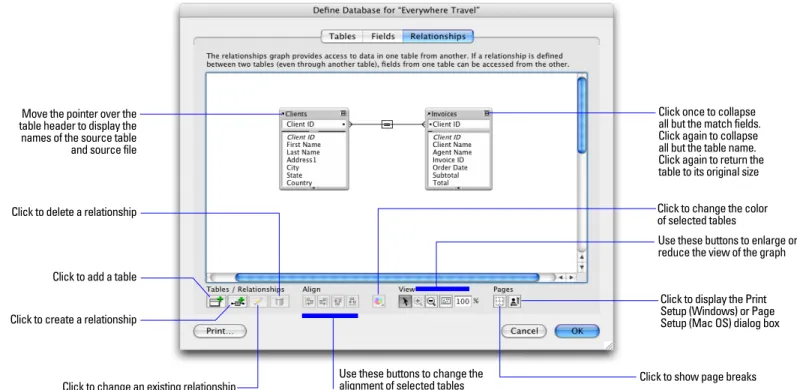
Printing the relationships graph 33
Automating tasks with scripts 34
Backing up database files 34
4 FileMaker Pro User’s Guide
Chapter 2
Creating databases
Planning a database 35
Creating a FileMaker Pro file 38
Defining database fields 39
About naming fields 39
About choosing a field type 40
Defining text, number, date, time, timestamp, or
containerfields 41
Defining calculation fields 41
Defining summary fields 43
Setting options for fields 44
Defining automatic data entry 45
Defining field validation 46
About storage and indexing options 47
Defining database tables 47
Creating layouts and reports 48
About layout types 49
Setting up a layout to print records incolumns 51
Working with objects on a layout 52
Selecting objects 53
Working with fields on a layout 54
Placing and removing fields on a layout 54
Deciding where to place related fields 55
About merge fields 55
Formatting field data on a layout 56
Allowing or preventing entry into fields 59
Working with parts on a layout 59
About layout part types 60
Chapter 3
Working with related tables and files
About relationships 61
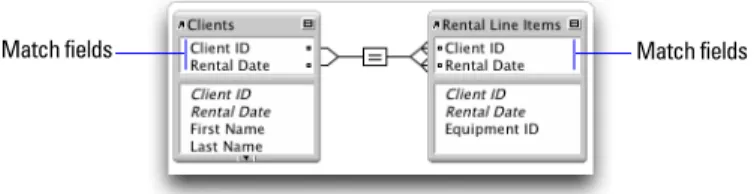
Relational database terminology 63
About the relationships graph 64
About match fields for relationships 64
Types of relationships 64
Planning a relational database 68
Working with the relationships graph 68
Creating relationships 68
Changing relationships 69
Summarizing data in portals 70
About lookups 71
Creating lookups 71
Editing lookups 72
Chapter 4
Sharing and exchanging data
Sharing databases on a network 73
Enabling file sharing and hosting files 74
Opening shared files as a client 74
Closing a hosted file 75
Importing and exporting data 76
Supported import/export file formats 76
ODBC and JDBC 76
Methods of importing data into an existing file 76
About adding records 76
About updating existing records 76
About updating matching records 77
About the importing process 77
Converting a data file to a new FileMaker Pro file 78
About the exporting process 78
Chapter 5
Protecting databases with accounts and privilege sets
Protecting databases 81
Accounts, privilege sets, and extended privileges 82
About the predefined accounts 83
About the predefined privilege sets 83
Planning security for a file 84
Password-protecting a file 85
Creating accounts and privilege sets 85
Viewing accounts and privilege sets 86
Creating accounts 86
Creating accounts that authenticate via an external server 87
Creating privilege sets 88
Viewing extended privileges 89
Chapter 6
Converting FileMaker databases from previous versions
Conversion overview 91
Converting a single file 92
Converting multiple files at once 93
Reading the Conversion.log file 95
Solving basic conversion problems 95
Converting FileMaker Pro 1.x and 2.x databases 96
Top conversion issues 96
Passwords 96
Preserving user dictionary information 96
Print Setup script step stored setup options (Windows) 97
Switching windows in scripts 97
Boolean functions and find requests 97
File references 98
Introducing FileMaker Pro
FileMaker® Prois the leading workgroup database software for quickly creating and sharing solutions adapted to your business needs. Powerful features, broad platform support, and an easy-to-use interface make FileMaker Pro indispensable for anyone who needs to track and manage people, projects, and information.
Using this manual
This User’s Guide contains an introduction to FileMaker Pro features and provides step-by-step instructions on the most common FileMaker Pro tasks. You may need to refer to FileMaker Pro Help for detailed information on more advanced product features.
Using FileMaker Pro documentation
The FileMaker Pro documentation provides a learning path to productivity, installation instructions, a tutorial to get you started, online Help, and more.The following manuals are included:
1
FileMaker Pro User’s Guide (this manual):contains key conceptsand basic procedures
1
Installation and New Features Guide for FileMaker Pro andFileMaker Developer:contains installation instructions and new
features information
1
FileMaker Pro Tutorial:contains lessons that teach you how usethe major features of FileMaker Pro
1
FileMaker Instant Web Publishing Guide:describes how to makeFileMaker Pro databases accessible to web browser users over an intranet or the Internet
1
Converting FileMaker Databases from Previous Versions:contains information about converting databases from previous versions to FileMaker Pro 7 format
1
Customizing the FileMaker Pro Templates:describes how tocustomize the included database template files for your own needs
1
FileMaker Security Guide: describes security concerns to keep inmind when using FileMaker products
1
Installing FileMaker ODBC and JDBC Client Drivers:describeshow to install driver files for using FileMaker Pro with ODBC and JDBC applications
1
FileMaker ODBC and JDBC Developer’sGuide:describes how touse ODBC and JDBC with FileMaker products
Where to find PDF documentation
Most PDF manuals are located in the folder where you installed FileMaker Pro. If you installed FileMaker Pro in the default folder location, the PDF manuals are located here:
Windows: C:\Program Files\FileMaker\FileMaker Pro 7\English Extras\Electronic Documentation
Mac OS: Macintosh HD/Applications/FileMaker Pro 7/English Extras/Electronic Documentation
To view the PDF files, you need a PDF reader. In Mac OS X, you can use either the built-in Preview application or Adobe Reader. Windows users need Adobe Reader. If you do not have Adobe Reader, you can download it from the Adobe web site at www.adobe.com.
Important You can download PDFs of FileMaker 7 documentation from www.filemaker.com/downloads. Any updates to this document are also available from the web site.
All of the PDF files use the tagged Adobe Portable Document format (PDF). Tagged PDF files work with assistive technology such as the screen readers JAWS for Windows and Window-Eyes. For more information about tagged PDF files, see the Adobe web site at www.adobe.com.
Online Help
FileMaker Pro Help provides comprehensive step-by-step
instructions on FileMaker Pro features. You can open Help from the Help menu in FileMaker Pro.
There are three ways to access Help:
1
Browse the Help table of contents to locate topics by subject.1
Search for particular topics by entering keywords.1
Get information about the currently displayed dialog box by pressing F1 (Windows) or 2-? (Mac OS).Templates, examples, and more information
FileMaker Pro includes database template files that you can use to quickly get started. When you start creating databases, check the list of templates to see if one is available that suits your needs.
The English Extras folder contains references and examples to help you with specific features such as ODBC and XML support. You can find more information, tips, and database ideas on the FileMaker web site at www.filemaker.com.
Suggested reading
Here are some suggestions for using the documentation to help you learn how to do specific tasks in FileMaker Pro.
Type of user Suggested reading
Data entry person Lessons 1-3 in the FileMaker Pro Tutorial
Chapter 1, “Using databases,” in this guide Small business
owner or educator who creates a basic database to start, then improves it over time
All lessons in the FileMaker Pro Tutorial
While creating a database, chapter 2, “Creating databases,” in this guide
As features are added to the database, refer to Help
Database administrator
This entire guide
Help, for information on advanced topics
FileMaker Instant Web Publishing Guide
New FileMaker Pro user
Installation and New Features Guide for FileMaker Pro and FileMaker Developer
All lessons in the FileMaker Pro Tutorial
This guide User upgrading
from a previous version
Installation and New Features Guide for FileMaker Pro and FileMaker Developer
Chapter 6, “Converting FileMaker databases from previous versions” in this guide
Converting FileMaker Databases from Previous Versions
guide Help
FileMaker Pro overview
Here is an overview of the capabilities of FileMaker Pro.
Creating simple or complex databases
With FileMaker Pro you can create simple databases consisting of just one database table, such as an address list, or you can create a complex database with relationships and multiple database tables. For example, you can create a complex database that relates two tables based on a single common value, such as a serial number or an ID number.
You can organize your databases as a single table in a single file, as multiple tables in a single file, or as multiple tables in multiple files. FileMaker Pro provides database templates designed for business, education, and personal purposes. The templates can be quickly customized to suit your needs.
For more information about creating databases, see chapter 2, “Creating databases.”
Using layouts to display, enter, and print data
FileMaker Pro layouts determine how information is organized for viewing, printing, reporting, finding, and entering data. Layouts do not store your data—they just display it.
Database files can have many different layouts, which display data in a variety of ways. Within one database file, you can design separate layouts for entering data, reporting summaries, printing mailing labels, publishing a database on the web, and so on. You can change a layout’s design without affecting the data or other layouts for the file. When you change the data in a field, the changes are reflected in the same field on all the layouts in the database.
In a layout, you choose, arrange, and modify fields and field labels, create reports, add buttons to initiate scripts, add graphics and text, and specify printing options.
There are six types of layouts and one view that you can create with the New Layout/Report assistant. Use these different types for various purposes, like displaying a data entry screen or printing a totaled sales report or mailing labels. You can customize each layout further by using the design tools that are available in Layout mode. An address list database
consisting of one table
A database consisting of multiple tables, with a portal to display records from a related table
Steve Williams 789 Ninth Avenue New York, NY 10001
The same data can be arranged differently with multiple layouts
Juanita Alvarez 555-1234
Michelle Cannon 555-1234
Andre Common 555-1234
Marie Durand 555-1234
Jean Durand 555-1234
William Johnson 555-1234
John Lee 555-1234
Patrick Murphy 555-1234
Le Nguyen 555-1234
Kentaro Ogawa 555-1234
Mary Smith 555-1234
John Smith 555-1234
Sophie Tang 555-1234
Steve Williams 555-1234
Betty Wilson 555-1234
Phone List
Dear Sophie,
Thank you for reserving a cruise with us. We value your business and appreciate the opportunity to serve you. If you have any questions about your reservations, please call us—we want you to be satisfied with your cruise. Sincerely,
For more information about creating layouts, see “Creating layouts and reports” on page 48.
Finding, sorting, and replacing data
Features for finding, sorting, and replacing data allow you to manipulate your data in many ways.
You can find records that meet criteria you specify, such as records entered on a certain date or addresses in a particular city. You can open another window in order to perform different searches on the same data.
You can rearrange records in order to view or print them in a different sequence. You can sort fields alphabetically, numerically, by date, or by a custom sort order.
You can search for and replace data across multiple fields, similar to the way you find and replace data in word processing applications. For more information about finding, sorting, and replacing data, see “Finding records” on page 23, “Sorting records” on page 30, and “Finding and replacing data” on page 30.
Protecting databases with accounts and privilege sets
You can restrict what users see and do in a database file by defining accounts and privilege sets. Accounts authenticate users who are attempting to open a protected file. Each account specifies an account name and (usually) a password. Any user that cannot specify valid account information won’t be able to open a protected file. A privilege set specifies a level of access to a database file. Each account is assigned a privilege set, which determines the level of access when someone opens a file using that account.Extended privileges determine the data sharing options that are permitted by a privilege set, such as whether a privilege set permits users to open a shared file or view a database in a web browser. For more information about accounts and privilege sets, see chapter 5, “Protecting databases with accounts and privilege sets.”
Creating scripts to automate tasks
Scripts can do simple tasks like setting print orientation or complex tasks like preparing a customized mailing to clients.
For example, you could define a script that creates a thank you letter to clients in your clients database who have made a purchase in the last week. The script composes a letter customized to each client. The script then switches to Preview mode and pauses so that you can see what the letter looks like before it prints. The whole task is started by clicking a button on a layout.
You use the ScriptMaker™ feature in FileMaker Pro to build scripts by selecting from a list of FileMaker Pro script steps, specifying options, and arranging the steps in the correct order to perform the task.
For more information about scripts, see “Automating tasks with scripts” on page 34.
Sharing and exchanging data
A benefit of storing data in FileMaker Pro is sharing your data with others. You can share your data with other FileMaker Pro users on a network, use the web publishing capabilities to share data over the web, or use ODBC (Open Database Connectivity) and JDBC (Java Database Connectivity) to share FileMaker Pro files with ODBC- and JDBC-compliant applications.
If your computer is connected to a network, you and other Windows and Mac OS FileMaker Pro users can use the same database file simultaneously. FileMaker Pro Network Sharing supports the sharing of files with up to five concurrent users.
Note If you need to share files with more than five concurrent users on a network, FileMaker recommends the use of FileMaker Server. You can quickly and easily publish FileMaker Pro layouts as web pages, which allows anyone with a web browser on your intranet (or the Internet) to access your FileMaker Pro databases.
With FileMaker Pro accounts and privilege sets, you can make your web databases secure.
Using SQL (Structured Query Language) queries, you can get data from FileMaker Pro files to create charts, generate reports, and analyze your data with ODBC- and JDBC-compliant software applications. You can also use FileMaker Pro as an ODBC client application, accessing data sources such as Microsoft Access or Oracle databases. For more information about using, and the limitations of using, ODBC and JDBC with FileMaker Pro, see Help. For more information about sharing and exchanging data, see chapter 4, “Sharing and exchanging data.”
Using databases
This chapter explains the basics of how to:
1
open, close, and save files1
create records in a database1
add and edit data in fields1
find records using different criteria1
omit records from the found set1
find and replace data1
sort data1
print data, scripts, table and field information, and the relationships graph1
use scriptsNote See Help for detailed, comprehensive information and step-by-step procedures about using FileMaker Pro. To learn how to do tasks such as browsing, finding, and sorting records, see Lessons 2 and 3 in the FileMaker Pro Tutorial.
About database fields and records
A database is a collection of information, or data, that you can
organize, update, sort, search through, and print as needed. Your own address book or filing cabinet is an example of a simple database. With the address book and filing cabinet, you store similar pieces of information organized for easy retrieval.
With a filing cabinet, you must choose a way to sort your data, for example, alphabetically by last name or by region. By storing contacts and addresses in FileMaker Pro, you can organize your information in many ways. You can sort your information by country, city, last name, or even sort by all three of these fields.
An invoicing system is an example of a more complex database, with multiple related tables, multiple layouts, and calculated fields. You can also view a subset of your data, for example, only invoices for a particular month. A database doesn’t just hold information— you use a database to organize and analyze information so that you understand its significance.
Fields are the basis of a database table. Fields are used to store,
calculate, and display the data you enter into a record. Each piece of information in a record—like name, ID number, and telephone number—is stored in a field.
A database table contains one or more records. Each record contains fields that hold similar information about one subject or activity. For example, the fields on a record in the Clients table contain address information for one client.
B C
Michelle Cannon 123 4th St. SW
Edmonton (717) 555-0011
CAN N4V 1LN
Records
Fields
A database can consist of one file with one table, which might hold the names, addresses, and telephone and fax numbers of all your clients.
A database can also consist of several files, each of which can contain one or more tables that, together, contain all the information about related topics (sometimes called a database system). Using the relational capabilities of FileMaker Pro, you can join information between files and tables to create a relational database.
For example, one table can show you which clients bought a particular item and a related table can show how much they paid.
To enter data in a database table, you make a new record and enter values into the fields that belong to that record. Values can be typed into a field, imported from another application, or entered in a number of other ways.
Opening files
Important For information about opening files created in previous versions of FileMaker Pro, see Converting FileMaker Databases
from Previous Versions.
To open a file if FileMaker Pro isn’t running, choose one of the following methods:
1
Double-click the FileMaker Pro file.1
Drag the file onto the FileMaker Pro application icon.1
Double-click the FileMaker Pro application icon. In the New Database dialog box, select Open an existing file, then click OK, then double-click the filename.To open a file if FileMaker Pro is already running: 1. Choose File menu > Open.
2. Double-click the name of the file to open.
If you’re asked for an account name and password, type them in the Password dialog box, then click OK.
To open a file that is being shared over a network: 1. Choose File menu > Open Remote.
2. In the Open Remote File dialog box, select View for a list of hosts.
3. To see the available files from a host, select the host. In the
Available Files list, select the file you want to open. Or, for Address, type the network path (for example,
fmnet:/hostIPaddress/fileName).
4. Click Open.
Invoices table
002 Client ID
Andre Common Client Name
818-555-1234 Phone
Prod ID Product
ET3
Price Travel bag $29 ET4 Travel book $32
12345 Invoice ID
ET3 Prod ID
Travel bag Product
$29.00 Price
002 Client ID
Andre Common Name
818-555-1234 Phone
Products table Clients table
34 Stock
Choose To display
Favorite Hosts Hosts you previously added as favorites
Local Hosts FileMaker Pro hosts on your TCP/IP subnet
Hosts Listed by LDAP FileMaker Pro hosts available through the specified LDAP server
You might be required to enter an account name, password, and domain name (Windows only), depending on how FileMaker Network Sharing is configured on the host.
To open a file as the host, see “Enabling file sharing and hosting files” on page 74.
Note You can open a FileMaker Pro for Windows file on the Mac OS, and vice versa. If you intend to move files across platforms, it’s best to include the .fp7 extension in the filename. If you add or remove filename extensions, you must re-specify the file references for related files and files with external scripts.
Opening multiple windows per file
You can open more than one window per file. This allows you to view the same layout in separate windows, or simultaneously view different layouts in the same file. You can perform find or sort operations independently in the different windows.
To open an additional window, choose Window menu > New Window. Another window appears. Initially, the window displays the same layout, sort order, and found set as the previously active window.
To view a different layout in the new window, choose a layout from the Layout pop-up menu in the status area. For information on finding records, see “Finding records” on page 23. For information on sorting records, see “Sorting records” on page 30.
For more information about opening multiple windows, see Help.
Closing windows and files
You can close FileMaker Pro windows and files as you would in most Windows and Mac OS applications.
To close a window, do one of the following:
1
Windows: Double-click the document icon in the upper left corner of the document window.The original database window, in which you can search the records
A second window, in which you can perform a different search on the same found set
1
Windows: Click the close box in the upper right corner of the document window.1
Mac OS: Click the red close button in the upper left corner of the document window.1
Choose File menu > Close.To close a file, use the procedures above to close all the open windows for a file.
Note Even if you close a file, it may remain open as a hidden file if the window of any other file is displaying data from that file. (For example, another window may be displaying related data from the file you attempted to close.) FileMaker Pro will close the file when you close all the dependent windows.
Saving files
You can save a copy of your file as a backup or save a clone of your file with no data.
Some minor changes to files are not always saved with the file. For details, see the next section, “When FileMaker Pro saves a file.” Important Always save a copy before you make extensive changes. You can’t restore data after you delete a field from the Define Database dialog box or remove records using the Delete Record or
Delete All commands. To save a copy of your file:
1. Make the file you want to save the active file, and choose File
menu > Save a Copy As.
2. Navigate to where you want to save the copy on your hard disk. 3. For File name (Windows) or Save As (Mac OS), type a filename. 4. For Save as type, choose FileMaker Files (Windows only).
5. For Save a (Windows) or Type (Mac OS), choose one of the following options:
6. Click Save.
When FileMaker Pro saves a file
In previous versions of FileMaker Pro, simply opening and closing a file would cause the file to be saved, even if you did not actually make any changes to it. In FileMaker Pro 7, the following actions do not cause the file to be saved:
1
Displaying a different record or layout1
Sorting records or modifying a sort order1
Performing find operations such as Find, Show All Records, Omit Record, or modifying a find request1
Changing the position and size of windows or hiding/showing the status area1
Changing layout object default settings1
Changing ruler display settingsChoose To
Copy of current file Duplicate the entire file, including the tables, field definitions, layouts, scripts, page setup options, and data. Duplicating a file is useful before you make extensive changes.
Compacted copy (smaller)
Compact the entire file into less disk space by reclaiming unused space in the file. Saving a compacted copy is useful if you edit many records frequently.
Clone (no records) Save a file’s tables, field definitions, layouts, scripts, and page setup options, without the data. Make a clone when you want a template of the file.
If you perform any of the above actions without also performing an action that does cause a save (such as modifying data), the change won’t be saved when you close the file. FileMaker Pro considers the above actions to be minor changes, and they are not saved with the file unless the file is also modified in a more significant way. For example, if you open a file, perform a find, then close the file, FileMaker Pro does not save the found set with the file. However, if you open a file, add a new record, perform a find, then close the file, FileMaker Pro will save the found set as well as the new record with the file.
For more information about saving files, see Help.
About modes
You work with data in FileMaker Pro in Browse, Find, Layout, or Preview mode. You can choose a mode from the View menu, the Mode tabs in the status area, or from the mode pop-up menu at the bottom of the document window.
Viewing records
FileMaker Pro provides three views of each layout: form, list and table. When you change views, you temporarily change the way records display or print.
Mode pop-up menu Mode tabs
Use this mode To
Browse mode Work with the data in a file. You can add, view, change, sort,
omit (hide), and delete records. Browse mode is where you’ll do most of your work, such as data entry.
Find mode Search for particular records that match a set of criteria. You
can then work with this subset of your records, called the
found set. After you find a group of records, FileMaker Pro
returns to Browse mode so you can begin working with them.
Layout mode Determine how information is presented on your screen or in
printed reports, labels, and forms. Design layouts for specific tasks, like data entry or printing invoices or envelopes. Select and arrange fields and other objects to modify an existing layout or create new layouts.
Preview mode See how data in forms or reports will look before you print.
Preview mode is especially useful for viewing layouts with multiple columns (like mailing labels) and reports with summaries.
To view records Do this in Browse mode or Find mode
Individually Choose View menu > View as Form.
In a list Choose View menu > View as List.
The following illustration shows the same layout in three views.
Viewing records in table format
While viewing records in table format, you can make one or more of the following changes to columns and records:
To Do this
Reorder columns Click a column heading and drag it to a new location.
Resize a column Move the pointer to the edge of the column heading.
When the pointer changes to a double arrow ( ), drag
it to the desired size.
View as Form
One record View as List
View as Table
One record Field labels
One record
Set a precise column width
Select one or more columns, then right-click
(Windows) or Control-click (Mac OS). Choose Set
Column Width from the shortcut menu. In the dialog box,
type a width, choose units from the list, then click OK.
Sort records 1 Click a column heading.
1 Select one or more columns, right-click (Windows)
or Control-click (Mac OS), then choose a sort order from the shortcut menu. If you select multiple columns, the order of the columns (left to right) determines the sort order.
Note You must have Sort data when selecting column
selected in the Table View Properties dialog box. (In Layout mode, select this option by right-clicking (Windows) or Control-clicking (Mac OS), then
choosing Layout Setup from the shortcut menu. In the
Layout Setup dialog box, click the Views tab, then click
Properties.)
To Do this
View as Table
Column headings. Each column displays one field from the current layout
Selecting the active record
In Browse mode, a table has one active (selected) record at a time for each window. For more information about working with multiple windows, see “Opening multiple windows per file” on page 15.
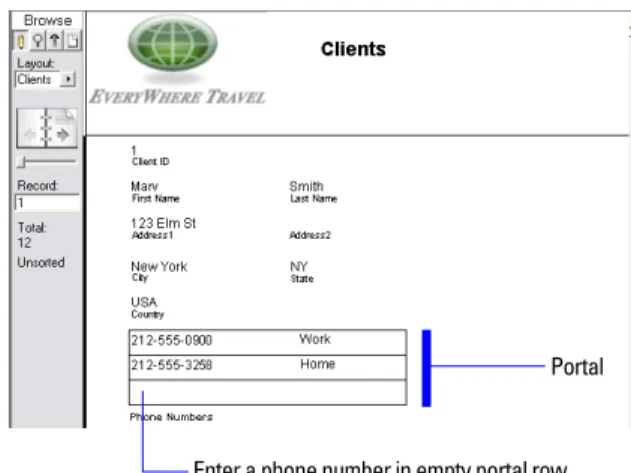
To select a related record in a portal, select the portal row (click inside the row but outside any fields in the row). For information about related records and portals, see chapter 3, “Working with related tables and files.”
Moving through records
To move from one record to another, use the book icon in the status area.
In this view The active record is
View as Form The record that you’re displaying.
View as List or
View as Table
The record that’s marked with a solid bar along the left side. To work with another record, click in the record to make it active.
Current record in View as List
To move Do this
To the next record in the current table
Click the right page of the book icon.
To the previous record in the current table
Click the left page of the book icon.
Quickly to a specific record
1 Click the current record number, type the record
number you want, then press Enter (Windows) or Return (Mac OS).
1 Press Esc, type the record number, then press Enter
or Return.
Click inside the portal row to select a related record Portal
Slider
Current record number Number of records
in the database Book icon
For more information about viewing records, see Help.
Adding and duplicating records
When you add or duplicate records, FileMaker Pro stores new records at the end of the current table. In Browse mode, you see the new record after the current record, or after the last record in the found set (the set of records made active by a find request).
1
If records are sorted, the new record appears immediately after the current record.1
If records are unsorted, the new record appears after the last record in the found set. For more information, see “Sorting records” on page 30.Note If a file is locked or write-protected, or if you don’t have access privileges to create records, FileMaker Pro will not add or duplicate records.
If the field is defined to automatically enter field values, you see those values entered in the new record. See “Defining automatic data entry” on page 45.
To enter or change values in the new record, see “Entering and changing data in fields” on page 22.
Adding and duplicating related records
If you’re working with records in related tables, you can add records to a related table when you enter data in a record in the current table. Note You can only add related records from the current table if the relationship is defined to allow the creation of related records. If a related table is in a write-protected file, or if you don’t have access privileges to create records, FileMaker Pro will not add or duplicate records. (See “Creating relationships” on page 68.)
Quickly through records
Drag the slider right or left to move forward or backward.
Through records in View as List or View as Table
Use the scroll bar on the right side of the window.
To a record with a unique value that you know
See “Finding records” on page 23.
To Do this in Browse mode
Add a new blank record Choose Records menu > New Record. You see a
blank record with one field selected. Quickly add a record
with the same or similar data as an existing record
Select the record to duplicate. Then, choose Records
menu > Duplicate Record. (See “Selecting the active
record” on page 19.) Add or duplicate related
records
See the next section.
To move Do this
To Do this in Browse mode
Add a record to a related table
1 If the related field is in a portal, type data into the field
in the last (empty) row of the portal, then press Enter.
1 If the related field isn’t in a portal, type data into the
field, then press Enter. Duplicate a record
that is displaying related data
Be sure no records in a portal are selected, then choose
Records menu > Duplicate Record.
Duplicate a related record in a portal
Select the record in the portal, then choose Records
For more information about adding and duplicating records, see Help.
Deleting records
When you delete a record, you permanently discard the data in all the fields in that record.
Important You can’t retrieve deleted data, and you can’t undo the action of deleting records.Before you delete records, consider making a backup copy of your file.
If you’re working in a relational database and the option to delete related records is selected in the Edit Relationship dialog box, FileMaker Pro deletes related records when you delete a record.
Entering data
Note If a file is locked or write-protected, or if you don’t have privileges to edit certain records or fields, you may not be able to modify data.
Selecting a field
To delete Do this in Browse mode
One record Select the record to delete. Choose Records menu > Delete
Record, then click Delete. Portal displaying
related records from the Line Items table
Type in the last row of the portal to add a related record to the Line Items table
A related record Select a portal row in the current table by clicking inside
the row but outside any fields in the row. Choose Records
menu > Delete Record, then click Delete.
Note To delete related records, Allow deletion of portal
records must be selected in the Portal Setup dialog box.
A group of records Make sure the found set contains only the records you
want to delete. (See “Finding records” on page 23.)
Choose Records menu > Delete Found Records, then click
Delete.
All records in a database
Choose Records menu > Show All Records, then choose
Records menu > Delete All Records.
To Do this in Browse or Find mode
Select a field Click in the field.
Select the contents of a field
Select the field, then choose Edit menu > Select All.
Move to the next field in the field order
Press Tab, Return, or Enter.
Note To set the key(s) used to move to the next field, in
Layout mode, select the fields, then choose Format
menu > Field Behavior. Move to the previous
field in the field order
Press Shift-Tab, Shift-Return, or Shift-Enter.
Move to items in a value list
Press the arrow keys.
Entering and changing data in fields
You can enter or import data up to the character limit for the field type. You can view and print only the data that fits within the field boundaries.
To Click in the field in Browse mode, then
Enter data in a text field Type the text (up to 1 billion characters).
Enter data in a number field Type the values (from 10400 to 10-400).
Enter data in a date field Type one date on one line in the field. Type the
day, month, and year as numbers (for example, 3/3/2005), separated by a nonnumeric character like – (minus) or / (forward slash).
Note You cannot use a : (colon) as a date separator.
Important If you enter dates with two-digit years, FileMaker Pro converts them to four- digit year dates using a conversion method described in Help. To avoid misinterpretations during conversion, always enter dates with four-digit years.
Enter the current date in a date, number, or text field
Choose Insert menu > Current Date.
Enter data in a time field Type the time of day (or time duration) as:
1 hours
1 hours and minutes
1 hours, minutes, and seconds
1 hours, minutes, seconds, and fractional
seconds
Separate hours, minutes, and seconds by a nonnumeric character like : (colon). Separate fractional seconds by a . (period). Type the time of day in 24- or 12-hour format, with or without AM or PM. (AM is assumed for a time less than 12:00.)
Enter the current time in a time, number, or text field
Choose Insert menu > Current Time.
Enter data in a timestamp field Type the date and time (for example, 10/15/2005 3:15:05 PM). Type the day, month, and four-digit year as numbers, separated by a nonnumeric character like - (minus) or / (forward slash).
Note You cannot use a : (colon) as a date separator.
Then type the time of day as:
1 hours and minutes
1 hours, minutes, and seconds
1 hours, minutes, seconds, and fractional
seconds
1 Type AM or PM if the time is not in
24-hour format
Separate hours, minutes, and seconds by a nonnumeric character like : (colon). Enter the current date and time
in a timestamp field
Choose Insert menu > Current Time.
Insert a tab character in a field Click where you want to insert the tab. Press
Ctrl+Tab (Windows) or Option-Tab (Mac OS).
Delete data from a field. Select the data, then press Backspace or
Delete.
Add data to a container field For information, see Help.
Insert a file in a container field For information, see Help. Add data to value lists (fields
formatted as radio or option buttons, checkboxes, lists, or menus)
For information, see Help.
Edit, format, or check the spelling of text in a field or edit dictionaries
For information, see Help.
Finding records
To find records, work in Find mode. You type criteria (the value or values to find) into fields in a find request, which looks like a blank record. When you perform a find, FileMaker Pro searches through all the records in a table, comparing the critieria you specify with the data in the table. Records with data matching the criteria become the
found set, which is the subset of records being browsed. Records that
don’t match are omitted. You can constrain (narrow) or extend (broaden) the found set.
You can work with just the records in the found set. For example, you can view, edit, calculate summaries for, sort, print, delete, export, or replace data in these records. You can also open a new window in order to perform different find requests on the same data.
You can’t perform a find in summary fields, container fields, or fields defined with the global storage option.
Making a find request
To make a find request:1. Go to a layout that has fields you want to enter criteria in. You can change layouts and enter criteria on more than one layout. 2. Choose View menu > Find Mode.
3. In the find request, select a text, number, date, time, timestamp, or calculation field to use for finding, then type a value in the field. You can use the Symbols pop-up menu to help you enter criteria that include operators.
4. Click Find in the status area, or choose Requests menu > Perform Find.
You can do one or more of the following during or after performing a find request:
To Do this
Cancel a find operation before it is finished and leave the previous found set unchanged
Press Esc (Windows) or 2-period
(Mac OS).
Change or refine criteria after performing a find request
See “Viewing, repeating, or changing the last find” on page 29.
Narrow an existing found set See “Constraining (narrowing) a found
set” on page 27.
Broaden an existing found set See “Extending (broadening) a found
set” on page 28.
Choose a layout with fields you want to search on Type Find criteria in fields
Click the arrow to see the operators Click to begin searching
Finding text and characters
Search for text in text fields, or in calculation fields that return a text result.
Unless you search for phrases and exact matches, the field can contain other values in addition to the one(s) you specify, and the values can be in any order. For example, typing hotel in a field named Accommodation finds records for Hotel, Discount Hotel, and
Hotel, Luxury.
Show all records again In Browse mode, choose Records
menu > Show All Records.
In Find mode, choose Requests menu >
Show All Records.
You don’t need to choose Show All
Records before performing finds. FileMaker Pro always searches all records in the tables you specify unless you have narrowed the existing found set.
Open another window in order to perform different find requests on the same data
Choose Window menu > New Window.
To find
Type this in
the field Examples
Words that start with specific characters (works with fields that use any language except Japanese)
The characters. Chris Smith finds
Chris Smith, Smith Chris, Chris Smithson, and Smith Christenson
Words that start with specific characters (Japanese field only)
The characters between = and *.
1 = * finds ,
, and
1 =Chris* =Smith*
finds Chris Smith, Smith
Chris, and Smith
To Do this
Words that contain specific characters in a Japanese field
The characters. finds ,
, and
A phrase or sequence of characters
The text, including spaces and punctuation, between the double quotation marks (").
"Marten and Jones Interiors" finds
Marten and Jones Interiors
but not Jones and Marten
Interiors
", Ltd." finds all companies with ", Ltd." in the name, but not those without the comma. Words with one or more
unknown or variable characters
One wildcard character (@) for each unknown character.
Gr@y finds Gray and Grey
@on finds Don and Ron
but not Bron
Words with zero or more unknown or variable text characters in a row
* for all unknown characters.
Jo*n finds Jon and John
J*r finds Jr. and Junior
*phan* finds Phan and
Stephanie
Digits in a text field A # character for each
digit.
# finds 3 but not 30 ## finds 30 but not 3 or
300
Symbols or other non-alphanumeric characters, such as punctuation or spaces
The characters, including spaces and punctuation, between the double quotation marks (").
"@" finds @ (or an email address, for example) "," finds records containing a comma
" " finds three spaces in a row Words with accented
characters
The text, including spaces and punctuation, between the double quotation marks (").
"òpera" finds òpera but not opera
(òpera without quotes
finds both òpera and
opera)
To find
Type this in
Finding numbers, dates, times, and timestamps
Numbers, dates, times, and timestamps should be entered in the corresponding field types (or calculation fields returning the corresponding field type) to ensure correct behavior when finding them. See “About choosing a field type” on page 40. You cannot find text in number fields.Important To avoid confusion when working with dates, always use four-digit years. For more information, see the Help topic
“Conversion of dates with two-digit years.”
Partial phrases (a sequence of words or characters)
Characters, punctuation, and spaces between quotation marks (""). Use * to find this text in the middle of a longer text string.
*"son & Phillips"
finds
Johnson & Phillips and
Paulson & Phillips
Case-sensitive text Change the default
language for indexing the field to Unicode. Note This procedure will change the order in which records sort. For more
information, see Help.
fredfinds fred
but not Fred
Japanese characters using a relaxed search method that does not differentiate between Hiragana/ Katakana, Voiced/Semi-Voiced/Unvoiced Kana, Small/Regular Kana, and Kana Voiced/Unvoiced Iteration Marks (Available only in Japanese-indexed fields)
~ (tilde) followed by the character.
~ finds , , , ,
, and
A character with special meaning, such as database syntax recognized by FileMaker Pro: @, *, #, ?, !, =, <, >, "
\ followed by the special character.
\"Joey\" finds "Joey" joe\@abc.net finds the email address
[email protected] To find
Type this in
the field Examples
Exact matches of the text you specify
== (two equal signs) ==John finds John but
not John Smith
==JohnSmith finds
John Smith but not
Smith, John or John Smithers
Exact matches of whole words you specify
= =Market finds Market, Market Services, and
Ongoing Market Research
but not Marketing or
Supermarket
=Chris =Smith finds
Chris Smith or Smith Chris
but not Chris or
Christopher Smithson
Ranges of information See “Finding ranges
of information” on
page 26.
To find Type this in the field Examples
A number in a number
field or in a calculation field that produces a numeric result
The number, in the format used when the file
was created (unless Use
System Formats is chosen)
.50 finds .5, .50, and $.50 To find
Type this in
Finding ranges of information
A Boolean number in a
number field or in a calculation field that produces a Boolean result
1 to find True values
0 to find False values
1 finds 1
0 finds 0
A date in a date field or
in a calculation field that produces a date result
The date as digits, separated by a nonnumeric character, in the format used when the file was created (unless
Use System Formats is chosen)
3/3/2005 finds
3/3/2005,
March 3, 2005, and
3-3-2005
Today’s date in a date
field or in a calculation field that produces a date result
// // finds April 4, 2005
(when the current date is 4/4/2005)
A time in a time field or in a calculation field that produces a time result
The time as digits, separated by colons, in the format used when the file was created (unless
Use System Formats is chosen)
12:53:09 finds 12:53:09
A timestamp in a timestamp field or in a calculation field that produces a timestamp result
The date as digits, separated by a nonnumeric character, then the time as digits, separated by colons, in the format used when the file was created (unless
Use System Formats is chosen)
3/3/200512:53:09
PM finds 3/3/2005 12:53:09
PM
Invalid dates, times, timestamps, or calculated date or time results
? ? finds:
Next Tuesday or 2/33/2005
in a date field, or midnight
in a time field
To find Type this in the field Examples
Invalid data (fields containing no numbers) in a number field or calculation field that produces a numeric result
? ? finds:
twelve but not 12 or
twelve30
Ranges of information See the next section.
To find values that are
Use this
operator Examples
Less than a specified value < <40
<9/7/2005
<M
Less than or equal to a specified value
<=
or ≤ (Mac OS)
<=95129 ≤05:00:00 <=M
Greater than a specified value > >95129
>9/7/2005
>M
Greater than or equal to a specified value
>=
or ≥ (Mac OS)
>=100 >=9/7/2005
≥8:00
≥M
Within the range you specify. A range is different based on the data type:
1 Numbers: least to greatest
1 Dates and times: earliest to
latest
1 Text: first to last word, based
on the index order of words (not the sort order)
.. or ... (two or three periods)
12:30...17:30 1/1/2005..6/6/2005 A...M
Finding data in related fields
You can enter find criteria in related fields that are displayed in a portal or directly on a layout.
When you perform a find in a related field, FileMaker Pro displays all the records that have a related record matching the criteria you enter. For example, suppose you have an invoice file that displays line items as related records in a portal. To find all invoices listing a computer, type Computer in the Item field in the portal. For information about related fields, see chapter 3, “Working with related tables and files.”
For information about omitting related records, see “Finding records except those matching criteria” on page 28.
Finding empty or non-empty fields
Finding duplicate values
You can find all records for which one or more fields contain duplicate values. For example, you might want to find all records that aren’t unique, then examine them to decide which records to use or delete.
To find all duplicate records, choose View menu > Find Mode and type ! in the field.
Finding records that match multiple criteria
You can narrow or broaden your search by using more than one criterion.
Records matching all criteria specified (logical AND search) To narrow your search, enter criteria in as many fields as needed to make your request specific, then click Find.
You can narrow find results incrementally, looking for more specific detail as you search your database. See the next section.
Constraining (narrowing) a found set
For example, after searching for all of the employees who work in Sales, you can narrow the search to find all of the employees in Sales named Alvarez:
1. In Find mode, perform a find to find all of the employees who work in Sales.
FileMaker Pro displays the found set in Browse mode.
2. Switch back to Find mode and type the criteria to narrow the search (type Alvarez in the Last Name field).
3. Choose Requests menu > Constrain Found Set.
The found set now consists of employees in Sales named Alvarez. E154
Invoice ID Alvarez Name
Item ID Item I100 Computer I202 Desk I153 Lamp I229 Bookcase I448 Chair
Find request
E153 Invoice ID
Tang Name Item ID Item
I202 Desk I443 Long table I153 Lamp I288 Round table I100 Computer Invoice ID
Name Item ID Item
Computer
E152 Invoice ID
Durand Name
Item ID Item I384 Swivel chair I554 Panels I288 Round table I100 Computer I448 Chair
Records in table
To find fields that are Type this in the field
Not empty (i.e., fields that have data) *
Records that match at least one of the sets of criteria, but not necessarily all (logical OR search)
To widen your search, enter criteria in the first request. Choose
Requests menu > Add New Request. Enter the second (set of) criteria. Continue adding requests for each (set of) criteria, then click Find. Examples:
1
To include customers in New York and customers in Paris in the found set, type New York in the City field in the first request, thentype Paris in the City field in the second request.
1
To include companies with more than 100 employees and companies with more than $100 million in assets, type >100 inNumber of Employees in the first request, then type >100,000,000
in Capitalization in the second request.
1
To include 6th grade students who are in Algebra and 7th grade students who are in Geometry, type 6 in Level and Algebra inCourse in the first request, then type 7 in Level and Geometry in
Course in the second request.
You can broaden a found set to expand your search to include additional applicable records without starting over. See the next section.
Extending (broadening) a found set
For example, after searching for customers in New York, you can broaden the search to also find customers in Hong Kong:
1. In Find mode, perform a find to find customers in New York. FileMaker Pro displays the found set in Browse mode.
2. Switch back to Find mode and type the criteria to broaden the search (type Hong Kong in the City field).
3. Choose Requests menu > Extend Found Set.
The found set now consists of customers in New York and Hong Kong.
Records that match one set of criteria but not another
To narrow your search by excluding records that meet specified criteria (for example, to find vendors in New York state that are not in New York City), see “Finding some records while omitting others” on page 28.
Finding records except those matching criteria
You can exclude (omit) records while performing a find. In other words, you can find information in your database that “does not equal” your specified criteria. For example, you can find all invoices except those created in the past 30 days.
Finding records that don’t match criteria
For example, to find all sales records except those for the city of London:
1. In Find mode, type criteria for the records to omit. 2. Select Omit in the status area.
3. Click Find.
Finding some records while omitting others
For example, to find vendors in the state of New York, except those in New York City:
1. In Find mode, type the criteria for the records to find (type New
York in the State field.)
2. Choose Requests menu > Add New Request.
Select Omit to exclude records that match the request
3. Type criteria for the records to exclude (type New York in the
City field.) 4. Select Omit. 5. Click Find.
Keep these points in mind:
1
You can have Omit criteria in more than one request.1
FileMaker Pro works through the requests in the order you create them. For example, in a Clients database with clients in the US and France:1
If the first request finds all clients in Paris and the second request omits all clients in the USA, the found set contains all clients in Paris, France but none in Paris, Texas or anywhere else in the USA.1
If the order of the requests is reversed (the first request omits all clients in the USA and the second request finds all clients in Paris), the found set includes all clients in Paris, France and in Paris, Texas, but no records for clients elsewhere in the USA.1
To omit a related record from a portal row (or set of related records), you must change the relationship or the value in at least one of the match fields so that the record is no longer related. For information about related fields, see chapter 3, “Working with related tables and files.”1
You can open another window in order to perform different find requests on the same data. See “Opening multiple windows per file” on page 15.1
To omit records from a found set after performing a find, see “Hiding records from a found set and viewing hidden records” on page 29.Deleting and reverting requests
To delete a request, go to the request you want to delete, then choose
Requests menu > Delete Request.
To restore a request to the way it was when you last committed it, choose Requests menu > Revert Request. Requests are committed, for example, when you click out of all fields, go to a different layout or request, or perform a find.
Viewing, repeating, or changing the last find
To view the most recent find criteria, choose Records menu > Modify Last Find. Then, to return to the found set, choose View menu >
Browse Mode. To repeat the find, click Find. Or you can modify the find criteria, then click Find.
Hiding records from a found set and viewing
hidden records
All records that are not in the found set are omitted, or hidden. You can omit additional records from the found set without doing a new find.
Important Omitted records are temporarily excluded from the found set. They still exist in the database.
To Do this
Omit a specific record Display or select the record to omit, then choose
Records menu > Omit Record.
Omit a series of records Display or select the first record in a number of
consecutive records to omit, then choose Records
menu > Omit Multiple. In the Omit Multiple dialog
box, type the number of records to omit, then click
Omit.
View the omitted set Choose Records menu > Show Omitted.
Bring back all the records in the file
Choose Records menu (Browse mode) or Requests
Finding and replacing data
As in a word processing application, you can find and replace data across multiple fields (including related fields) in a record or in a find request, across a found set of records or find requests, or across text objects in a layout. You can search for data in any type of field except container fields and fields that are not modifiable.
1. In Browse, Find, or Layout mode, choose
Edit menu > Find/Replace > Find/Replace.
2. In the Find what box, type the data you want to search for. In the
Replace with box, type the replacement data.
You can’t replace data in fields that are formatted as pop-up menus, radio buttons, or checkboxes. These fields will be counted and reported as skipped at the end of a Replace all operation. 3. Set the search options you want to use.
4. Click one of the buttons to perform the type of find/replace operation you want.
For more information about finding and replacing data, see Help.
Sorting records
FileMaker Pro stores records in the order they were added to the file. Sorting temporarily rearranges records, so you can view, update, or print them in a different sequence.
You choose the fields whose contents you want to sort by. The first sort field arranges the records based on the field’s contents. The second sort field arranges records when two or more records have the same value in the first sort field, and so on. You can sort records in ascending order, descending order, or in a custom order.
Select To
An option from the
Direction list
Choose the search direction: Forward, Backward, or All.
Match case Search for only those occurrences in which the
capitalization matches the data you specified in the Find
what box.
Note In files that contain Japanese data, a find with the
Match case option cleared does not simultaneously find both the half-width and full-width version of the same character. To comprehensively find and replace both characters, make sure you perform separate finds for both the half-width and full-width character.
Match whole words only
Search for only those occurrences that are whole words or are bounded by spaces and/or punctuation characters.
An option in Search
across
In Browse mode, search across all records in the current layout or just in the current record.
In Find mode, search across all find requests in the current layout or just in the current find request.
Note In Layout mode, FileMaker Pro searches just in the current layout.
An option in Search
within
In Browse and Find modes, search within all fields in the current layout or just in the current field.
Click To
Find Next Search for and select the next occurrence of the Find what
data.
Replace & Find If there is selected data that matches the Find what data:
Replace the Find what data with the Replace with data,
search for and select the next occurrence.
If there is no selected data that matches the Find what data:
Search for and select the first occurrence of the Find what
data.
Replace Replace the Find what data with the Replace with data.
Replace All Replace all occurrences of the Find what data with the
Replace with data.
At the end of the Replace All operation, you see a summary
of the number of occurrences found and replaced.
The records remain sorted until you perform a find, add new records, or sort the records again.
To sort the records in the current found set: 1. In Browse mode, choose Records menu > Sort.
2. In the Sort Records dialog box, choose fields for sorting, in the order you want them sorted by, and sort options.
For information about sort options, see Help. 3. Click Sort.
To cancel before sorting is finished, press Esc (Windows) or 2-period (Mac OS).
Note You can sort records on one field without opening the Sort dialog box by using the field’s shortcut menu.
For more information about sorting records, see Help.
Previewing and printing databases
With FileMaker Pro, you can print:1
all the records in the database, a subset of the records, or only the current record1
a blank record to create a paper form1
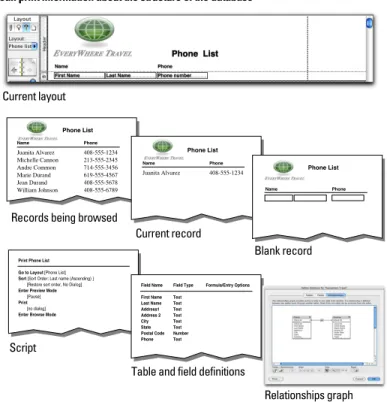
definitions of scripts, fields, tables, and relationships to see the structure of your databaseFileMaker Pro prints records using the current layout. You can create layouts to print the same data in different ways. For example, you can print records one by one, in a columnar list, or in a complex sorted report with totals, headers, and footers. You can also create layouts for mailing labels or envelopes.
The New Layout/Report assistant (in Layout mode) makes it easy to create such layouts and reports. See “Creating layouts and reports” on page 48.
You can control page margins, remove blank space, and keep specified objects from printing.
Previewing data on a layout
When you switch to Preview mode, you see the layout as it appears on the printed page. You can’t enter or edit information in fields in Preview mode.
In Preview mode, you see:
1
how many records fit on a printed page1
how the pagination settings you choose affect page breaks1
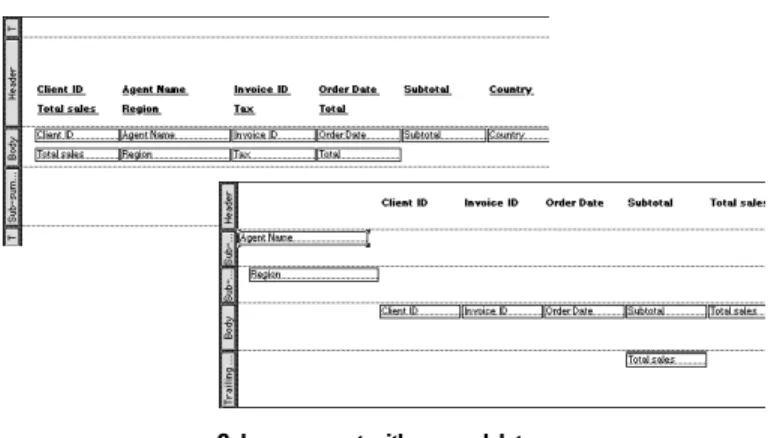
subsummary parts with calculated summary fieldsPrint Phone List Go to Layout [Phone List] Sort [Sort Order: Last name (Ascending) ]
[Restore sort order, No Dialog] Enter Preview Mode
[Pause] Print
[no dialog] Enter Browse Mode Name Phone
Juanita Alvarez 408-555-1234
Michelle Cannon 213-555-2345
Andre Common 714-555-3456
Marie Durand 619-555-4567
Jean Durand 408-555-5678
William Johnson 408-555-6789
Phone List
Records being browsed
Field Name Field Type Formula/Entry Options First Name Text
Last Name Text Address1 Text Address 2 Text City Text State Text Postal Code Number Phone Text
Name Phone
Juanita Alvarez 408-555-1234
Phone List
Current record
Script
Table and field definitions
Blank record You can print data based on the current layout or you
can print information about the structure of the database
Relationships graph Current layout
Name Phone